BI Extension
▶️ Execs want answers. You expose curated CJA data views via the BI Extension—consumed through Query Service in this lab—so analysts can validate Trailblaze metrics in their favorite BI tools without brittle exports. ◀️
Introduction
The Customer Journey Analytics BI extension enables SQL access to the data views that you have defined in Customer Journey Analytics. Your data engineers and analysts might be more familiar with Power BI, Tableau Desktop, or other business intelligence and visualization tools (further referred to as BI tools). They can now create reporting and dashboards based on the same data views that Customer Journey Analytics users are using when creating their Analysis Workspace projects.
Adobe Experience Platform Query Service is the SQL interface to data available in the data lake of Experience Platform. With the Customer Journey Analytics BI extension enabled, the functionality of Query Service is extended to see your Customer Journey Analytics data views as tables or views in a Query Service session. As a result, business intelligence tools that use Query Service as their PostgresSQL interface benefit seamlessly from this extended functionality.
Usage with SQL
If you have your own instance of a BI tool, such as Power BI or Looker, you are not permitted to connect to this instance of CJA with BI extension.
To use the Customer Journey Analytics BI extension functionality, you can either use SQL directly or use the drag and drop experience available in the specific BI tool.
In this exercise we will use SQL directly. You can use the functionality in SQL statements using either the Query Editor or a standard PostgreSQL command-line interface (CLI) client.
Connect PSQL Client
Requirement
To complete this exercise you need a PSQL client installed on your machine.
BI extension leverage AEP Query Service; it supports clients with a driver for PostgreSQL. In this we’ll be using PSQL, a command-line interface. Let’s connect to PSQL.
- In Experience Platform, on the left hand menu, click on Data Management > Queries.
- Click on Credentials.
- On the top right corner select the database ajo-b2b-02:cja.
You will see a screen like this.
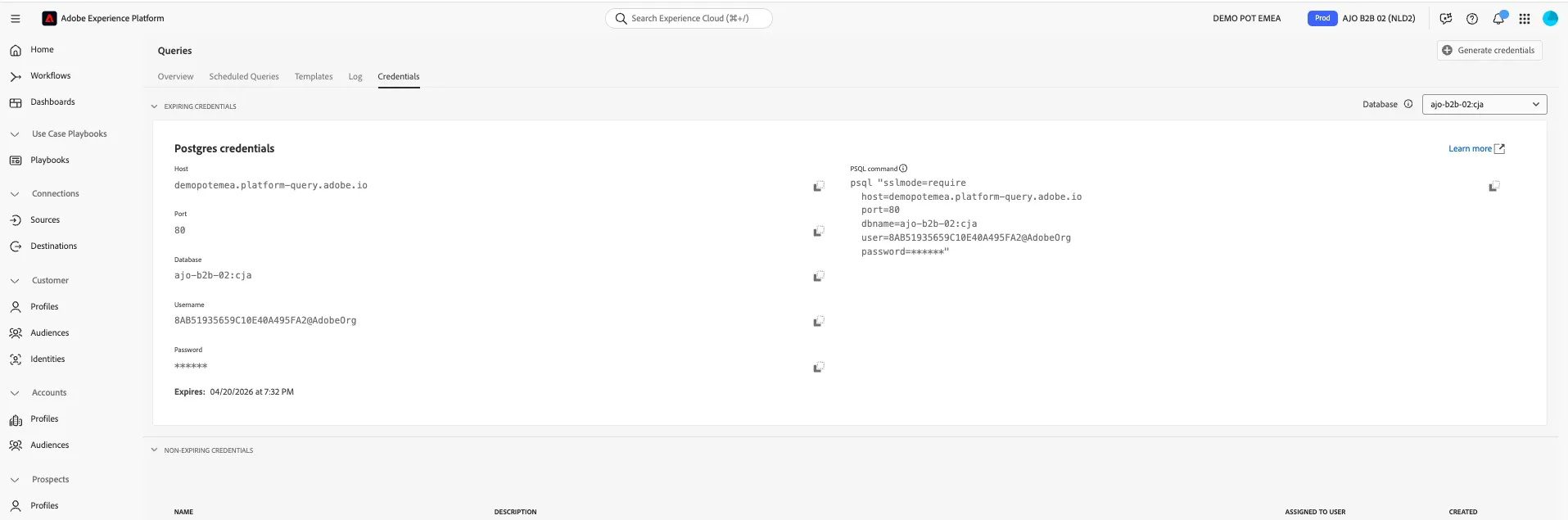
The Credentials screen provides server information and credentials for authenticating to Query Service. For now, we will focus on the right side of the screen which contains a connect command for PSQL.
- Click on the copy button beside PSQL command to copy the test to your clipboard.
For Windows: Open the command line by hitting the windows key and typing cmd and then clicking on the Command Prompt result.
For macOS: Open the terminal.app via spotlight search.
Paste the connect command that you have copied from the Query Service UI and hit enter in the command prompt window
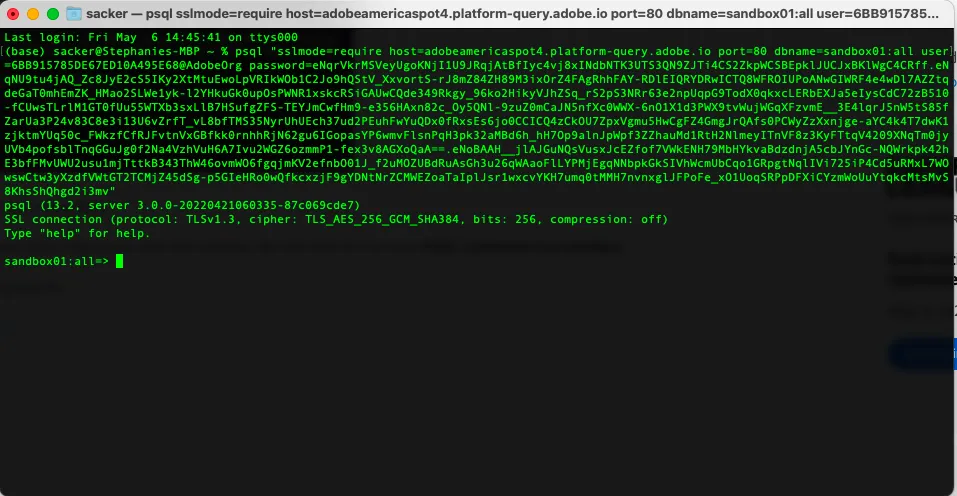
You are now connected to Query Service using PSQL. Now you are ready to start submitting queries!
How to make queries
By default, dataviews have a table-safe name generated from their friendly name. For example, the data view named My Web Data View has the view name my_web_data_view.
For the lab we have created a dataviews called CJA B2B Edition Demo. The table-safe version of the name is CJA_B2B_Edition_Demo. Copy this value to reuse it in queries.
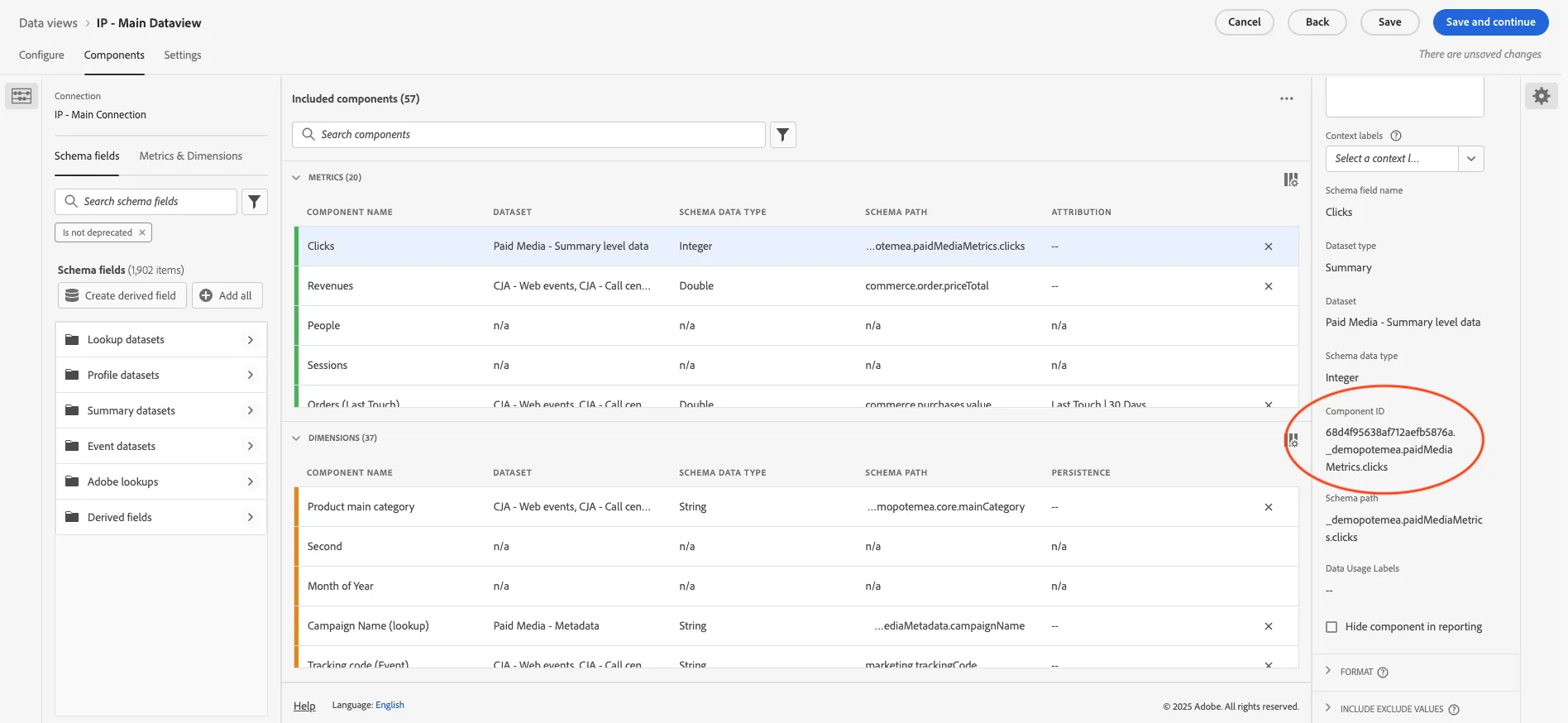
The column of the table correspond to the dimension and metrics available in the dataView; for the queries you have to use the component ID. To find the string:
- click on Data Management > Data views.
- click on CJA B2B Edition Demo to see the settings.
- click on Components tab and select a metric or a dimension.
- in the right hand panel you can see the Component Settings, including the component ID.
Queries
List all distinct values of a dimension
Let’s start with a simple query to check which values exist for the product_name dimension. This is a great way to explore the data before diving into aggregations.
SELECT DISTINCT productMainCategory
FROM CJA_B2B_Edition_Demo
LIMIT 10;
Count events per day
Next, let’s see how many events occur each day. This helps you understand traffic trends and validate that your data looks complete.
SELECT date_trunc( 'day', timestamp ) AS Day, COUNT(*) AS events
FROM CJA_B2B_Edition_Demo
GROUP BY Day
ORDER BY Day
Limit 10;
Top 10 products by revenue
Next, let’s find out which products generate the most revenue. This query ranks products by total revenue and returns the top 10 performers.
SELECT productName, SUM(revenueClosedWon) AS total_revenue
FROM CJA_B2B_Edition_Demo
GROUP BY productName
ORDER BY total_revenue DESC
LIMIT 10;
Multi-dimensional revenue analysis
Finally, let’s explore revenue across multiple dimensions. This query groups data by both productMainCategory and productName to show how different categories and products contribute to overall revenue.
SELECT productMainCategory, productName,
       SUM(revenueClosedWon) AS revenue,
       COUNT(purchases) AS purchases
FROM CJA_B2B_Edition_Demo
WHERE timestamp BETWEEN '2026-01-01' AND '2026-04-15'
GROUP BY productMainCategory, productName
ORDER BY revenueClosedWon DESC;If you want more information and examples, see Customer Journey Analytics Supported SQL for examples.