Journey Building
7 min
In this exercise we'll create an account journey targeting your High Value Retail accounts with a nurturing email campaign.
Our journey will:
- Regionalize communications based on the account location
- Personalize messaging and communication channel based on role within the buying group
- Listen for follow up activity on the website and update the buying group status accordingly
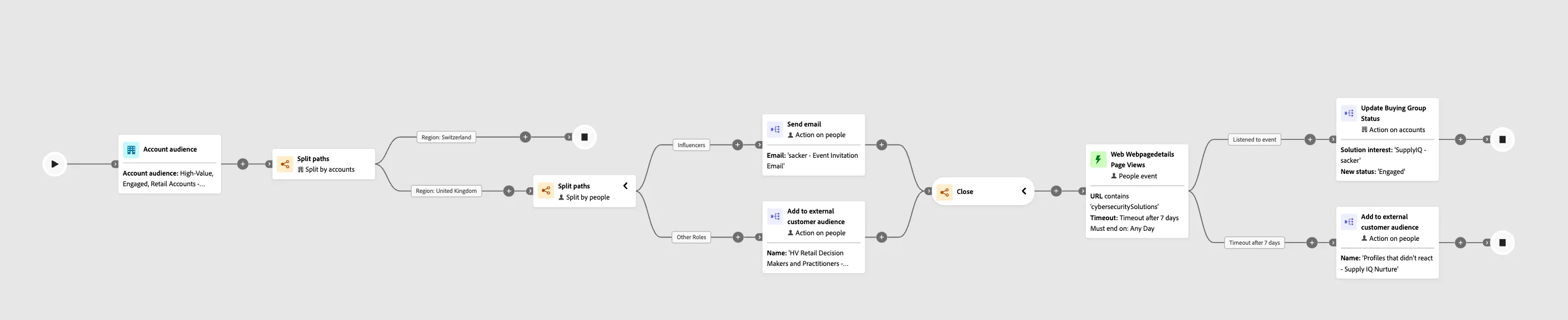
The final journey will look like this:
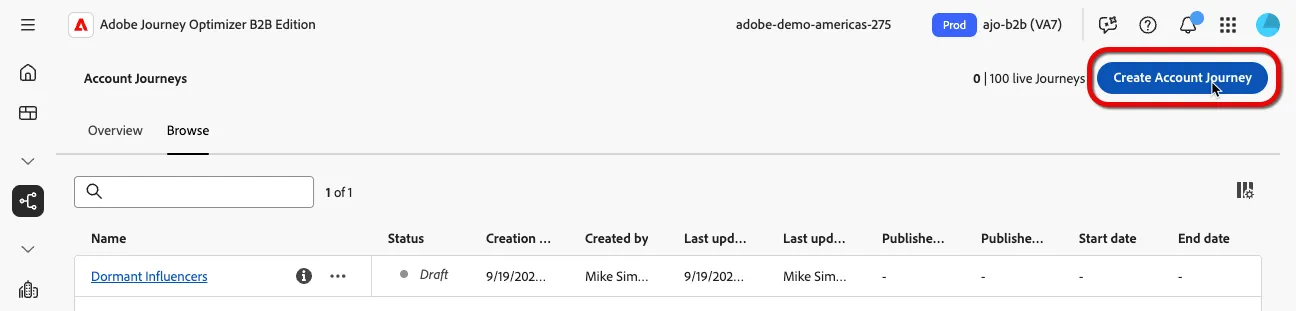
- From the menu, select "Account Journeys" on the left navigation bar and click "Create Account Journey".
- Name your journey "High Value Retail - Supply IQ Nurture - <your initials>"
- Select your account audience that you created in the Lead Generation exercise to start the journey (High-Value, Engaged, Retail Accounts)
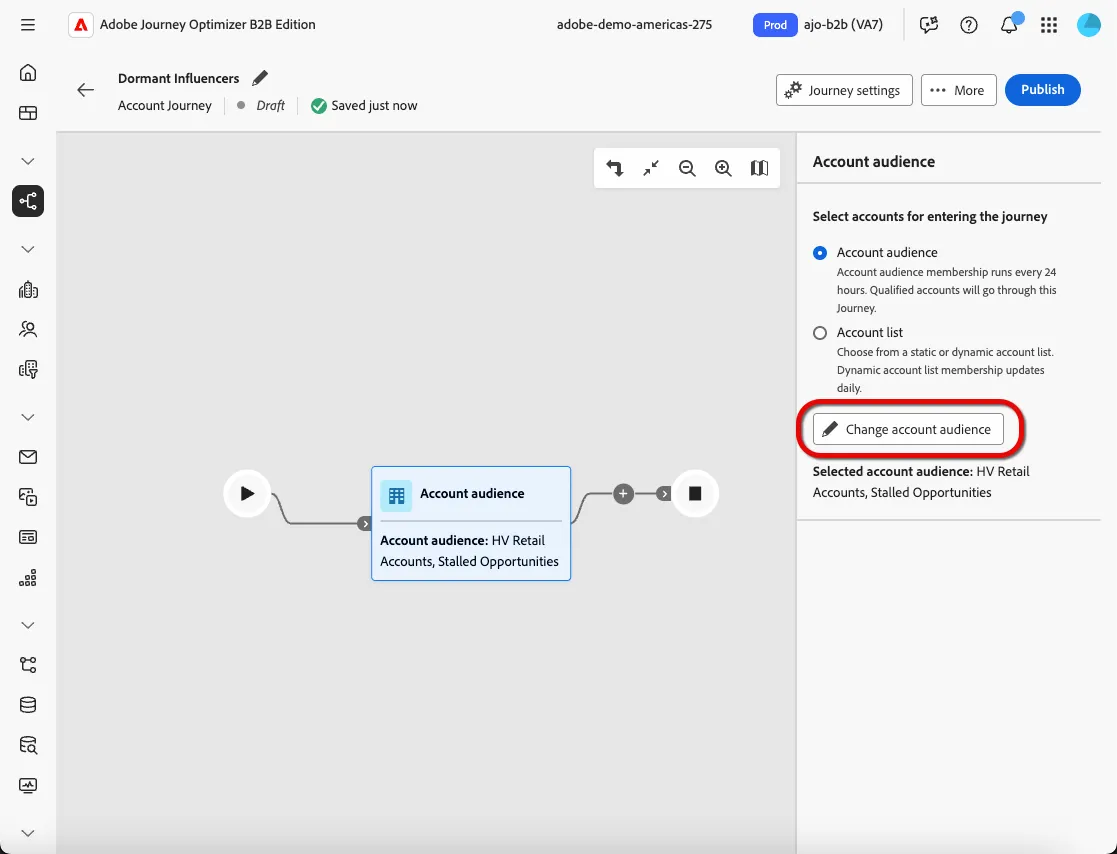
- Select Add Audience
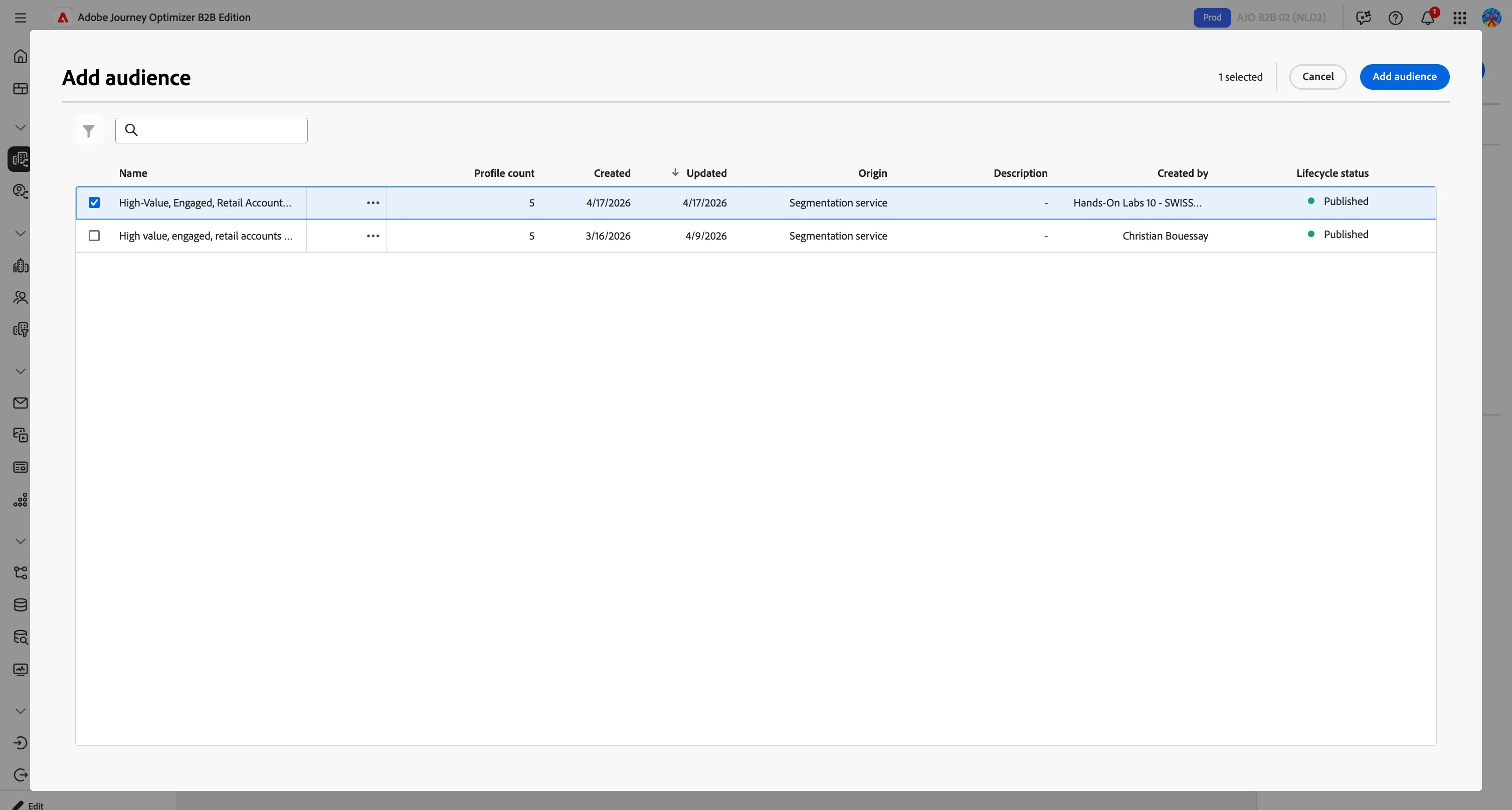
- Add a Split Paths node and select the Split paths by Accounts radio button
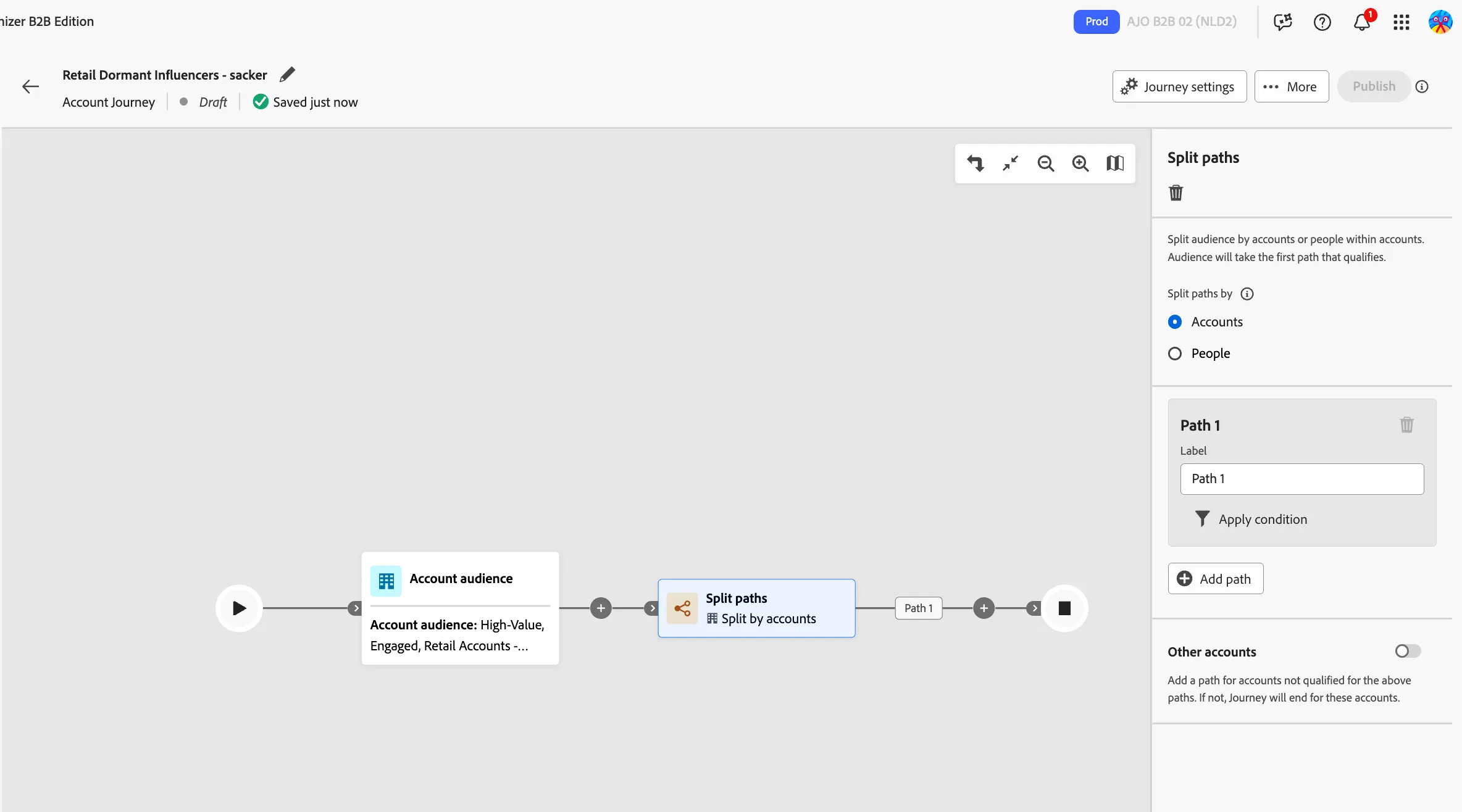
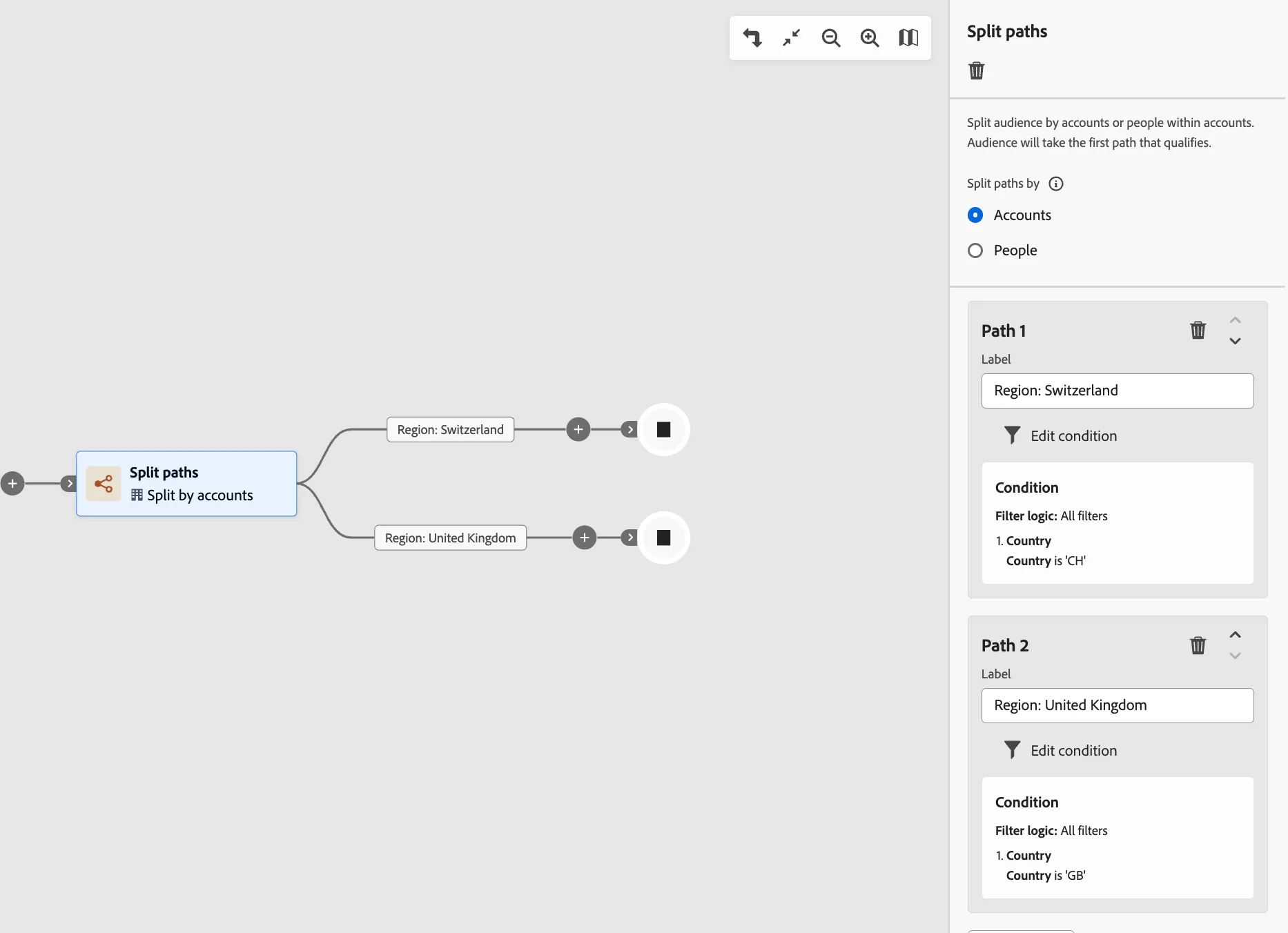
We want to create two paths for different market regions
- Region - Switzerland
- Region - United Kingdom
- Change the label of Path 1 to Region: Switzerland
- Select Apply Condition
- From the list of filter attributes, select the Country attribute, and drag this onto the canvas to create the condition.
- Change the filter logic to be: Country is CH
- Click Done
- Select + Add Path to add a new Path 2
- Change the label of Path 2 to Region: United Kingdom
- Change the filter logic to be: Country is GB
- Click Done
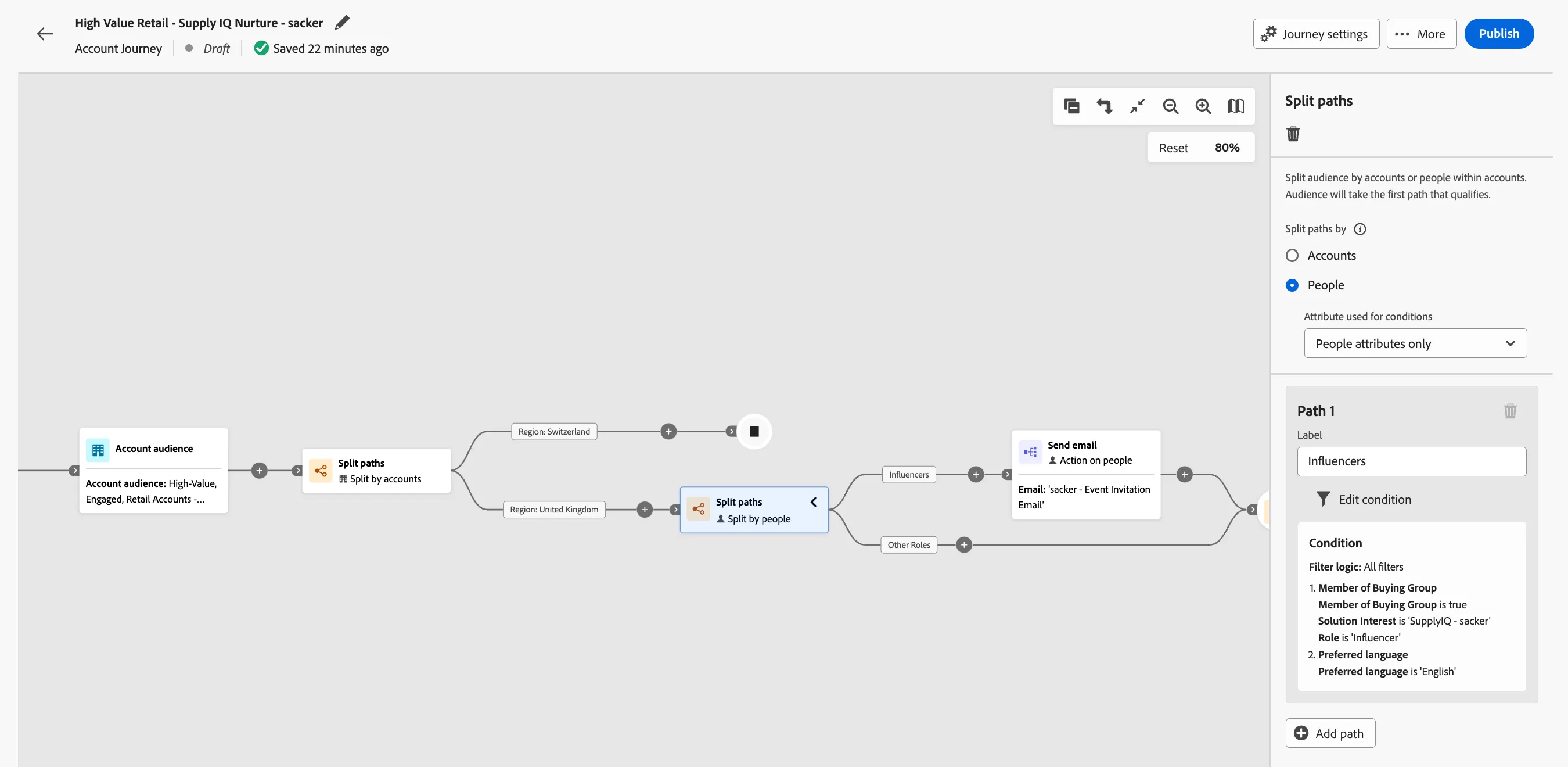
- Split paths again at the Region: United Kingdom node and select the People radio button.
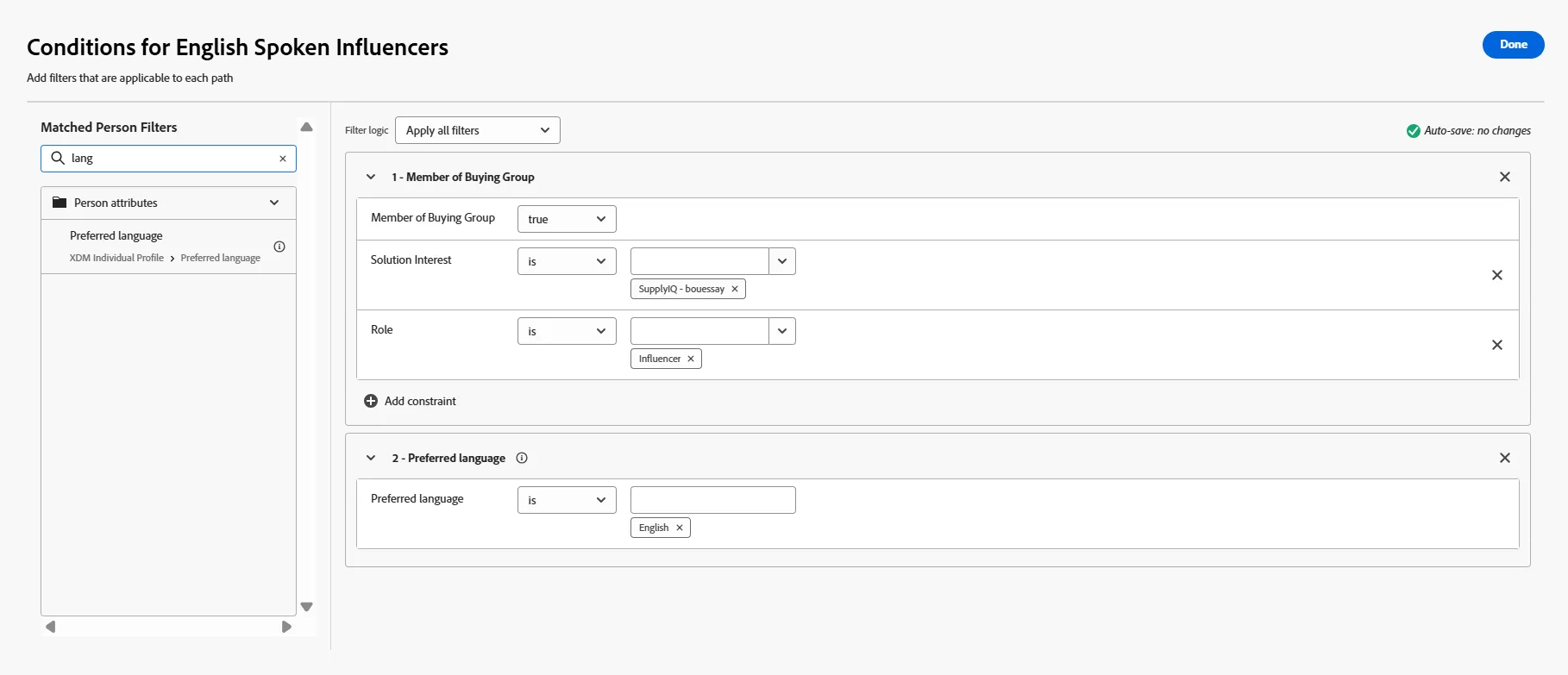
- Name the first path Influencers and click Apply condition.
- Select the Special Filter condition Member of Buying Group and select:
- Member of buying Group: true
- Solution Interest: SupplyIQ
- + Add Constraint > Select Role: Influencer
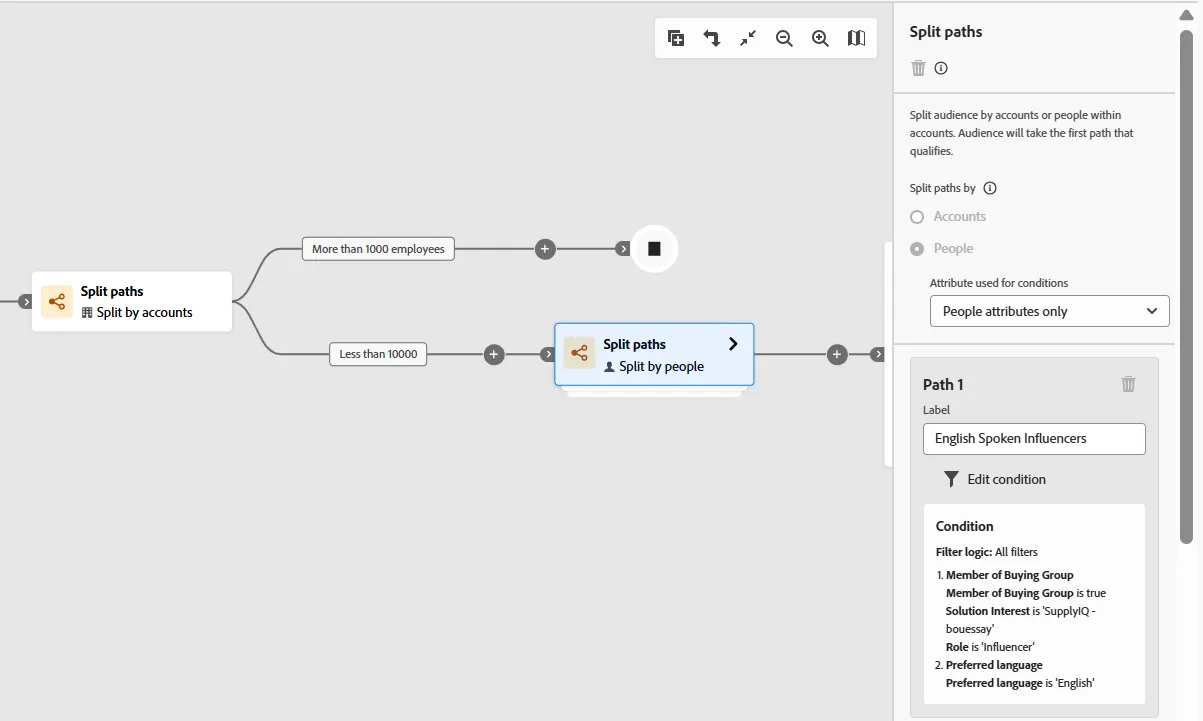
- Refine the target by applying a preferred language is English filter
- Click Done
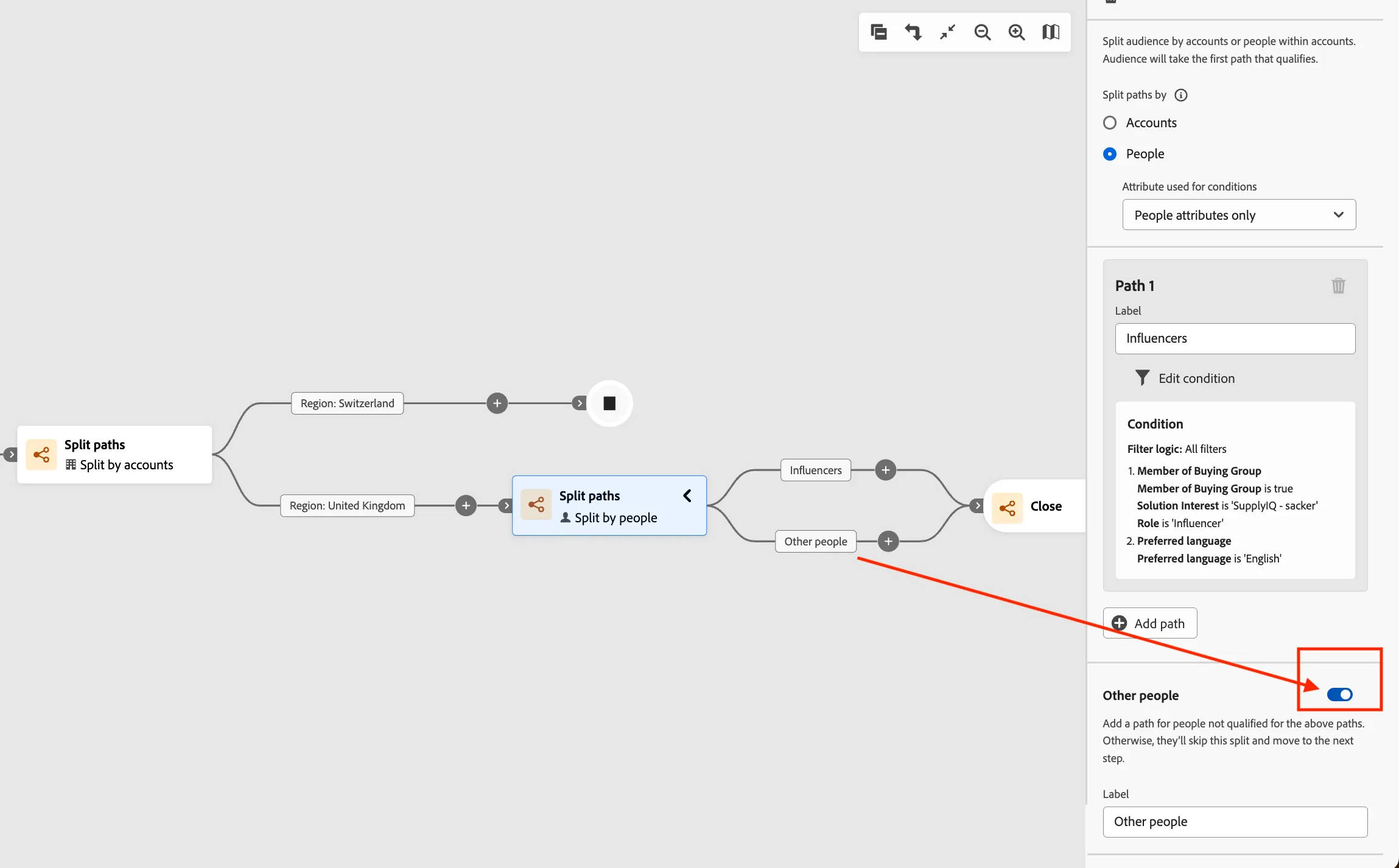
- Switch the Other people toggle to on and label the path Other Roles
We're going to send the influencers a personalized email - but we'll send the other roles to an external customer audience for targeting on Paid and/or Social Media sites like LinkedIn (or our CRM solution).
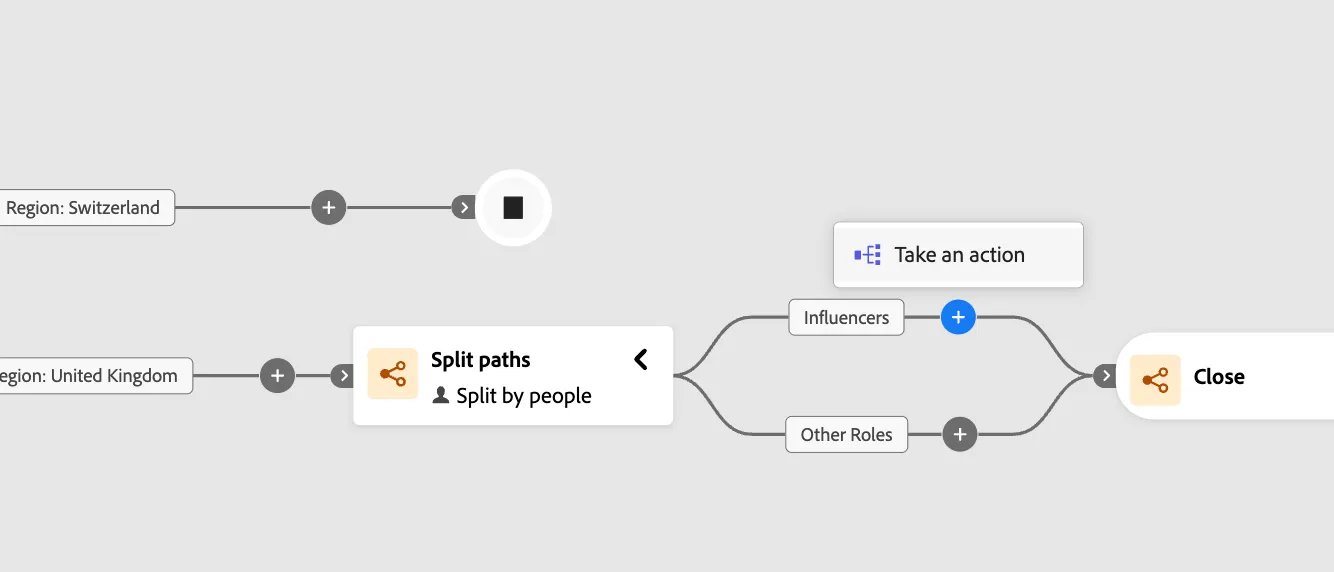
- Open the split by clicking on the arrow and add a Take an Action node to the new Influencers path.
- Select the People radio button in the modal to target individuals
- Select the Send email action from the Action on People dropdown
- Select + Create email
- Select Create new email, name it [your name] - Event Invitation Email
- Add the Subject line You're invited!
- Click Create
- In the Email Editor, select Edit email content
- From the Saved templates, select [Template] - Event Invitation Email
- Click Use this template.
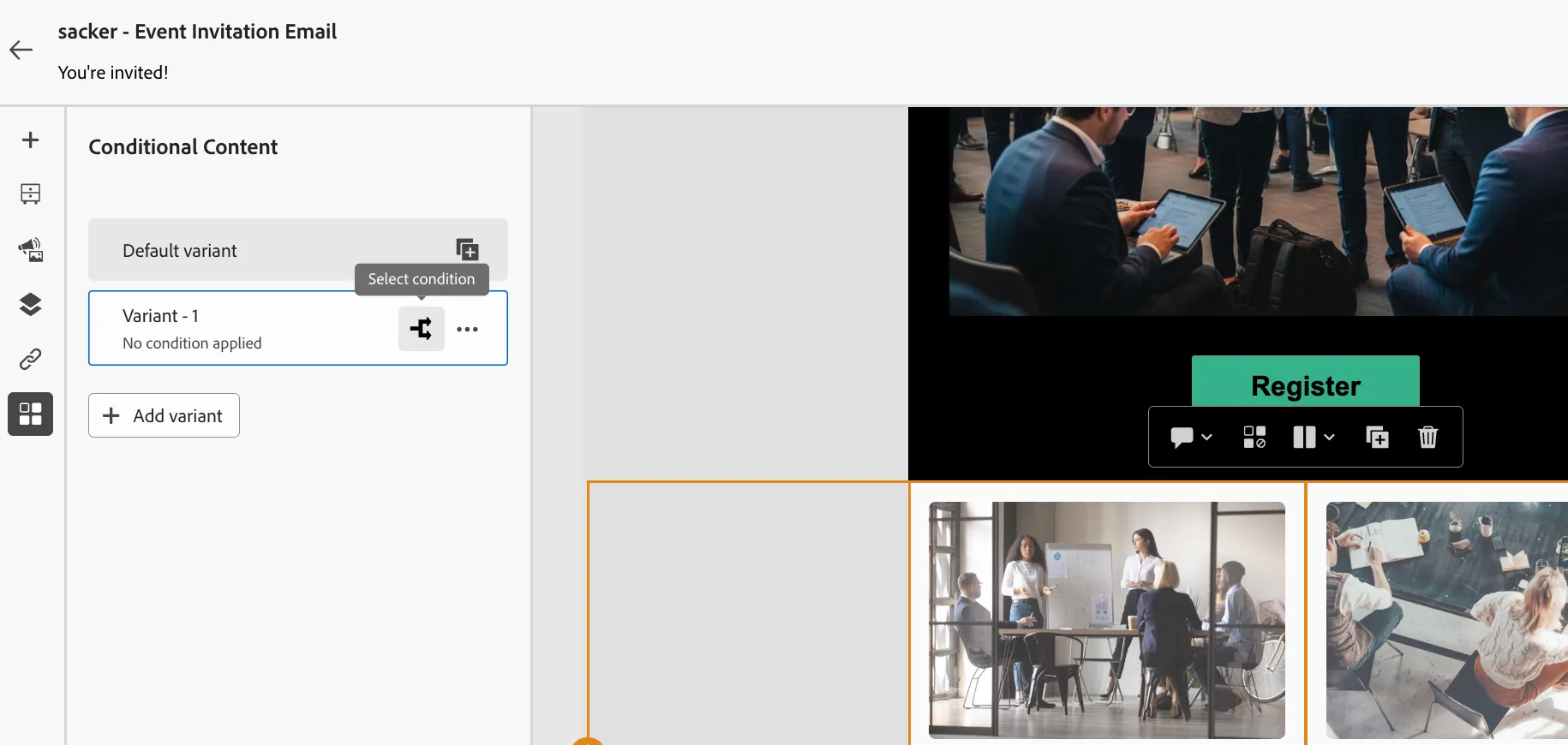
- Let's add some Conditional content to the email, so that Managers receiving the email will see manager study content.
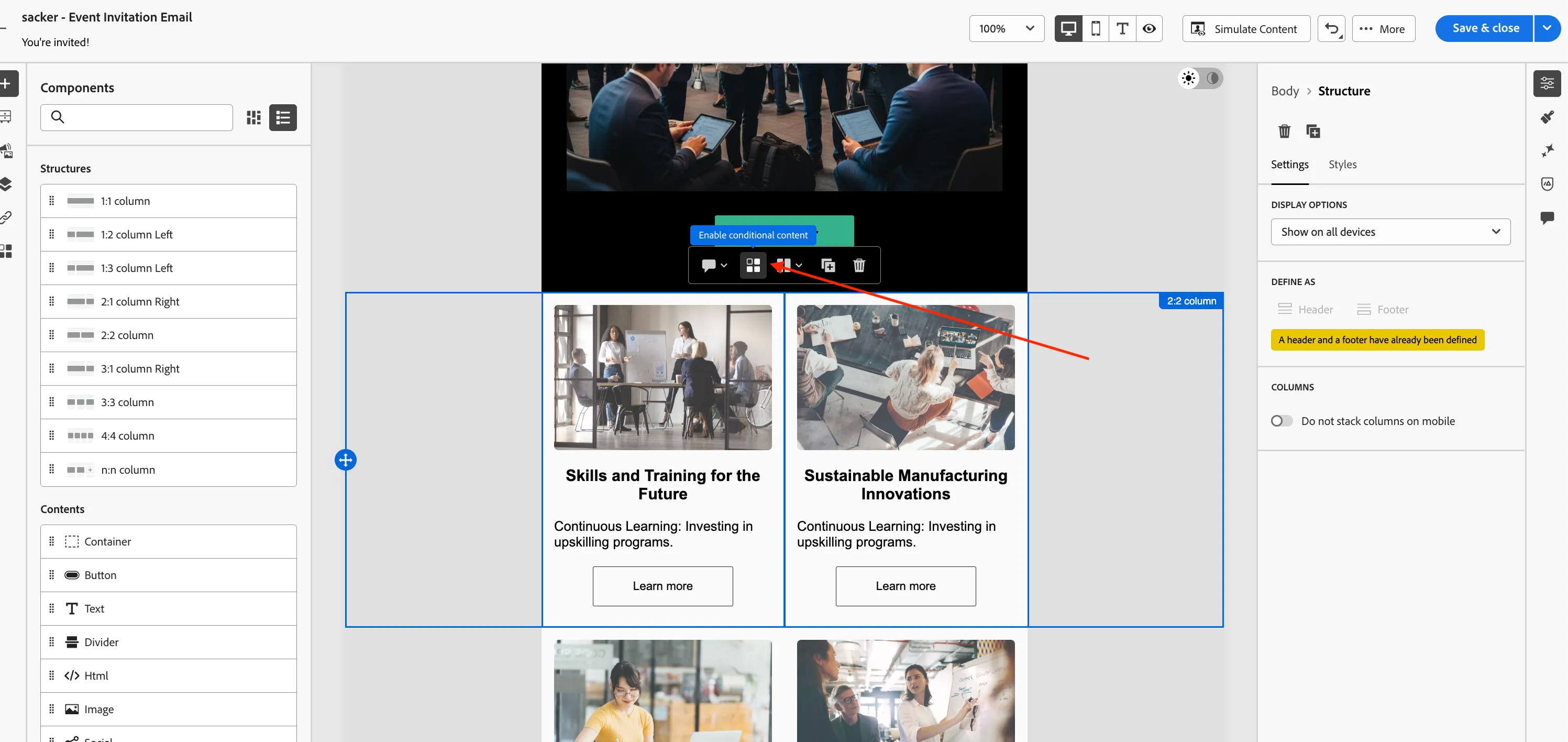
- Select the 2:2 column content block under the Register button.
- Select to Enable conditional content
- Click Select condition next to Variant - 1 in the left hand panel
- Select + Create new > Person Condition
- Drag the Job Title attribute onto the canvas. Set the condition to is Manager
- Name the condition [your name] - Job Title is Manager
- Click Save.
- Check the condition you just created. Click Select.
- With your variant selected, you can edit the content block. Change the text, image and CTA in the block to something like:
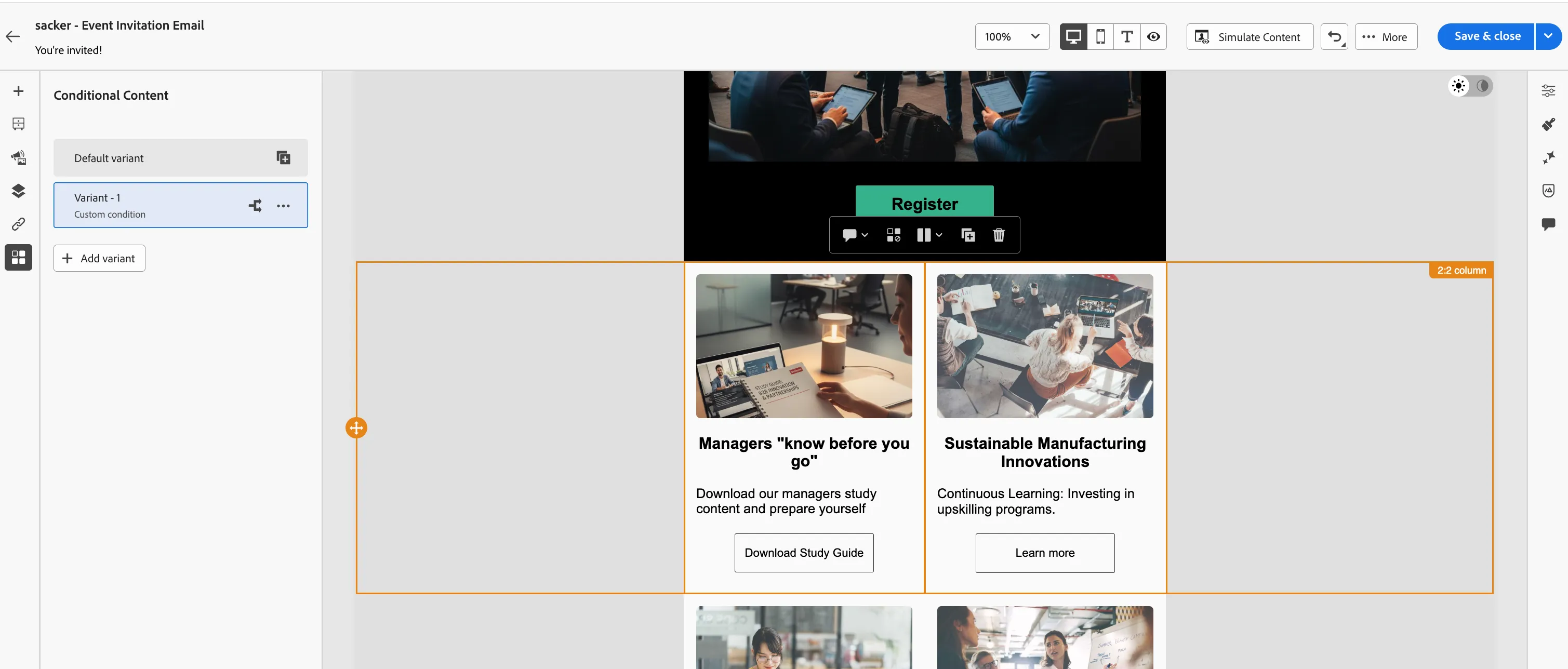
- Close the email editor, click Save & close. Click the back button to return to the journey canvas
Your journey should look like:
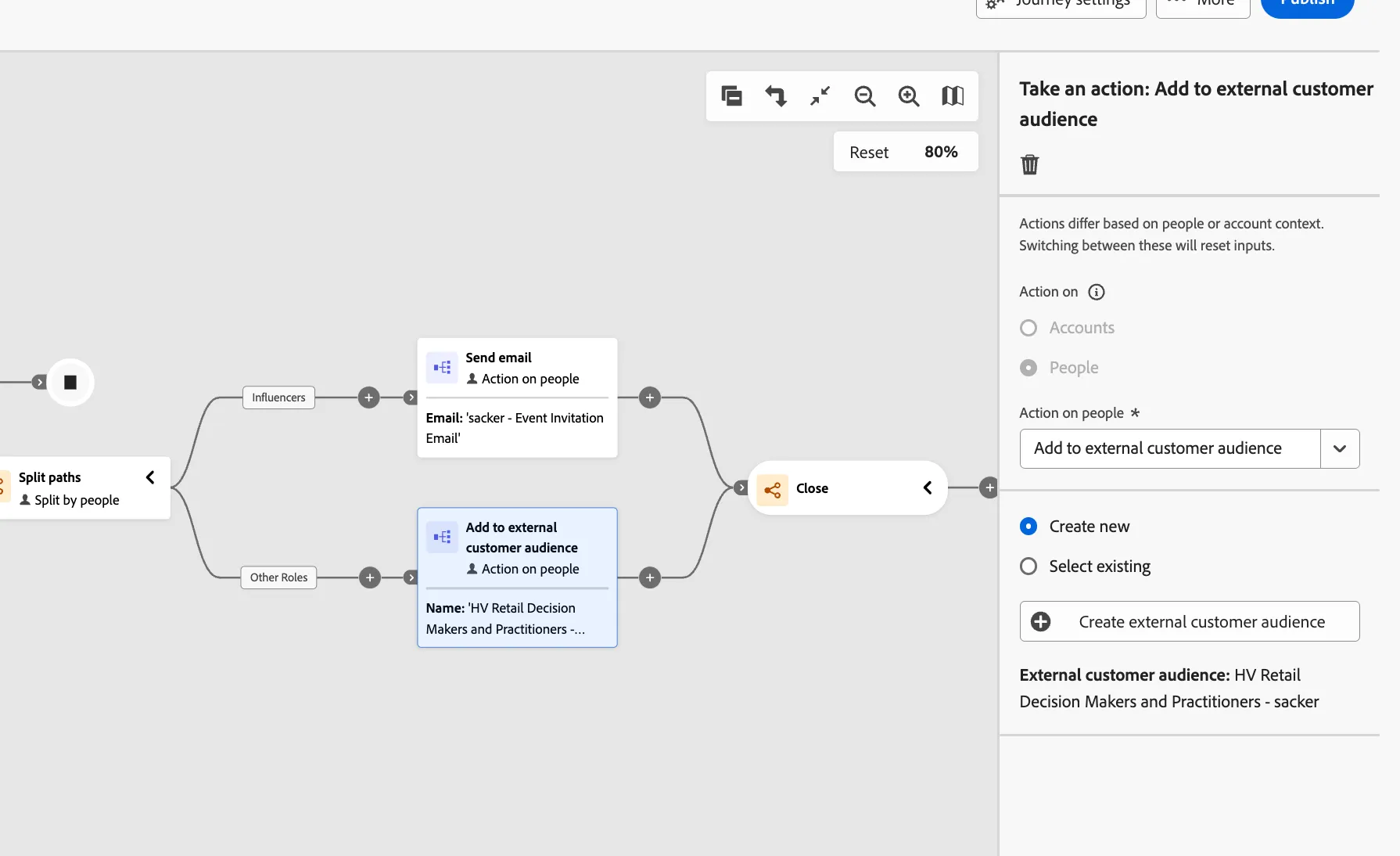
- Add a Take an Action node to the Other Roles path.
- Select Add to external customer audience
- Create a new external customer audience
- Create a new external audience and name it HV Retail Decision Makers and Practitioners - {your initials}.
- Next we want to see who reacts to our email and if they visit our landing page or take specific actions we will promote the buying group to a new stage.
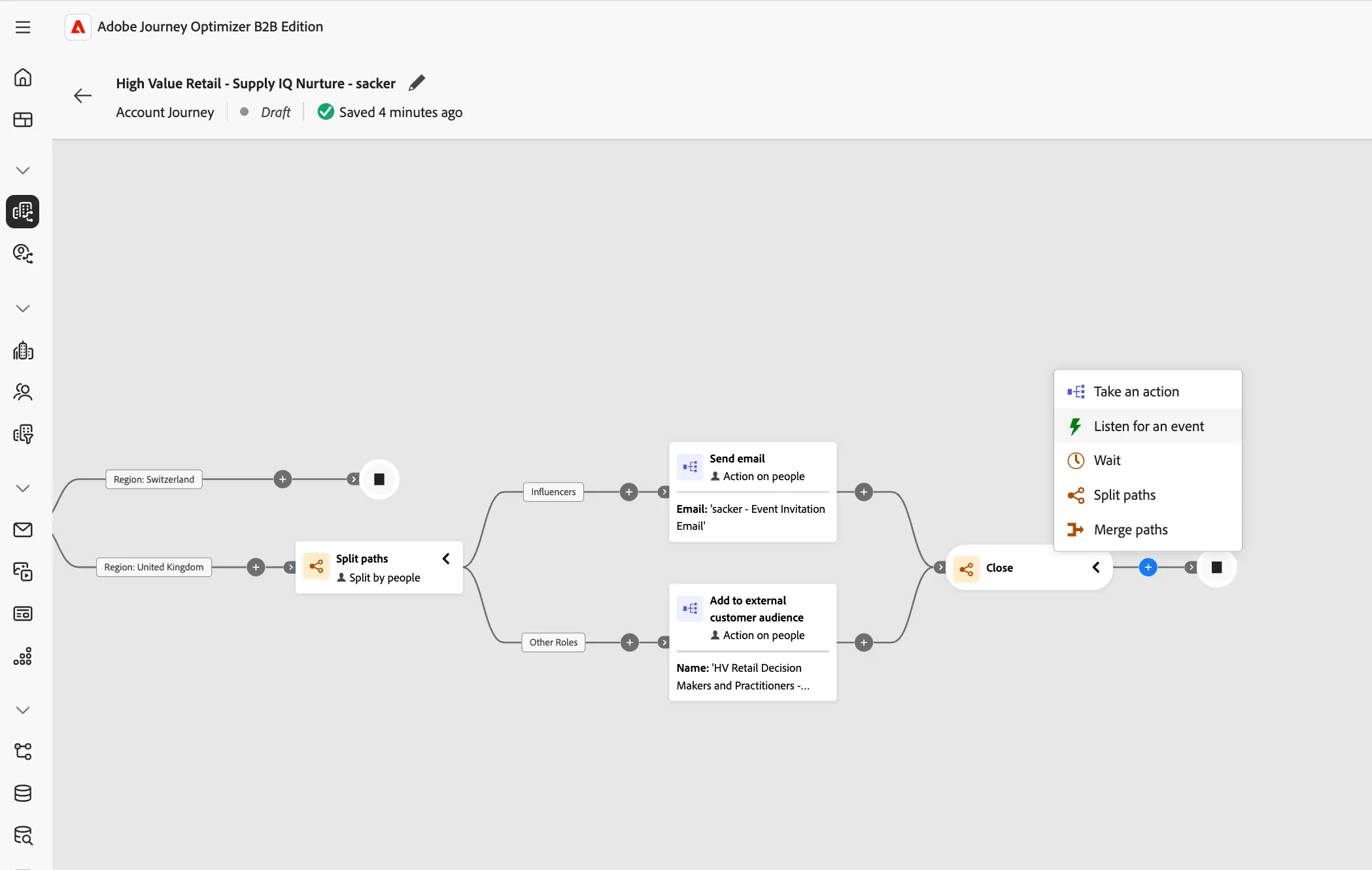
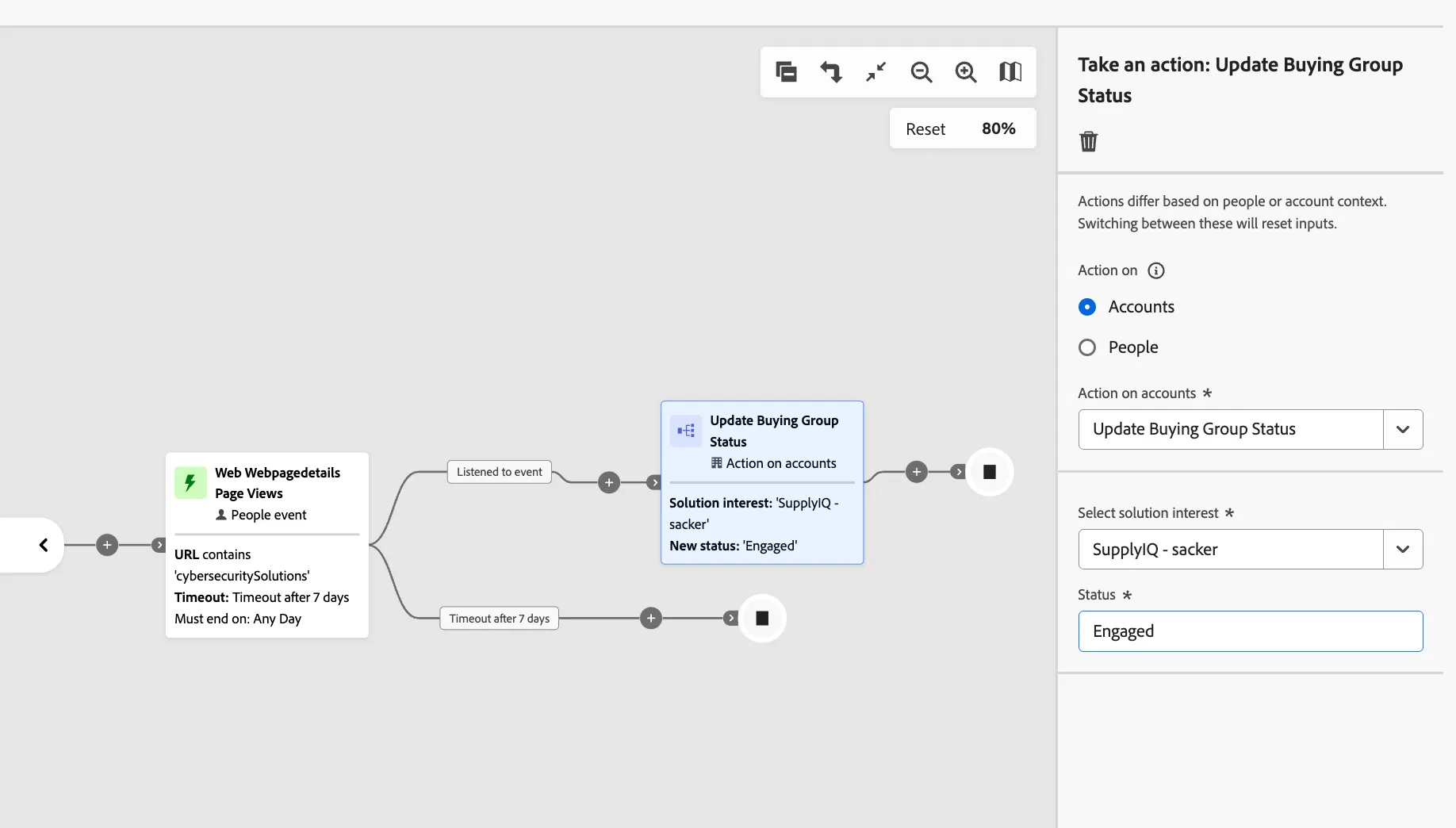
- Add the Listen for an event action to the merged path.
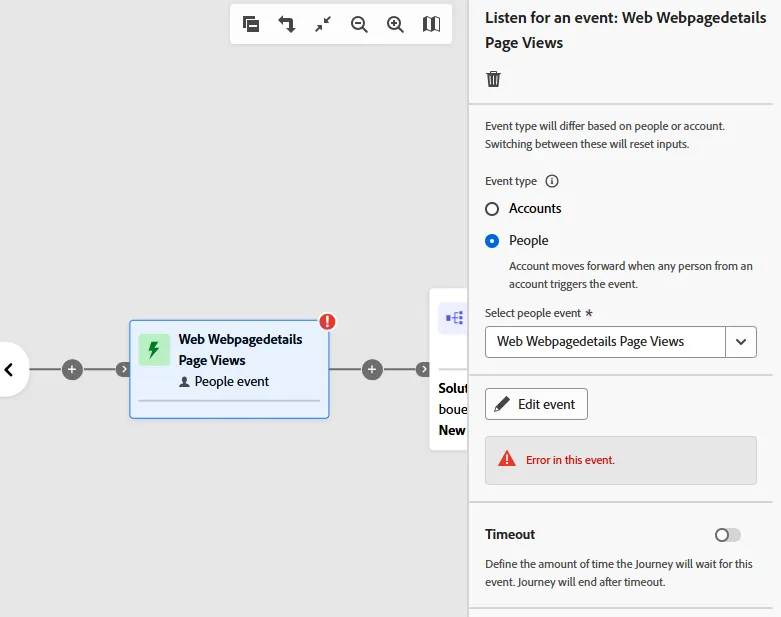
- Select the People event type radio button and select the Web Webpagedetails Page Views event. Click the Edit event button.
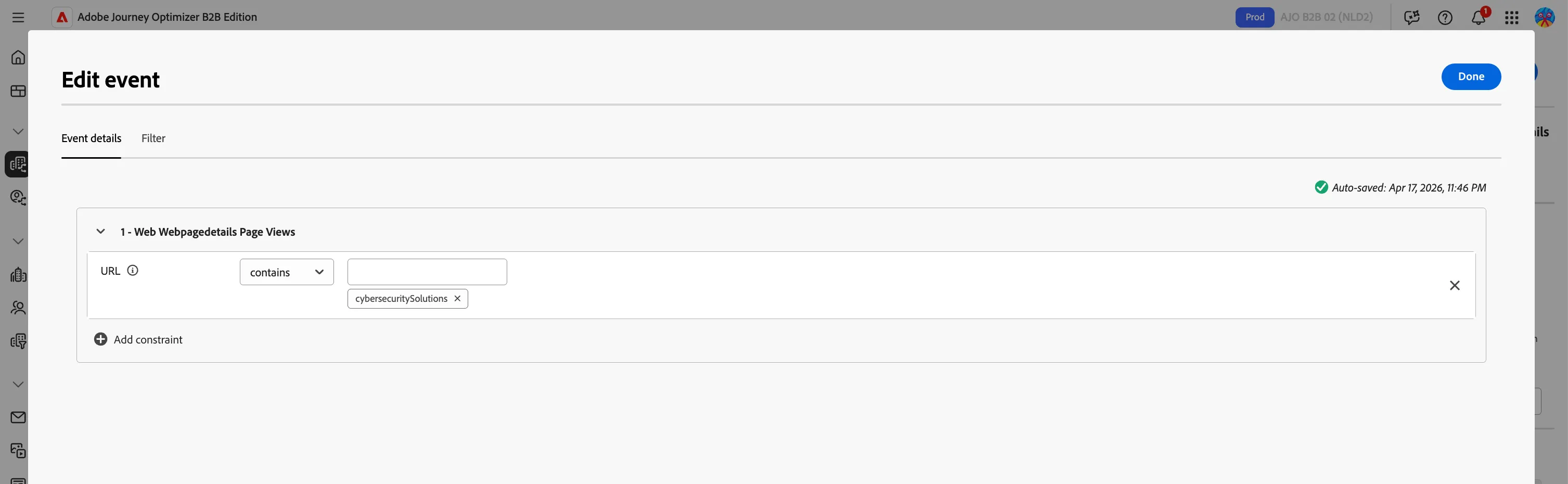
- Set the constraint to URL contains cybersecuritySolutions. Click Done
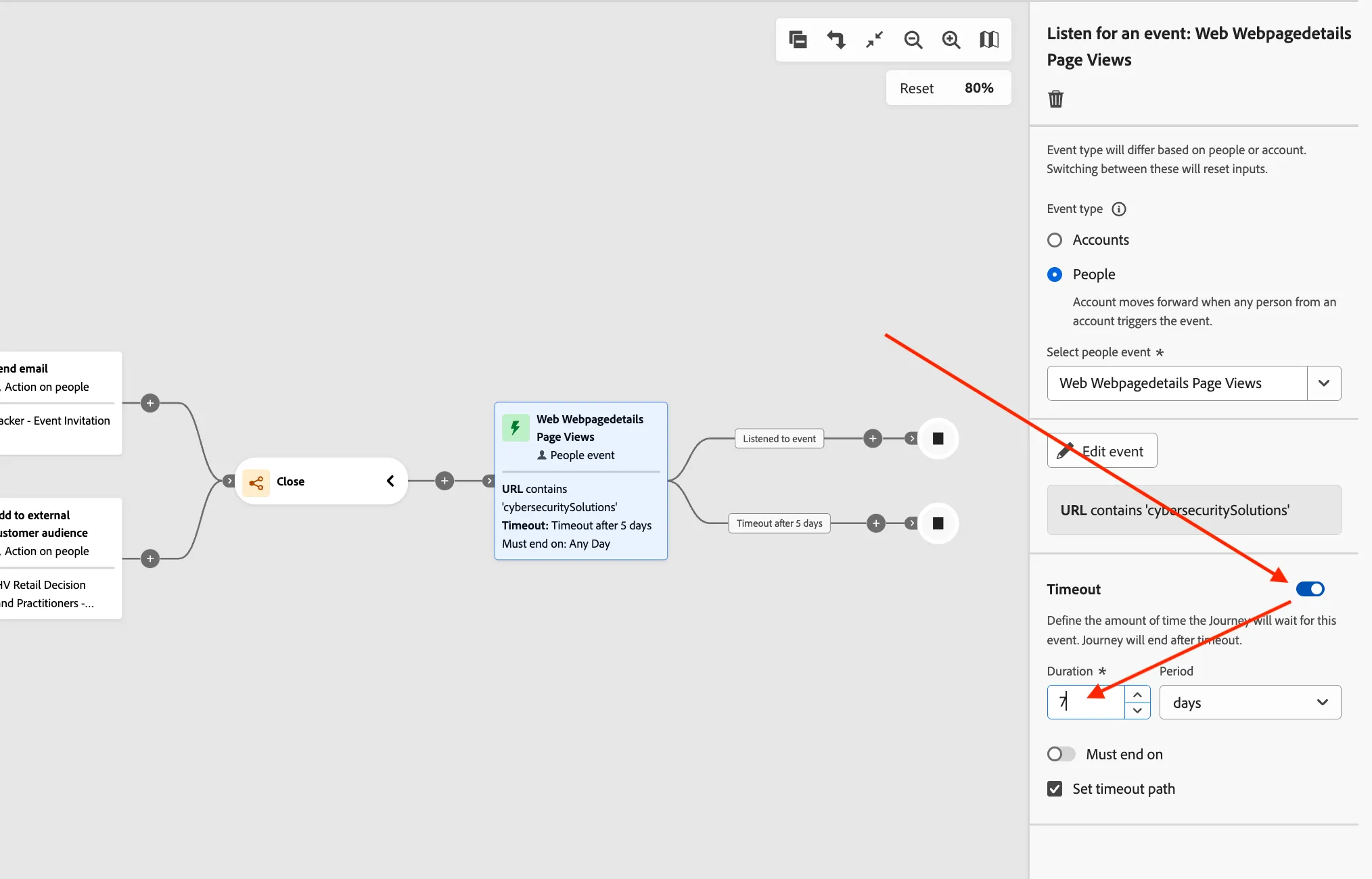
- Add a Timeout of 7 days to our event
- Add a Take an Action node to the Listened to event path.
- Select the Accounts radio button
- Select the Update Buying Group Status action from the dropdown.
- Select the SupplyIQ solution interest and enter the status Engaged.
- Add a Take an Action node to the Timeout path.
- Select the People radio button
- Select the Add to external customer audience action from the dropdown.
- Select existing audience, Profiles that didn't react - Supply IQ Nurture
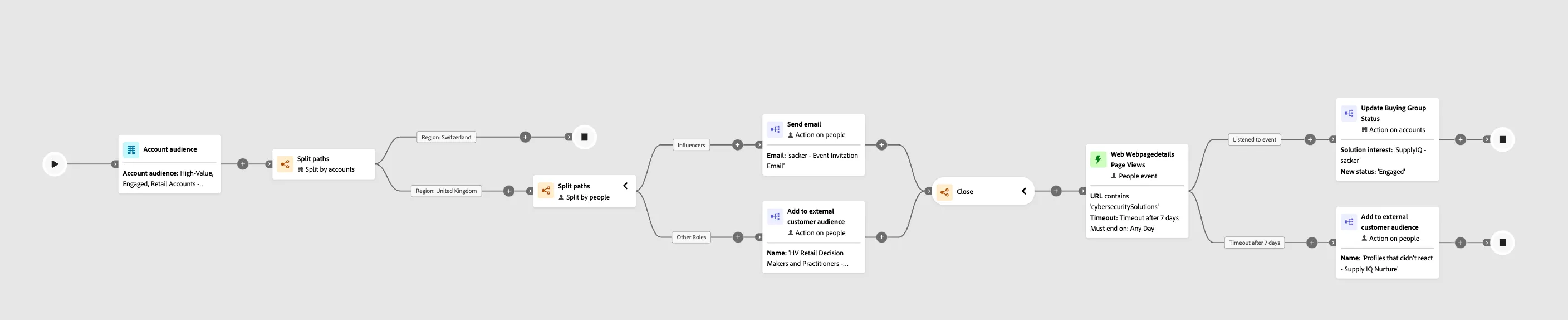
Your final journey should look like: