Create an Audience
In this exercise we will create an Audience of women with silver loyalty status who have transacted with the last 6 months.
Audiences is the new term for Lists in Adobe Campaign v8. This naming convention aligns closer with other Adobe Experience Cloud solutions. You will also find audiences here that have been shared from Adobe Experience Platform
Create an Audience
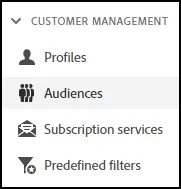
Navigate to Audiences from the left navigation menu:
Click on “Create Audience” in the top right corner of the screen:
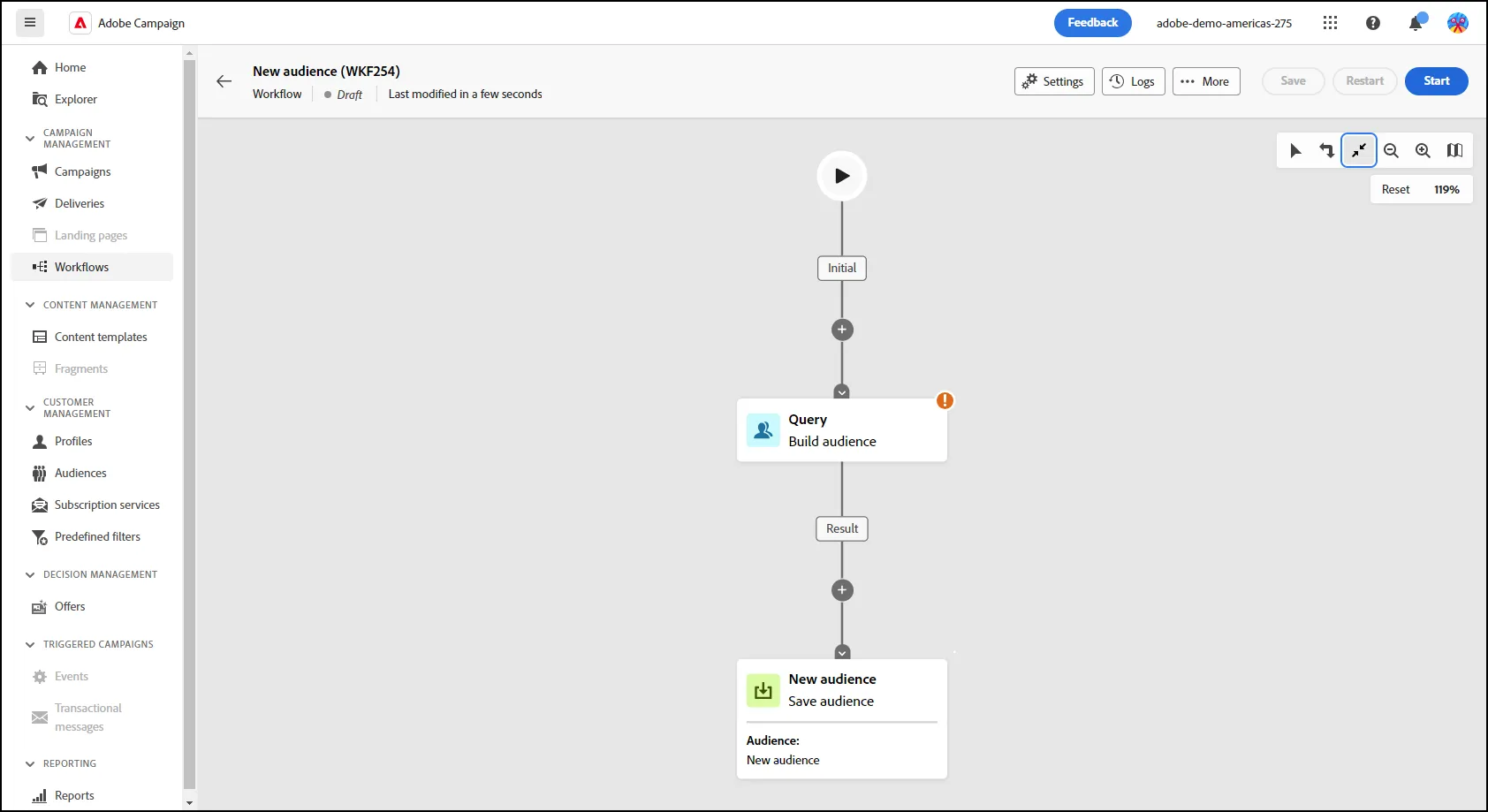
- Your "New Audience" screen should look like the following picture:
Edit the Settings for the Audience
Click on the Settings Icon/Gear at the Top of the page:
This will open the Workflow Settings for the Audience:
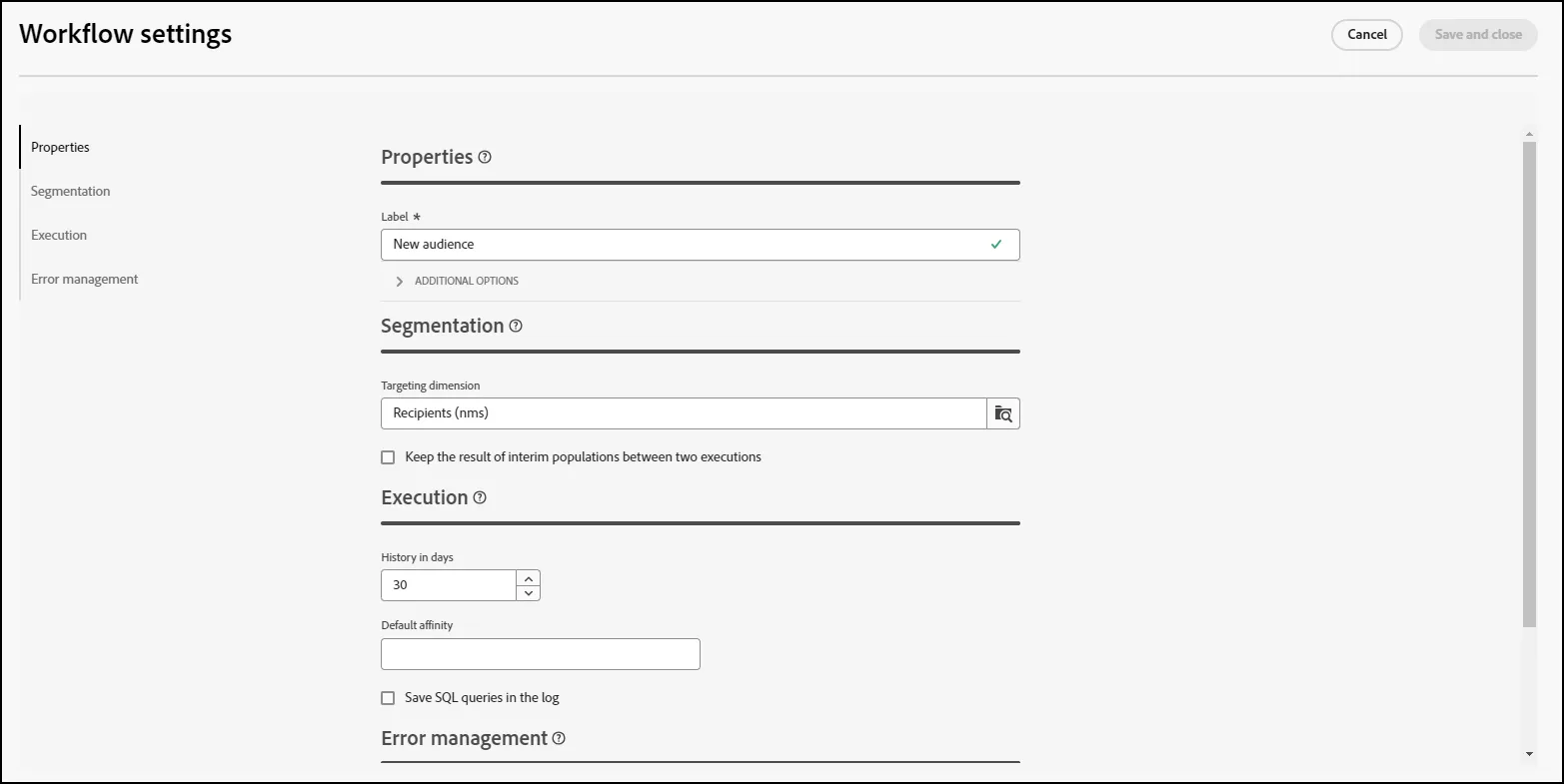
- Give your workflow a label. We will call this "Female Silver Recent Purchasers" for this Workflow:
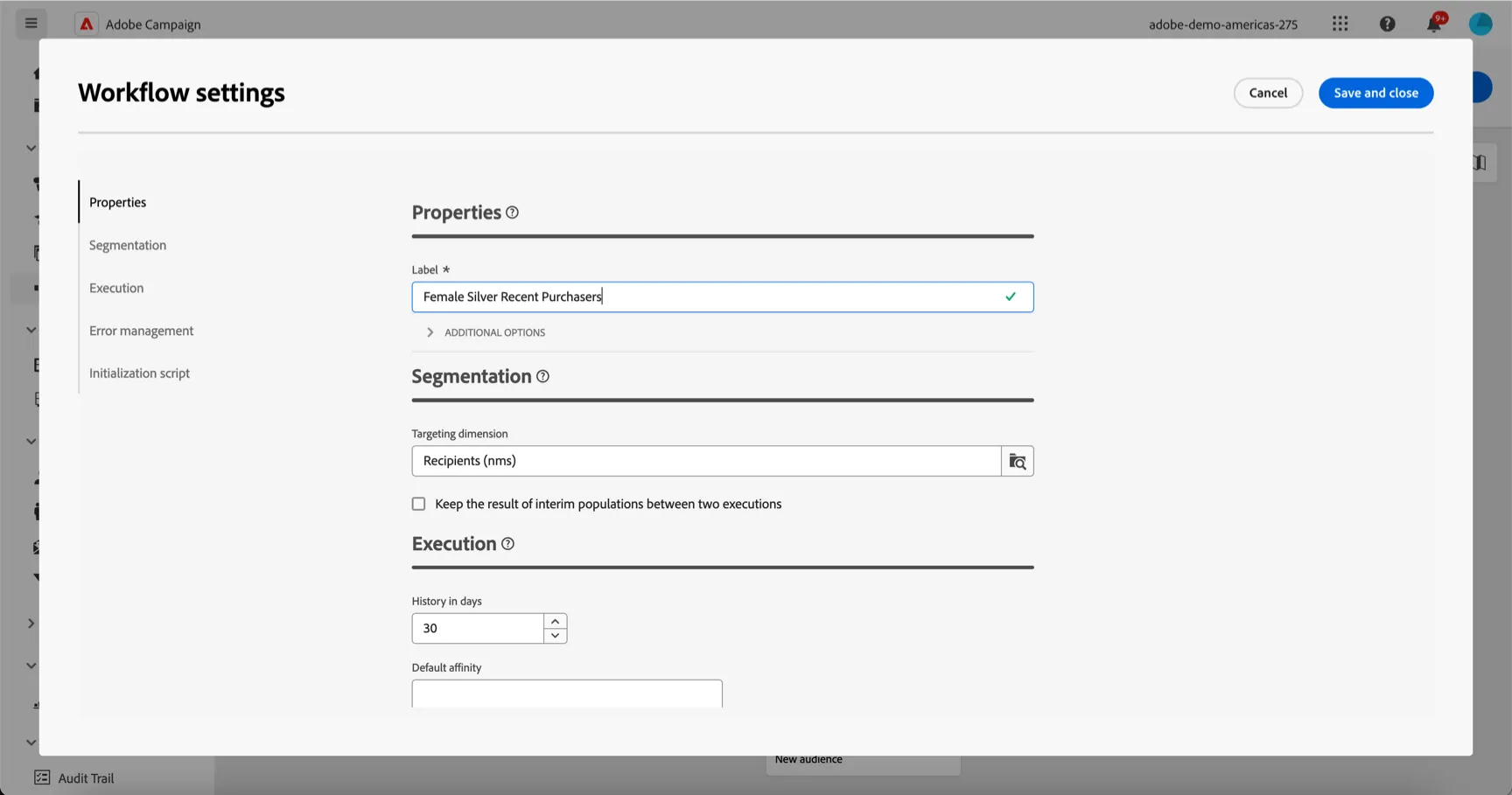
- Click Save and Close
Define the Query
Click on the Query in the canvas to open the Build Audience side menu.
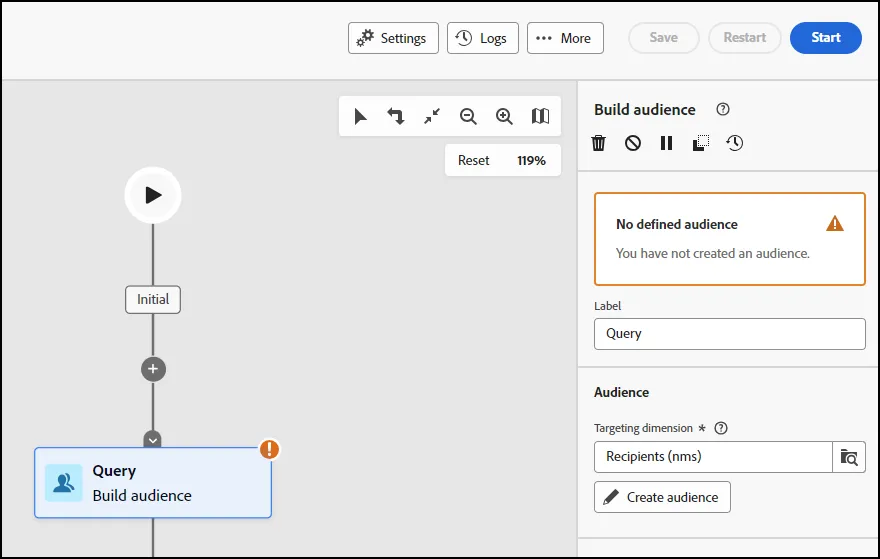
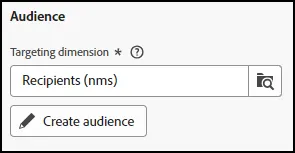
Click on the Create Audience button to open the query editor.
Click on the + sign to expand the query menu:
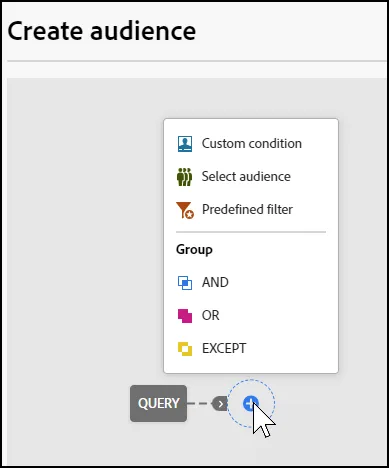
- From this list, you have a lot of options. For our exercise, click on the Custom Condition option to build a condition:
-
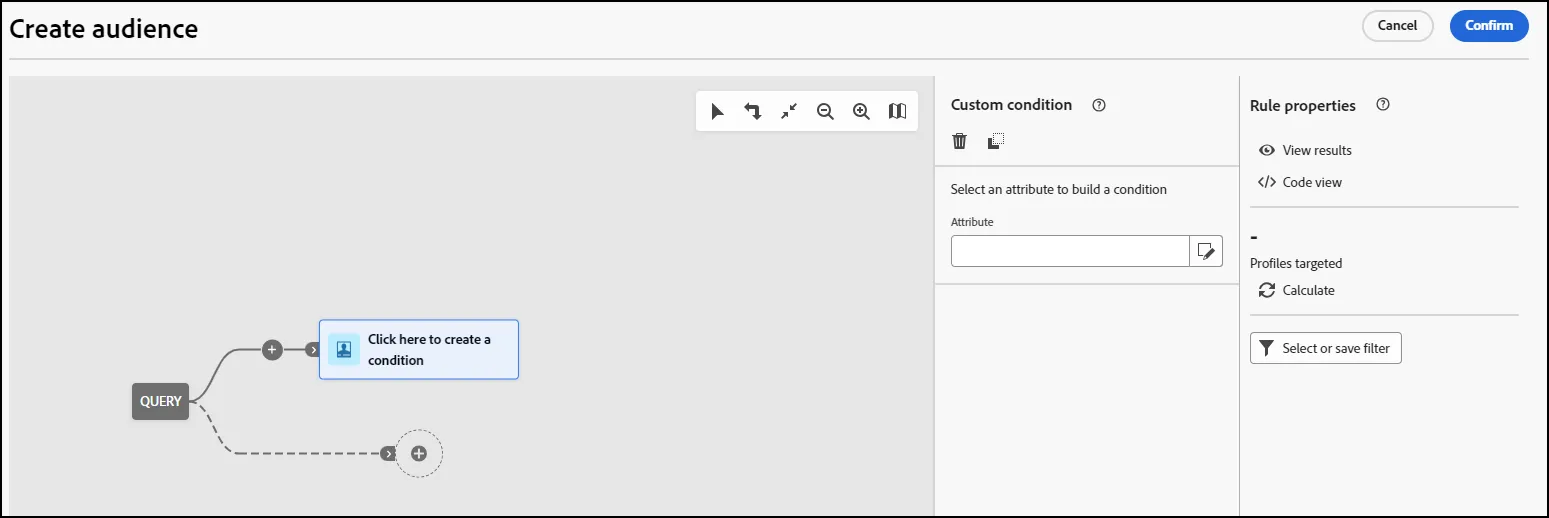
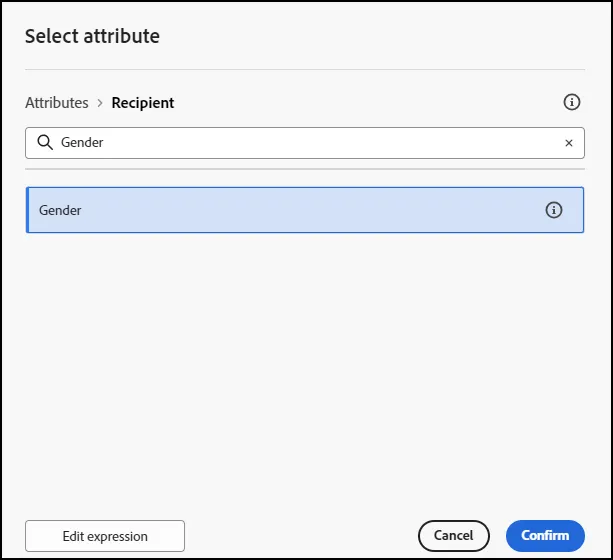
- Use the search box or scroll down to find the attribute you want to use. For this example, we will select Gender first. Once you have identified it, click Confirm to add it to the Query:
- Select Female for the Value of the attribute
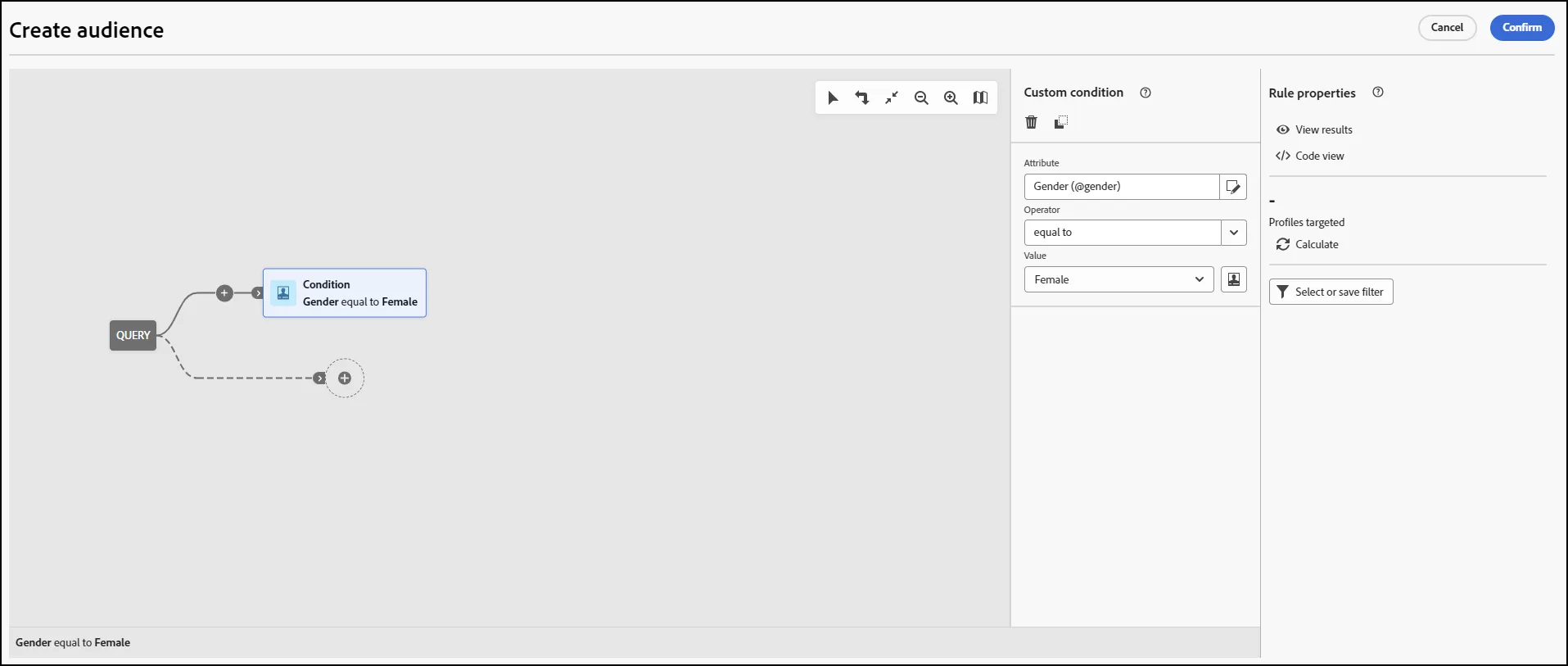
- At this point you can see how many profiles are targeted by clicking the calculate button
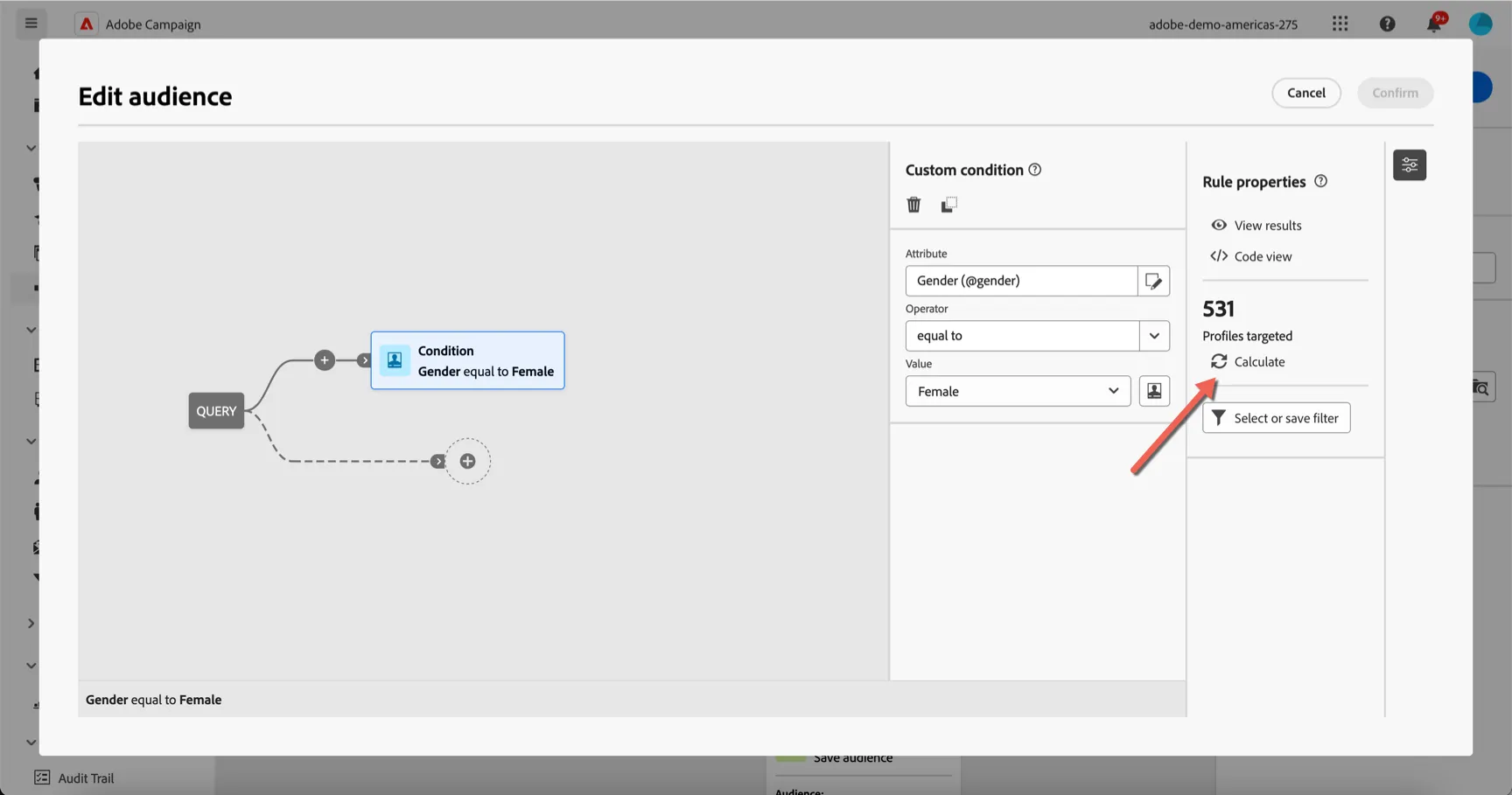
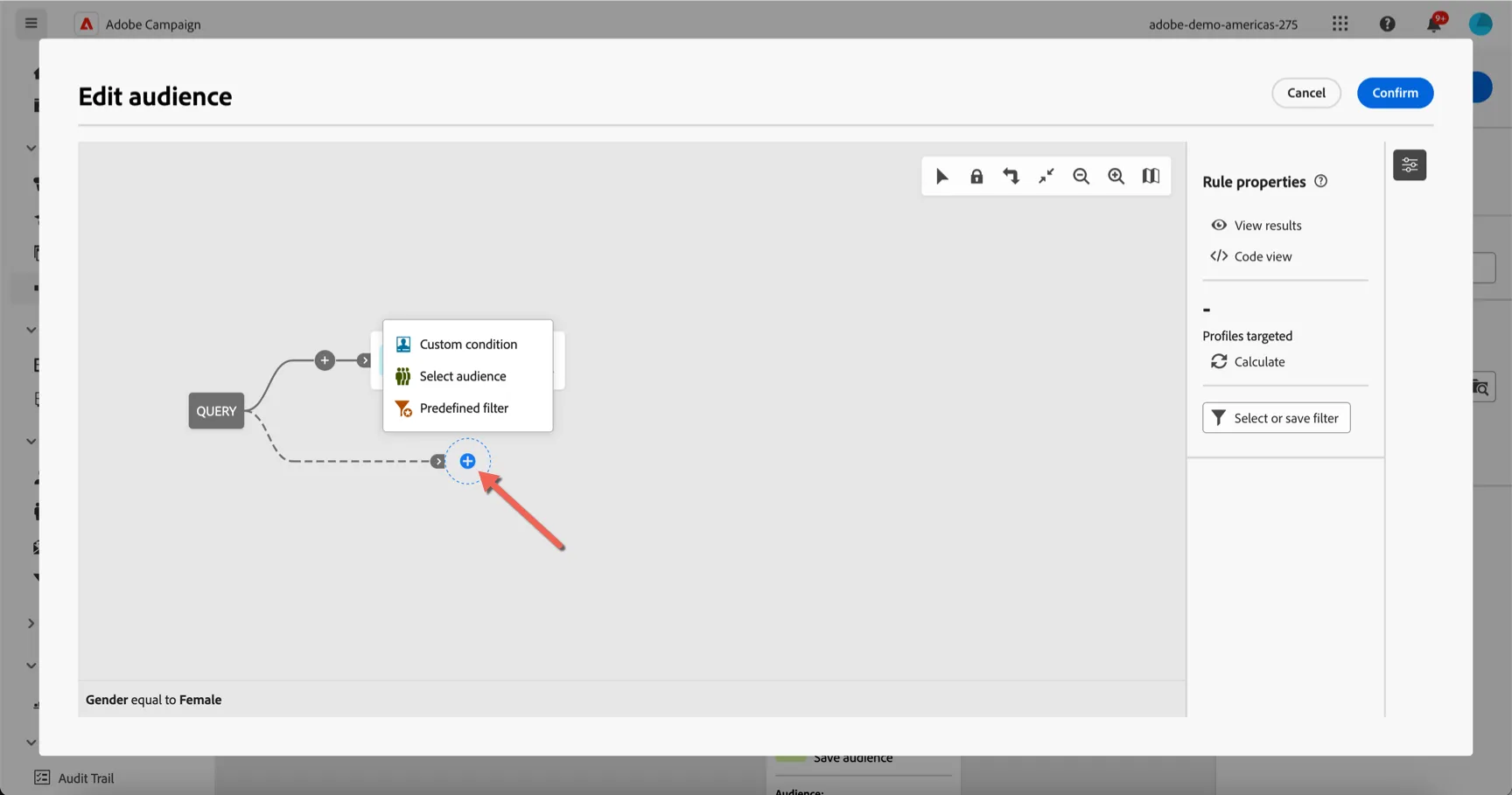
- Click on the + sign under the condition to add another condition to the query.
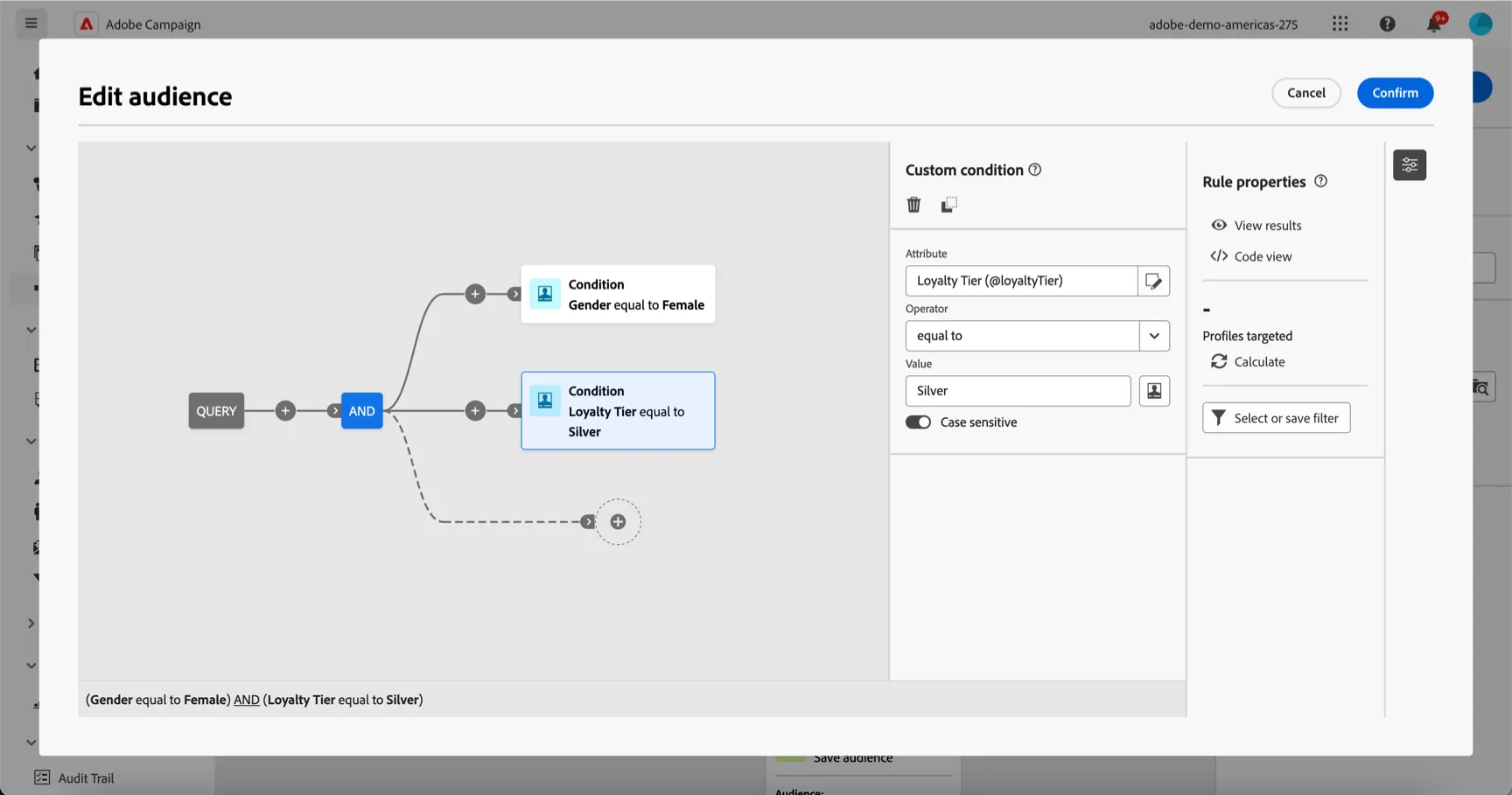
- Repeat the same steps to add Loyalty Tier = Silver. Your query should now appear as follows:
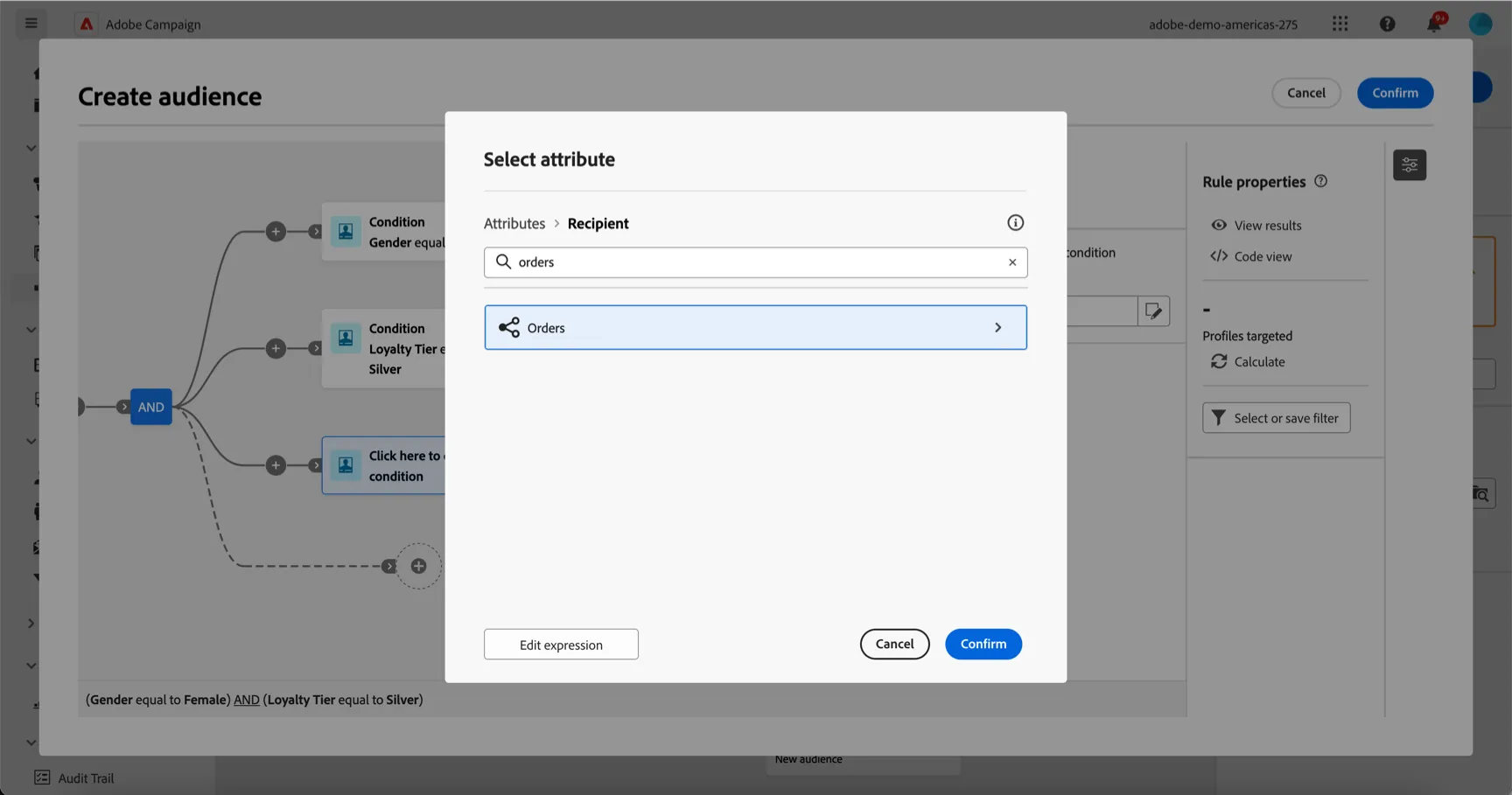
- Click the + to add another condition. This time we want to query data in a linked table - the orders table. Search for orders and select the Orders link. Then click Confirm
- Your query should now look like
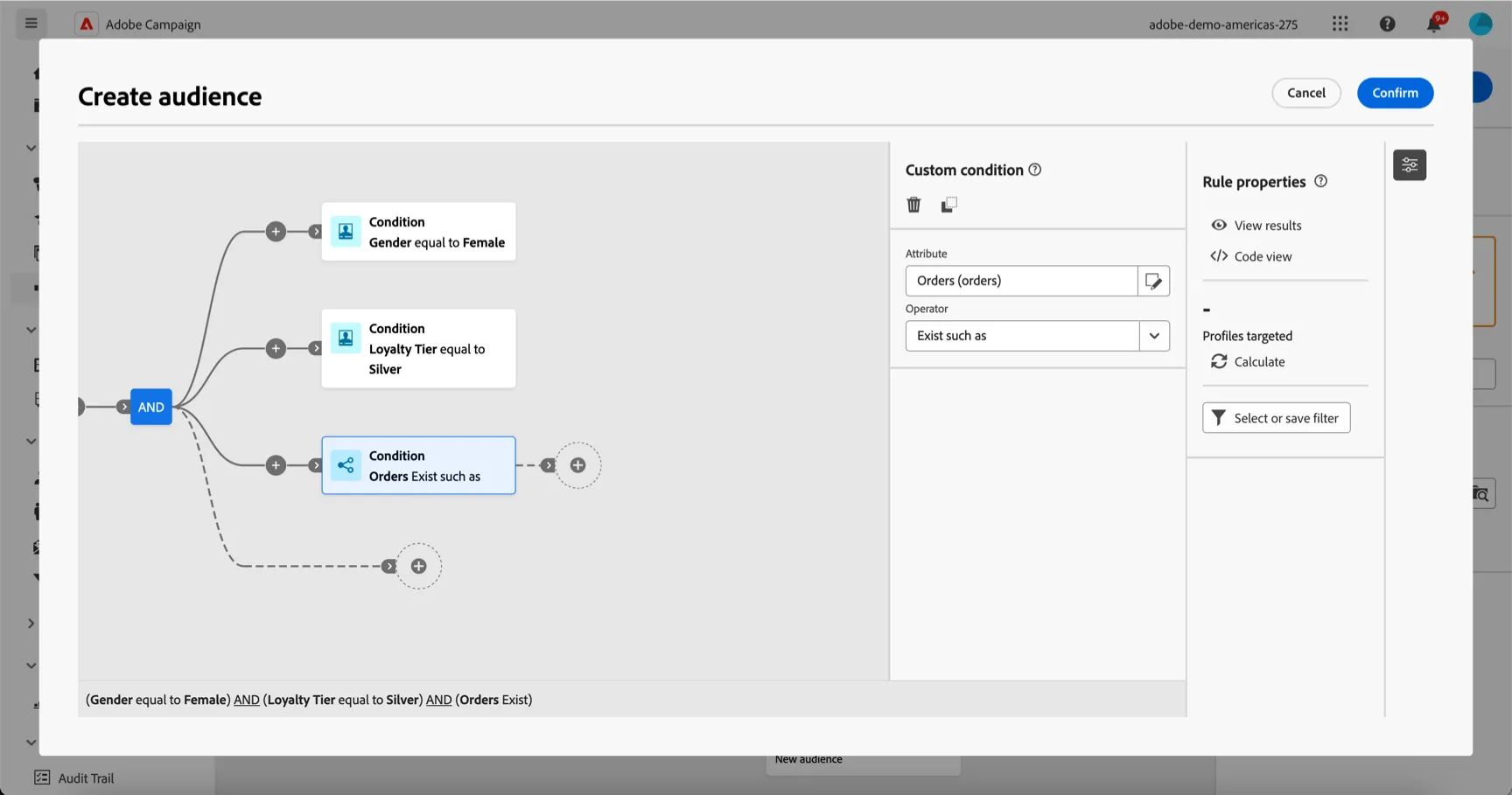
- Right now this will return any profiles who have any orders, but we want to filter based on the date of the order. Click on the + to the right of the orders condition to add a further custom condition.
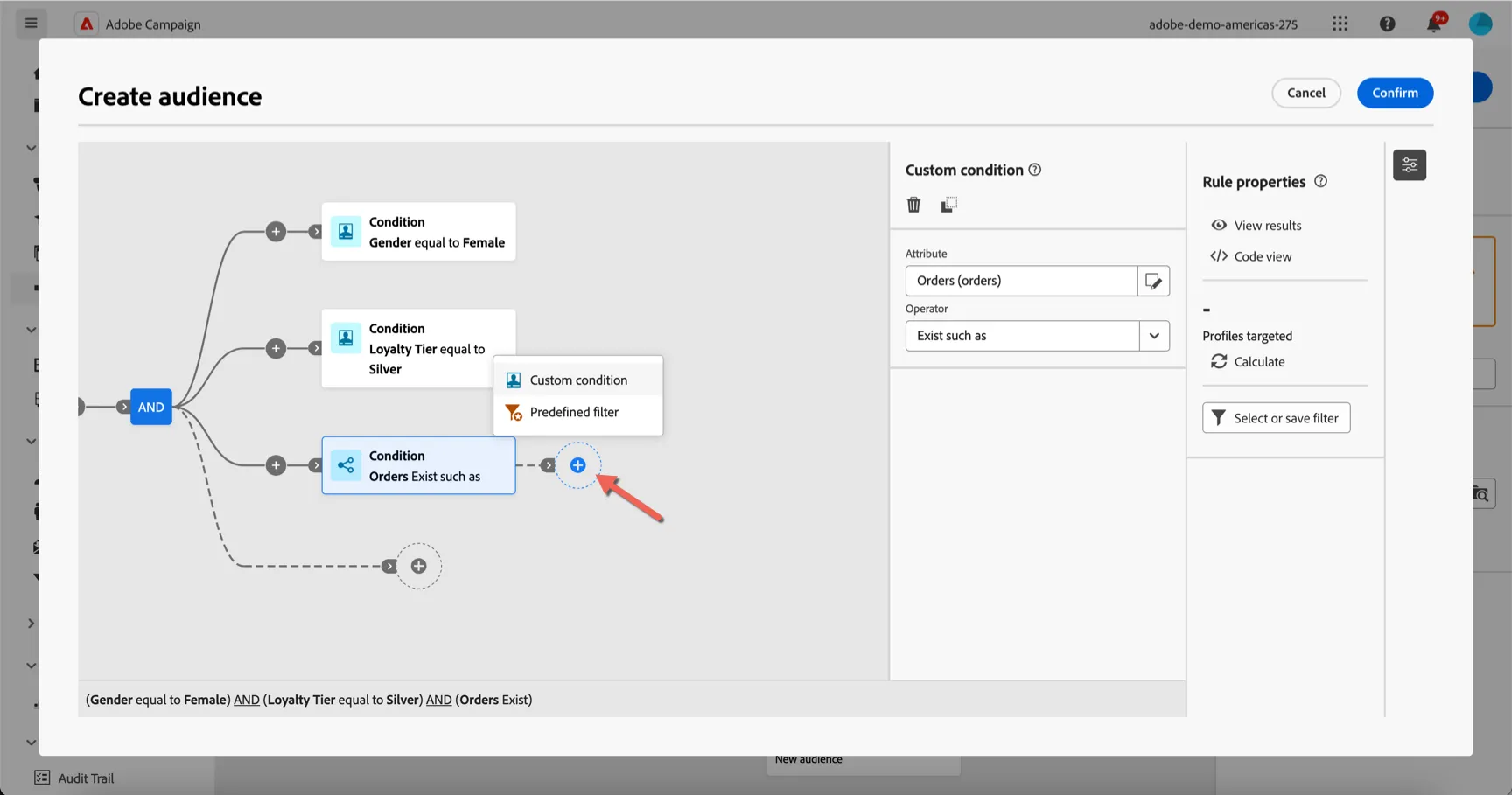
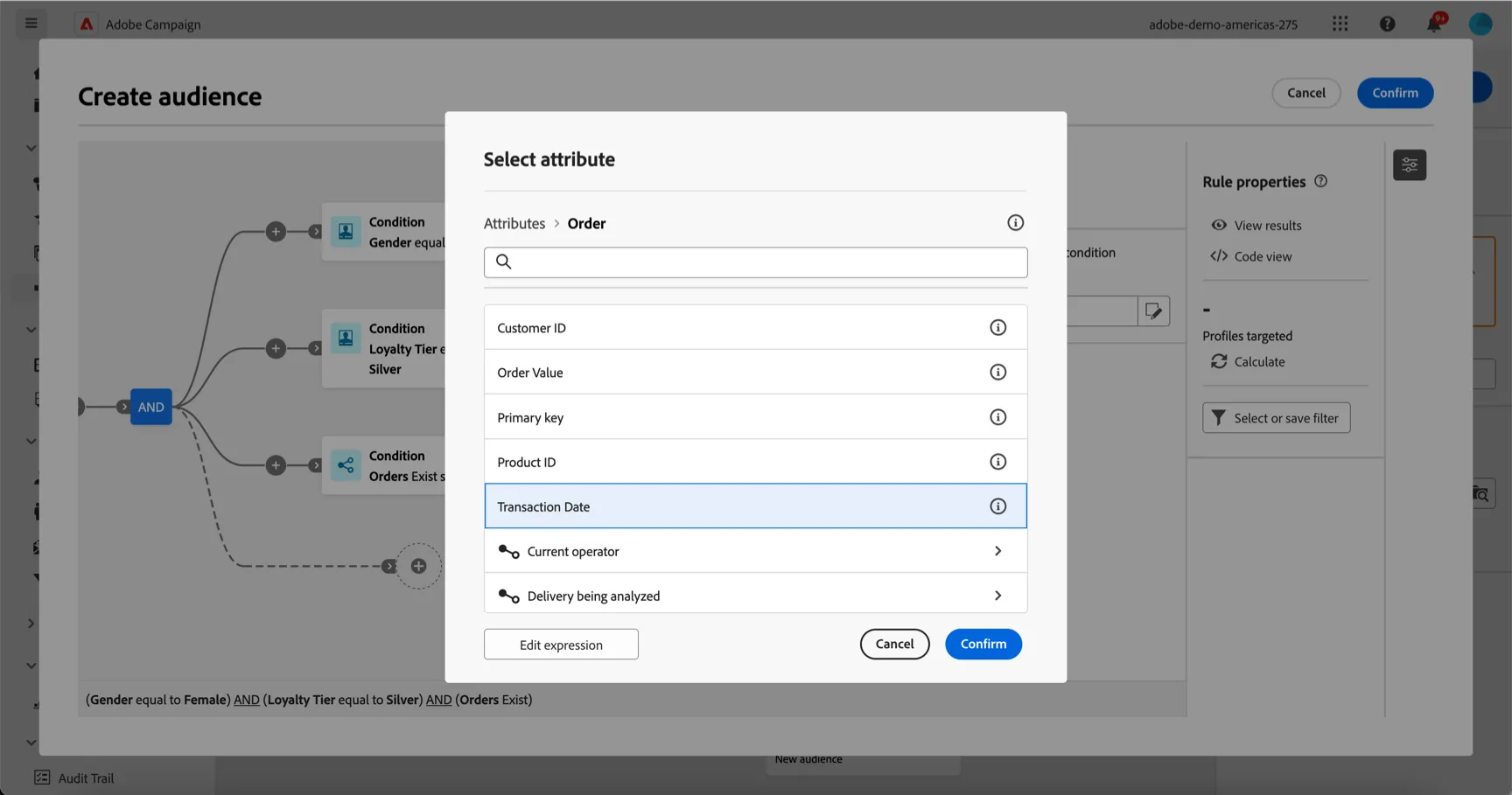
- Select the Transaction Date and click Confirm
- To set the condition to look for orders in the last 6 months, change the operator to after. Then select the presets N months ago with a value of 6.
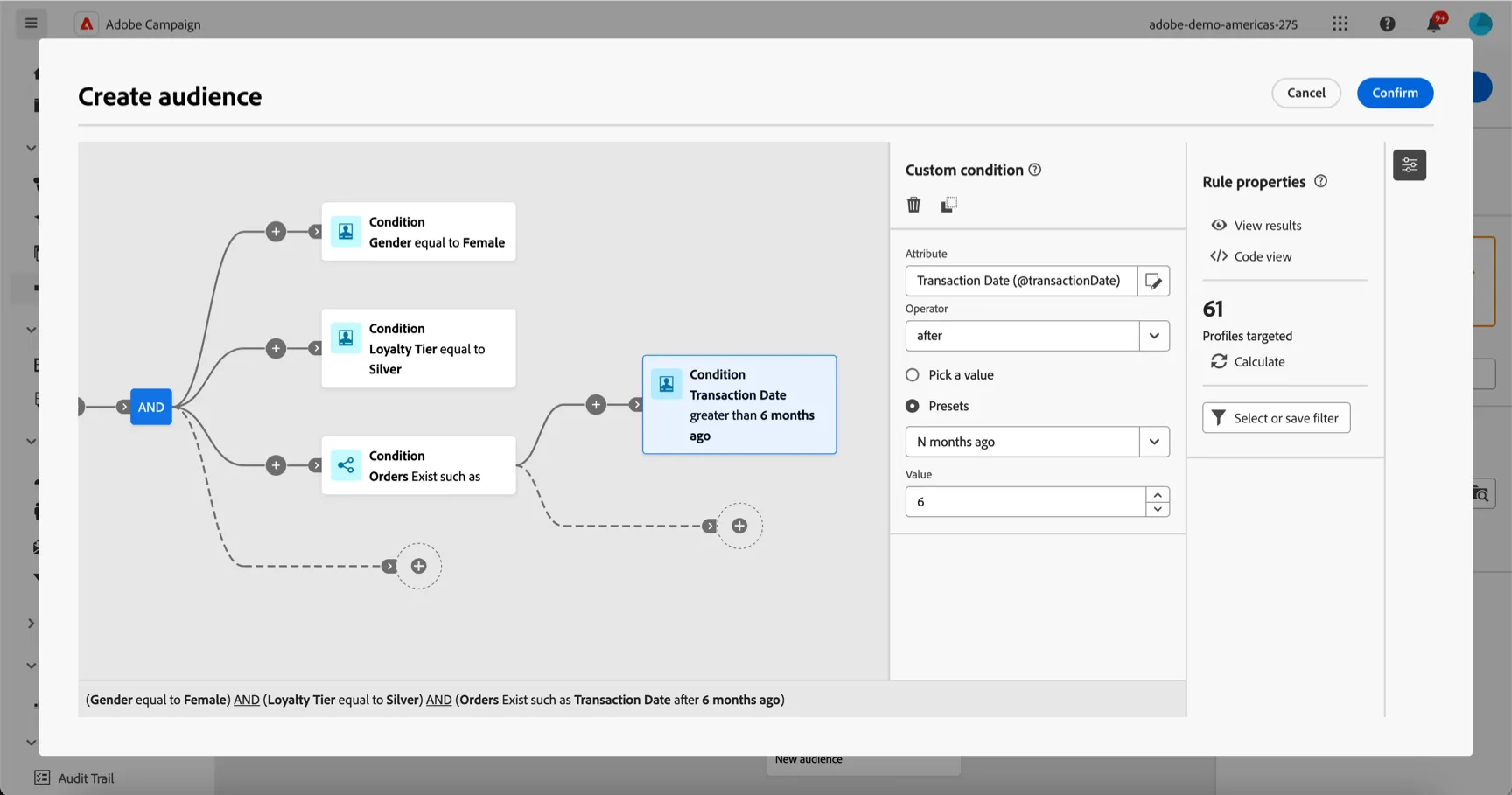
- You can check the counts again by clicking the calculate button. Once you're happy click on Confirm to finish your Query.
Save the Audience
- Once you have completed the steps for creating the query conditions above, click on the New Audience block on your Workflow:
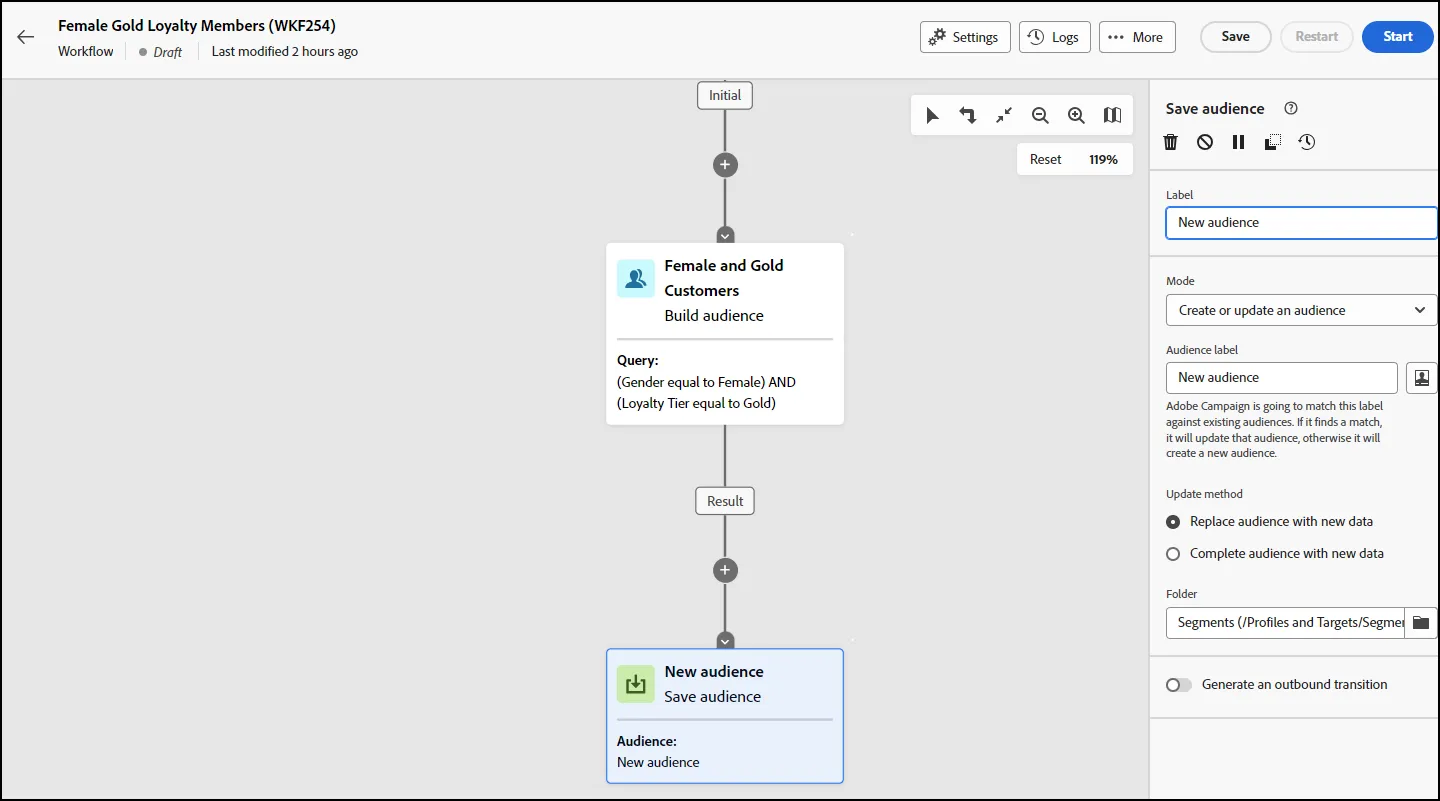
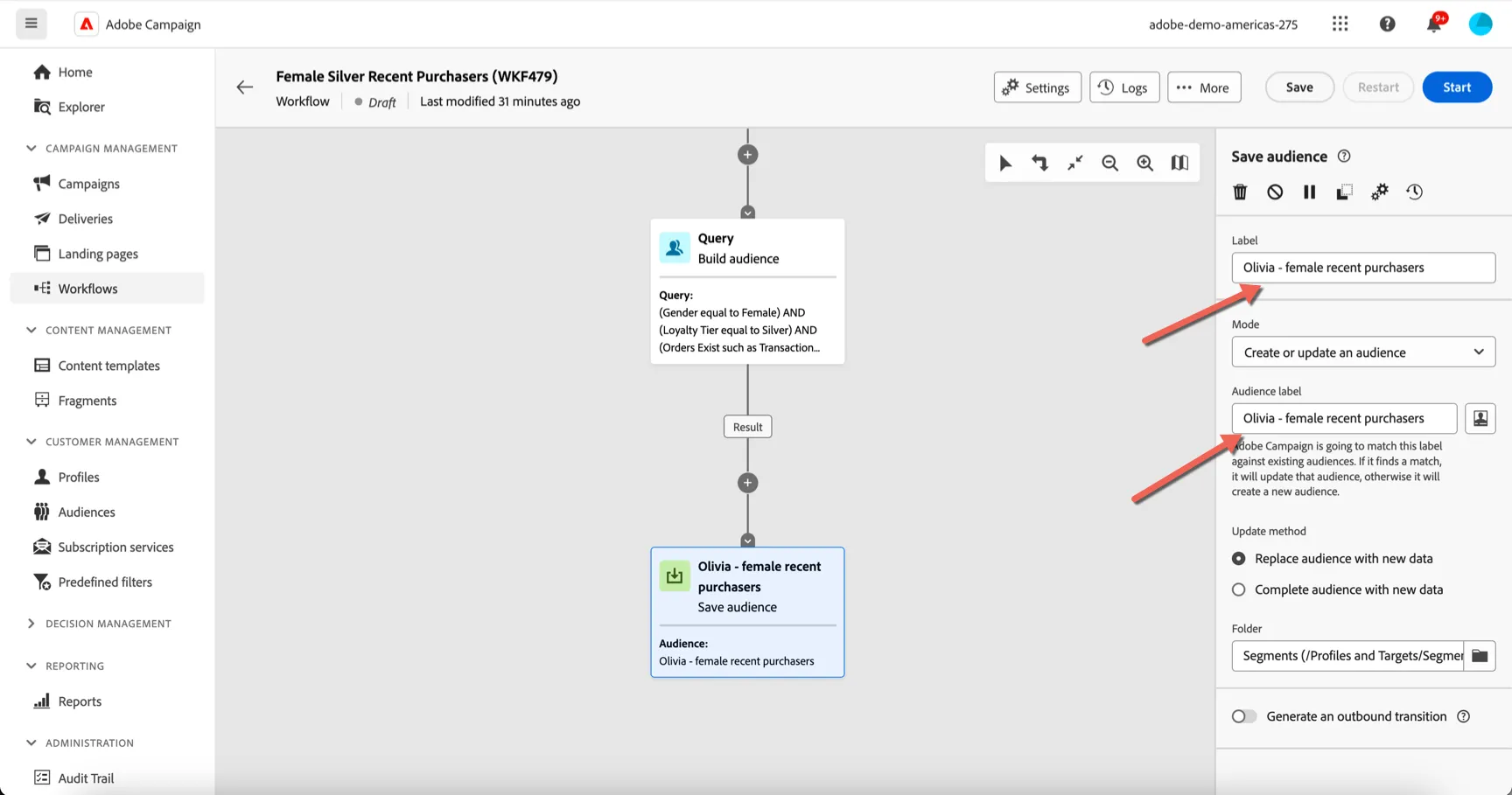
- Change the Label of the Audience to include your name so you can identify it from your colleagues! eg. "Olivia - Female Silver Recent Purchasers". Make sure this is defined in the Audience label field as well.
- Click the Save Button to Save your Audience. You can click "Start" to start the workflow and review the results.
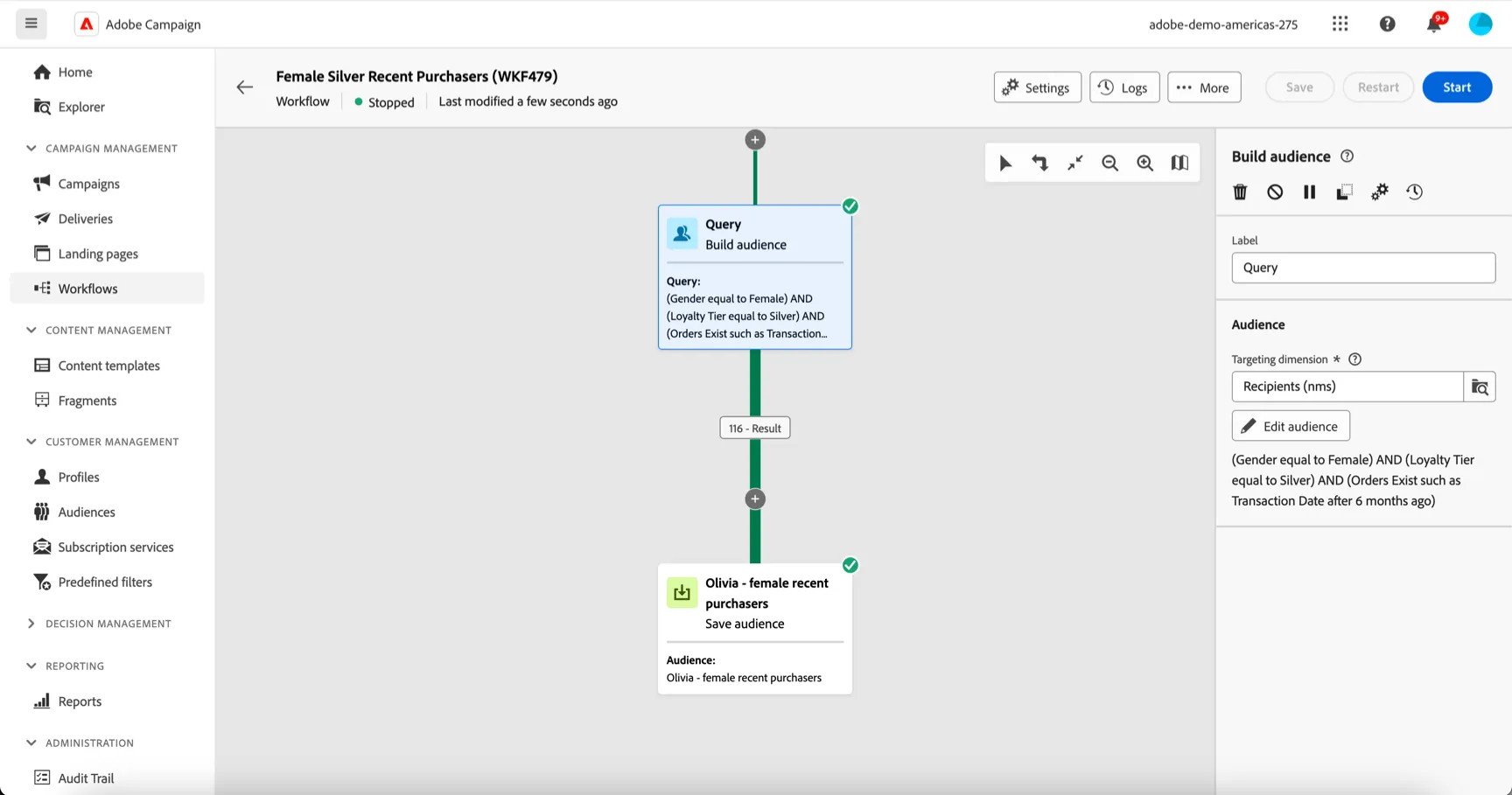
- After you click Start, you will notice that the query has executed and now returns the expected count for the Audience:
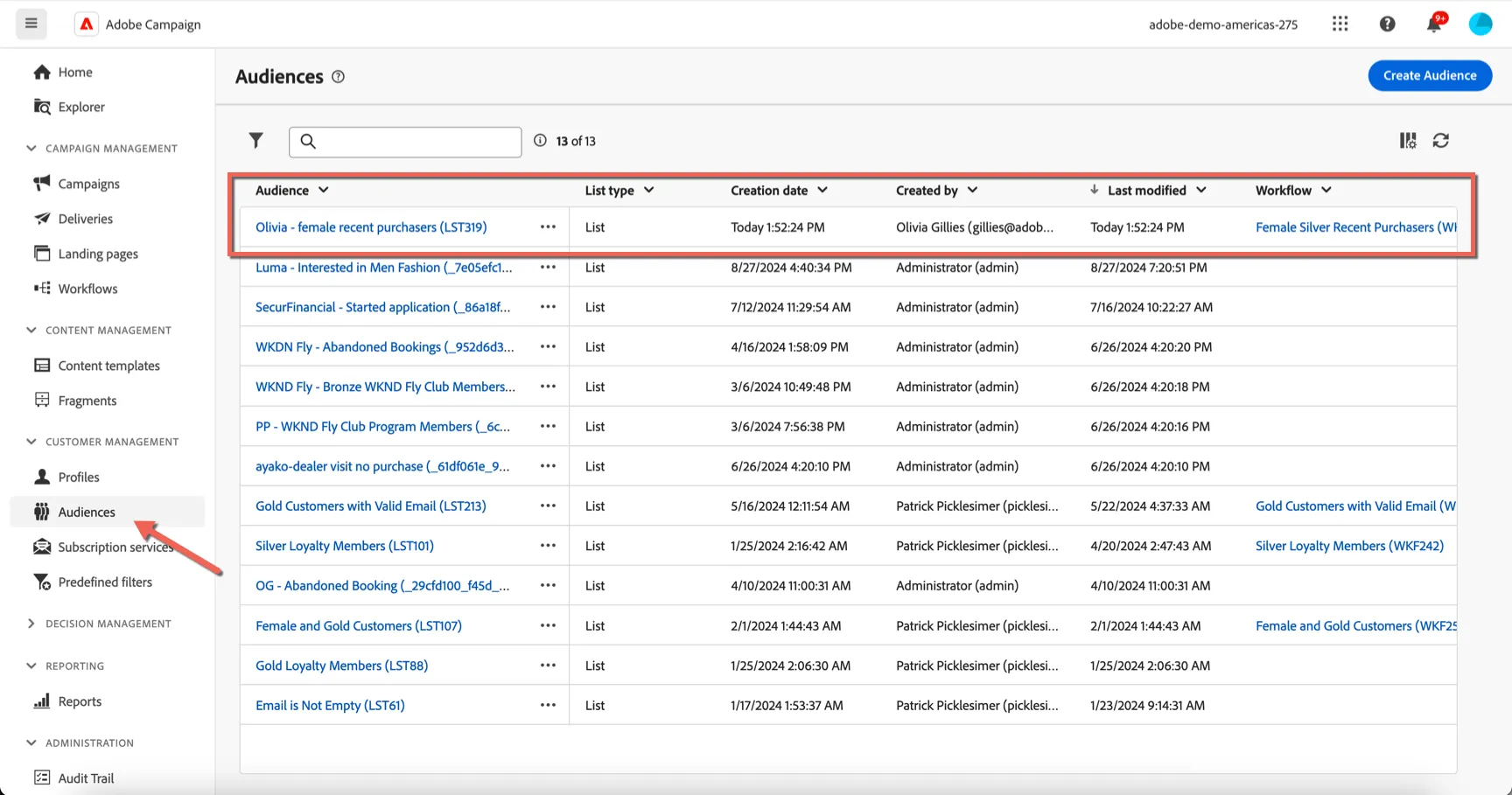
- You can now find your audience in the Audiences list. Click Audiences under Customer Management in the left hand navigation. You should be able to see your newly created audience as well as a link back to the workflow we just created. You can edit and rerun the workflow as needed to update or refresh the audience.
This completes the exercise on Audiences!