In-App Campaign
5 min
This lab will walk through the steps to create an In-App Campaign in Adobe Journey Optimizer.
(NOTE: Some exercises may vary during the actual Hands on Lab versus what is listed in the HOL Page, due to industry setup and / or Presenter preferences.)
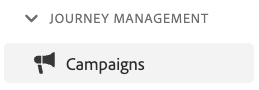
- Navigate to Campaigns
- Click on “Create Campaign”
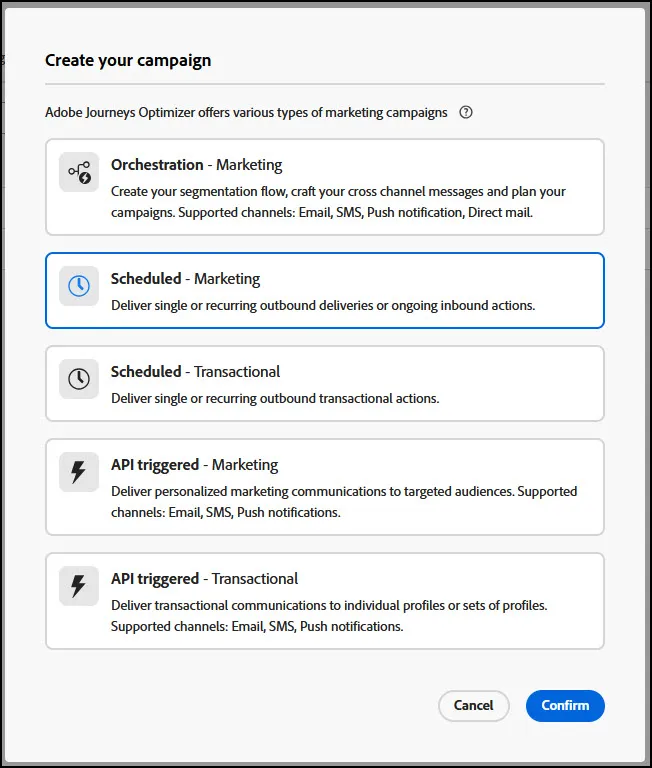
- On the Create Campaign box, select "Scheduled-Marketing":
- Click Confirm:
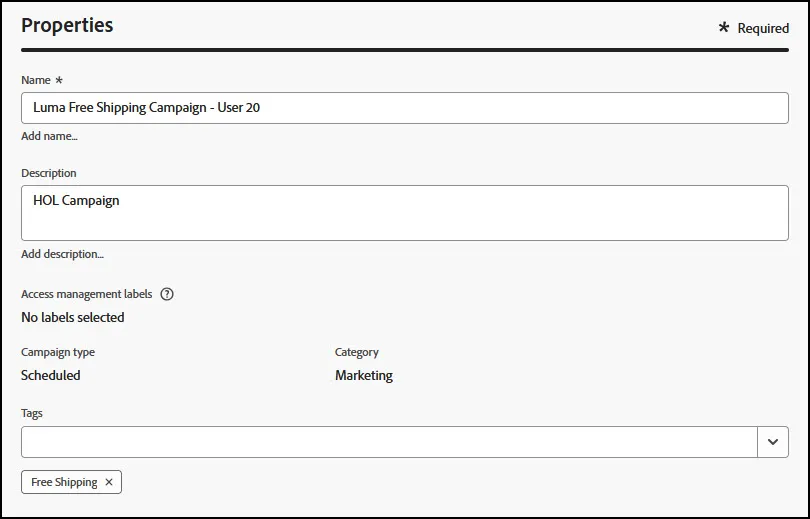
- Provide a name: "Luma Free Shipping Campaign - (Your Name)"
- Click on the Actions Tab - Click on Add Action.
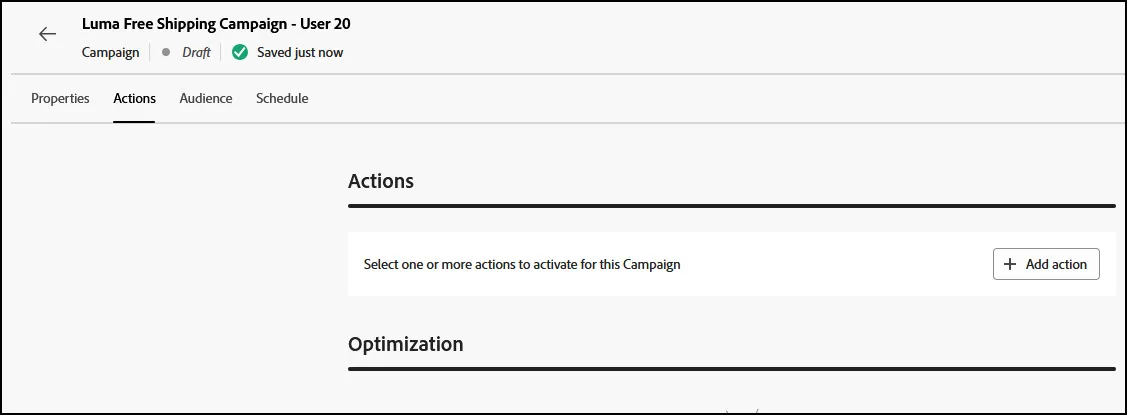
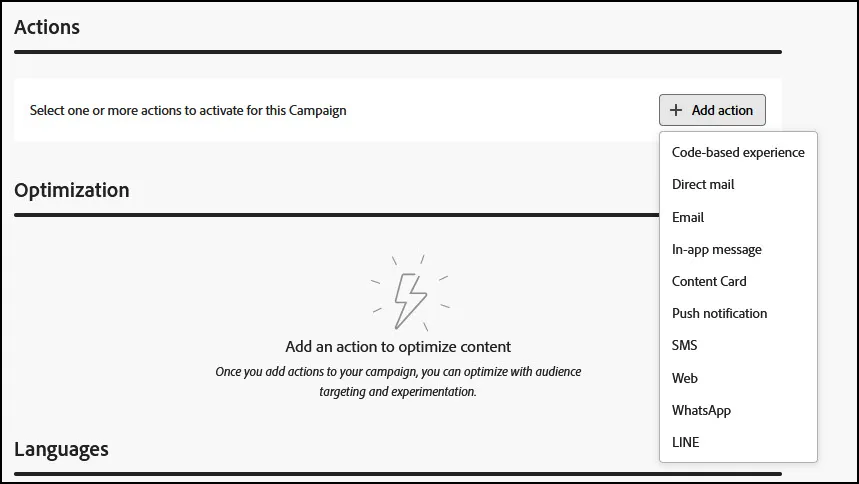
- Select the "In-App Message" action type:
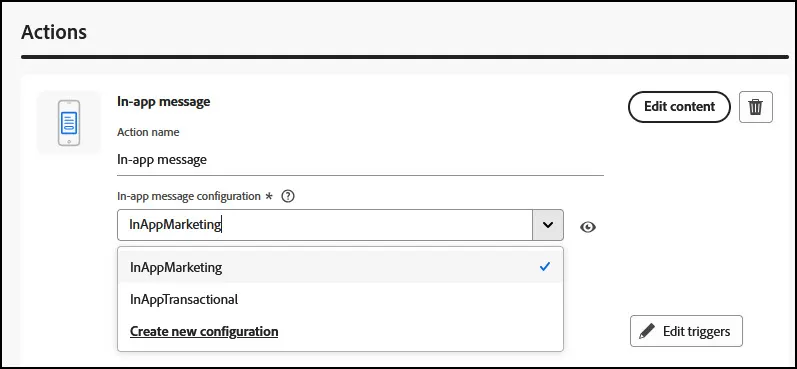
- Click on the "In-App Message Configuration" box and select InAppMarketing:
- Click on the Content Tab at the top. This will open the messsage designer.
- Click the slider at the top for Advanced Formatting to allow for additional formatting options in your message design:
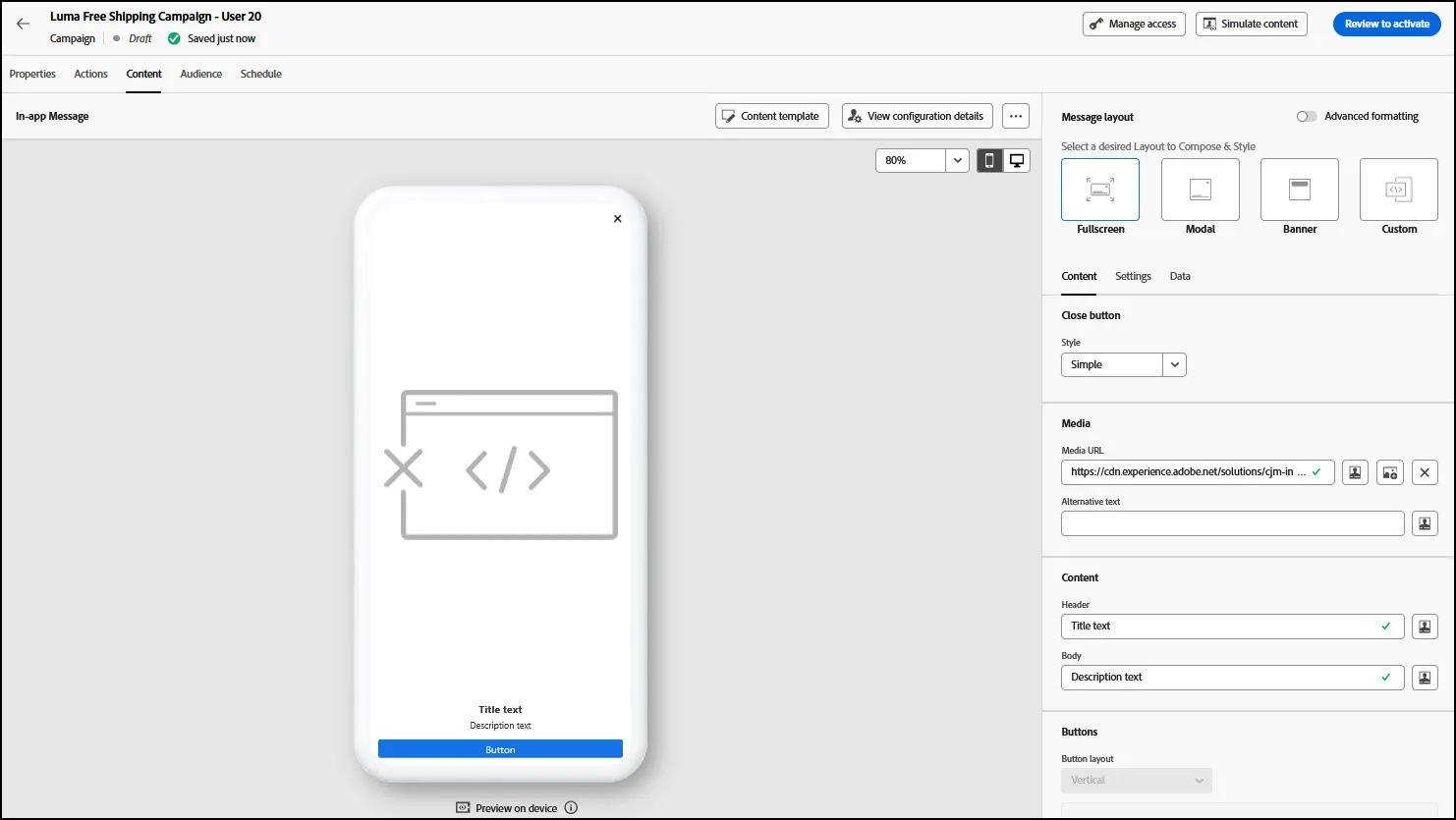
- Change the Message Layout to "Modal" for better viewning.
- On the right side, click on the Media Icon to select an image:
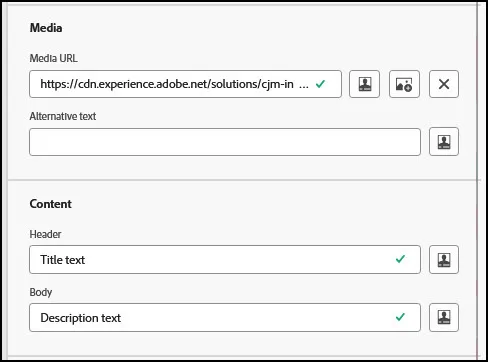
- Select the Free Shipping picture for your Message:
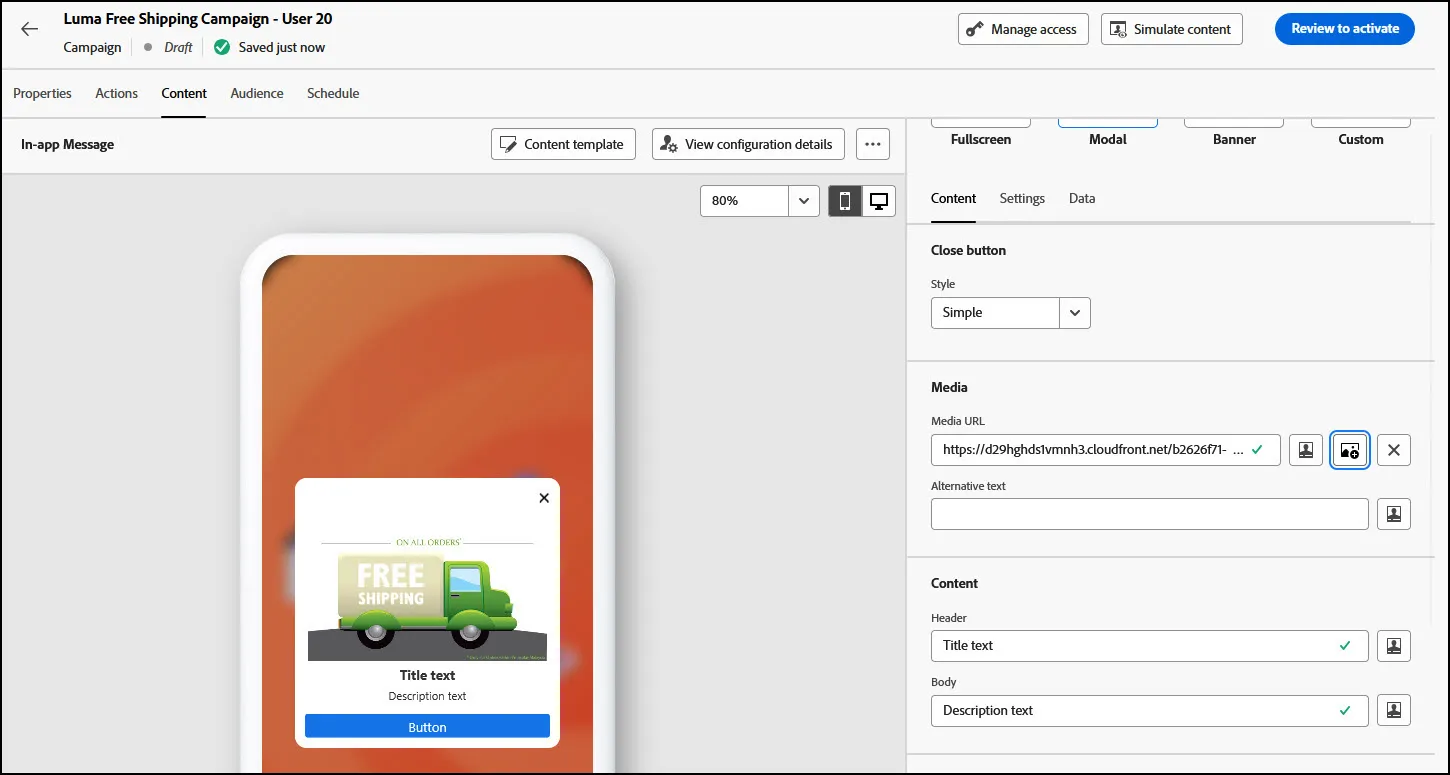
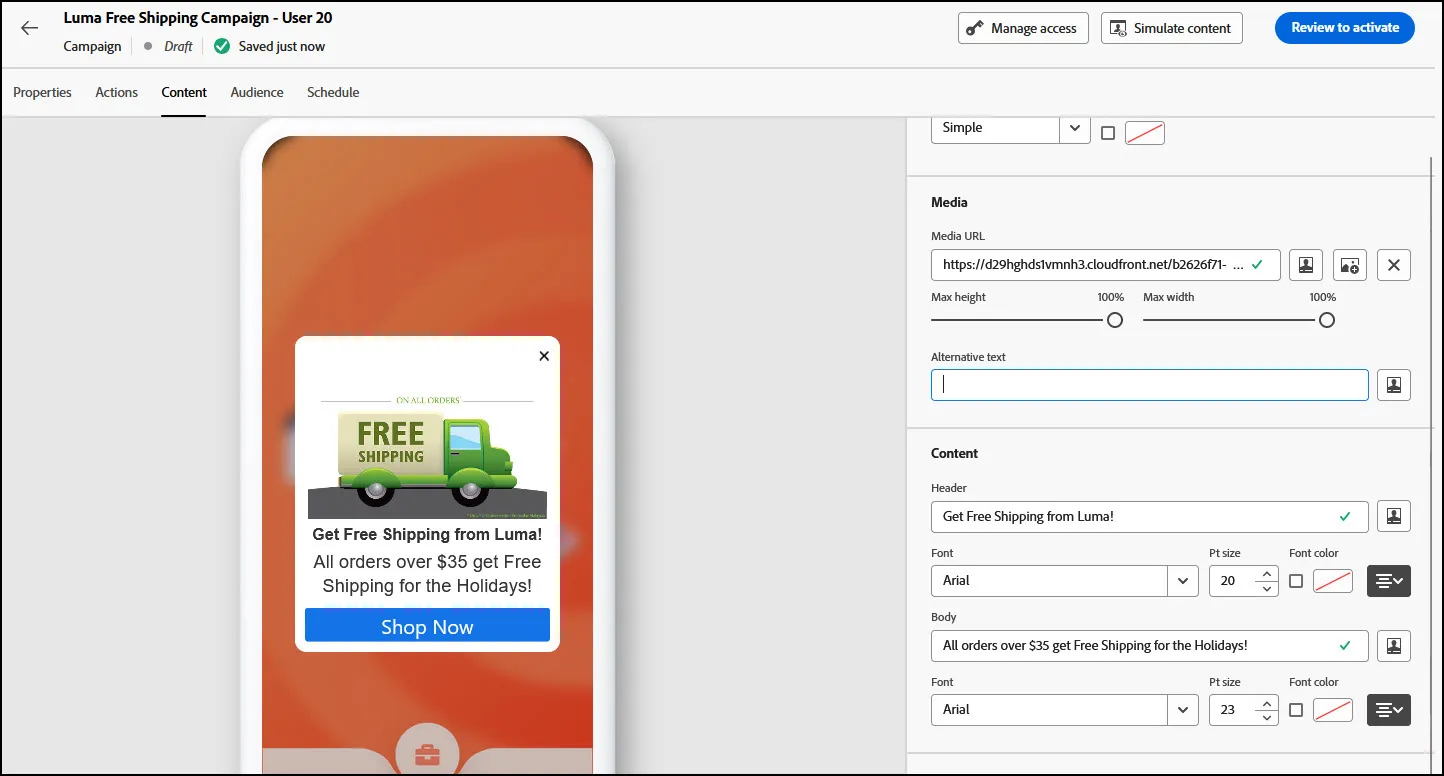
- Next, click on the Header and Body text boxes. You can add whatever text you would like there. We added the following:
- Header: "Get Free Shipping from Luma!"
- Body: "All orders over $35 get Free Shipping for the Holidays!"
- For the button, change the text to "Shop Now"
- Your message should look like this now:
- Next, click on the Audience tab at the top of the page.
- From there, click on "Select Audience":
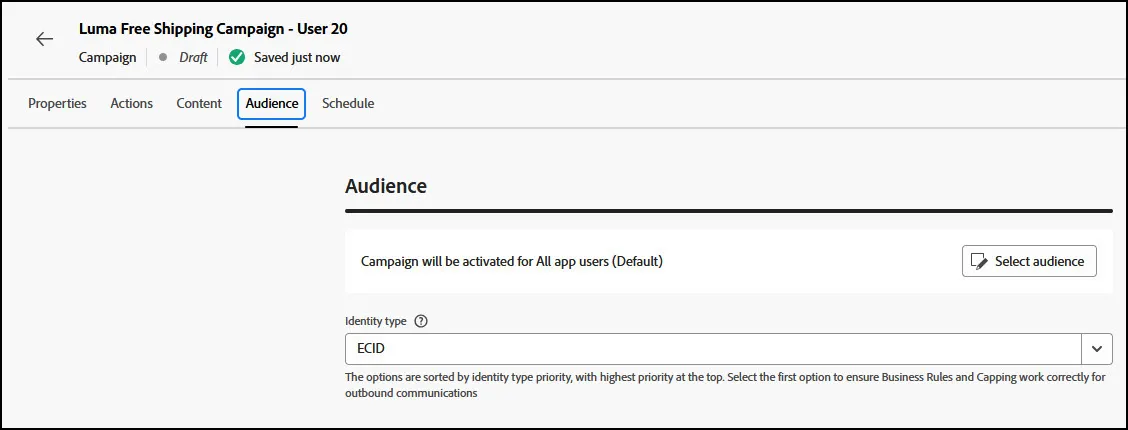
- Select the "Gold Loyalty Members" from the list of Audiences. Click Save.
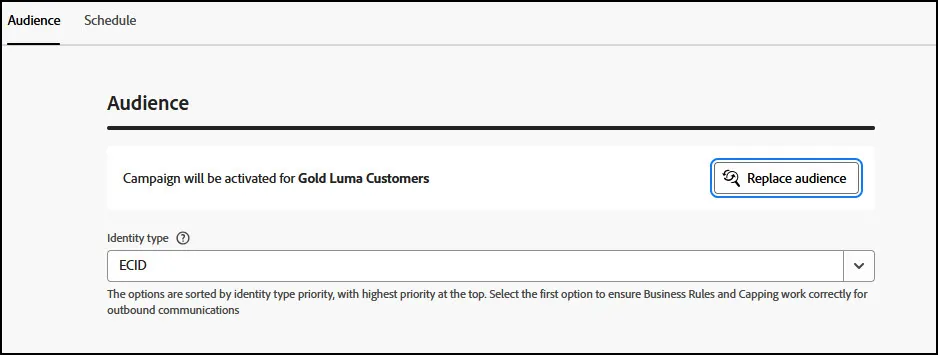
- Click on the Schedule Tab:
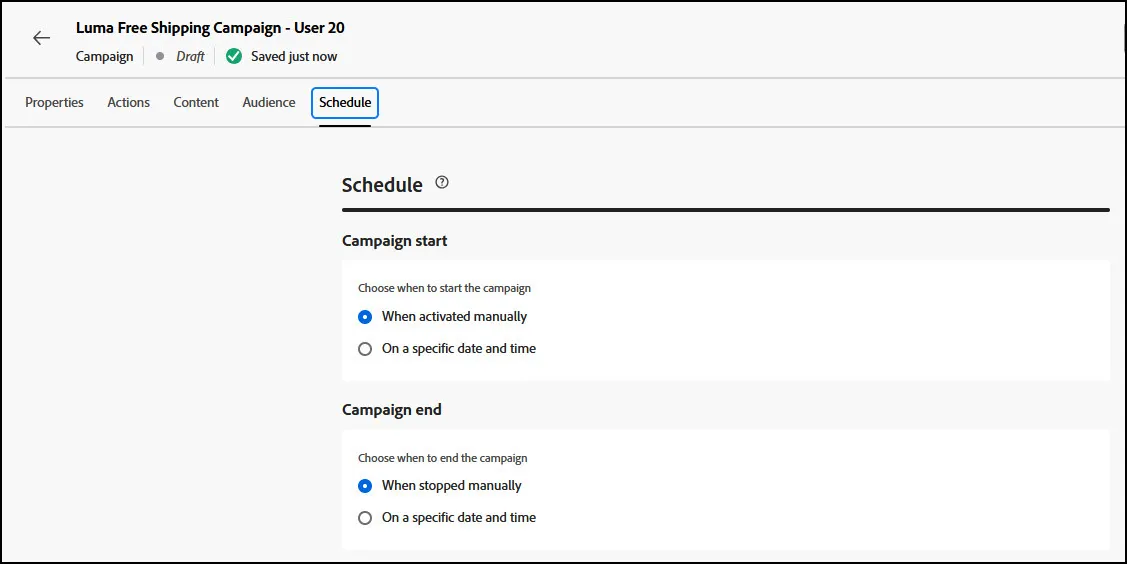
- Click on "On a Specific Date and Time". - Select a date of your choosing.
- Click Review to Activate.
- End of Lab