Create an Email Template
Content Fragments and Templates
Templates can be created to store partially configured messages for any supported channel: Email, SMS, Push, InApp or Direct Mail. Once leveraged in a Campaign or Journey message the template is disconnected and updates to the template will not impact the .
Fragments can be created to store partially configured HTML or Personalisation Expressions. Fragments can then be included in templates or messages in Campaigns or Journeys. Updating a fragment will update the content everywhere it is used. For this reason you can explore where the fragment has been referenced before making any updates.
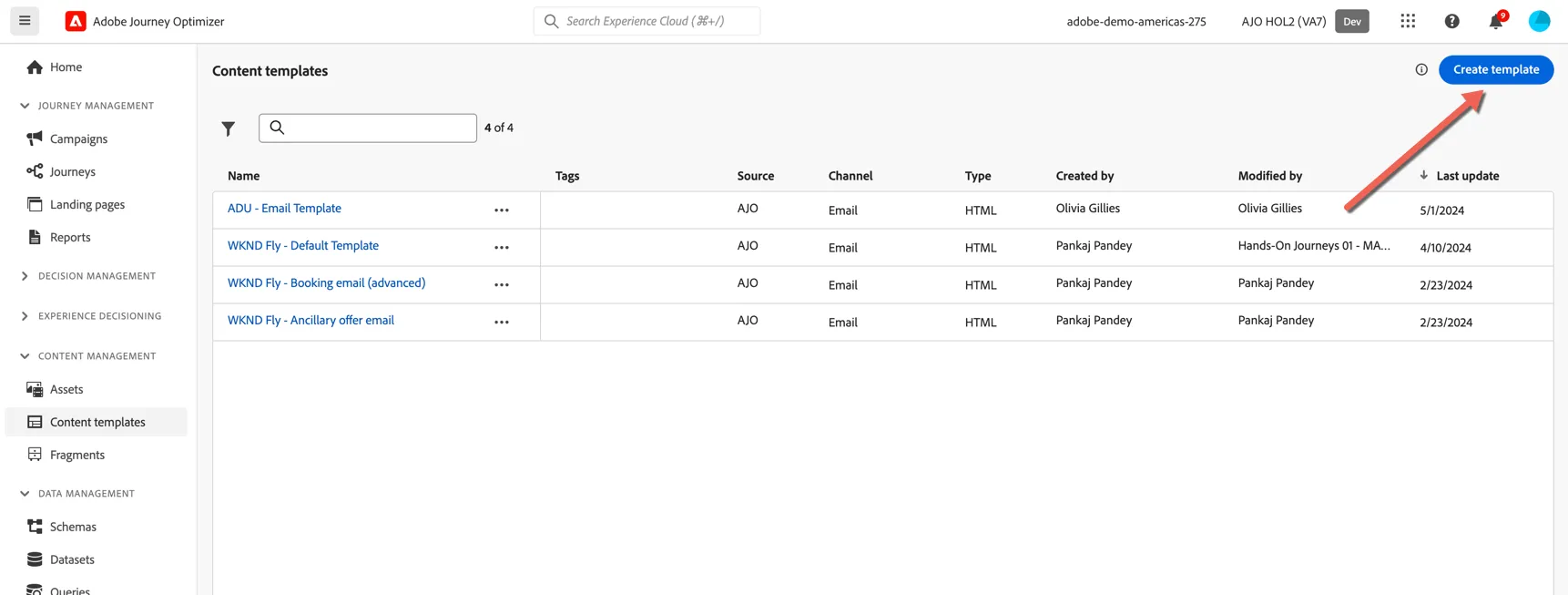
Create a new template by clicking on the Create Template button.
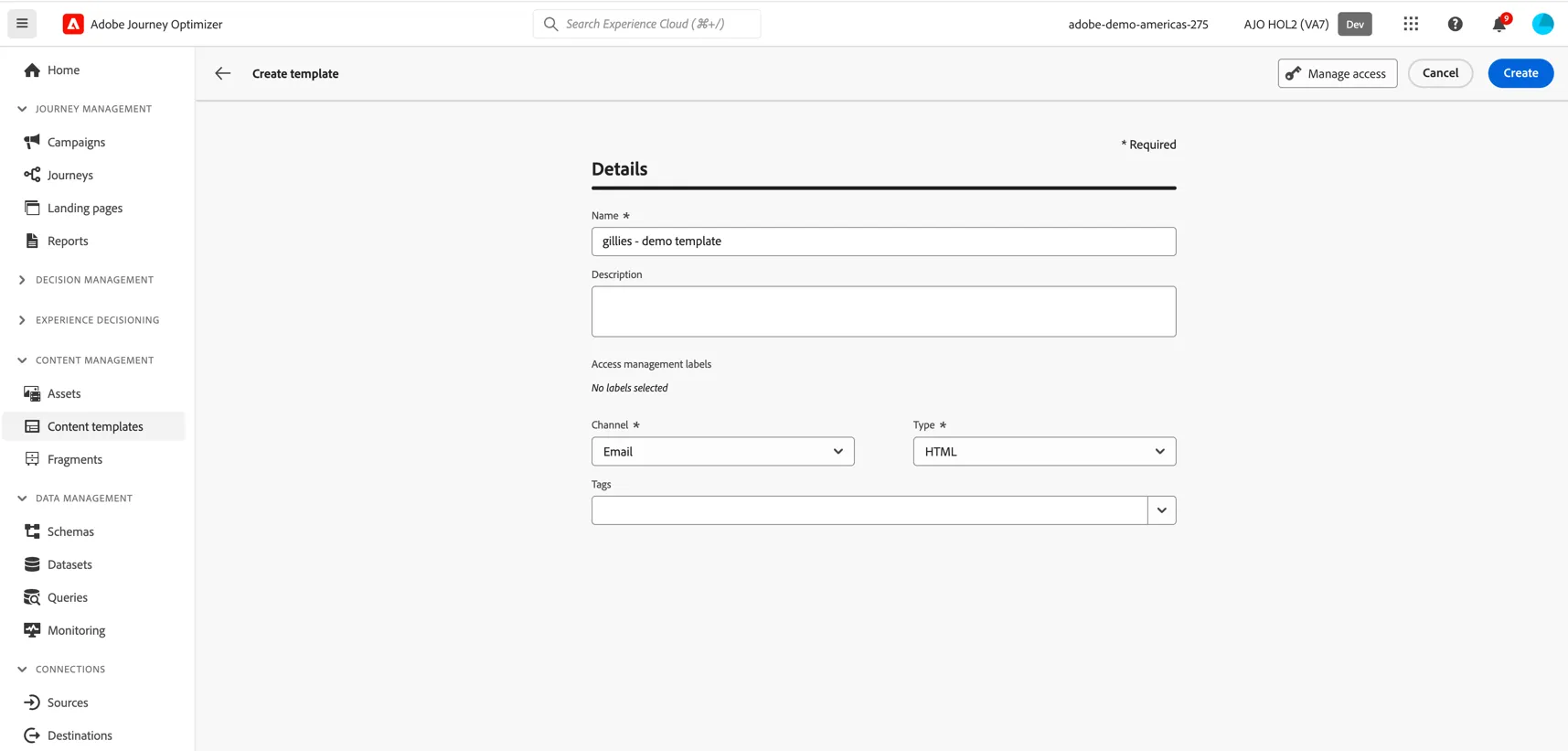
Give your template a name - something unique to you so you can distinguish it from your colleagues. Select Channel as email and Type as HTML.
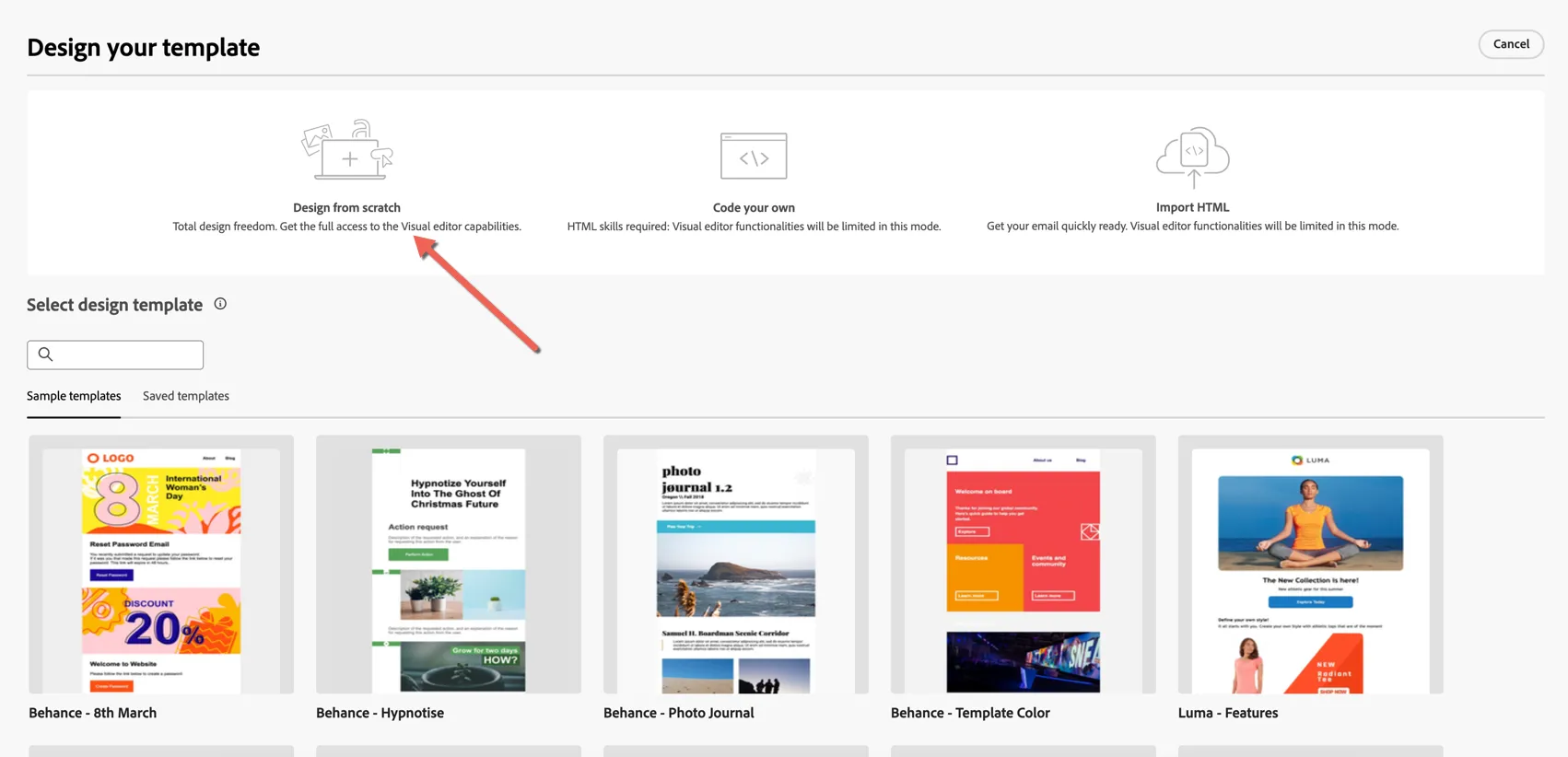
We can create templates from existing samples or templates, or you can build your own, either through the visual editor or by direct access to HTML code. For this exercise choose to Design from scratch.
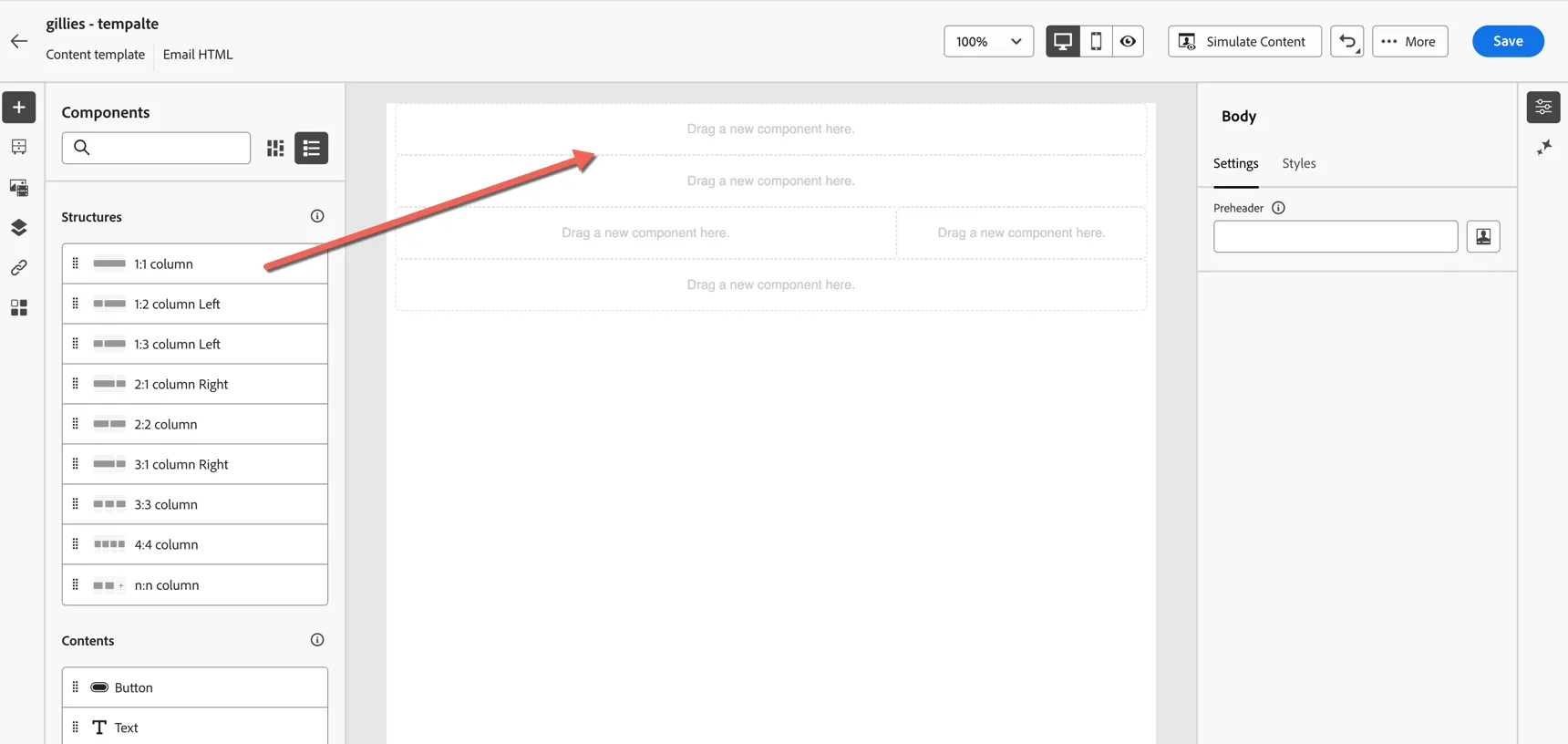
On the left hand side you have structural and content Components which control the layout of your email.
Drag 2x 1:1 column structures into your content, add a 2:1 column right then another 1:1 column.
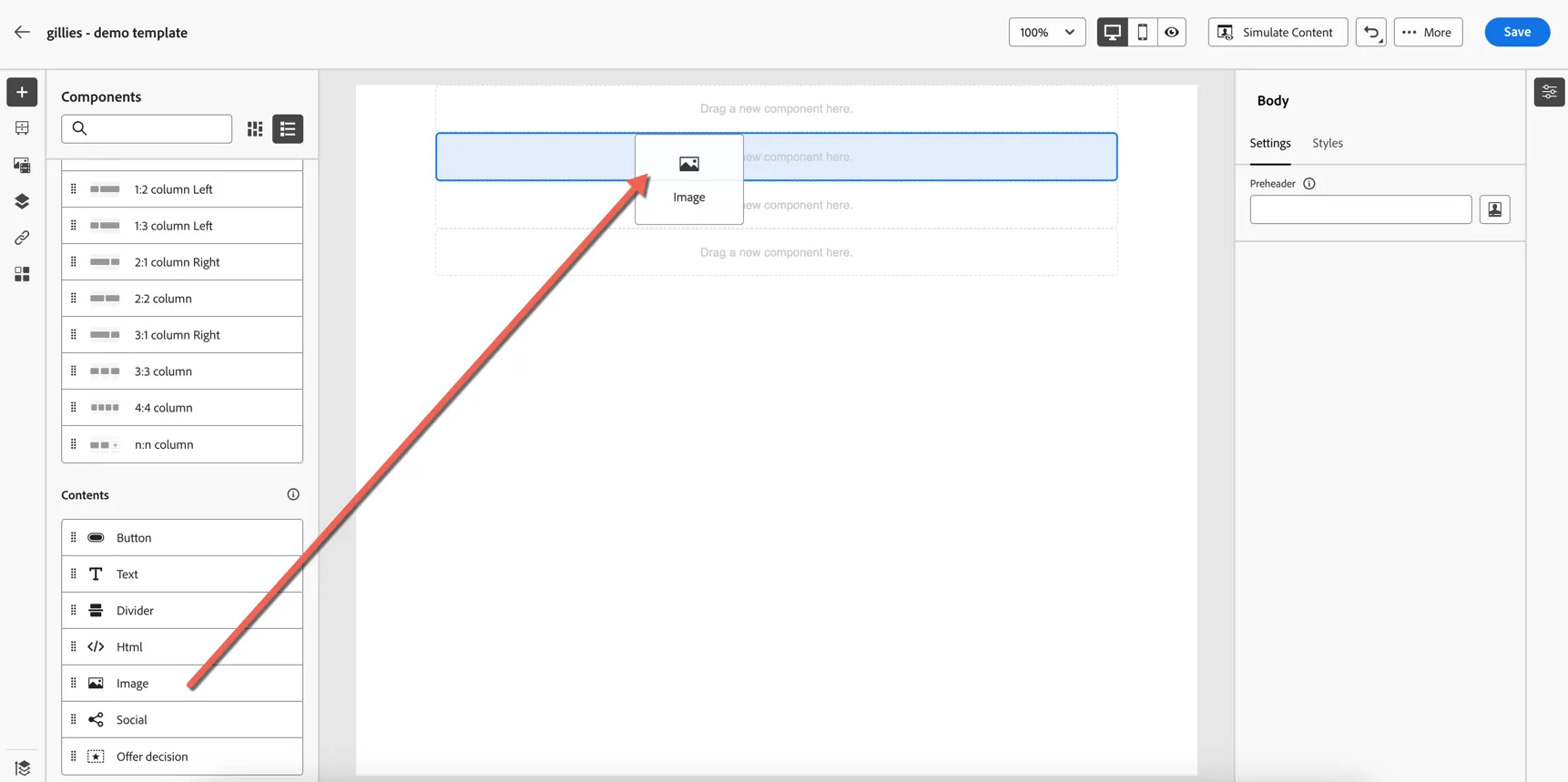
In the second component slot, drag across an image content block.
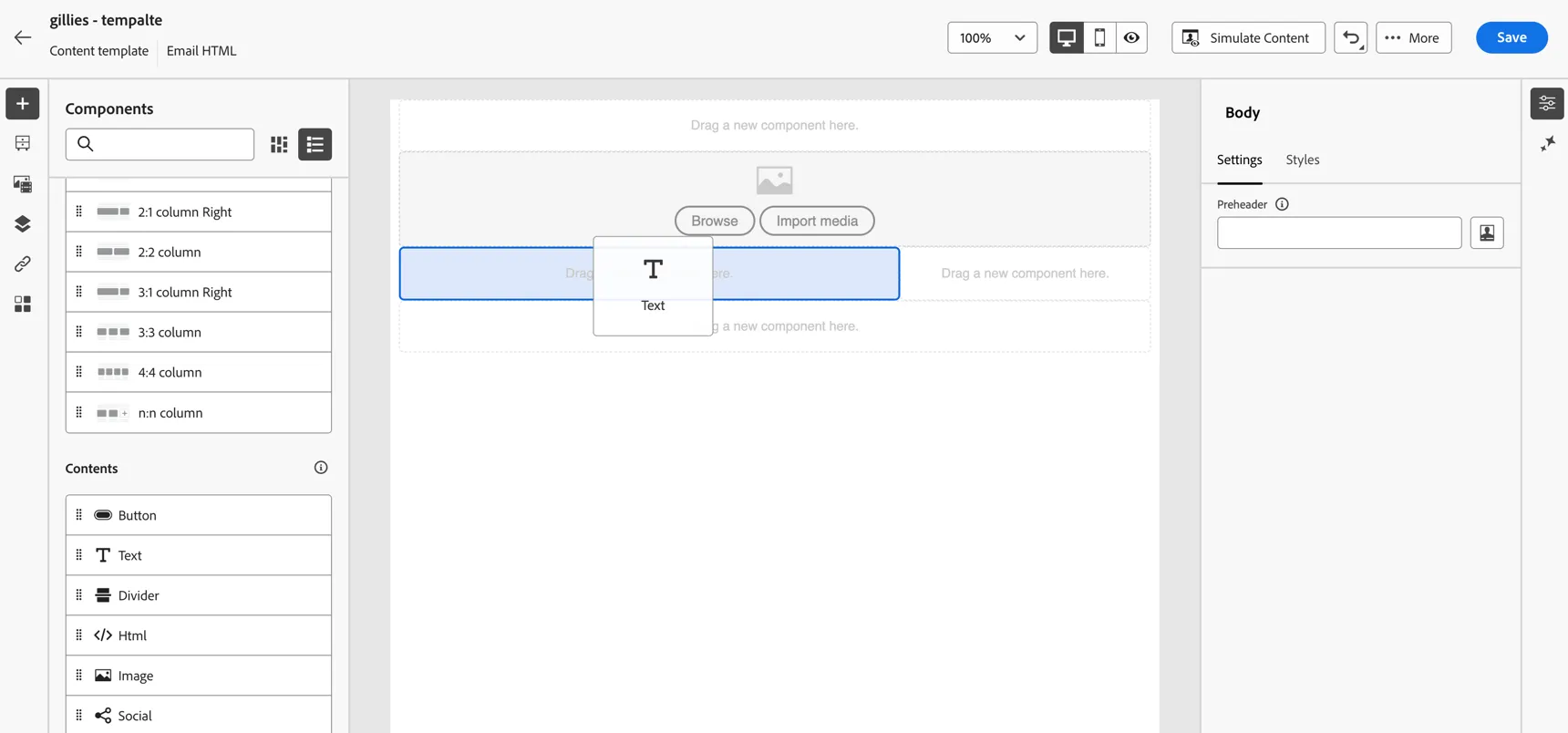
In the third component slot, drag across a text content block.
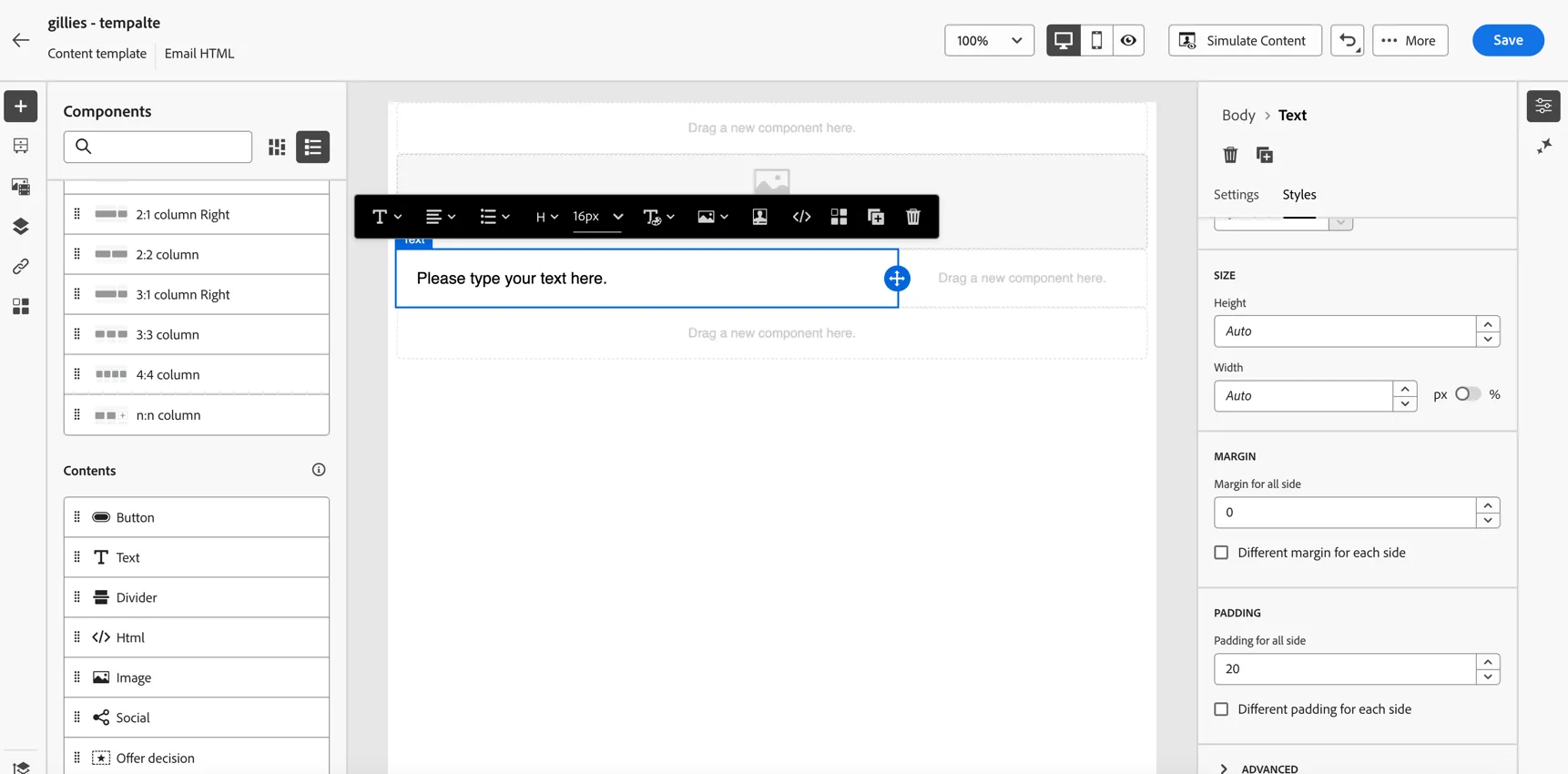
Update the style settings for the text block from the panel on the right hand side. You can update the font size, color and padding as desired.
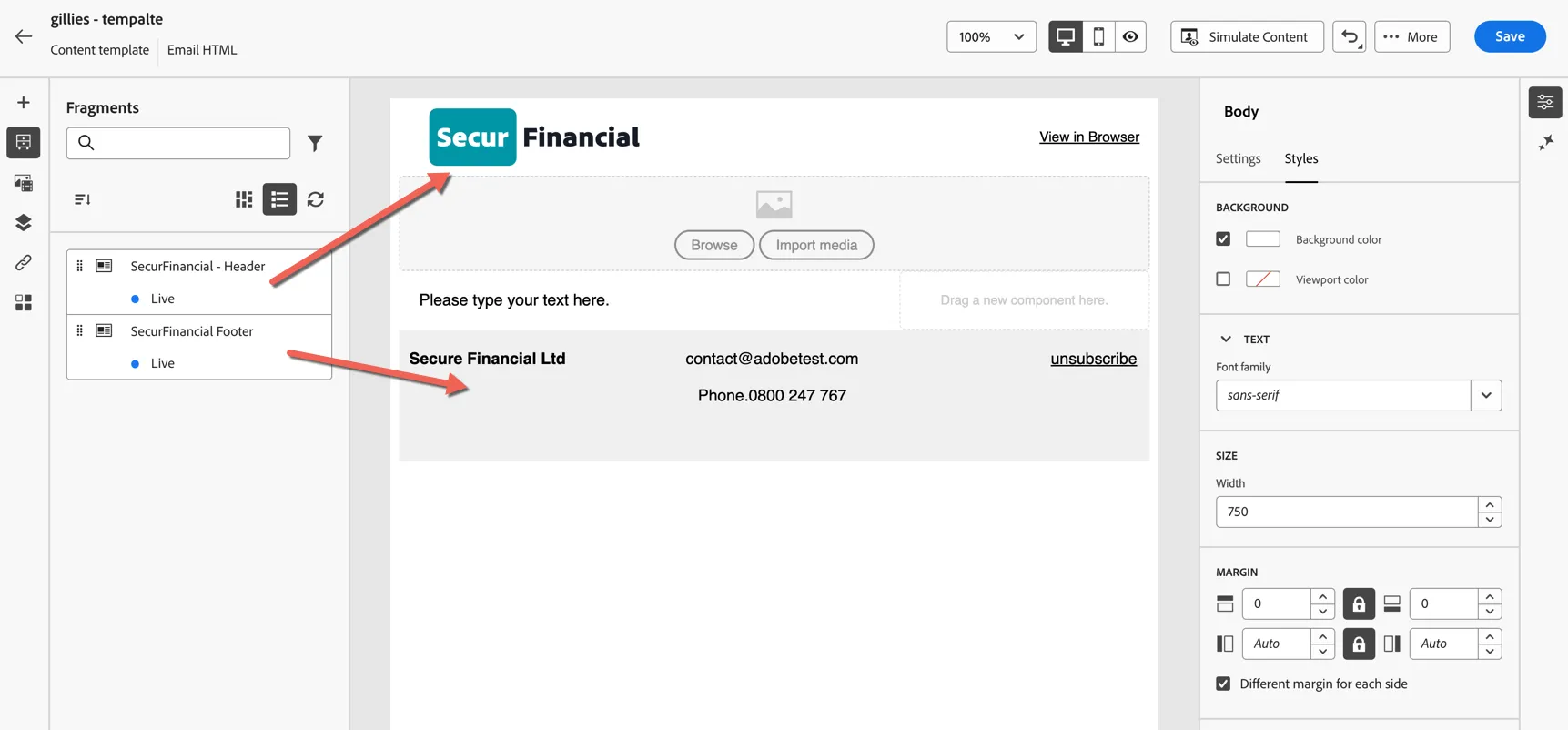
Now let's use some pre-existing fragments to add a view online link and footer to the template. On the left change from the component menu to the fragment menu. Drag the Open in Browser and the SecurFinancial Header and Footer fragments to the top and bottom component slots.
For the image banner, we can select an existing asset from the Asset repository or we can use the native integration with Adobe Firefly to generate an image based on text prompts. Click on the image component and then stars icon to open the AI Assistant.
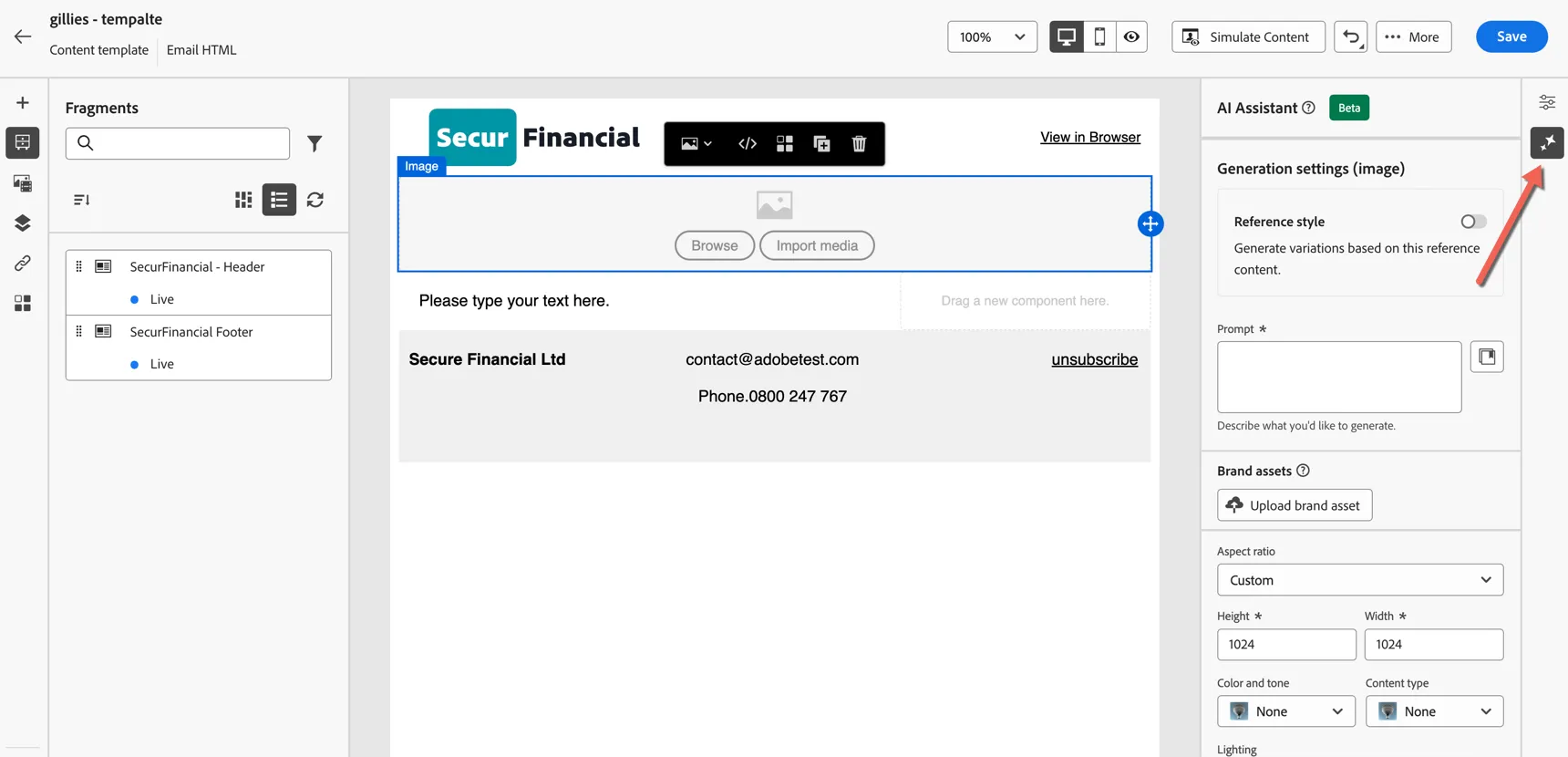
Add a text prompt for your banner and set the parameters for height and width to 200x800 respectively. Set the other options as desired.
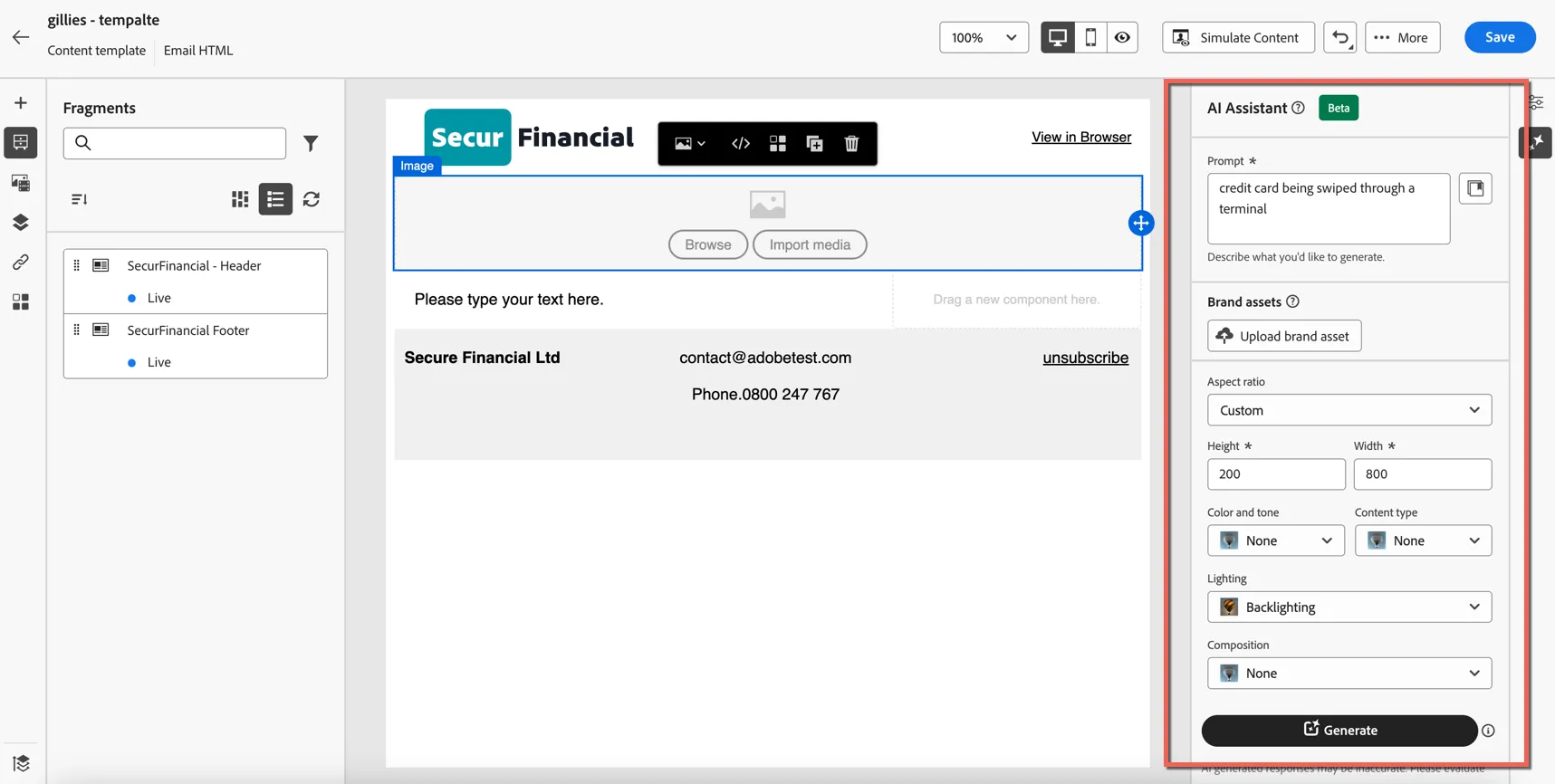
Click Generate. It will take a minute to generate some image options. Click the Preview button to open the viewer.
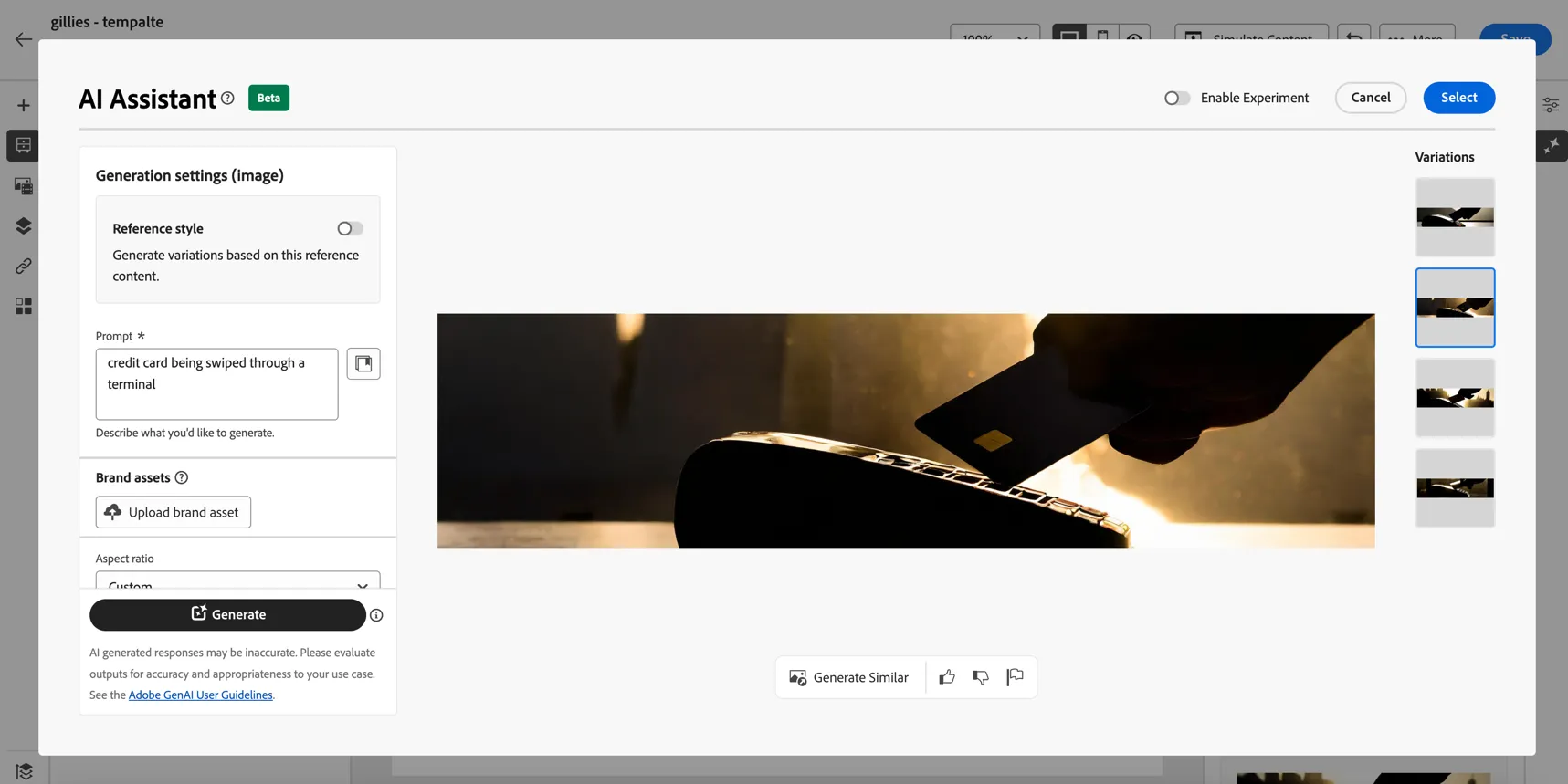
Here you can review the images generated and choose whether to modify the prompt or continue with one of the images selected.
Once you're decided which image to use, click select
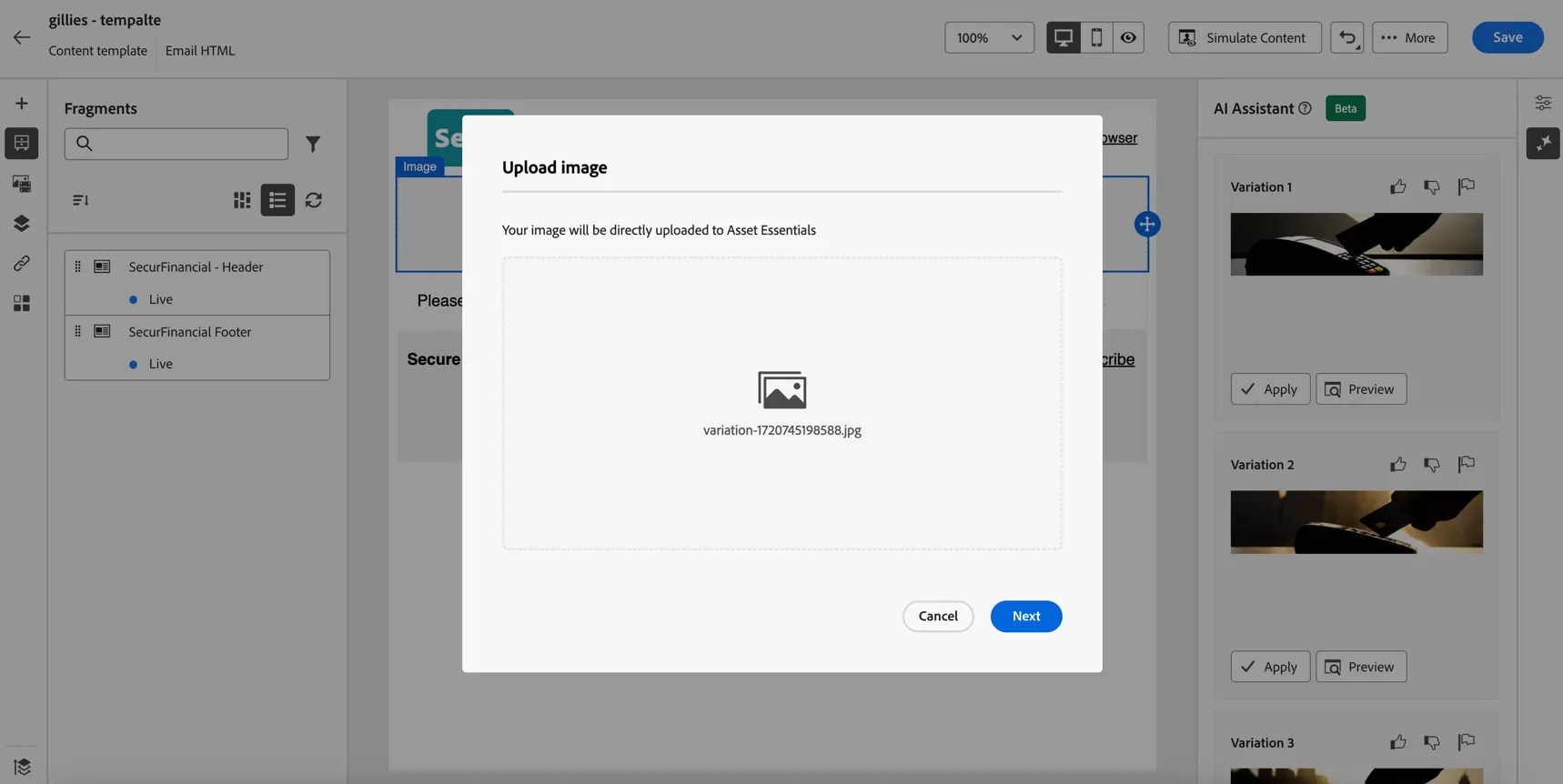
Click Next to upload the image to the asset repository. Select to store the image in the FSI folder.
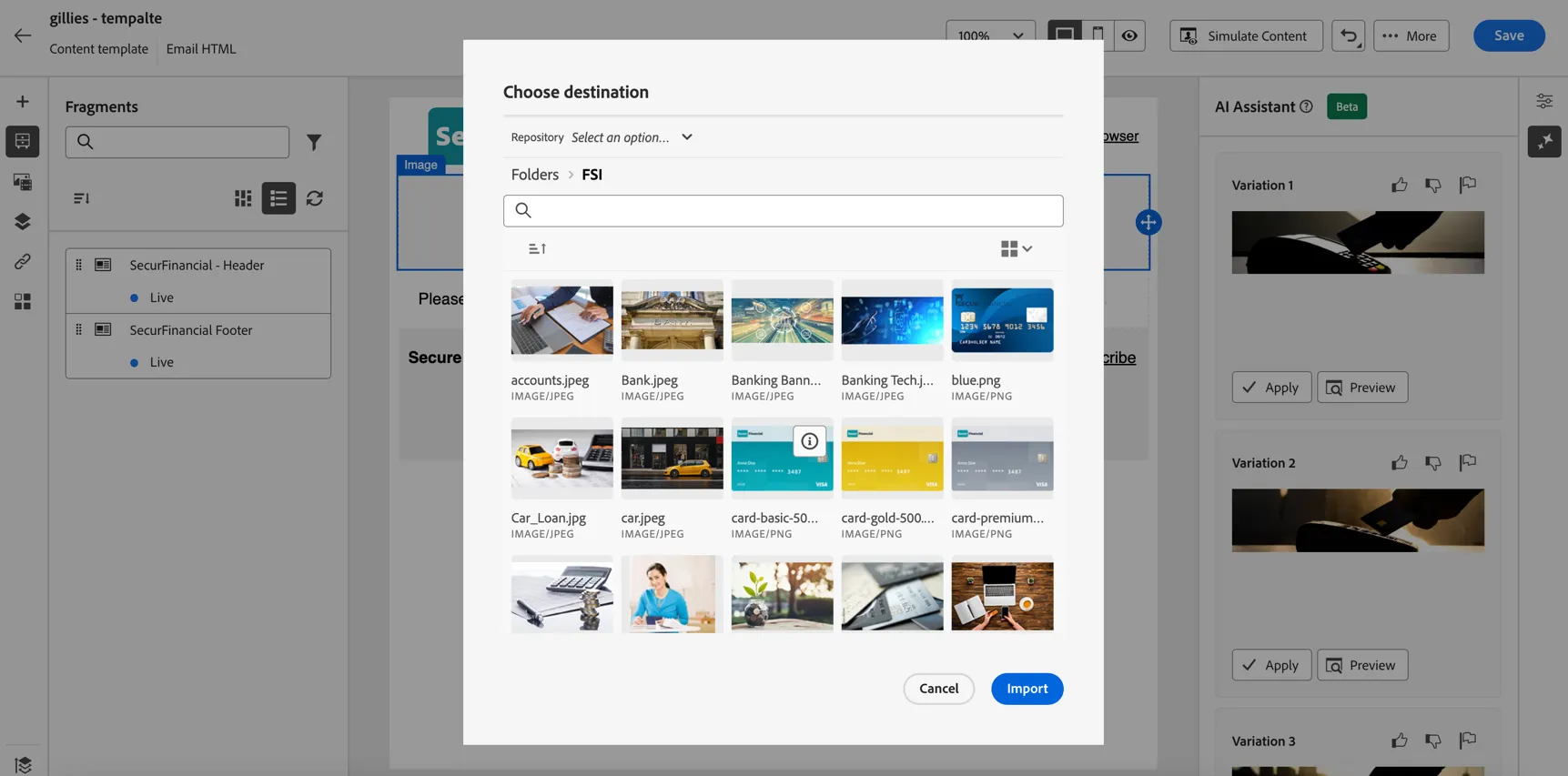
Click Import to add your image to the content.
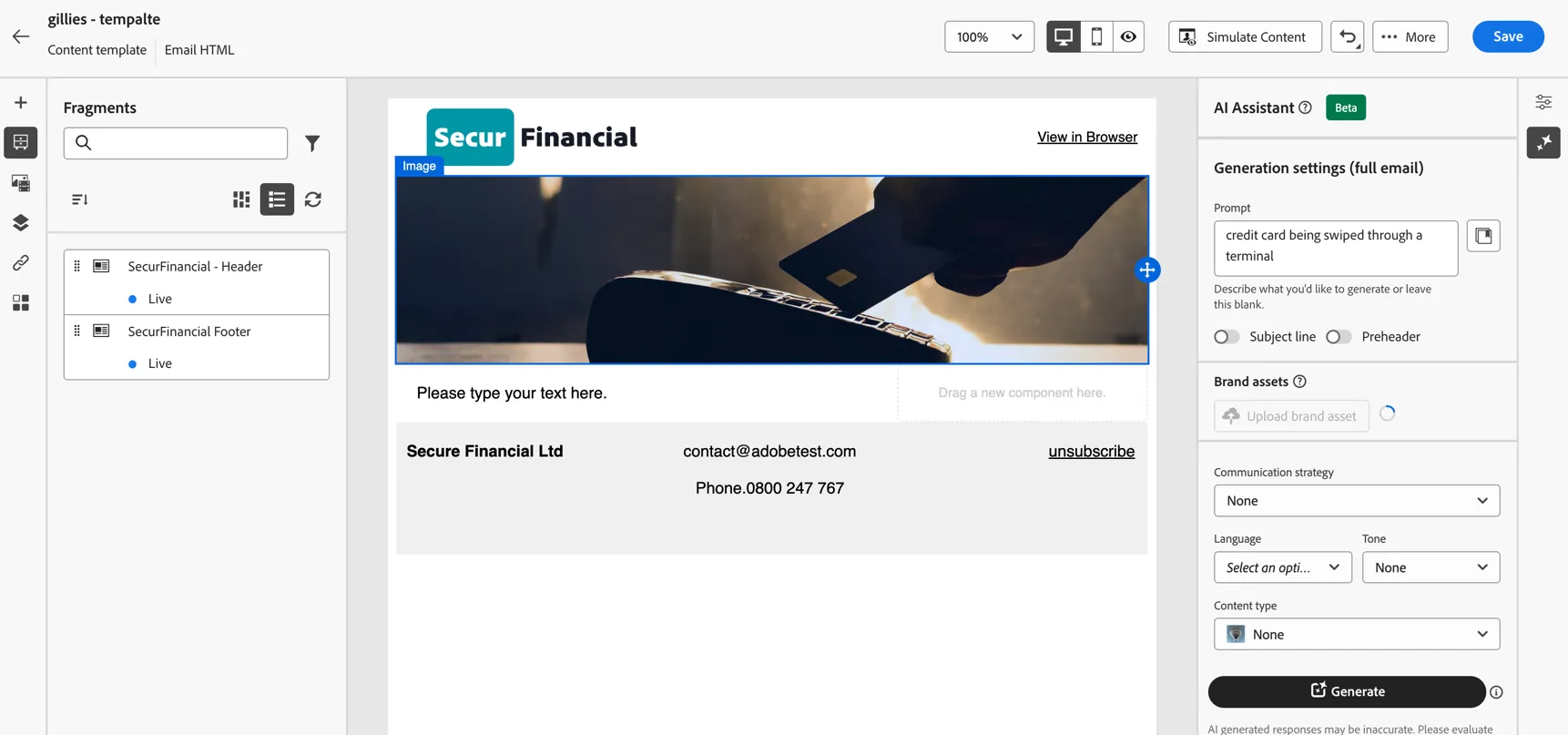
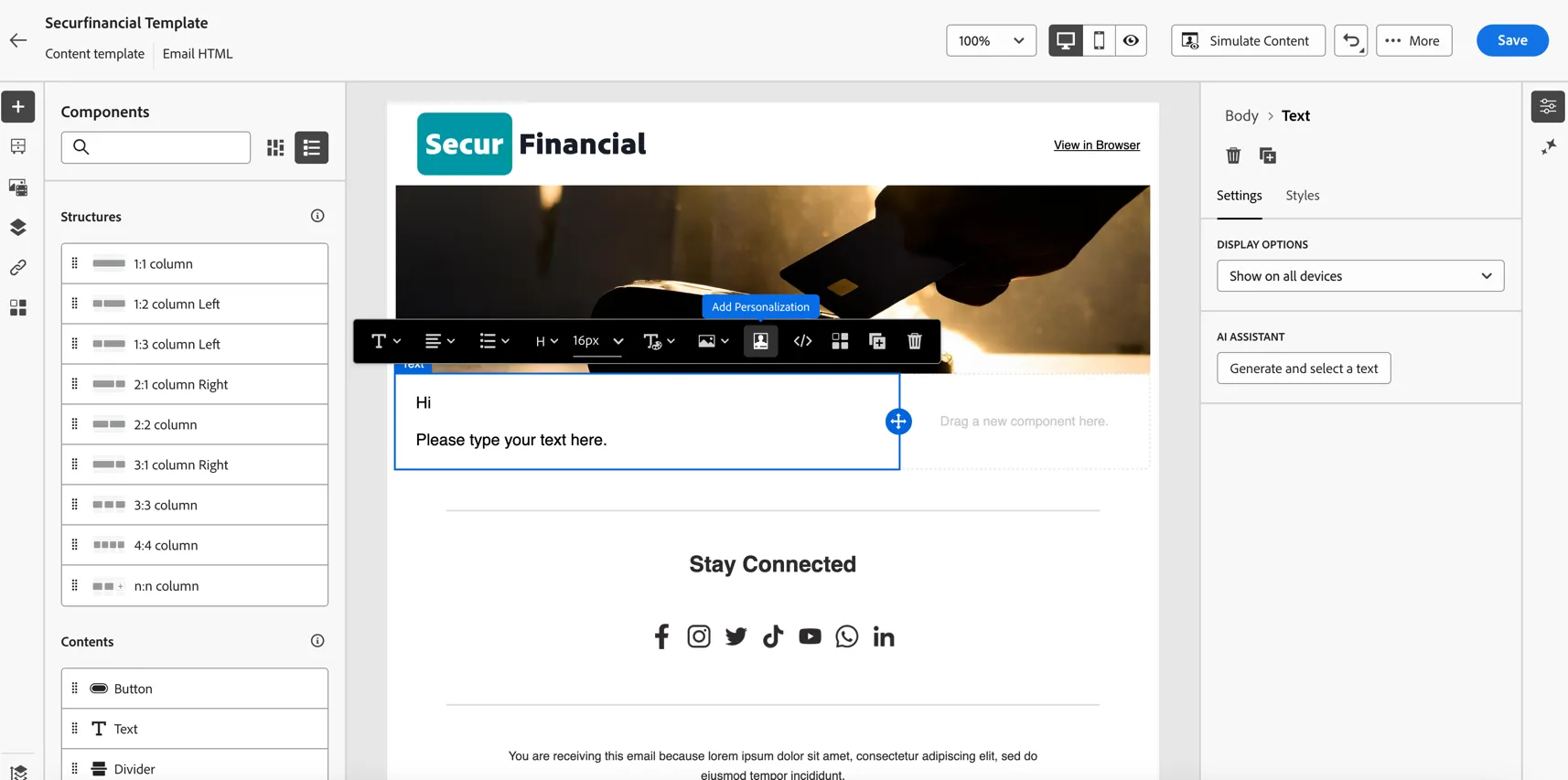
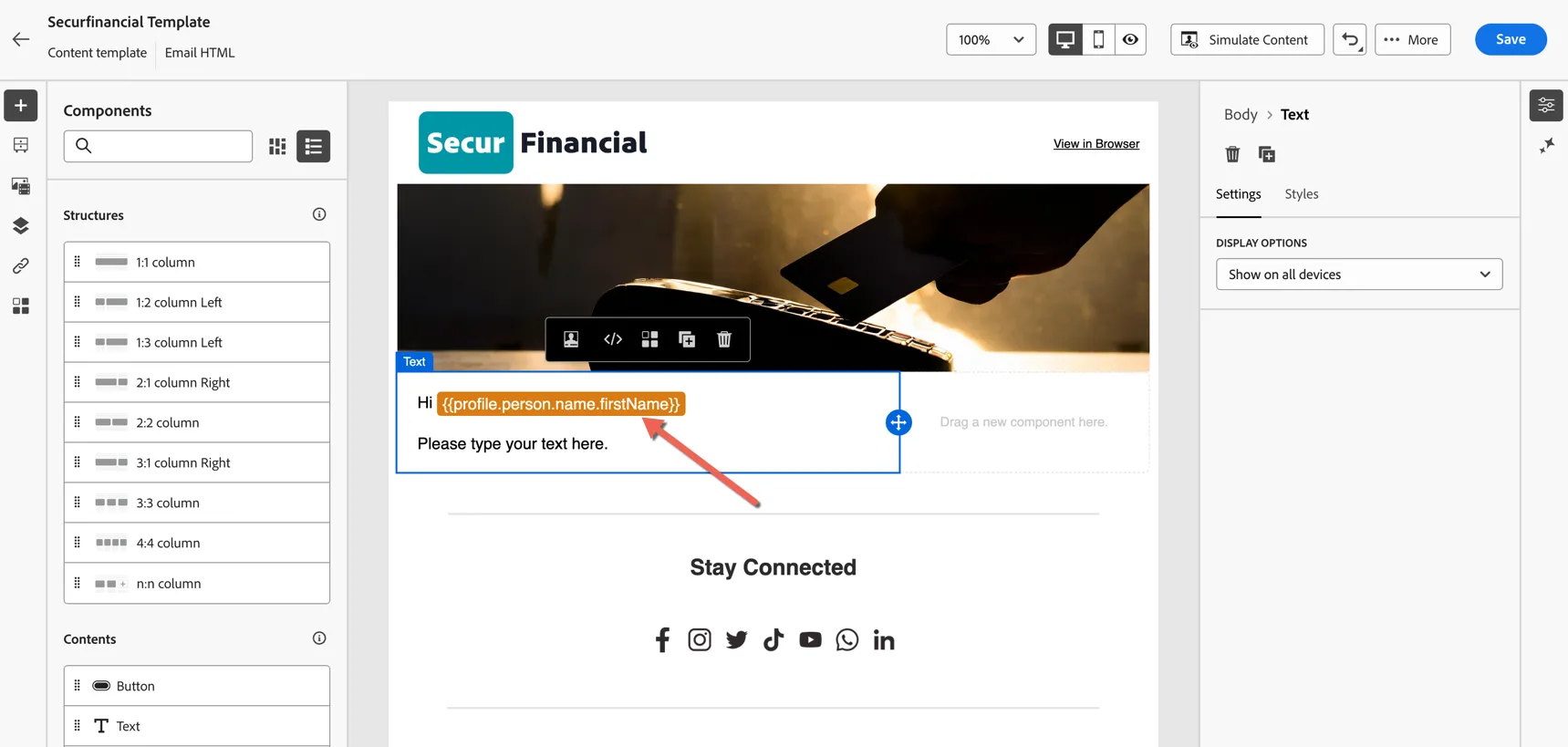
Lastly, let's personalize the content by adding the customer firstname. Click in the text content and select to Add Personalisation.
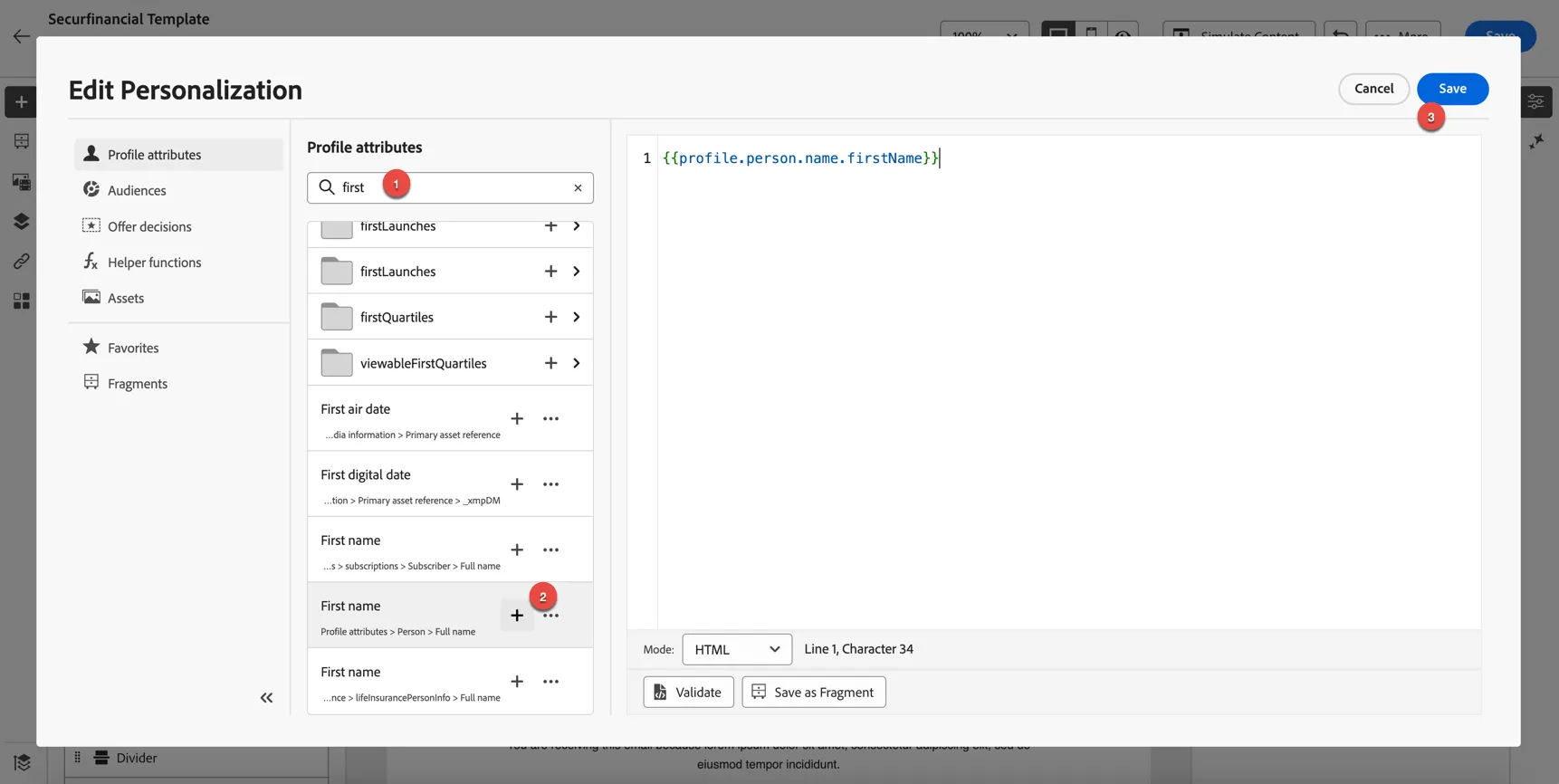
In the personalisation editor, in the Profile Attributes tab, search for first. You'll see a few different first name fields, this is due to the schema design in our sandbox. select the First Name field with Profile Attributes > Person > Full Name underneath. This is the schema field we want to use. Click the + icon to insert the field. Then click Save.
The personalisation field is now inserted into your content.
Click to Save your template.