Before you start: lab rules and tips
Read these before you begin. They keep the lab smooth for everyone.
Name everything with your initials
Add your name or initials to the start of the name of everything you create, for example SG - Abandoned Life Insurance Application Journey. Everyone shares one environment, so this is how you find your own work. Coworker asks for your name or initials when it builds a journey; give the same value every time.
Leave everything in draft
Never publish a journey or an audience, activate a campaign or send a message. Coworker keeps everything in draft for you. On the journey canvas, do not click Publish.
This is a shared demo environment
Everyone in the room uses the same sandbox at the same time. If something is slow, wait a moment before you try again. You will see other attendees' audiences and journeys; leave them alone.
The environment is also shared amongst several teams at Adobe so sometimes you will see other data/content in there. We do our best to clean the environment each time but if you're unsure, just leave it.
Never delete anything you didn't create
Be especially careful with anything whose name starts with HOL, such as audiences, templates, projects and content. Other attendees depend on them.
Sign in
- Go to experience.adobe.com in a new tab.
- Sign in with the lab user name and password you were given.
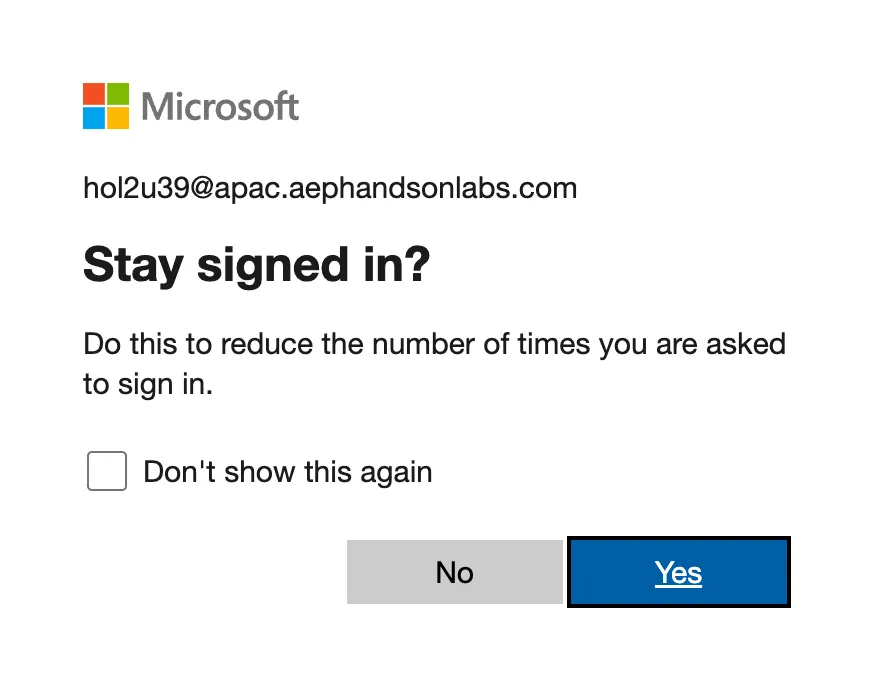
- If a Microsoft window asks Stay signed in?, click No. You don't need to tick "Don't show this again".
How to open each application
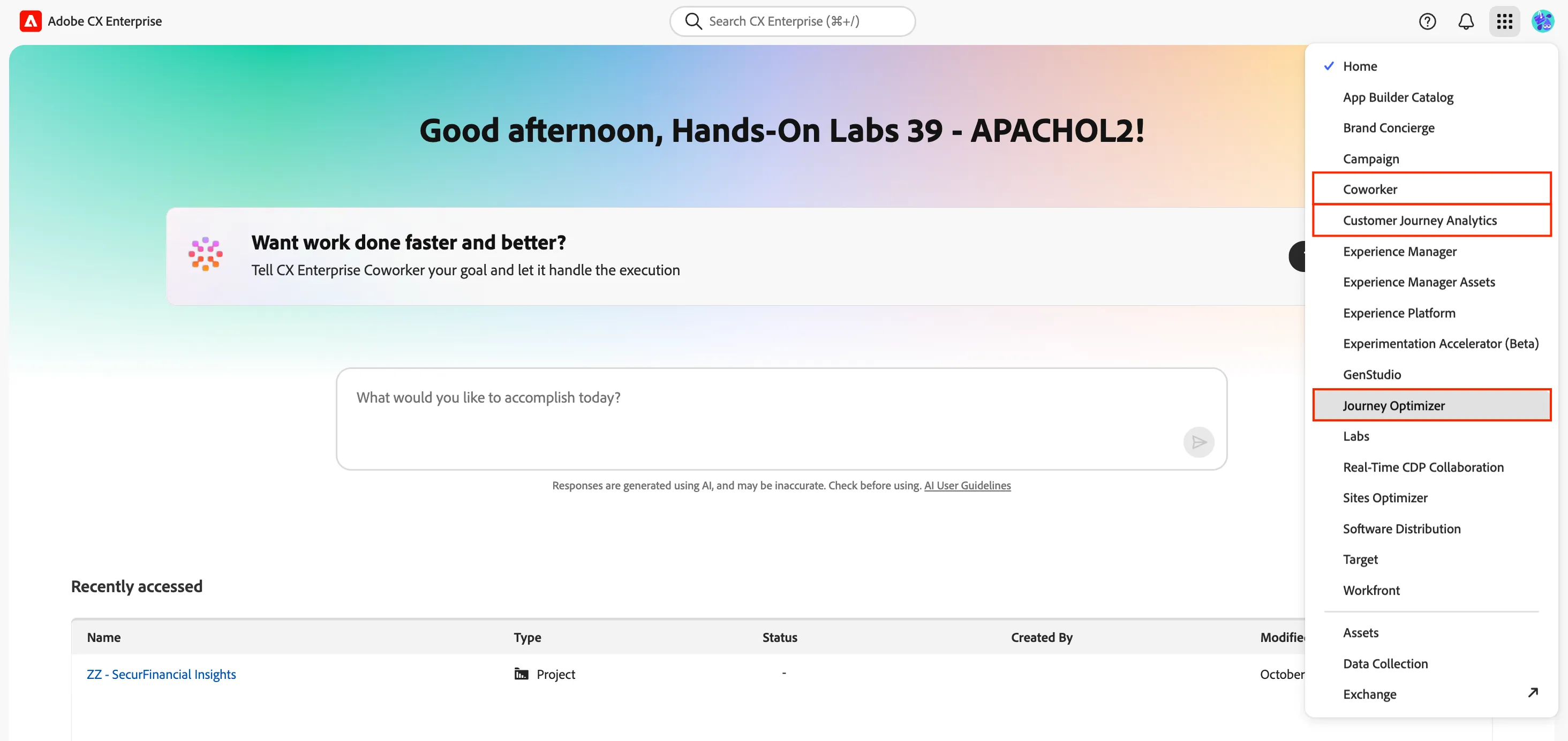
Every application in this lab is on one platform, at experience.adobe.com. Use the app switcher (the 9-dot icon in the top-right corner of the screen) to move between them:
Application | How to open it |
|---|---|
Journey Optimizer (AJO) | 9-dot icon > Journey Optimizer |
Customer Journey Analytics (CJA) | 9-dot icon > Customer Journey Analytics |
Coworker | 9-dot icon > Coworker, or go to experience.adobe.com/#/coworker |
Screen tips
- Zoom: if the screen feels crowded, zoom out with Cmd and − (Mac) or Ctrl and − (Windows). Zoom back in with Cmd and + or Ctrl and +.
- Split view in Chrome: you can show this guide and the application side by side. This works well for Coworker. The journey canvas needs more space, so split view may feel tight there; use a full window for the journey canvas if you can.
Human in the loop is built in
Coworker often asks a question or asks you to confirm a plan before it creates something. Read it and answer it. This is part of the experience: you stay in control, and Coworker does the work. If you're unsure, ask the Adobe staff in the room.
If a prompt doesn't work, type "retry"
If a response doesn't show correctly, stops part-way, or the Wi-Fi drops, type retry as your next prompt. Coworker continues from where it stopped.
About the data
- All data in this sandbox is synthetic (generated for the demo) and may not fully represent real life. Some data, such as recent events, may be a few days or weeks old.
- Audience sizes of 0 are not unusual because of how the data was generated. That's fine: nothing here is ever sent.
- Some audiences in this sandbox are evaluated in a nightly batch run, so a size estimate for a brand-new audience may only be ready the next day.
Measurement and optimisation
You won't set up experiments in this lab, but keep this in mind as you build: Journey Optimizer and Customer Journey Analytics can measure every journey and message (opens, clicks, applications, revenue), run A/B tests on content, compare journey paths, and measure true lift with holdout groups. Coworker can help you analyse those results and suggest what to test next.