Lab 2: Build customer experiences using agents
In this lab you use Adobe CX Enterprise Coworker (Coworker), Adobe's AI coworker for customer experience teams. You describe the business outcome in plain language. Coworker plans the work, checks it with you, and builds it in Journey Optimizer, on the same platform and data you used in Lab 1.
Before you begin
Save the lab files to your Desktop
Download these two files from the lab resources and save them to your Desktop, so they are easy to attach later:
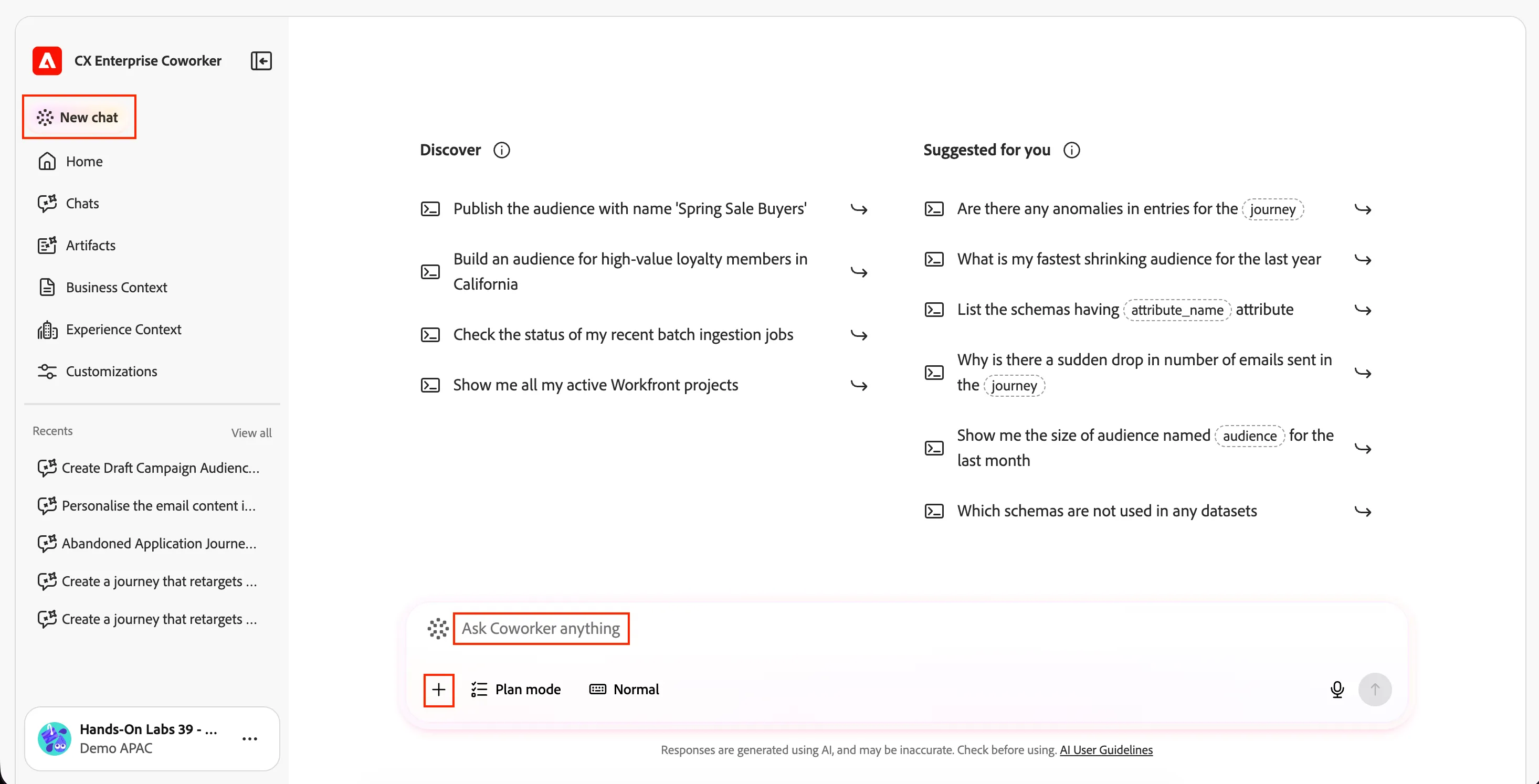
Open Coworker
- Click the 9-dot app switcher and click Coworker (or go to experience.adobe.com/#/coworker).
- Check the bottom of the left rail. It shows your user name and the organisation (Demo APAC).
- Type your prompts in the box labelled Ask Coworker anything in the middle of the screen, then press Enter.
- Tip: whenever you need to attach a file, click + below the prompt box and choose Attach file.
- Tip: to start a fresh conversation, click New chat in the left rail.
Each time Coworker asks for permission:
- Read the request. Click the arrow on the left to expand it and see the details (for example, the name and rules of what it will create).
- Review that it matches what you asked for.
- Approve it by clicking the tick icon (or Allow). Click the X to stop.
How to use the prompts:
- Copy each prompt into Coworker, replace <initials> with your own, and press Enter.
- Read every answer and respond to any question Coworker asks.
- If something goes wrong, type retry.
Exercise 1: Set up Business Context
Why: Coworker knows your data, but not your business. Business Context tells Coworker about your company: your products, customers, research, goals, terms and rules. With it, Coworker's answers sound like they come from someone who works at SecurFinancial.
What makes good business context
- Facts and research: "Customers over 35 with children are 3x more likely to buy life insurance."
- Strategy and priorities: "Cross-selling is an effective strategy and should be used where possible."
- Terms: "ILP means Investment-Linked Policy. It may also be called Variable Life Insurance or Unit-Linked Insurance."
- Rules and guardrails: "Never promise guaranteed investment returns."
- Brand and tone: "Reassuring, plain-language, family-focused."
Keep it short and factual; bullet points work best. Don't include personal data, customer records, passwords or anything confidential.
Add your business context
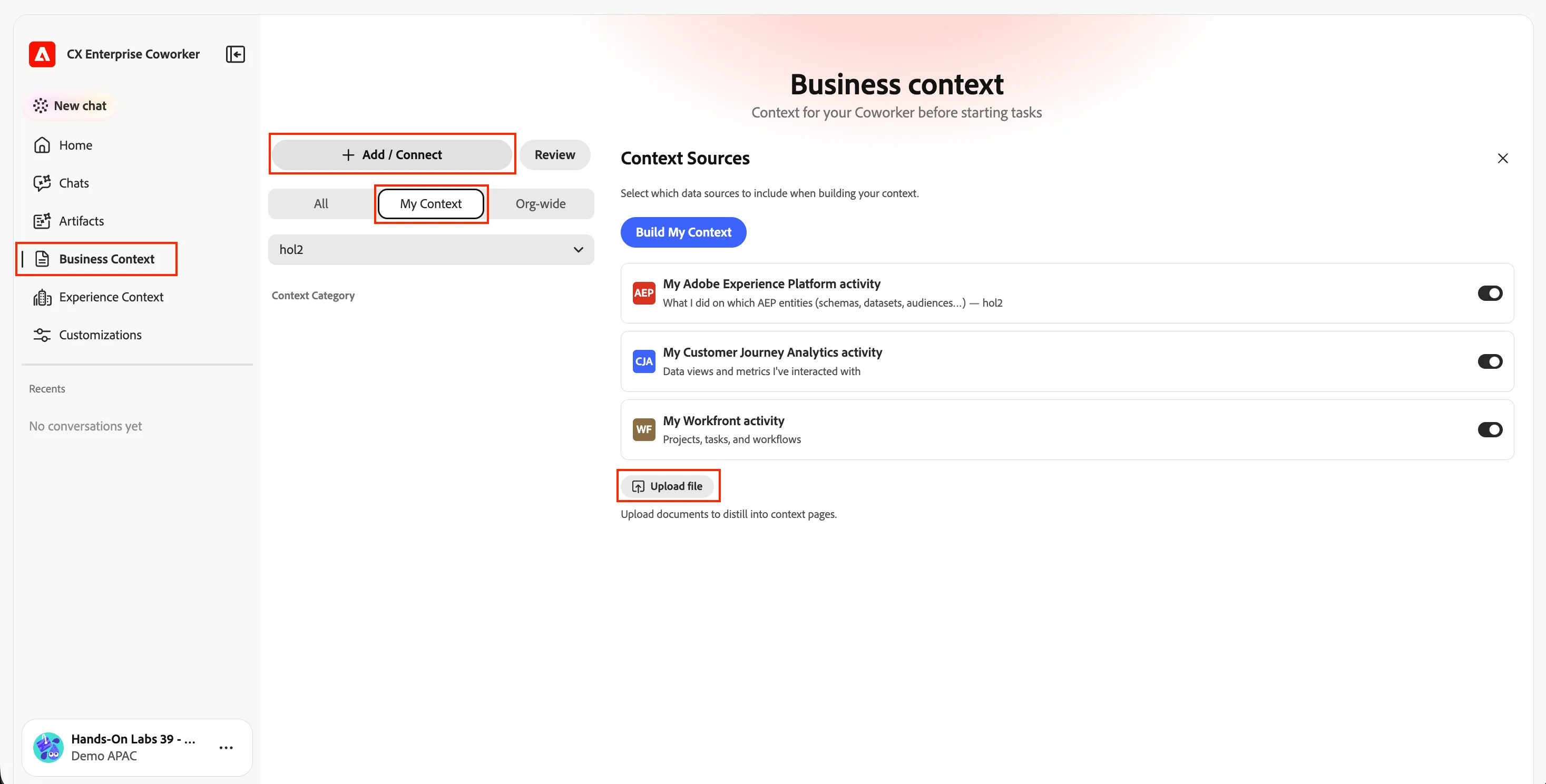
- In the Coworker left rail, click Business Context.
- Click + Add / Connect.
- Click the My Context tab. Check that the sandbox box below it says hol2.
- In the Context Sources panel on the right, click Upload file. (You don't need Build My Context or the activity toggles for this lab.)
- Choose SecurFinancial Business Context.docx from your Desktop.
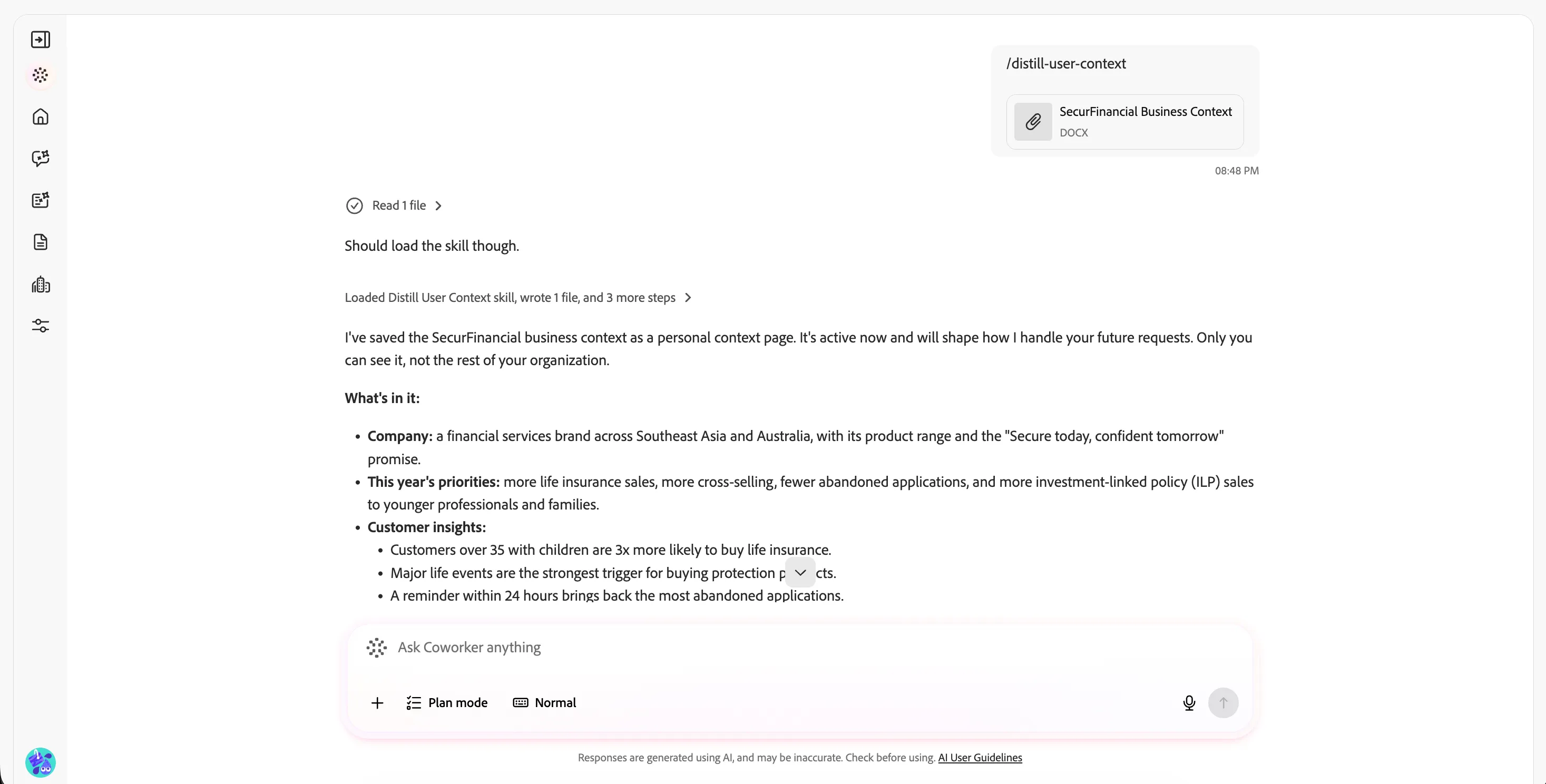
- Coworker opens a chat and reads the file. It turns the document into a context page and shows a summary of what it saved (company, priorities, customer insights and rules). This can take a minute.
- Read the summary. If Coworker asks a question, answer it.
Test your business context
- Click New chat in the left rail.
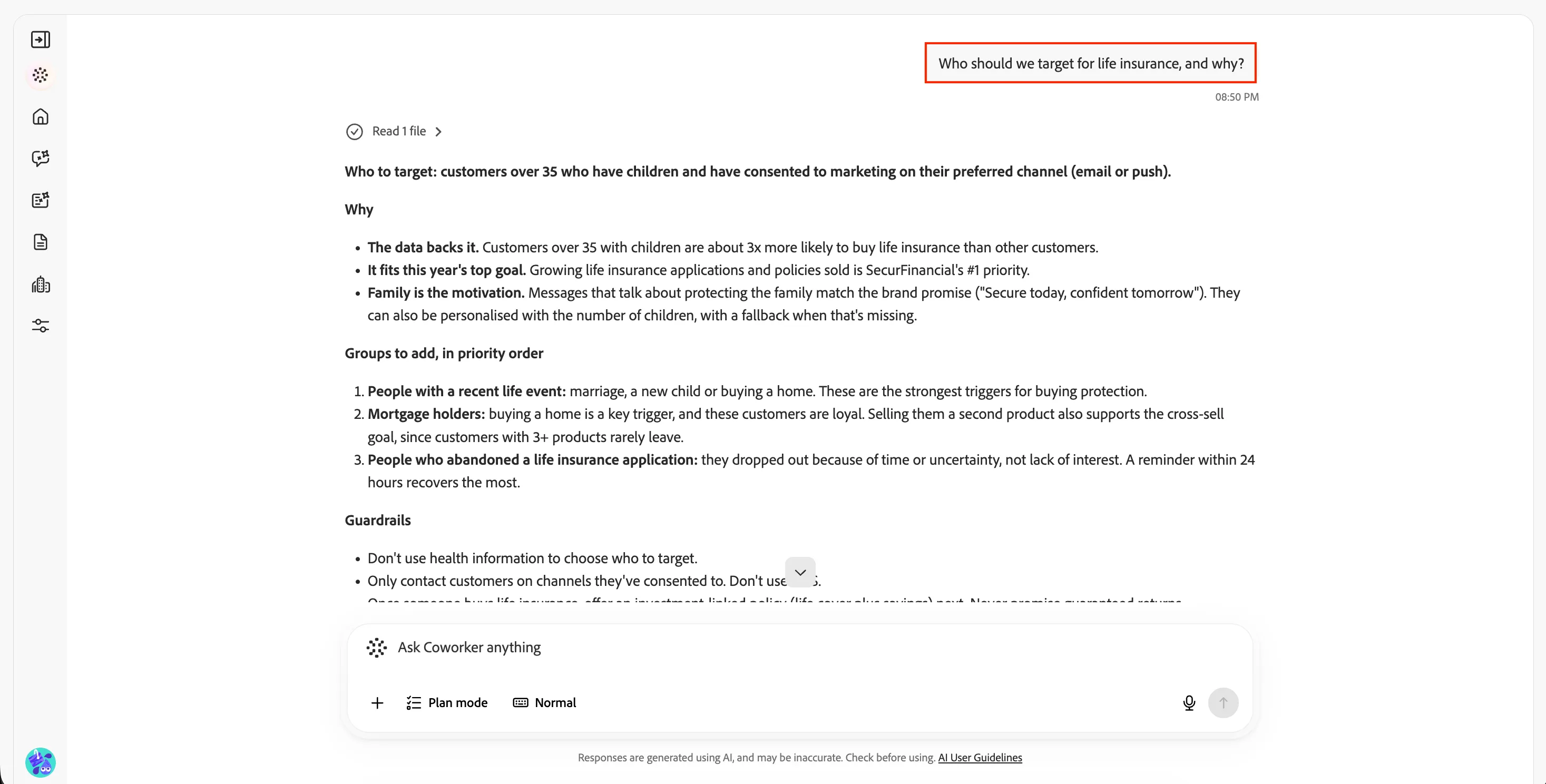
- Send this prompt:
Who should we target for life insurance, and why?- Check the answer. It should use your business context, for example: customers over 35 with children are about 3 times more likely to buy life insurance; growing life insurance is this year's top priority; and guardrails such as "don't use health information to choose who to target".
Organisation-wide context: an administrator can also publish business context for the whole organisation, so every user benefits without uploading anything. An administrator approves it before it takes effect.
Business value: every answer from Coworker uses your strategy and rules, so you spend less time explaining and correcting.
Exercise 2: Insights
Why: in Lab 1 you found insights by dragging components in Customer Journey Analytics. Now ask for them in plain language.
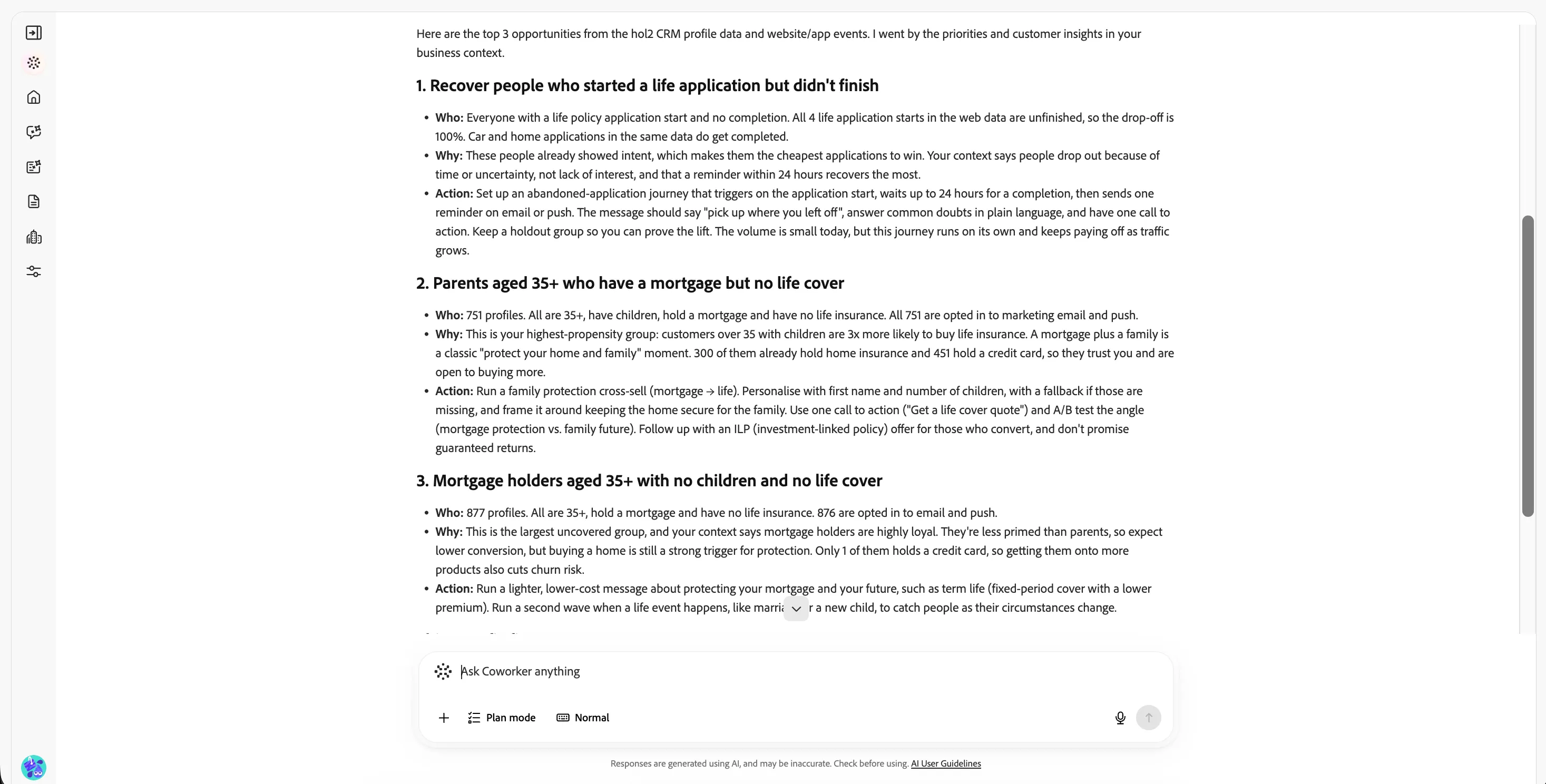
I'm a marketer at SecurFinancial. Our goal this quarter is to increase life insurance applications. Using the data in this sandbox, what are the top 3 opportunities to grow applications? For each one, tell me who we should target, why, and what action you'd recommend.What to look for
- Coworker reads your data (profiles, audiences, events and analytics) and gives business-language recommendations, each with Who, Why and Action.
- Look for opportunities such as people who start but don't finish a life insurance application, and customers over 35 with children (for example, parents with a mortgage but no life cover).
- Look for your business context in the answer, such as "customers over 35 with children are 3x more likely to buy life insurance" or "a reminder within 24 hours recovers the most".
- Notice that the answer gives counts (for example, number of profiles), not individual customers' details.
Optional follow-up
Which of those opportunities would have the biggest impact, and how would we measure success?Business value: analysis that usually takes an analyst hours or days takes minutes, and it's tied directly to a business goal.
Exercise 3: Audience
Why: turn the insight into an audience, without needing to know the field names or the rule builder.
Based on those insights and our business context, create an audience of high-value life insurance prospects: people over 35 (use the age field) who have at least one child. Name it "<initials> - Life Insurance Prospects Over 35 with Children" and leave it in draft. Don't worry about the audience size I just want the correct attributes to be used. This is just for demo purposes. Make any assumptions you need to and just verify the final audience definition with me before saving.What happens
- Coworker finds the right profile fields (age and numberChildreninHouseHold).
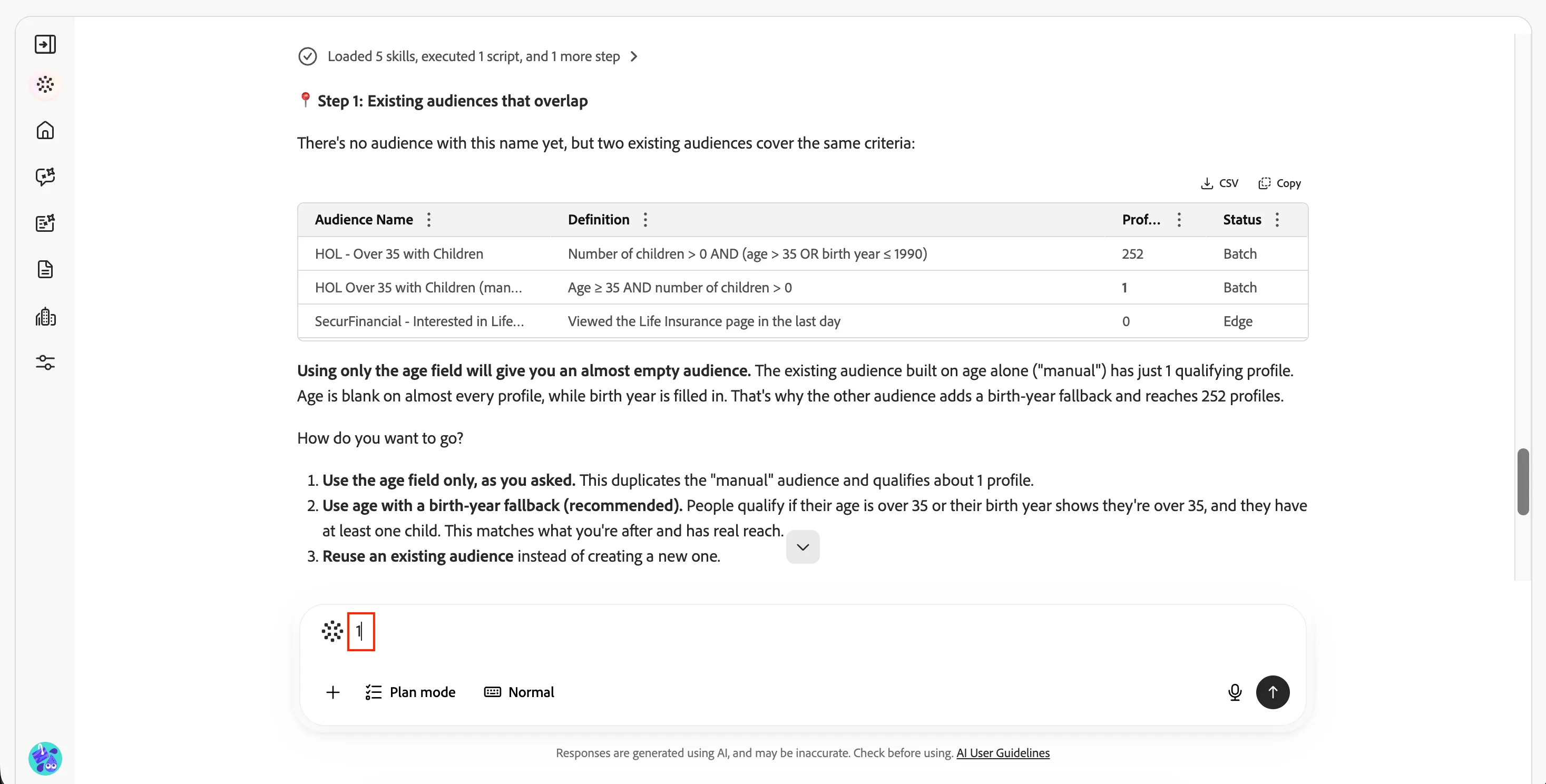
- It checks how your new audience compares with existing audiences. This is a smart, built-in step: it helps teams avoid building duplicate audiences. It may show a table of similar audiences, such as HOL - Over 35 with Children.
- It shows you the final audience definition and asks you to confirm.
- It creates the audience as a draft.
Answering Coworker's questions
- If Coworker asks whether to create a new audience or reuse an existing one, tell it to create the new audience. It will probably have the same definition as other audiences, because everyone in the room builds this audience by hand and with Coworker. That's fine for the lab.
- If Coworker gives you numbered choices, just type the number (for example 1) and press Enter.
- If it warns that the audience will be small, that's expected with demo data. You can carry on.
Giving Coworker permission
Before Coworker creates or changes something in Adobe Experience Platform, it asks for your permission. You'll see "Coworker needs your permission to proceed" and a line such as Calling API – Creating draft audience.
- Click the arrow on the left of the request to expand it and see the details. For example, you can check the audience name, the rule (age > 35 and numberChildreninHouseHold > 0) and that it is saved as a draft.
- If it looks right, click the tick icon to continue. Click the X to stop. You can also type in the prompt box to tell Coworker what to do instead.
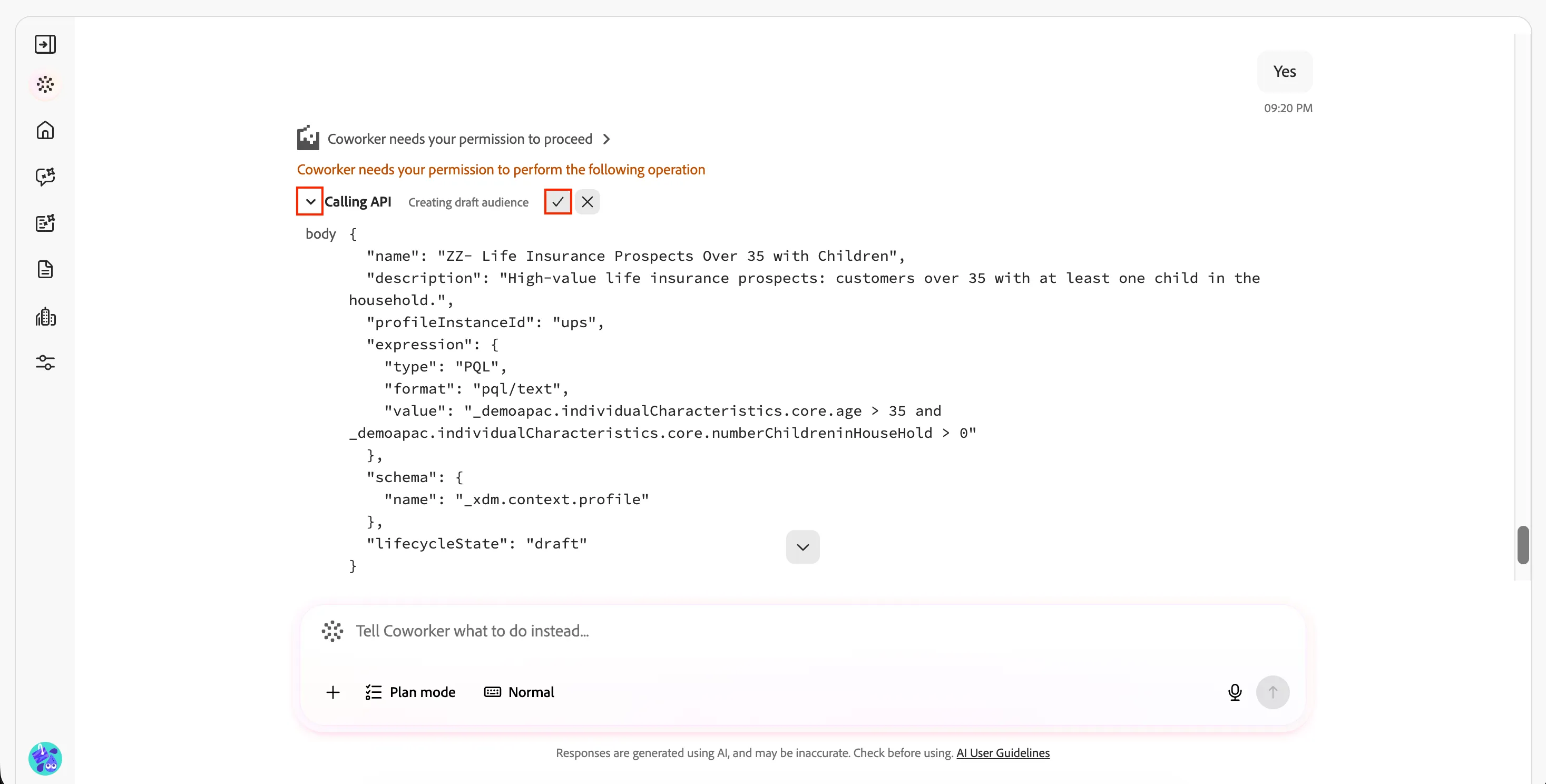
Why: this is the human in the loop. Nothing is created without your approval.
Check your audience
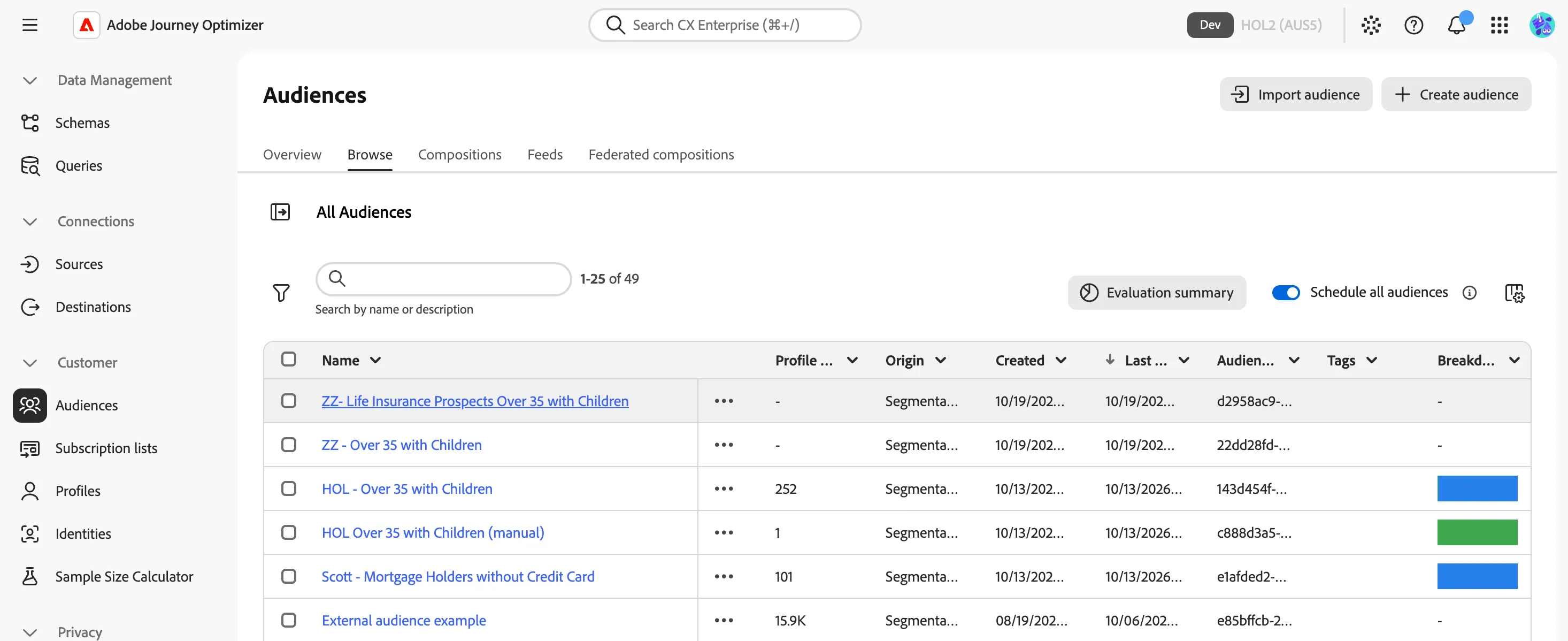
In Journey Optimizer, go to Customer > Audiences. Your audience <initials> - Life Insurance Prospects Over 35 with Children is at the top of the list. It has no profile count yet, because it is a draft that hasn't been evaluated.
Business value: you describe the customer; Coworker finds the data, checks for duplicates and builds the rule. Compare this with the steps you followed in Lab 1, Exercise 2.
Exercise 4: Journey
Why: build the same abandoned application journey from Lab 1, with one prompt.
Click New chat, then send:
Create a journey that retargets people over 35 with children who start a life insurance application but don't complete it within 1 day. Use the audience "HOL - Over 35 with Children".What happens
- Coworker loads a skill. You'll see "Loaded Abandoned Application Journey skill". This is SecurFinancial's approved way to build this journey, so every journey has the same proven structure.
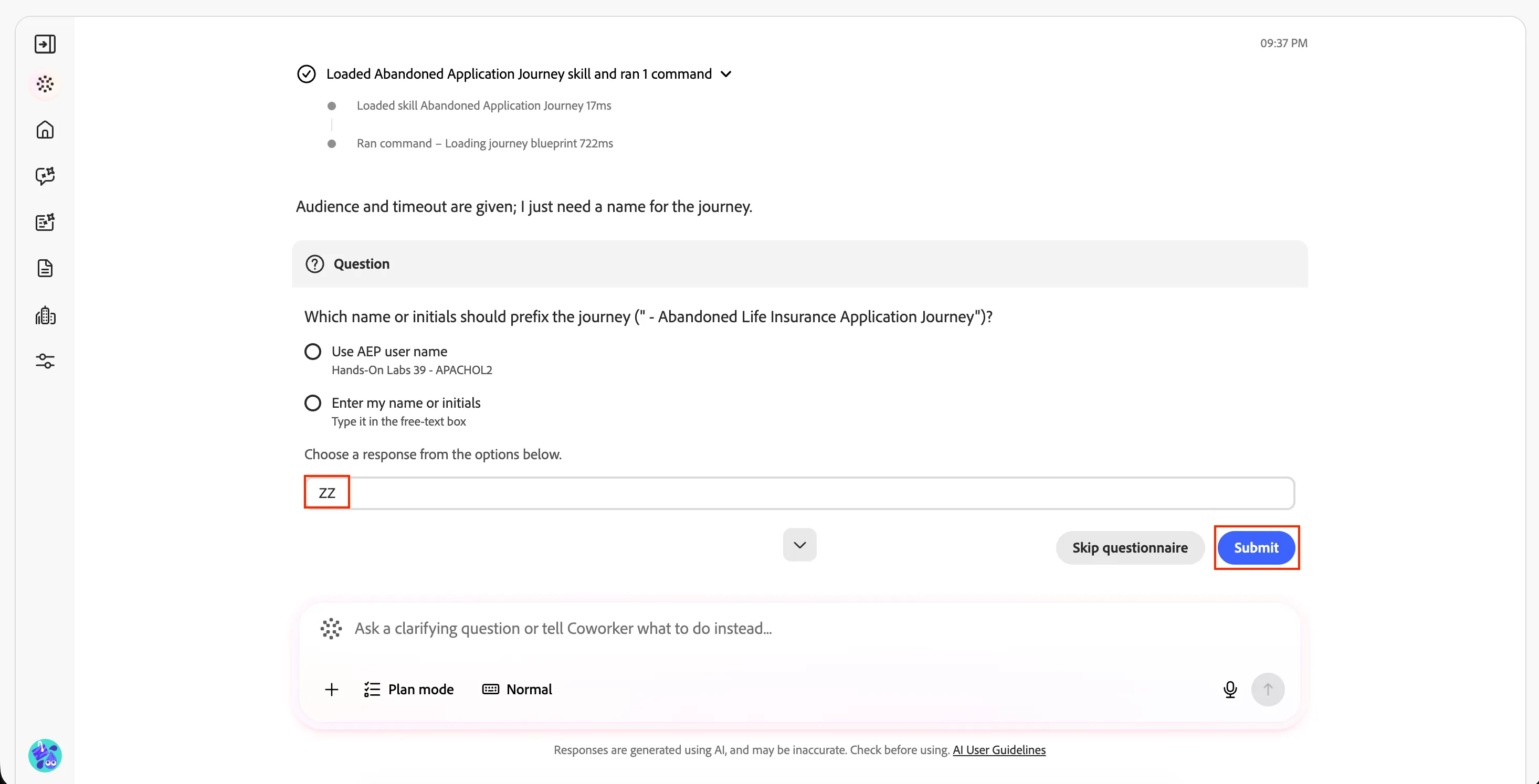
- It asks for a name prefix. Choose Enter my name or initials, type your initials in the box (for example ZZ), then click Submit.
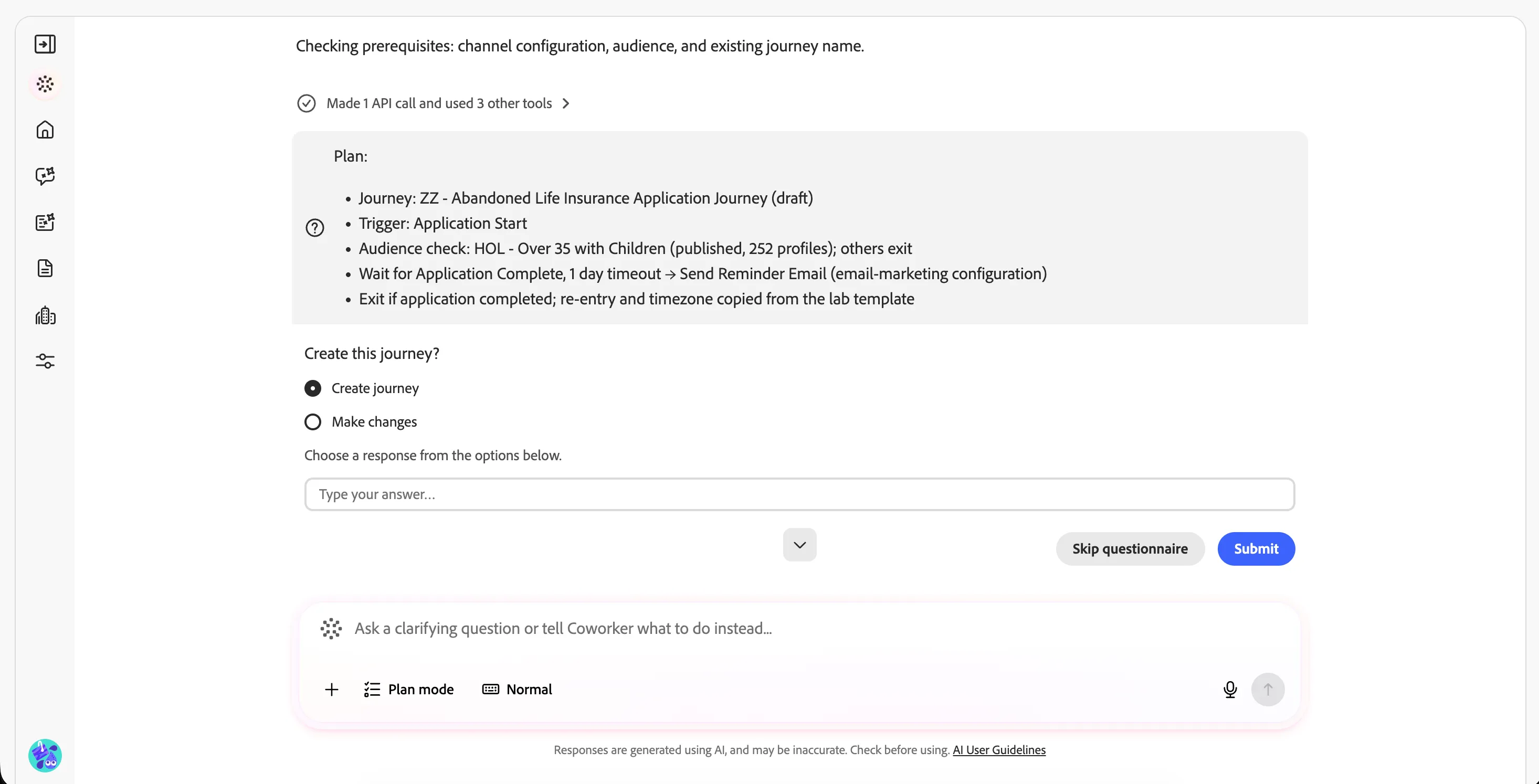
- It checks prerequisites and shows a plan. The plan lists the journey name, the trigger (Application Start), the audience check (HOL - Over 35 with Children), the 1 day timeout, the reminder email (email-marketing configuration), and the exit and re-entry settings. Check it. Leave Create journey selected and click Submit.
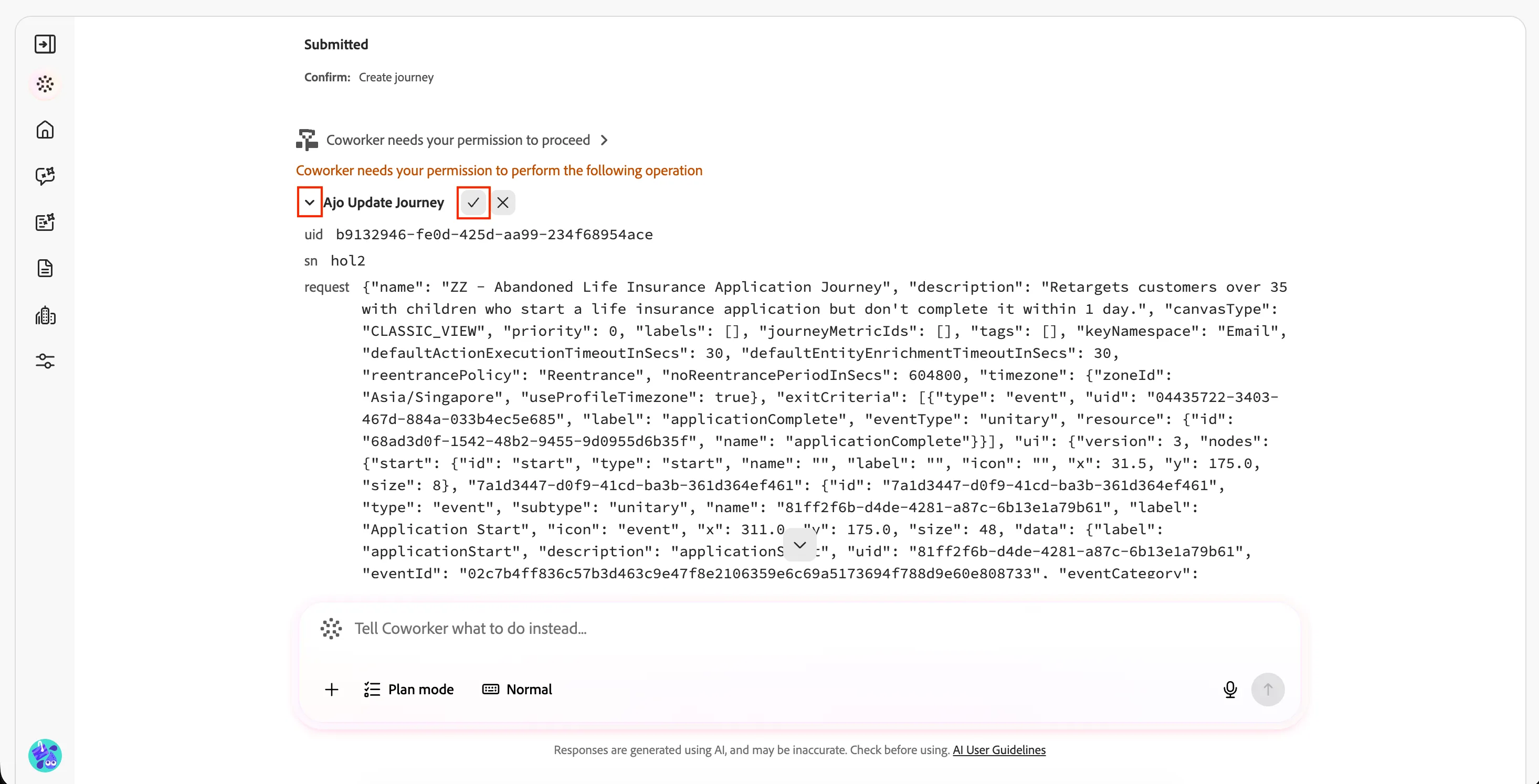
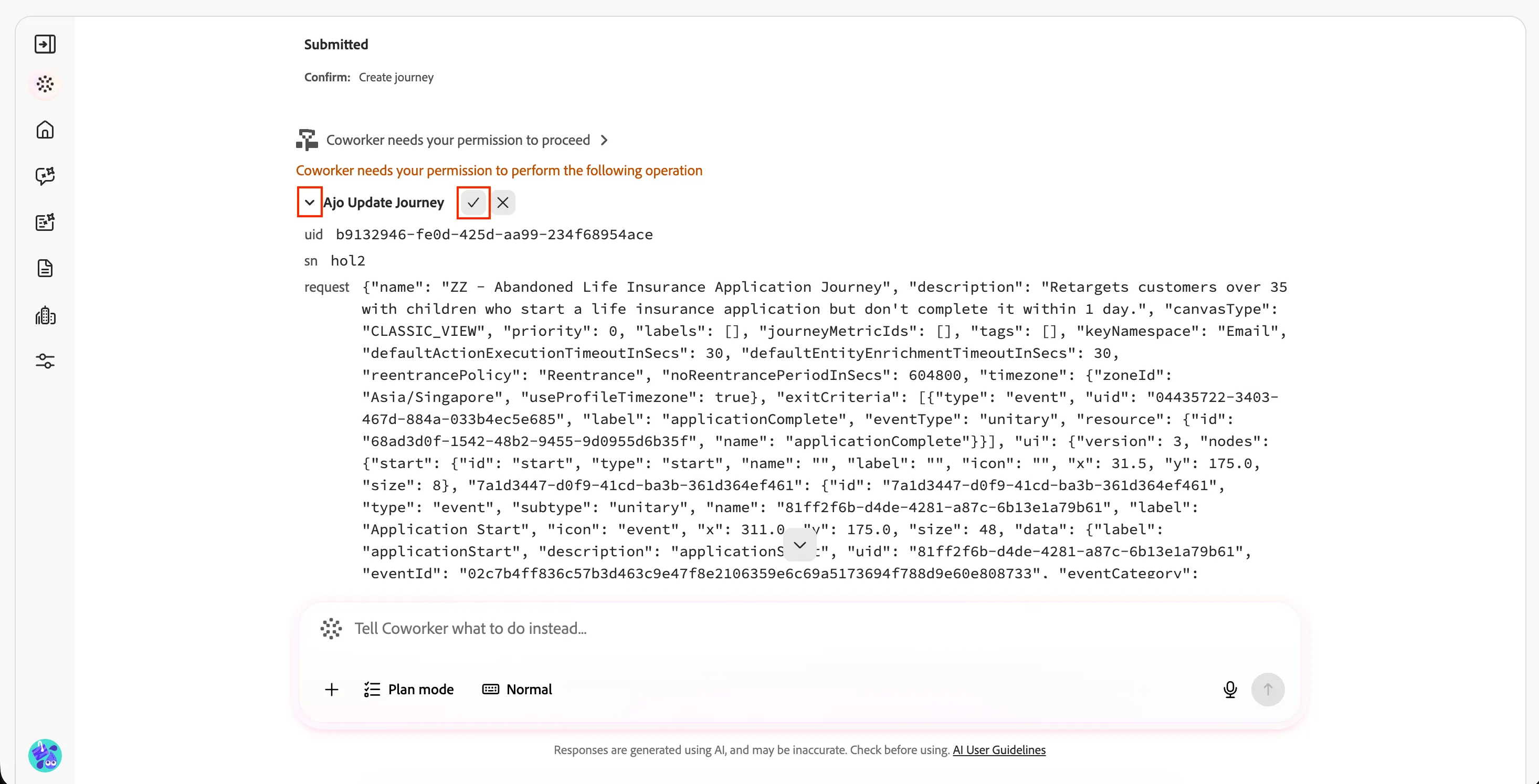
- It asks for permission (human in the loop). You'll see Coworker needs your permission to proceed with Ajo Update Journey. Click the arrow to expand it and check the details if you like, then click the tick icon.
- It asks what to do next. If you see the choice Navigate to the new journey, choose it and click Submit, then click Allow on the navigate permission. If Coworker shows a link instead (Open the journey), click the link. Either way, Journey Optimizer opens your new journey. (You'll personalise the email in Exercise 5. First, check the journey itself.)
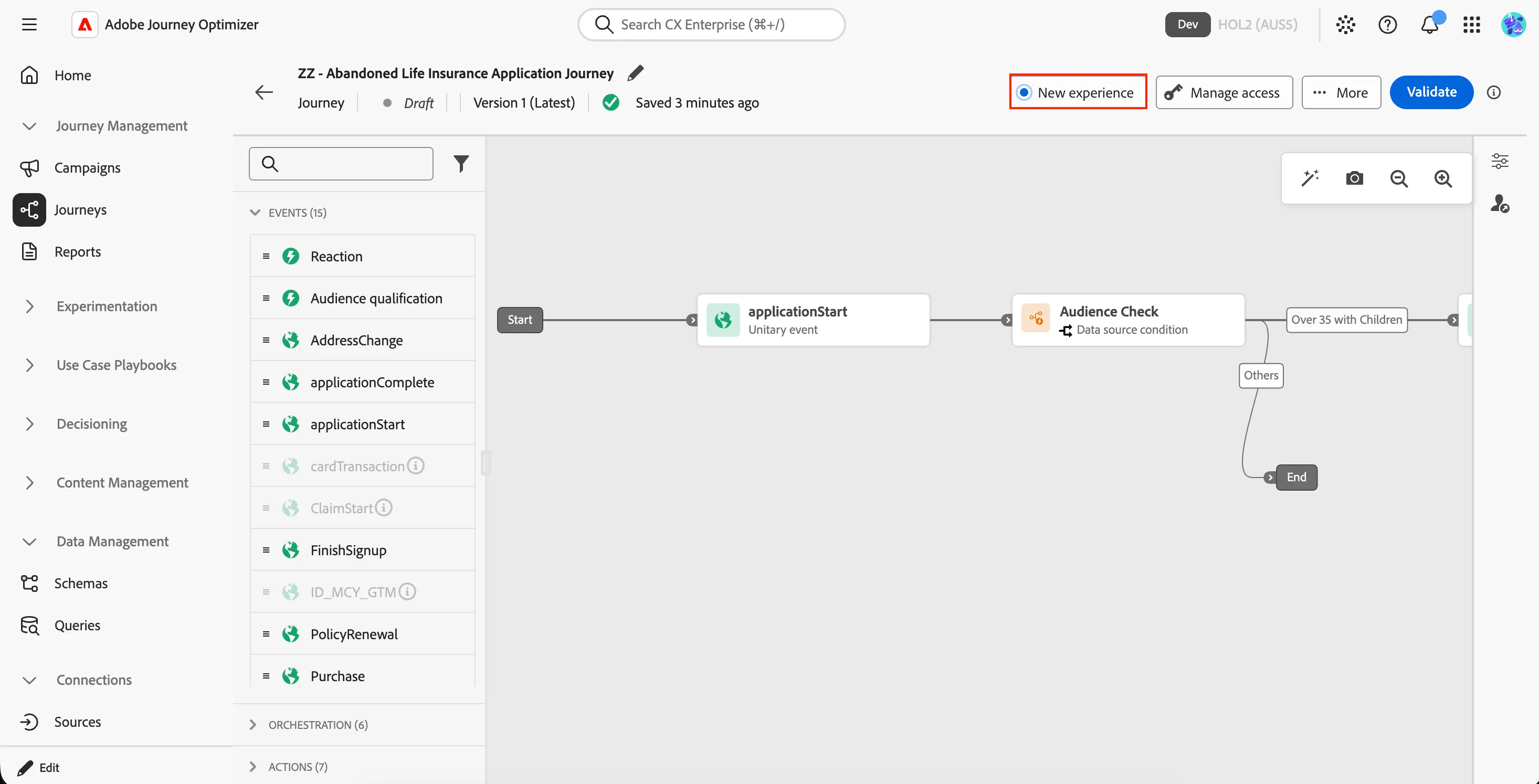
If the journey opens in the old canvas
Look at the button at the top of the canvas:
- If it says Old experience, you're already in the new canvas. Don't click it.
- If it says New experience, click it, then click Switch.
Check your journey
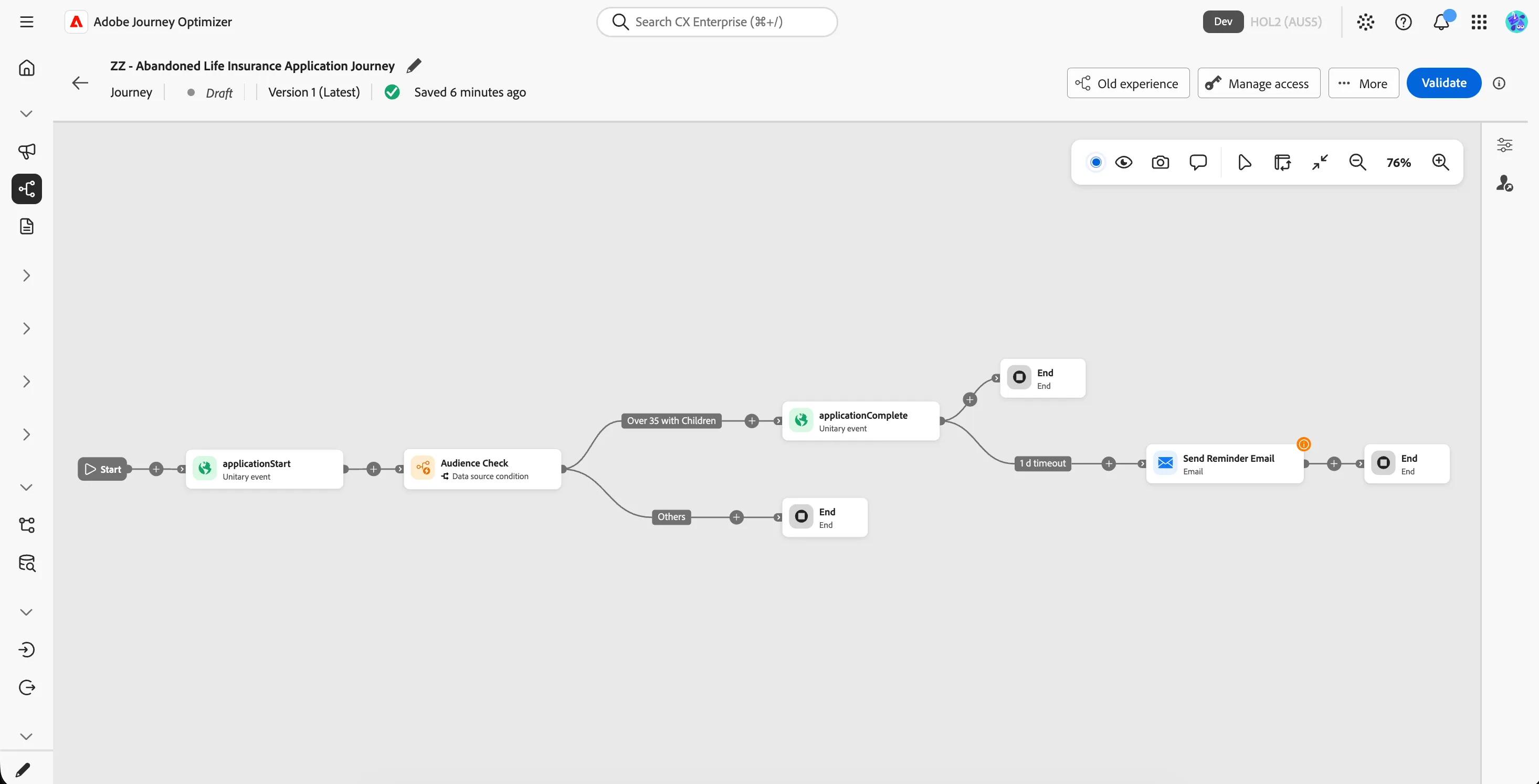
Compare it with the journey you built in Lab 1, Exercise 3:
- applicationStart, Audience Check, with Over 35 with Children and Others paths
- applicationComplete with a 1 d timeout path
- Send Reminder Email (the small orange icon is expected: the email has no content yet)
- exit criteria and re-entry settings (click the person icon and the sliders icon in the right rail to check)
Try this (optional): go back to Coworker and ask for a new journey with "2 days" instead of "1 day". Coworker changes only the timeout and keeps everything else the same.
Business value: the journey you spent most of Lab 1 building takes about a minute, follows your organisation's standard, and still waits for your approval at every step.
Exercise 5: Content
Why: create personalised, family-themed email content for your journey, from a prompt.
Step 1: Prepare the email (in Journey Optimizer)
Coworker writes into an email that already exists, so first set up the email in your journey.
- Open your journey <initials> - Abandoned Life Insurance Application Journey.
- Click the Send Reminder Email action and check that Configuration is email-marketing.
- Click Edit content, then Edit email body.
- Click Saved templates.
- Click HOL SecurFinancial Insurance Template. A preview opens.
- In the top-right corner, click Use this template.
- Click Save.
- Click the back arrow (top left) twice to return to the journey canvas.
- Click Save on the journey, just in case.
Step 2: Go back to Coworker and prompt it
You're on the journey canvas in Journey Optimizer. To go back to Coworker, click the 9-dot app switcher and click Coworker. Click New chat (or open your journey chat from Recents in the left rail), then send:
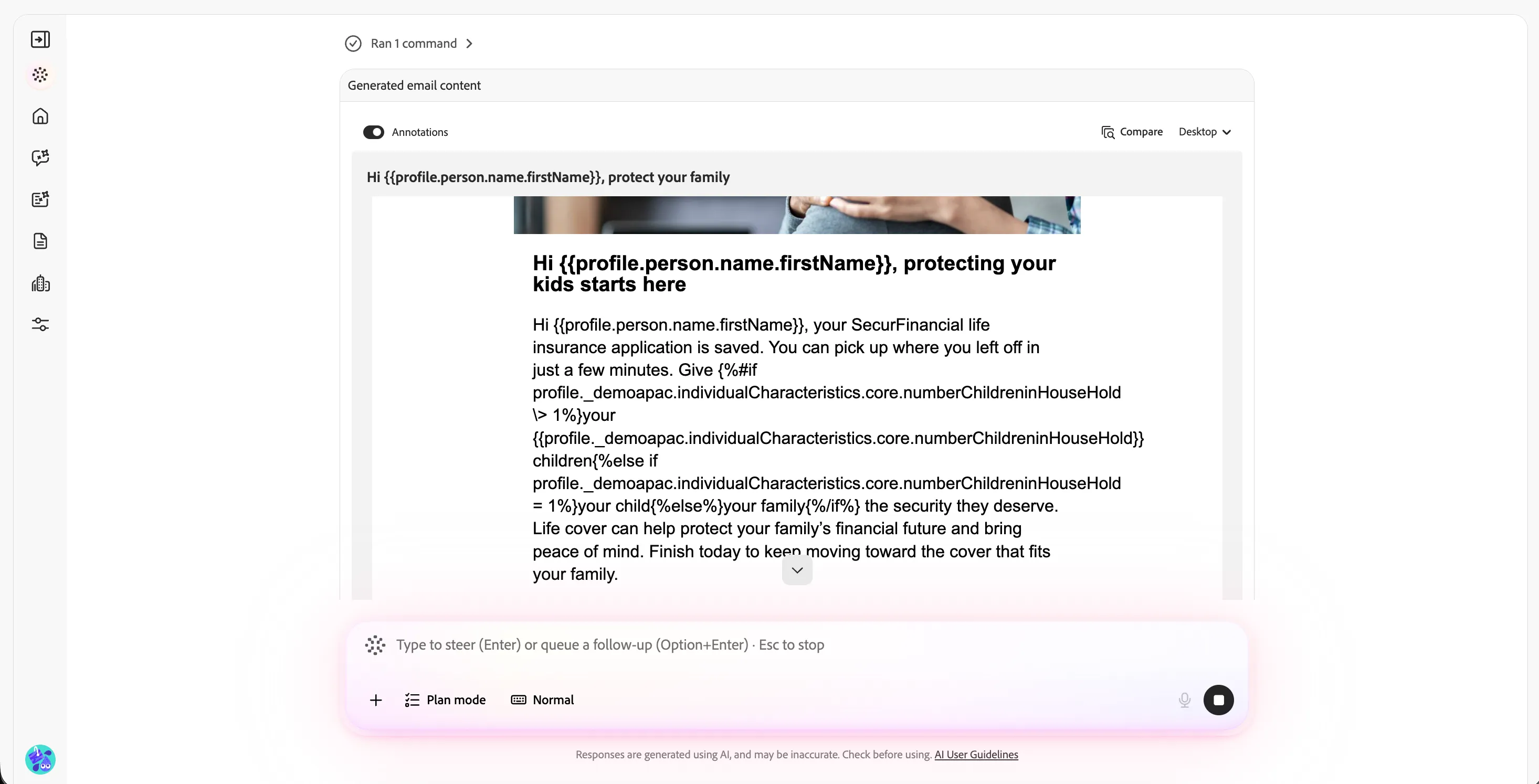
Personalise the email content in my journey "<initials> - Abandoned Life Insurance Application Journey". Use the "HOL SecurFinancial Insurance Template". Make it family-themed with a talk track like "Hi <first name>, protecting your <number of children> kids starts here", and encourage them to finish their application.What happens
- Coworker checks the SecurFinancial brand, then writes the subject line, heading, body text and button.
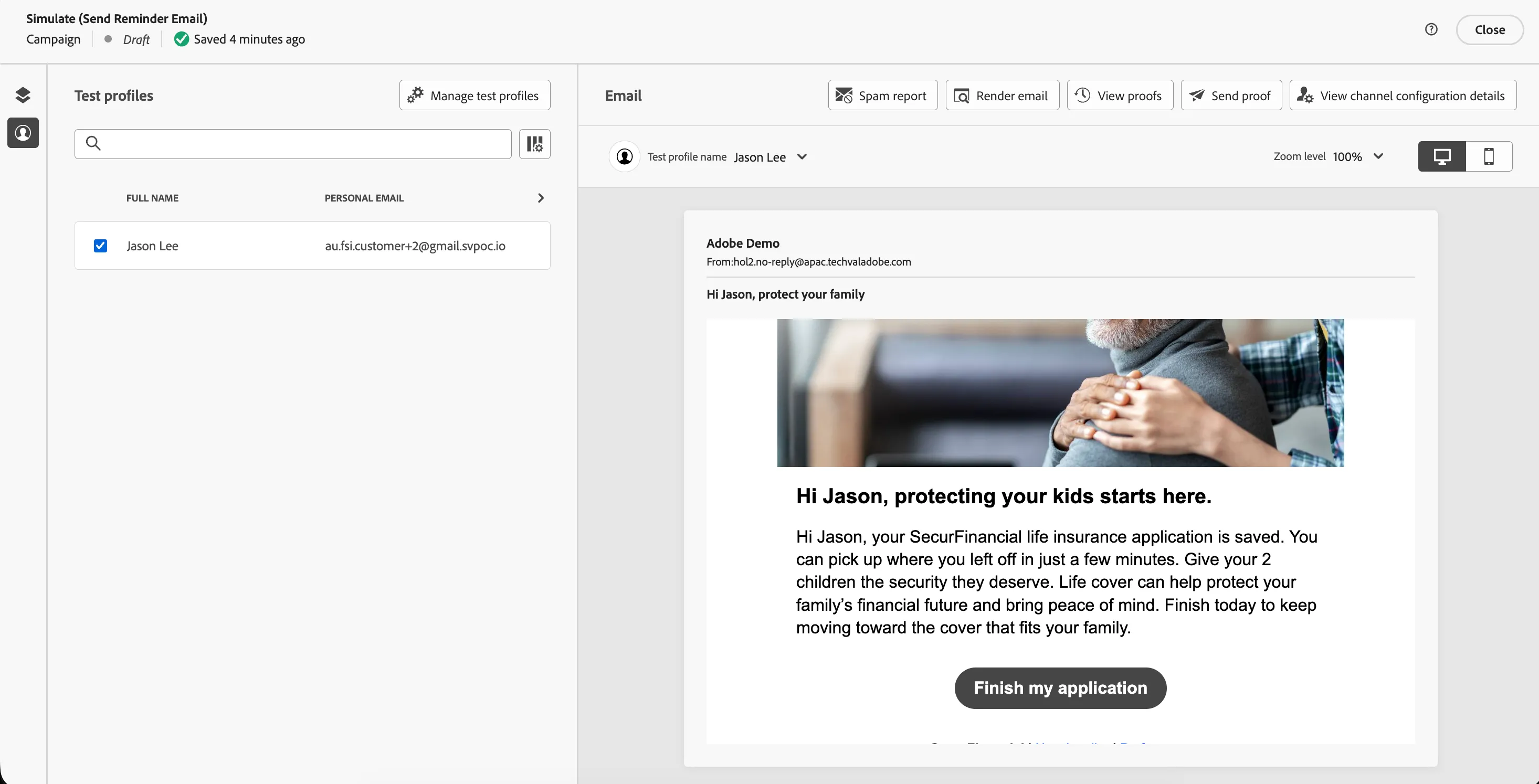
- It personalises the email with the customer's first name and number of children ("your child", "your 2 children", or "your family" when the number is unknown).
- It shows you a preview of the email. Turn on Annotations to see what each part does, or Compare to compare versions.
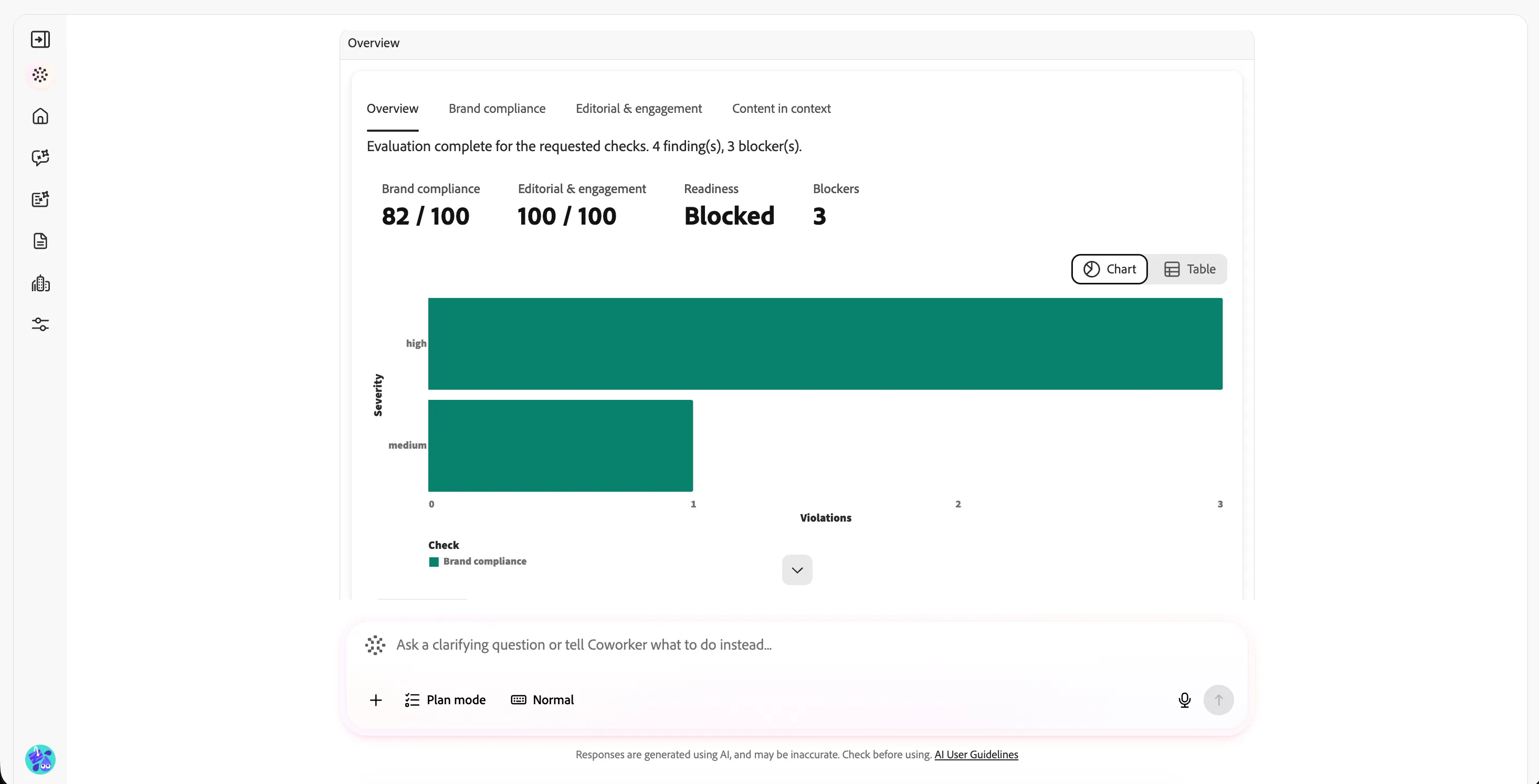
- It runs a readiness check with scores for Brand compliance and Editorial & engagement, and a list of findings. Click the tabs (Brand compliance, Editorial & engagement, Content in context) to see the details.
- Coworker asks you to approve the content. Choose approve (and click the tick if it asks for permission). It then applies the content to your journey's email.
About images: For this lab, Coworker keeps the template's images and only writes the text. That keeps the design on brand and the images in their approved place in the asset library.
Check your email
- Open your journey and click Send Reminder Email.
- On the Content tab, check the subject line and the body. You'll see the personalisation tags, for example {{profile.person.name.firstName}}.
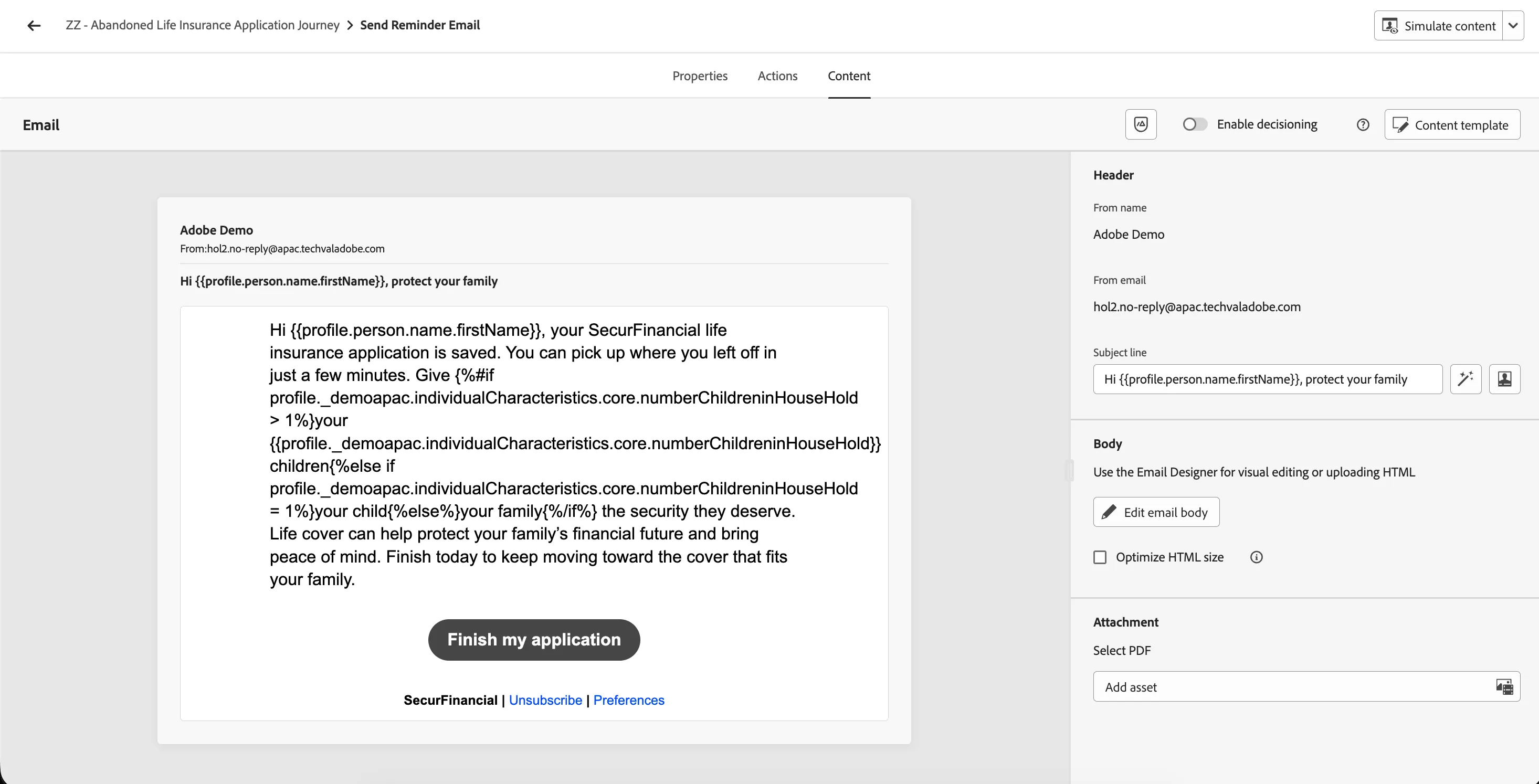
Good to know: Simulate content. Journey Optimizer can show you exactly what a real customer would see. Simulate content (top right of the email) lets you pick a test profile, such as Jason Lee, and shows his name and "your 2 children" in place of the tags. You don't need to do this in the lab.
Business value: on-brand, personalised content in minutes, with a brand and readiness check, instead of a brief, a copywriter, a designer and several review rounds.
Exercise 6: Execute a campaign brief
Why: give Coworker a full campaign brief, just like you would give a human coworker, and ask it to build the campaign. This time the product is a credit card cross-sell.
Step 1: Read the brief
Open SecurFinancial Campaign Brief - Credit Card Cross-Sell.docx from your Desktop. It describes the objective, the audience (customers with a mortgage but no credit card), the offer and the channels (email or push, based on each customer's preferred channel).
Step 2: Prompt Coworker
Click + in the prompt box, choose Attach file, select the brief, then send:
Here is our campaign brief. Please execute this campaign: create the audience and the journey described in the brief. Prefix everything you create with <initials> and leave everything in draft.What happens
- Coworker reads the brief and checks for existing audiences that match. It may find similar audiences made by other attendees; it creates your own instead.
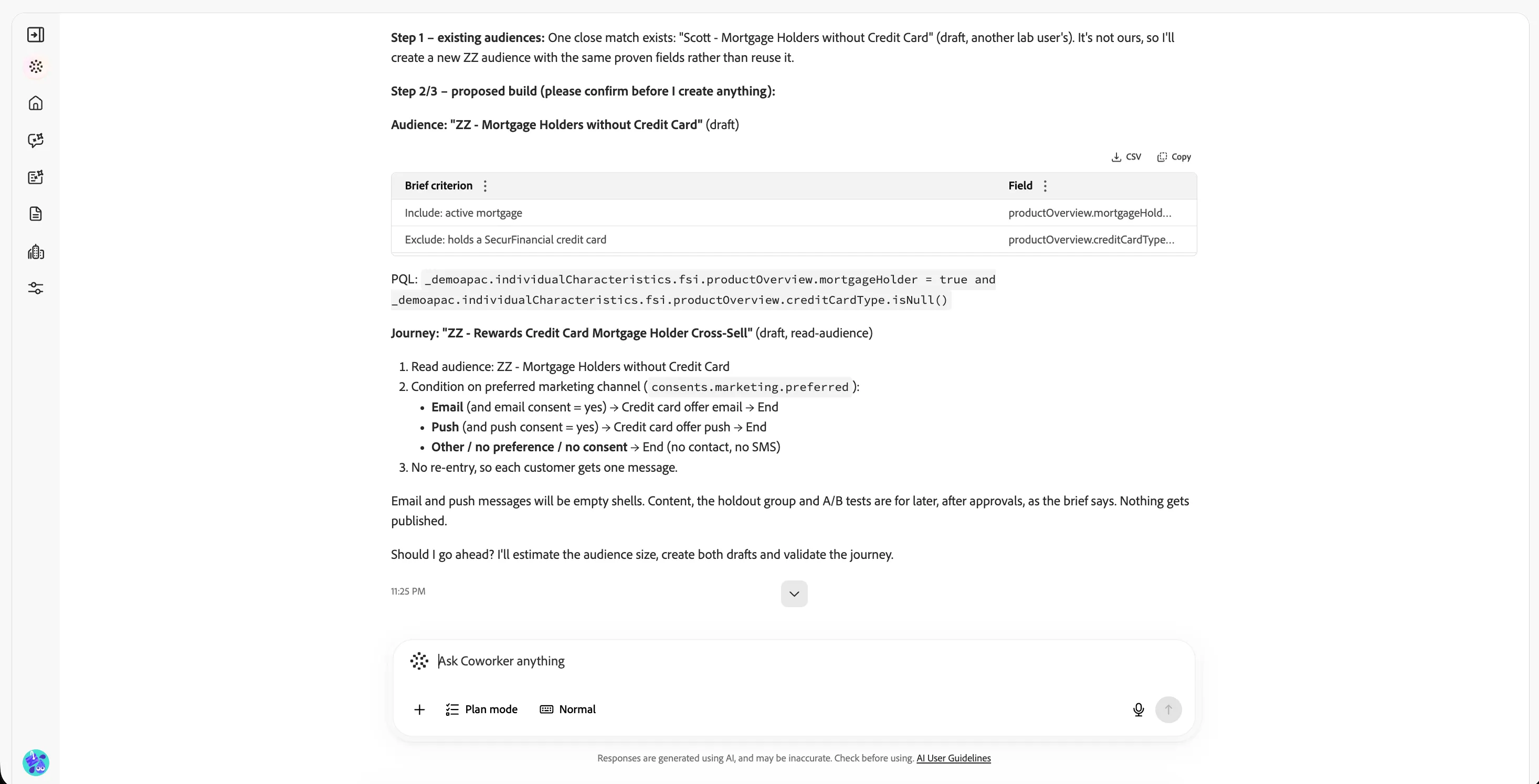
- It shows a proposed build and asks you to confirm before it creates anything.
What the plan contains:
- Audience: <initials> - Mortgage Holders without Credit Card (draft), with a table showing which field it uses for each rule in the brief (has a mortgage; doesn't have a credit card).
- Journey: <initials> - Rewards Credit Card Mortgage Holder Cross-Sell (draft). It reads the audience, then checks each customer's preferred marketing channel: email (with email consent) gets the email, push (with push consent) gets the push notification, and everyone else gets no message (no SMS).
- No re-entry, so each customer gets one message.
- Read the plan, then reply Yes to go ahead.
- Coworker asks for permission to call the APIs that create the audience and the journey. Expand each request to check it, then click the tick.
- Answer any other questions it asks. You don't need to set up channel configurations or write content for this exercise; the email and push messages are empty for now, as the brief says content comes after approvals.
Check your work
Open the journey in Journey Optimizer (use the link from Coworker, or go to Journey Management > Journeys). You should see:
- Read audience with your new audience
- Preferred marketing channel, with paths for Prefers email, consented, Prefers push, consented and Timeout or error
- Credit card offer email and Credit card offer push actions, each followed by End
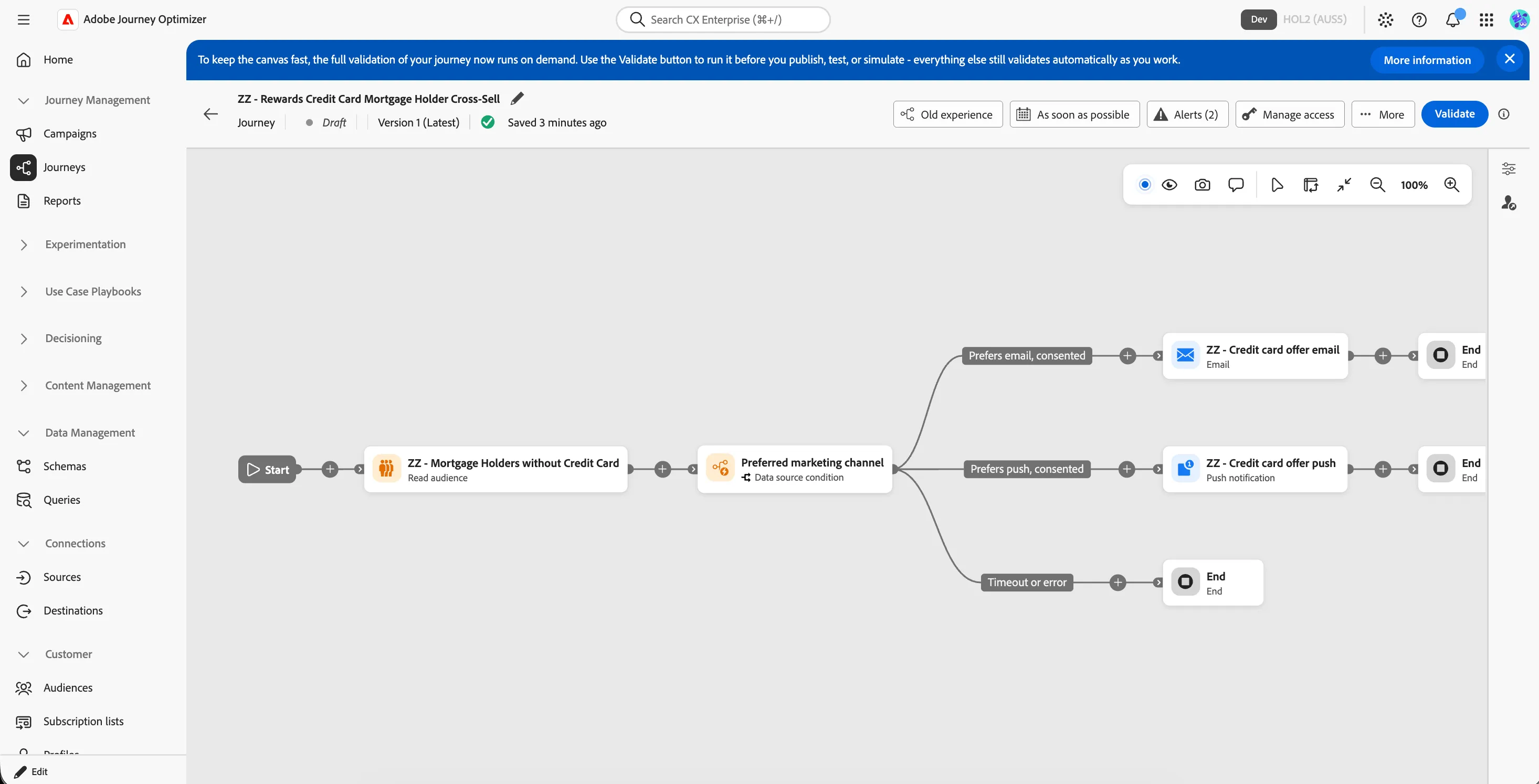
Notice how Coworker turned one line in the brief ("send one message per customer on their preferred channel") into a full branching journey with consent checks.
Business value: from a brief to a ready-to-review campaign in minutes. Coworker reads the document, plans the work and builds it, while you stay in control.