Lab 1. Payment Reminder Campaign
Focus area Adobe Journey Optimizer
Features Orchestrated Campaign
Ad Hoc Targeting
Data driven email activation
Multiple messages per profile
Difficulty Easy
Use case description
In the German cruise market, customers typically confirm their booking by paying a deposit of around 20% of the total amount. They are then required to make additional payments at regular intervals to settle the remaining balance.
As a marketer, I want to keep customers informed about their payment schedule: automated notifications will be sent 30 days before the departure date, followed by a phone reminder 15 days prior to departure.
Resources
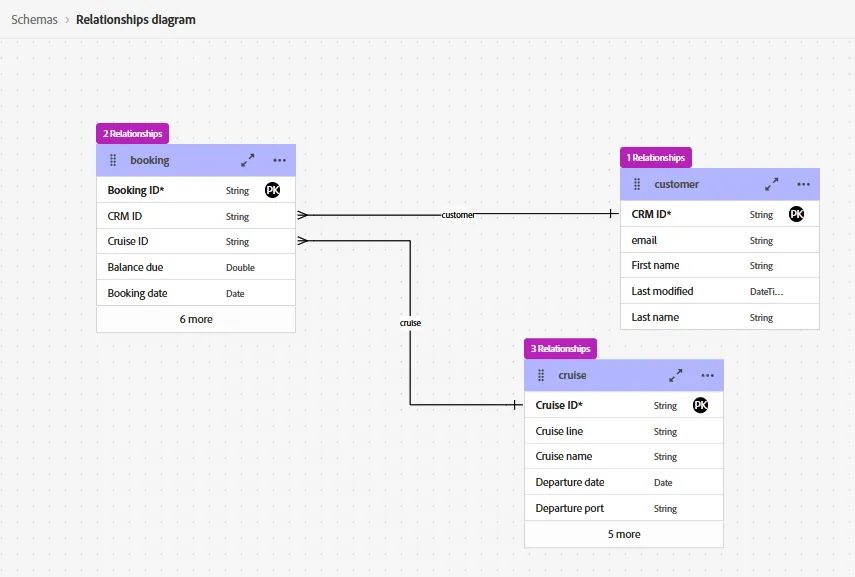
Relational data model Data engineers have designed a relational data model and populated it with sample data.
There are 3 main entities: Booking, Cruise and Customer
Each entity has been described with a Relational schema.
The relationships between entities have been defined with these cardinalities:
- 1 customer has booked 0..N booking(s)
- 1 cruise has been booked in 0..N booking(s)
The Entity Relational Diagram is visible in Data management > Schemas > Relationships
Email template
A Web Agency has provided an email template named [Example] Payment Reminder Template available in the Content template library in Content Management > Content template > All template folder.
Solution Design
This page describes a solution based on Orchestrated Campaign processing data solution.
A marketer uses a visual web interface to define the key tasks required to automate booking data processes and keep customers informed about their payment schedule.
Every day, execute these tasks:
- Filter booking records
- Calculate the number of days before the departure date
- Split the records based on the number of days before departure date
- Deliver a personalized message to one segment
- Save another segment as an audience in RT-CDP, that can be activated to a destination like a Call Center application
The following sections outline the activities a marketer needs to perform to automate this marketing flow.
First, create a new Orchestrated Campaign flow:
- In the menu on the left side, under Campaigns, click on Orchestration tab
- Click on the Create campaign button
- Select Orchestration - Marketing and Transactional and click on Confirm
- Set the name to [your name] Pre Cruise - OnBoard Revenue Campaign- Lead times > 16 months
- Click on Save
This solution has been designed to illustrate capabilities of the product. The implementation details could change in real life conditions.
Step 1 - Ad Hoc Targeting
Goal Filter the bookings with a balance due > 0
Create 3 segments:
- Bookings with a departure day in 30 days
- Bookings with a departure day in 15 days
- The other cases
Highlight
Build audience, Enrichment, Split
Filter booking records
- Click on the + icon to display the list of activities
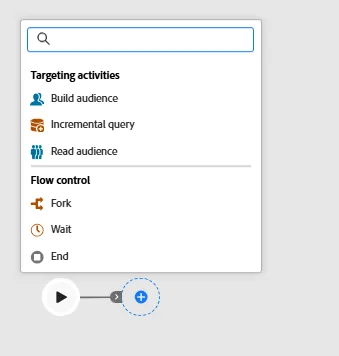
- Select the Build audience activity
- Set the Targeting dimension to booking
- Click on Create audience button
- Click on Add condition
- Select the attribute Balance due, click on Confirm
- Set the operator to greater than and set the value to 0.0
- Click on Calculate to get a count of records
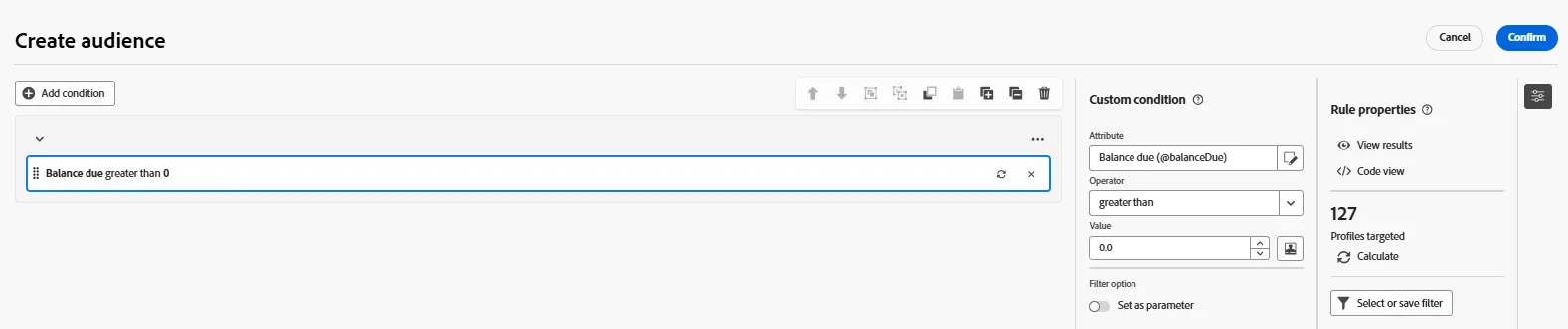
- Click on Confirm
- Click on Start to start queries in a simulation mode
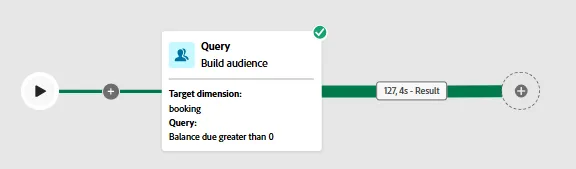
- Click on the Result box in the green transition link and click on Preview results button to see the results
Calculate the number of days before the departure date
Every day, the flow calculates the number of days remaining until the departure date (i.e., departure date minus the current date) using a function called DaysDiff(date1, date2)
This calculated field will be calculated and added to the target using an Enrichment activity
Follow these tasks:
- Click on the + icon to display the list of activities
- Select Enrichment
- Click on the + Add enrichment data button
- Click on Edit expression button
- Click on Fx (Helper functions) icon and set this expression
DaysDiff([target/cruise/@departureDate],GetDate())
- Click on Confirm button
- Click on Resume button to let the engine execute the Enrichment activity
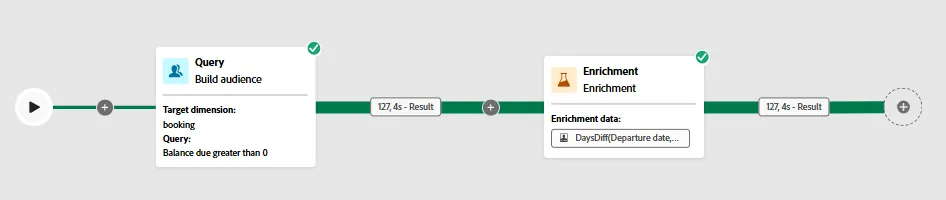
- Click on the Result box in the green transition link and click on Preview results button to see the results
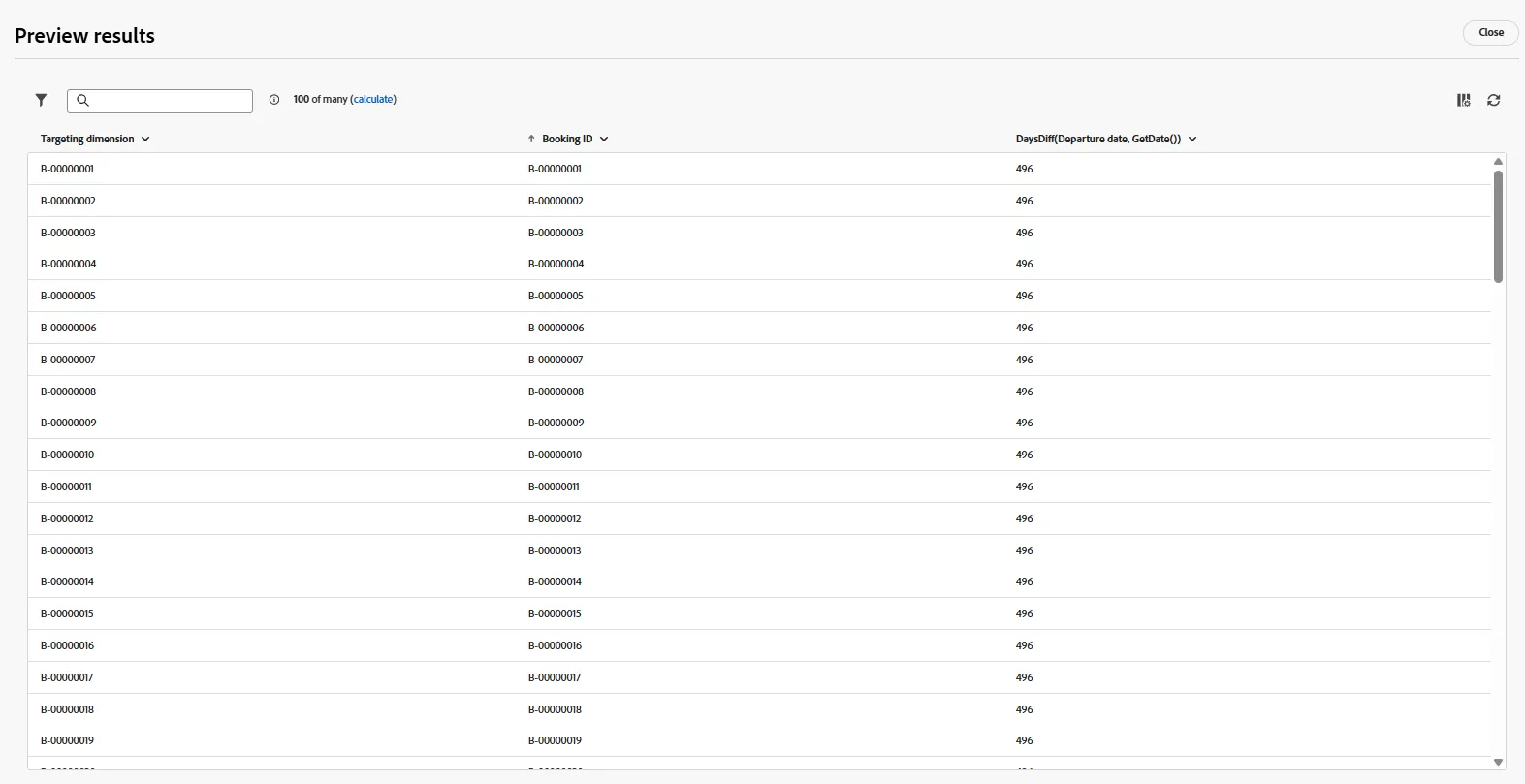
Split the records in 3 segments
- Click on the + icon to display the list of activities
- Select the Split activity
- Define 3 segments and filter with the calculated field
- Bookings with a departure day in 30 days
- Bookings with a departure day in 15 days
- Enable the Generate complement option and set the label to Exclude - not the right day
The general complement segment contains all records that have not been selected by the other segments.
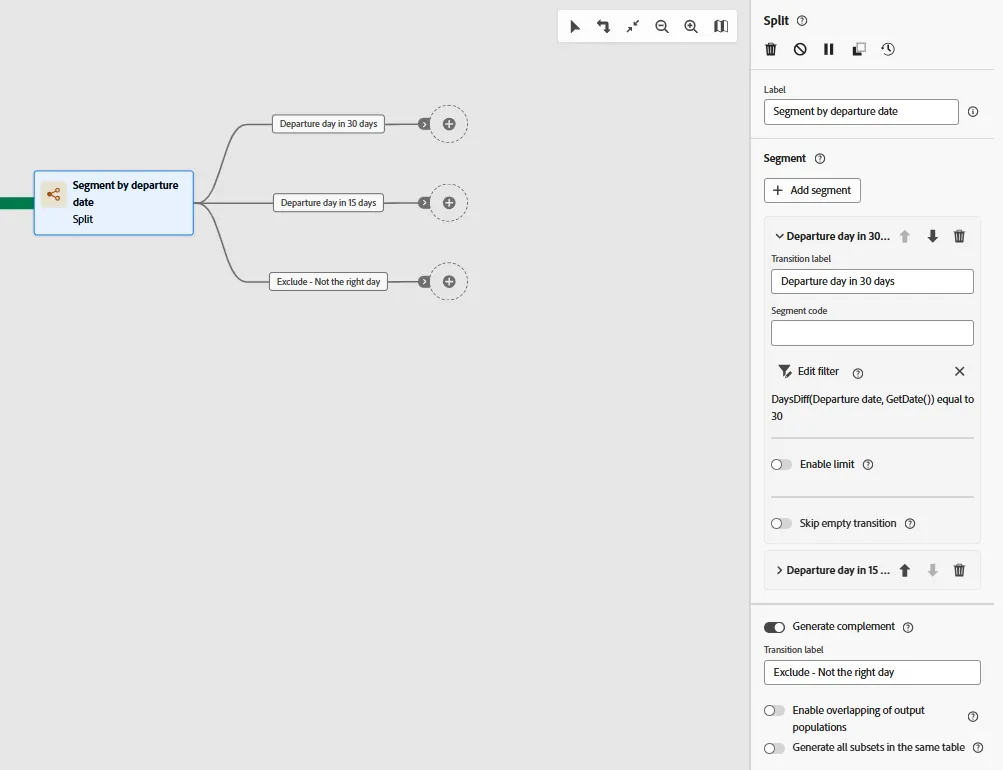
- Click on Resume button
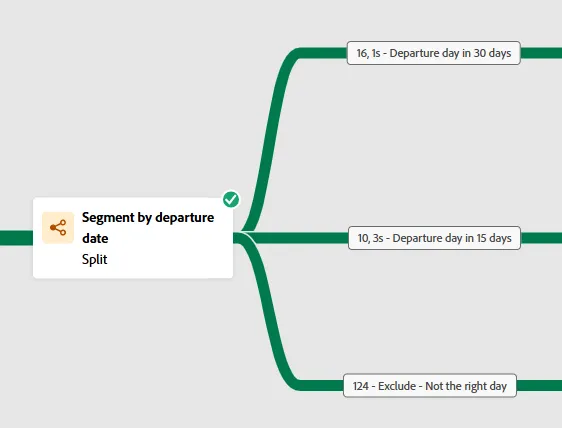
Depending on the Lab day, the results will change
Step 2 - Send one email per booking
Goal Send messages to recipients, not bookings
Send 1 email per booking- 1 recipient can receive multiple messages
Add personalization data in the email like balance due and cruise stops
Highlight
Enrichment of the target with a collection of ports where the ship will stop
Change dimension to find people who have booked
Email personalization
Enrichment of the target
This section describes how to add data in the target in order to personalize the message. It's possible to add attributes and to add a collection of data like all the ports where the ship will stop.
- Go back to the Enrichment activity
- Click on Add enrichment data button and select the attribute:
- Targeting dimension > cruise > Departure date
- Click on Add enrichment data button and select the attribute
- Targeting dimension > cruise > Cruise name
- Click on Add enrichment data button and select the attribute
- Targeting dimension > Balance due
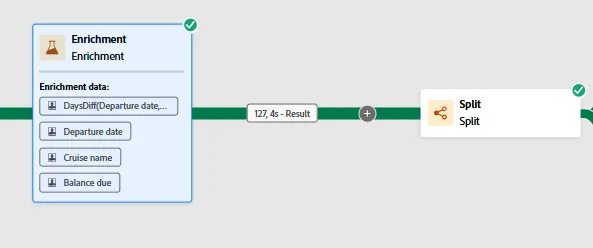
- Click on Add enrichment data button and select the attribute
- Targeting dimension > cruise > stops > port > Port name
- Keep the configuration Collect data
- Set the number of lines to retrieve to 5
- Set the alias to portName
- Click on the Add attribute button
- Add the Port Description attribute
- Set the alias to portDesc
- Enable the sorting box and sort the lines by orderStop ascending
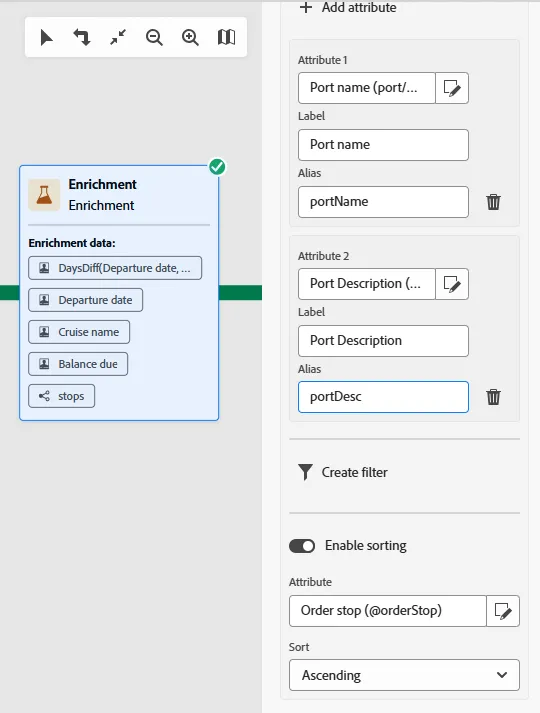
- Click on Save
- Select the Split activity, set the label to Segment by departure date and enable the Pause mode - this is the 2nd icon after the delete/bin icon
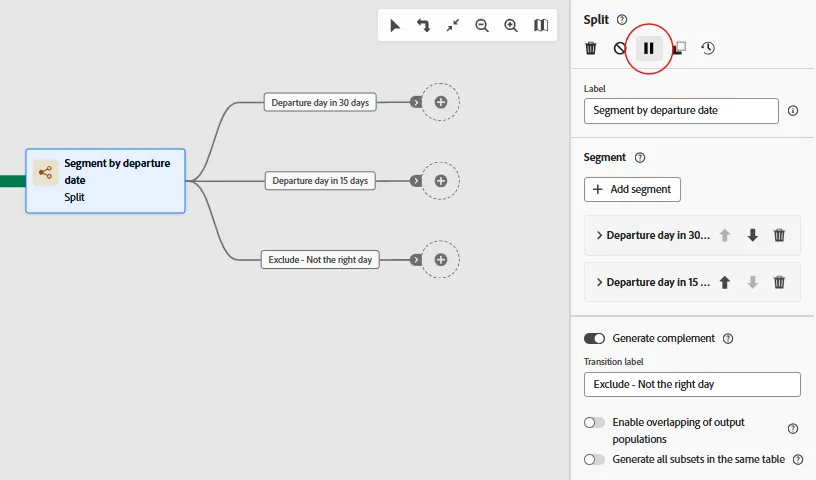
- Click on the Restart button
- Wait for the flow execution, check that the Split activity has not run and is in paused state
- Look at the data by clicking on Preview results button
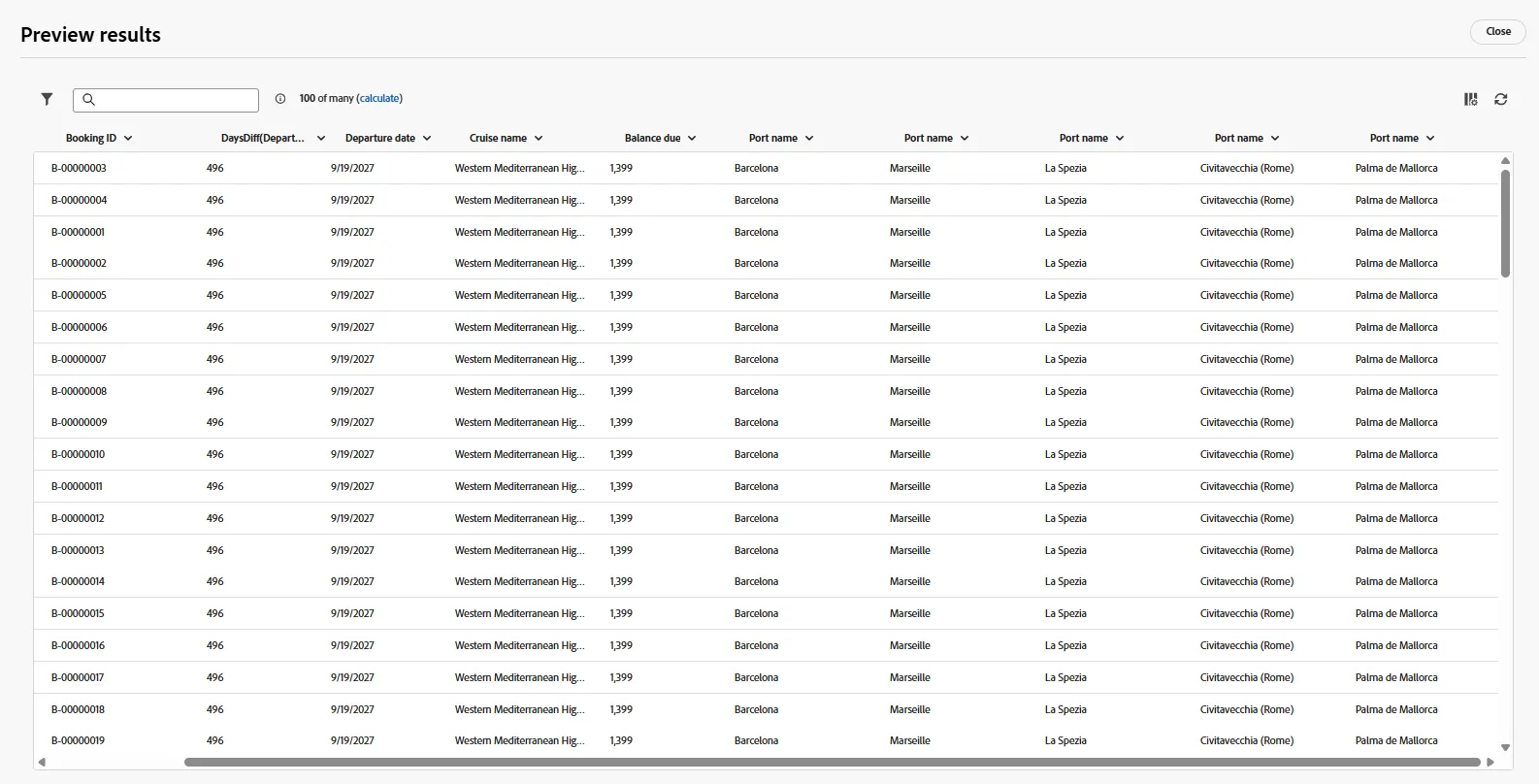
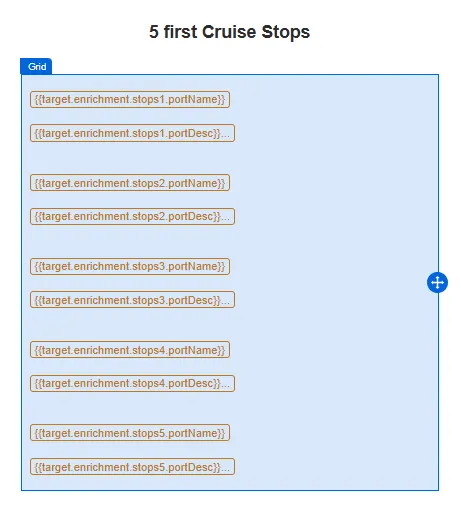
- 5 new columns have been added in the target; these 5 columns match the 5 first ports where the ship will stop
The target contains personalization data
Email messages will be personalized with all the data that have been added in this list.
Change the dimension
Select individuals based on booking data. Communications should be delivered to people, not to bookings.
Follow these steps:
- Click on the + icon to add an Change dimension activity
- Select customer as the new target dimension
- Change the label to Find people from bookings
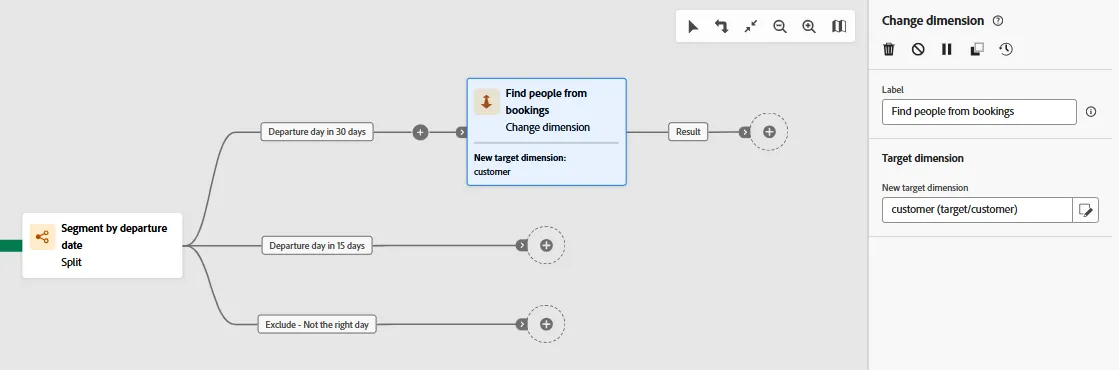
- Click on Save
- Click on the Result transition and look at the schema structure
- Click on the Targeting dimension
- Check that the attributes are the customer's ones like CRM ID
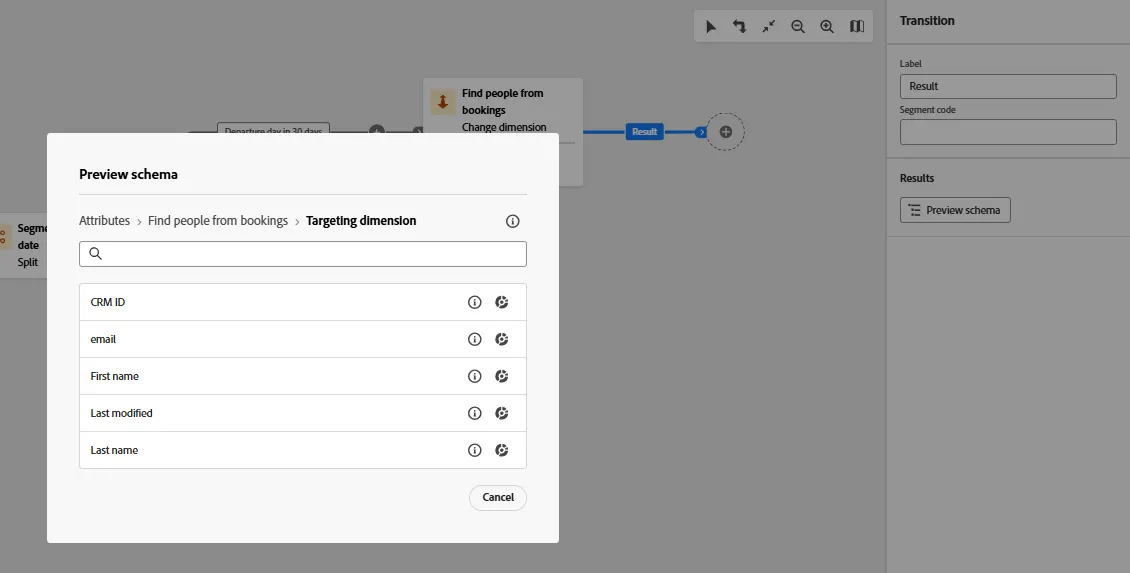
The new targeting dimension is now Customer
The first column of the target is the CRM ID field that has been tagged as the identity field in the schema, used to make a reconciliation with profiles in the Real-time Profile Store.
Notes about "Change dimension"
The Change dimension activity allows you to change the targeting dimension as you are building an audience. It shifts the axis depending on the data template and the input dimension. For example, you can switch from the booking dimension to the customer dimension.
This step is required to prepare the target in order to let the product deliver messages (email, push, SMS, direct mail). The engineers are working to improve the process and this step will become optional soon.
Personalize an email message
Follow these steps:
- Click on the + icon to add an Email activity
- Set the category to Transactional
- Click on Edit email button
- In the Actions tab, select the configuration named config-email-customer-bookings-communication
Channel configuration
The config-email-customer-bookings-communication channel has been set to deliver one email per booking record and to use the profile's personal email address.
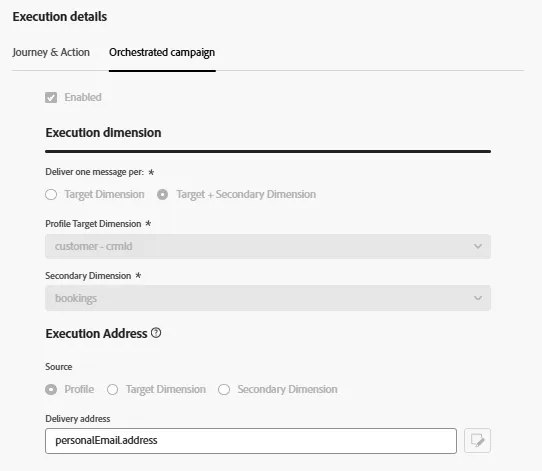
- Click on Edit content button
- Click on Content template button, then Apply content template
- Select the template named [Example] Payment Reminder Template
- Click on Confirm button to apply the template
- Edit the subject line and replace [FIRST_NAME] by the profile's first name

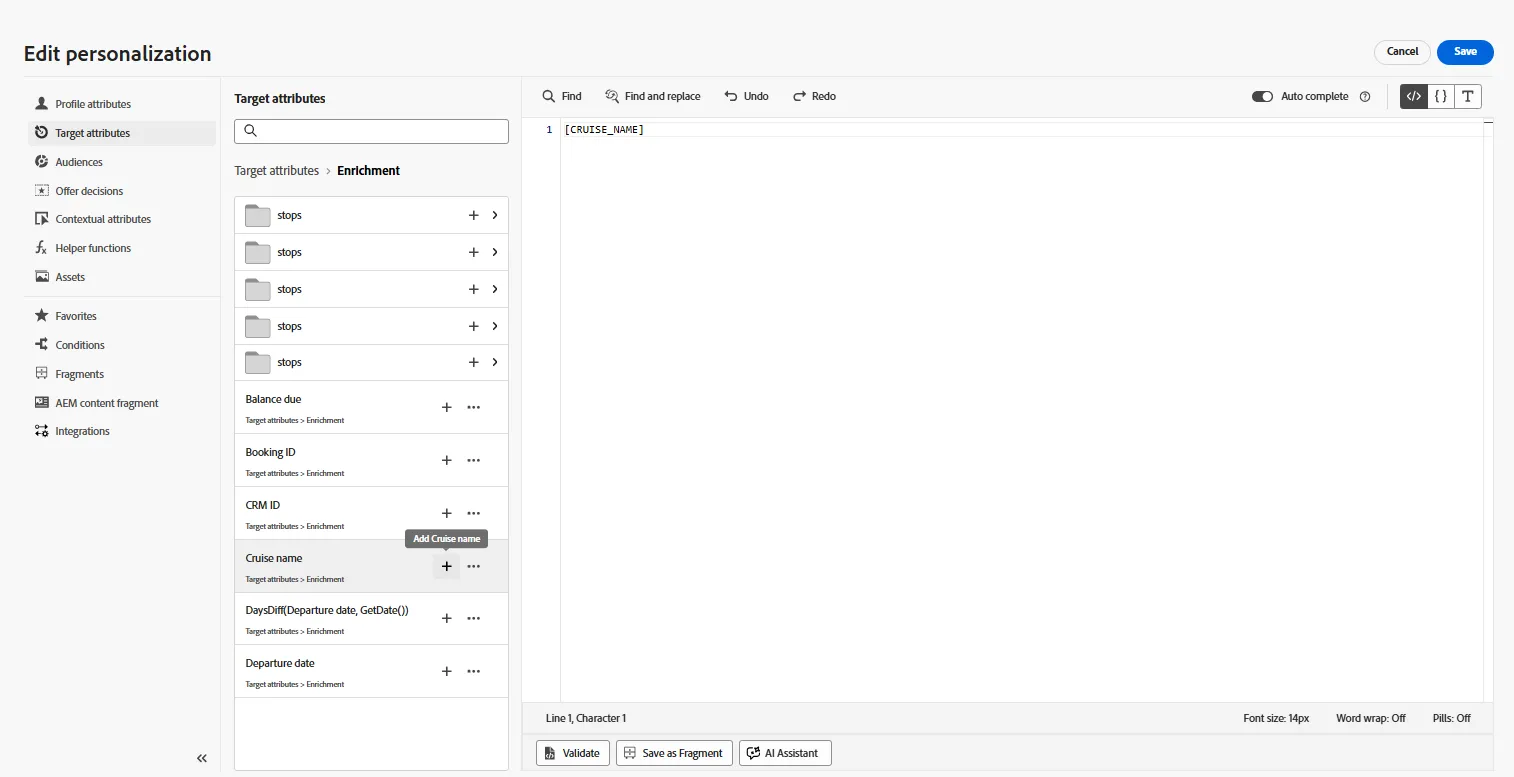
- Click on Edit email body and replace personalization fields with Target attributes
- Replace [CRUISE_NAME] by the target attribute named {{target.enrichment.cruiseName}}
- Look at the Grid component and check the cruise stops fields:
No-Code needed - Marketer Self-Service
This process lets a Marketer do the personalization without writing any line of code.
Simulate the content
- Select the Split activity named Segment by departure date
- Disable the Pause mode, enable the Resume mode
- Click on the Restart button
- Wait for the execution of the flow until the Email activity
- Select the Email activity, click on Edit email button
- Go to the Content tab and click on the Simulate content > Simulate content button
- Click on Manage test profiles button
- Search for a test profile that exists in the target:
- Identity namespace = Demo System - CRMID
- Identity value = nW6oaO8Y
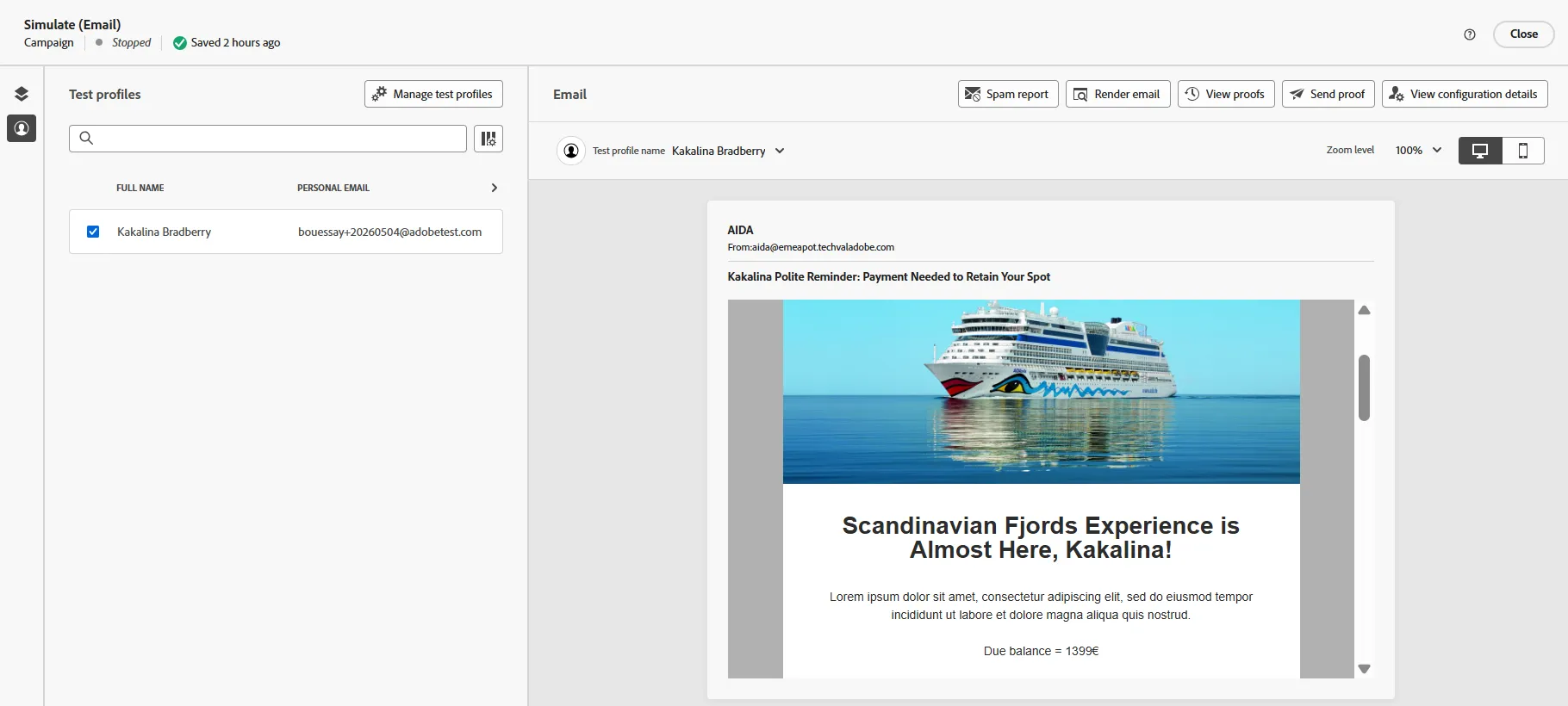
- Go back to the Simulate (Email) screen and check the personalization of the content
- Check the 5 first Cruise stops
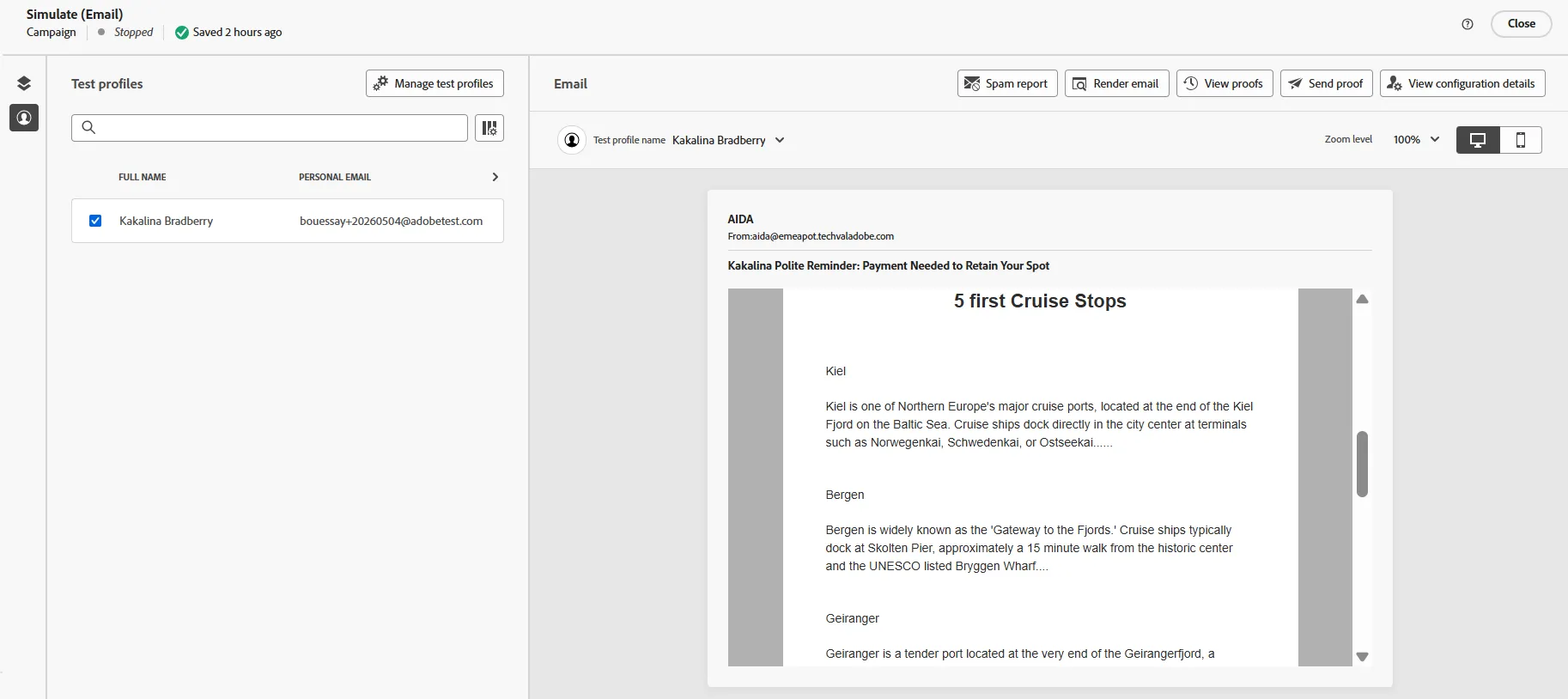
Simulate the content with target data
This process lets a Marketer simulate the preview of a message by directly use target data.
Step 3 - Save the Target as an Audience
Goal Save the Target as an Audience
An Audience can be activated to CRM destination, as usual in AEP RT-CDP
Features
Copy and paste, Deduplicate, Save audience
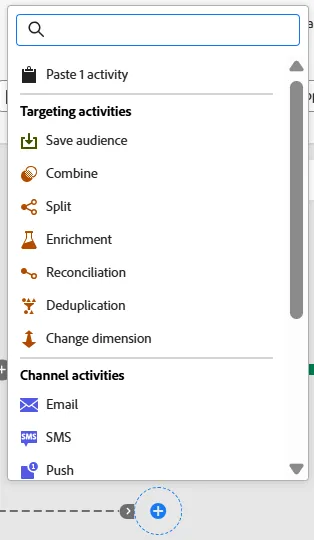
Copy & Paste an activity
- Select the Change dimension activity
- Click on the Copy icon - the 3rd icon after the delete/bin icon
- Go to the segment named Departure day in 15 days
- Click on the + button
- Select Paste 1 activity
Deduplication
- Click on the + button
- Add the Deduplication activity
- Primary set = Find people from bookings
- Attribute 1 = CRM ID
- Deduplication method = Random selection
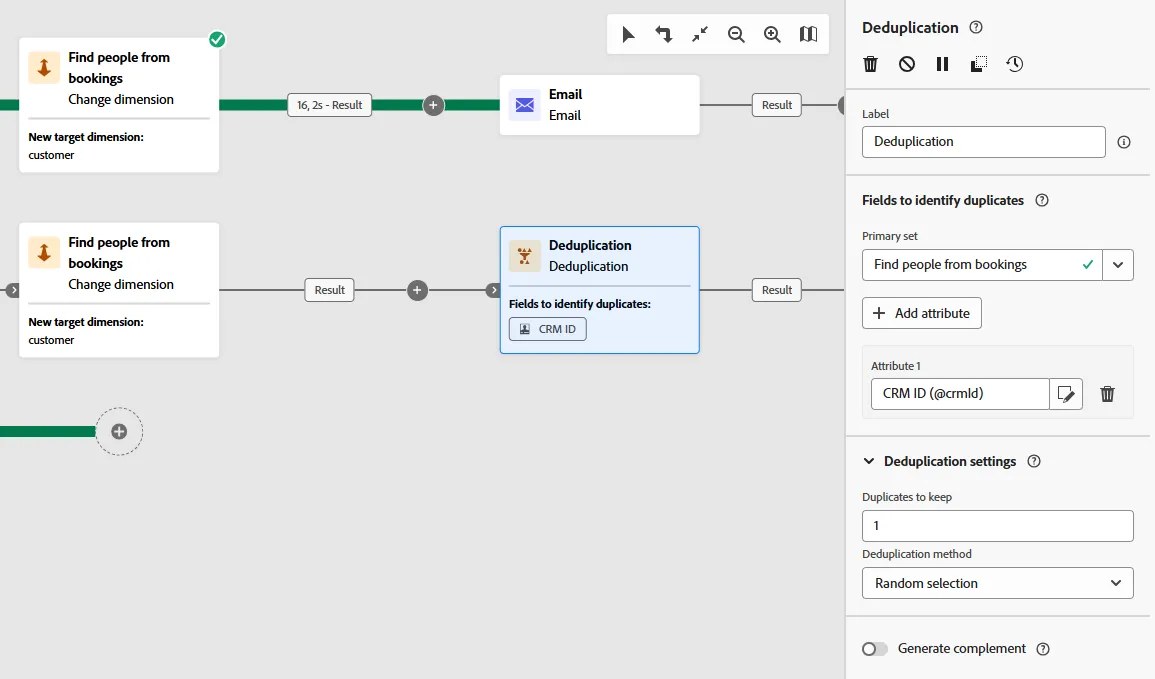
- Click on the Restart button
- Click on the Preview the results button to check that the records have been deduplicated by CRM ID

Save the audience
- Add a Save audience activity
- Set the name to [your name] Customers who have to pay
- Set the profile mapping field to: customer - crmid
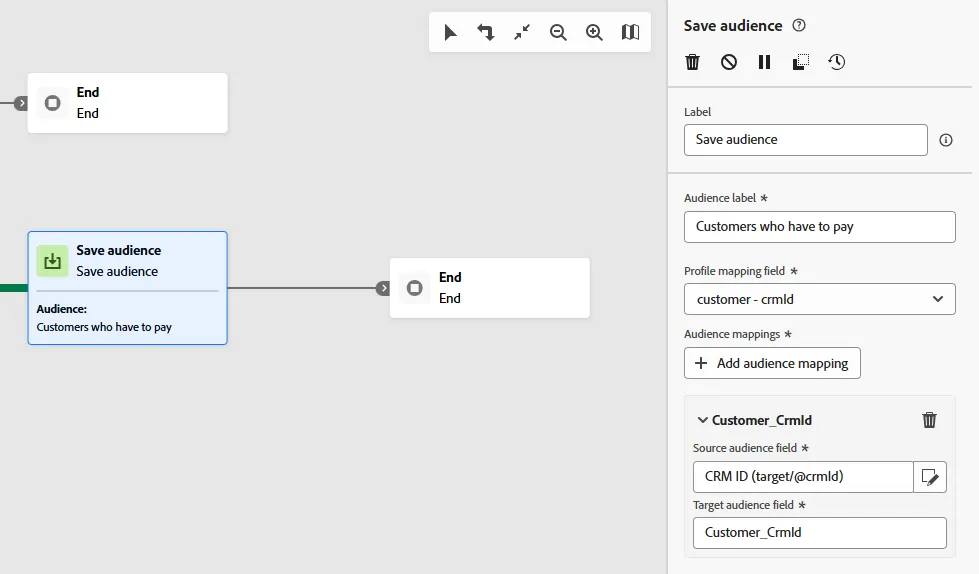
This activity creates an audience with Campaign Orchestration as its origin:
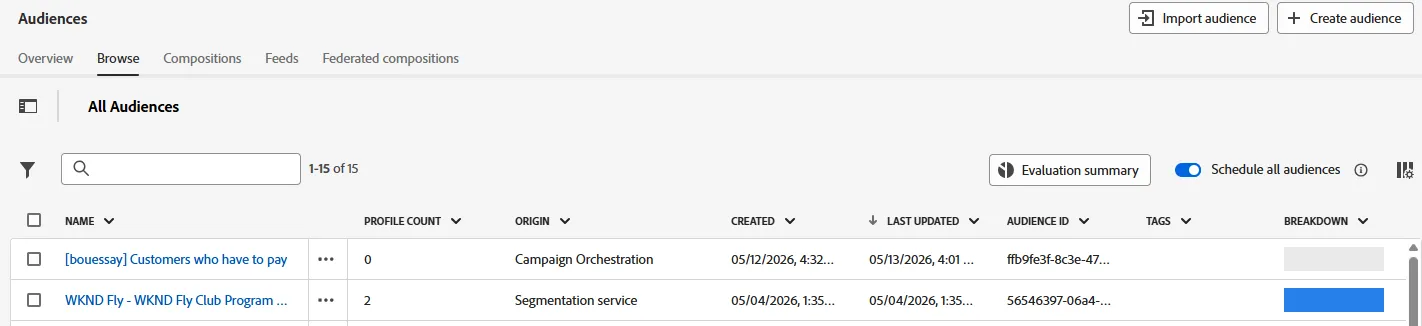
The Target cannot be saved as an Audience in the simulation mode. The Orchestrated Campaign flow has to be published in order to save the audience. This audience can be activated to a CRM destination for instance, to let the Customer Care people phone the bookers and ask for a payment.
Step 4 - Schedule and Publish
Goal Schedule the execution of the Orchestrated Campaign flow
Publish the messages templates
Publish the exportation of data (Save audience)
Highlight
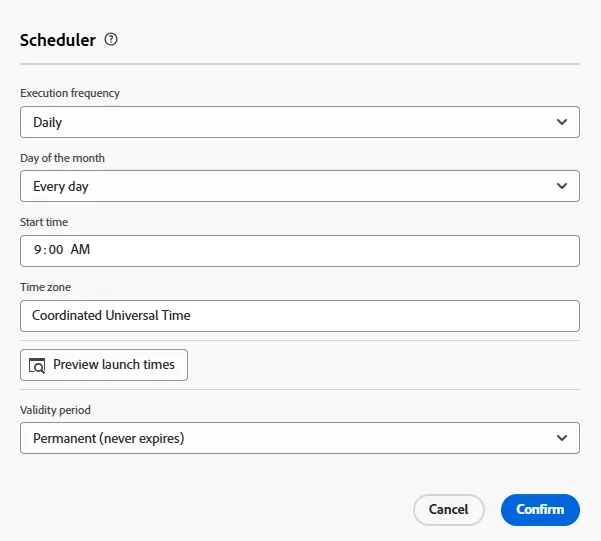
It's possible to execute the flow daily and every day of the month
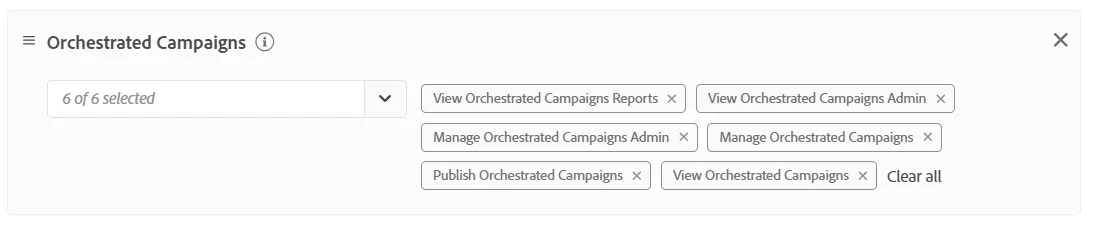
Publish is a restricted feature and requires a permission.
Schedule
- Click on the As soon as possible button
- Schedule the execution of the flow Daily and Every day of the month
Publish permission
- The Publish button is restricted to the operators who have the Publish Orchestrated Campaigns permission
Congratulations on successfully completing the exercise!
This lab focused on these topics:
- Multi-Entity & Relational Data Processing
- Orchestrated Campaign Spirit
- Audience Creation & Ad-hoc Targeting
- Data-Driven Email Activation & Templates
Appendix
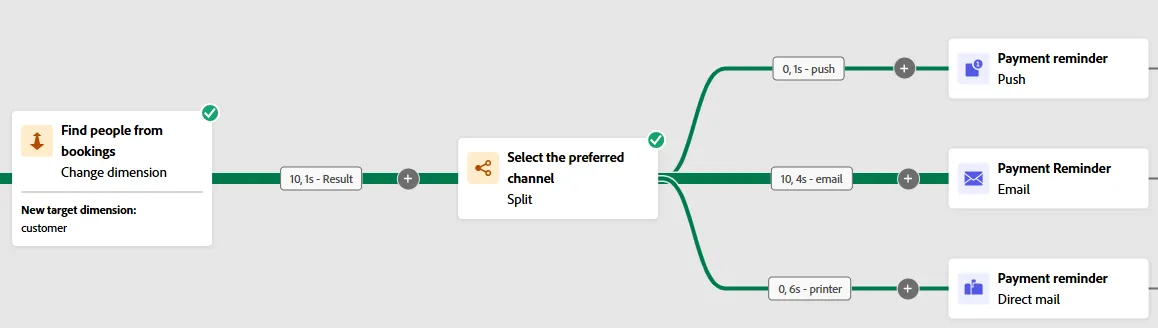
Select the preferred channel
It's possible to select the preferred channel using the Split activity:
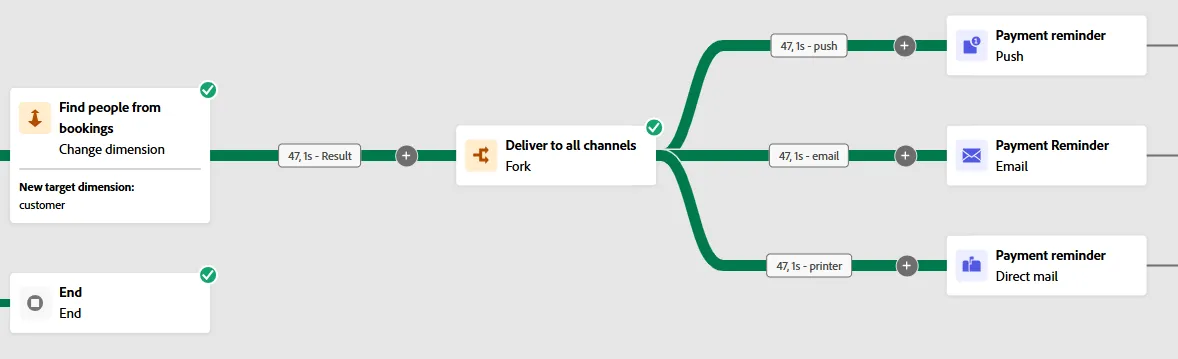
Deliver the same message across multiple channels
It's possible to deliver the same message across multiple channels using the Fork activity