Lab 2. On-Board Revenue Campaign
Focus area Adobe Journey Optimizer
Features Orchestrated Campaign
Ad Hoc Targeting
Data driven email activation
Multiple messages per profile
Content Optimization
Difficulty Easy
Use case description
In the travel cruise industry, customers typically confirm their bookings more than 16 months before the departure date. This extended lead time provides significant opportunities to promote onboard services and enhance the overall cruise and travel experience.
As a Marketer of a cruise company, I want to increase the average revenue per cruiser by promoting onboard services before the departure date
- Right people: Target people whose lead times > 16 months
- Right time: Roll out proposals gradually, at different intervals between the booking date and the departure date
- Right message: Optimize messaging based on booking details (number of passengers, loyalty status vs. first-timer cruisers, presence of children) and customer behavior (clicks and page views)
Resources
Relational data model Data engineers have designed a relational data model and populated it with sample data.
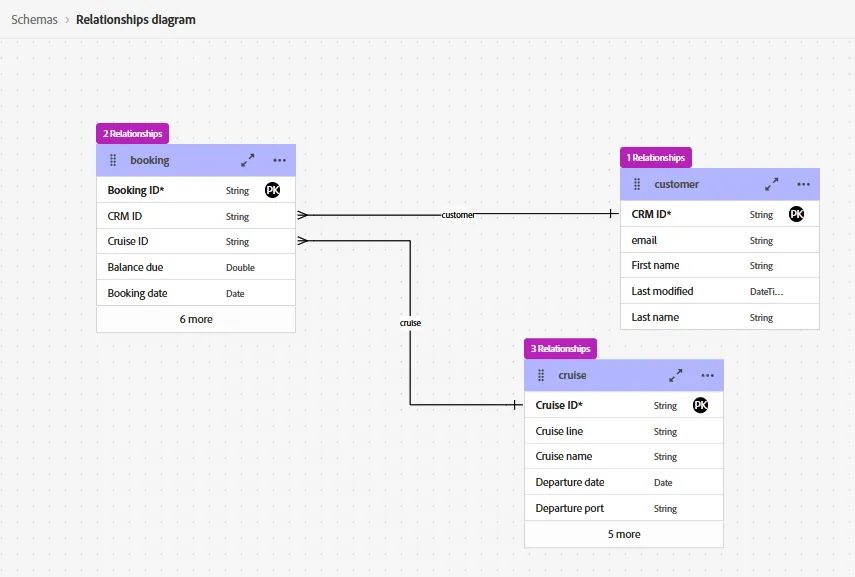
There are 3 main entities: Booking, Cruise and Customer
Each entity has been described with a Relational schema.
The relationships between entities have been defined with these cardinalities:
- 1 customer has booked 0..N booking(s)
- 1 cruise has been booked in 0..N booking(s)
The Entity Relational Diagram is visible in Data management > Schemas > Relationships
Email template
A Web Agency has provided an email template named [Example] Simple Text-led Email Template available in the Content template library in Content Management > Content template > All template folder.
Solution Design
This page describes a solution based on Orchestrated Campaign processing data solution.
A marketer uses a visual web interface to define the key tasks required to automate booking data processes and promote onboard services to enhance the overall cruise and travel experience.
Every day, these tasks will be executed:
- Filter the booking records where departure date is in the future
- Calculate lead times
- Keep only the records where lead times > 16 months and exclude the others
- Calculate the booking age and the number of days before departure date
- Segment the records by booking age and departure date
- Optimize the message with booking data and customer behavior (page views)
The following sections outline the activities a marketer needs to perform to automate this marketing flow.
First, create a new Orchestrated Campaign flow:
- In the menu on the left side, under Campaigns, click on Orchestration tab
- Click on the Create campaign button
- Select Orchestration - Marketing and Transactional and click on Confirm
- Set the name to [your name] Pre Cruise - OnBoard Revenue Campaign- Lead times > 16 months
- Click on Save
Step 1 - Right People
Goal Filter the bookings with a departure date greater than today
Keep records whose lead times is greater than 16 months
Highlight
Build audience, Enrichment, Split
Filter booking records
- Click on the + icon to display the list of activities
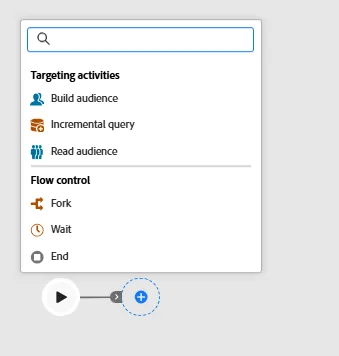
- Select the Build audience activity
- Set the Targeting dimension to booking
- Click on Create audience button
- Click on Add condition
- Select the attribute Cruise > Departure date, click on Confirm
- Set the operator to on or after
- Select the Presets radio button and set the value to Today
- Click on Calculate to get a count of records
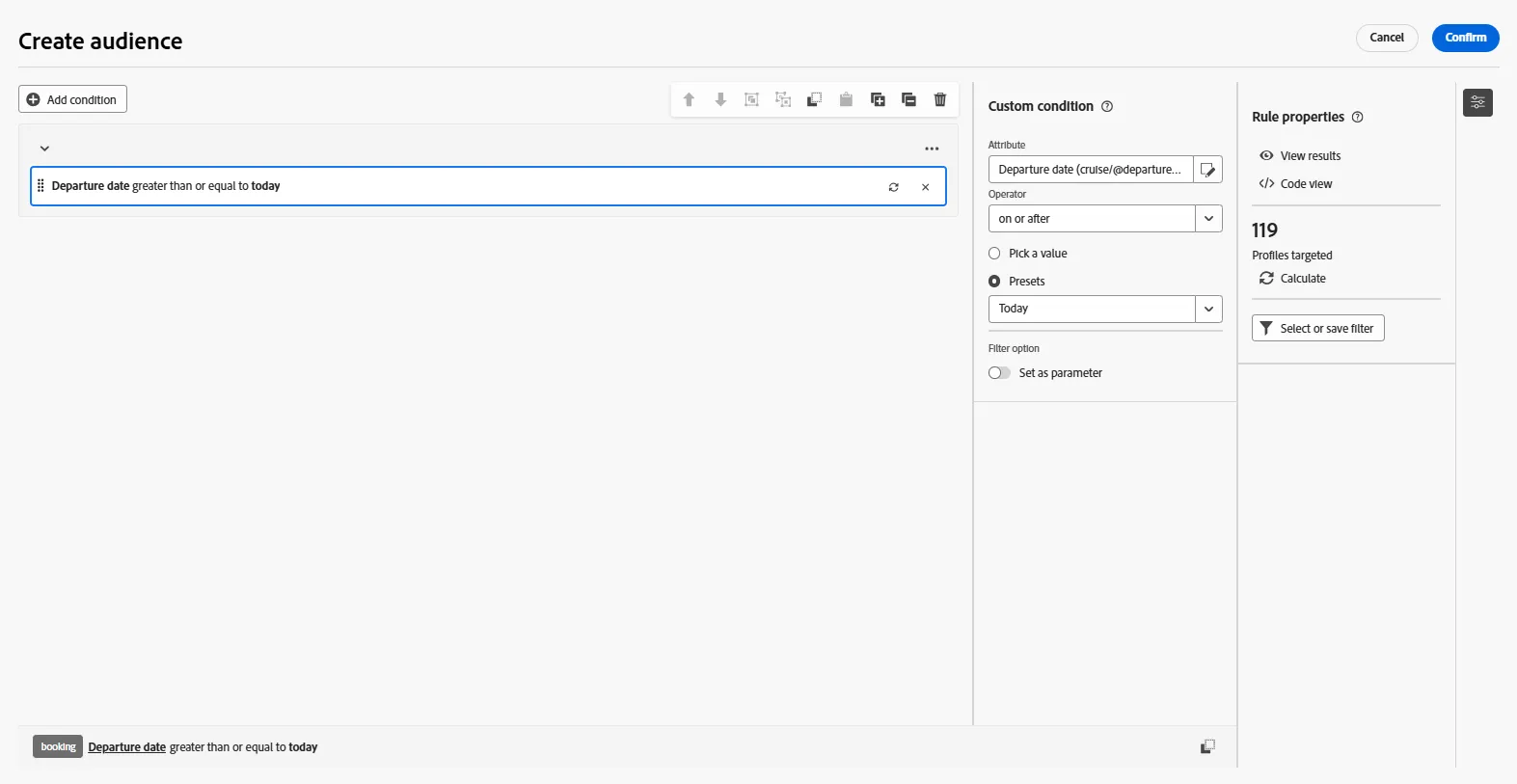
- Click on Confirm
- Click on Start to start queries in a simulation mode
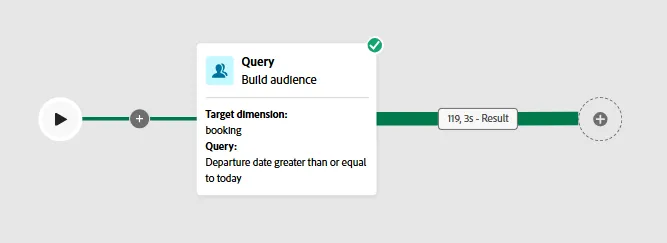
- Click on the Result box in the green transition link and click on Preview results button to see the results
Calculate lead times
Every day, the flow calculates the number of days between the booking date and the departure date using a function called DaysDiff(date1, date2)
This calculated field will be calculated and added to the target using an Enrichment activity
Follow these tasks:
- Click on the + icon to display the list of activities
- Select Enrichment
- Click on the + Add enrichment data button
- Click on Edit expression button
- Click on Fx (Helper functions) icon and set this expression
- Click on Confirm button
- Set the Label to Lead times in days
- Click on the Resume button
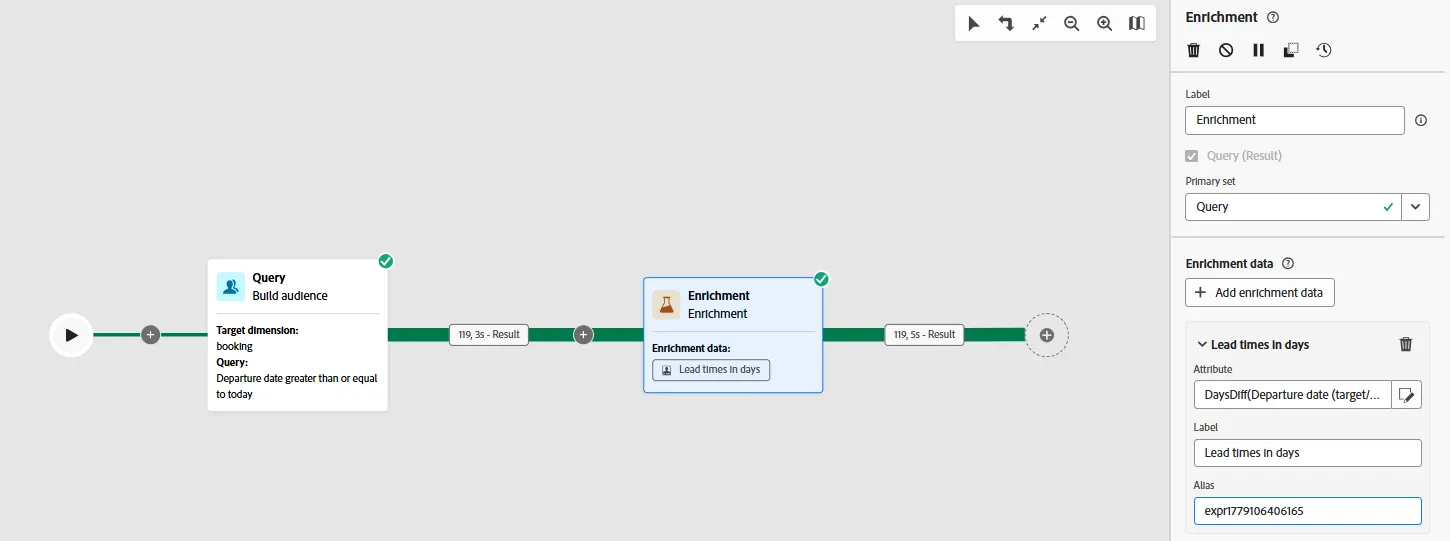
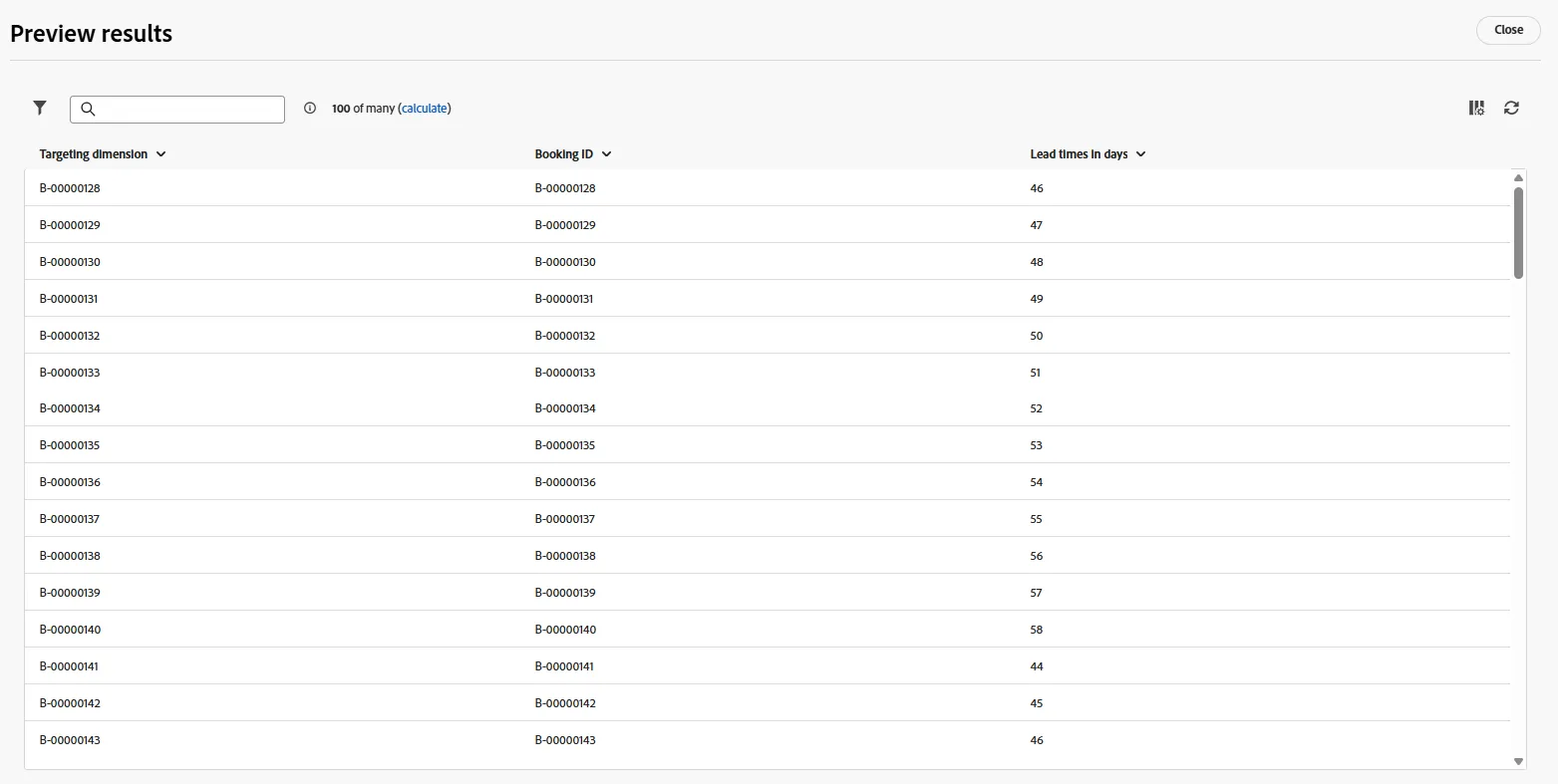
- Click on the Result box in the green transition link and click on Preview results button to see the results
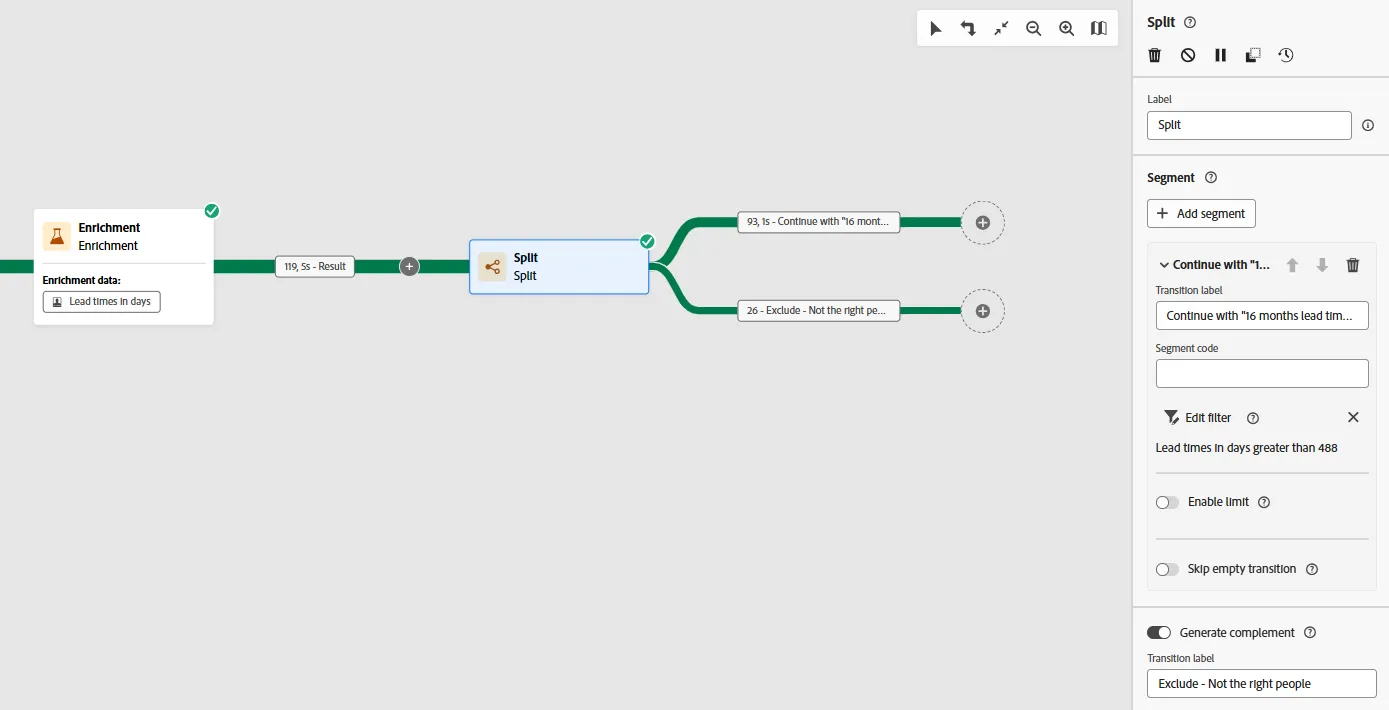
Keep the records where lead times > 16 months
- Click on the + icon to display the list of activities
- Select the Split activity
- Define the subset
- Set the transition label to Continue with "16 months lead times"
- Set the filter to lead times in days > 488
- Enable the Generate complement option and set the label to Exclude - Not the right people
- Click on Resume
Step 2 - Right Time
Goal The flow will run every day.
Every day, calculate the booking age (in days) and the number of days before the departure date.
Split the records into segments that align with the optimal marketing timing:
- 5 days after booking
- 7 days after booking
- ... days after booking
- 15 days after booking
- 3 days after before departure
- 2 days before departure
Highlight
Enrichment, Split
Calculate the booking age and number of days before departure
One possible way is to follow these steps:
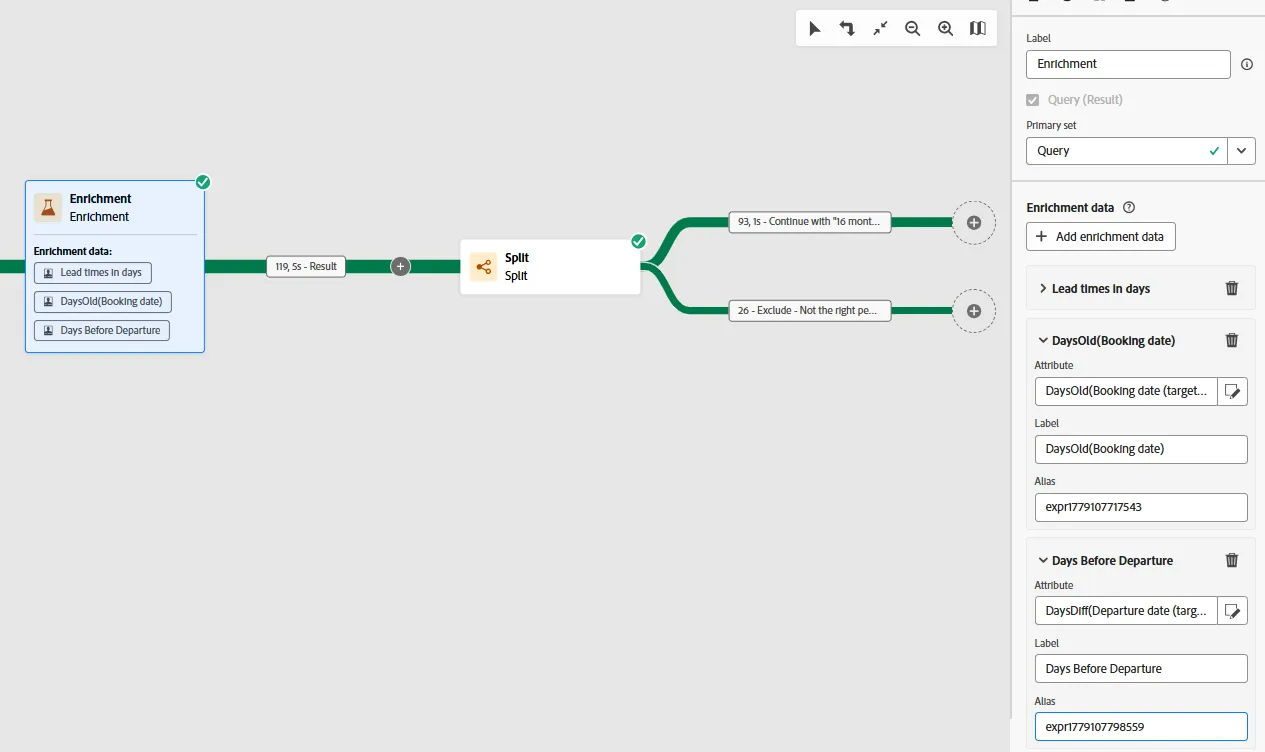
- Go back to the Enrichment activity
- Click on Add enrichment data button and edit this expression:
DaysOld([target/@bookingDate])
- Click on Add enrichment data button and edit this expression:
DaysDiff([target/cruise/@departureDate], GetDate())
- Set the Label to Days Before Departure
Define segments that align with the optimal marketing timing
- Go to the first transition of the Split activity and add another Split
- Set the label to Segment by booking age or departure date
- Define optimal marketing timing segments:
- 5 days old
- 7 days old
- 9 days old
- ...
- 3 days before departure date
- 2 days before departure date
- Enable the Generate complement option and set the label to Exclude - Not the right time
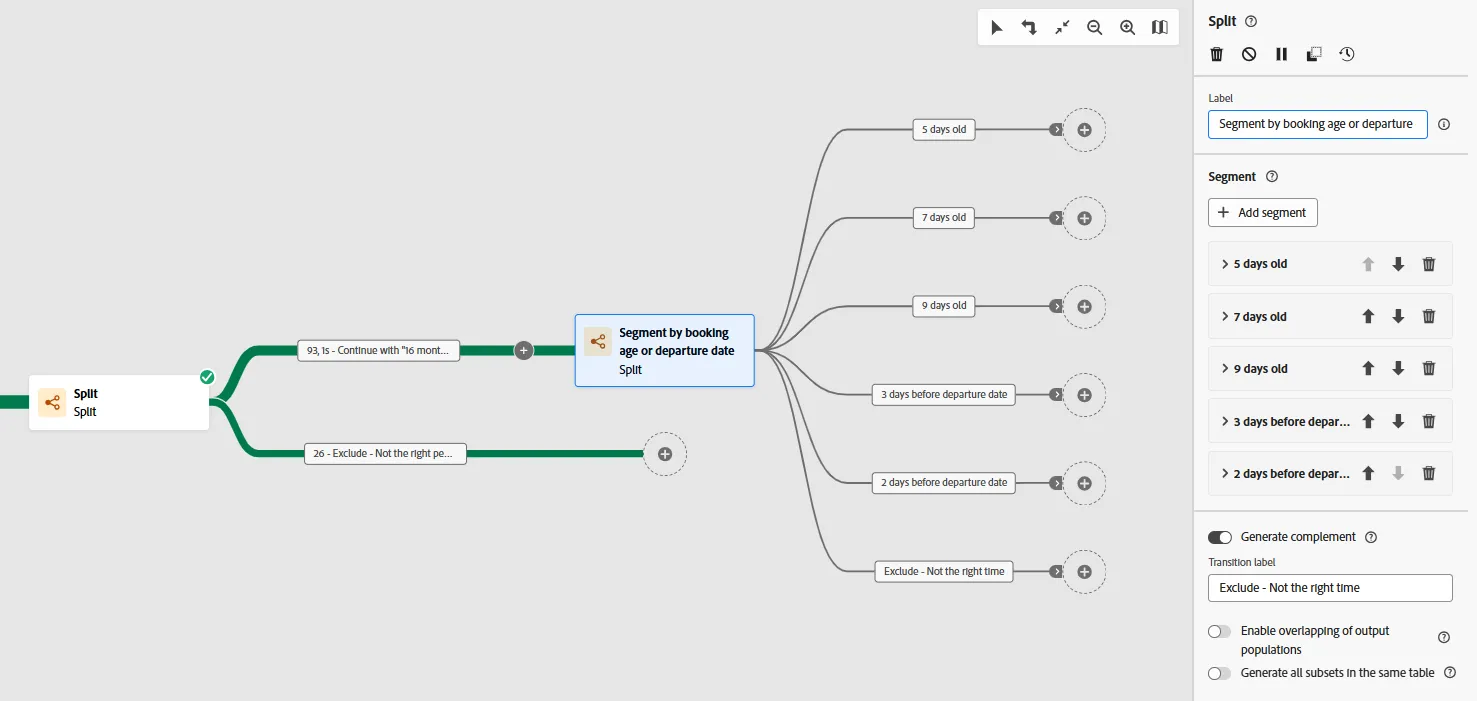
- Add an End activity to the exclusion transition paths
- Click on the Restart button to simulate data
Robust and short-lived process
This flow starts every day, executes in a few minutes, stops and do the cleanup. This is a robust design that works very well in production. The flow design does not rely on the Wait activity, yet it still enables precise timing of communications.
Step 3 - Right Message
Goal Deliver message to people who have booked
Optimize messaging based on booking details (number of passengers, loyalty status vs. first-timer cruisers, presence of children) and customer behavior (clicks and page views)
Highlight
Change dimension, Channel activity, Optimize messaging with Targeting rules
Change dimension
Select individuals based on booking data. Communications should be delivered to people, not to bookings.
Follow these steps:
- Go to the transition named 5 days old
- Add a Change dimension activity
- Set the New target dimension to customer
- Set the label to Find people from bookings
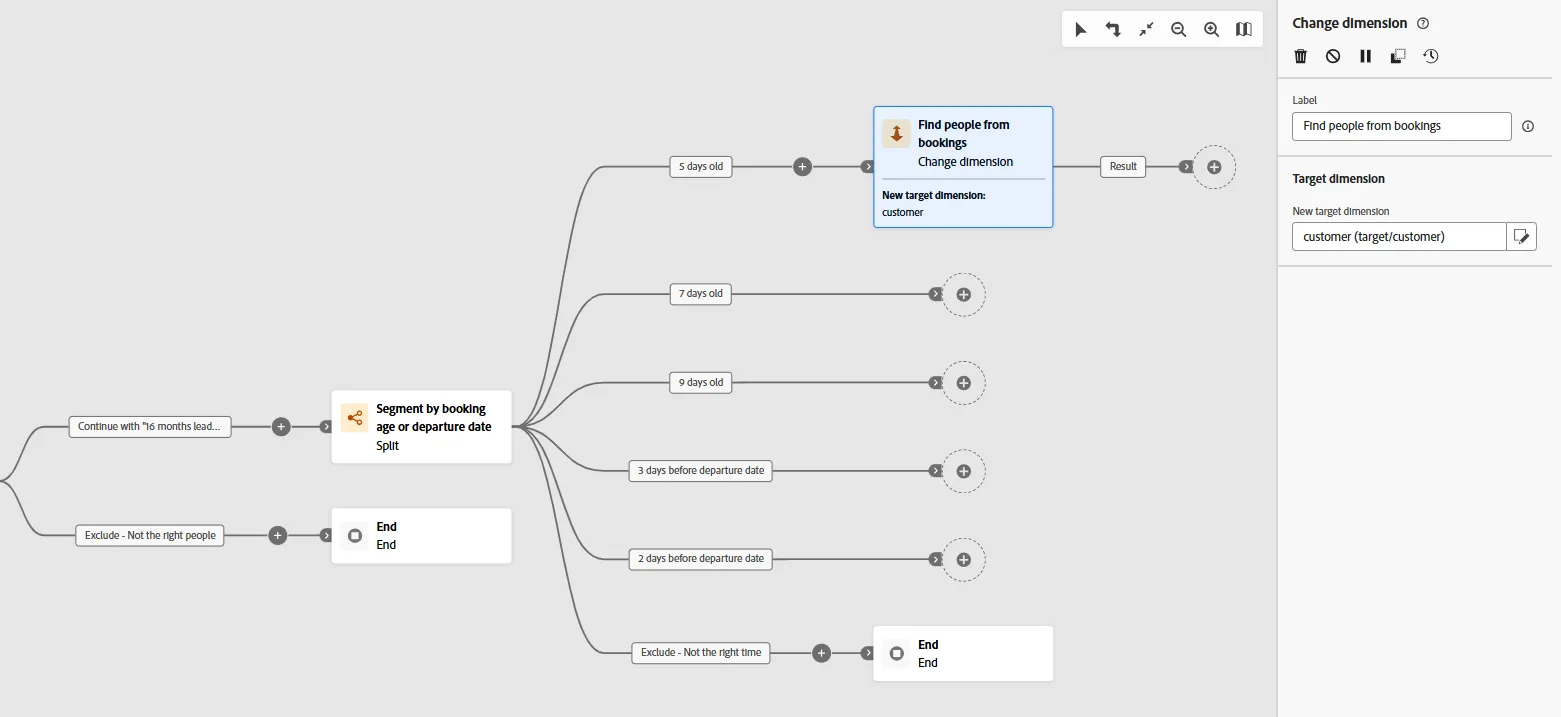
Notes about "Change dimension"
The Change dimension activity allows you to change the targeting dimension as you are building an audience. It shifts the axis depending on the data template and the input dimension. For example, you can switch from the booking dimension to the customer dimension.
This step is required to prepare the target in order to let the product deliver messages (email, push, SMS, direct mail). The engineers are working to improve the process and this step will become optional soon.
Optimize messaging by aligning content with the target
Follow these steps:
- Click on the + icon to add an Email activity
- Set the category to Marketing
- Click on Edit email button
- In the Actions tab, set the channel to config-email-customer-bookings-marketing
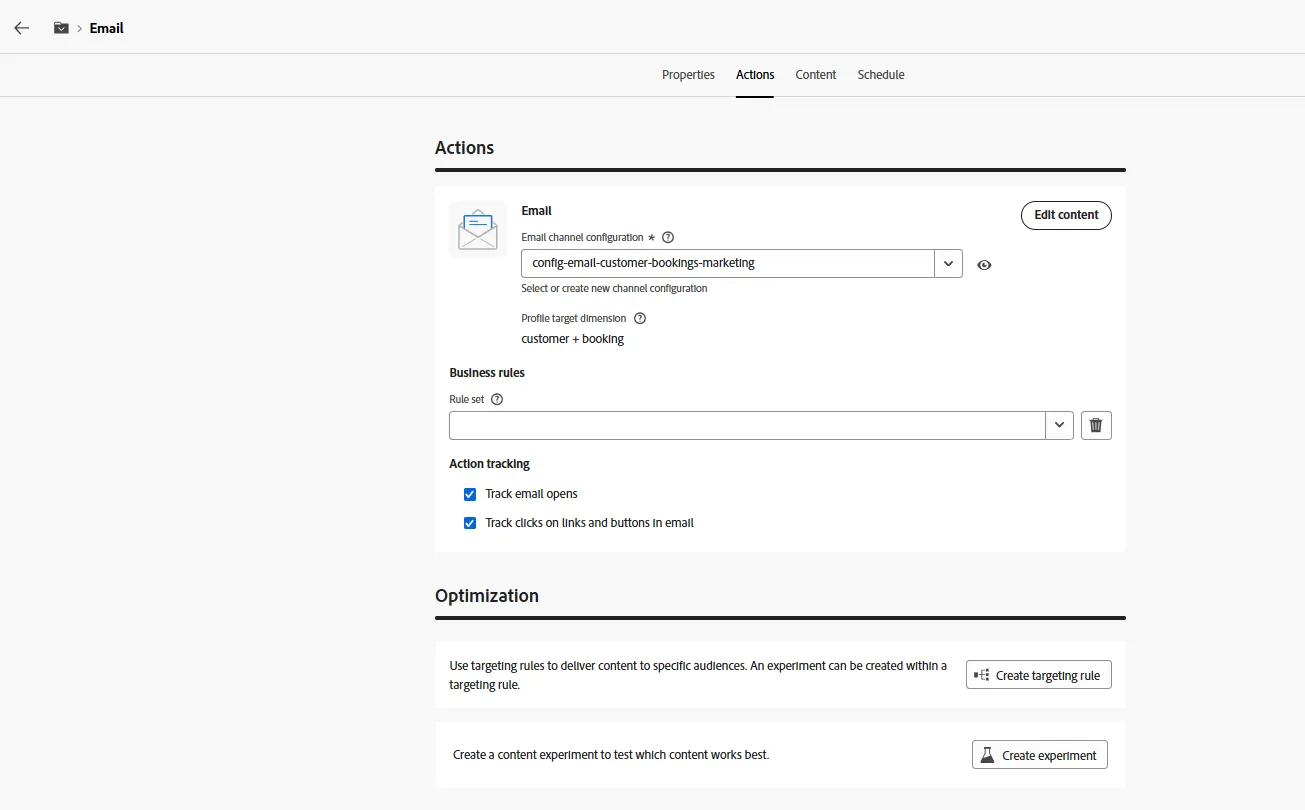
- In the Optimization section, click on Create targeting rules button
- Click on Create rule button
- Go to the Audiences tab
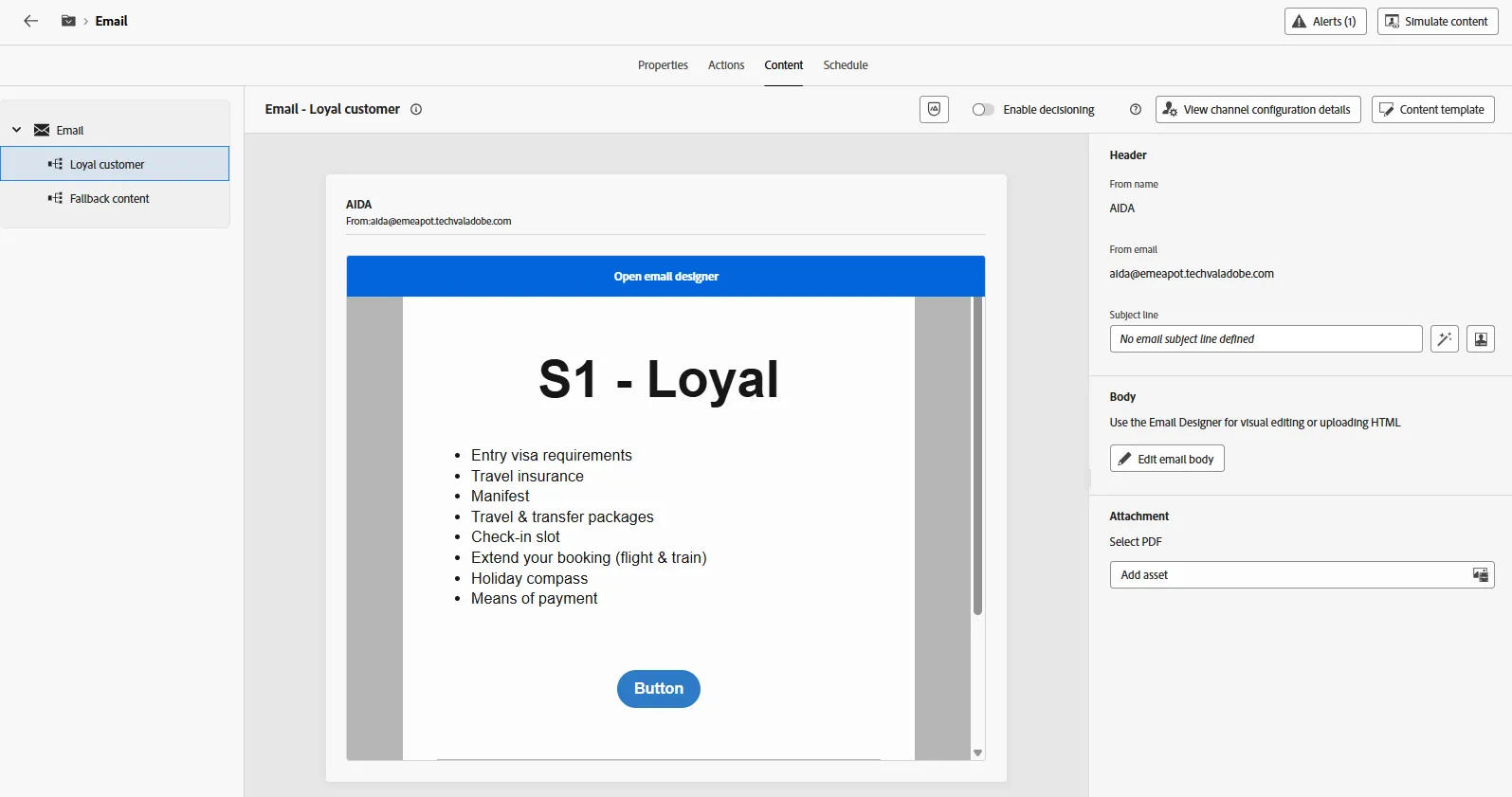
- Drag and drop the audience named Loyal customer
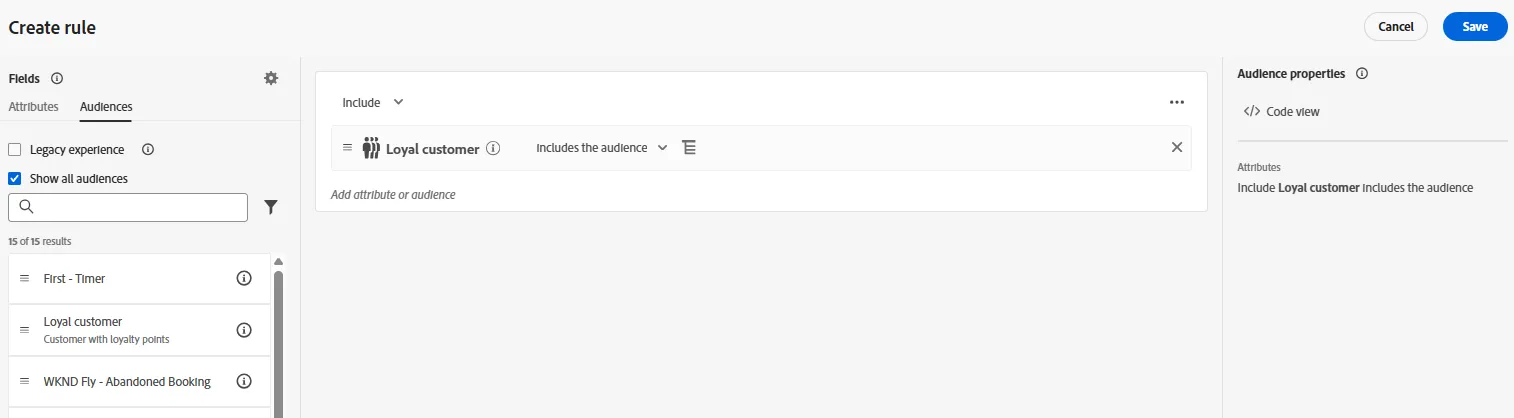
- Rename the rule to Loyal customer
- Enable the fallback content that matches a first-time cruiser variant
- Go to the Content tab and apply the [Example] Simple Text-led Email template content template for the 2 variants
- Story 1 optimized for Loyal cruiser
- Story 1 optimized for First-Time cruiser
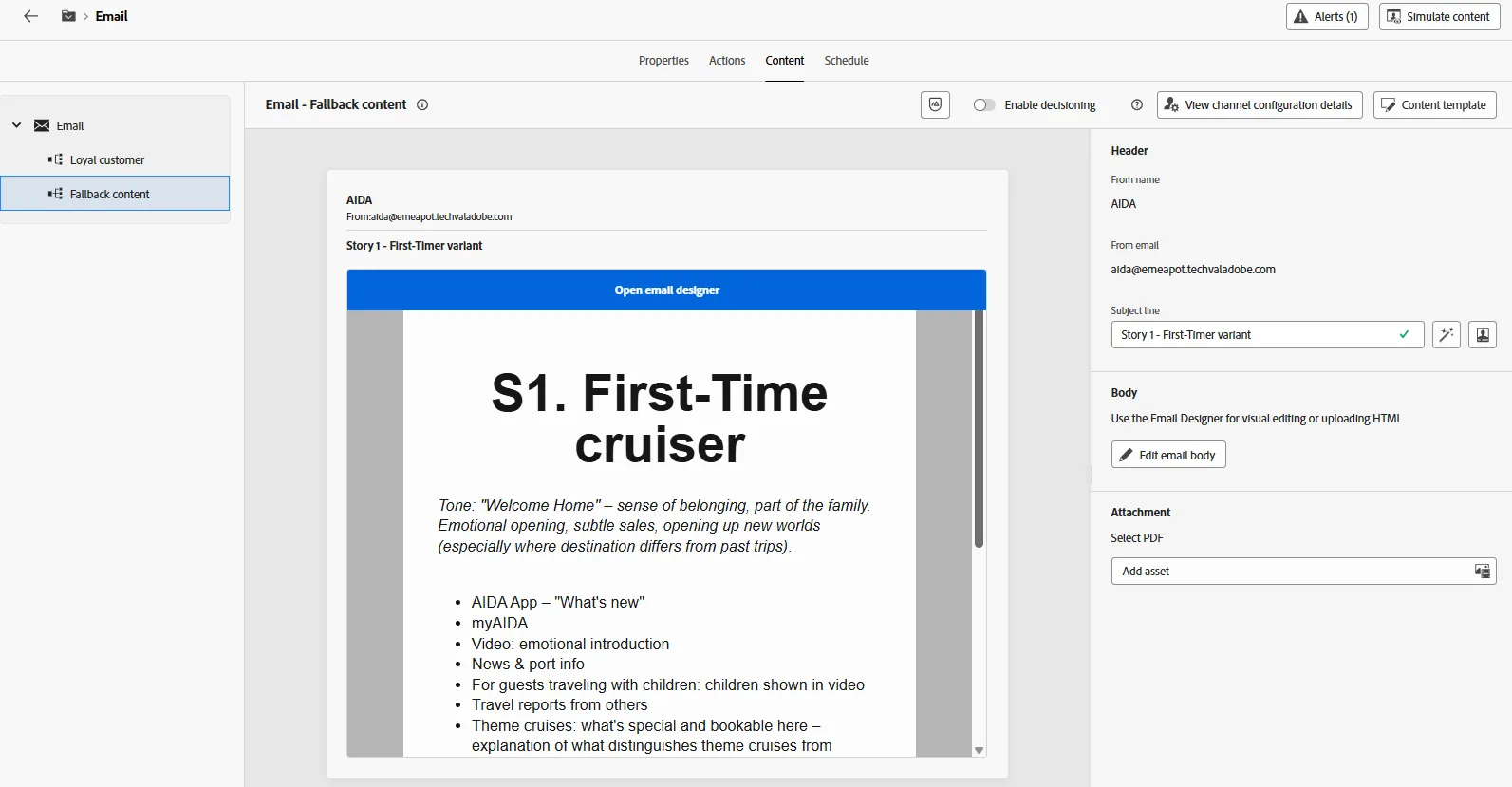
Optimize messaging is about align content to target
Optimizing messaging involves aligning content with the target audience to ensure relevance, engagement, and a more personalized customer experience.
Prioritization of messages
At times, multiple messages may be scheduled for delivery on the same day, creating potential conflicts. Marketers must therefore define priorities to ensure that the most relevant message is delivered to each target.
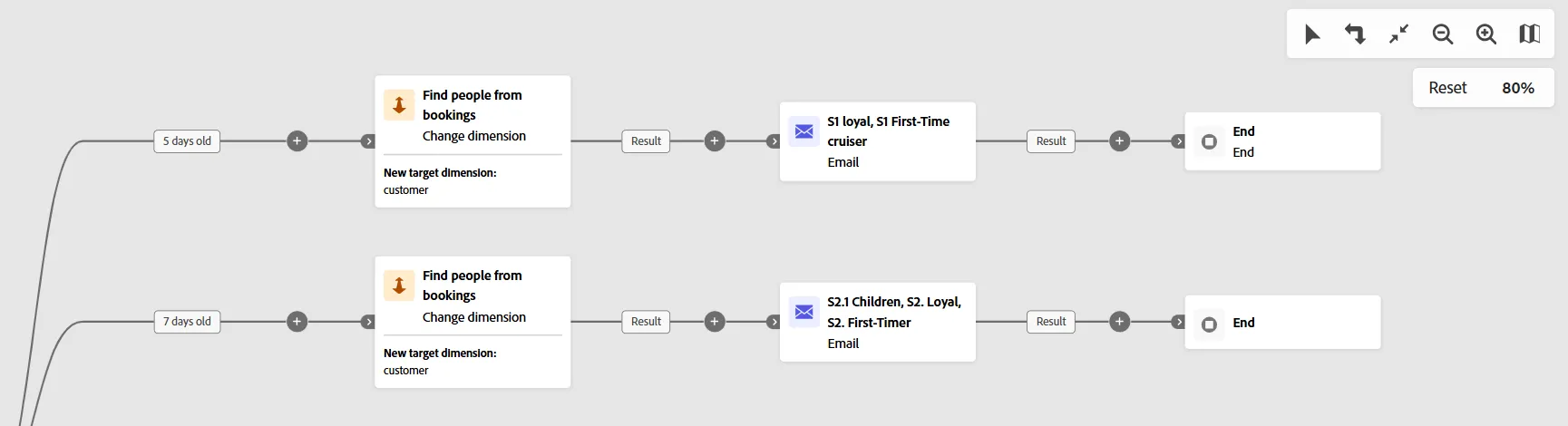
- Copy and paste the activities to design the 2nd segment (7 days old)
- Set the label of the message to S2.1 Children, S2. Loyal, S2. First-Time
- Deliver the Story 2.1 variant for passengers with children
- Deliver the Story2 - Loyal for loyal customers
- Deliver the Story2 - First-Time for the others
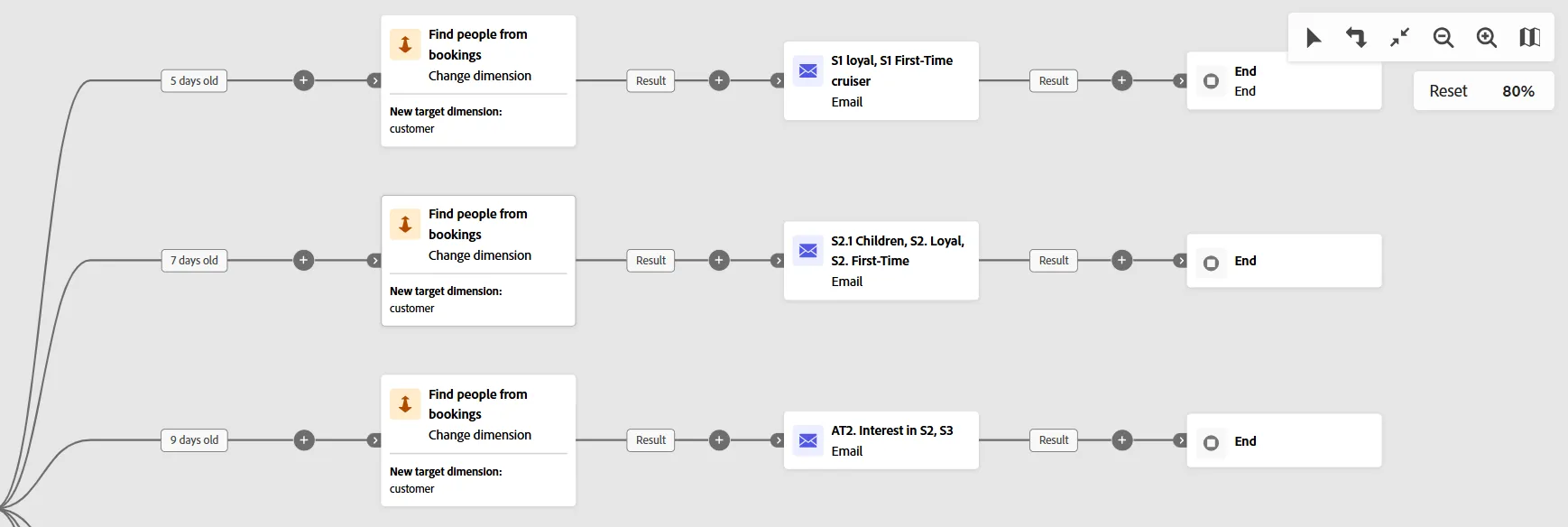
- Copy and paste the activities to design the 3rd segment (9 days old)
- Set the label of the message to AT2. Interest in S2, S3
- Deliver the Action Trigger 2 (AT2) story for customers who have an interest in story 2, that means customers who have clicked and viewed a page proposed by the stories delivered 2 days before, who belongs to this audience
- Deliver the Story 3 message for the other cases (fallback message)
Prioritization of messages
This design offers a framework to manage the prioritization of messages scheduled on the same day.
It also supports the use of the Fork activity to enable the delivery of multiple messages within the same day, giving marketers full control over the number of communications sent.
Congratulations on successfully completing the exercise!
This lab focused on these topics:
- Multi-Entity & Relational Data Processing
- Orchestrated Campaign Spirit
- Define segments that align with marketing timing
- Optimize messaging by aligning content with target
Appendix - Guardrails
Channel activities limit - An Orchestrated campaign supports a maximum of 10 channel activities (Email, SMS, Push, or Direct mail). Only channel activities count toward this limit. Targeting and flow control activities do not count (for example, Build audience, Wait, Split, Enrichment, Reconciliation, Fork, End, or Test).
Message content size for journey publication: When publishing journeys that contain email messages, the total message content size must not exceed 2MB after backend processing. During publication, the system automatically processes message content by patching links, images, and applying transformations, which increases the payload size beyond the authored content size.