Build an Email Program
2 min
Create List
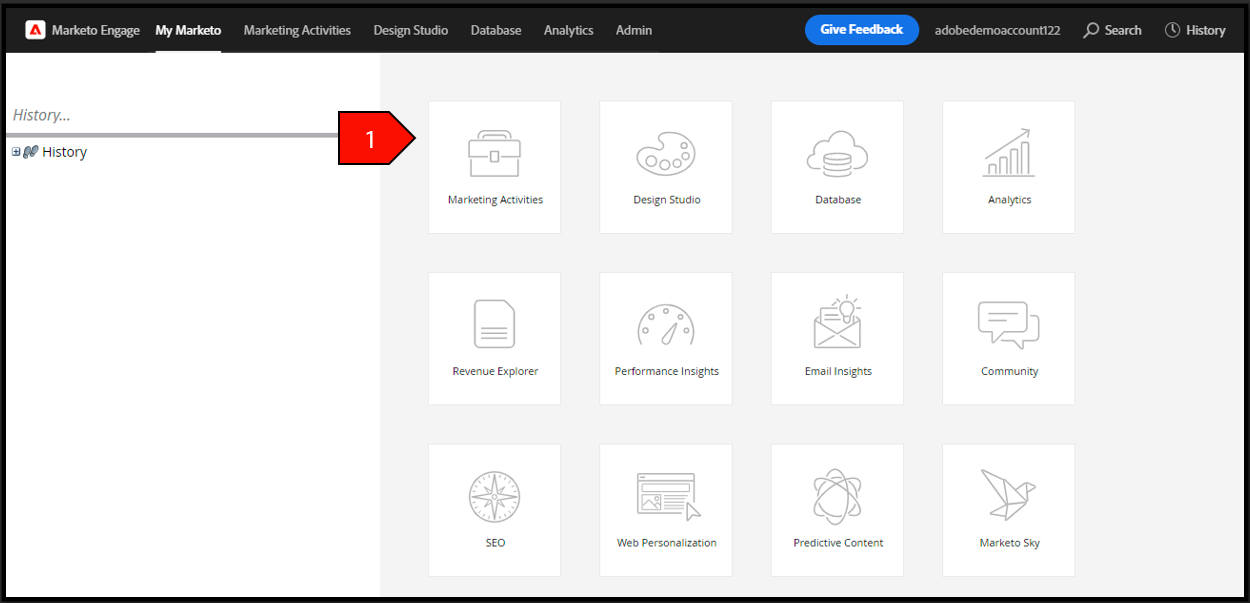
Navigate to Marketing Activities
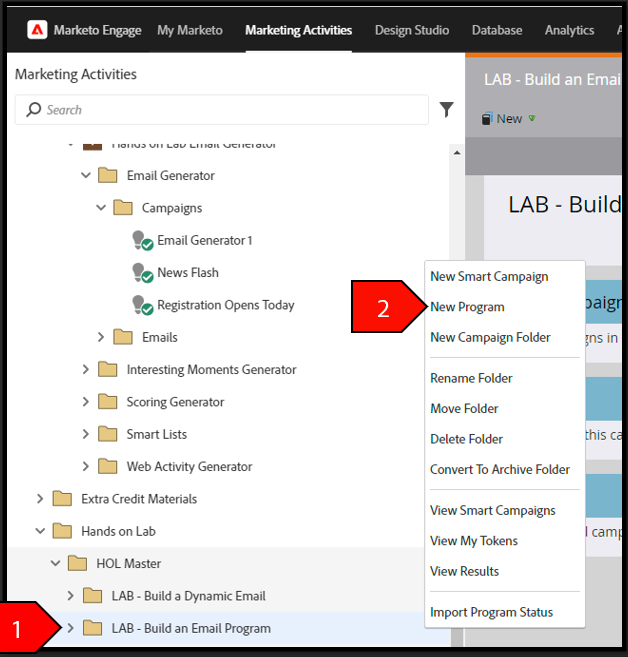
Right click on your student folder, select New Program
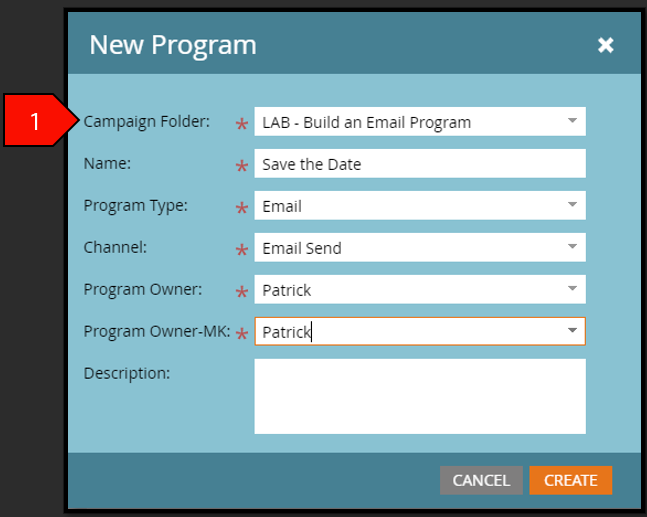
- Click Create after the following fields have been filled out:
- Campaign Folder: Your Attendee Folder Name
- Name: Save The Date – Attendee ##
- Program Type: Email Channel
- Email Send Program Owner: Leave alone
- Program Owner-MK: Leave alone
Description: Leave blank
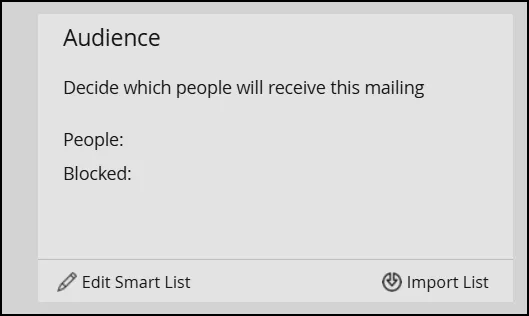
From the Control Panel for your program, click on Edit Smart List:
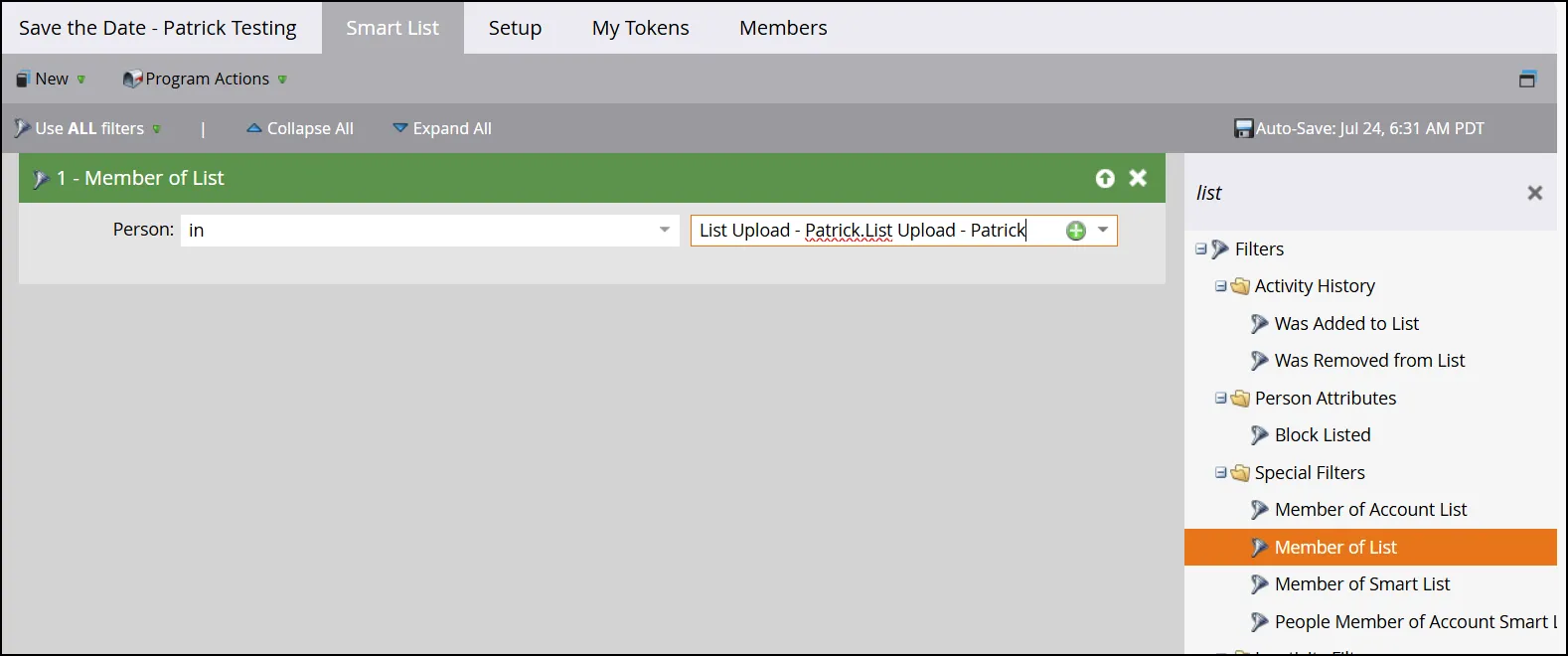
- From the filter on the right, select "Member of List". In the open box, find your List that you created and add it:
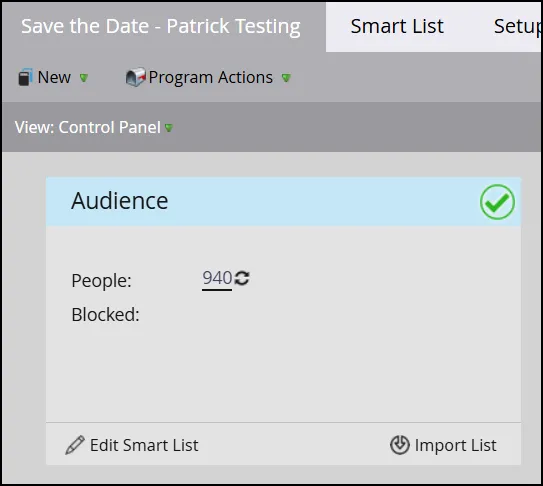
- Return to the Program Control Panel. Notice now your Audience has a check mark:
Create Email Program
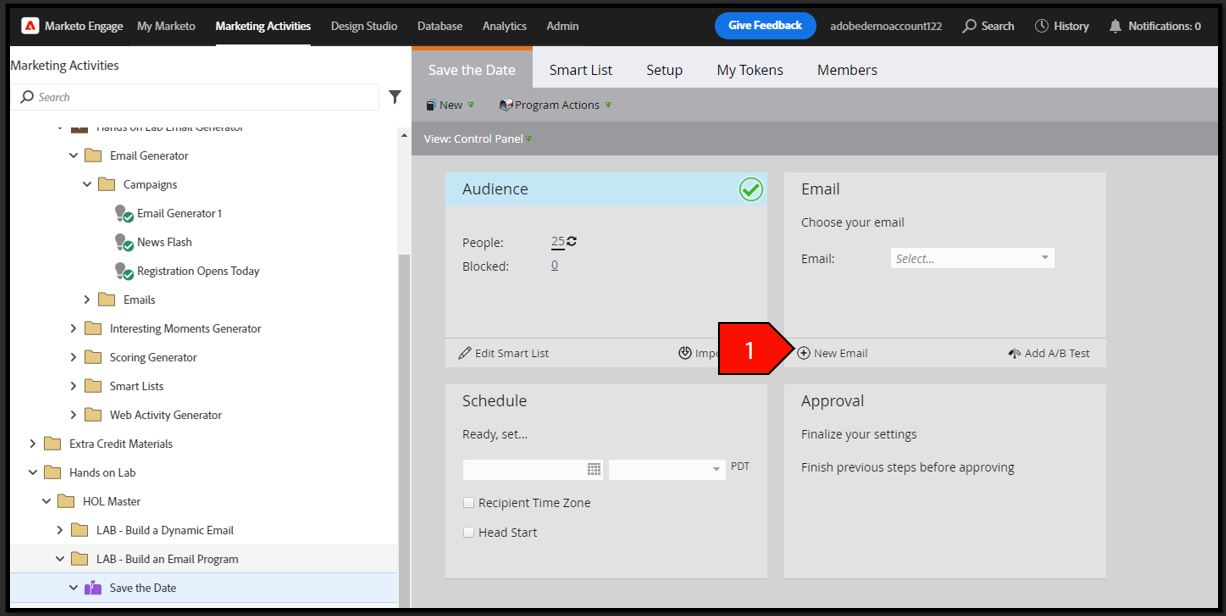
- From the Control Panel, click on New Email
-
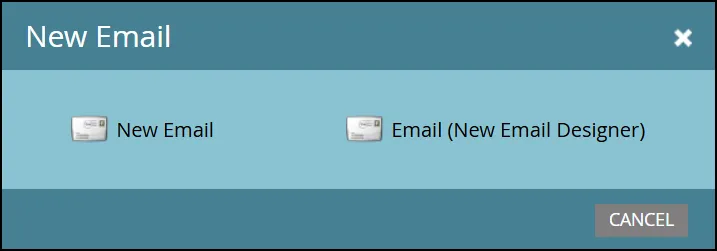
- Choose the "Email (New Email Designer)" when prompted:
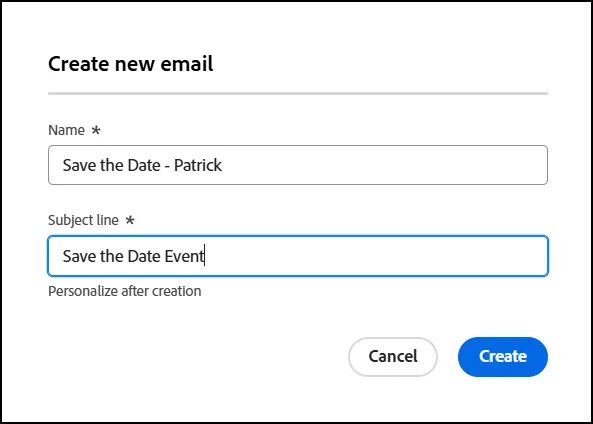
- In the Name, type Save the Date - Your Name. In the Subject Line, type "Save the Date Event".
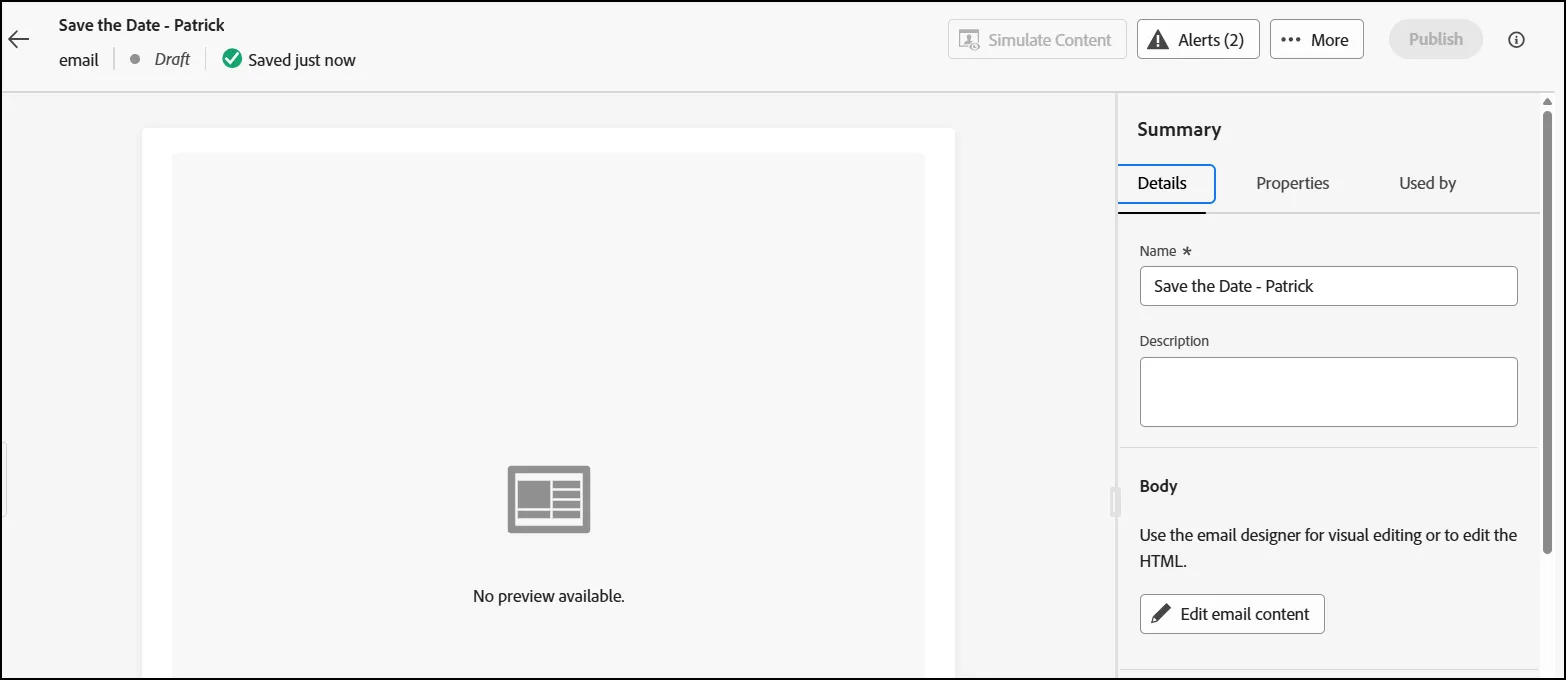
- On the next screen, click on the "Edit Email Content" button:
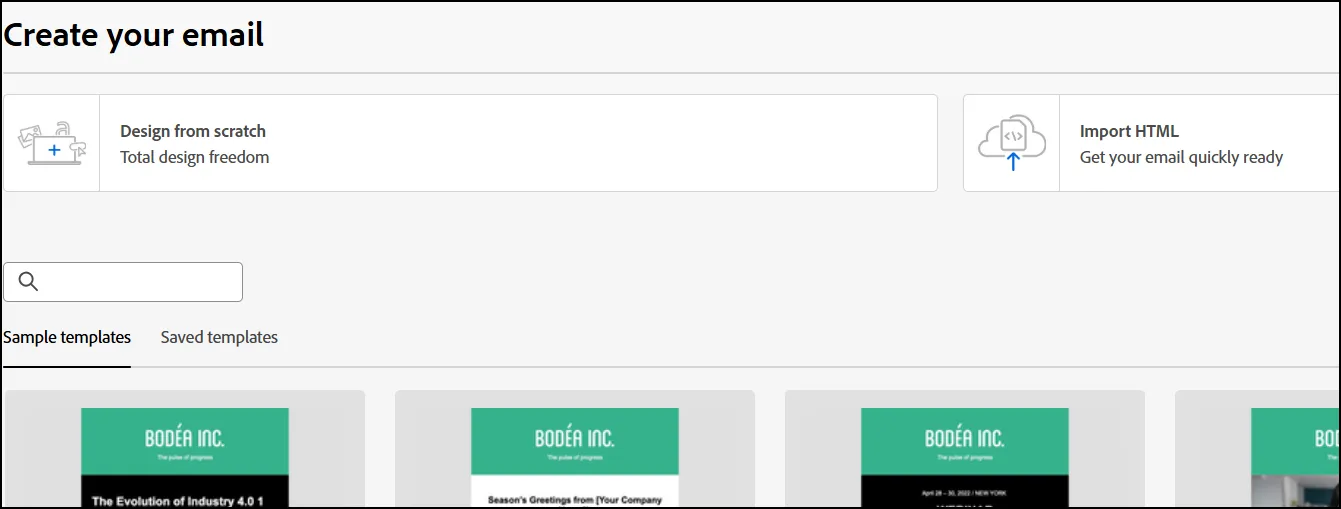
- On the next scren, click on "Design from Scratch":
- On the left menu, notice the Structure and Contents for designing your email:
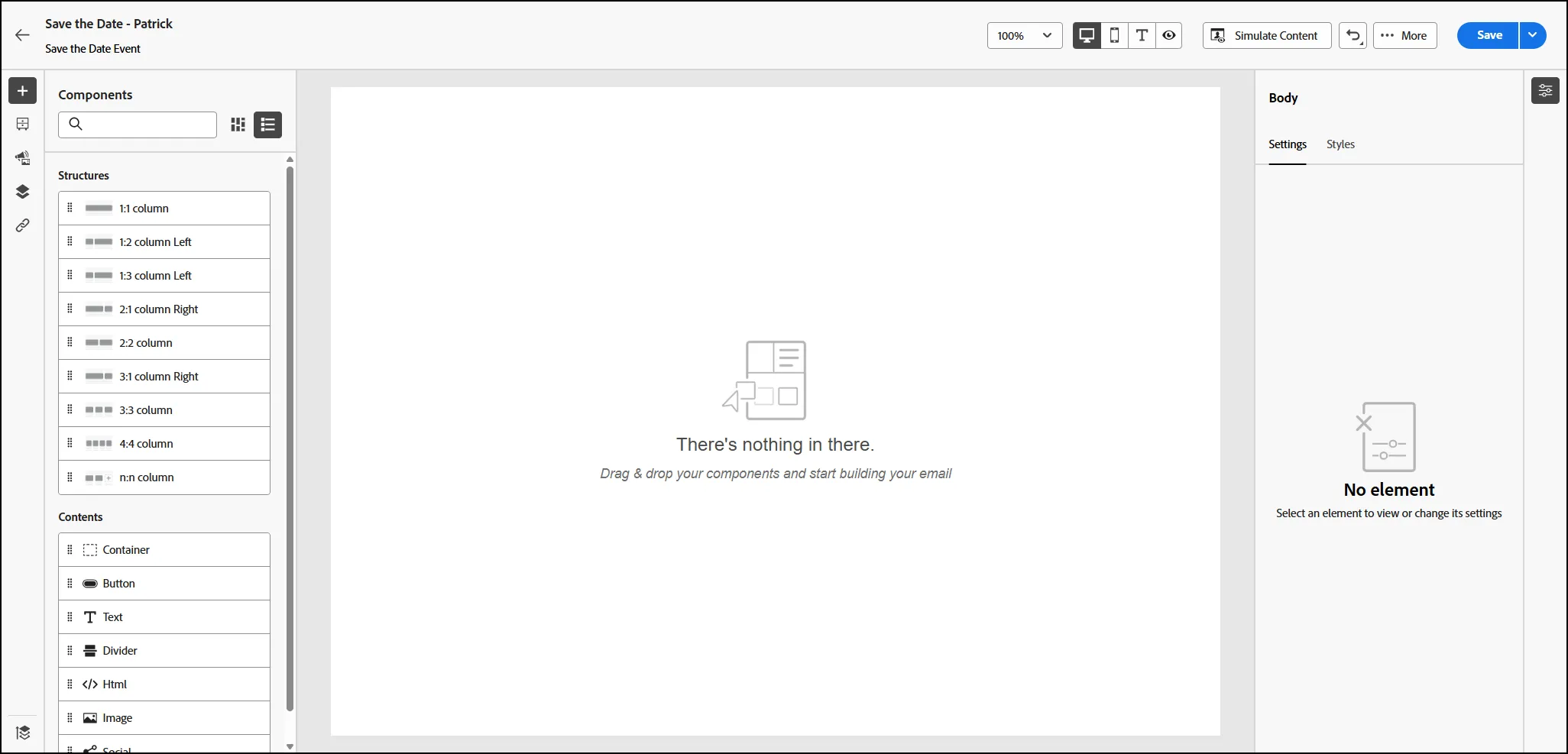
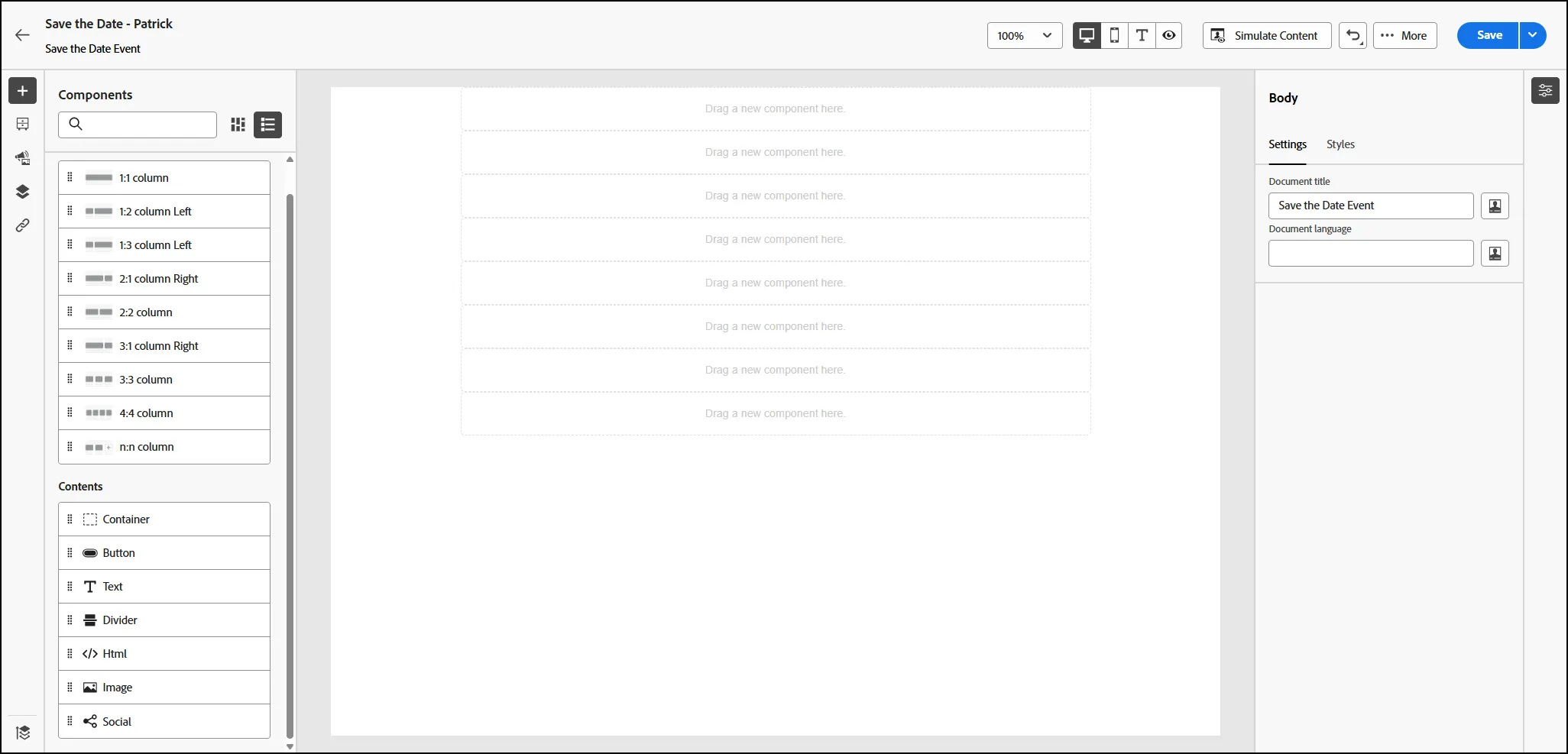
- Drag the 1:1 Column onto the canvas 8 times. Your canvas should look like this now:
- Now let's move to the Contents Section. Drag the "Image" content object to your first coponent block:
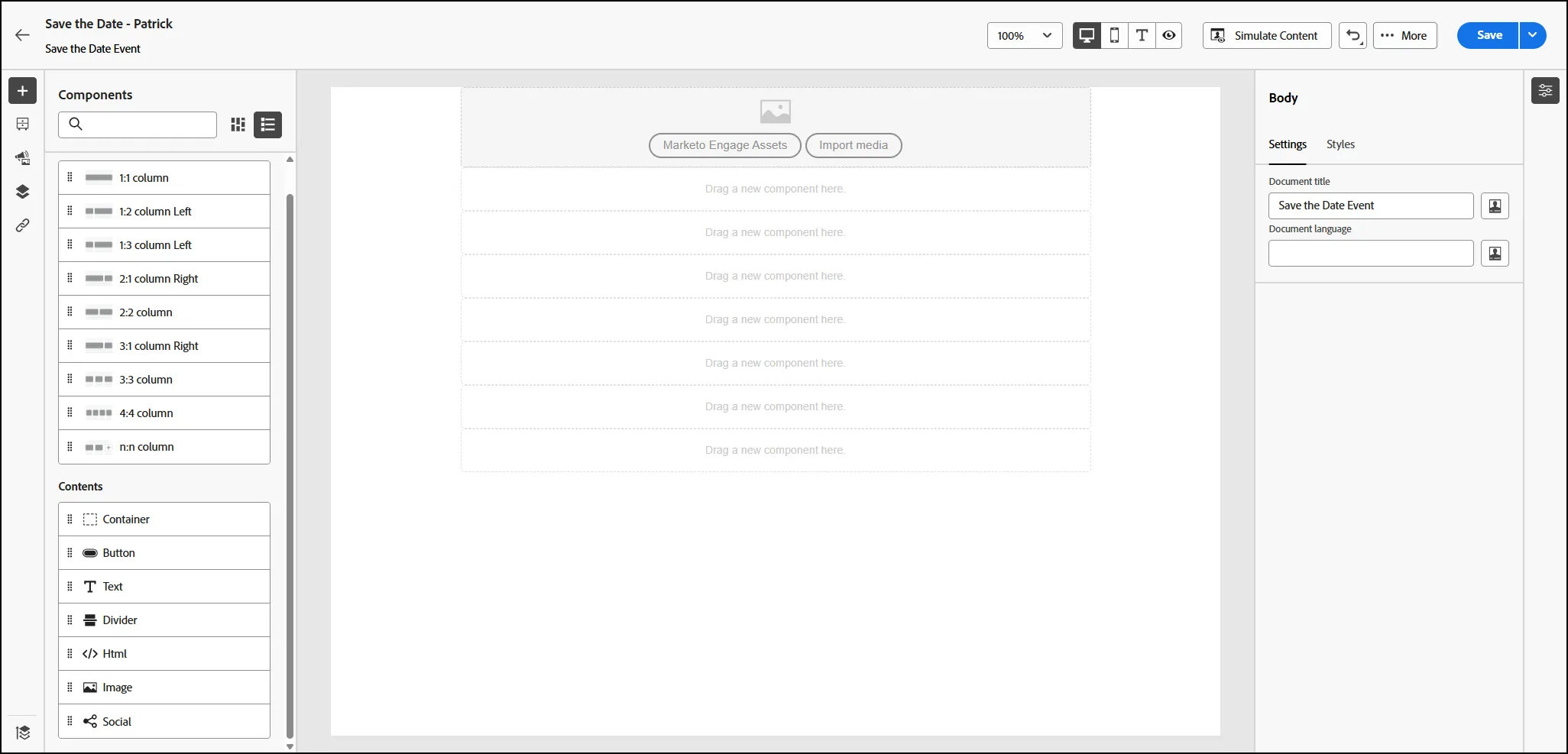
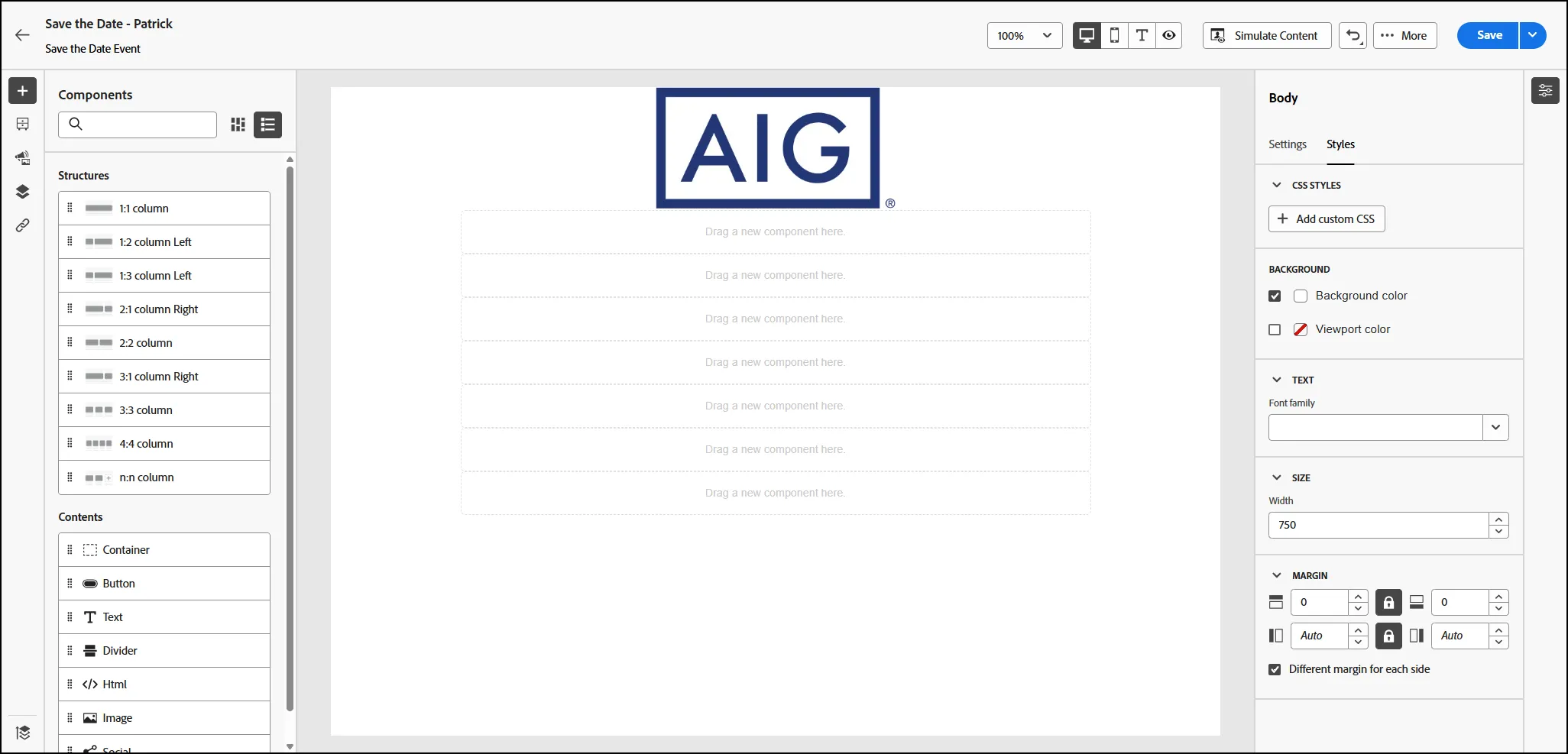
- Click on Marketo Engage Assets to open the available assets. Choose the AIG Logo to add to your email. Use the Styles tab to resize the logo:
- Add a Divider in the next component box.
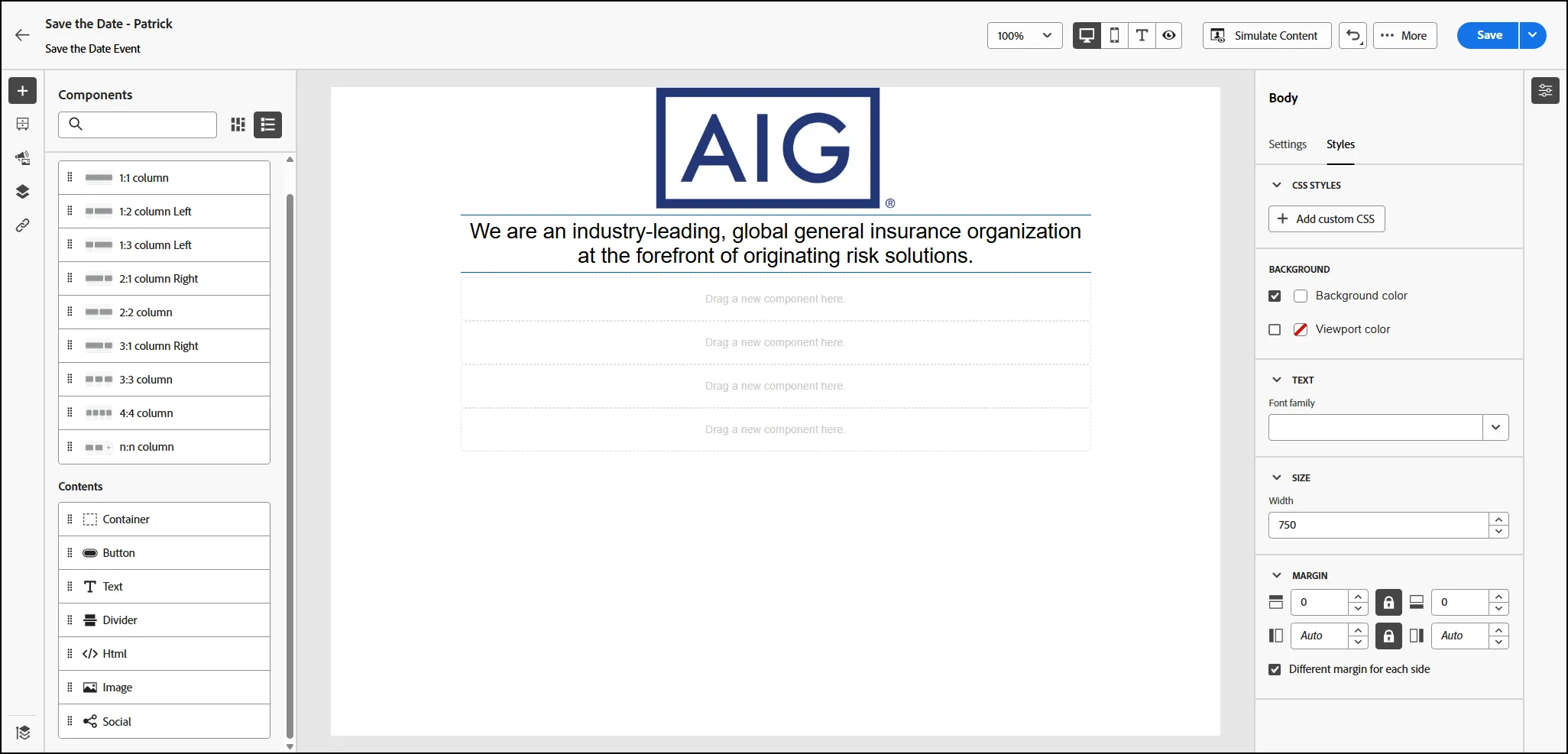
- Add a Text Content Object in the next component box. For the text we used the following: "We are an industry-leading, global general insurance organization at the forefront of originating risk solutions." Adjust the font to size 25 and center the alignment.
- Add another Divider afte your text. Your canvas should look like the following:
- For the next components, you can choose from the options on the left. We used an image, a divider, text and a button to create the following:
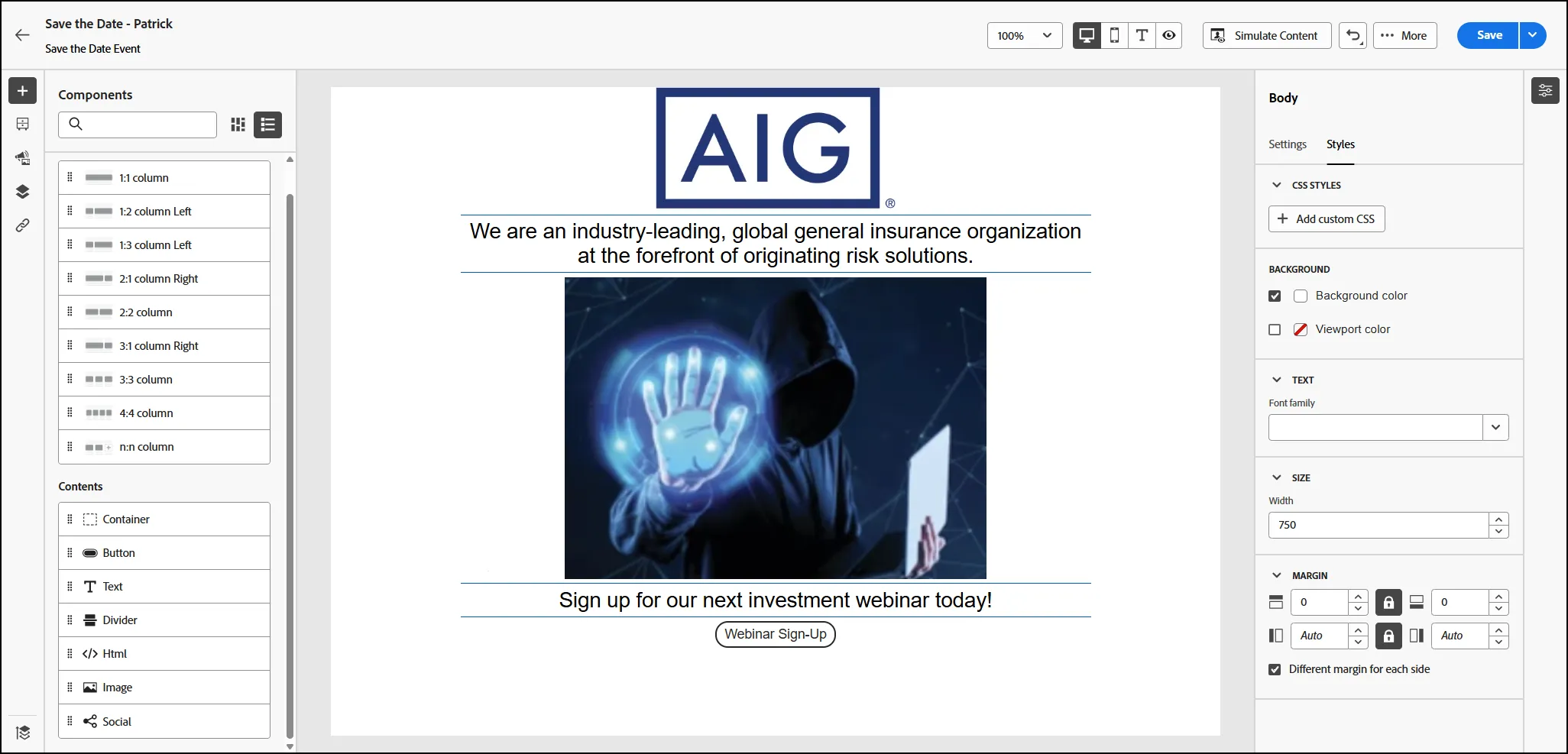
- Once you are finished with your design, click SAVE in the top right corner to save your email:
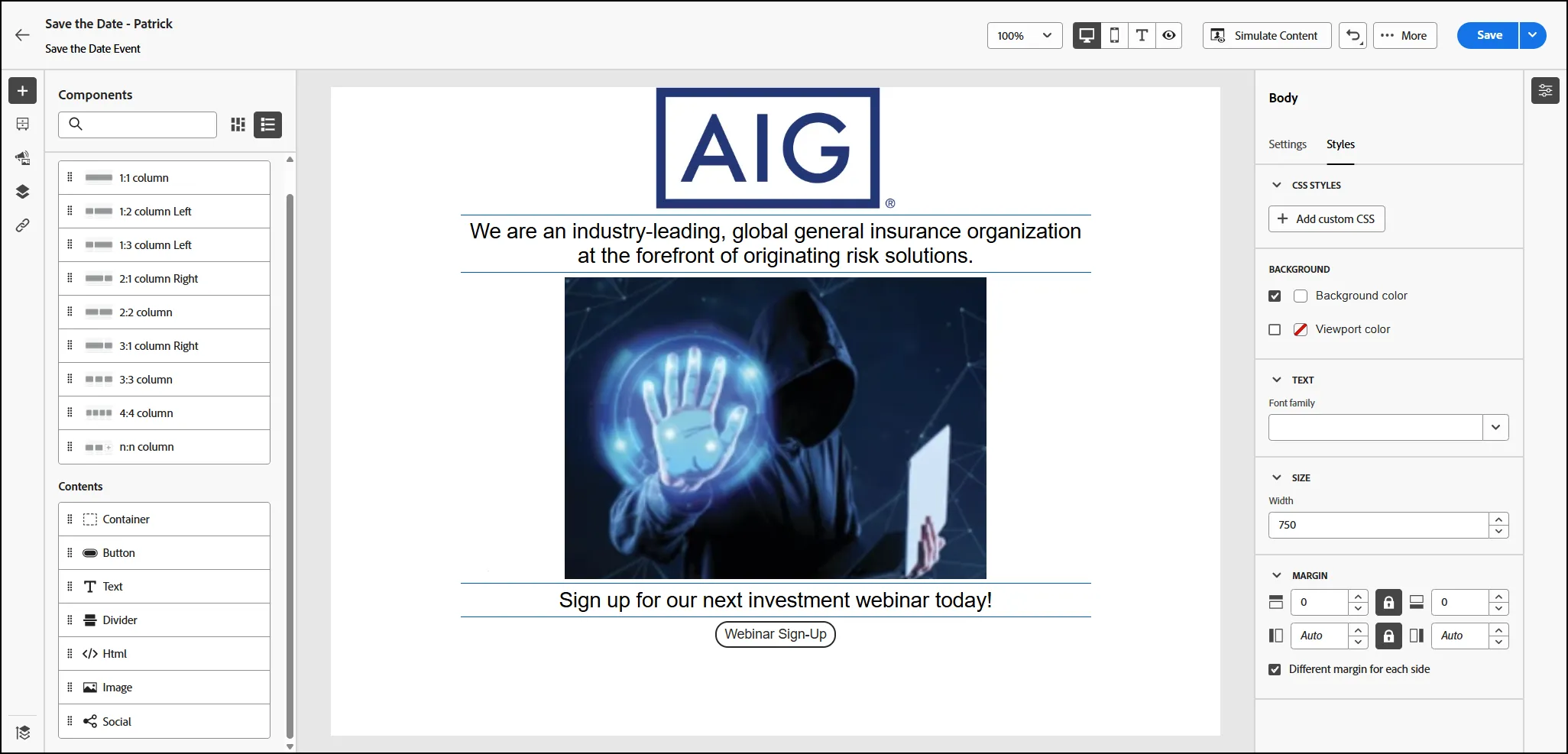
- End of Lab