Lab 1 - Unified Profile & Audiences
Learning Objectives
In this exercise you will learn how to view a real-time unified customer profile and understand how the different pieces of information collected about that customer are stitched together through the evolving Identity Graph.
You will learn about the different types of audiences that can be created through the rule-based audience builder, including real-time audiences based on streaming events being received from the website or other systems.
1.1 Unified Customer Profile
Let's start by looking up a customer profile.
The system combines data from multiple sources into an actionable profile. It also has an advanced identity management system to build the single view of the customer and to manage how data is merged into the profile.
Each profile consists of 4 key components:
- Attribute Data
- Event Data
- Audiences
- Identity
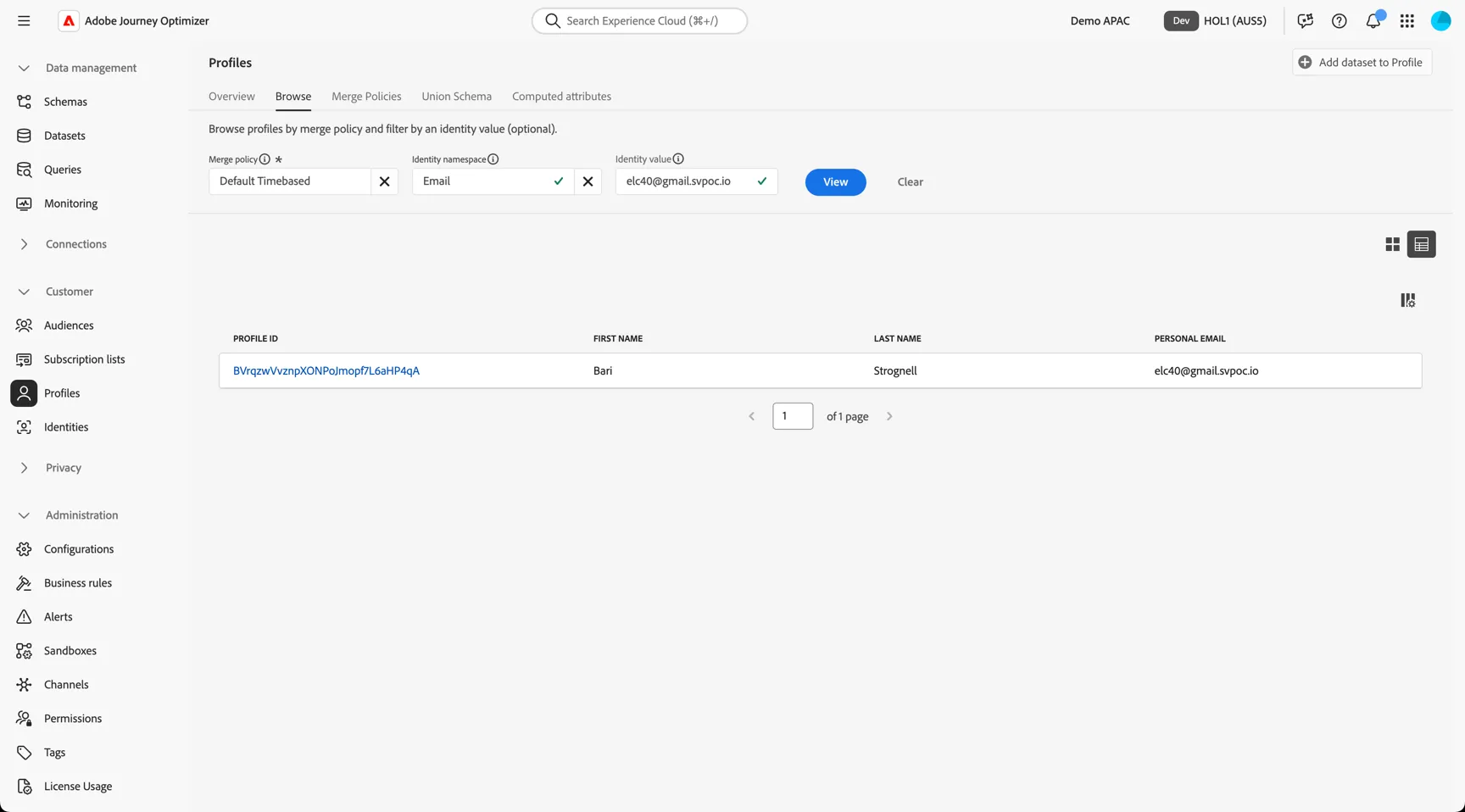
From the AJO home page, browse to Customer -> Profiles. The Overview dashboard shows insights on how many profiles exist in the sandbox along with the distribution of identities.
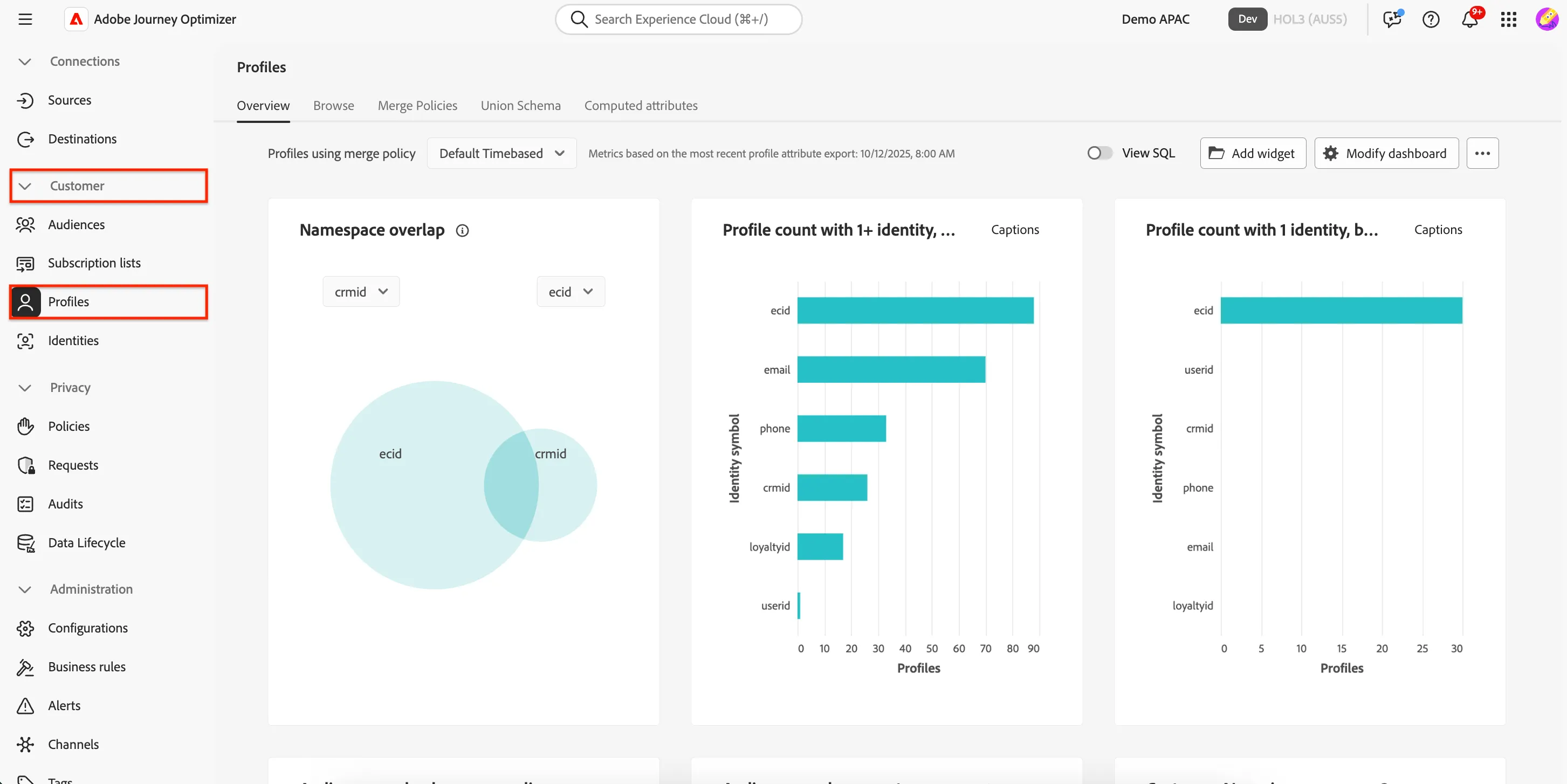
To lookup a specific profile, move to the Browse tab.
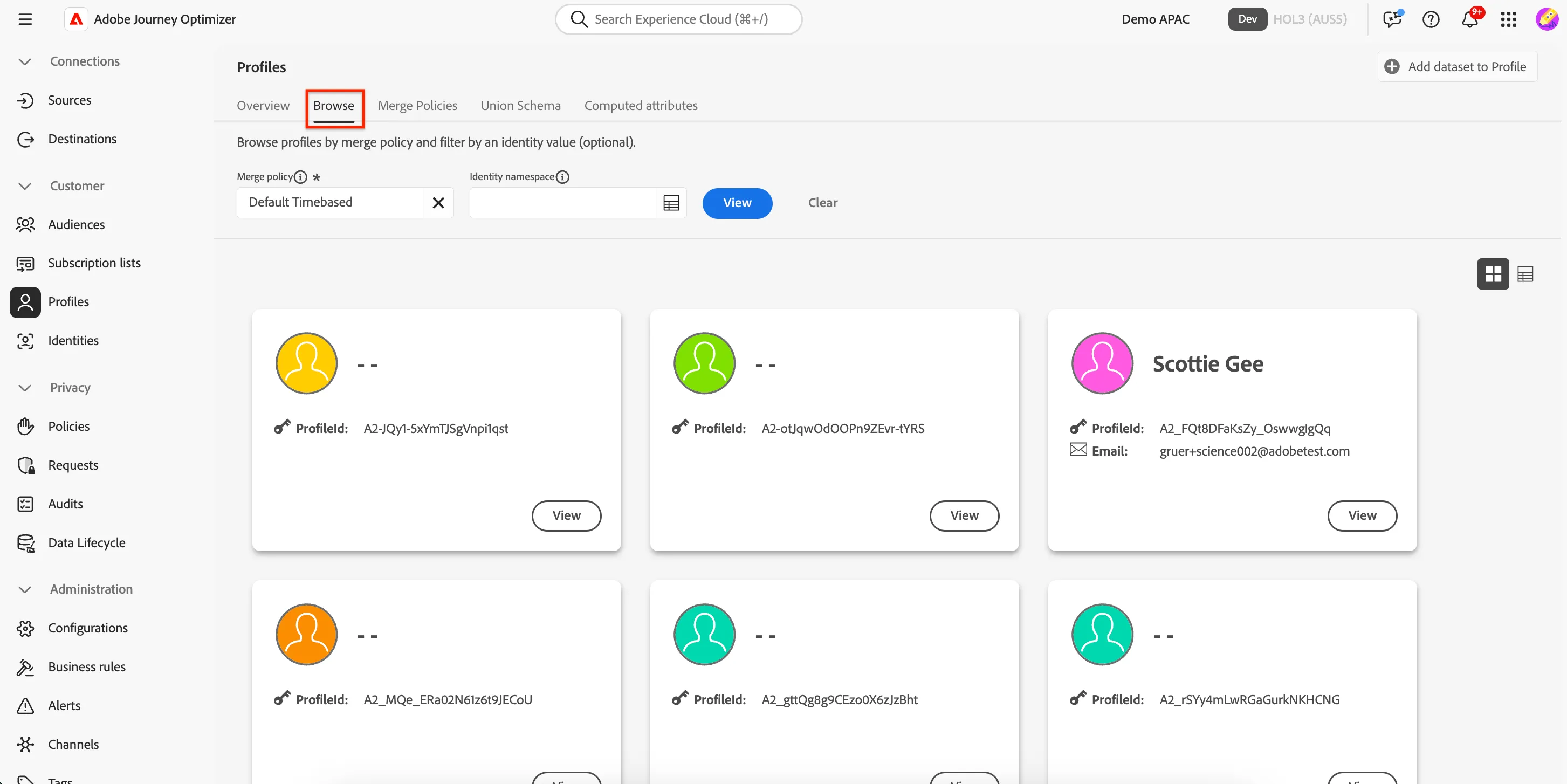
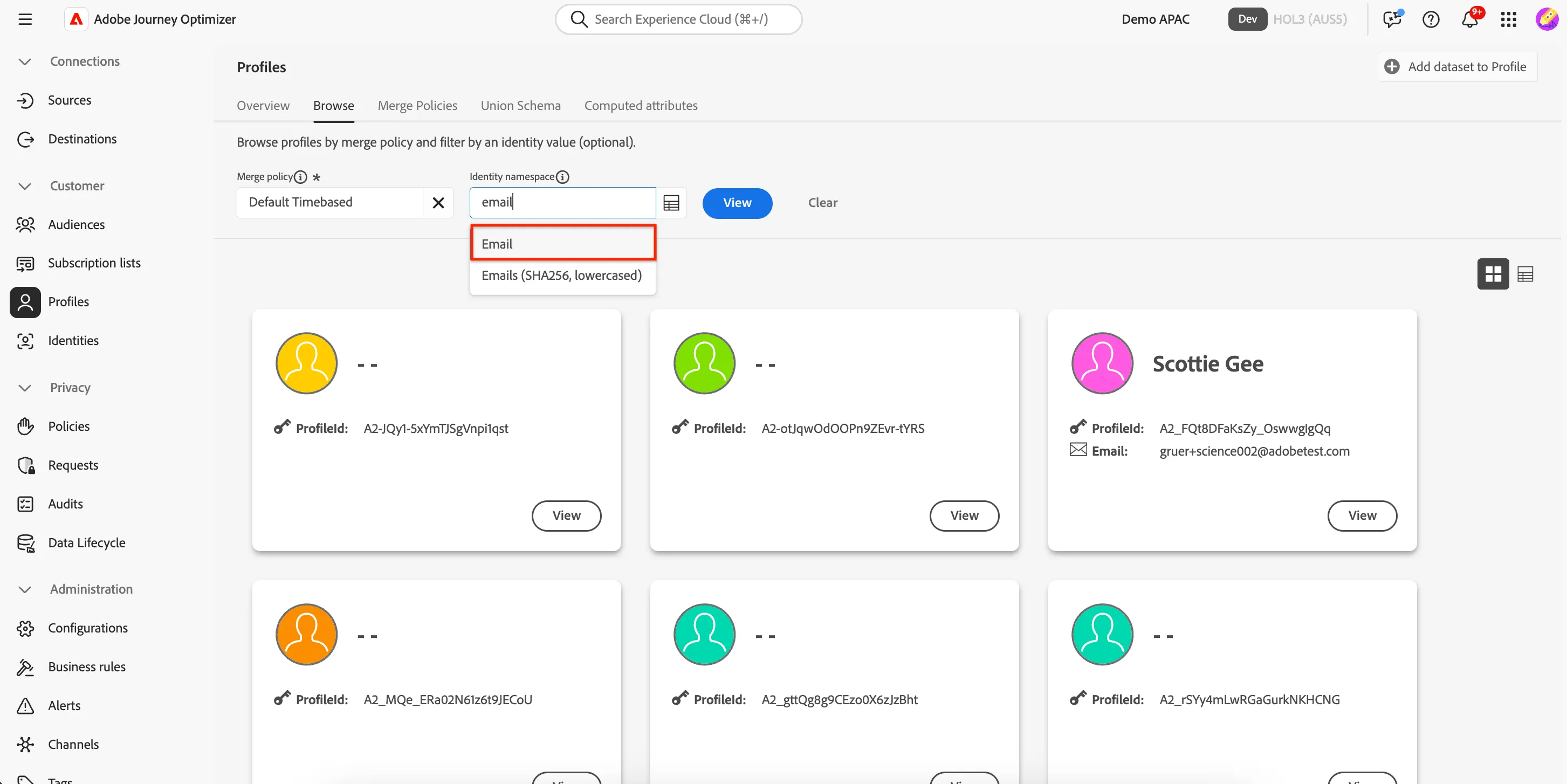
Profiles can be retrieved by any of the identities that are attached to that profile. Which identity namespaces are leveraged depends on your organisations requirements. For this exercise we will use Email to look up your profile.
Type Email in the Identity namespace field, select the first option, Email.
We've loaded customer profiles for each of you.
Attendee | Attendee Name | Customer Email |
|---|---|---|
1 | Joyce Lam | |
2 | Chloe Chan | |
3 | Annie Chau | |
4 | Permaly Lai | |
5 | Rosa Chan | |
6 | Nitthakorn (Bird) Wongwan | |
7 | Jacky Lung | |
8 | Don Ho | |
9 | Young Yang | |
10 |
Type your customer email into the Identity value field and click View, then View again on the profile card.
Remember this email as we'll use it in the next exercise as well.
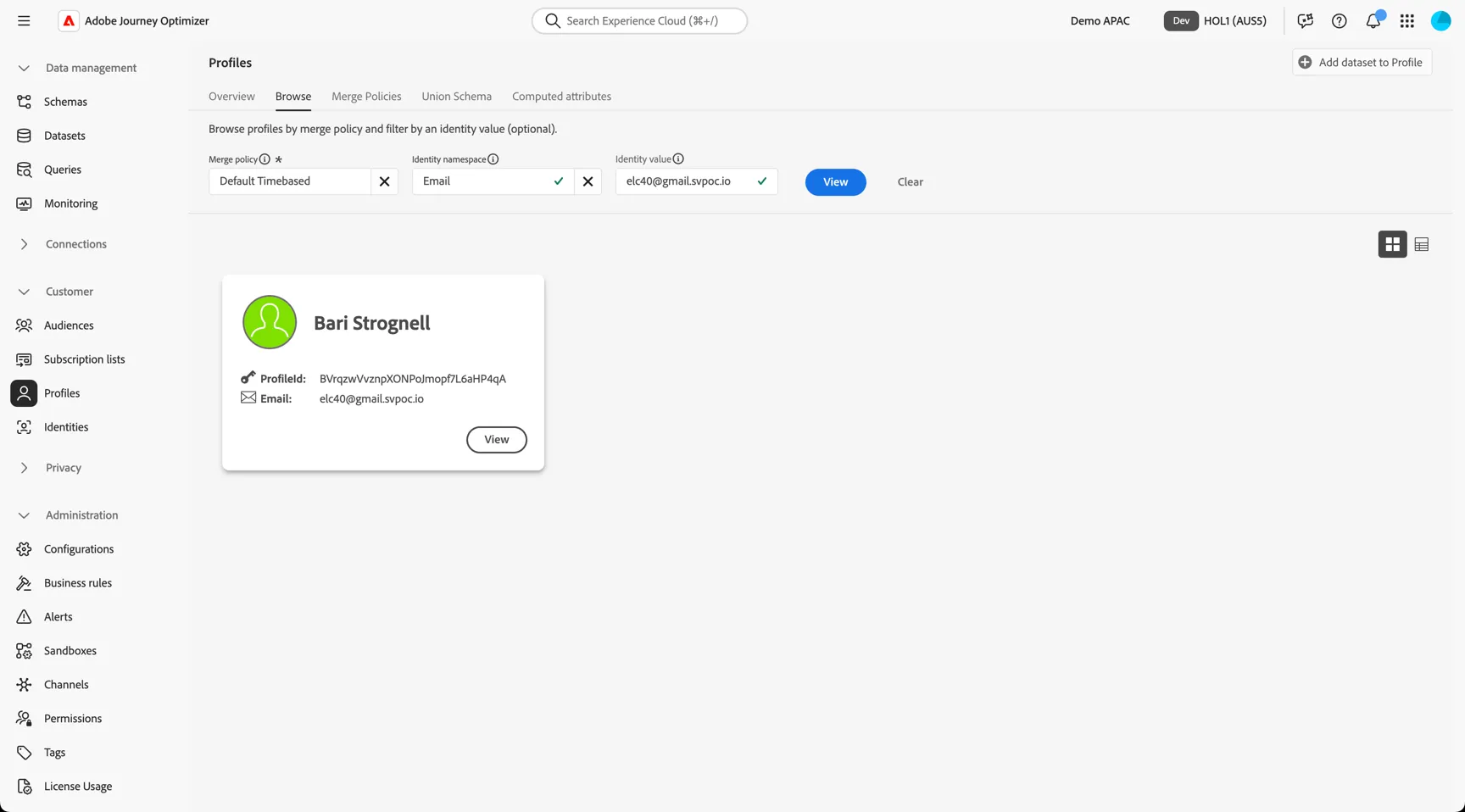
Note: you may not see the profile card. If this is the case you might be in the List View. If this is the case you can simply click on the PROFILE ID to view the profile details.
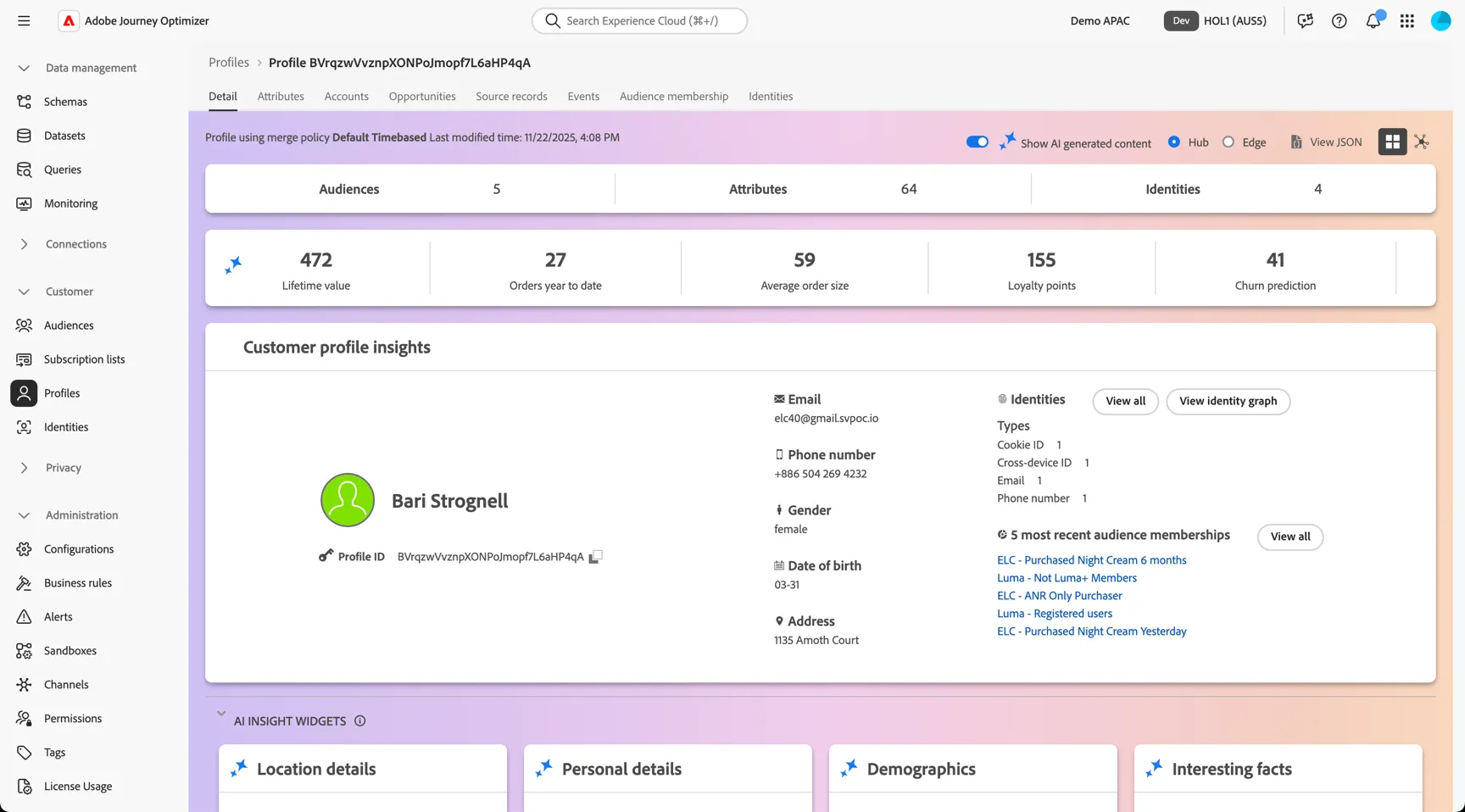
The Detail tab shows us some basic information about the profile, starting with some AI-generated insights.
Note: the profile data in the screenshots may not 100% match what you're seeing in this lab but should be fairly representative.
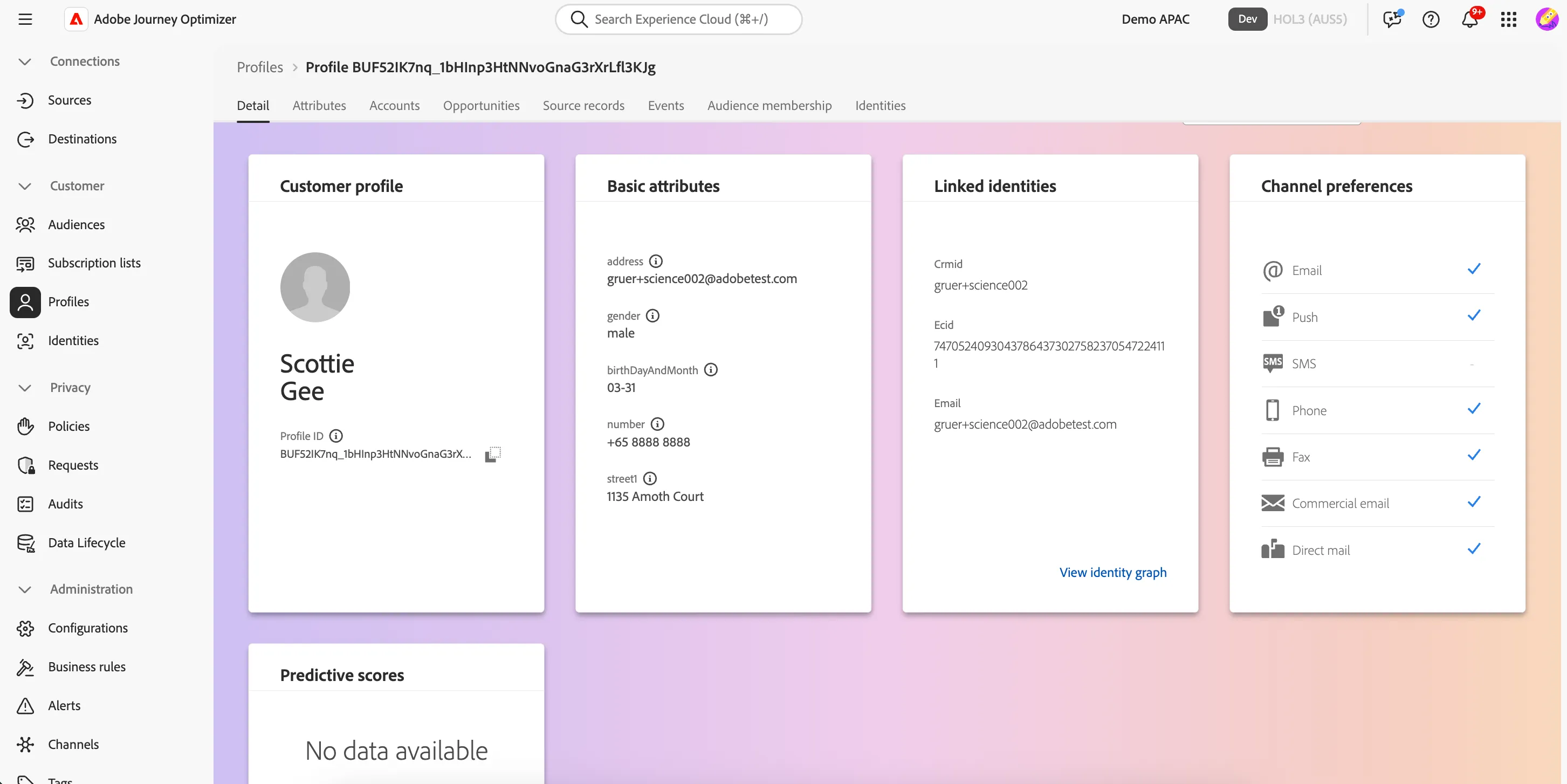
Below are some content cards and fields which can be customized according to business needs.
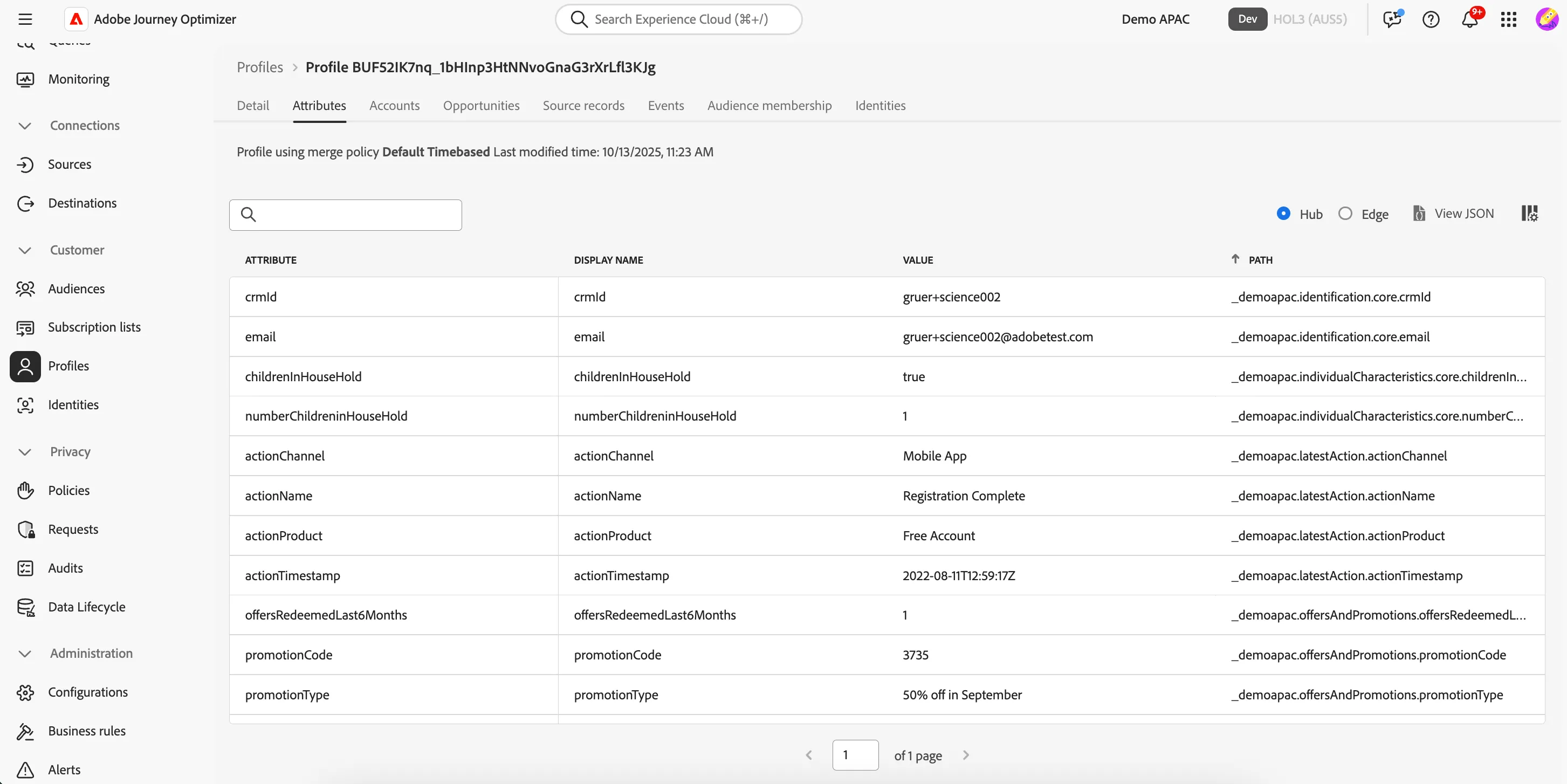
There are 2 main types of data collected against the profile, Attributes and Experience Events. Attributes tend to be fairly static, slower-moving data (sometimes called Record Data) while Experience Events represent point-in-time interactions a profile has had with your brand, whether that's viewing a web page, making a purchase, calling the call center or visiting a store (i.e. time series data).
Click on the Attributes tab to view the full list of attributes ingested for this profile. These attributes can come from different source systems. The platform will merge them in real-time.
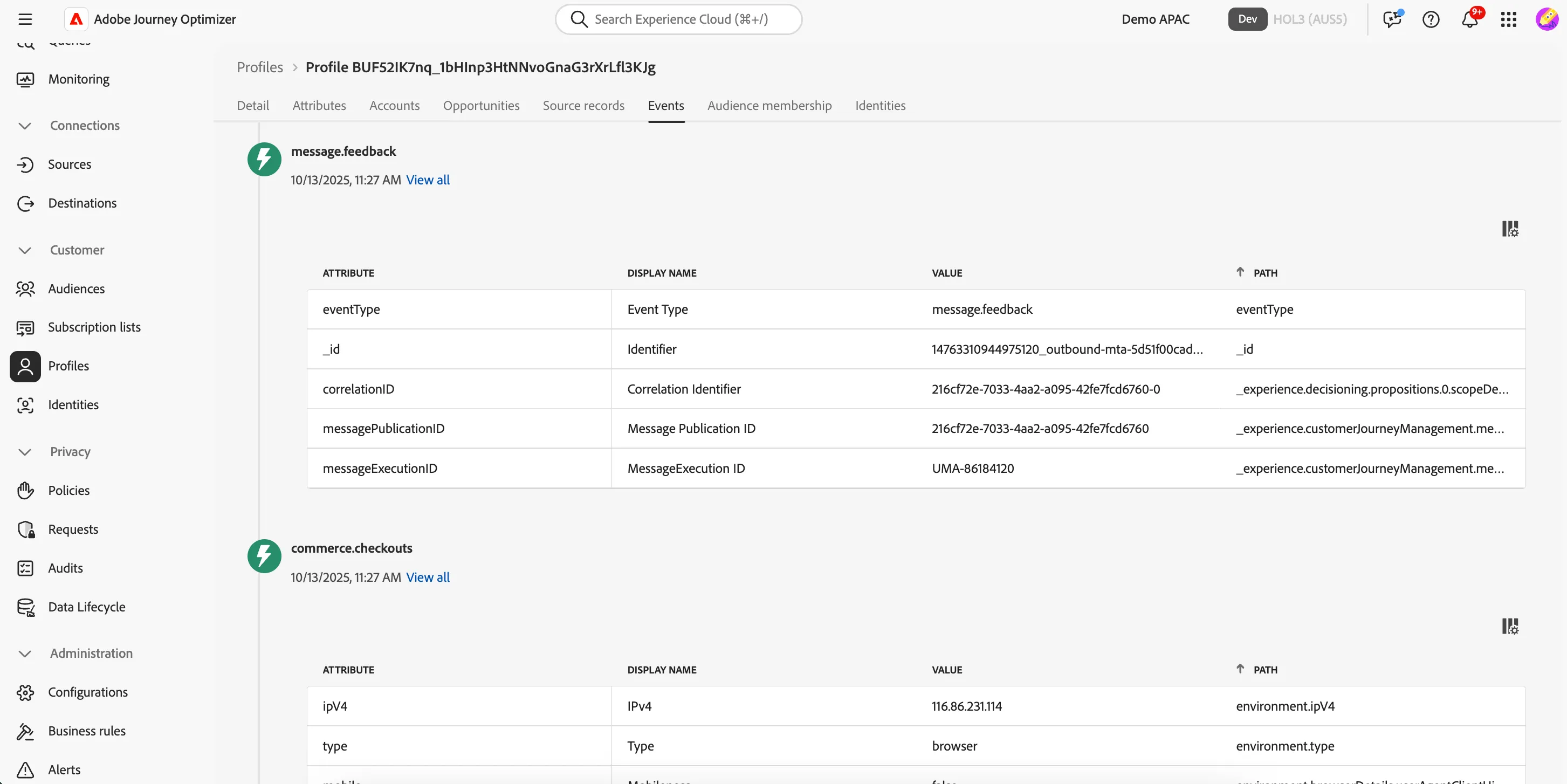
Click on the Events tab. Here you can see a chronological view of all the behavioural experience events coming from different source systems for this profile. These events are ingested in real-time from the sources like your website or mobile app.
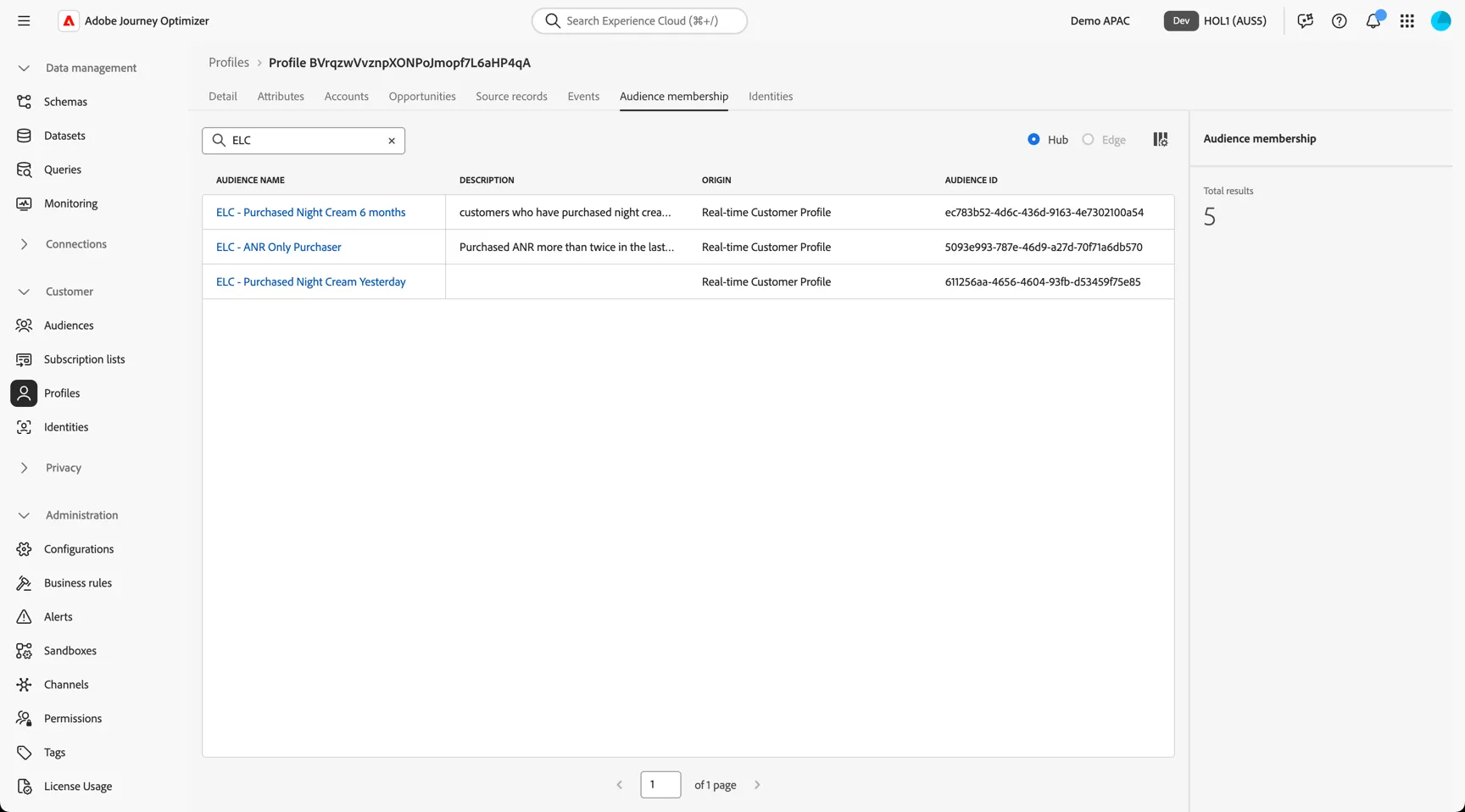
Move to the Audience membership tab. Here you can see which audiences the profile is currently a member of, this list will update as the profile moves in and out of audiences based on their attributes and behavior.
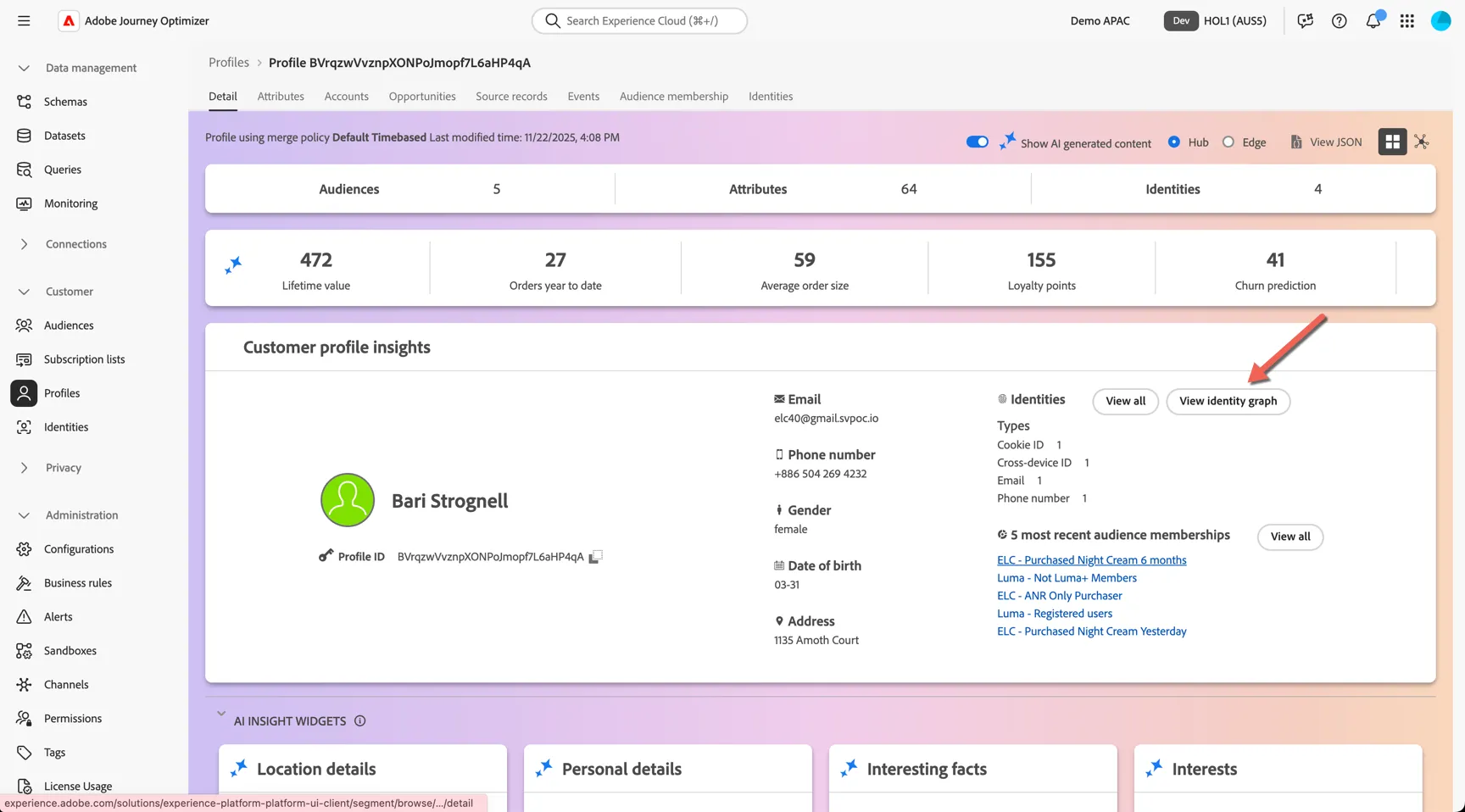
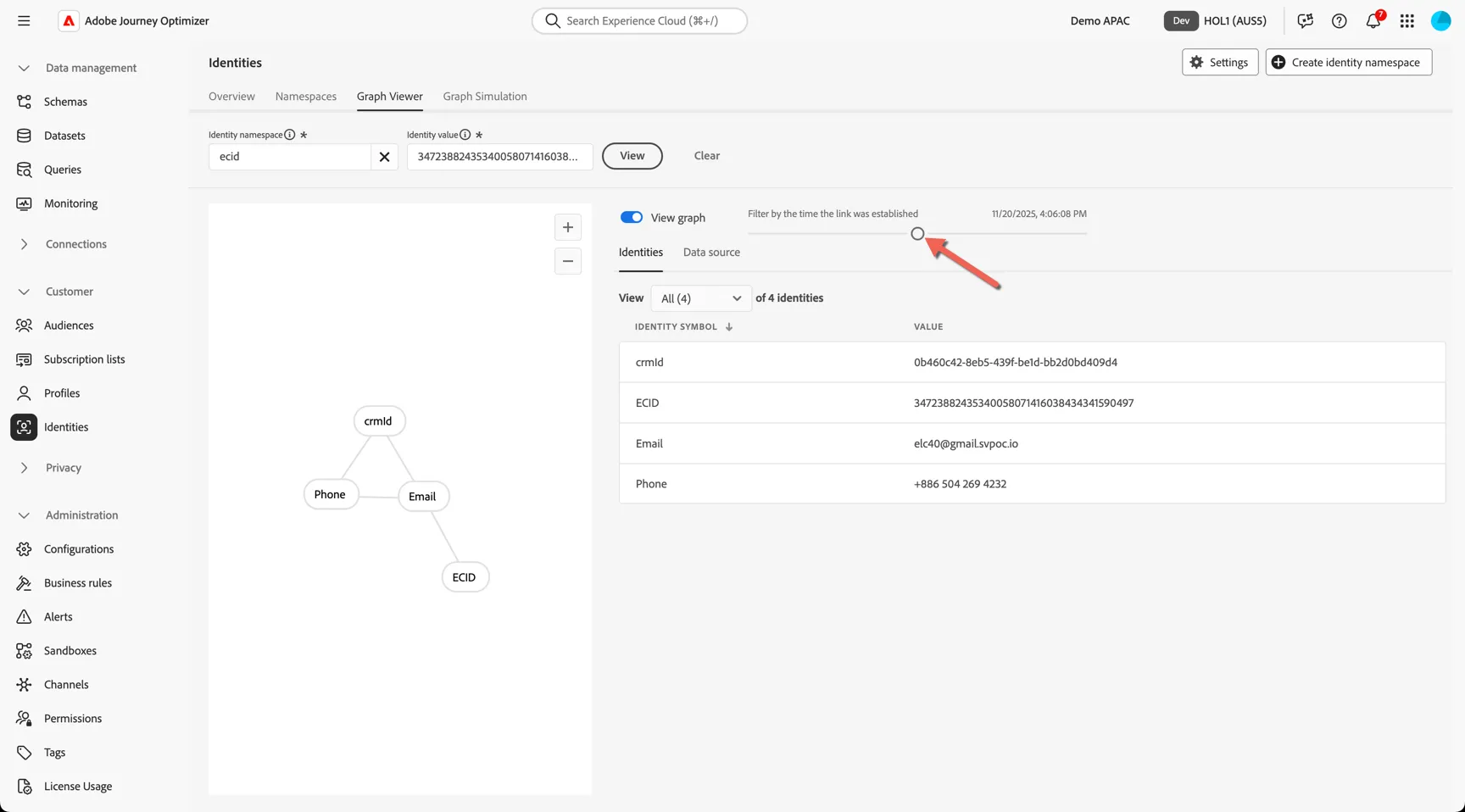
Lastly, return to the Details tab, scroll down to Linked Identities and click View Identity Graph.
Here you can see a visualisation of the Identity Graph linking all of the different sources of information together to create our profile. You can see that there are multiple ECID's or Cookie ID's attached to the profile, this represents the different devices that the customer has identified themselves on, for example by logging in or providing their email address or another durable identifier. Multiple ECIDs could be desktop and mobile for example, or the customer using multiple browsers (or even clearing cookies).
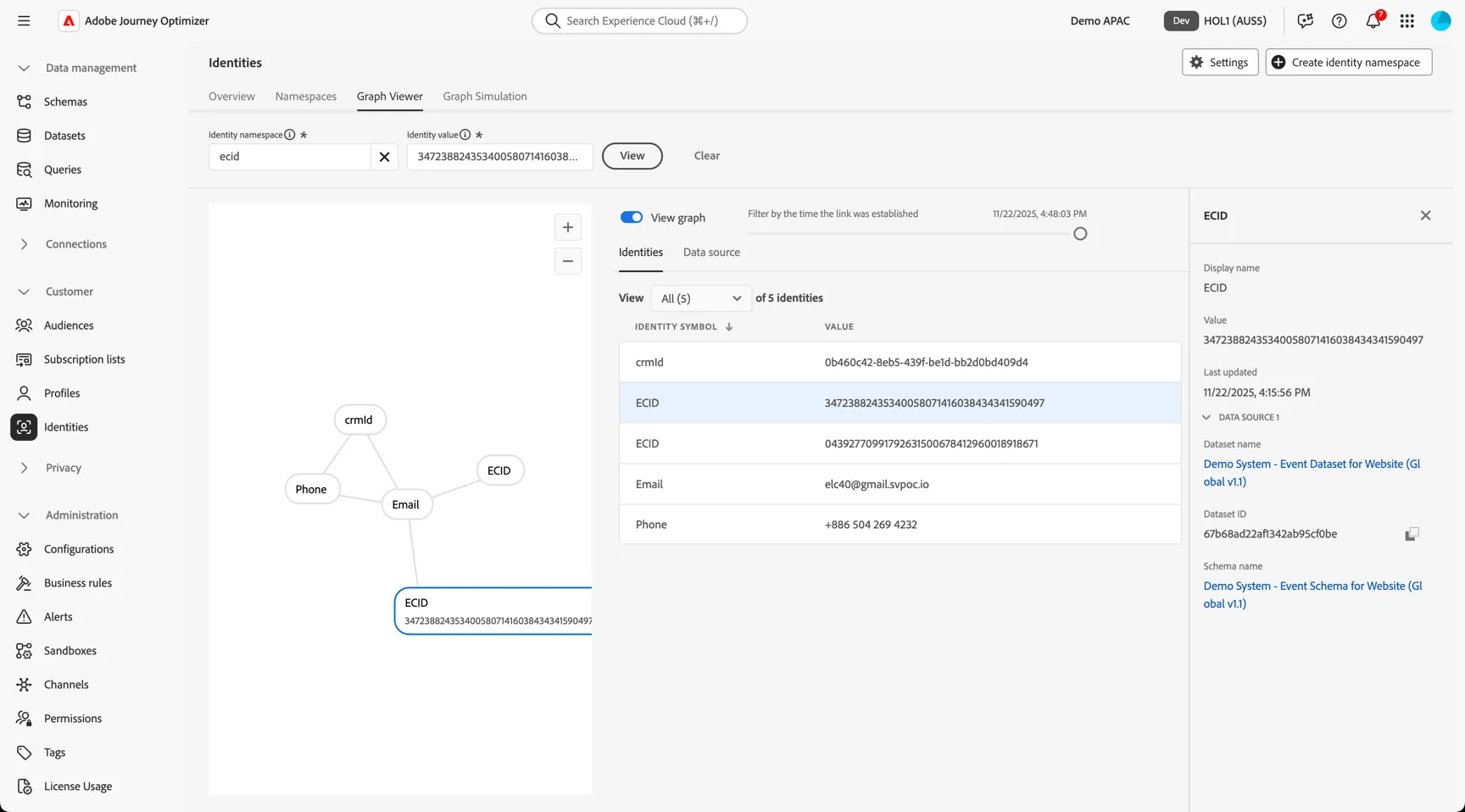
Use the slider to see how the graph grew as the profile interacted over time.
1.2 Create a streaming audience
In this exercise we'll create a streaming audience to qualify customers who have purchased night cream in the last 24 hours. This audience will be used later in the lab to trigger our Post Purchase journey.
Purchased Night Cream Yesterday audience definition
- Attributes: Opted in to Marketing
- Events: Purchase event where product SKU one of 46HL01,46HM01,46HN01 in the last 24 hours
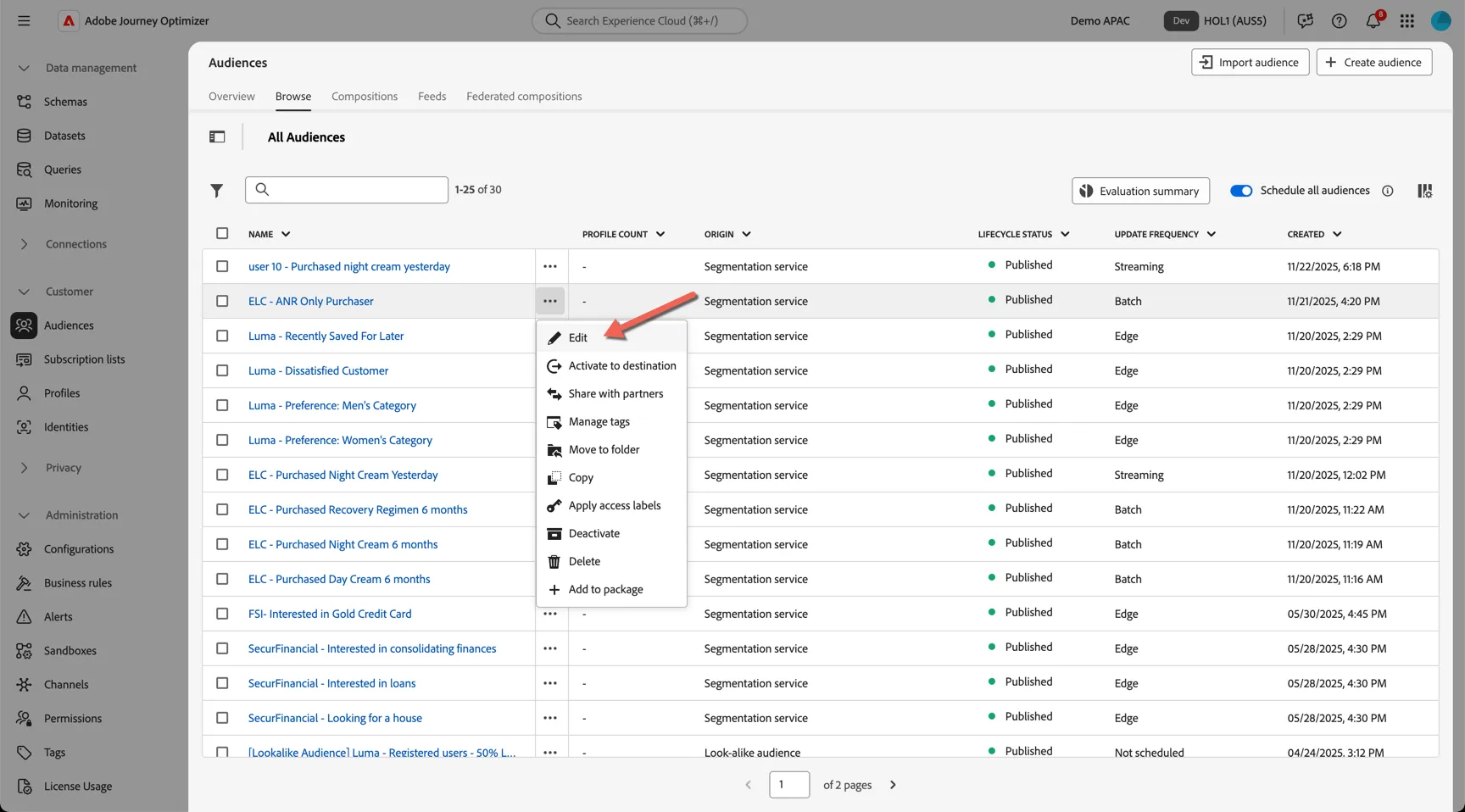
Click on Customer -> Audiences and go to the Browse tab. This is the Audience Portal where you'll find all of the centralized audiences, regardless of how they were created. The origin column indicates where the audience was created:
- Segmentation Service - using data onboarded to the real-time profile
- Federated Audience Composition - using data that lives in a remote data warehouse
- Customer Journey Analytics - segments can be shared directly from the analysis done in CJA
- Custom Upload - directly from files
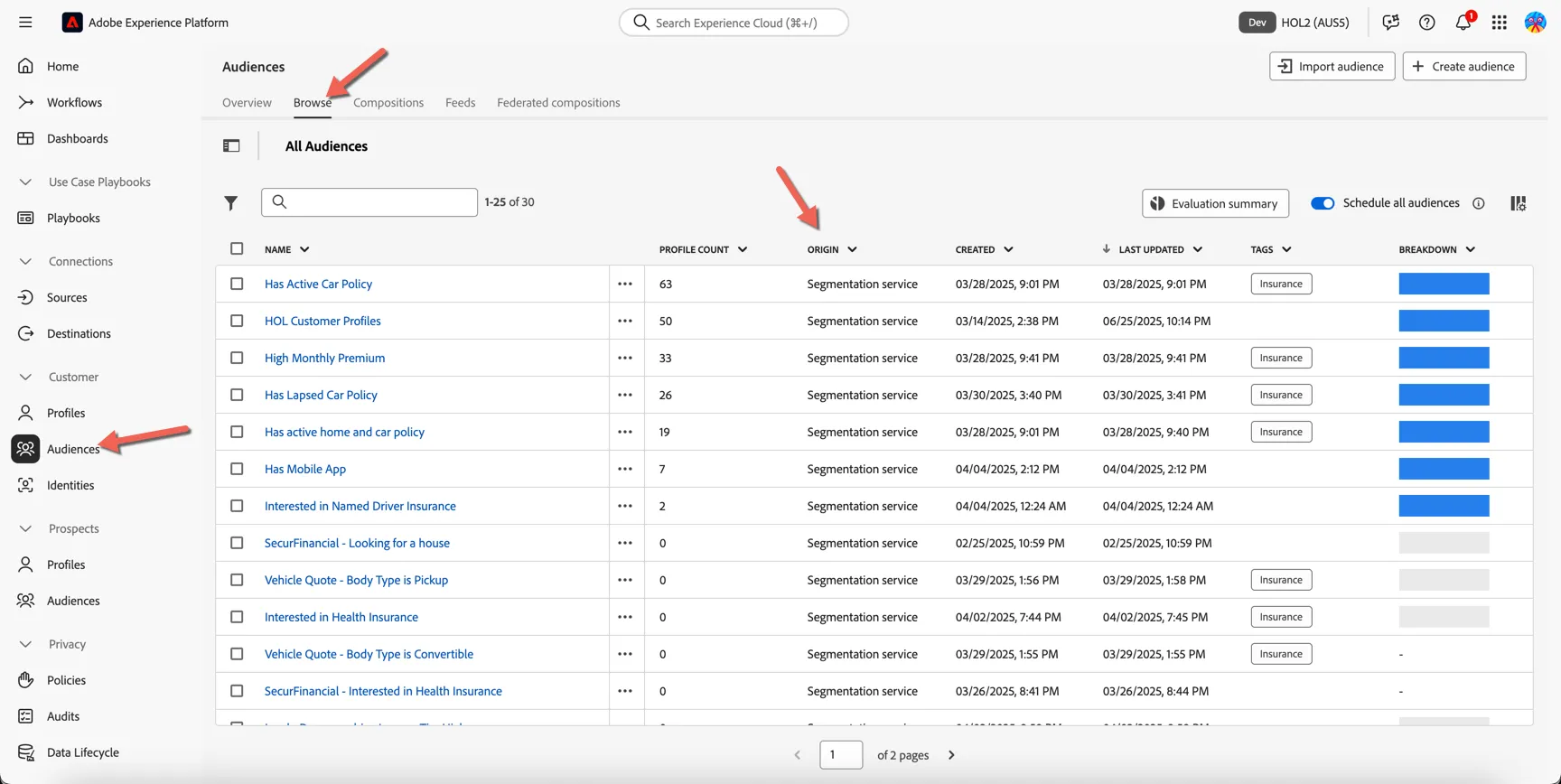
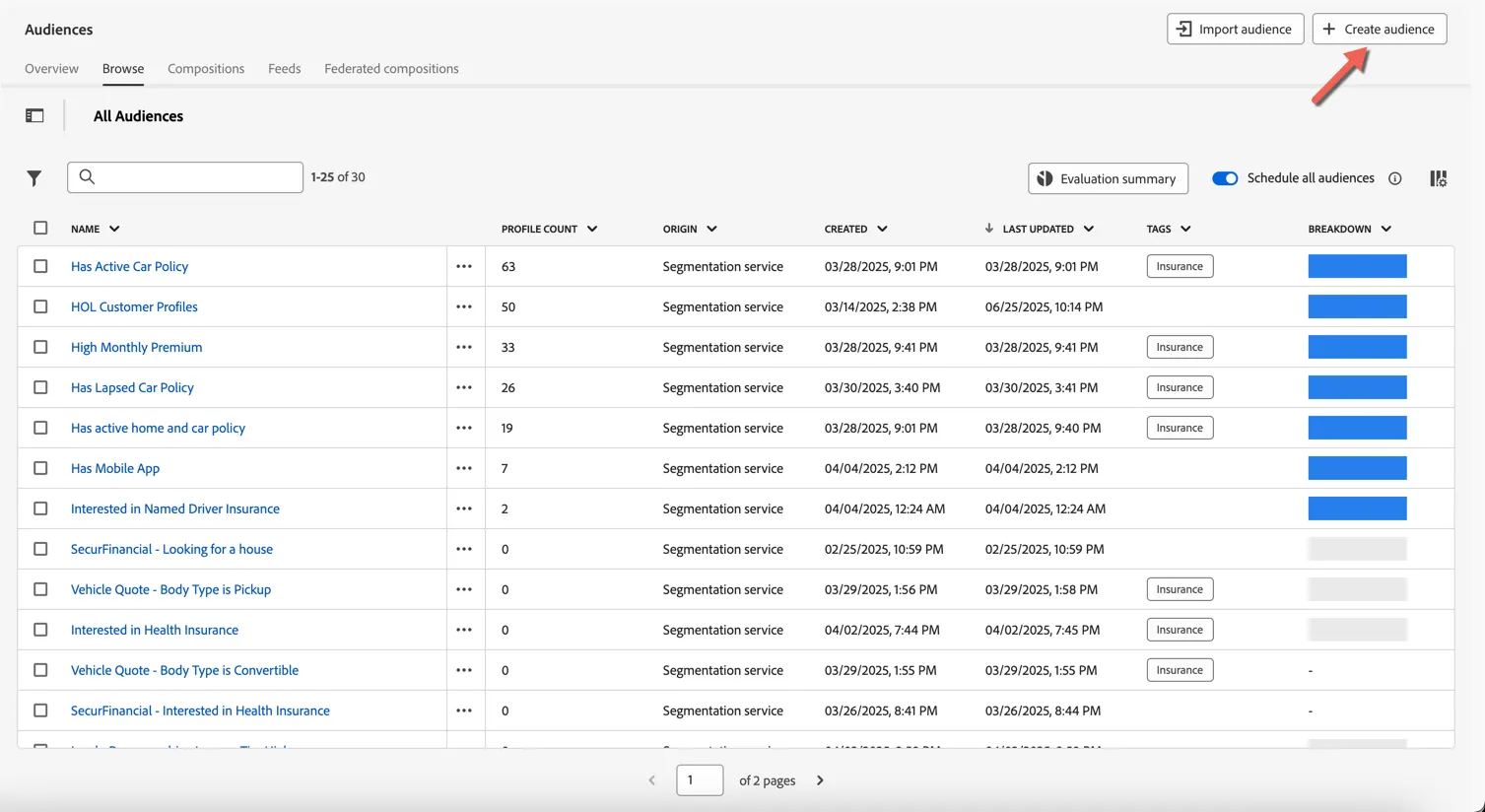
Click to Create Audience.
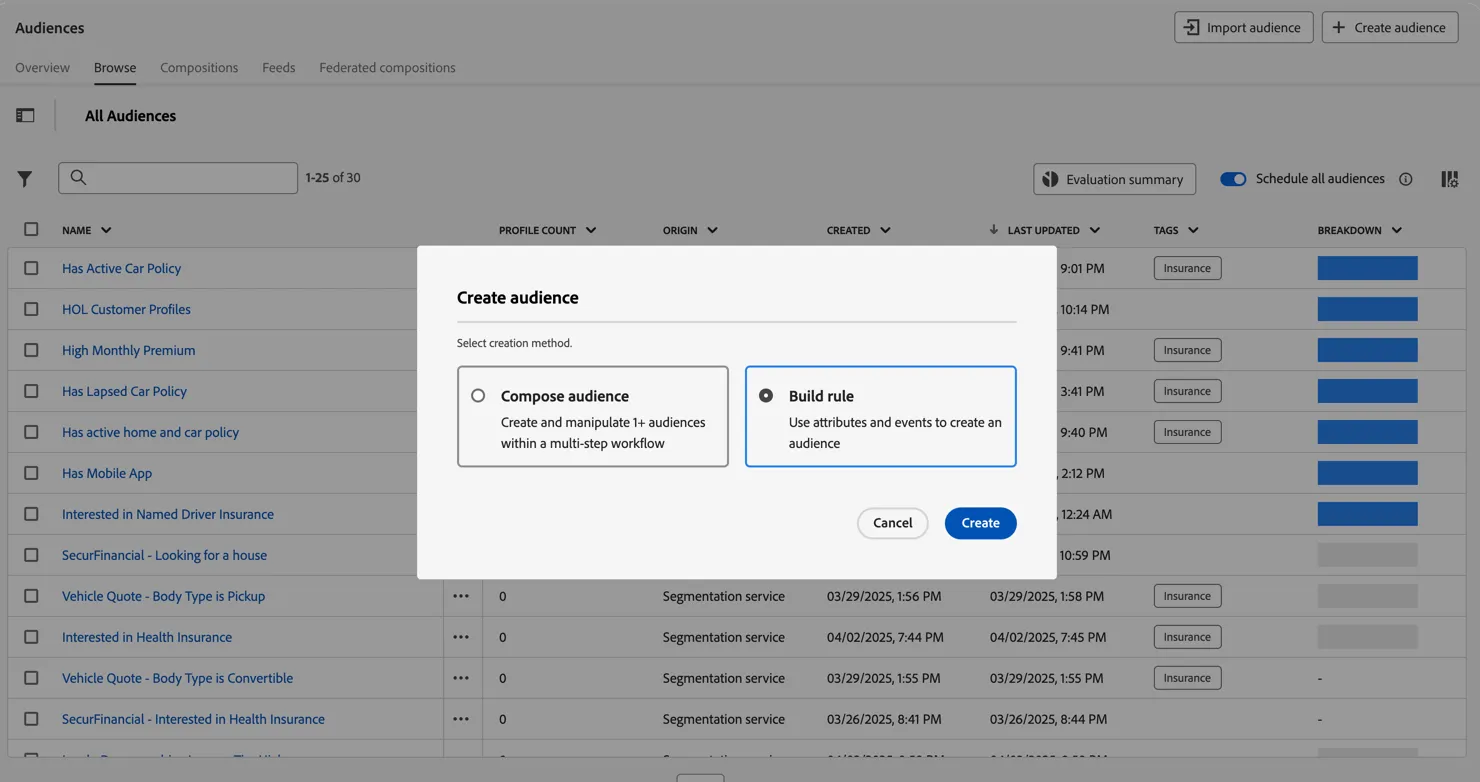
Change the option from compose audience to Build rule and click Create. We are going to create a new rule based audience using the attributes and events in our profile.
In the audience builder we can add attribute and event based rules. From the Attributes tab, click into the XDM Individual Profile and select Consents and Preferences.
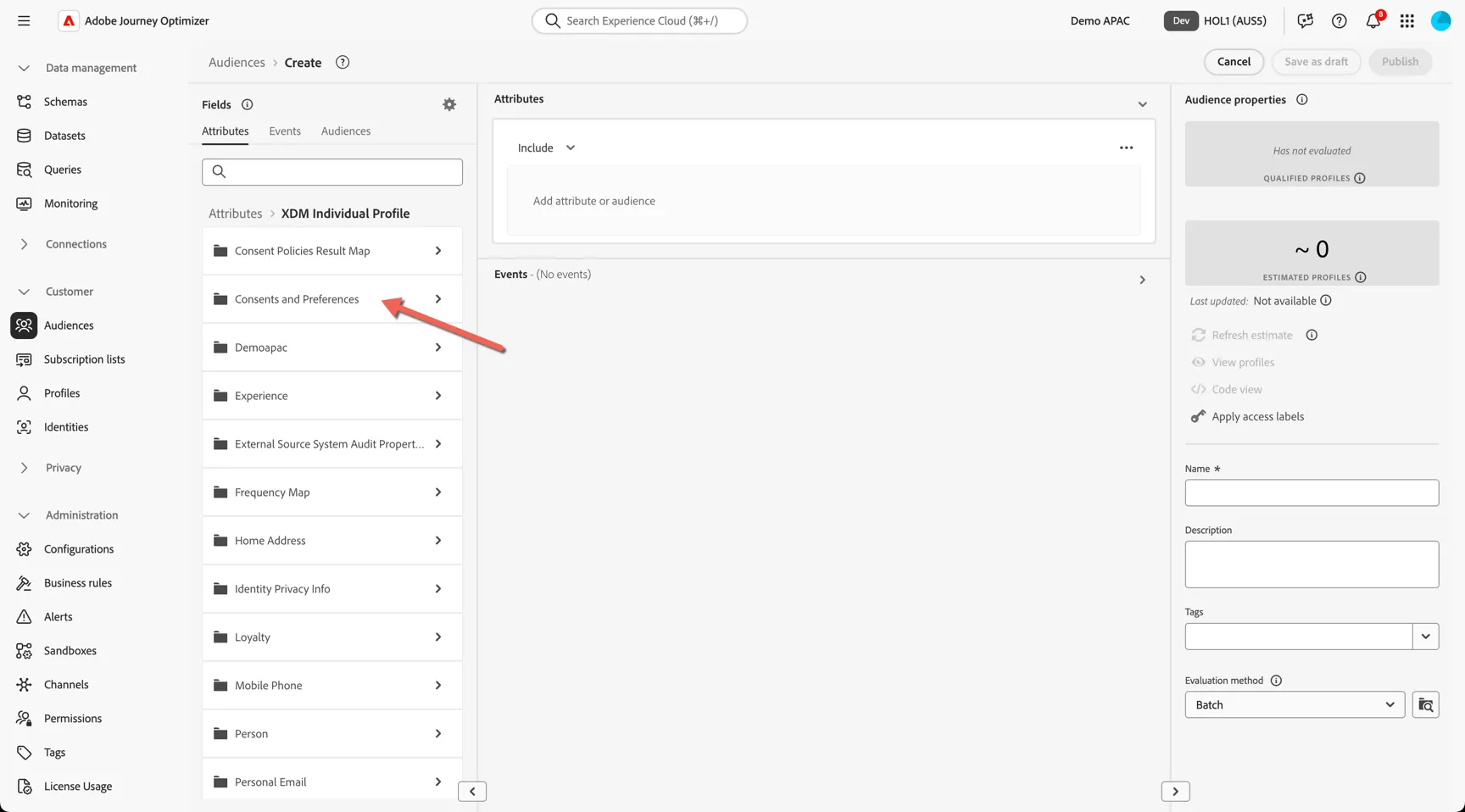
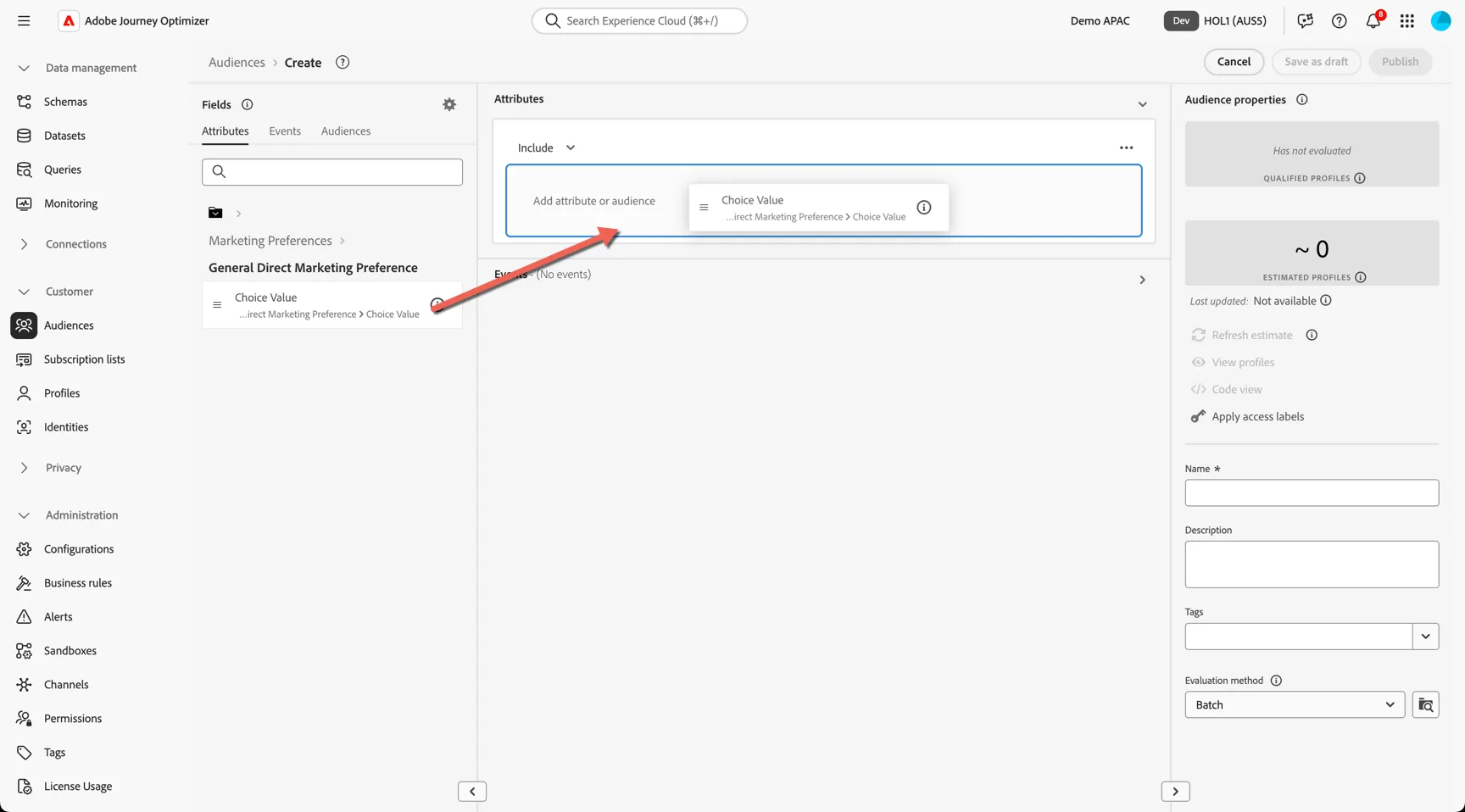
From there drill down to Marketing Preferences -> General Direct Marketing Preference. Drag the Choice Value attribute into the builder.
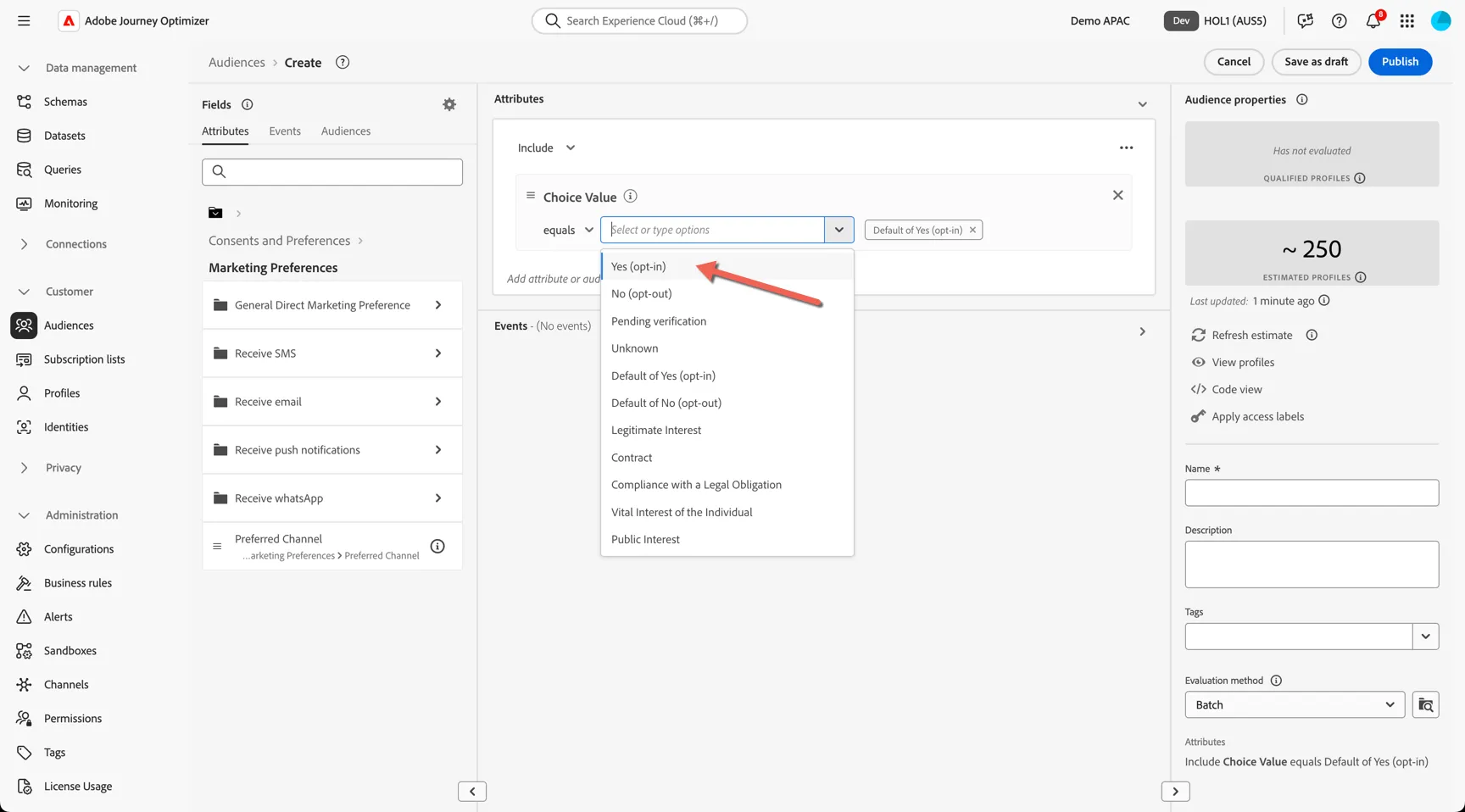
Select the default of yes (opt-in) and Yes (opt-in) options from the dropdown.
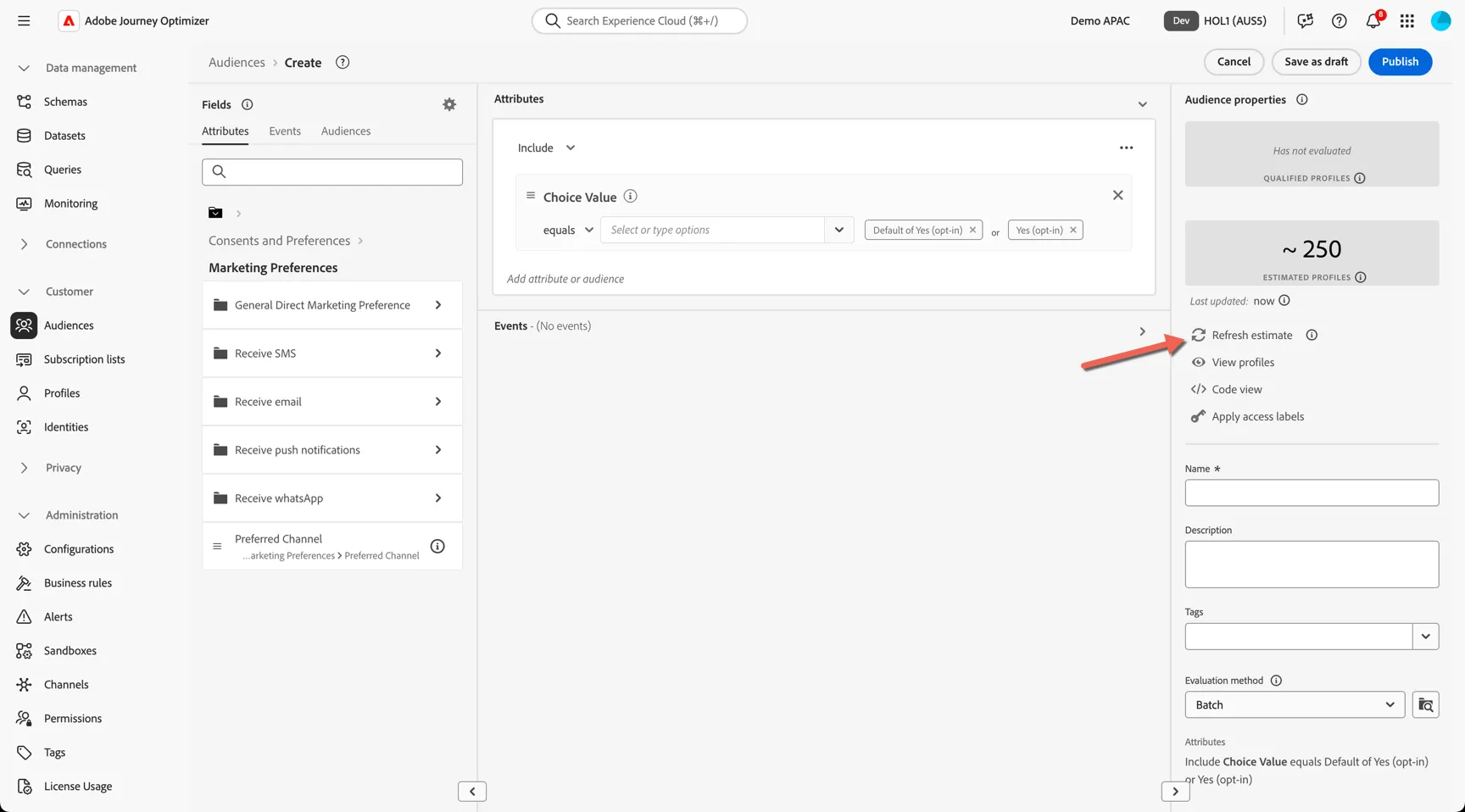
You can estimate the size of your audience at any time while configuring it. Click the Refresh estimate link in the Audience properties panel.
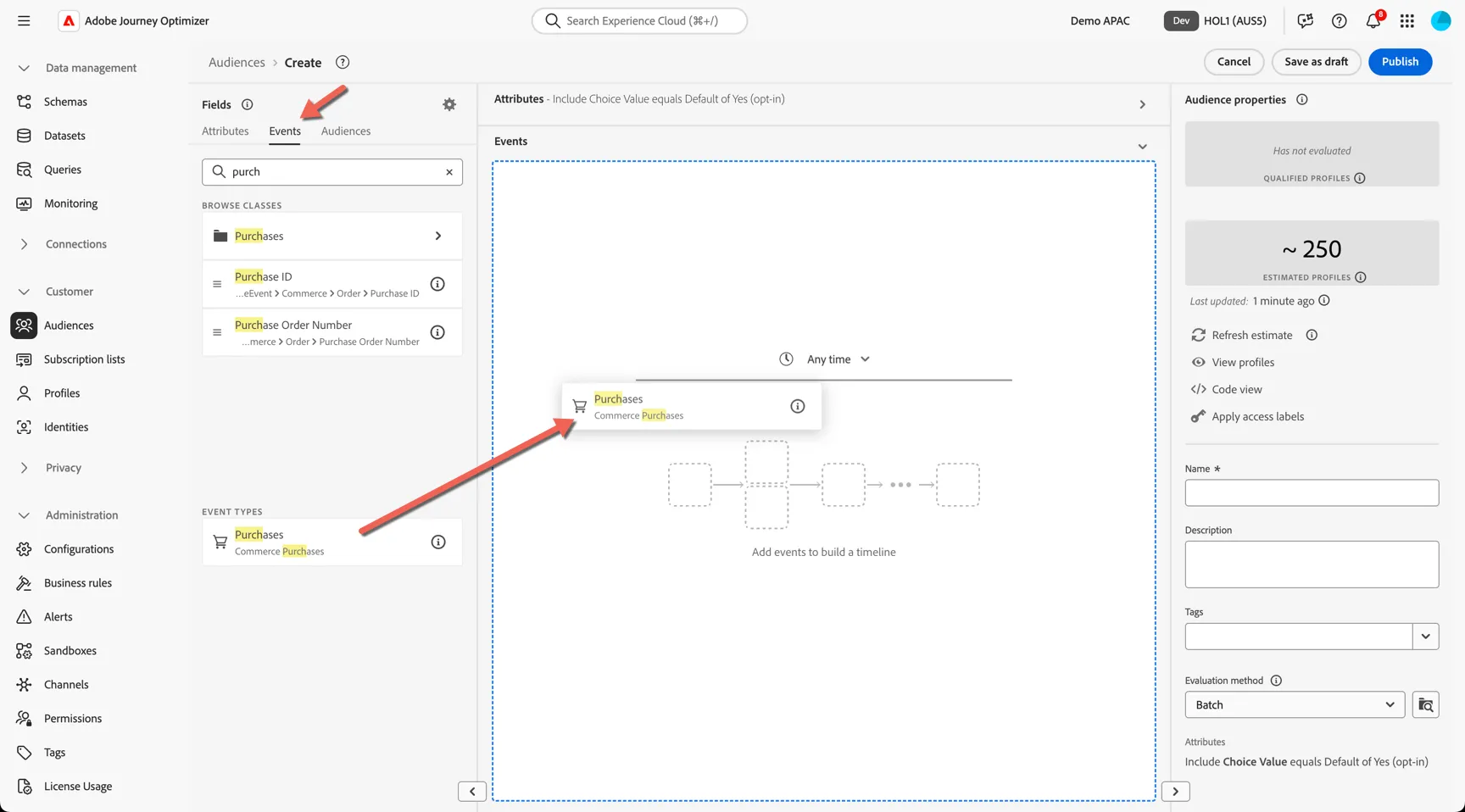
Now we want to add an event based rule. Change to the Events tab and search for Purchase. Drag-and-drop the Purchases event type into the Events section of the builder.
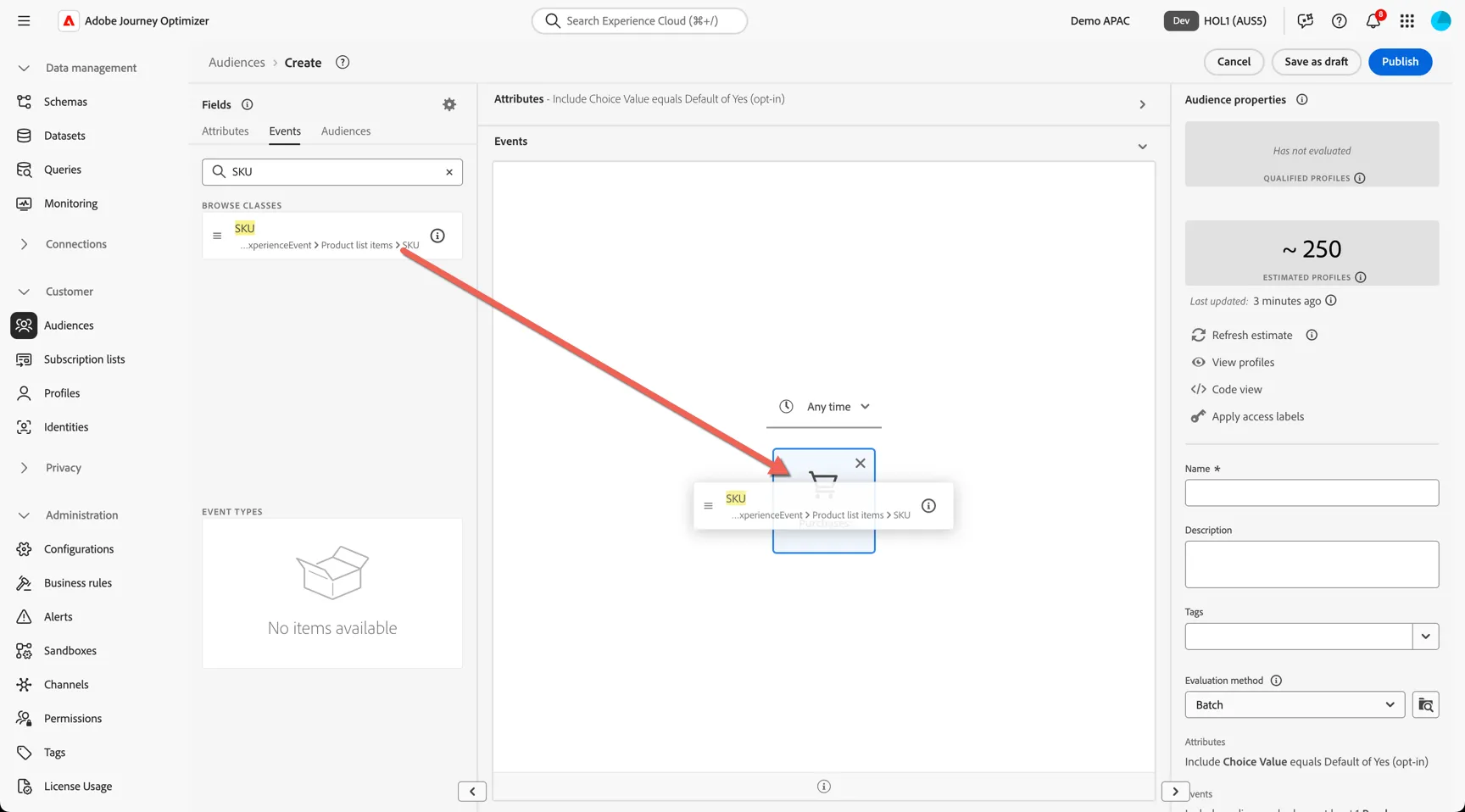
Now we want to filter the purchases by product, each purchase event contains a list of products included in the transaction. Let's search for SKU, and drag the event attribute and drop it on top of the purchase event.
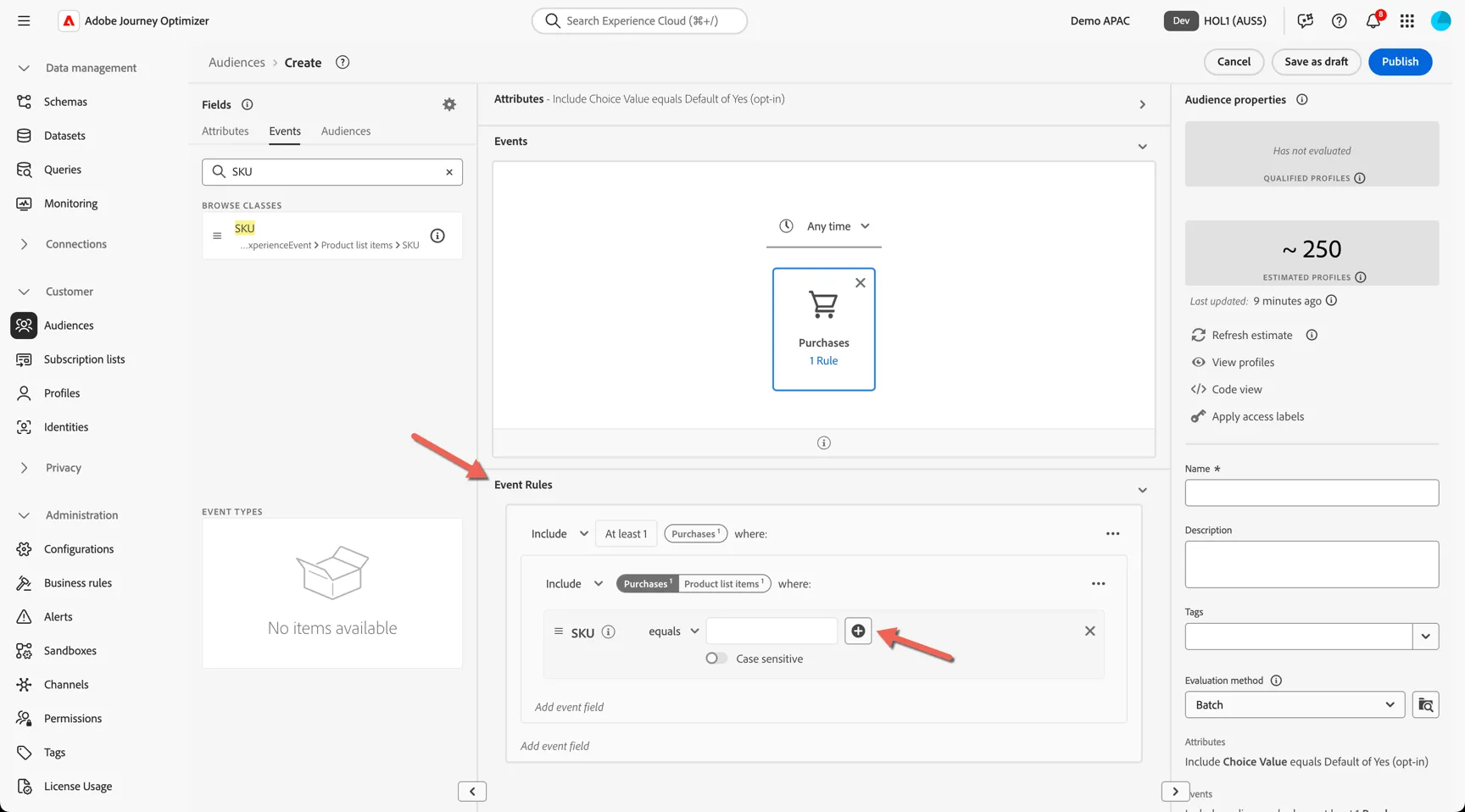
This will add some event rules to our audience definition, click on the + icon next to the SKU field to easily add a list of values.
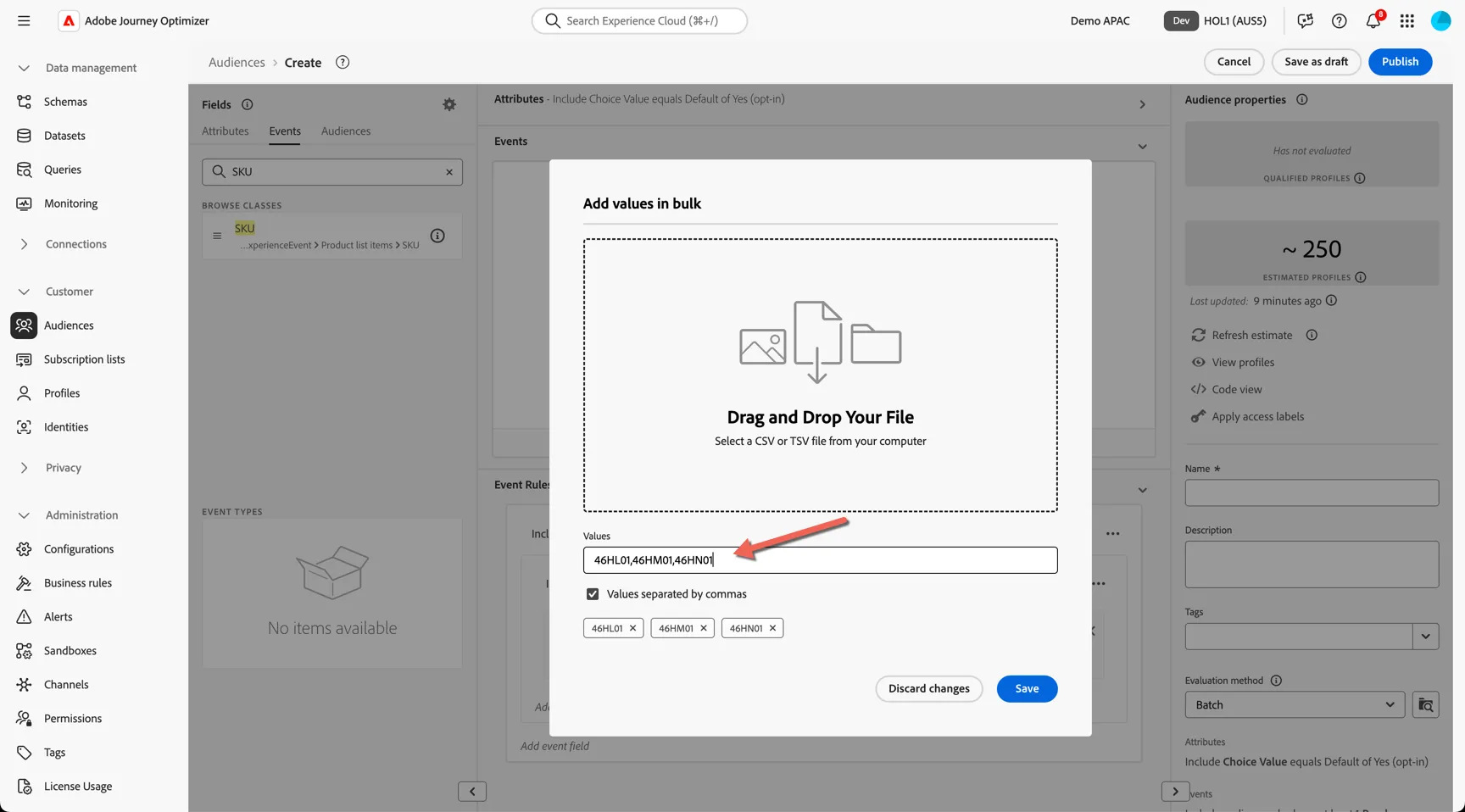
From here you can upload a CSV of values if the list is large or you can copy and paste a comma delimited list into the values field. Copy 46HL01,46HM01,46HN01 into the values field and hit enter to add the values. Then click Save.
Our audience is now looking for customers who are opted in for marketing with a night cream included in their purchase transaction.
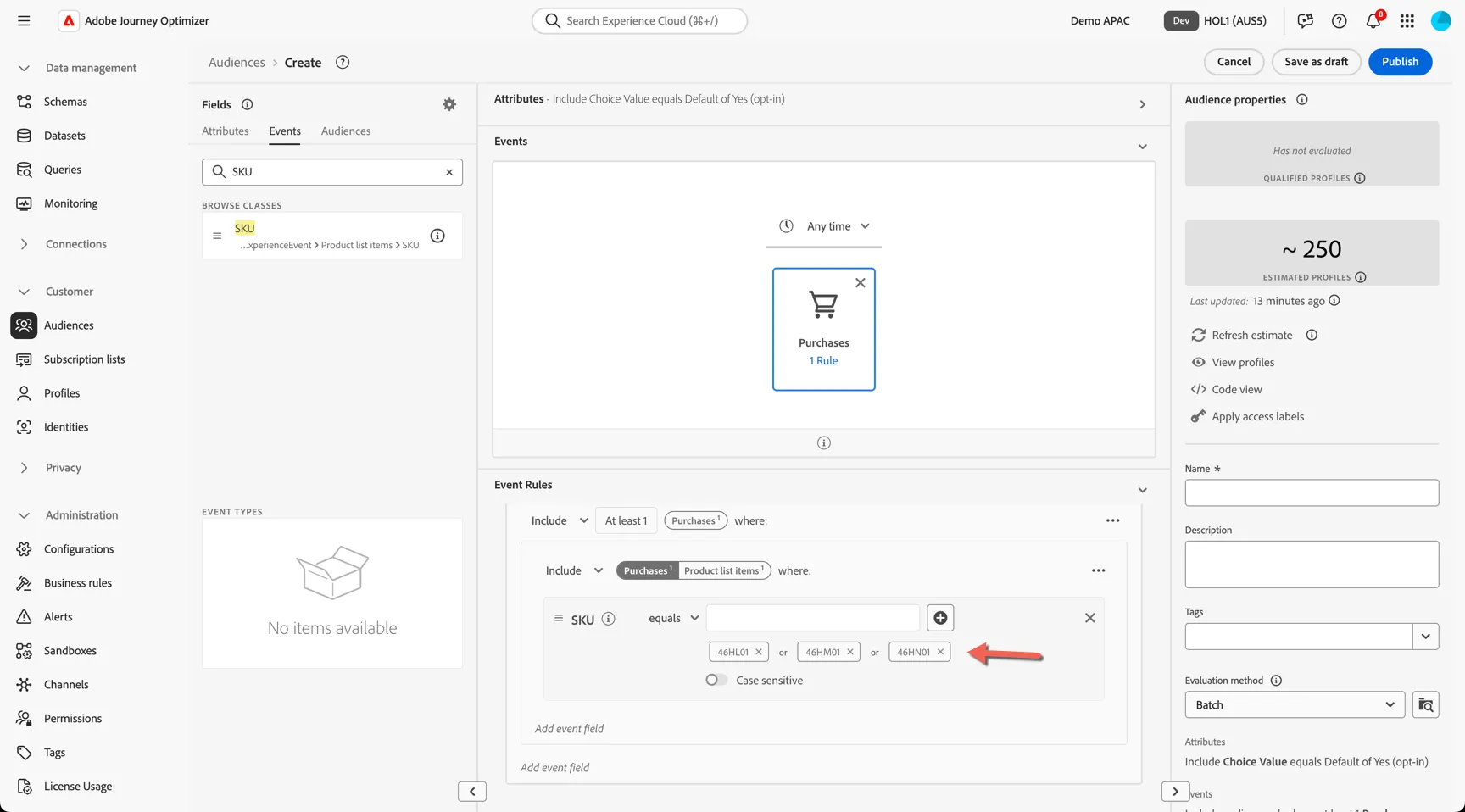
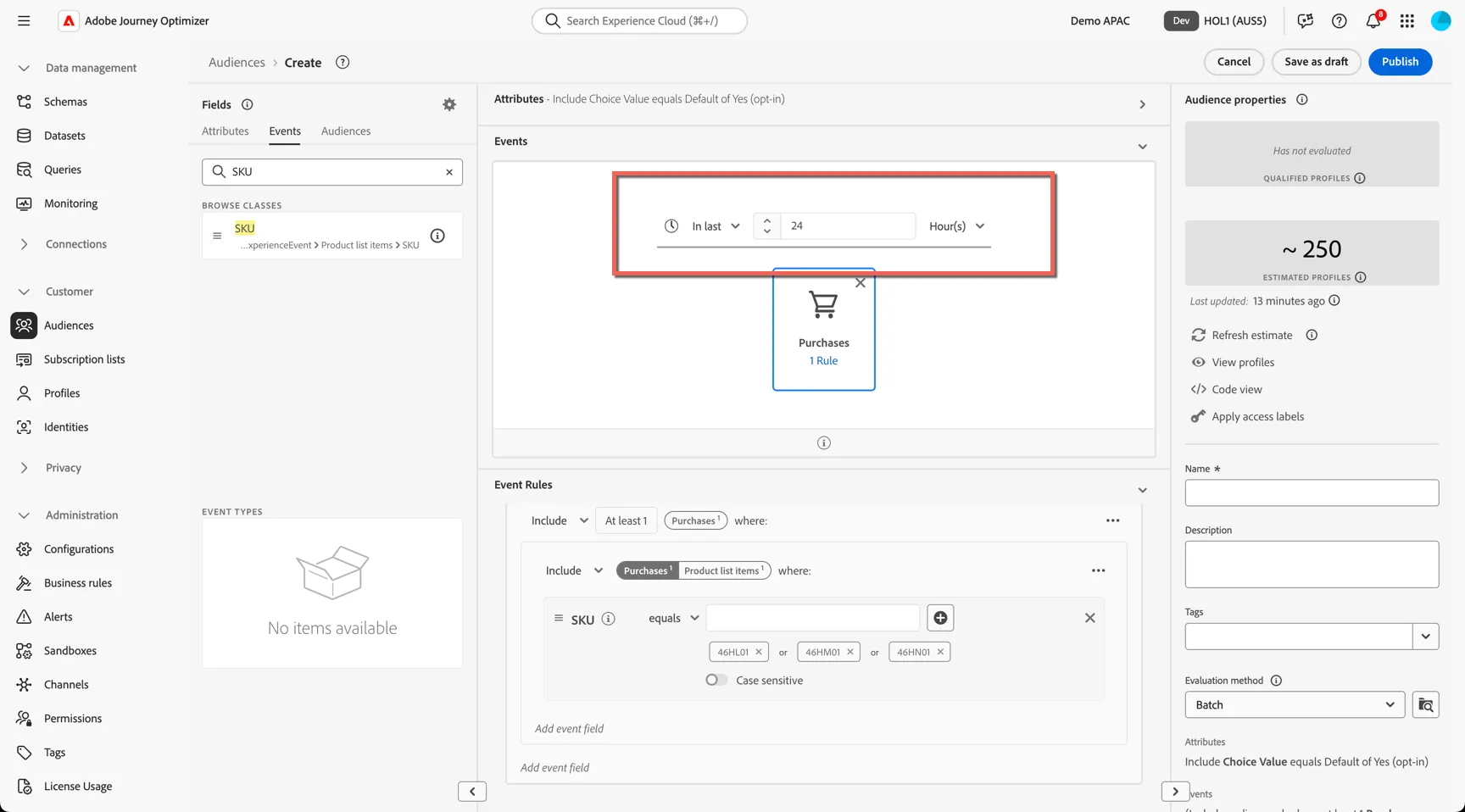
Now we want to add a time constraint to the audience, if we want to use this audience to trigger our post purchase journey we want to limit the purchase events to just those that have occurred in the last 24 hours. Change the time condition drop down above the event from Any Time to In Last and set the value to 24 hours.
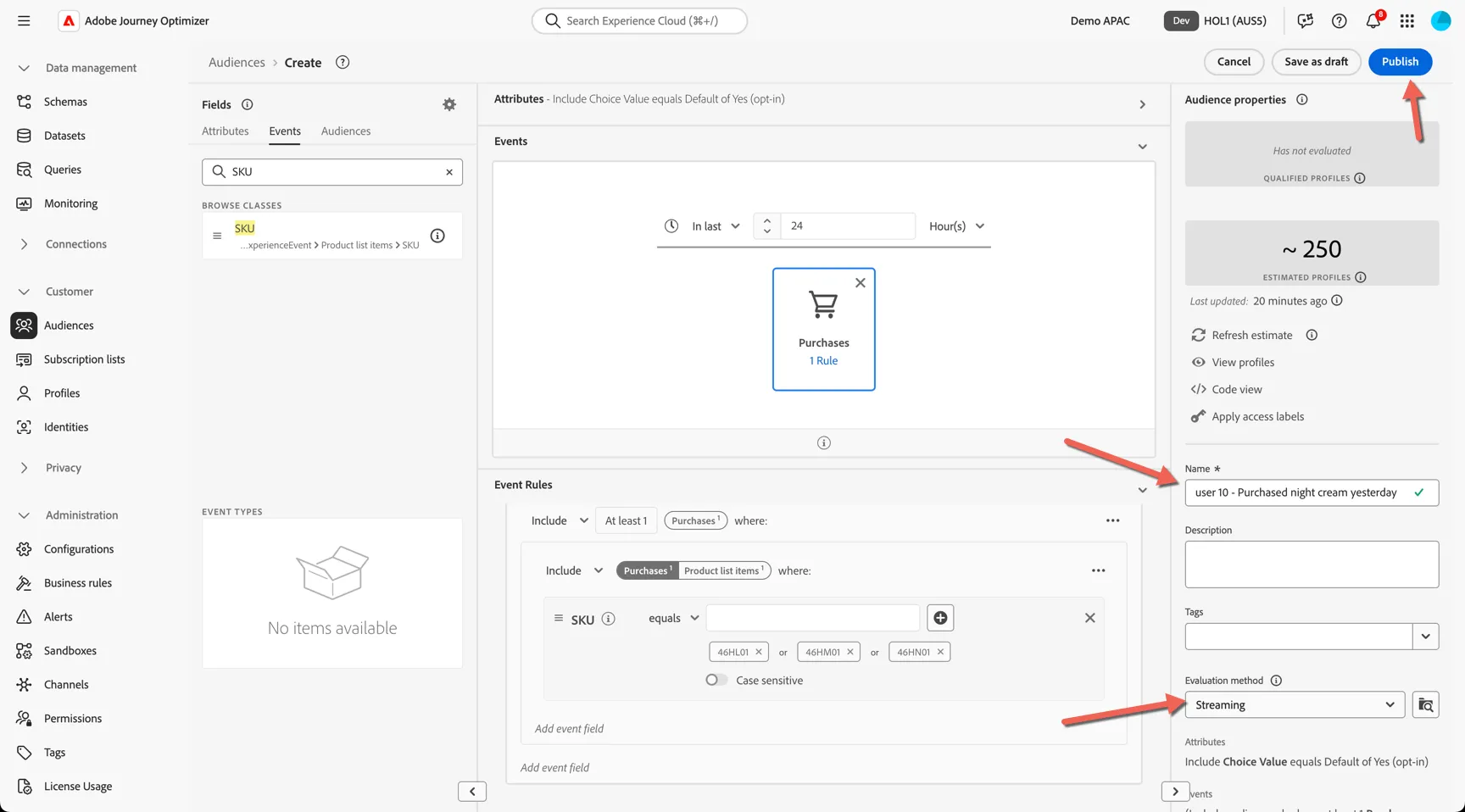
Enter a Name for your audience such as <your name or lab number> - Purchased Night Cream Yesterday.
For the evaluation method, change this to Streaming. This means the audience will qualify in near real-time as data streams into the platform.
Then click Publish.
You should land on the audience details screen. The Profile count will be 0 to start with and update daily as part of an overnight batch but since this is a streaming audience profiles will qualify throughout the day as events are received.
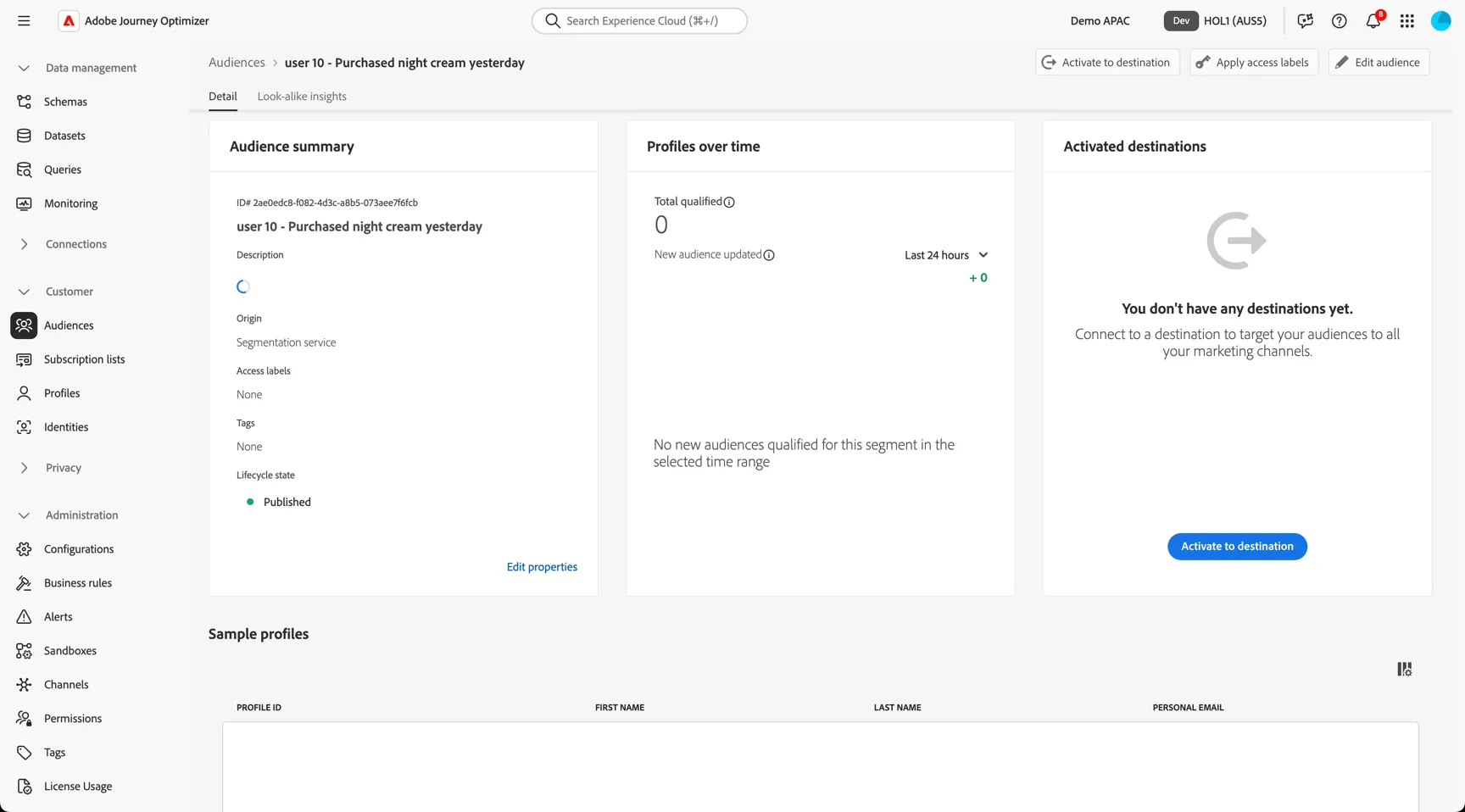
Congratulations! You've created a streaming audience that combines attributes and events and can be activated omni-channel! 👏🏻
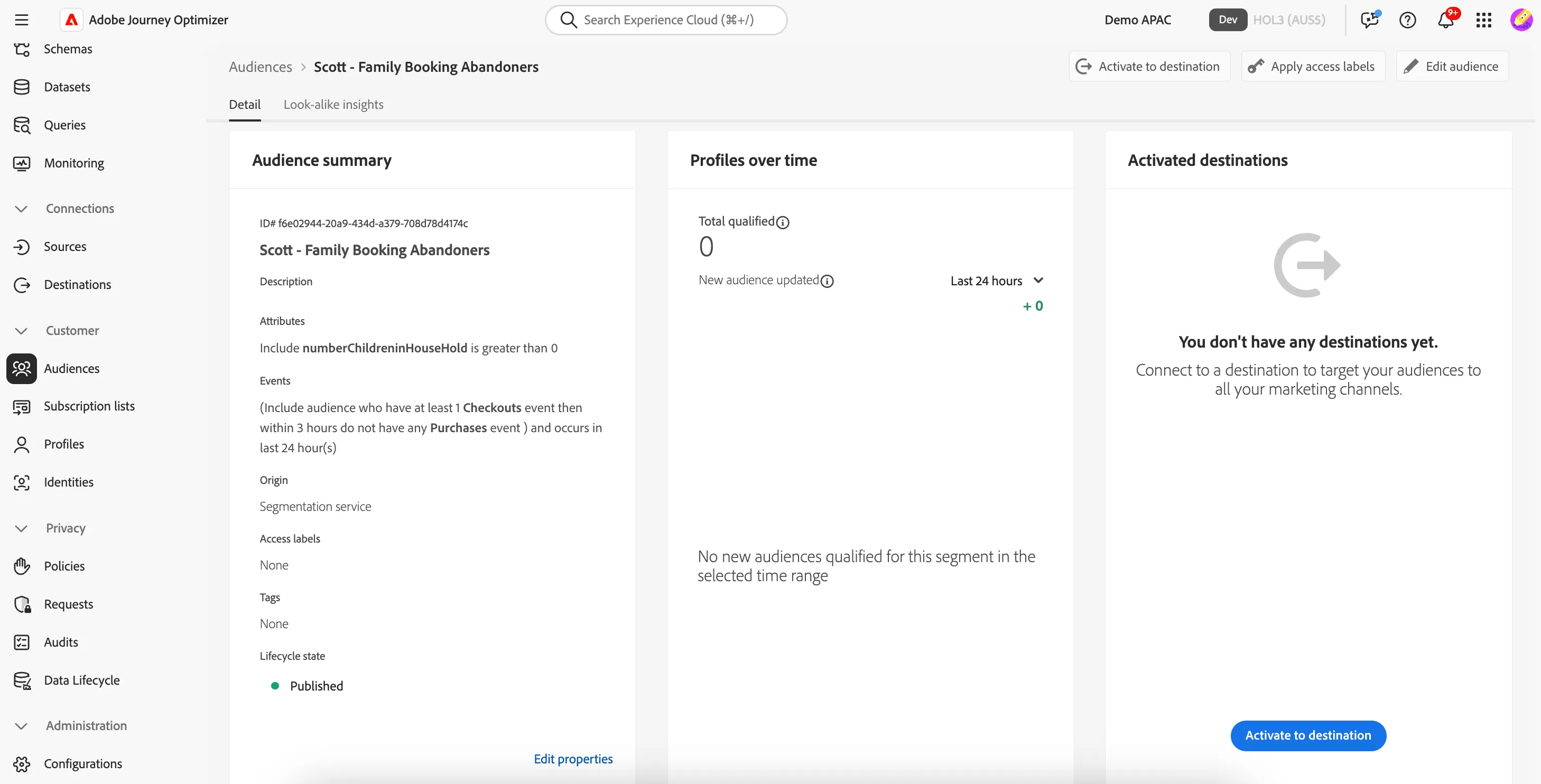
1.3 View a complex audience
Let's take a look now at a more complex audience example. From the Browse screen, click to Edit the ELC - Purchased ANR twice in last year audience.
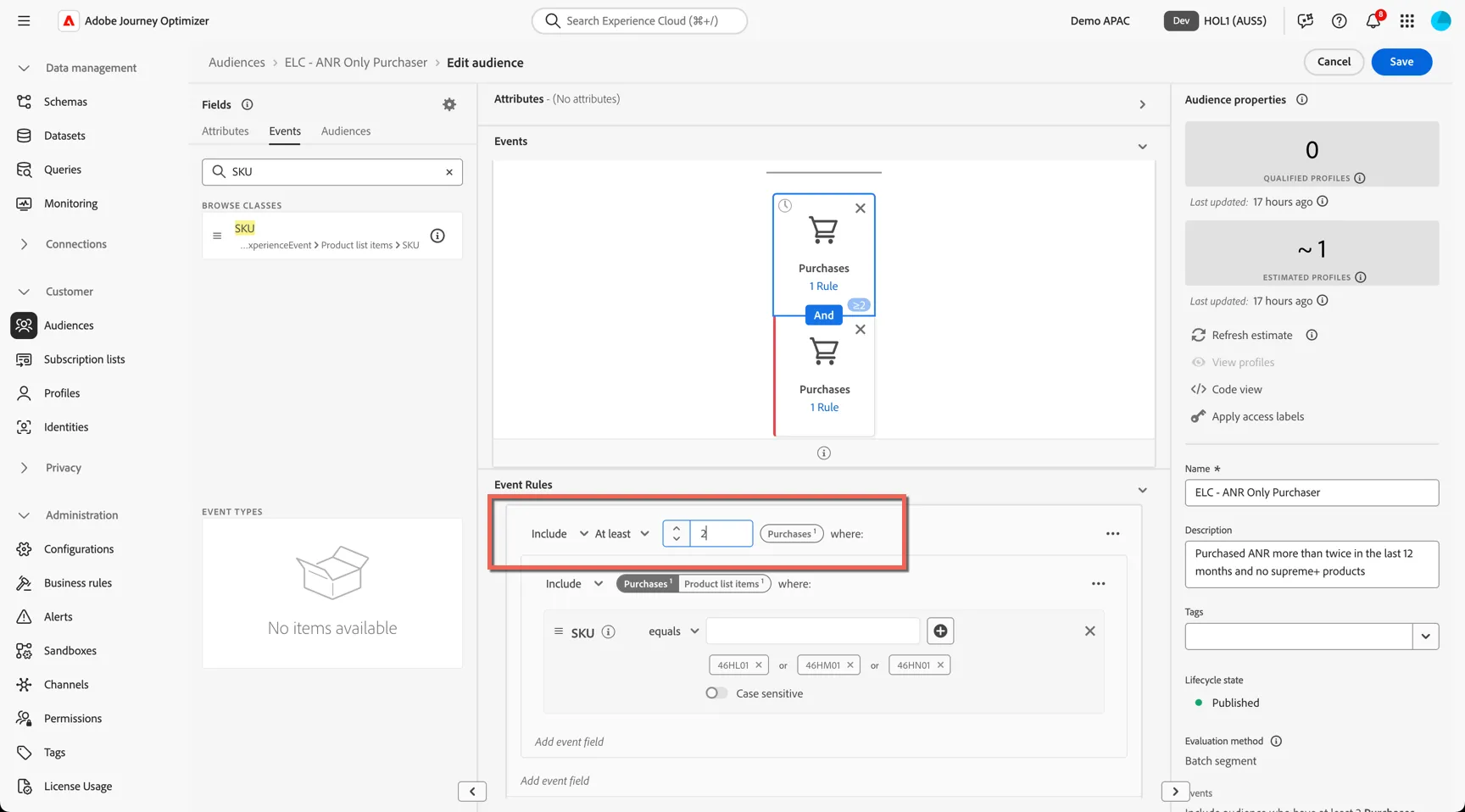
This audience leverages frequency controls to look for customers who have made at least 2 purchases of ANR in the last 2 years and uses an exclusion rule to remove anyone who has purchased Supreme+ products.
Click on the top Purchases event to see it's event rules. You can see the frequency settings at the top.
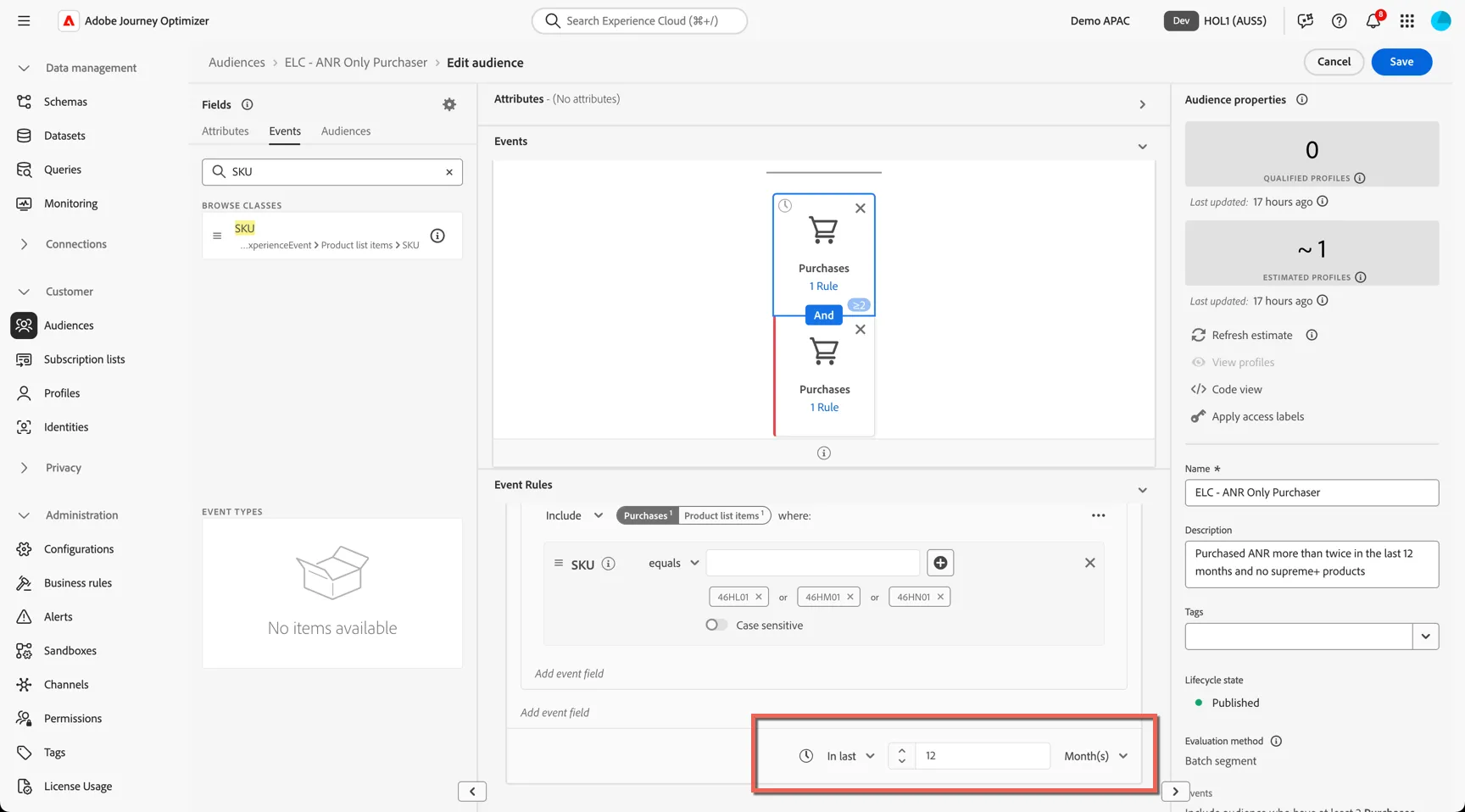
This event also has it's own time constraint different from the bottom event, you can see this at the bottom of the event rules.
Click on the bottom event, this is the exclusion rule to remove anyone who has purchased Supreme+ products before. There is no time constraint applied to this event. You can see the event is configured the same way but switched from include to exclude.
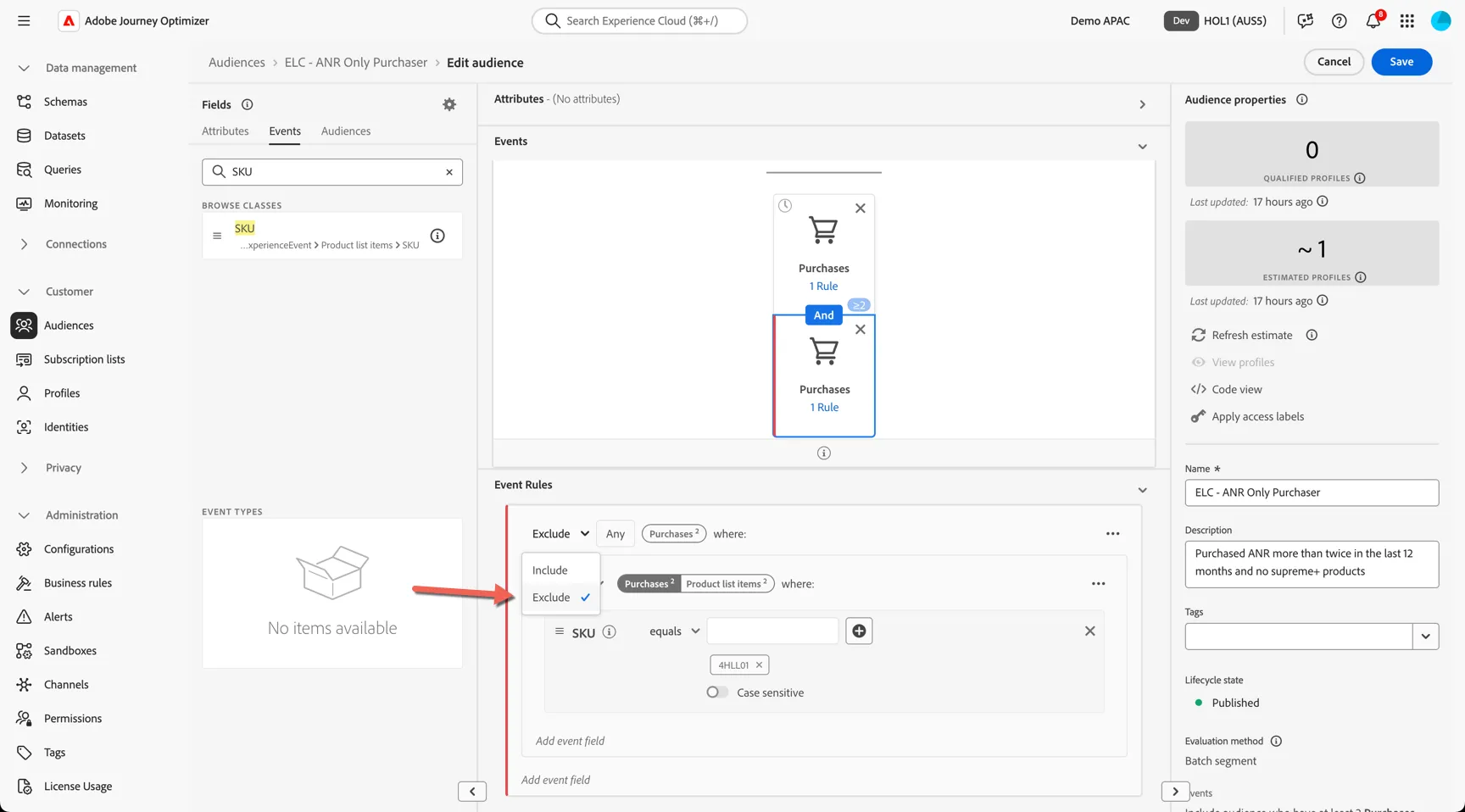
The audience builder is a powerful tool to help you create complex targeting using a simple drag and drop interface. Multiple events can be included within a single audience, if we place the events next to each other rather than above and below we can also understand when a customer does this, then that in a specific order, such as when a customer adds a product to their cart but does not complete the purchase within a specific timeframe.
Summary
Congratulations, you've completed the first exercise! You have successfully:
- Looked up the profile used in the live demo and explored how data has been unified to produce a single, actionable view of the customer
- Combined slow and fast moving data that's been ingested into the platform to create a streaming audience
- Viewed a more complex audience using multiple events incorporating frequency settings and exclusions