Lab 2 - Content and Journeys
Learning Objectives
In this exercise you will:
- Understand types of journey triggers
- Build a multi-step journey
- Add email content - leveraging generative AI, automated translations and built-in experimentation
- Test your journey using a personalized profile
Scenario
We're going to build a simplified version of your Post Purchase Use Case that was shared prior to the lab. We will configure this as an always on journey triggered from the streaming audience you created in the last exercise.
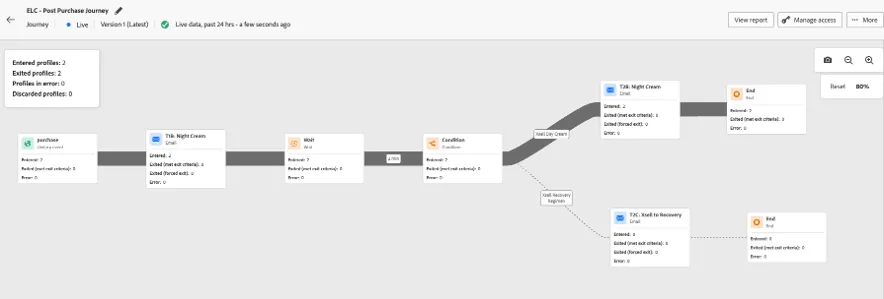
The final journey will include 3x emails, one sent immediately after qualifying into the audience, another sent 14 days later either recommending day cream (if they have not purchased any in the last 6 months) or cross selling recovery regimen (if they have not purchased any in the last 6 months).
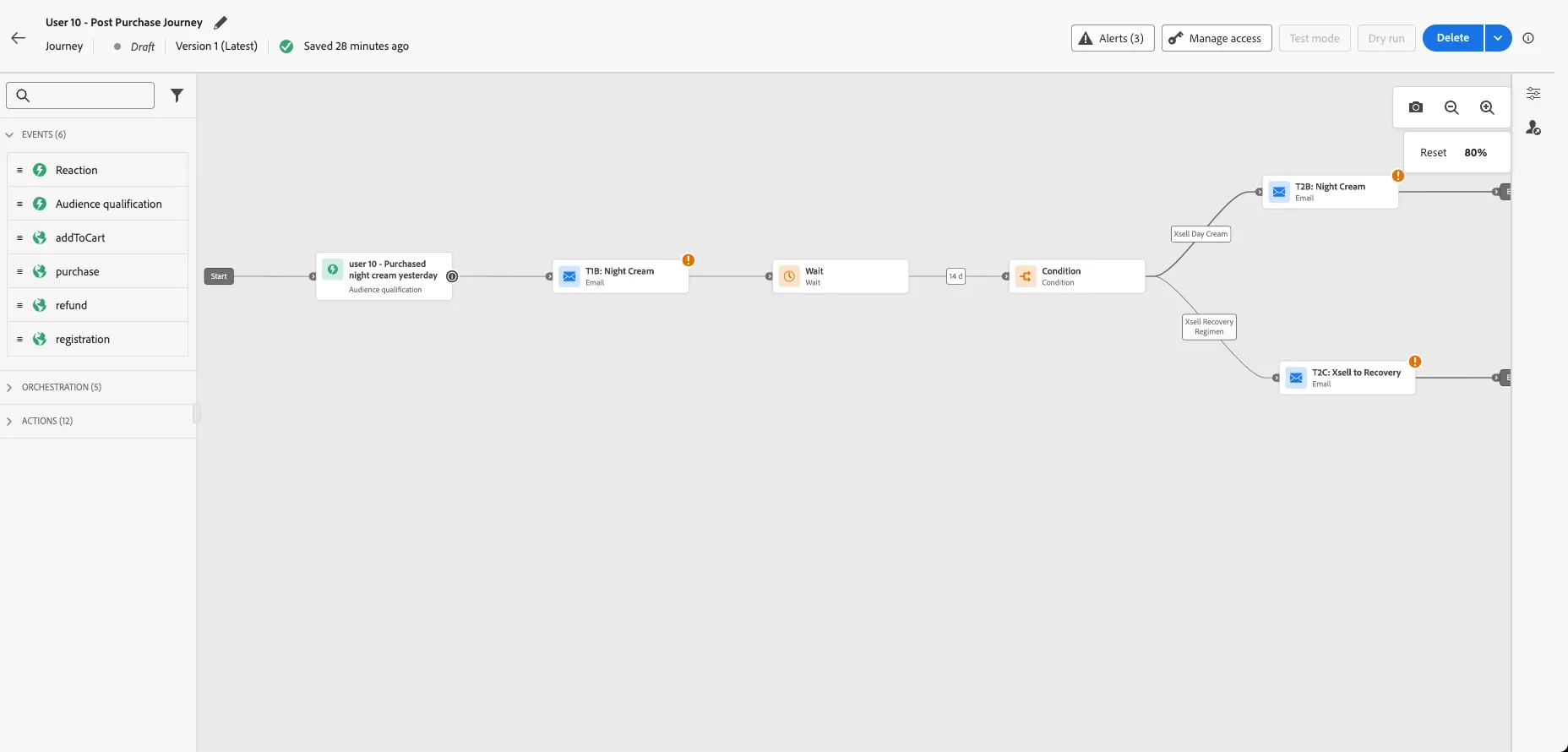
Your final journey will look like this:
2.1 Create Journey
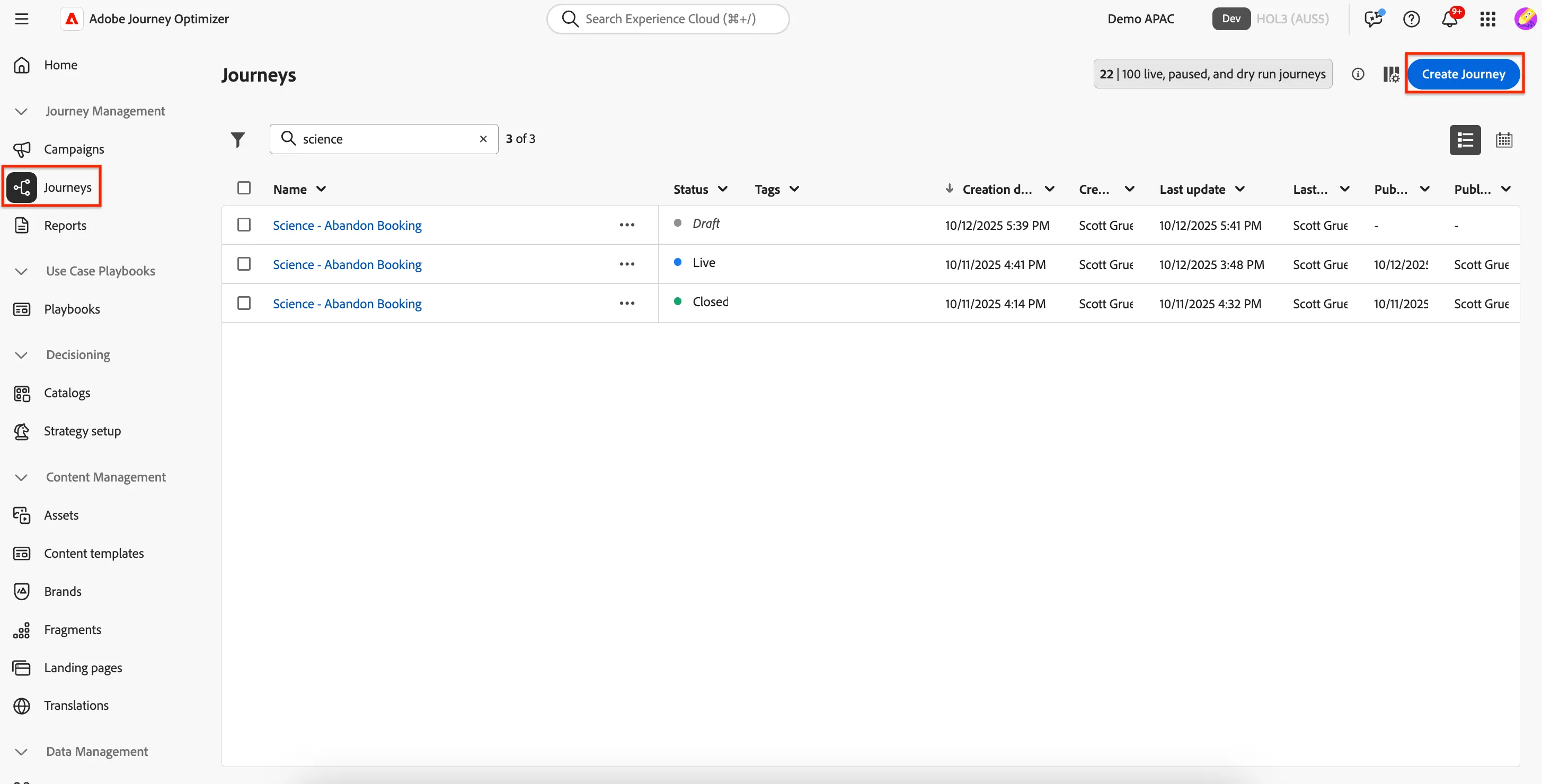
Navigate to Journey Management -> Journeys and click on Create Journey.
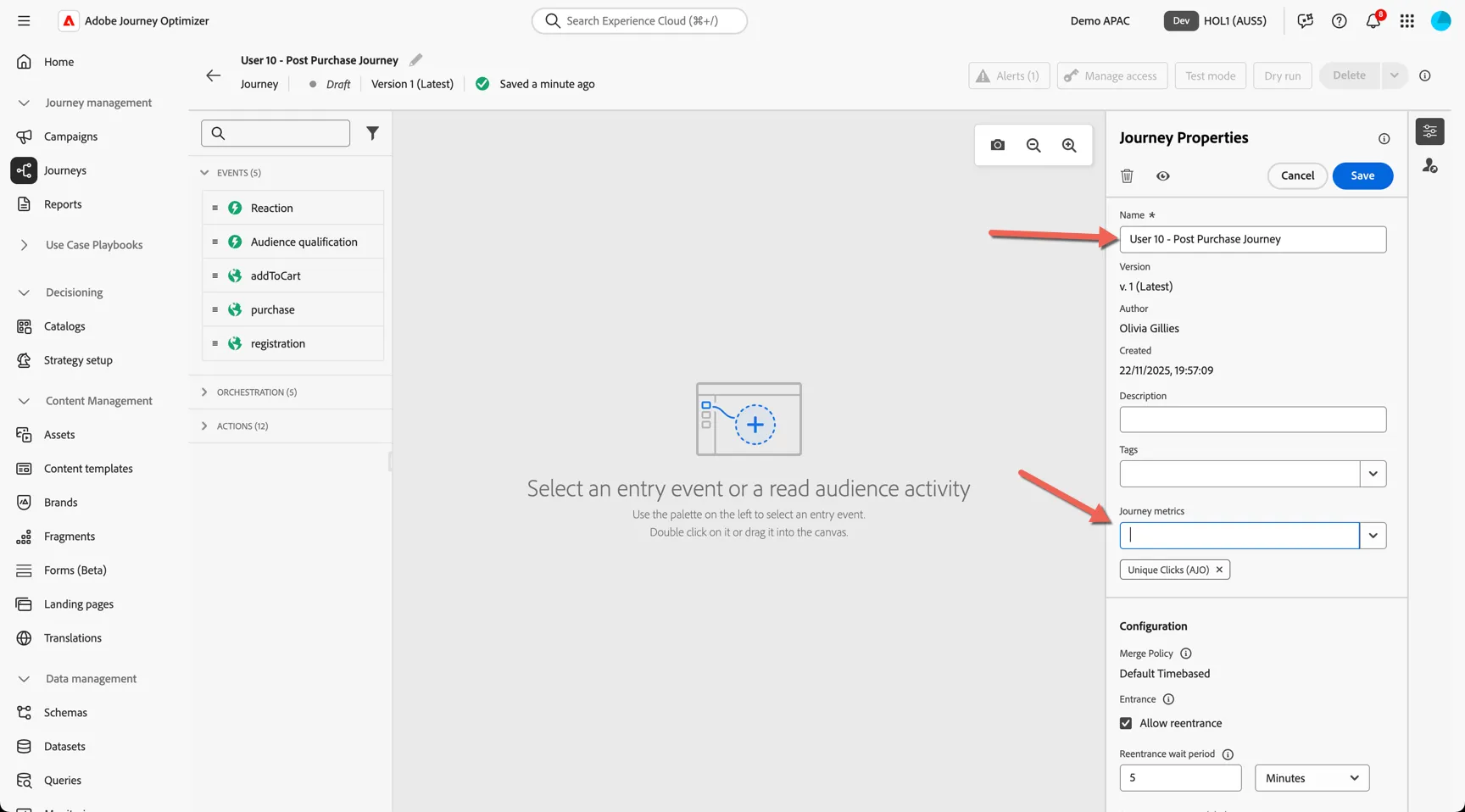
Give your journey a name such as <your name or lab number> - Post Purchase Journey. This is also where you can define the goal or success metric you want to measure. This can include traditional email metrics like clicks but can also expand to ecommerce metrics like purchases that occur within 7 days of receiving messaging from the journey.
Journeys can be triggered from individual events or when a customer enters or exits a segment. You can see the events that are configured as journey triggers in the left panel - this list is configurable and will depend on your implementation.
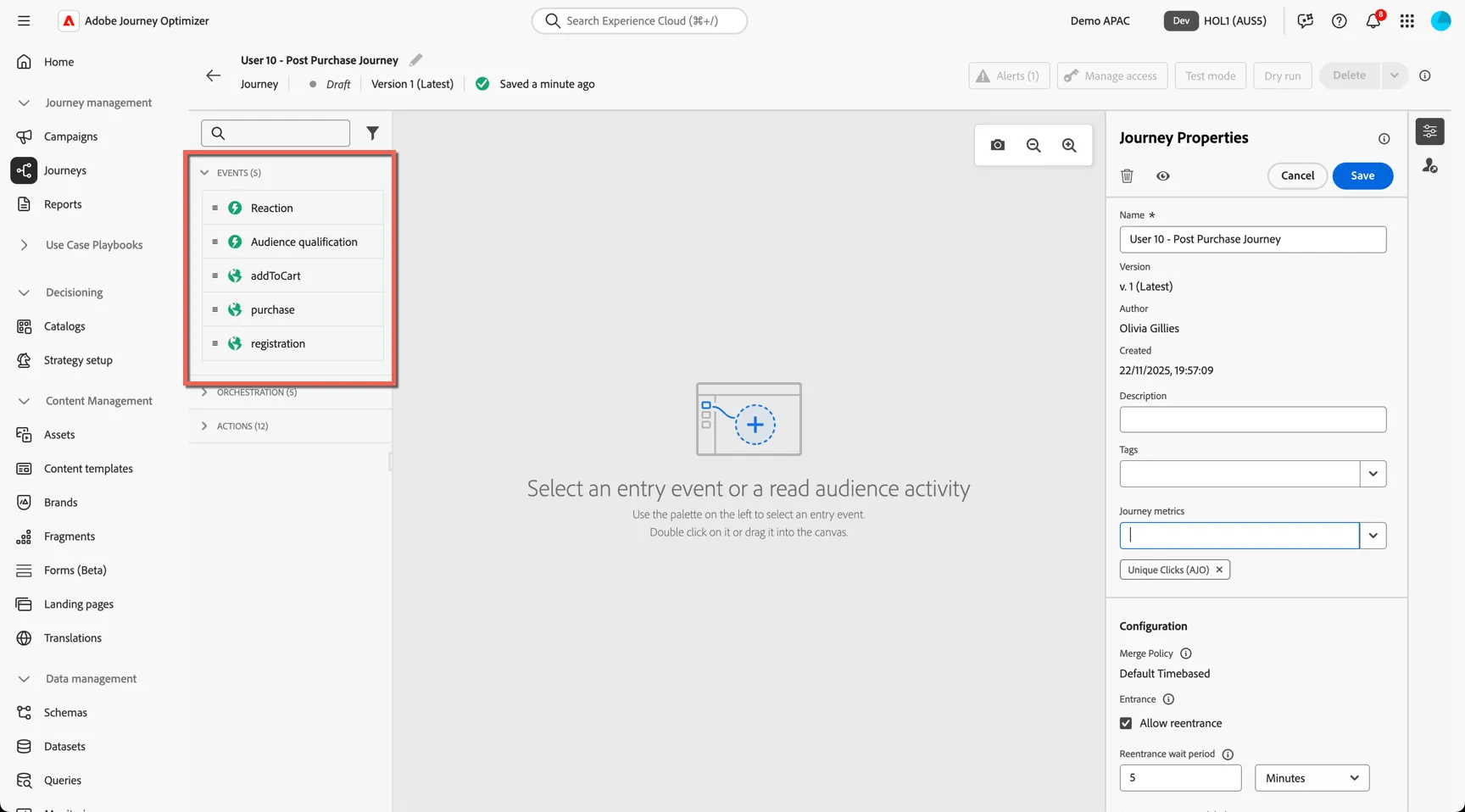
Drag-and-drop Audience qualification into the panel as our journey trigger.
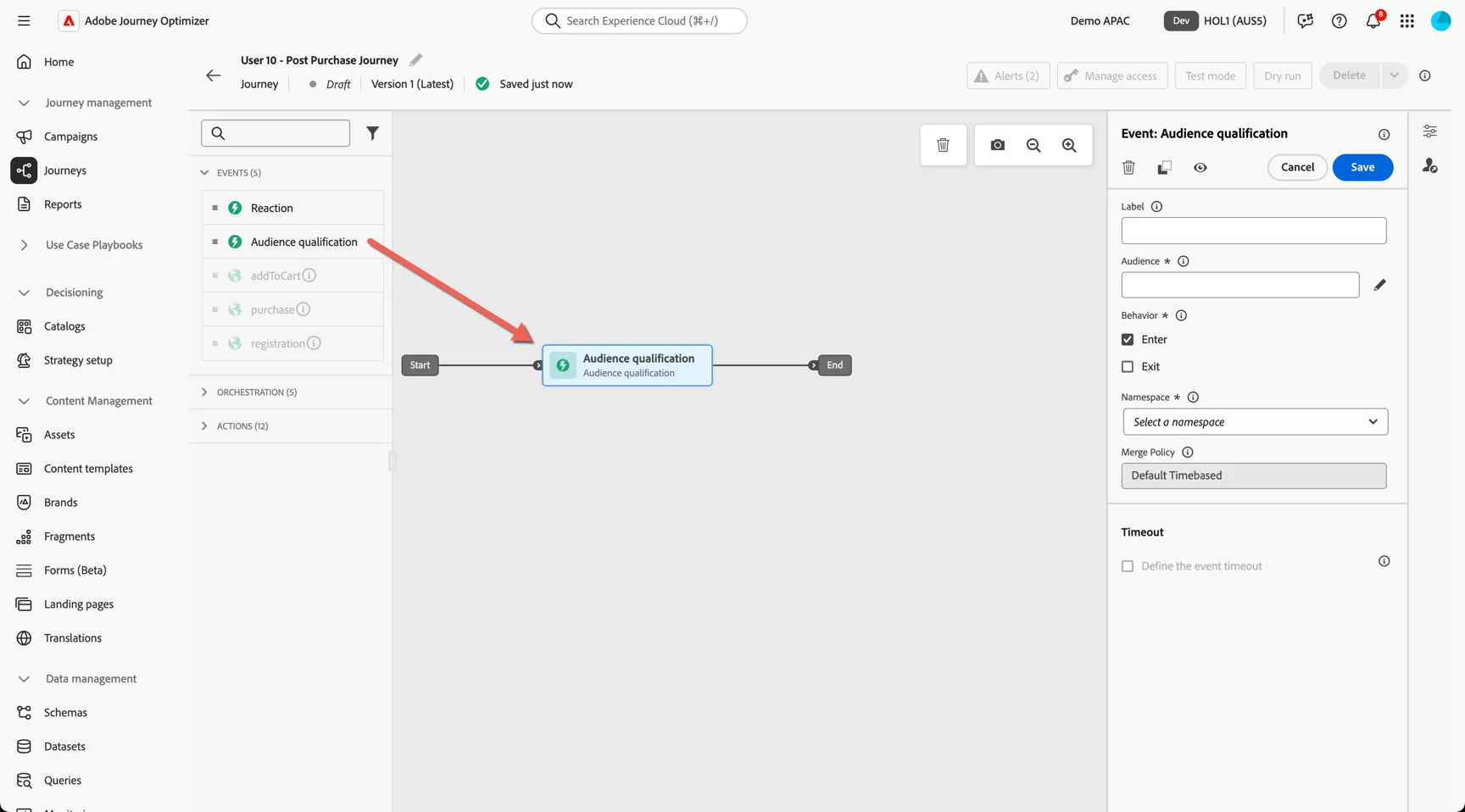
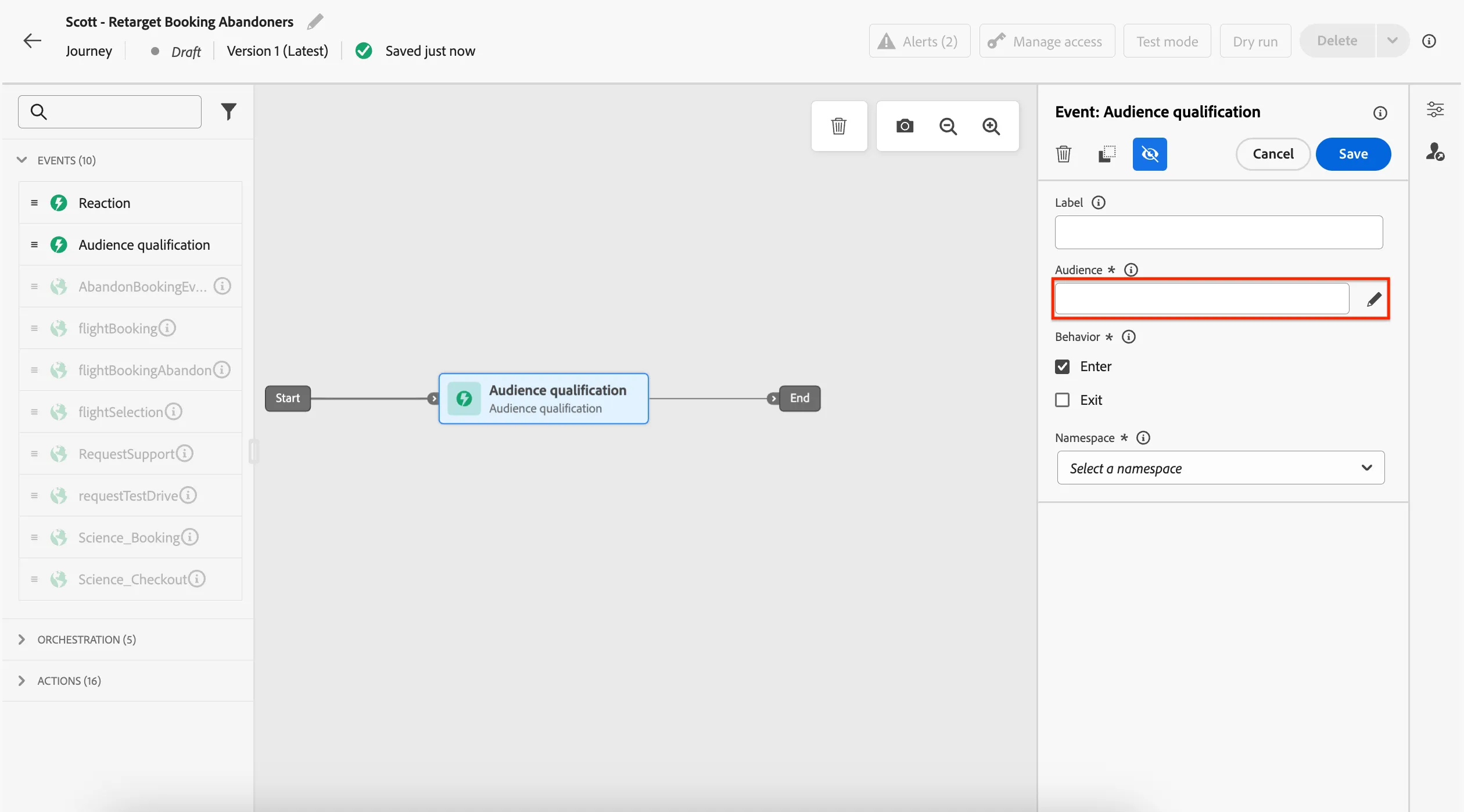
Click on Audience or the pencil icon.
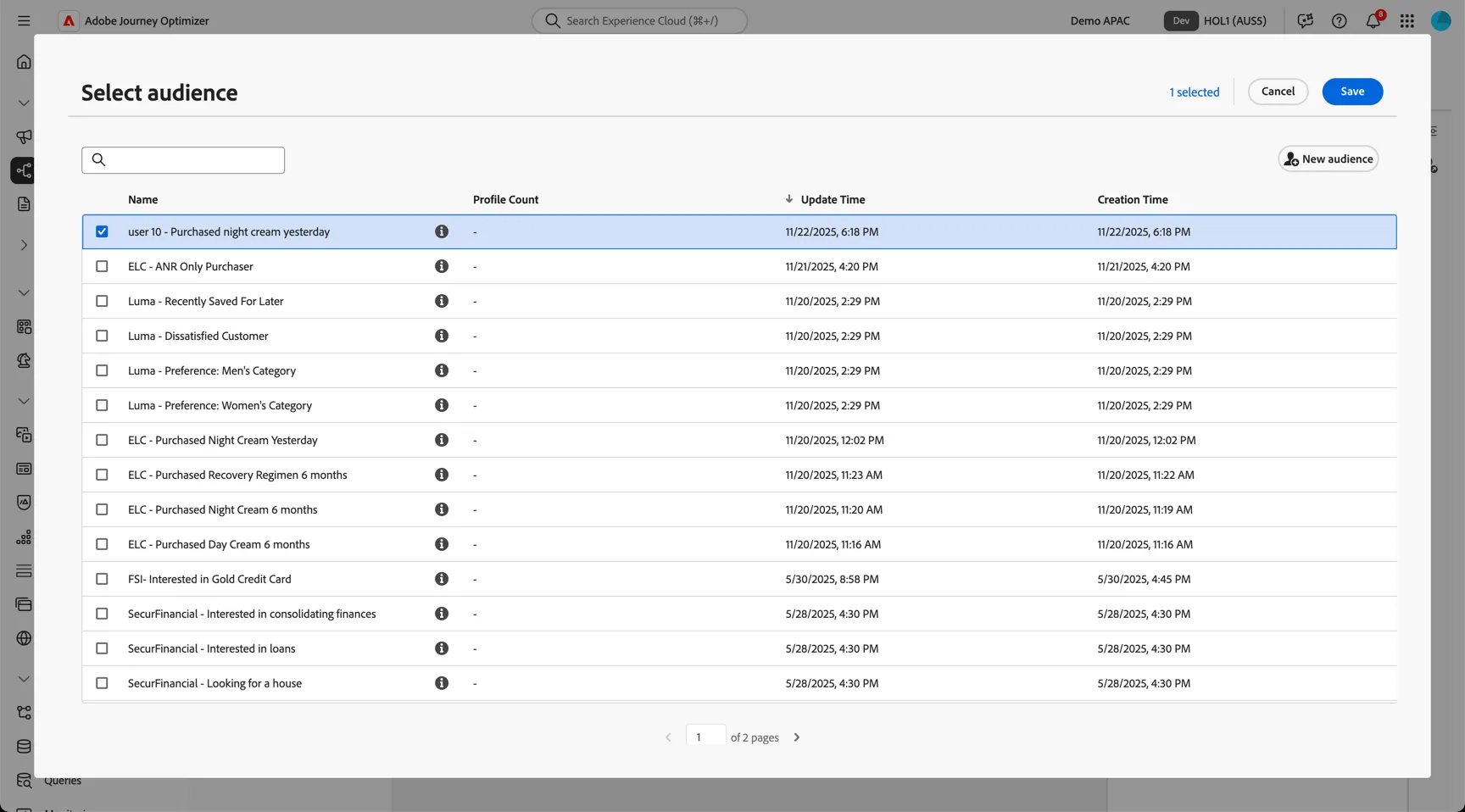
Use the search box to search for the Audience you created in the previous Exercise. Select the audience and then click Save.
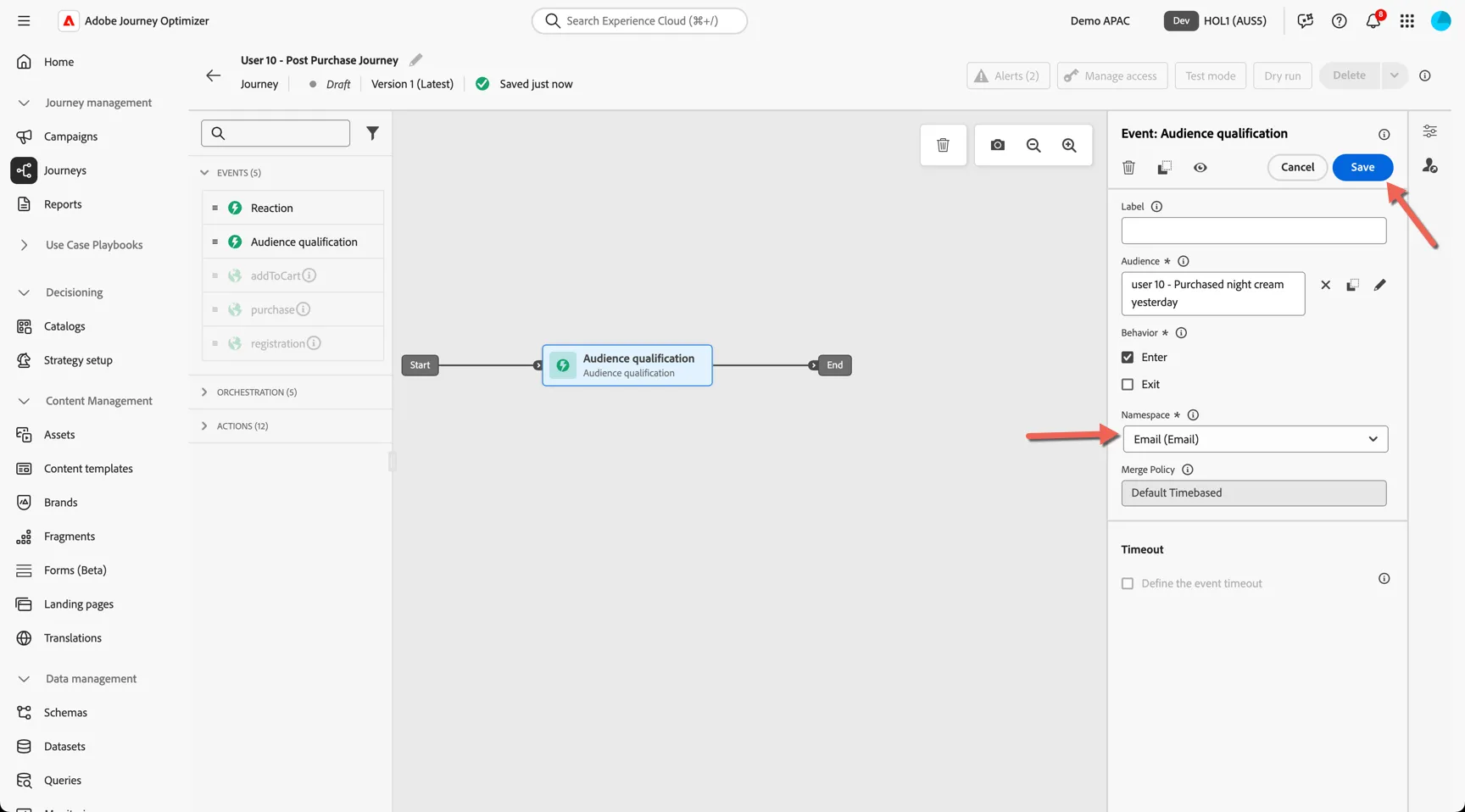
Change the Namespace to Email and click Save. Customers will now enter the journey in near real-time after making a purchase of Night Cream.
Expand the Actions tab in the left panel, you can see the range of channels that are supported out of the box plus any additional custom actions that might be defined.
We're going to send a thankyou email as the first step. Drag-and-drop an Email action to the end of the journey.
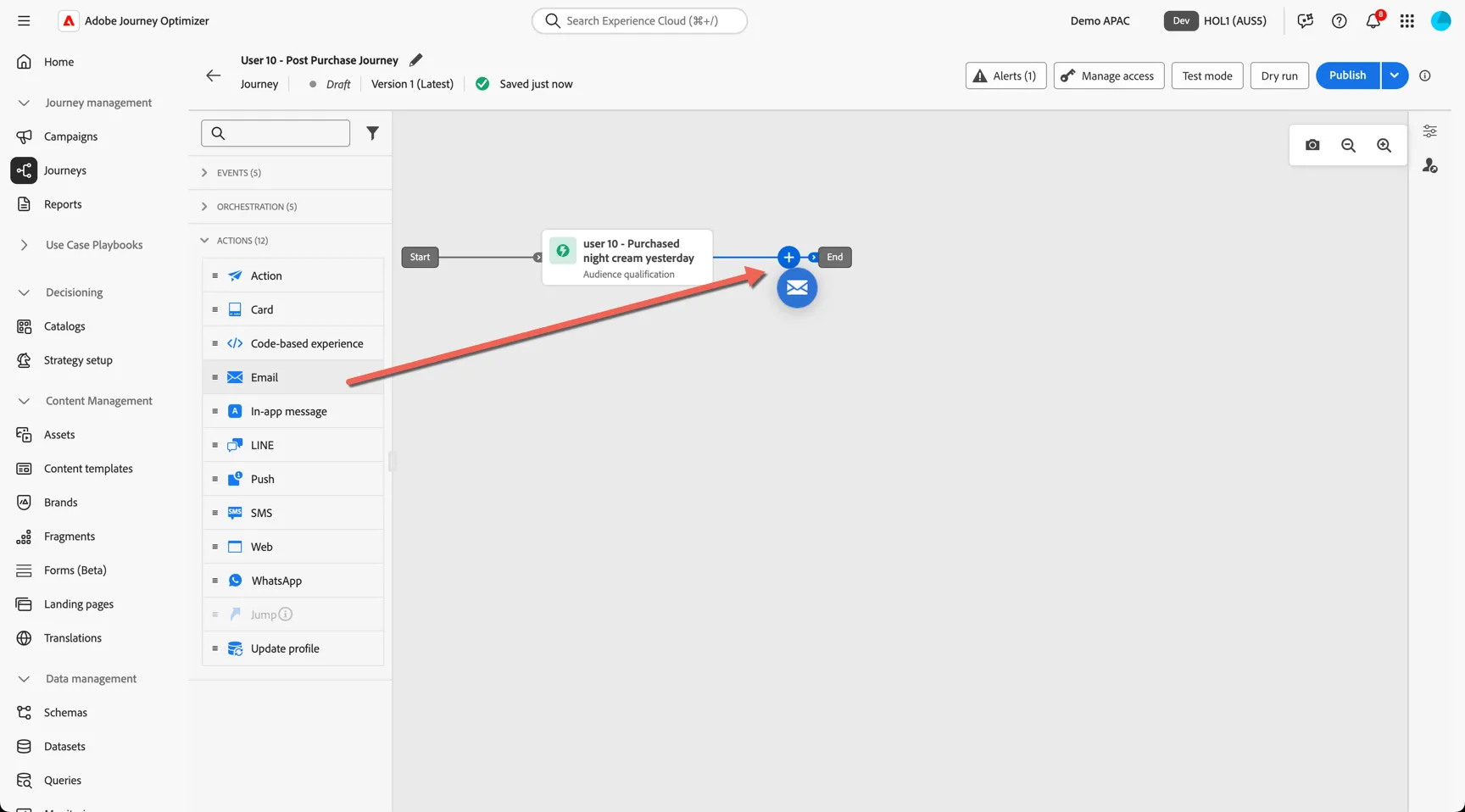
Give your email a label, this will be used in the journey reporting: T1B: NIGHT CREAM.
Select the default email-marketing configuration. The configuration controls the delivery settings like from address and link tracking and seed addresses. Eg. You would have different configurations for different brands and or message types. Click Save. We'll come back to configure the content after we've built the journey logic.
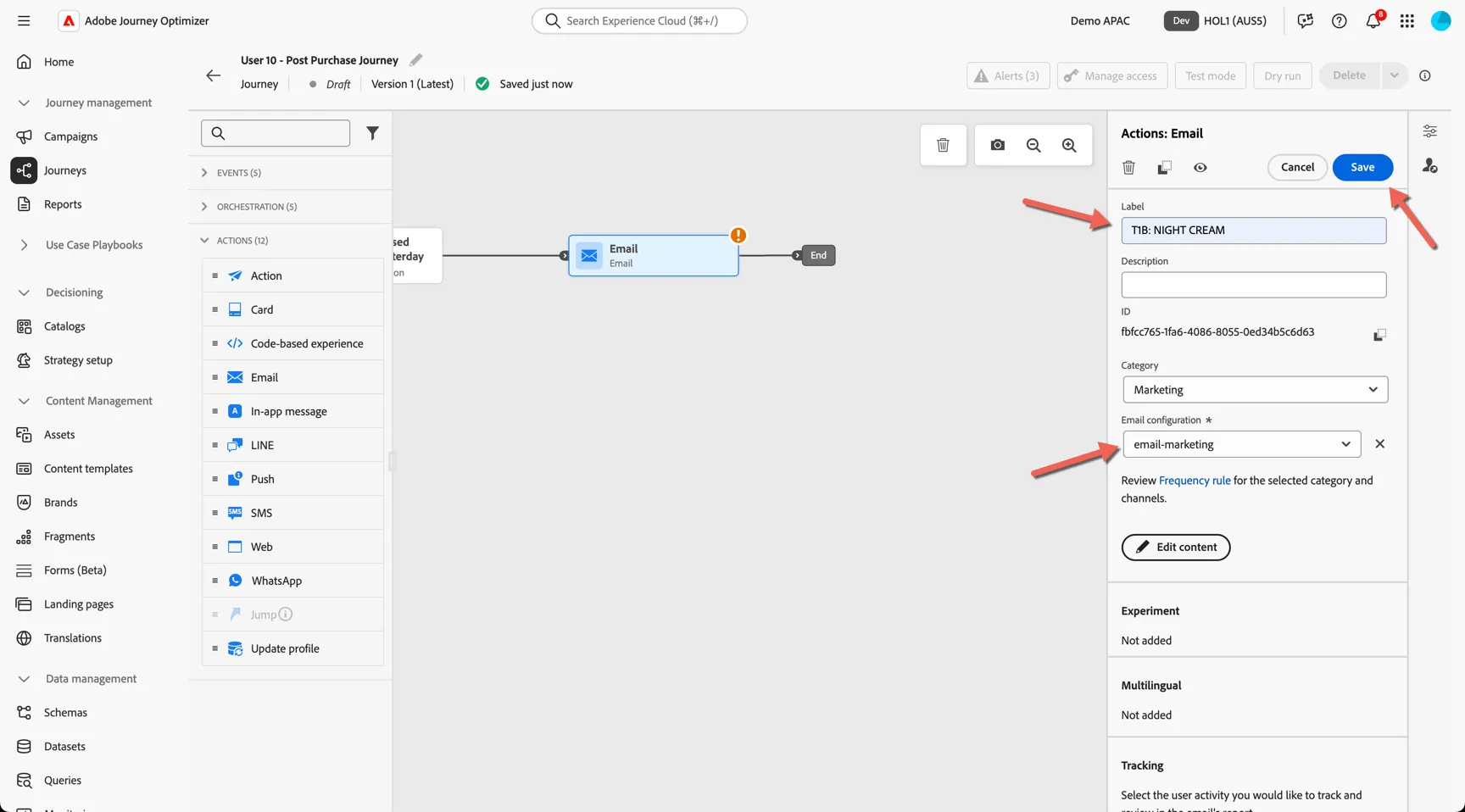
Expand the Orchestration tab in the left panel. Here you can see the different orchestration options. Drag a Wait activity to the end of your journey and set the duration to 14 days
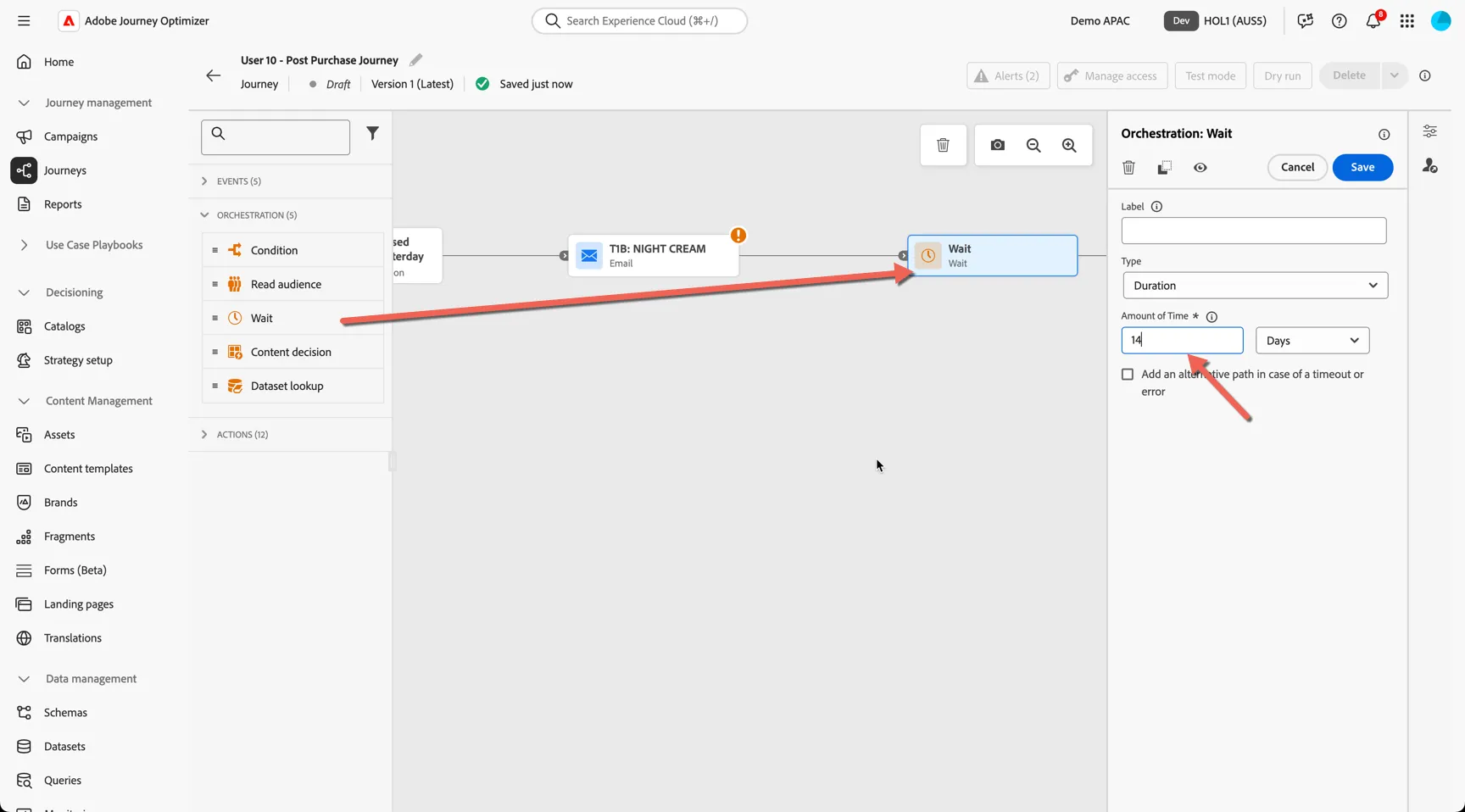
We want to send different content in the follow up message depending on the customers purchase history, this can be managed in a few different ways:
- Content Decisioning could be used to intelligently select a recommended product and include it in the message
- Dynamic content could be configured within a single message
- Journey Conditions can direct customers to different static message content
For the purpose of this lab we're going to use a journey condition to push customers to different email messages. Drag a Condition activity after the wait activity.
Click on Expression or the pencil icon.
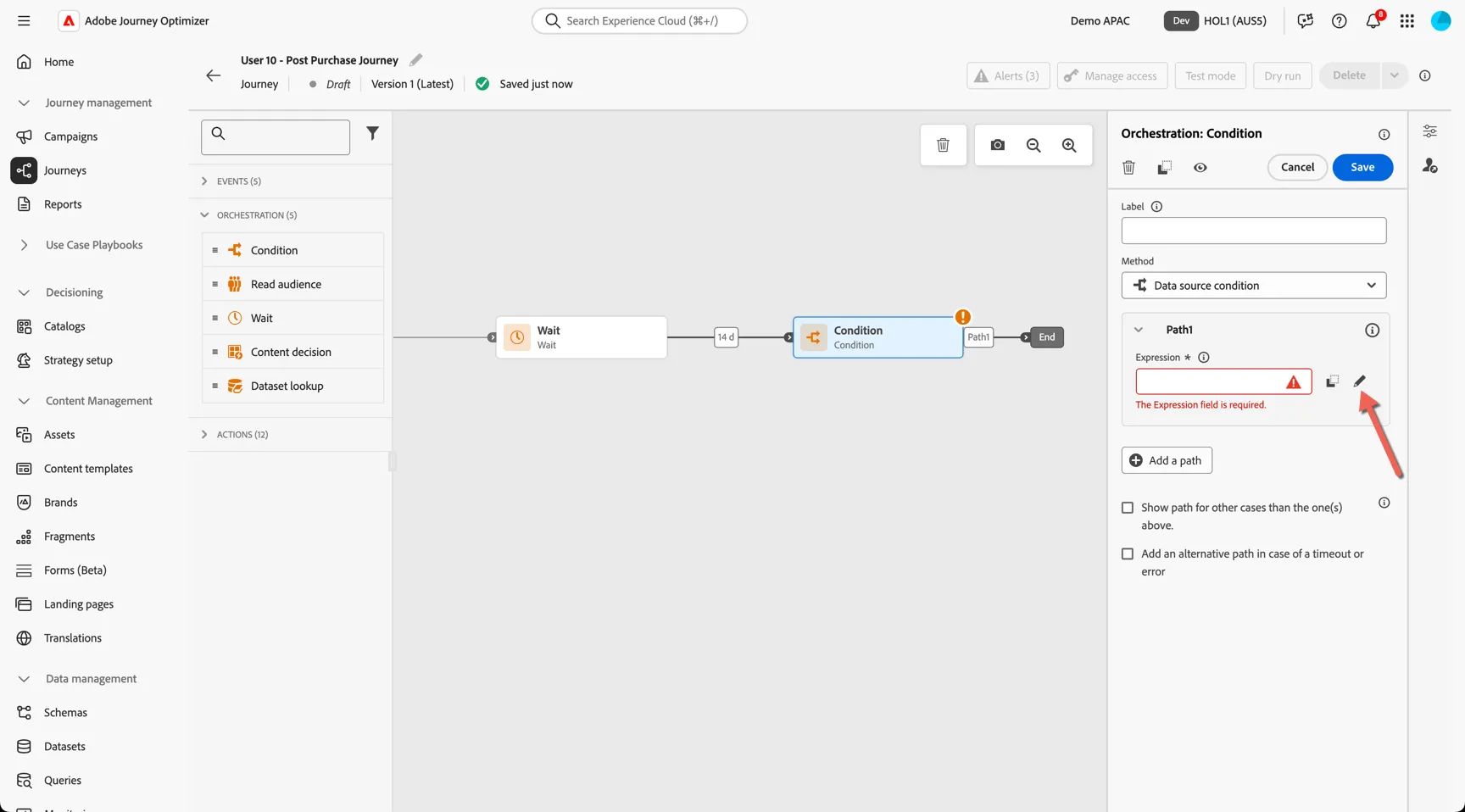
The condition has access to the journey context (including event attributes if triggered from an event), all of the profile attributes and the audiences that each profile is a member of.
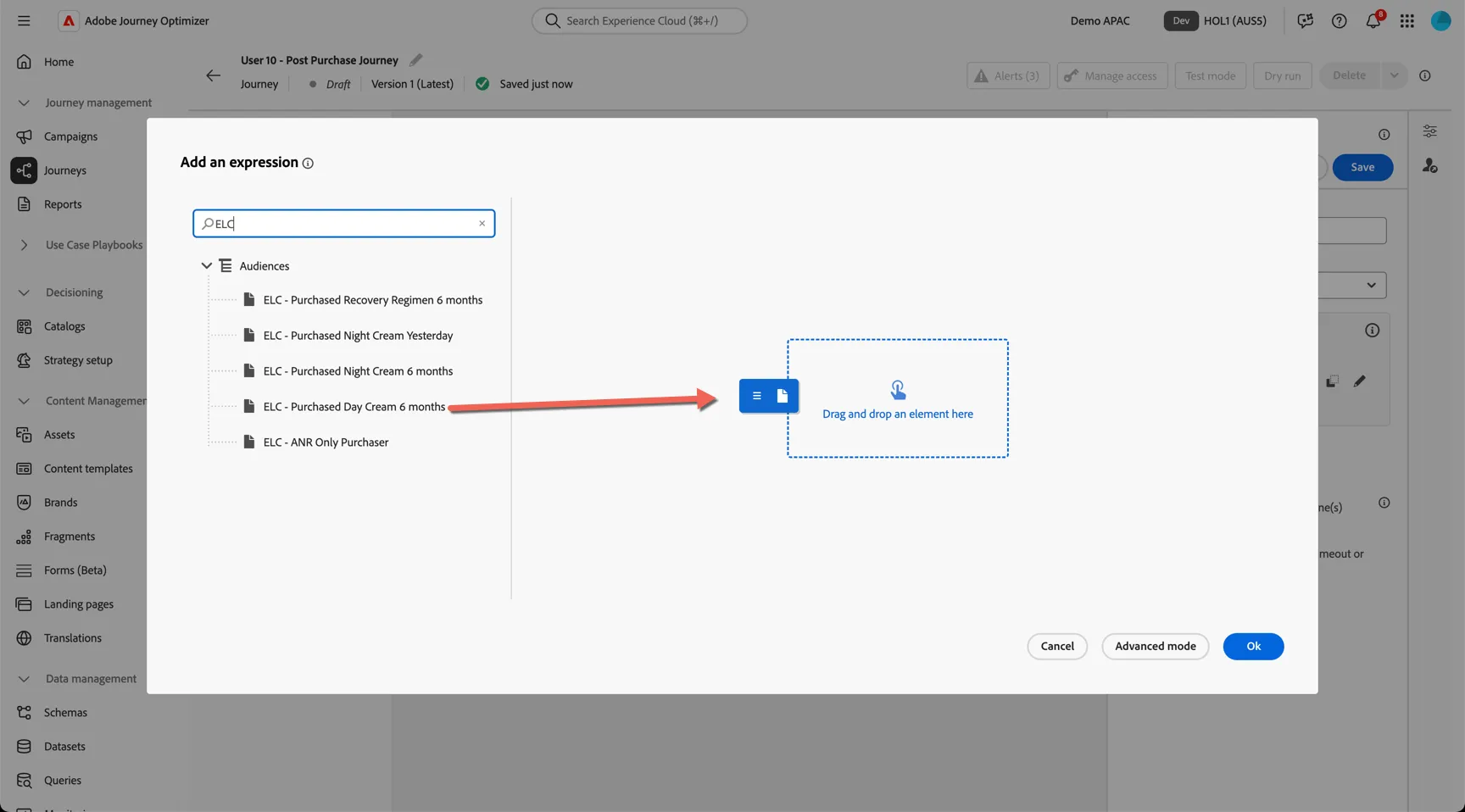
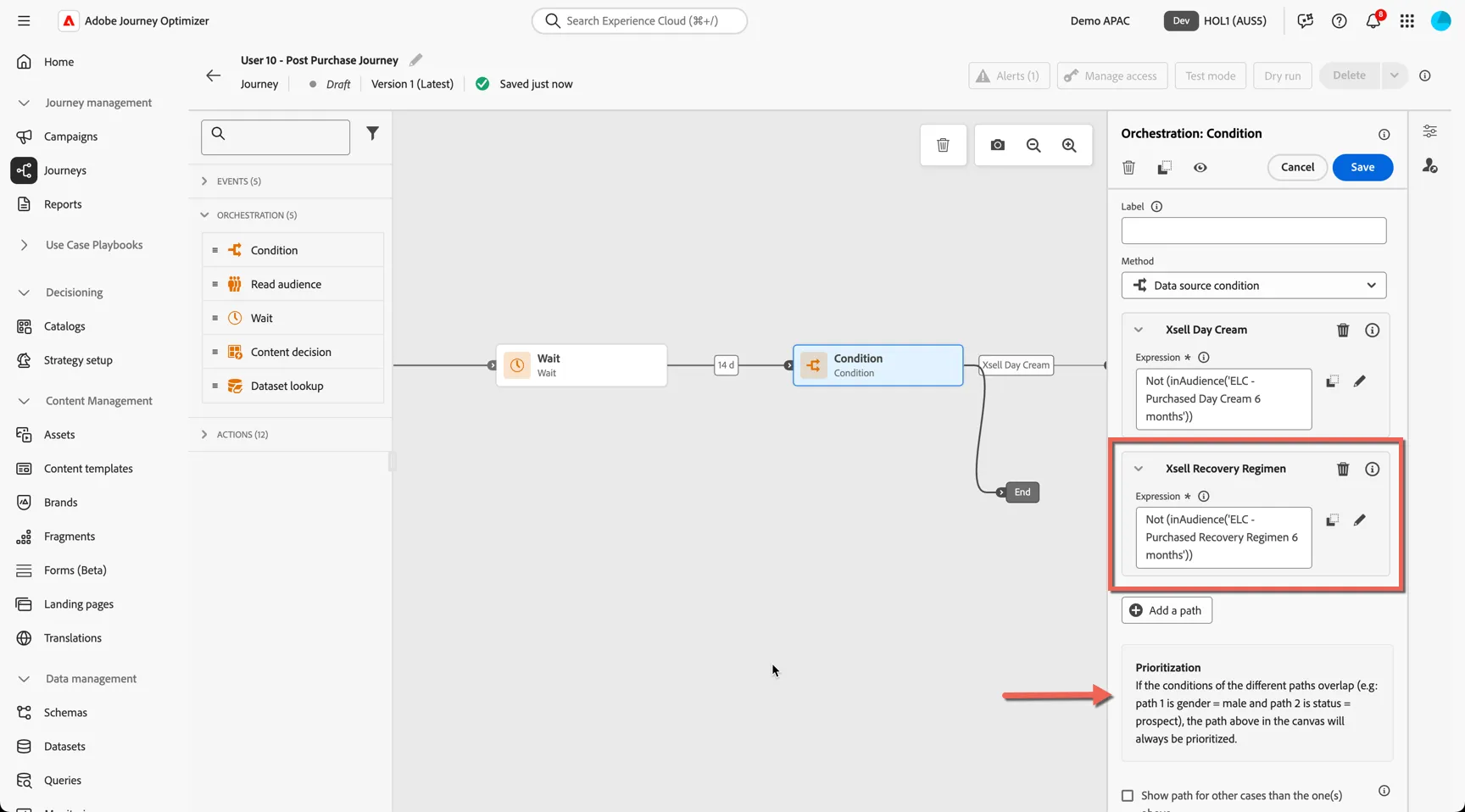
We want to promote Day Cream in our follow up email but only to people who haven't already purchased it in the last 6 months. We have an audience already built for customer who have purchased day cream, so we'll check that customers are NOT part of this audience in our condition.
In the expression editor, search for ELC and drag the ELC - Purchased Day Cream 6 months into the canvas.
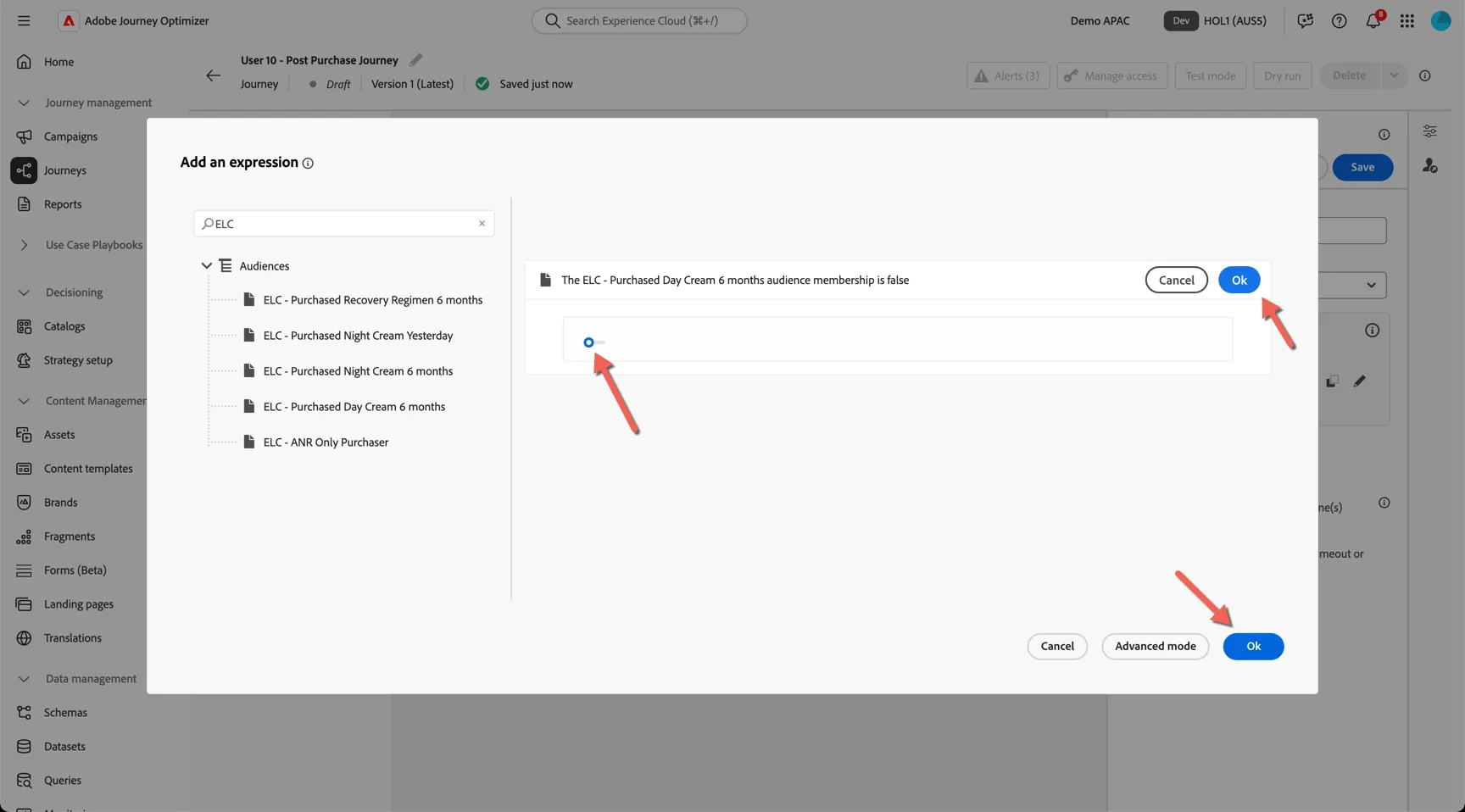
Toggle the membership status from the default true to false then click Ok, then Ok again to return to the journey.
Set the Label to XSell Day Cream.
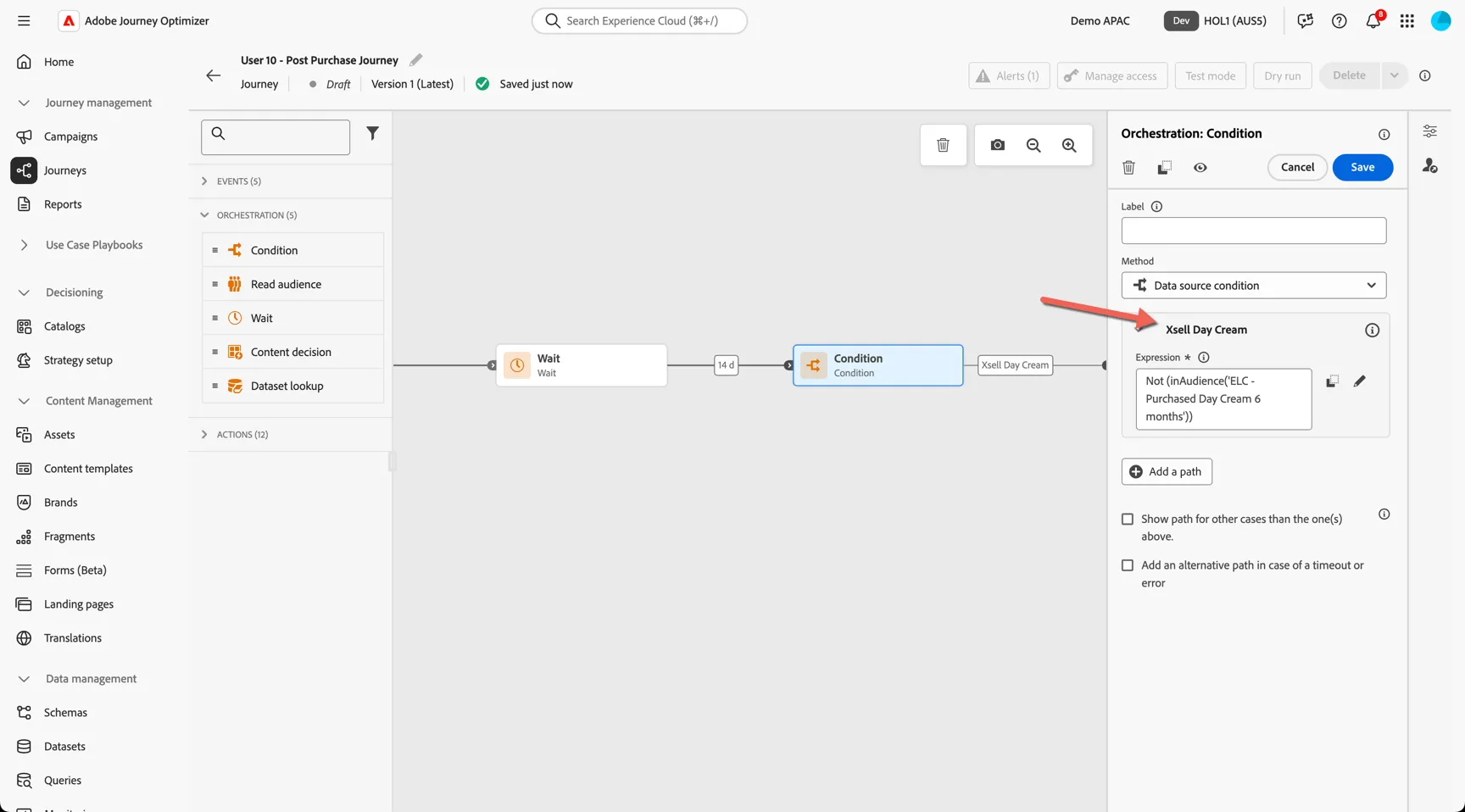
If customers have purchased Day Cream but have not purchased Recovery Regiman we will send a different message promoting this product range. The automatic
Click to Add a path then repeat the same expression settings using the ELC - Purchased Recovery Regimen 6 months. The default path prioritization will ensure that only customers who don't follow the top path will be evaluated against the bottom path.
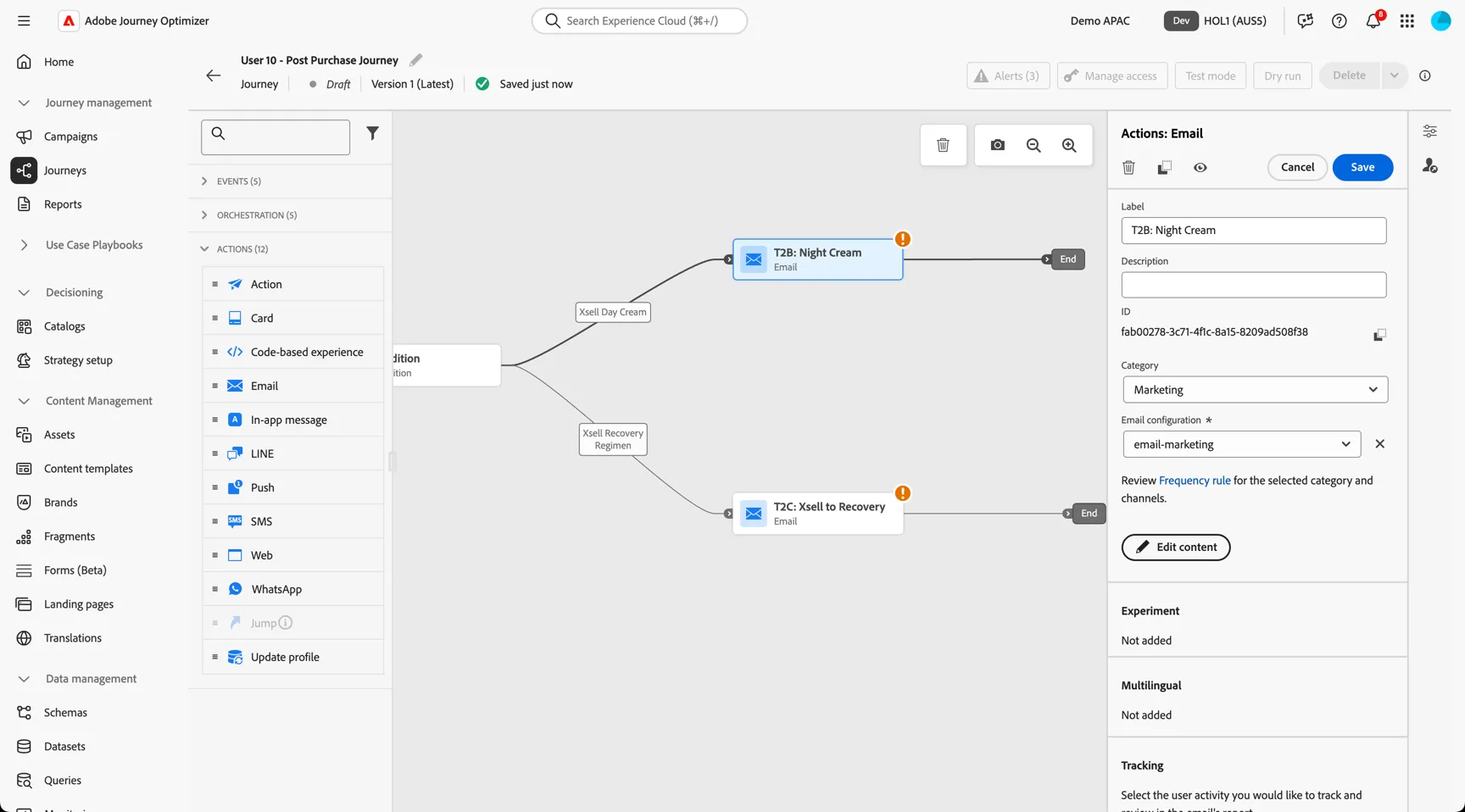
Drag an Email actions onto the canvas and attach them to the end of each path. Add your email labels T2B: Night Cream and T2C: Xsell to Recovery and set the configuration to email-marketing.
Lastly, we can configure Exit Criteria to remove customers from the journey should their status change during the 14 days. You can use either events or audiences as exit critera.
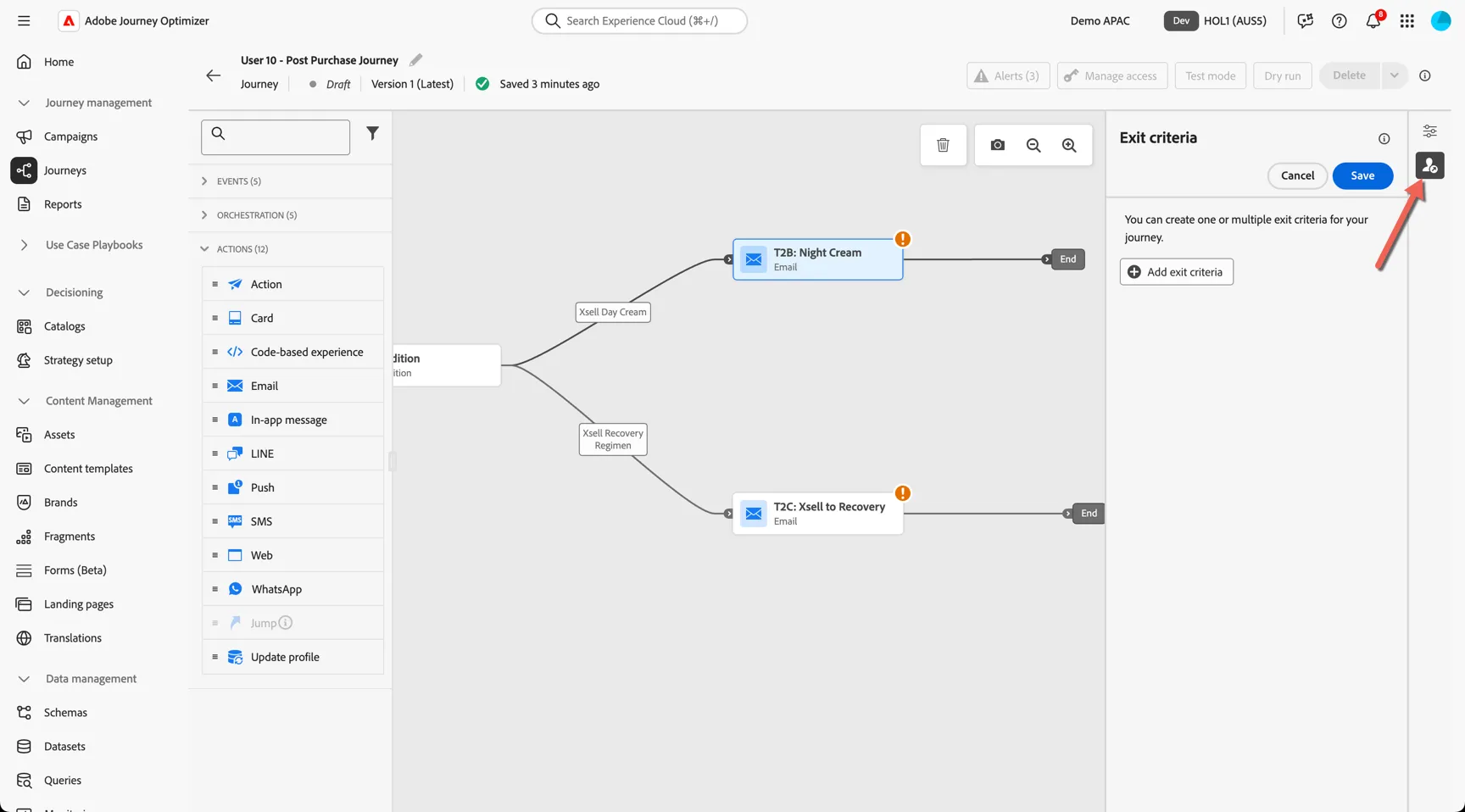
For this journey we will exit if a negative review or refund is received. Click to Add exit criteria.
Give your exit criteria a label and select events and choose the refund event. Click to Save the criteria.
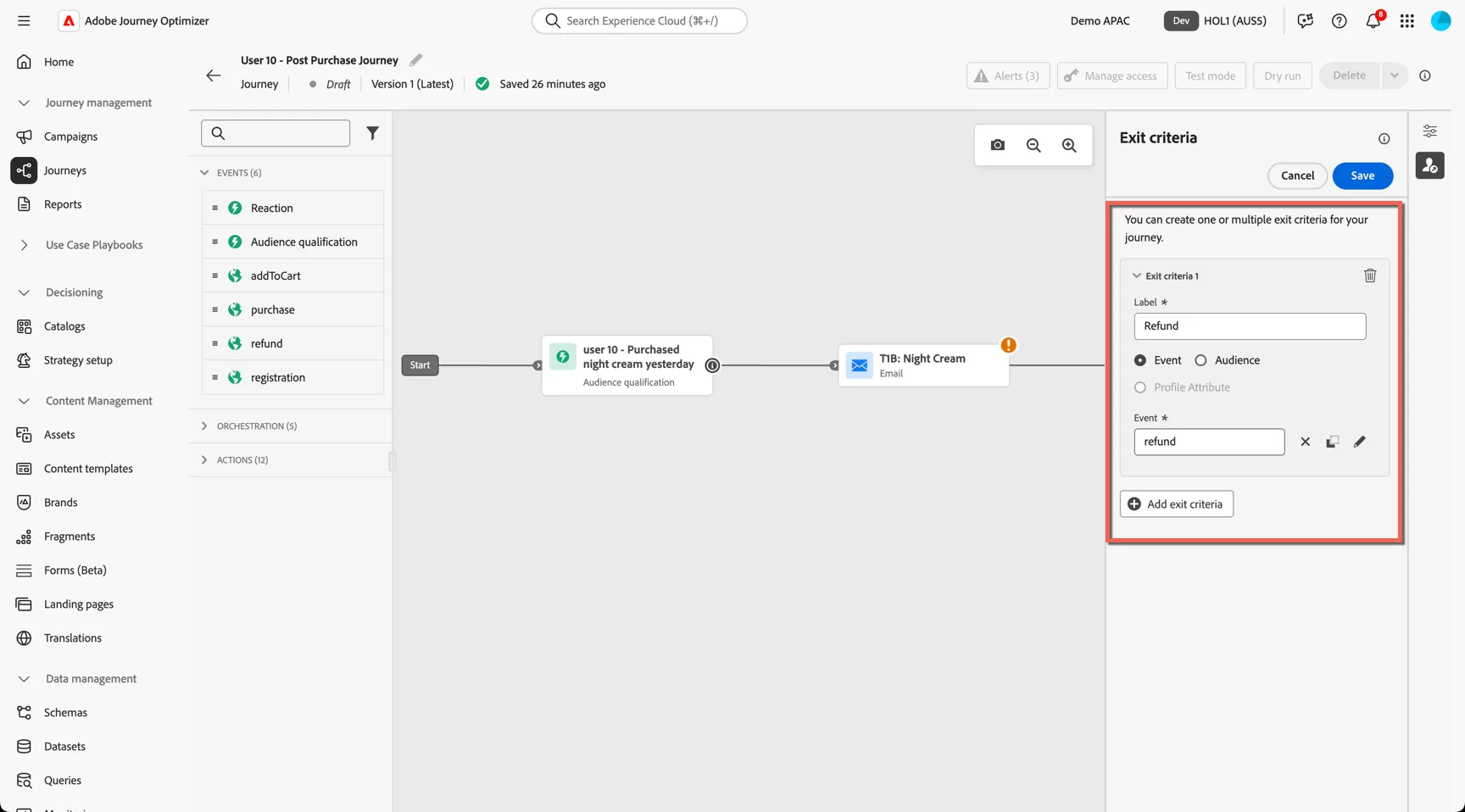
Your journey should look like this.
Next we'll add content to our messages.
2.2 Add Multilingual Email Content
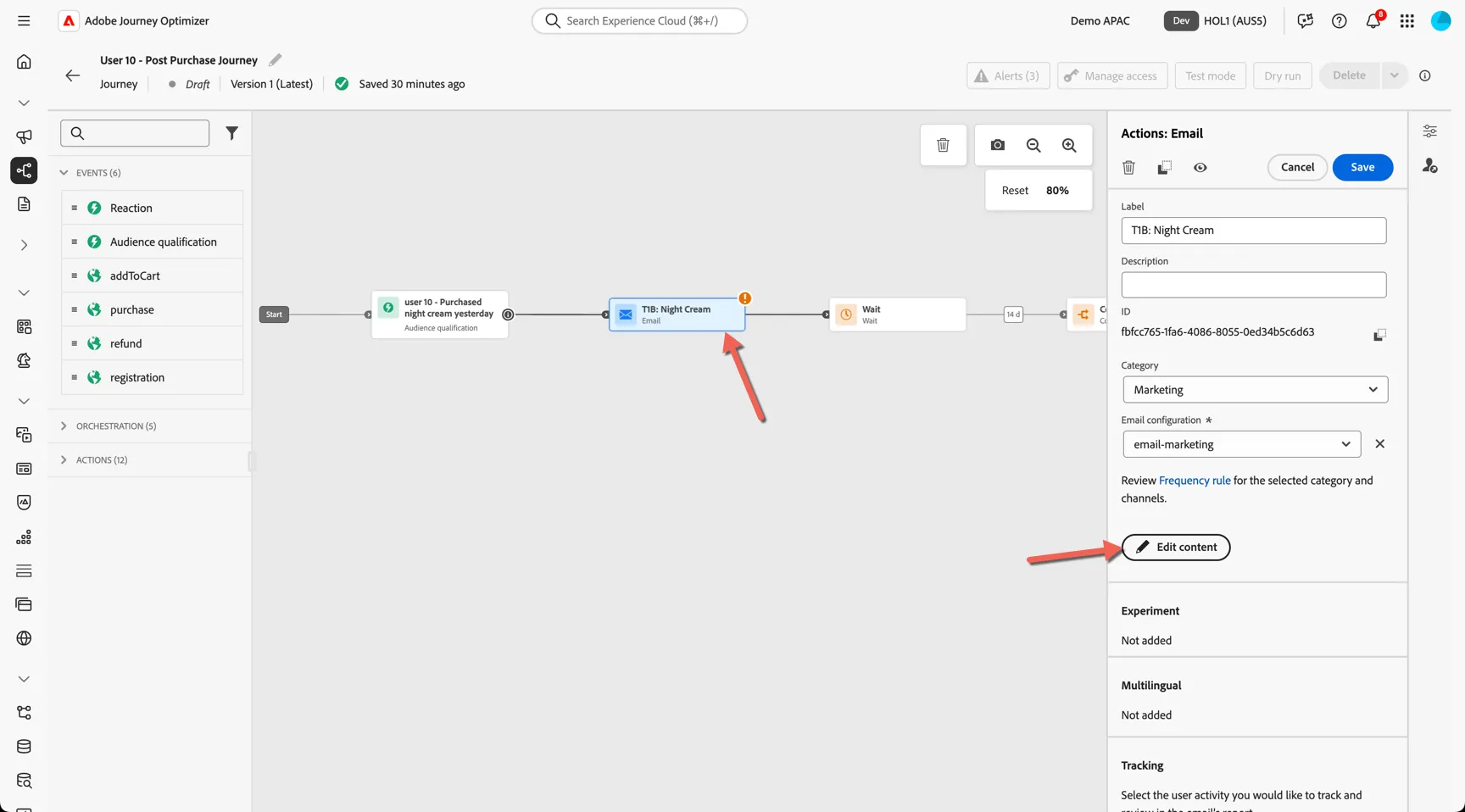
Click on the T1B: Night Cream email activity in your journey, click to Edit Content.
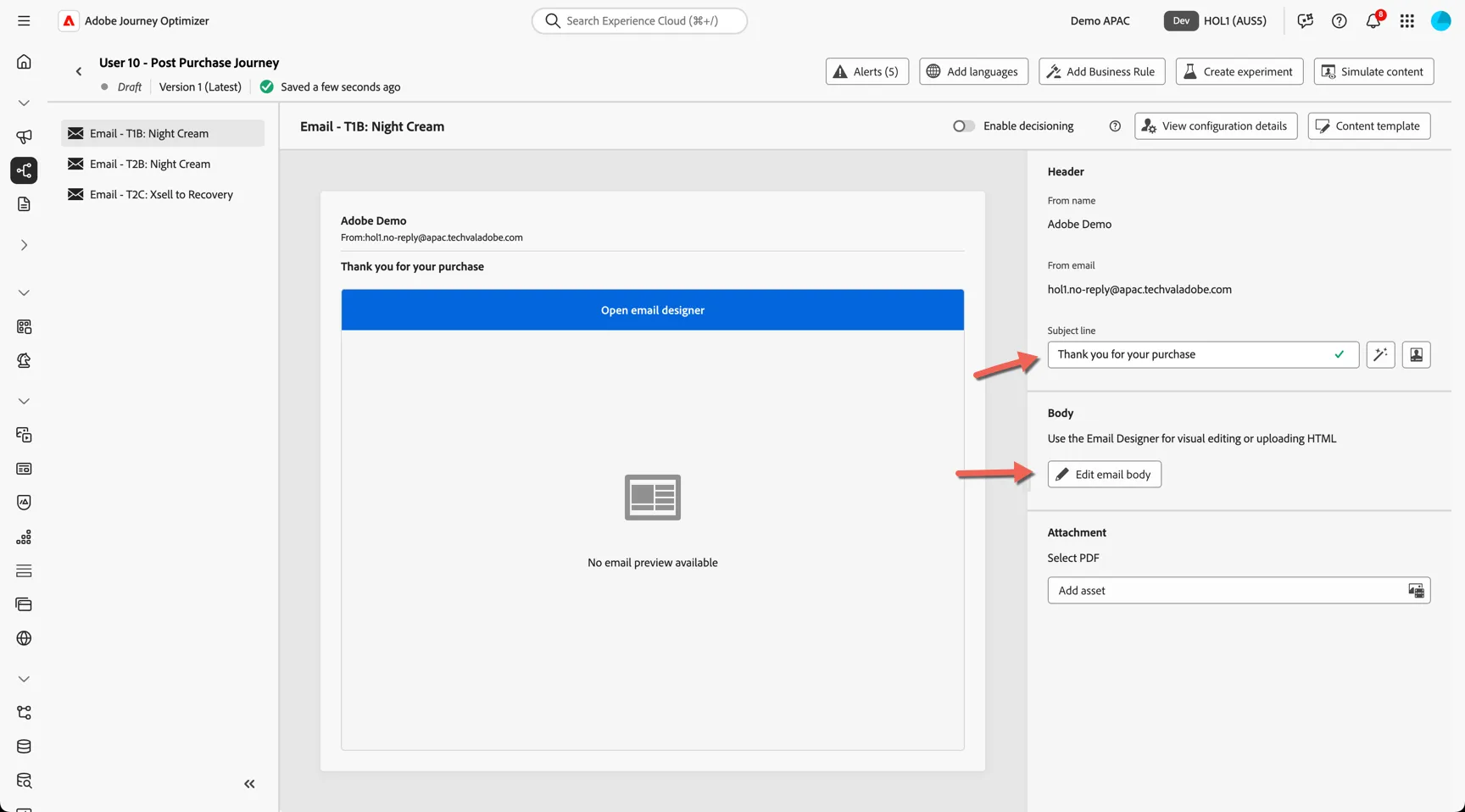
Add a subject line Thank you for your purchase. Click to Edit email body.
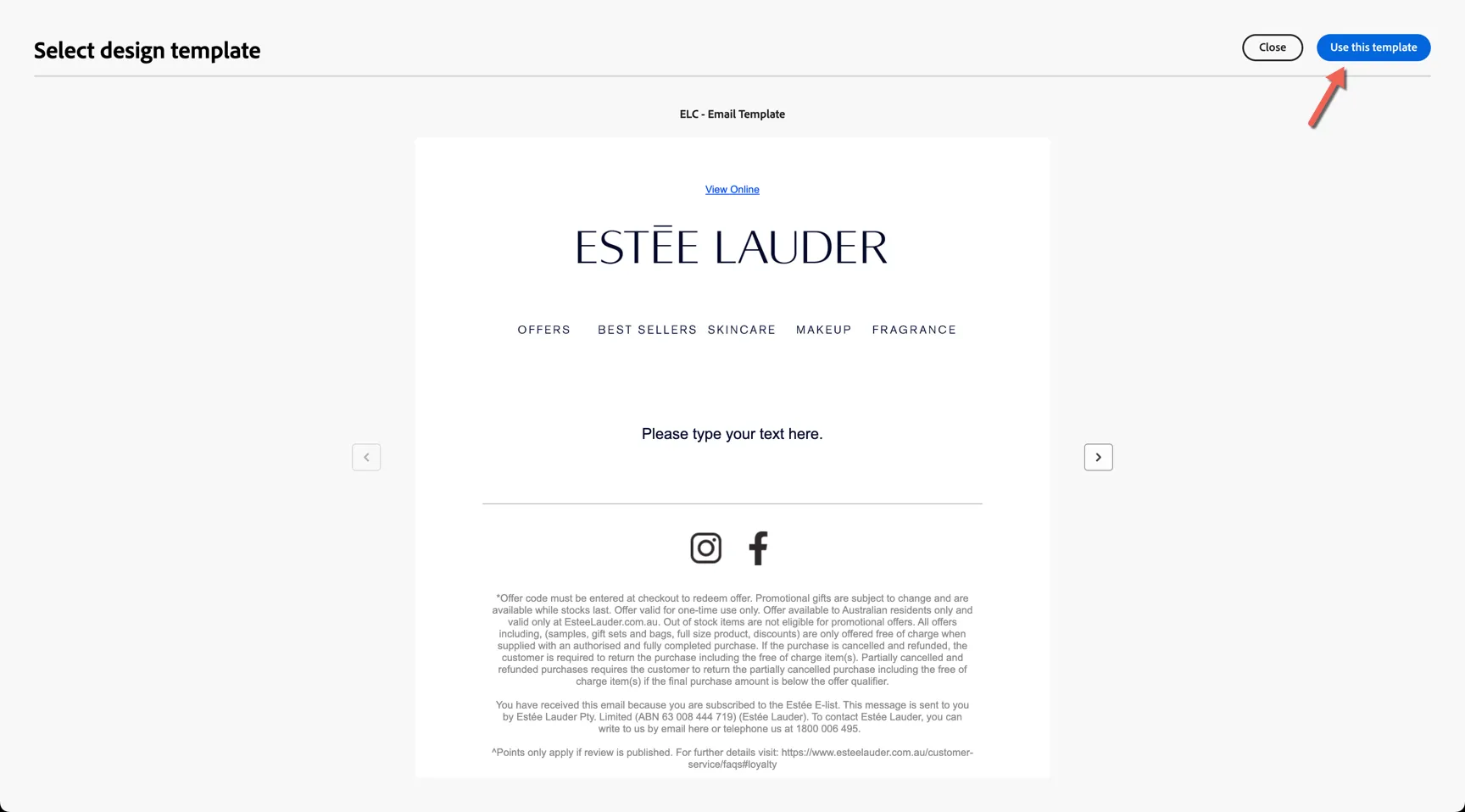
For this exercise we'll start with a pre-defined content template. Open the tab to see the Saved Templates, then select the ELC - Email Template
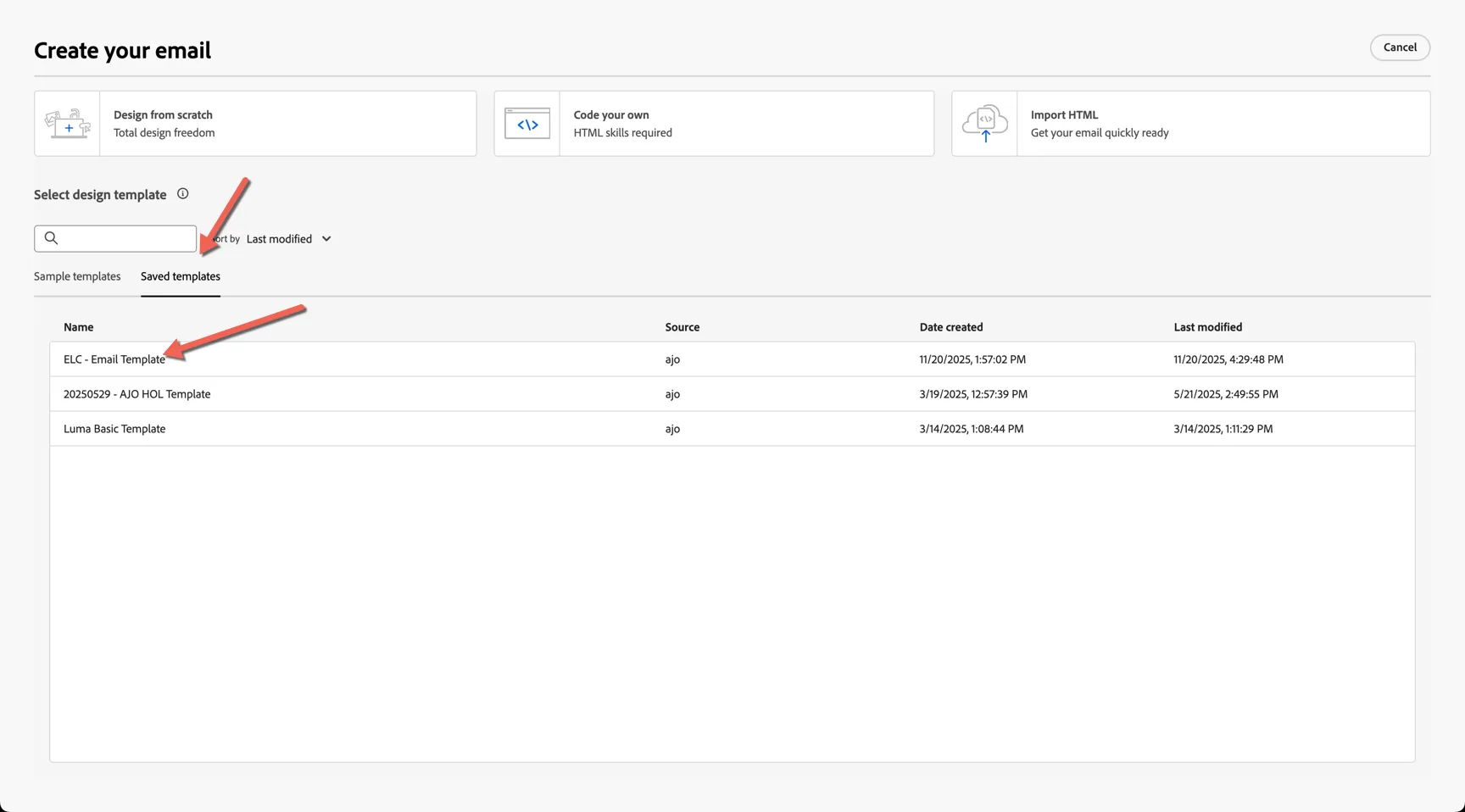
Click to Use this Template
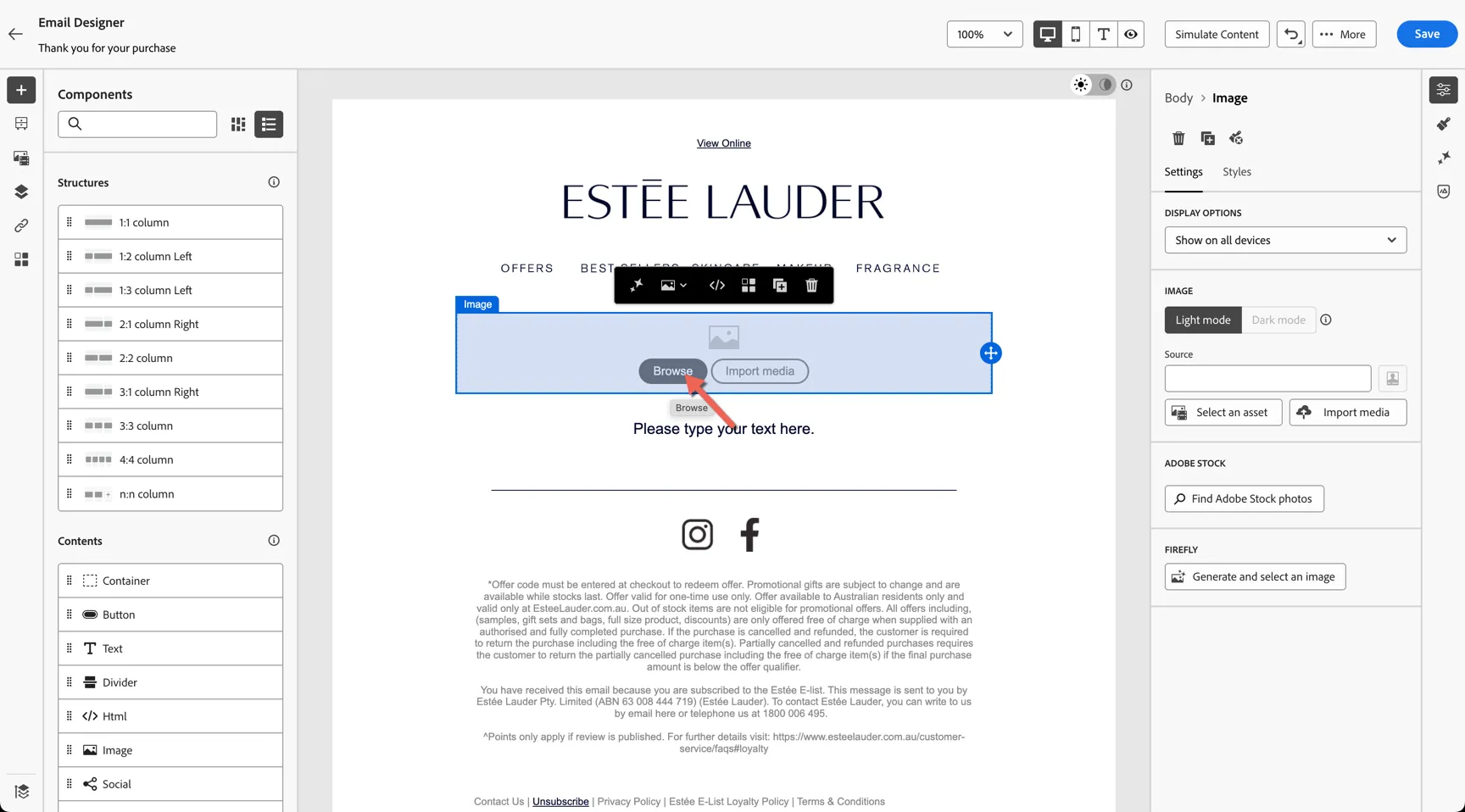
Click on Browse to add a banner image to the email from Adobe Experience Manager Assets.
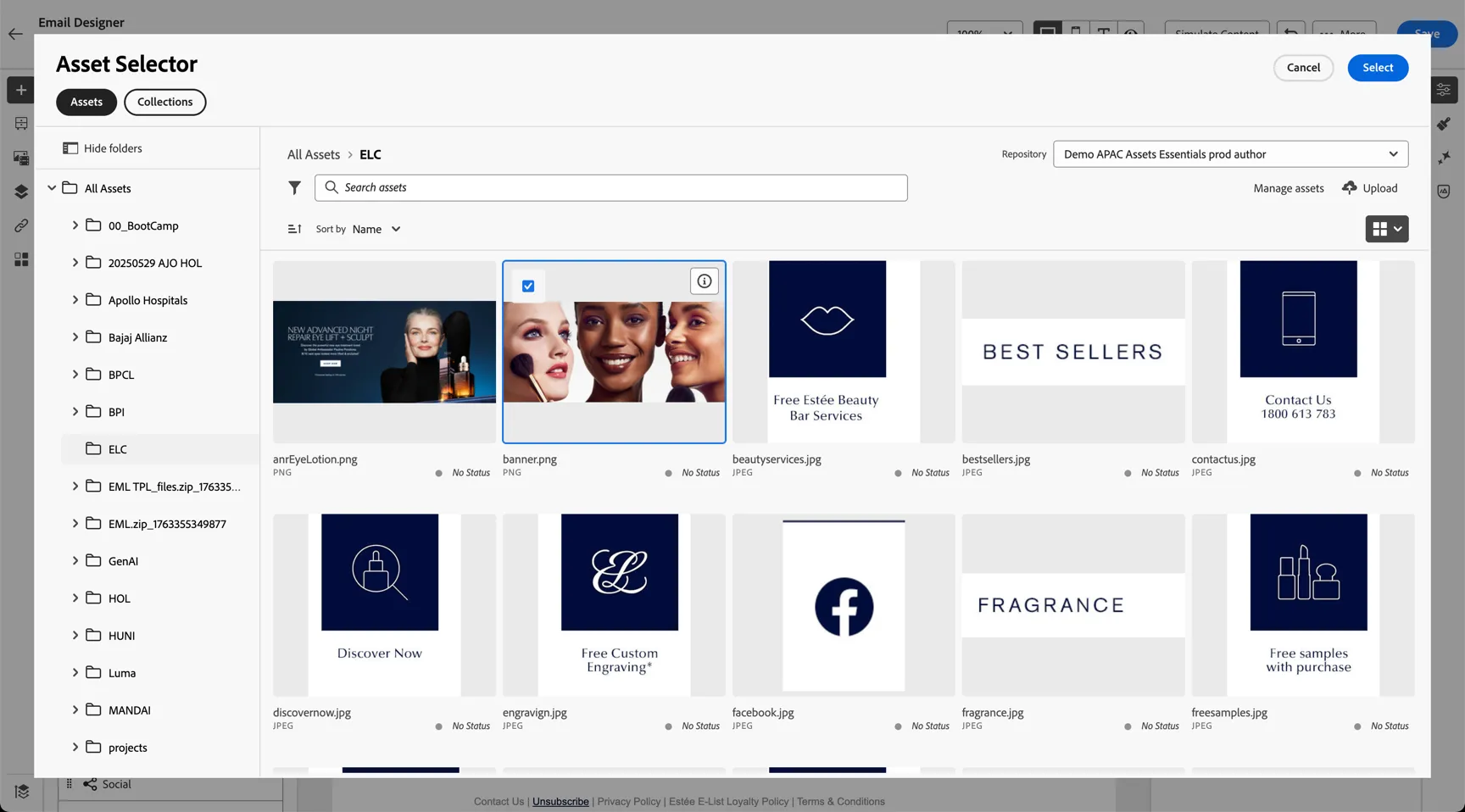
Select a banner from the ELC folder or upload one from your local machine.
Update the text content as desired, you can use the personalisation editor to insert profile attributes such as the customer first name.
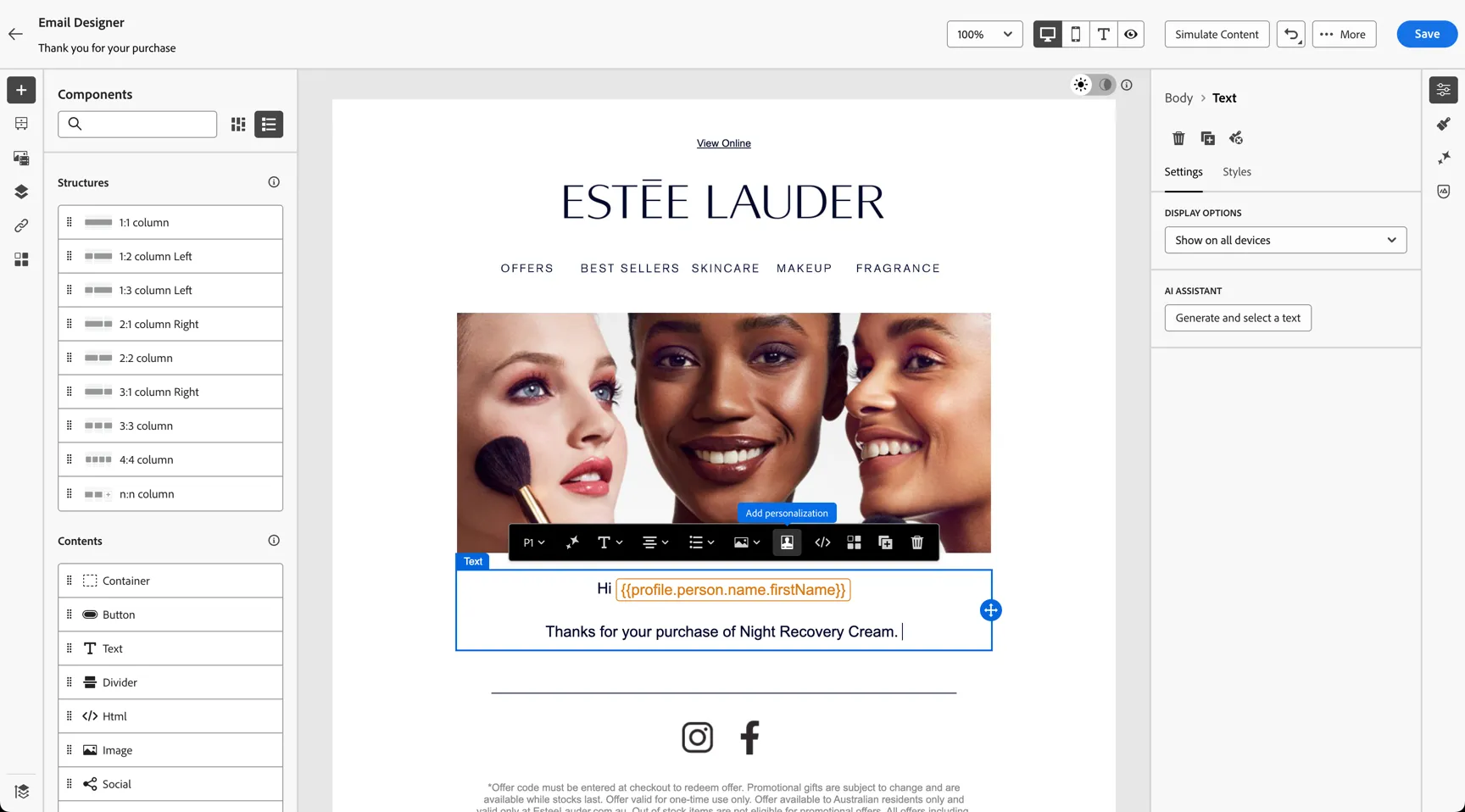
Note that the header and footer use pre-built fragments. Leveraging fragments allows you to manage these common components in a centralized way, updating the fragment will update content across all journeys leveraging that fragment. You can click to Explore References to see where else the fragment is used.
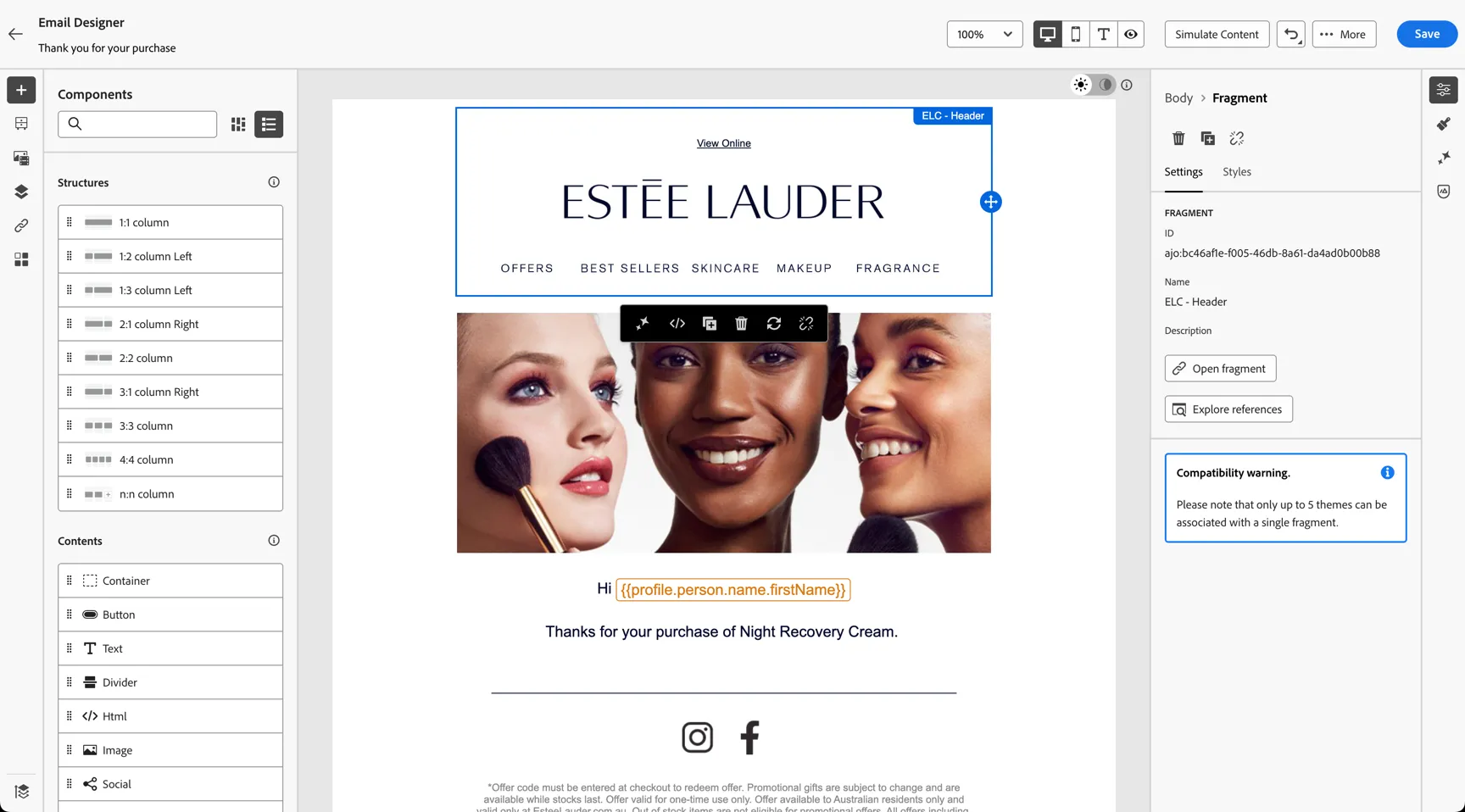
You can switch from desktop to mobile view and from light to dark mode directly in the editor.
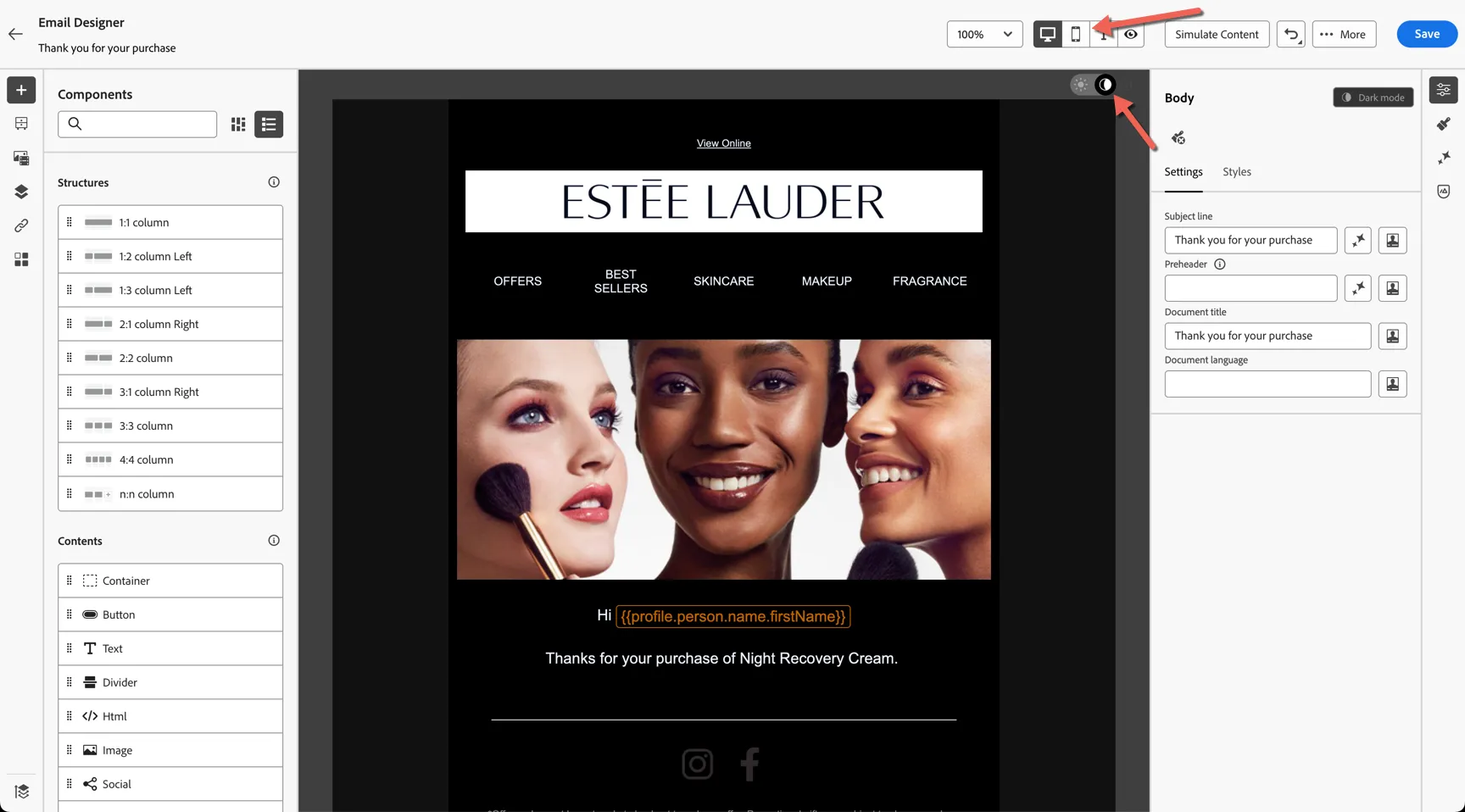
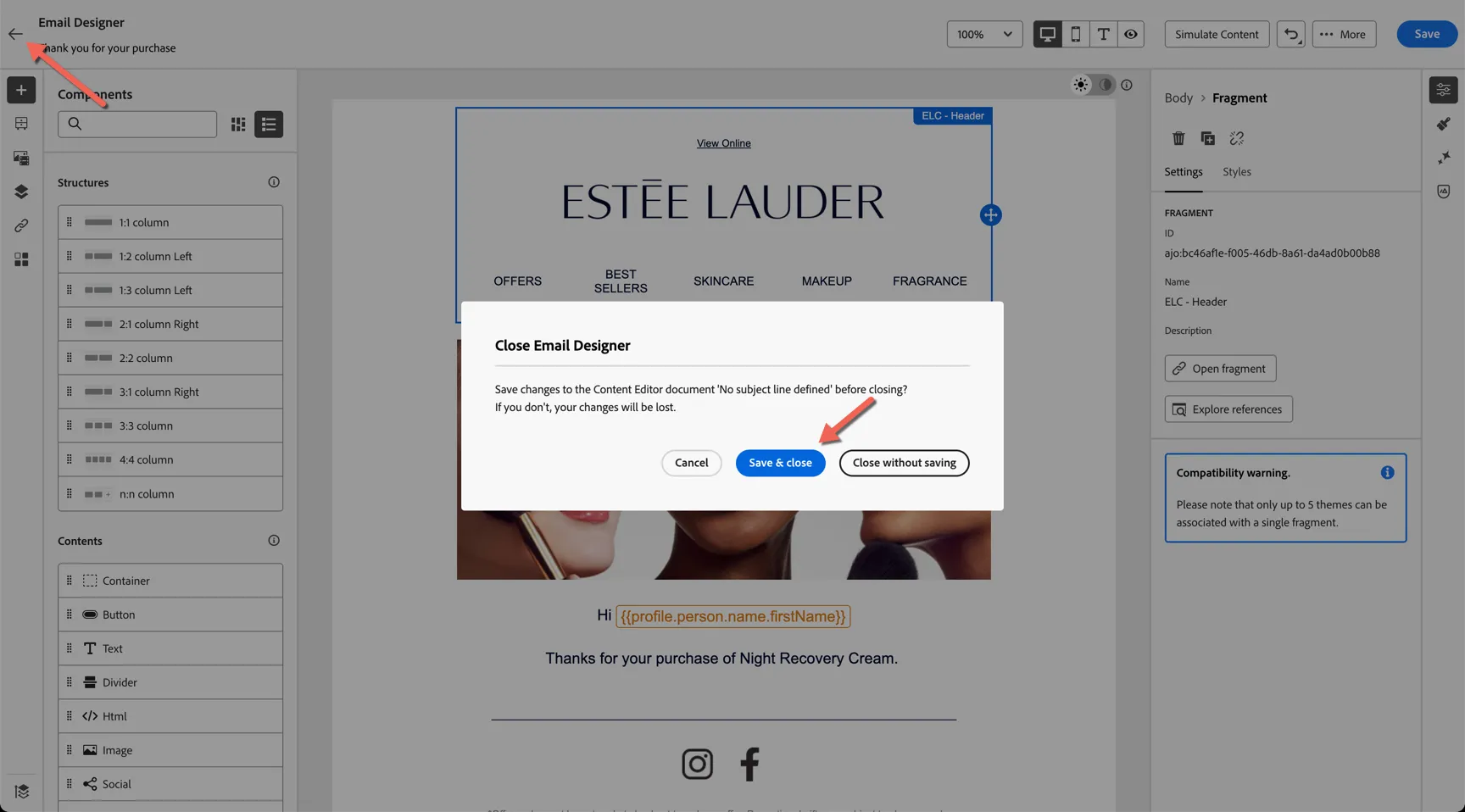
Once you're happy with the content click on the <-- on the top left to exit the editor. Choose to Save and Close if prompted.
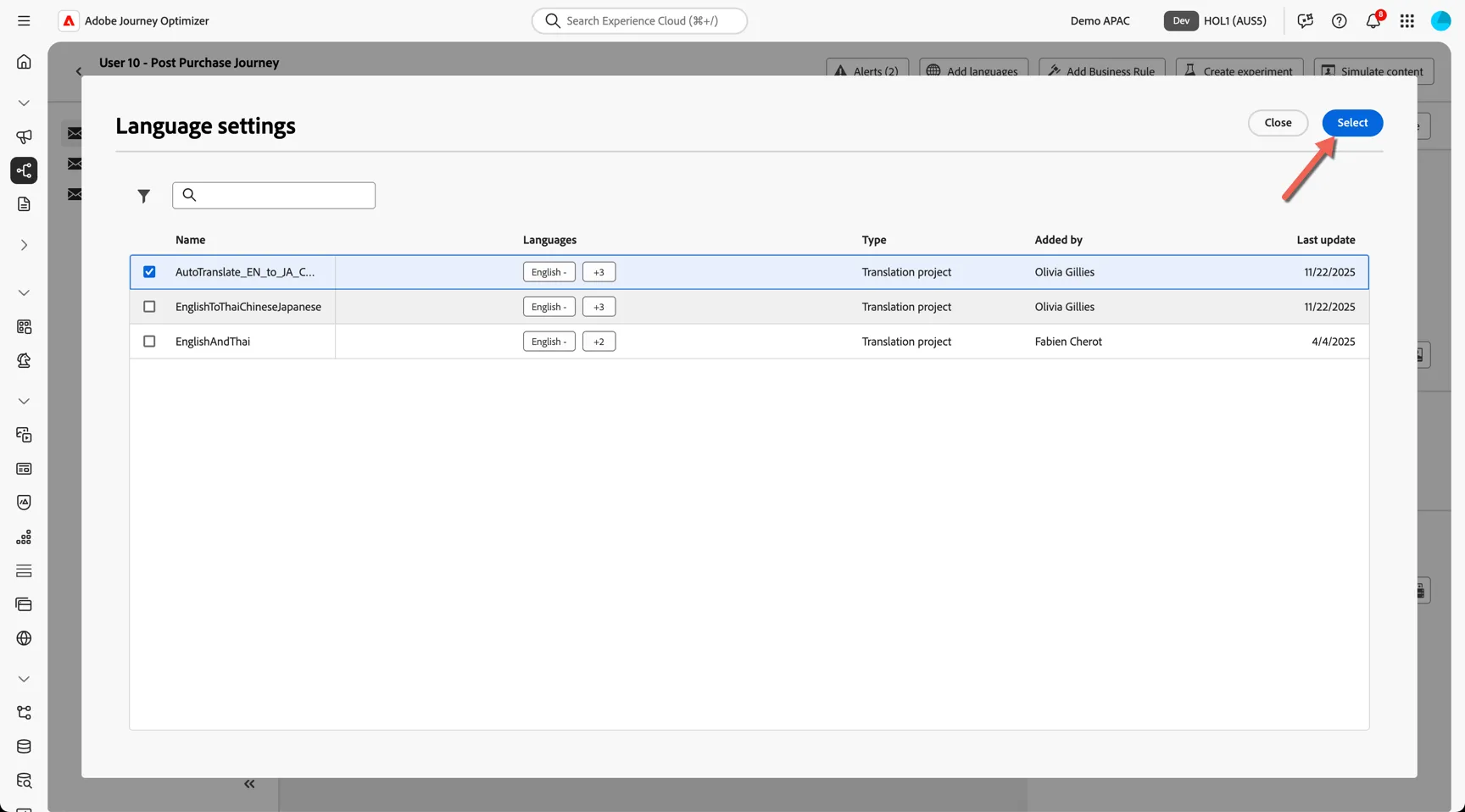
Click to Add Languages
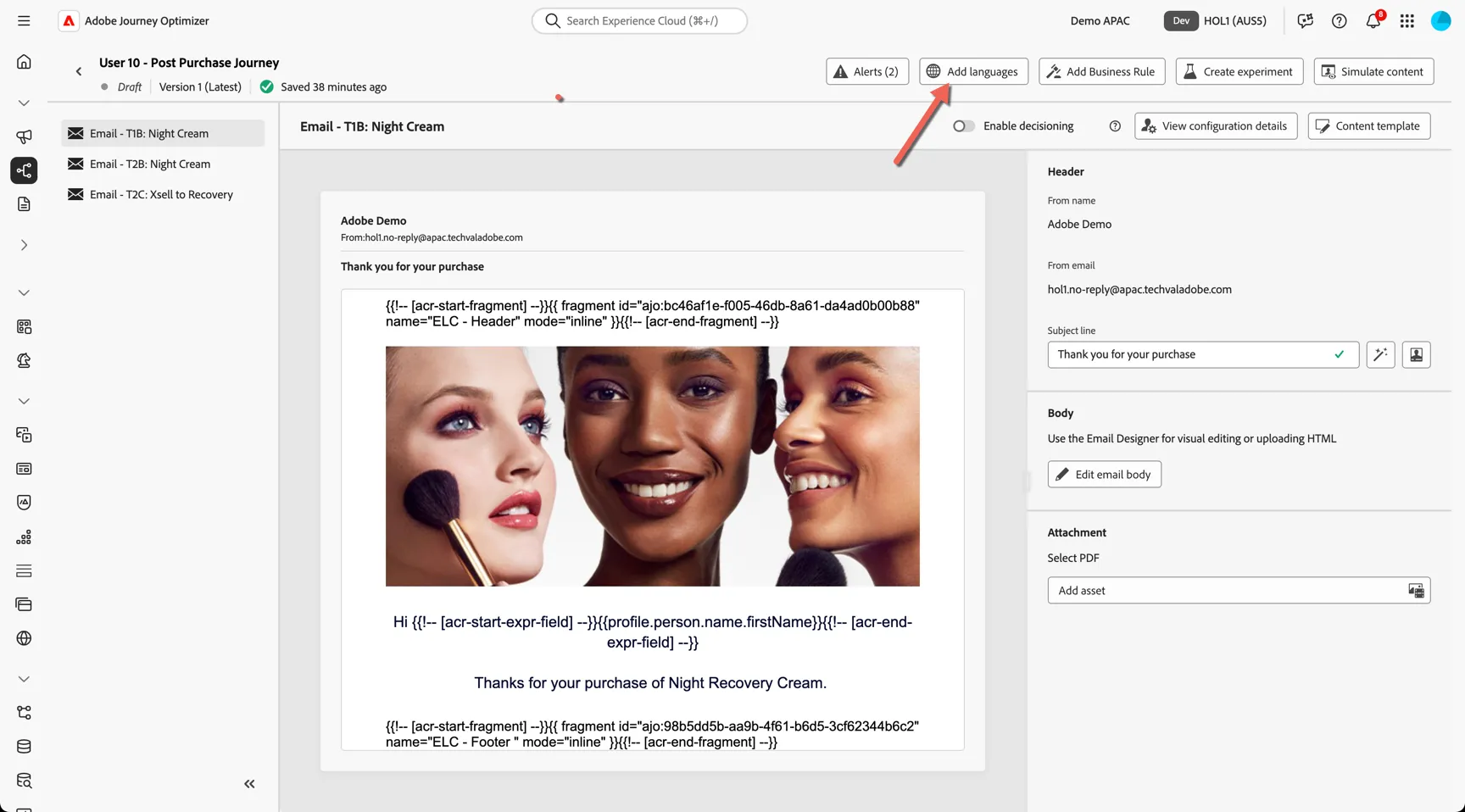
Select the AutoTranslate_EN_to_JA_CN_TH from the language settings. This is connected to Azure Translation services and will automatically add a Japanese, Thai and Traditional Chinese version to your email.
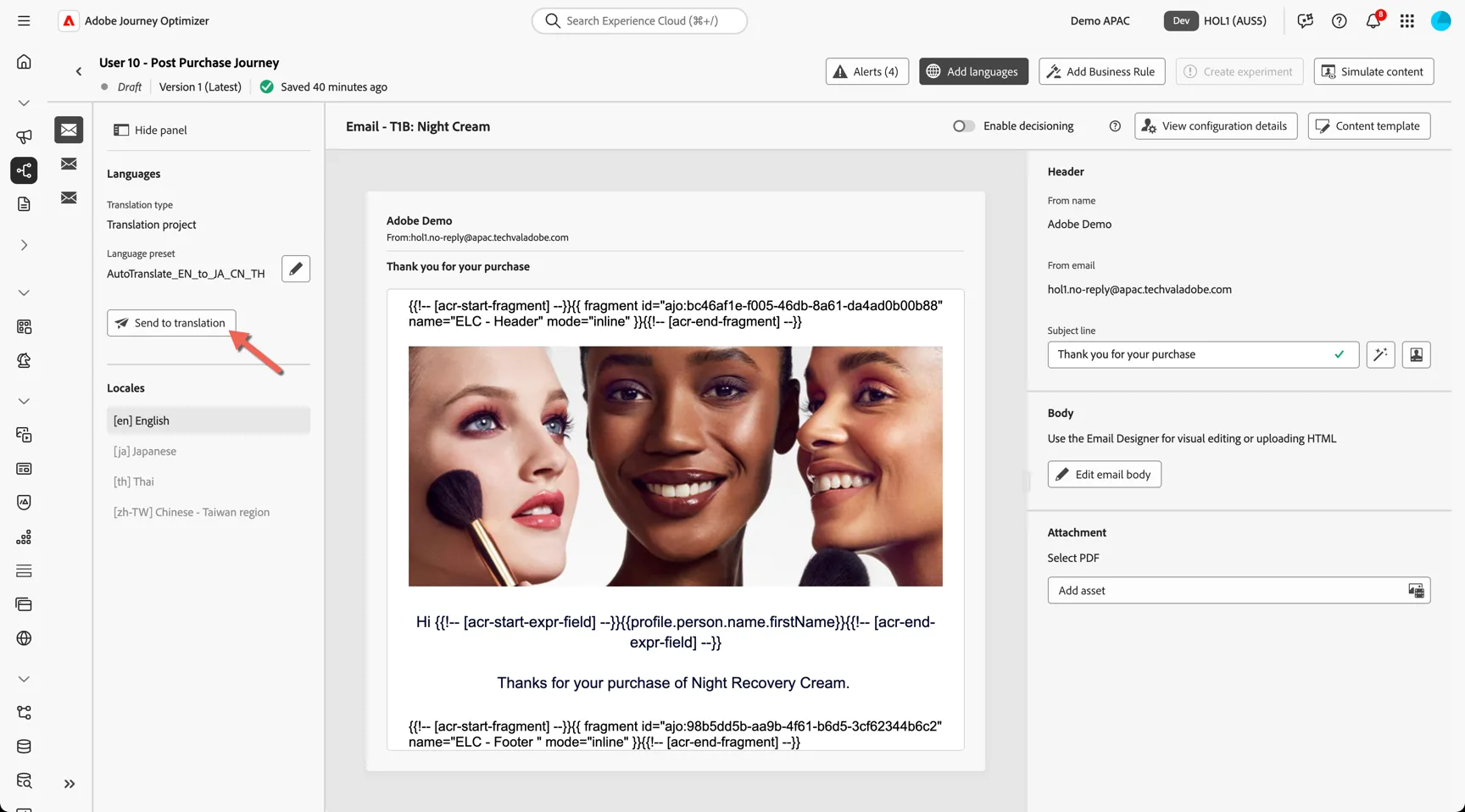
Click to Send to Translation
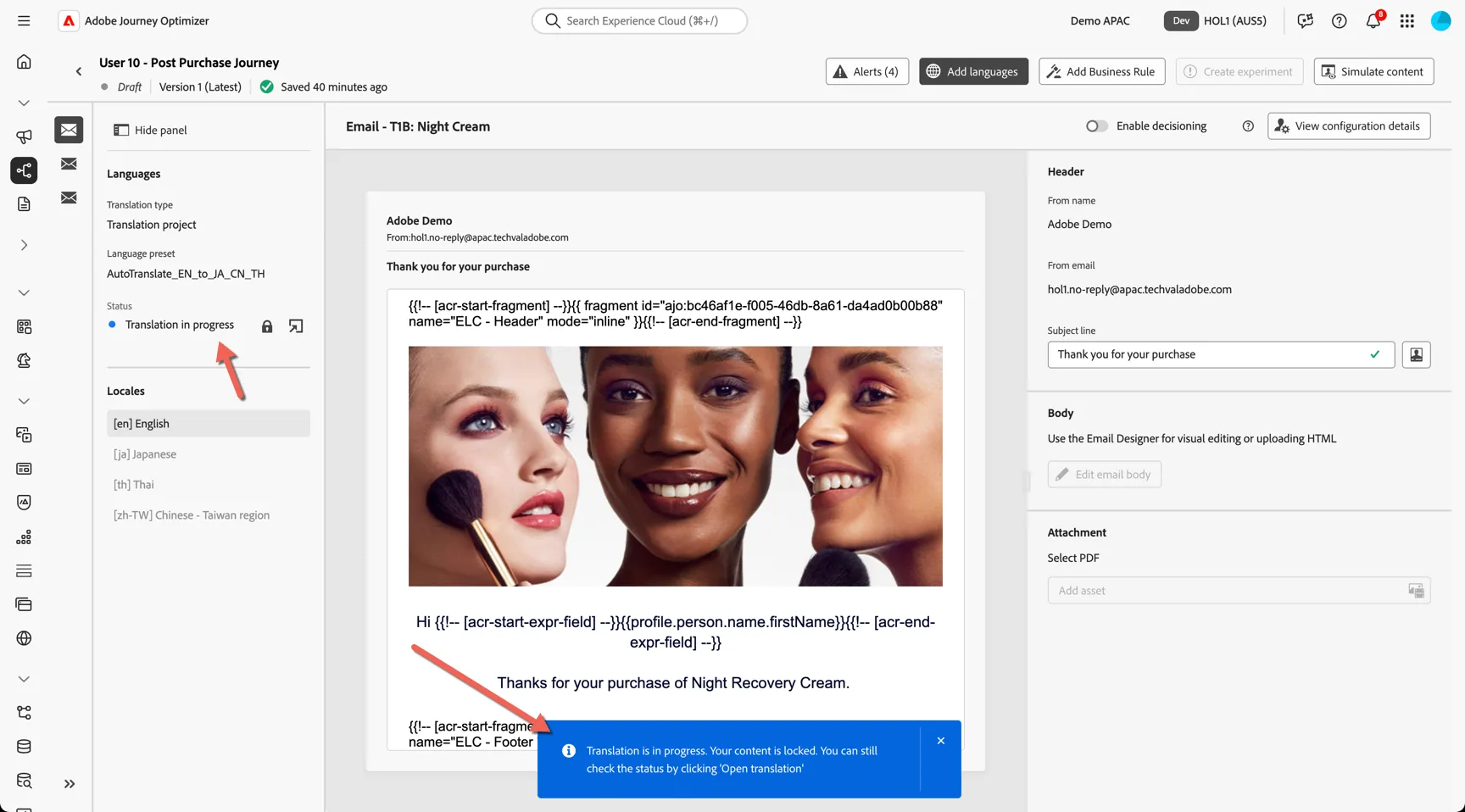
The translation job has started, we'll come back and review the output later.
2.3 AI Assistant and Brand alignment
Next we'll configure the T2 emails. For these we'll use AI Assistant to help us generate variations of this content to use for A/B testing. AI Assistant can be used to generate individual images or text components but in this case we're going to generate new variations of the full email.
Return to the journey and select the T2B email and click Edit content.
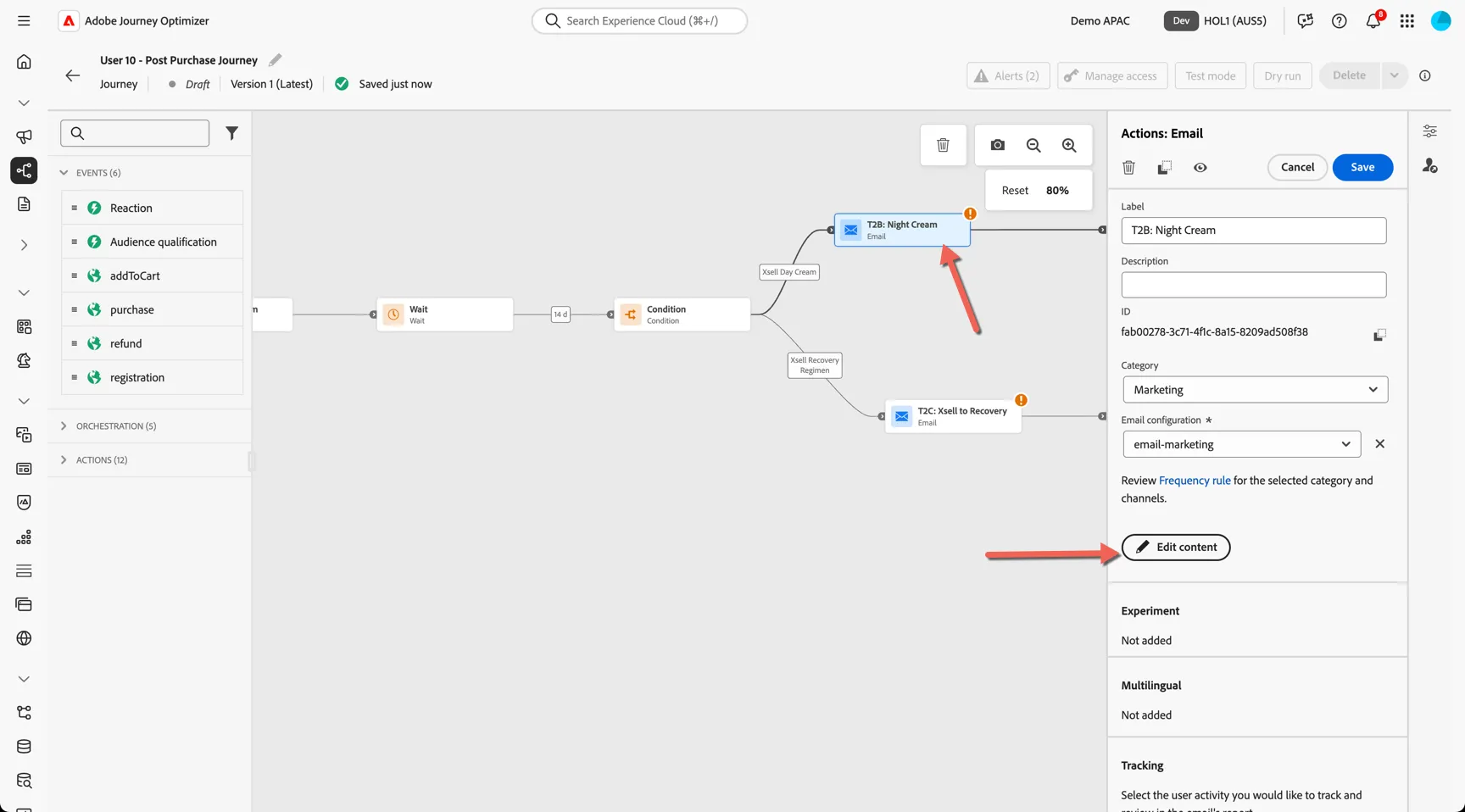
Add a subject line and click to edit the email body. Select the ELC - T2B email template as our starting point.
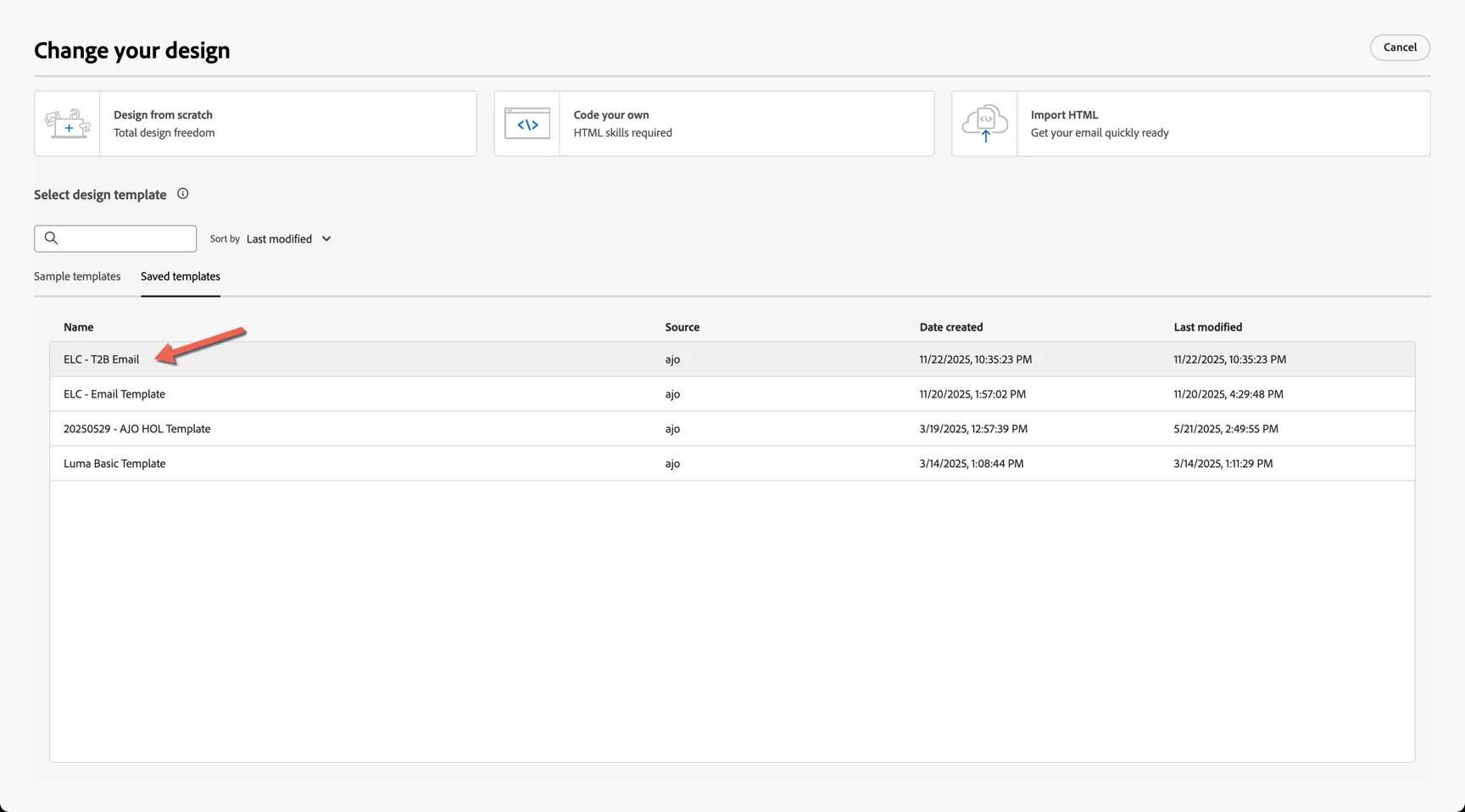
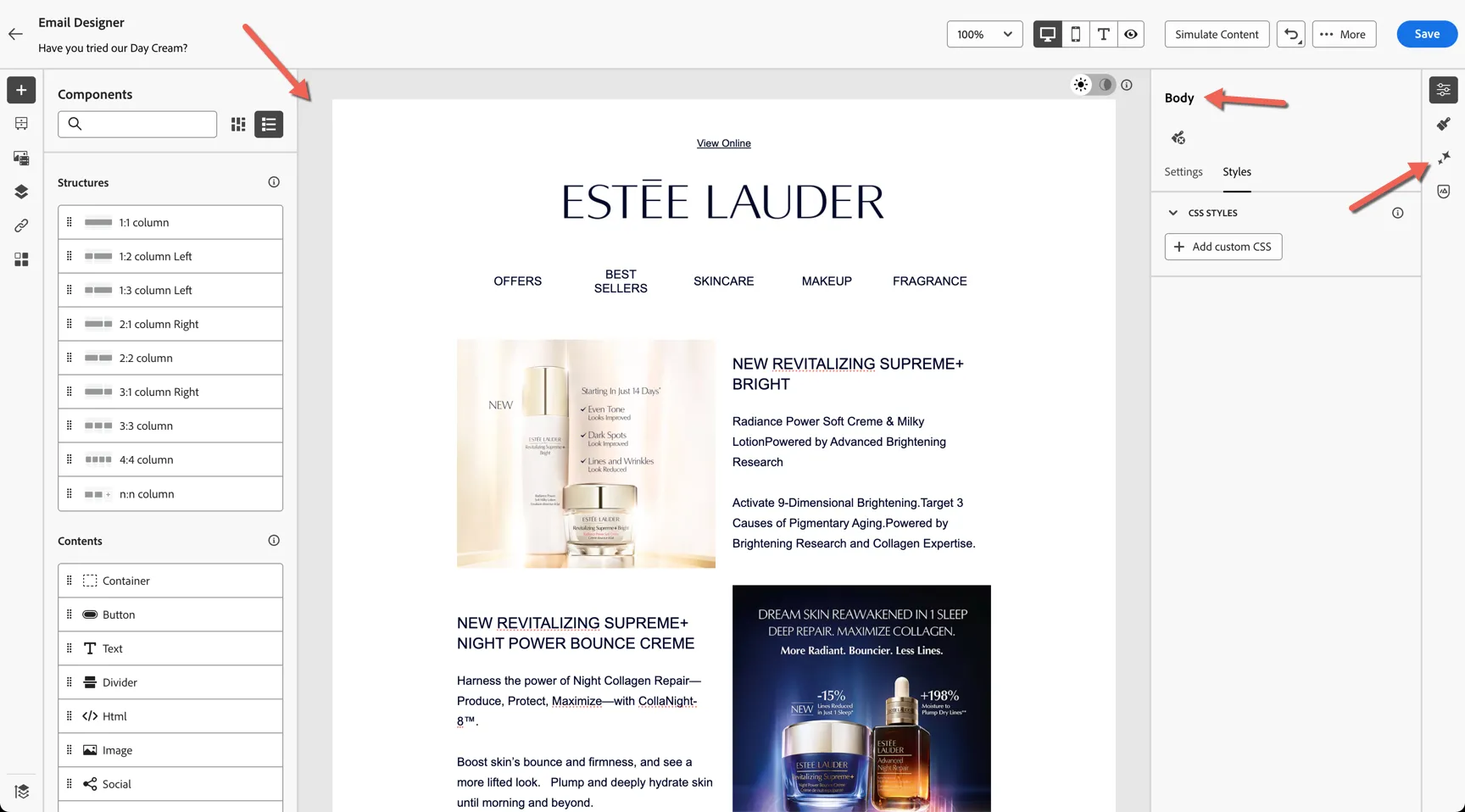
Make sure you have selected the Body of the email then click to open the AI Assistant.
Top Tip - To select the body click the lighter grey area surrounding the content of the email.
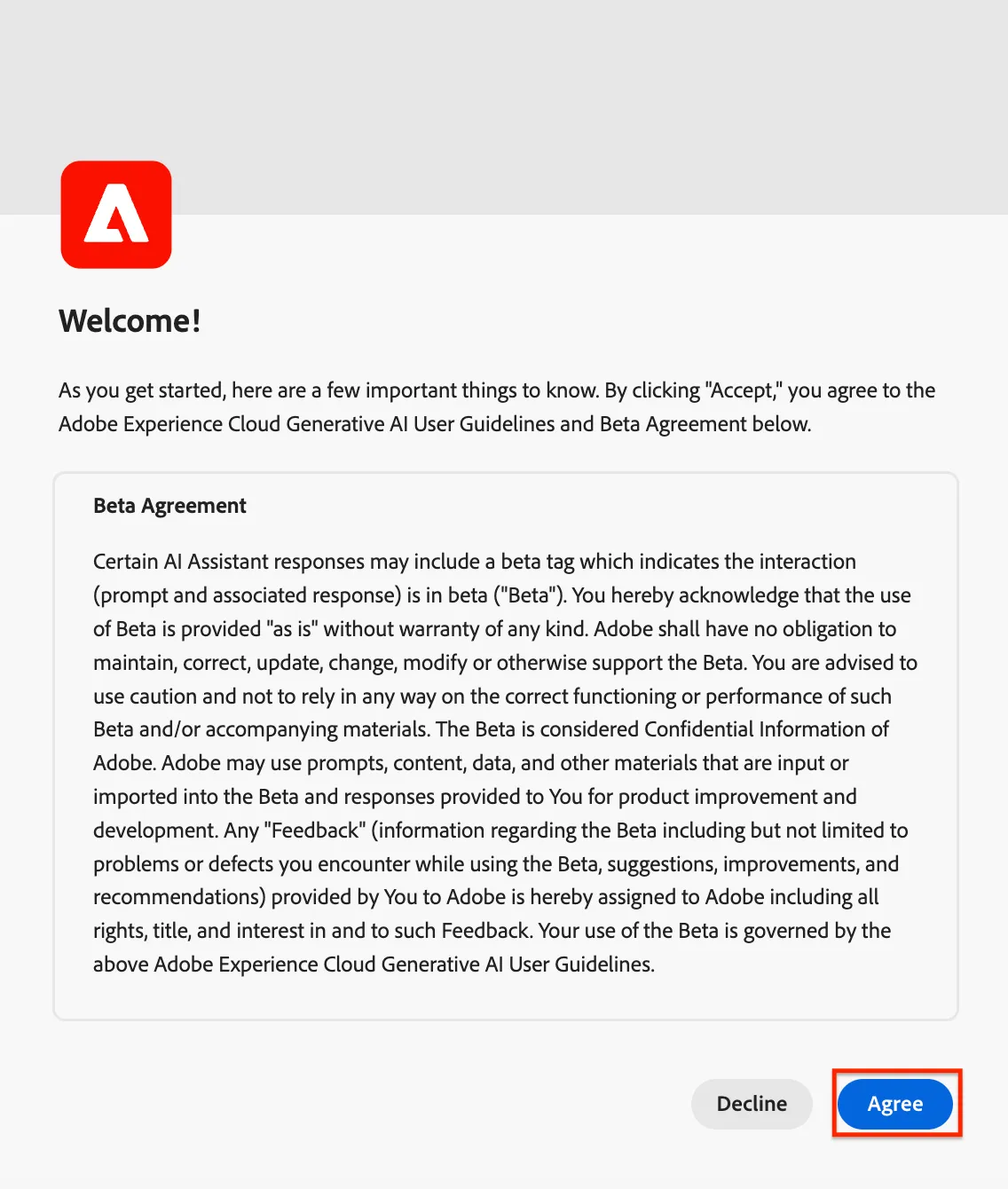
You might see an Agreement popup. If you do, scroll to the bottom and click Agree.
Before generating content we need to select the Brand Guidelines and provide a prompt. Make sure Estee Lauder is selected and add a prompt of your choosing. Select to generate subject line and Preheader also.
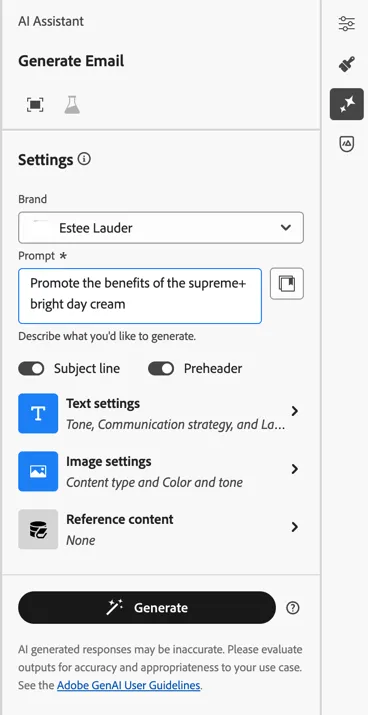
Update the Text settings to select the Tone, Language and Communication Strategy.
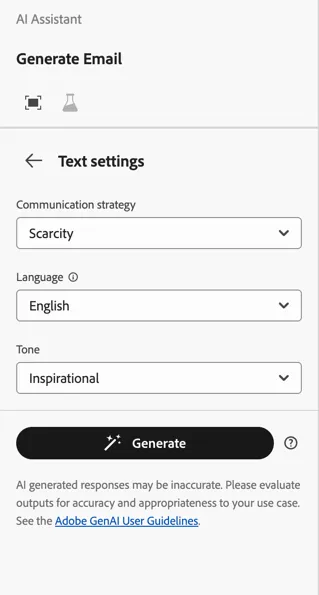
Once you're happy with the settings click to Generate. You will see two new variations of the content generated. Here, AI is being used not only to generate the text but also the imagery and other elements like CTAs.
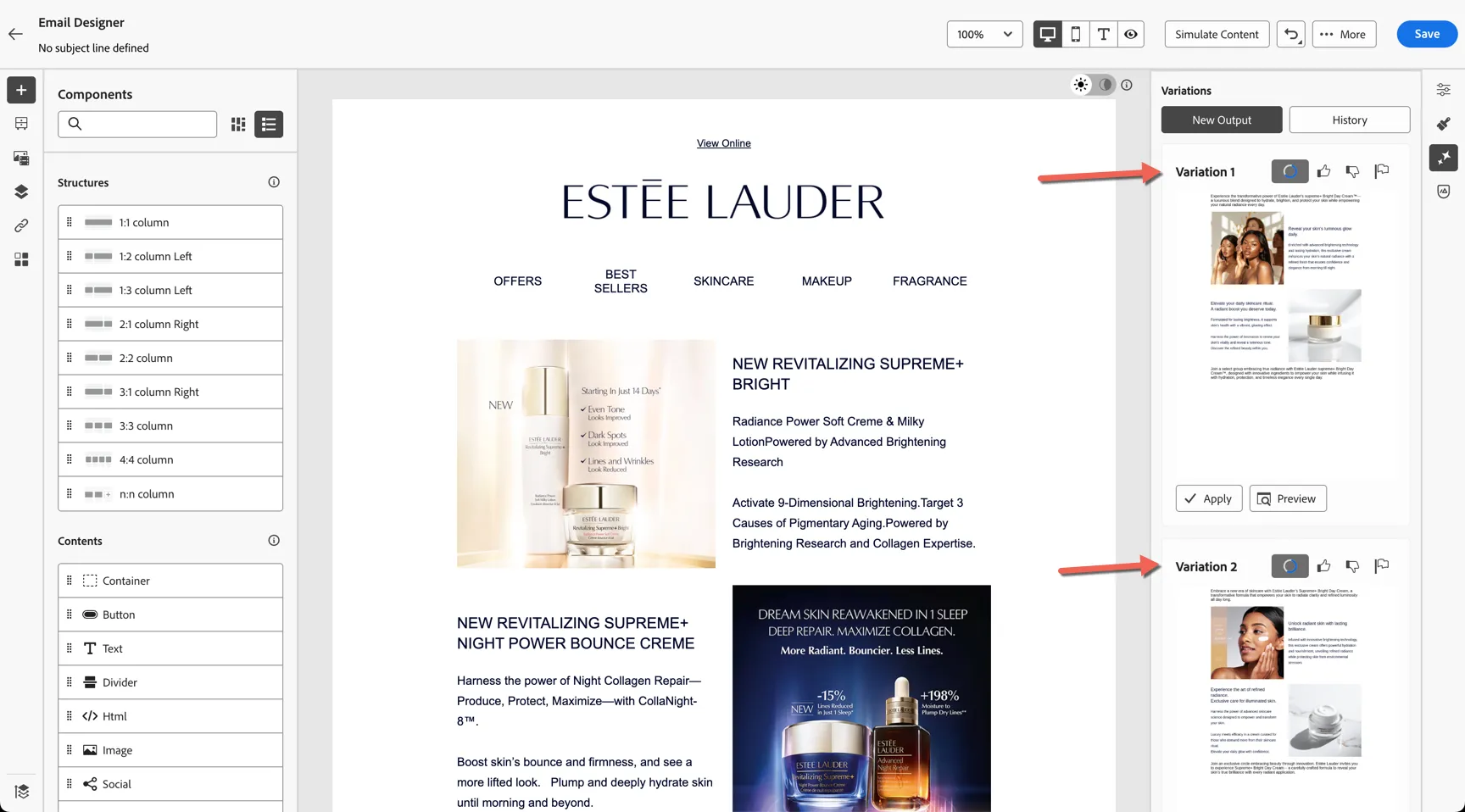
Click to Preview a variation. In this view you can review the content in detail, make updates to the prompt and regenerate if needed. It's also where you can review whether or not the content aligns to the Brand guidelines selected. Click on the Brand alignment.
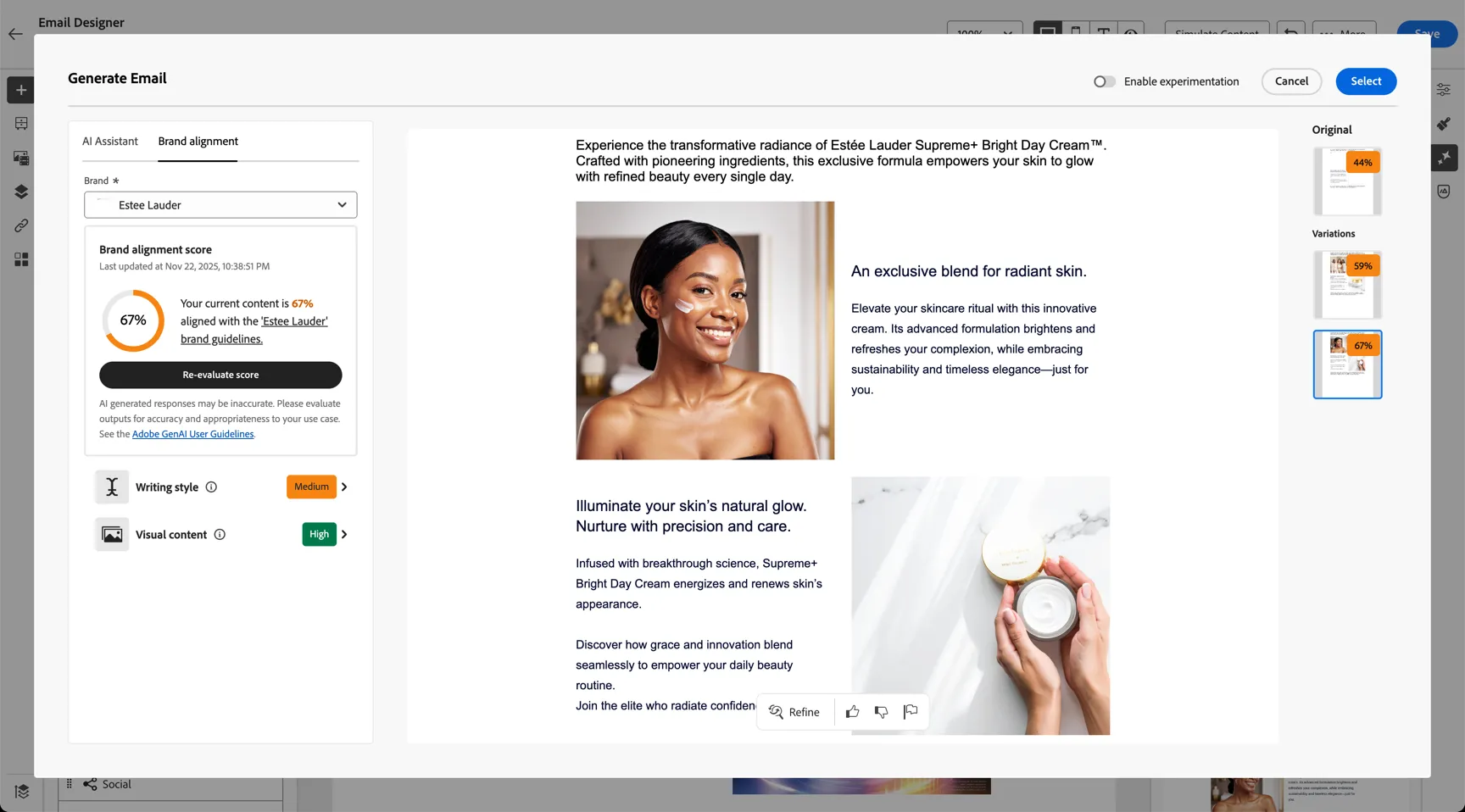
Here you'll see the brand alignment score. If it's below 100% you will be able to click on the brand elements such as Writing style or Visual content to get more detail why the content didn't meet 100%.
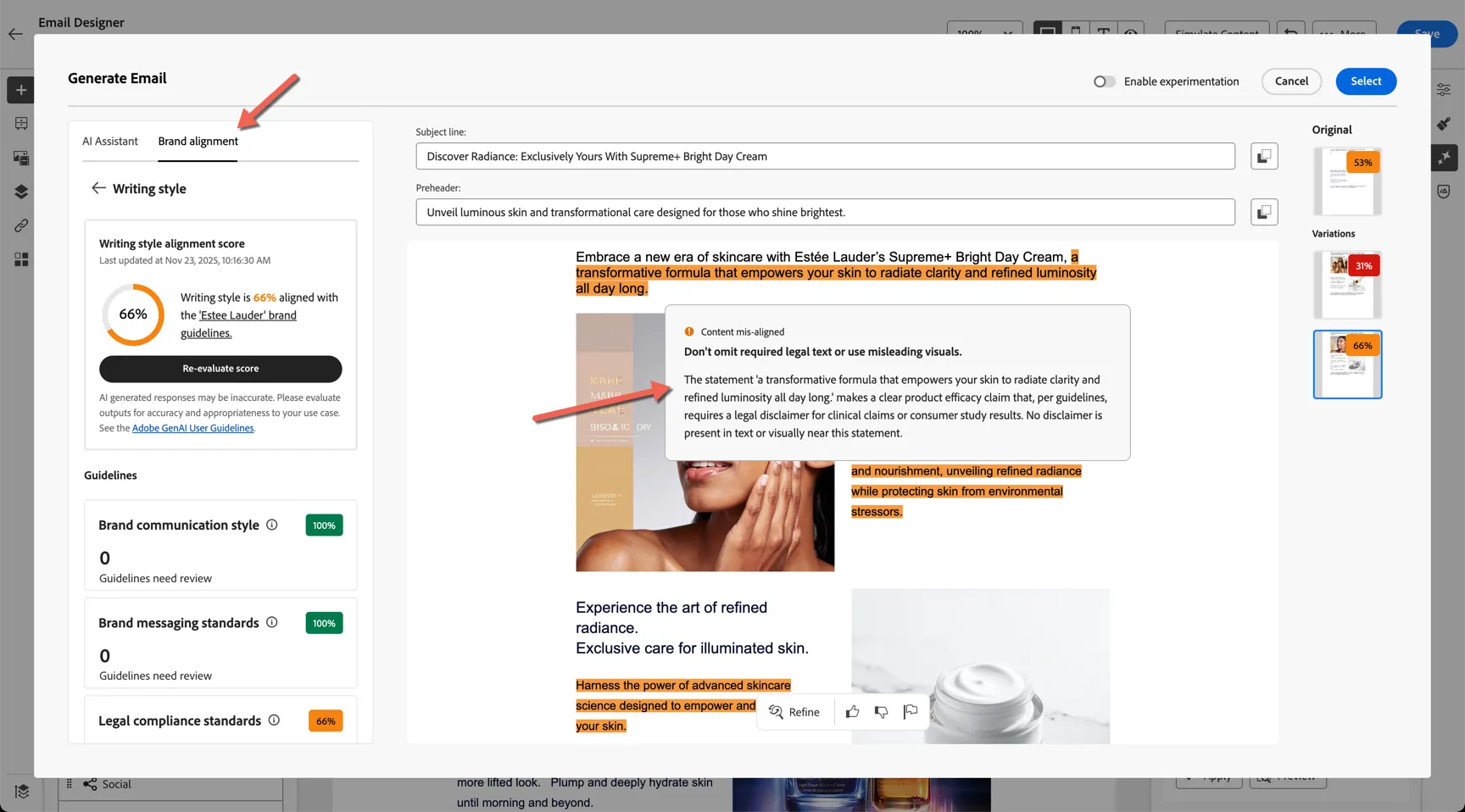
From here you can either select one of the variations to use as your email content or we can create an experiment and add the generated content as variations to test which performs the best. Click the Enable experimentation toggle. Choose one or both of the variations to Add to Experiment
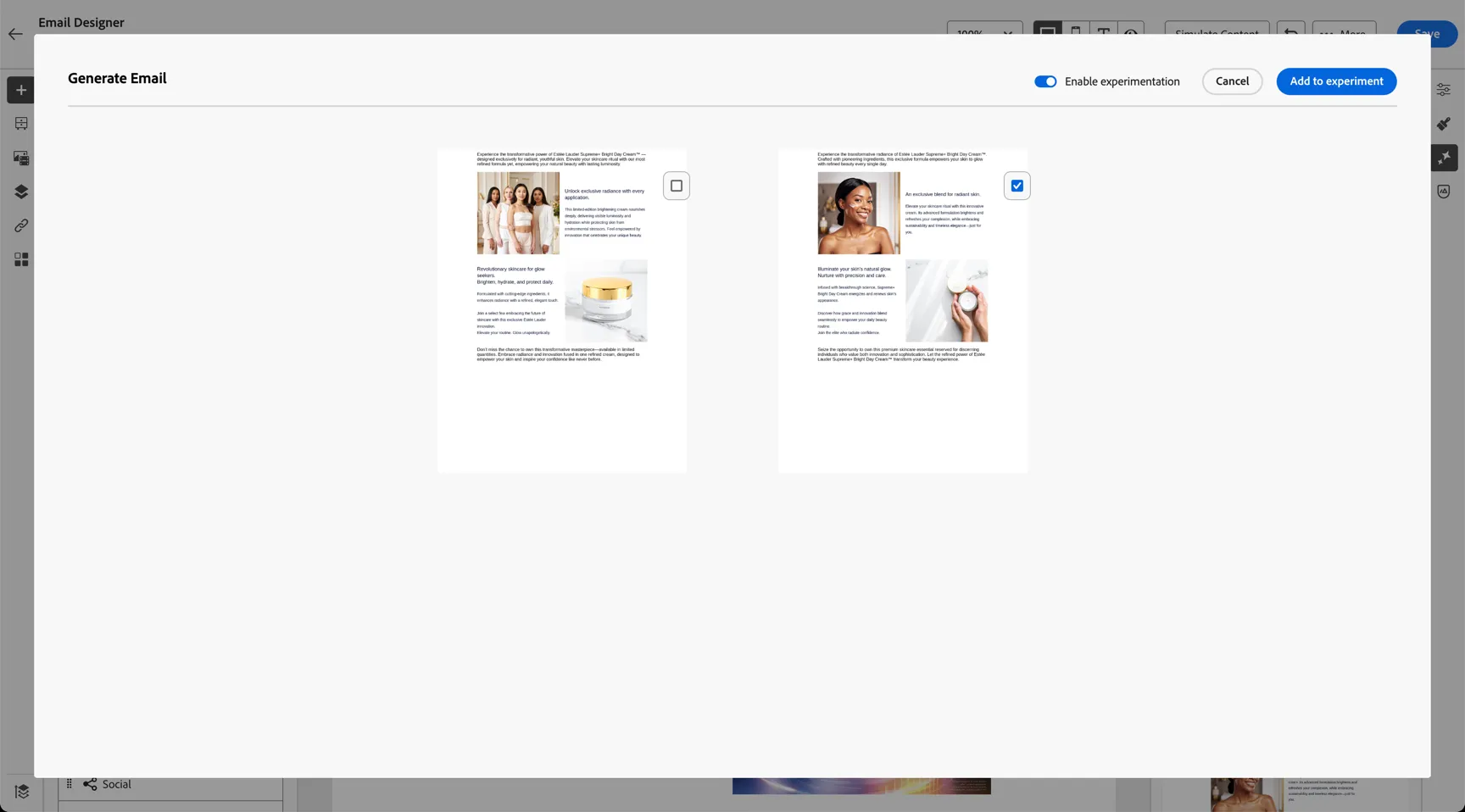
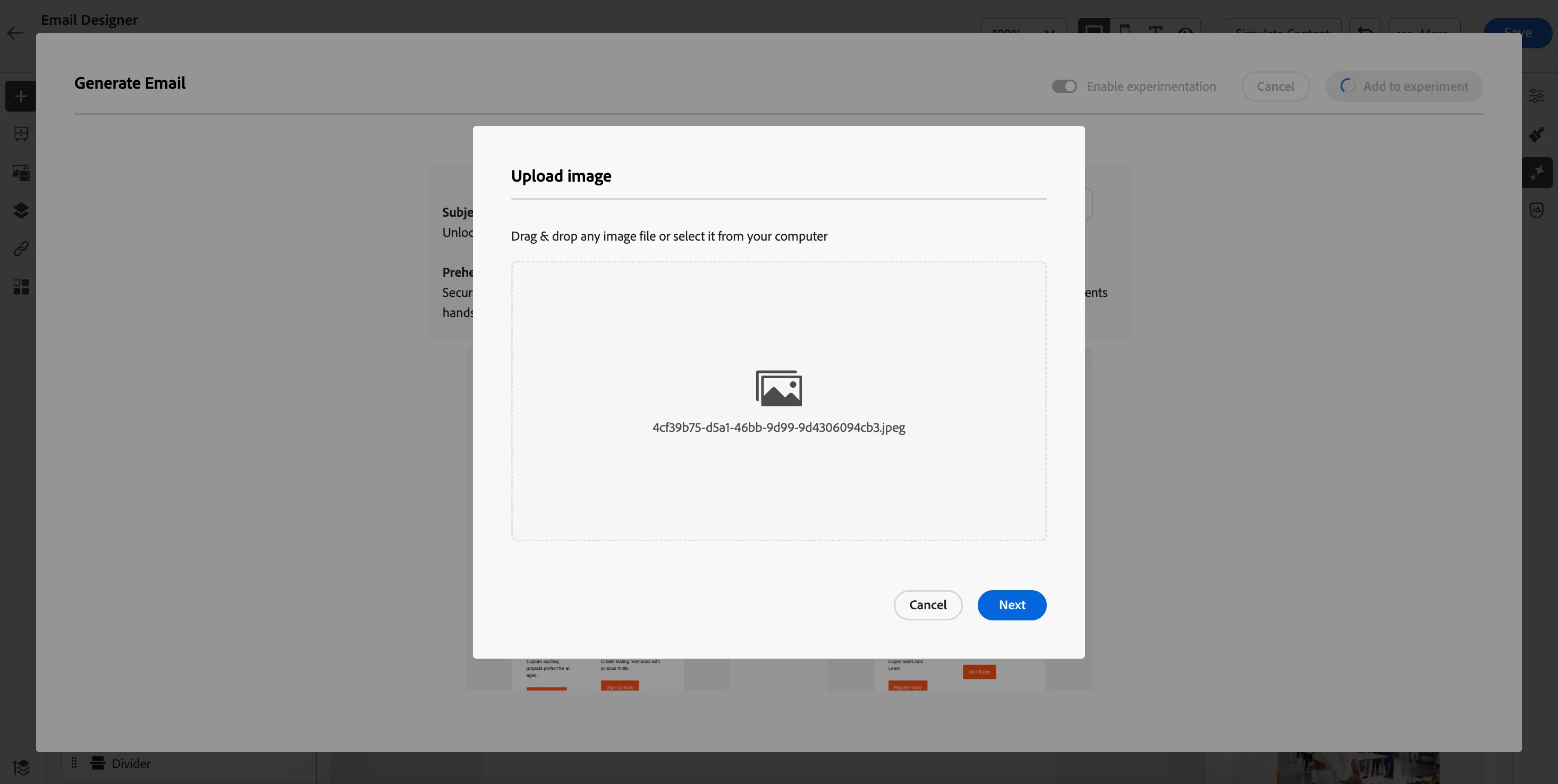
You need to specify where the generated images should go. AJO comes with Adobe Experience Manager Assets Essential which is a a lightweight, cloud-native digital asset management (DAM) solution designed for creative and marketing teams to store, manage, find, and distribute digital assets.
Having an integrated DAM is a differentiator and empowers your teams to scale and get campaigns to market faster. Click Next when the Upload image dialog appears.
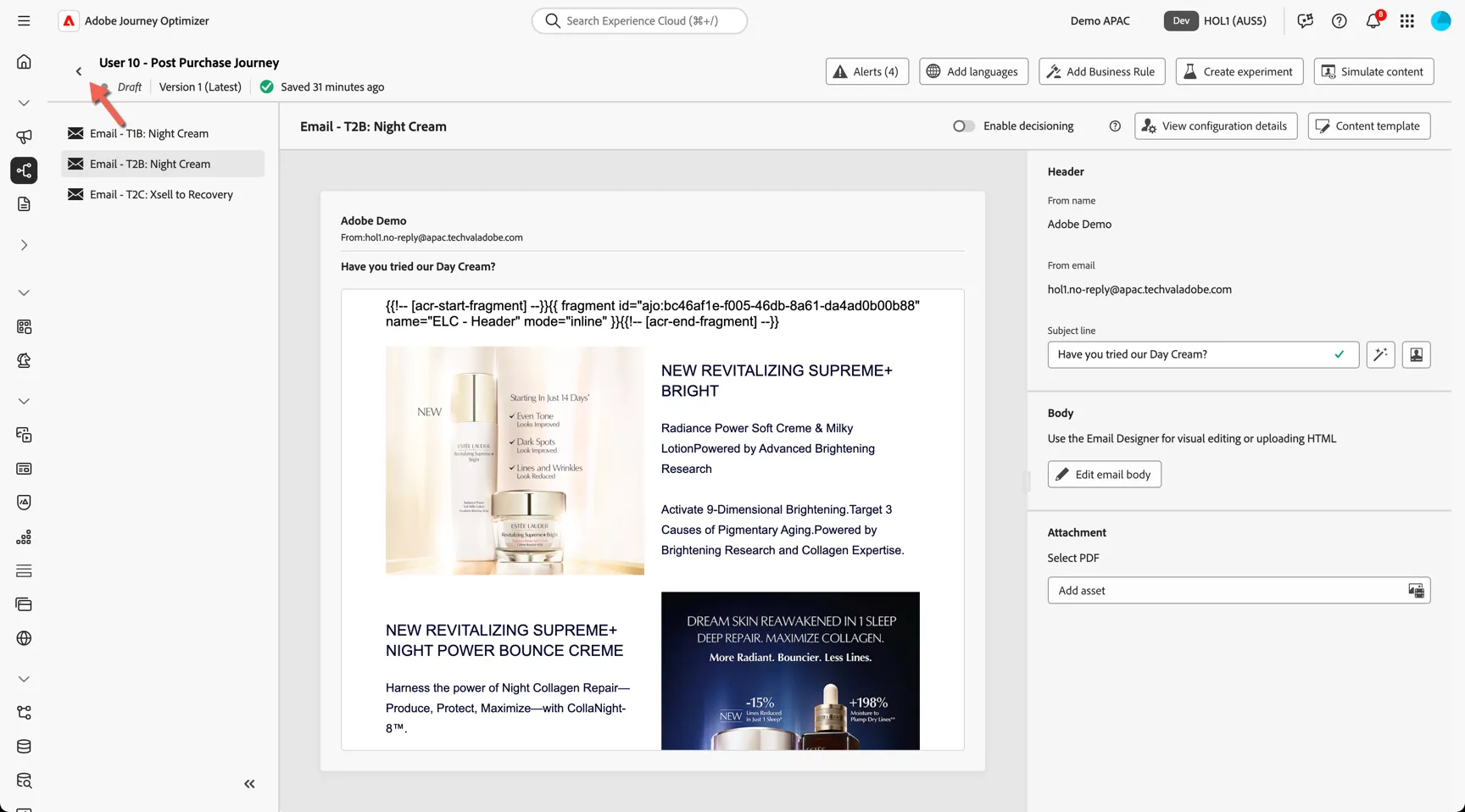
Click the top left arrow to return to the journey.
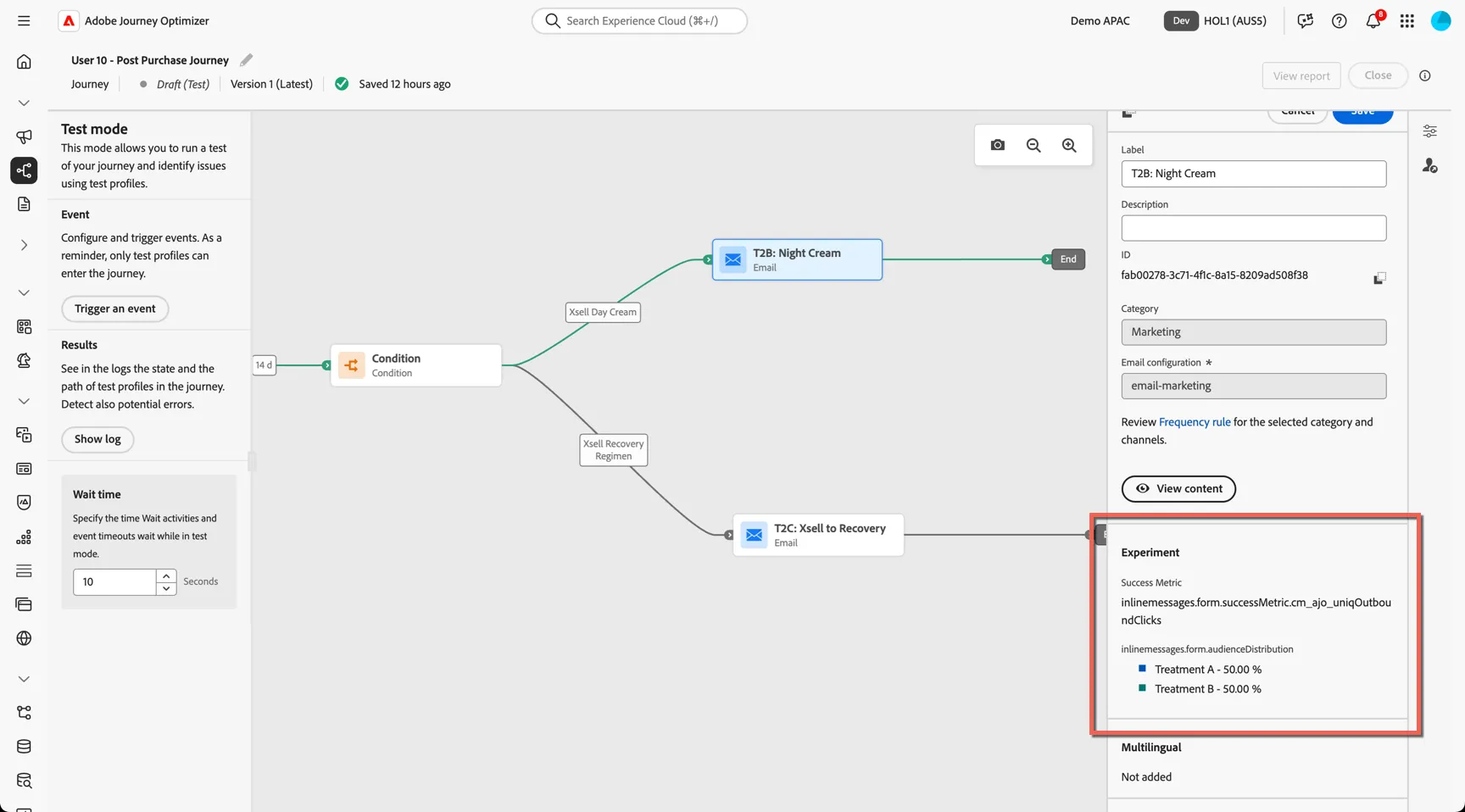
You can see the experiment configuration in the email properties from the journey canvas. Click to Save the email.
Lastly we'll add some content to the T2C Email action.
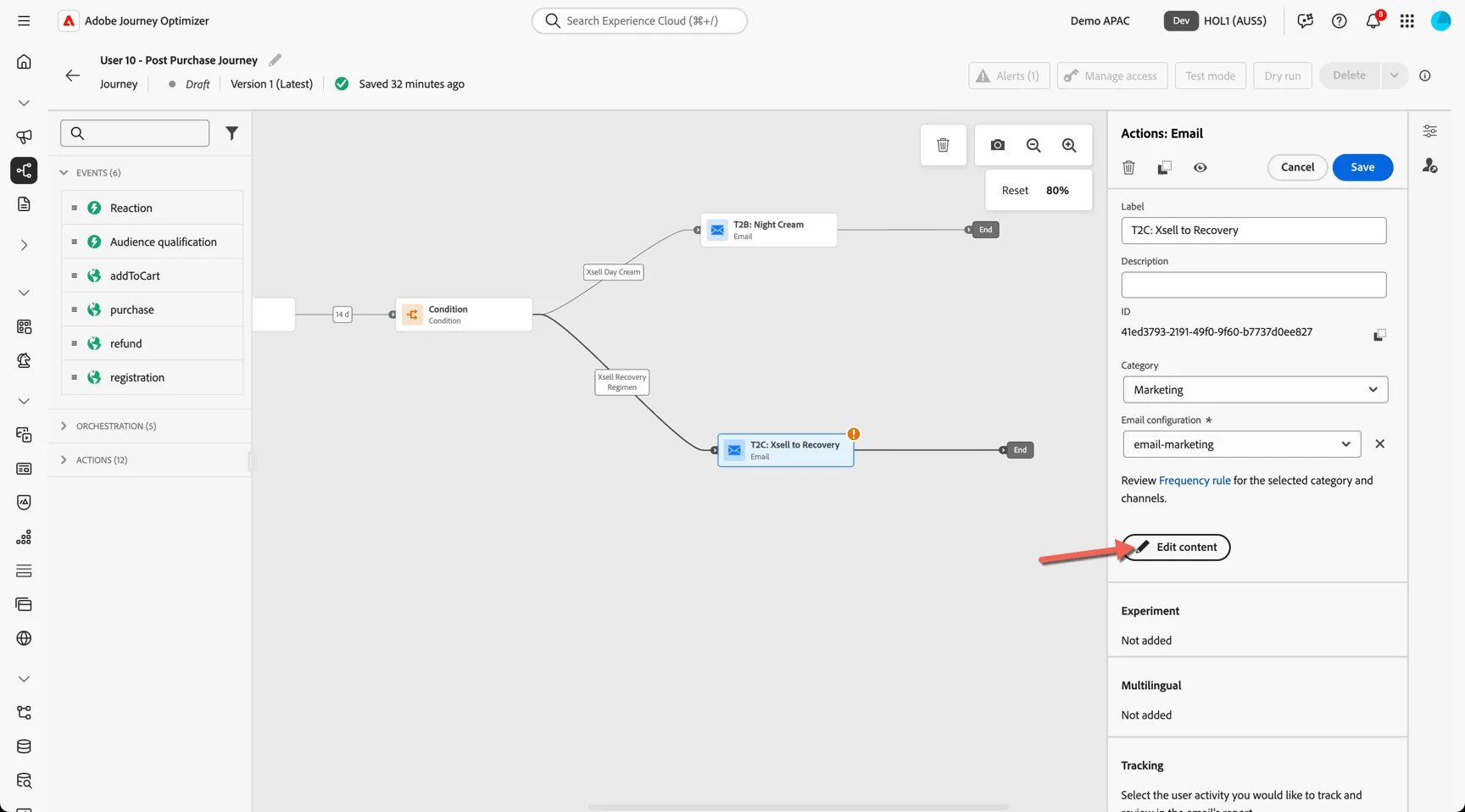
Add a subject line and select the pre-built T2C Email template
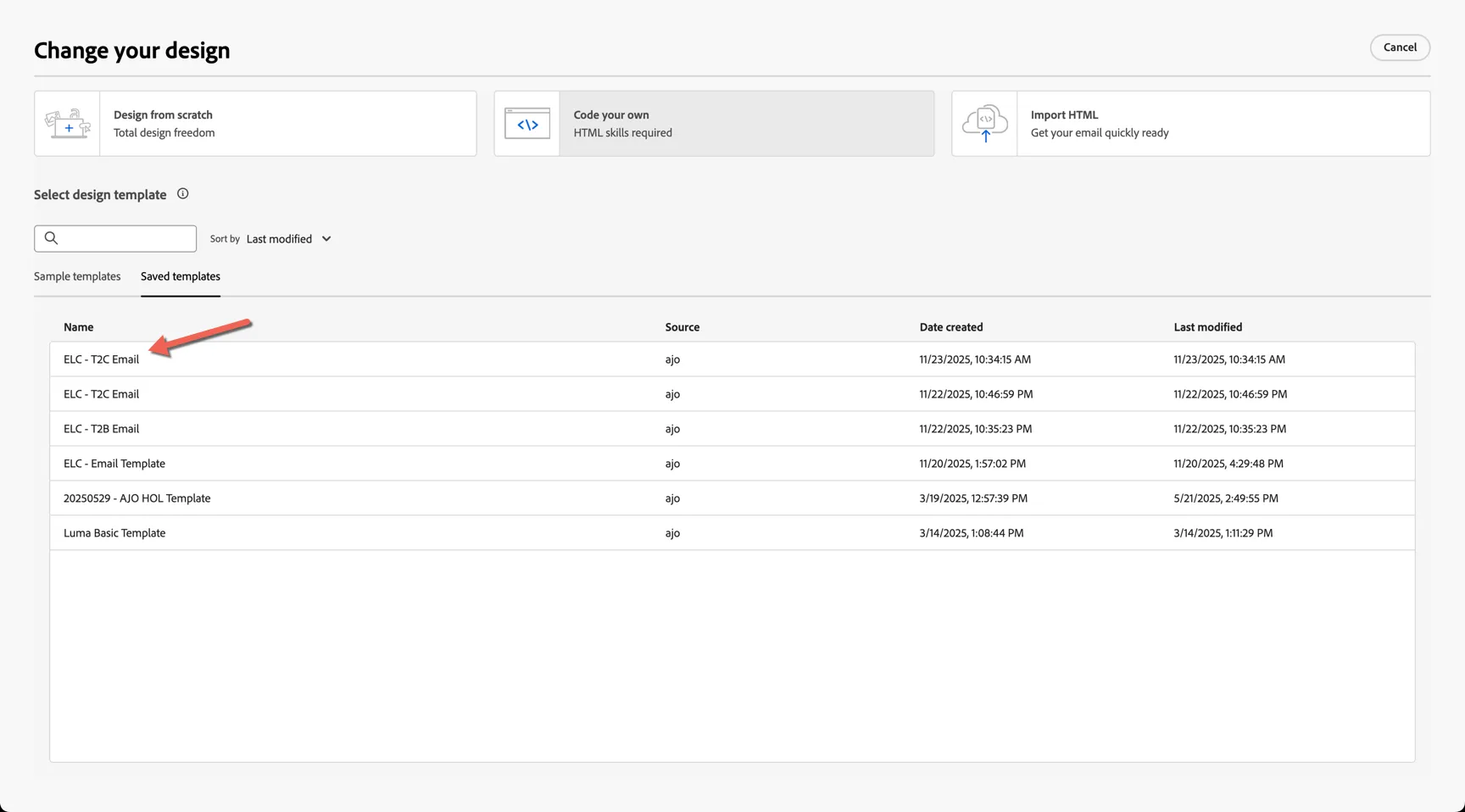
Click to Save and exit back to the journey.
Congratulations your journey is now configured with content, next we'll run some tests to verify the logic and check the content.
2.4 Test your journey
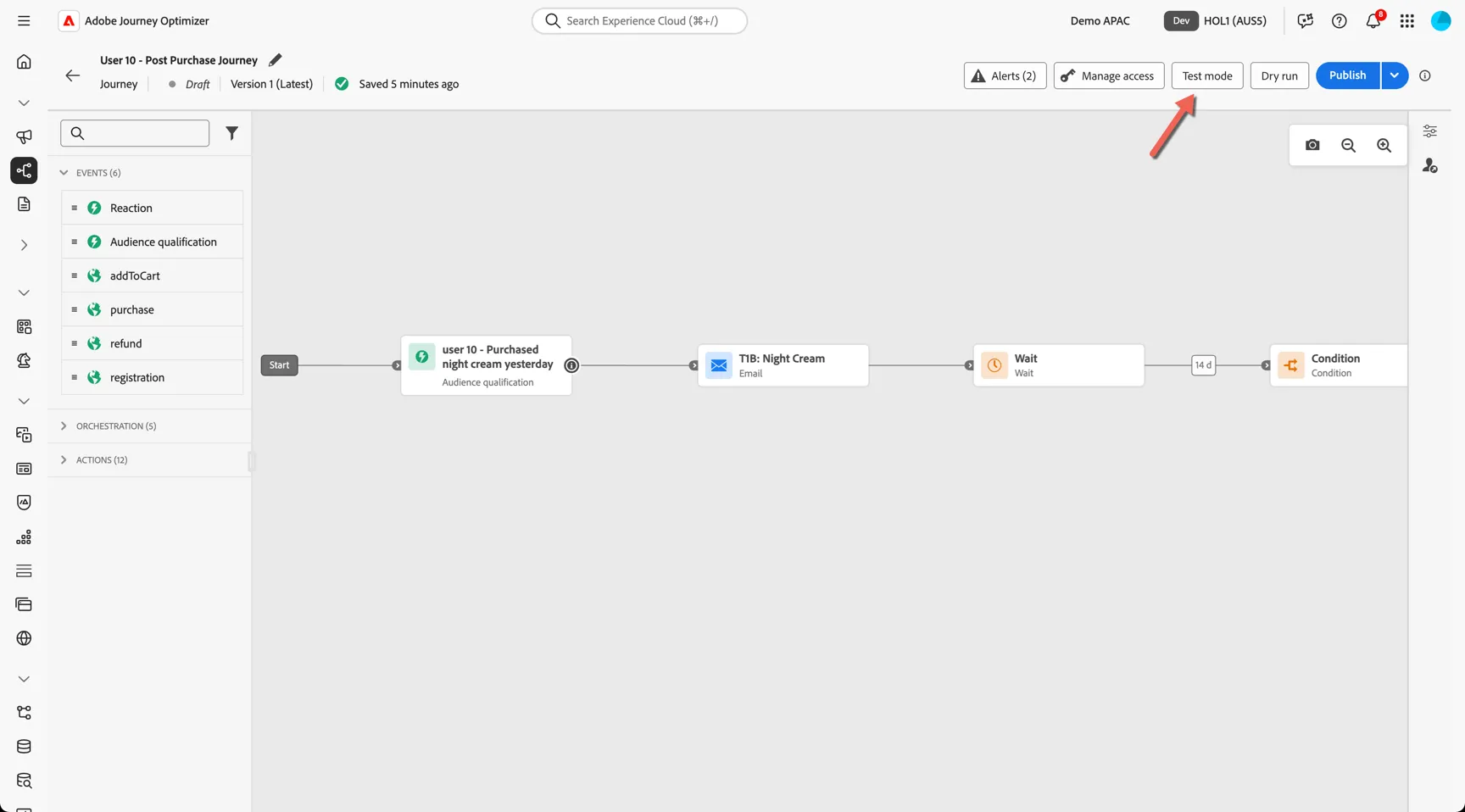
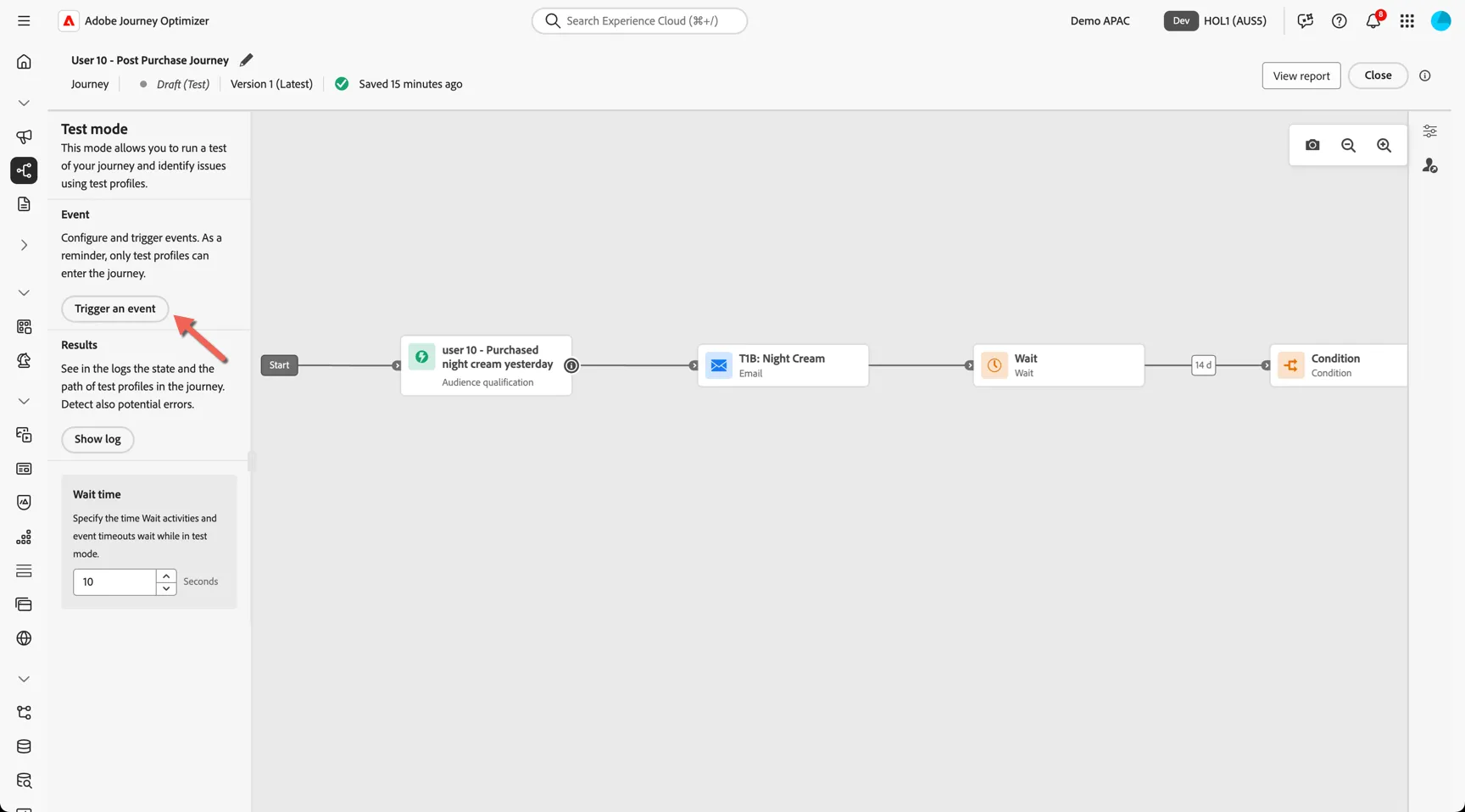
Click to move your journey to Test Mode
In Test Mode, the wait times are reduced so you can test the logic without waiting 14 days.
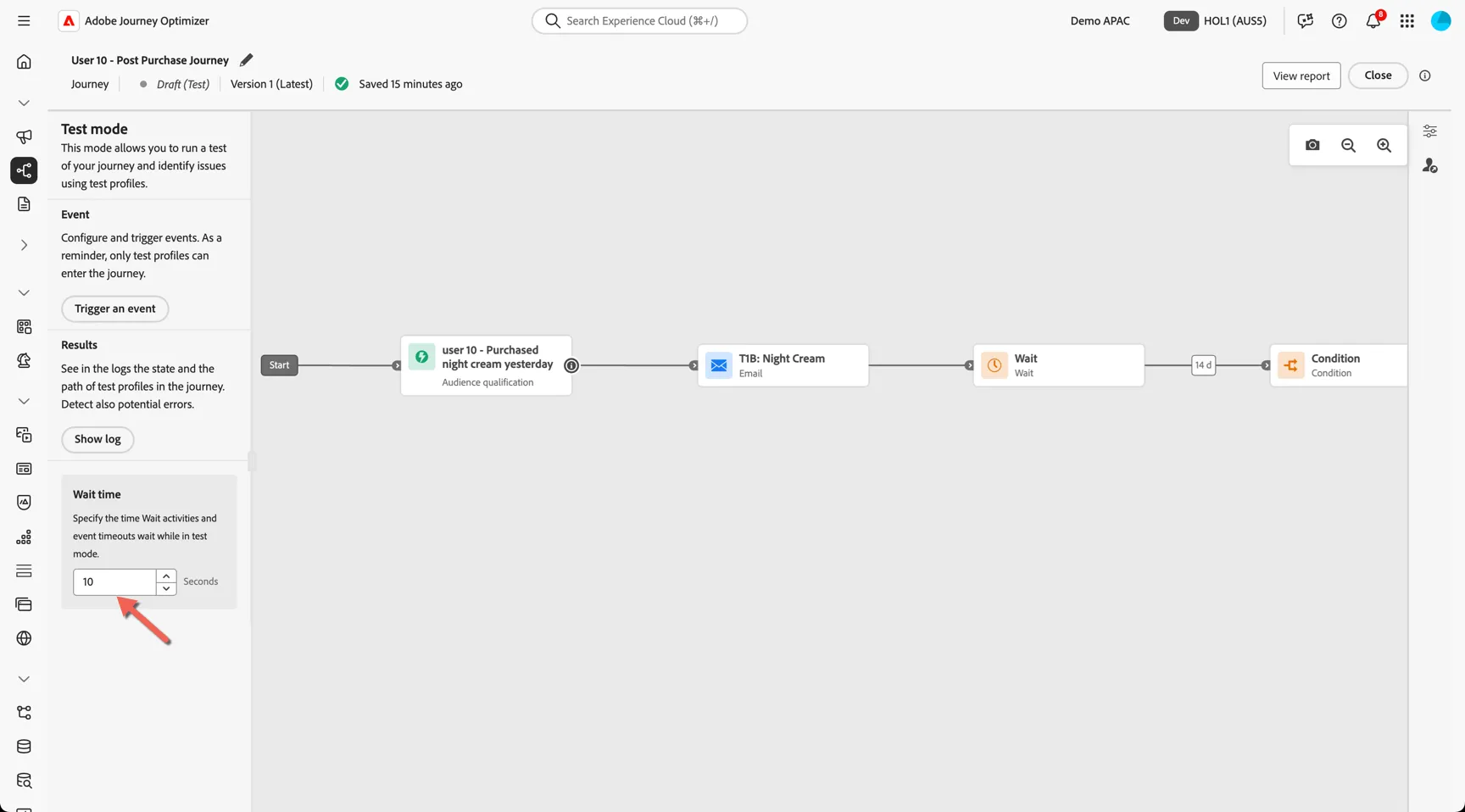
Click to Trigger an Event.
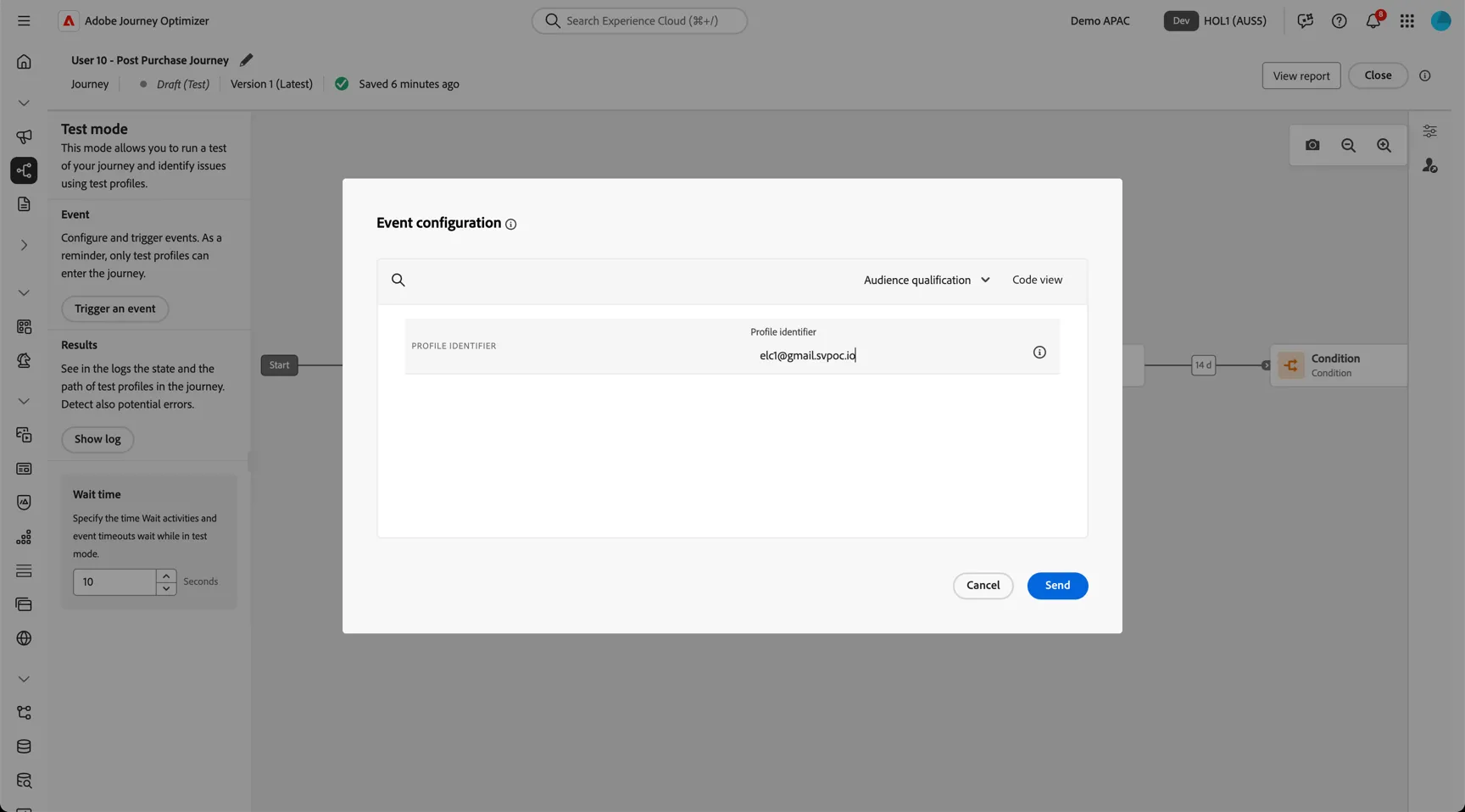
Enter the email address you saved from Lab 1 as the profile identifier.
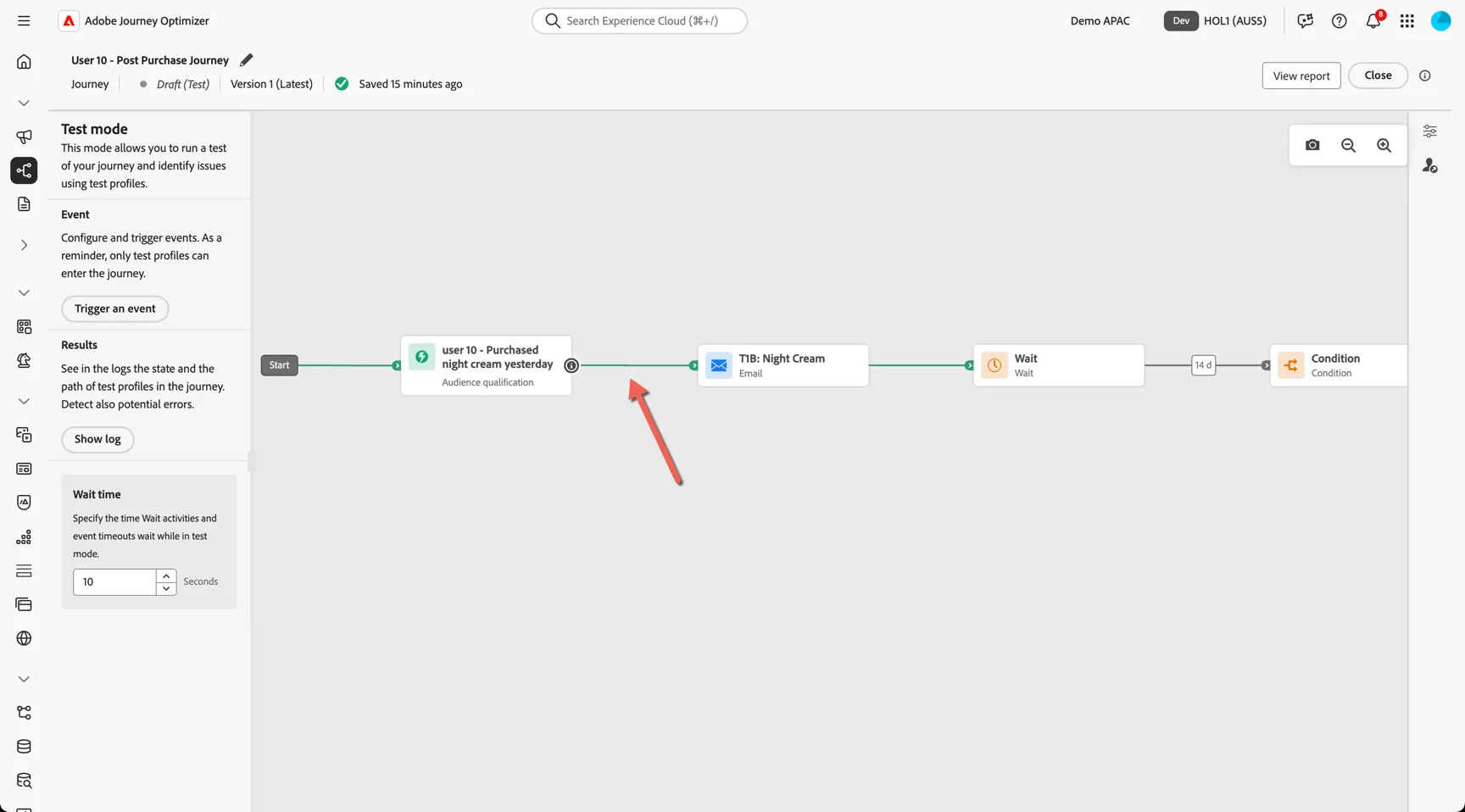
The path that the test profile takes through the journey will turn green.
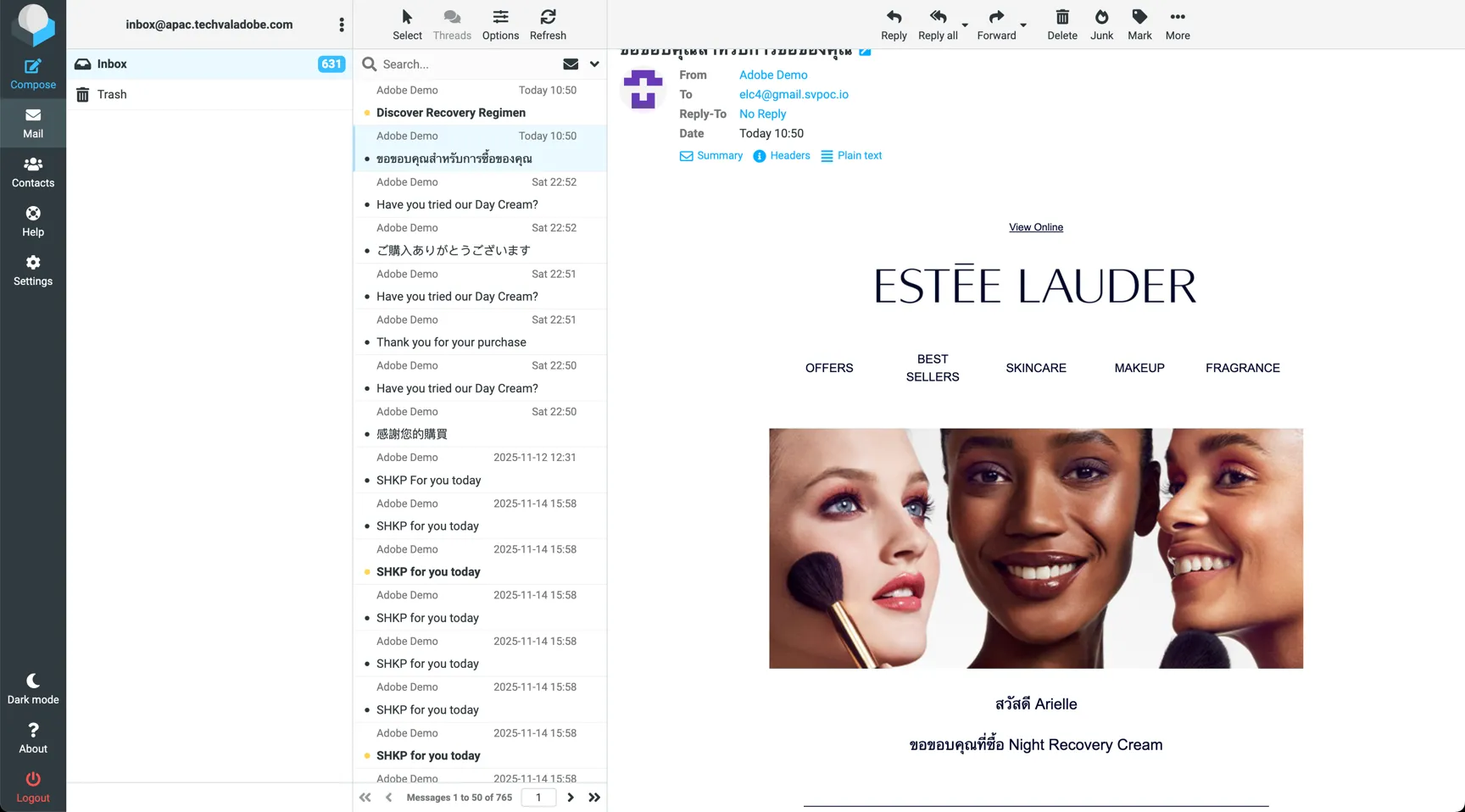
The test emails will land in our mail catcher and will be displayed on by the moderator!
Summary
Congratulations, you've successfully created a multi-step post purchase journey with cross sell based on historical purchase behaviour! You've used AI Assistant to quickly generate variations without compromising on brand integrity.