Lab 3 - Web InApp Message
Learning Objectives
In this exercise you will:
- Learn how to configure a popup message to appear on the website when the profile belongs to a specific audience
Scenario
We're going to rebuild the web popup campaign that was shown the demo. The popup is shown only to profiles who are part of the ELC - Purchased ANR twice in last year audience.
3.1 Create Web InApp Campaign
InApp messages can be configured either within the context of a journey or as their own Campaign in isolation. For this exercise we will configure it in a campaign action. From the left navigation click to Campaigns and select the Action tab. Here you can see the list of actions already configured.
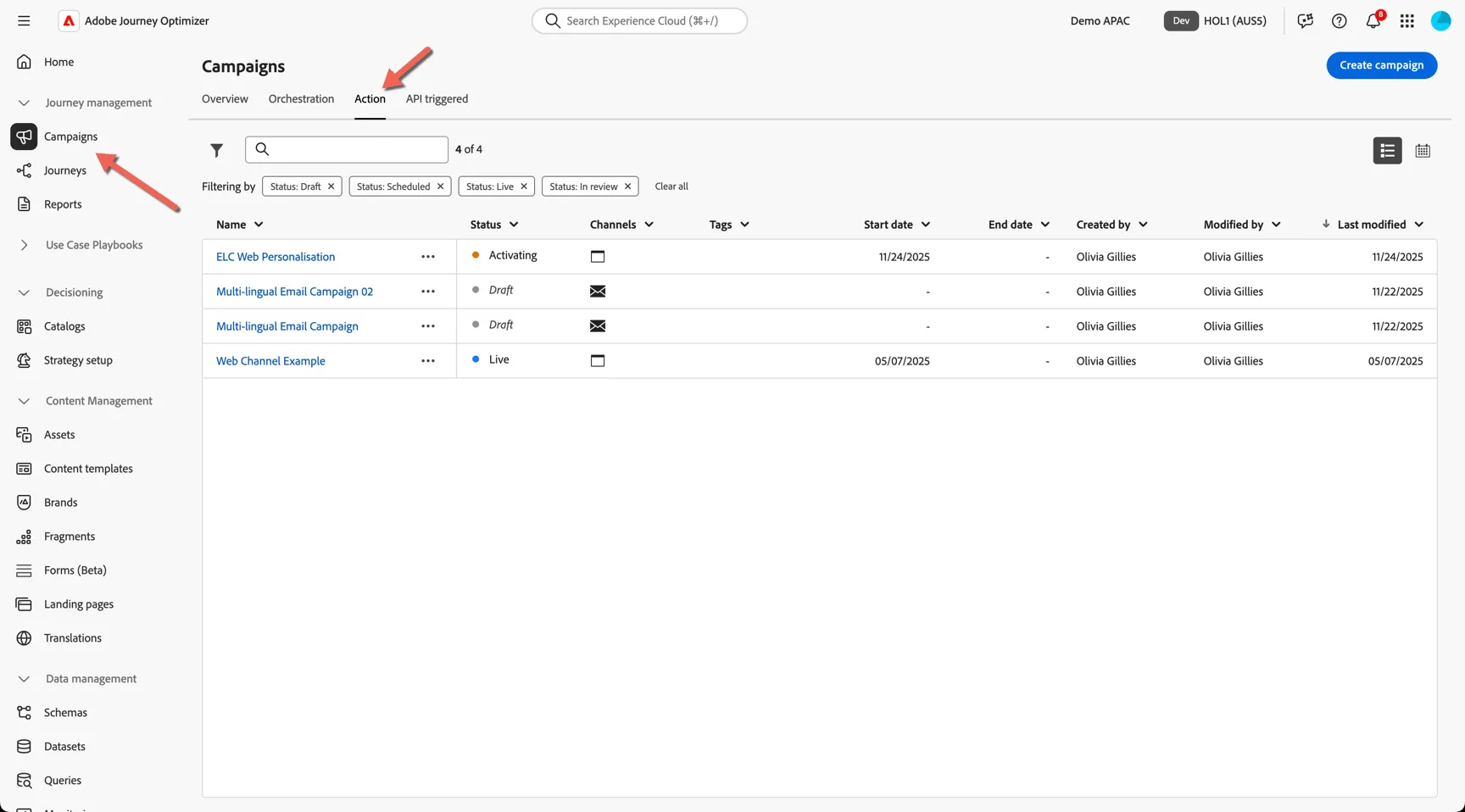
Click to Create campaign
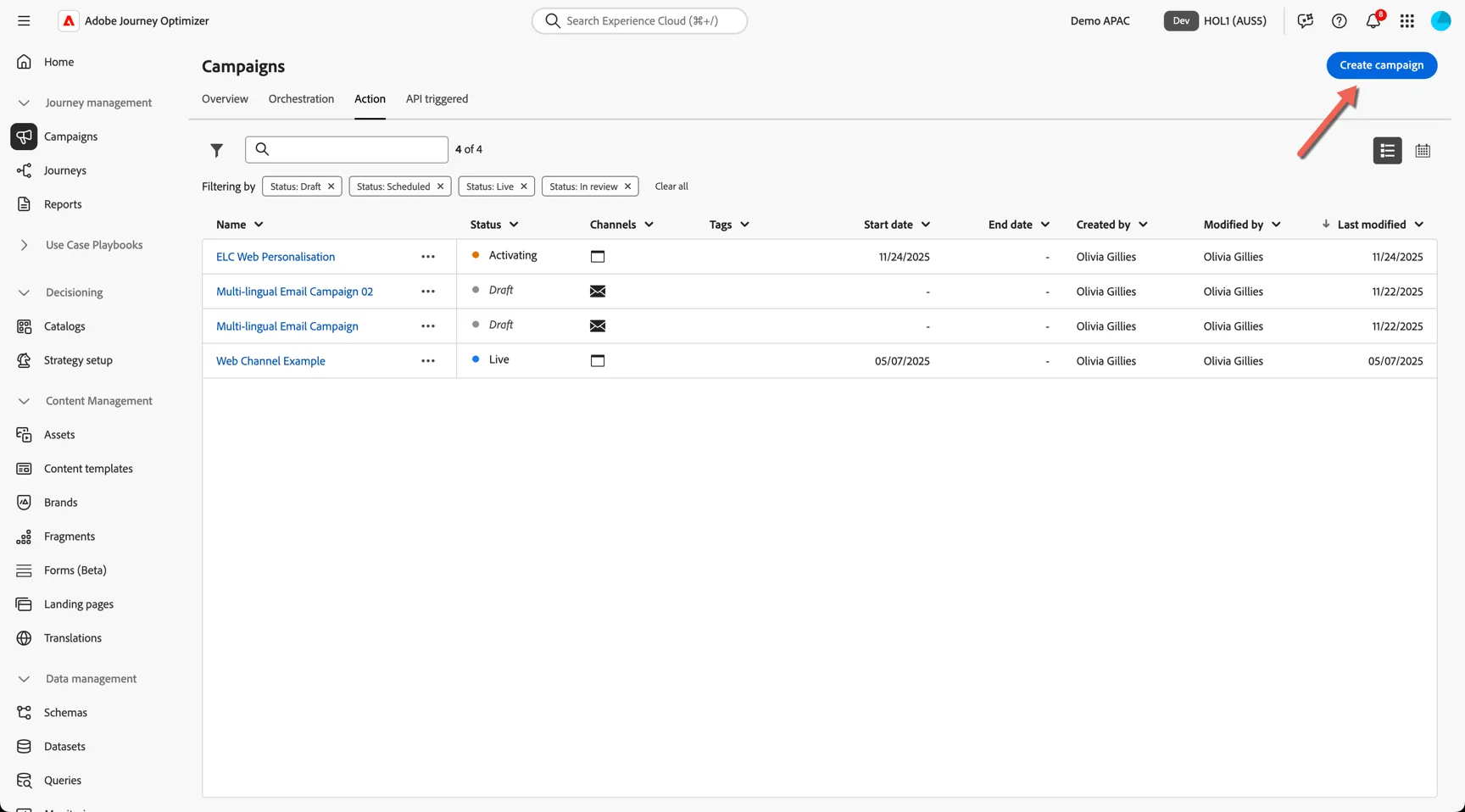
Select Scheduled - Marketing and click Confirm.
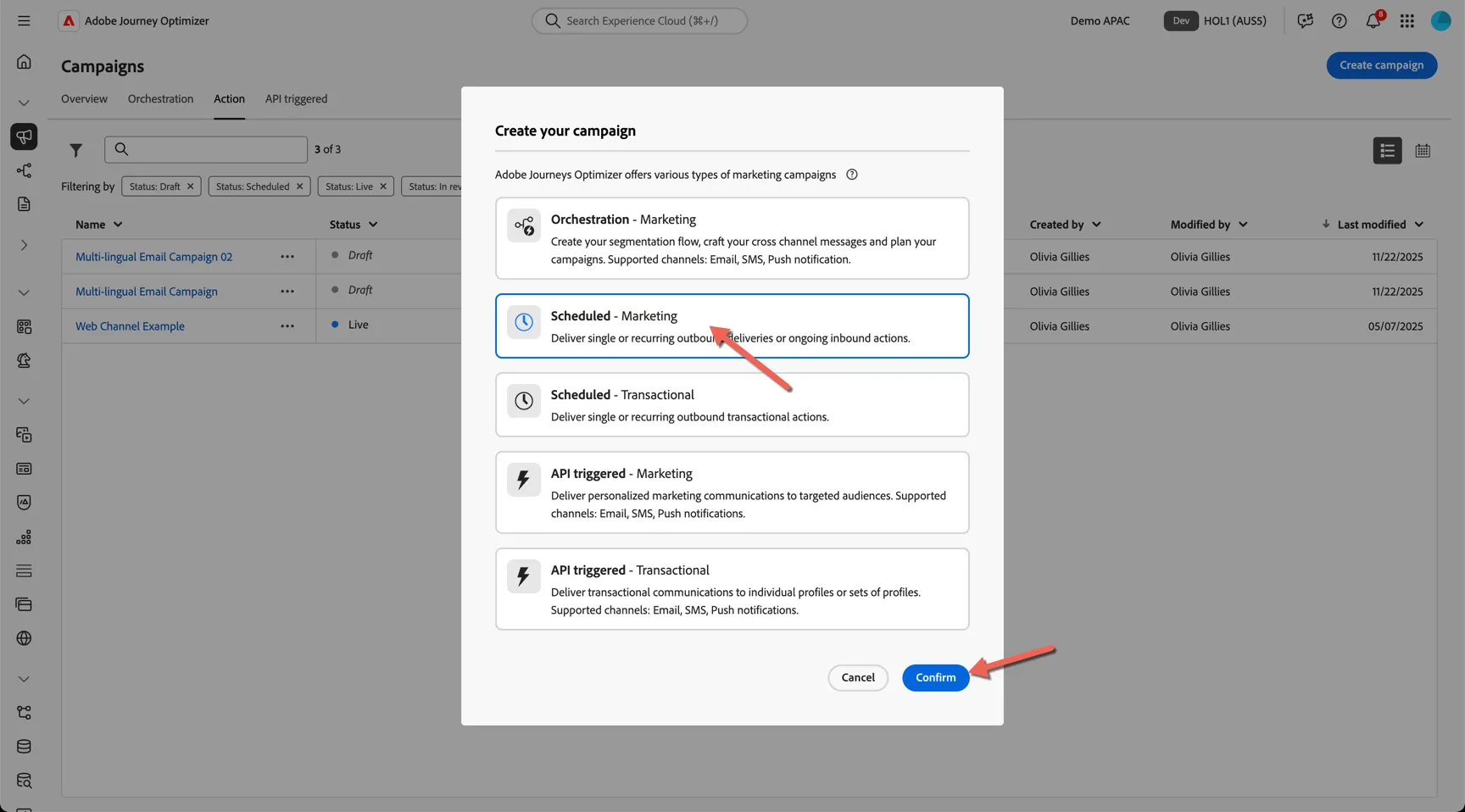
Give your action a unique name something like <your name or lab number> Web Popup.
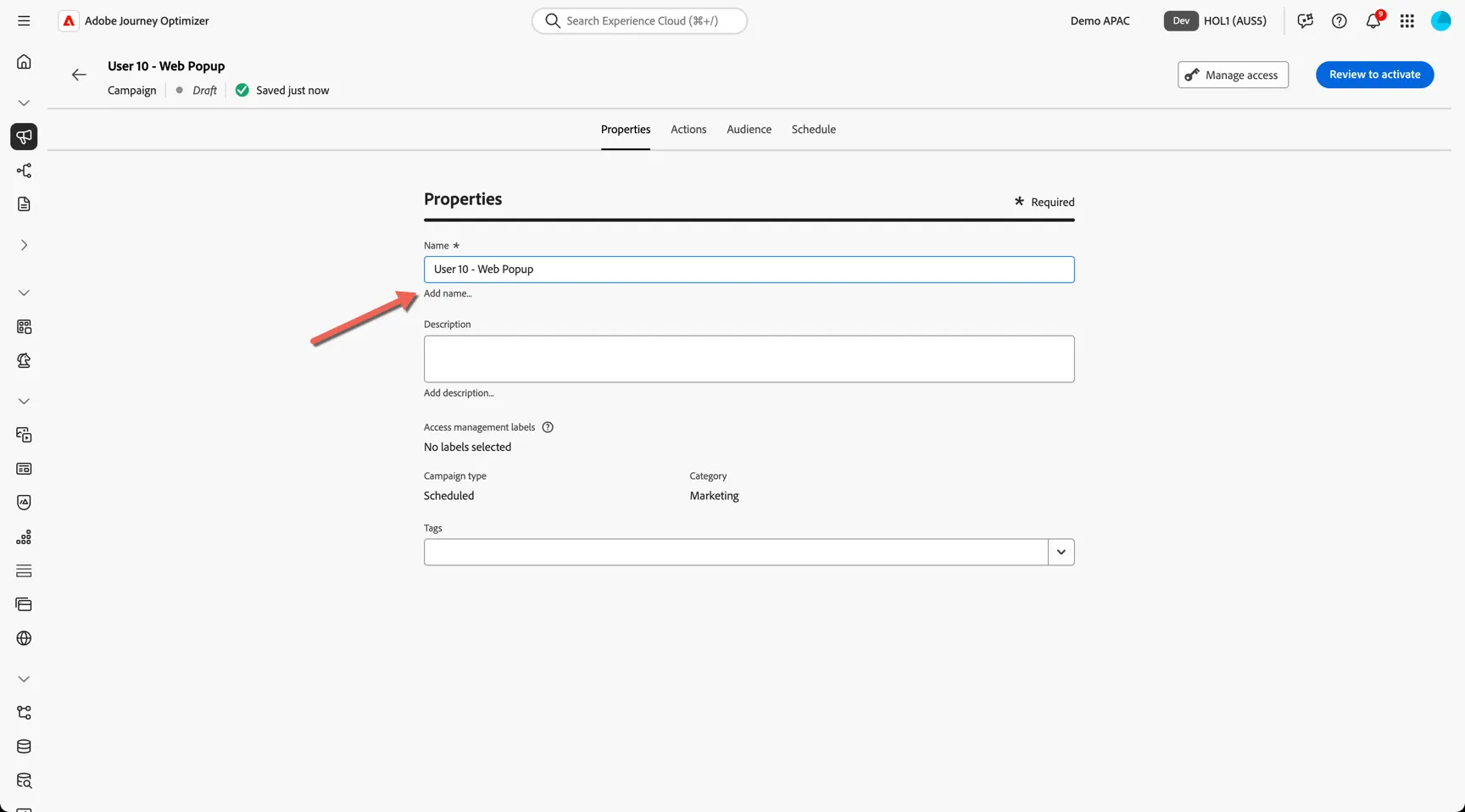
Move to the Actions tab and click to add a In-app message action.
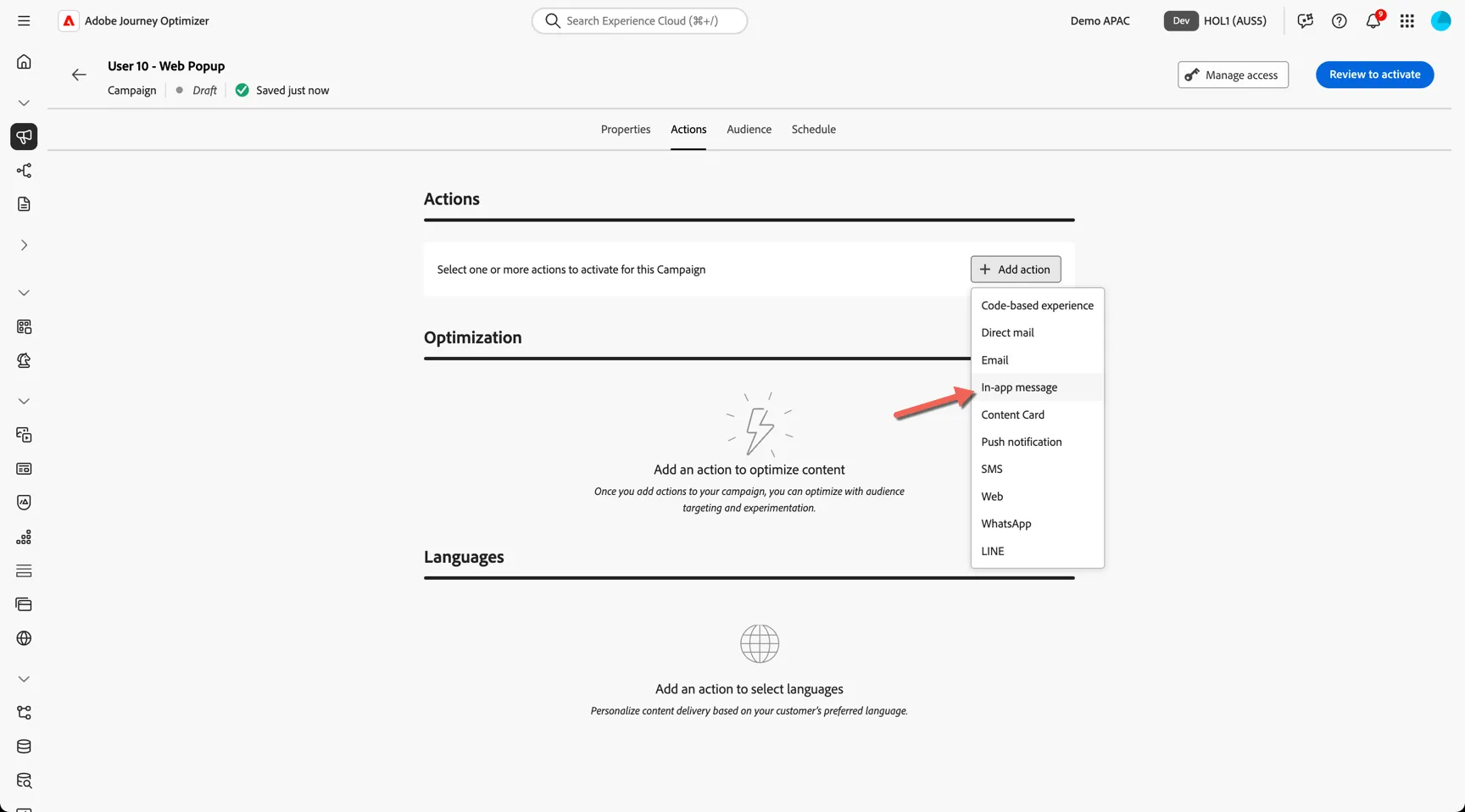
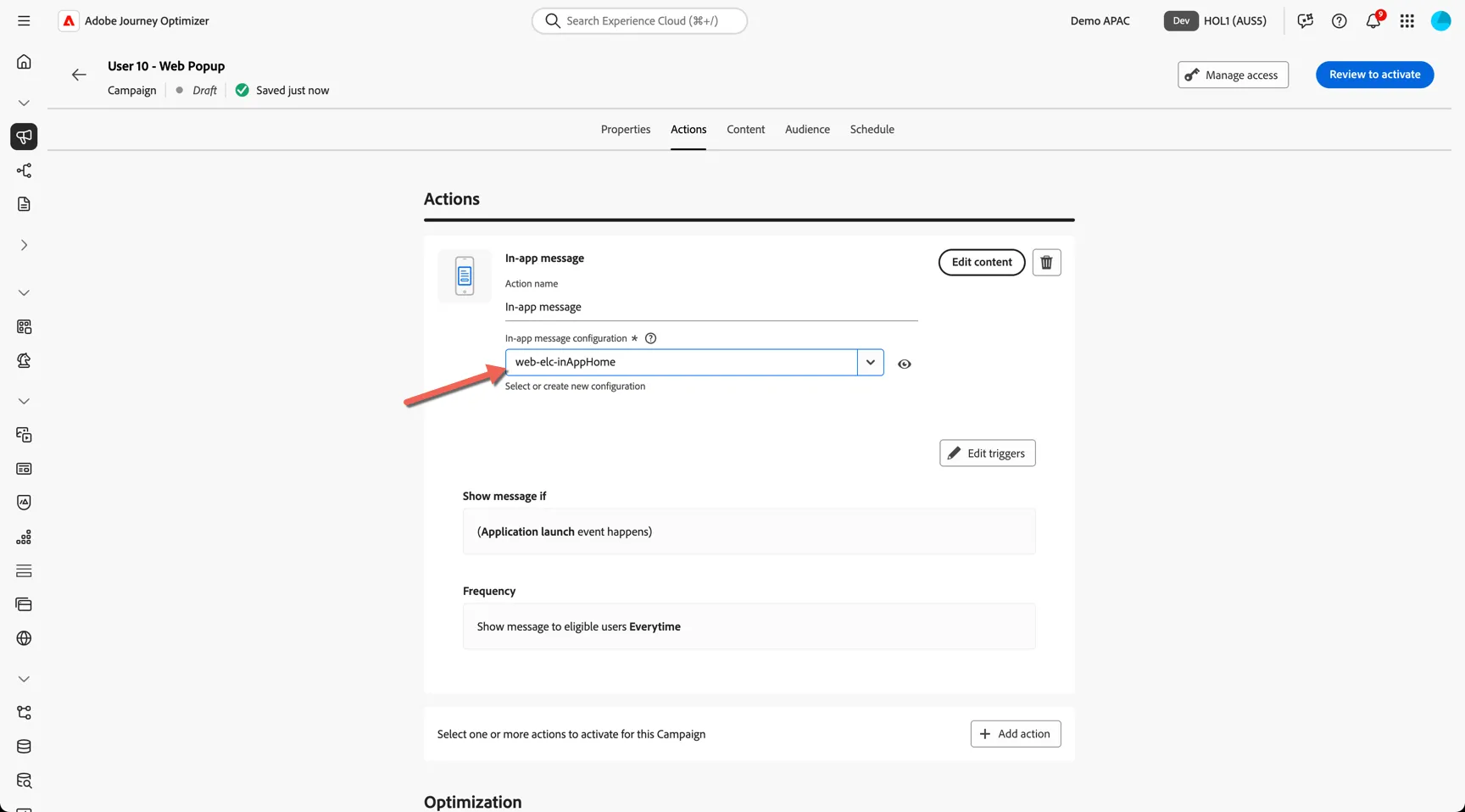
Select the web-elc-inAppHome configuration. The In-app message configuration controls where on a website (or which mobile app) the experience will placed. This configuration is set to display on the home page of the australian estee lauder website.
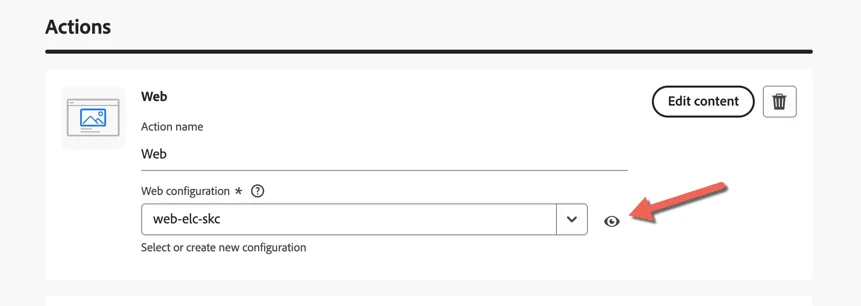
You can view the configuration details by clicking the eye icon to the right of the drop down. It will show you what has been configured by administrator.
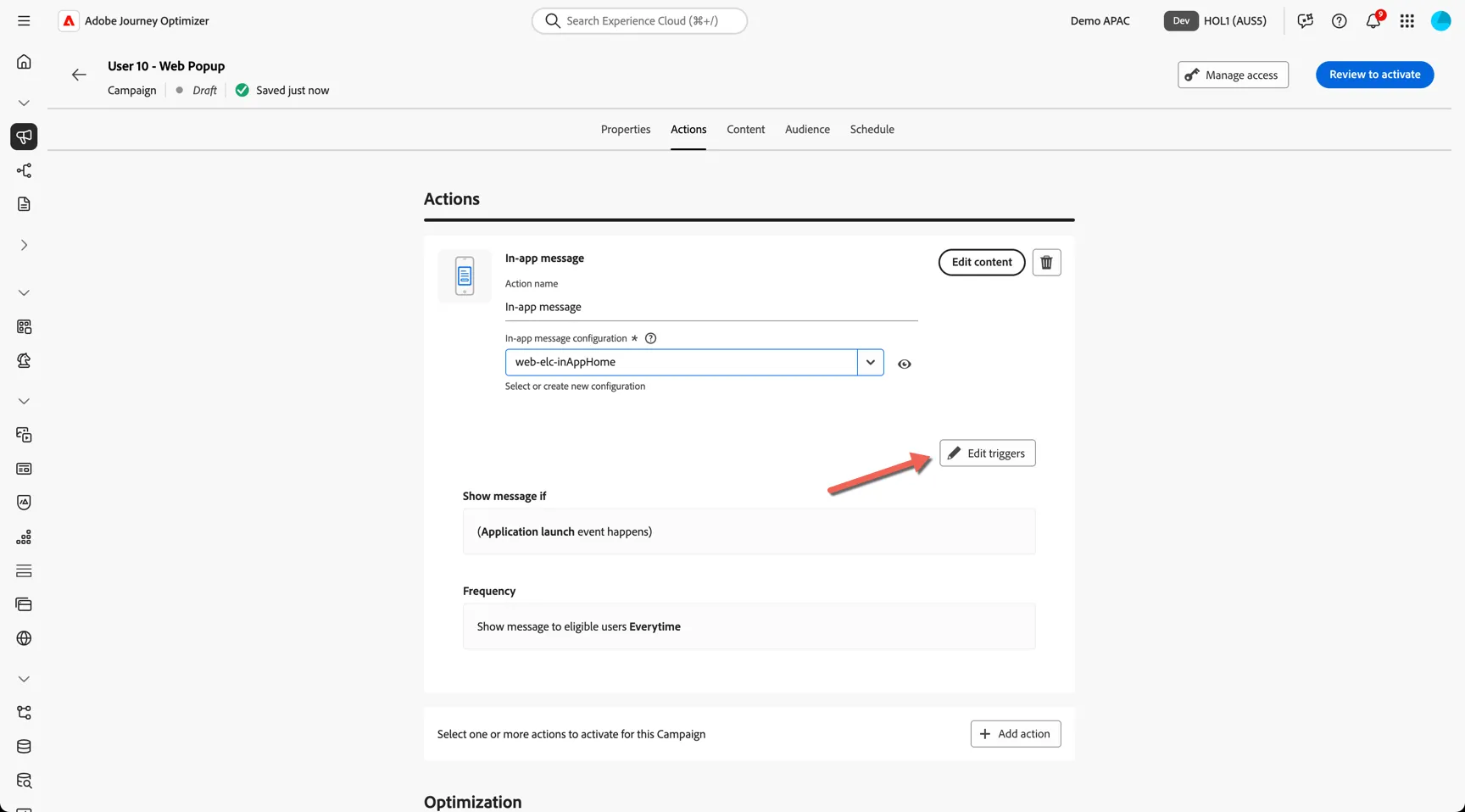
Next we need to configure what action on the website will trigger the popup to appear. Click to Edit triggers.
Remove the default Application Launch trigger by clicking the x - this would be applicable to mobile app in app messages only.
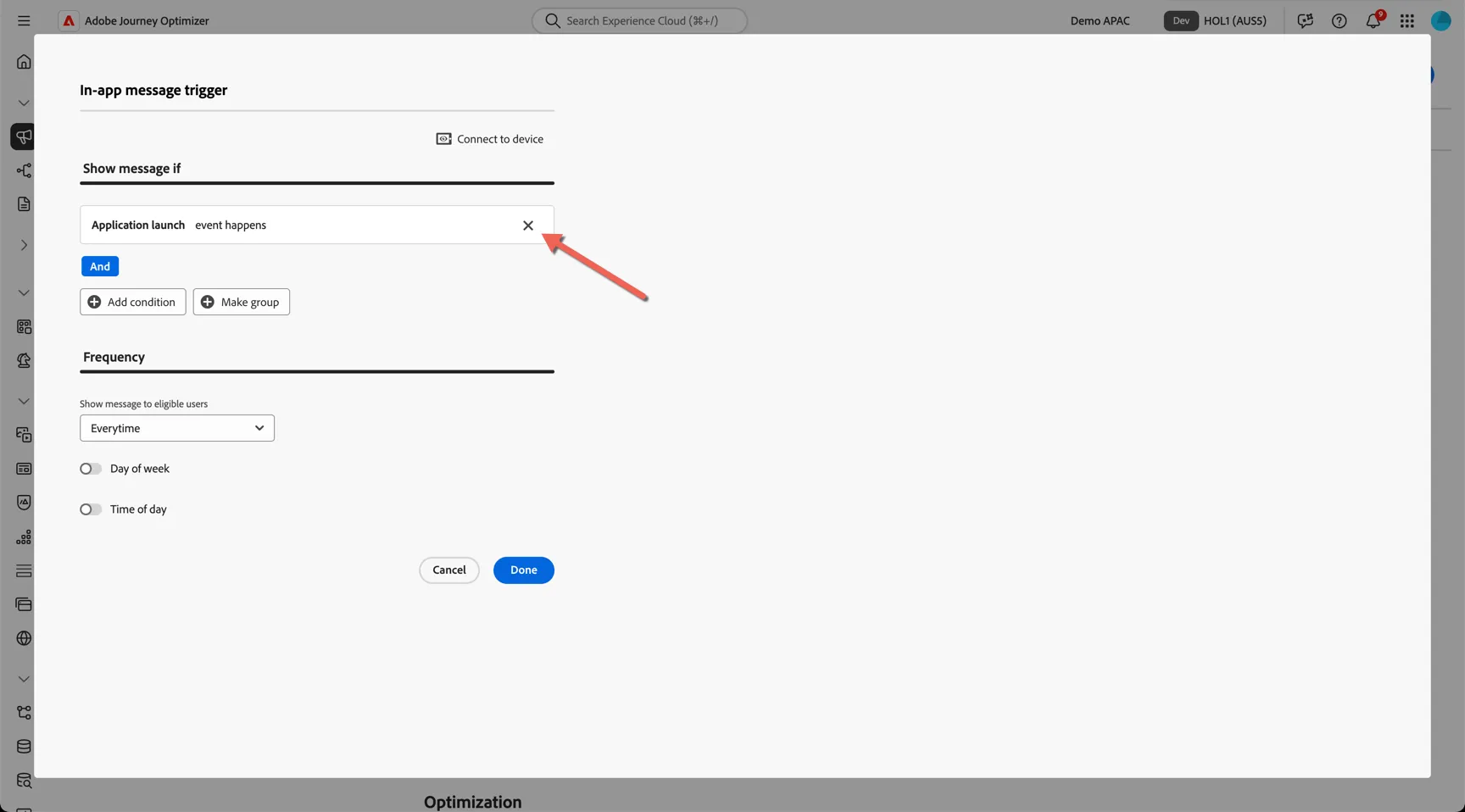
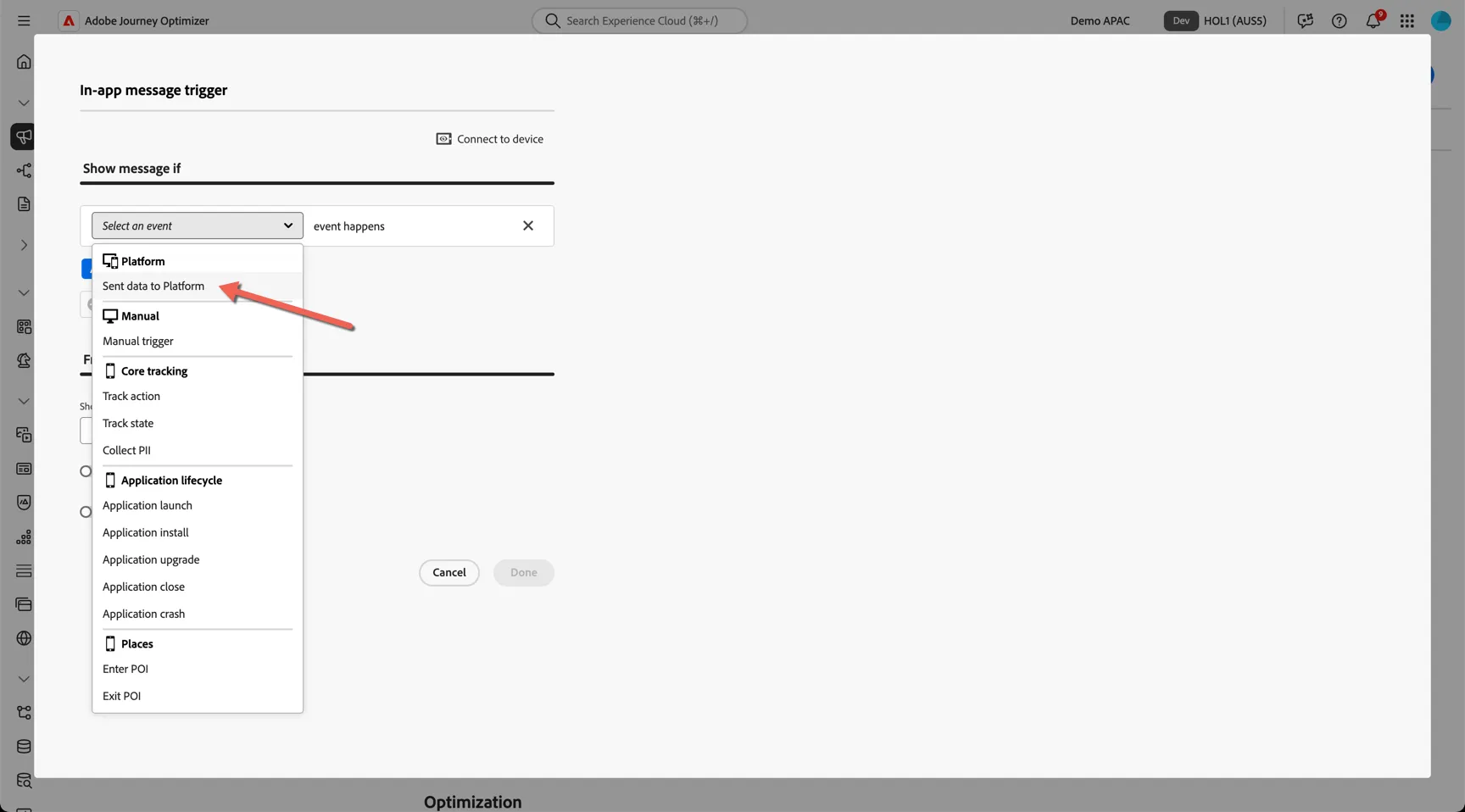
Replace the trigger with Sent data to Platform. This trigger is applicable to both web and mobile in-app messages.
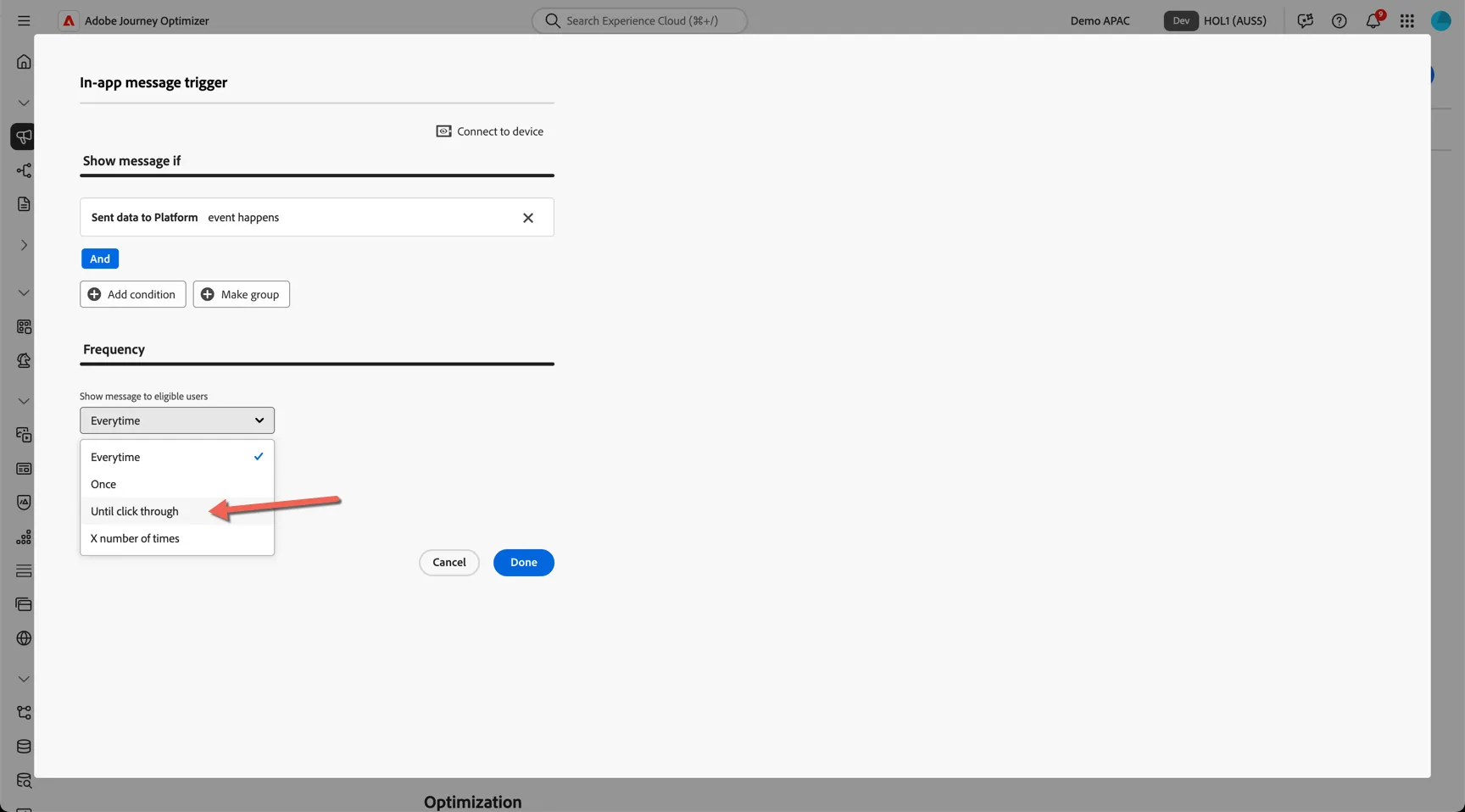
Update the frequency rule to show the message to eligible users until click through, that way the message will appear whenever they return to the home page until they click on the call to action.
Just like the emails we configured in the journey, you can add experimentation or multi-lingual translations to a campaign as well. The conflict management controls which experience will get priority if multiple campaigns are targeting the same profile on the same page at the same time.
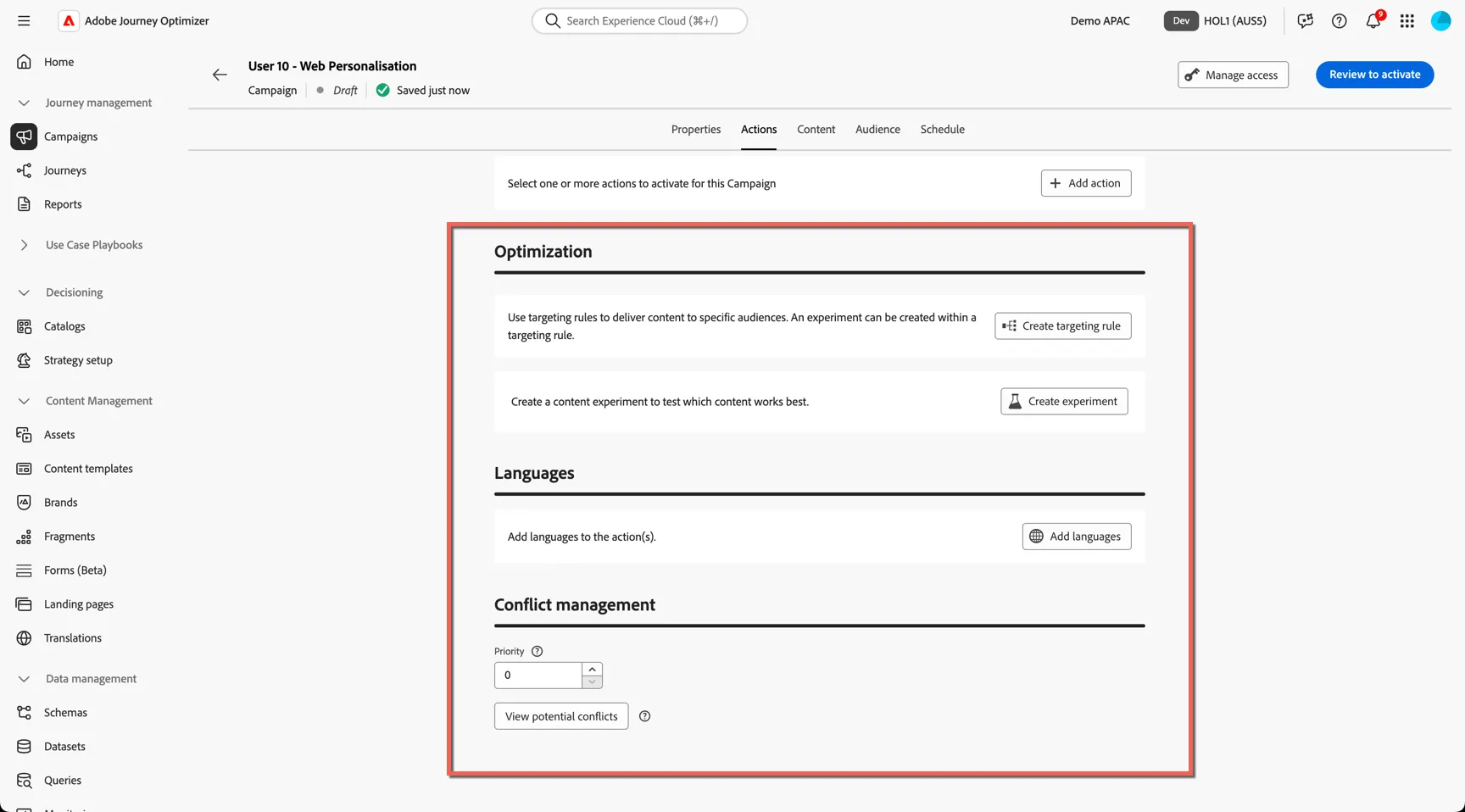
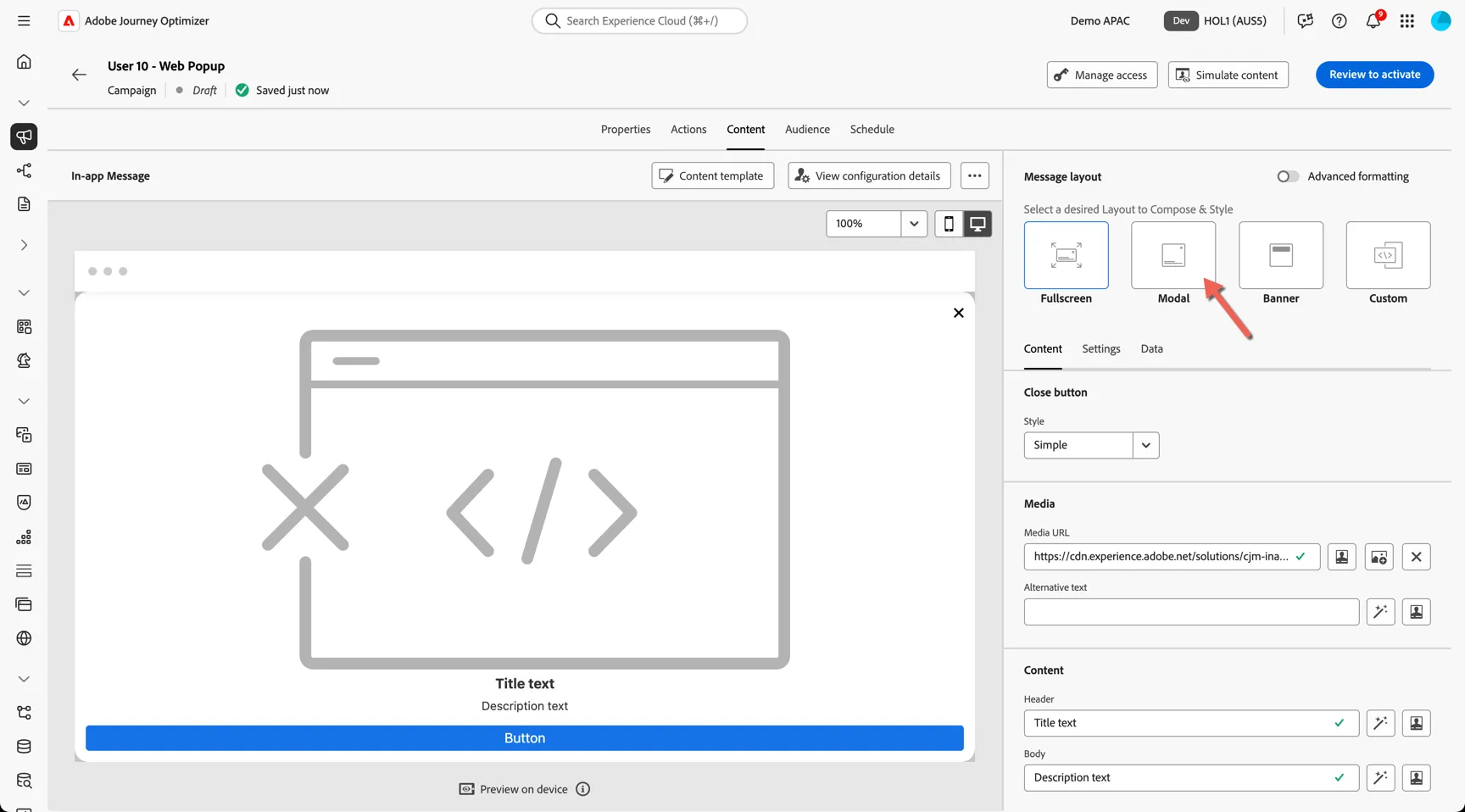
For this exercise we will ignore this and move straight onto the Content tab. Multiple message layouts are supported, click to select a Modal layout for a center positioned popup.
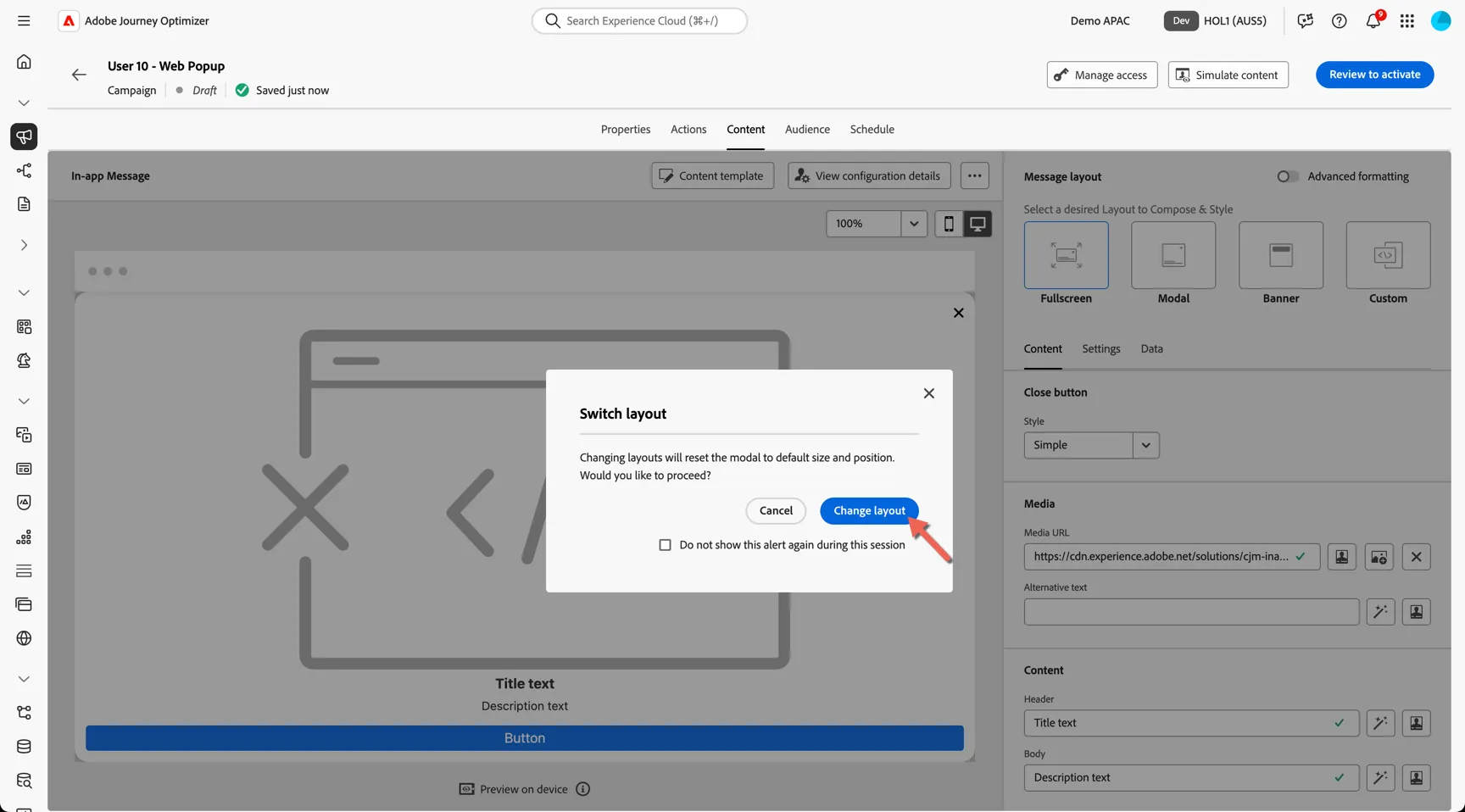
Click to confirm the change of layout.
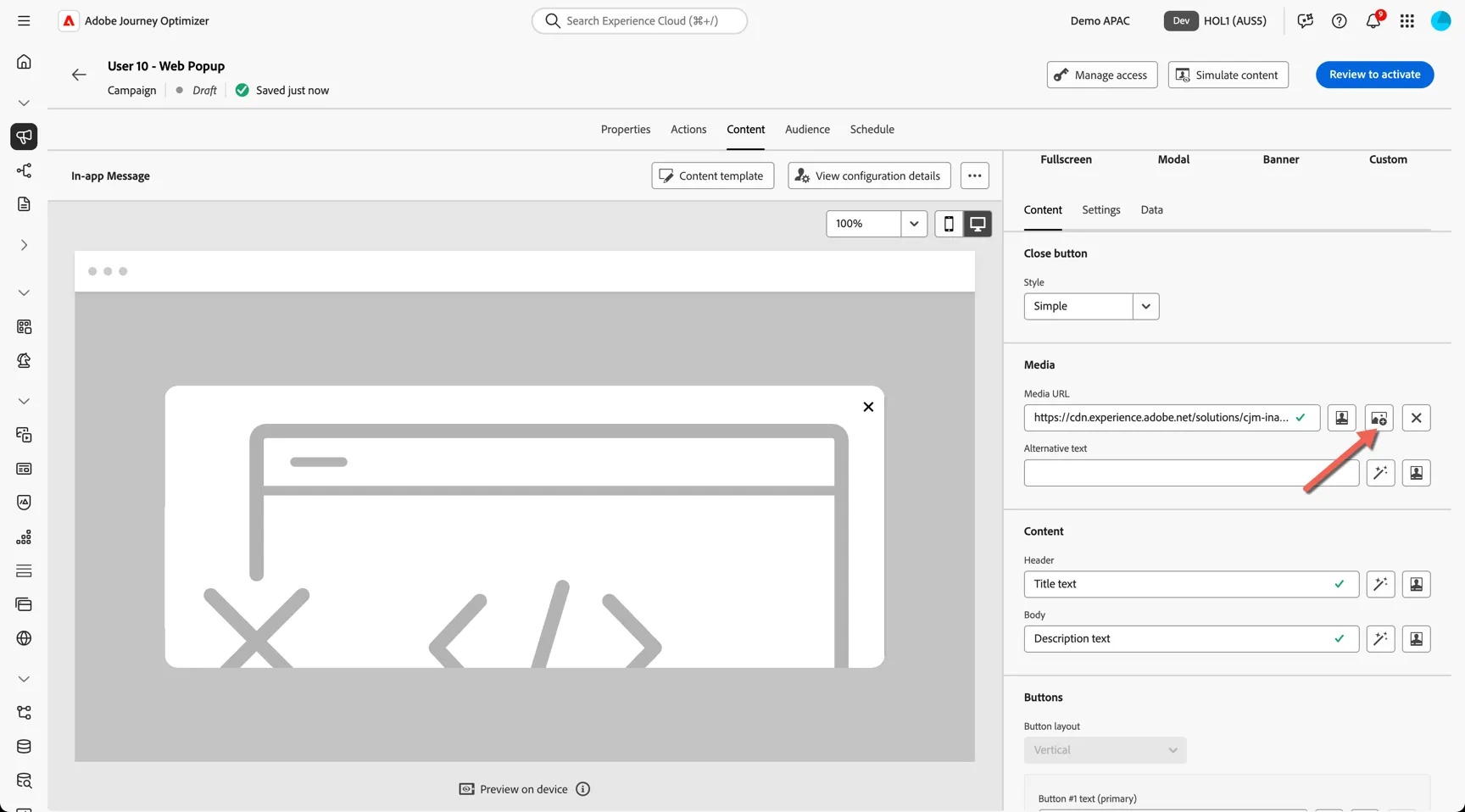
Click to change the media asset.
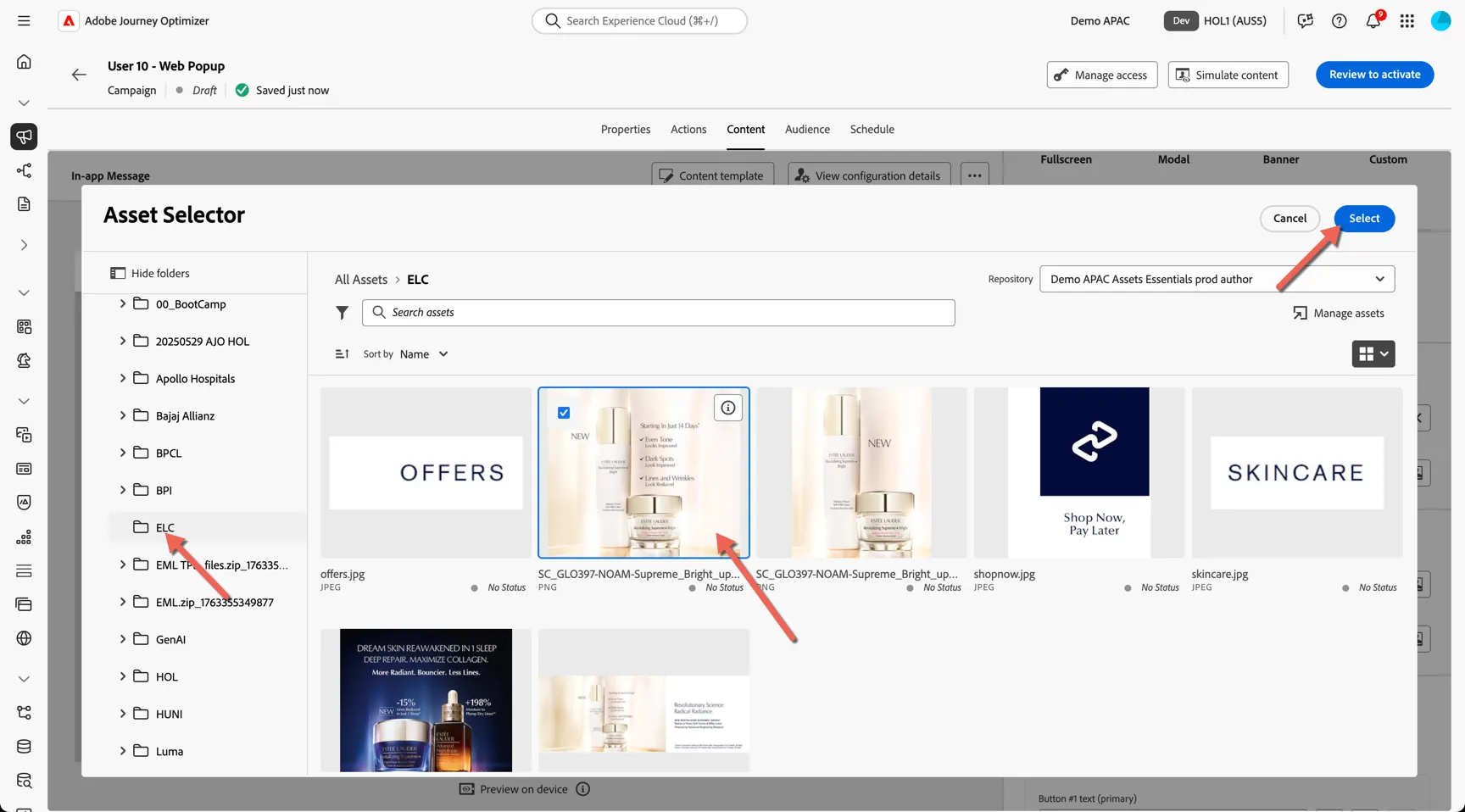
From the Asset Selector pick an asset from the DAM in the ELC folder to add to your popup.
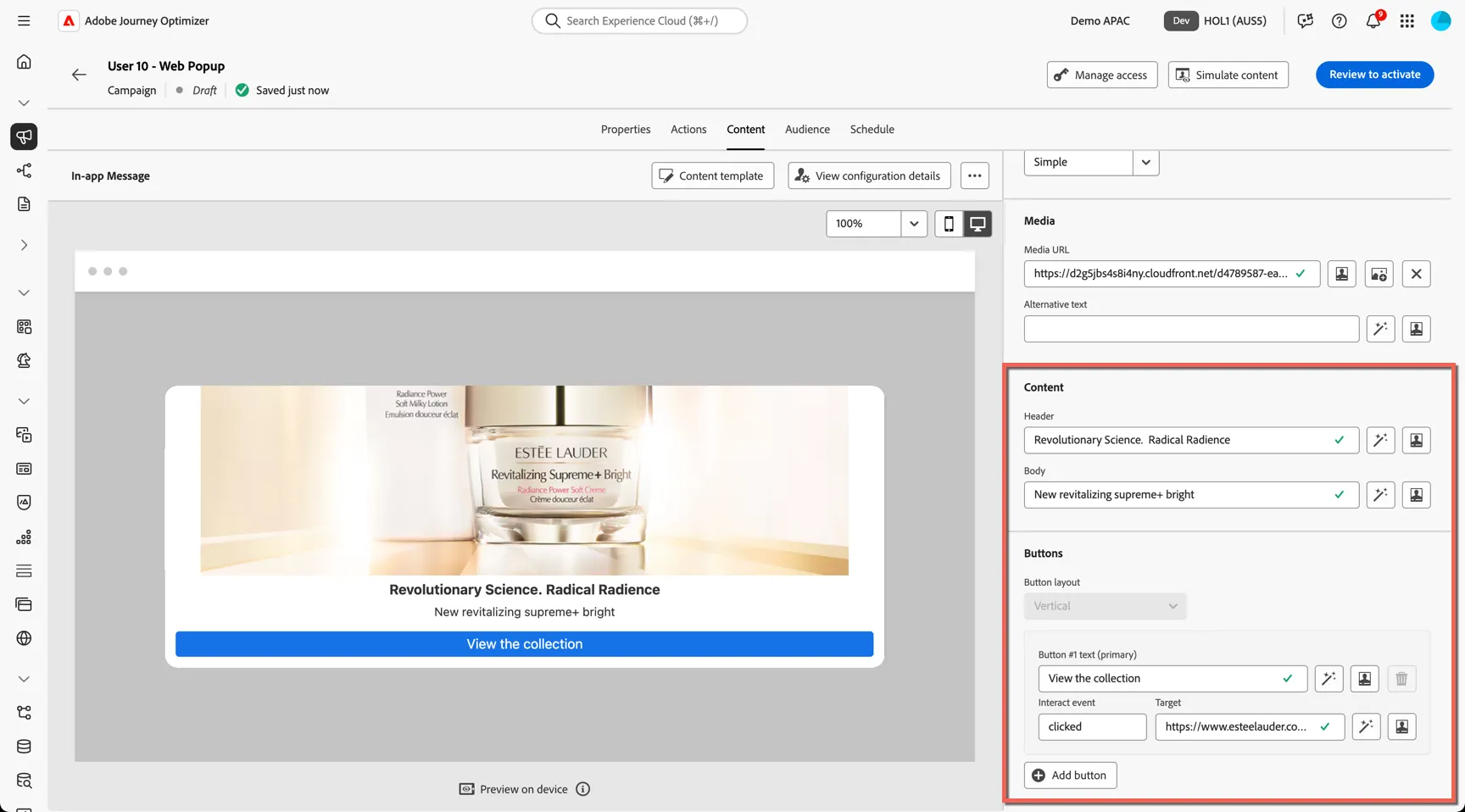
Update the Content to have a meaningful Header, Body, Button Text and Target URL
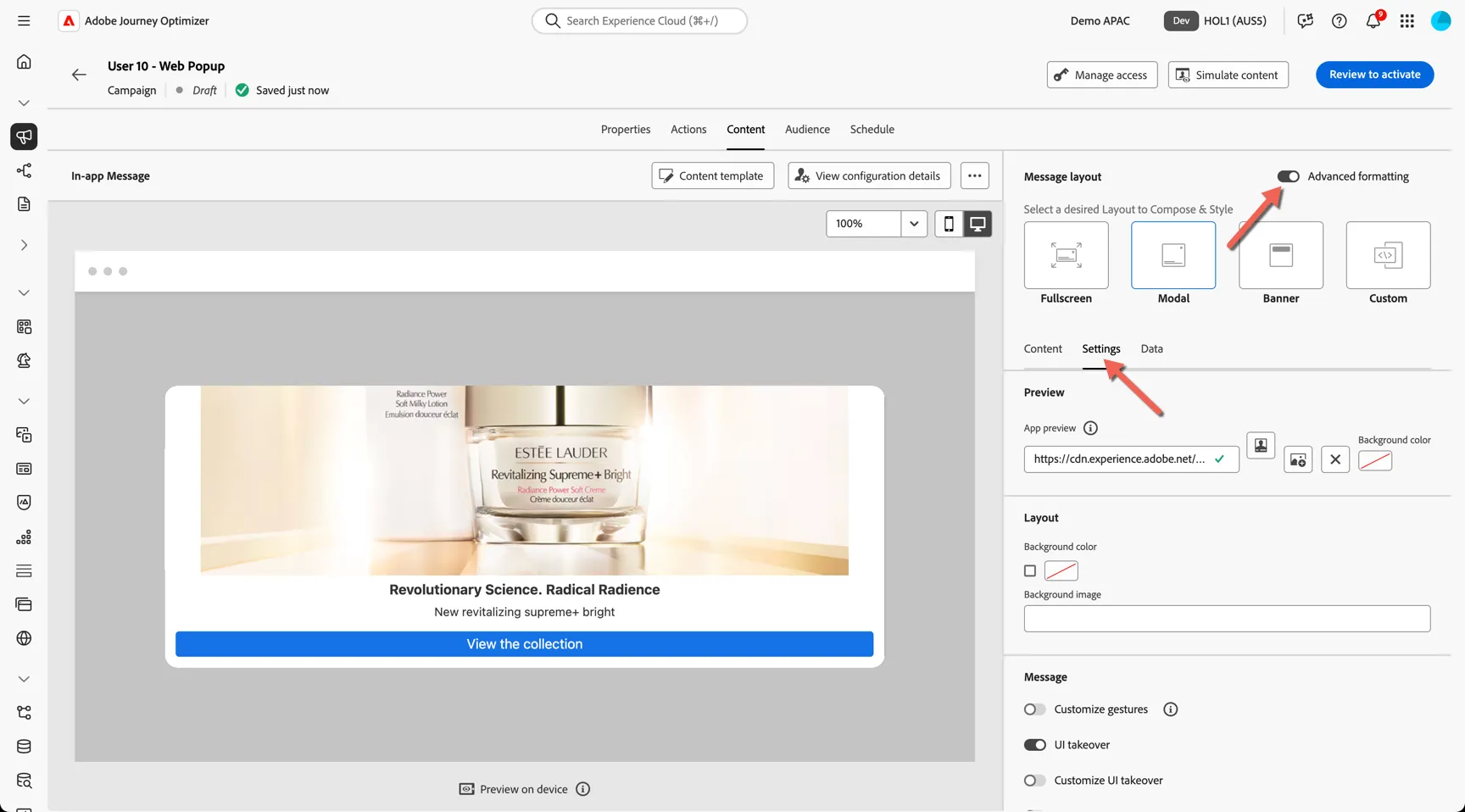
Switch on Advanced formatting and switch to the Settings tab to modify some of the styling.
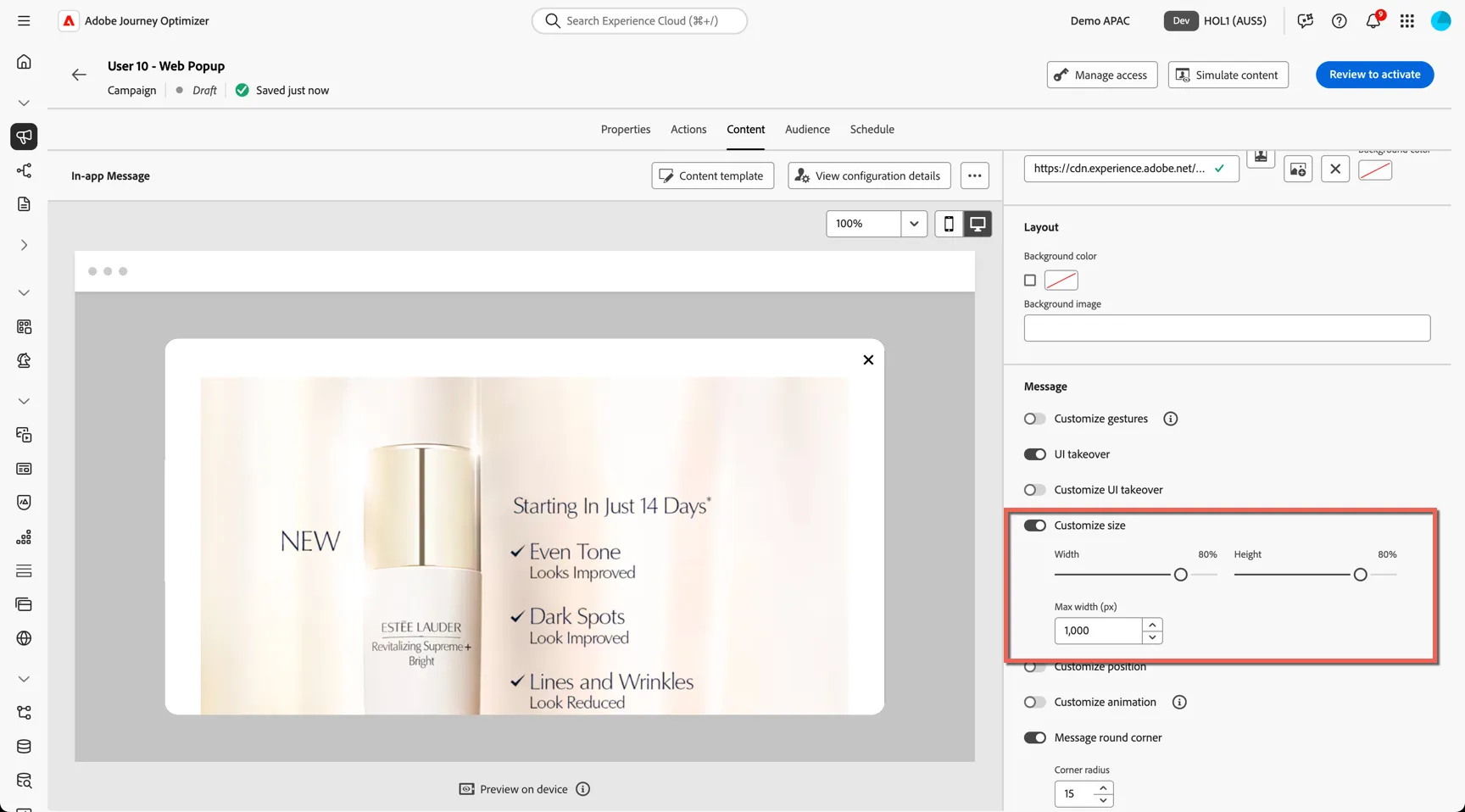
Scroll down to the Message settings and toggle on the Customize size. Change the height to 80% and add a Max Width of 1000px. This will ensure the message doesn't get too large when viewing the website on a big screen.
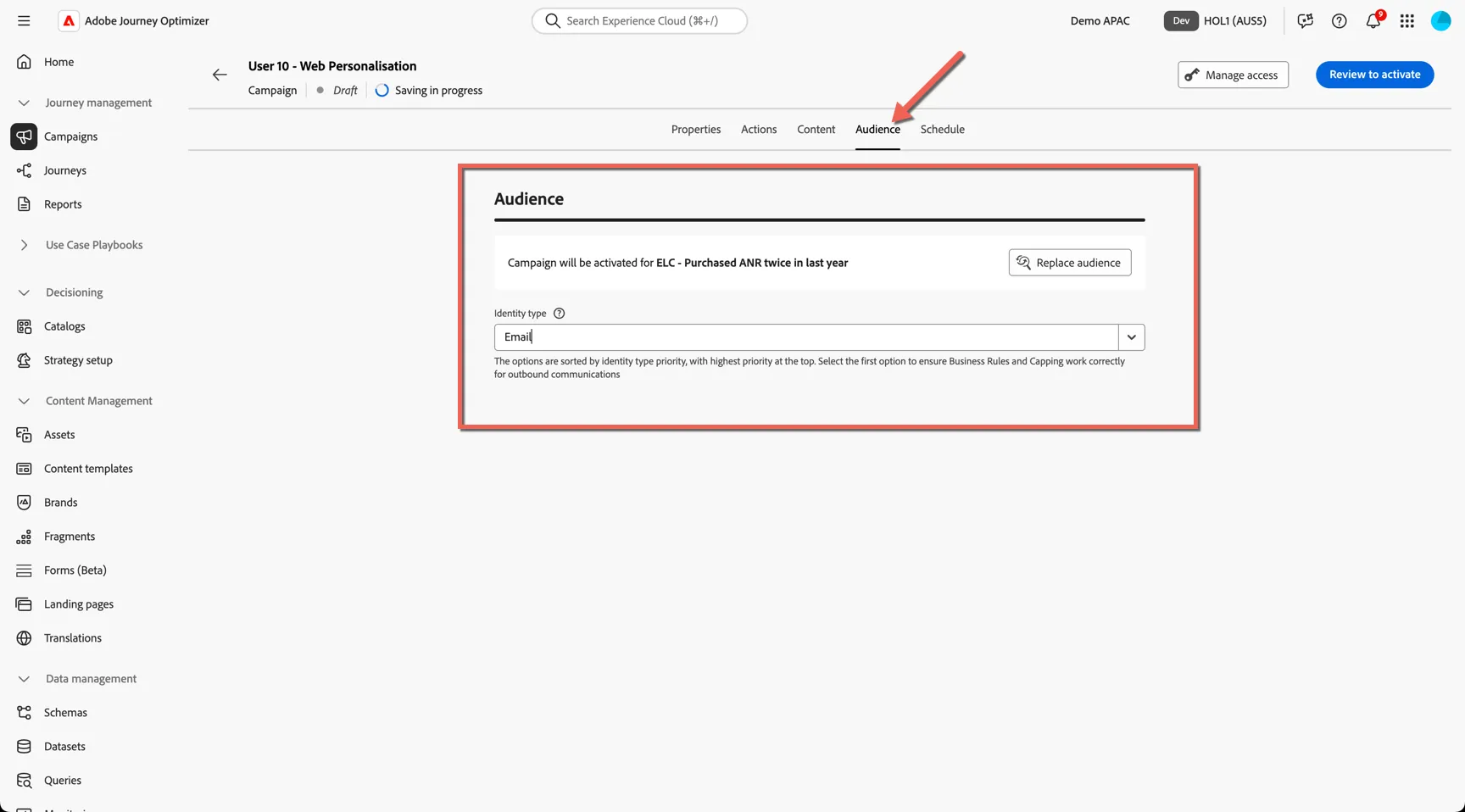
Move now to the Audience tab to control who will see this banner. Change the audience to the complex audience we reviewed earlier: ELC - Purchased ANR twice in last year.
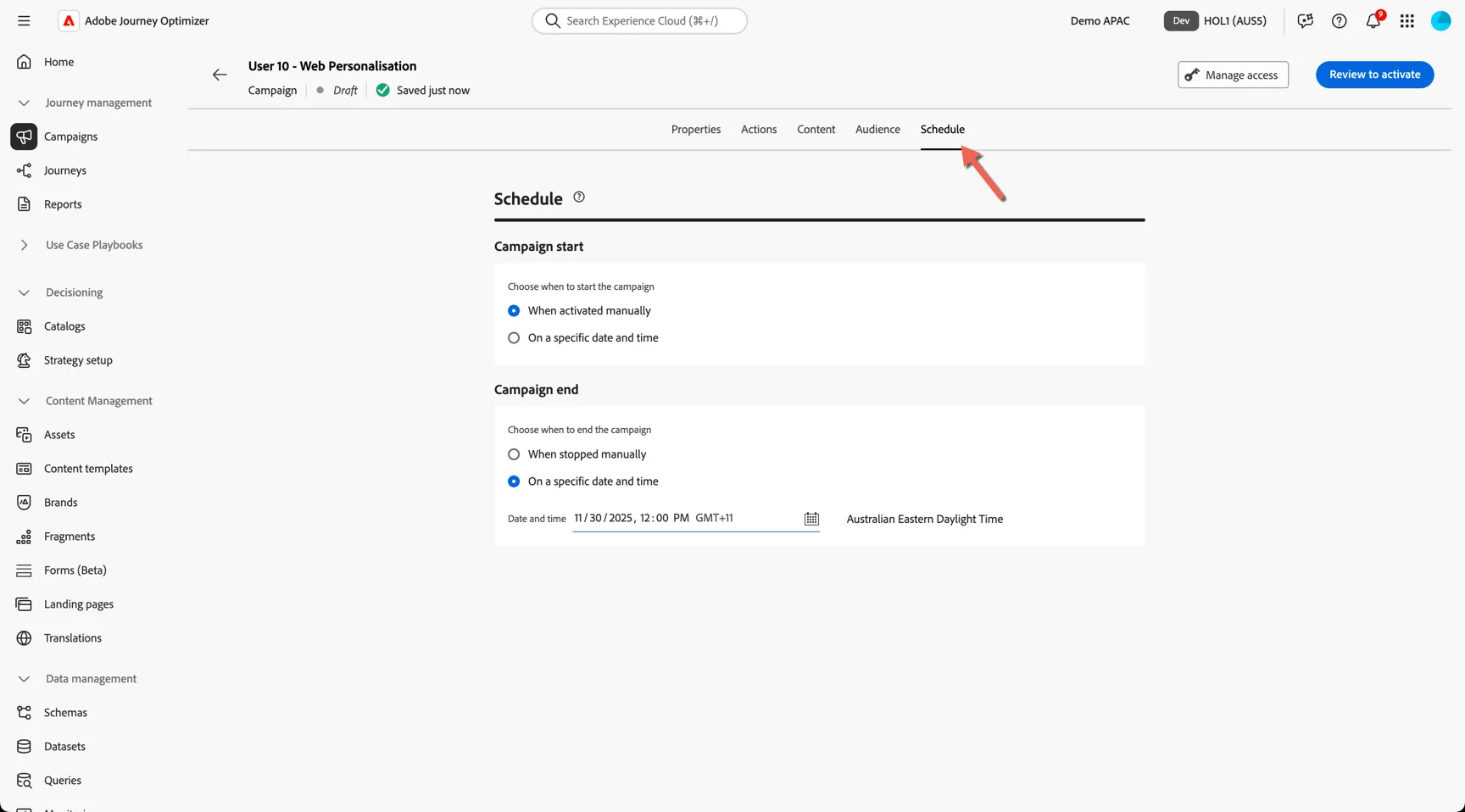
Lastly you can define a schedule for your campaign to control when it will be available.
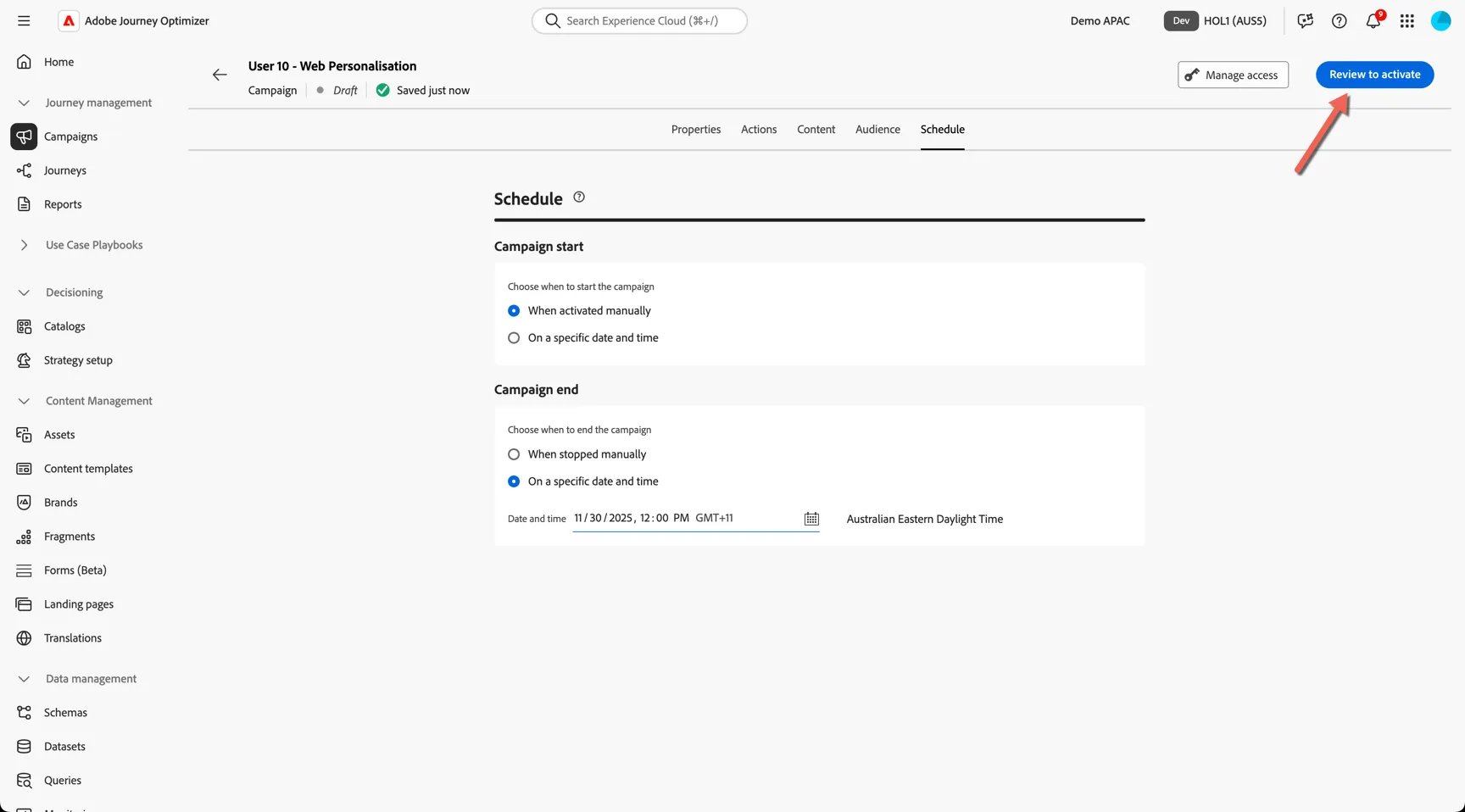
Click Review to activate.
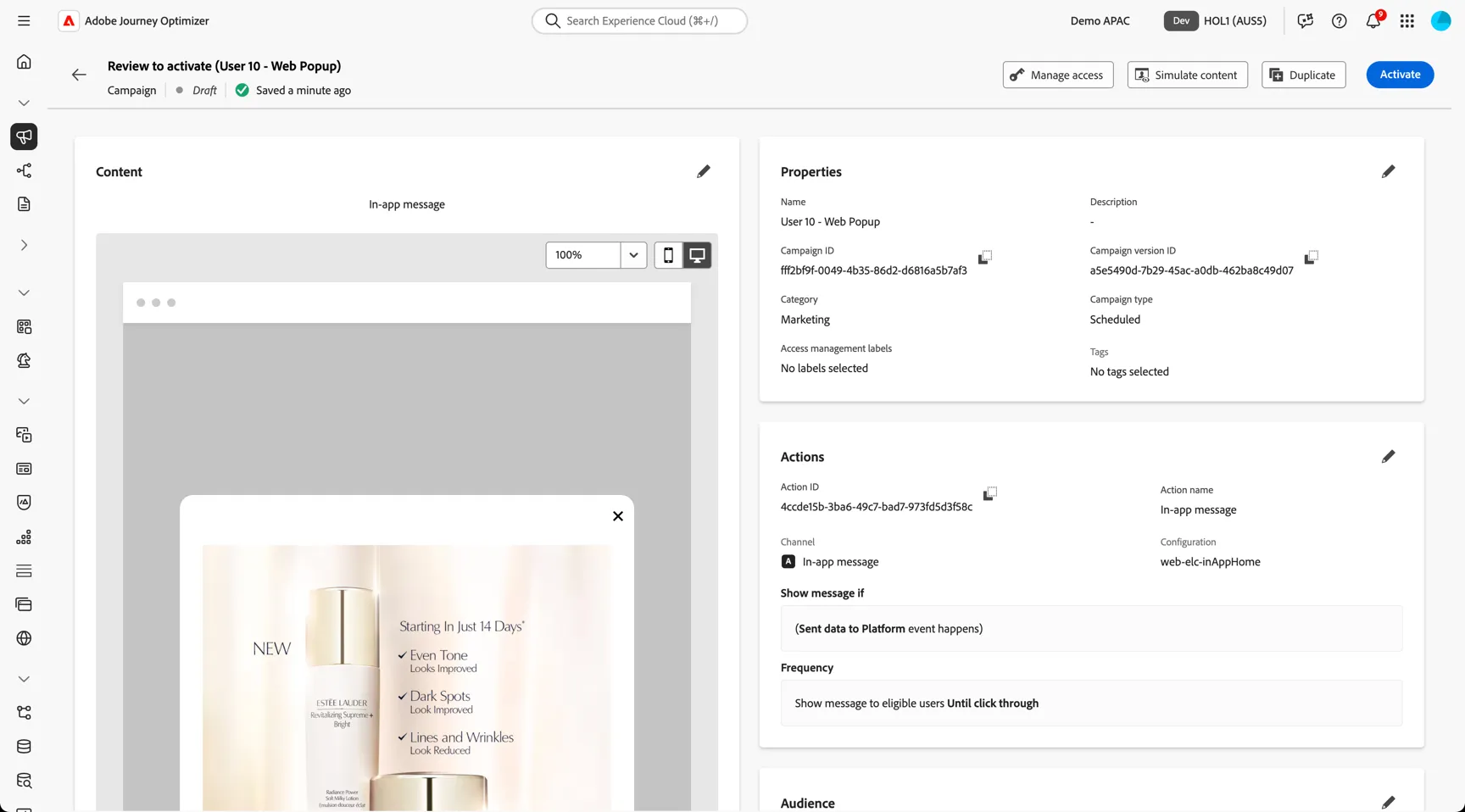
Here you can review your campaign settings and check everything before setting the campaign to be active.
Summary
Congratulations, you've successfully created a personalized web in app message campaign.