Create a Task
3 min
- This exercise will introduce the topic of "How to create a Task" in AJO. This task will be used in subsequent exercises and labs.
- (NOTE: Some exercises may vary during the actual Hands on Lab versus what is listed in the HOL Page, due to industry setup and / or presenter preferences.)
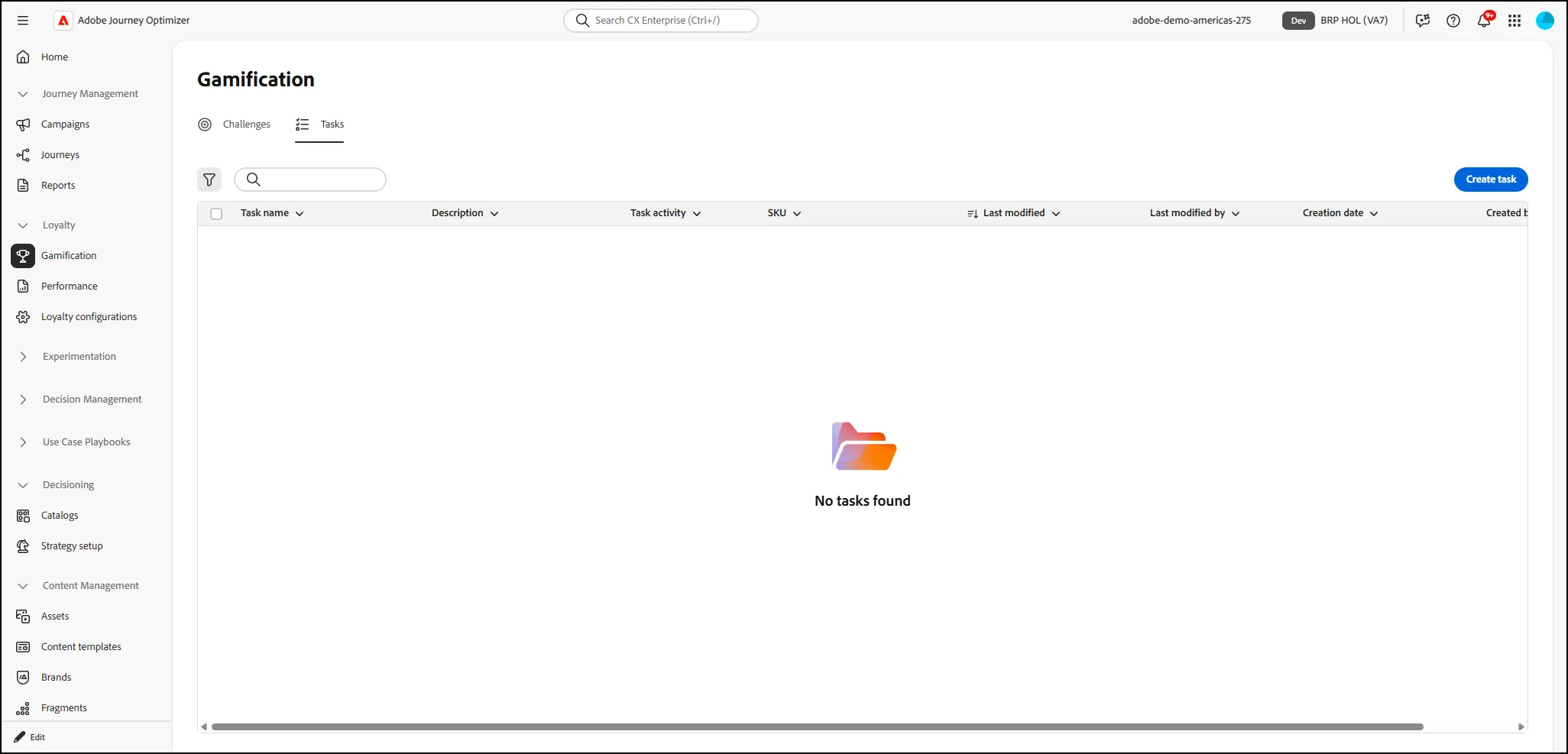
- Navigate to the Loyalty - Gamification tab in AJO:
- Click on the "Tasks" tab:
-
- Click the "Create Task" button:
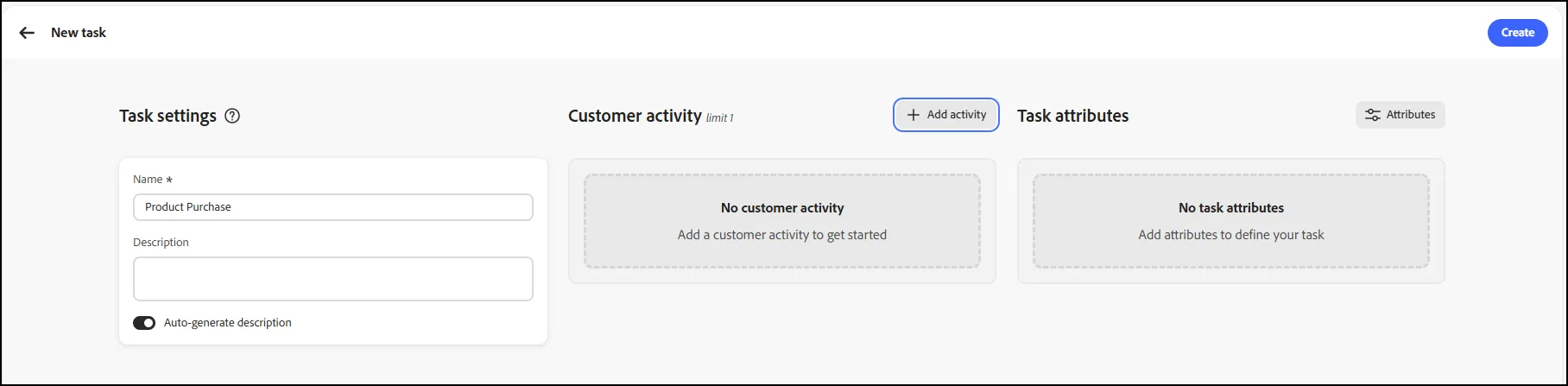
- Give your task a name. We chose "Product Purchase" for this one:
-
- Click on the "Add Activity" button:
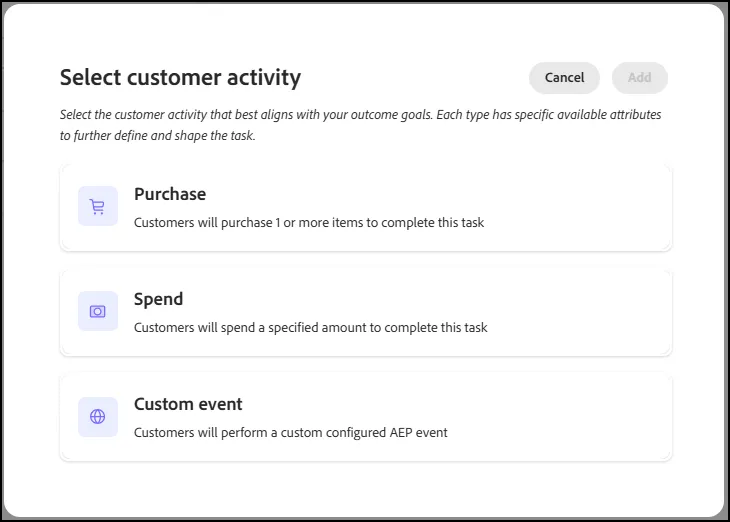
- For this exercise, we will choose the "Purchase" activity:
-
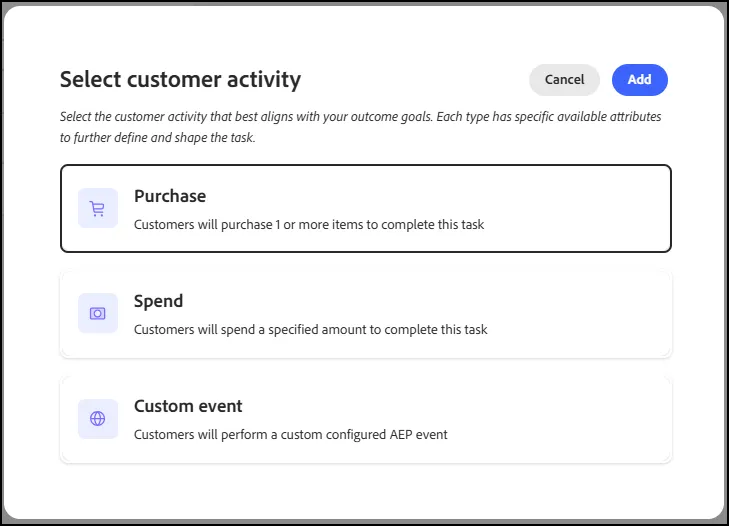
- Click on "Purchase" and then click the "Add" button to add it to your Task:
-
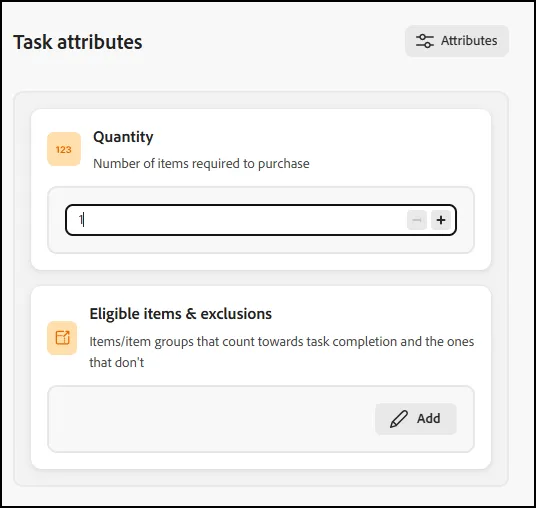
- Back on the Task Settings page, under Task Attributes, click on the Quantity to increase it to "1" - as we will only be checking to ensure that the customer purchases 1 item from our Product List.
-
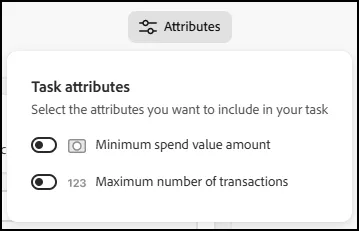
- Note you can include other attributes for minimum spend or number of transactions using the "attributes" button. We will not be including these for this exercise:
-
- Similarly, we will not be excluding particular products in this exercise, so we will not be modifying the "Eligible Items and Exclusions" section.
- Click "Create" to create your Task.
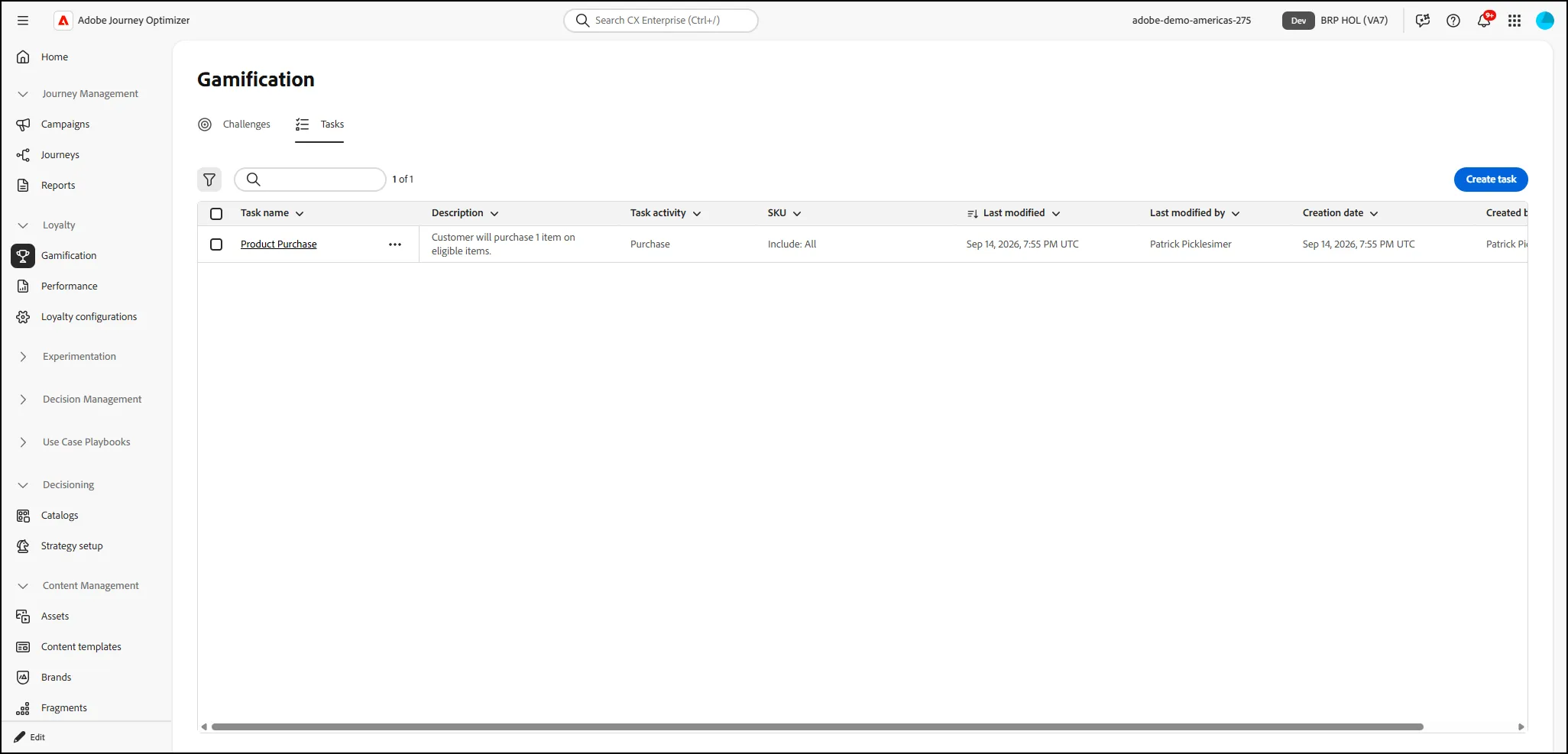
- Your Task should now appear in the Tasks list:
-
- End of Exercise.