Loyalty Challenge
4 min
(DRAFT DOCUMENT - NOT COMPLETE)
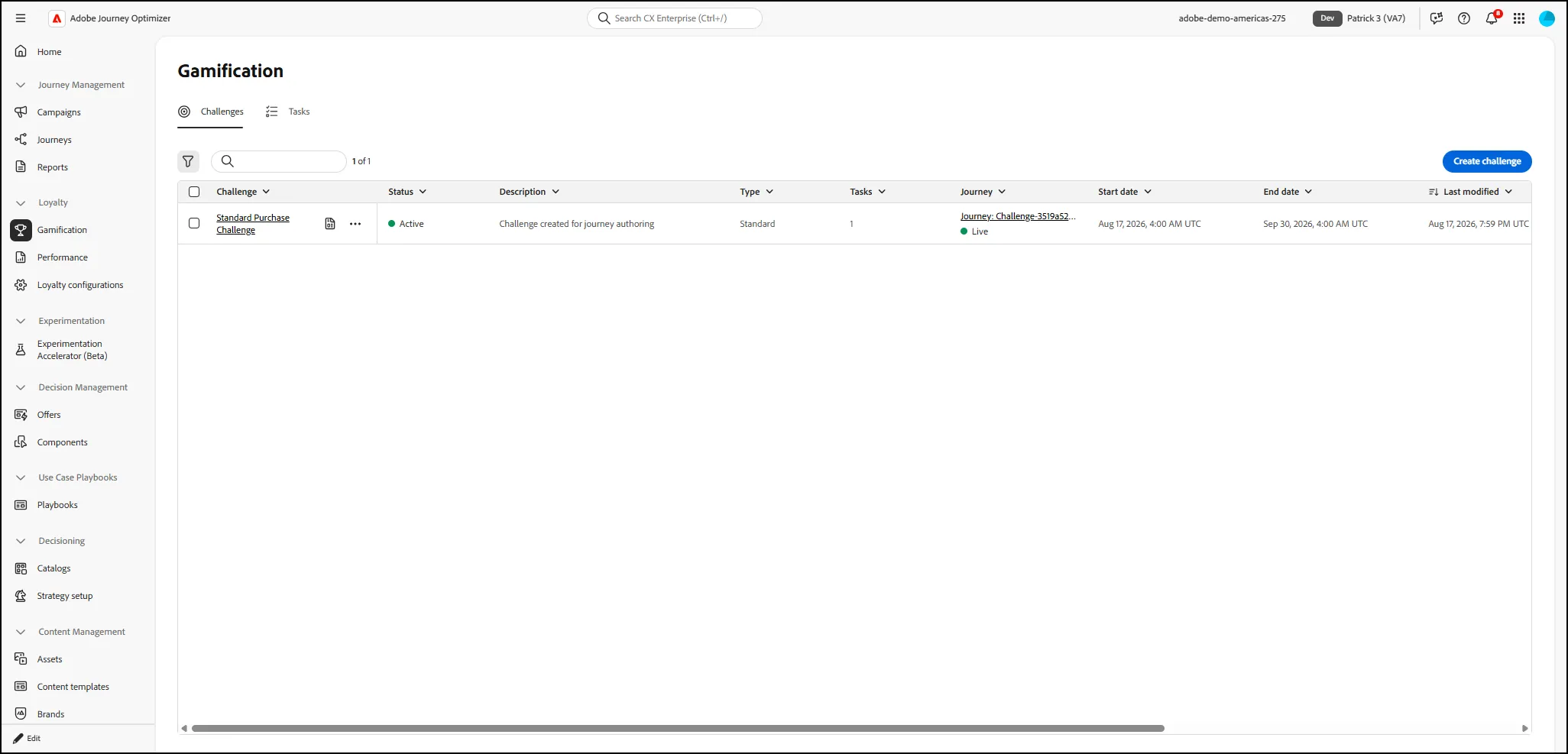
- Once you have completed all of the Loyalty Setup steps, you can begin to create a Loyalty Challenge. Proceed to the "Gamification" tab under "Loyalty" in AJO:
- Click on the Create Challenge button in the top right corner:
-
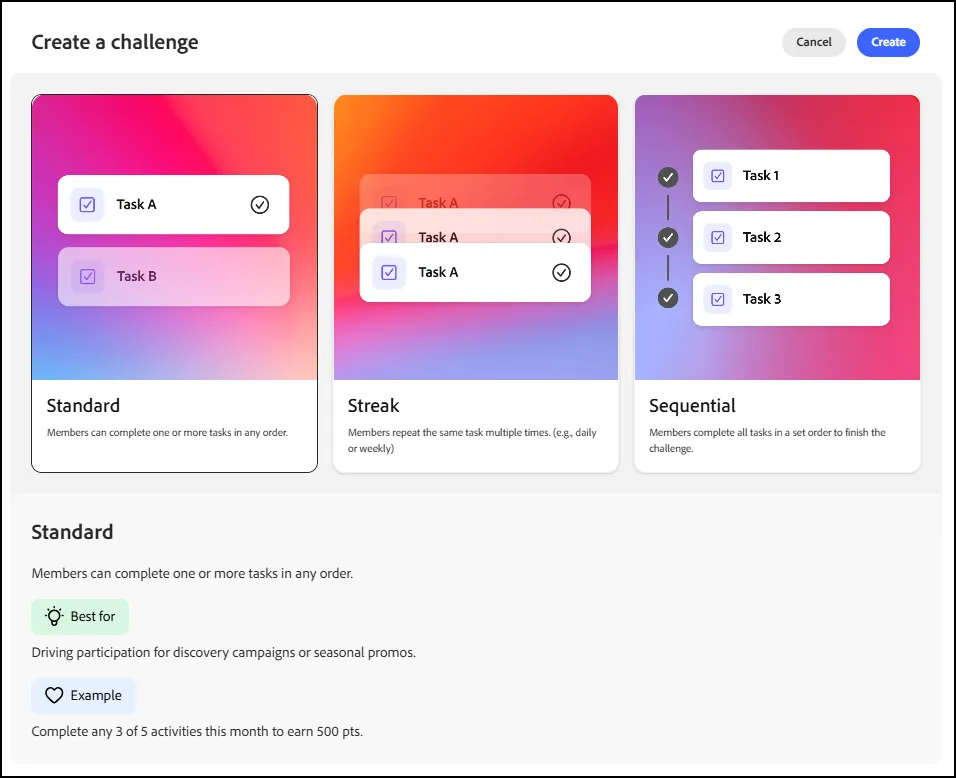
- Choose Standard, Streak or Sequential:
-
- For this example, we will choose "Standard". Click on the Create button.
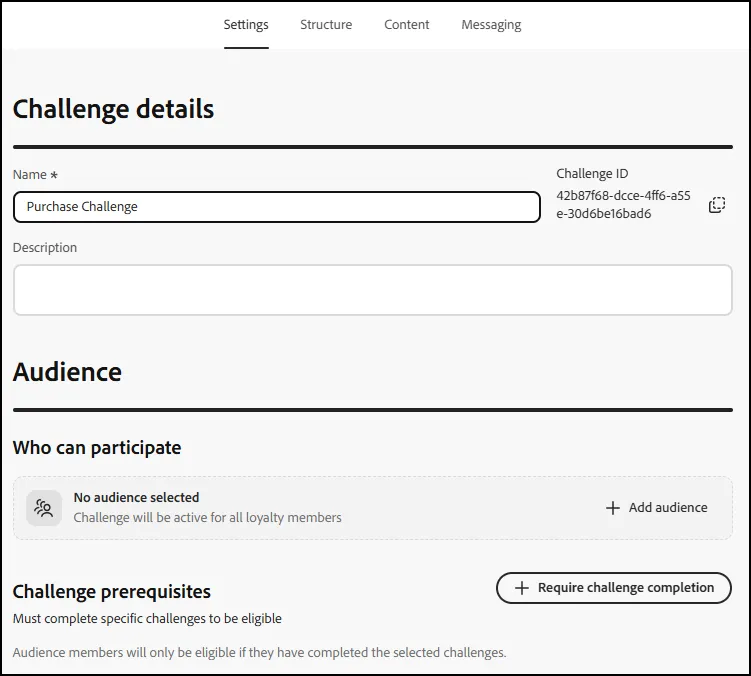
- On the next screen, give your Challenge a name. We chose "Purchase Challenge":
-
-
- For Audience, you can select an Audience for the target of the Challenge, if you would like to do so. We will leave it blank for this exercise.
- Similarly, you could set up a Challenge Prerequisite, but we will not do that for this exercise.
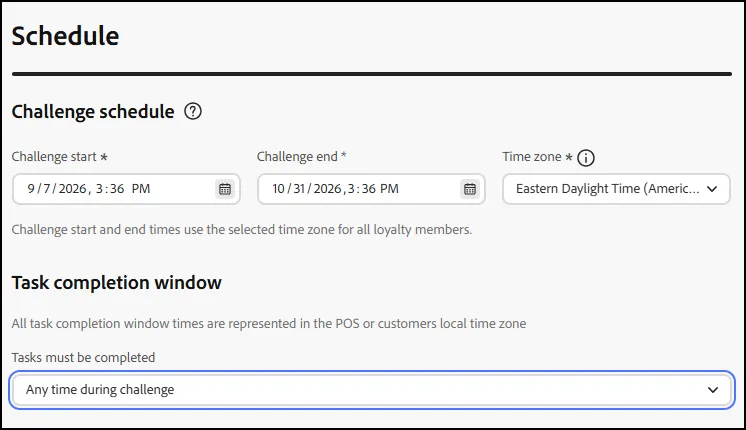
- Under "Schedule" - provide a beginning and ending Date/Time for your challenge:
-
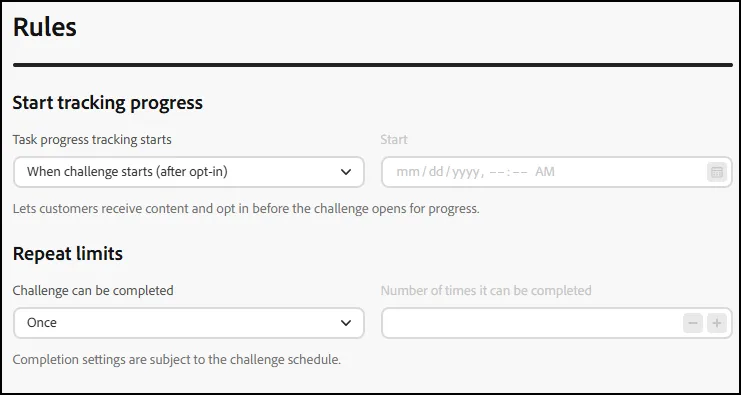
- Under "Rules", you can add specific tracking progress and repeat rules. We will not add these for this exercise:
-
- Click the "Structure" tab at the top to move onto the next section.
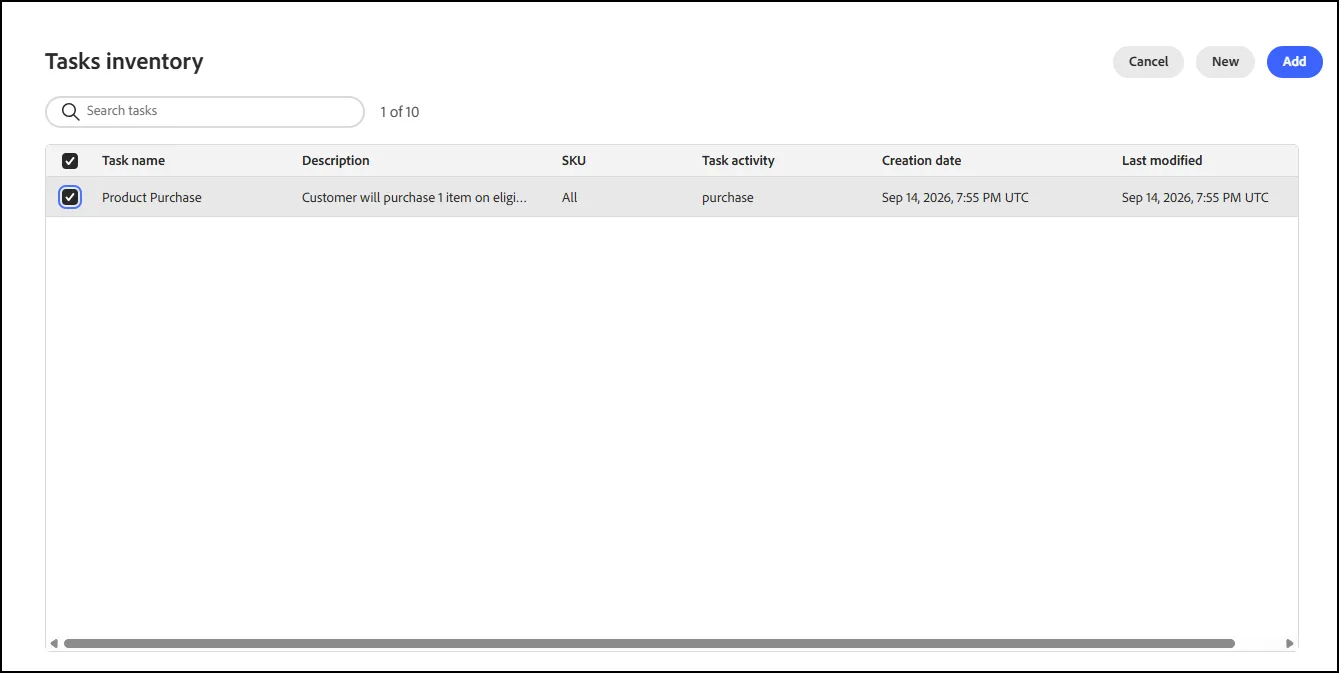
- In the next section, click on the appropriate fields for:
- Task Completion Requirements
- Number of Tasks that Must be Completed
- Add a task
-
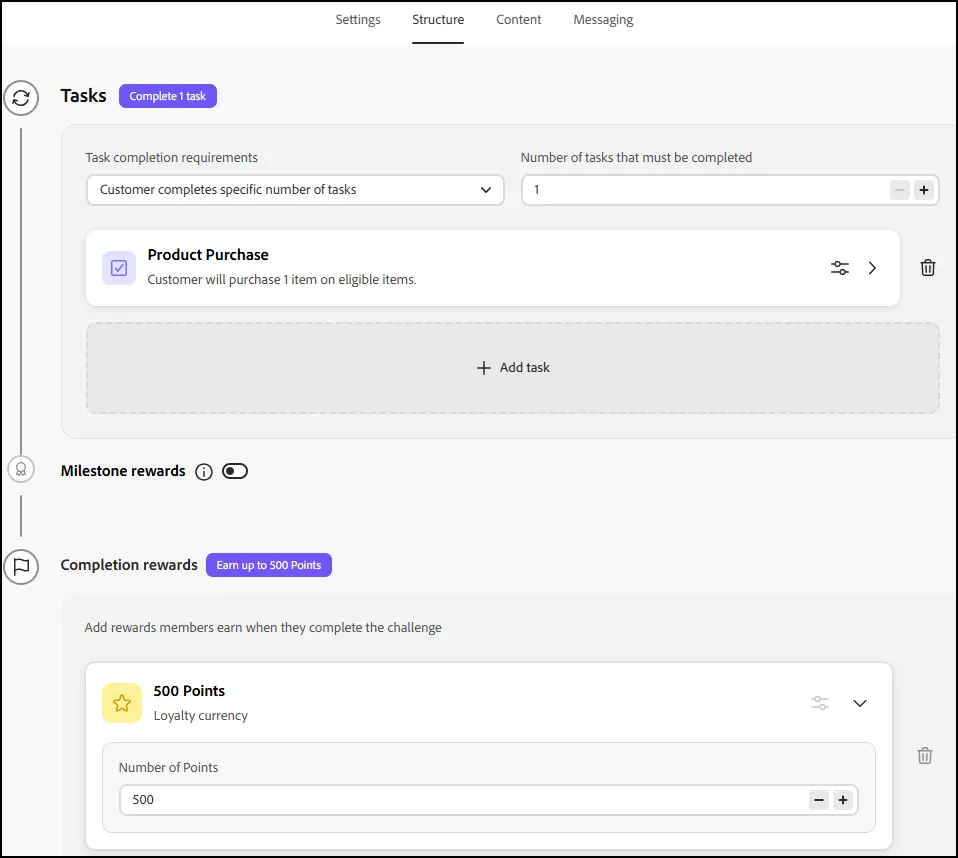
- Under the Completion Rewards, add a value for Number of Points. We chose 500.
- Your structure should look similar to the following:
-
- Click "Save Changes" to save your progress.
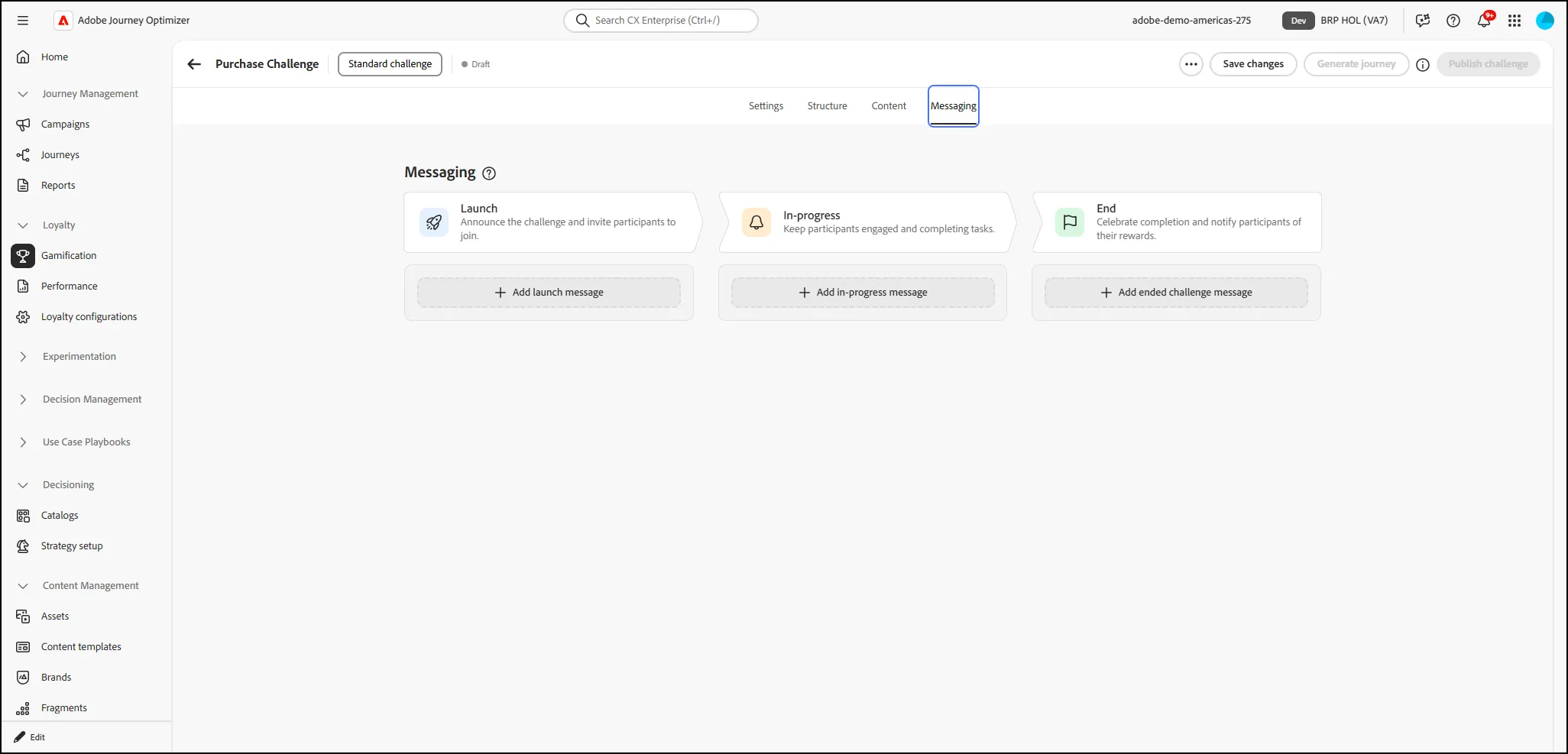
- From the top list of tabs, move to the "Messaging" tab:
- (NOTE: We will not be covering "Content" design in this session.
-
- For Messaging section, we will be adding a Message for each of the steps of our Challenge. This will include a "Launch Message", a "In-Progress Message" and a "End Message".
-
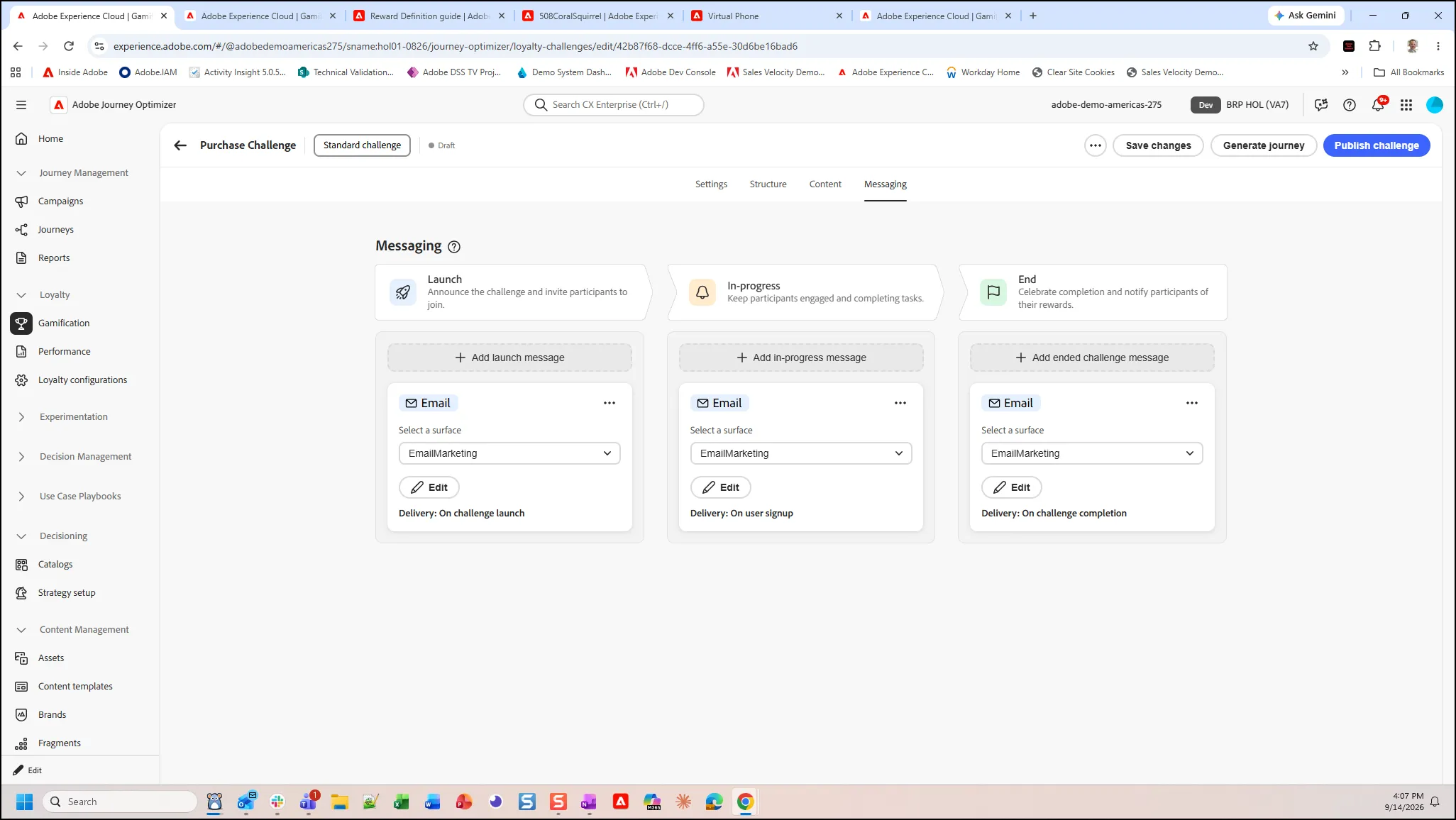
-
- (NOTE: In this lab/exercise, we will not be configuring or designing message content. That would be covered under a Message Design lab in an AJO HOL.)
- Once you have finished adding your messages, you can click on the "Publish Message" button to complete your Challenge Design.
- End of Exercise.