Create a Cart abandonment Journey
In this exercise you will create a multi-step journey for people who add a product to their cart but don't complete the purchase.
Design the journey
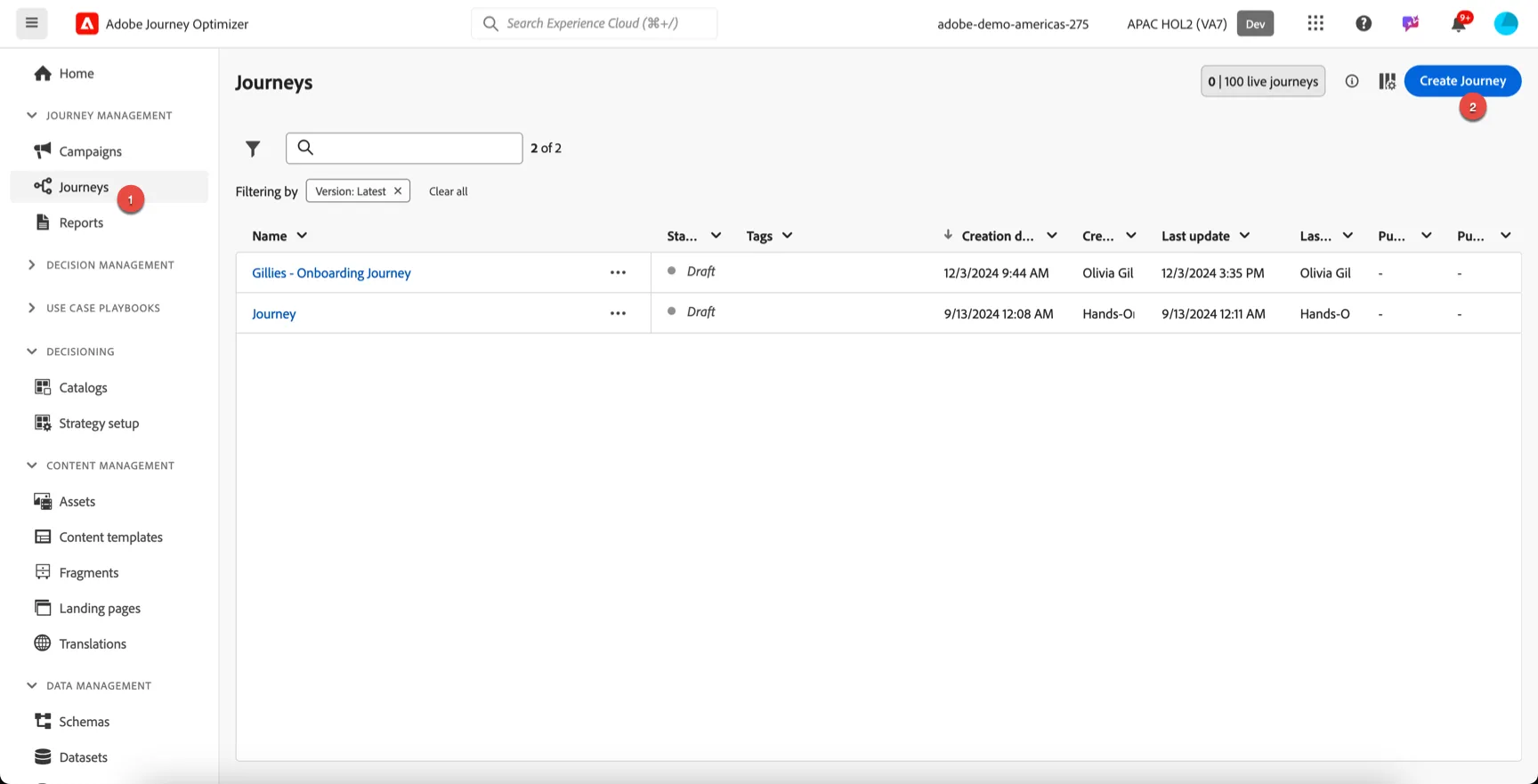
Navigate to Journeys and click to Create Journey
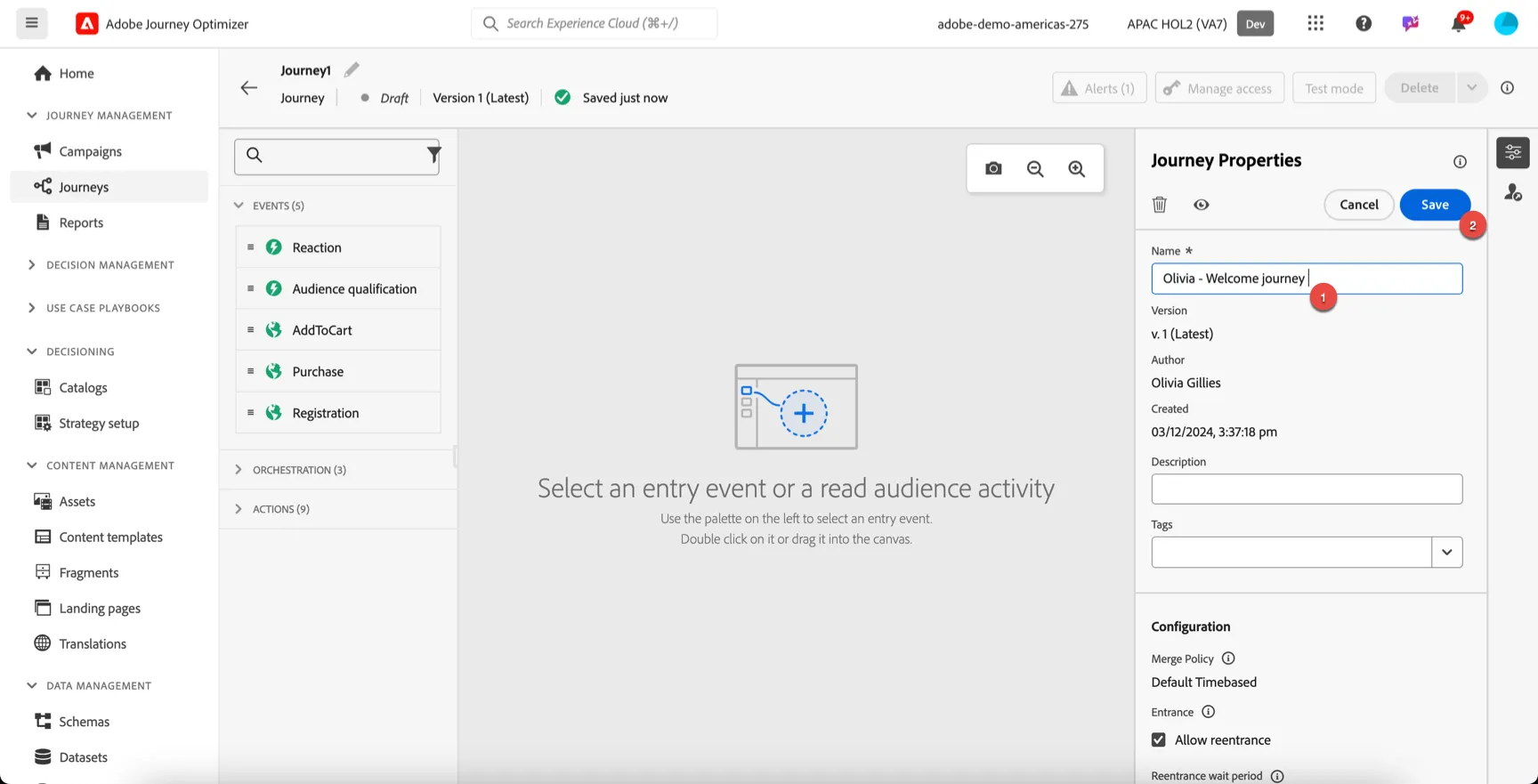
In the Journey properties, update the journey name - add your initials or something unique so you can recognise it again! Click to Save.
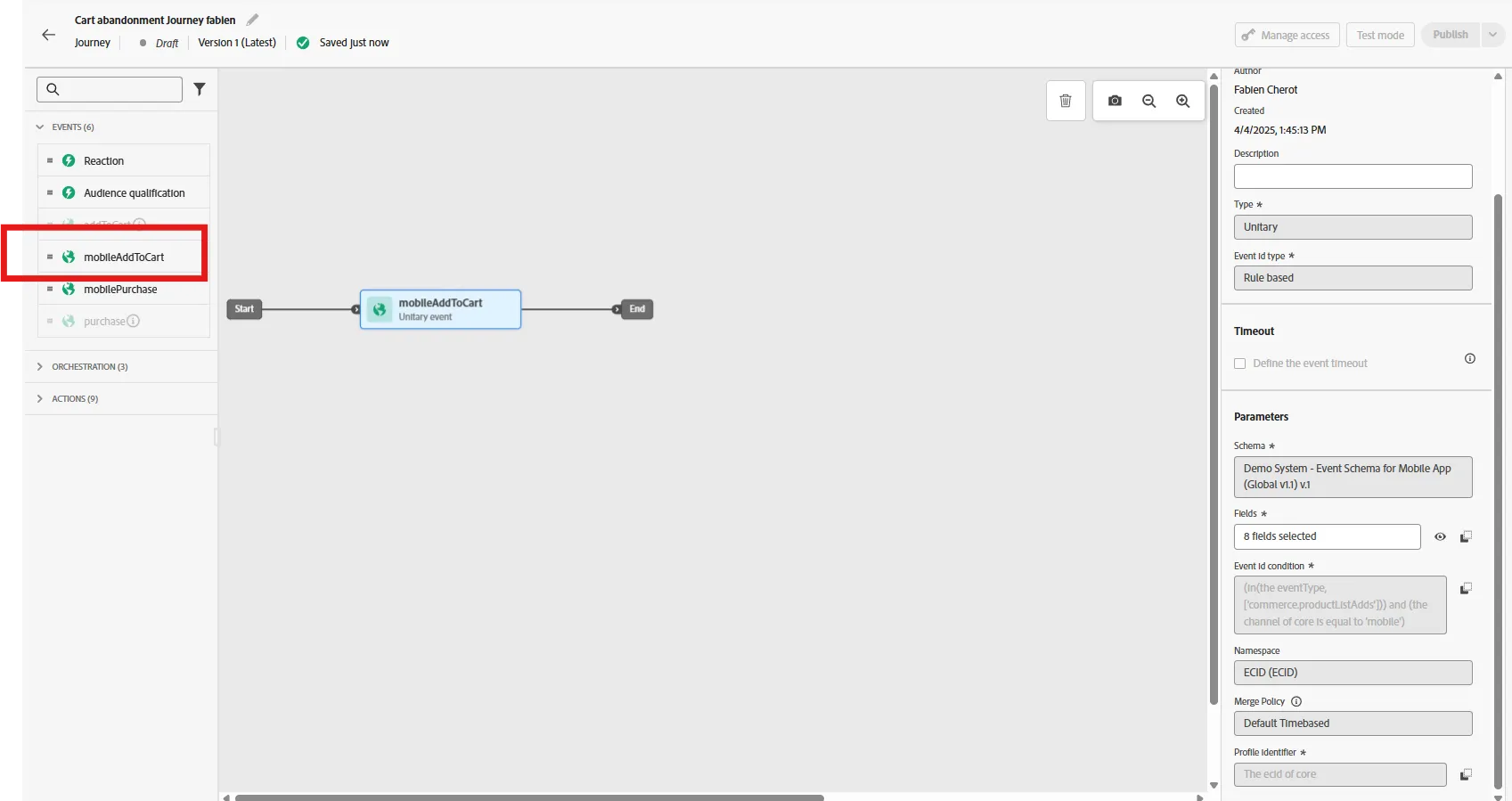
Drag the AddToCart event onto the canvas, this is the event that will trigger entrance into the journey.
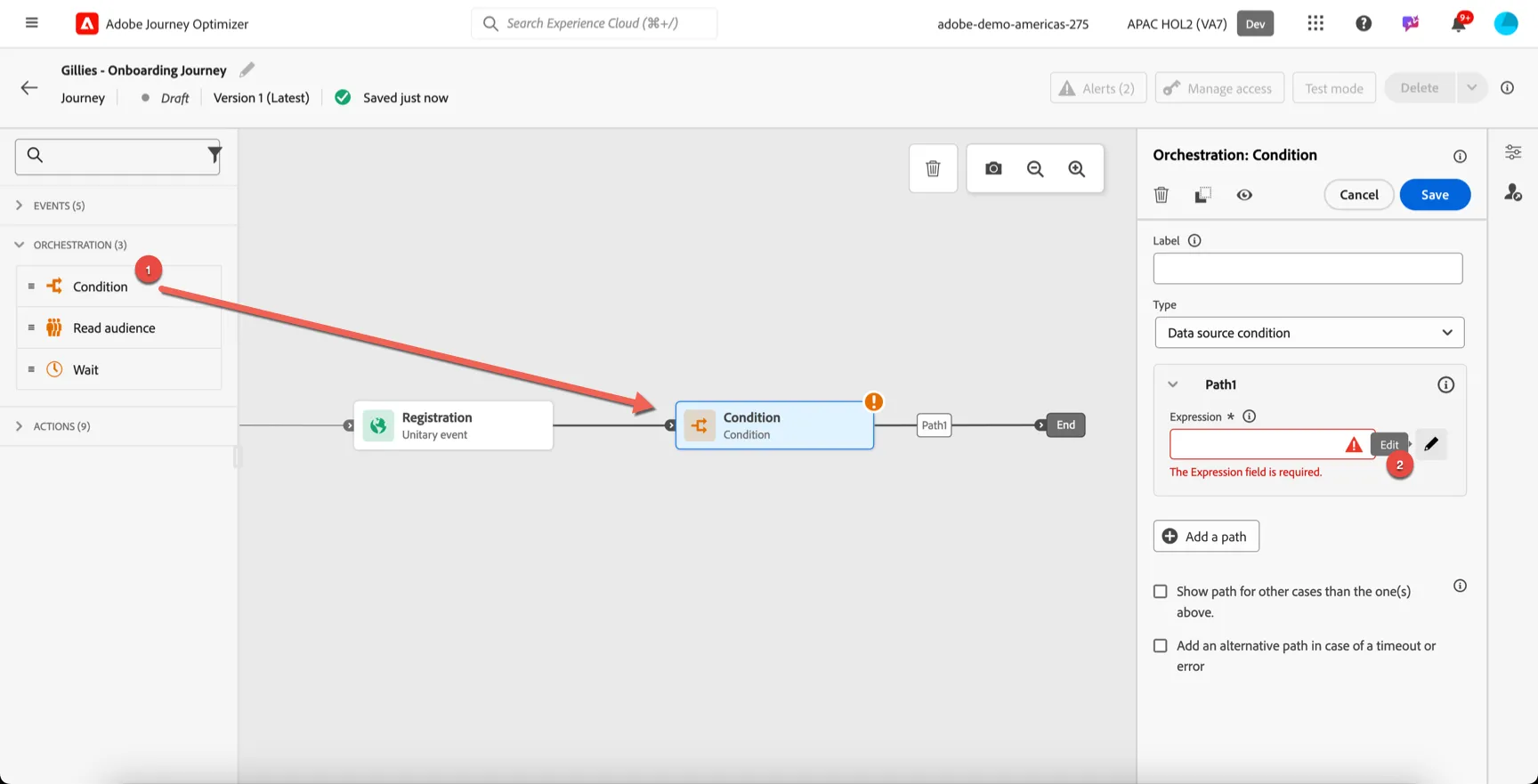
Now because there are a lot of us building the same journey, let's filter to include only your profile record. We can do this using a condition.
- Drag a condition activity to the canvas.
- Click to edit the expression
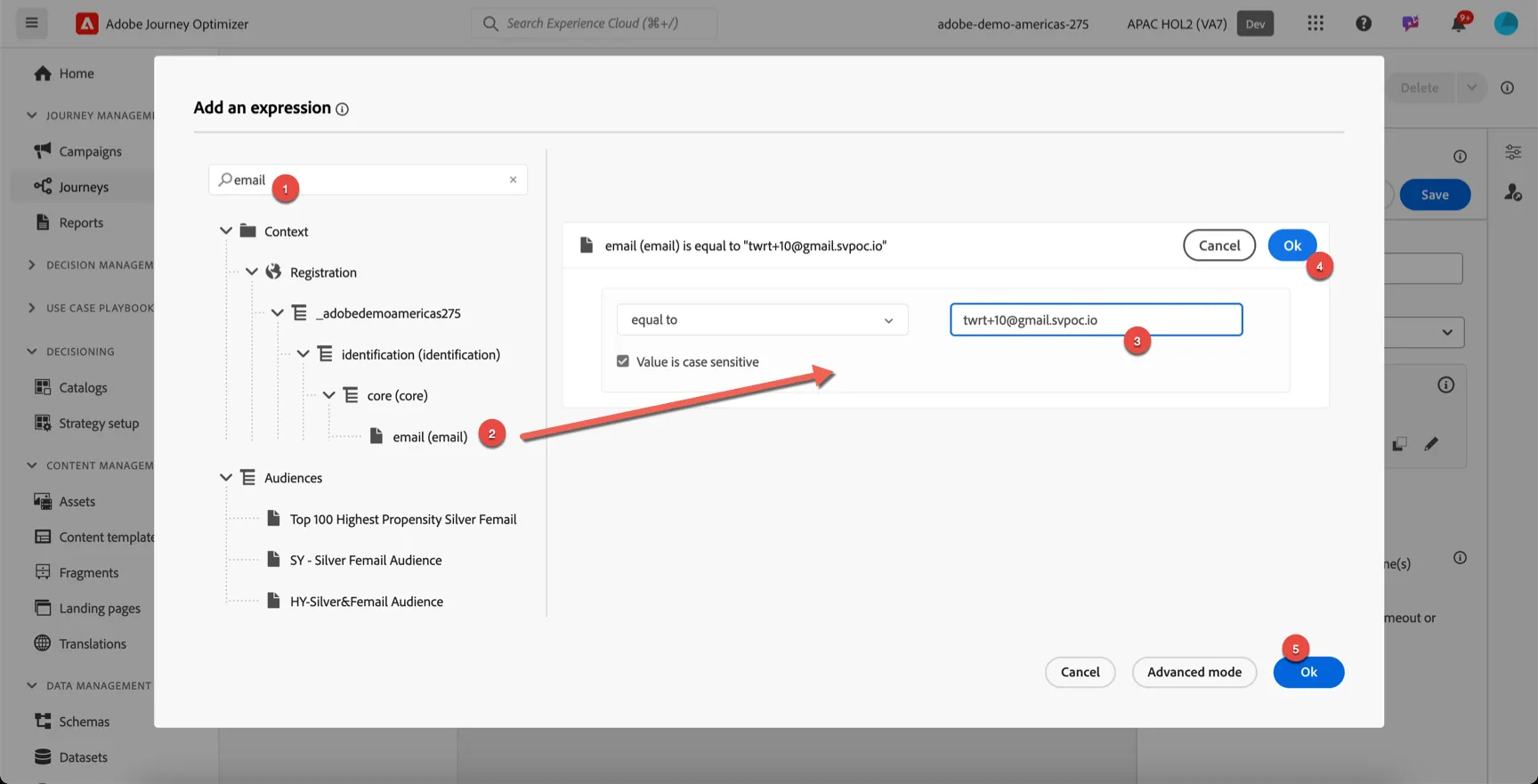
Set the expression to check that the email address matches yours.
- search for email
- drag the email field into the editor
- set the condition to equal to and enter your email address (the one ending in @gmail.svpoc.io)
- click ok
- click ok to close the editor
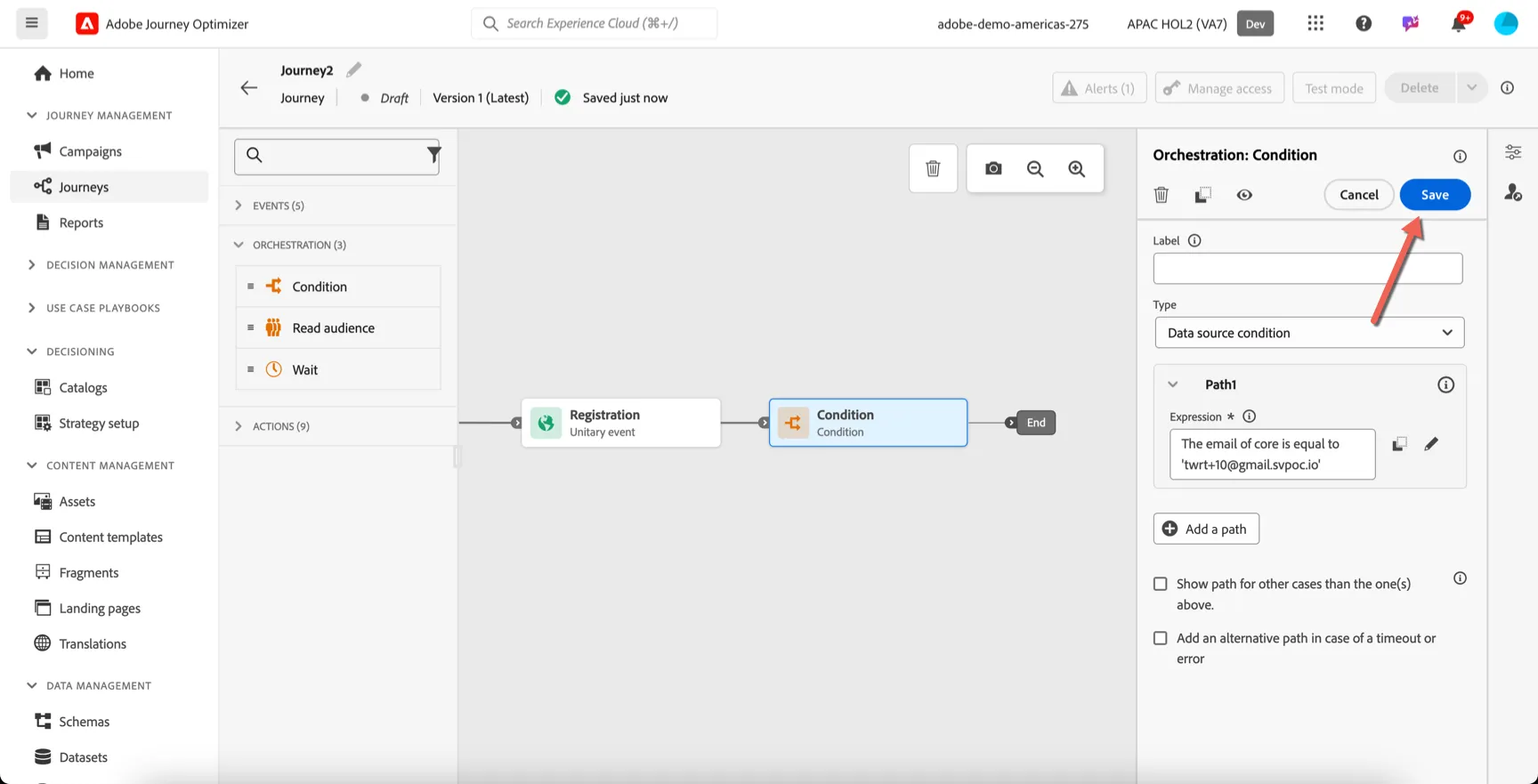
Lastly click Save to save the condition.
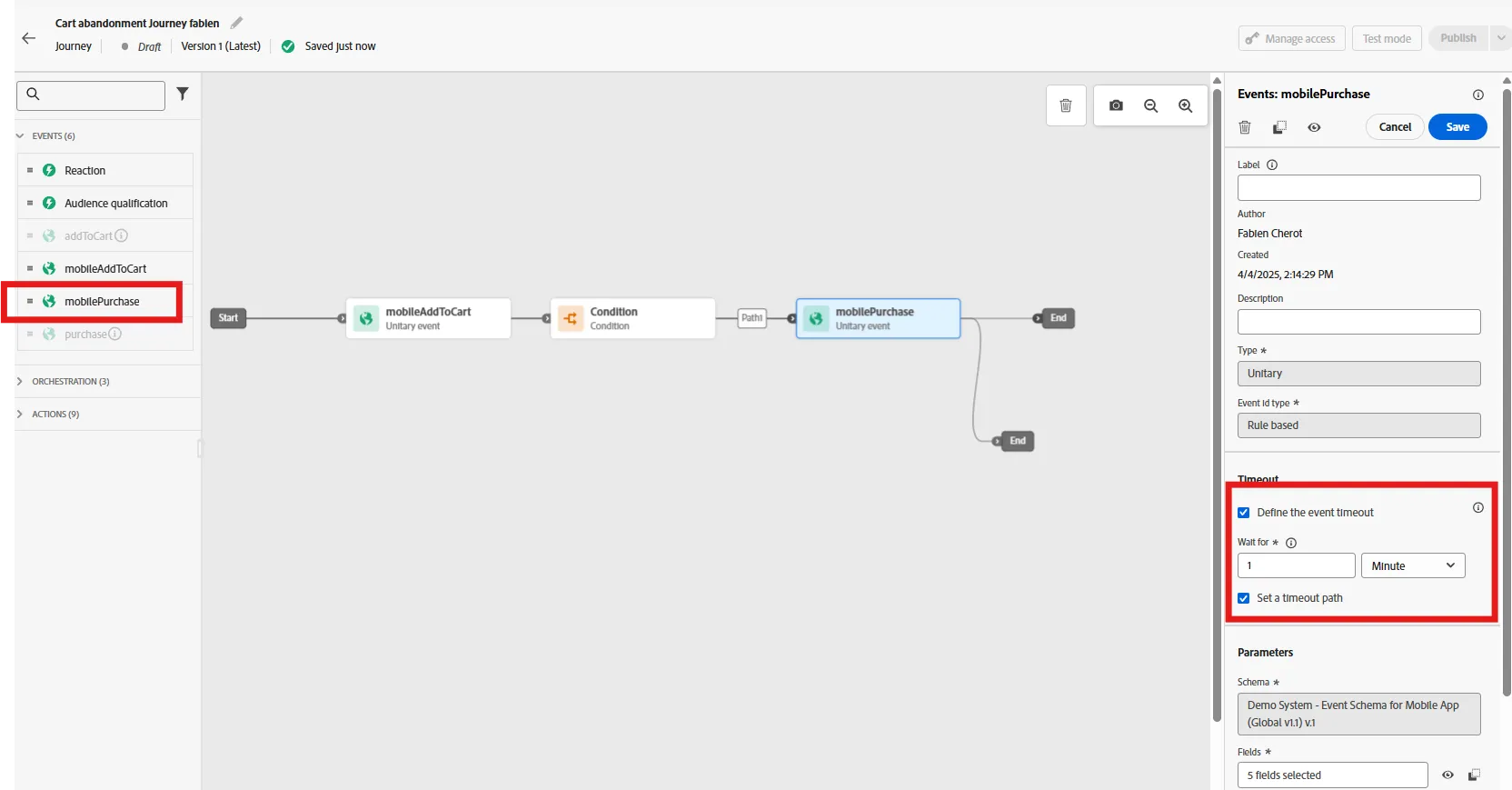
From the Events menu, drag an Purchase activity into the canvas after the condition. On the right pannel, check the timeout path option, and use 1 minute timeout as shown below.
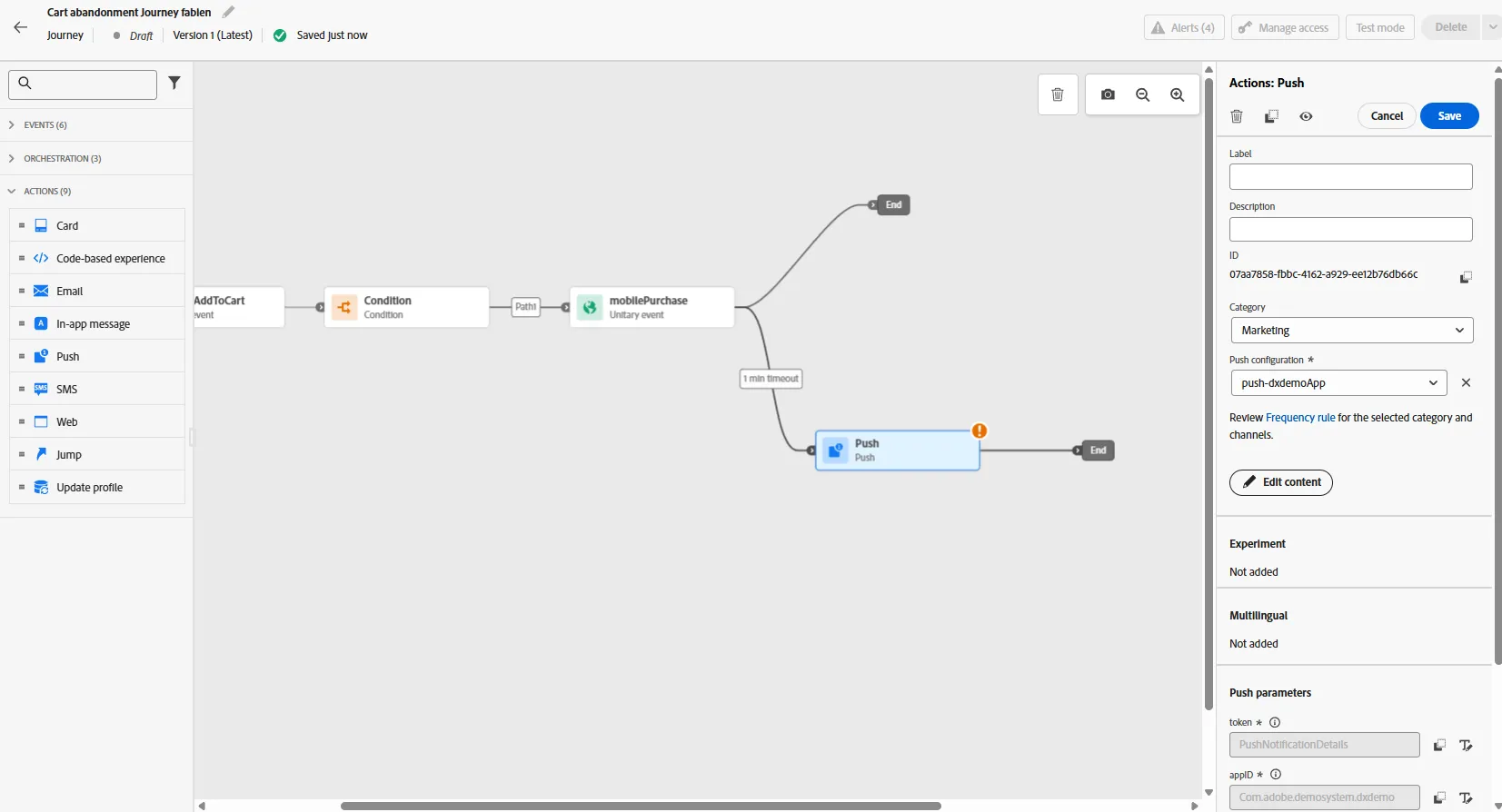
From the action menu, drag and drop a push activity on the time out path. We want to send a reminder if our customer doesn't complete the purchase after a period of time
Select push-demoApp as a push configuration and click on edit content.
You can type a title and body for your message
You can add profile attribute such as first name by clicking on the profile icon, or use AI to generate a text for you with the magic wand icon.
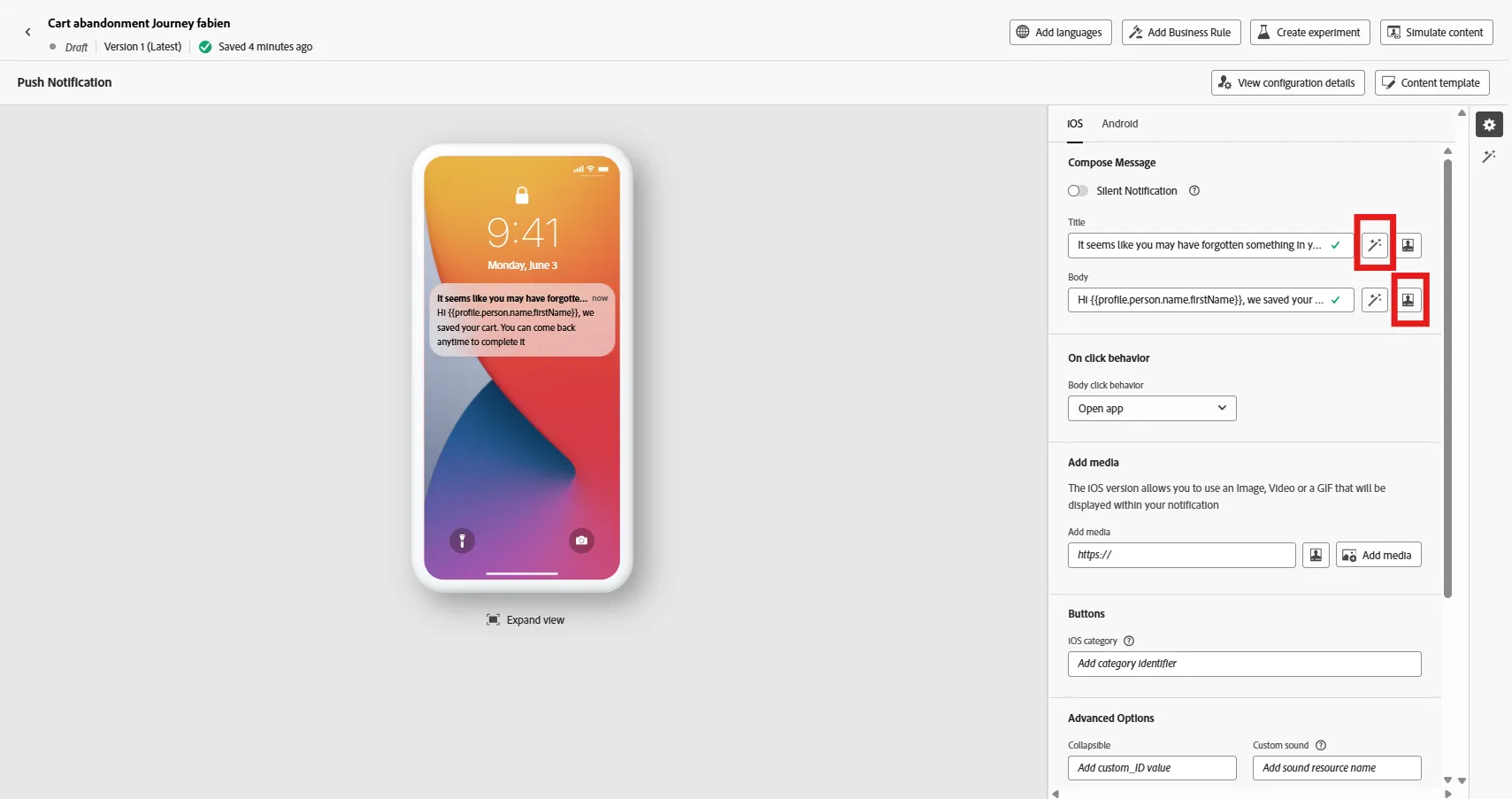
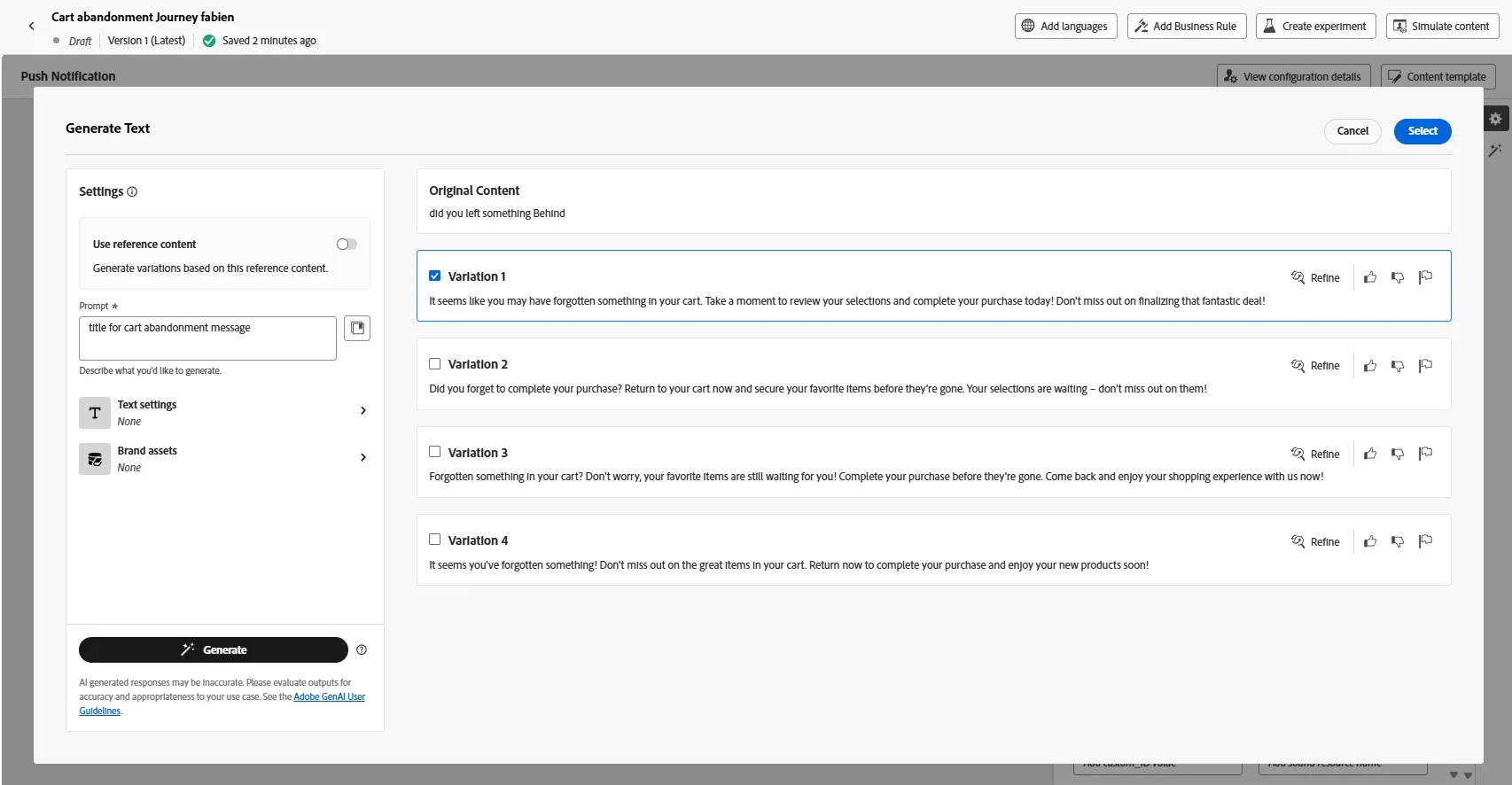
If you use AI, just put a description or what you want, then select a variation.
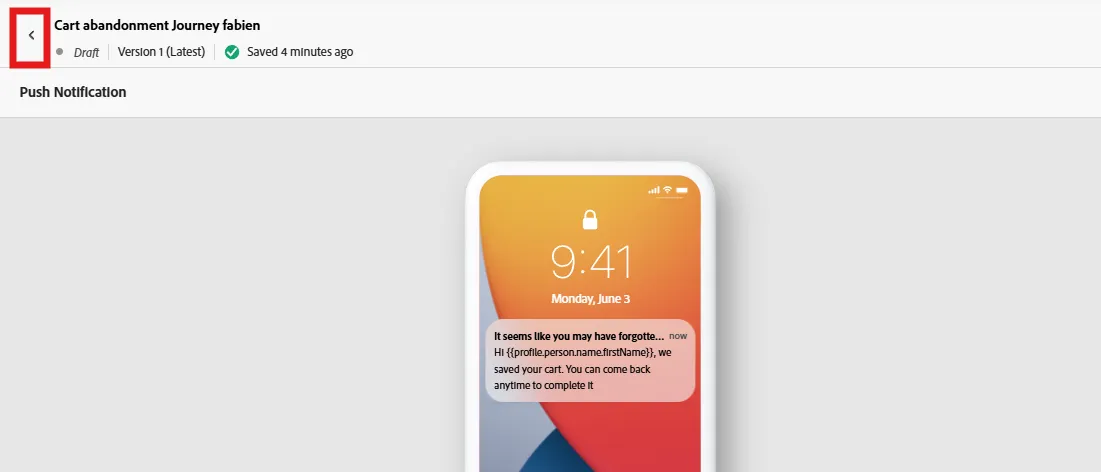
Once done, you can come back to the journey by clicking on the left arrow icon, on the top left corner
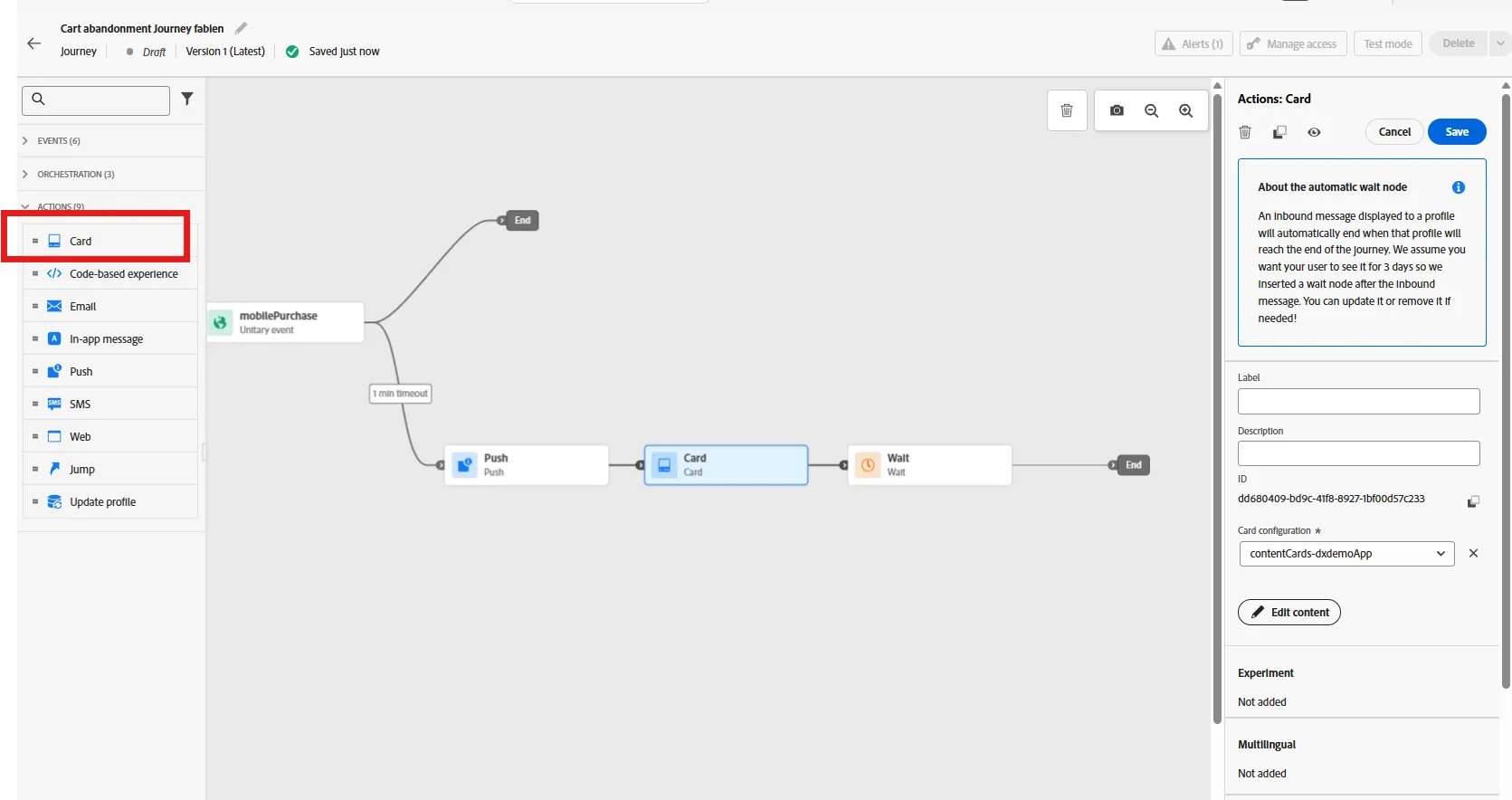
Next, we can add a content activity if we want to personalize the App when customer come back. Drag and drop the Card Activity after your push, the select contentCard-dxDemoApp as configuration, then click edit content
Add some text. Ex : Title "We saved your cart", body: "Confirm your purchase now to get a change to receive a new voucher".
Click on add button with title: "purchase" and Target: dxdemo://Checkout
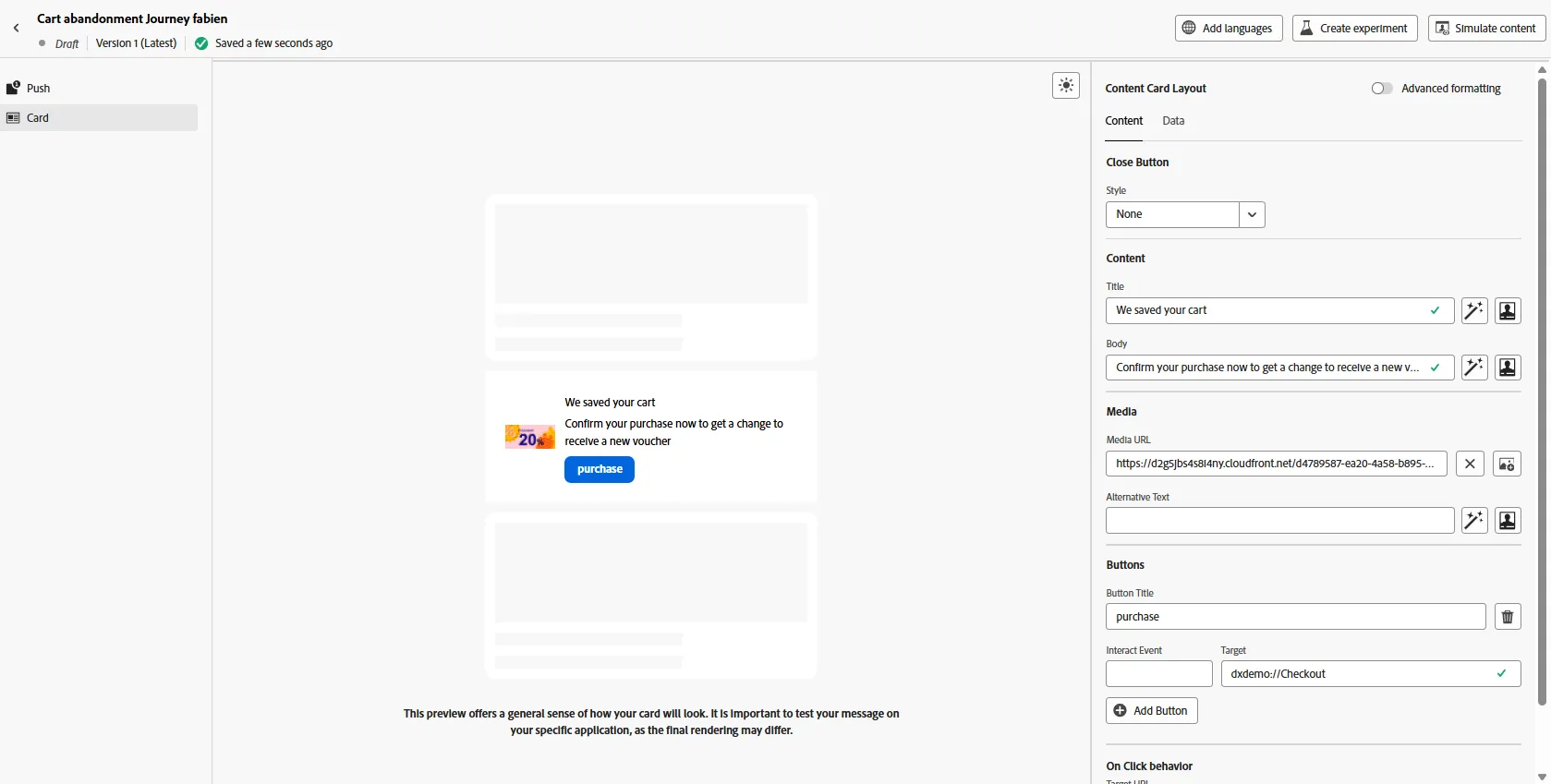
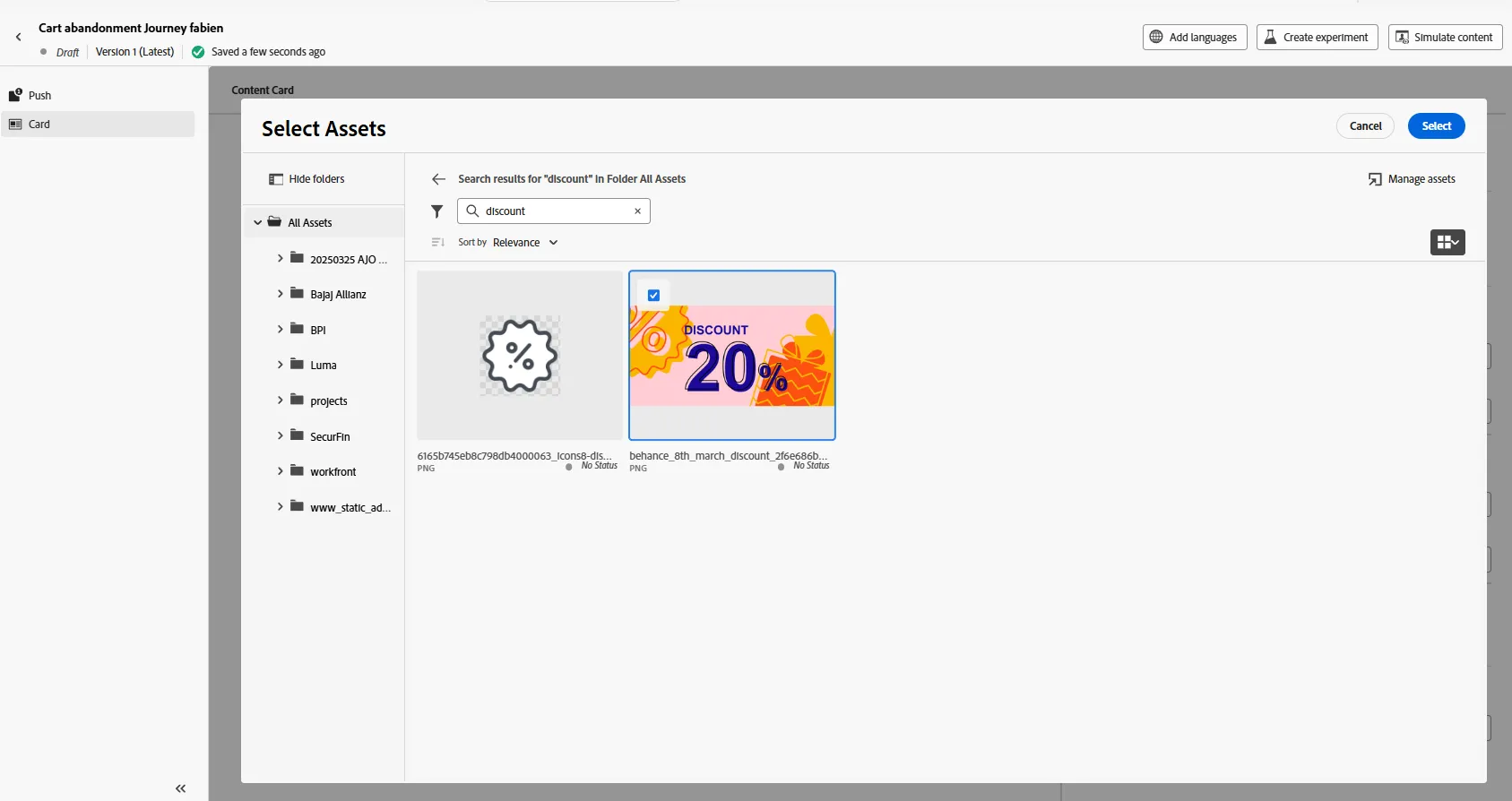
Finally, add an image. For that you have access to the asset library. You can search an asset by smart tags. Ex : search for "discount" and select the 20% discount image
Optional Step : Add an email for purchase confirmation.
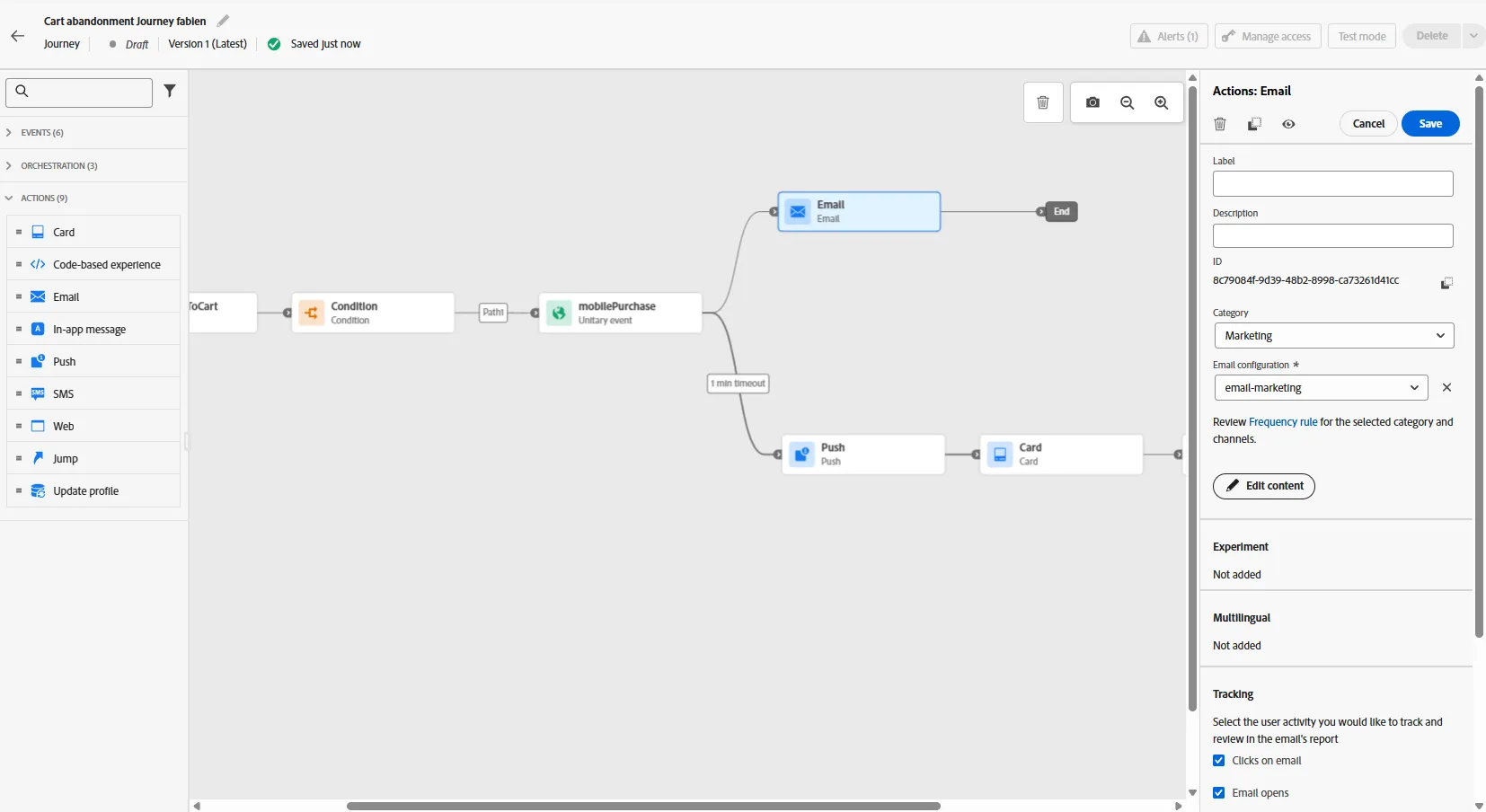
Add an email activity after the mobilePurchase activity, for the main branch. Select email-marketing for email configuration on the right pannel, then click edit content
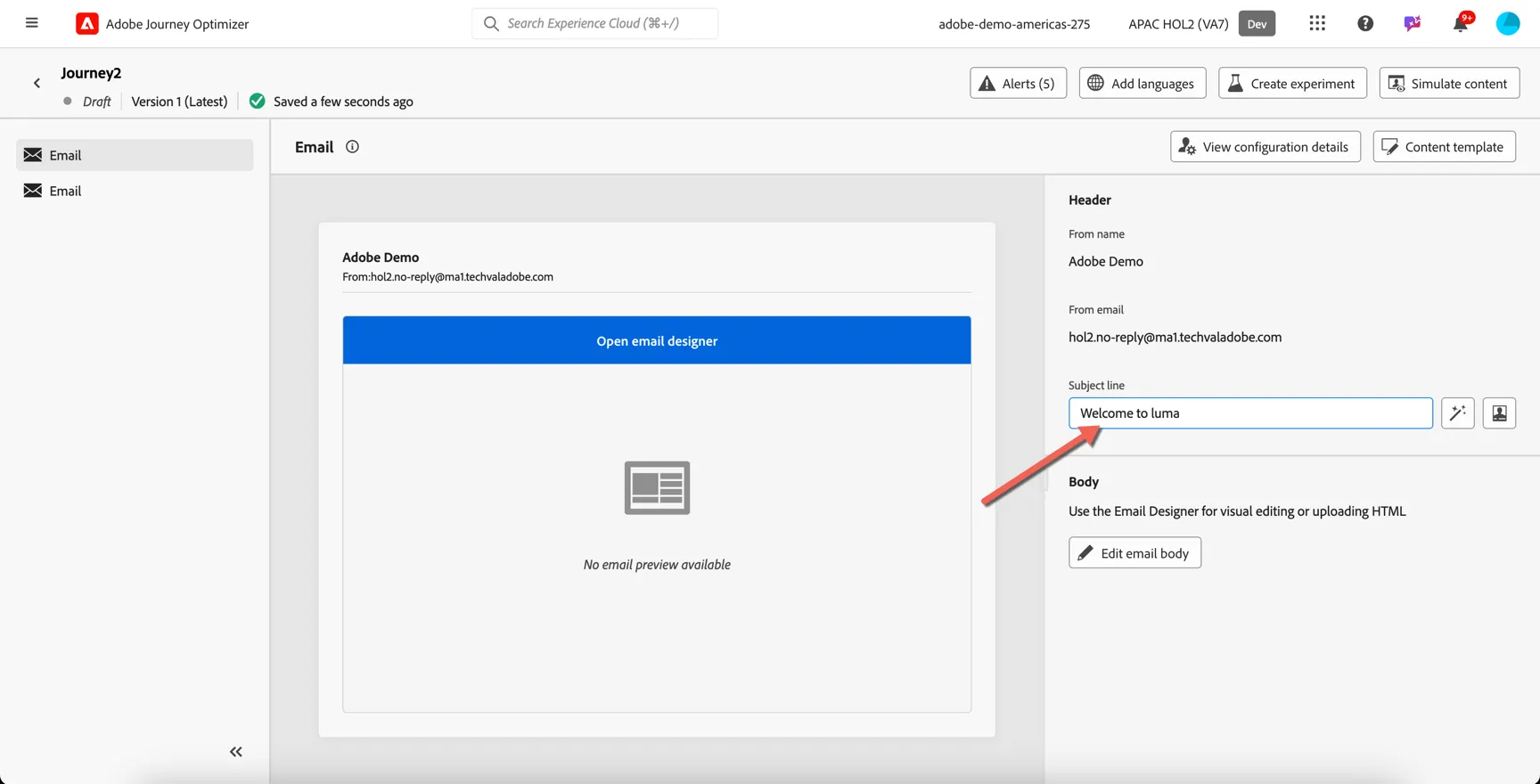
Add a subject line of your choice (example : "your order is confirmed"), then click on edit email body
Go to saved template, if you have created one previously you can use it. Otherwise just use Luma Basic
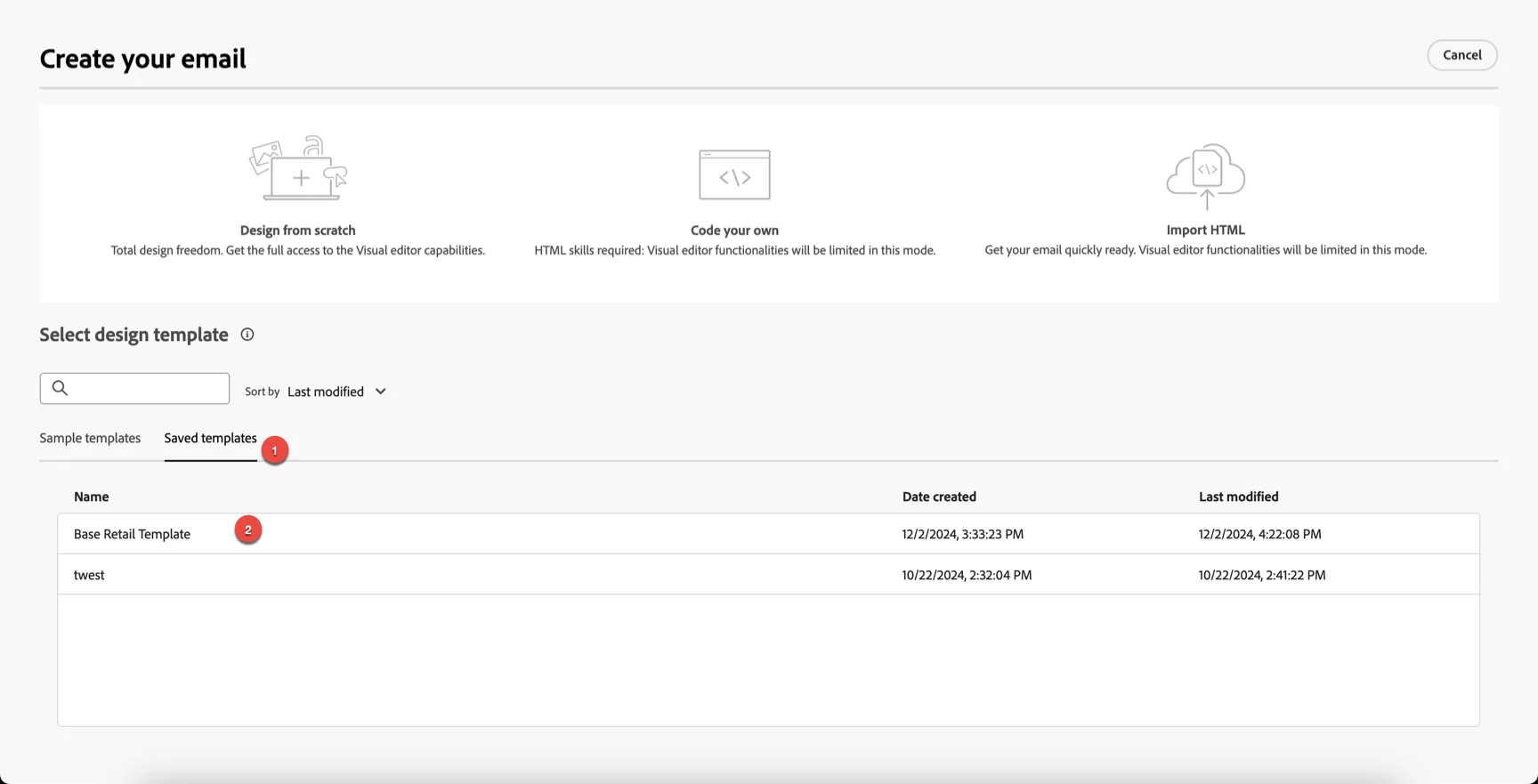
Click to Use this template
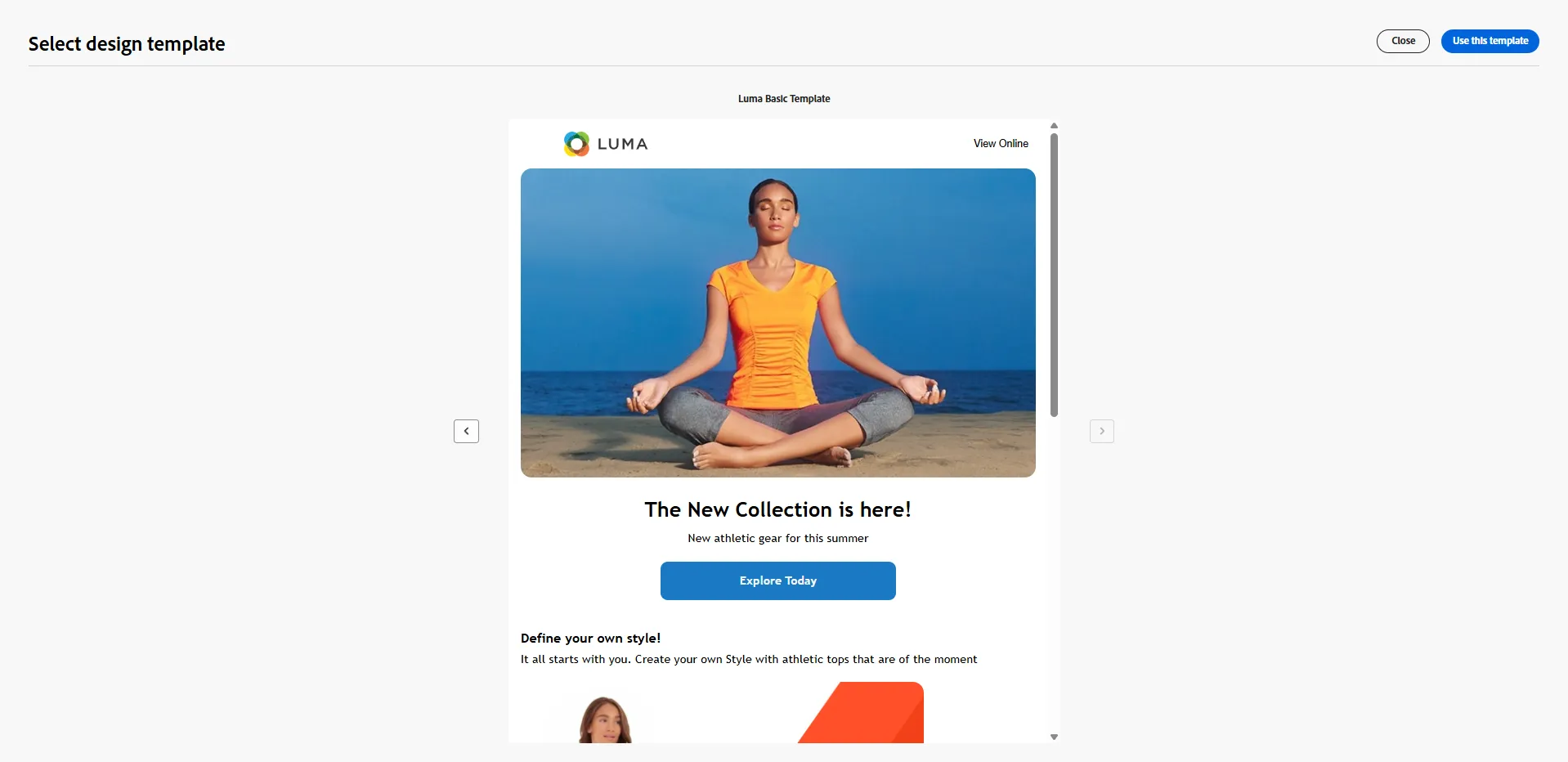
Optional : You can update any piece of the email using the editor, add text, images, button, etc. Once done, click on save and return to the journey using the arrows on the top left.
Publish your journey
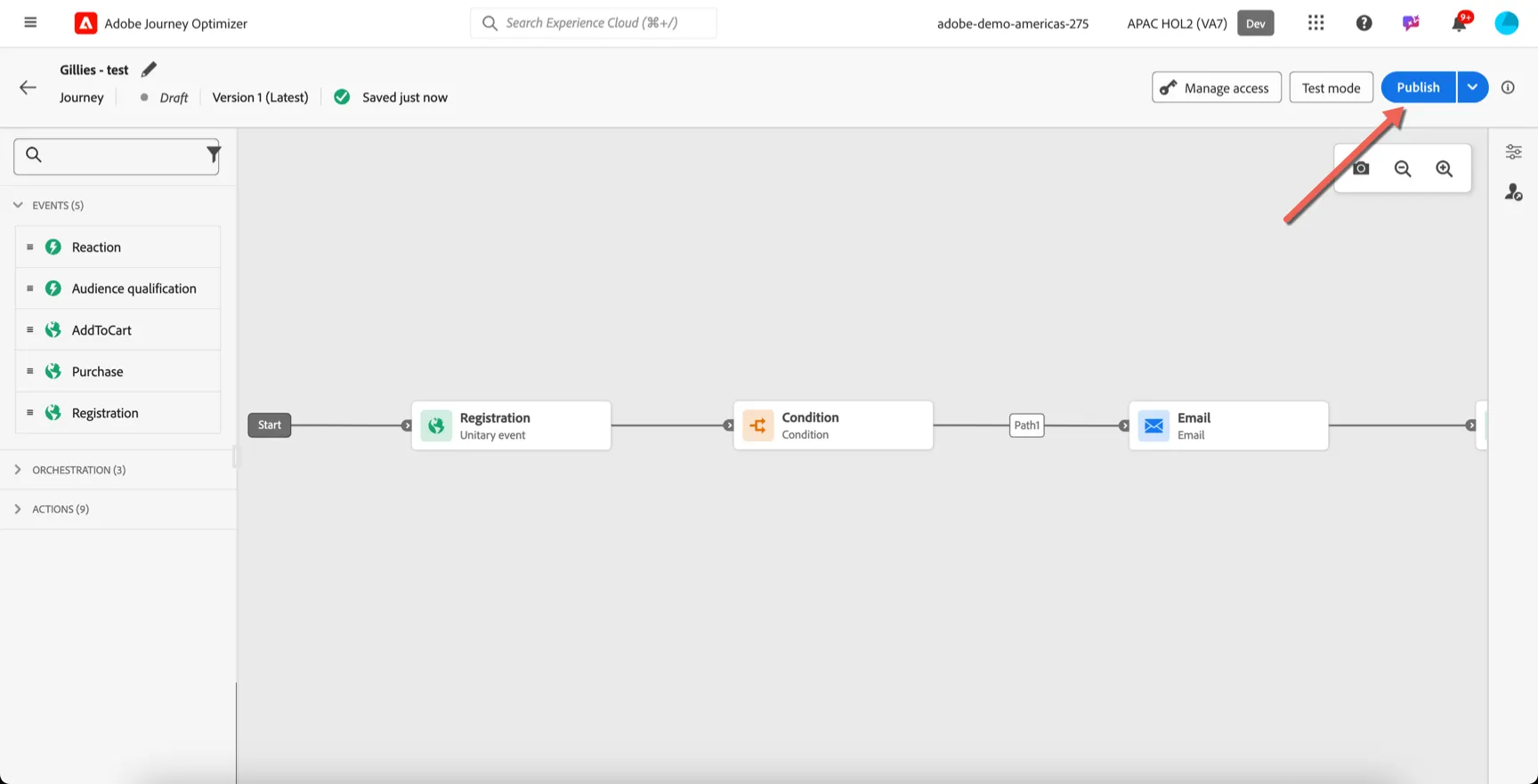
Now the journey is built, we need to publish it. Click on the publish button on the top right.
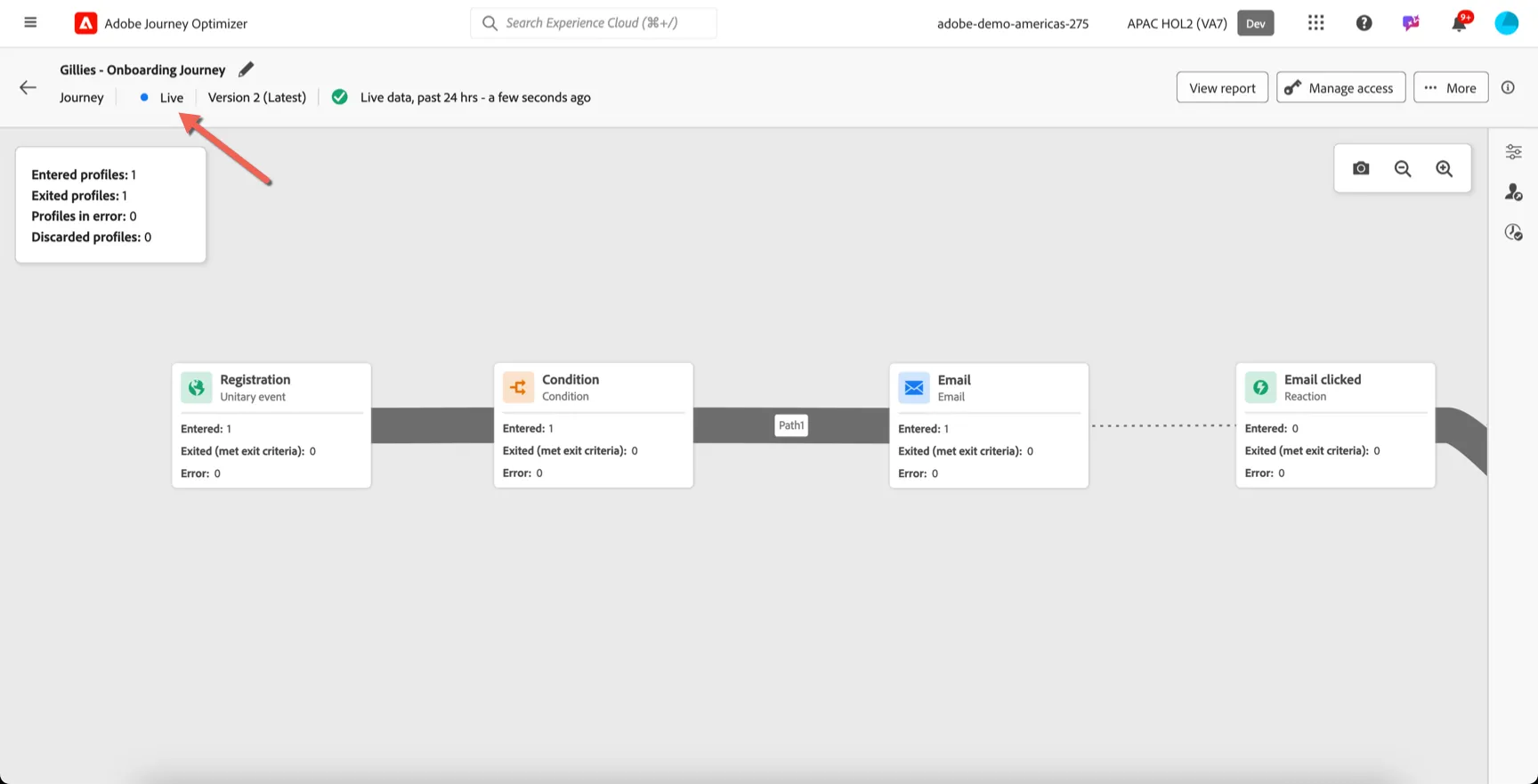
The status will change to Live - this may take a few minutes.
Trigger your Journey
Open the App, ensure you are logged in. Then browse a product and click on add to cart.
If you don't complete the purchase, you should receive a push notification after 1 minute.
Click on it to reopen the app. Check the content of you home page. You should see the disccount 20 % cart.
Congratulations you've completed the exercise!