Unified Profile (App)
The journey from unknown to known is one of the most important topics amongst brands these days, as is the customer journey from acquisition to retention.
Adobe Experience Platform (AEP) plays a huge role in this journey. AEP is the brains for communication, the “experience system of record.”
AEP is an environment in which the word customer is broader than just the known customers. An unknown visitor on the website or an App is also a customer from AEP's perspective and as such, all of the behaviour as an unknown visitor is also sent to AEP. Thanks to that approach, when this visitor eventually becomes (identified as) a known customer, a brand can visualize what happened before that moment as well. This helps from an attribution and experience optimization perspective.
Browse page on the App
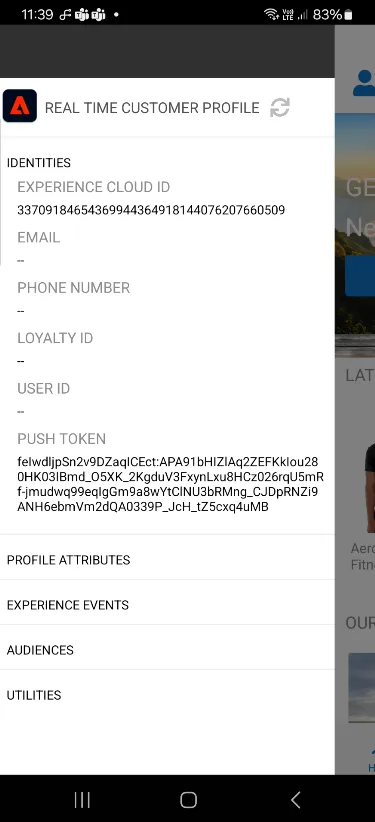
On the App homepage, and any other page, you can get access to the REAL TIME CUSTOMER PROFILE VIEWER.
- Swap right on any page, this will show REAL TIME CUSTOMER PROFILE viewer.
- Have a look at the panel:
- Notice the Adobe Id within IDENTITIES. This is the Experience Cloud ID (aka ECID).
- Click on the EVENTS tab to see the experience events that were collected based on the customer’s behaviour. The list is currently empty (or has just the home page view event) but that will change soon.
Let's behave as a typical customer now.
- go to product tab
- Click on men product
- Clcik on one product to see the detail
You’ll then see the product detail page for this product. An experience event of type Product View has now been sent to AEP using the Web SDK. To inspect this event:
- Open the REAL TIME CUSTOMER PROFILE panel (swap left).
- Take a look at the EXPERIENCE EVENTS.
You will see the interactions you have had with the demo web site.
Tap on the refresh button at the top of the panel if you don't see the events appear
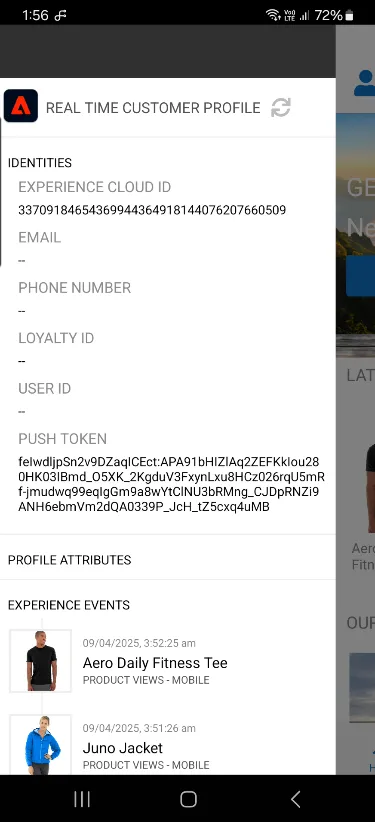
While the behaviour is anonymous, we’re able to track every click and store it in Adobe Experience Platform and we can use that information to personalise the experience.
- Return to the home page by clicking the Luma logo in the top left.
We've used Adobe Target to personalise the banner image to align with their product interest.
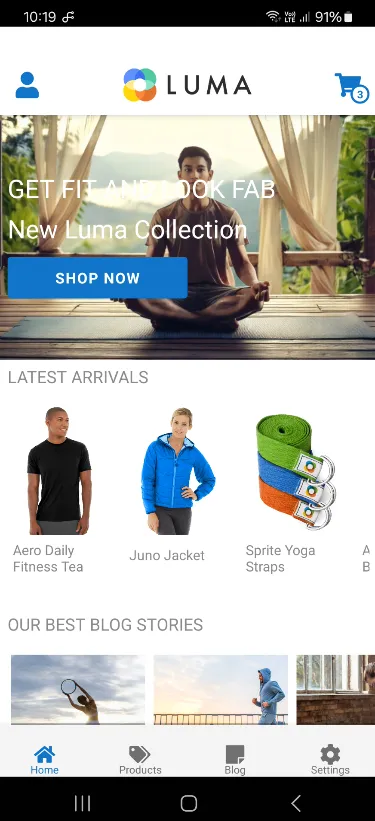
Once the anonymous customer becomes known, we will be able to stitch the anonymous profile to any known profile information we have, and we'll be able to retarget the customer across devices.
- Click on the SIGN IN button in the banner (profil icon on the top left).
- Enter the email address that has been assigned to you as your fake customer profile (see access page - note it will end in @gmail.svpoc.io)
- Password is not checked, you can type anything
- Click on login
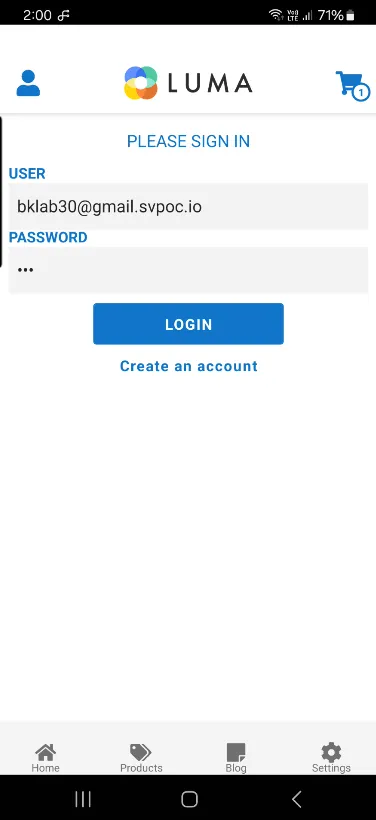
This has now sent an event to Adobe CDP containing both the ECID and the EMAIL address. The Identity Service will now stitch the two id's so we reconize this device when they return as a known customer.
You’ve seen how we collect event data in real time in and how we can use this data for personalisation onsite. In the next exercise, you’ll visualize your profile in Adobe Experience Platform and see how the Identity Service has stitched the new device to a pre-existing known customer profile.
Visualise your Profile
In Adobe's Real-time Customer Profile, all profile data is shown alongside event data, as well as existing segment memberships. The data shown can come from anywhere, from Adobe applications and external solutions. This is the most powerful view in Adobe Experience Platform, the true experience system of record.
Every identity that is ingested into Adobe Experience Platform must be linked to a namespace. With Adobe Experience Platform, all IDs are equally important, typically, the primary identifier depends on the context.
- If you ask your Call Center, "What is the most important ID?", they will probably answer, "the phone number!".
- But if you ask your CRM team, they will answer, "the email address!".
Adobe Experience Platform understands this complexity and manages it for you. Every application, whether an Adobe application or non-Adobe application, will speak with Adobe Experience Platform by referring to the ID they consider primary. And it simply works!
- In the left rail, click on Customer -> Profiles
- On the Profiles tab, click on Browse
- For the field Identity Namespace, select Email
- For the field Identity Value enter your CUSTOMER EMAIL address that you used to register or sign-in with on the website
- Click View. You'll see your profile in the list.
- Click the Profile ID to open your profile
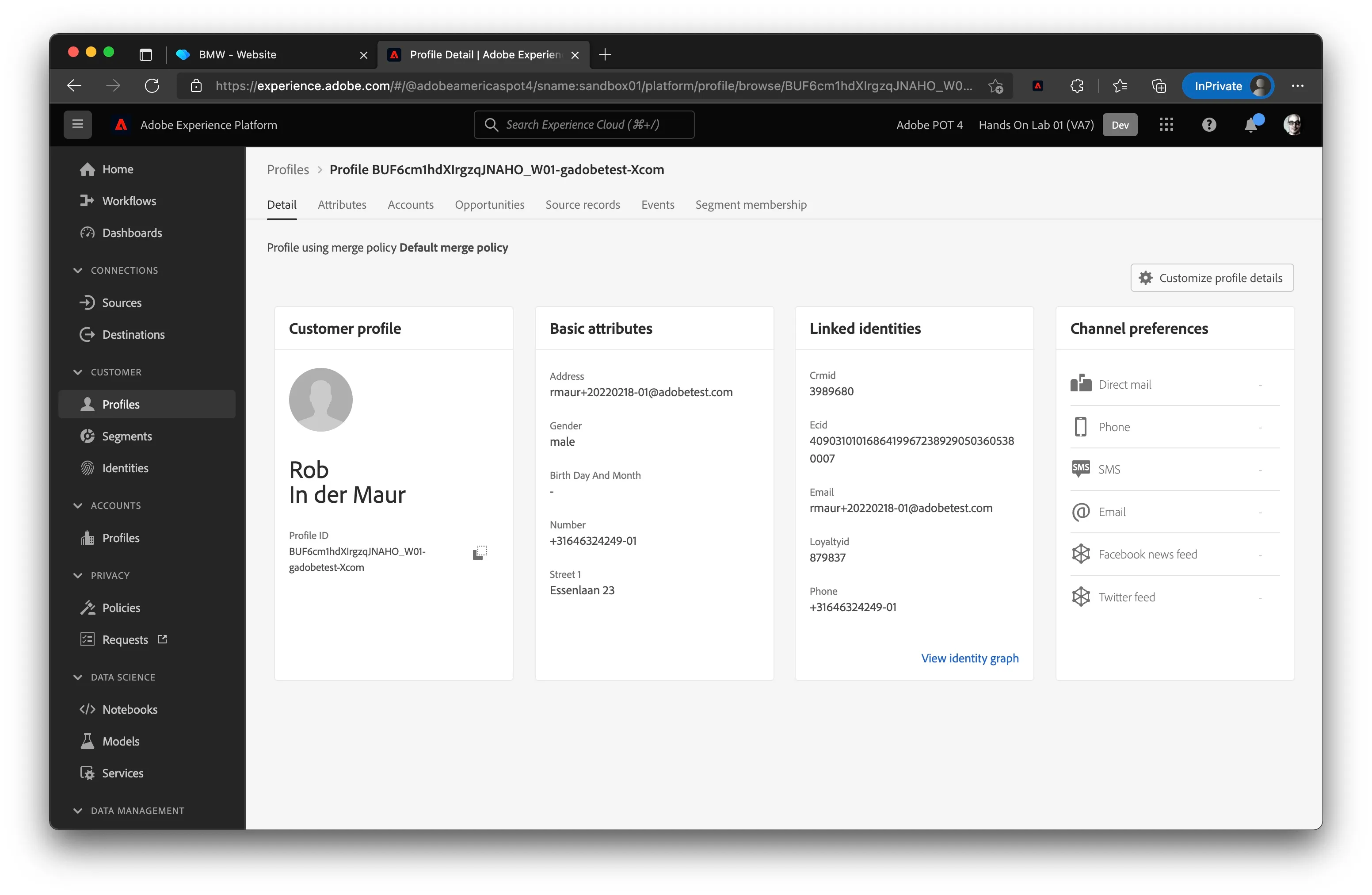
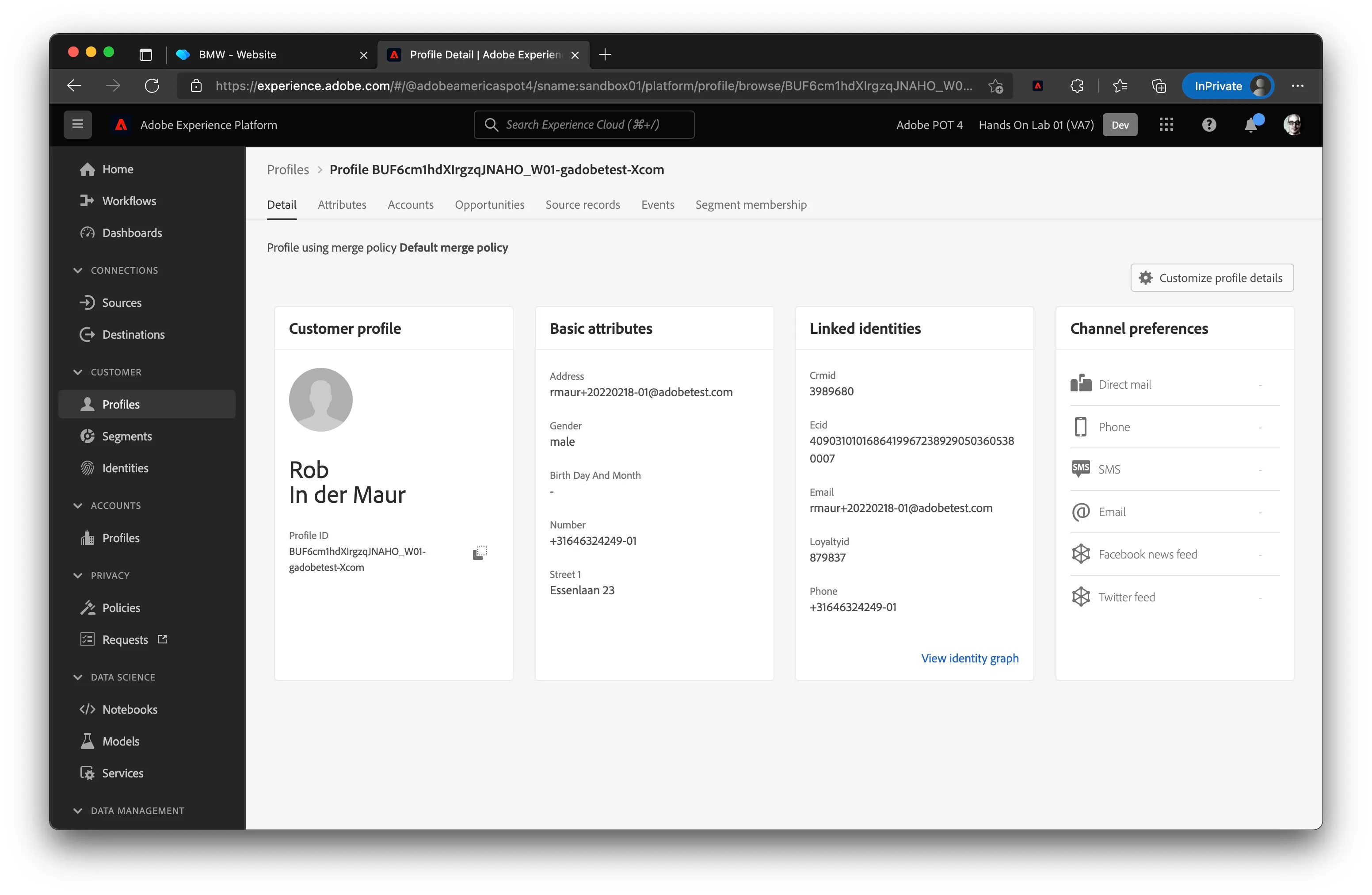
You now see an overview of a couple of important Profile Attributes of your customer profile.
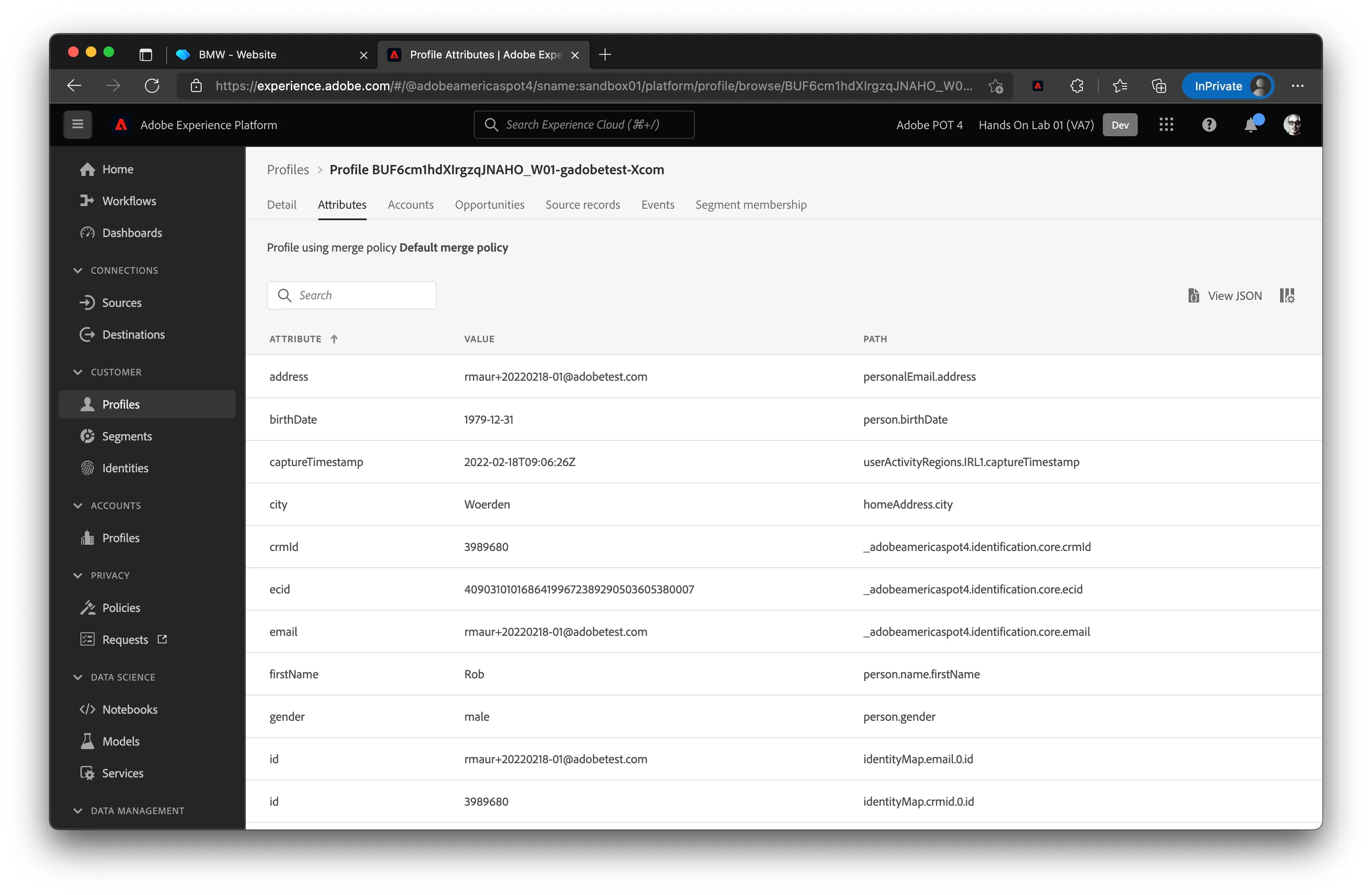
Click on the Attributes tab to see all profile attributes attached to your profile.
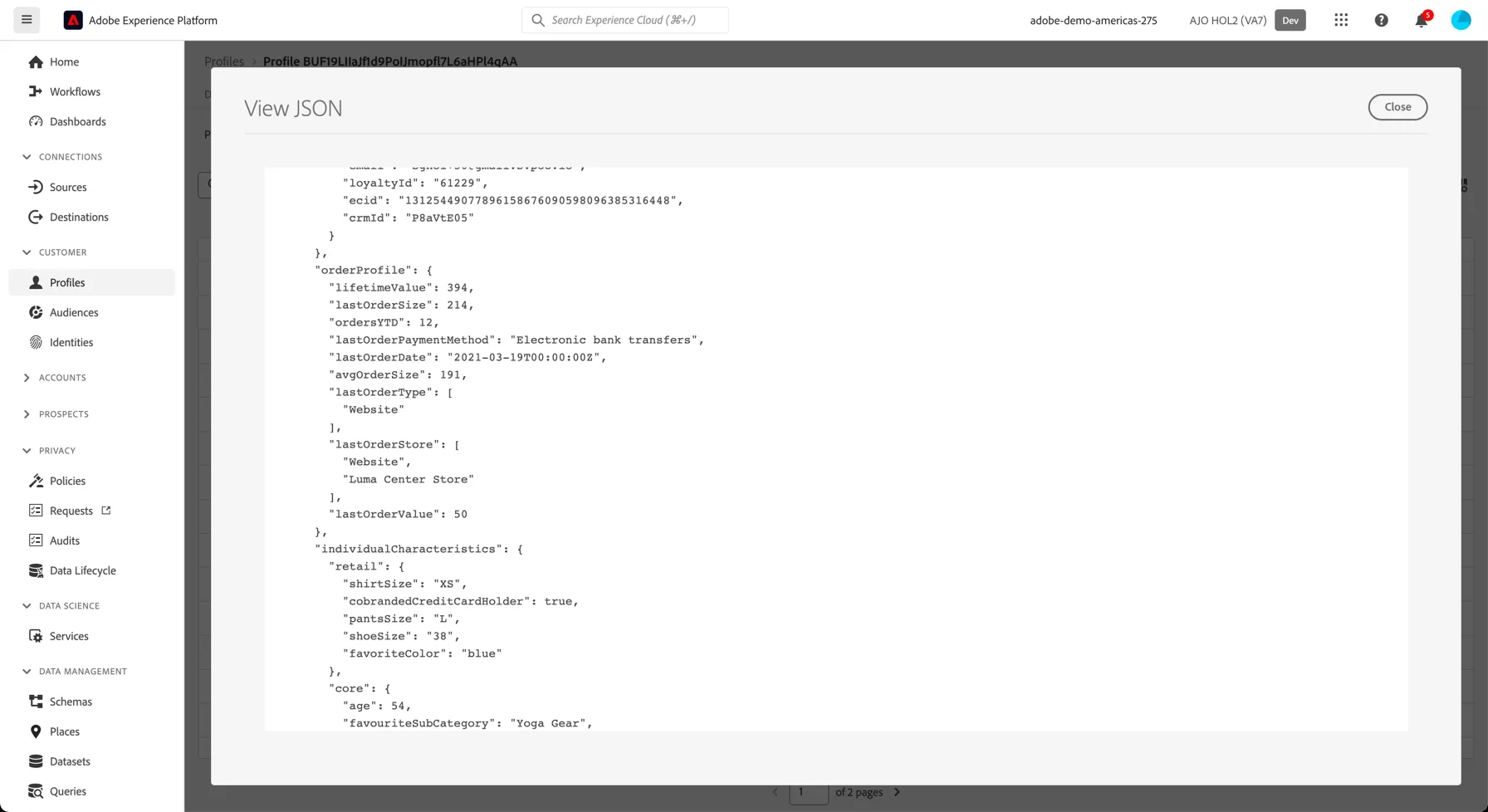
Click on the View JSON button to view these in a structured format. You'll see a number of Retail specific attributes are attached to your profile record, such as lastOrderStore, lifetimeValue etc.
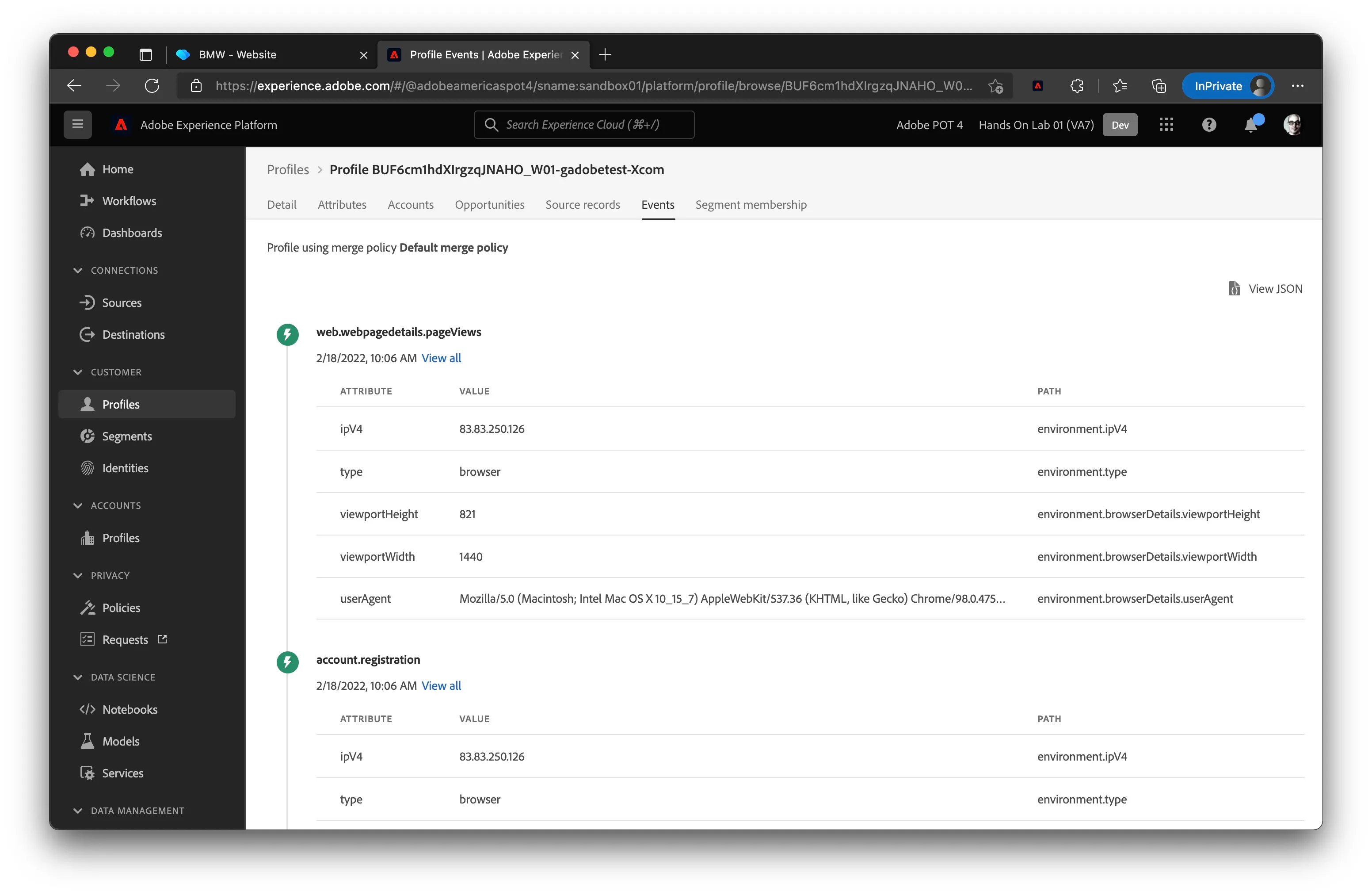
To see all entries for every experience event that is linked to your profile:
- Click on the Events tab
- You can click on View all for each event to see more details of a specific experience event.
It can take a few minutes for stitching of new devices to be reflected here, so don't panic if you don't see your website events yet, just come back in a minute and refresh.
To see all segments that this profile belongs to click on the Segment Membership tab:
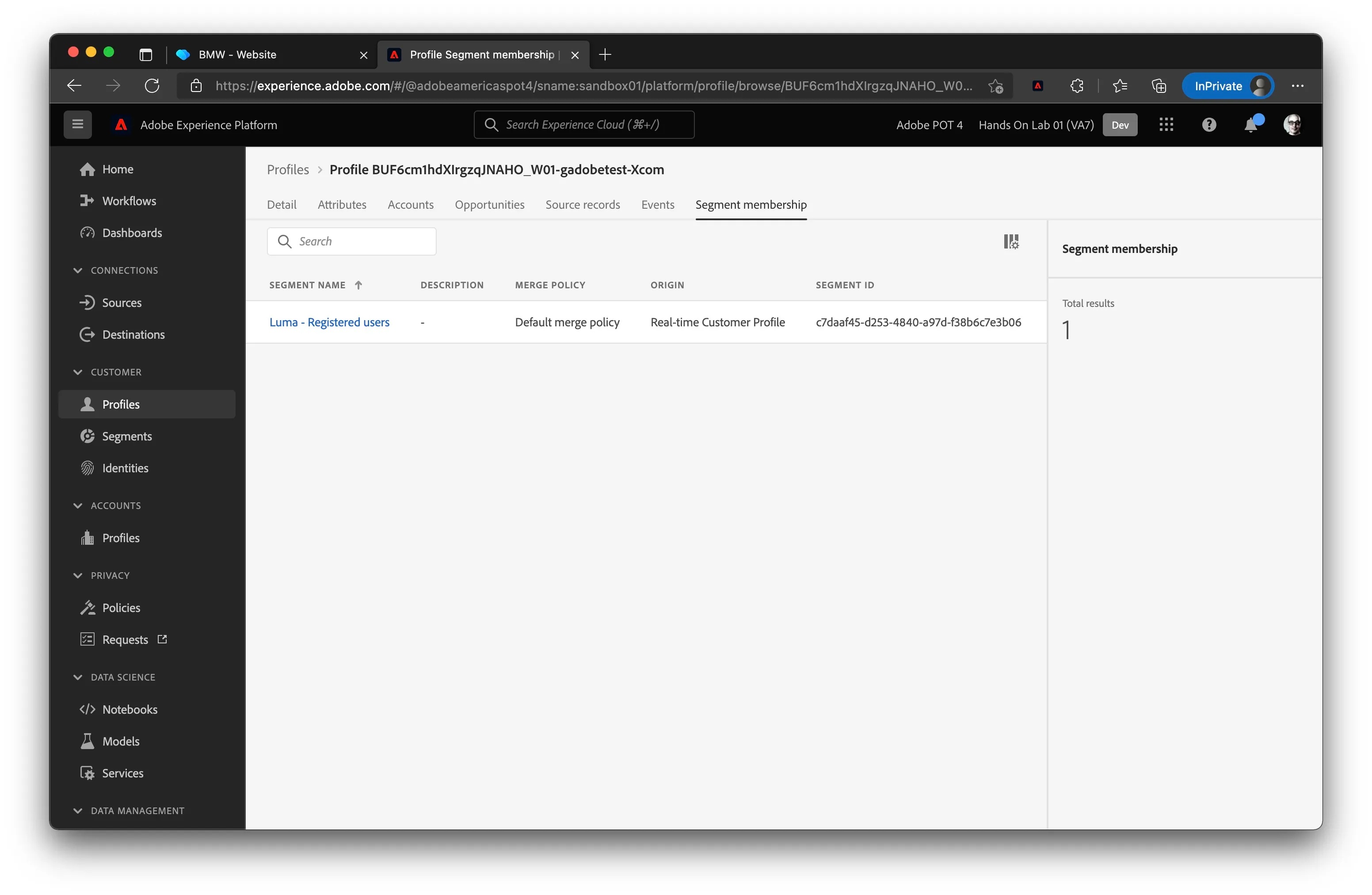
You've now learned how to view any customer’s real-time profile by making use of AEP’s User Interface.
Visualise the Identity Graph
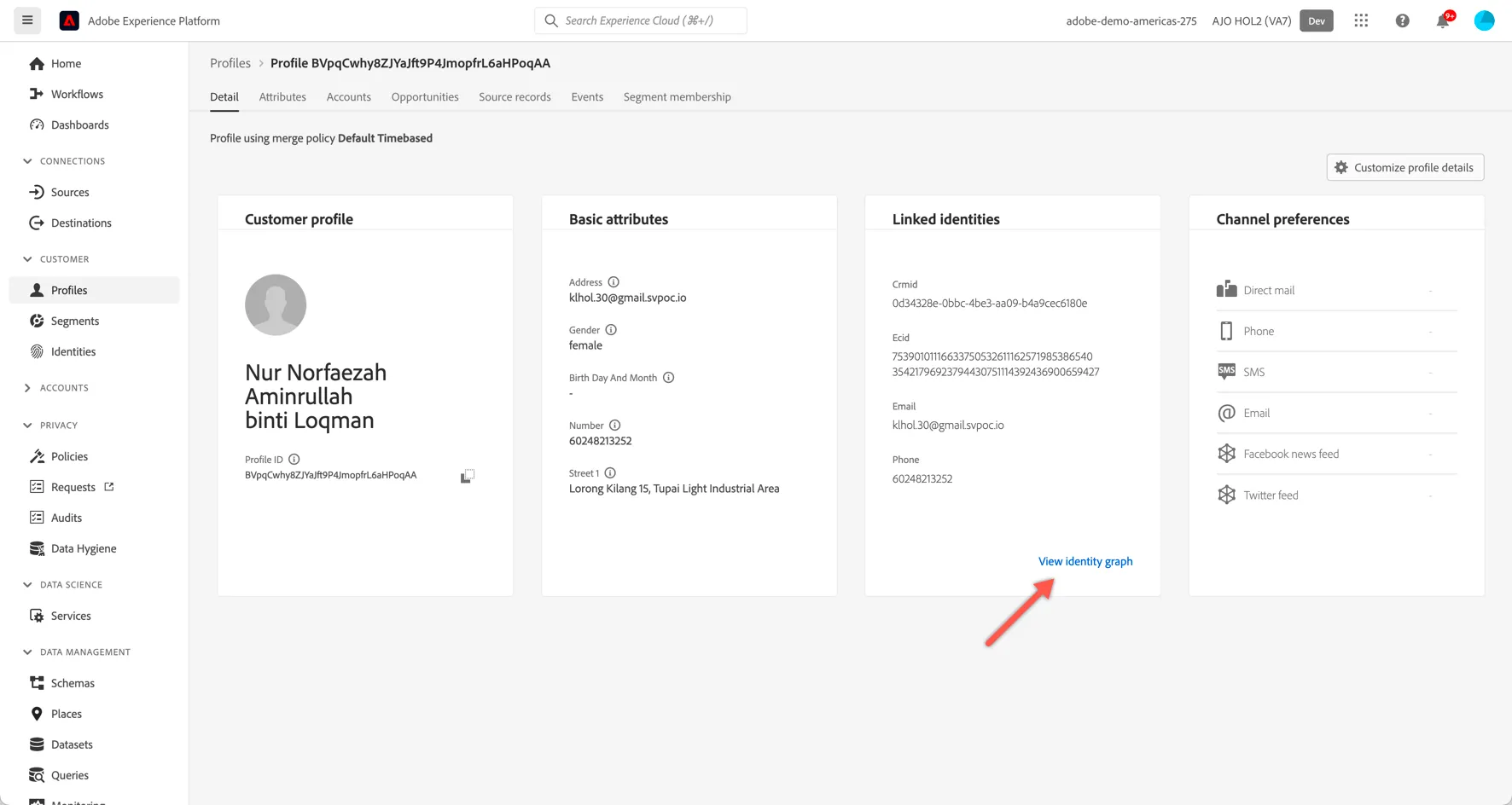
Return to AEP and refresh the profile view. On the details tab you have the Linked identities. Click the link at the bottom of this panel to View Identity Graph:
Explore how the identities have been linked (1), how the graph has grown over time (2) and which datasets (ie. source systems and/or channels) each of the identity values have originated from (3).
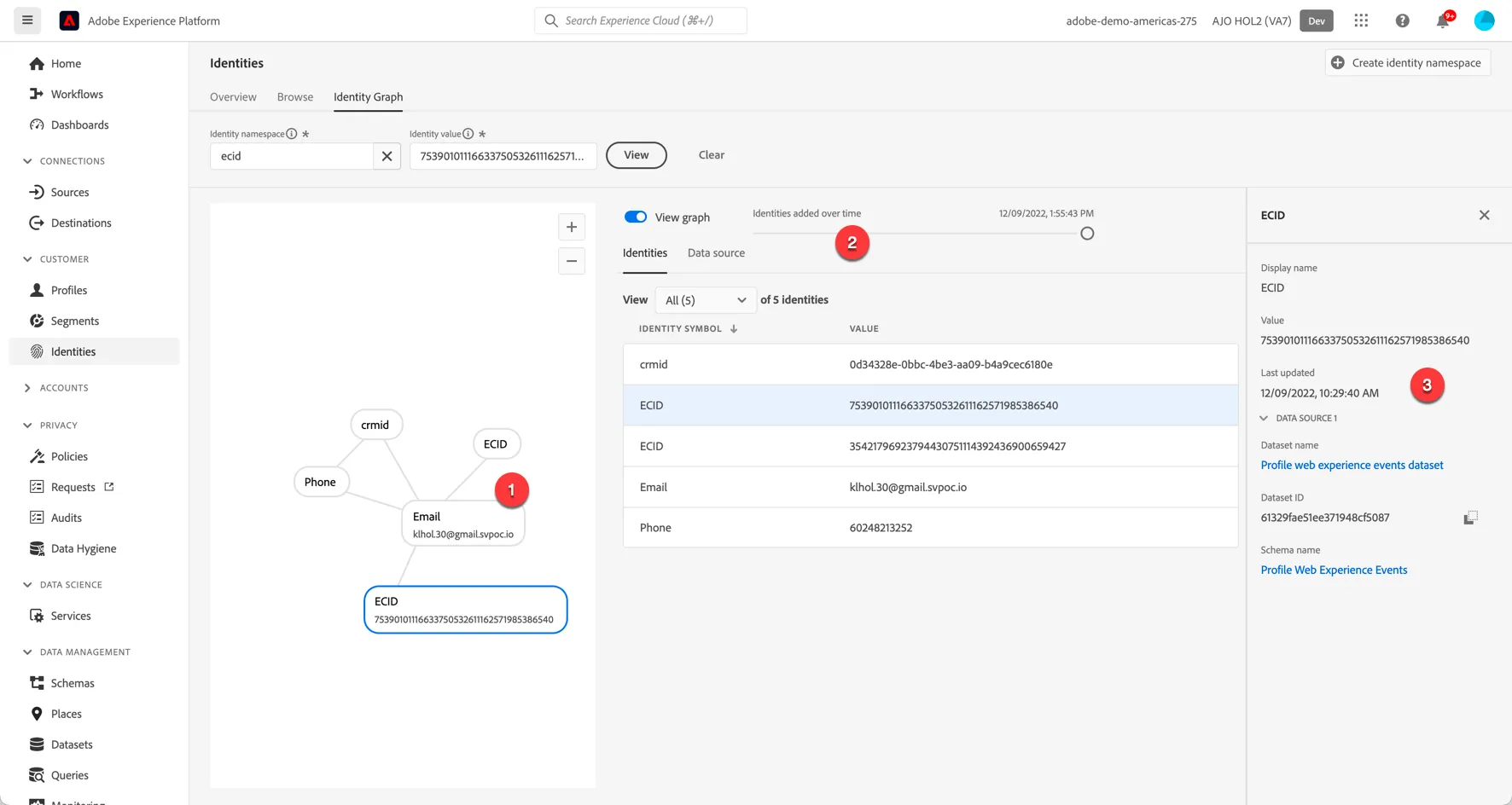
Stitching of new identities can take a couple of minutes, if you don't see your ECID appear immediately, wait for a minute and refresh the page again.