Event Program - Basic
5 min
Create Event Program
- Navigate to Marketing Activities

2. Go to your respective folder under Hands-on Lab Attendee
Right-click and select New Program

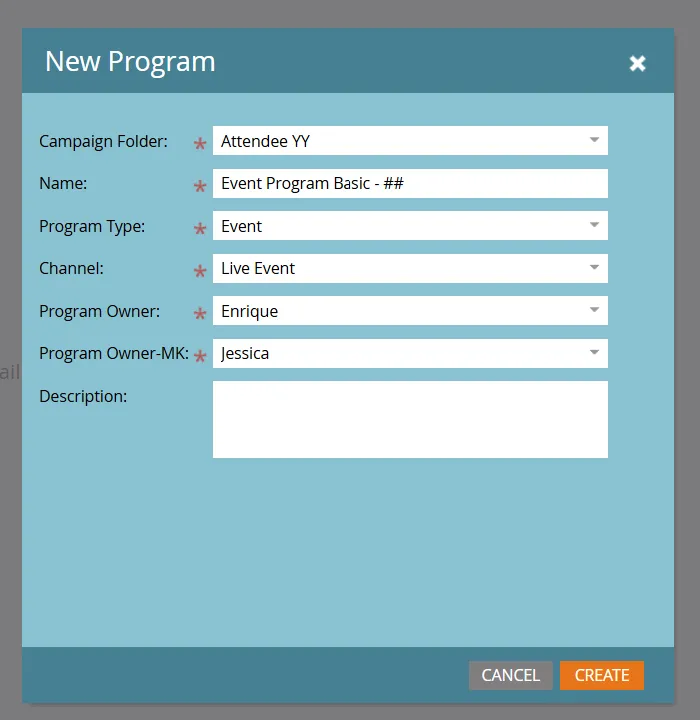
3. Name the new program “Event Program Basic - ##” (Note: replace ## with your attendee number e.g. “01”), Program type as Event and click Create after the following fields have been filled out:
- Campaign Folder: Attendee - ##
- Folder Name: Event Program Basic -##
- Program Type: Event
- Channel: Webinar
- Program Owner: Patrick
- Program Owner: Patrick
- Description: Leave blank
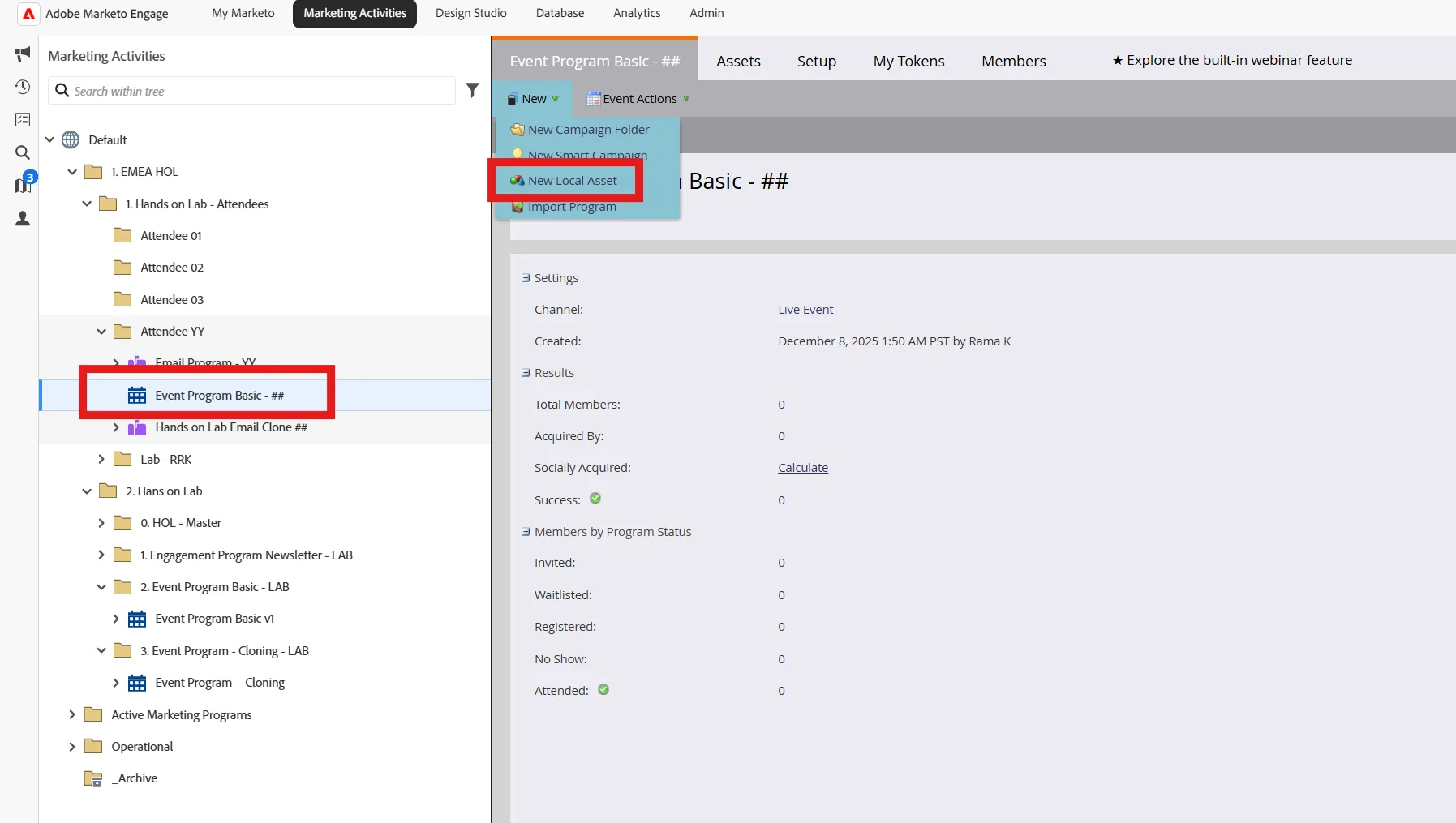
- Select the Event Program Basic - ## you just created in your folder. Select New, then New Local Asset
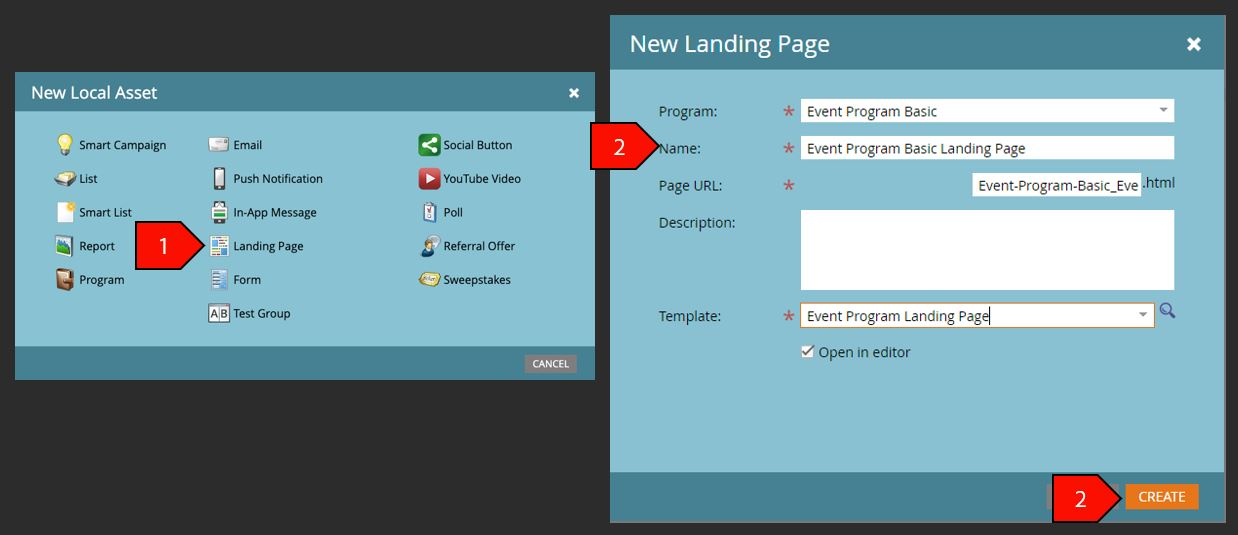
- Select Landing Page, Click Create after the following fields have been filled out:
- Program: Event Program Basic - ##
- Name: Event Program Basic Landing Page - ##
- Page URL: This value will auto-populate
- Description: Leave blank
- Template: Event Program Landing Page
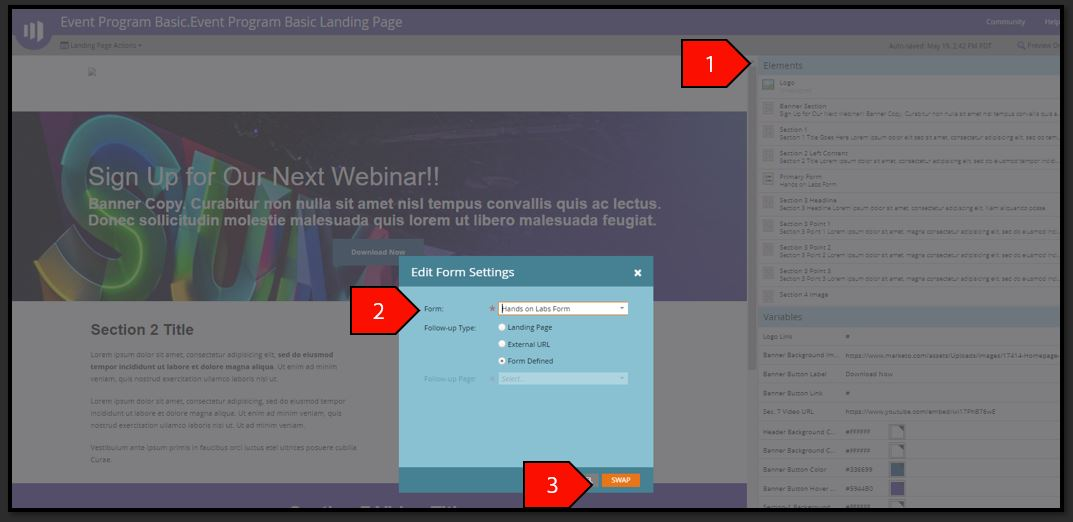
- Double-click on the Form Element, select the Email Unsubscribe Form, and click Insert
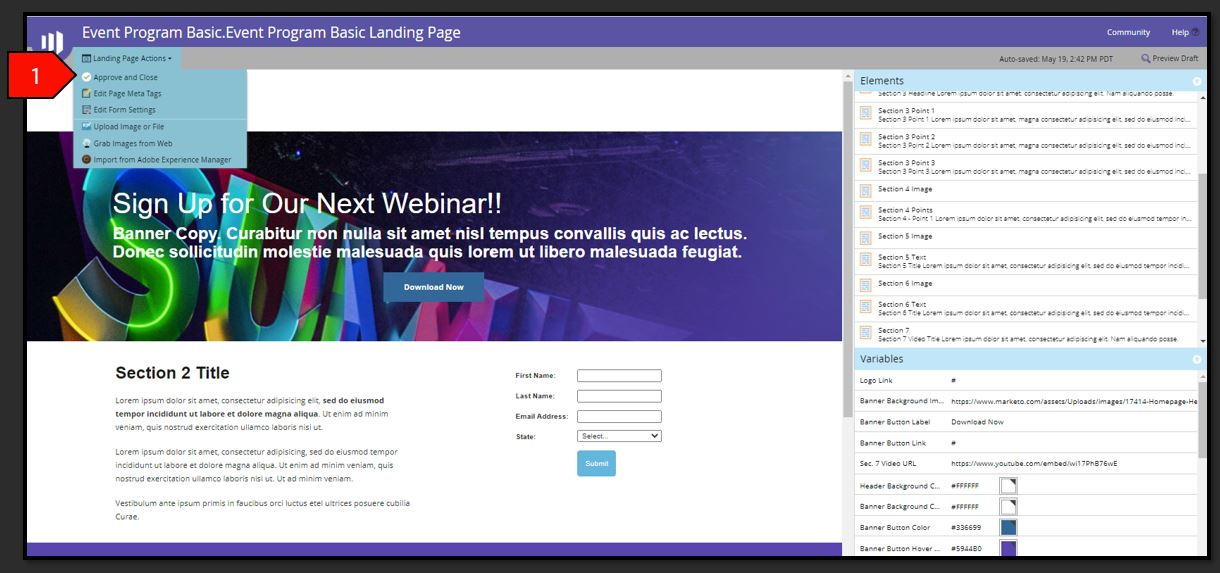
- Select Landing Page Action then Approve and Close
Create Nested Smart Campaign
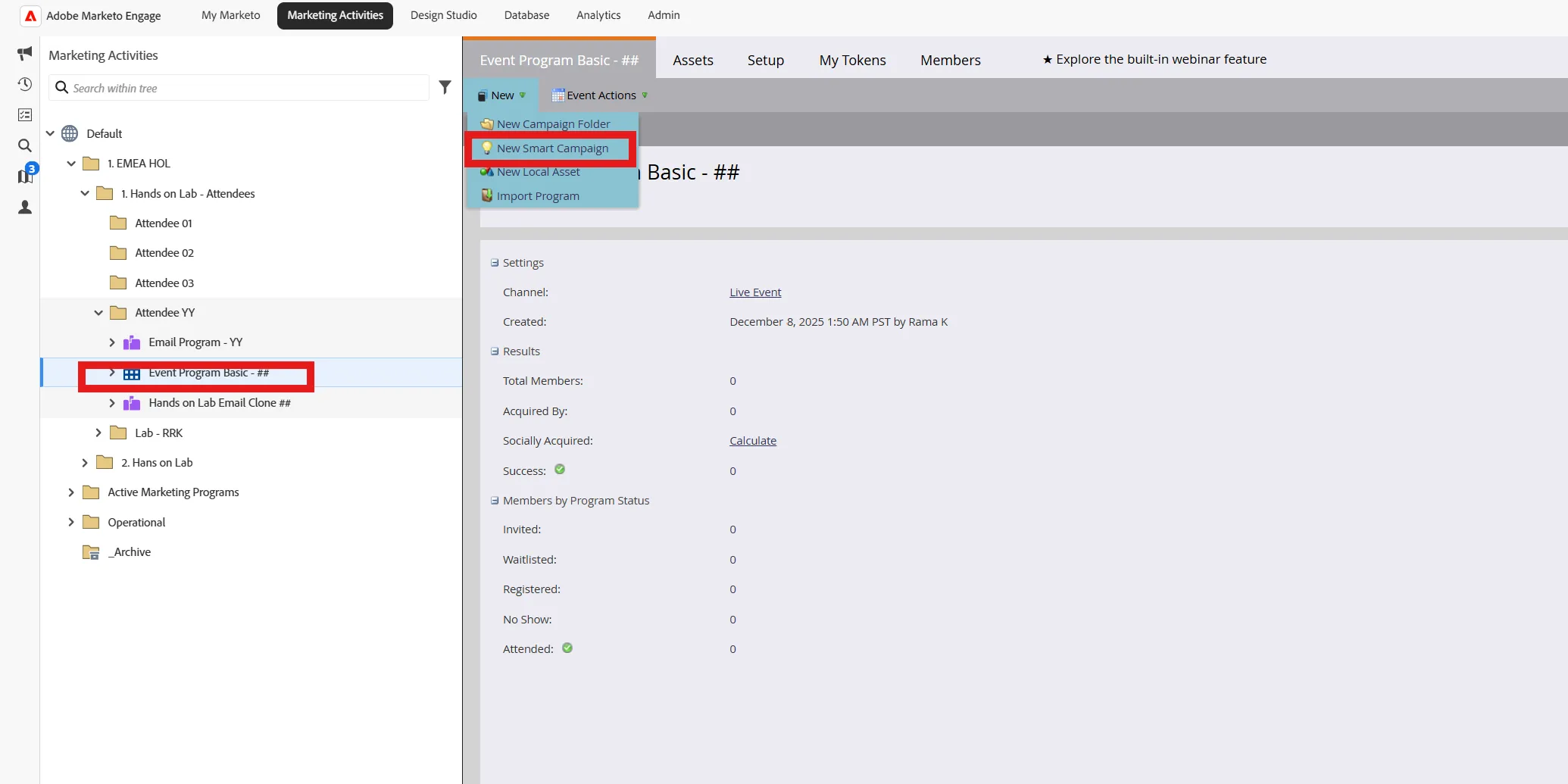
- Select Event Program Basic in your folder. Select New, select New Smart Campaign
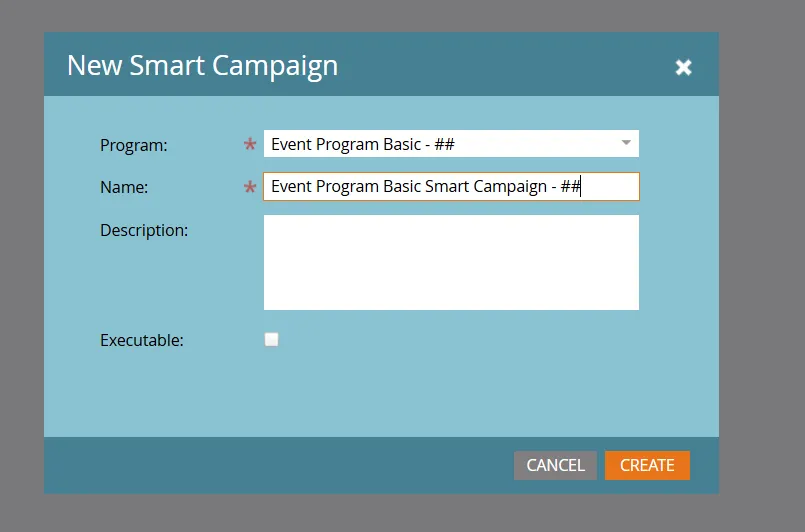
- Click Create after the following fields have been filled out:
- Program: Event Program Basic - ##
- Name: Event Program Basic Smart Campaign - ##
- Description: Leave blank
- Select the smart campaign you just created in your folder, click Smart List tab
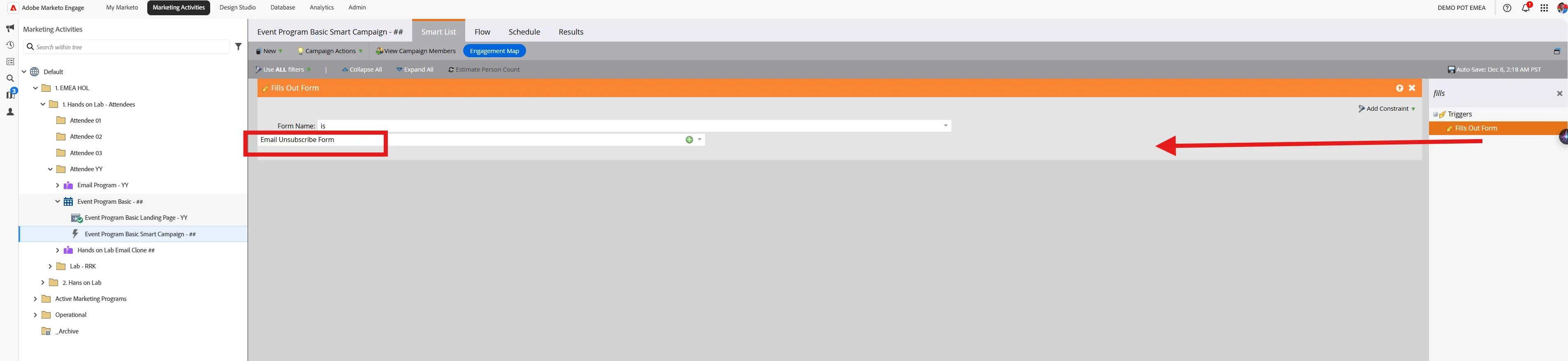
- Type form in the search filter and drag out the Fills Out Form filter with the following criteria:
- Form Name is Email Unsubscribe Form
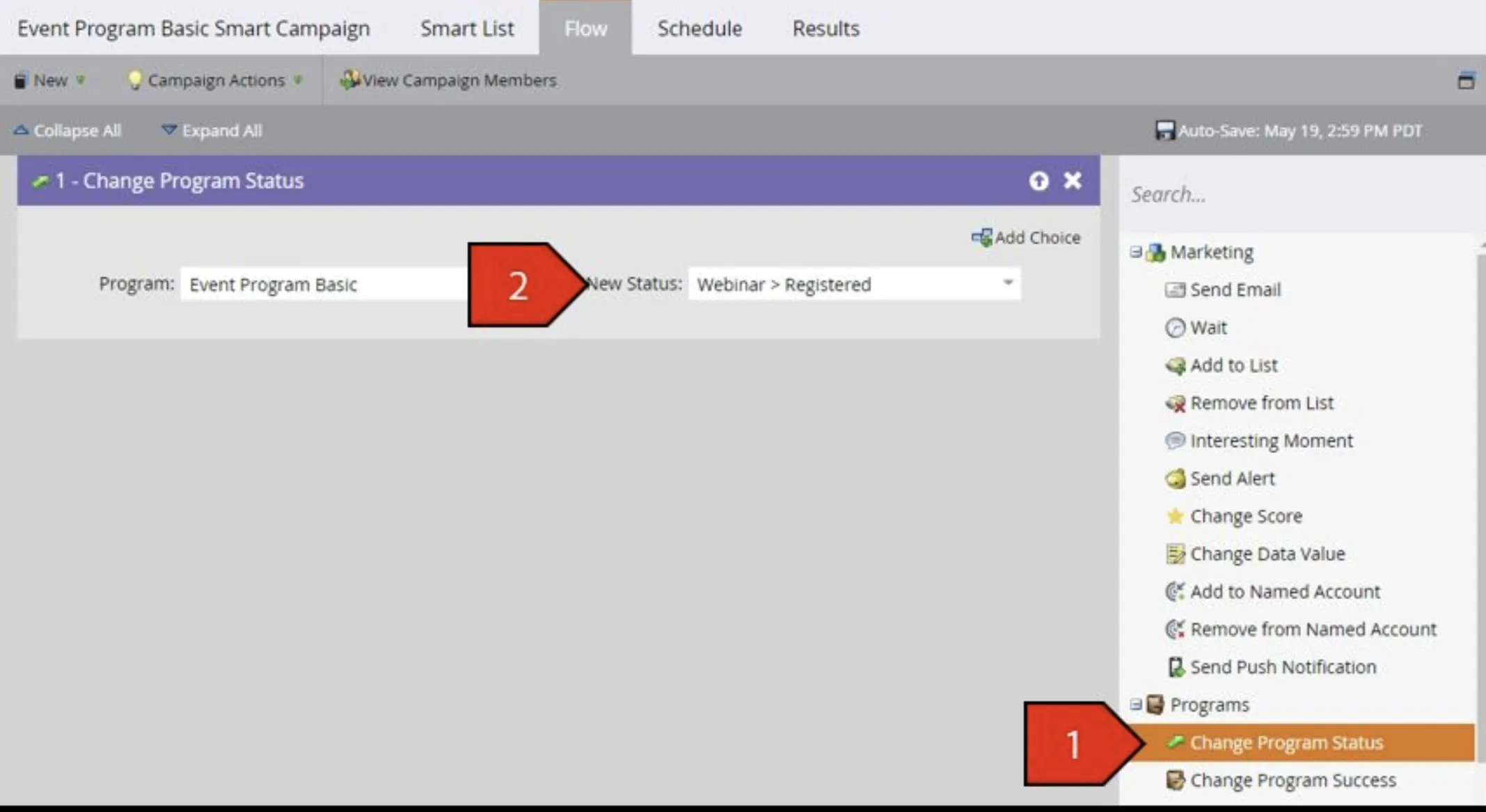
- Select the Flow tab. Type Change Program Status in the search bar and drag out the Change Program Status filter with the following criteria:
- Program: Event Program Basic - ##
- New Status: Webinar > Registered
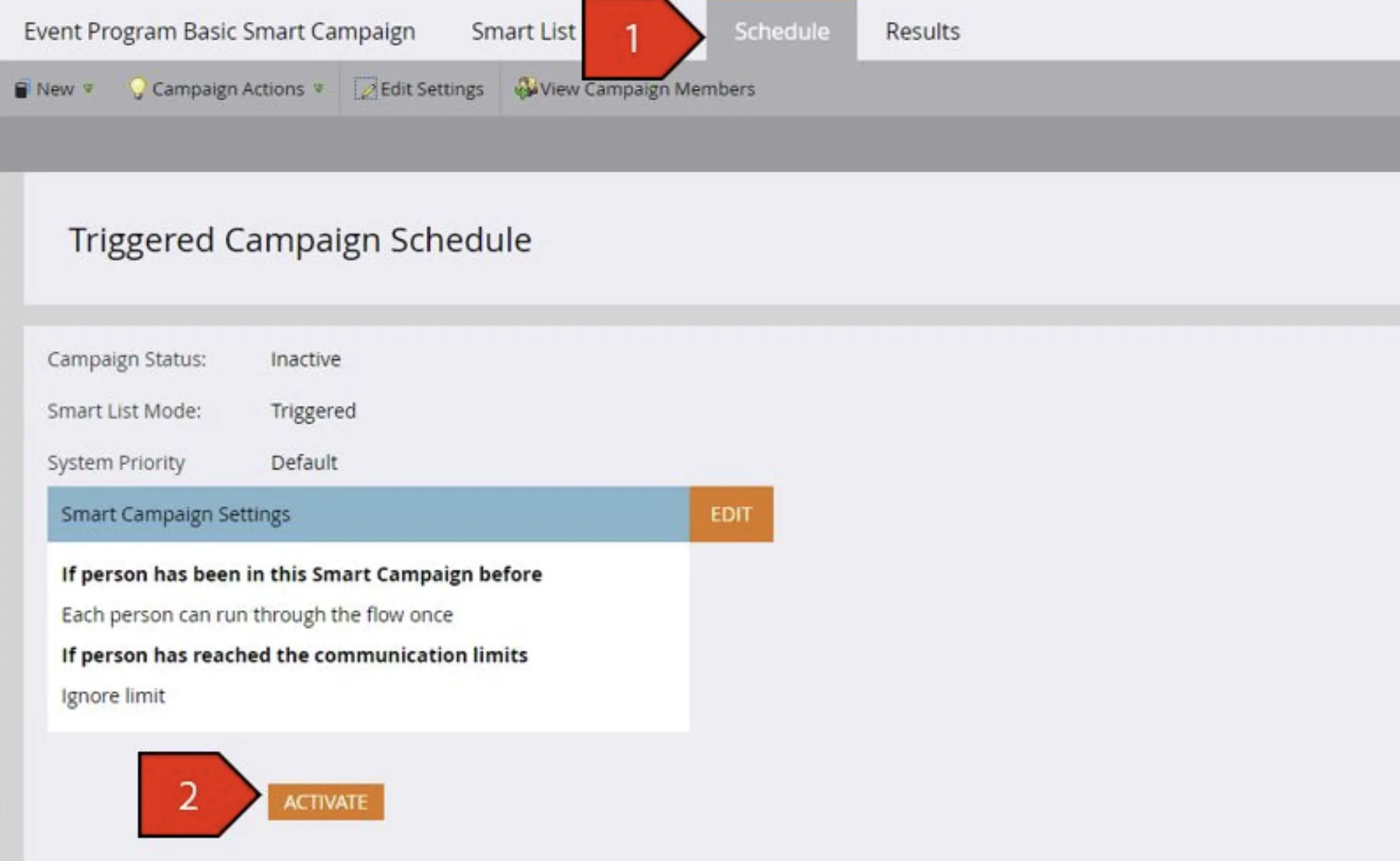
- Select the Schedule tab, click the Activate button