Ex 1. Journeys + Content
In a fast-moving market, timing and relevance are everything. Adobe Journey Optimizer enables brands to deliver contextual, personalised experiences at scale by combining real-time triggers, intelligent decisioning, and dynamic content generation—all within a unified orchestration canvas.
We will first create the Journey flow using the AI Assistant, then add the content for each message using AI Assistant content generation. We've also included a tab to show you what the manual creation process looks like, but you won't be doing that during this lab. We've included it to highlight just how much work the Agent will do for you and how much time you will save ⏰
Create a Journey
Create a Journey With Adobe Agent
In this exerice, we will use Adobe Agent to create a draft of the journey. that will save us some time.
Click on the 9-dot menu at the top right, then Home. Then click on AI Assistant on the left.
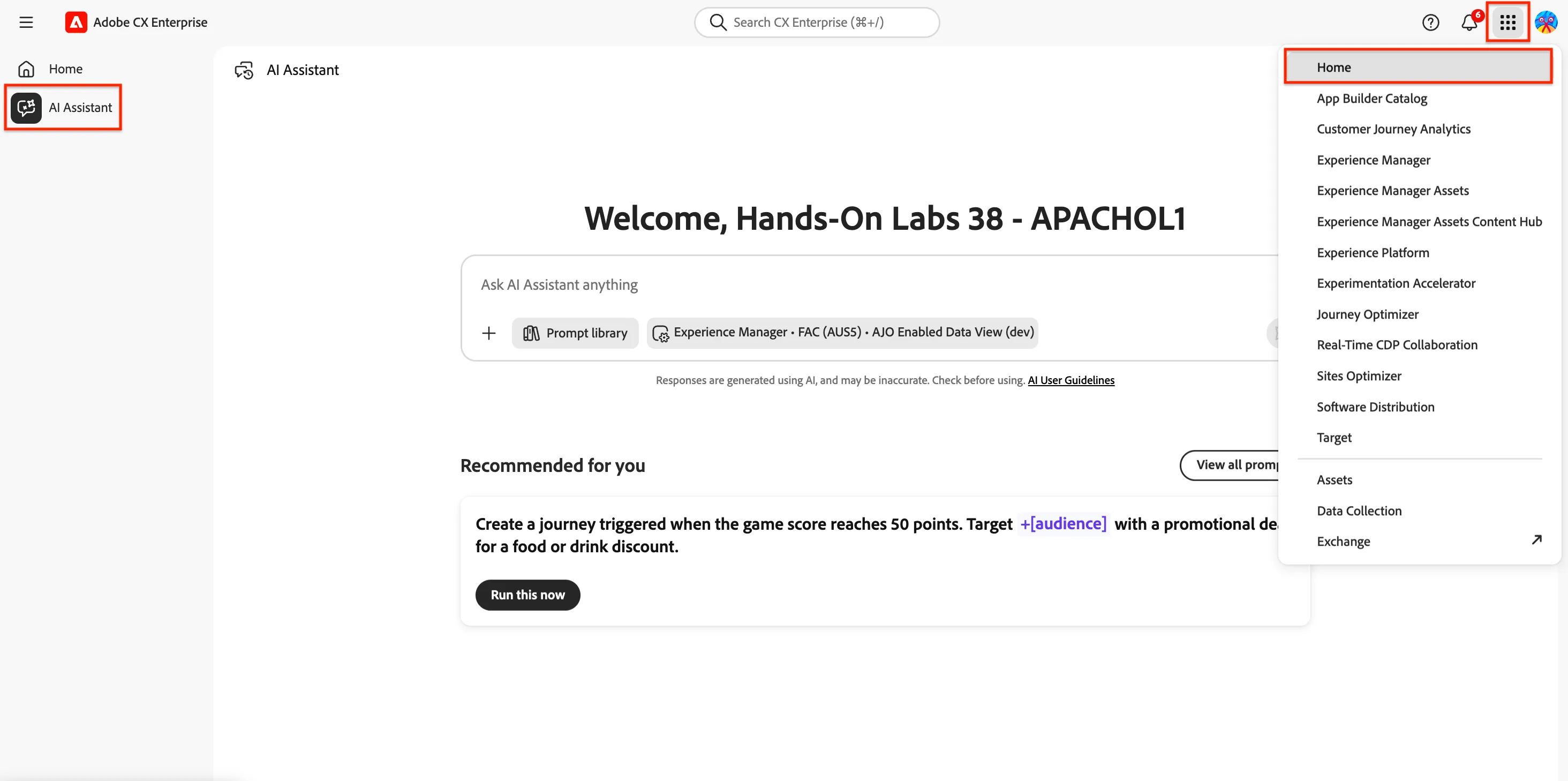
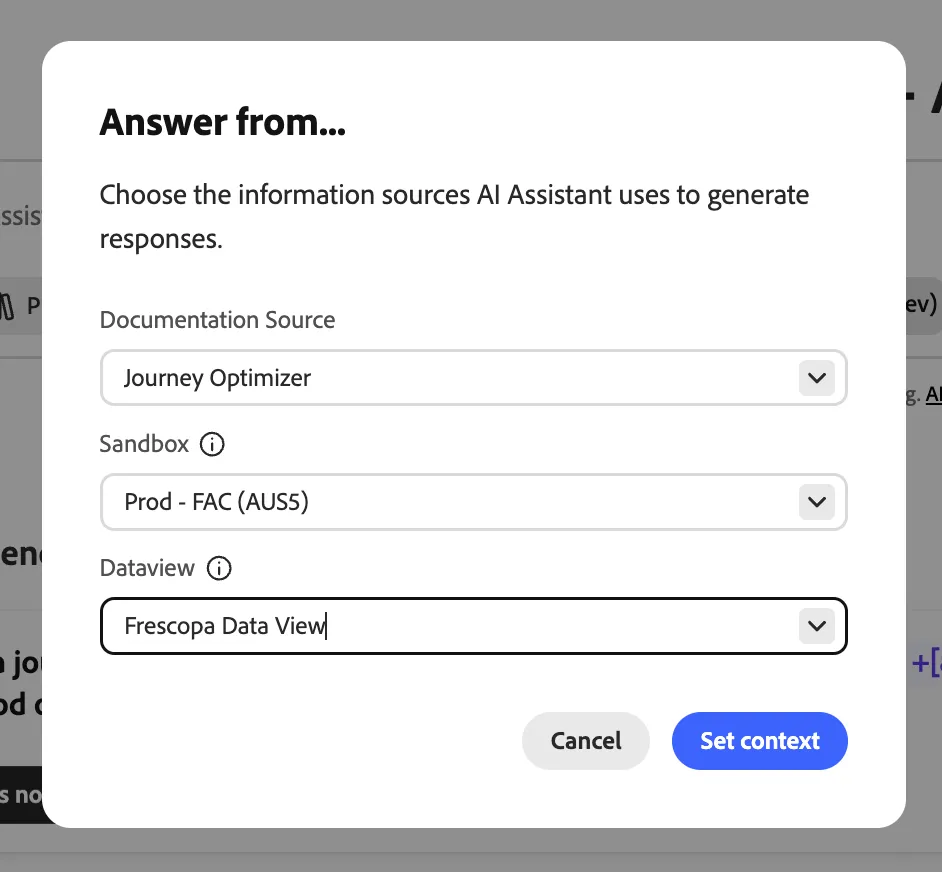
Ensure the context is set correctly by clicking in the settings in the middle of the screen (next to Prompt Library):

Set the context as follows:
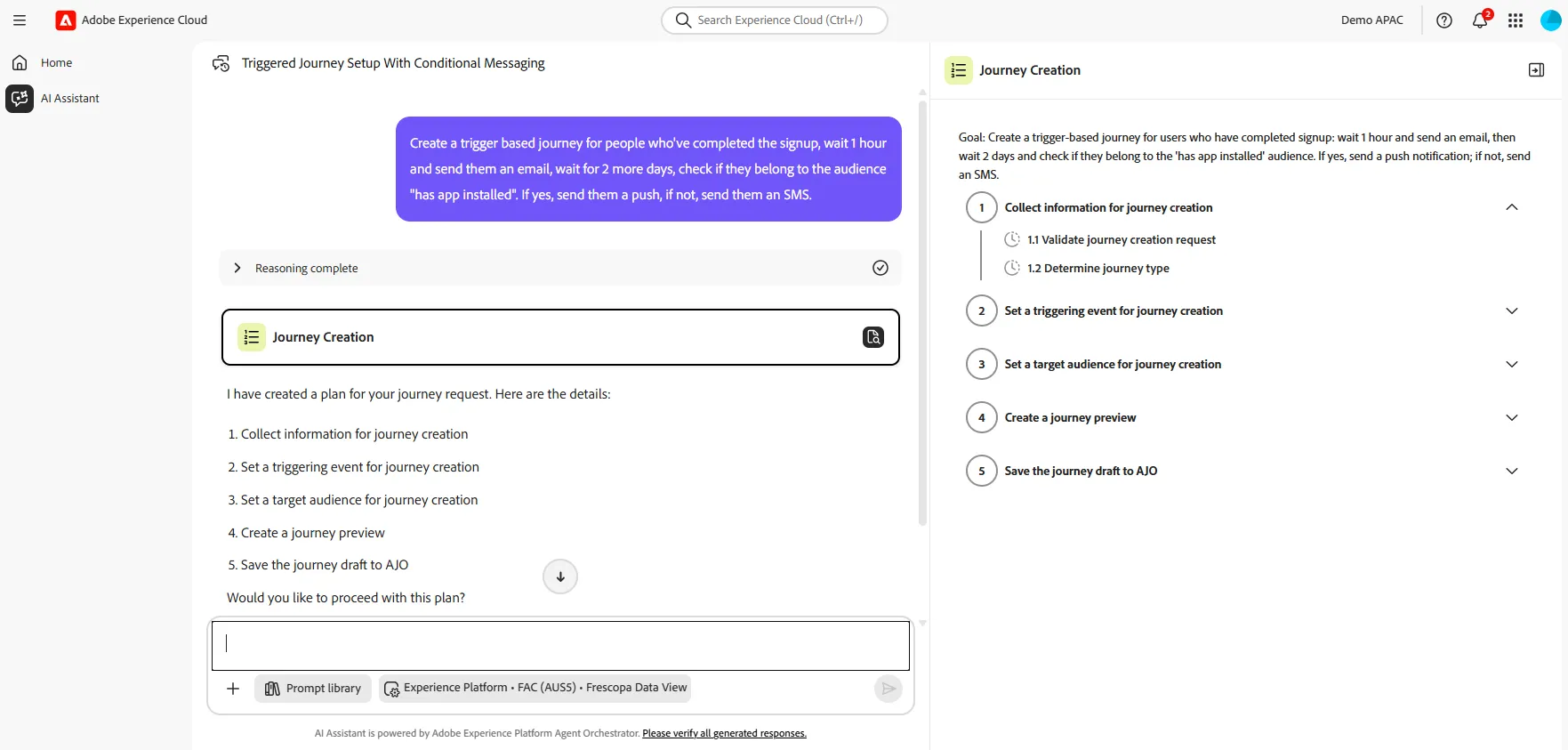
Enter the following prompt:
Create a new trigger based journey for people who've completed the signup. Wait 1 hour and send them an email, wait for 2 more days, check if they belong to the audience "Has mobile App". If yes, send them a push, if not, send them an SMS.
The agent will analyze you request, and propose a plan to create this journey.
When asked Would you like to proceed with this plan? type yes to start he process.
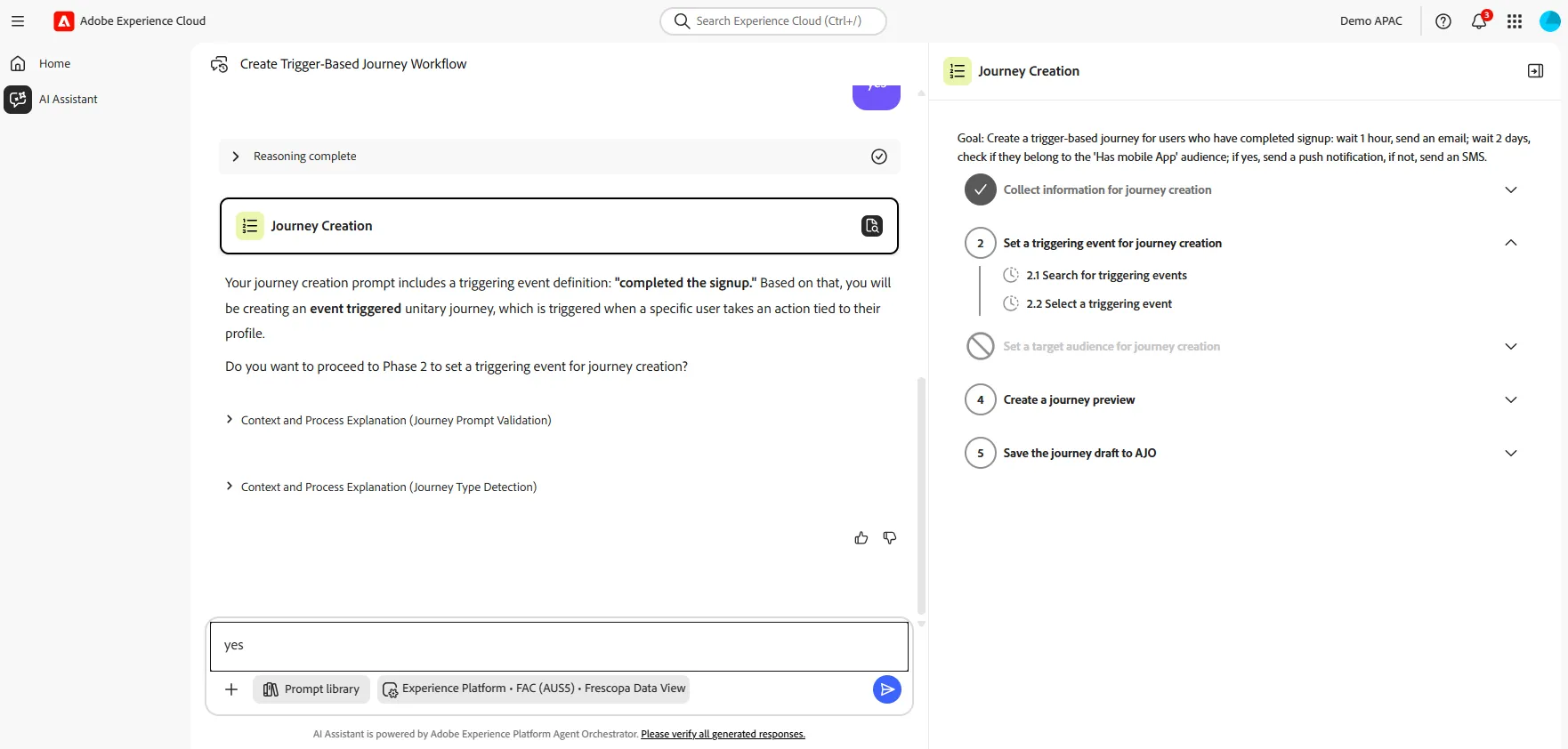
The agent will then go ahead with the plan and go to step 2, which is selecting the trigger.
Type yes to process
If there are multiple event option for your journey, the Agent may asked you to confirm.
We will select complete_signup event. Just type 1, then enter.
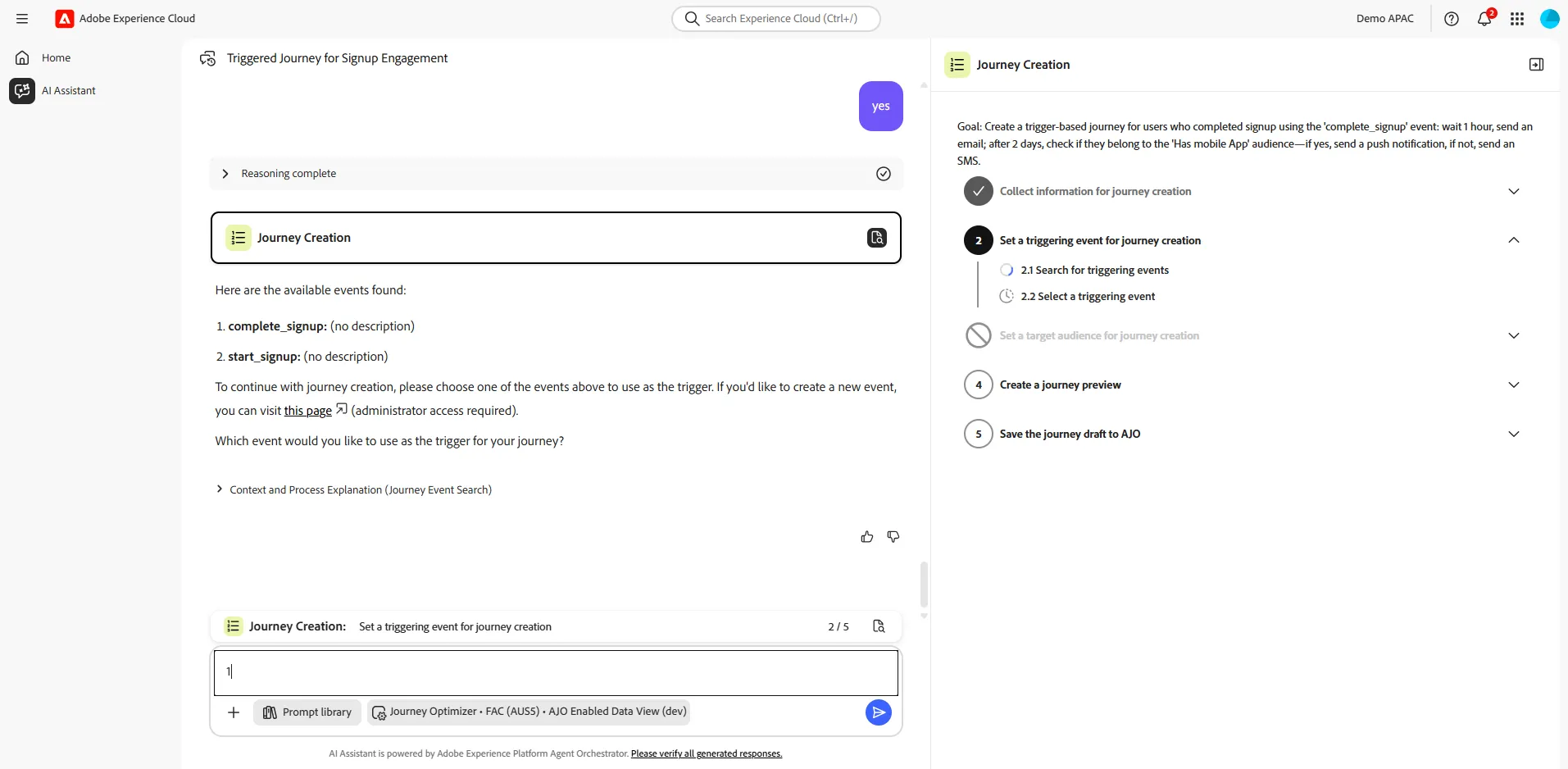
The agent should understand that there is no need to select audience, so it will not execute step 3. It will create create the journey, and ask you to approve.
Click on review , change the name of the journey by Signup Journey replace_with_your_name AI, and click on save.
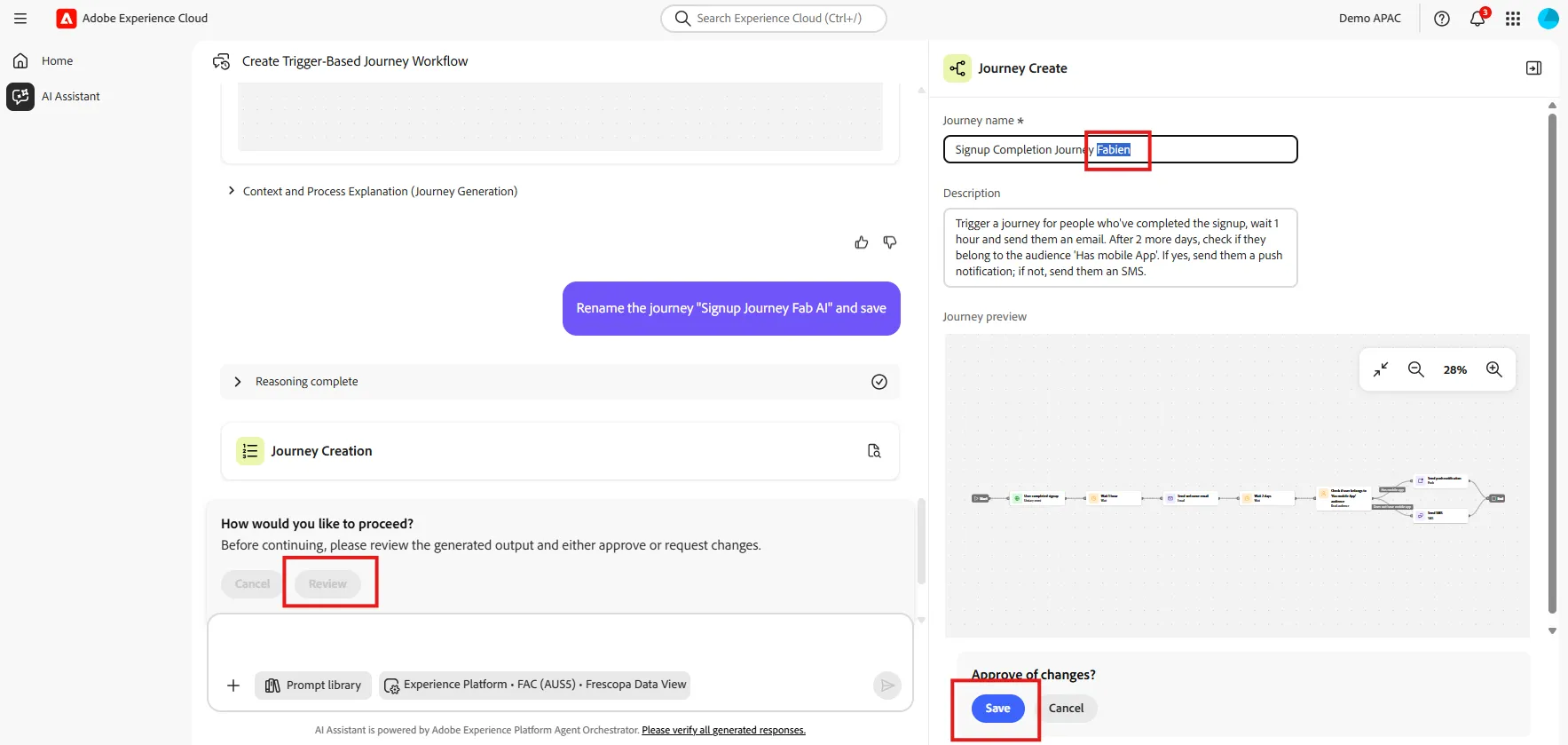
Your journey flow is now ready.
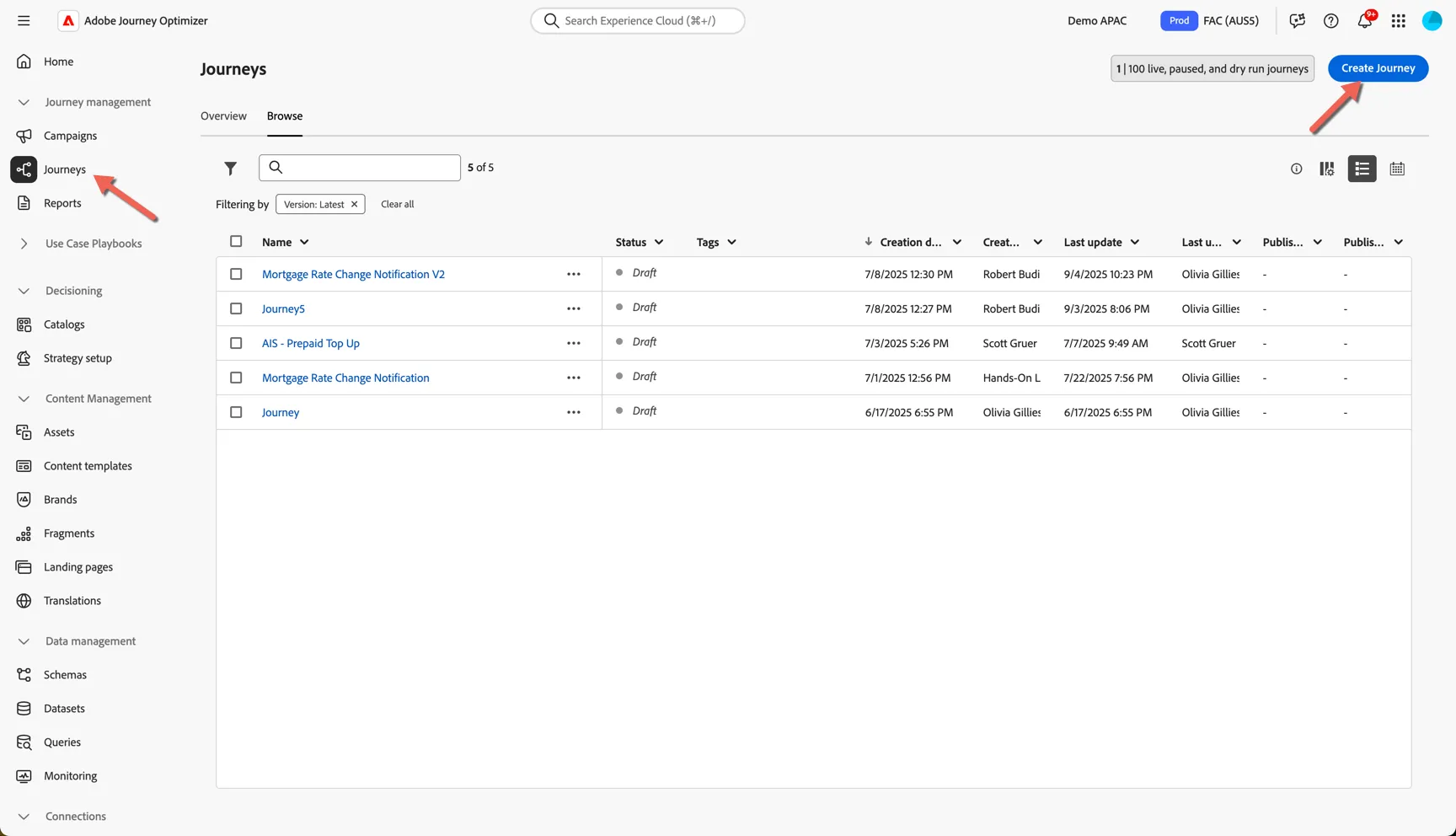
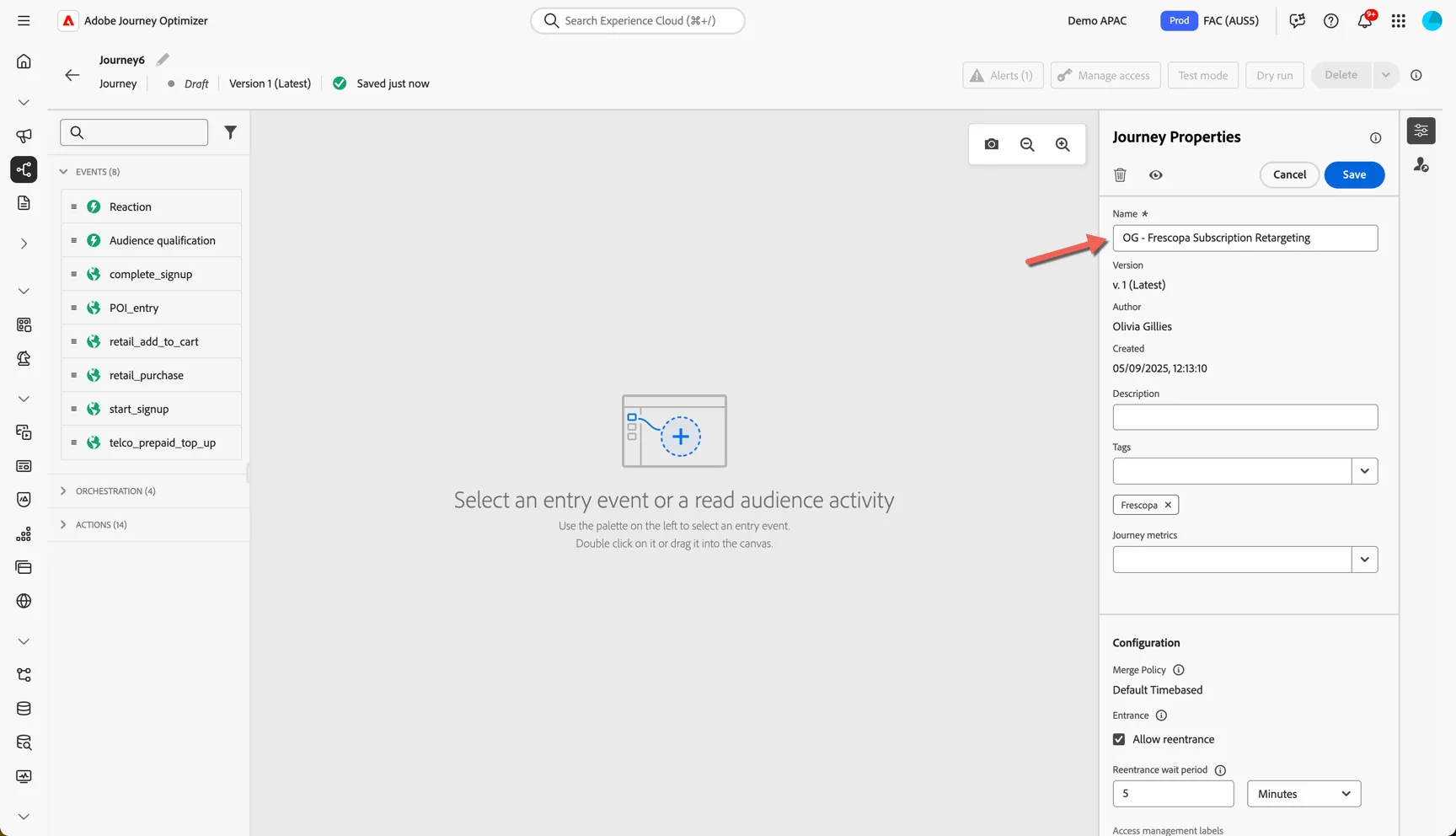
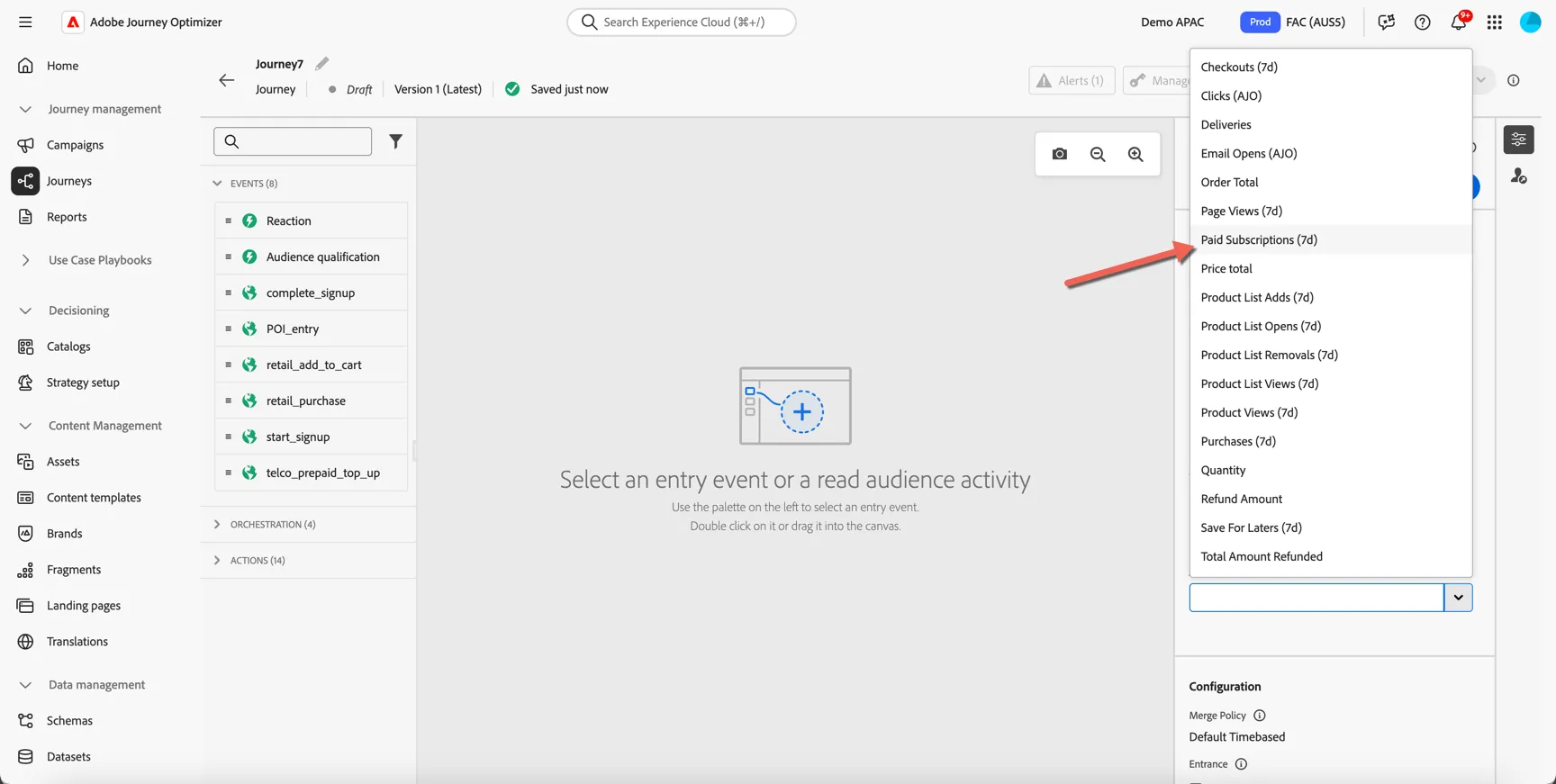
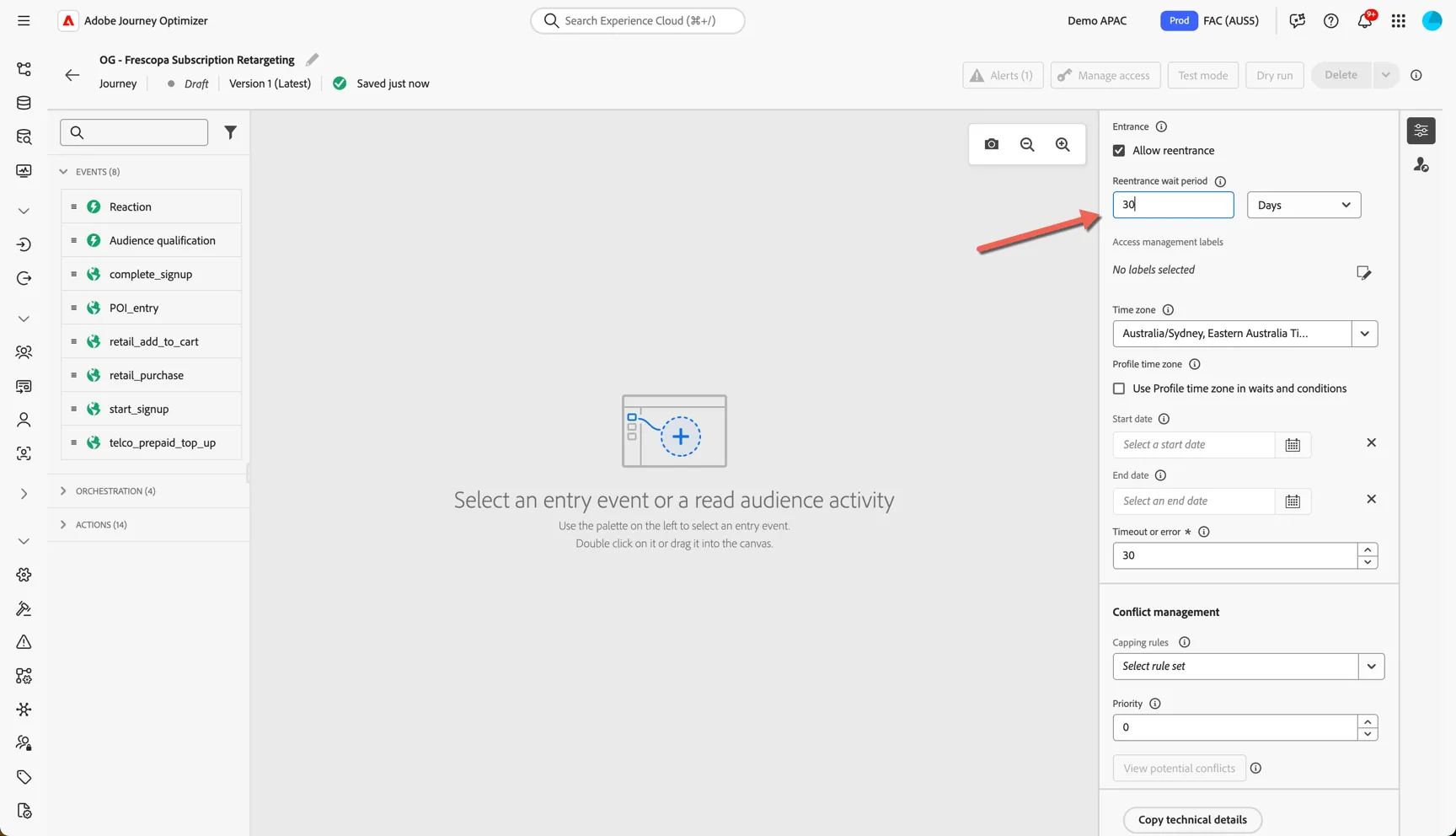
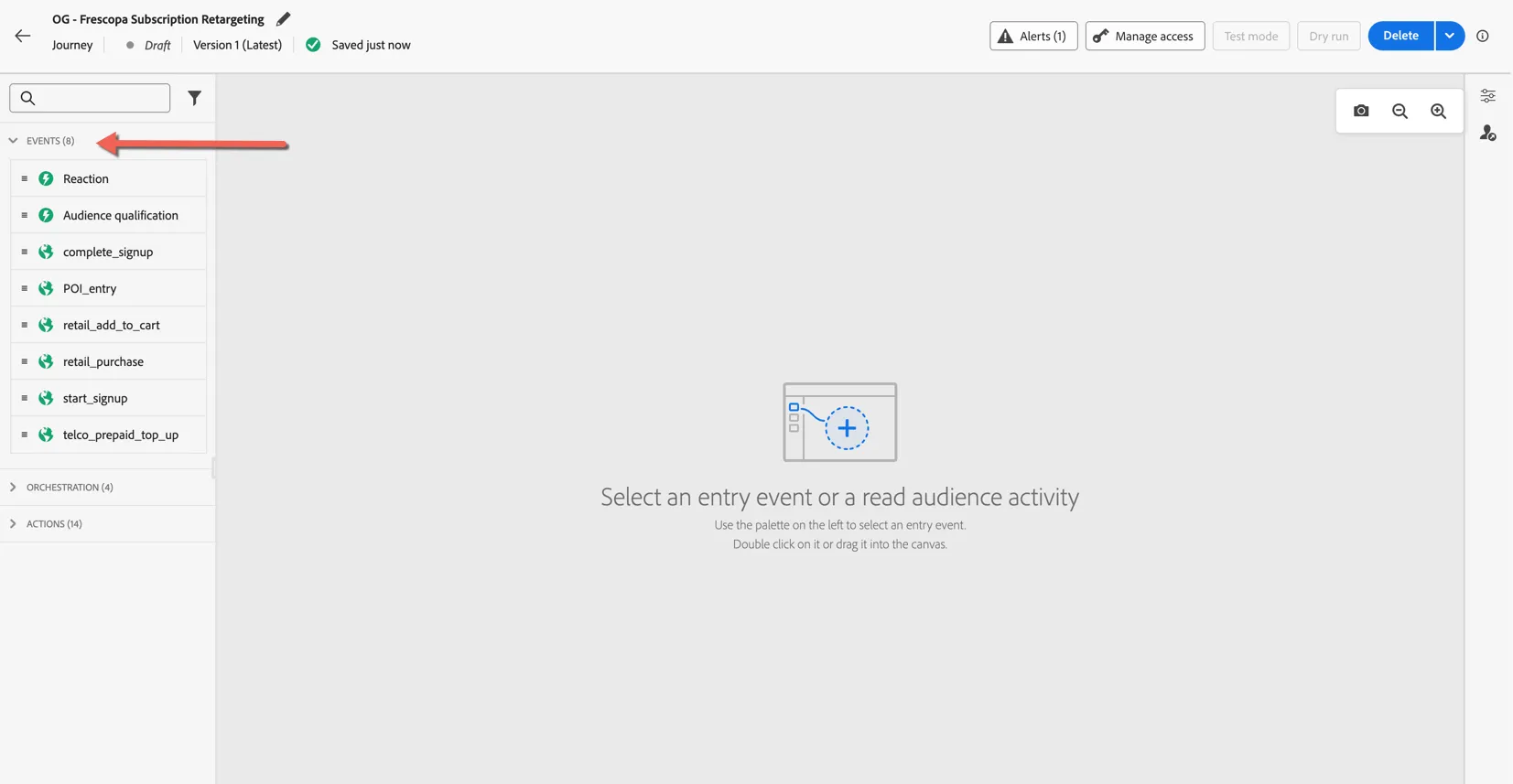
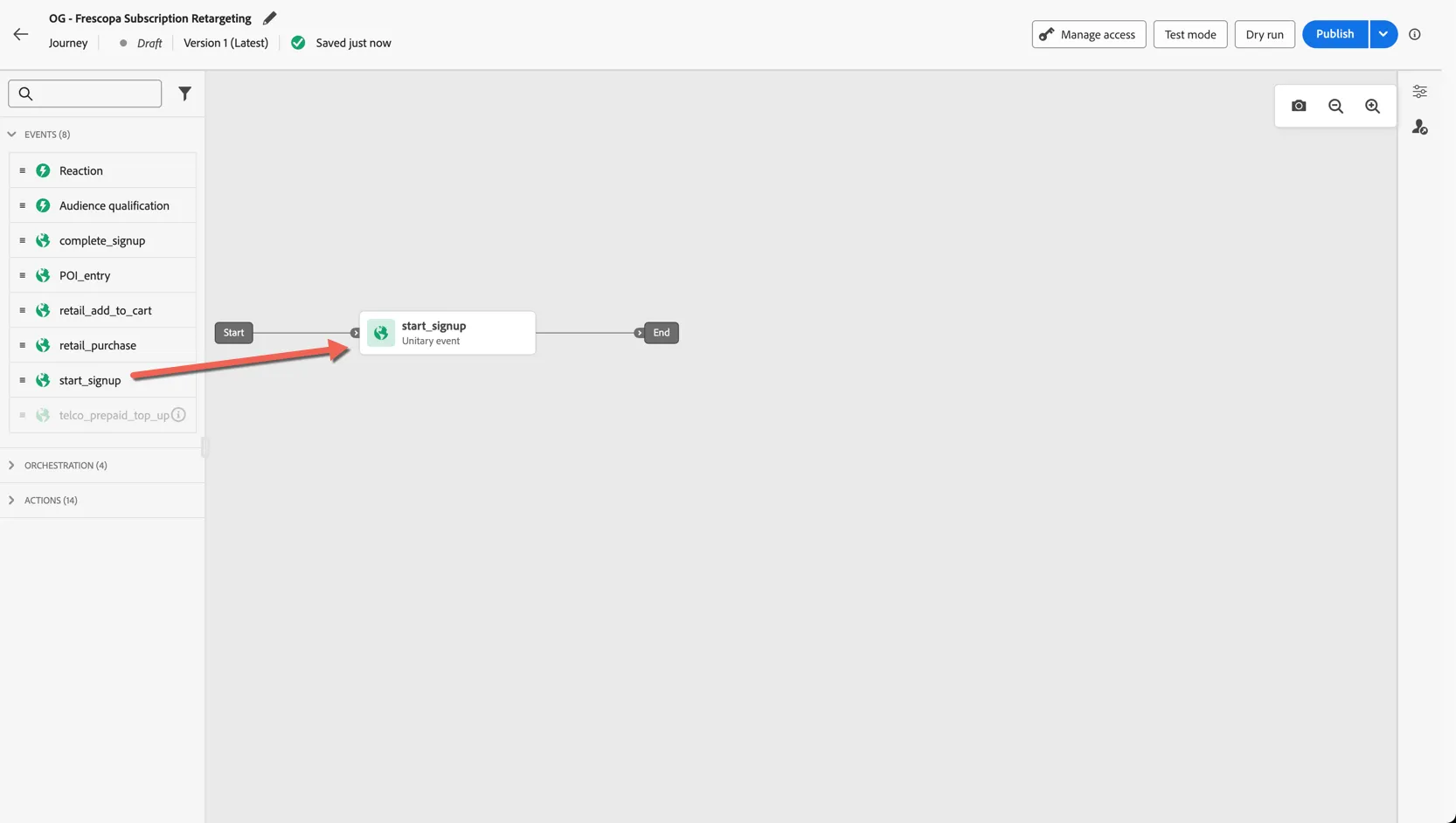
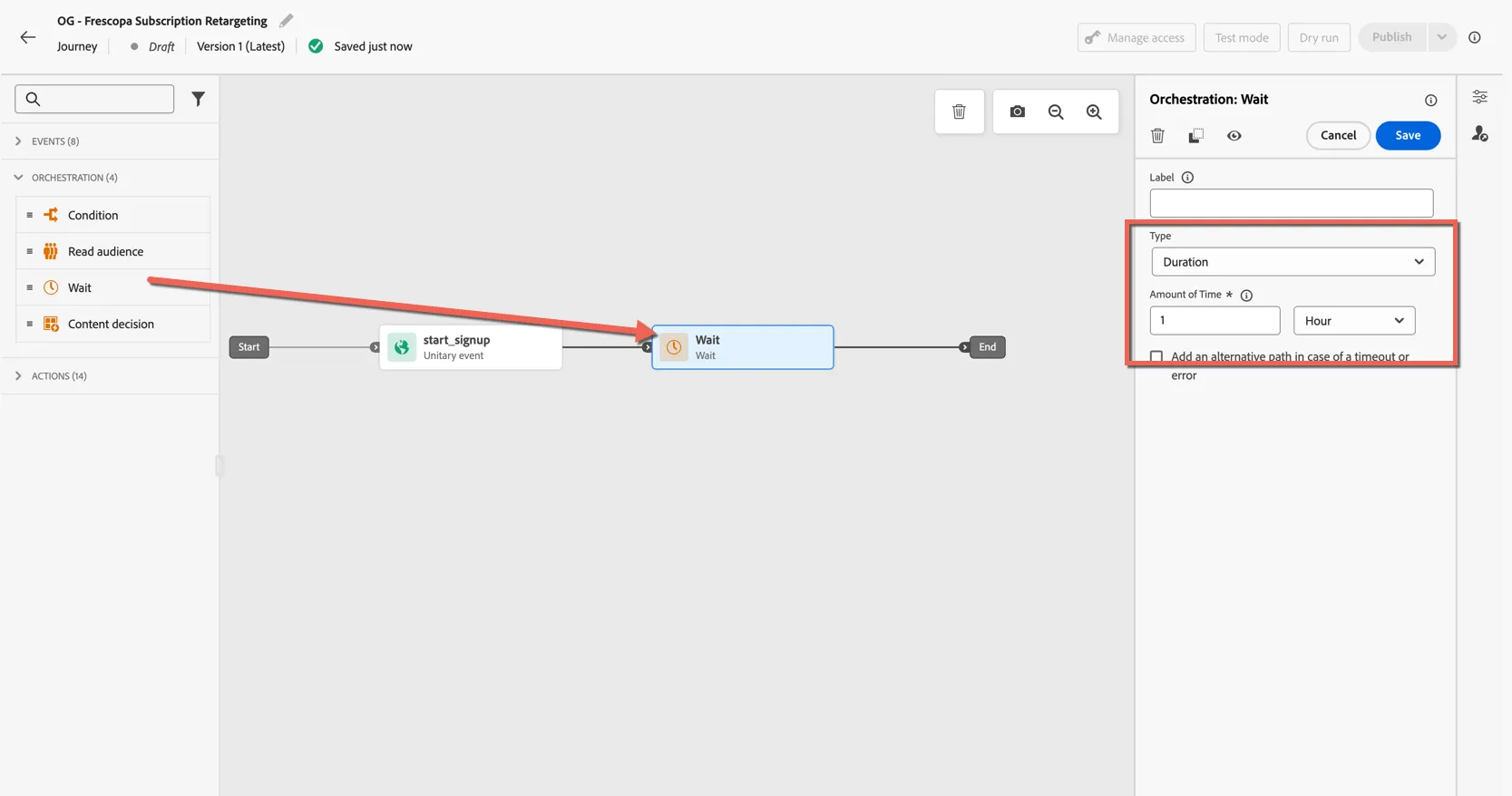
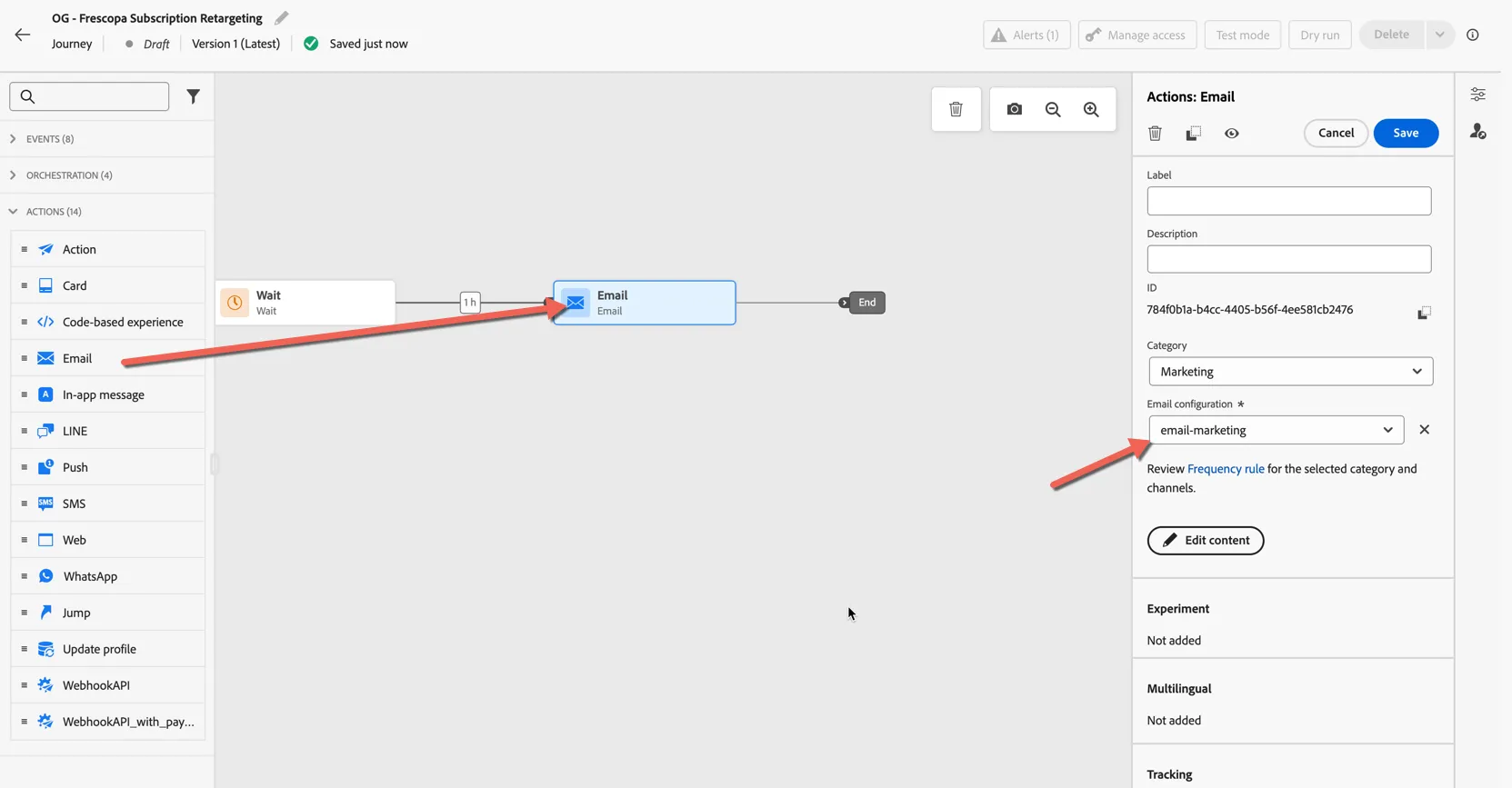
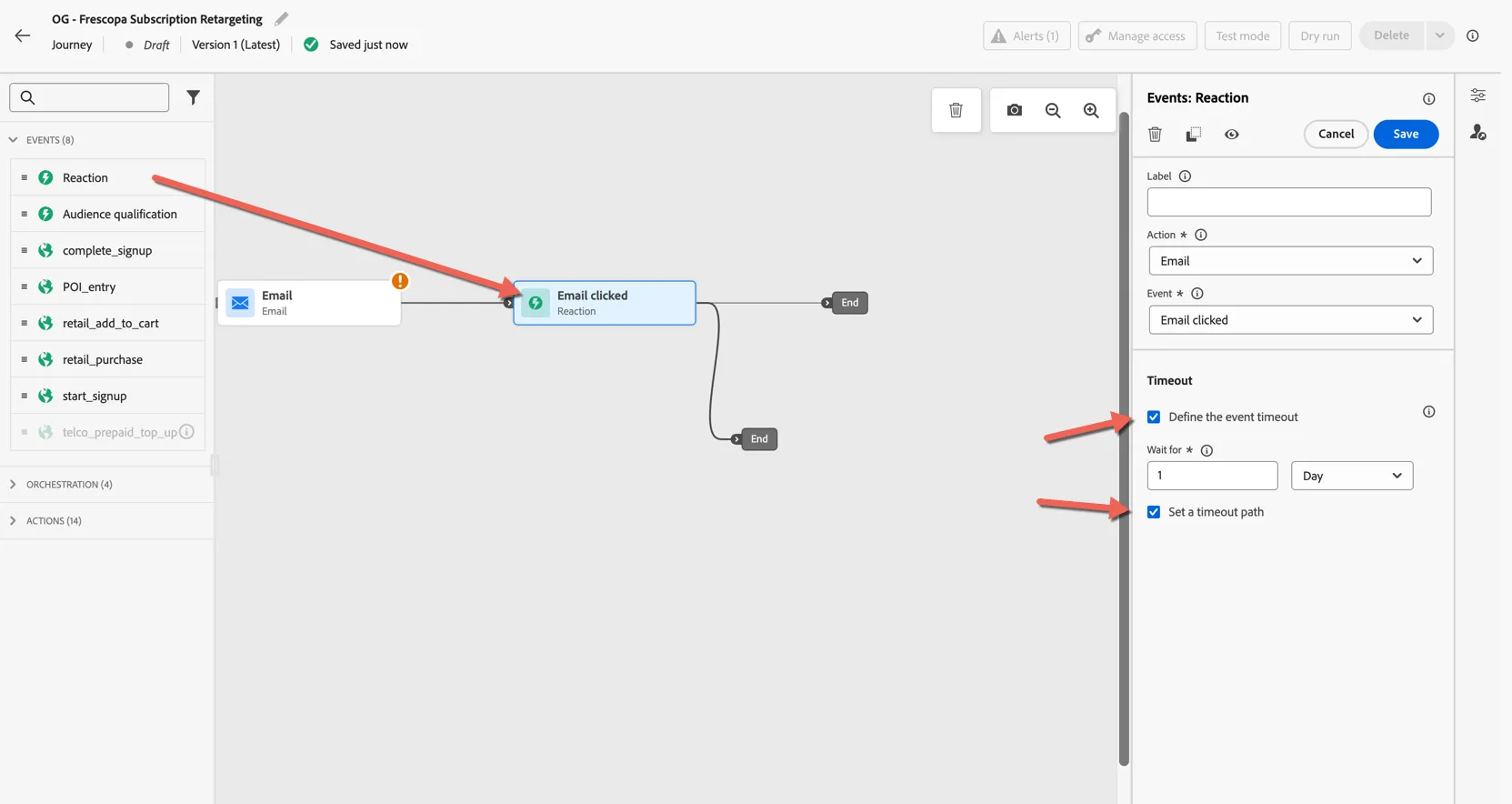
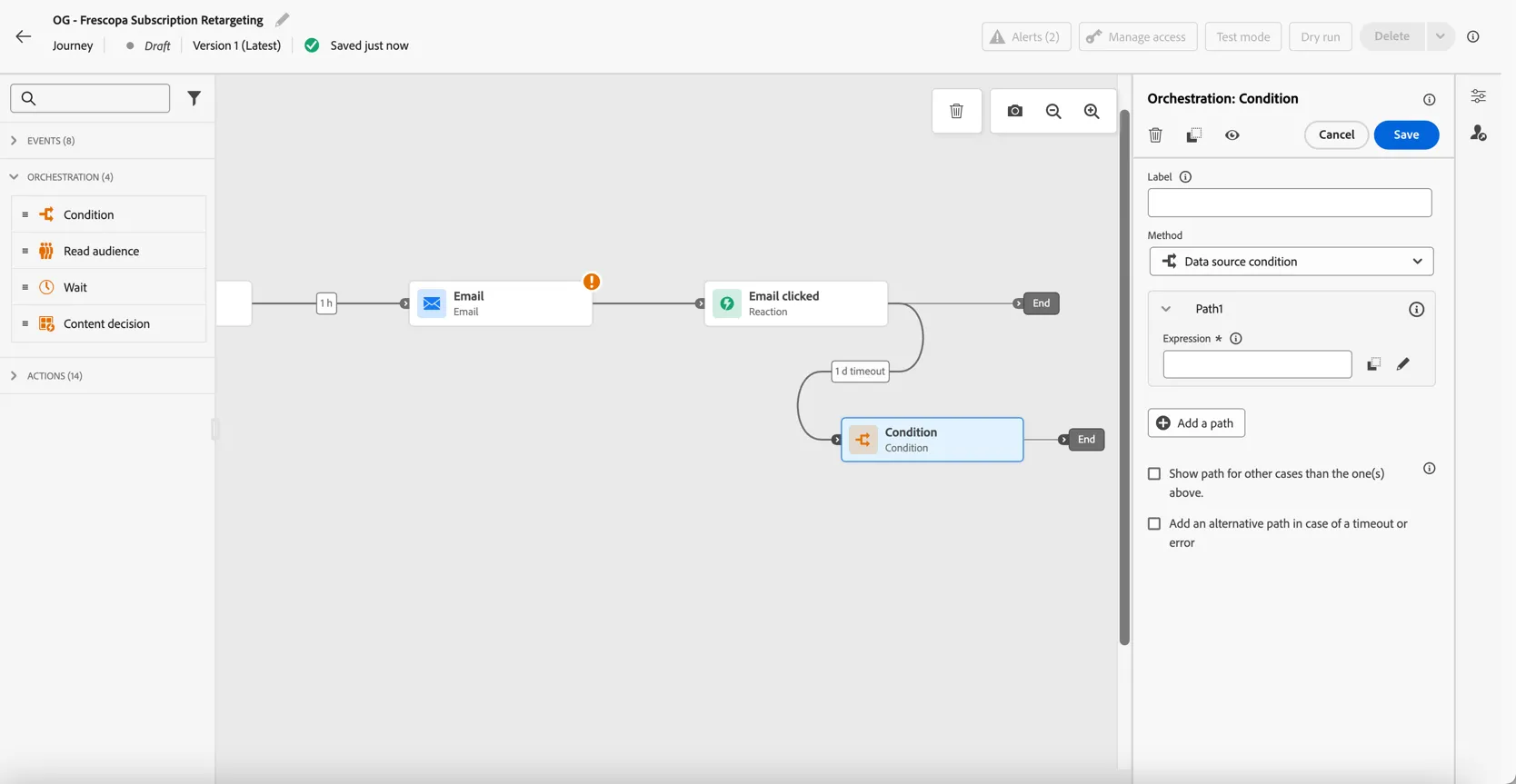
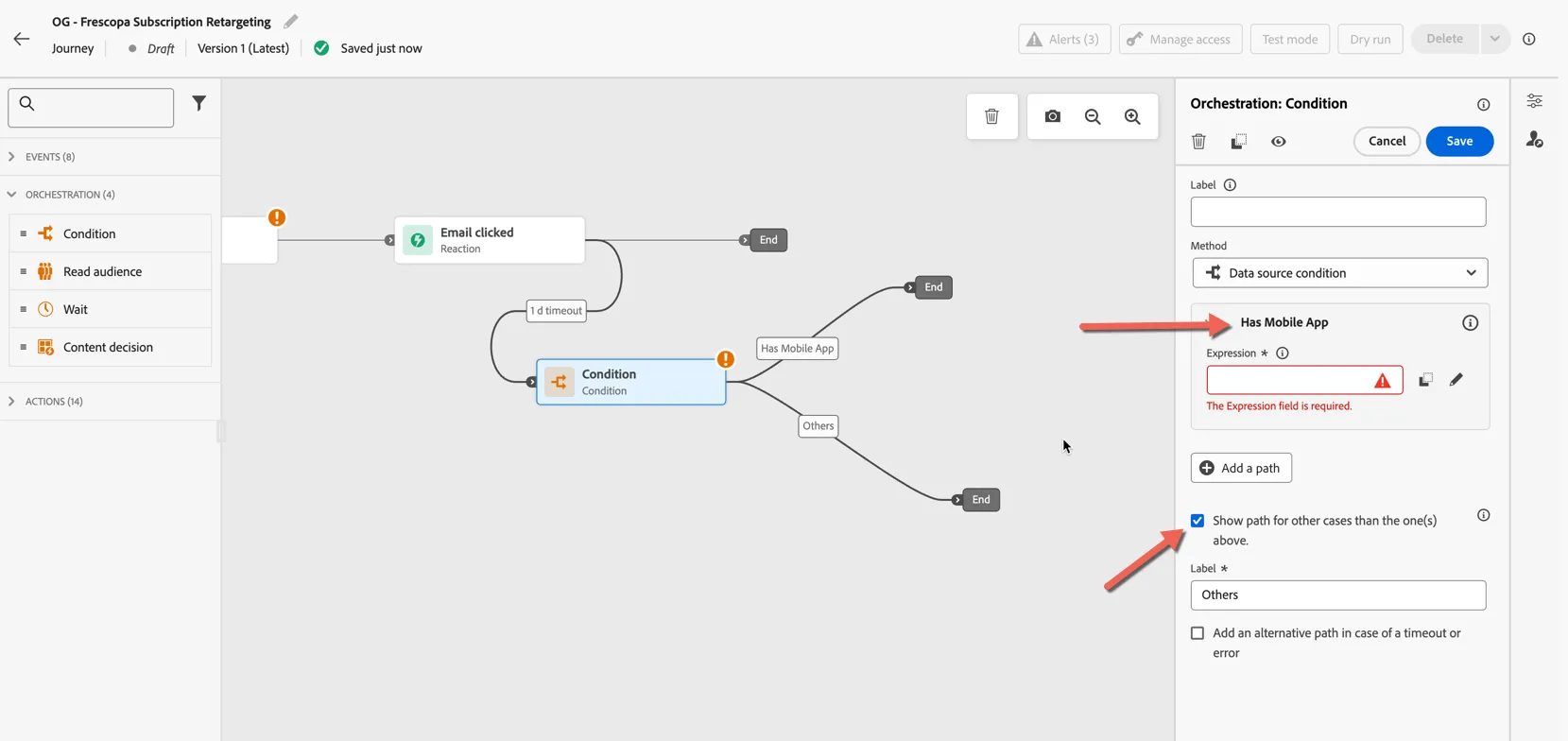
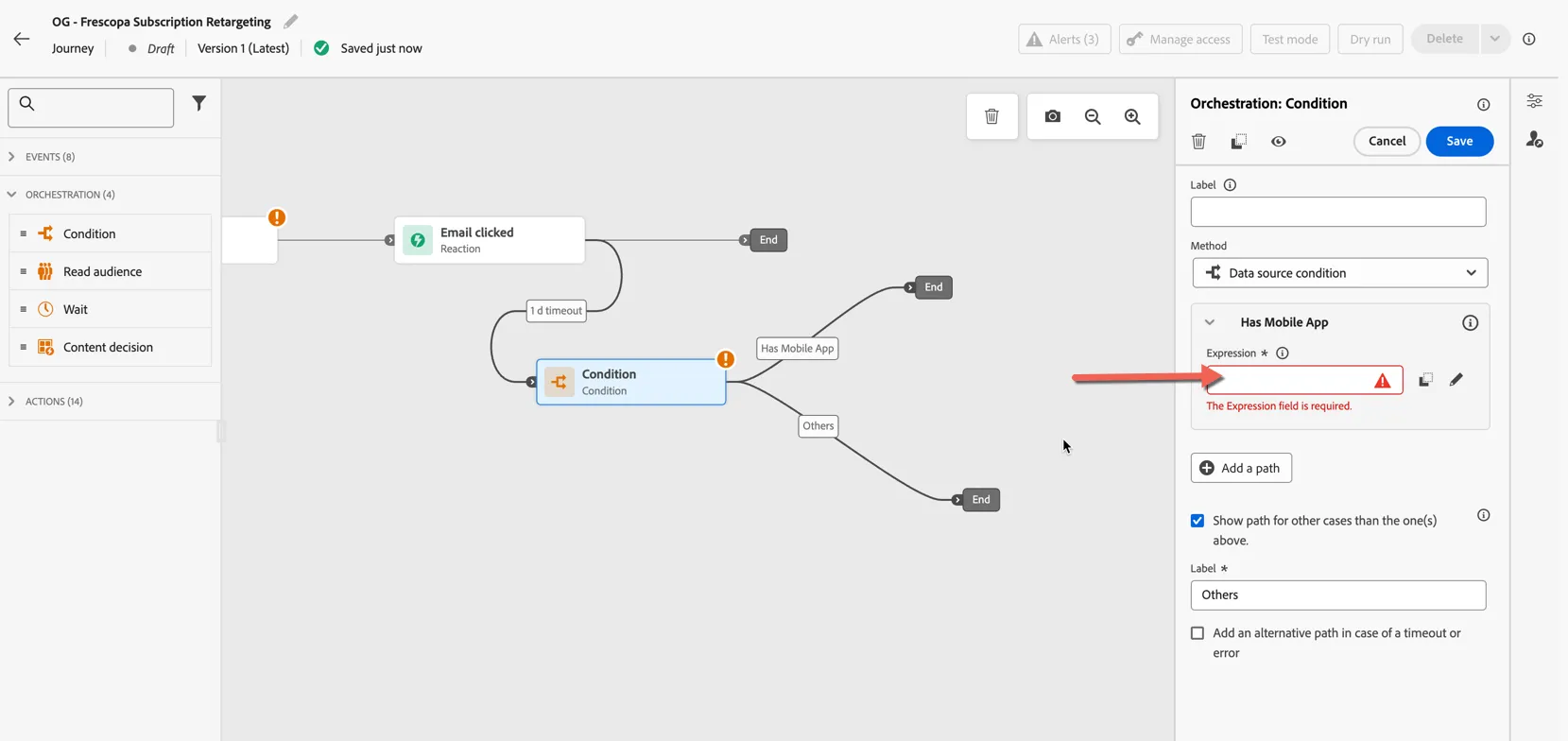
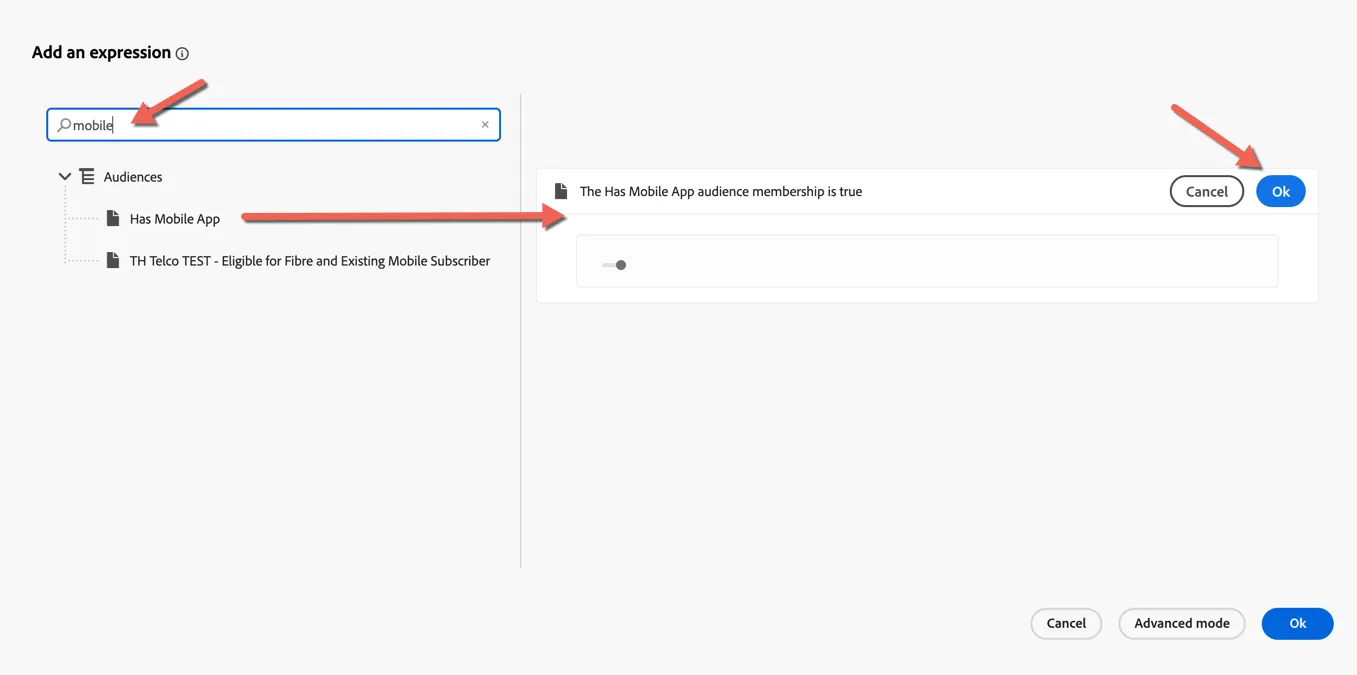
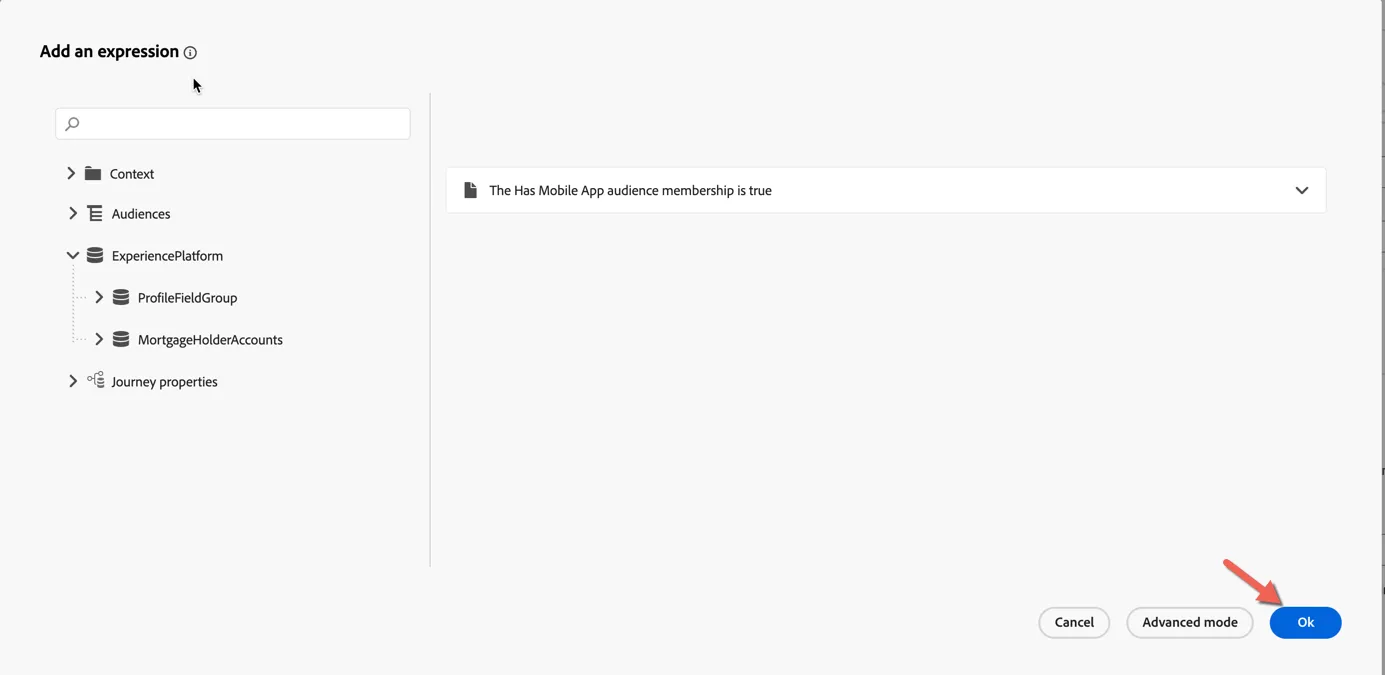
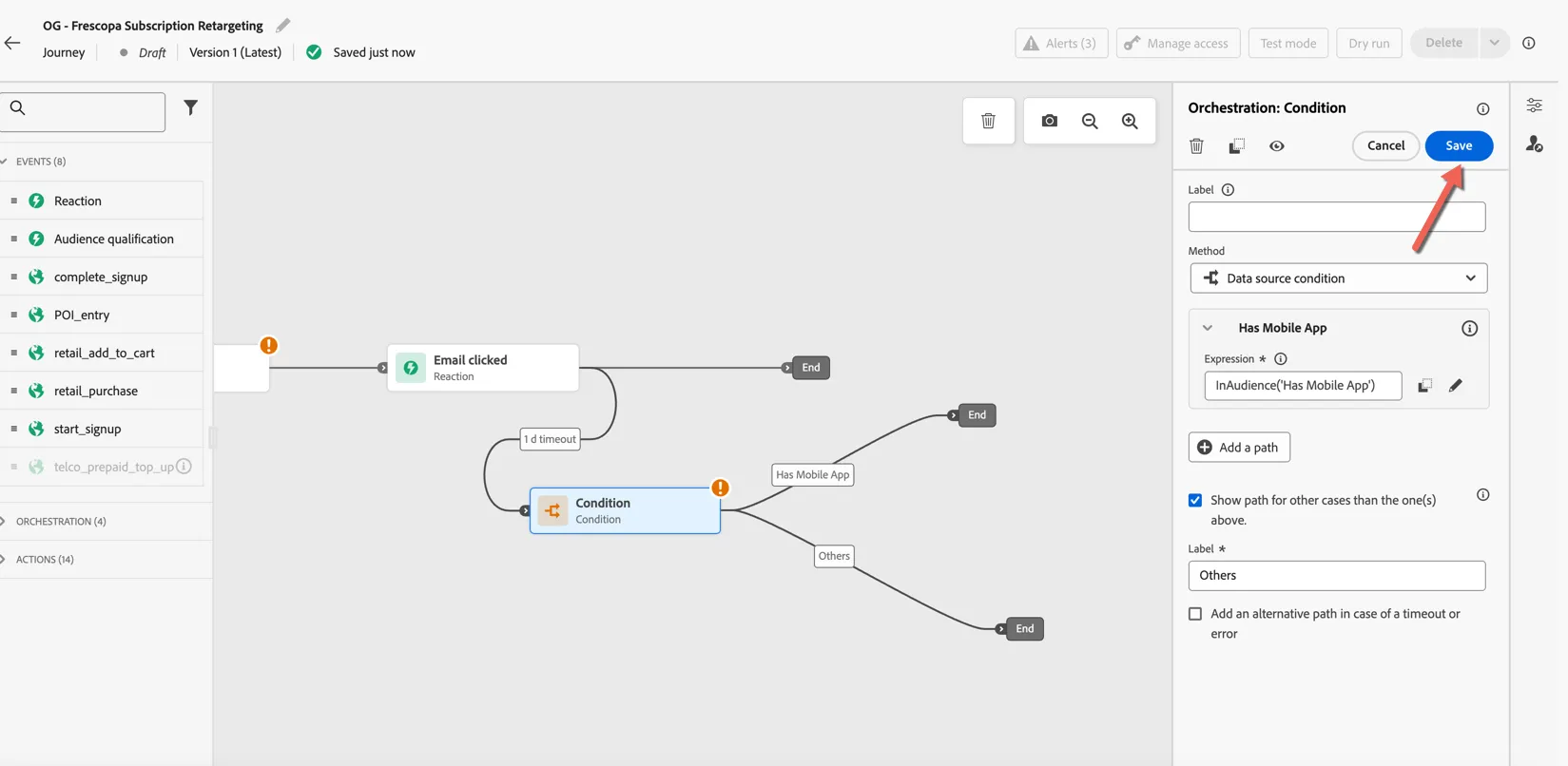
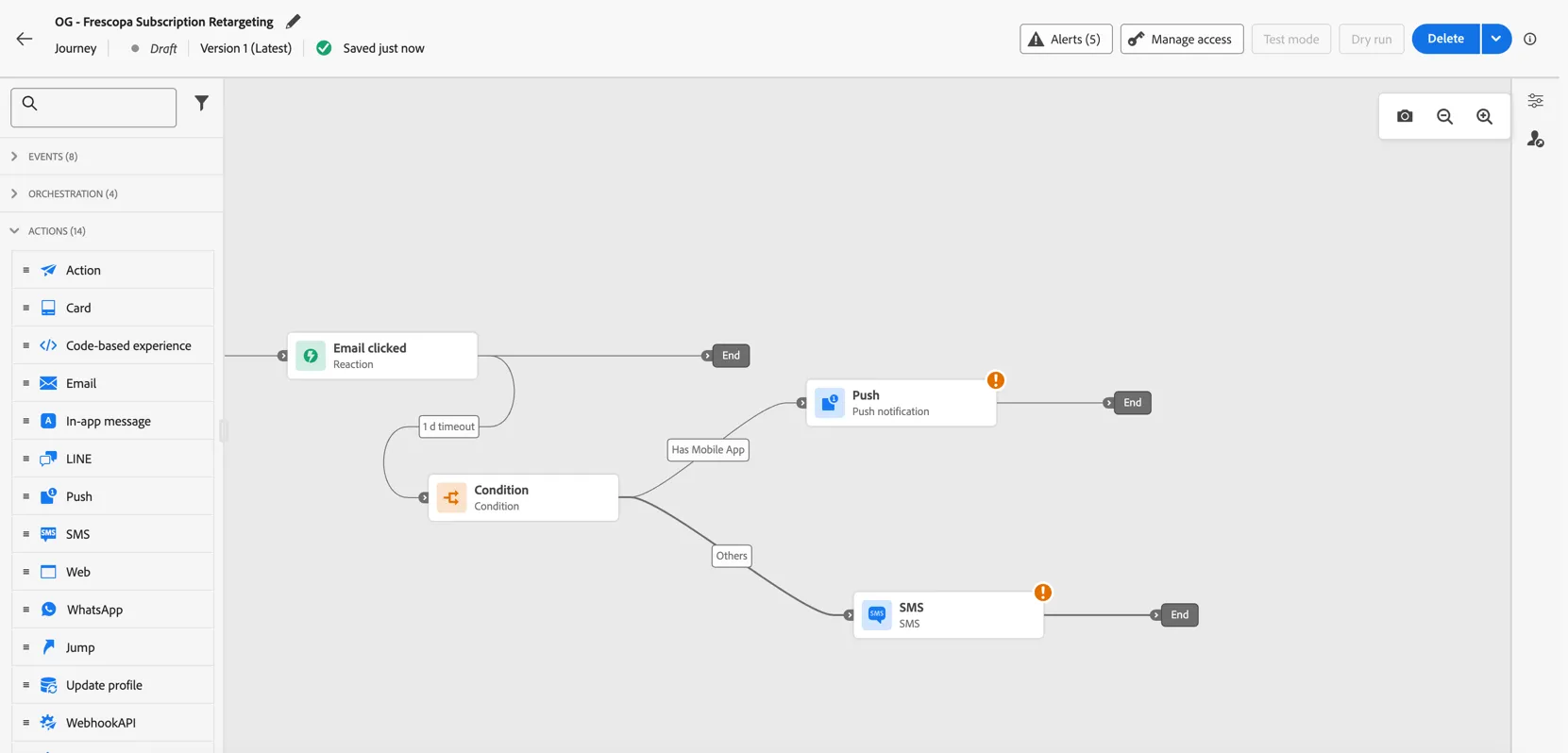
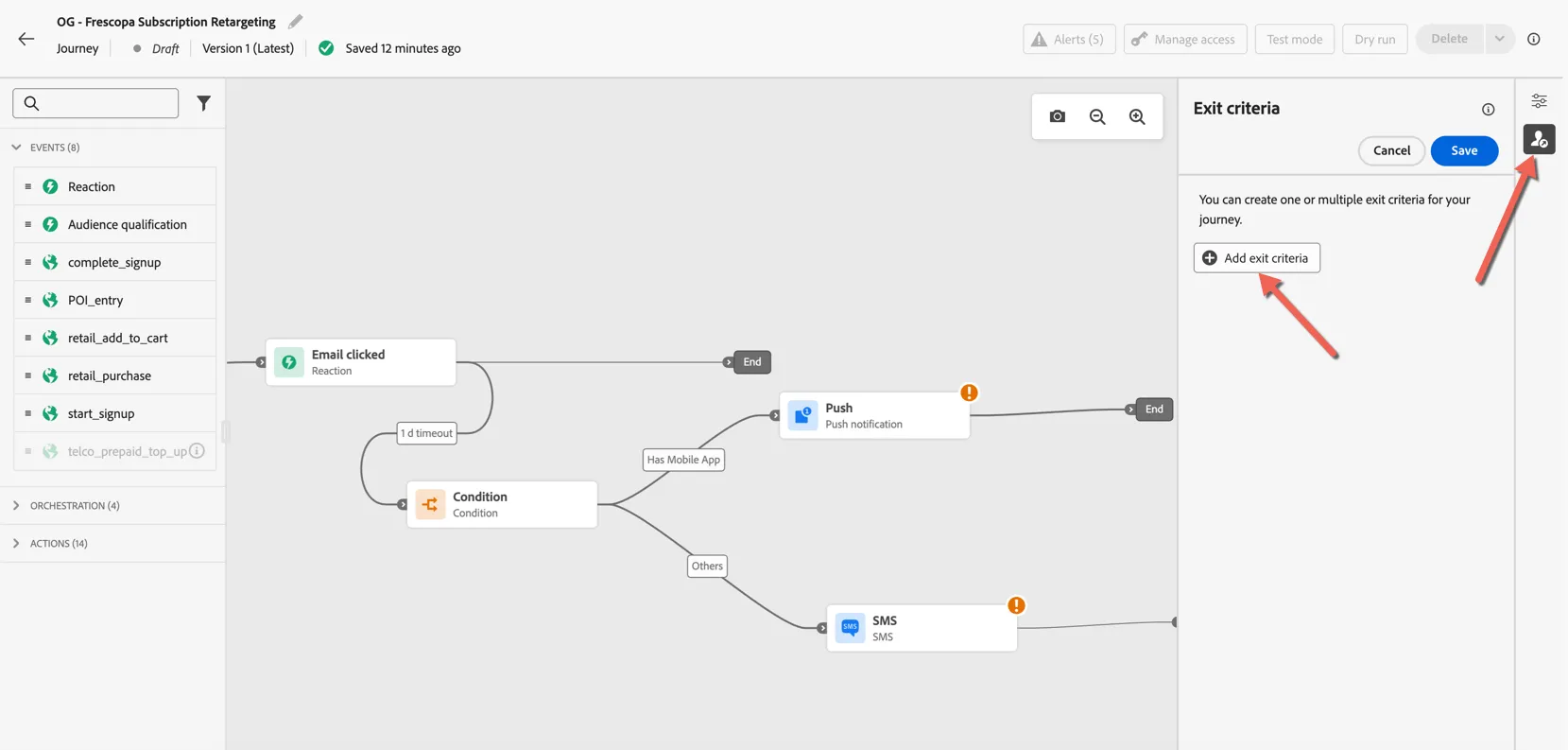
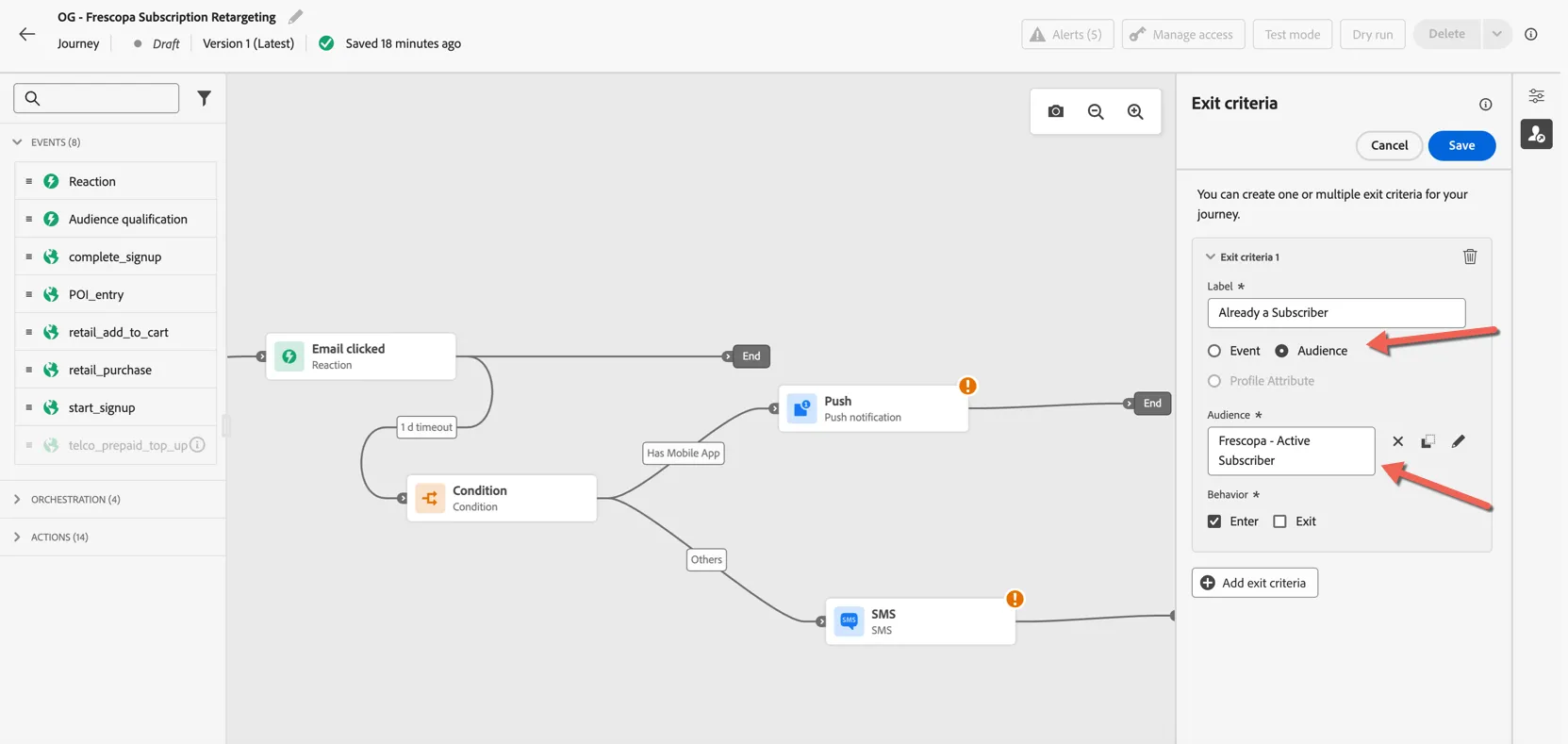
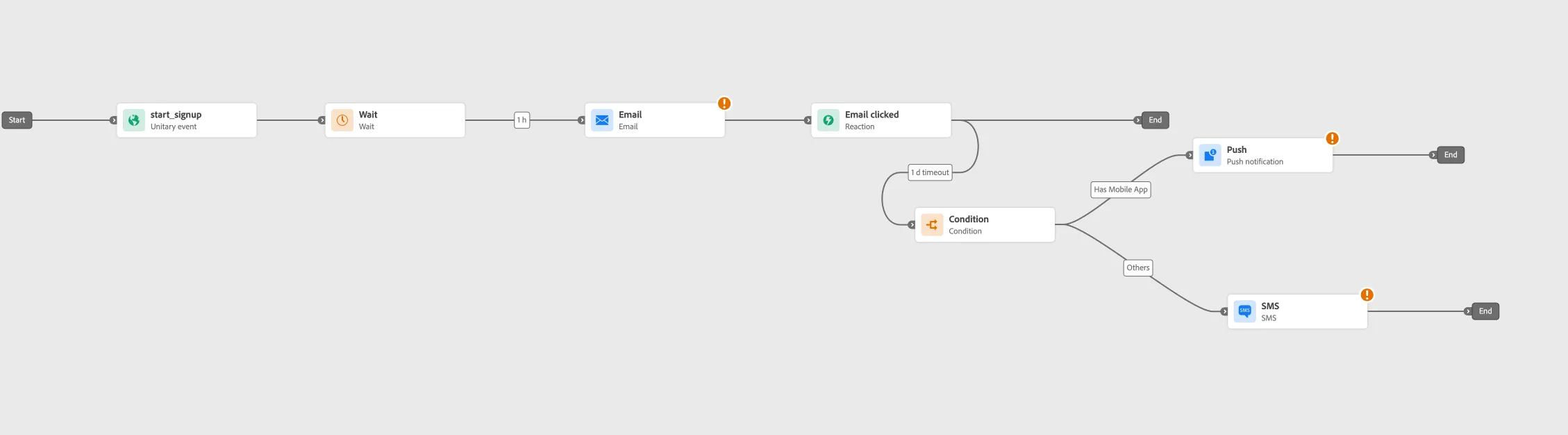
We now need to set up the content. Click on the link to the journey that the agent created and it should open in a new tab.
Add Email Content
For this exercise we'll start with a pre-defined content template. Select the email activity in your journey and set the Email Configuration to email-marketing and click to Edit Content.
Select the Email action in the canvas then click Configure Action.
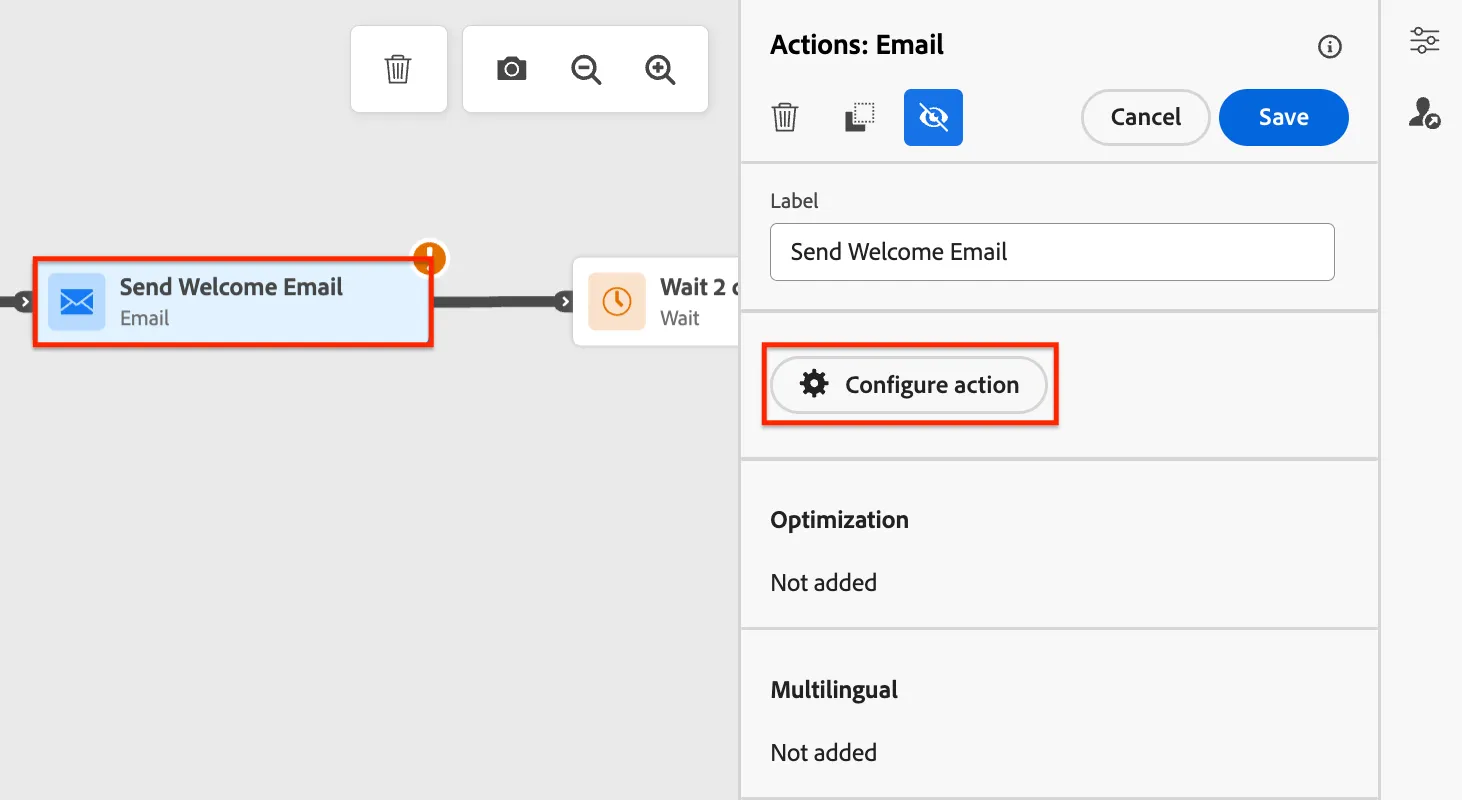
Change Email Configuration to email-marketing there. Then click on Edit Content.
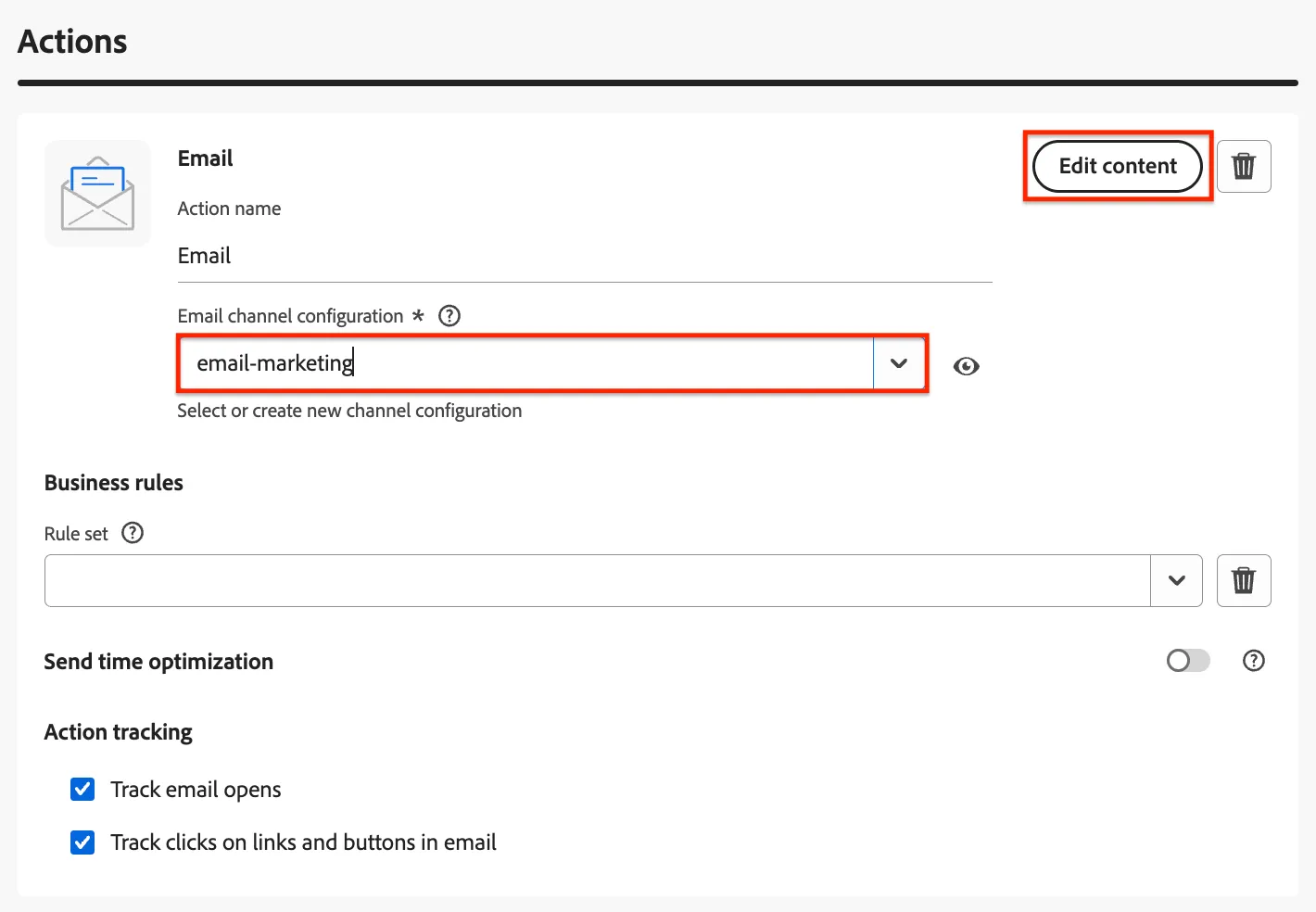
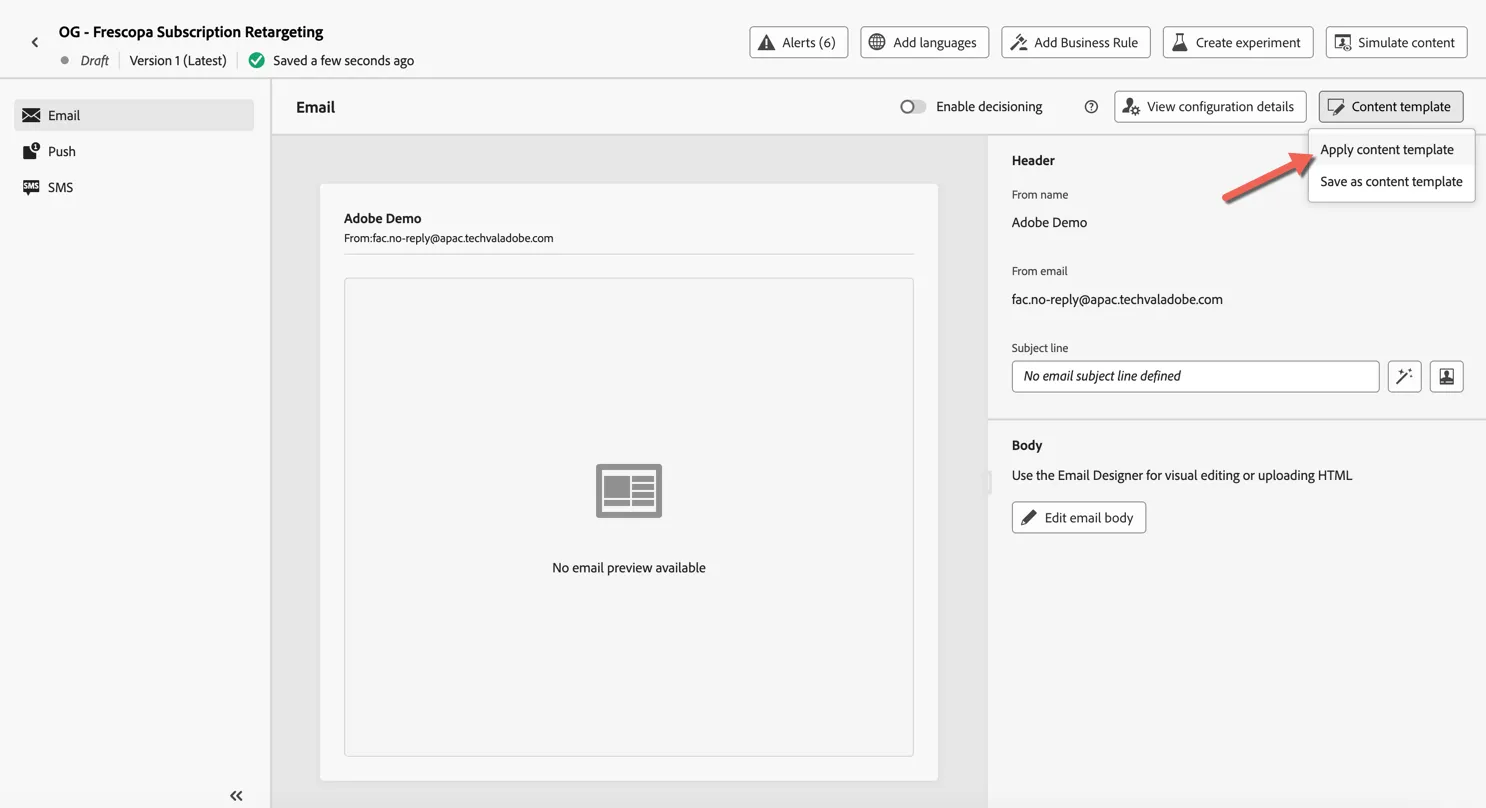
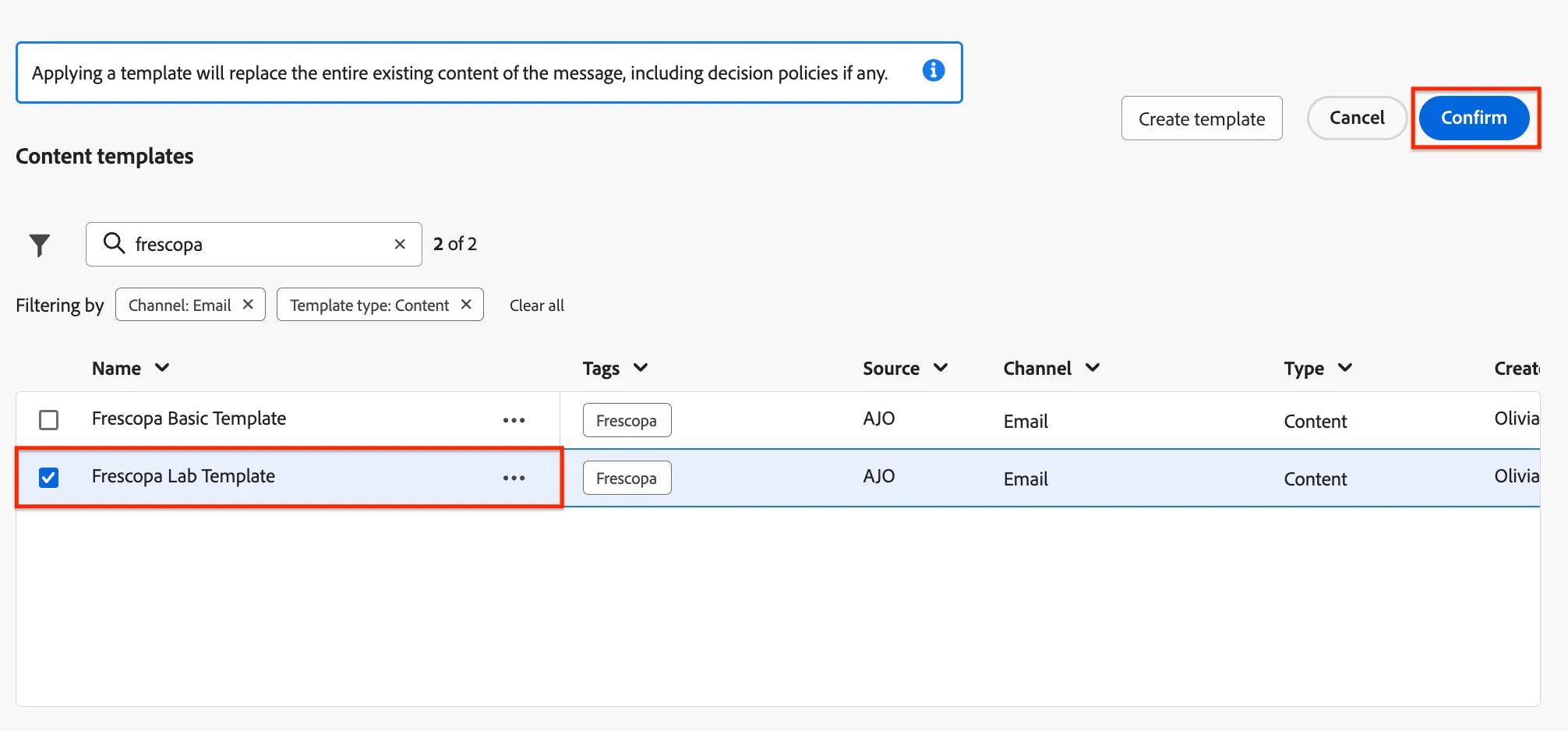
Click on Apply content template
Select the Frescopa Lab Template and click Confirm.
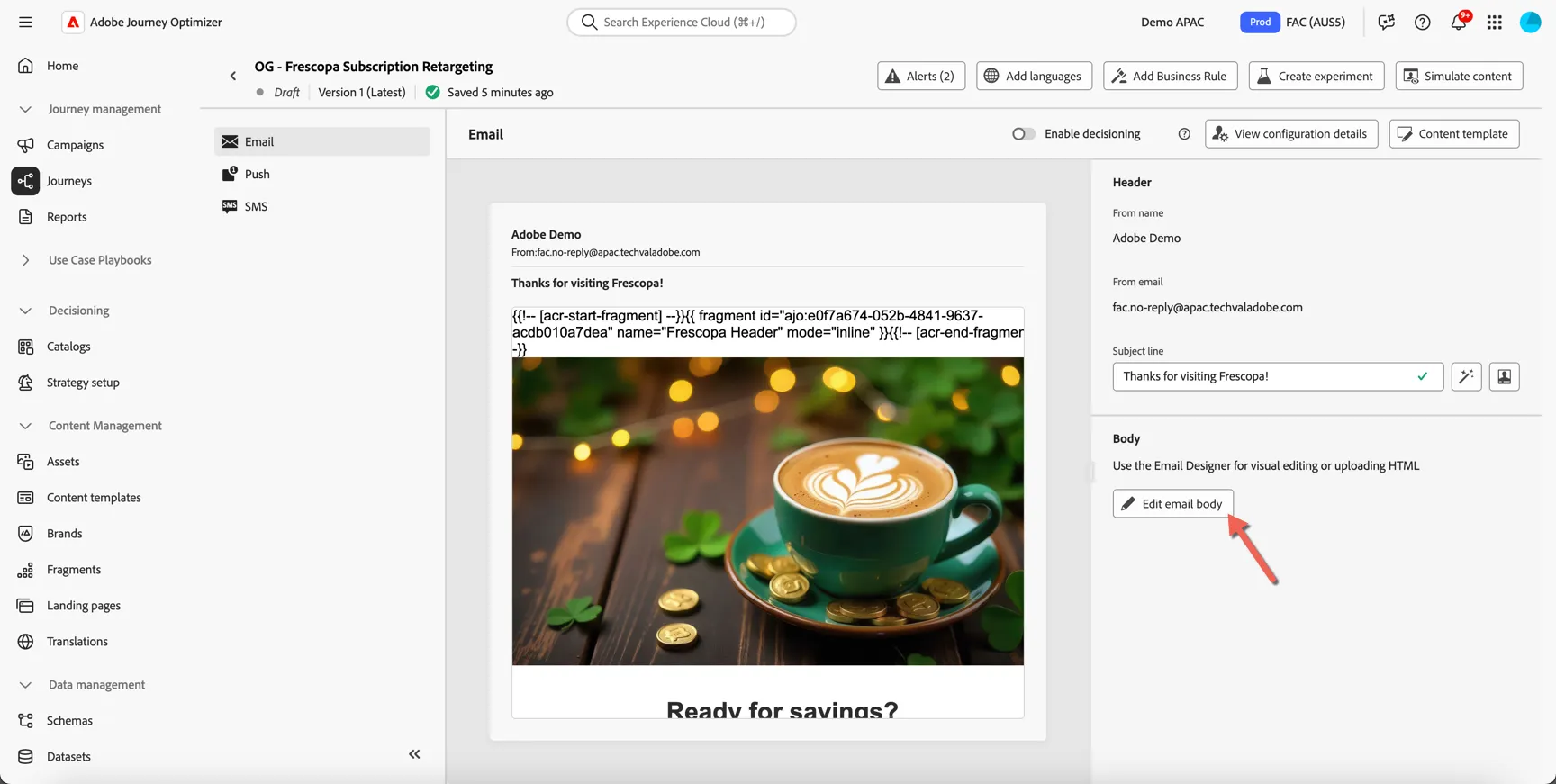
Now that the template is loaded click to Edit the email body.
Generate Variations with AI
Now we'll use AI Assistant to help us generate variations of this content to use for experimentation. AI Assistant can be used to generate individual images or text components but in this case we're going to generate new variations for a mixed content block.
Select the two column block from the center of the email then click to open the AI Assistant on the right side.
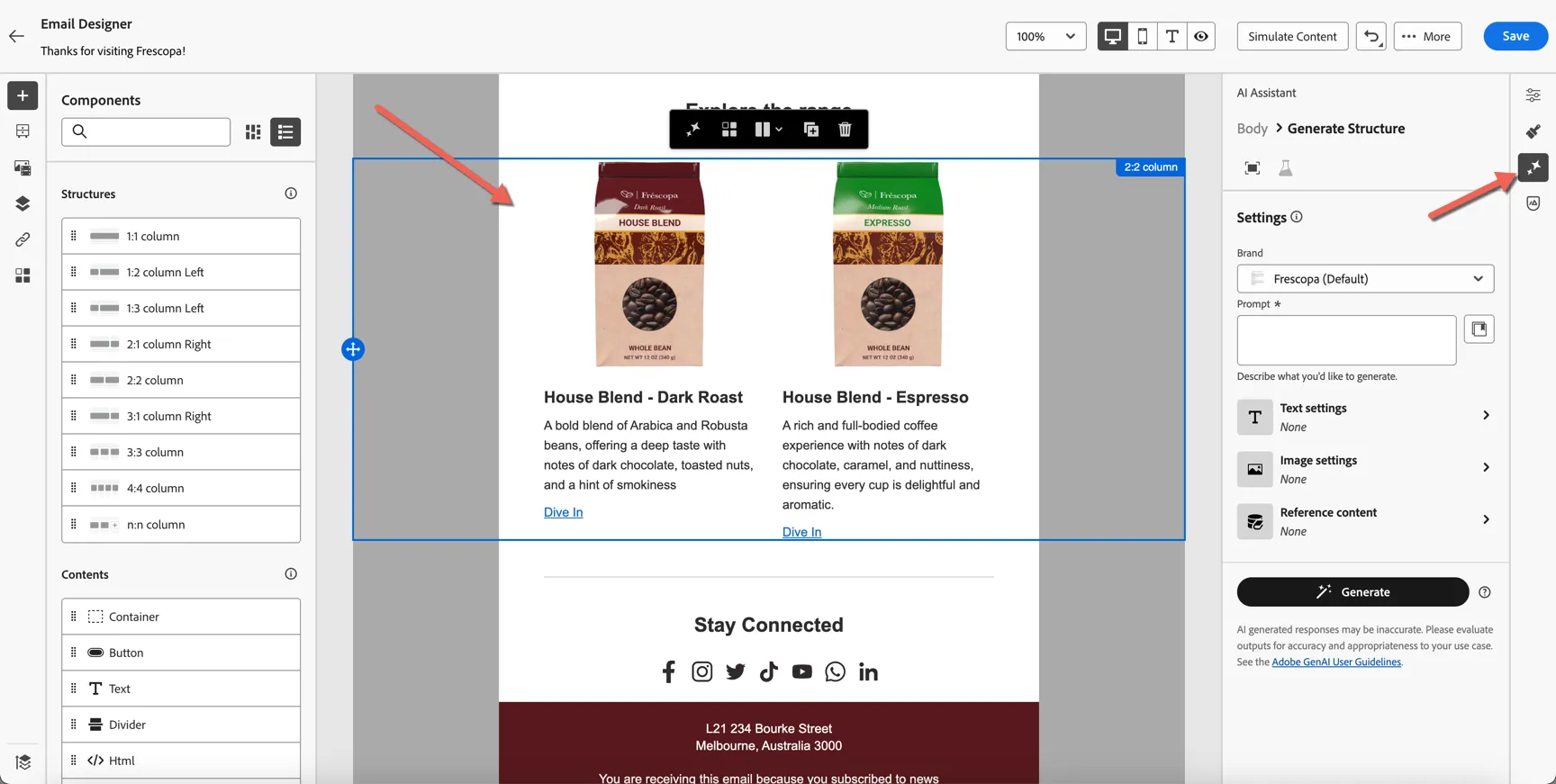
Add a text prompt for the message you want to convey - in this case, encouraging a My Barista subscription, for example:
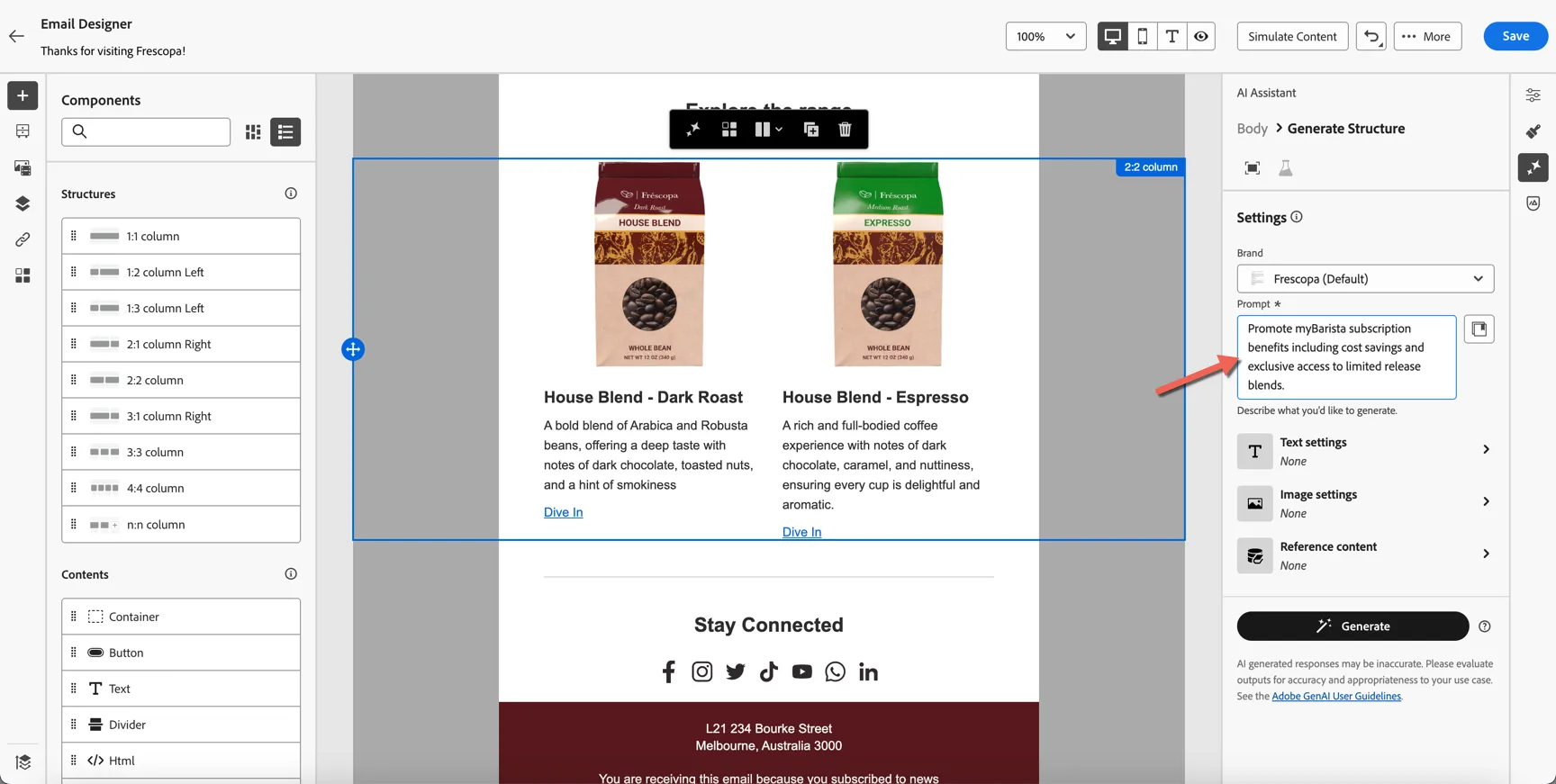
Add text and image settings to influence the tone and colouring.
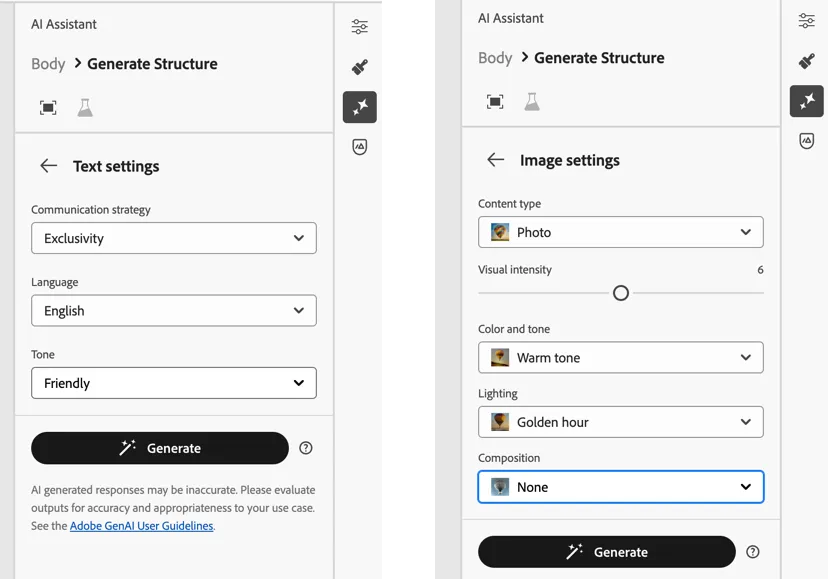
Click on Generate. After a short while, two new variations are generated. Each variation has been automatically scored against the brand guidelines.
What you see generated and the scores applied will be different from the screenshots below. You can follow the process as it applies to your generated content.
Click on the Preview button to take a closer look.
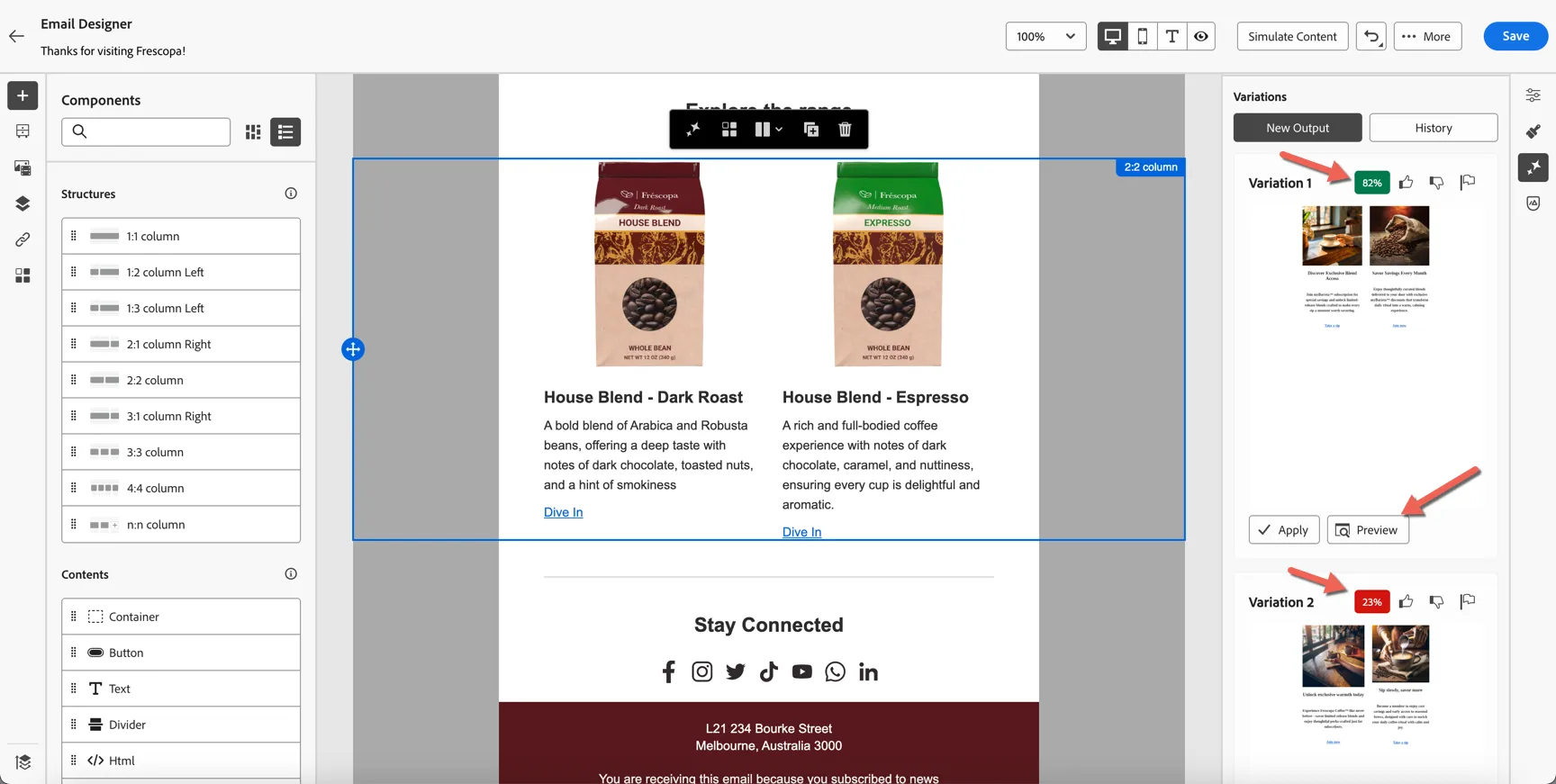
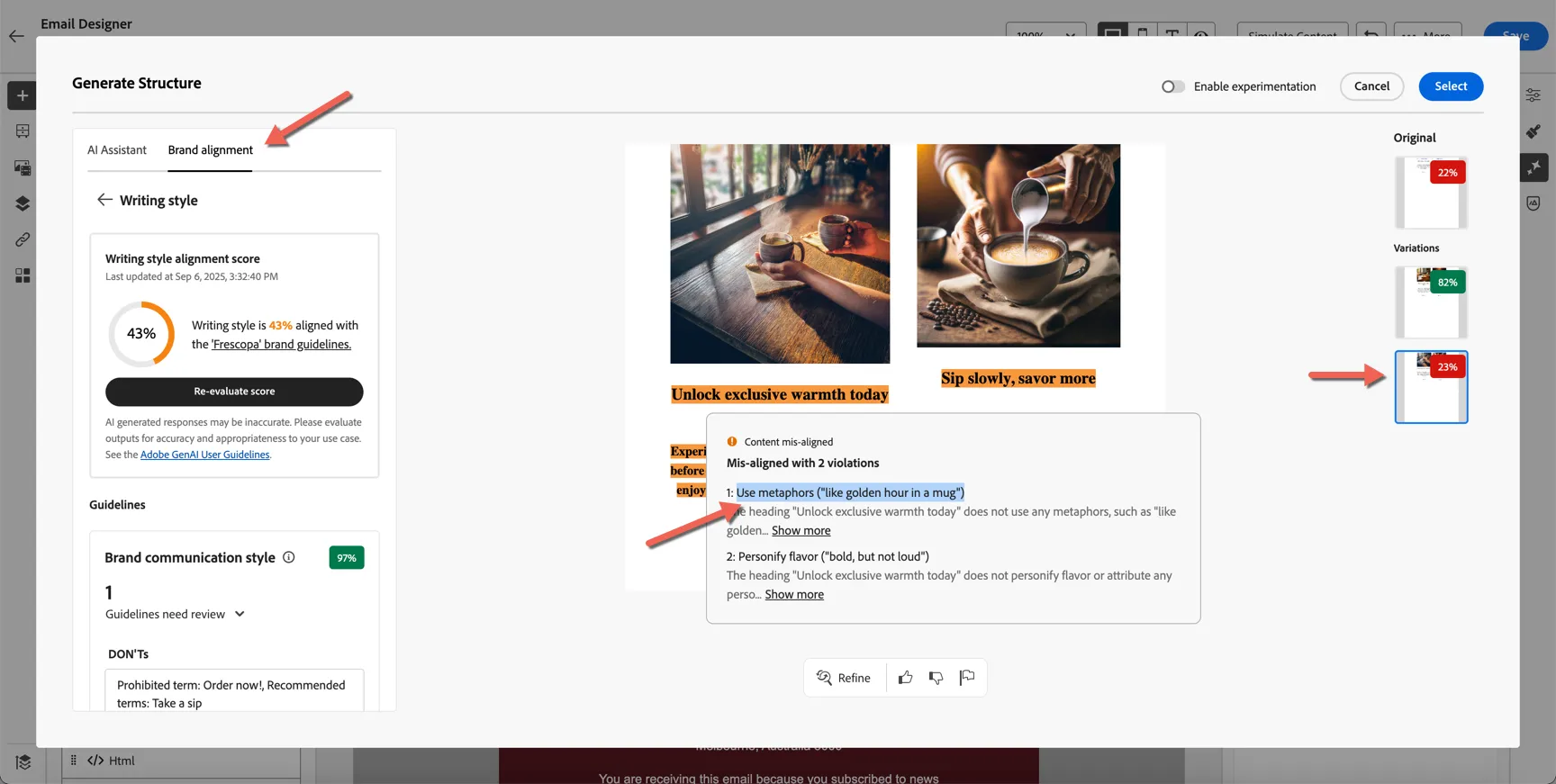
You can switch between each variation on the right, and use the brand guidelines tab on the left to review the reasons if low scores.
You can also ask it to refine specific pieces of the content and provide positive and negative feedback through the panel at the bottom.
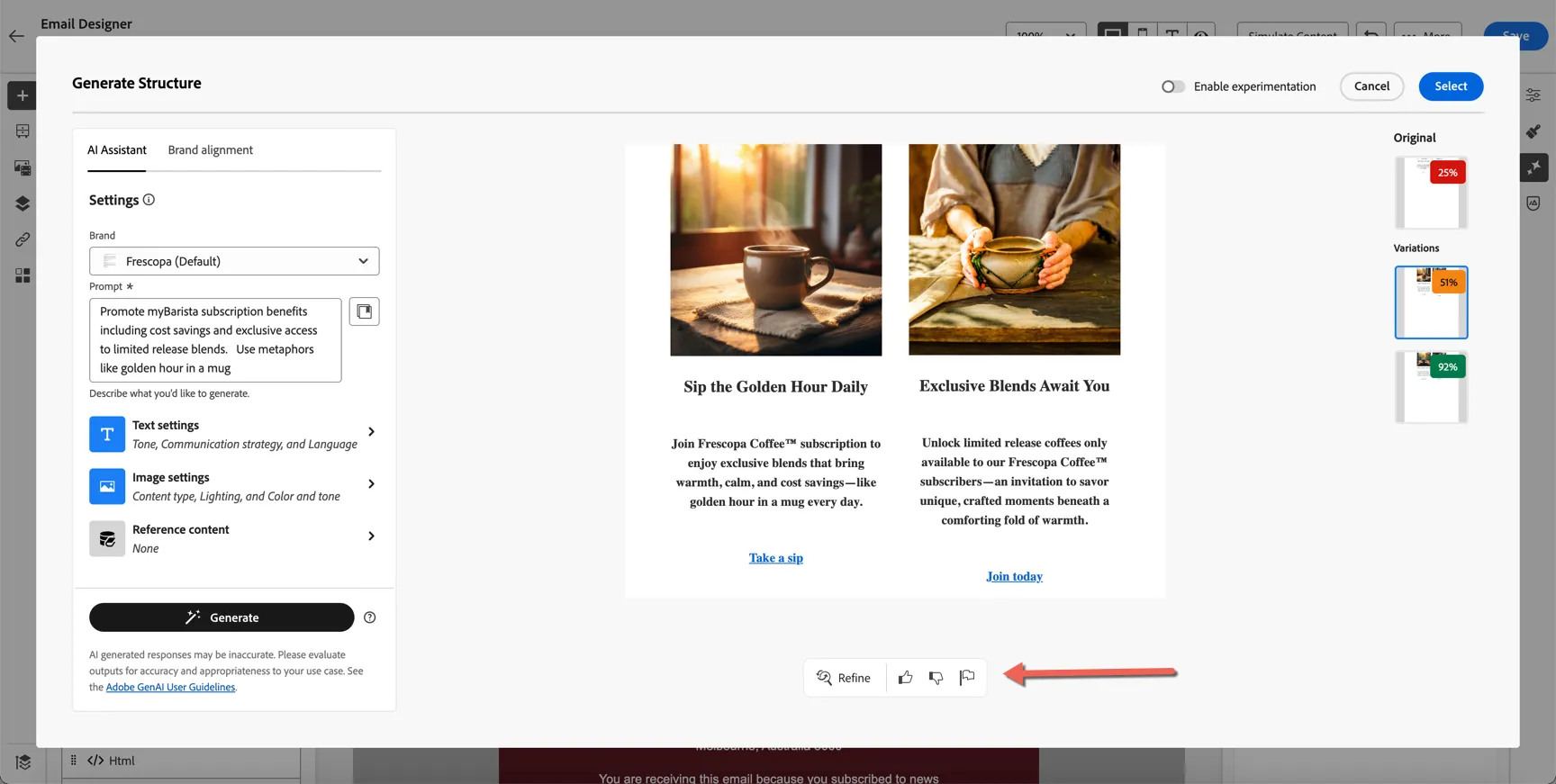
From here you can choose to use one of the generated variations, or we can choose to use ALL of the variations and configure an experiment to test which content performs the best.
Just select the one you prefer and click Select. Then click Save.
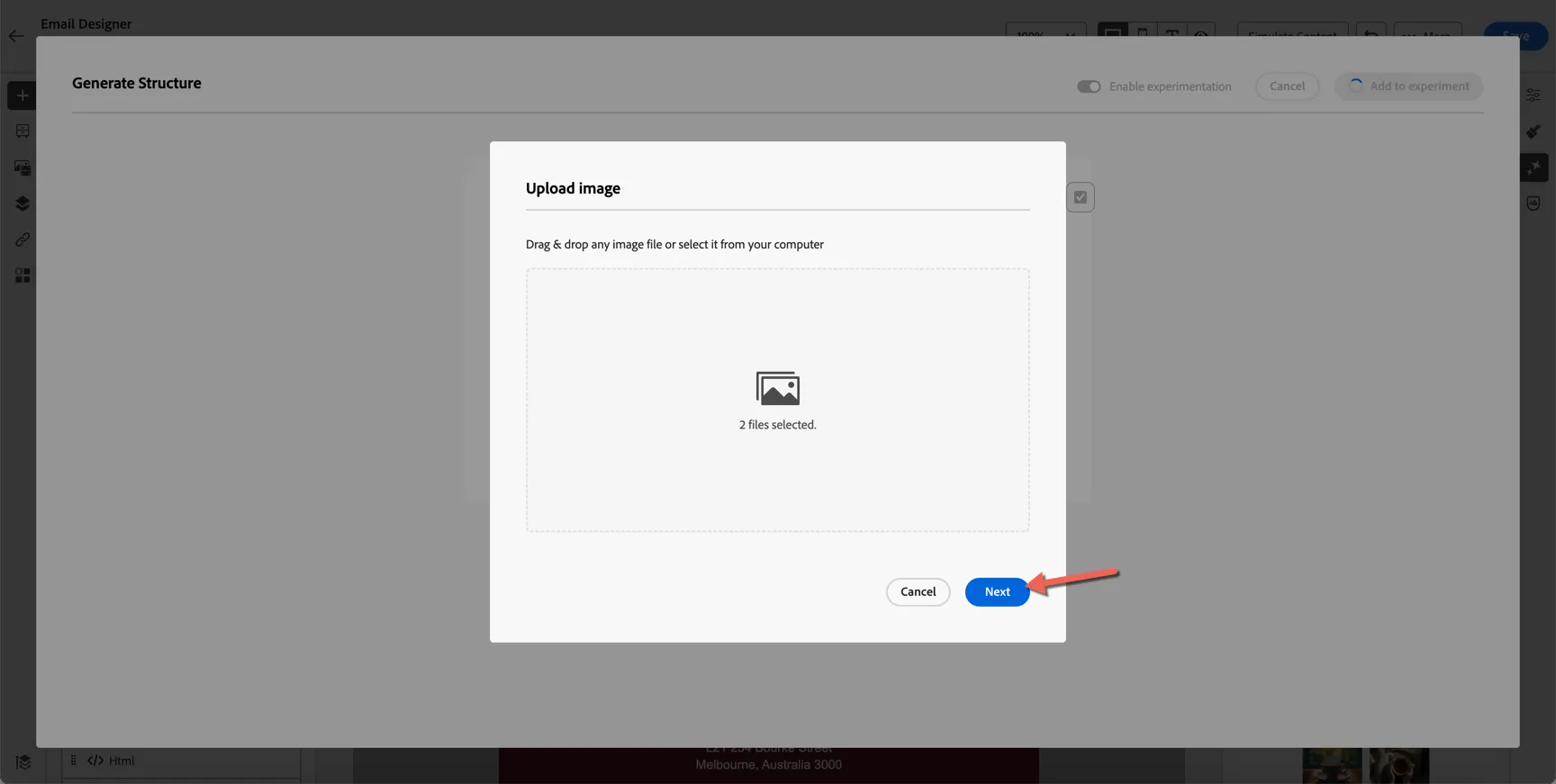
Because the generated content includes imagery we need to tell AJO where in the asset repository to put the new images. Click Next to choose the folder.
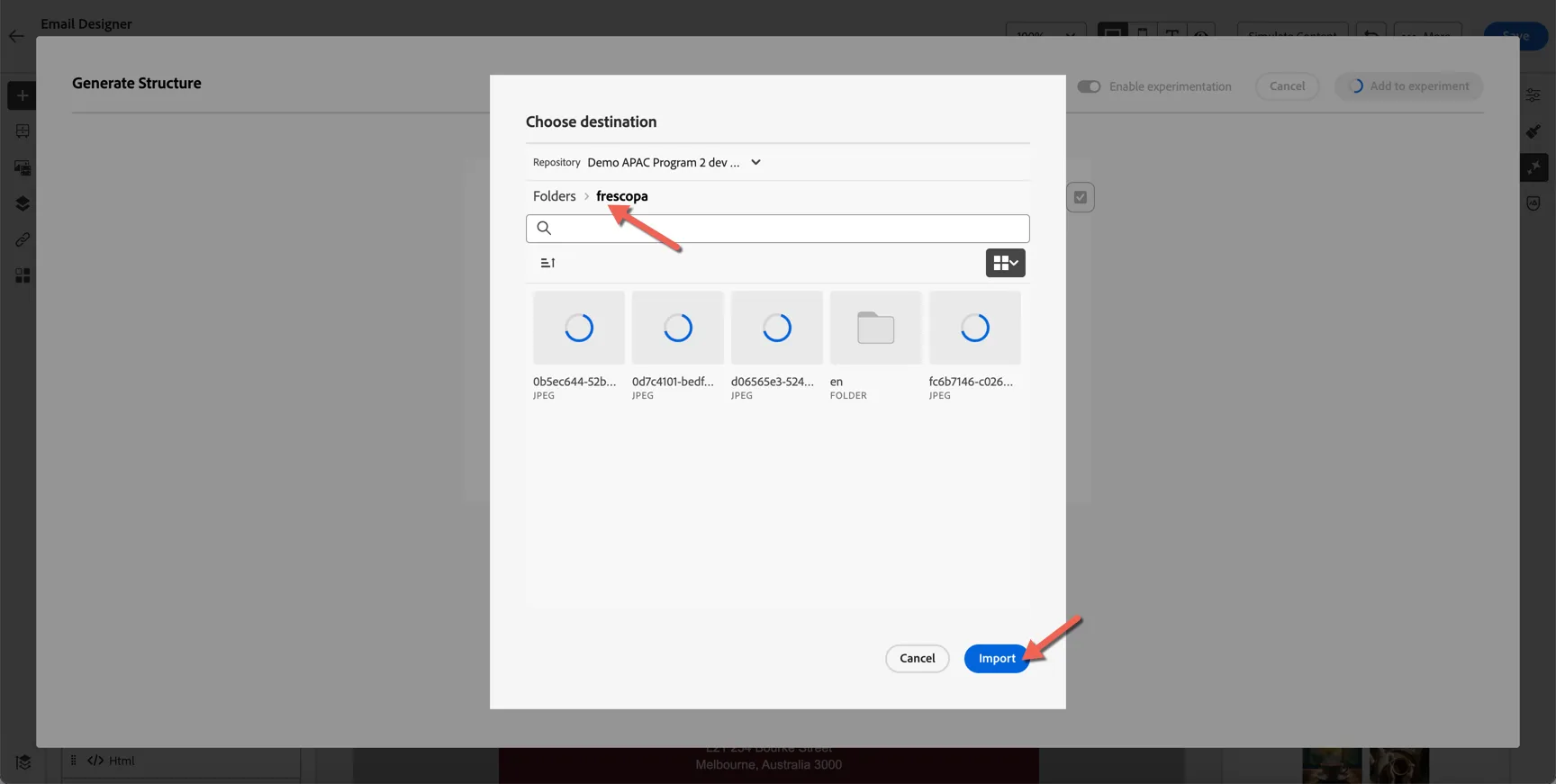
Select the Frescopa folder and click to Import.
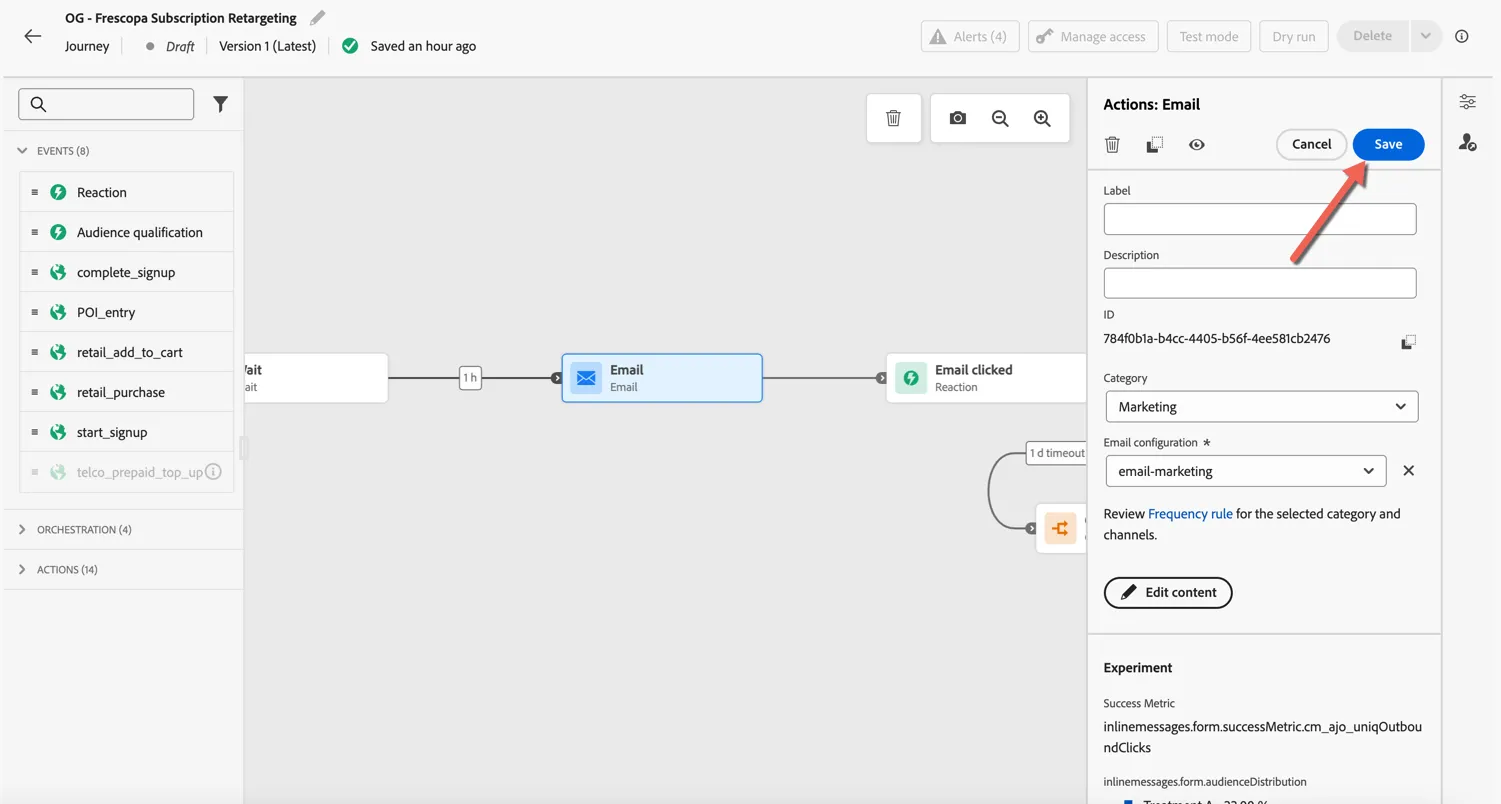
Your email is now configured. Click Save, then the back arrow on the top left to return to your journey.
Add Mobile Content (optional)
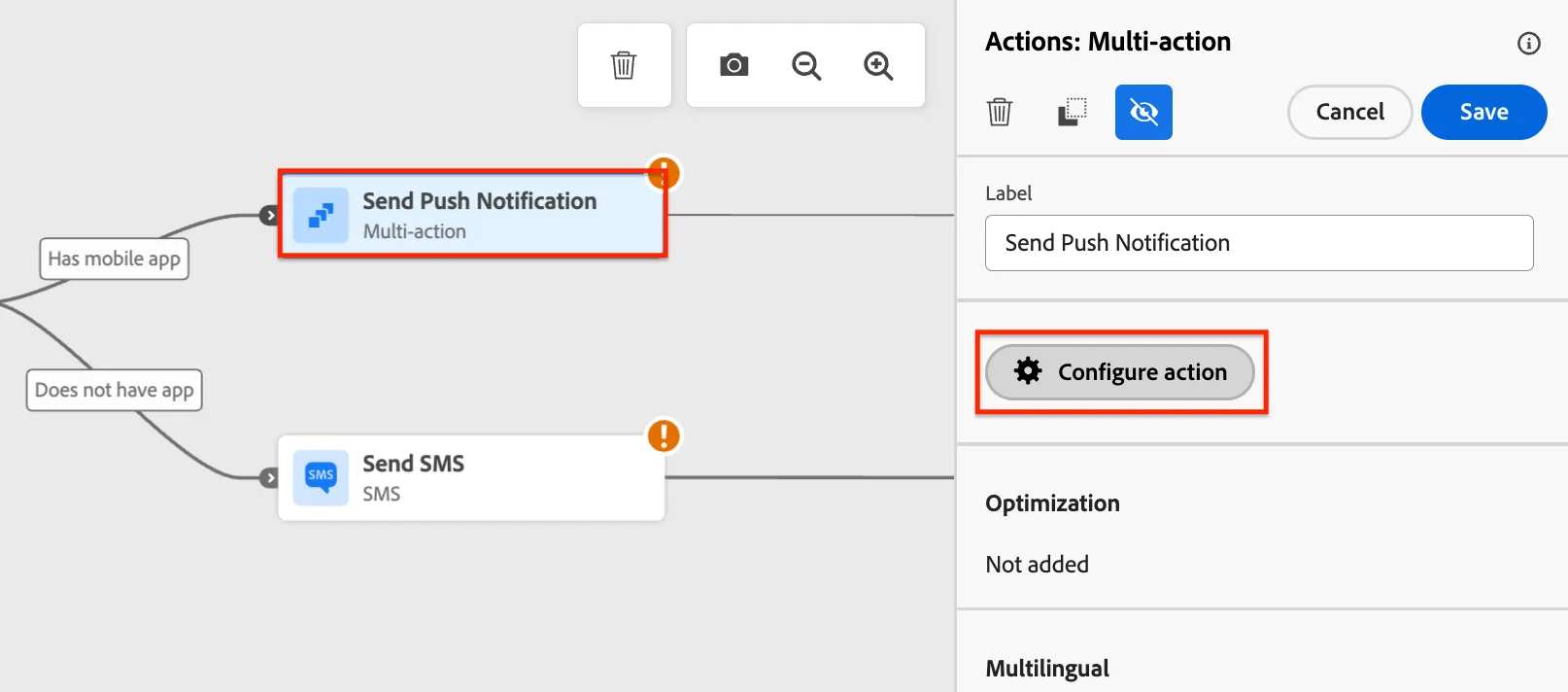
To complete the journey, we need to add content to the SMS and Push Notification activities. Scroll to the right of the canvas until you see the Push notification action.
Click Push > Configure Action, and change Push notification channel configuration to Push. Then click Edit content.
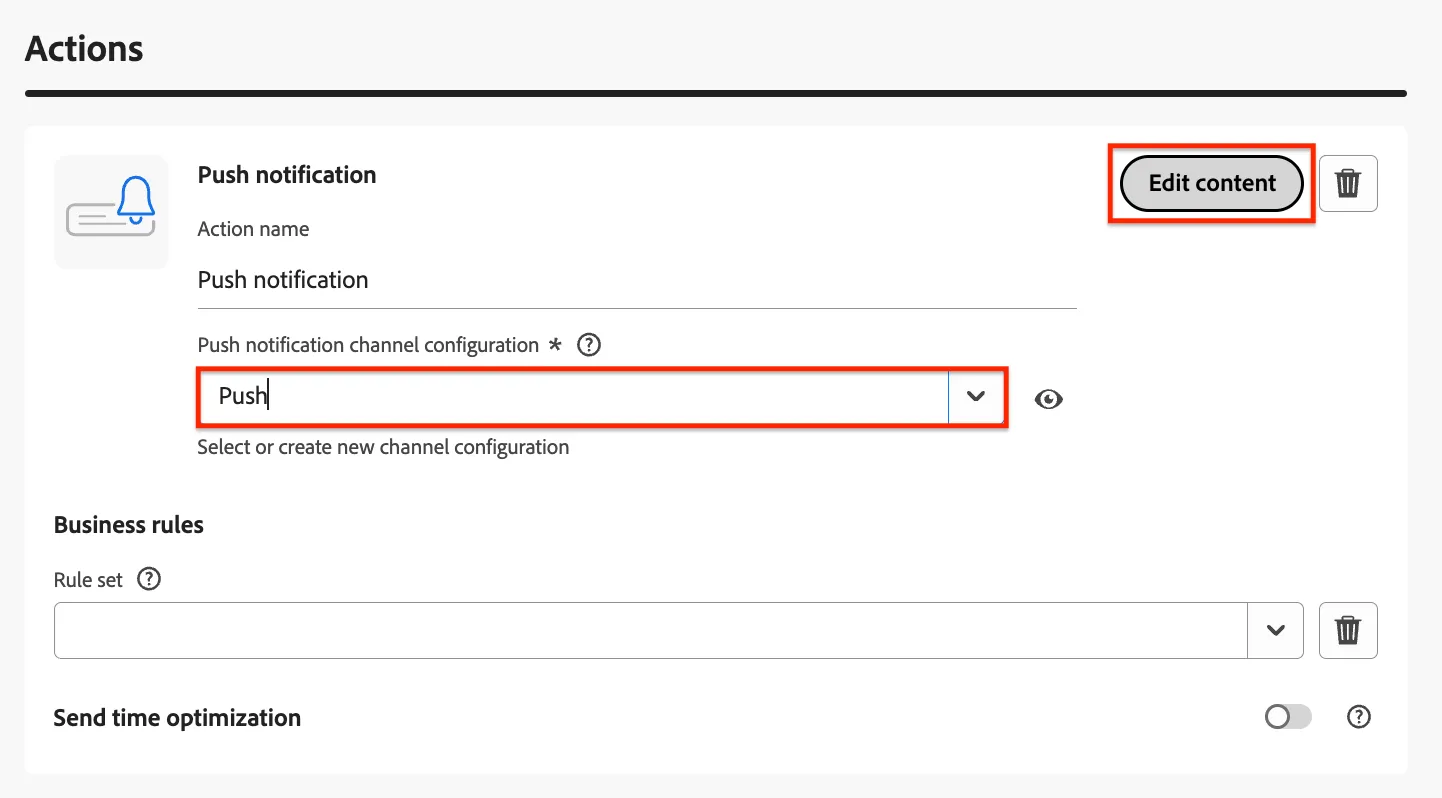
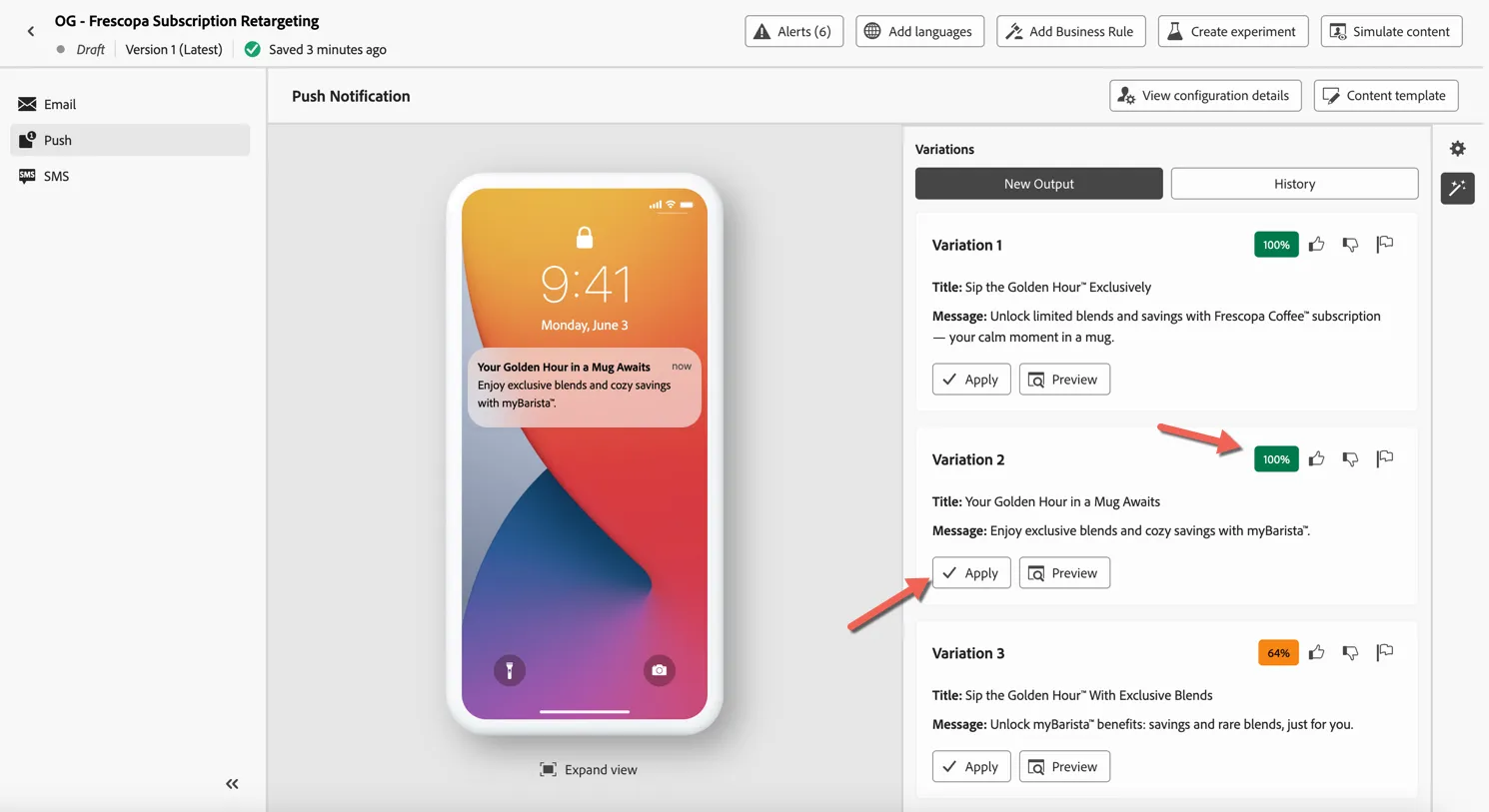
Once again you can either manually add content or use AI Assistant to generate it for you. Open the AI Assistant panel and reuse the prompt and text settings from your email to keep messaging consistent.
The generated content is again scored against the Brand Guidelines. Select the variation you prefer and click to Apply it to your message.
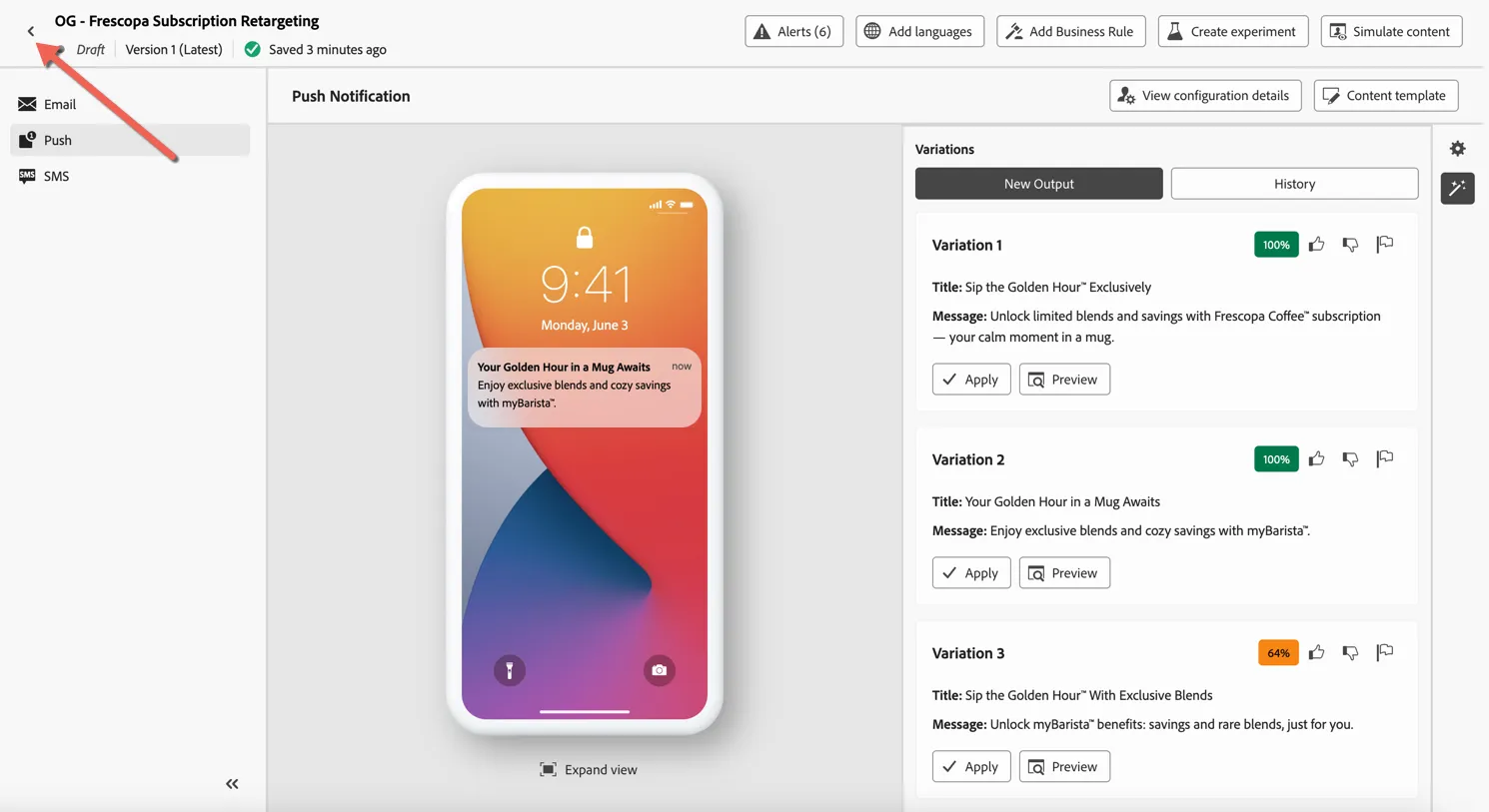
Click the arrow in the top left to return to your journey.
Note: the same process could be repeated for the SMS Activity.
Summary
Adobe Journey Optimizer enables brands to deliver contextual, personalised experiences at scale by combining real-time triggers, intelligent decisioning, and dynamic content generation—all within a unified orchestration canvas.
Adobe Journey Optimizer's integration with Adobe Experience Manager (AEM) and Adobe Firefly has enabled:
- Faster creative cycles: No need to manually design every variant.
- Brand integrity: All content aligns with approved guidelines.
- Higher engagement: Personalised, relevant content drives better results.
- Cross-channel consistency: AEM assets and content fragments ensure that messaging in email, push, and web banners is aligned.
Congratulations you've completed the exercise on Adobe Journey Optimizer and successfully used the Adobe Agent to create your journey and populated content with the AI Assistant! 🤖👏🏻