From Data to Insights: Visualizations in CJA
Customer Journey Analytics (CJA) provides a wide range of visualization options that help transform raw data into meaningful insights. These visualizations enable users to analyze customer behavior, identify trends, and understand performance across different touchpoints in the customer journey.
Exercise:
In this exercise, we will explore some of the key visualization diagrams available in Customer Journey Analytics (CJA) e.g. Flow Visualisation, Guided Analysis, Experimentation Panel etc.
Flow Diagram
A flow diagram, also referred to as a flow visualization in Customer Journey Analytics, is used to explore and analyze the paths that customers take as they interact with your website, application, or other digital properties. It provides a visual representation of customer journeys, showing where users go before and after specific points of interaction, such as entry, a particular page, or exit.
The Flow visualisation is great for understanding customer paths when there are specific points or events you want to account for.
Let's build a flow diagram to analyze how a customer reach channels taken by a customer before submitting an application.
- Add a new visualisation to your dashboard by clicking the + icon inside the panel at the bottom. Select the flow icon highlighted below
Note : Make sure to add a new Panel and add Flow inside it.

The flow configuration will give 3 options as a starting point.
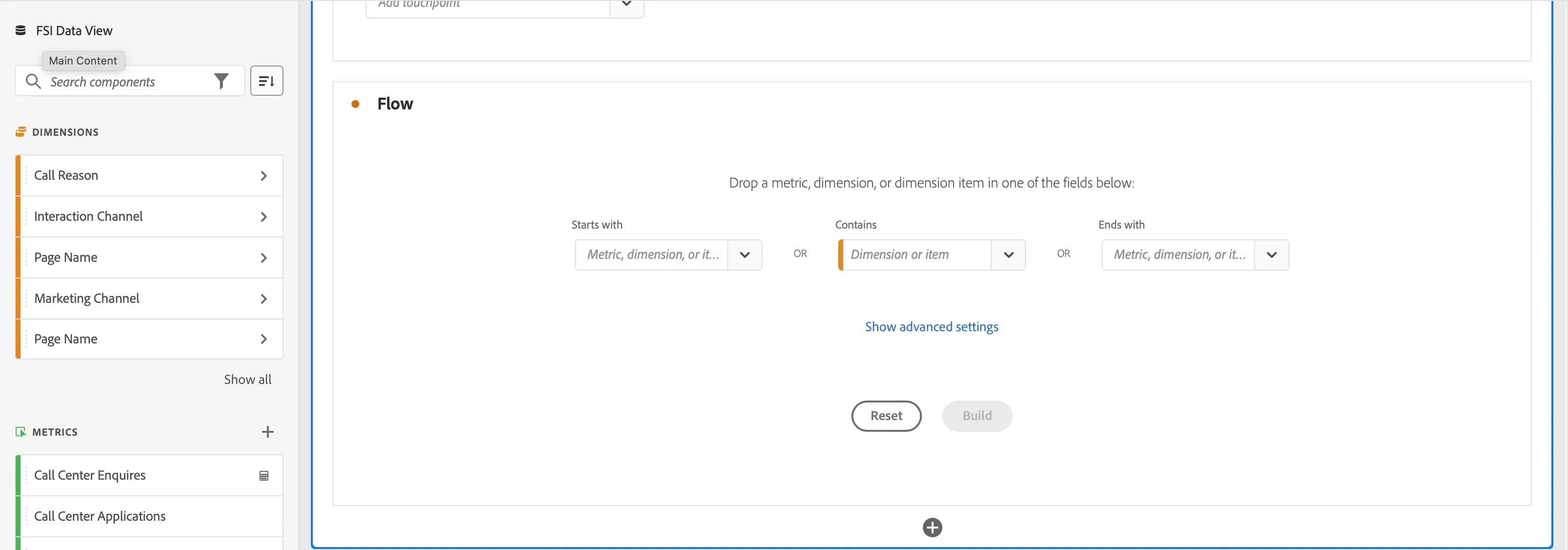
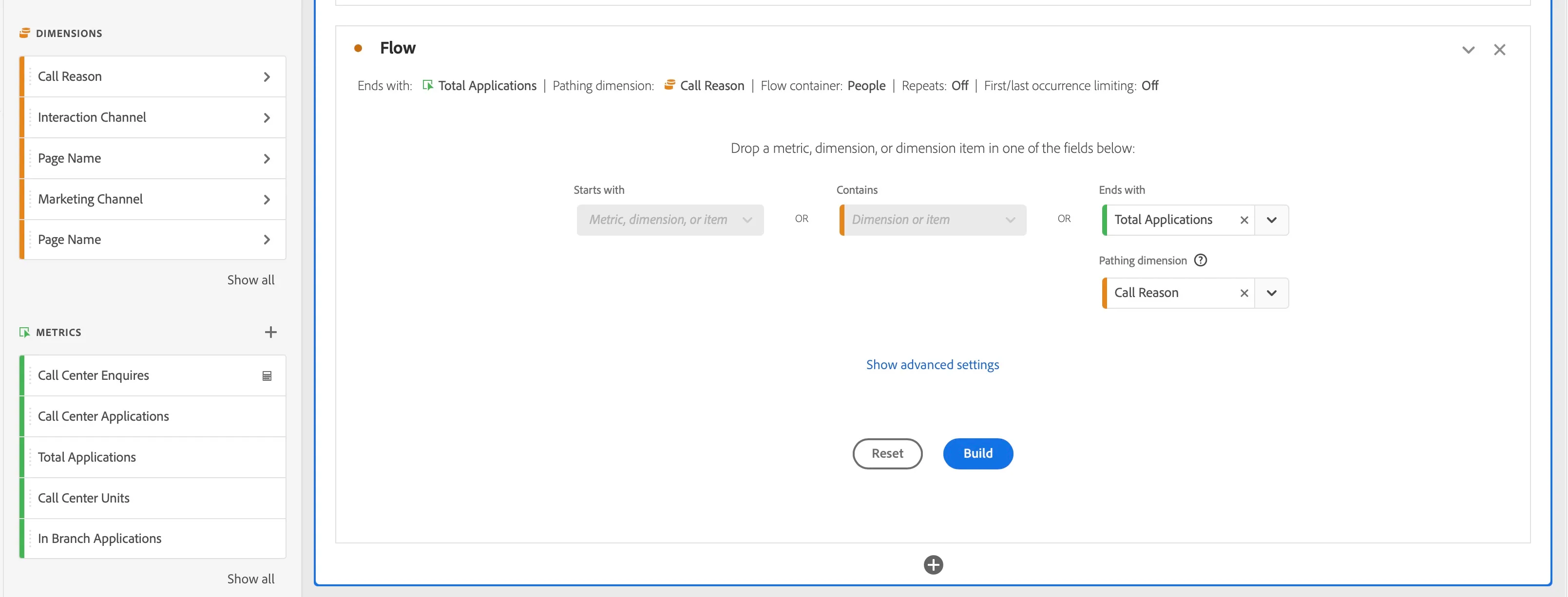
- Since we are interested in analysing which path people usually take for application submission. We will select "Total Applications" in the Ends With and "Call Reason" as the pathing dimension.
- Click on Build
- This will build a flow that shows how people end up filling the applications and if at all they use call centre for help before that how does the pathing look like w.r.t call reasons.
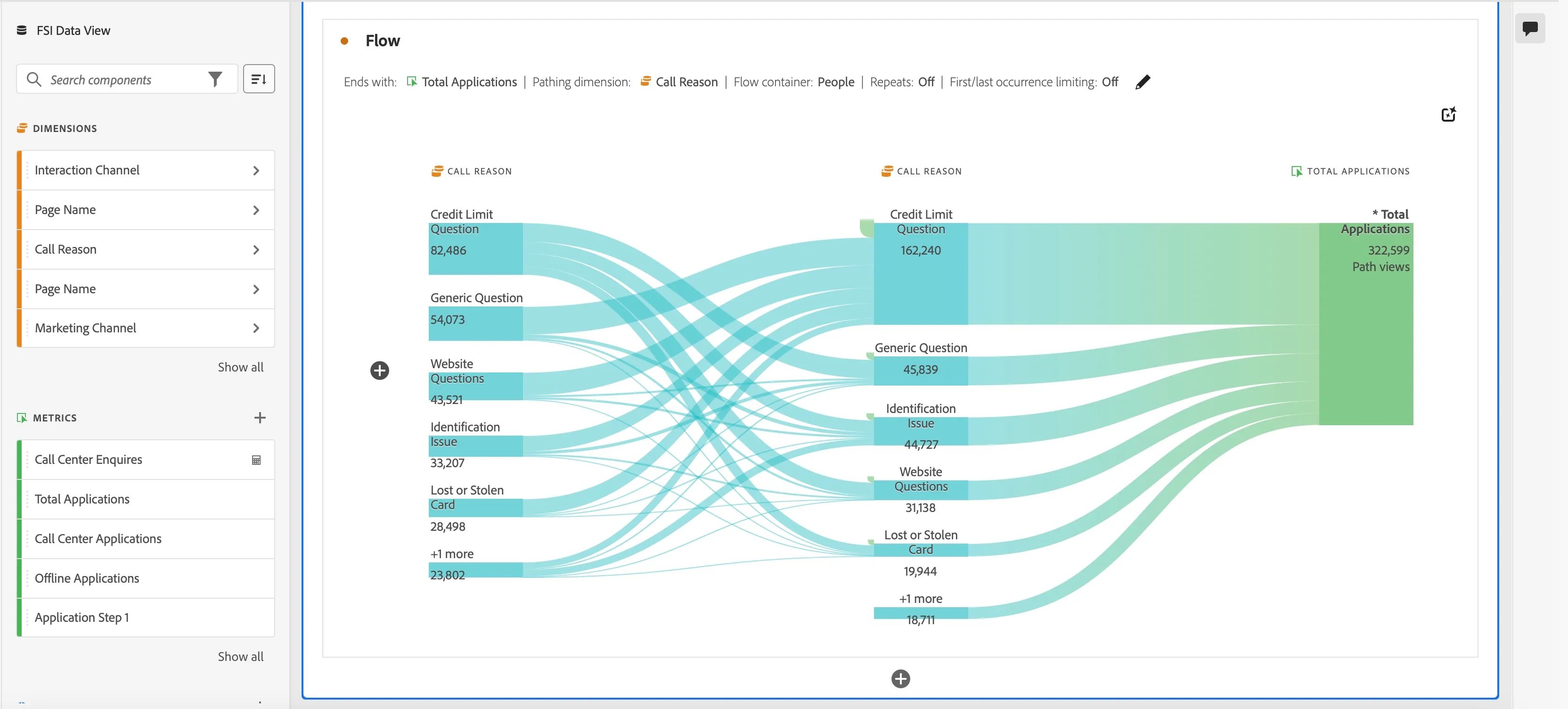
- By default, all the previous dimensions are set as call reason. Let's assume that we want to analyse how traffic moves from different interaction channels -> call centre w.r.t reason of call -> total application.
From the left side, dimensions select/search "Interaction Channels" and drag it on the first "Call Reason" pathing and drop it when you see "replace" text showing up on hovering.
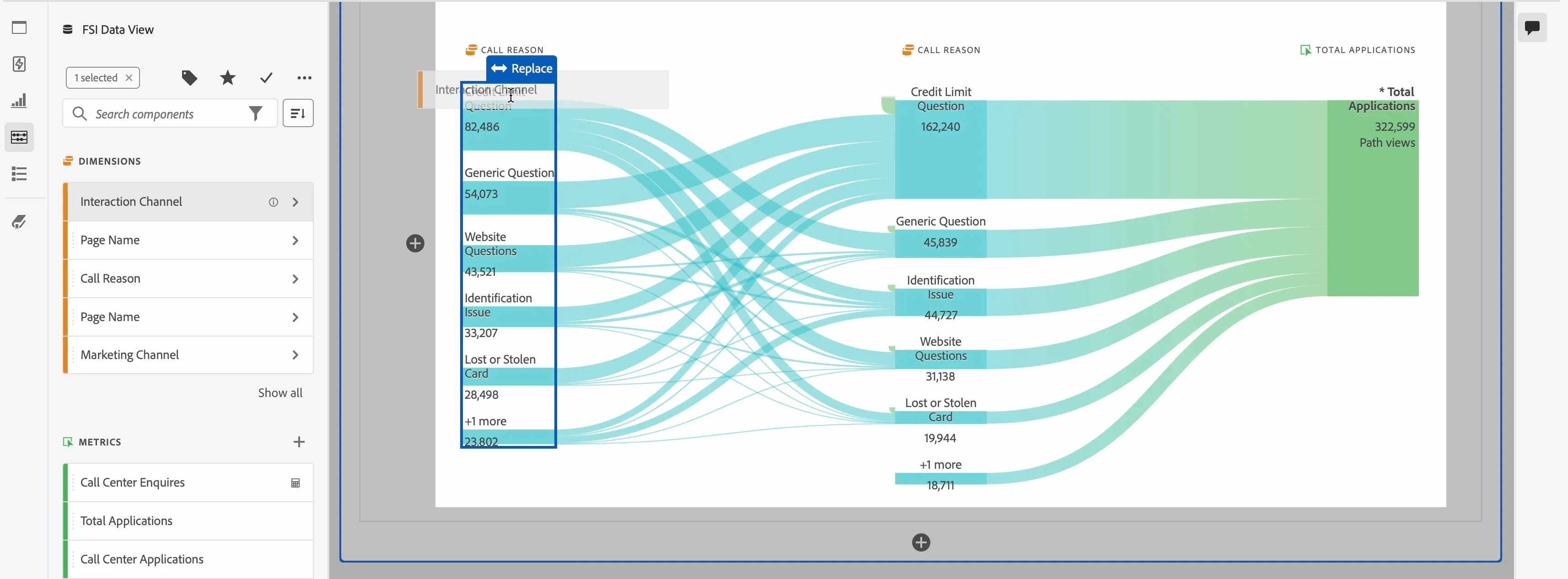
This should give you a flow from interaction channel -> call centre reasons -> total applications
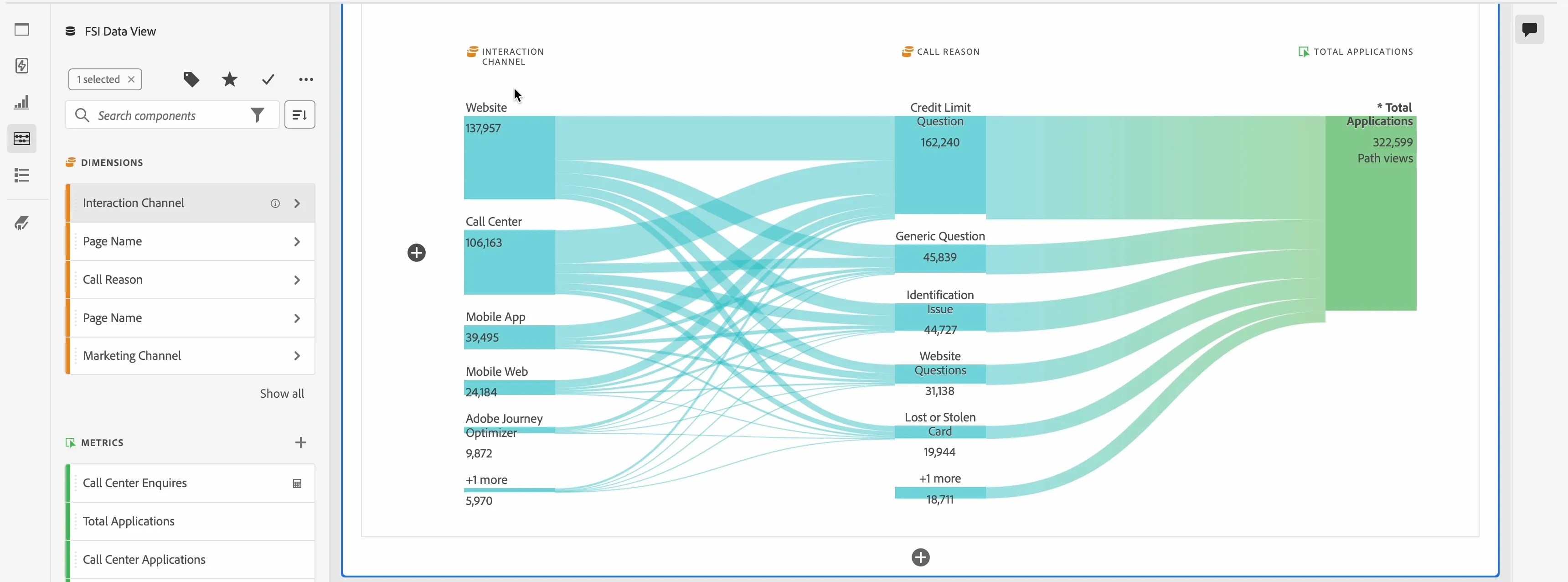
Notice some insights such as :
The most common flow proceeded in the sequence of "Website" -> "Credit Limit Question" -> "Total Applications"
The most significant drop-off occurs at "Credit Limit Question"
- Rename this flow as Interaction Channel Pathing to Application Submitted
- Finally hit Ctrl/Command S to Save your project.
This is a great way to understand if your application process needs to be optimised on specific channels which can also help reduce load on the call center.
Note : Feel free to add segments on the same flow visualization to get insights about a specific segment w.r.t to Interaction channel -> Total Applications flow.
You have now seen how flow diagrams can be easily built to analyse the pathing of users to a success event.
/