Get familiar with the CJA UI & Cross Channel Attribution
Exercise:
In this module you will familarise yourself with the Customer Journey Analytics (CJA) UI and will use CJA to understand how your marketing campaign (email, Facebook, etc) impact your online applications, but also applications that may have been completed offline in a branch or via the call center. As those events are not directly linked (several days can pass between a marketing campaign and an application), we need to define the attribution method.
Access CJA
Click on the 9 dots on top right and select Customer Journey Analytics.
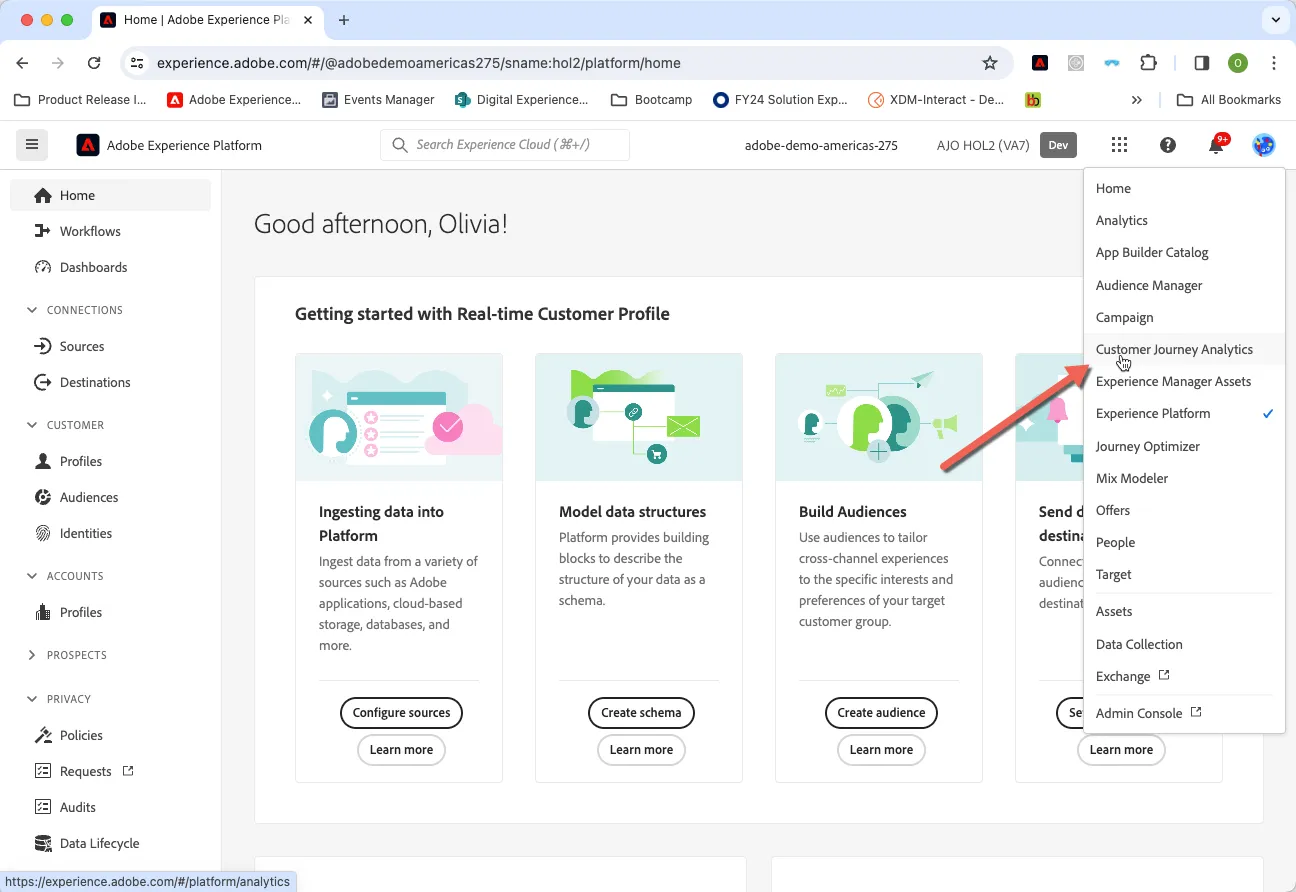
Introduction to the UI
4.1.1 Create a new workspace project
- Create a new workspace project
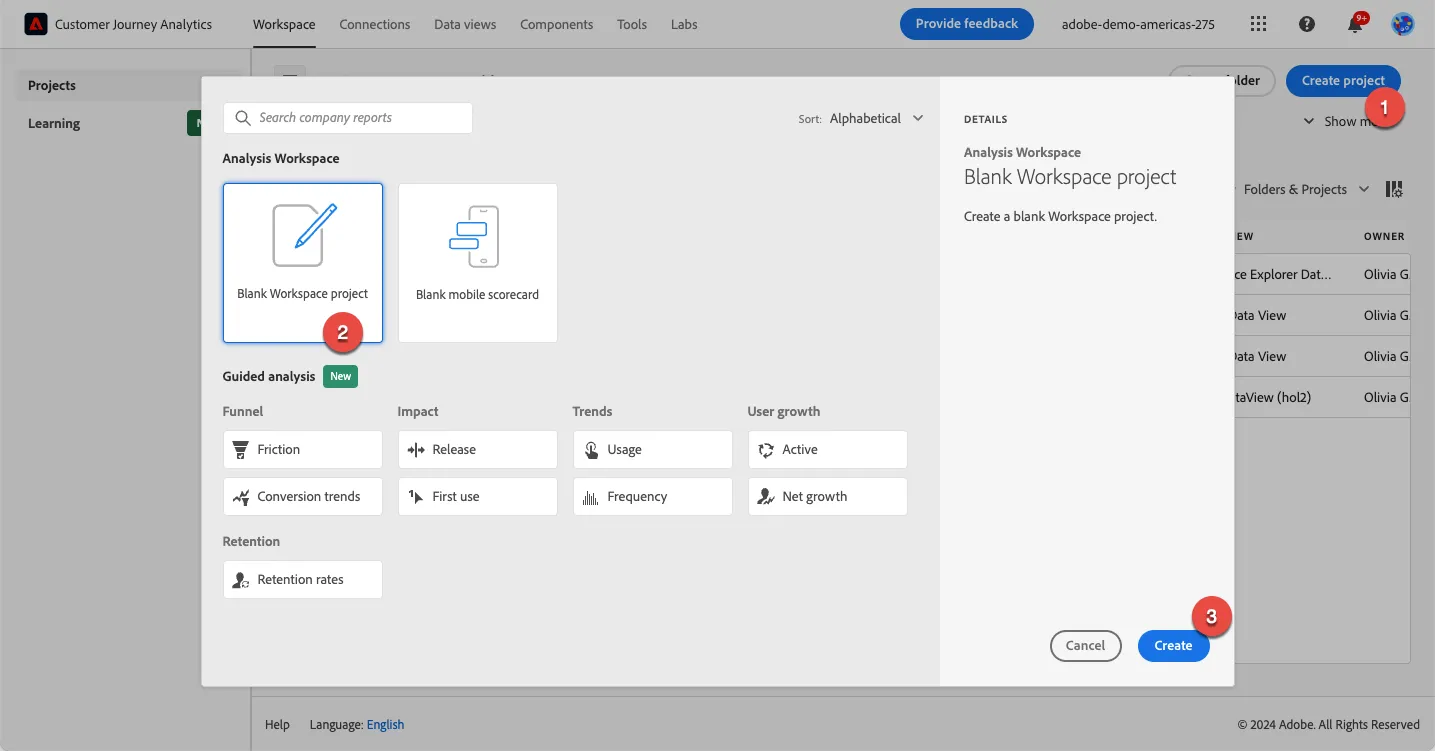
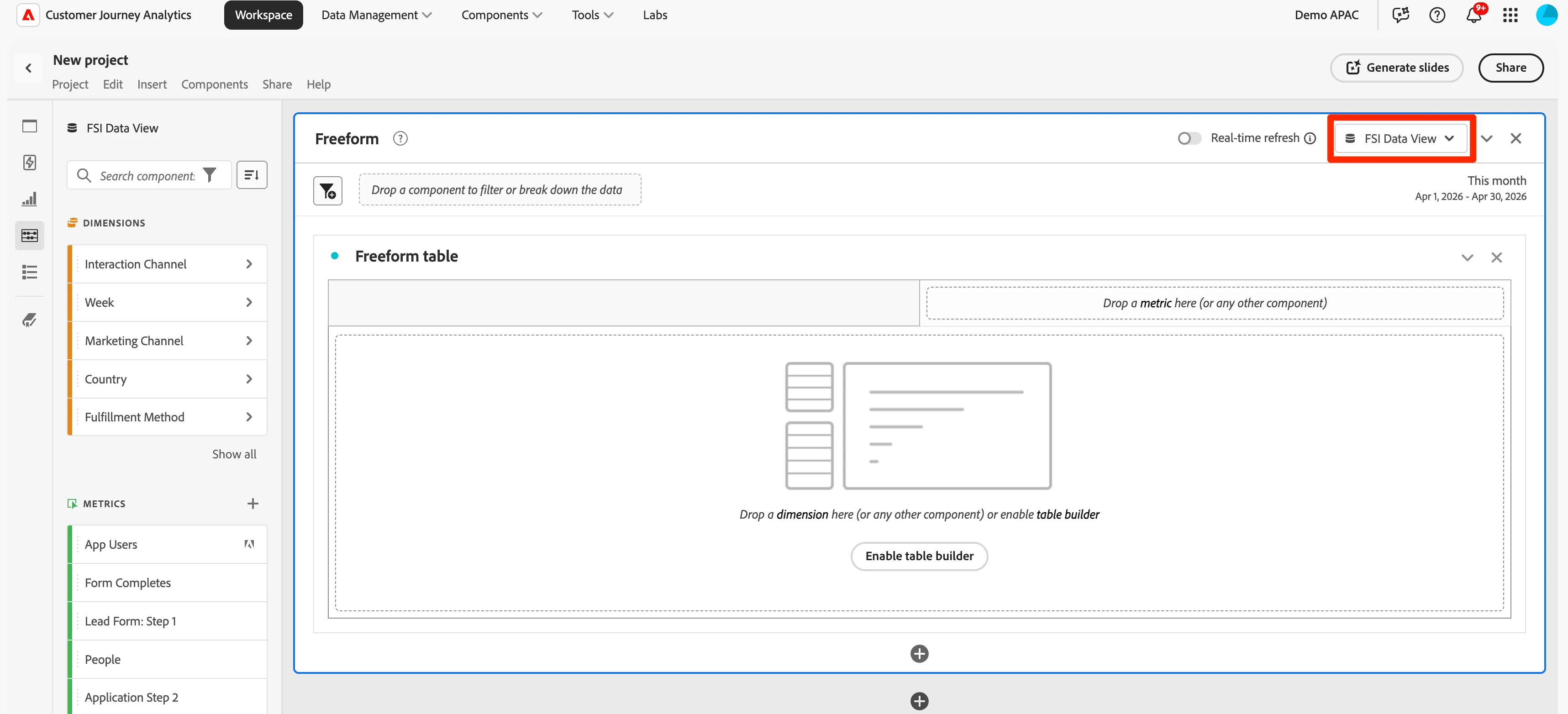
- The left side rail contains the Panel menu (where new panels can be dragged to the project), the Visualisation menu (where visualisations can be dragged to a panel), and the Components menu (where Dimensions, Metrics and Filters are found and can be dragged to the panel visualisations). Ensure that the FSI Data View is selected in the Data View selector
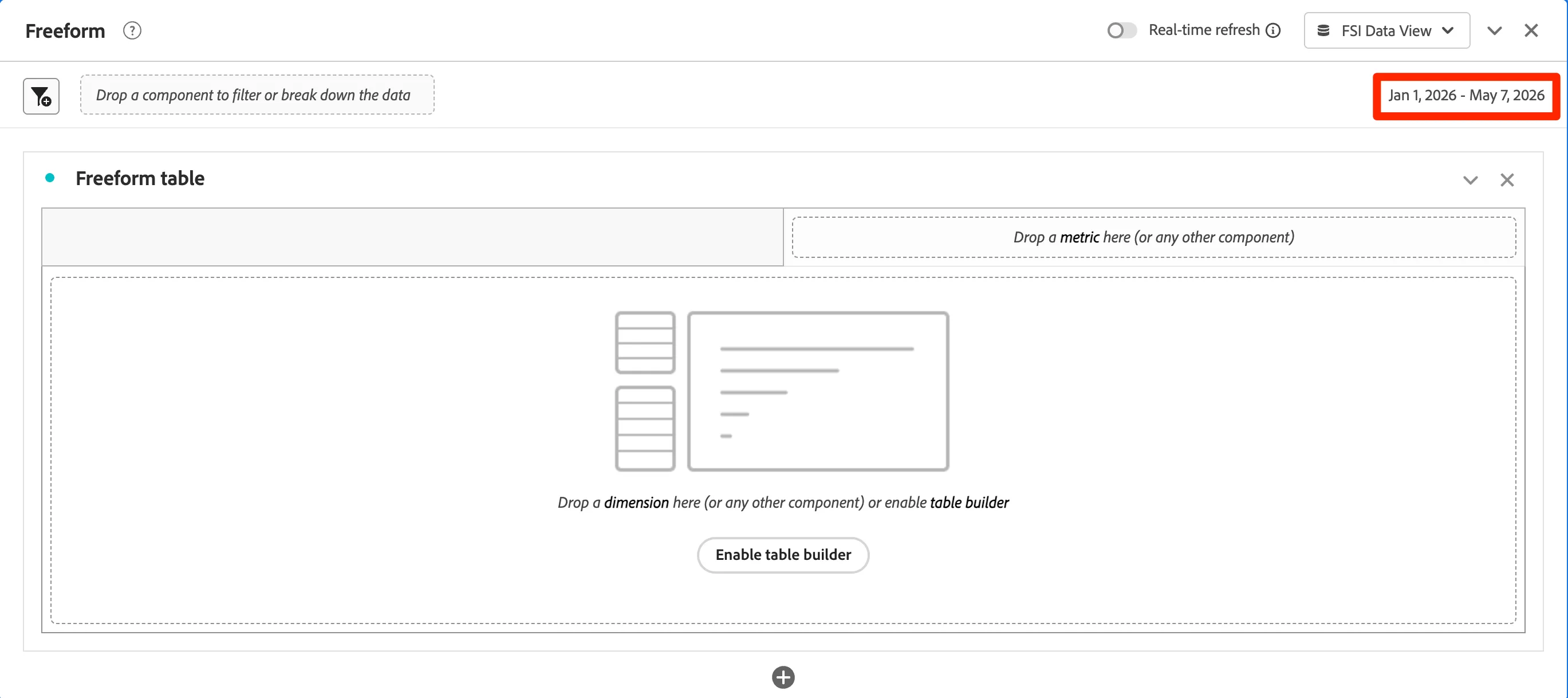
- Set Reporting Date Range to Jan 1, 2026 - Apr 30, 2026 from table below and click Apply.
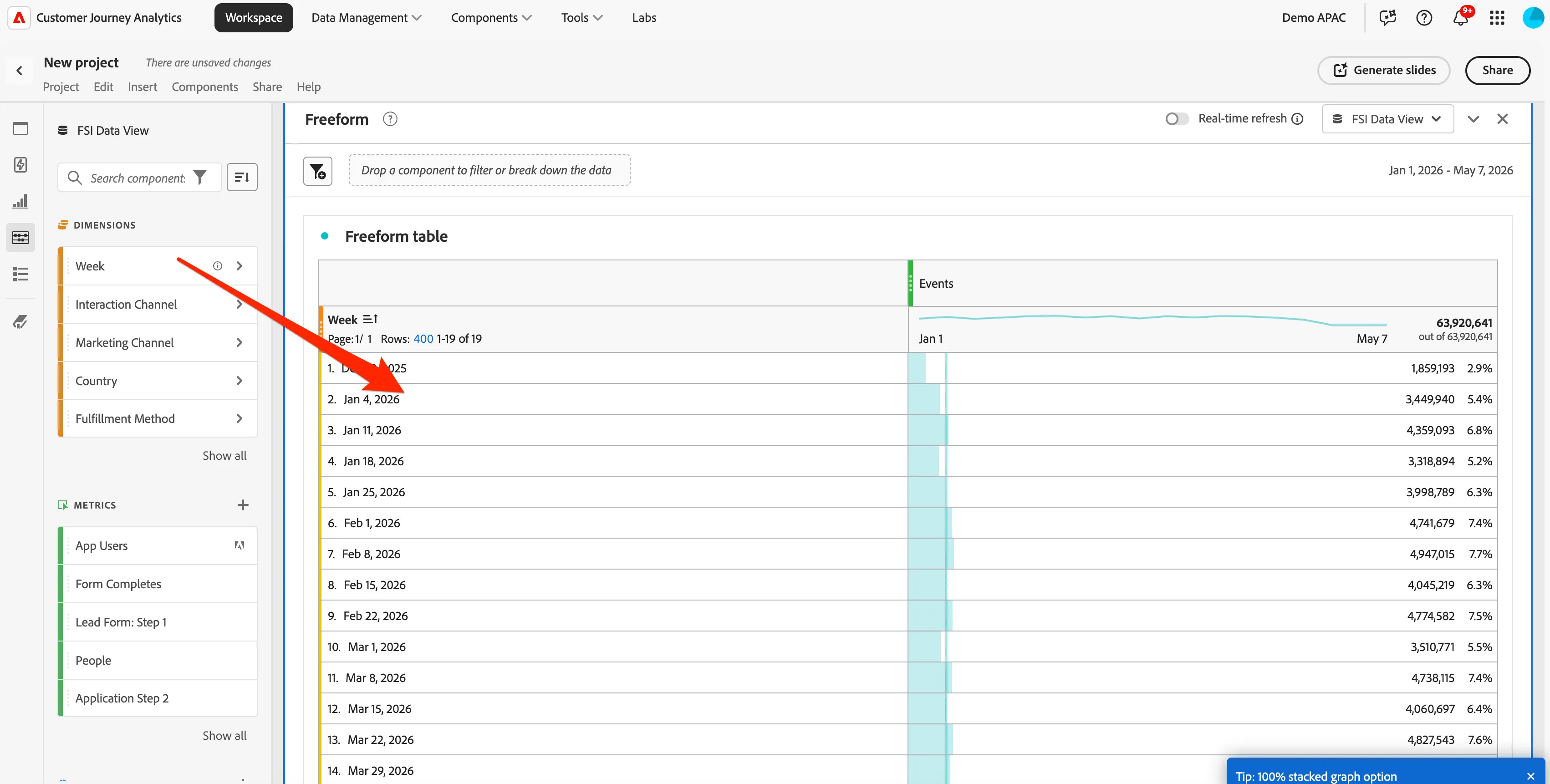
- Drag the Weekdimension from the Components menu and drop it into the Freeform Table visualization in the Panel.
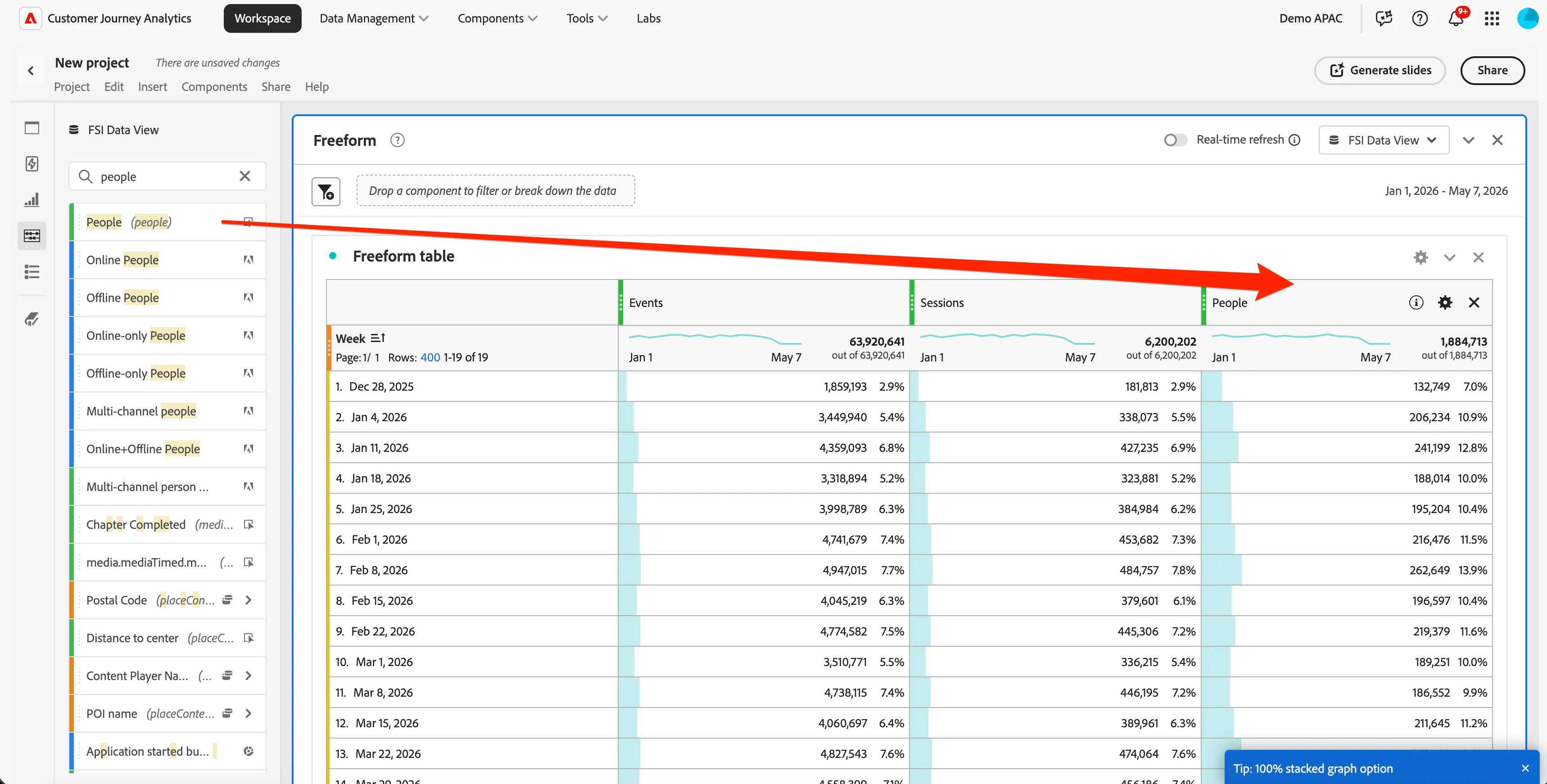
- Drag the Sessions and the Peoplemetric from the Components menu and add these to the table
4.1.2 Add a line visualisation
- Click on Visualisations in the left menu and drag the Line visualisation to the Dashboard panel above freeform table.
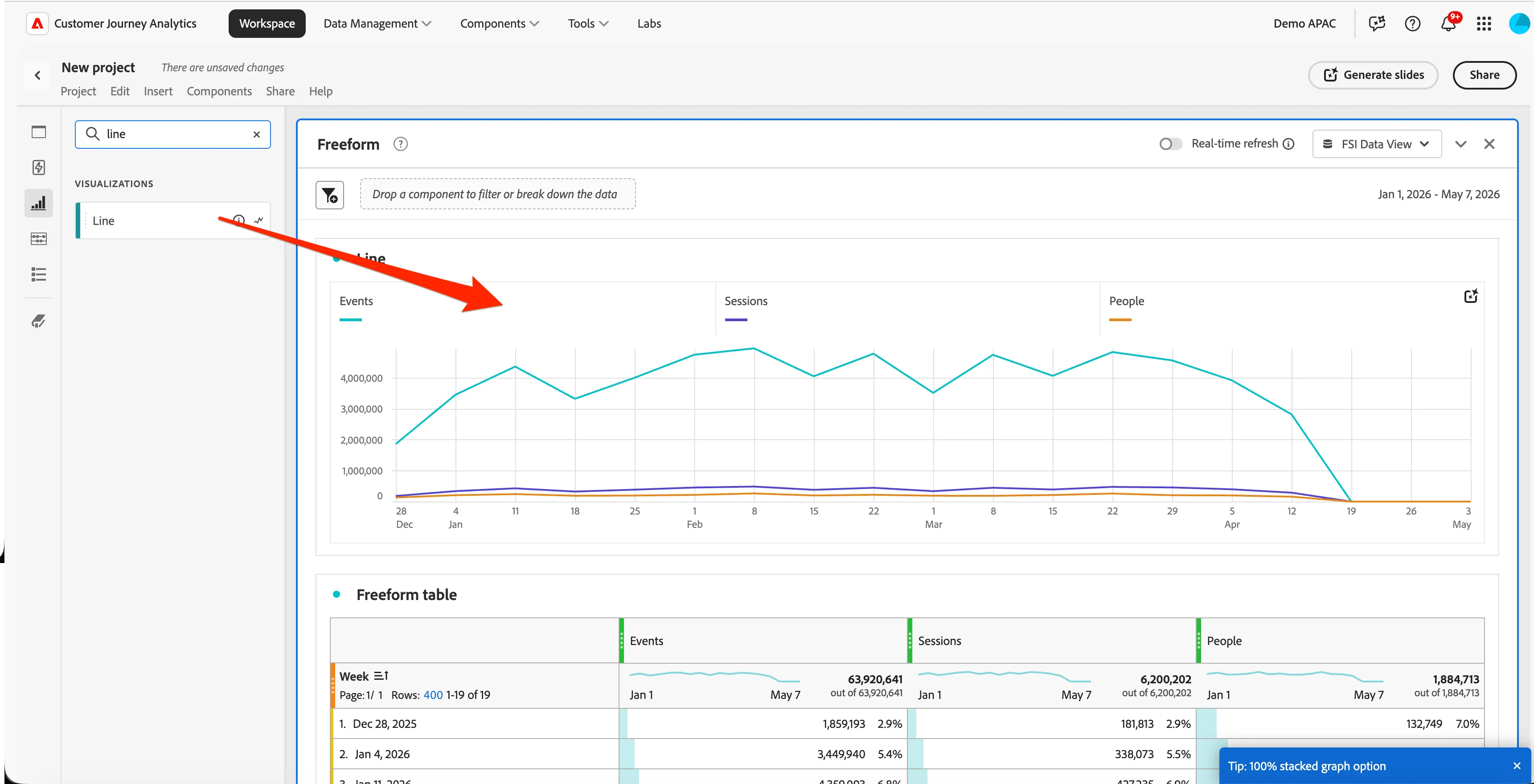
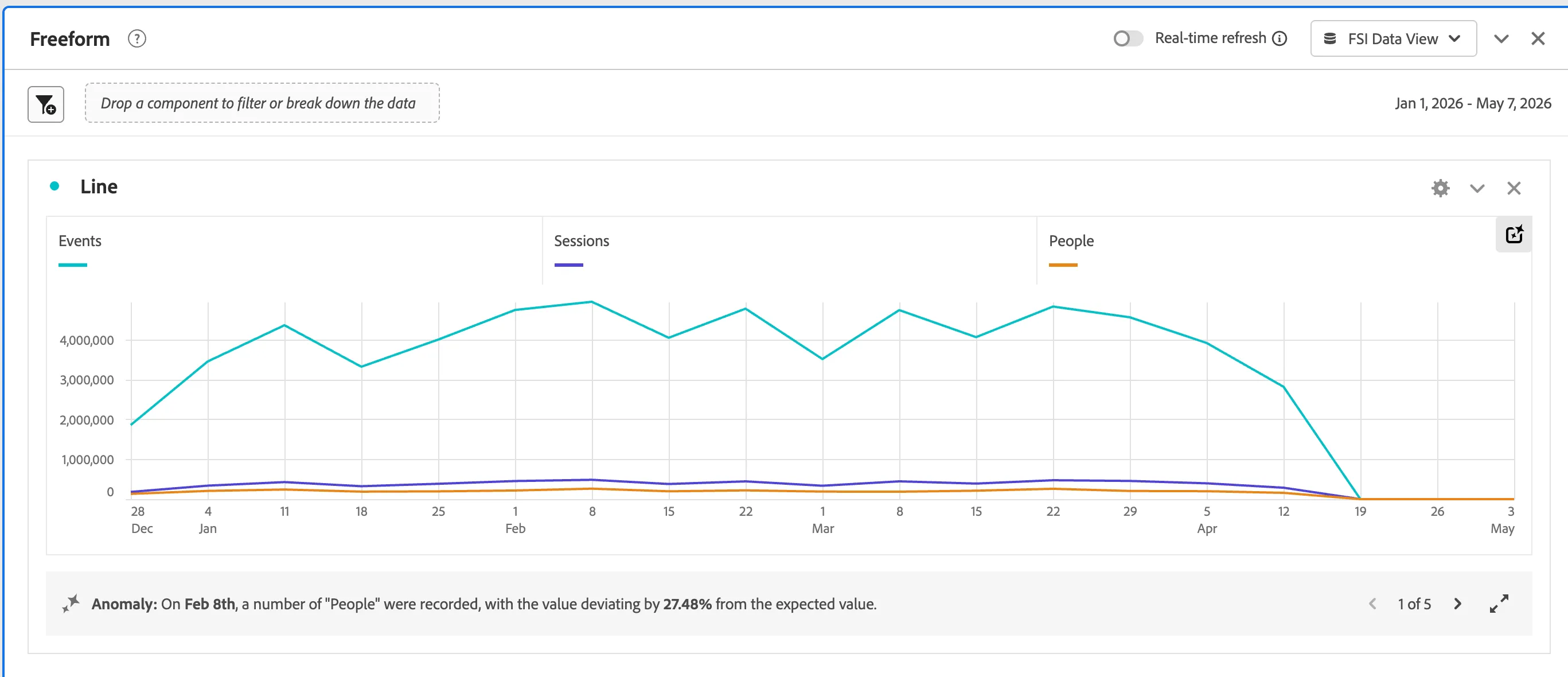
- The Line visualisation will automatically connect to the data table closest to it and will visualise the dimensions and metrics in that table. The dimension is the x-axis and the metrics are trended. You can click individual metrics to disable them in the visualisation.
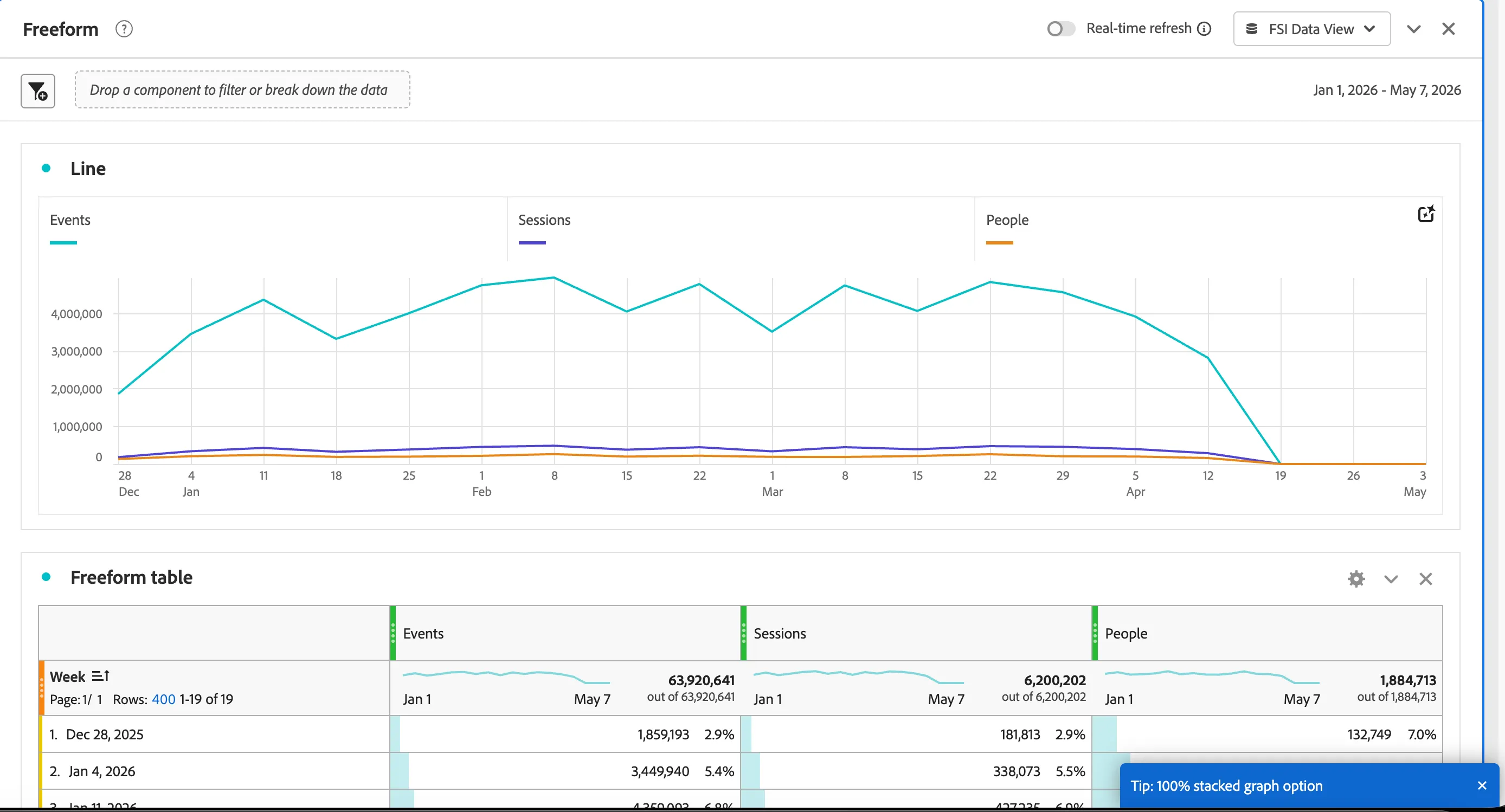
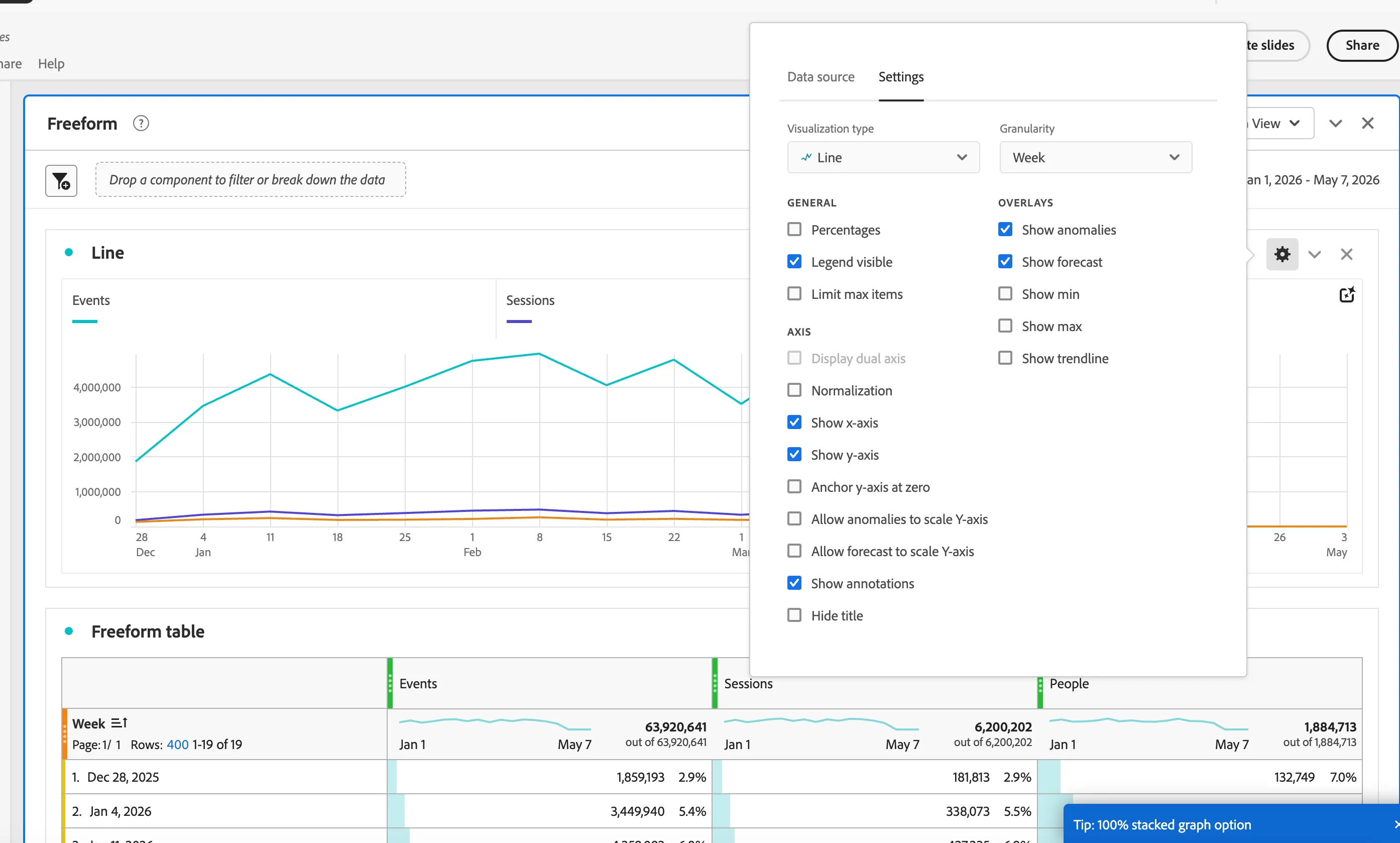
- You can adjust the settings of the visualisation by clicking on the cog icon at the top right.
- You can use Adobe Sensei to generate intelligent captions describing the trends seen from your data by clicking the AI icon in the top right.
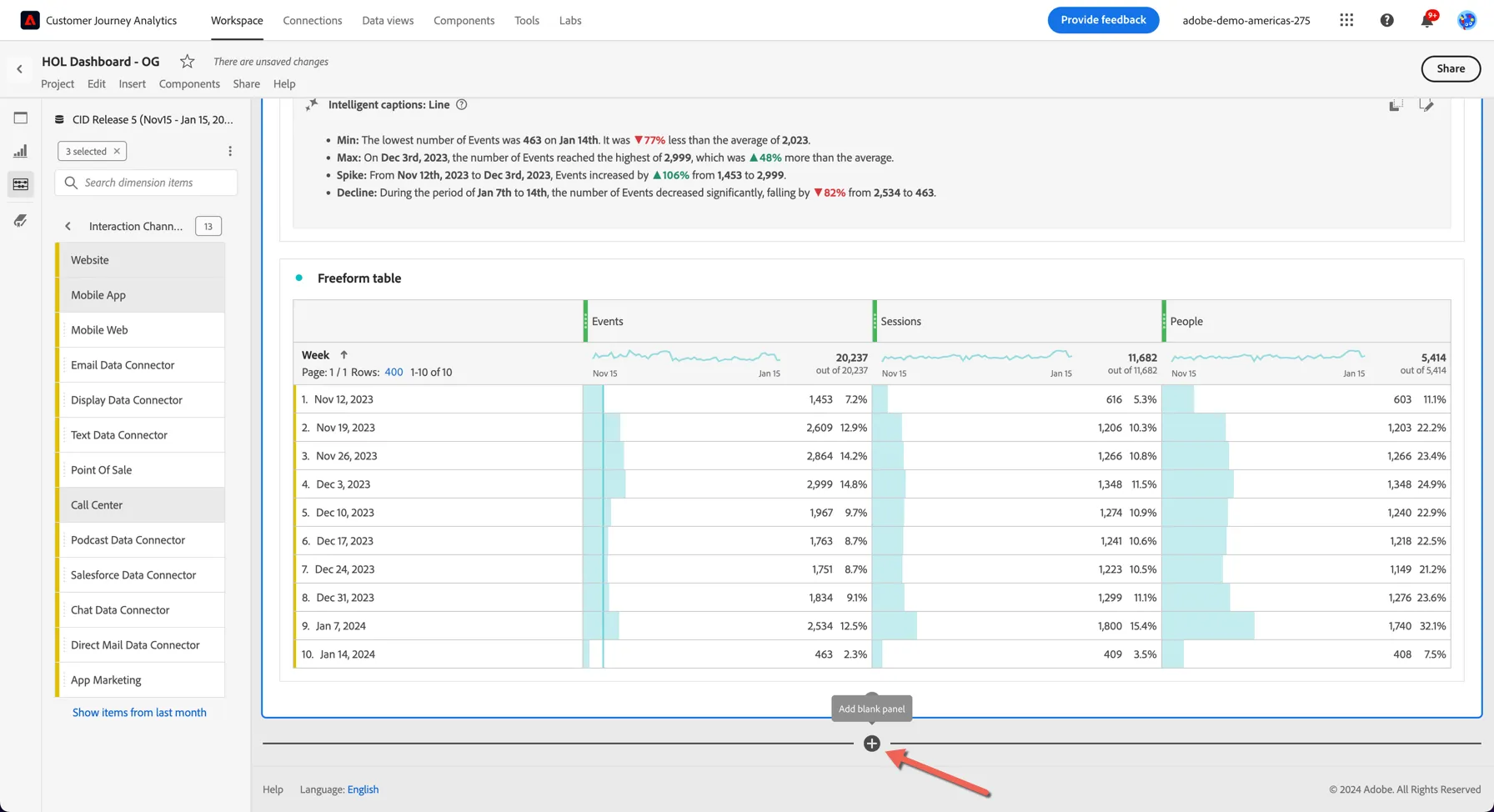
4. Add a new blank panel to our dashboard by clicking the + icon at the bottom of our dashboard.
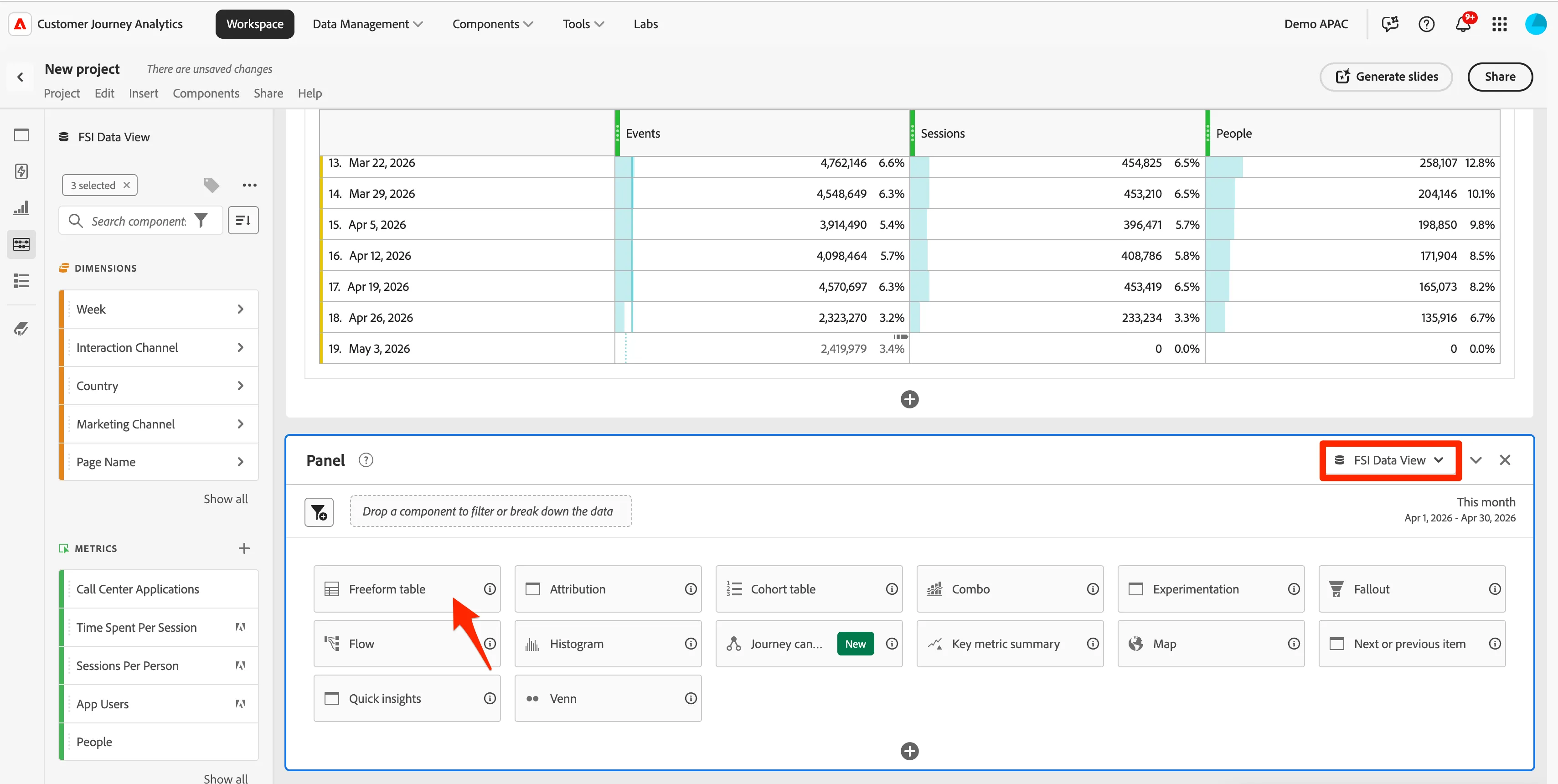
2. Ensure that the FSI Data View is selected in the Data View selector and the reporting date range is Apr 1, 2026 - Apr 30, 2026. Then select the Freeform visualisation from the options presented.
3. Drag & add the dimension Marketing Channel to your freeform.
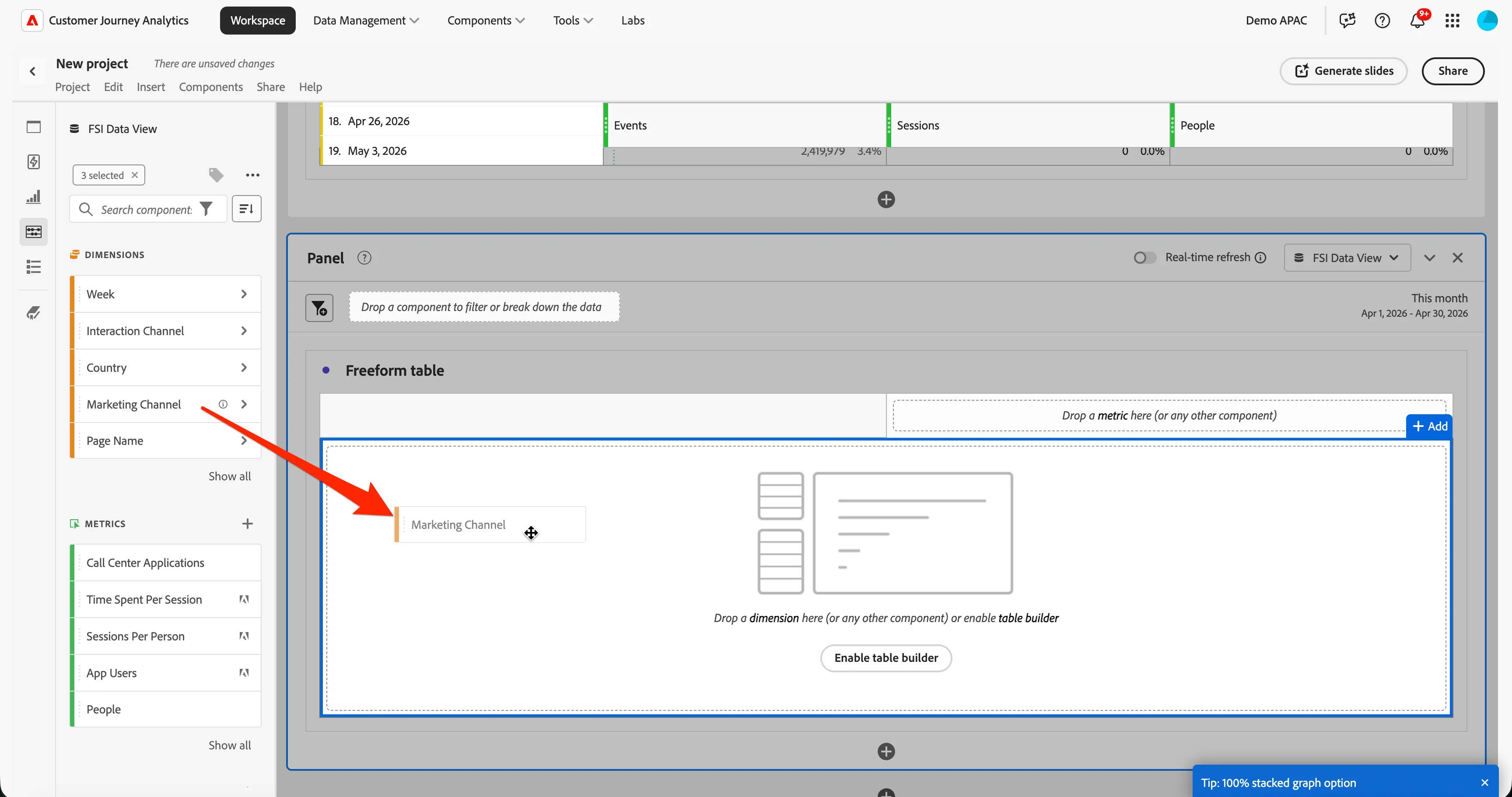
4. Now take the Form Completes metric and replace the default events metric in your freeform.
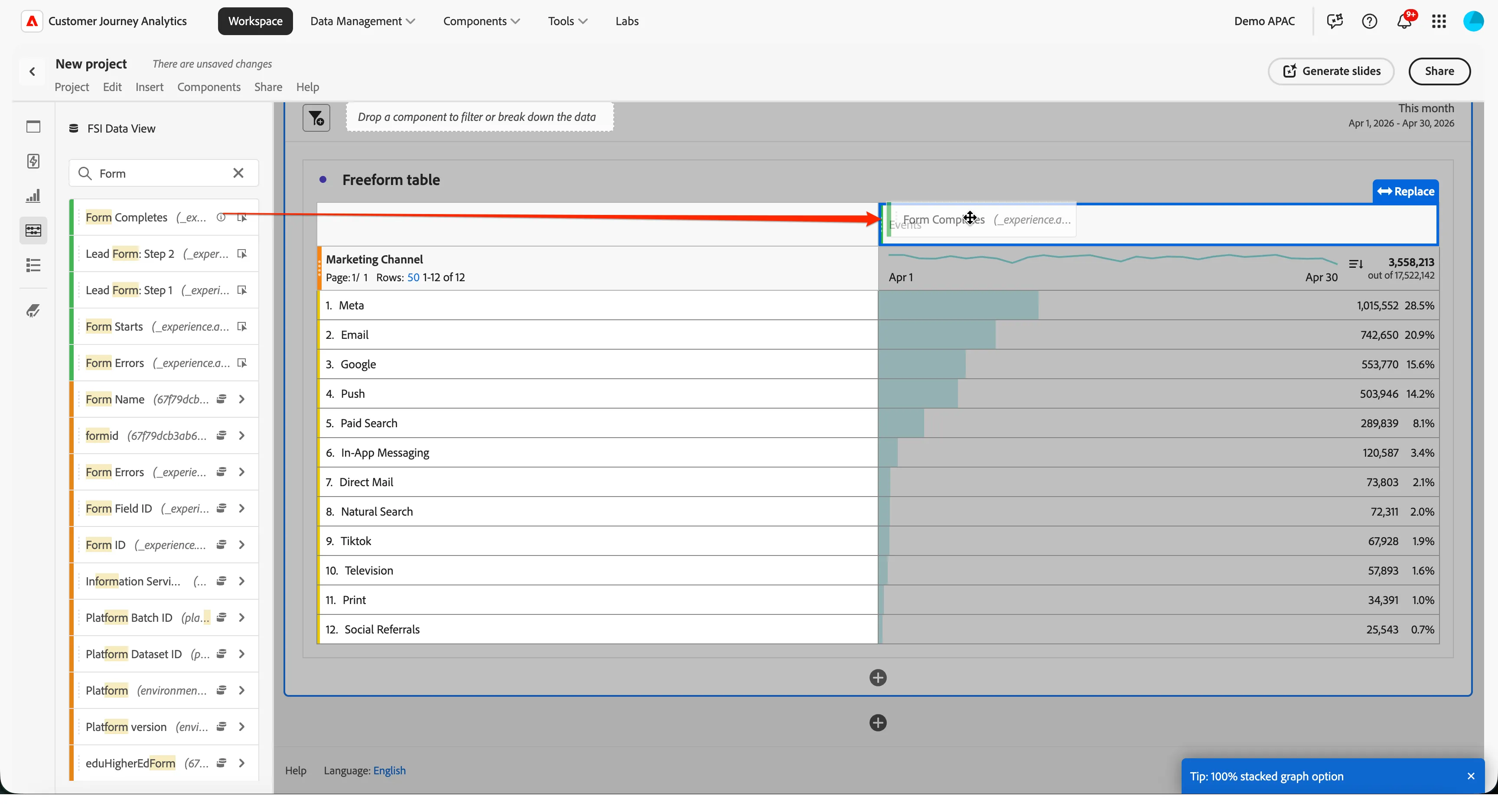
5. You can see we now understand better which marketing channels are attributing to our application submissions. But the data we have in CJA is not just online data, we are also collecting application submissions from offline channels such as the Call Center. Let's break down the submissions here by Interaction Channel. Click into the Interaction Channel dimension and select (control + select) just the Website, Mobile Web and Call Center and drag them under the application completed metric.
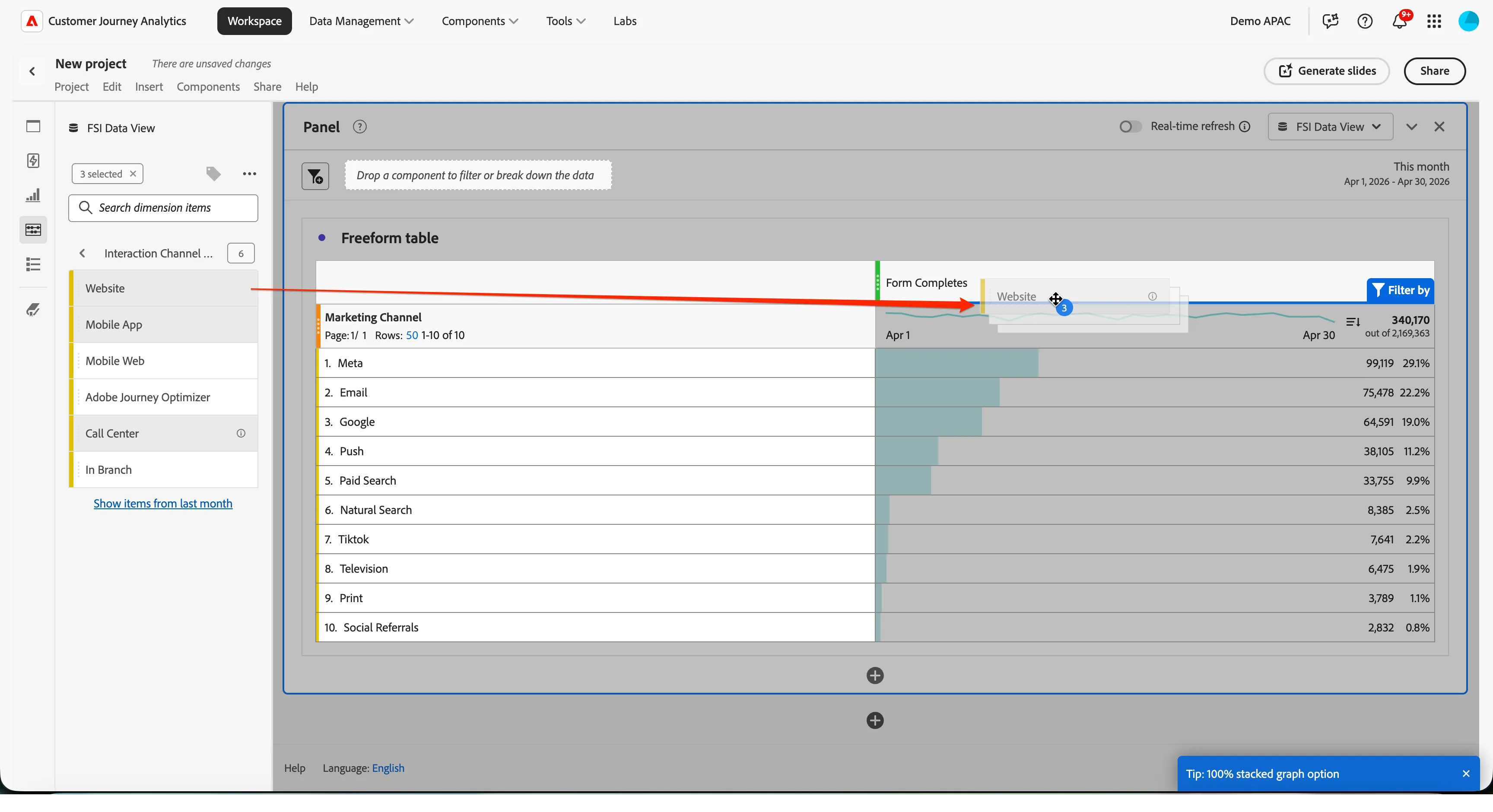
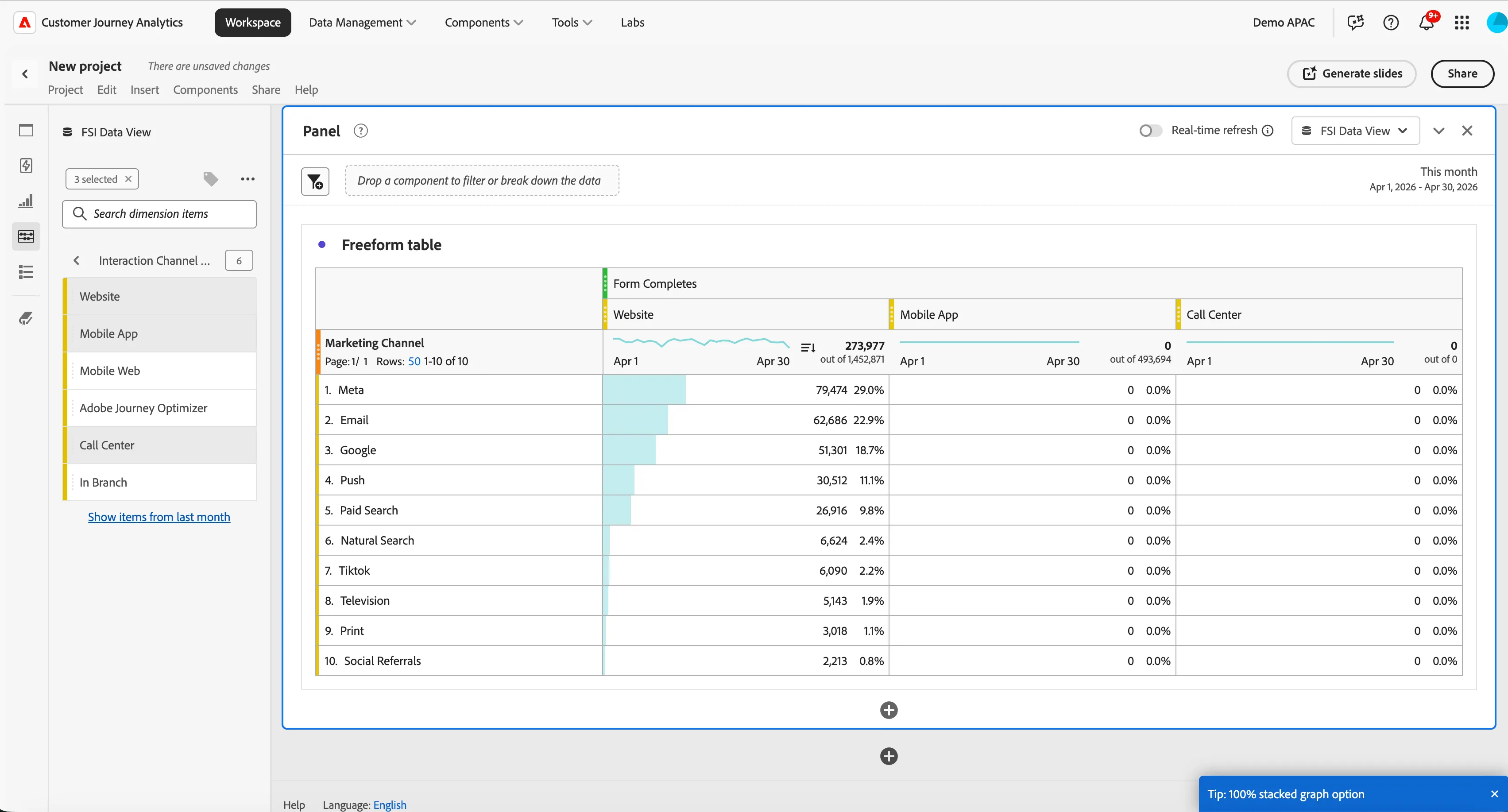
You can see we have applications completed on web and mobile web attributed to our marketing channels but not from the call center. This is because we use Last Touch Session attribution here, meaning we will consider that any submission is only due to the last communication your customer received within the same session. But maybe the call happened outside of the standard session time, or what if the customer received multiple communications. Let's see how values change based on the attribution model.
4.3.2 Apply the Linear attribution model
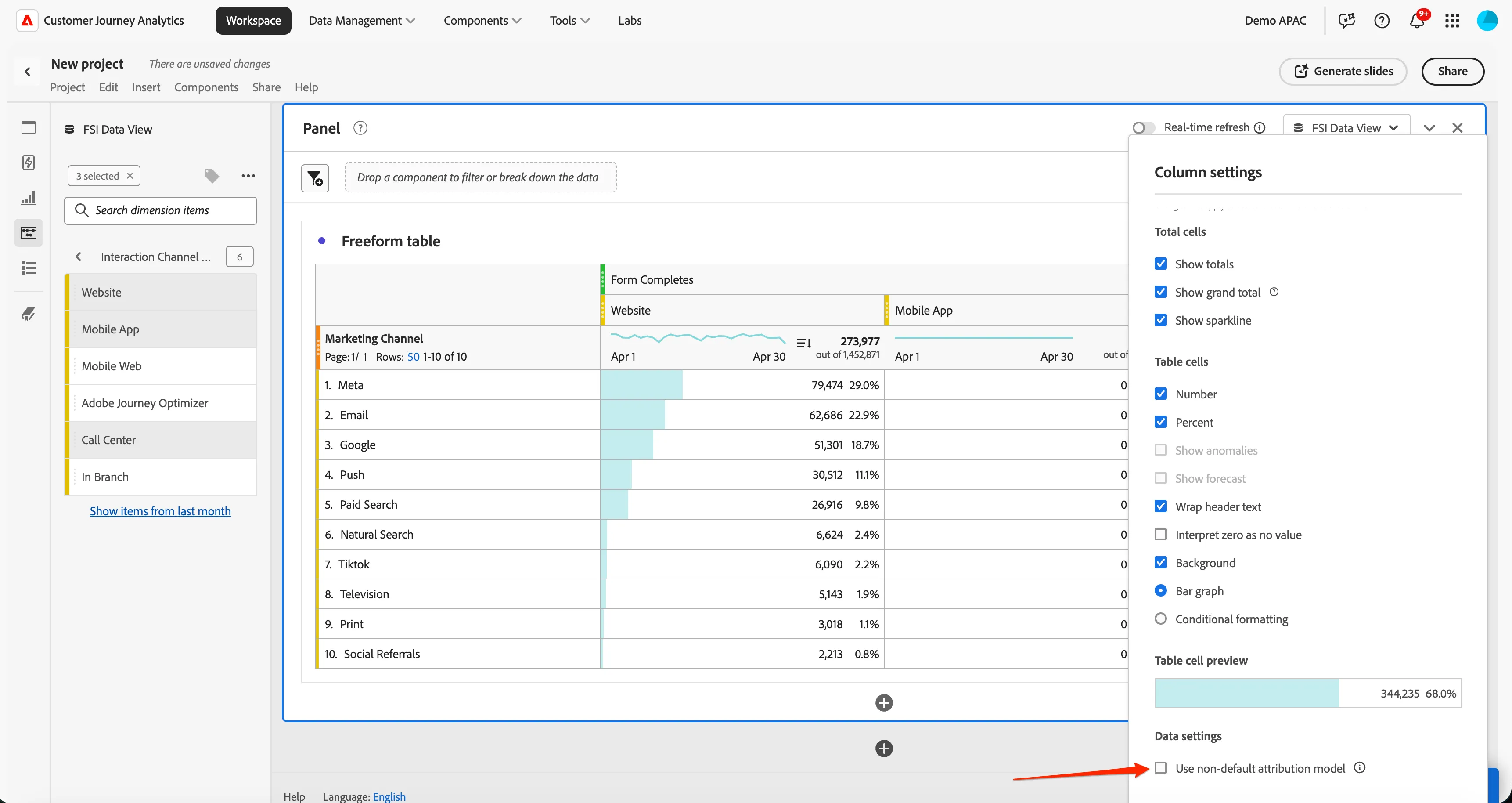
- Click on the tool icon in your Form Completes column. Then select to Use non-default attribution model.
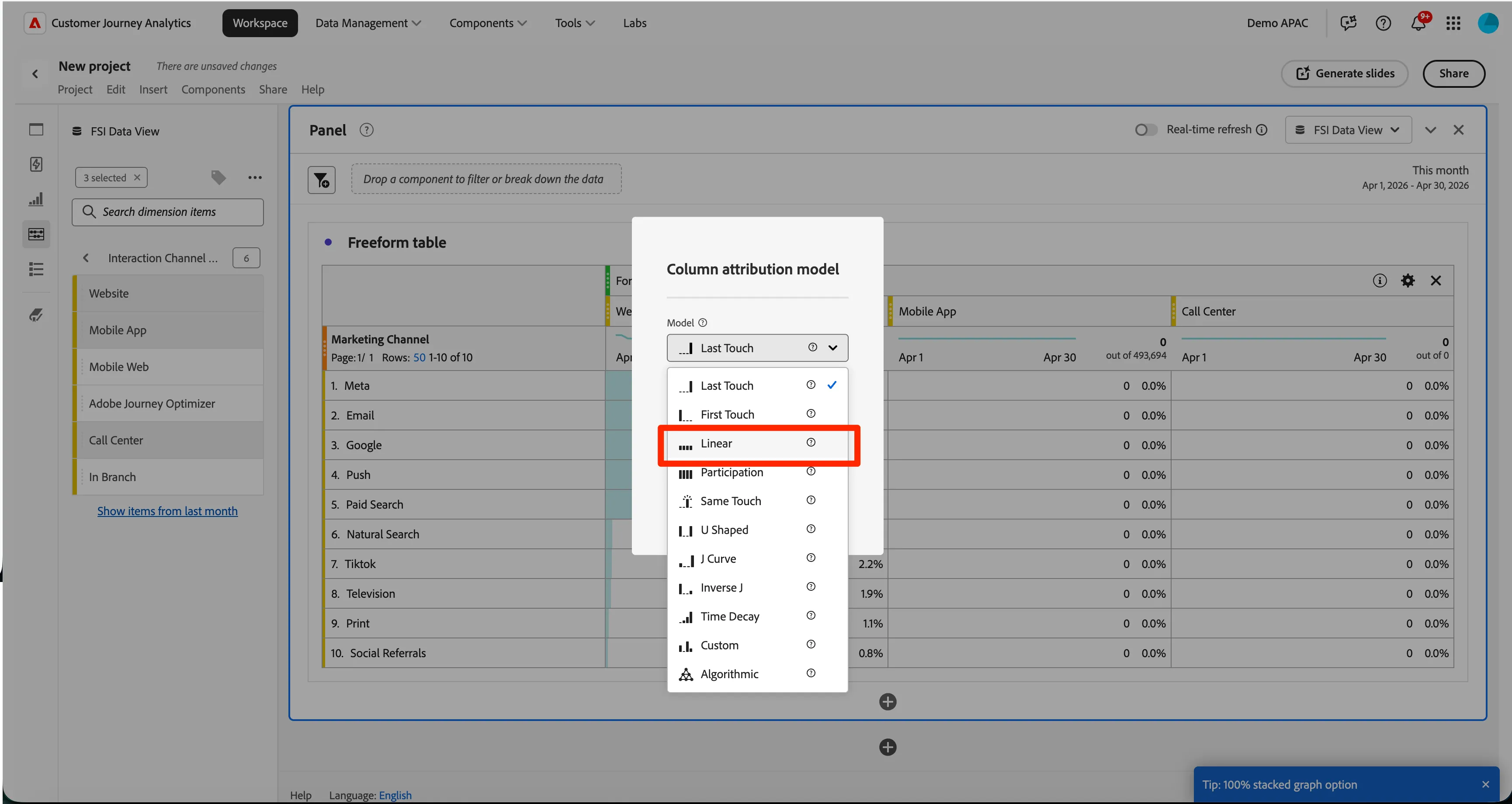
2. Select Linear, and define lookback windows at 30 days. By doing this, CJA will automatically calculate revenue by comparing conversion of people who have received this communication and people who haven't to determine what is the impact.
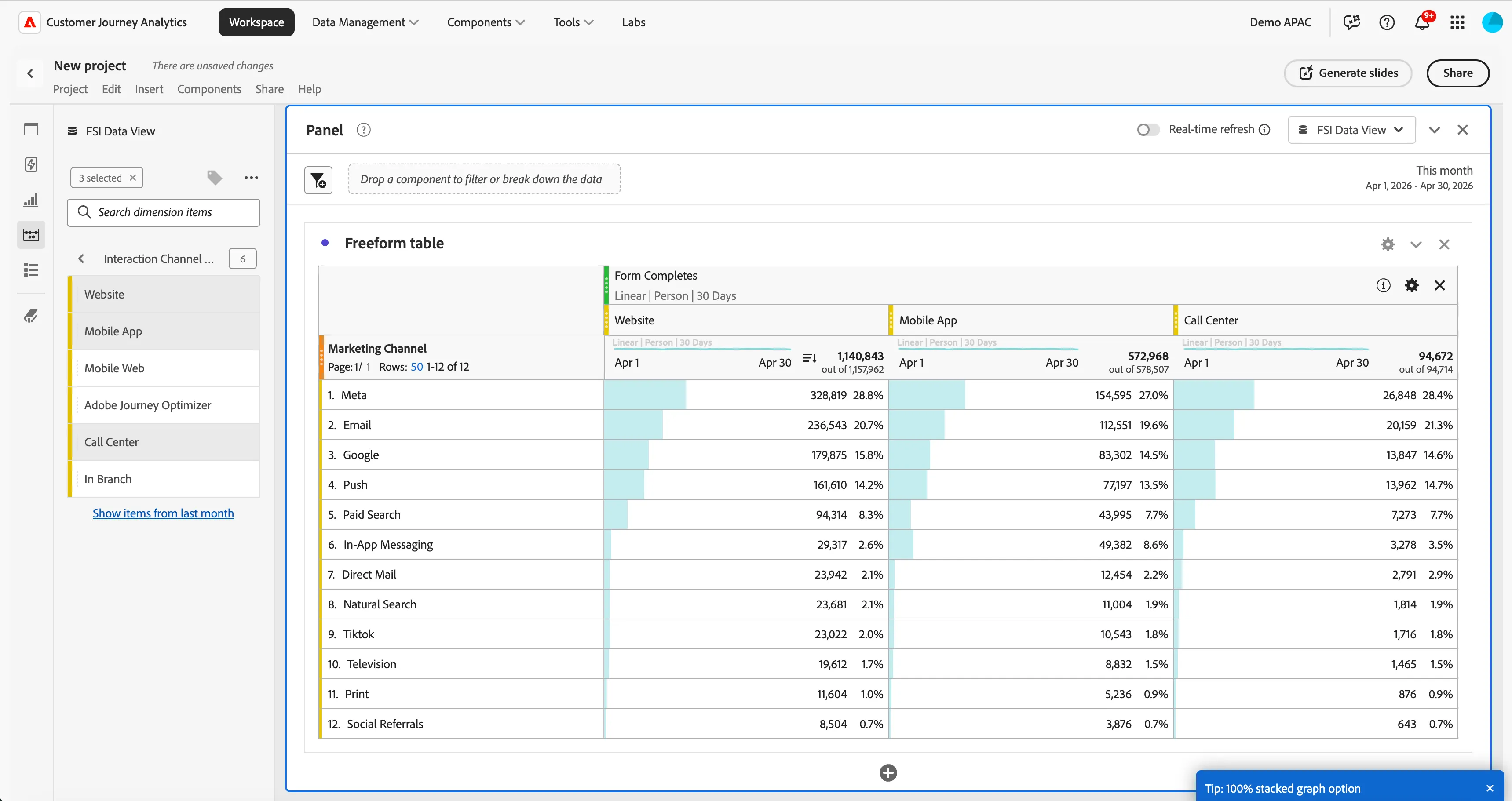
We can see now that multiple marketing channels have been influencing not only the online coversions but those completing offline also. Providing a more wholistic picture of the impact your marketing actions are having.
4.1.4 Save your project
- Now would be a good time to save this Project so we don't lose any of our work.
- Click on New Project and then Save, or Control/Command S to open the Save Project window.
- Name the project <your lastname>_hol and select Company Folder to store it in. Then click to Save the project.
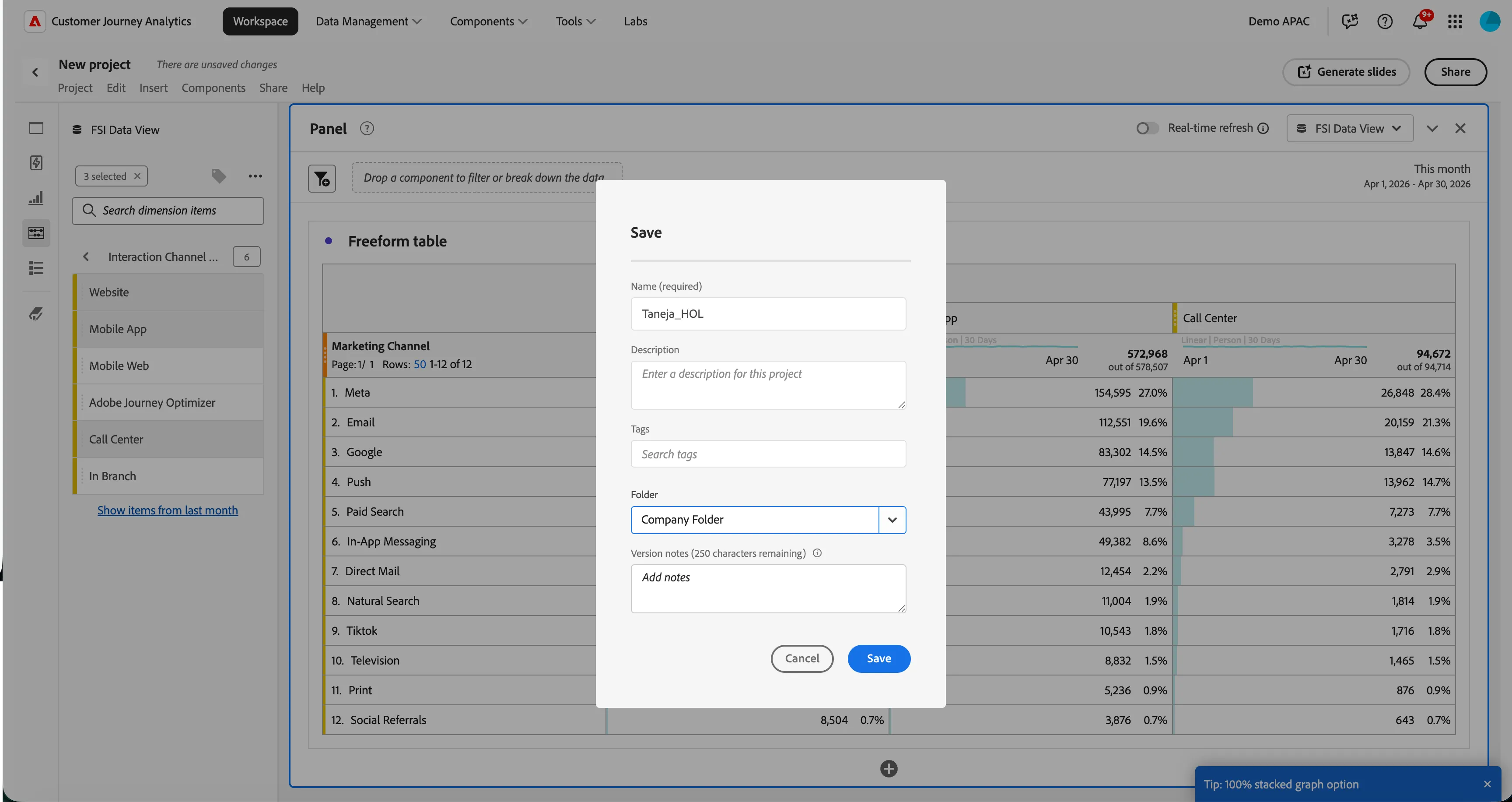
- Click Save Project.
Exercise Checklist:
Able to drag & view Sessions & People by Week in Analysis workspace
Able to view application completed by different marketing channels
Able to change the attribution model to view the impact of marketing campaigns on non digital channels
Able to save your CJA project as<your lastname>_ DataBootcamp