Web to Call Journey
In this exercise we will create a couple of journeys of Top Pages Driving Calls, Call Topics From Web, and Top Products That Led to Calls. You will need to build a Freeform Table to collect the event data. From there you will be able to build out several visualizations.
This exercise will also require to set different attributions for each journey using Attribution IQ.
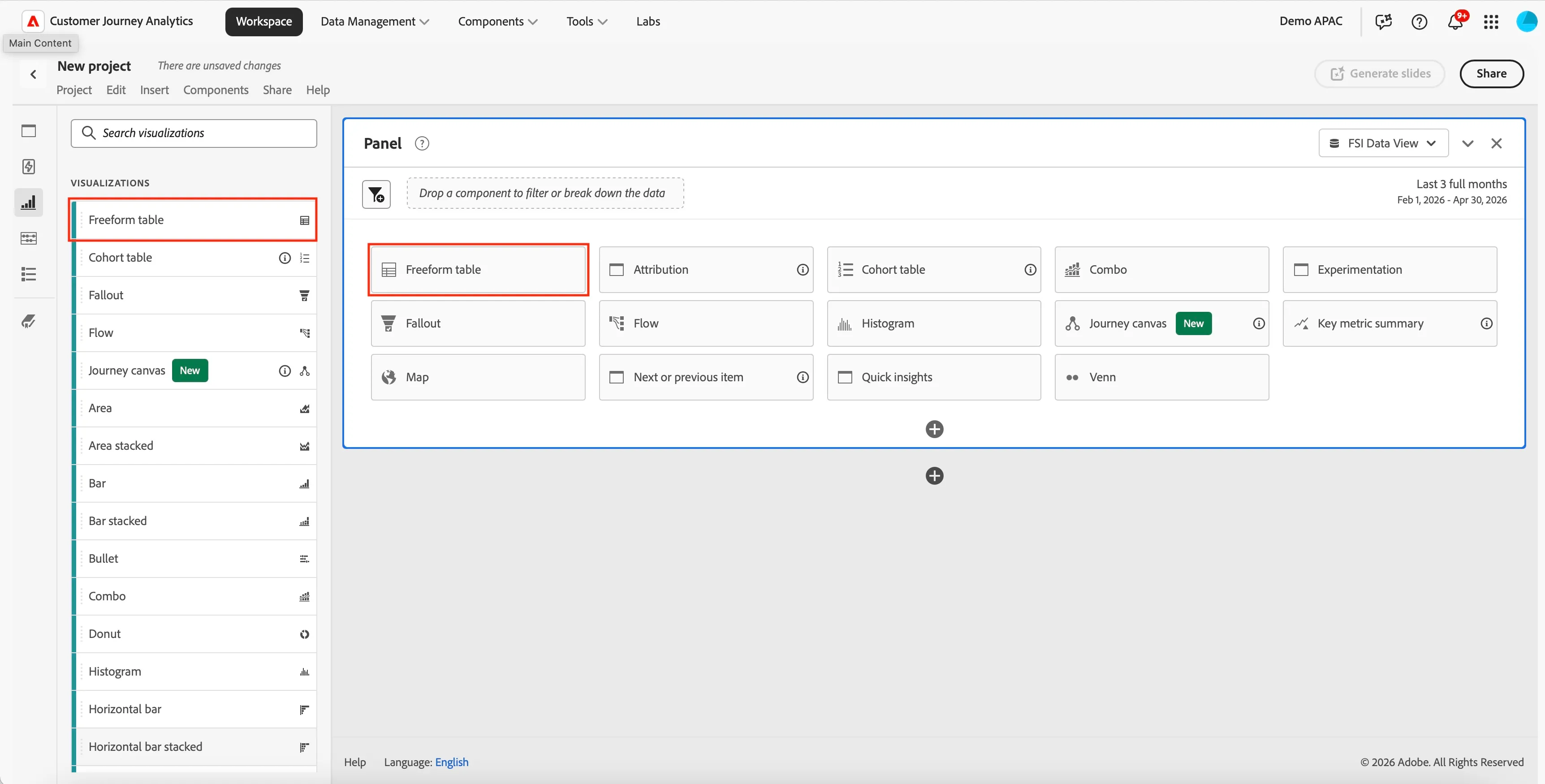
1. Create a "Freeform Table" by dragging the "Freeform Table" visualization into the panel. You can either create a new panel or you can drag the Freeform Table into the top of the "Web to Call Center Journey" panel.
2. On the left menu click on components icon and then search for the term "Page Name" which is to search the dimensions available.
Drag and drop the page name on the free form table which was added in the previous step.
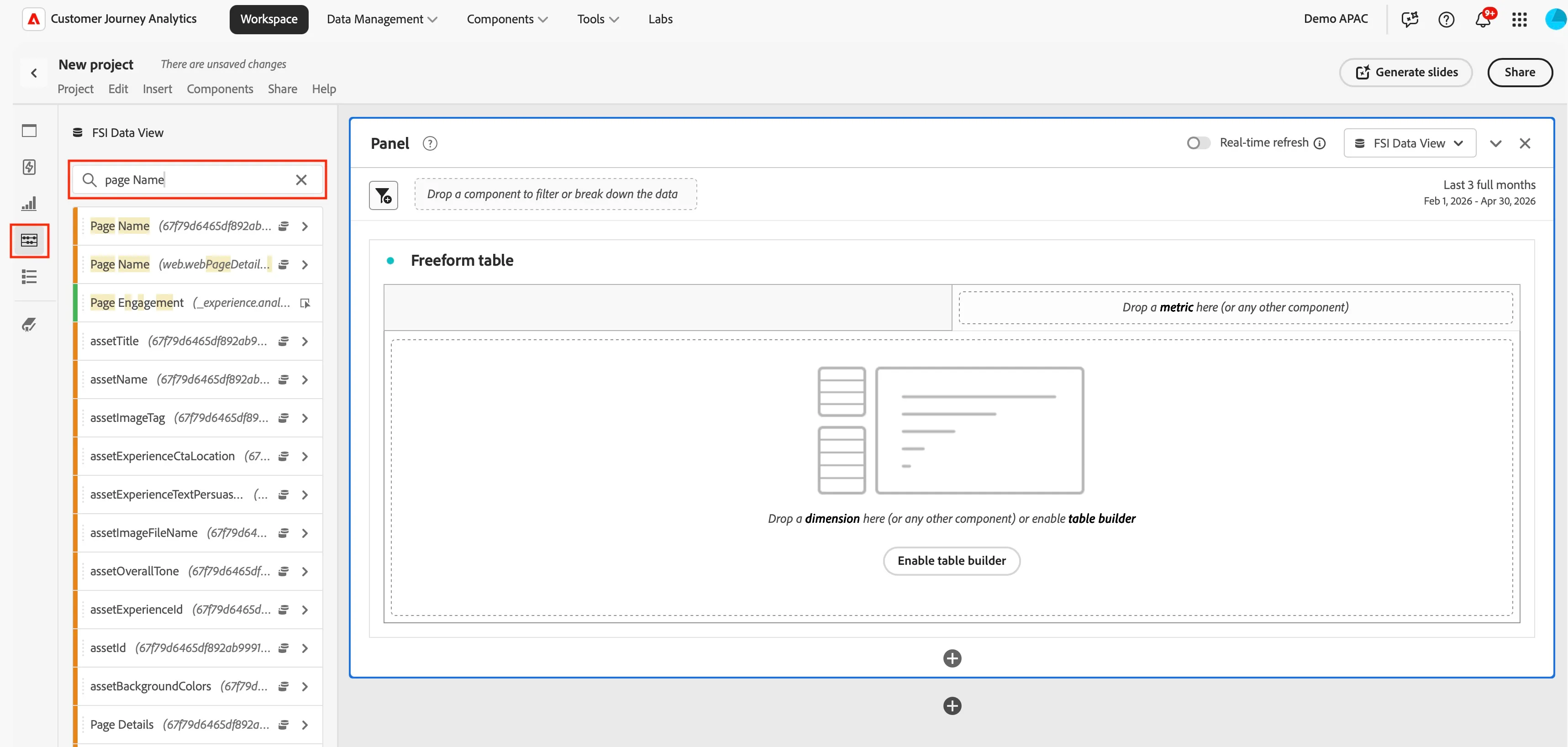
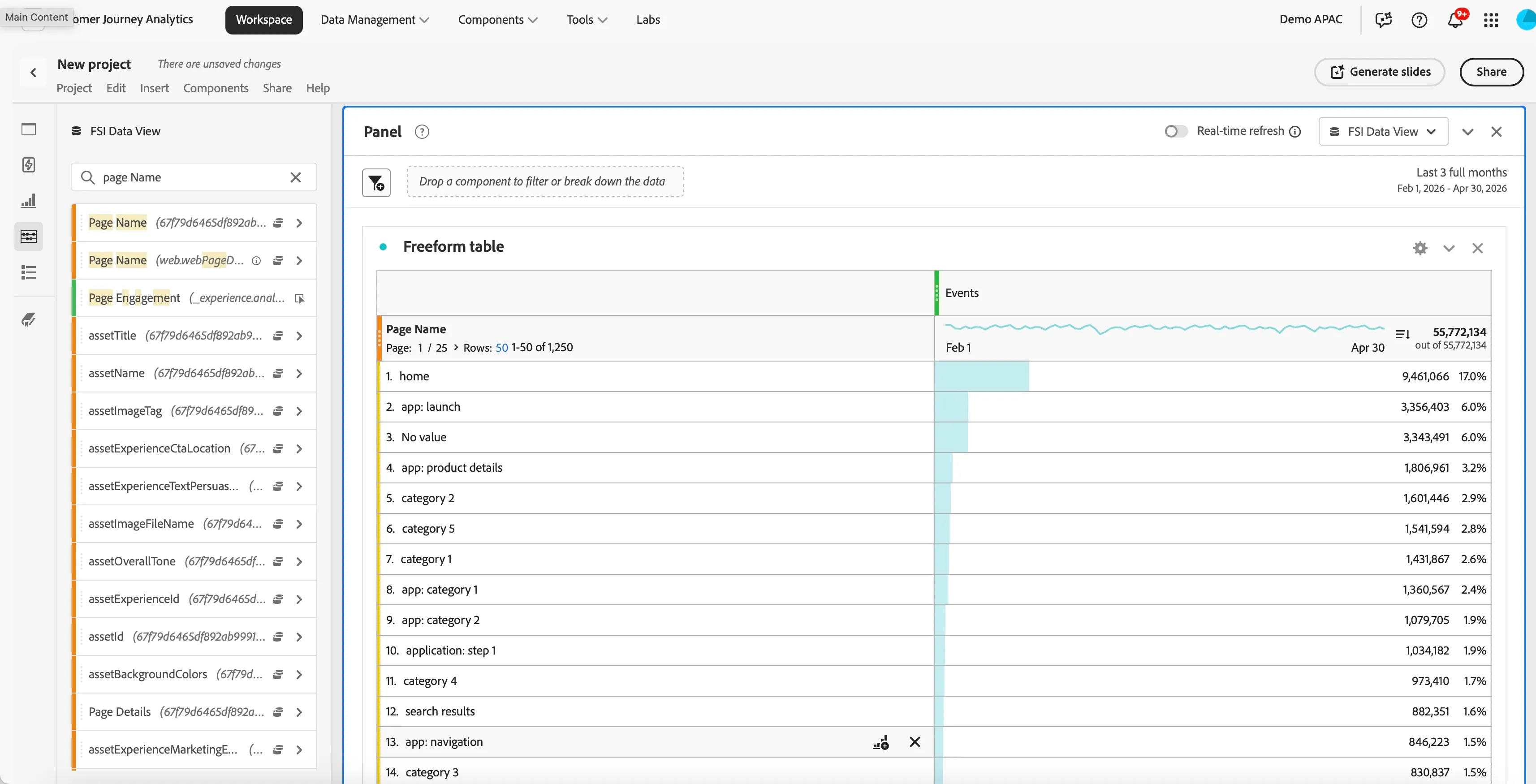
The table should now be populated with the page names and the events associated with those pages.
Note : In case you see multiple dimensions with the searched name, make sure to select the correct one as not all the dimensions will have data.
3. Now search for "Call Center Applications" metric and drag it into the Freeform Table to replace "Events.
Note : You will notice lot of events for call center application are
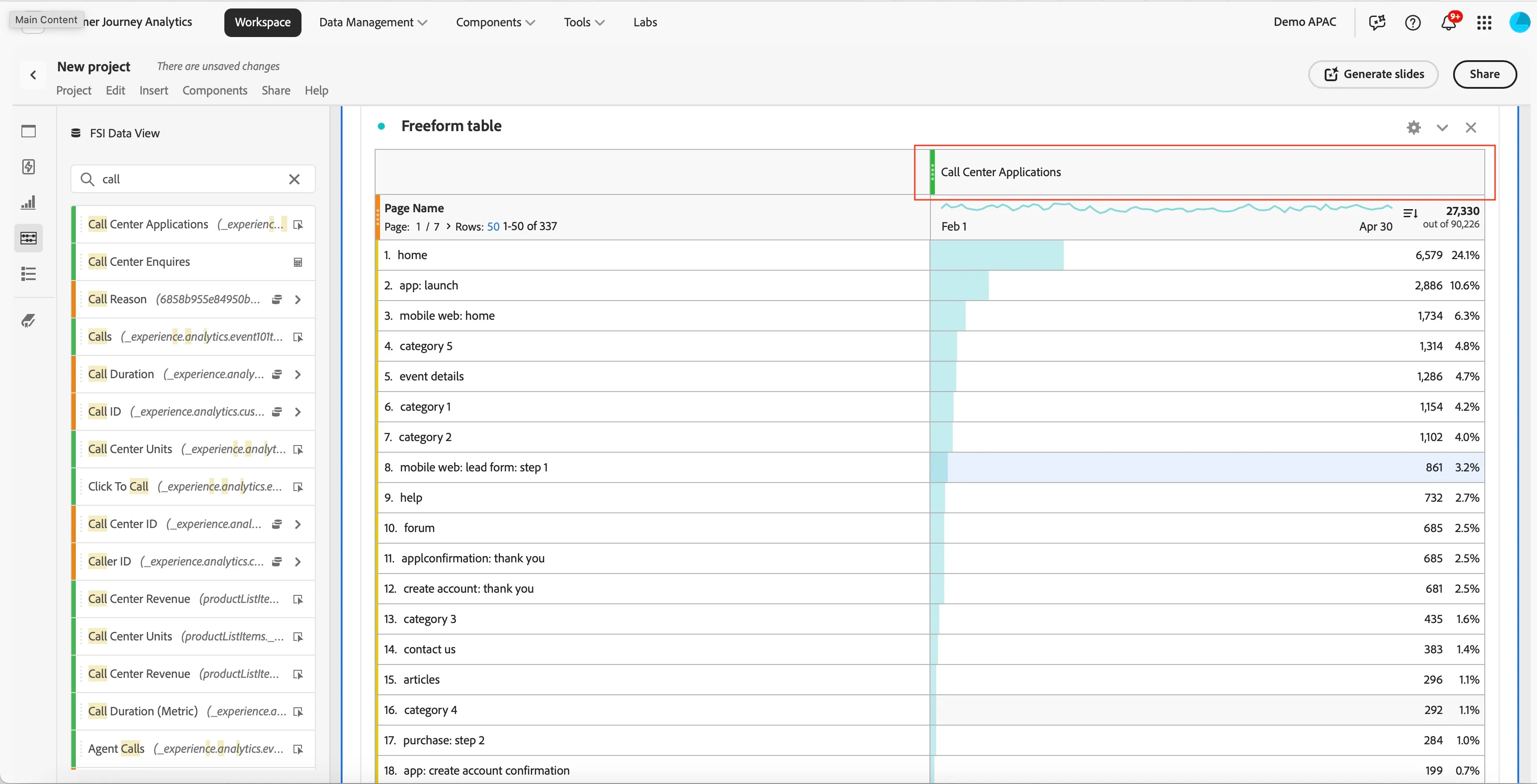
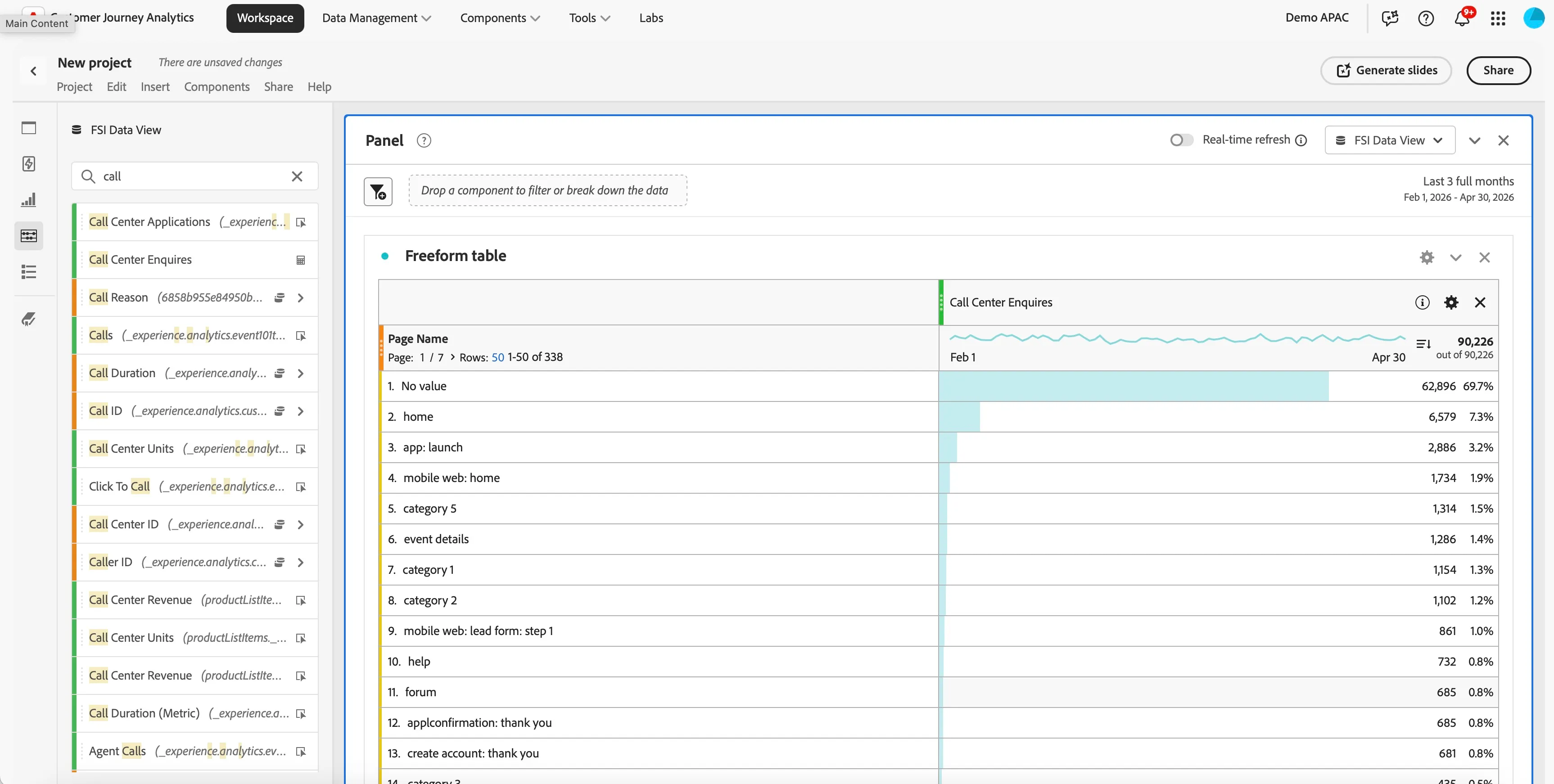
4. You will notice that you will see a lot of data on a page with name "no value". In some cases you would not want to focus on such values and so you can hide them using the filter icon.
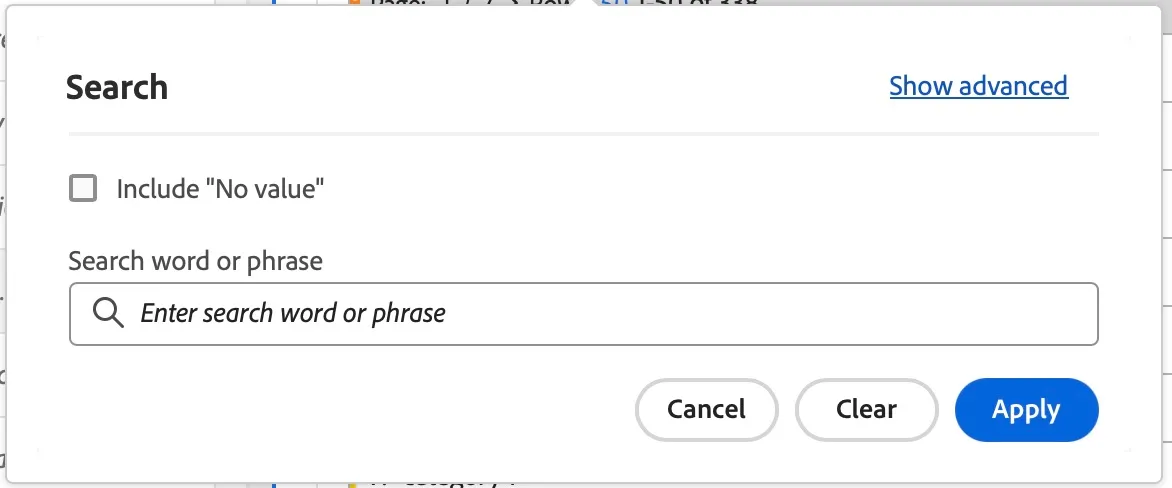
Notice the event values against each page, this value is because the metric call center application has a default attribution model as "Last Touch" which means the last touchpoint gets the credit for conversion.
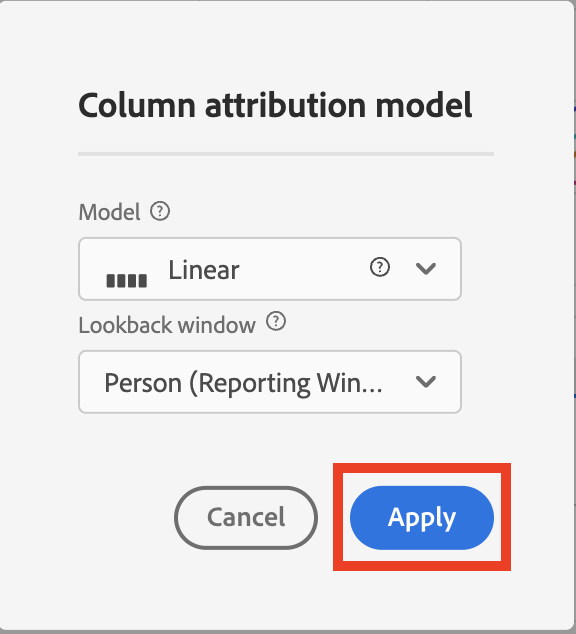
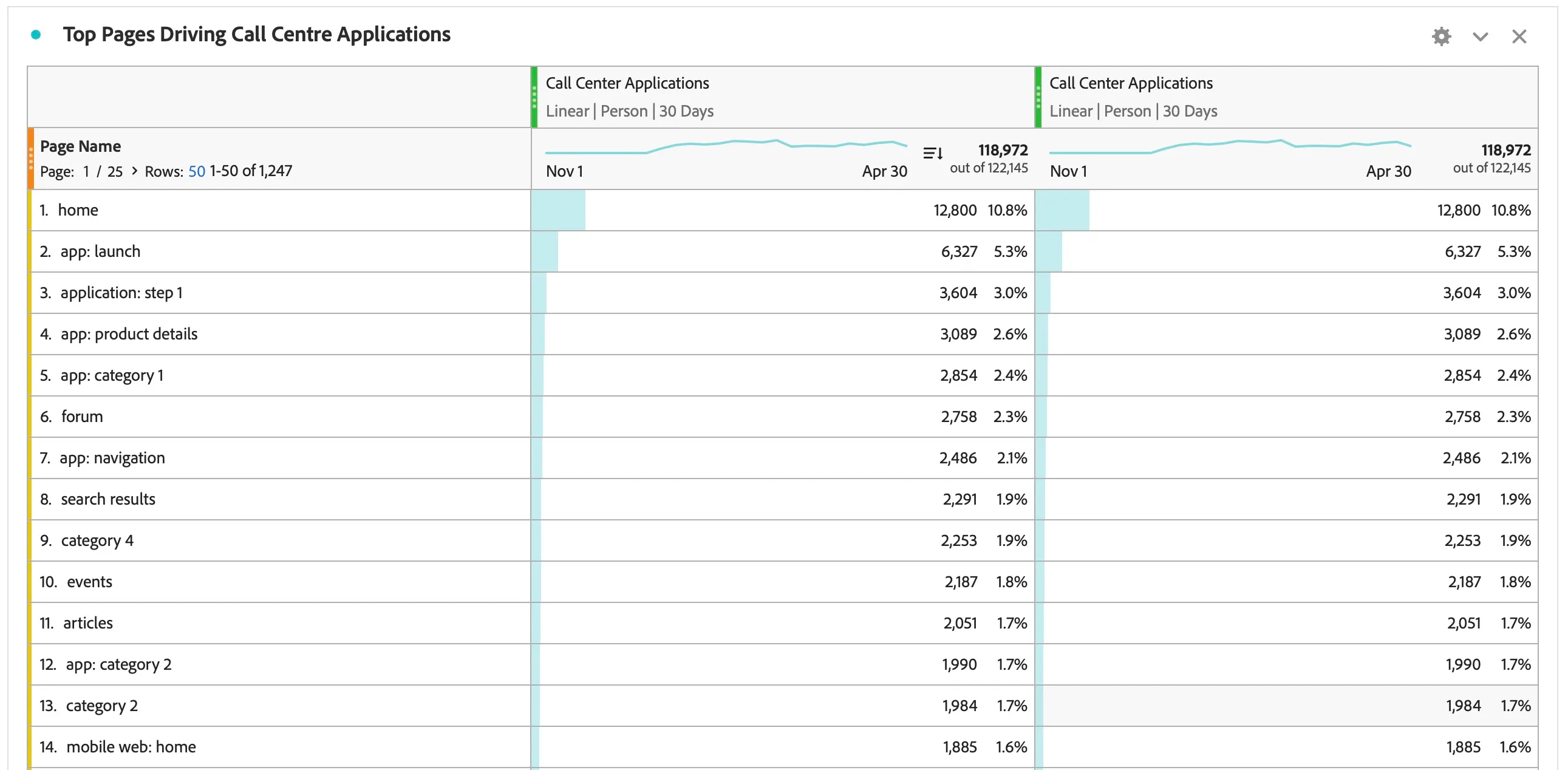
5. Let's now change the attribution model to a more balanced one e.g. Linear. Click on the with the In the pop-up select "Linear" for the model and "Person" for the lookback window. Then click "Apply".
With this the credit is equally distributed across all touchpoints. In our case it is pages.
in the journey.

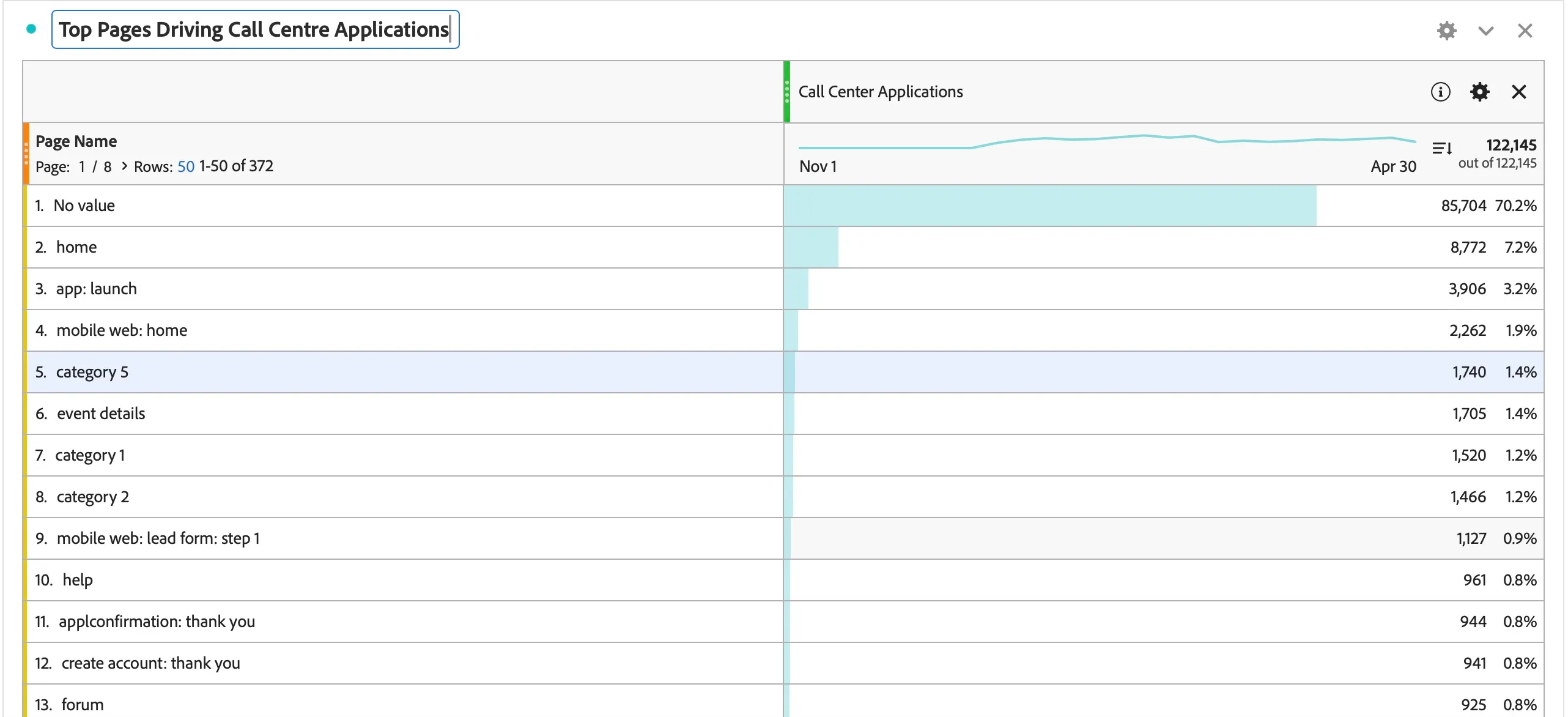
6. You will now see that you have call applications attributed to a webpage. These will be page views on web to call.
7. Now that we have part of the table completed, let's give the table a name. Click in the right corner where it says "Freeform table" and rename it to "Top Pages Driving Call Centre Applications"
8. Now let's go ahead to see the comparison of various types of Call Resons. Repeat the step and add "Call Centre Application" Metric again as a new column.
Make sure to set the same attribution model using Attribution IQ.
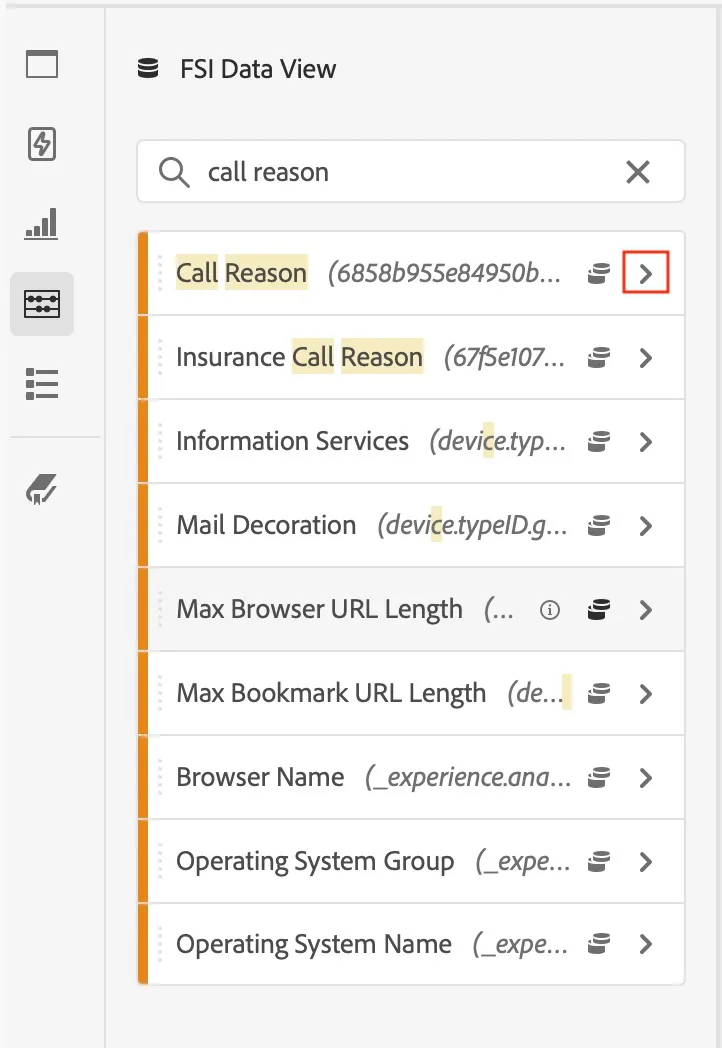
9. Now that we have the duplicate metric available, let's add a filer to the second metric in the table. Search for "Call Reason" dimension on the left and expand its values by clicking on the small arrow on its right side.
From the available values, drag each value below the "Call Centre Application" metric and drop it when you see "Filter By" appearing on the column.
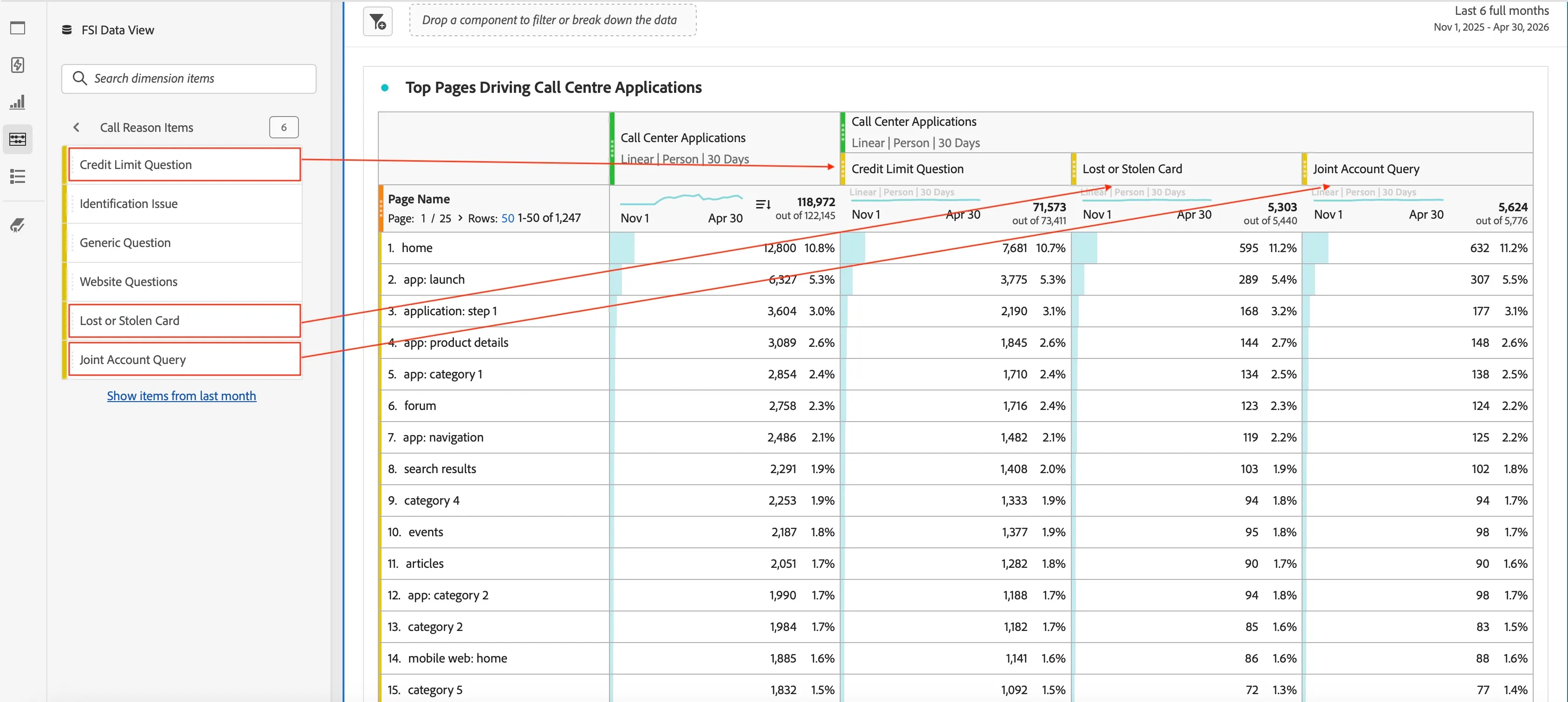
Notice how this generates a very easily to understand comparison of call reason to the call centre triggered from different pages.
Let's create make it more presentable by adding some data visualizations for our table
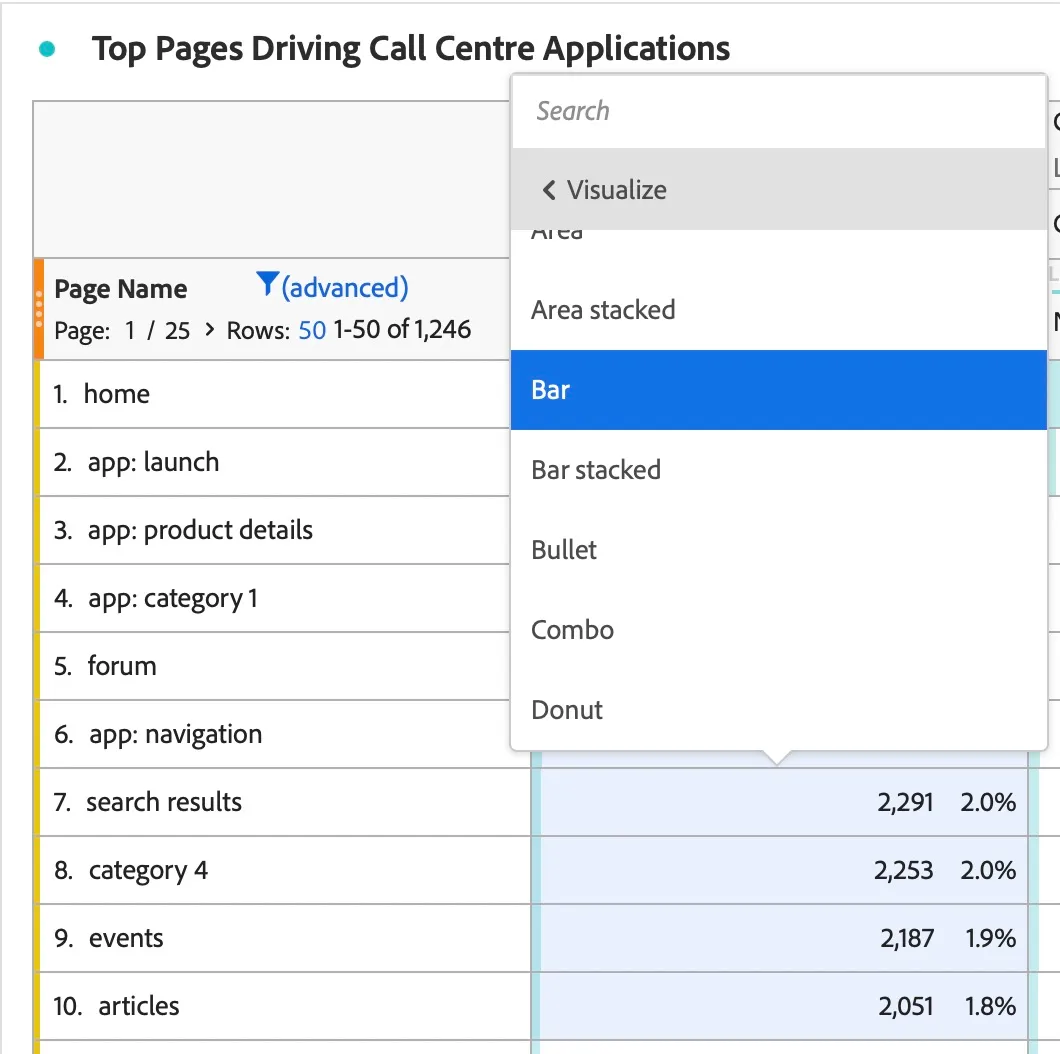
1. Under the first metric highlight the first 5-8 rows. Right click on the highlighted squares. Then select "Visualize" and Click on "Bar".
This should generate a bar chart representation of our selected values.
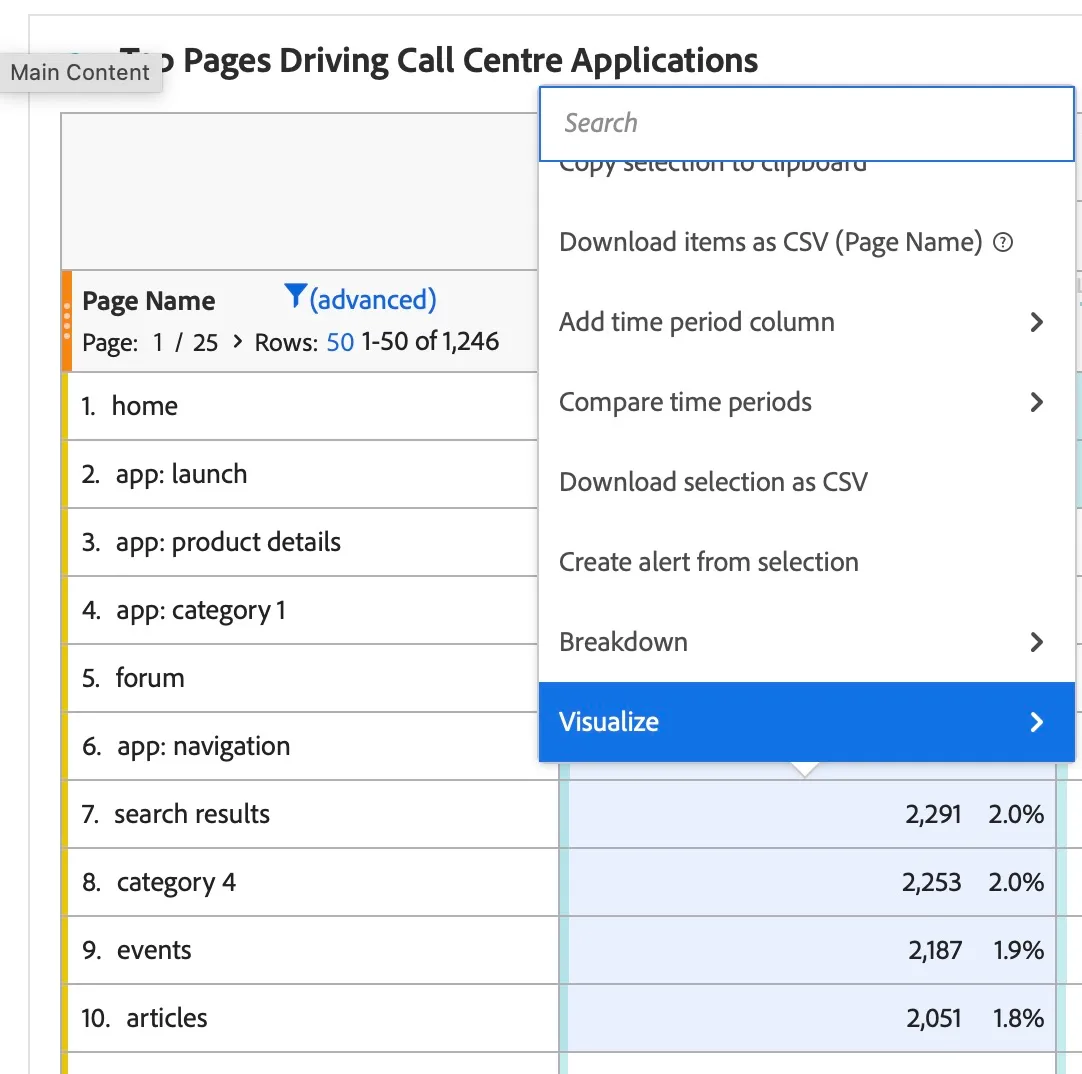
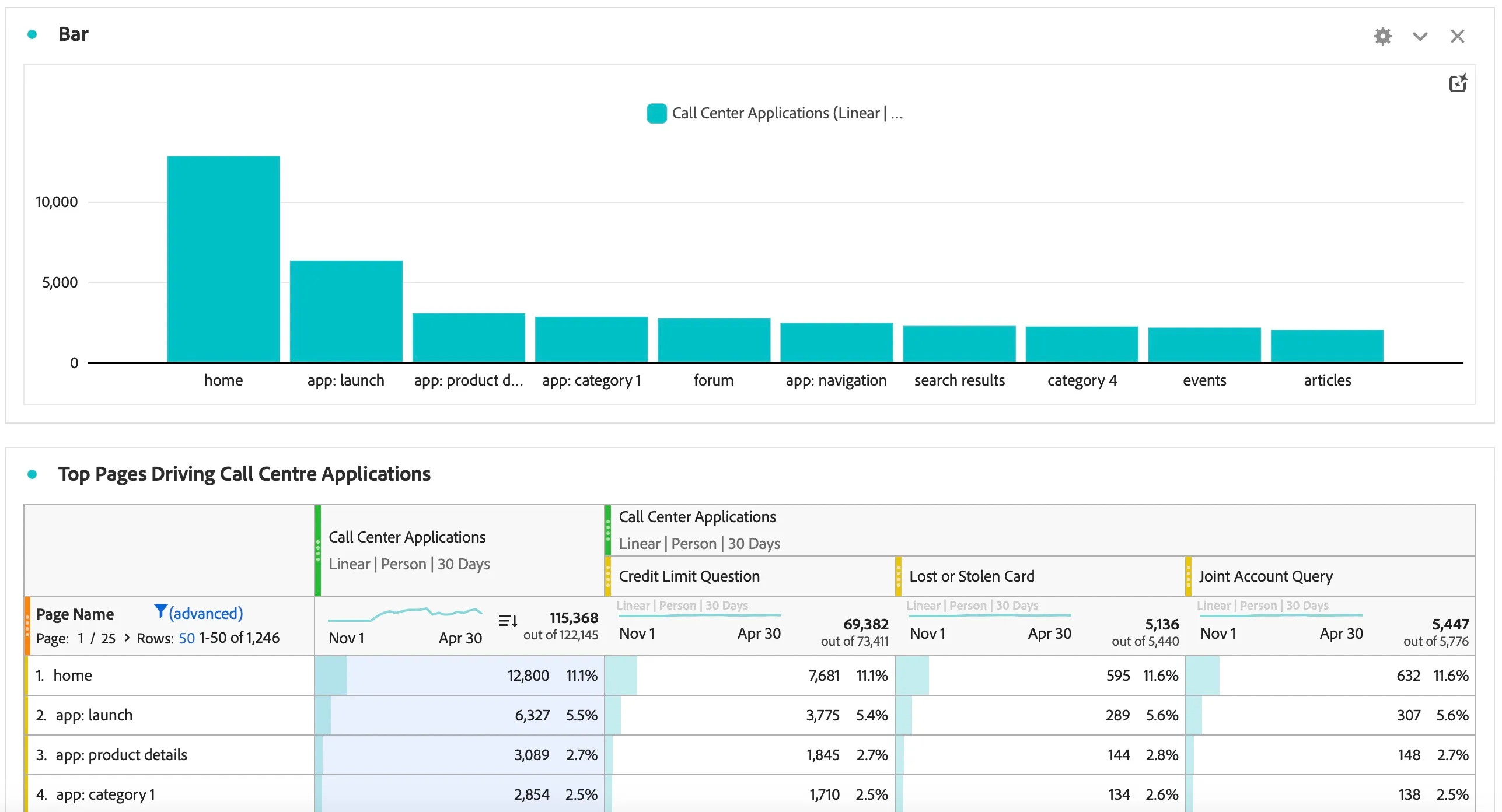
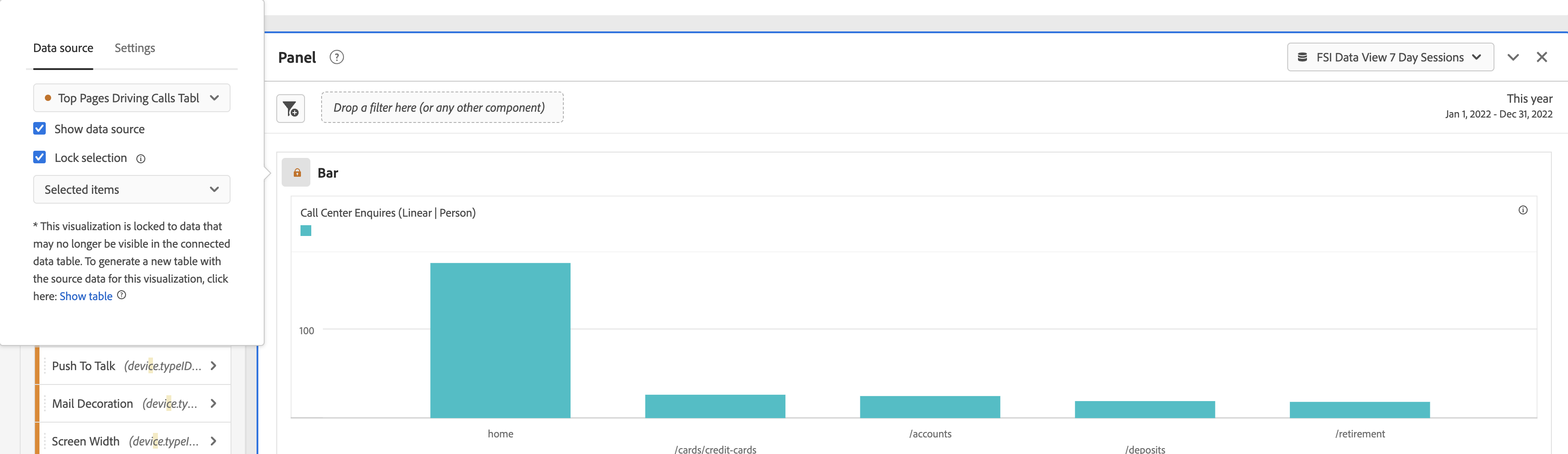
2. Next, let's lock the data visualization data into place. Click on the radial button next to where it says "Bar". There will be a pop-up where you select "Lock Selection" and in the drop-down select "Selected Items".
3. Now, let's create a data visualization for the call topics. Select the boxes right under the call topic titles that have the number in them. Then right click and select "Visualize" then select "Donut".
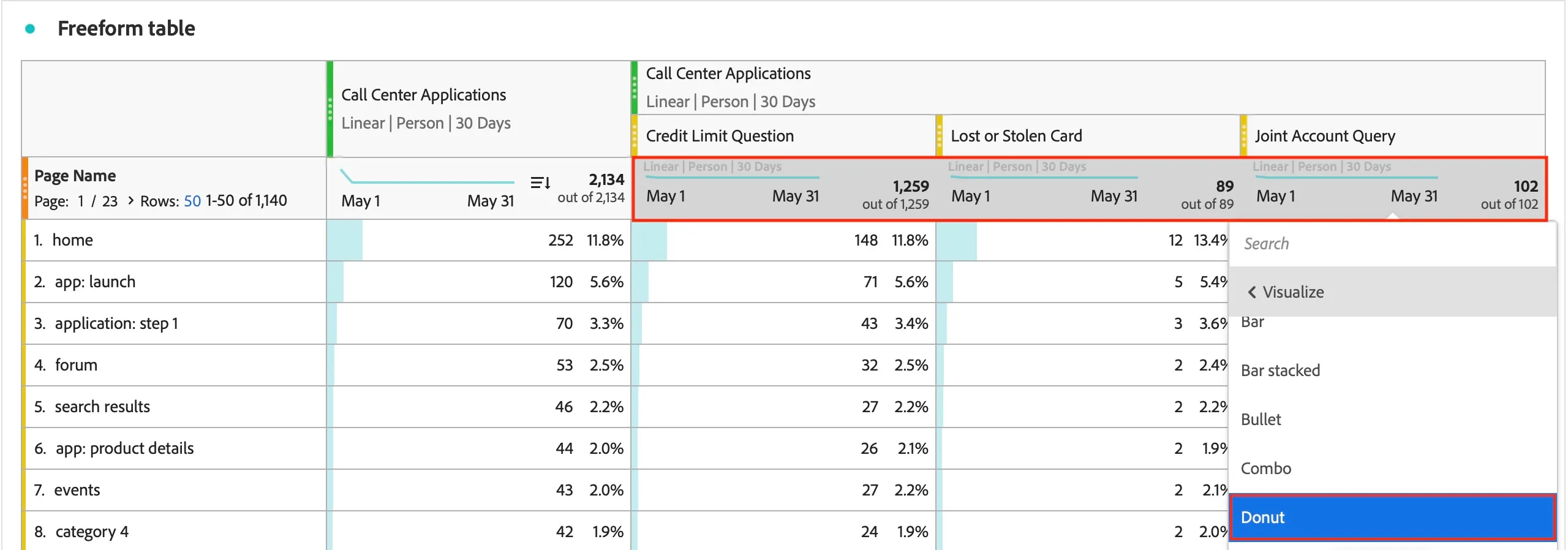
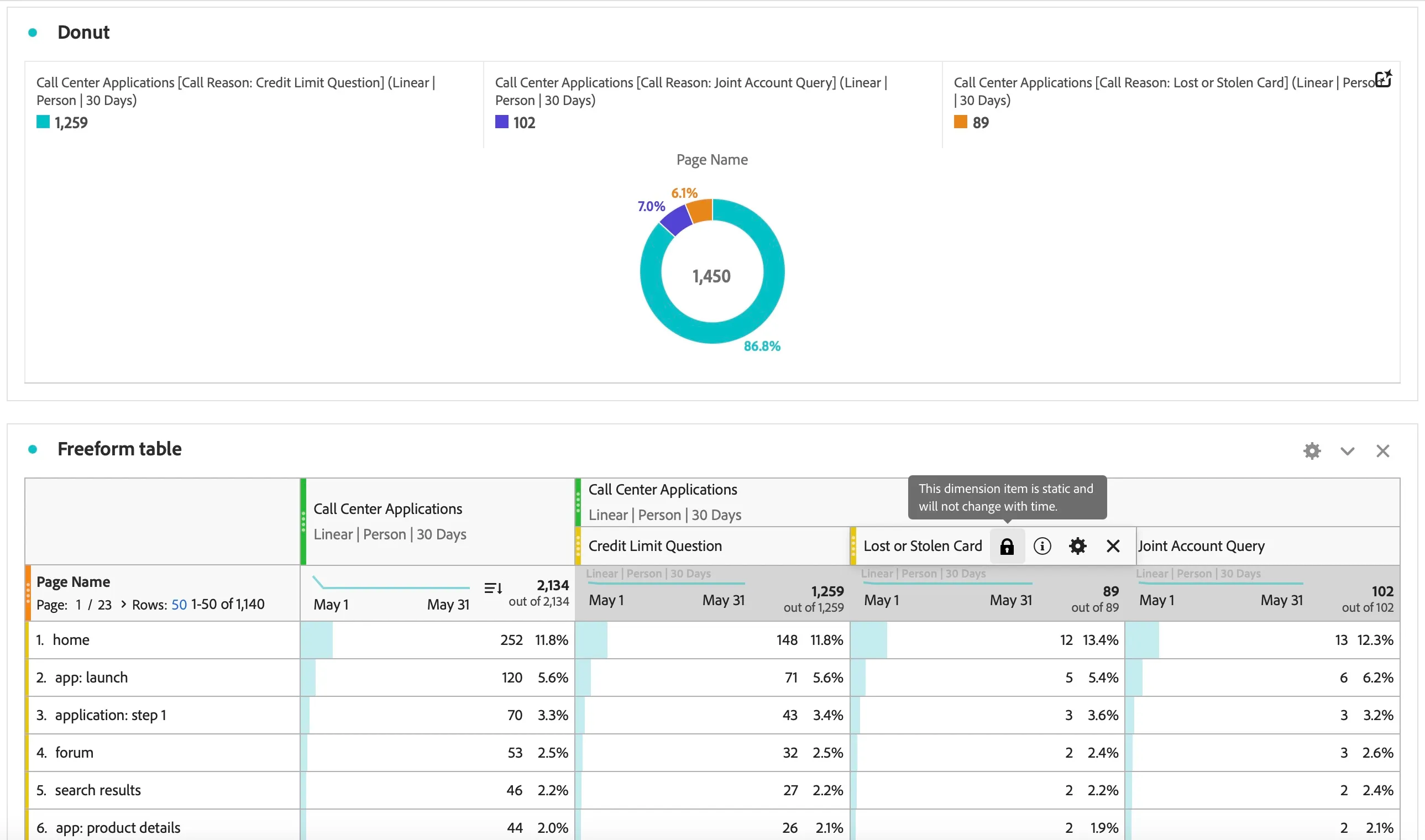
4. Make sure to lock the donut visualization as well. Then you can give the bar visualization a title of "Top Pages Driving Calls" and for the donut visualization you can title it "Call Topics From Web".
You can also resize the visualizations and set them side by side each other.
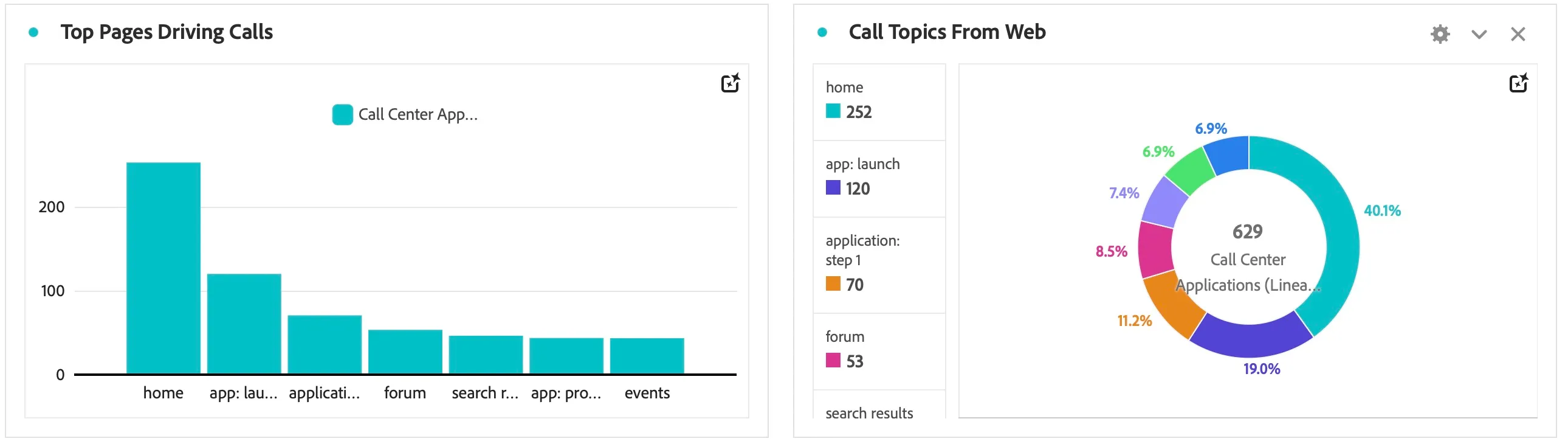
Congratulations!. You have learned using a Freeform table, understanding of metrics and dimensions, basics of attribution model and how to represent Data in visualizations.