Create a Campaign
Create the Campaign
We will be creating a scheduled marketing campaign to be executed at a certain date and time which will be targeted towards a certain audience group having high propensity customers. An email will be sent to this group inviting them to view or purchase insurance products.
- Navigate to Campaigns
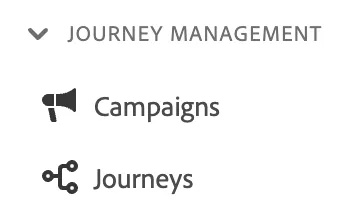
2. Click on "Create Campaign"
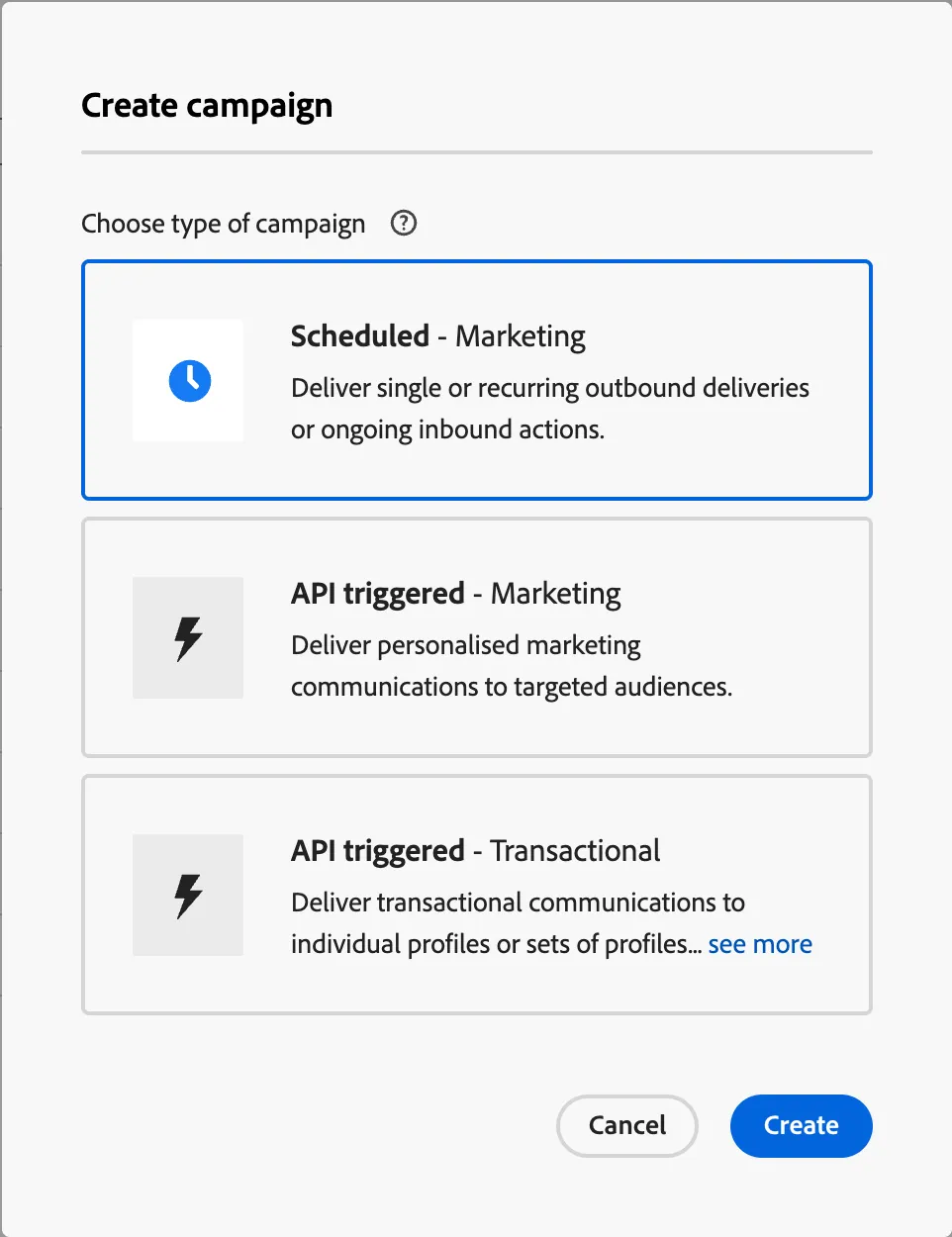
3. Choose "Scheduled - Marketing" as type of Campaign and click Create.
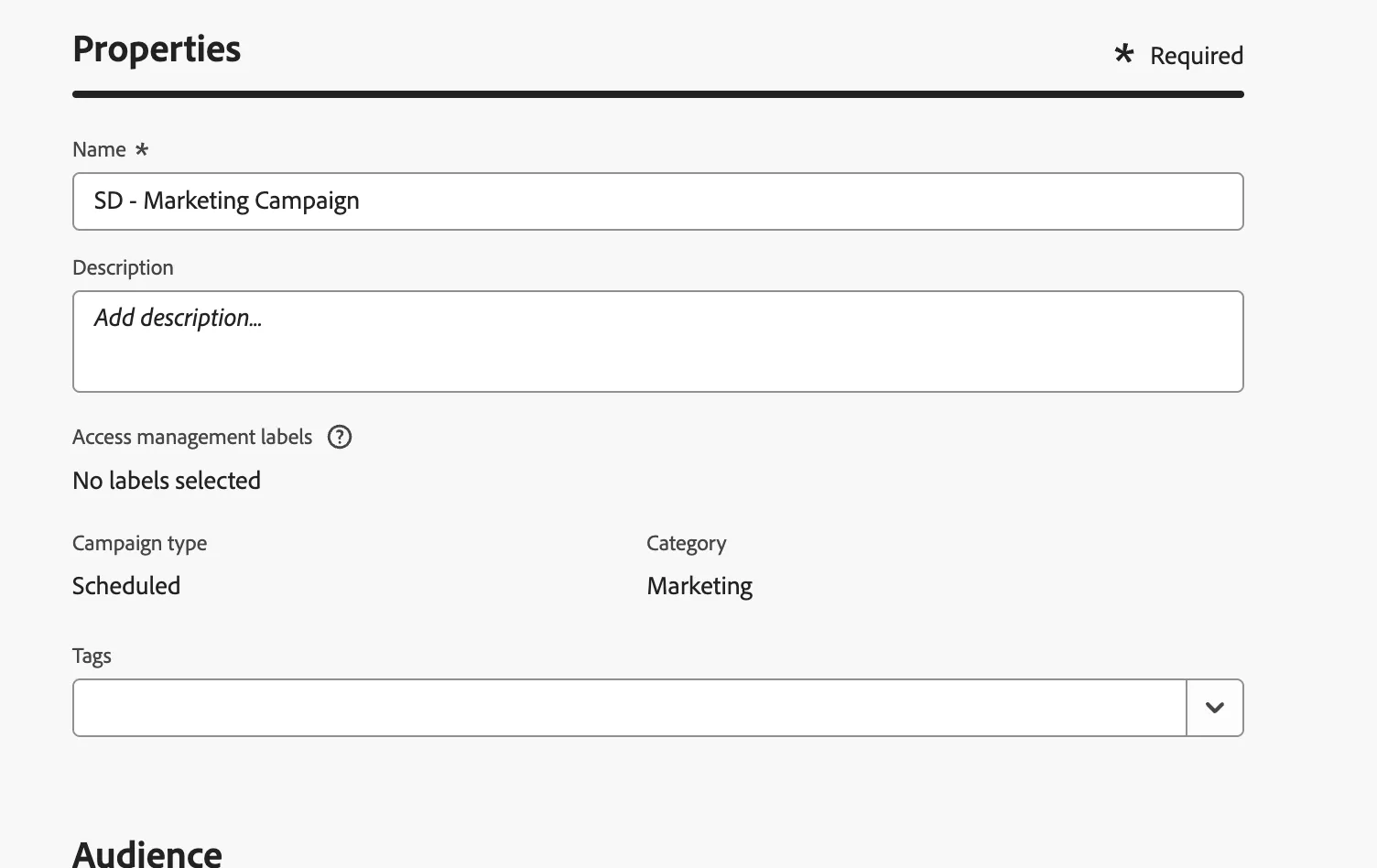
4. Under Properties, provide a name as "Your initials - Marketing Campaign"
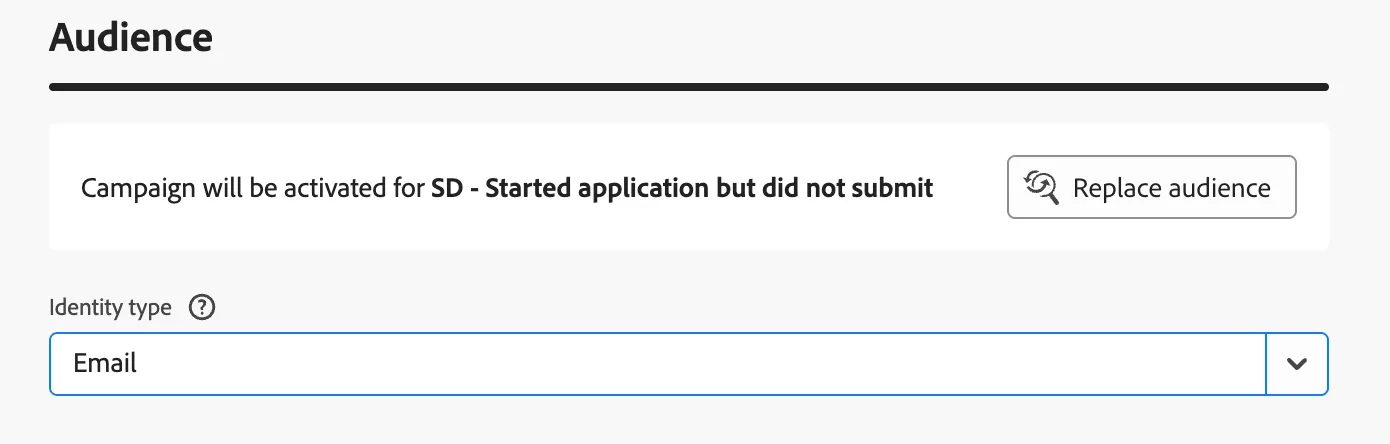
5. Under Audience, choose the earlier created "Your initials - Started application but did not submit" audience.
6. Choose Email as the Identity Type
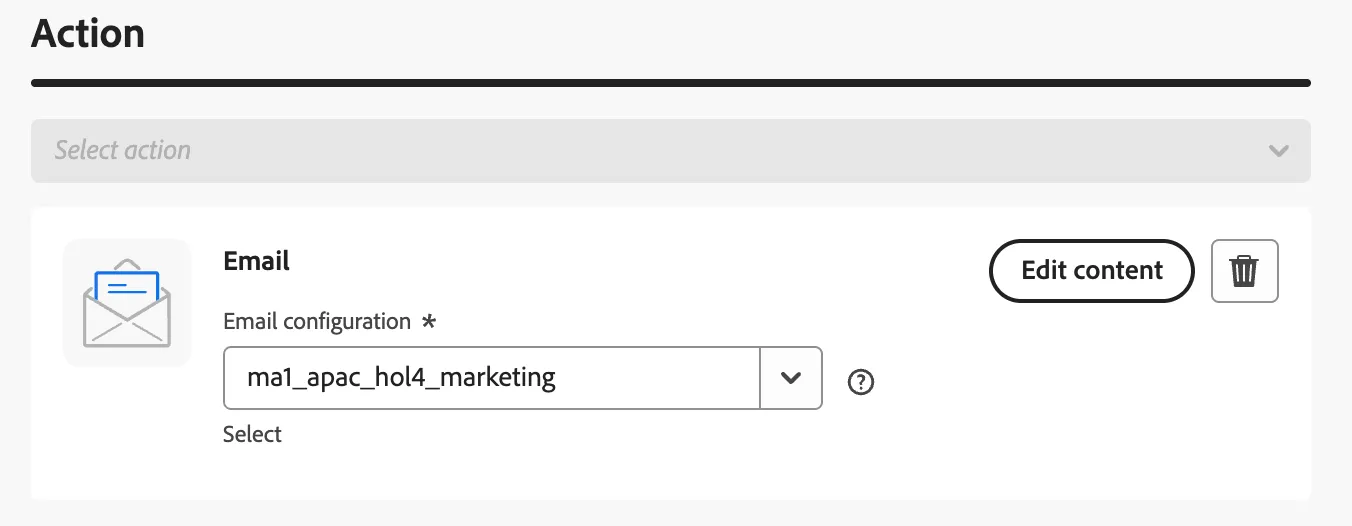
7. Under Action, choose the Email configuration and proceed to edit the content of the Email. The next section Email Designer has details on this.
Email Designer
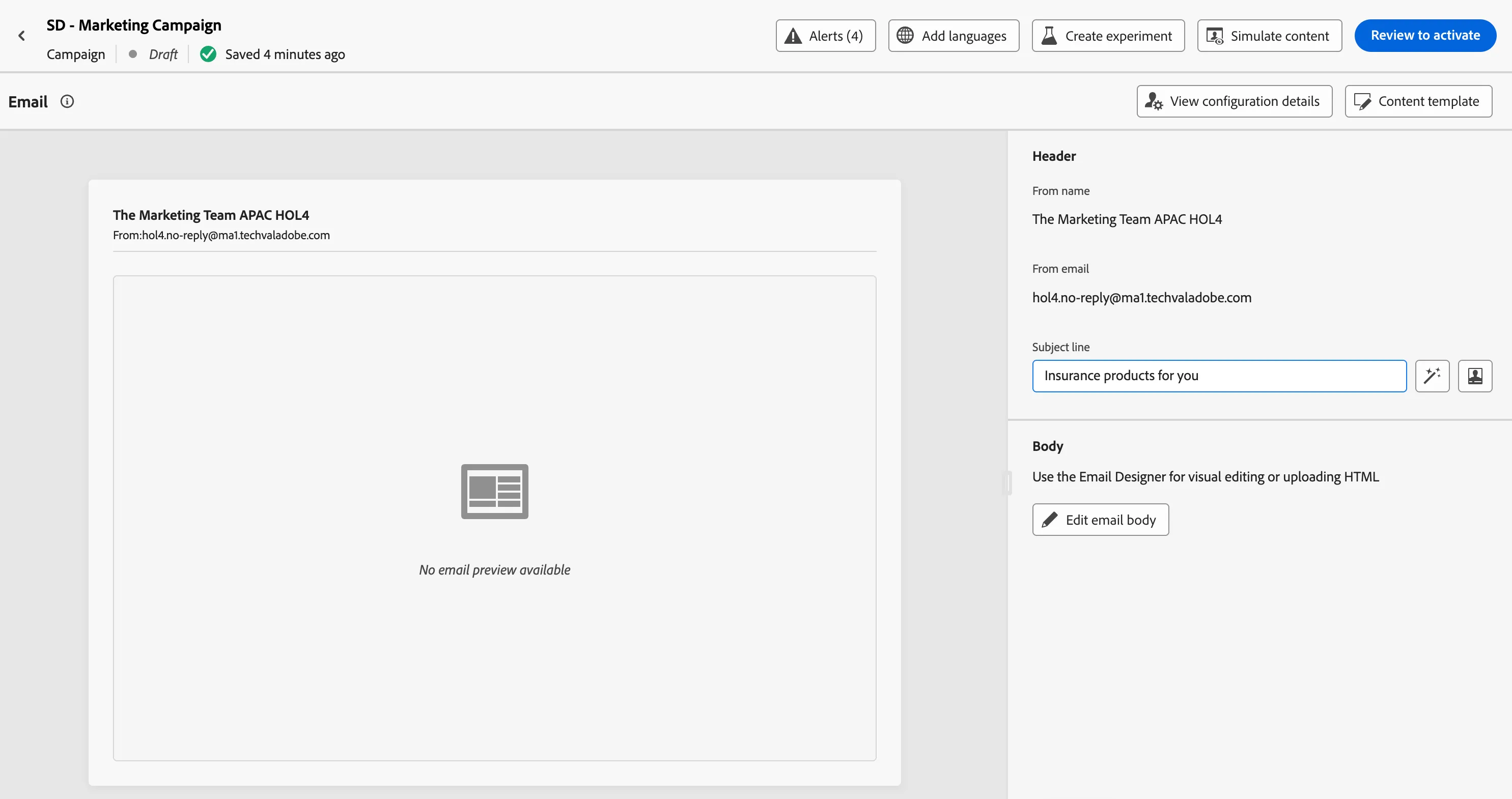
8. Provide the subject line of the Email as - "Insurance products for you"
9. Proceed to edit the content of the Email using "Design from scratch"
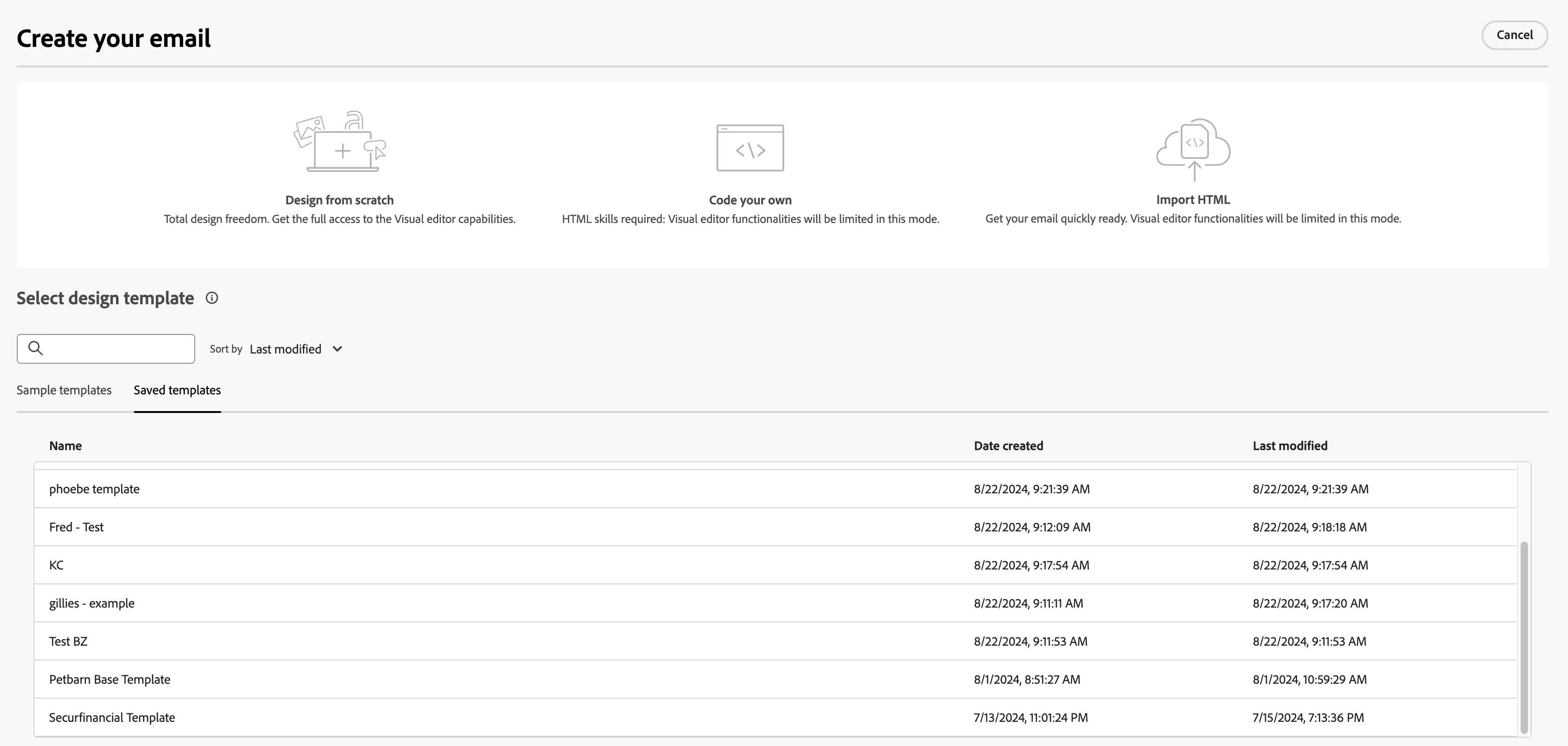
10. We will now use GenAI and Firefly to generate an Email for Marketing purposes and persist the same as a template so that other marketers can use the same, thus saving time.
11. Once Design from scratch is selected, it brings up the canvas that is used to build the email
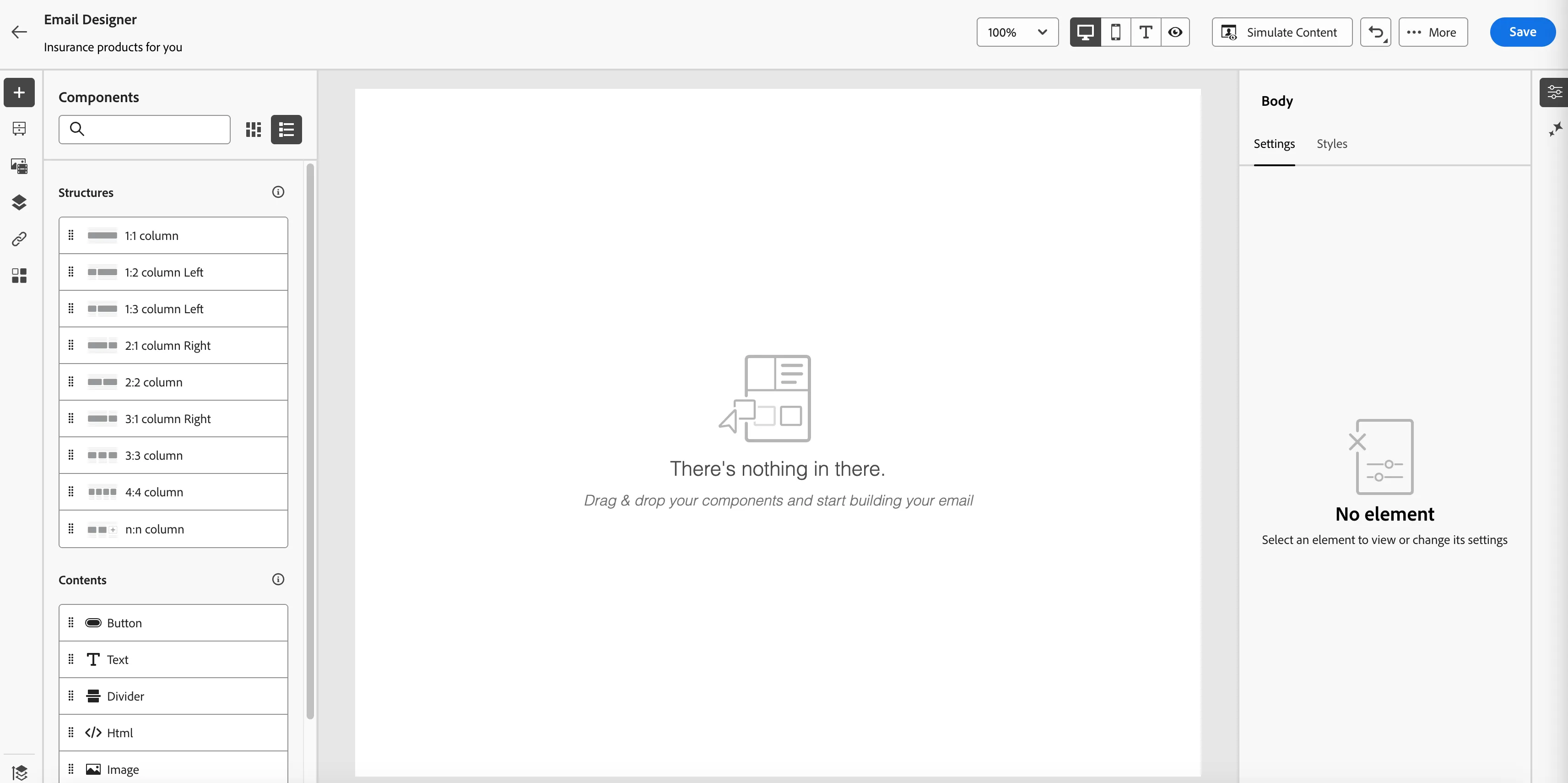
12. We will create the structure of the email. Select "1:2 column left" from the structures and drop the same on the canvas. Next, select, Image from under Contents and drop the same on the left most cell on the canvas.
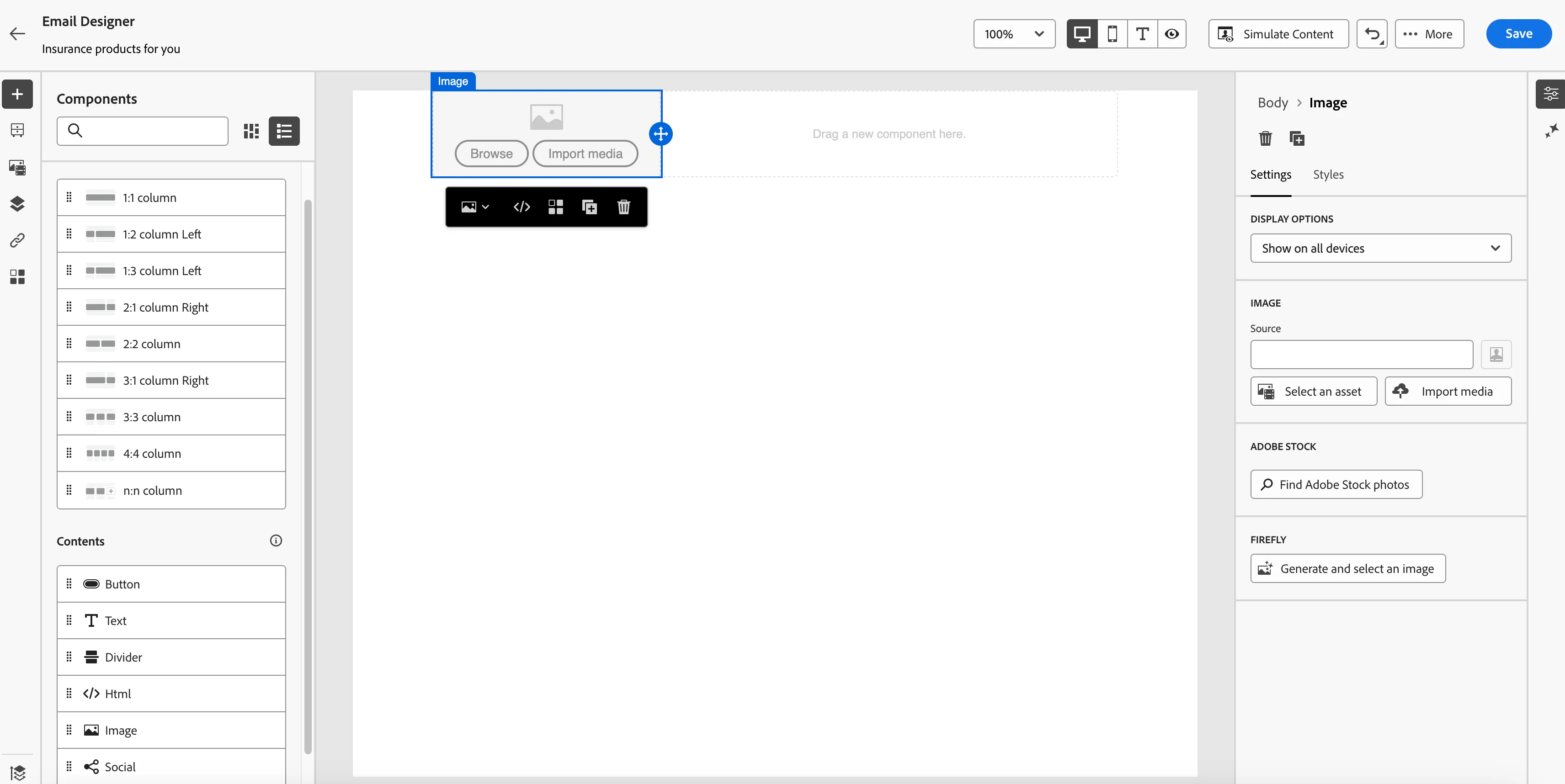
13. Select the image component on the canvas and then click on "Generate and select image" button on the right side under Firefly.
14. This will bring up the screen where we can generate images based on a reference image.
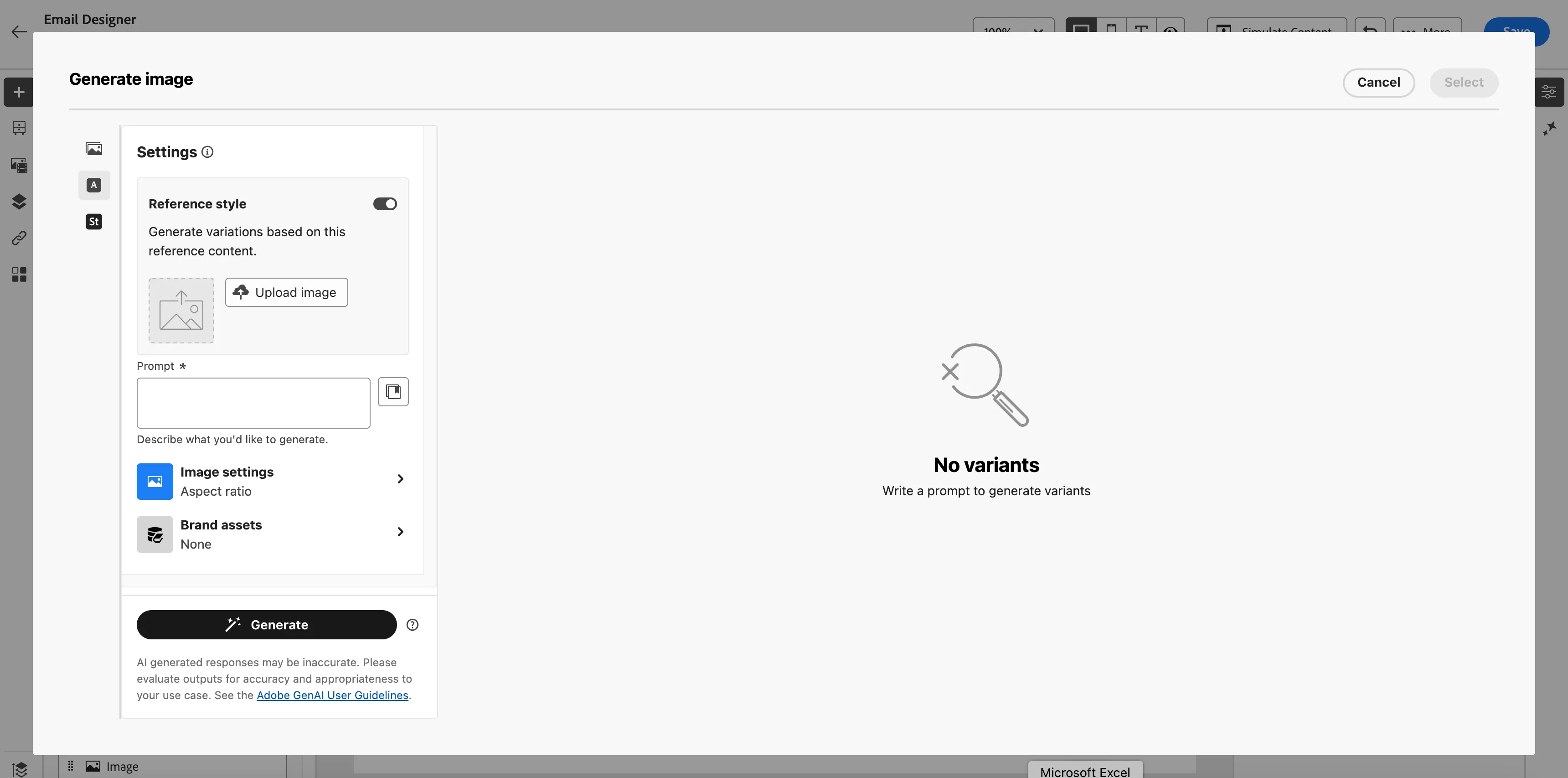
15. Enabling the Reference style toggle will allow you to upload a reference image. Once uploaded, enter a prompt e.g. "generate logos for banking industry" and click on Generate button.
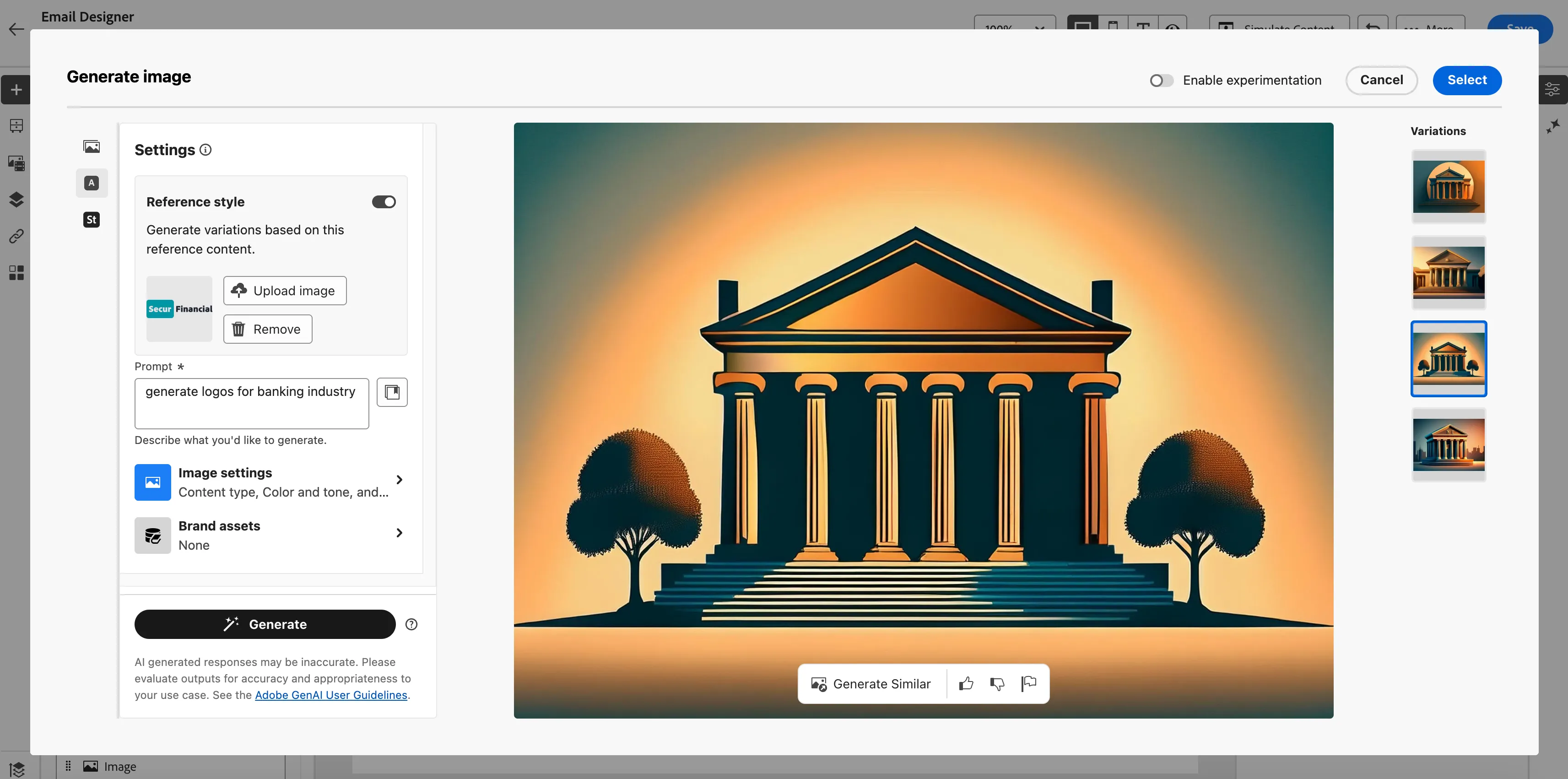
16. You can try out the various variations and prompts on the above screen.
17. Once an image is selected, you will have to select a folder called HOL4 where it will be uploaded and then be placed in the email body
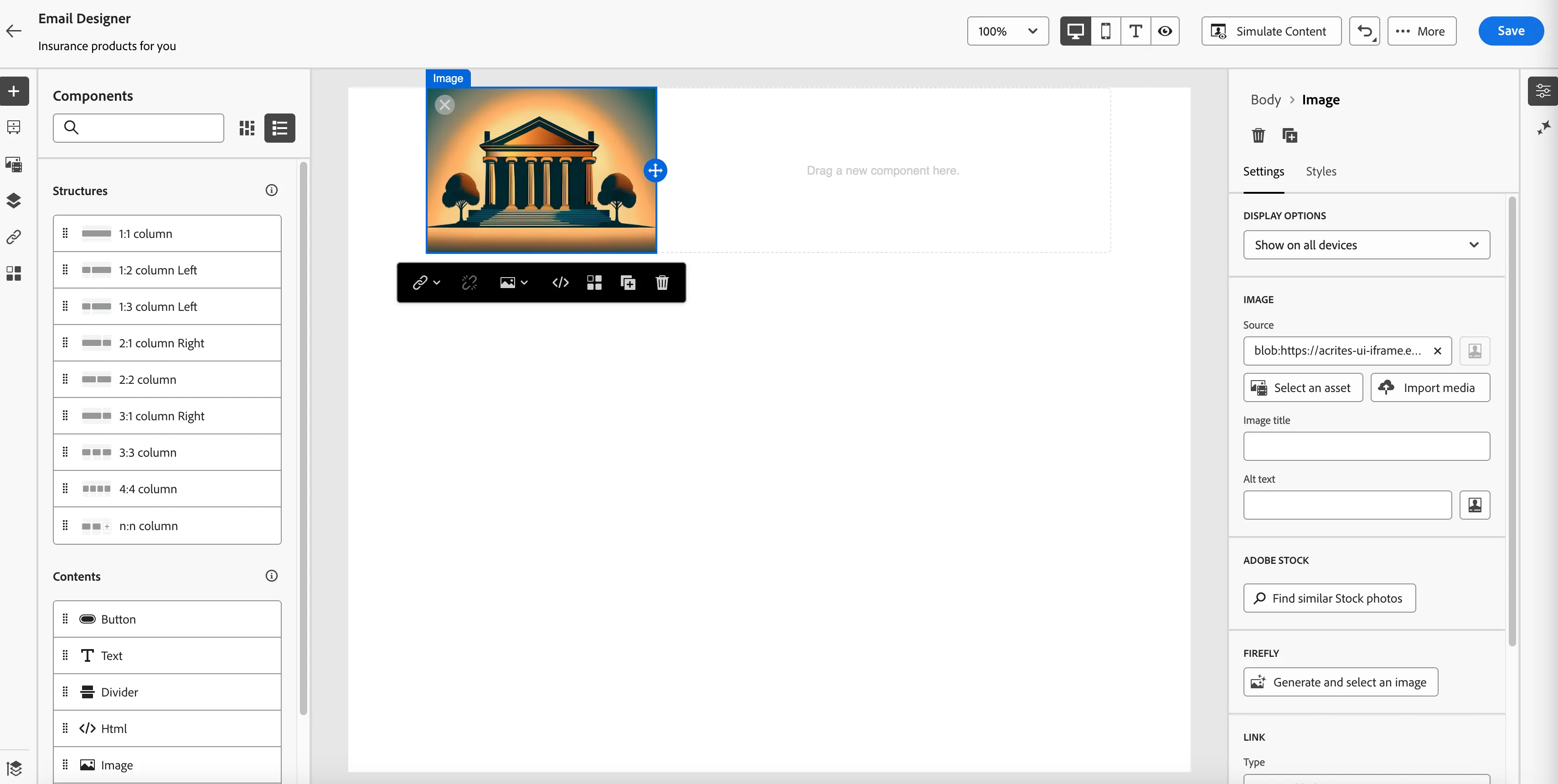
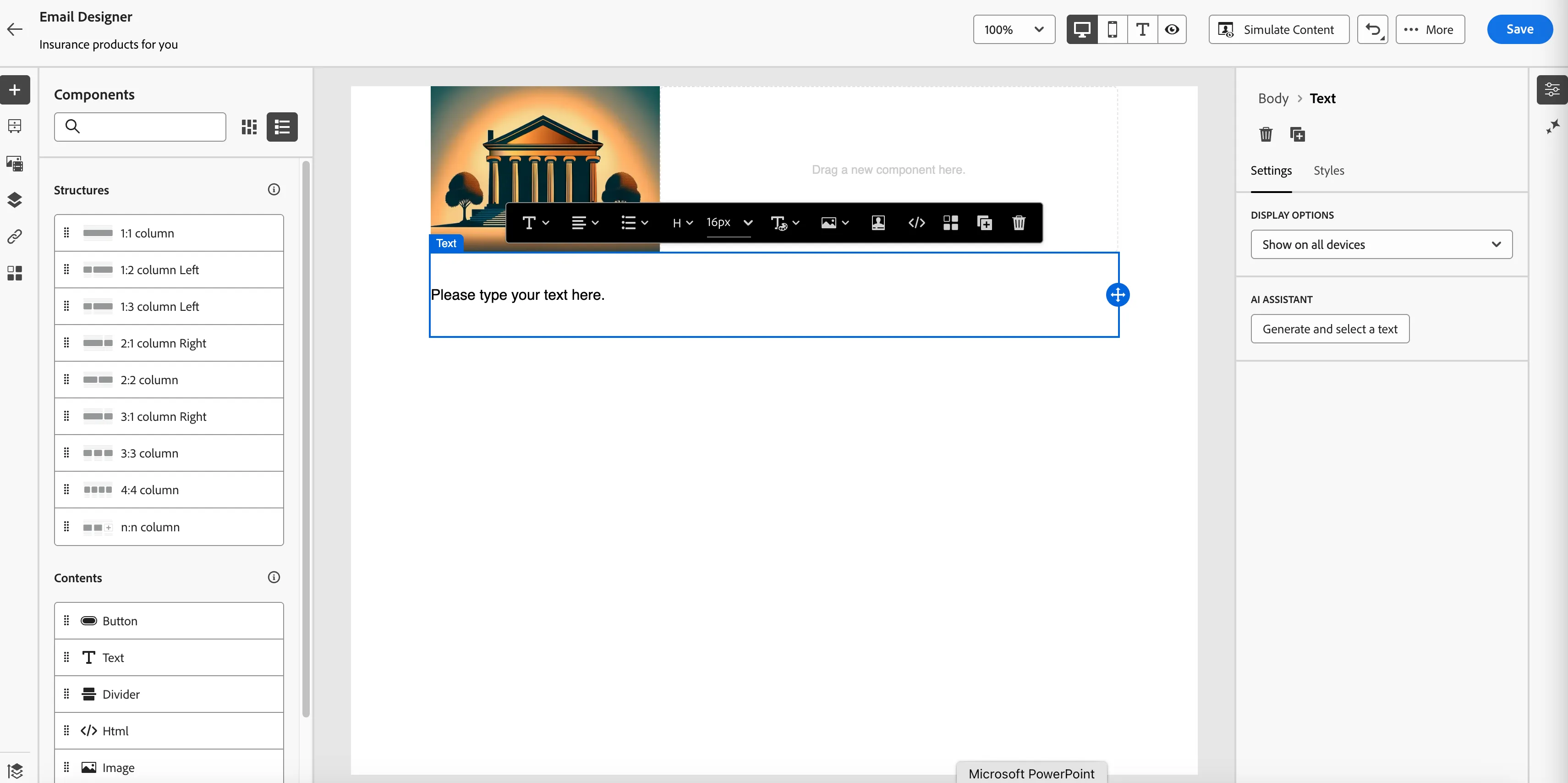
18. Next step is to drop a 1:1 column on the canvas followed by a Text component. Text can be either typed directly or "Generate and select a text" under AI Assistant can be used.
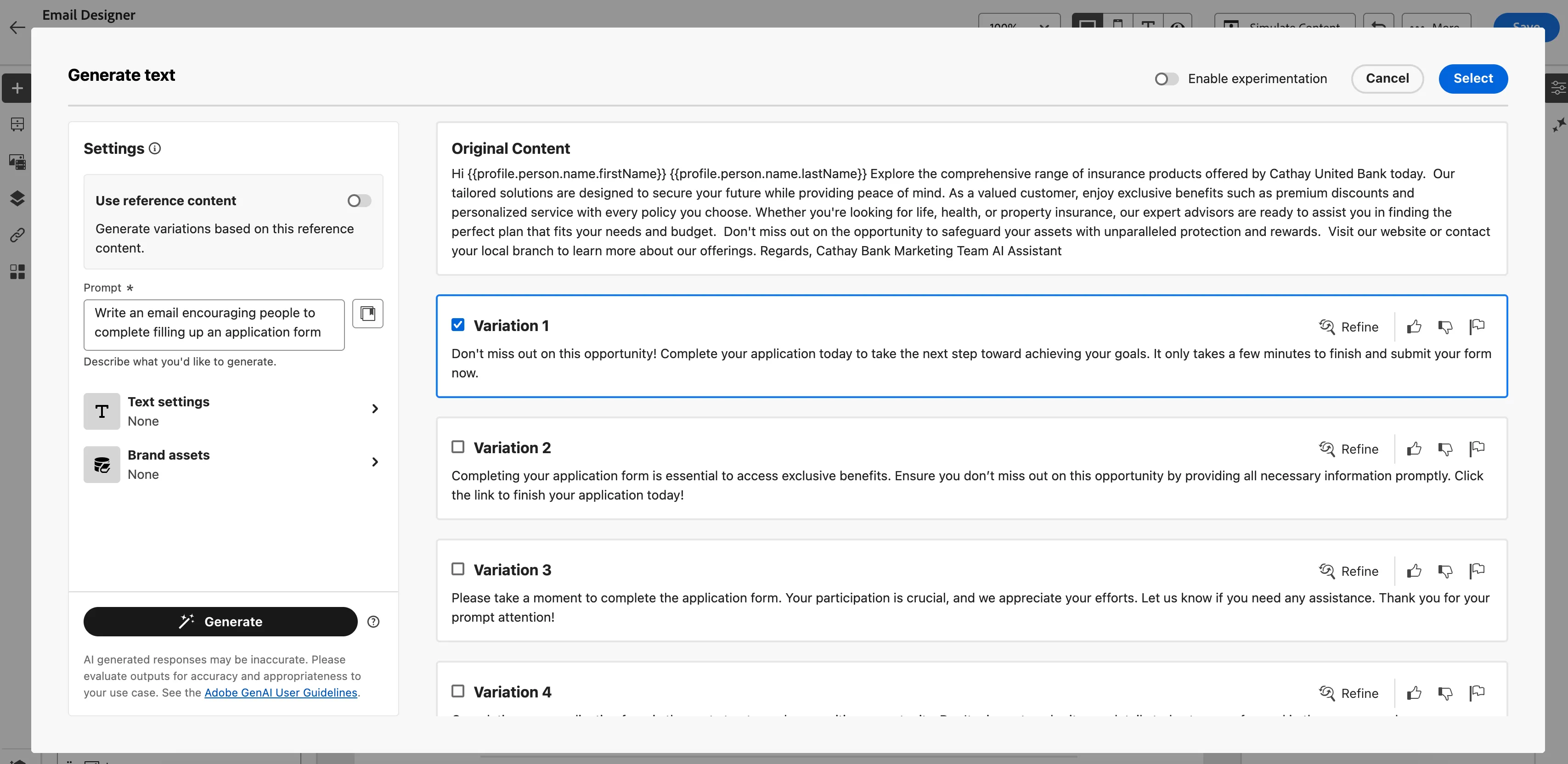
19. A possible prompt could be "Write an email encouraging people to complete filling up an application form" could be typed and Generate button to be clicked
20. The UI will show multiple variations from which one can be chosen.
21. Once the text is selected, it can be further edited to included salutation, paragraph spacing, etc. thus saving valuable time and effort
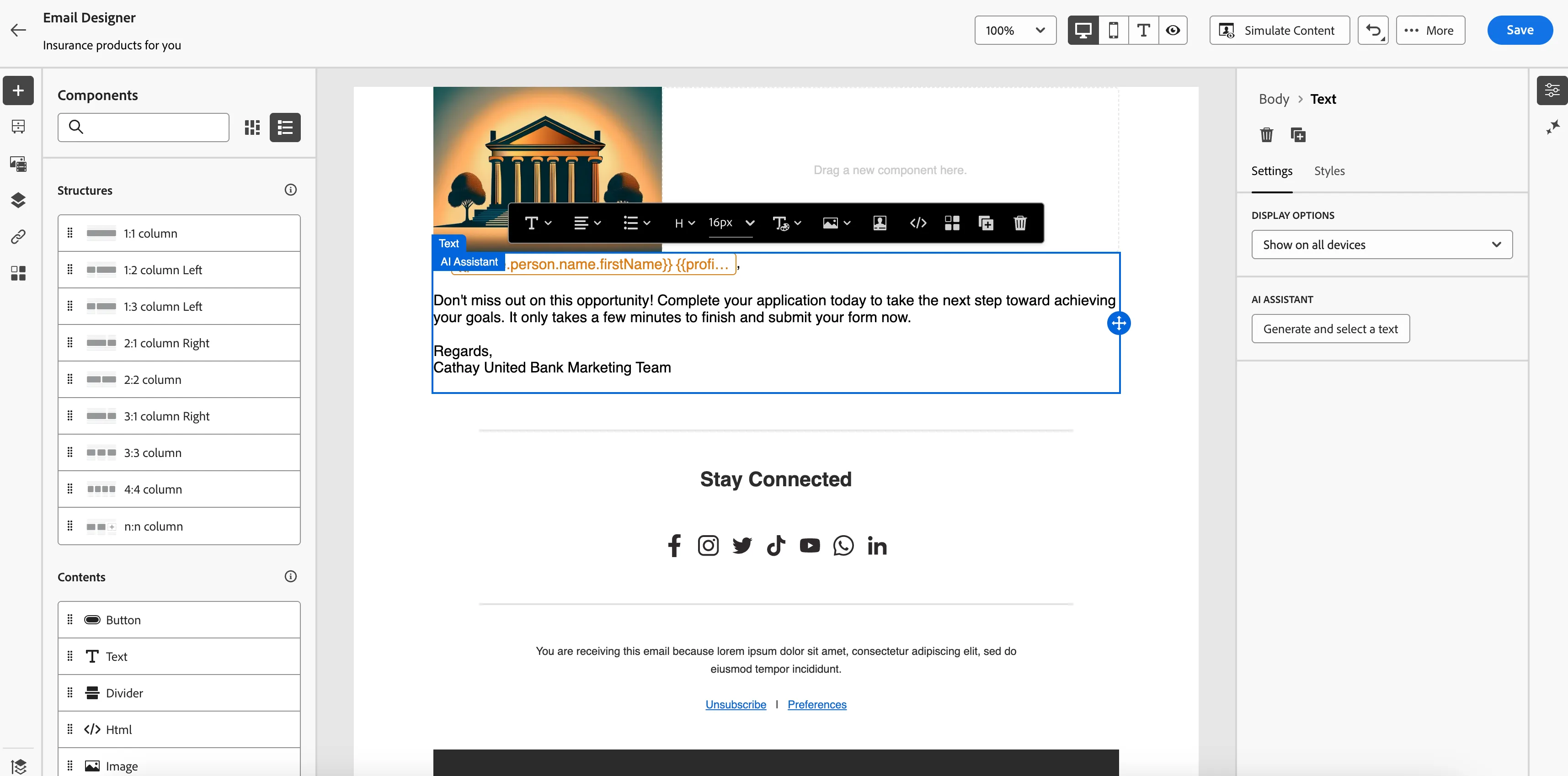
22. A footer can also be added to the email body post which the email content can be saved as a template.
23. The footer can be added by clicking on the fragments icon just below the '+' on the upper left side of the screen and selecting SecurFinancial Footer from there.
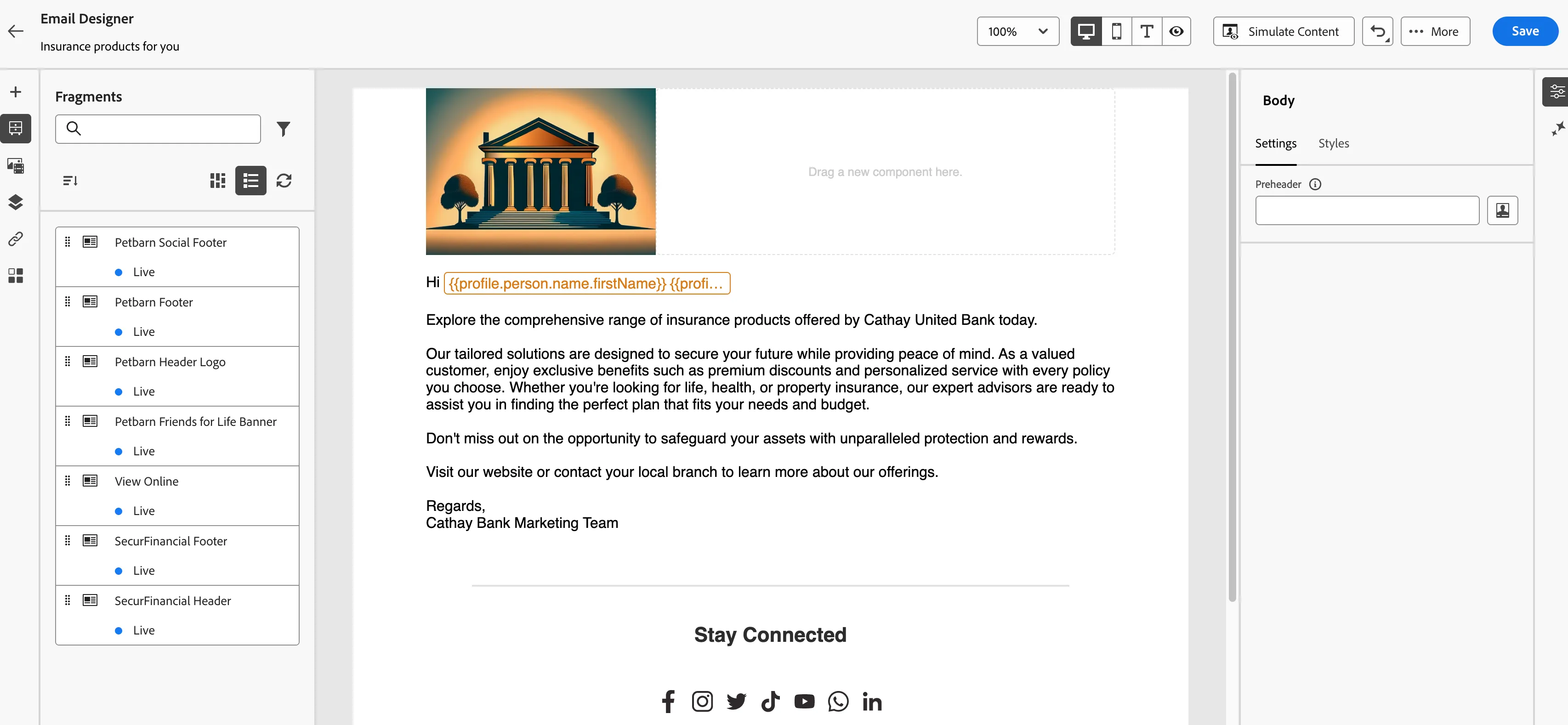
23. Click on the "More" button and select "Save as content template"
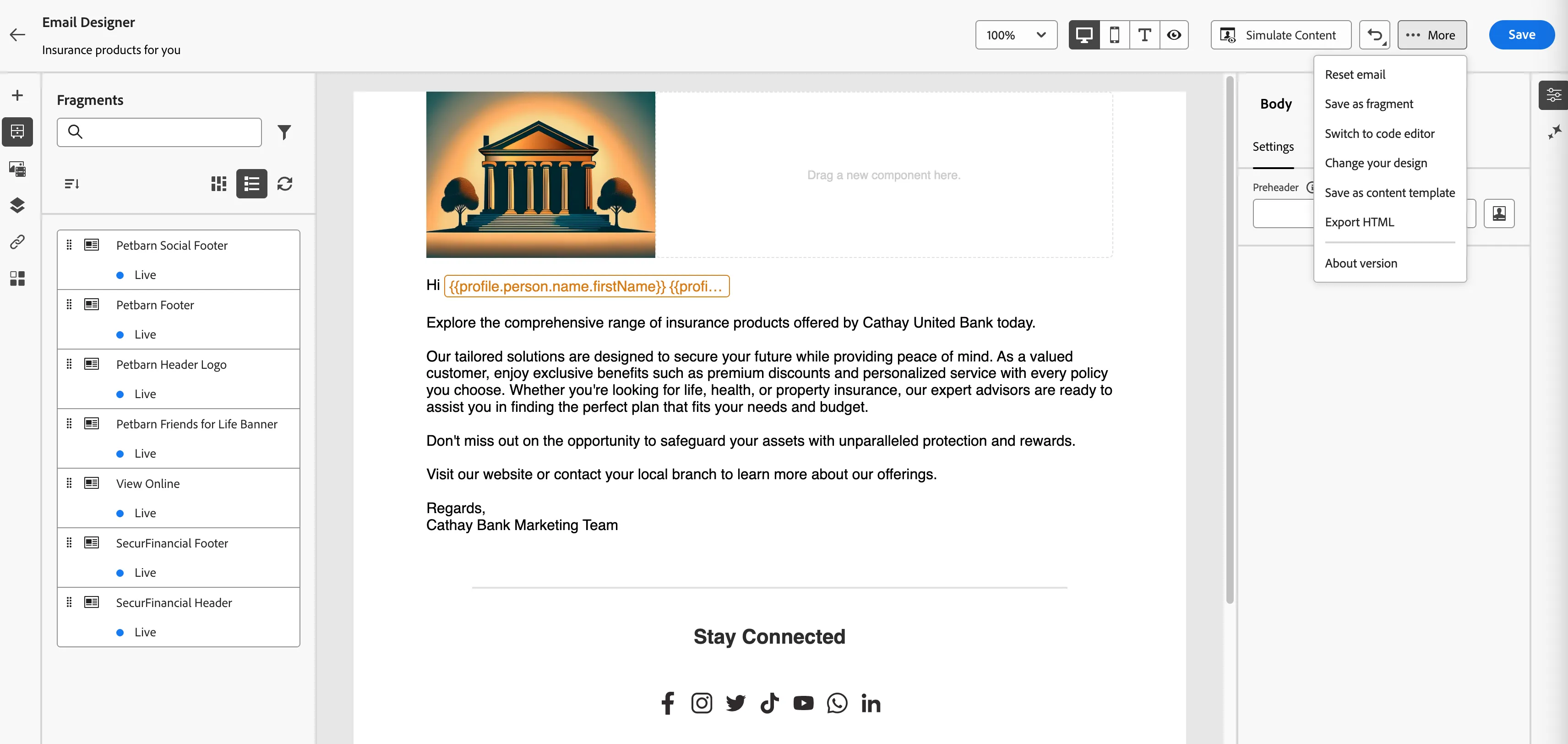
24. Provide a name for the template - "Your initials - Marketing Email Campaign Template"
25. Finally, click on the Save on the upper right corner after the email body is entered as below.
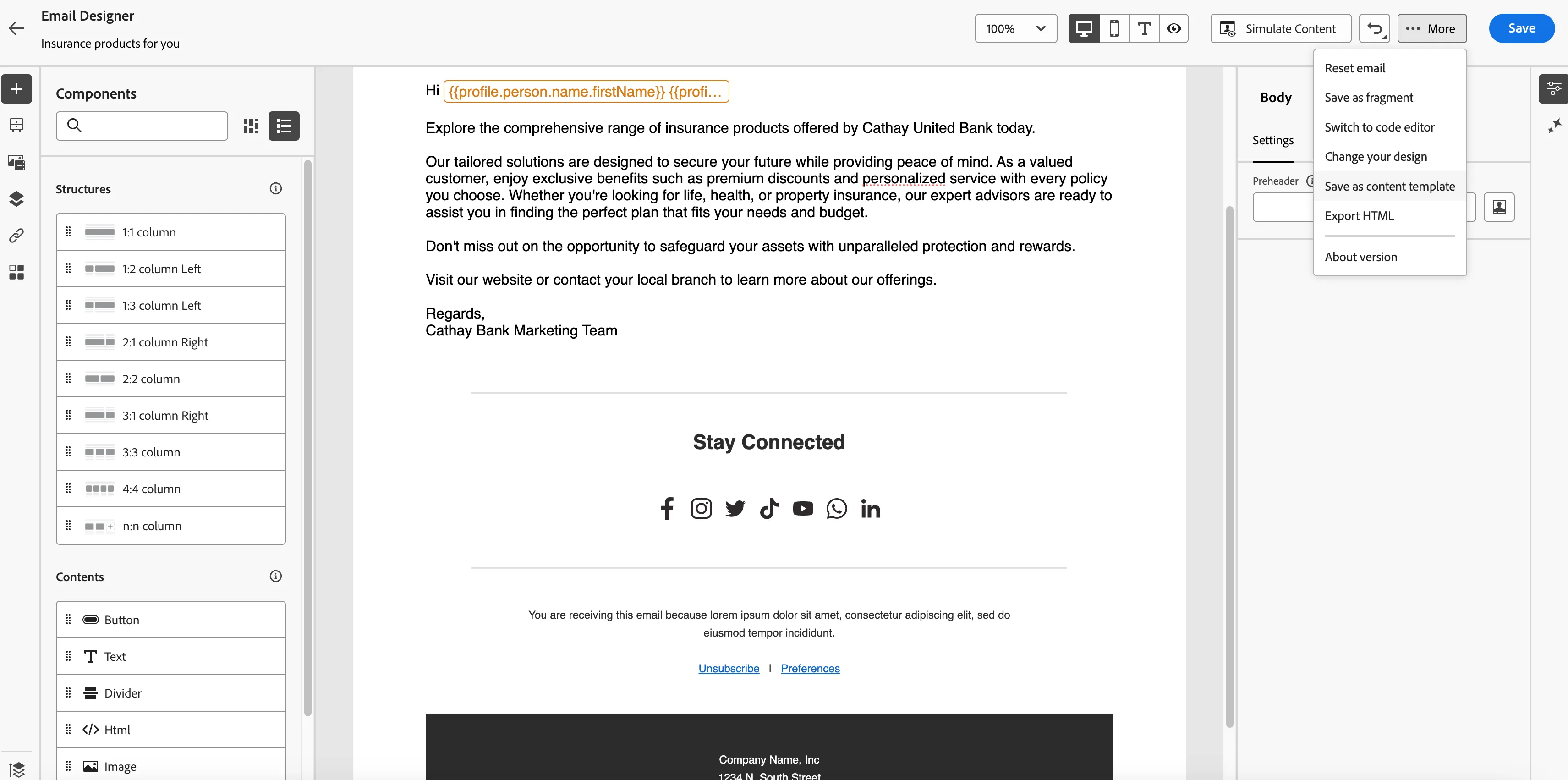
26. Then click on the arrow on the upper left side to go back to the Campaign creation screen.
27. Proceed to schedule the Campaign for one time sending of emails. The frequency could also be changed to send the emails on a certain set recurring schedule.
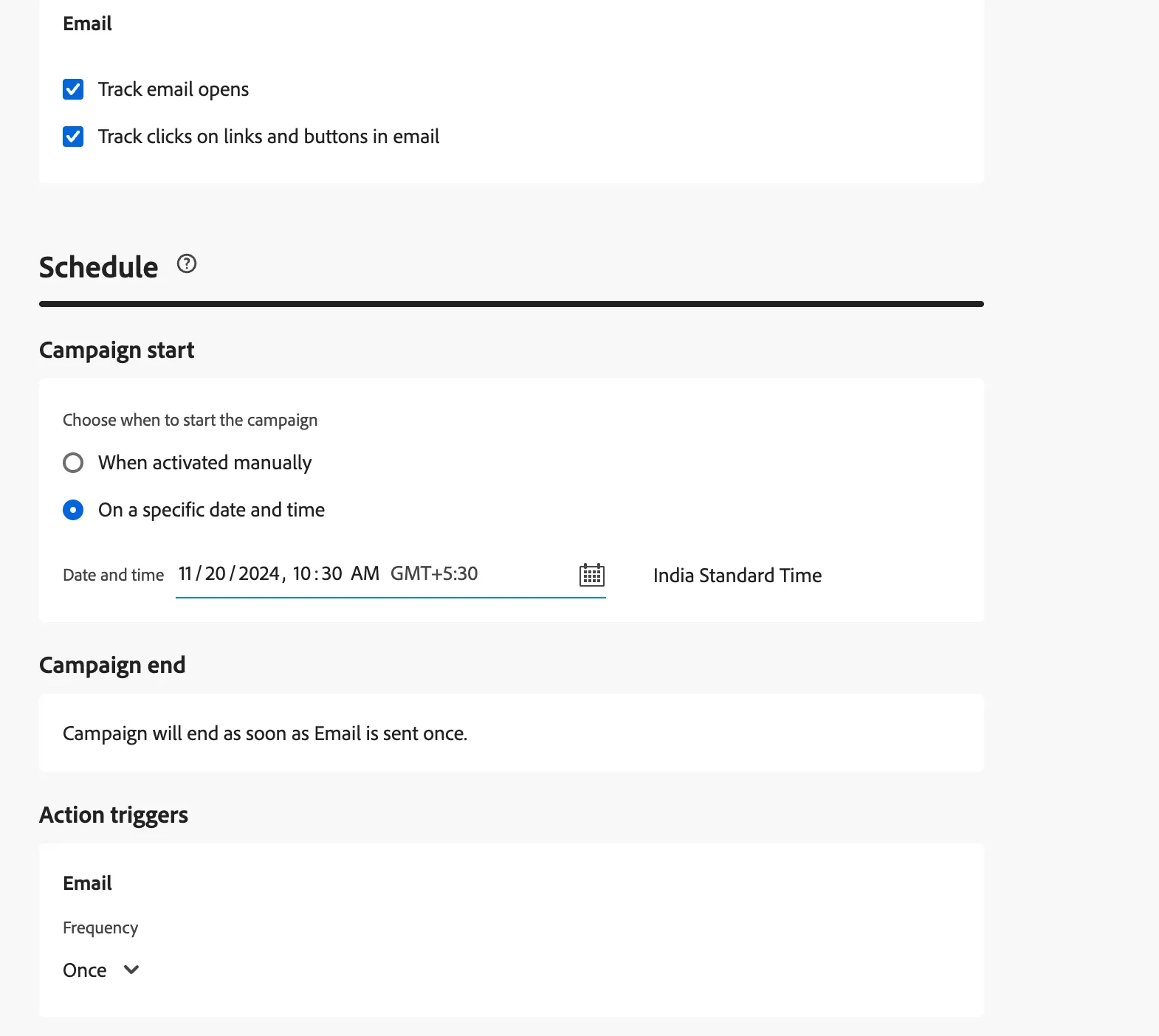
28. Click on the Review to Activate button which brings up the screen where all the necessary information is reviewed and then activated by clicking on the Activate button.
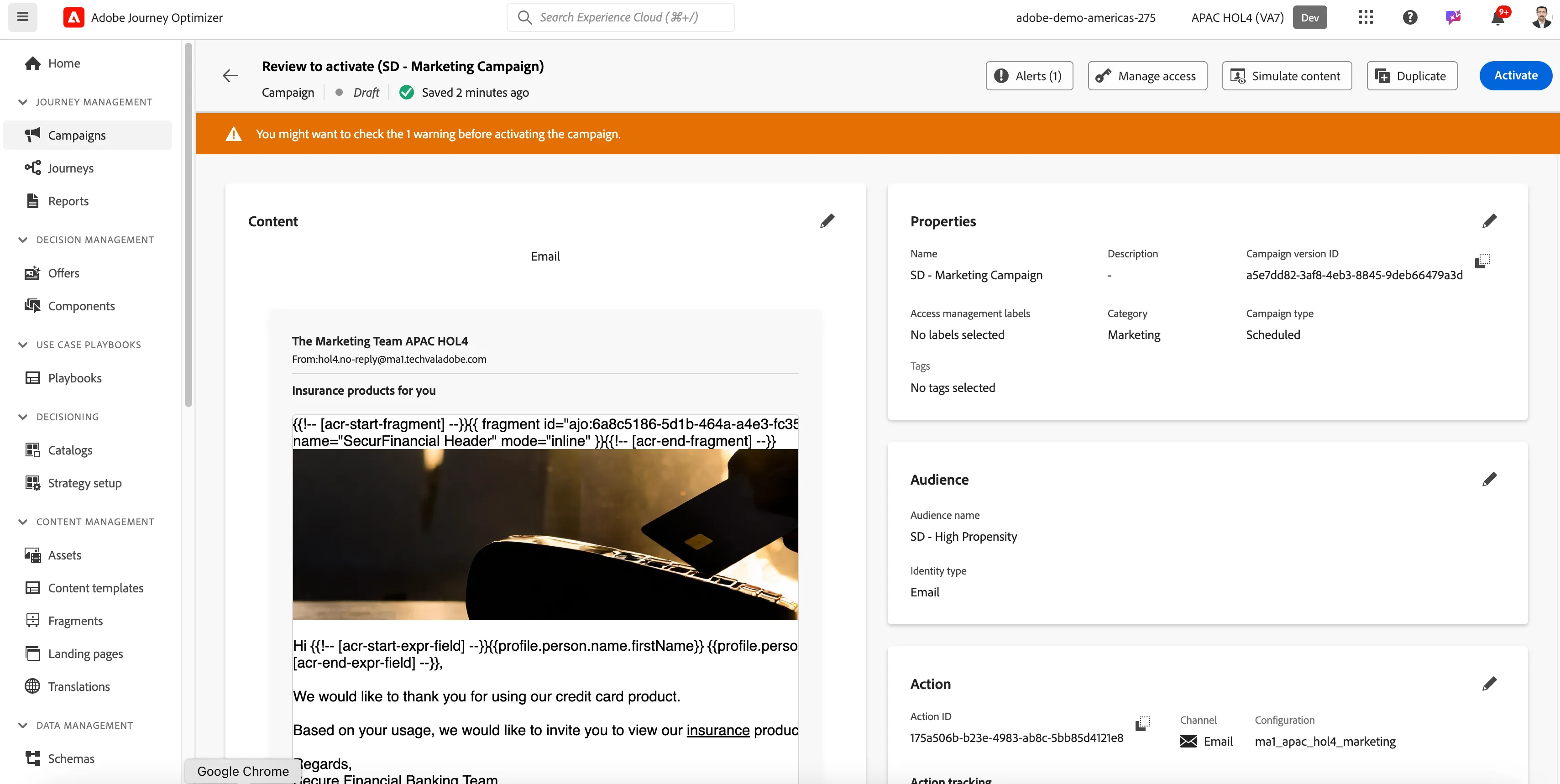
29. The Campaign is activated on the scheduled time and users who have not submitted the credit card app will receive the marketing email.
You've now created a campaign and successfully scheduled it from Adobe Journey Optimizer.
This concludes this Lab.