Create a Real-Time Journey
Create the Journey
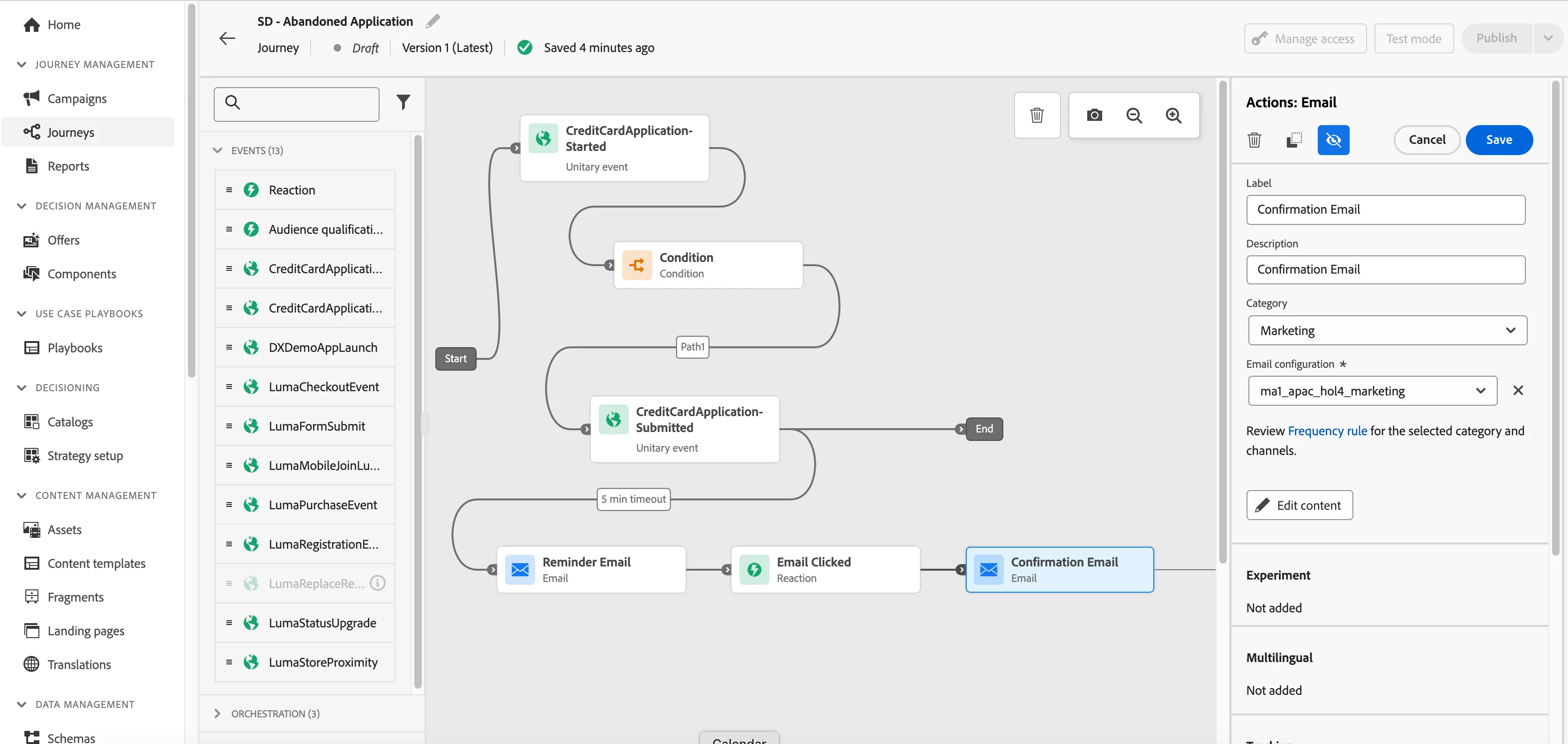
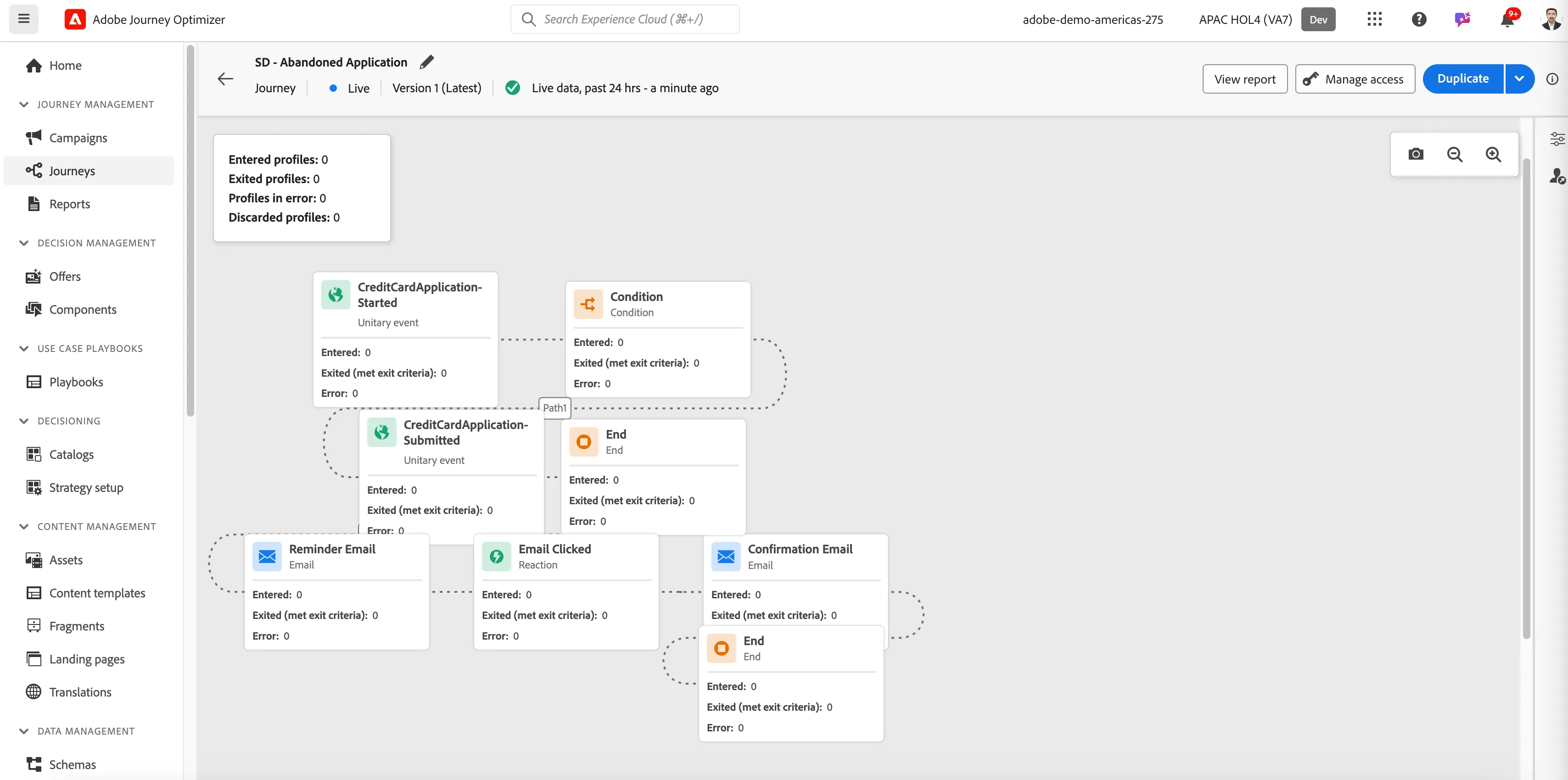
We are going to create a Journey which will track user's interaction on a credit card application form and will send a reminder email after abandonment.
Upon clicking on the email and user completing submitting the information, a confirmation email will be sent to the user.
Navigate to Journeys
Click on “Create Journey”
- Provide a name - Your initials - Abandoned Application. Click Ok.
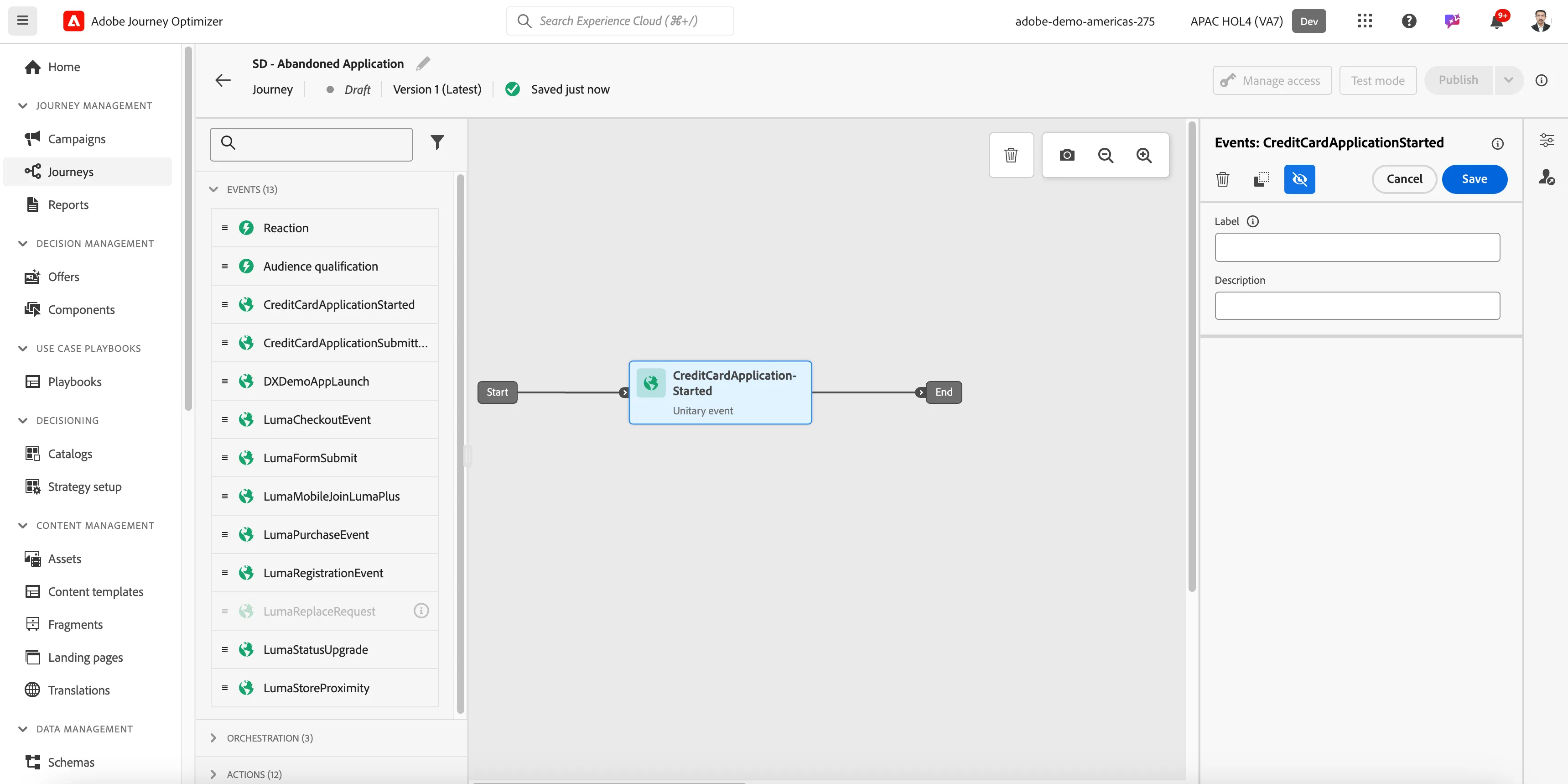
Under Events, drag the CreditCardApplicationStarted event to the canvas.
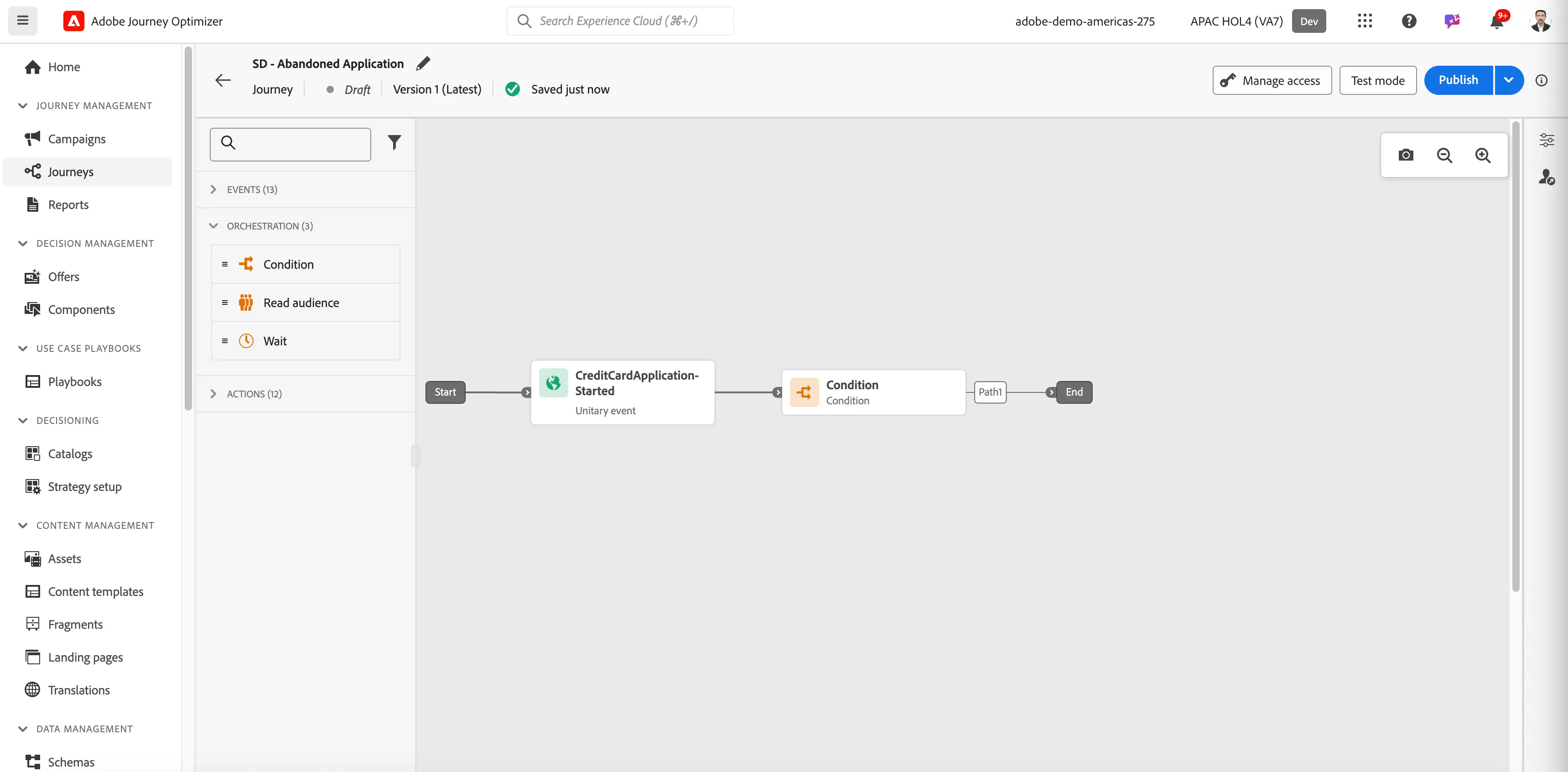
- Now just because there are a lot of us building the same journey, let's filter to include only your profile record. We can do this using a condition. Drag a condition activity to the canvas.
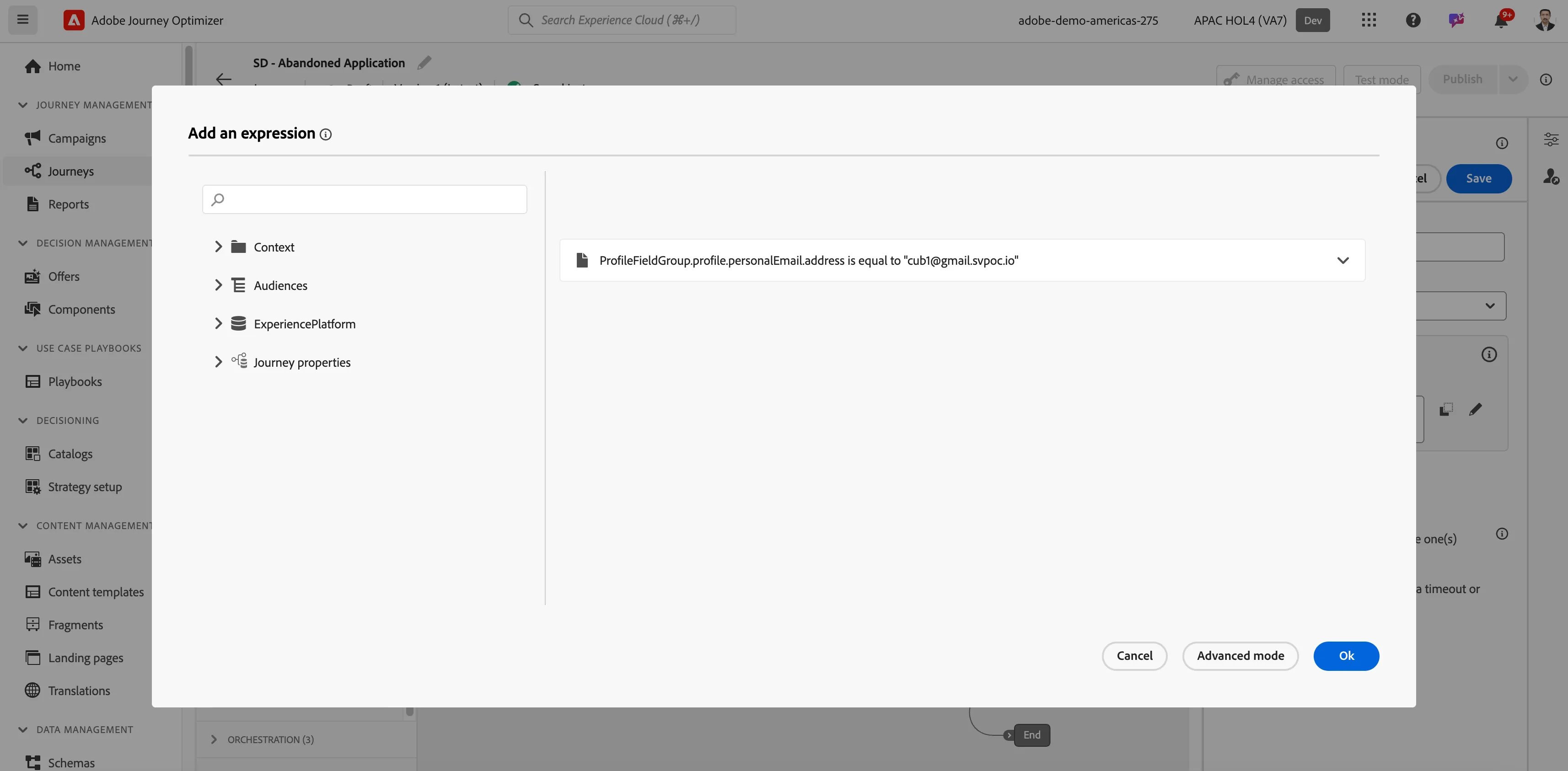
- Click to Add an expression on the condition properties. Search for address field in ExperiencePlatform/ProfileFieldGroup/profile. Add a condition that the email equals the customer email address you've been using for the lab.
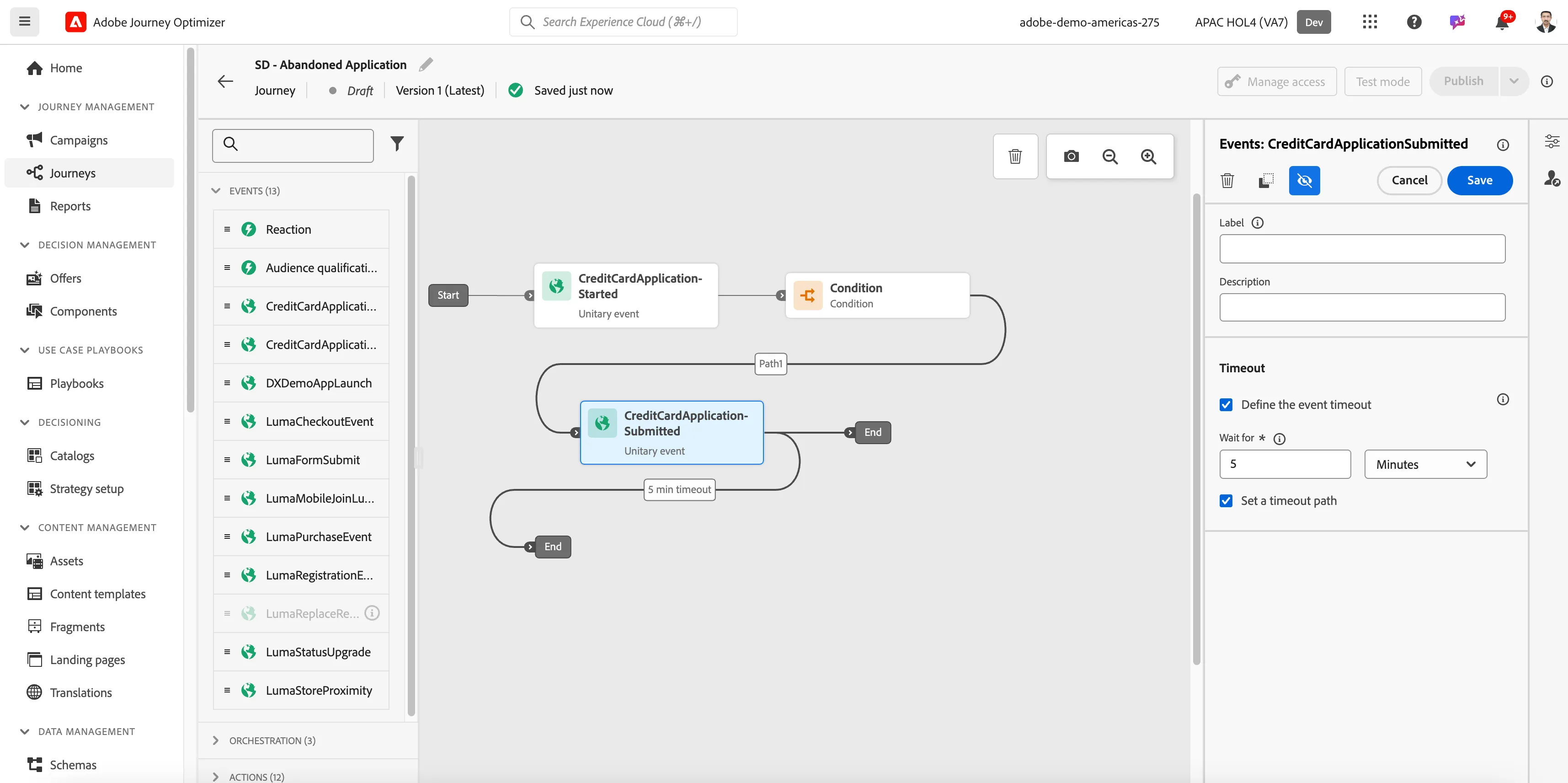
Now drag the CreditCardApplicationSubmitted event to canvas. In the Event properties, tick the Define the event timeout checkbox, set the wait time to 5 mins and tick the Set a timeout path. Click Ok.
Add Email Message
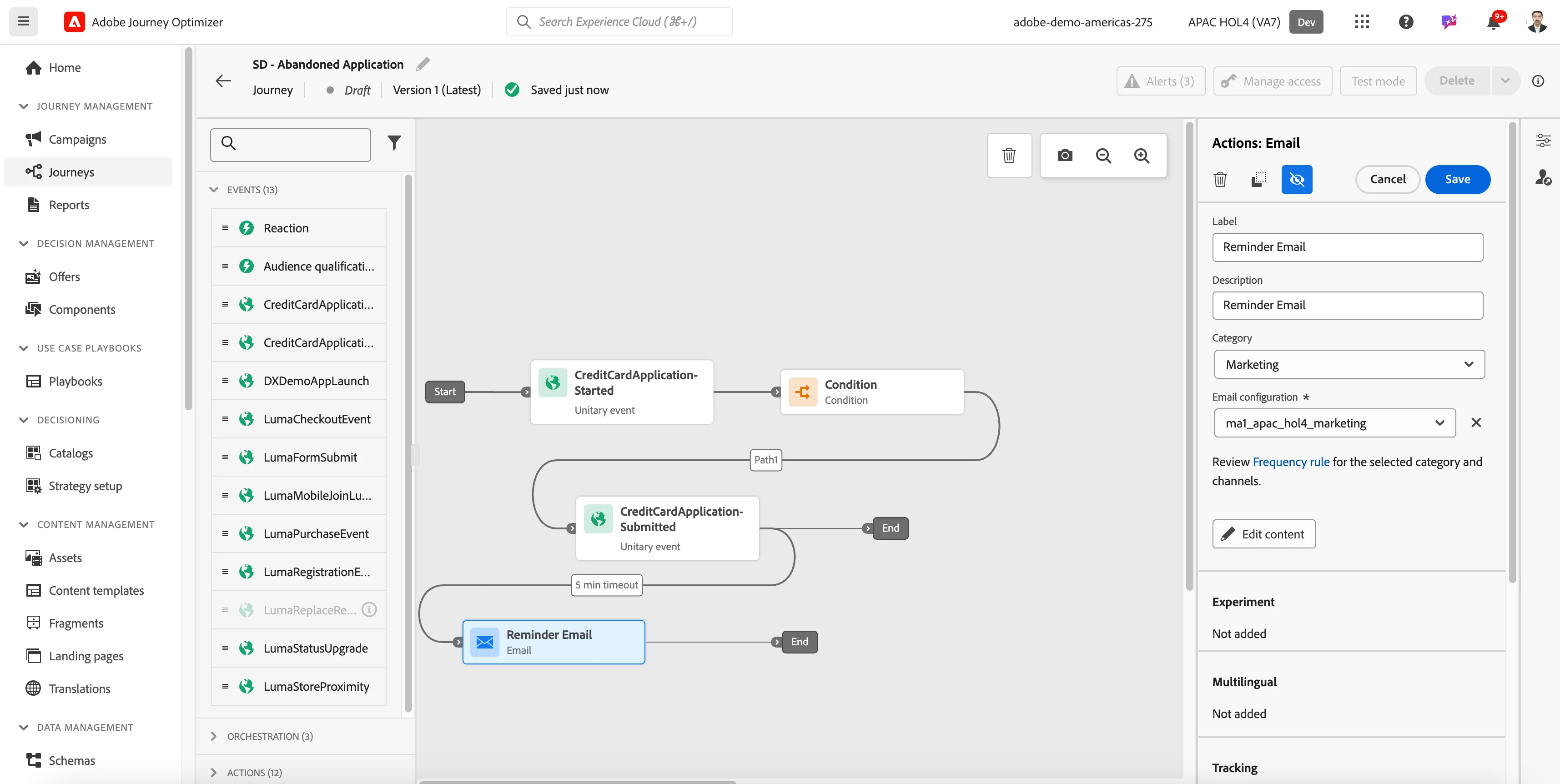
Under Actions, drag an Email node onto the timeout branch. Add a label Reminder Email and select the Email Surface that is available. Then Click on Edit Content
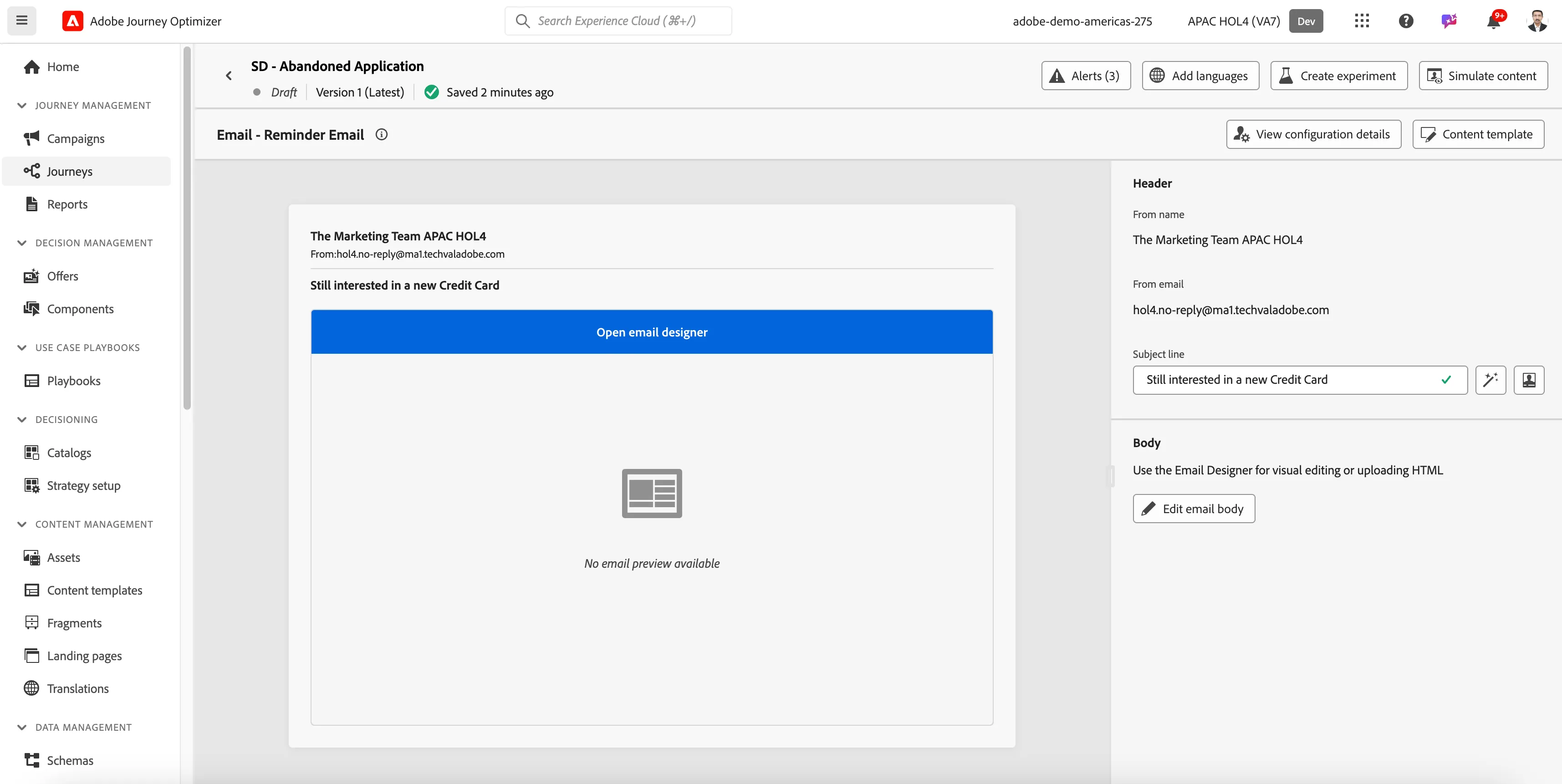
Add a subject line and click on Open Email Designer blue bar or Edit email body button
- Go to saved templates tab and select the pre-existing Secure Financial Abandon Email Template
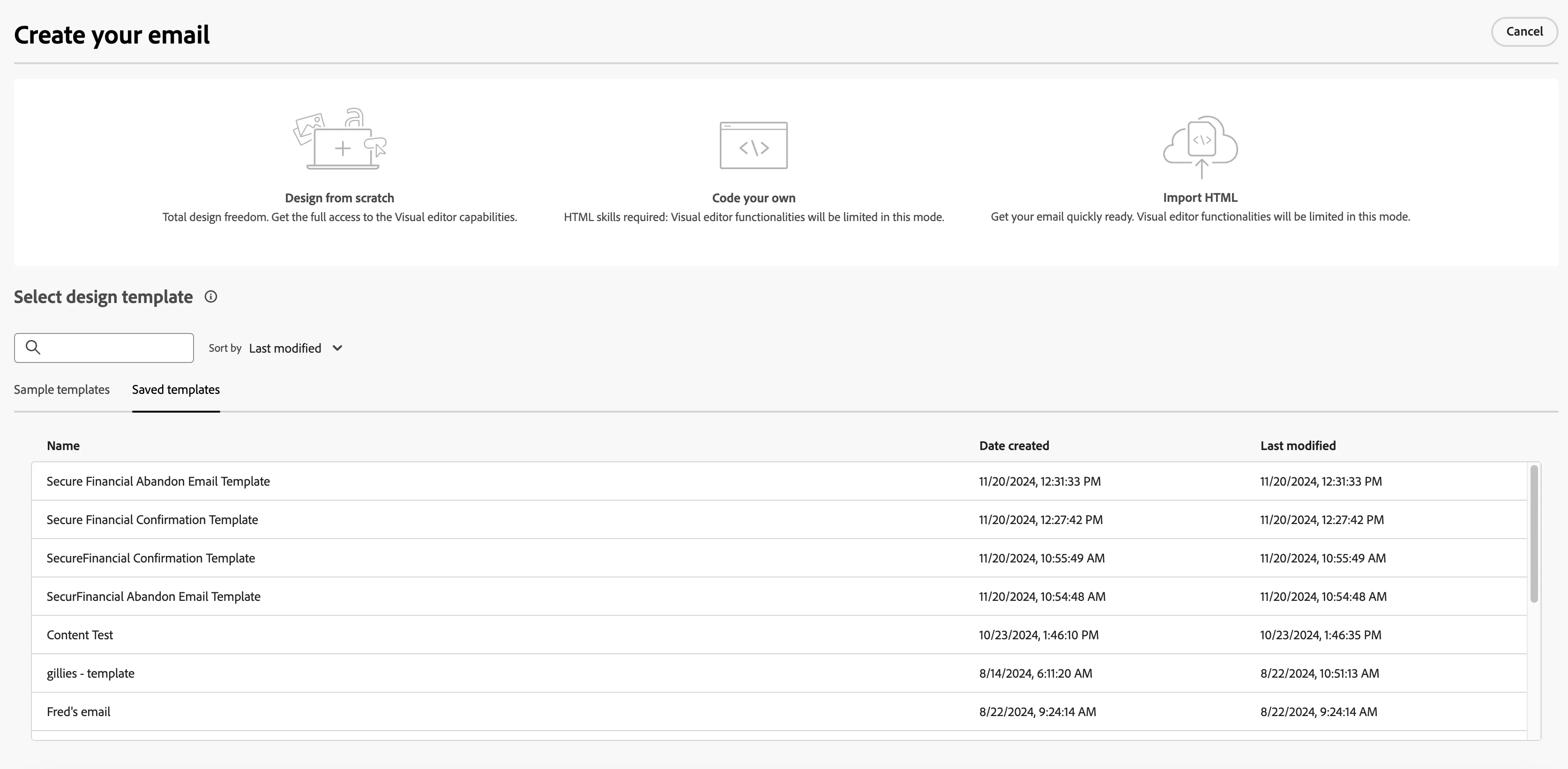
- Click Use this email, add some content.
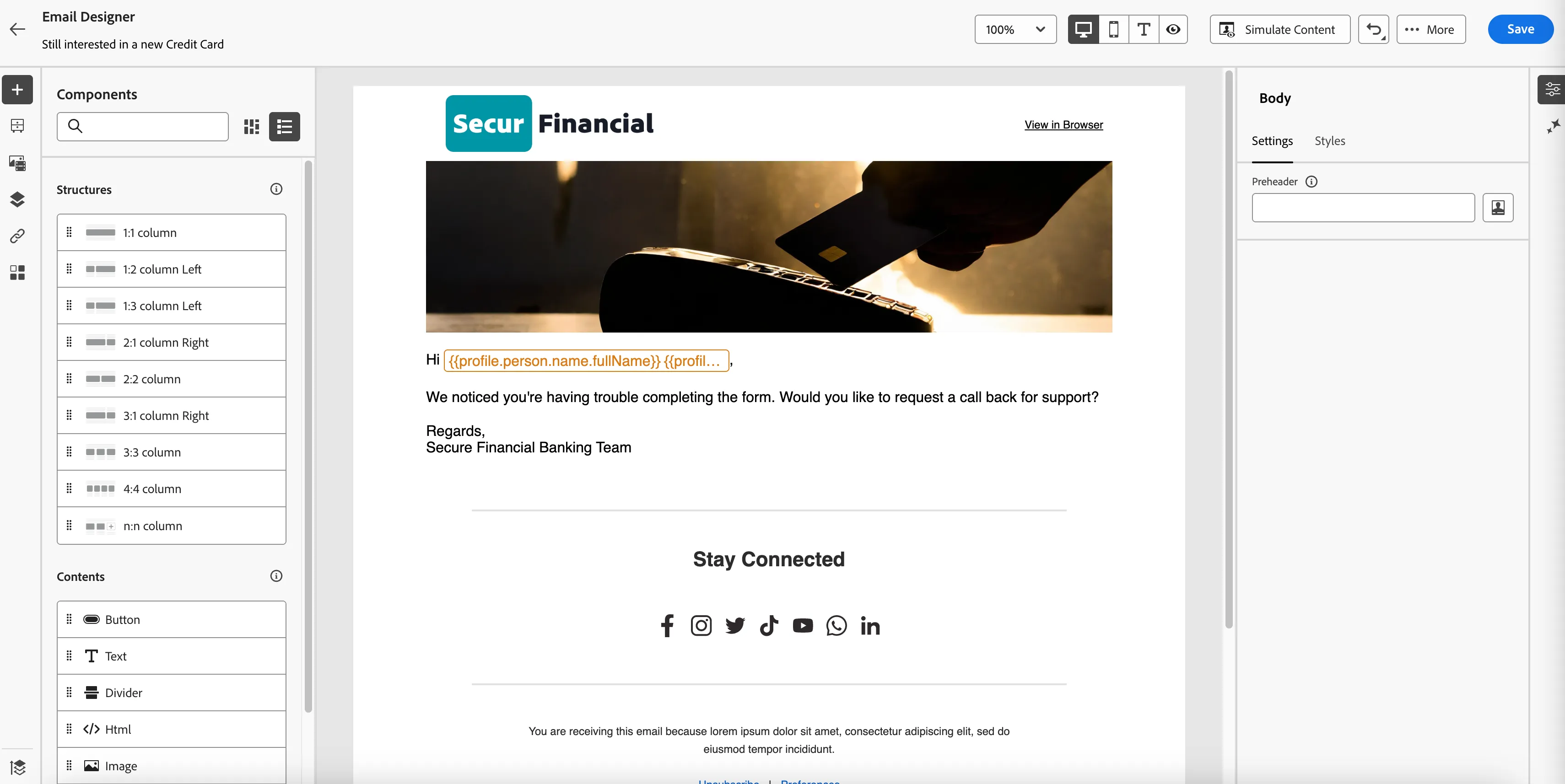
- Click to Save your email content
- Now click the back arrow on upper left corner twice to return to the journey.
- To capture user's clicking on the email, add a Reaction event on the journey and click on Save button.
-
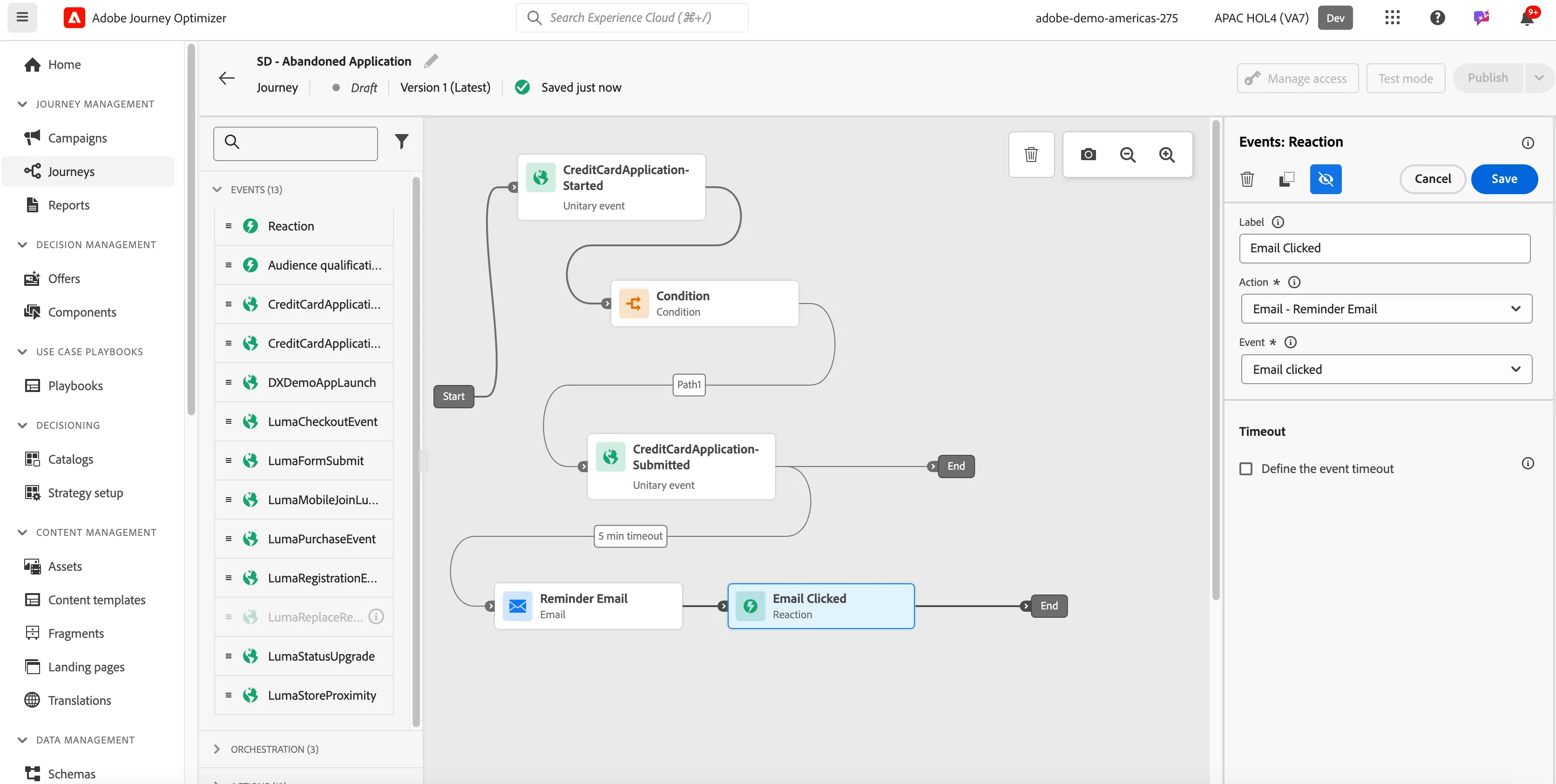
- Add an Email event on the journey canvas and connect to the Reaction event.
- Name the newly added Email node as Confirmation Email.
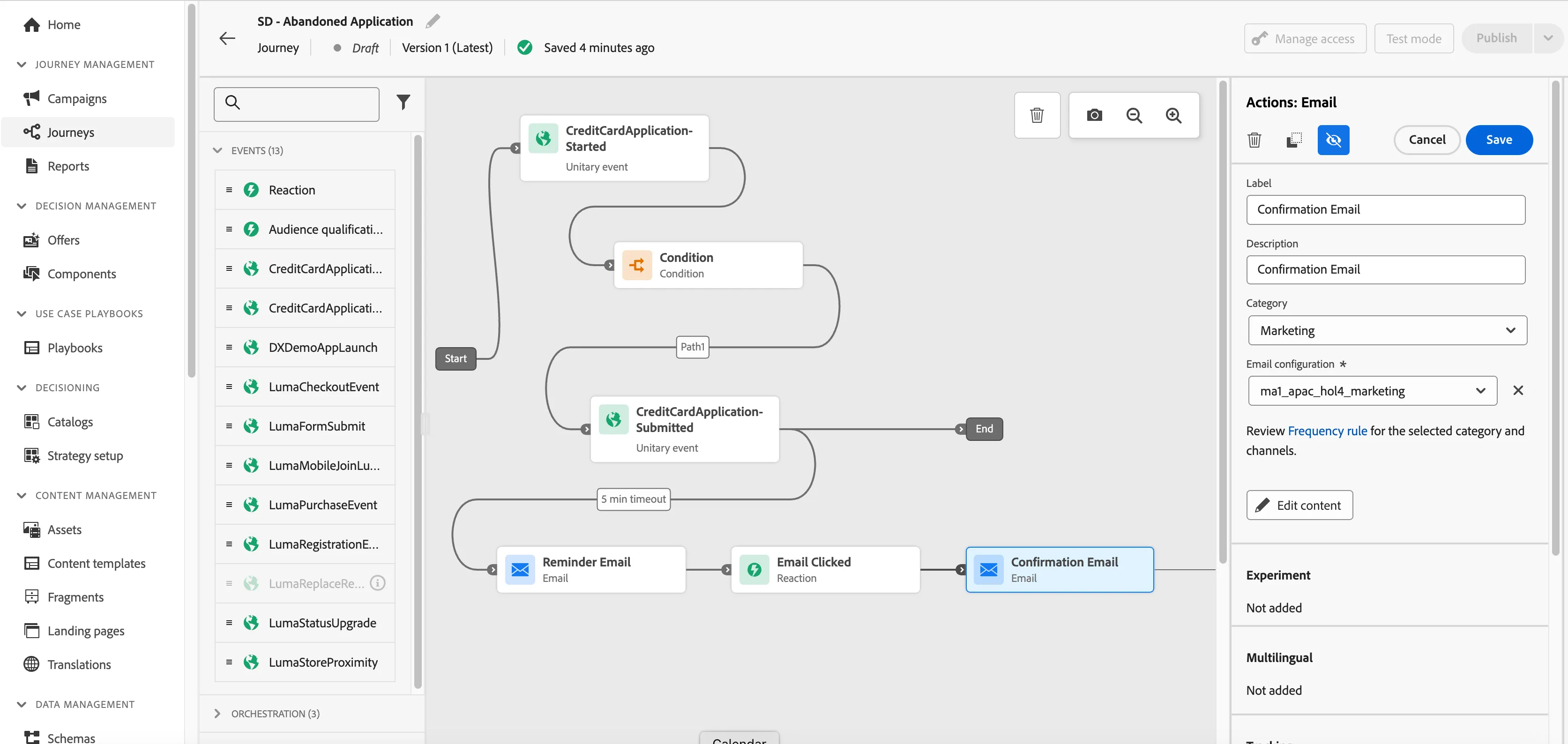
- Go to saved templates tab and select the pre-existing Secure Financial Confirmation Template
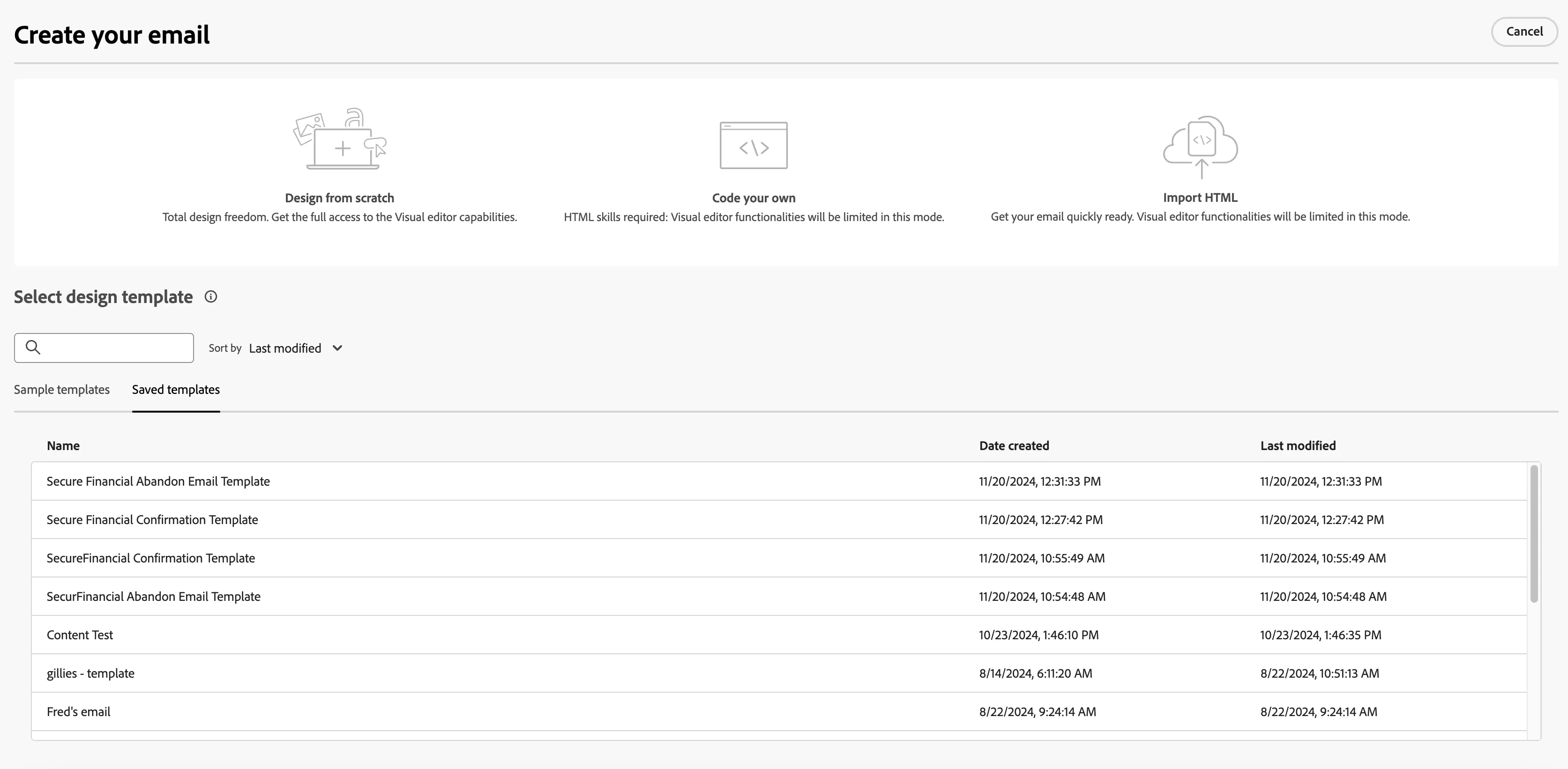
- Click Use this email, add some content.
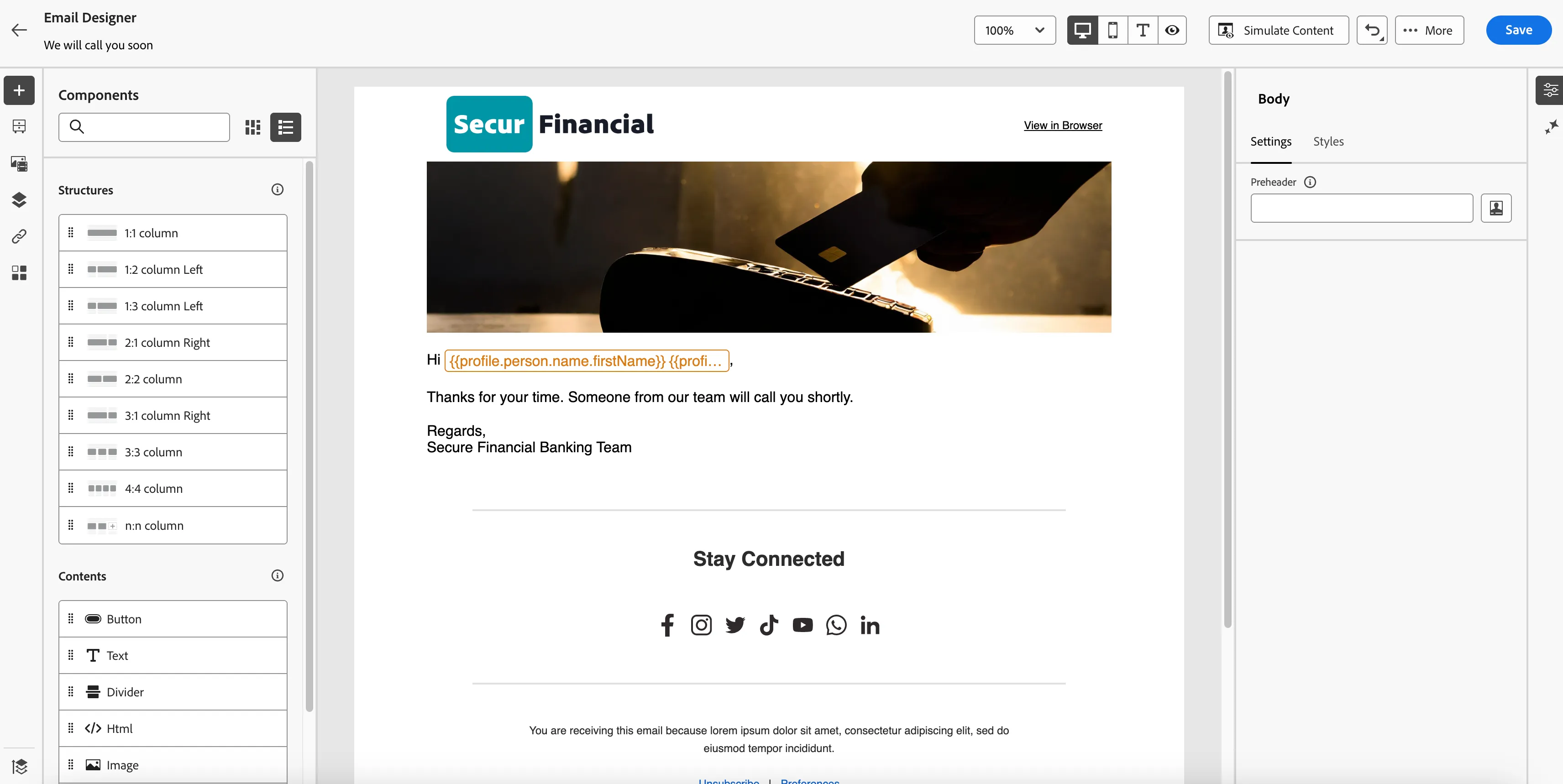
- Now click the back arrow on upper left corner twice to return to the journey.
- Click Ok on the email properties once you're back in the journey
Publish the Journey
- Click to publish the journey
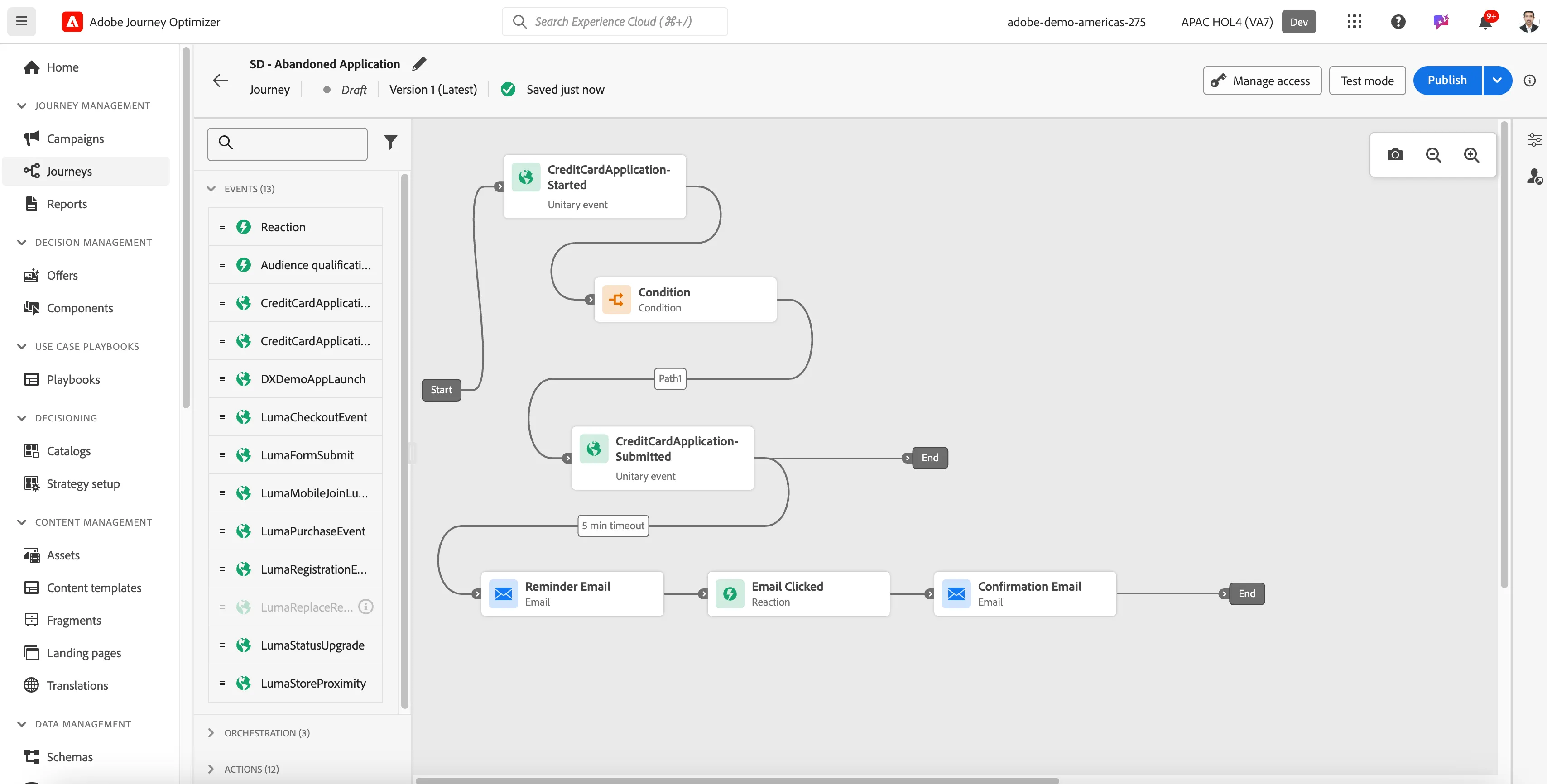
- Confirm to publish in the popup. Your journey should now be Live
Trigger your Journey
Switch to your Customer Profile for this exercise
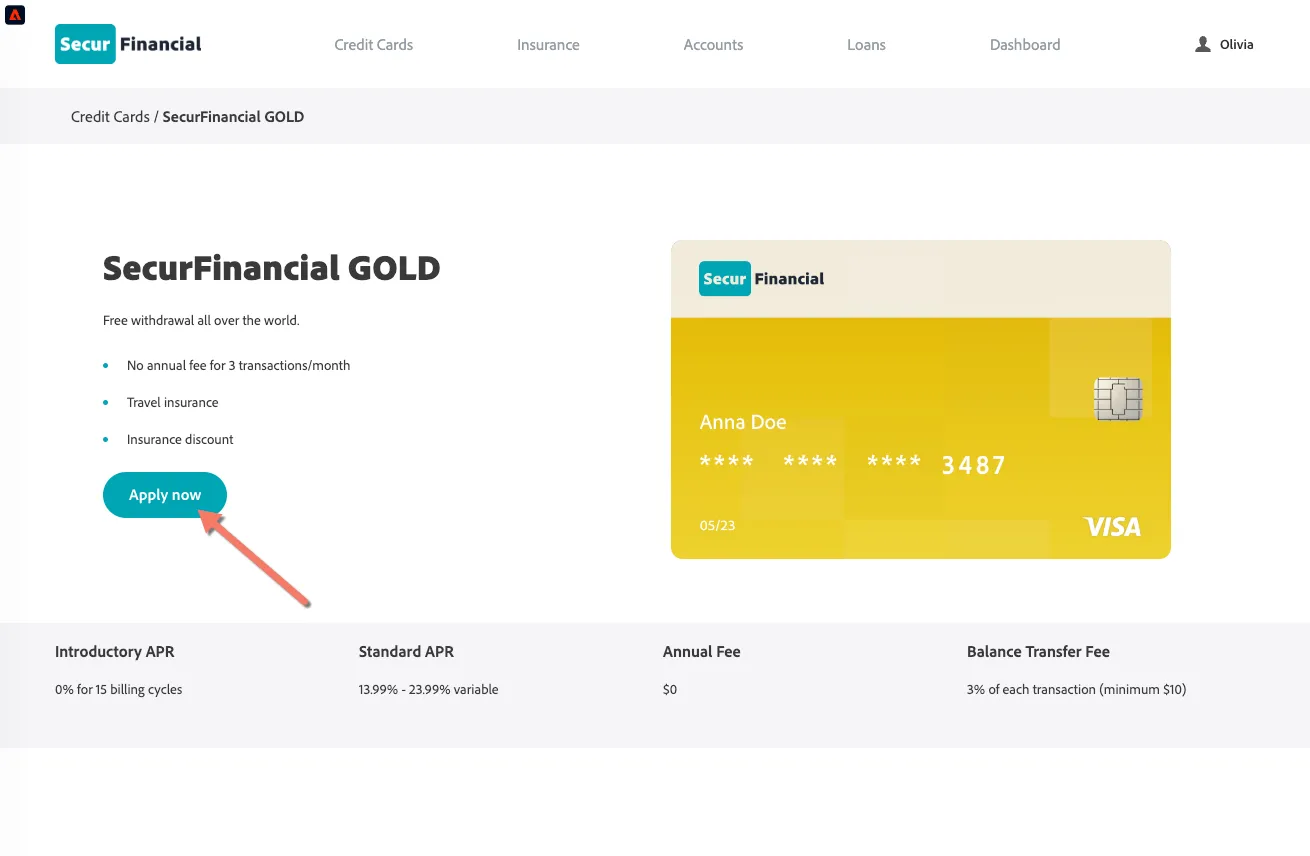
Go back to the demo website and start a Credit Card Application form. Sending this event will trigger the journey and you should receive your email after 5 mins.
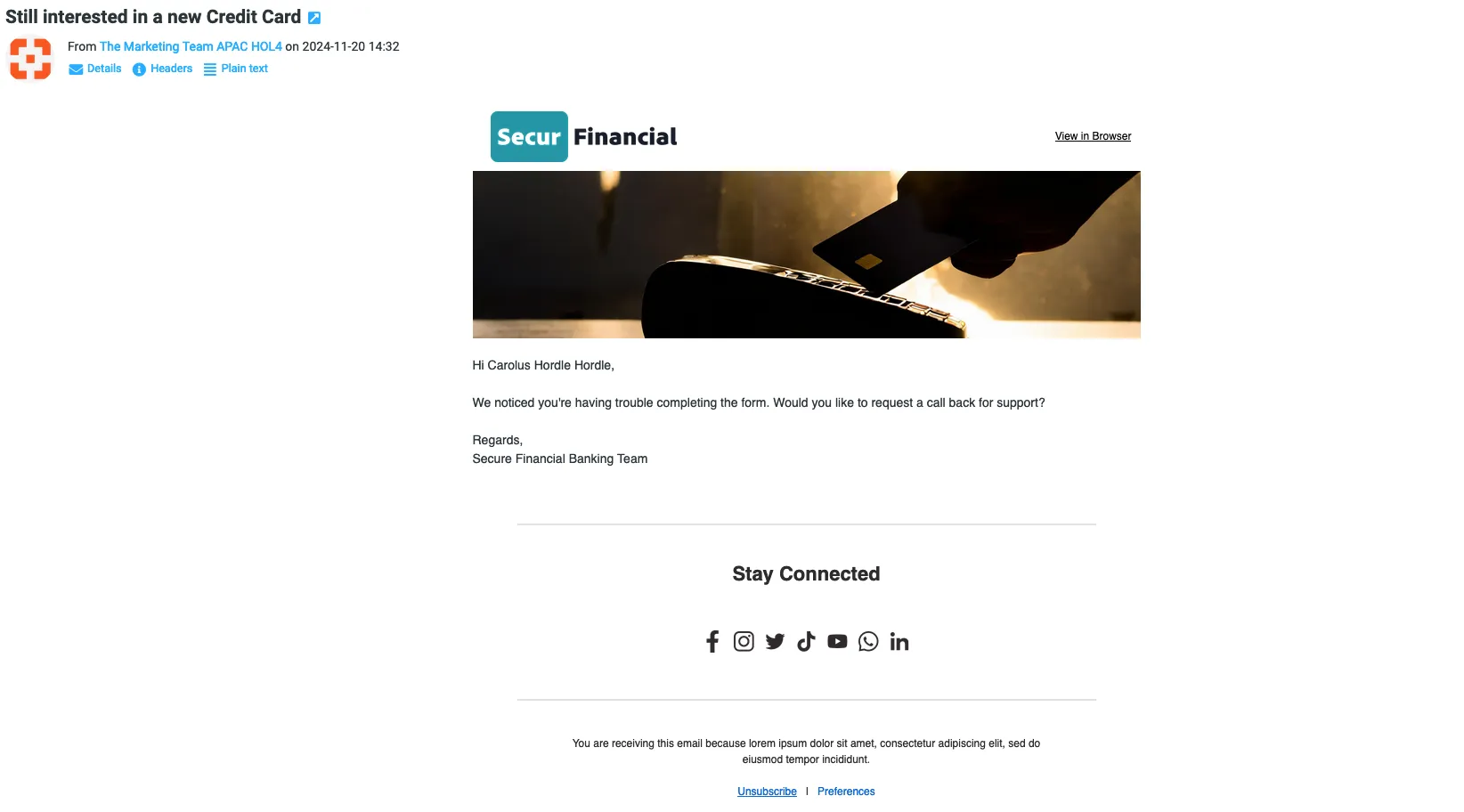
- Your email will arrive at our shared mailbox and will be shown on the screen at the front.
- Clicking anywhere on the email will trigger the final confirmation email which will arrive at our shared mailbox and will be shown on the screen at the front.
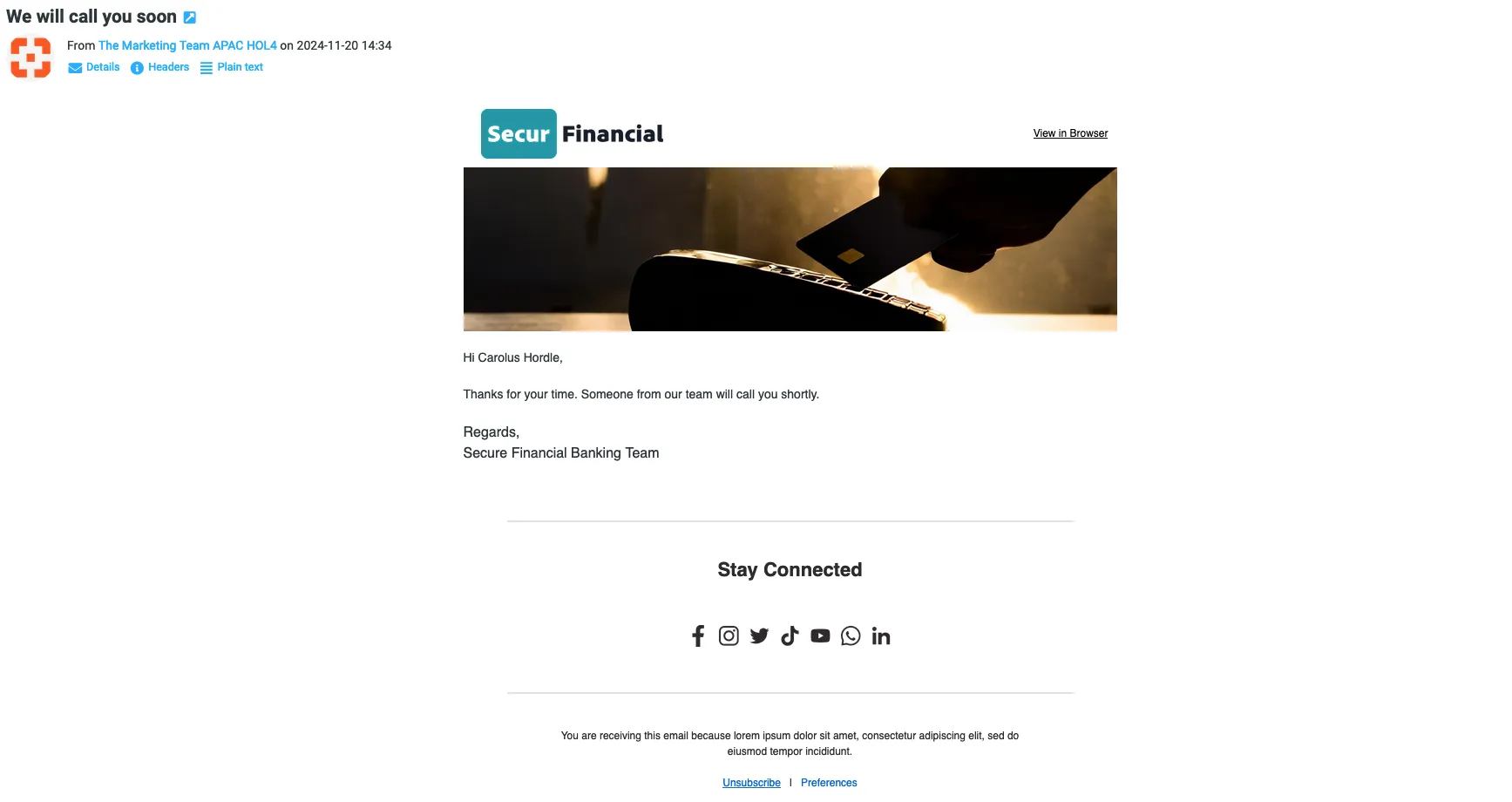
You've now created a real-time journey and successfully triggered it from the customer website.
This completes the lab.