Create a Delivery Dashboard
This lab will walk through the steps to create a Delivery Alerts Dashboard in the Adobe Campaign V8 Web UI.
Create a delivery dashboard
To create a delivery dashboard, follow these steps:
1. Navigate to the Delivery Alerting menu in the left navigation pane, and click Create delivery dashboard.
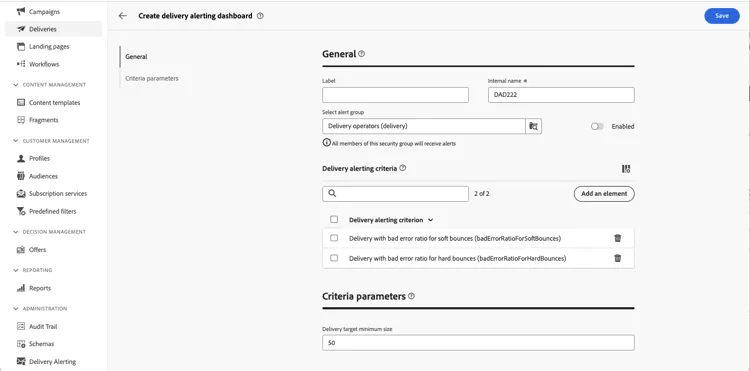
2. Name your dashboard in the Label field. The Internal name field is automatically populated and read-only.
3. In the Select alert group field, specify the operator group to receive the alerts sent by this dashboard. All members of the selected operator group will receive the alerts.
Learn more about permissions and operator groups in the Adobe Campaign v8 (console) documentation
4. In the Delivery alerting criteria section, add criteria that you want to use to send alerts. Choose from pre-defined criteria or create your own criteria to align with specific needs. Learn how to work with criteria
5. Criteria have default parameter values that define how they must be applied. You can change these values to suit your needs from the Criteria parameters section.
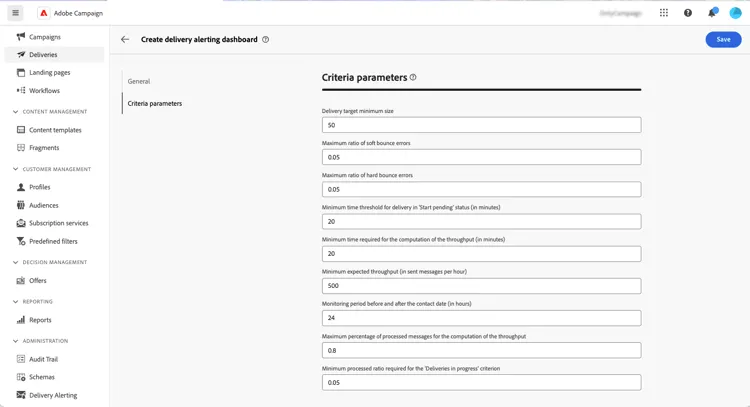
For example, by default, the Delivery target minimum size criteria parameter is set to 50, meaning that a delivery will be included in the alert sent by this dashboard only if it targets at least 50 profiles. You can change this parameter if you want to include deliveries targeting fewer than 50 profiles.
6. By default, alerting dashboards are disabled, meaning that email alerts linked to this dashboard are not sent. To enable the dashboard immediately, toggle the Enabled option in the General section, next to the alert group selection field.
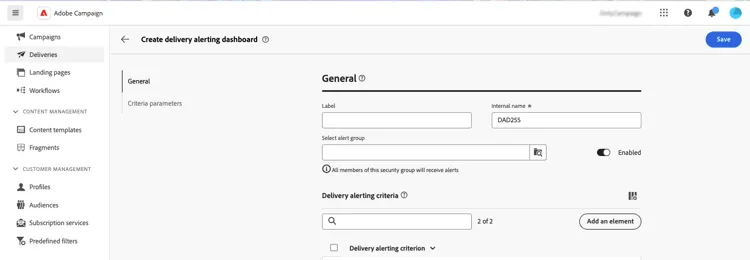
You can also save the dashboard and enable it later.
7. To save the alerting dashboard, click the Save button.