Landing Pages
6 min
This lab will walk through the steps to create a Landing Page in Adobe Campaign V8:
Create a Subscription Service
- Navigate to Landing Pages from the Navigation Menu:
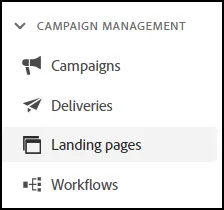
- Click on "Create Landing Page" in the top-right corner:
- Give your Landing Page a name on the Label Box. We will call ours "Luma Yoga Class Signup".
- Keep the Schema set to the Recipients (nms) Namespace.
- Keep the Data Preload defaults. Your Properties should appear as follows now:
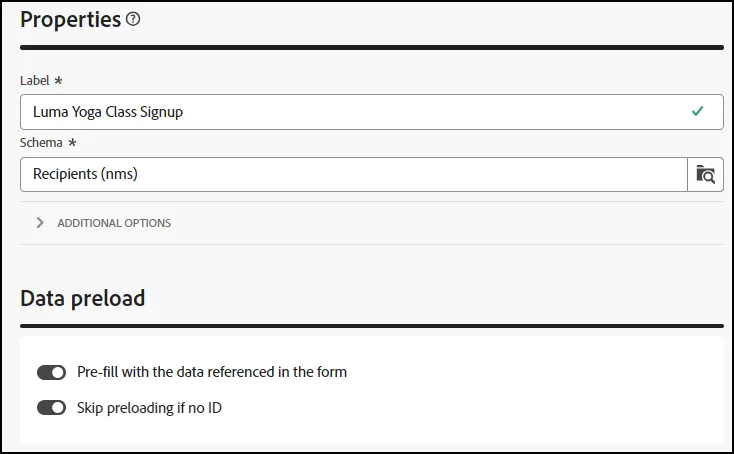
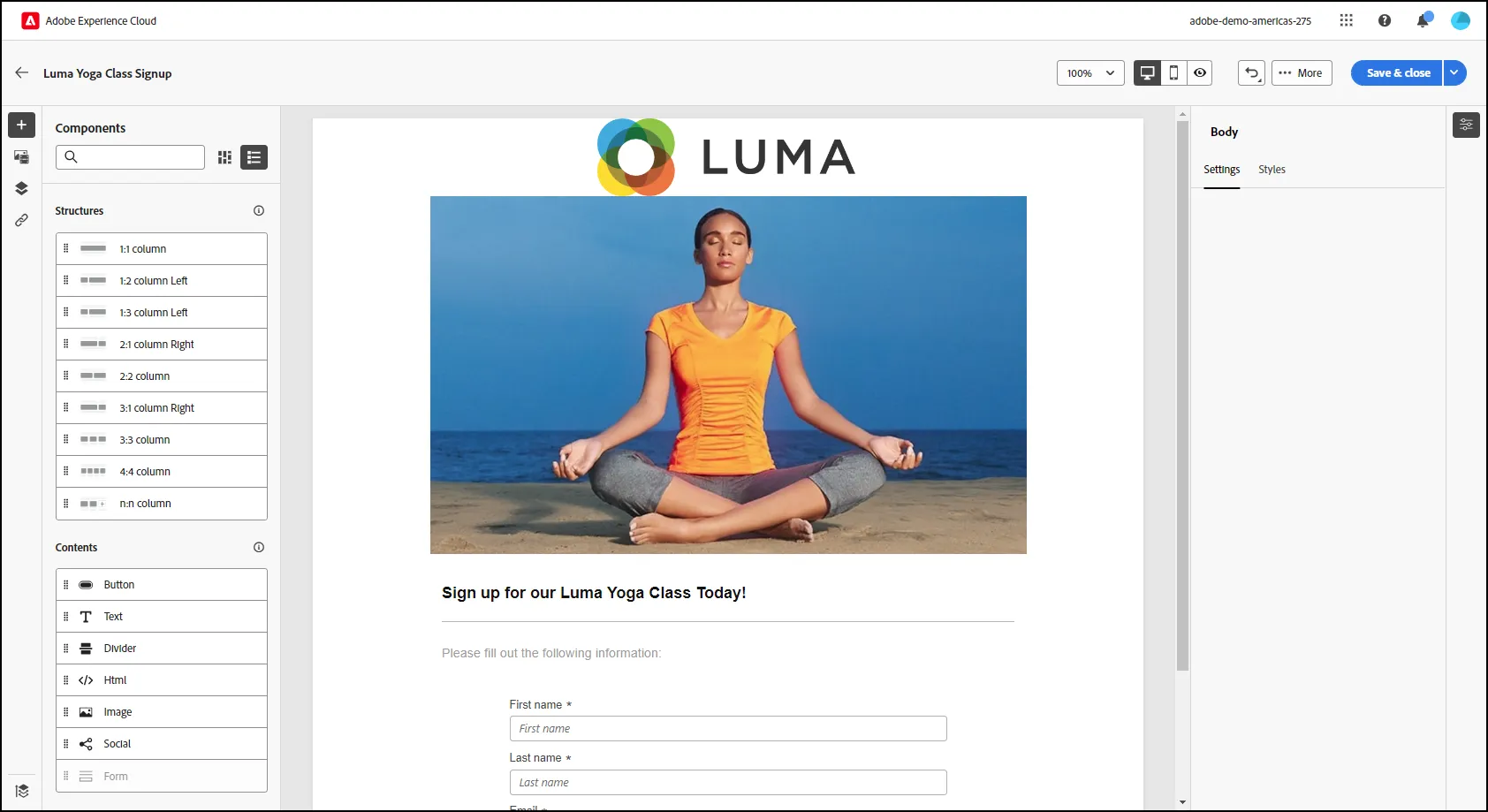
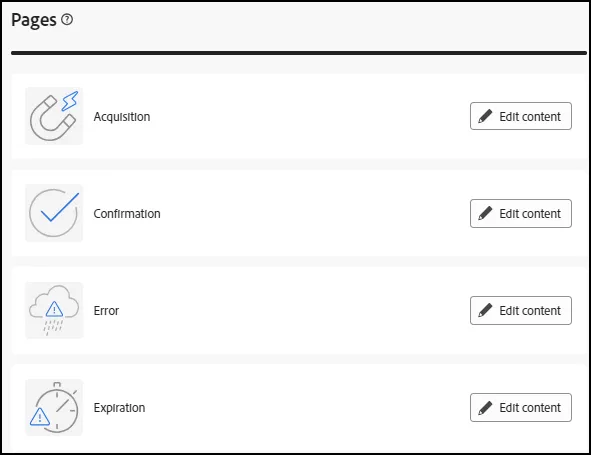
- Move down to Pages to configure the different pages available for the Landing Page. Click on "Edit Content" next to Acquisition to edit the Acquisition Page:
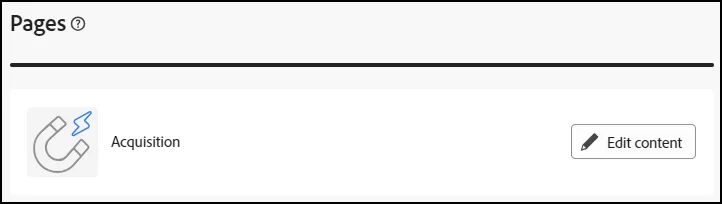
- Modify your Landing Page with content in the same manner that you created your Email. For more information on this, review that process here.
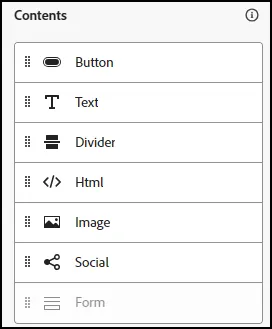
- The one feature for Landing Pages that is distinct is the inclusion of the "Form" Content element.
- This is found under "Contents" in the left menu:
- When you add the Form to your Landing Page, notice the various fields and call to action that are available on the form:
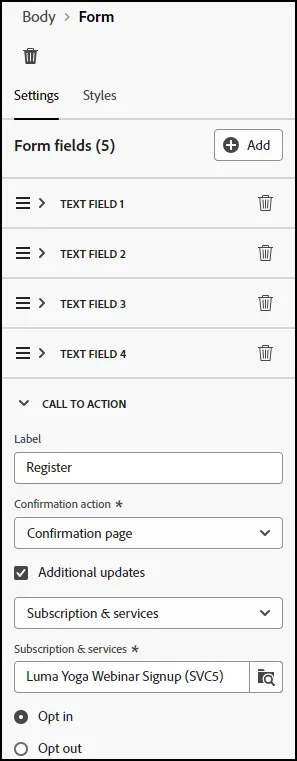
- In the Call to Action configuration, you can define the Label, the Confirmation Action, as well as additional updates. For this exercise, we will show how the Landing Page will add a recipient to a Subscription Service.
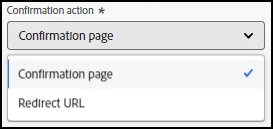
- For the Confirmation Action, click on the drop-down and select "Confirmation Page". (NOTE: You will need to design/configure your "Confirmation Page", similar to the way we are designing the Landing Page under "pages".)
- Under Additional Updates, select "Subscription & Services":
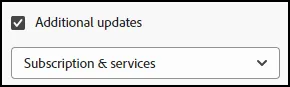
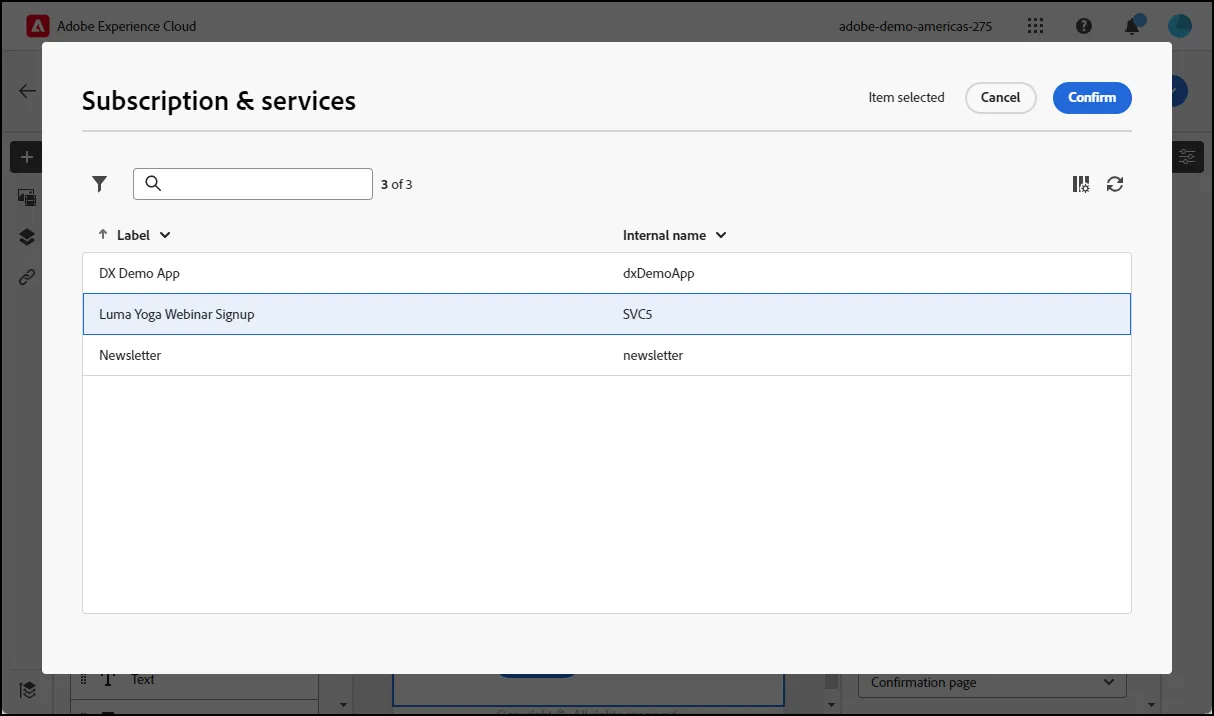
- For the Subscription & Services, click on the folder icon to bring up the Subscription & Services list. Select the "Luma Yoga Webinar Signup" that we created in the previous exercise. Click the "Confirm" button after you have selected your Subscription Service:
- Once you have completed configuring your Landing Page, you can click on the "Save and Close" button in the top right corner.
- Repeat the same processes above for the Confirmation, Error and Expiration pages, if you would like to do so:
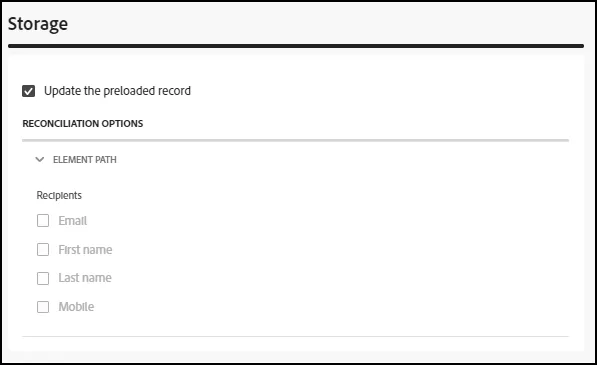
- Under Storage, you can specify whether the Landing Page will update the record, based upon the imformation submitted:
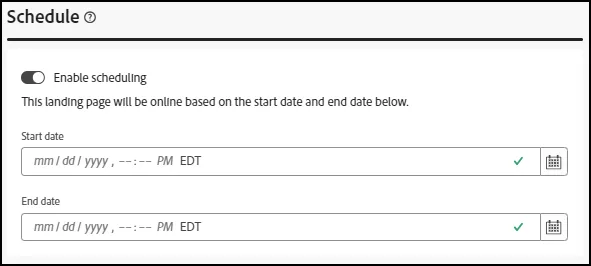
- Lastly, you can schedule your Landing Page, with appropriate Start/End Dates:
- End of Lab.
-