Journey in AJO Using FAC Audience
15 min
In this exercise, we will build a journey in Adobe Journey Optimizer using a federated audience. The goal is to send emails to the audience
Exercise Stages:
- Create a journey with a read audience - FAC AJO - Fiber Eligible w/ Email Consent
- Personalize an email using FAC attributes with an email action
Create a Journey with a Read Audience
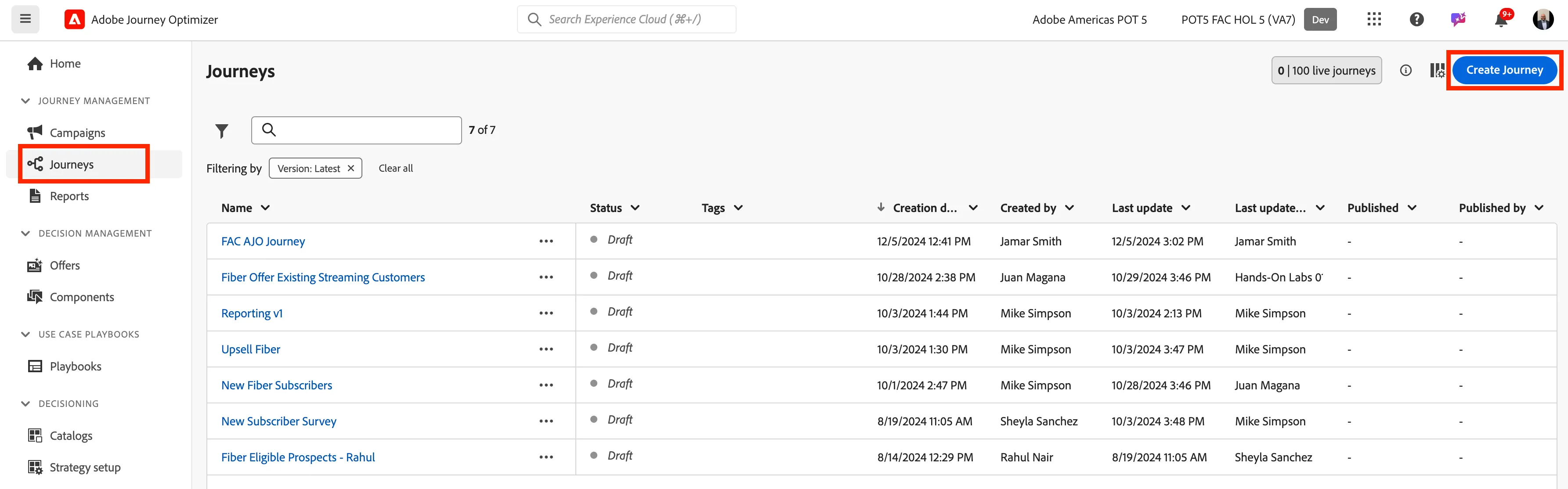
- Navigate to Journeys portal, click the Create Journey button.
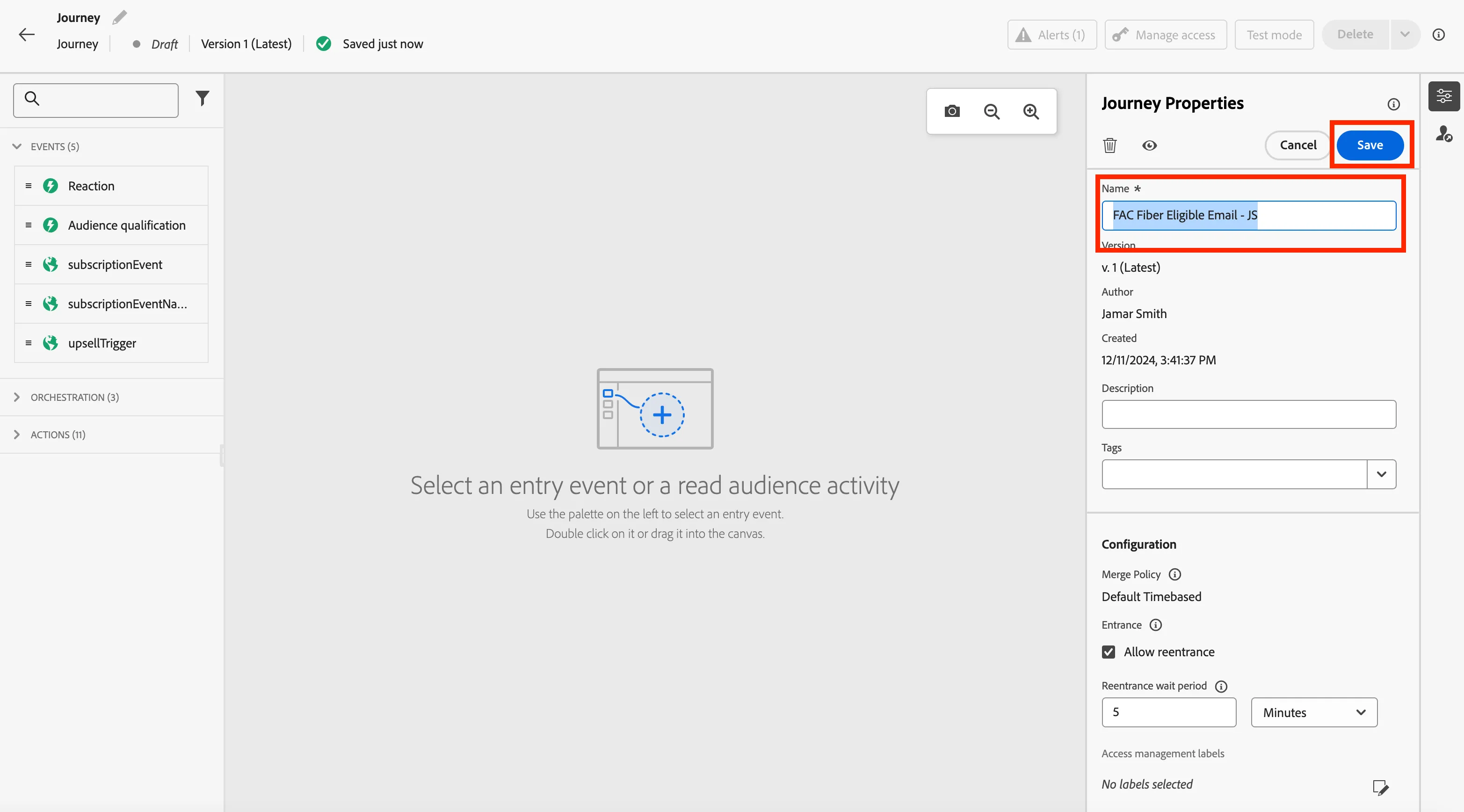
- Update the Journey Properties with a new FAC Fiber Eligible Email - [Add Your Intitials].
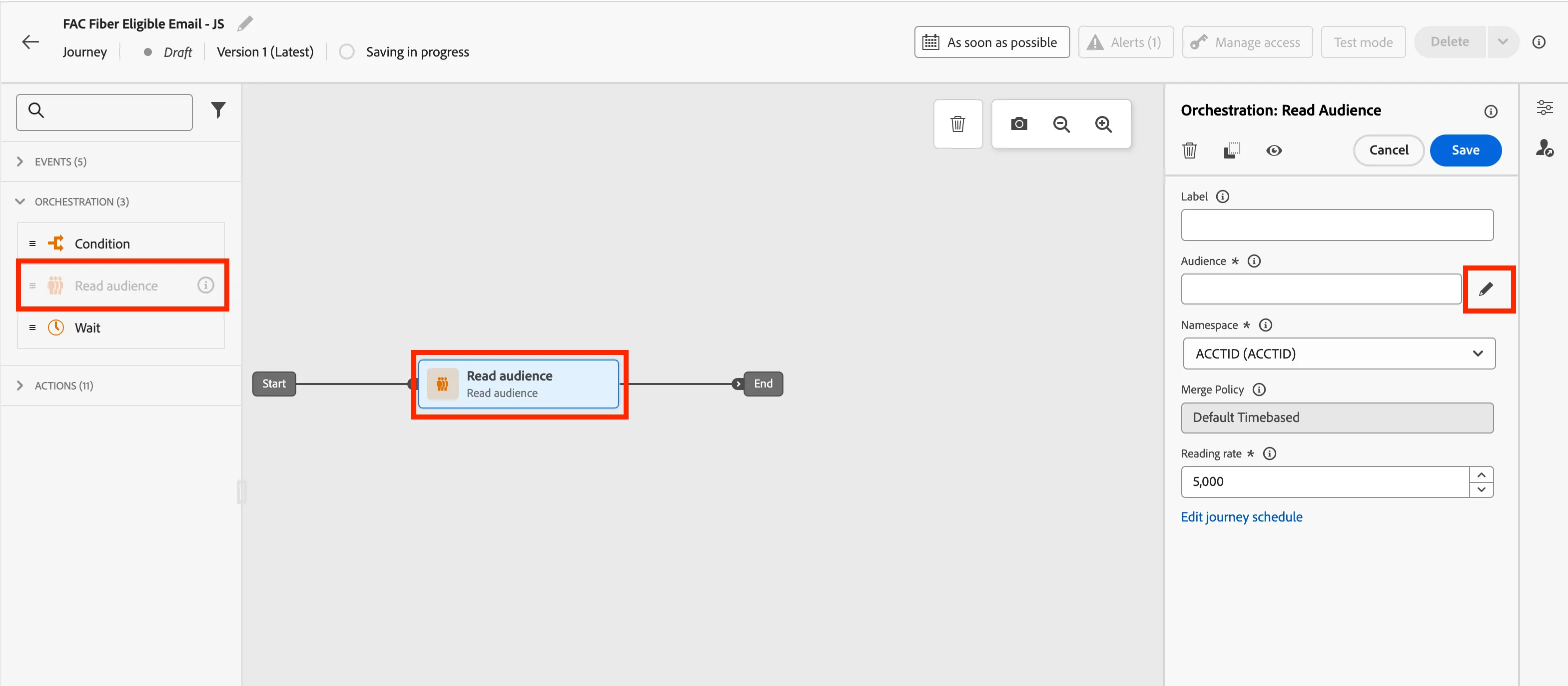
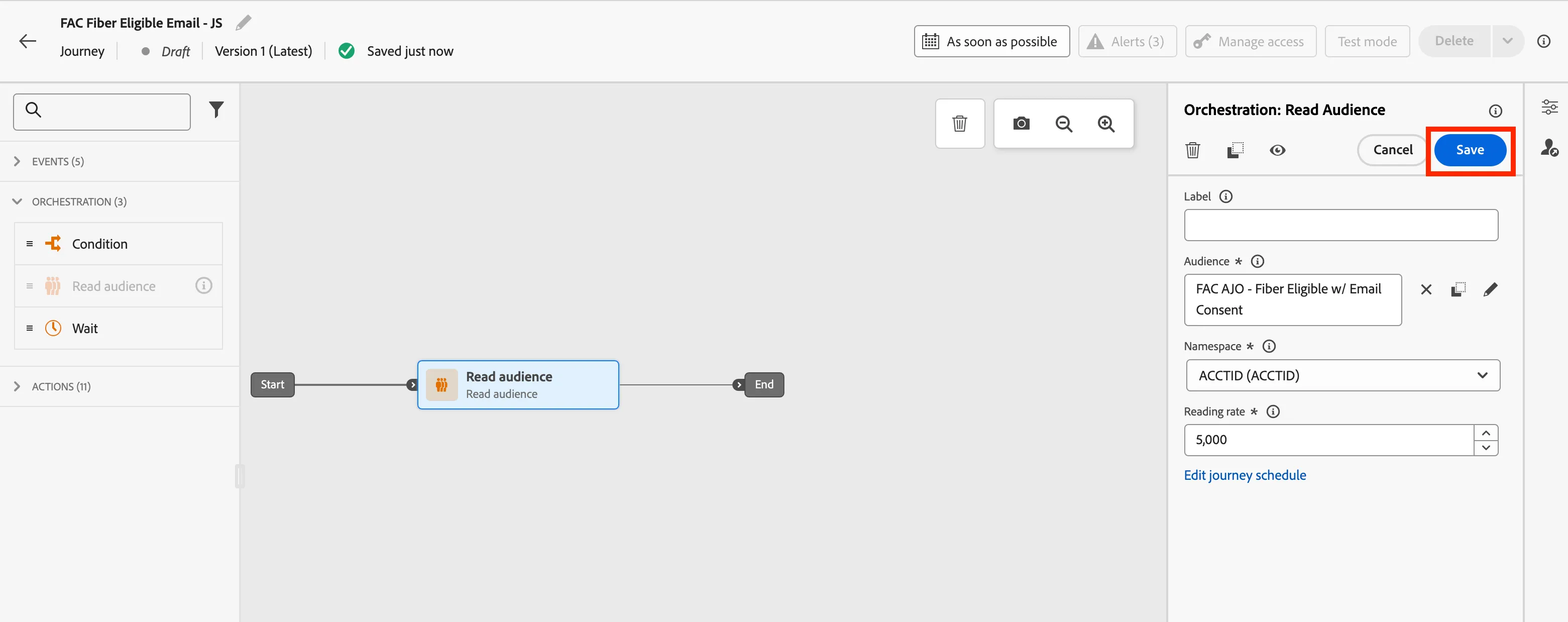
- Click on Orchestration and then click and drag Read audience tile to the canvas. Then click on the pencil icon next to Audience box on the left side of the screen.
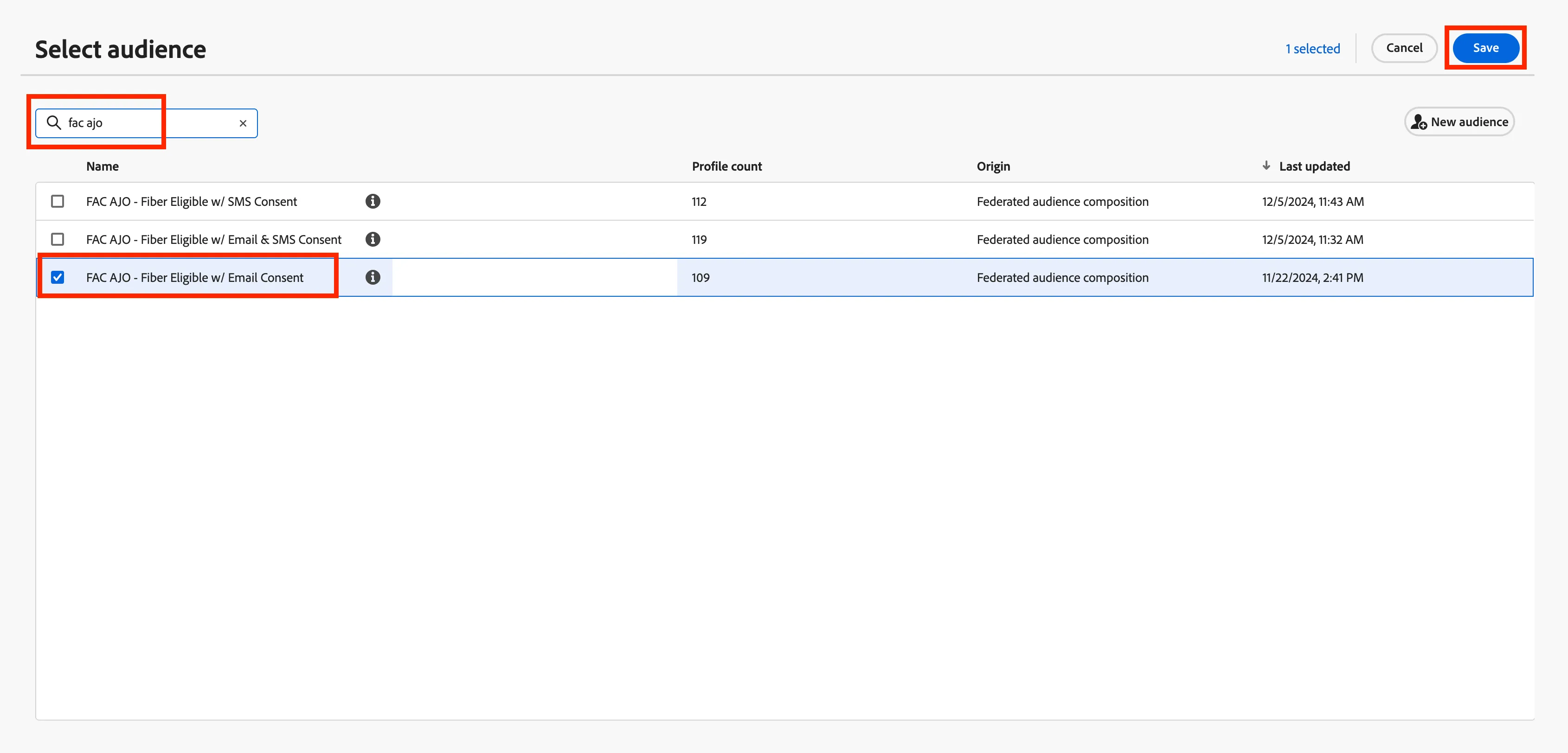
- In the search bar search for FAC AJO. Select FAC AJO - Fiber Eligible w/ Email Consent then click Save.
- Let all the settings as default in the right side menu and then click Save.
Personalize an Email
- Click on Actions and then click and drag Email tile to the canvas.
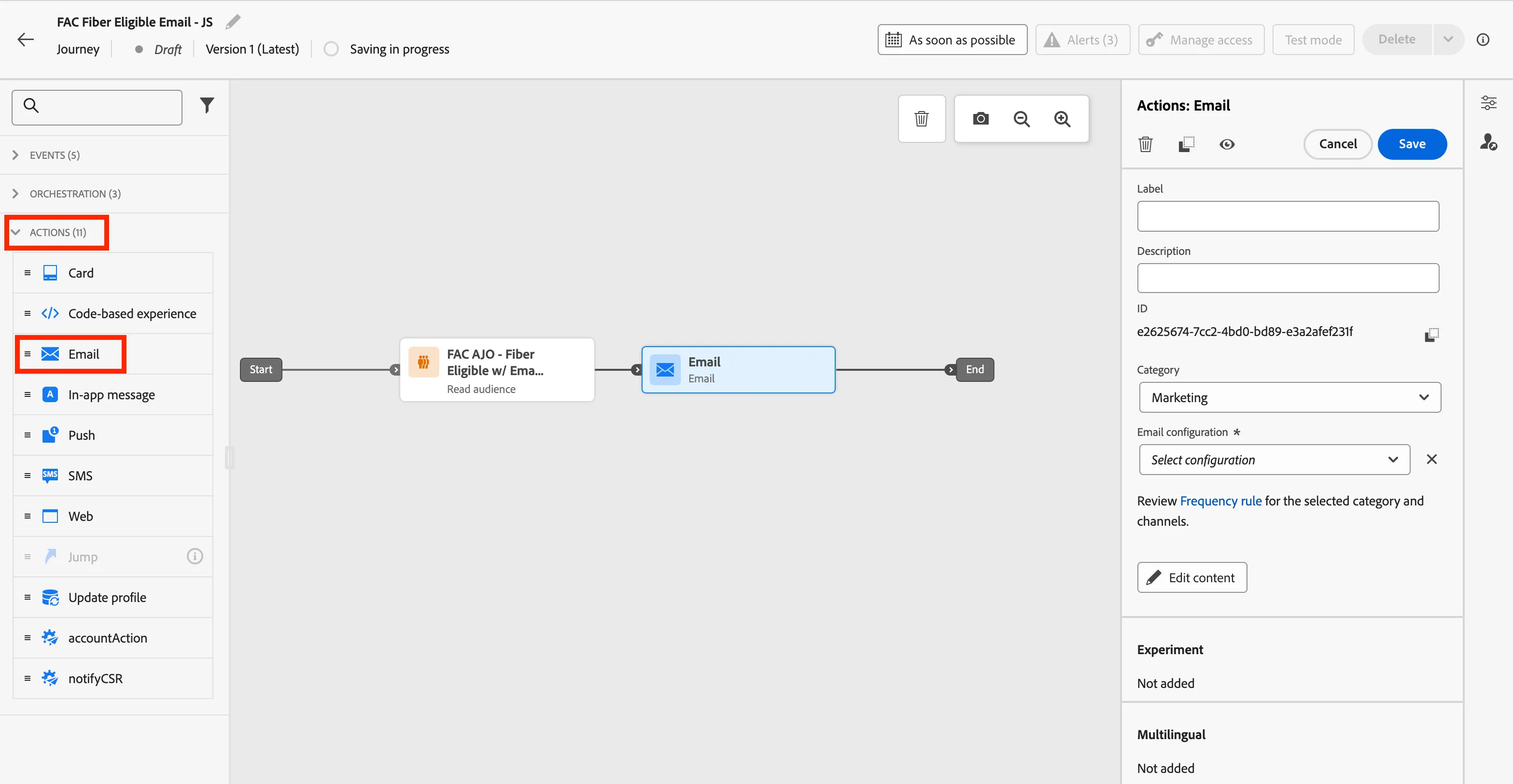
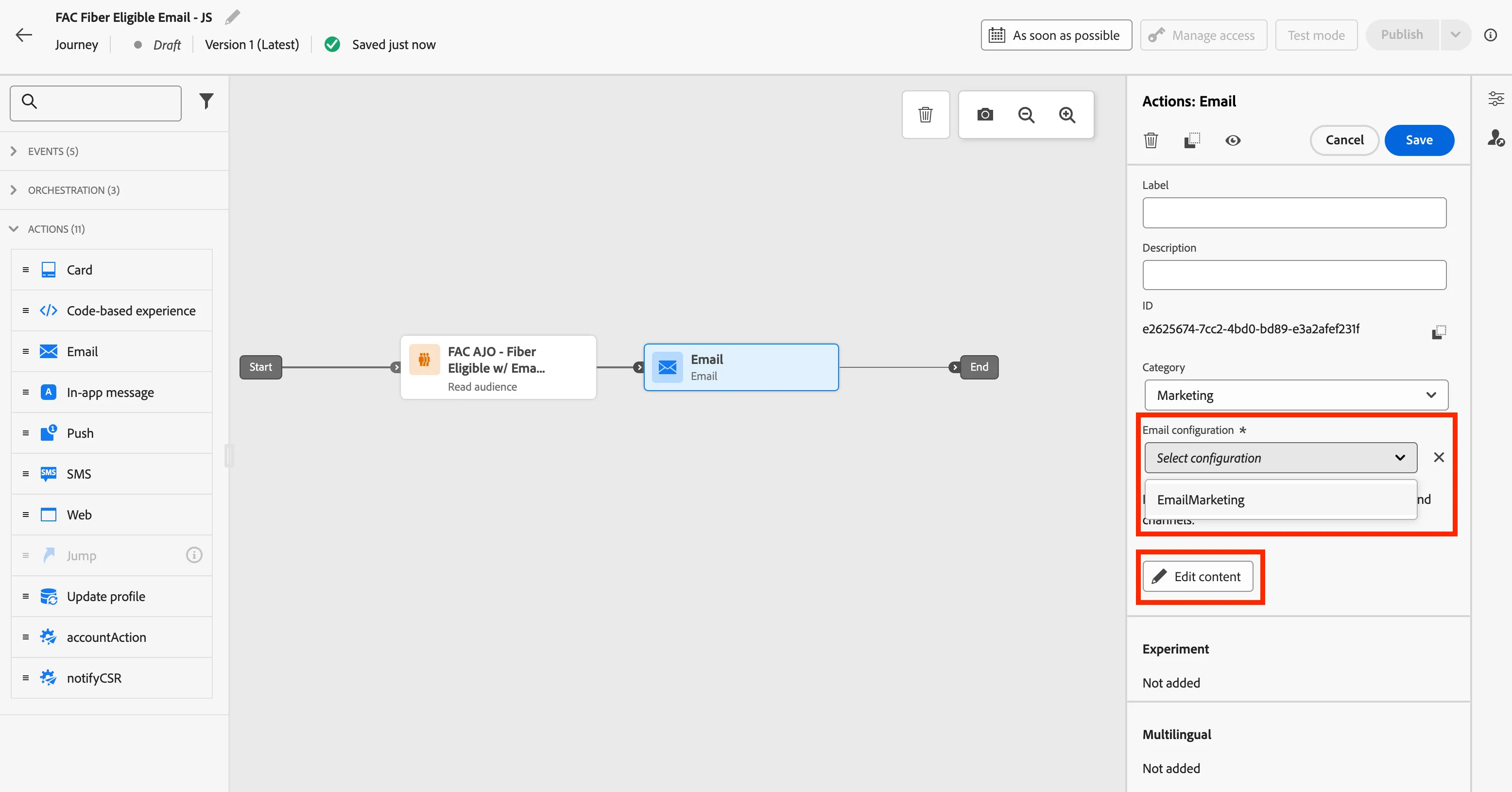
- On the right side menu, click on Email configuration and select EmailMarketing. Then click on Edit content.
- In the subject line add Get More With Fiber Internet. Then click on Edit email body.
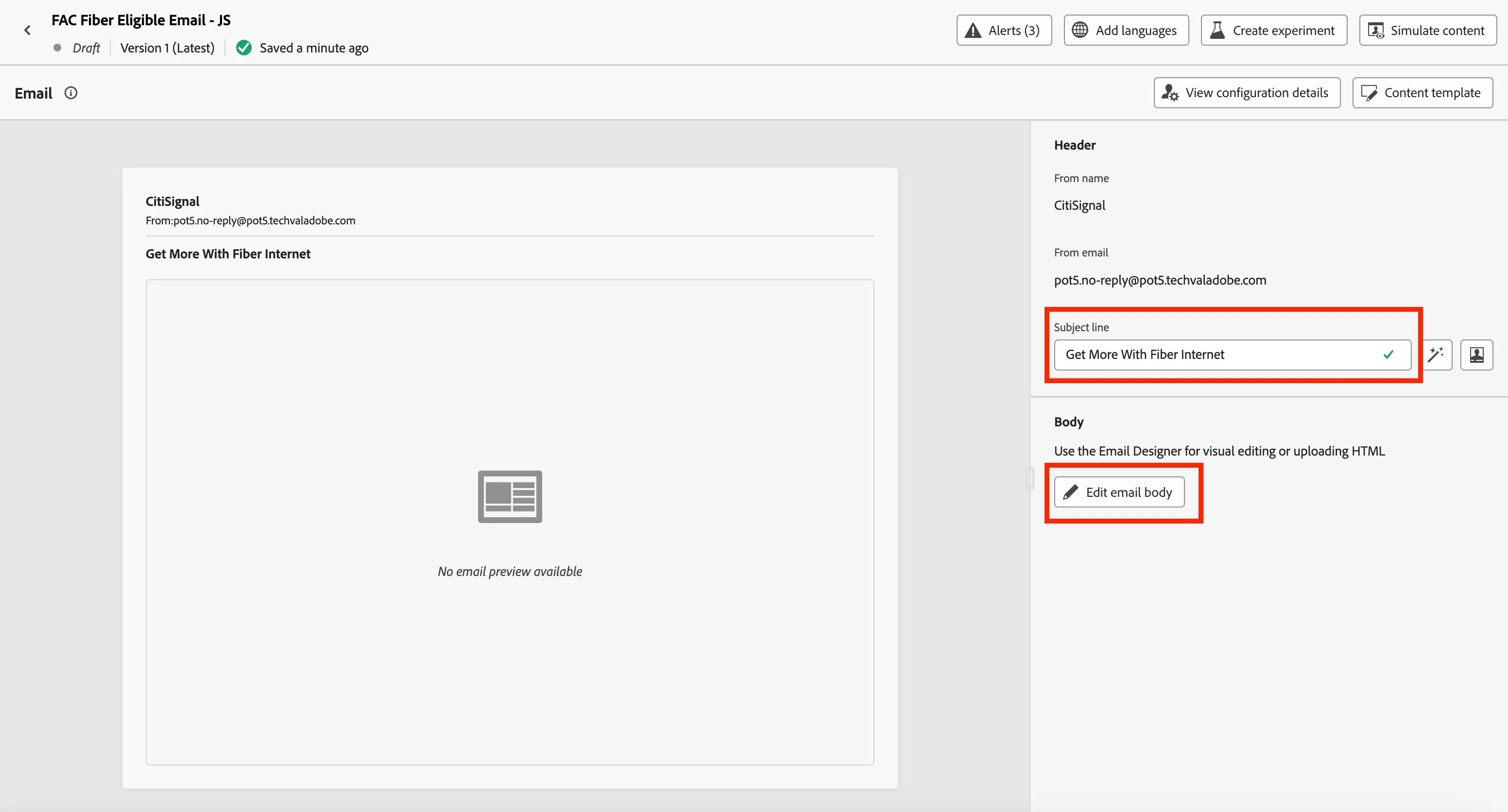
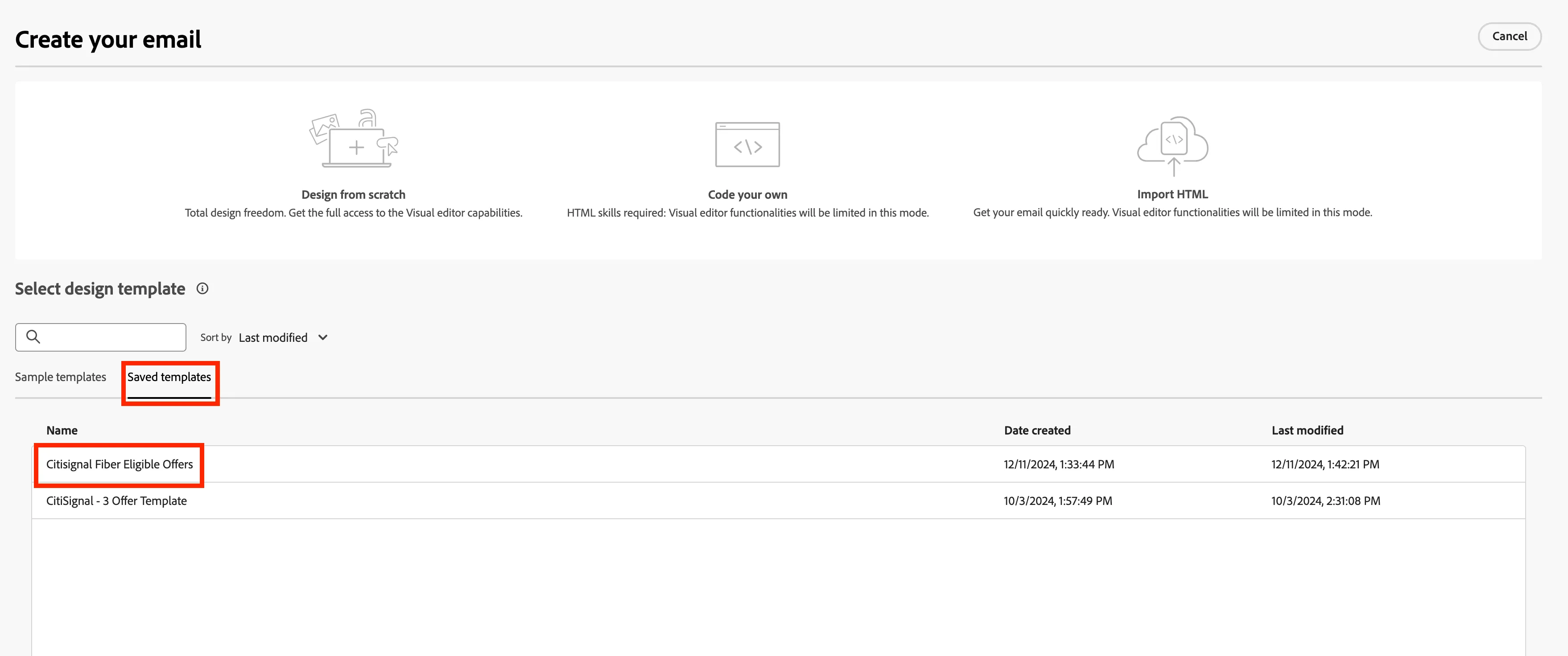
- You will be directed to the email editor screen. Select Saved templates and choose the Citisignal Fiber Eligible Offers template.
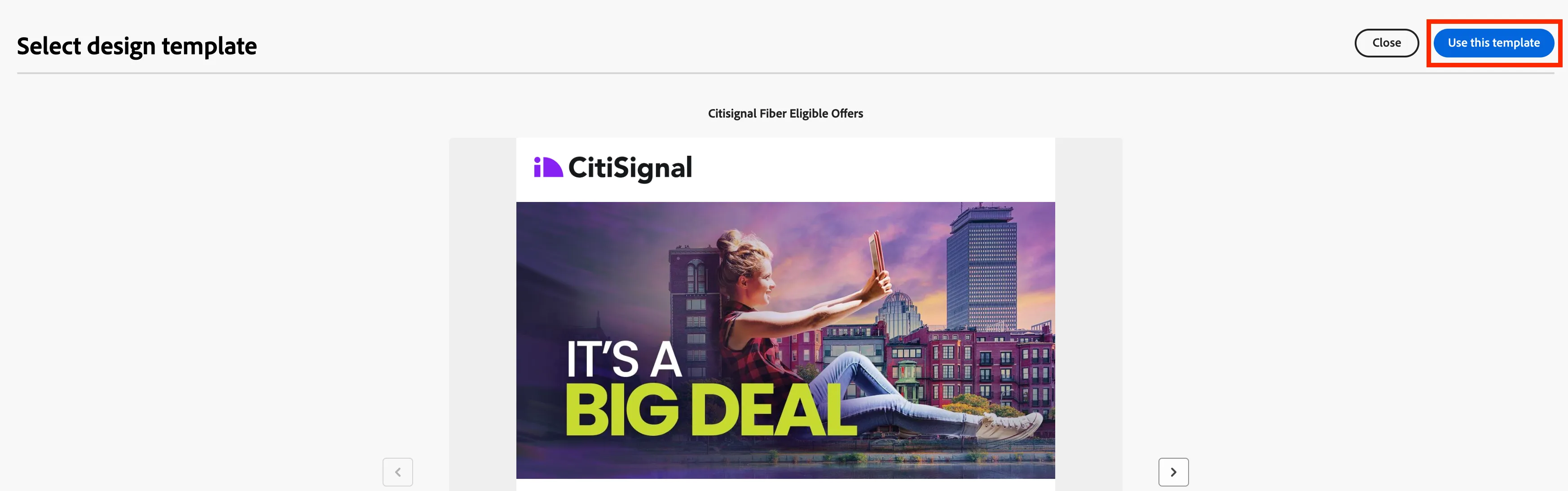
- When you select the template you will need to review and select the template by clicking on Use this template.
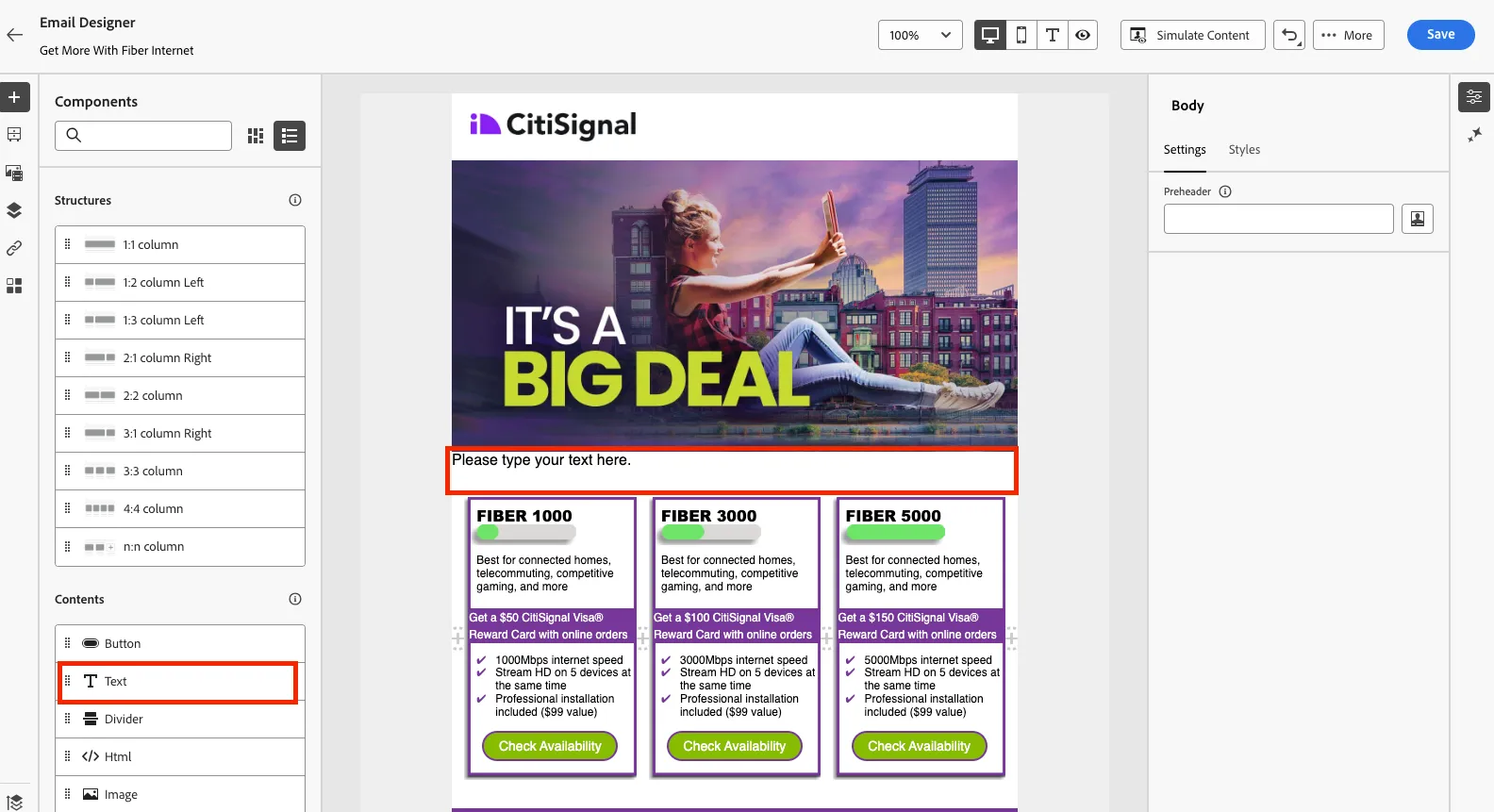
- You will now be in the Email Designer that is included in AJO. Select Text block and drag it to be under the hero or header image in the email.
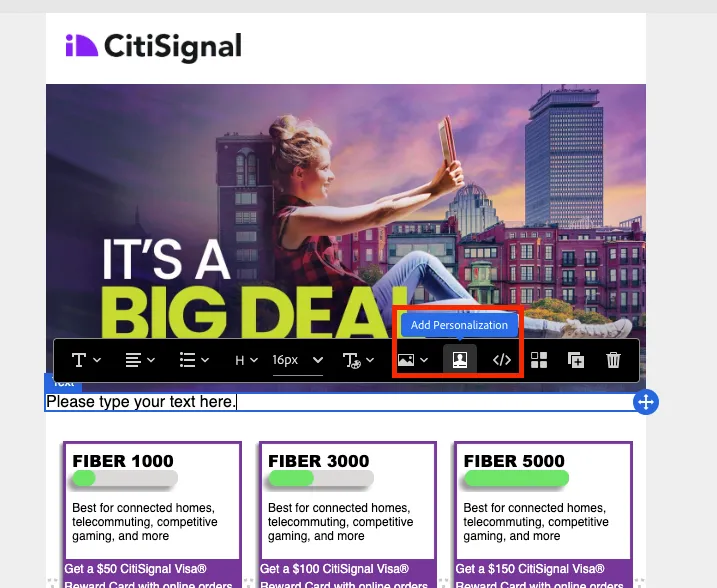
- Click inside the Text box that you dragged into the editor and click on the Add Personalization icon.
- Search for Customer and click on the > where it says CustomerAudienceUpload. The enrichment attributes from your Federated Audience Composition can be found here.
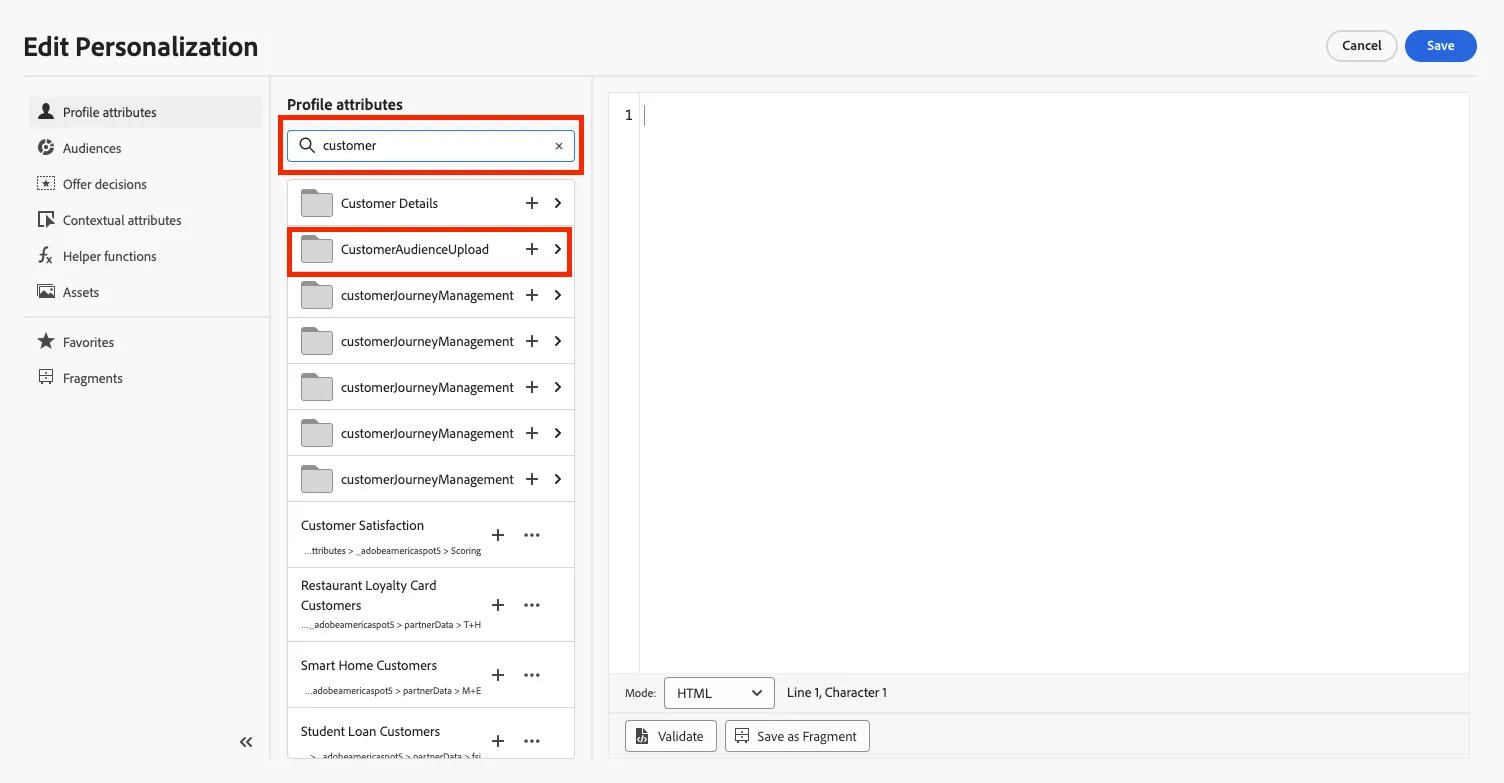
- Click > to expand the attributes that are avilable for use
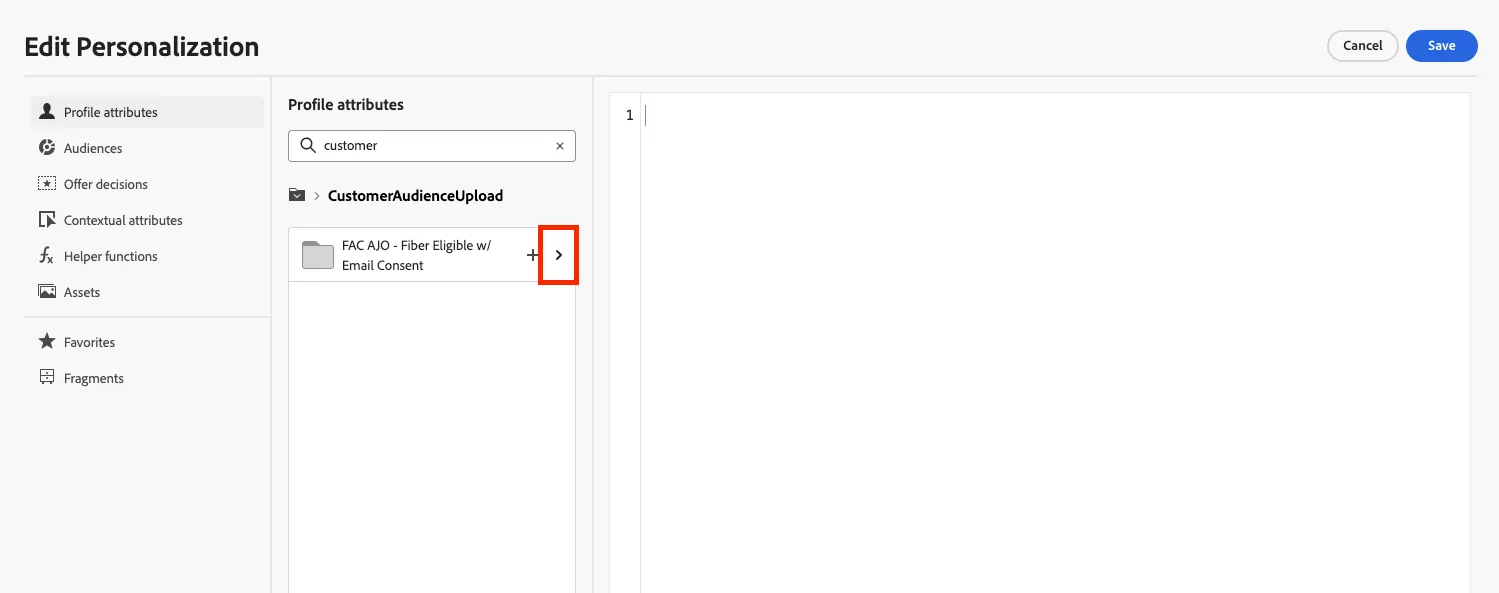
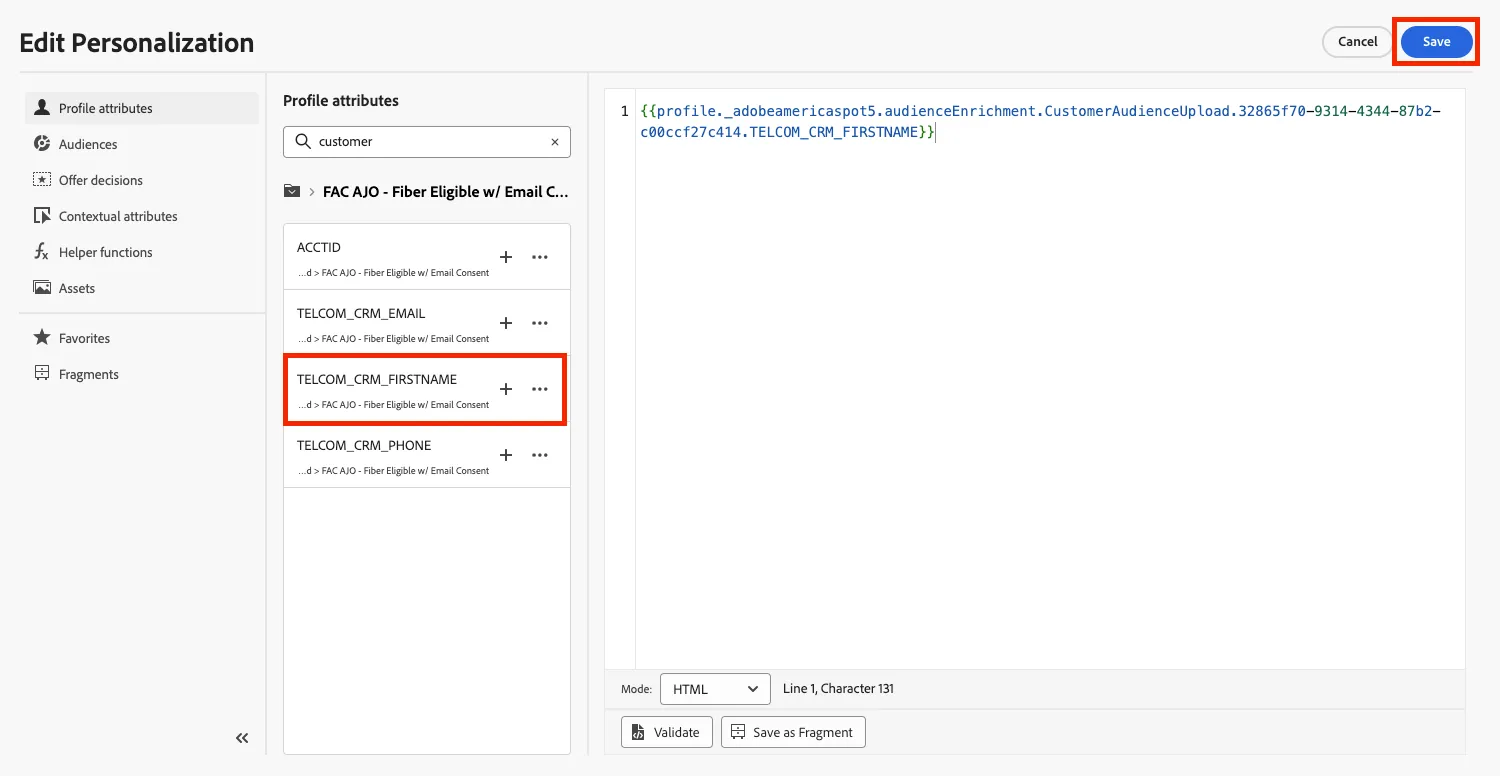
- Select TELCOM_CRM_FIRSTNAME, this will allow us to personalize the email sent with the customers first name into the email. Click on Save.
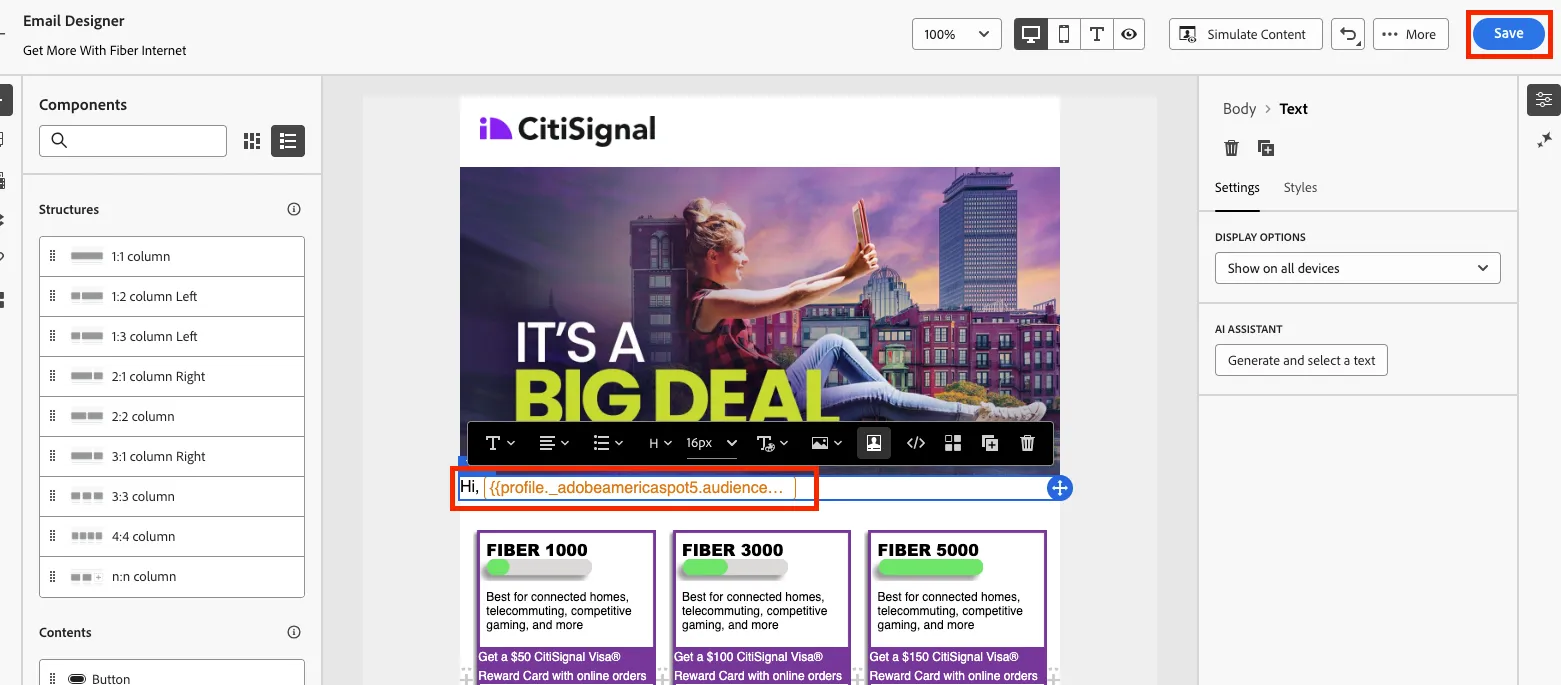
- Now that the first name personalization has been added, add Hi, in front of the personalization variable. Then click on Save.
- Click on the Back button twice and this will take you back to the journey canvas. Then in Action: Email menu to the right, click on Save.
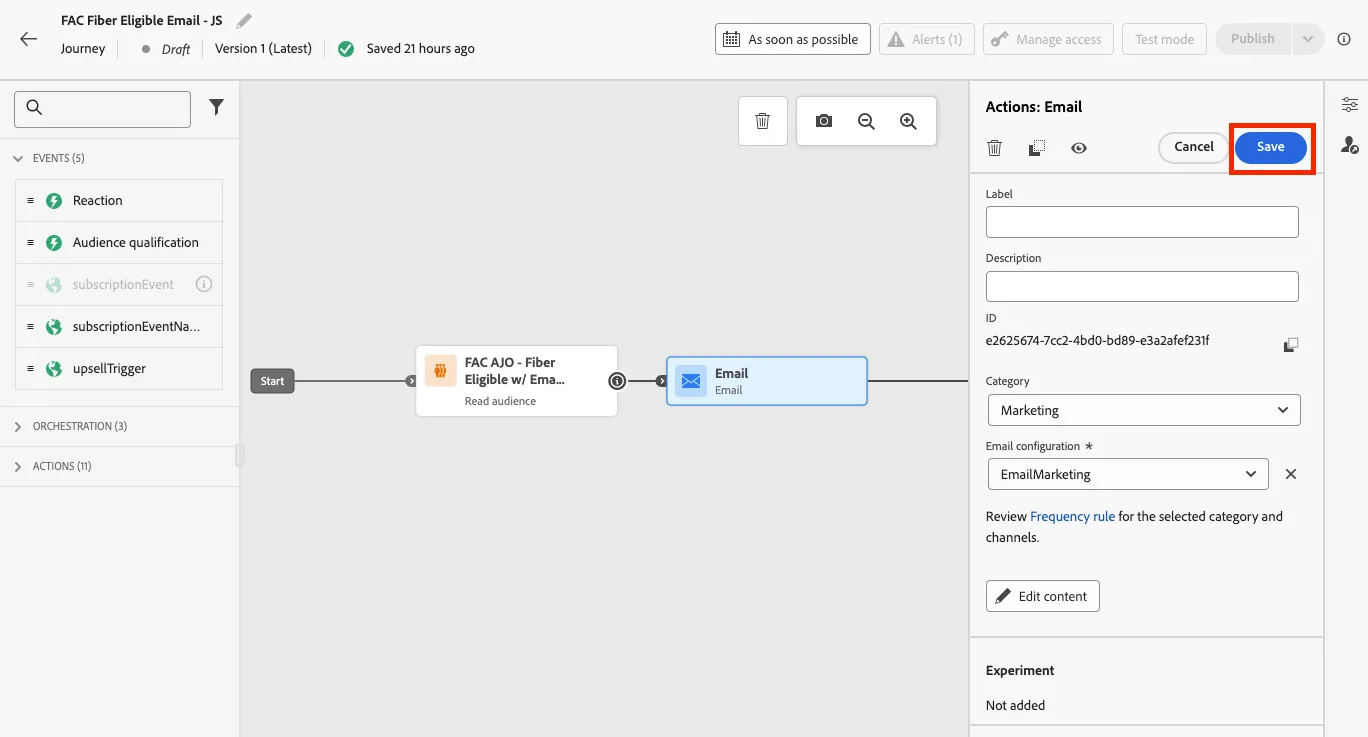
- Congrationulations, you have created a journey in AJO that uses a FAC Audience and the attributes associated with that FAC Audience. We will not publish this journey, but it has been saved.