Adding ExD to Campaigns
4 min
Experience Decision is supported on both Journey Optimizer Campaigns and Journeys. Both of them are capable of running Code-Base-Experiences and Email Channel.
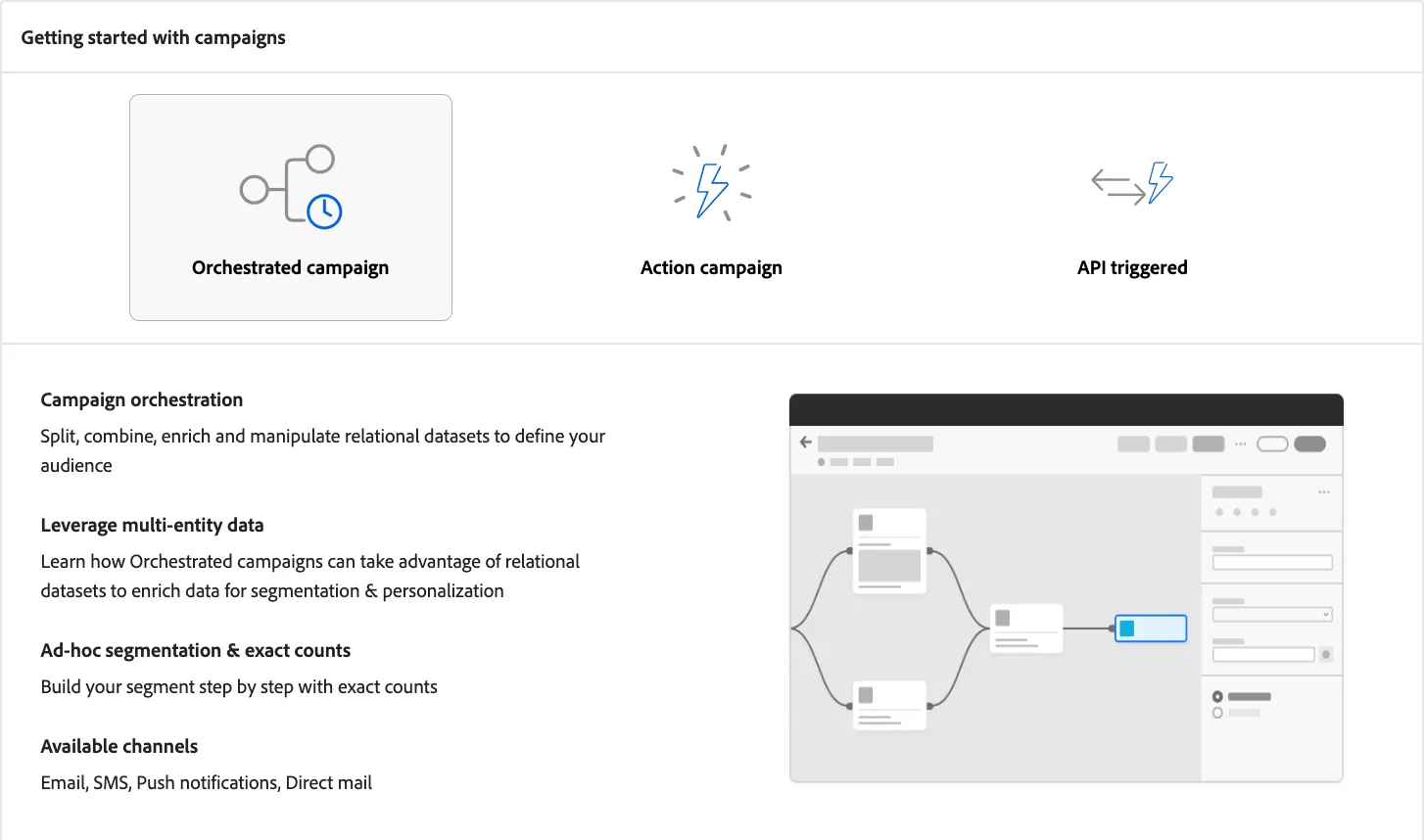
Updating our Campaign for Decisioning
- On the Nav, click Campaigns, under Journey Management
- Search for the campaign you had already created
- Click on your campaign Name
- Click the pencil button under the Content Section
- Click on Treatment C
- Enable the Toggle Enable Decisioning and click continue
- Click on Content Template and Select Apply Content Template B
- Click Confirm
- Click Edit Email Body
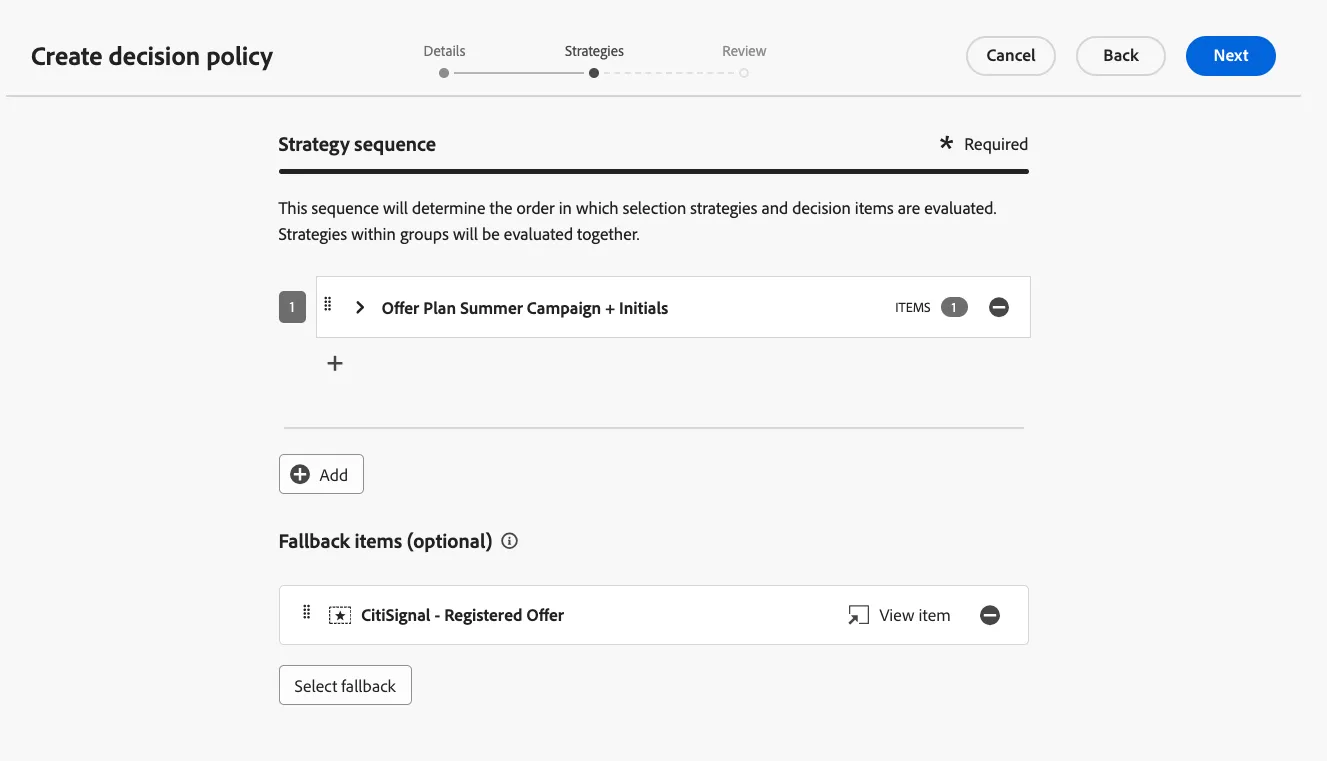
Creating a Decision Policy
Decision policies are containers for your offers that leverage the Decisioning engine to dynamically return the best content to deliver for each audience member. Their goal is to select the best offers for each profile, while the campaign/journey authoring allows you to indicate how the selected decision items should be presented, including which item attributes to be included in the message.
- Click on the hero image.
- Click the X icon that shows to clear the image block.
- While the image block is still highlighted, click on the decisioning button.
- Click Add New Policy
- Give it a name: Hero Image Initials
- Number of items: 1
- Click Next.
- Select a strategy sequence by click the Add button
- Click Selection Strategy and select your strategy.
- Click Next. Click Create
Select Your Email Placement
- Click on Assign Placement
- Select your email placement
- Click Assign
Select the Image Source
- Click the settings icon.
- In the source, type space to enable the personalization icon.
- Click on the personalization icon.
- Navigate to _adobedemoamericas275 > content > imageOffer > sourceURL
- Select sourceURL by clicking the plus sign.
- Click Save
- Click Save
Congratulations, this concludes the Experience Decision Labs, Next Offer Decision