Message Designer
6 min
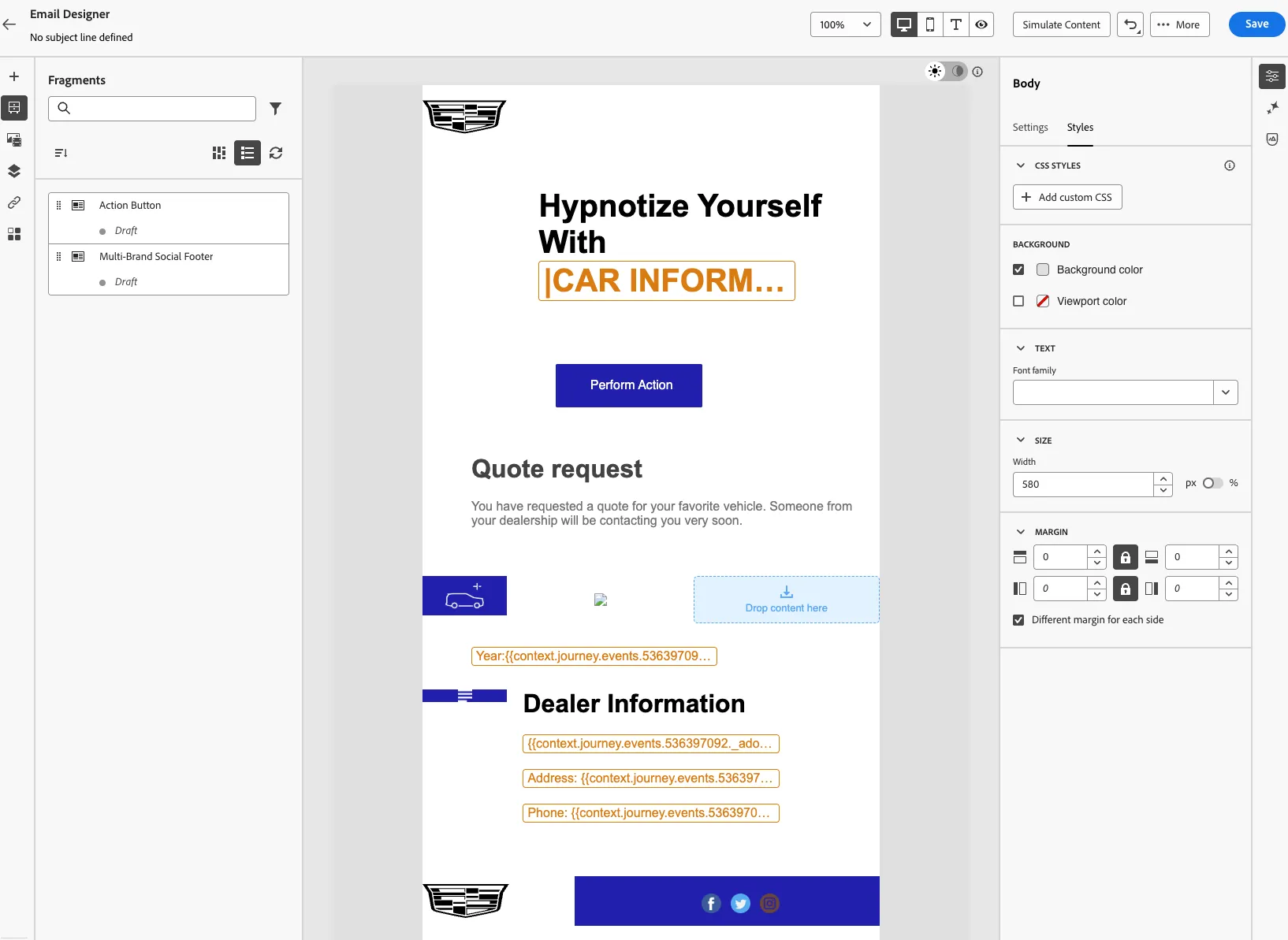
Email Designer
First Email
Action Configurations:
- Click on the First Reminder Email
- Click Configure Action
- Select Email Configuration: Email-Marketing
- Click Track Email Opens and Track Clicks
- Rule Set: Channel Rule Set
- Click On Edit Content
Content:
- Click on Content Template
- Select Apply Content Template
- Select UC1: Multi-Brand Content Template
- Click Edit Email Body
- Double Click on "|CAR IFORM...
- In the Editor, delete the message |Car Information Here|
- Click on Contextual Attributes > Journey Orchestration > Events > RequestedQuote > _adobedemoamericas275 > VehicleConfig > Model Year & Brand (Format Attributes correctly)
- Click Save
- From the left Rail, click on Fragments
- Drag and Drop Multi-Brand Social Footer onto the Wider Drop Content Here.
- Drag and Drop Action Button
- Break the inheritance
- Under Settings, click the personalization Icon from the Url field.
- Click on Contextual Attributes > Journey Orchestration > Events > RequestedQuote > _adobedemoamericas275 > VehicleConfig > carLine
- Save
- Change the Label with: View Configuration
- Click on the Styles Tab.
- Under the Background, click Button Color
- Copy and Paste this value: #211FAB
- Click Save.
- Click Save.
- Go Back and Add a Subject Line: We Received Your Request
Not Engaged Customer
- Once you are back on the canvas.
- Click on the First Email Node, and Copy.
- Click on Not Engaged Customer (Reminder), and delete.
- In your keyword, Do: CTRL + P or Command + P in order to paste the First Email Node.
- Drag and Drop it into the Time out.
- Reconnect the Reaction.
- Click on it again, change the Label one more time.
- Click on Edit Content.
- Add A Subject Line.
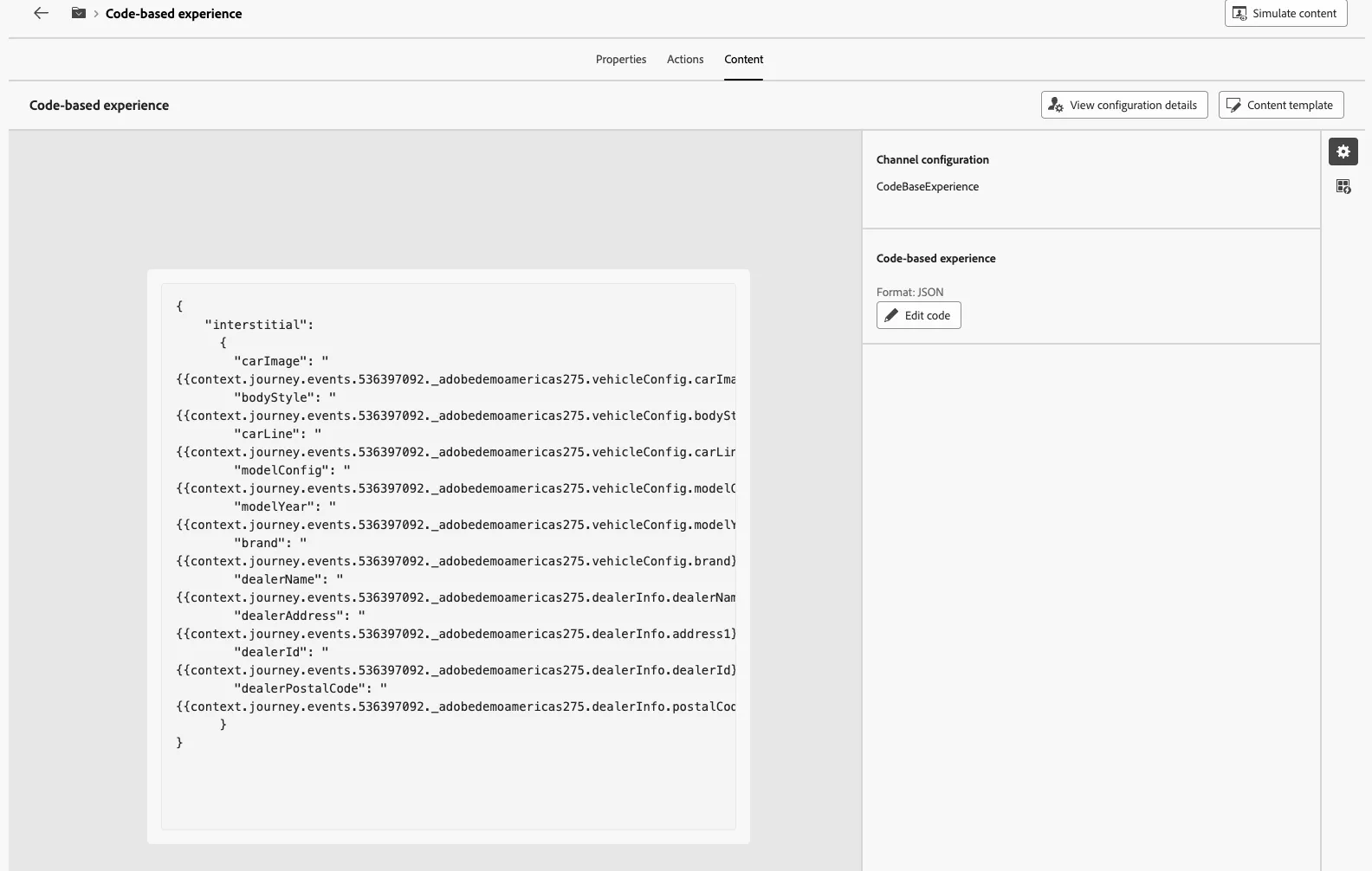
Code Base Experience
- Click on Configure Action.
- Select the CodeBaseExperience Configuration.
- Select Use Journey Priority
- Click Edit Content
- Click Edit Code
- Copy and Paste the following into the Editor:
{
    "interstitial":
      {
        "carImage": "{{context.journey.events.536397092._adobedemoamericas275.vehicleConfig.carImageSrc}}",
        "bodyStyle": "{{context.journey.events.536397092._adobedemoamericas275.vehicleConfig.bodyStyle}}",
        "carLine": "{{context.journey.events.536397092._adobedemoamericas275.vehicleConfig.carLine}}",
        "modelConfig": "{{context.journey.events.536397092._adobedemoamericas275.vehicleConfig.modelConfig}}",
        "modelYear": "{{context.journey.events.536397092._adobedemoamericas275.vehicleConfig.modelYear}}",
        "brand": "{{context.journey.events.536397092._adobedemoamericas275.vehicleConfig.brand}}",
        "dealerName": "{{context.journey.events.536397092._adobedemoamericas275.dealerInfo.dealerName}}",
        "dealerAddress": "{{context.journey.events.536397092._adobedemoamericas275.dealerInfo.address1}}",
        "dealerId": "{{context.journey.events.536397092._adobedemoamericas275.dealerInfo.dealerId}}",
        "dealerPostalCode": "{{context.journey.events.536397092._adobedemoamericas275.dealerInfo.postalCode}}"
      }
}- Click Save, Go Back to your Journey Canvas.
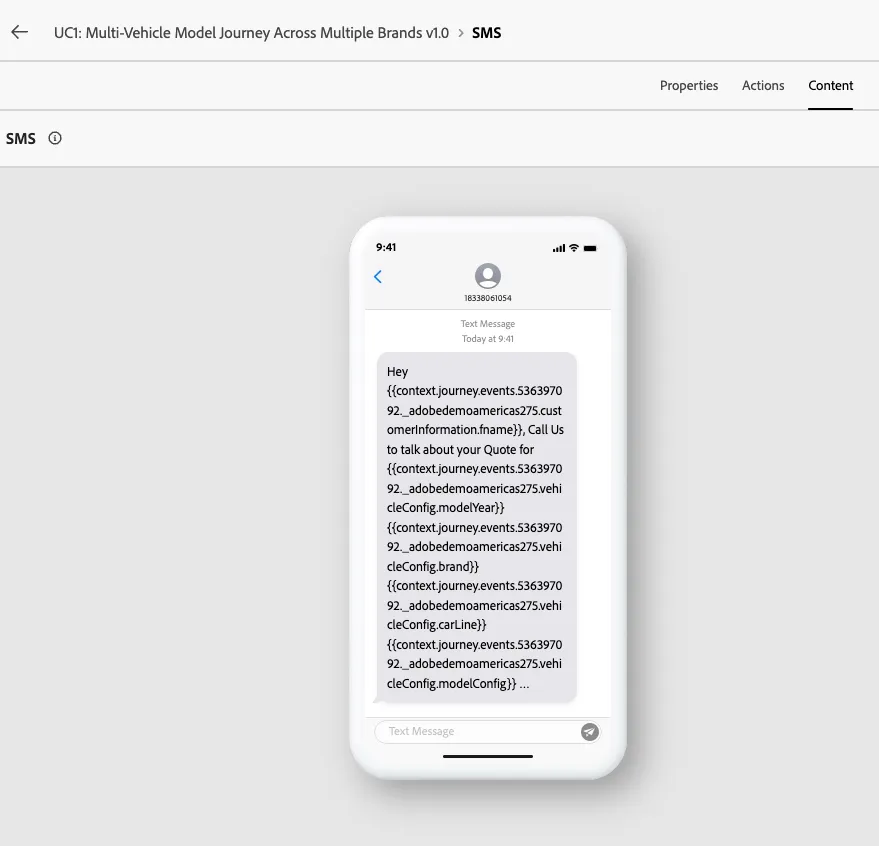
SMS Designer
- Click on SMS
- Click on Configure Action
- Select sms-marketing Configuration
- Select Rule: Channel Rule Set
- Select Track clicks on links in SMS
- Click Edit Content
- Click Content Template, and Select the SMS Template.
- Go back to your Journey.
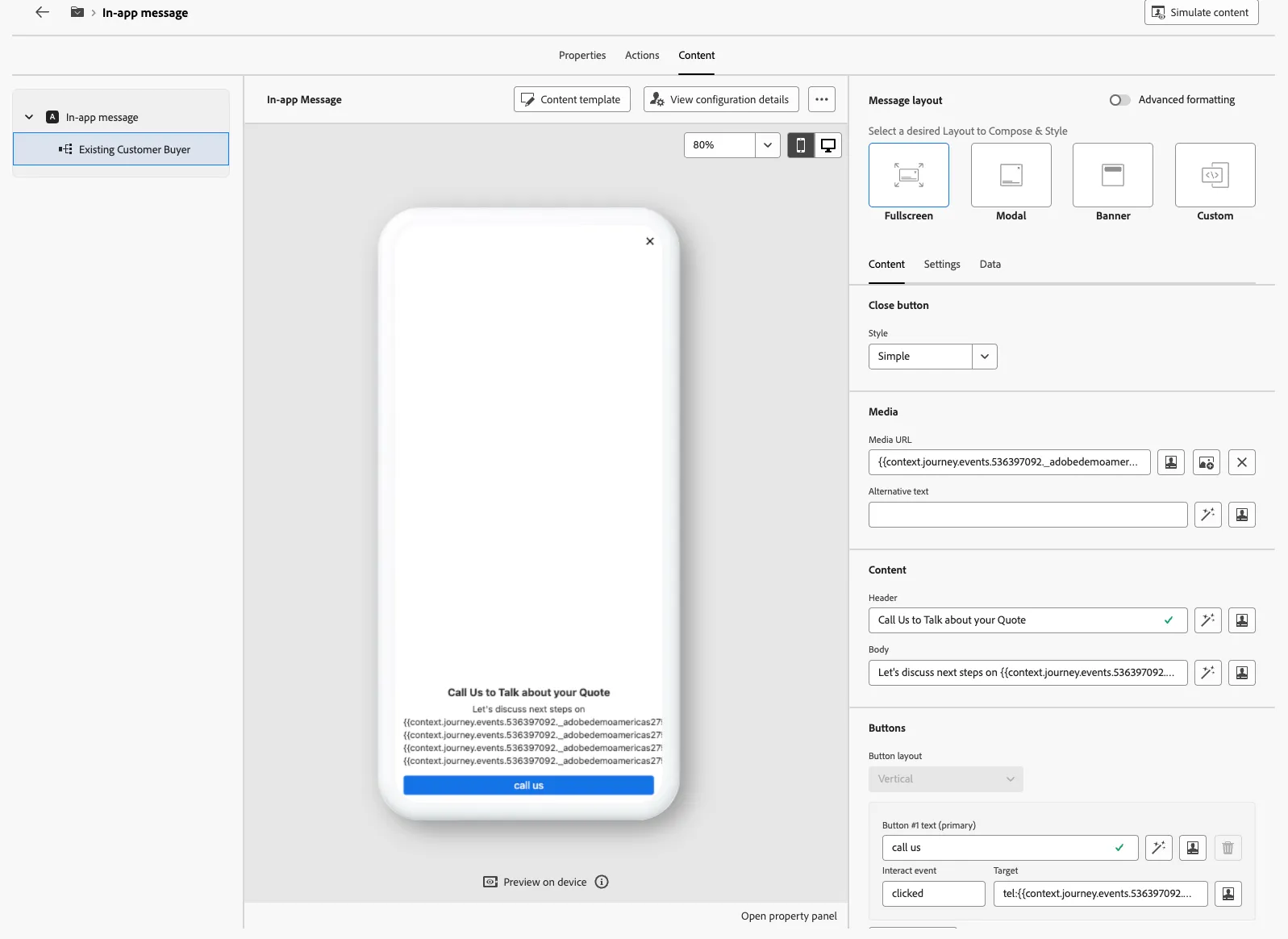
In App Message
- Click Configure Action
- Select InApp Message Configuration
- Click on Add Targeting Rule
- Click Create Rule
- Click on Audiences
- Drag and Drop: Current Owner
- Click Save
- Click Save
- Click Edit Content
- Click on Content Template
- Apply Content Template
- Select the UC1 In App Template