Journeys
3 min
This Lab will allow you to create the same journey as use case 1.
Create and Configure a Journey
- Navigate to Journeys
- Click on “Create Journey”
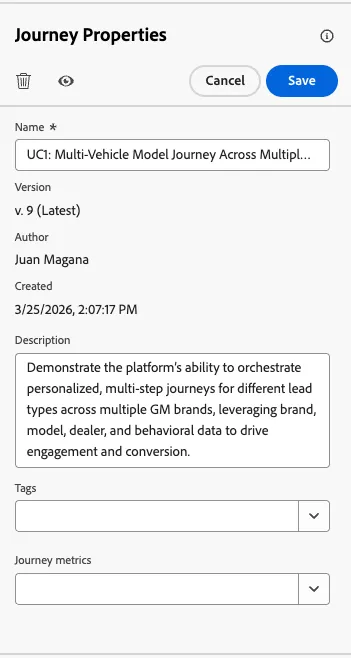
- Provide a Name and Description
- Add a start date for tomorrow
- Scroll Down to section Conflict management
- Select Rule Set: Journey Rule Set
- Add a priority. Click Potential Conflicts
Build The Journey Steps
- Under Events, find, drag and drop the RequestedQuote Event node onto the Canvas.
- From the Orchestration, find, drag and drop the Condition node next to the event.
- Label PrefChannel
- Label the Path with email
- Click on the pencil
- From the Context Folder Under RequestedQuote > _adobedemoamericas275 > customerInformation > preferredChannel is equal to "email
- Click Ok.
- Click Show path for other cases than the ones above.
- Click Save.
- From Actions, find, drag and drop the Action onto the Email path and chose email.
- Label the email node with First Email.
- From the Events, Drop a Reaction Node.
- Select the Action (First Email), and the Event (email opened).
- Check Define the event timeout and wait for 2 days
- Check "Set a timeout path"
- Click Save.
- On our time out path, drag and drop another action node and select email.
- Label the email with Not Engaged Customer (reminder)
- From the Events, drag and drop the Reaction node again.
- Set it up for Clicks. Do not add timeout.
- From the Actions, drag and drop the Action node, and select Code-based experience.
- Set the Wait for 14 days.
- Drag and Drop an Action next to the wait, and select SMS.
- Lastly, drag and drop another Action node. Select In-App message. Set the Wait for 5 days.
Your Journey should look like (With a few warnings on the Actions):
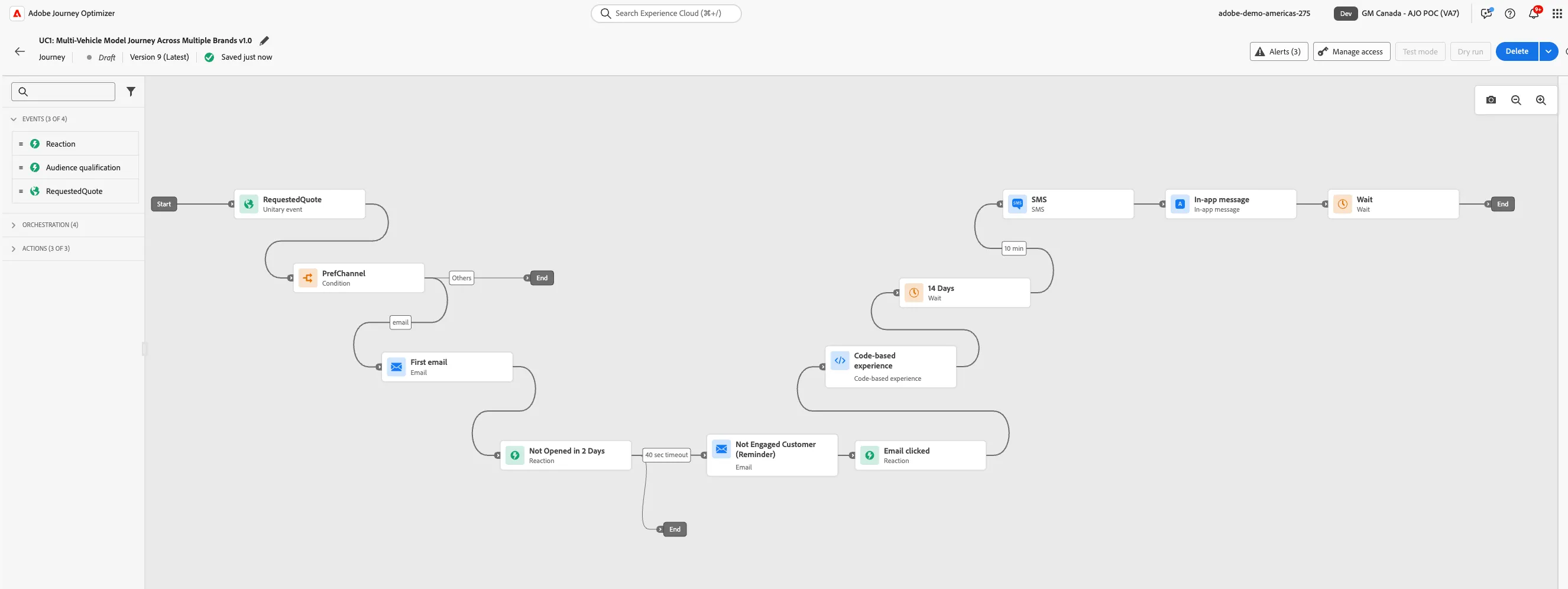
Congratulations, you have configured your journey. Next, we need to configure the actions. Let's Move to the Message Designer Labs.