Audiences
Audiences overview
To get an overview of available audiences in Adobe Experience Platform:
- In the menu on the left side, click on Audiences. You will see a dashboard overview with information on a specific audience.
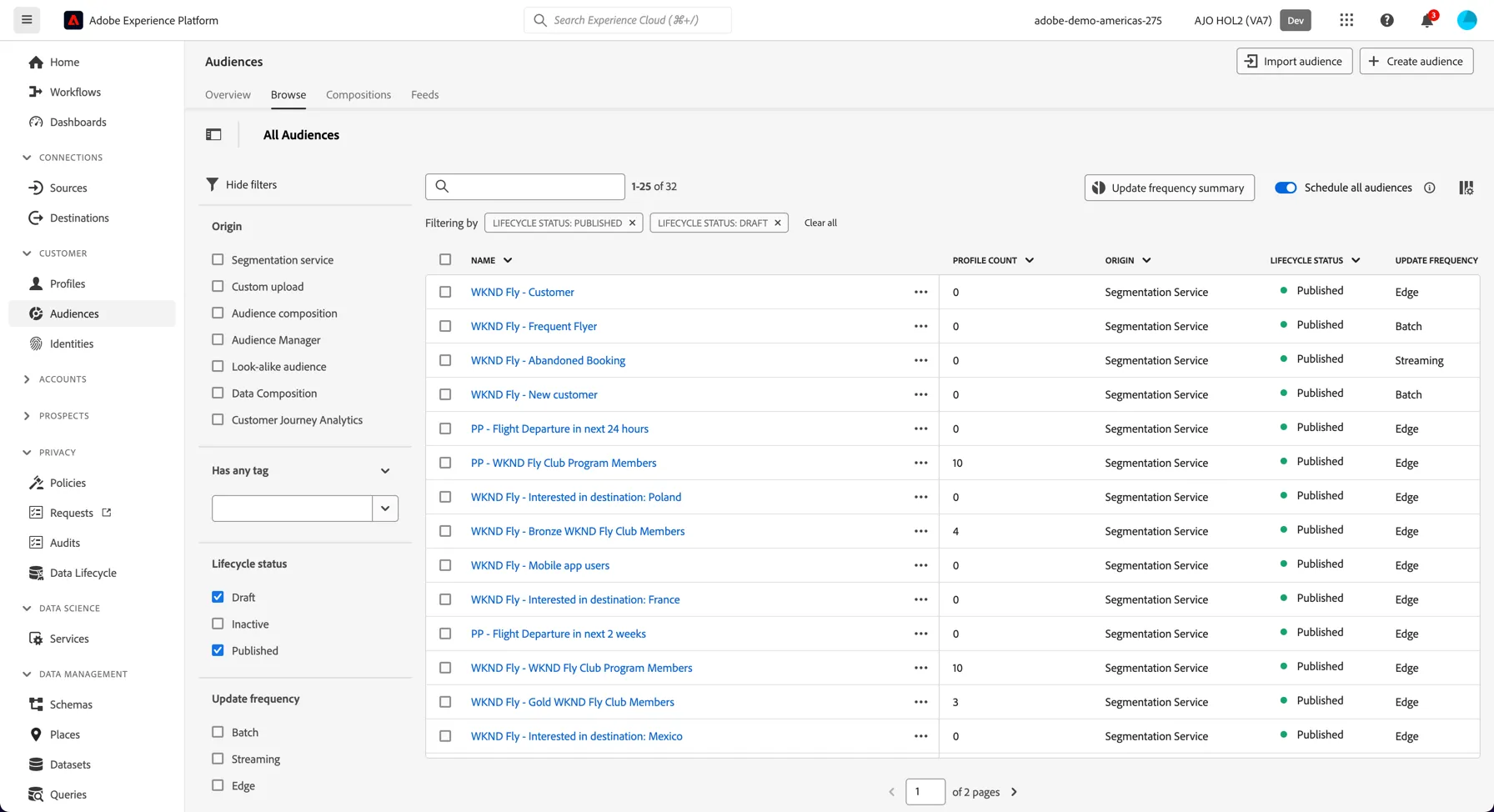
- Click on Browse at the tab bar. You will see an overview of all existing audiences. You can use the search bar or the filters on the left to find specific audiences.
Create a simple audience
In this exercise you will create an audience using attributes from the customers known profile. This profile data is collected from multiple systems and includes information such as pet profiles and demographics.
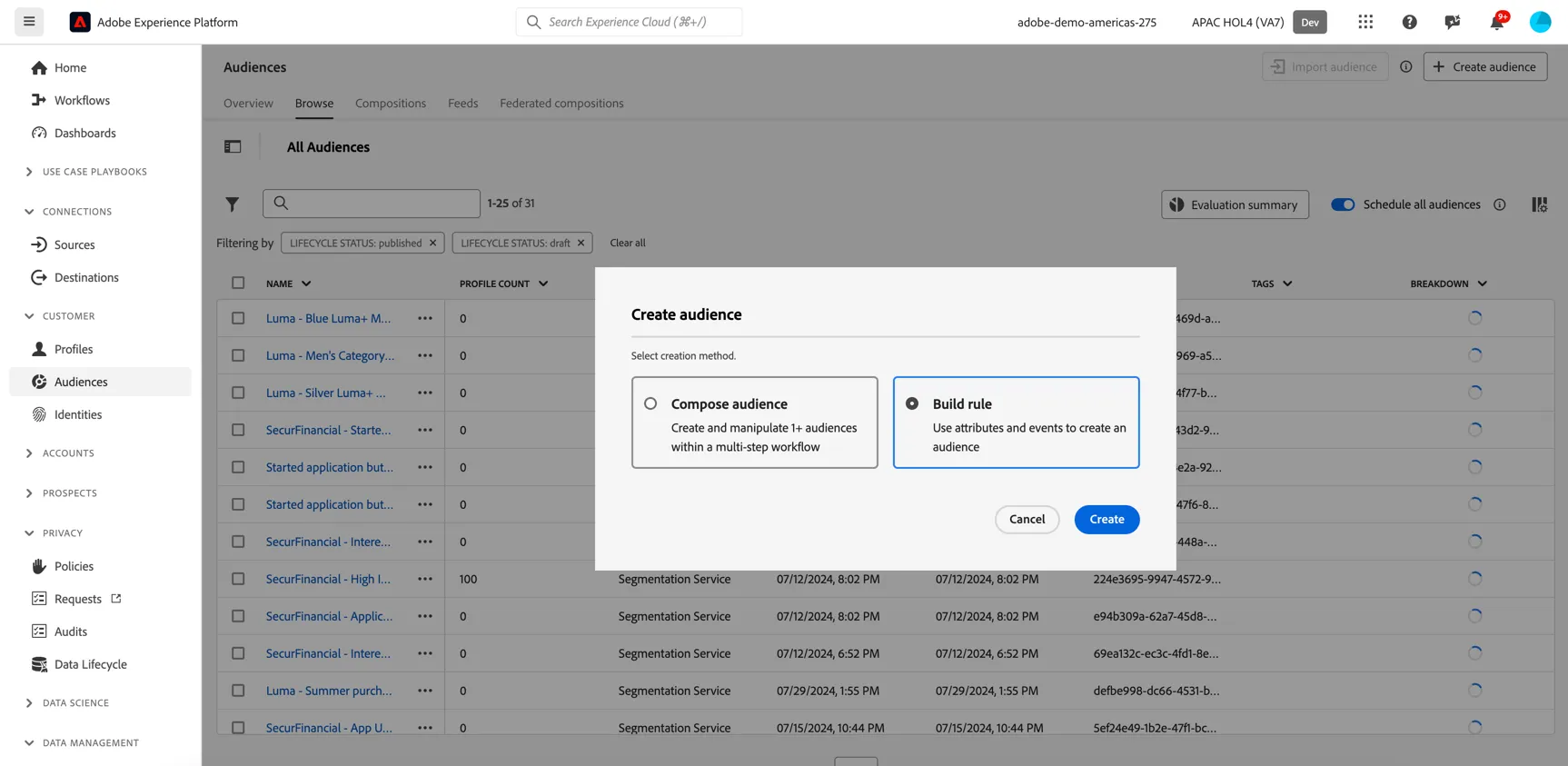
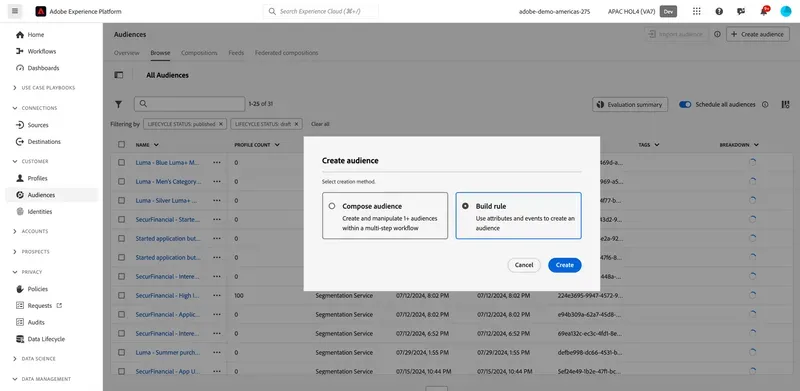
To create an Audience, click on + Create Audience, then select build rule.
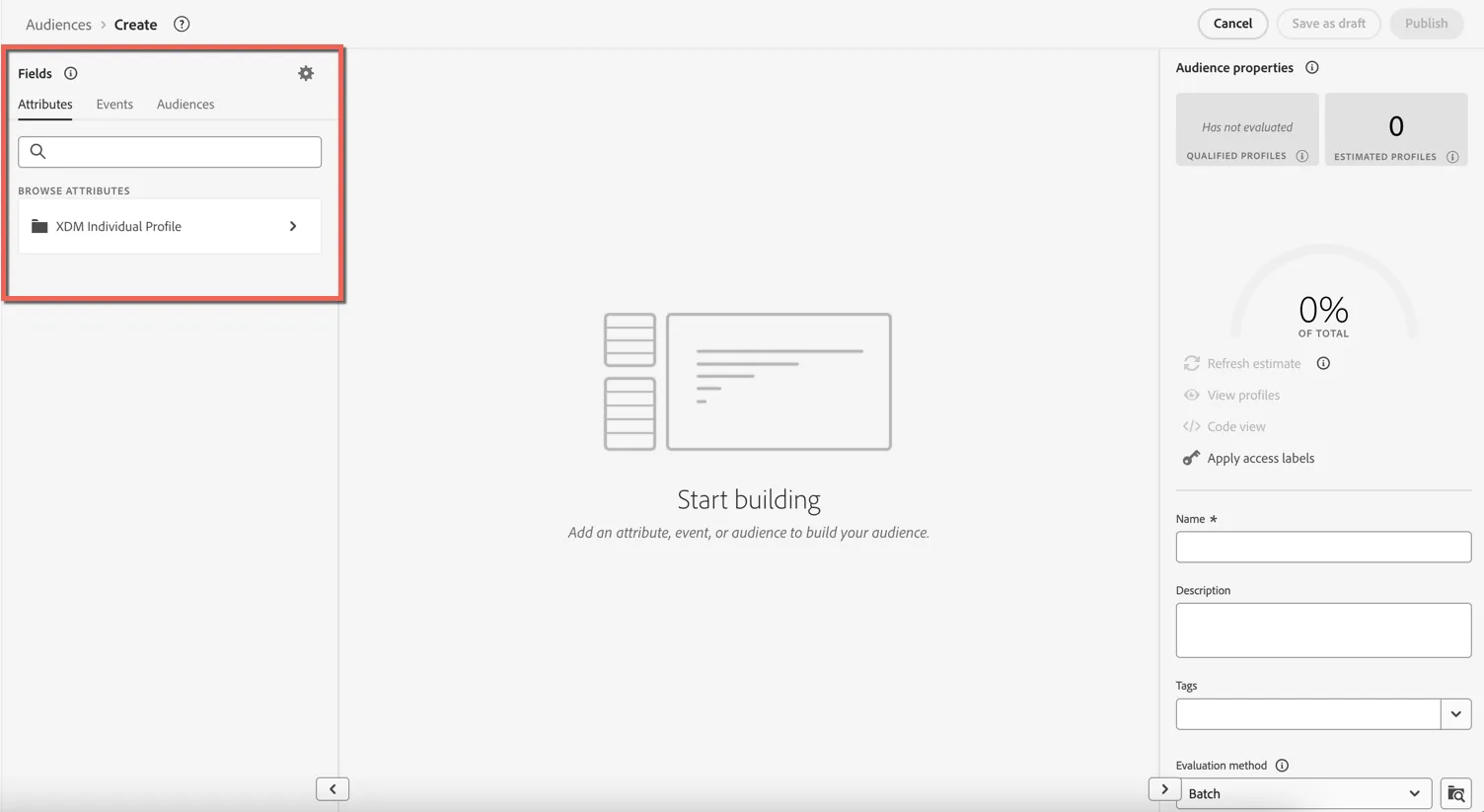
This will take you to the drag and drop audience builder. Notice the Attributes tab selected underneath Fields. As well as the XDM Individual Profile selector under BROWSE ATTRIBUTES.
We are going to define an audience for profiles who own a kitten and live in Sydney in order to promote a new range of premium food.
Use the search field to find the cats object in our profile.
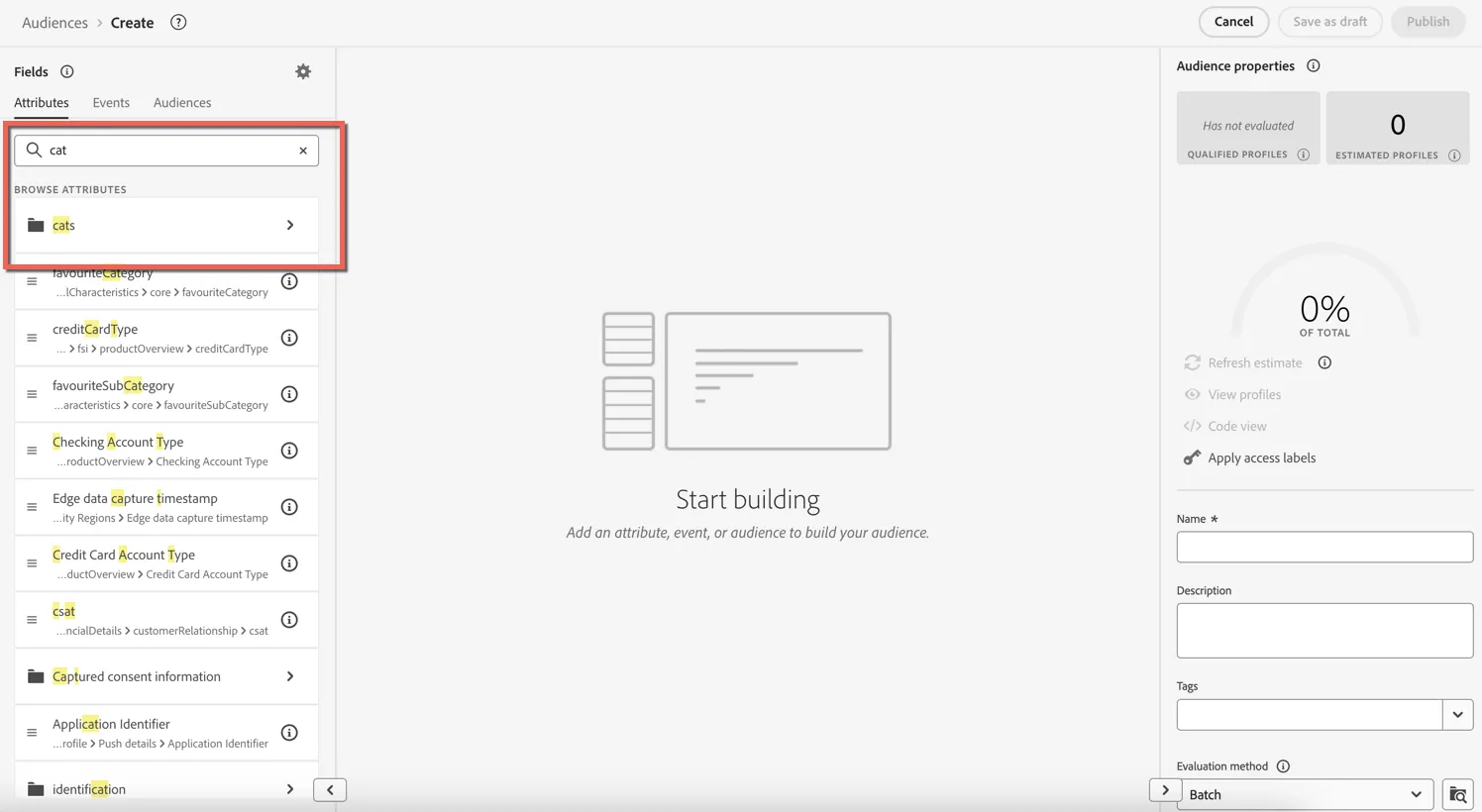
This is actually a nested object array, you can see the full path by clicking on the folder icon:
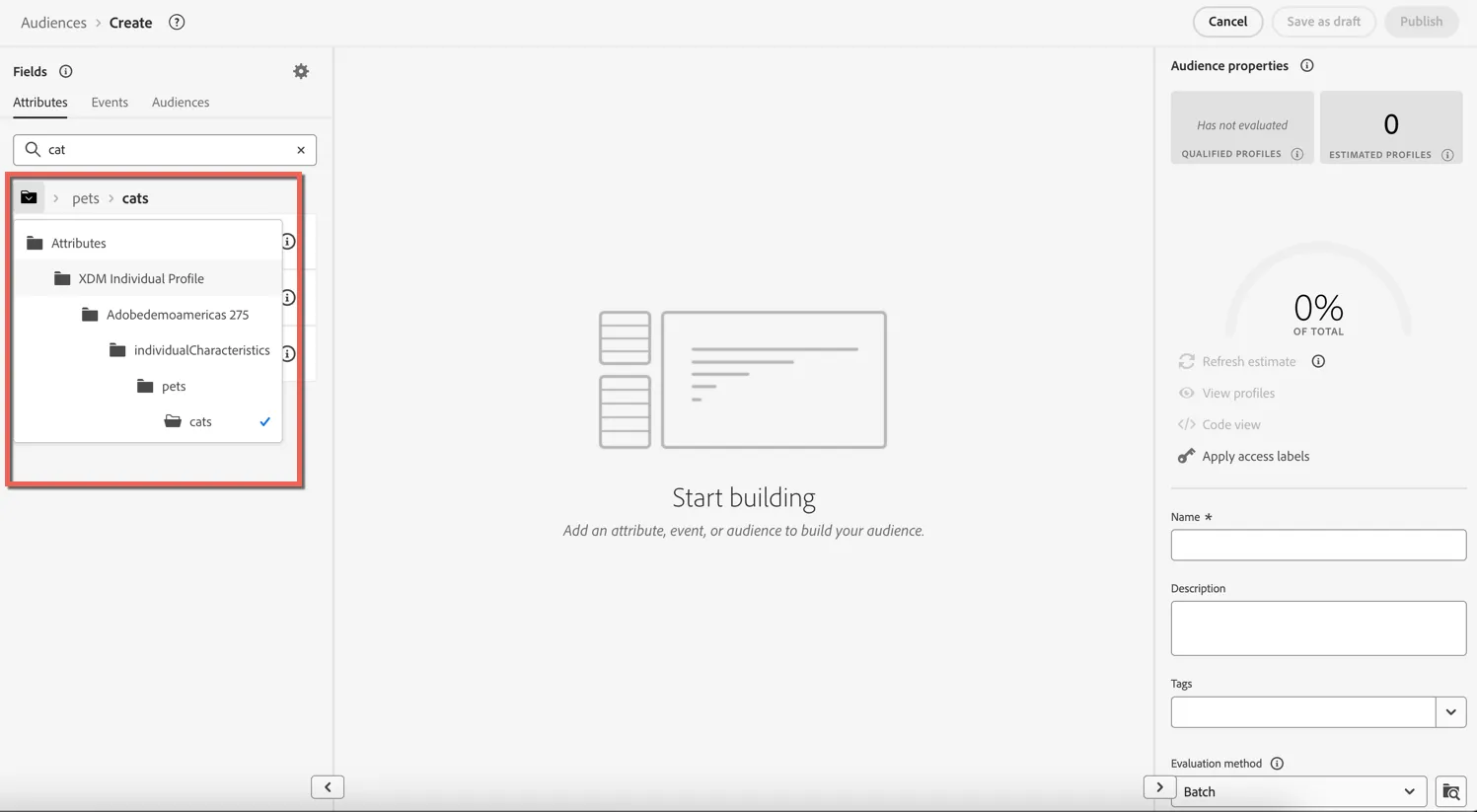
Note that Adobedemoamericas 275 is the tenant id for this instance of AEP. All attributes that are customer specific and not part of Adobe's pre-defined XDM field groups are placed under the tenant id. The tenant id for your instance will be different.
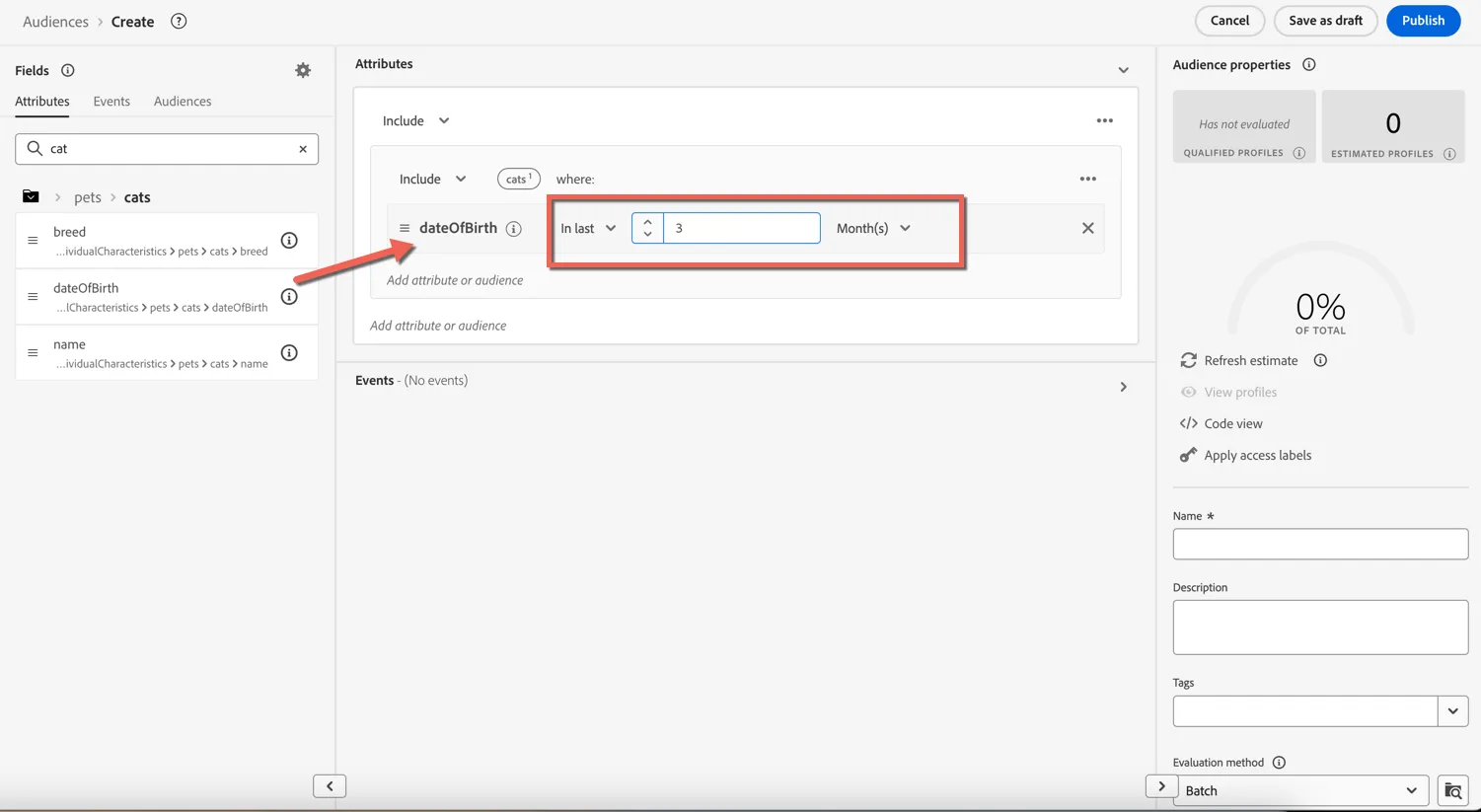
Click into the cats folder and drag the Date of Birth attribute into the audience canvas. Change the condition to In Last 3 Months.
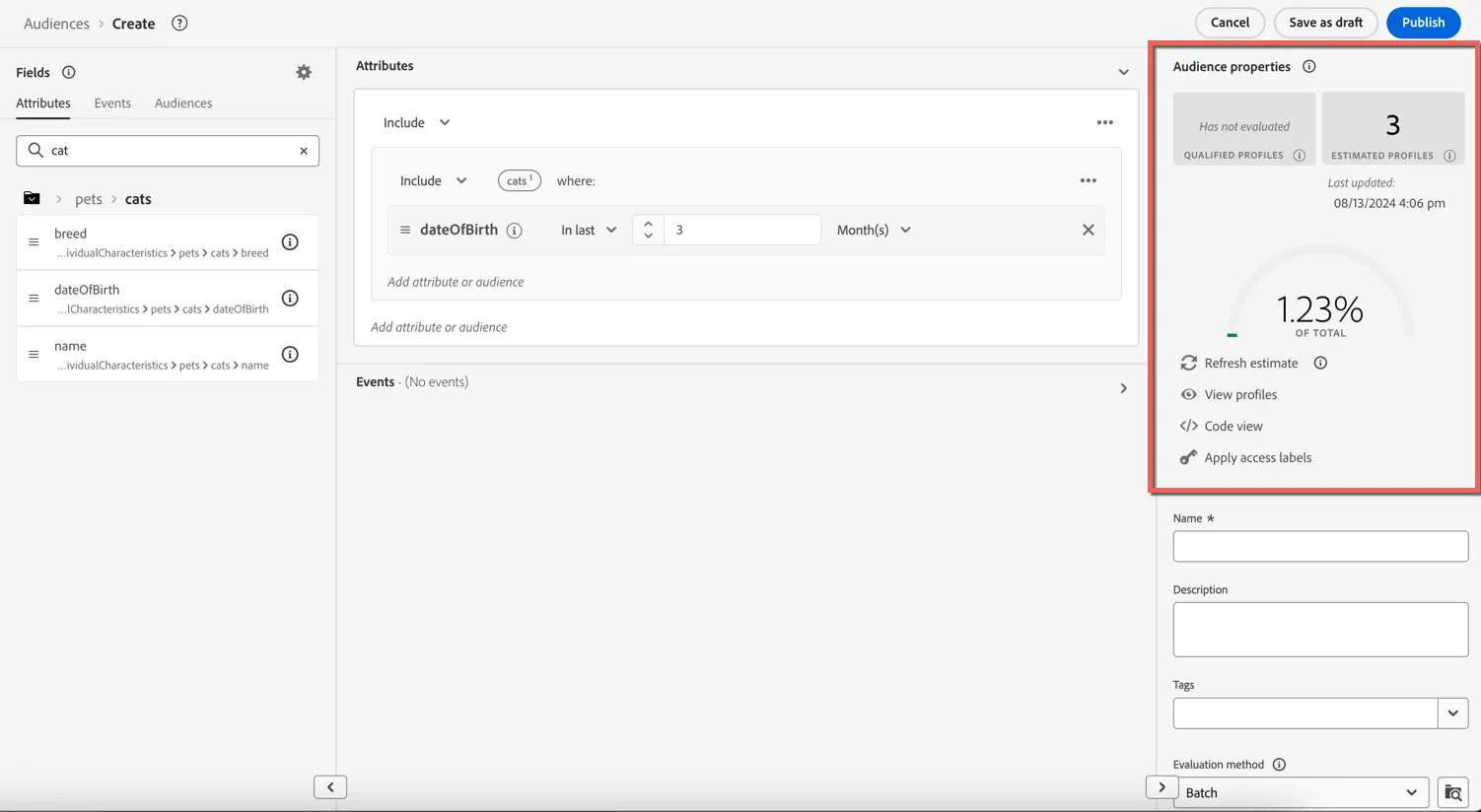
Click on the Refresh Estimate button in the Audience Properties to get an idea on the size of your audience while building it.
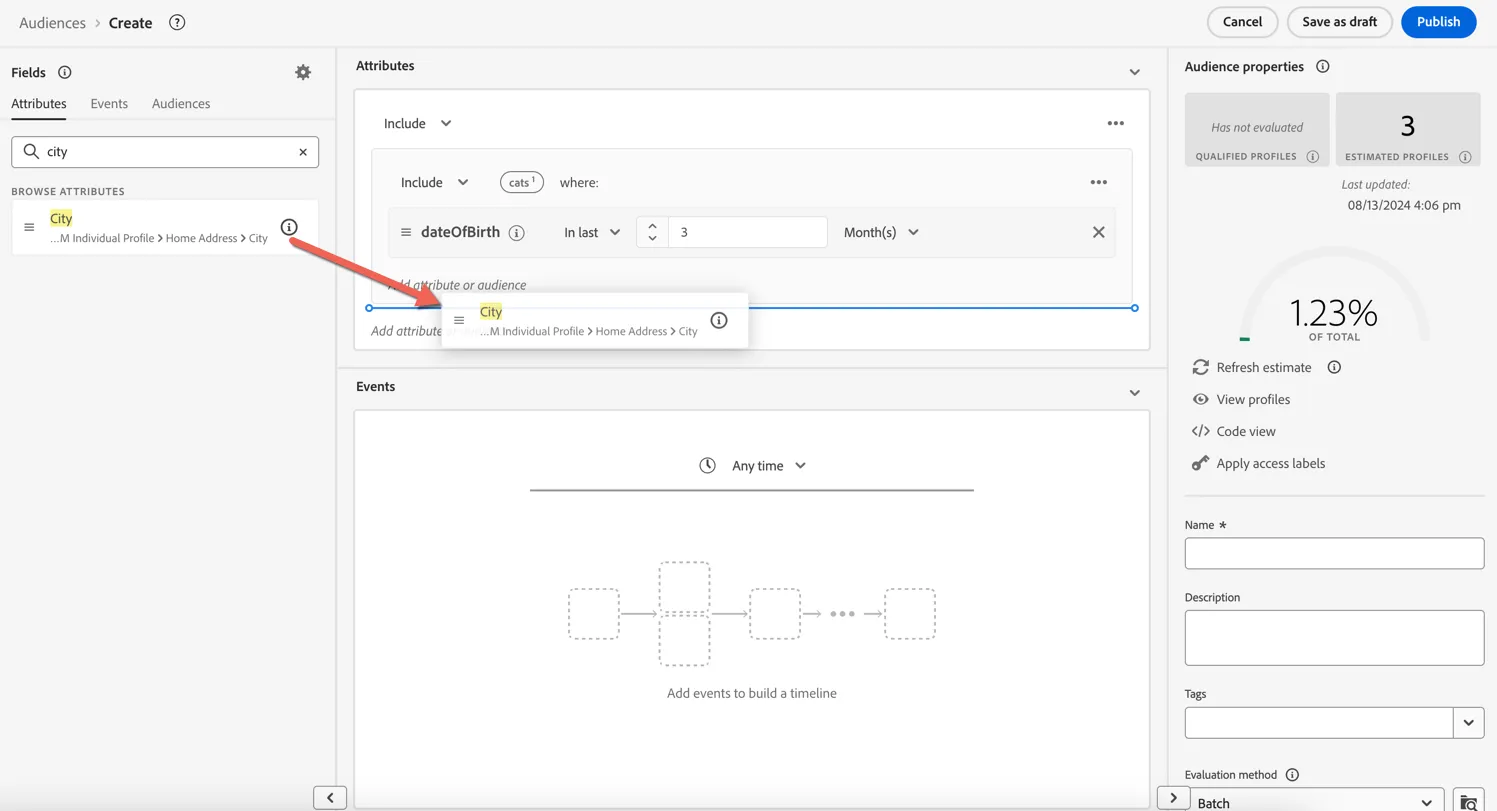
Let's add a second condition to limit the audience to those living in Sydney. Search for city and drag the Home Address -> City attribute into the canvas and drop it below the pet condition. Set the value to Sydney.
Your audience should look like this:
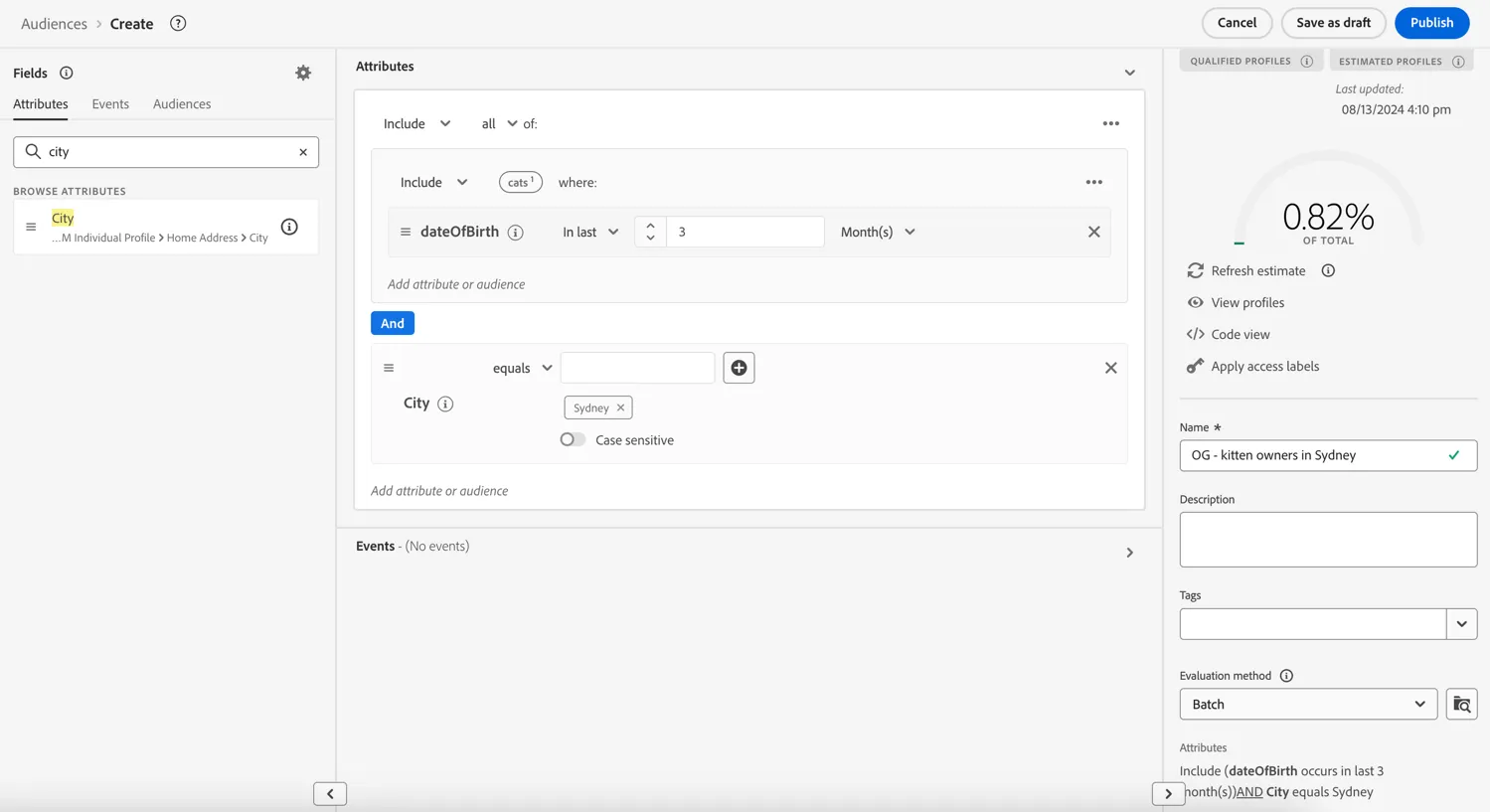
Give your audience a name - something unique to differentiate it from everyone elses!
Finally click Publish to save your audience.
You will be taken to the Summary screen, outlining your audience definition.
You have now successfully created an Audience using the Adobe Experience Platform UI. Your audience can now be sent to social media, advertising or marketing automation solutions using Adobe CDP or accessed directly through an AJO Campaign or Journey.
Create a complex audience
Adobe's segmentation engine lets you create audiences based on a customers behaviour (captured by experience events) as well as their profile attributes. We can create simple audiences based on a single event, or complex audiences which follow a sequence of events, ie. customer did this... then that. This capability is referred to as Sequential Segmentation.
In this exercise we're going to create an Audience to identify individuals who recently visited a vet for a dental appointment and since then have been seen browsing dental products online but haven't made any purchases. We can use this audience to prioritise the offers targeted to these profiles.
Click on + Create Audience, then select build rule.
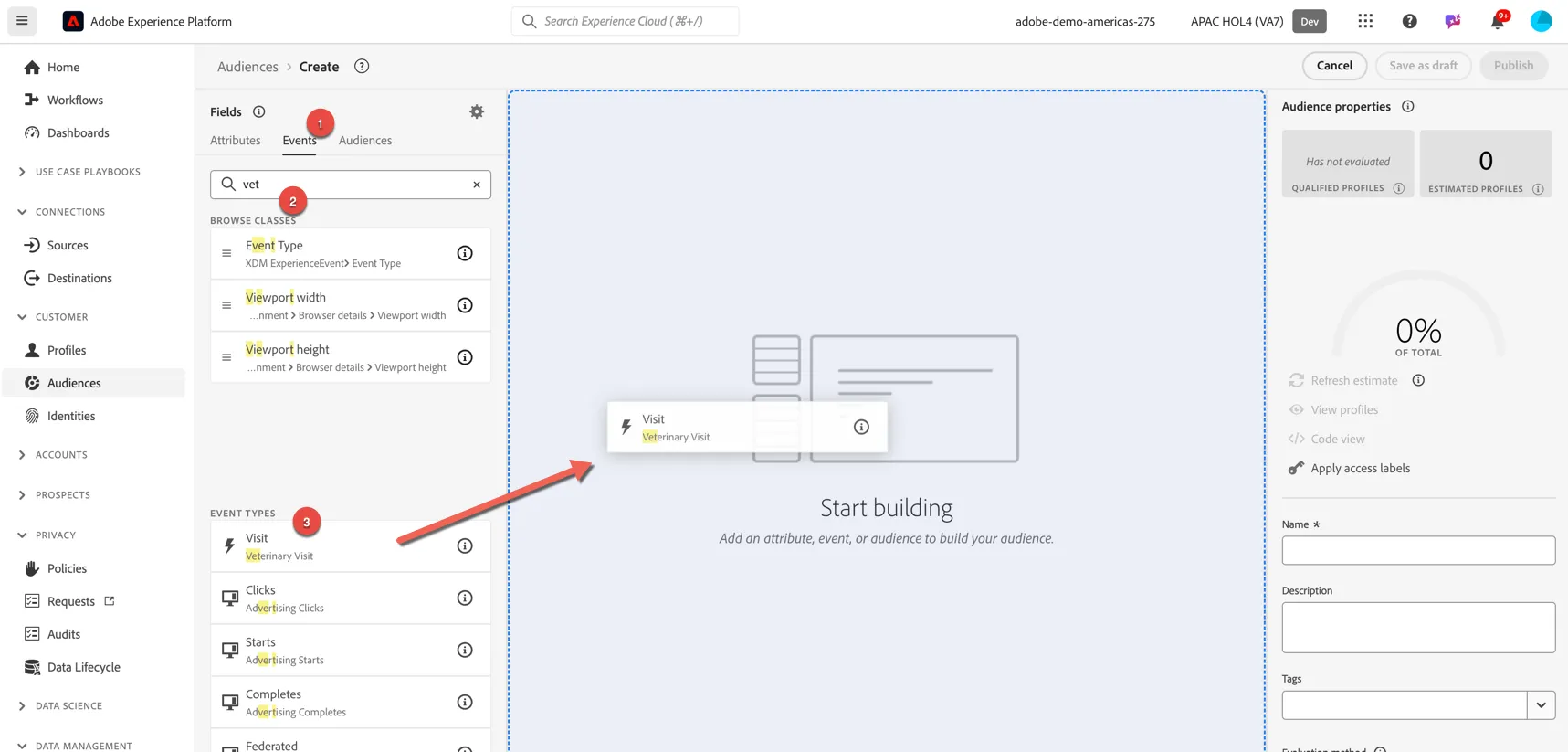
Change from Attributes tab to the Events tab as we'd like to create an audience based on the customers behaviour. Search for Vet. You should see a list of Event Types which include the word Vet in them. Drag the Visit event type into the audience canvas.
We are interested specifically in dental appointments, as we saw in the Unified Profile exercise, the reason for the appointment is included as an attribute on the event. Let's add this as a condition to our event.
Search for appointment, click into the appointment folder.
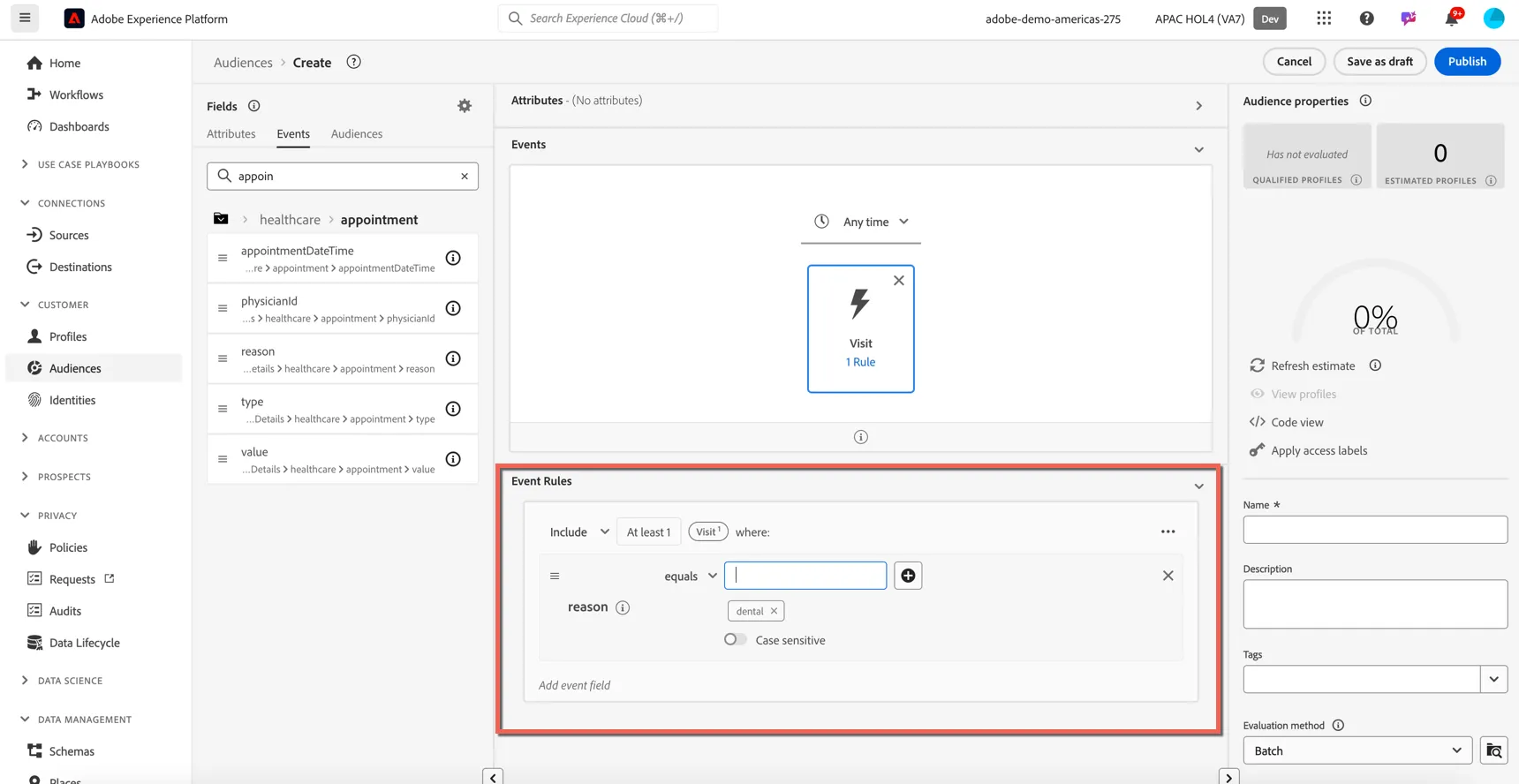
Drag the reason attribute and drop it onto the Visit event.
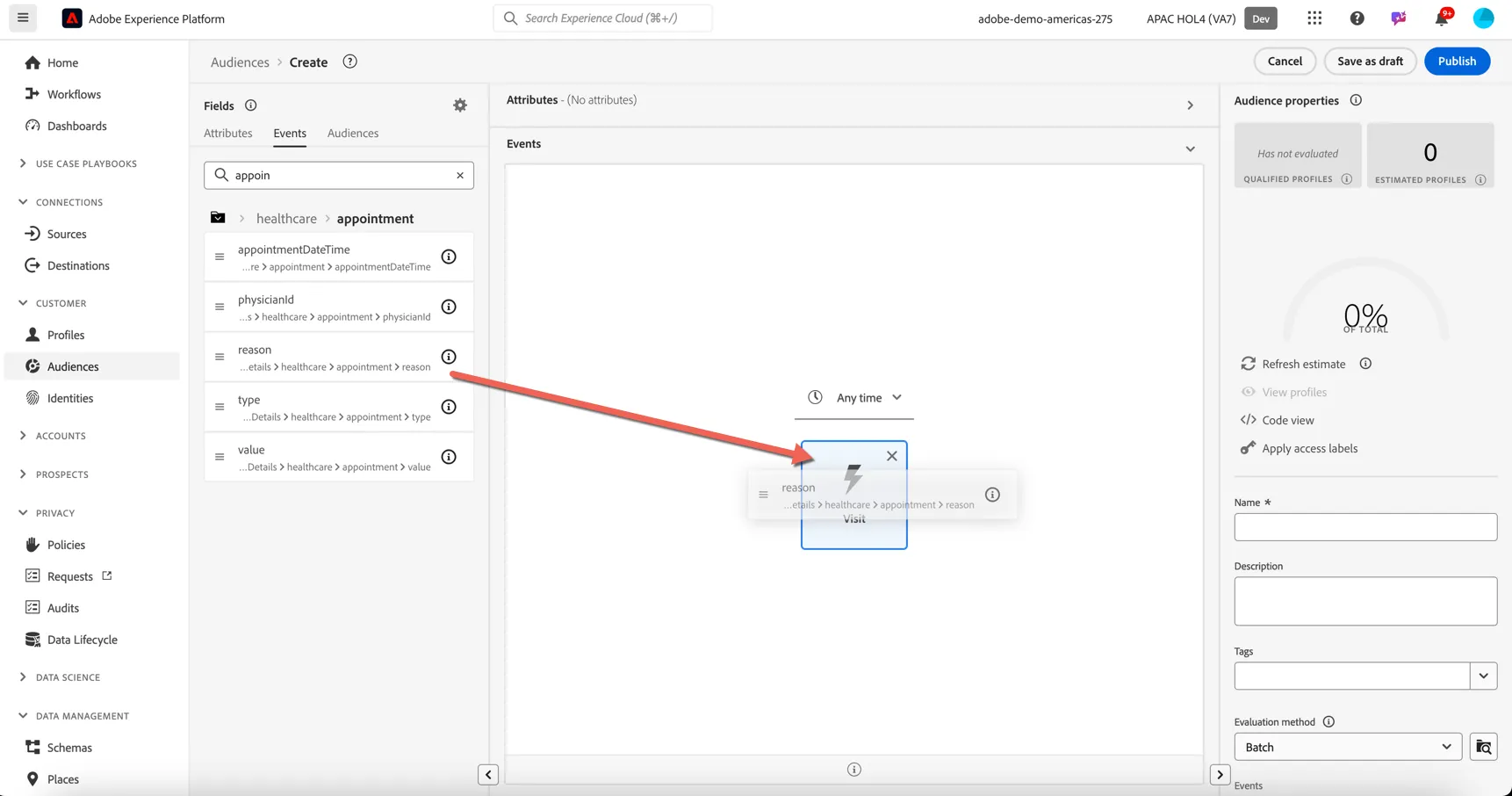
You will now see the Event Rules underneath where you can define your condition. Set the condition to reason equals dental.
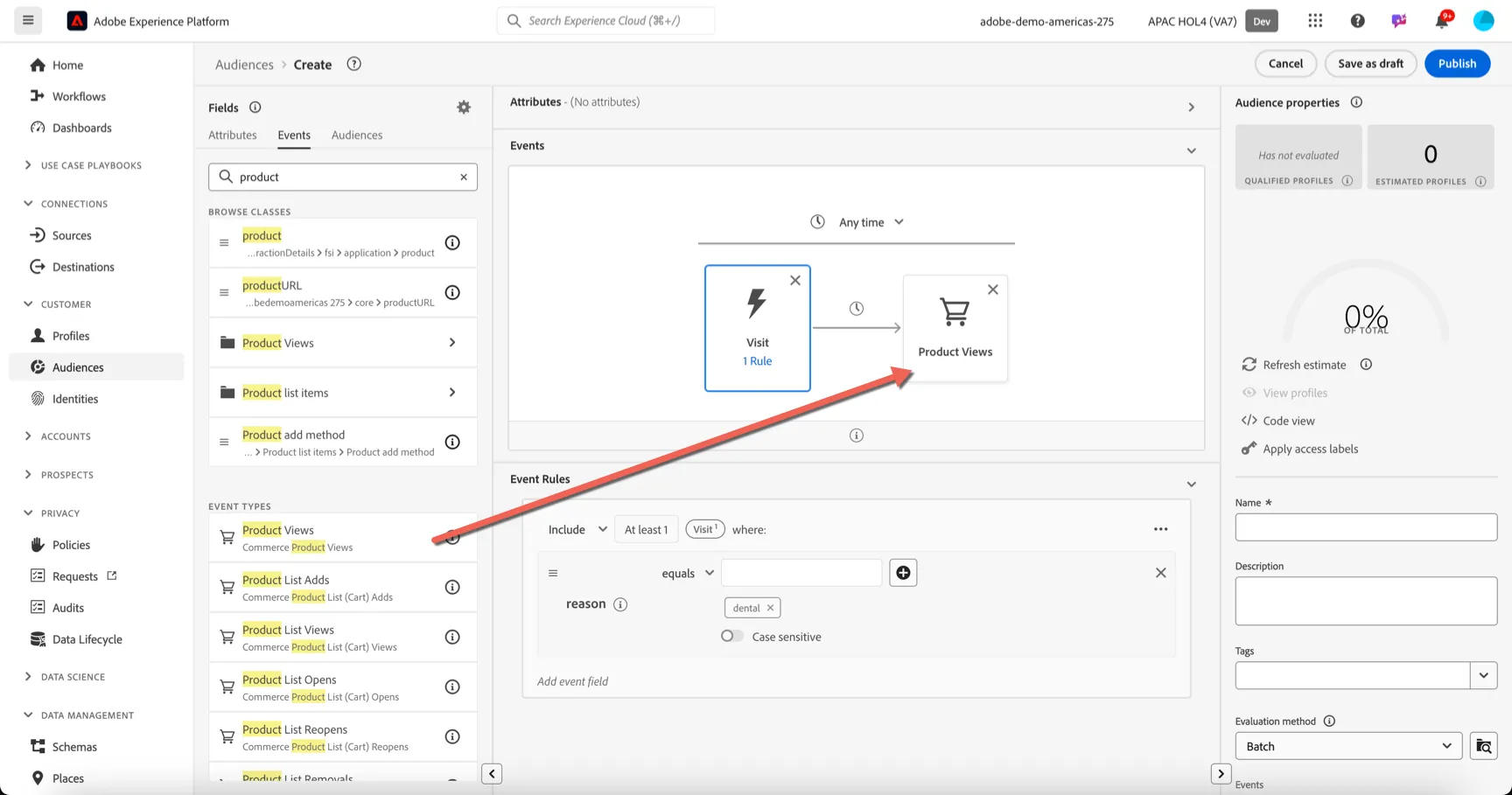
Now we want to understand who has come back to the website or app since then and looked at dental products. This is demonstrating an intent to purchase. Do do this we need to add another event to our audience definition. Search for product in the events tab. Drag the Product Views event type into the canvas and drop it to the right of the Visit event. This means the product view must have happened after the visit.
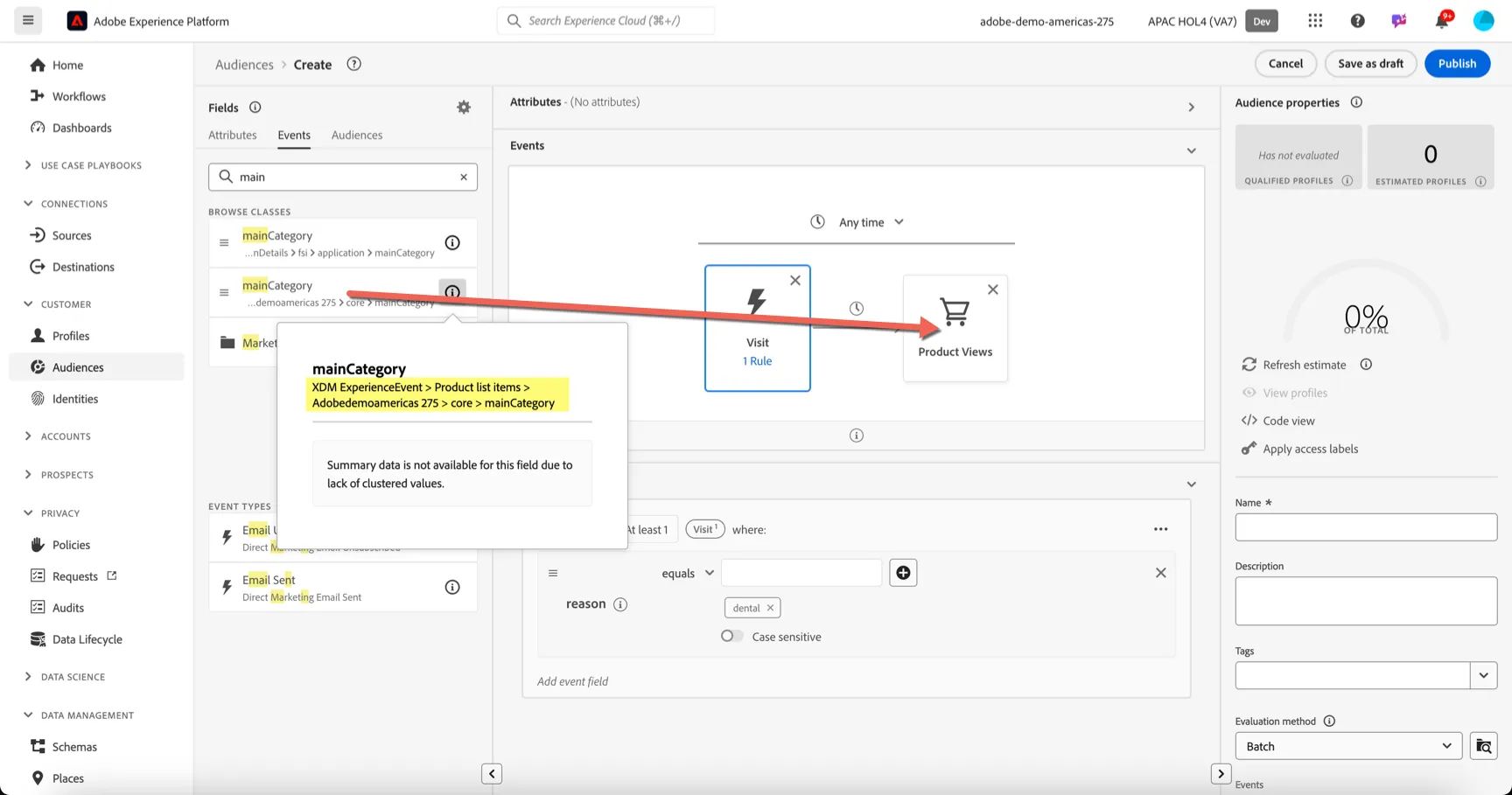
We now want to filter the product view based on the category of the product. Search for mainCategory and drag the mainCategory attribute from Product list items onto the product view event.
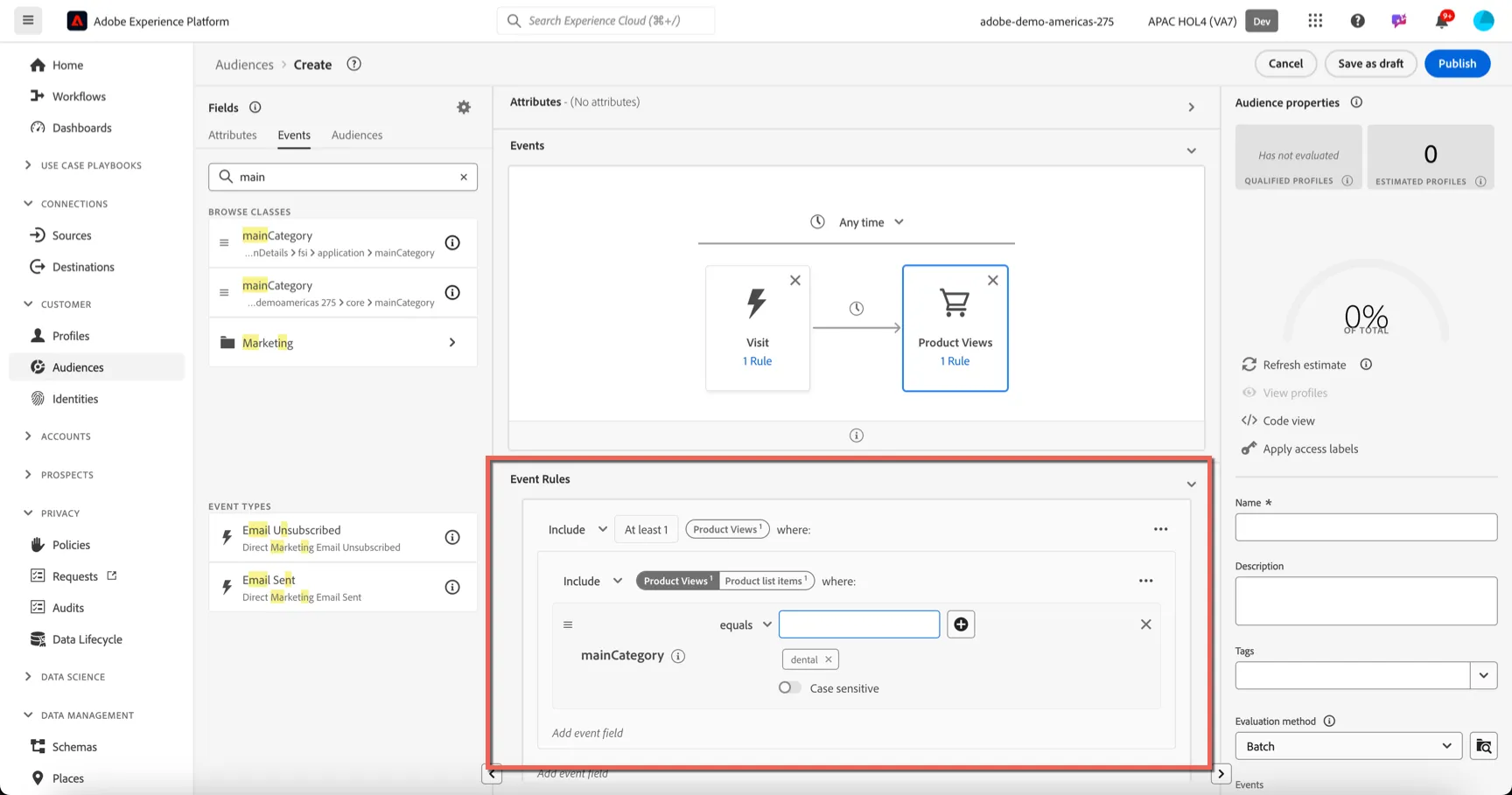
Set the condition to mainCategory equals dental.
Lastly we want to exclude anyone who went on to make a purchase. Search for purchase and drag the Purchases event type to the right of the product view event.
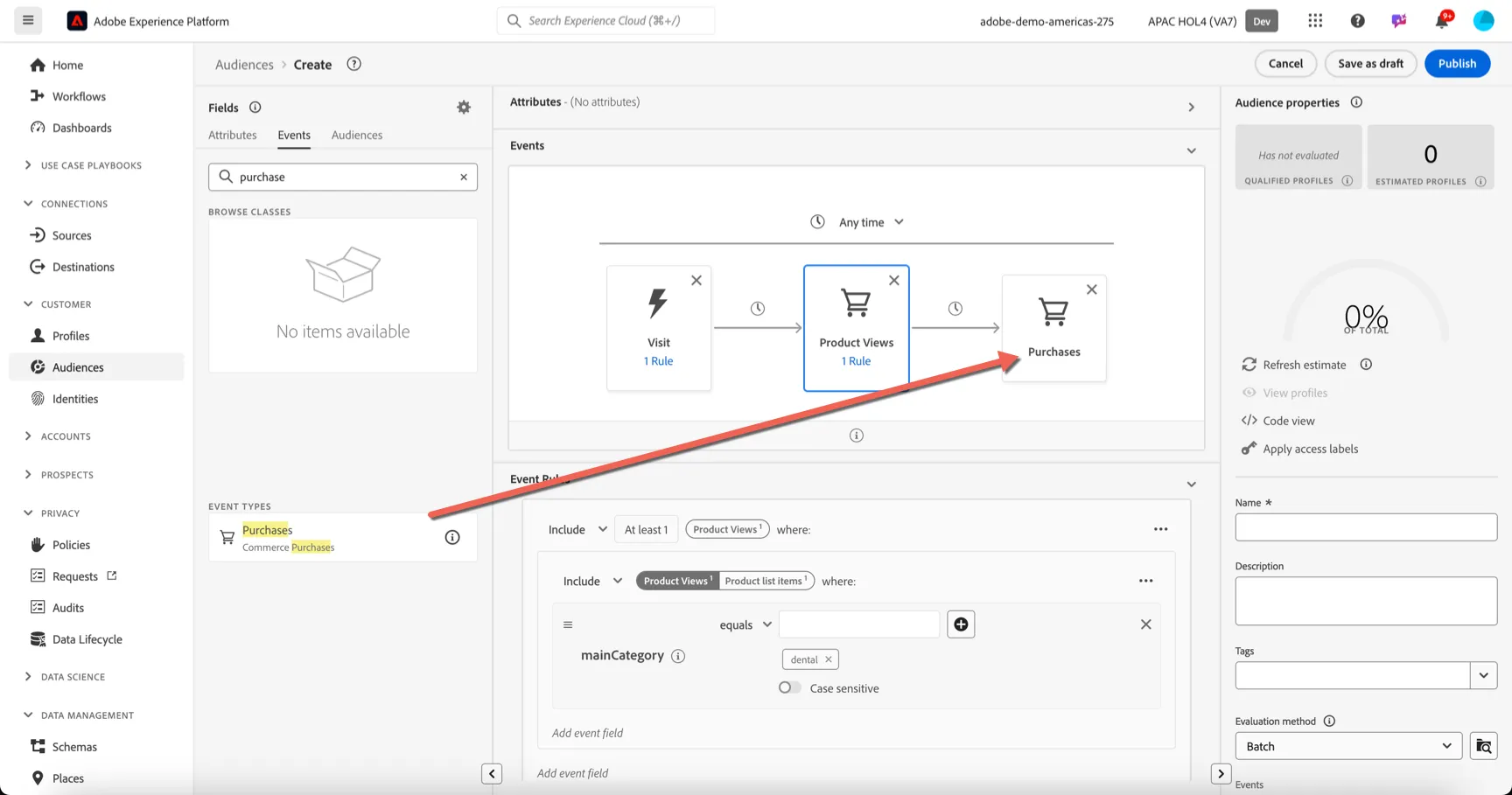
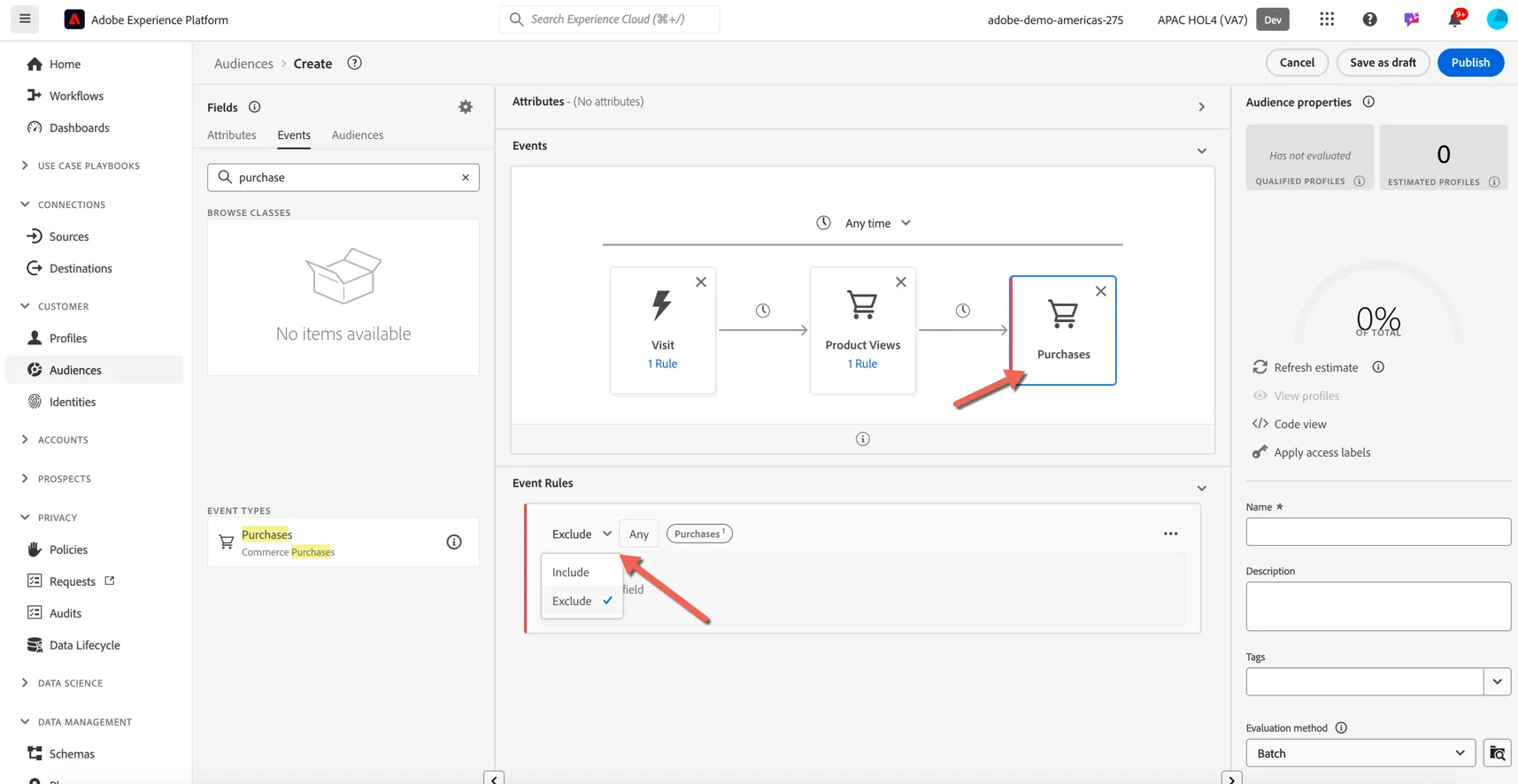
We want to exclude the people who have purchased so click on the purchases event and change the condition from include to exclude.
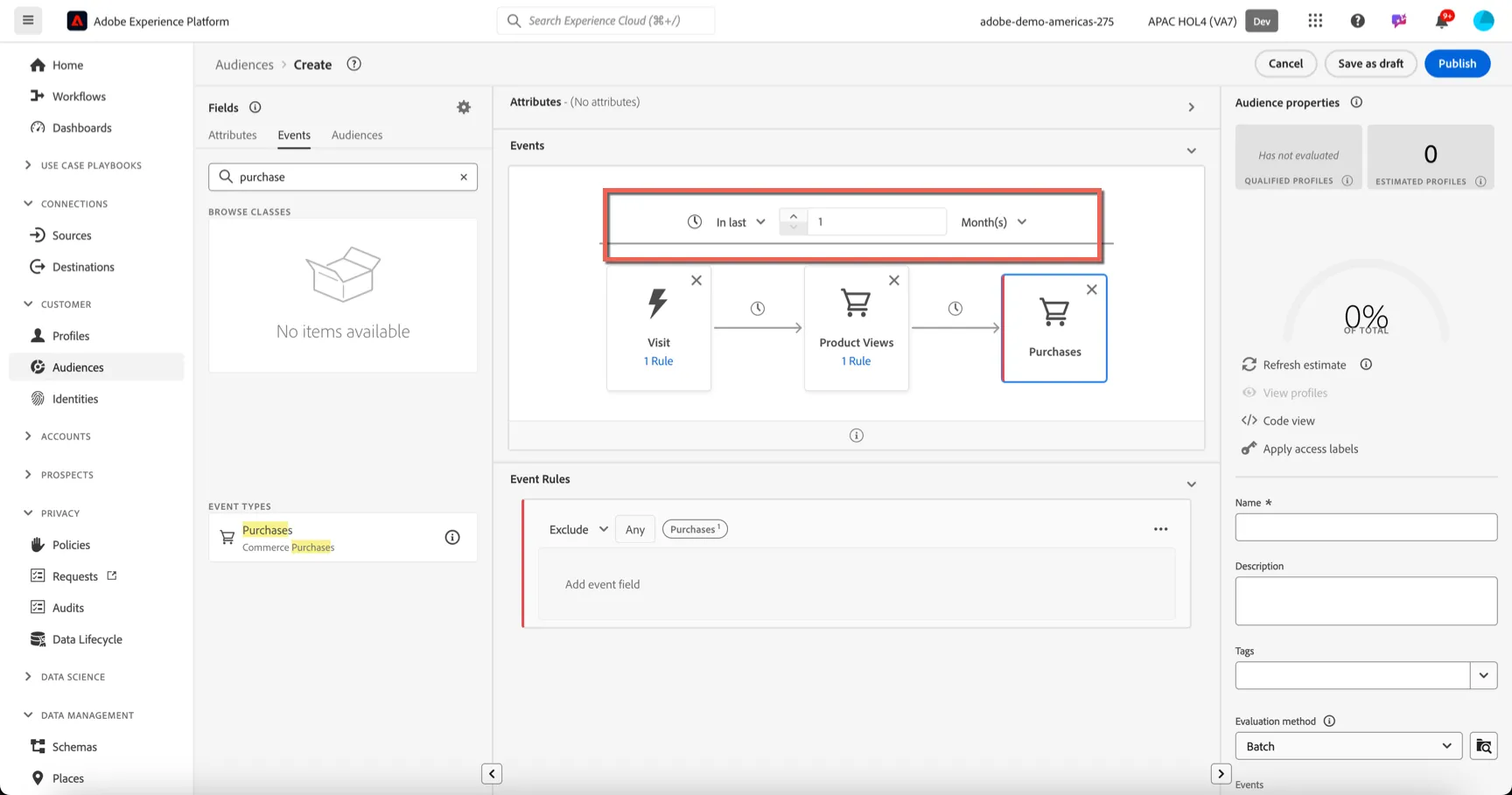
Change the overarching time period Anytime to In Last.. 1 month.
Give your Audience a name. E.g. your initials - high intent for dental products. Select Publish to save the audience and add it to the nightly job for calculation.
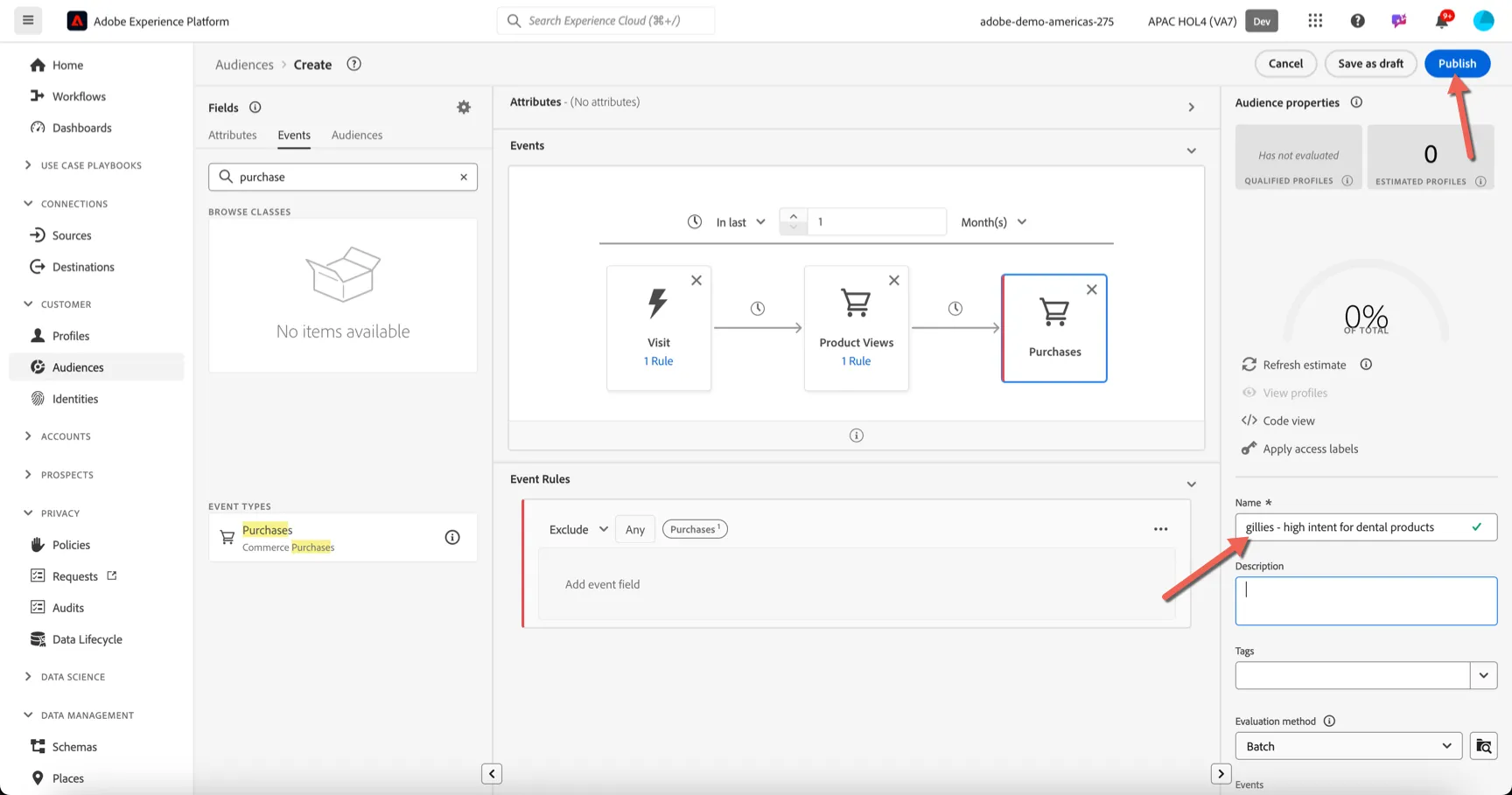
You have successfully created a complex sequential audience.
Audience Composition
Using a rule-based audience like the one above is a great way to identify prospects showing the intent to purchase. Adobe's Customer AI can also provide propensity scores to help target your most important prospects.
In this exercise we'll use the propensity score provided by Adobe's Customer AI in an Audience Composition to choose the top 100 pet owners with the highest propensity.
The resulting audience could be used for a surpise and delight campaign for example delivering a limited number of vouchers.
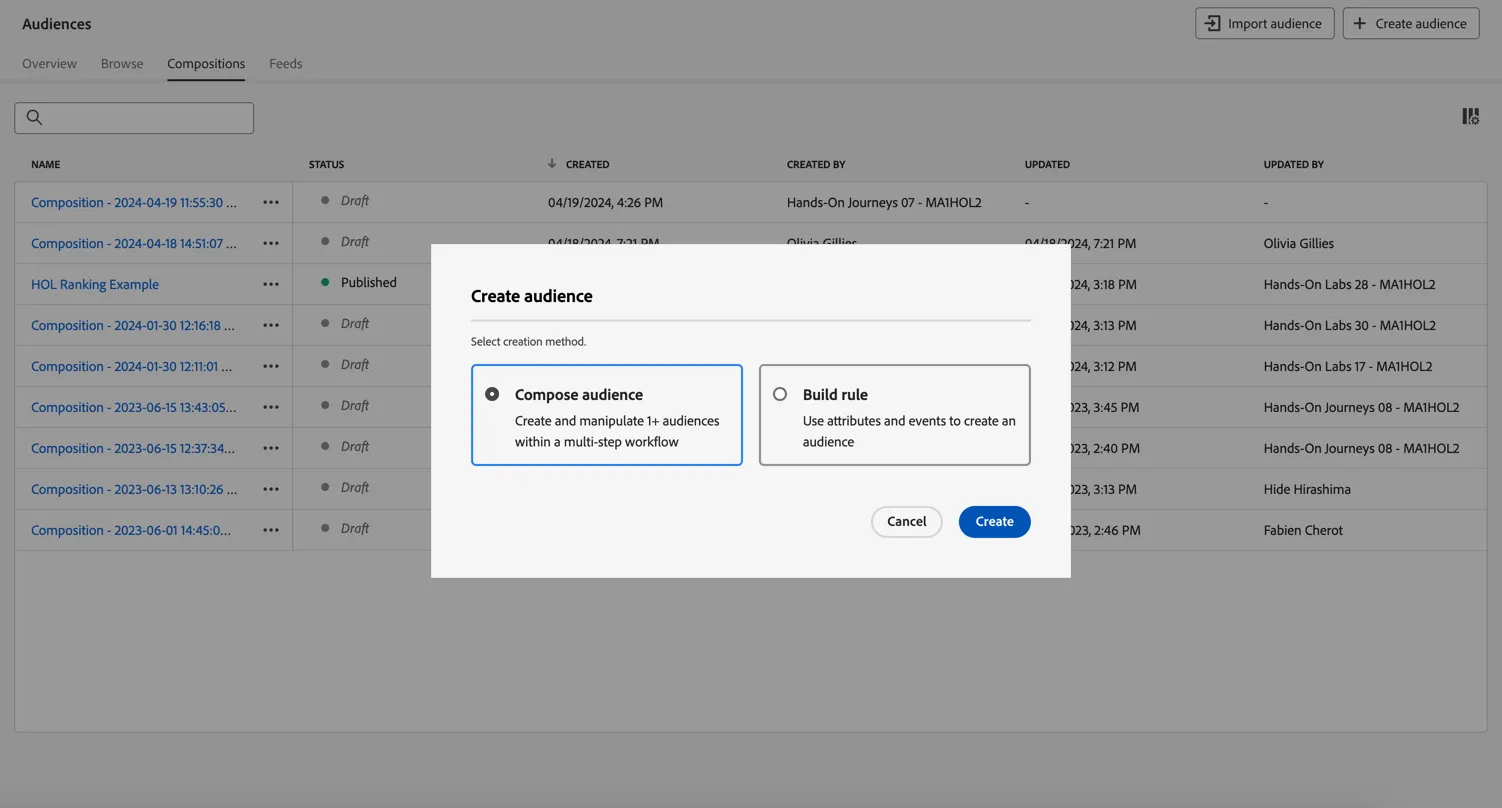
Go to Audiences and click to + Create Audience. Select Compose Audience and click Create.
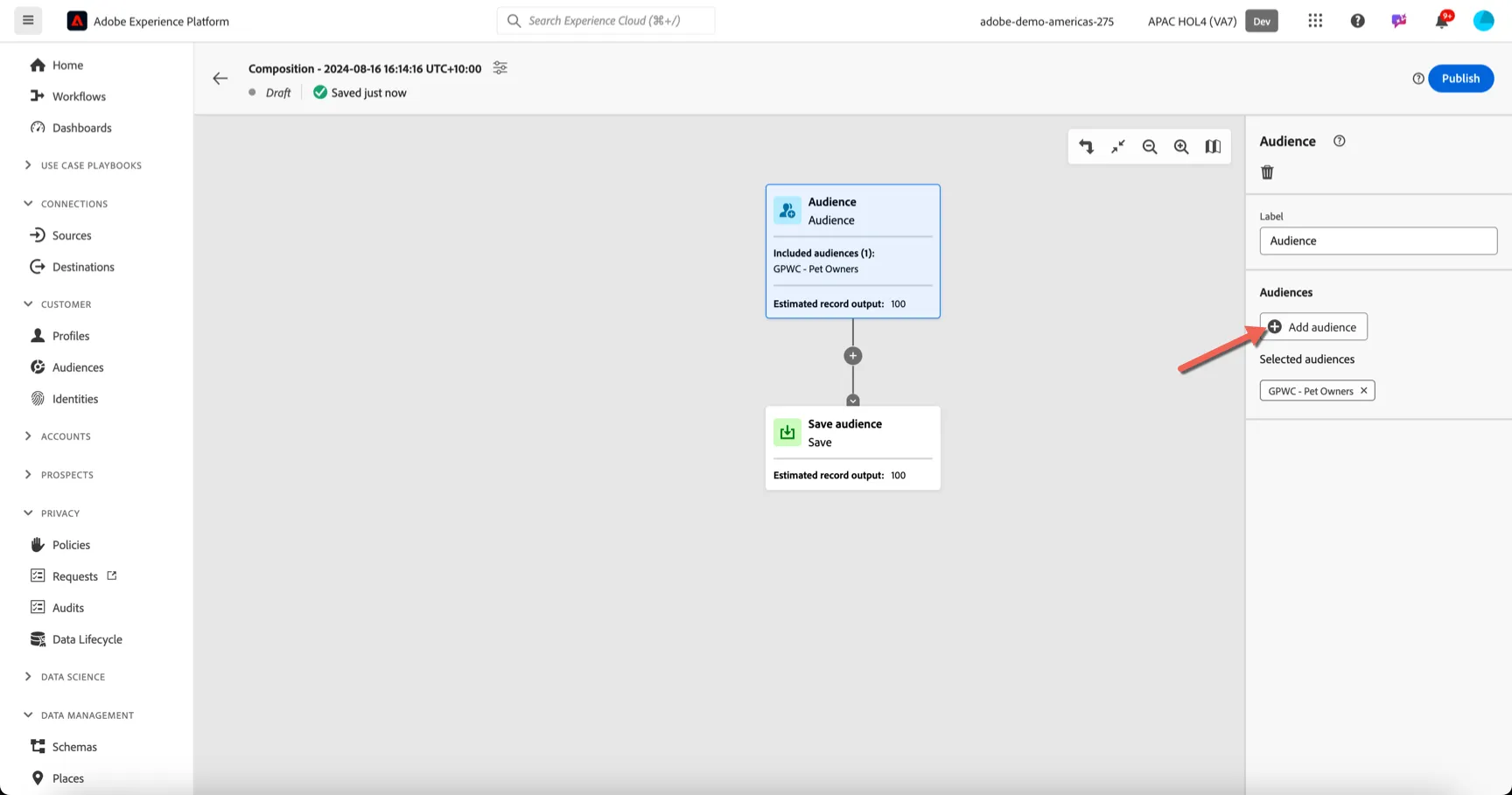
Select the Audience activity that starts the composition. Click to Add Audience and select the GPWC - Pet Owners audience.
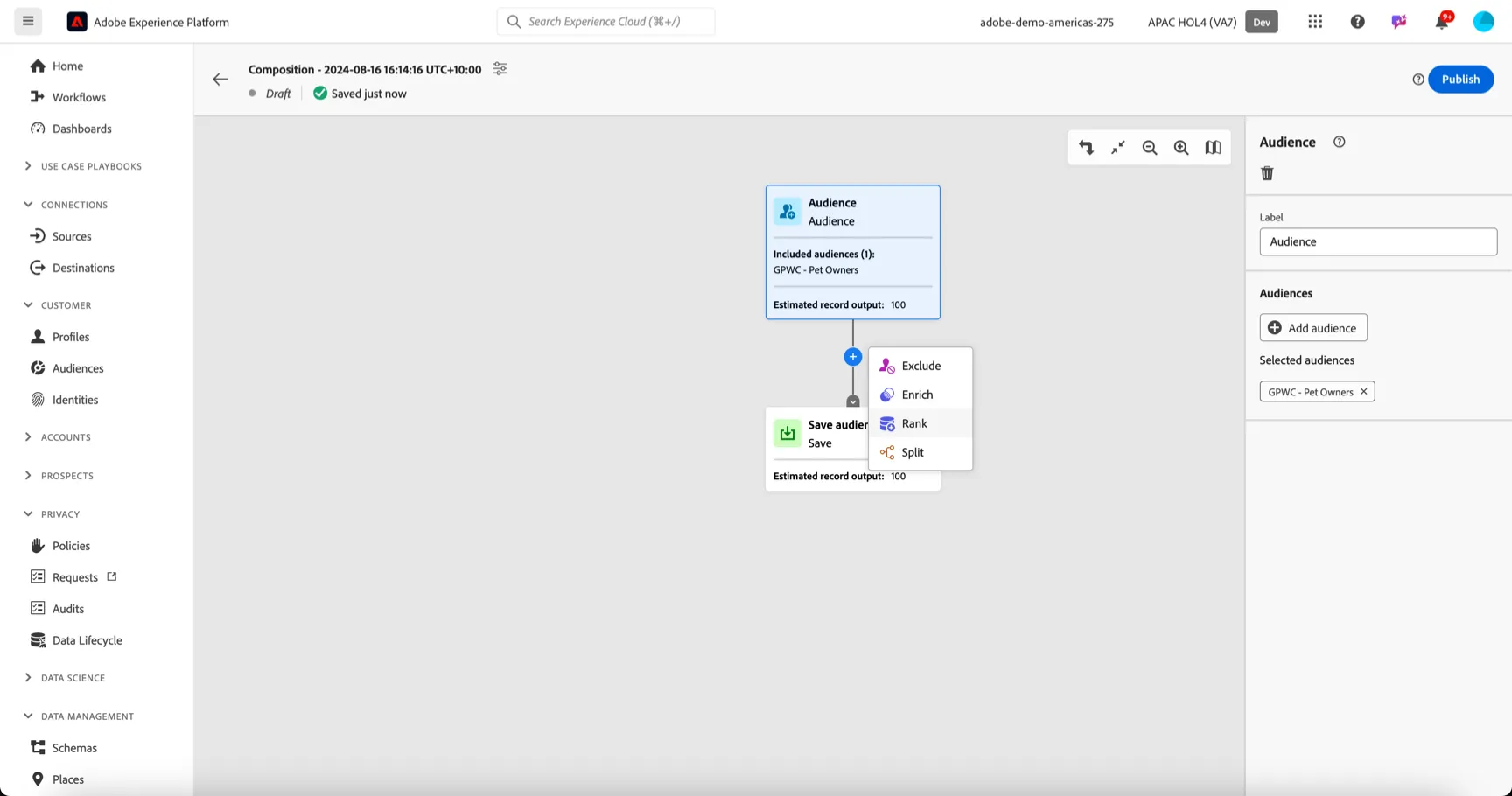
Click on the plus after the audience activity and select to add a Rank activity.
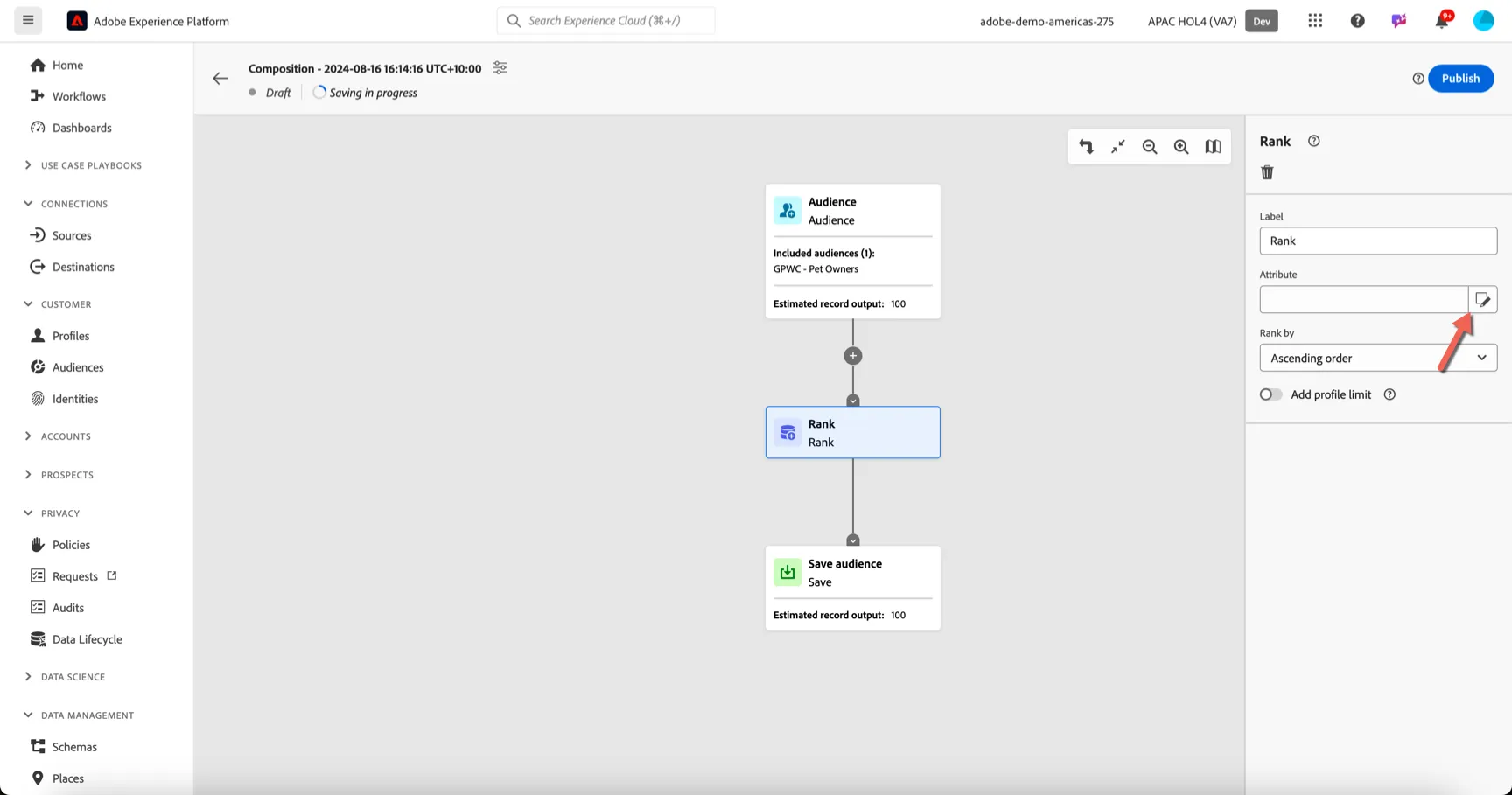
Click the icon to select an attribute:
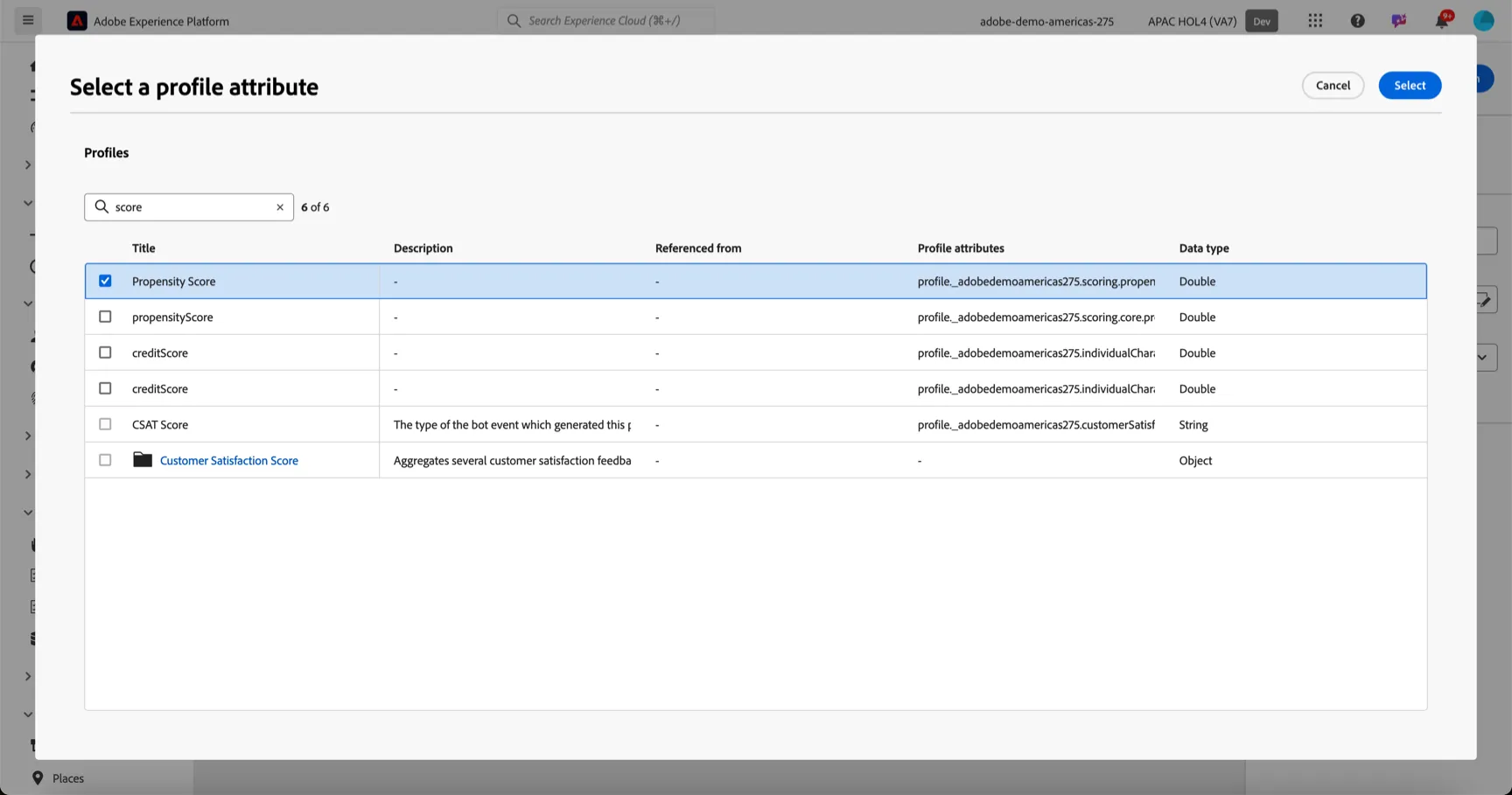
Search for score and select the first PropensityScore attribute that is listed.
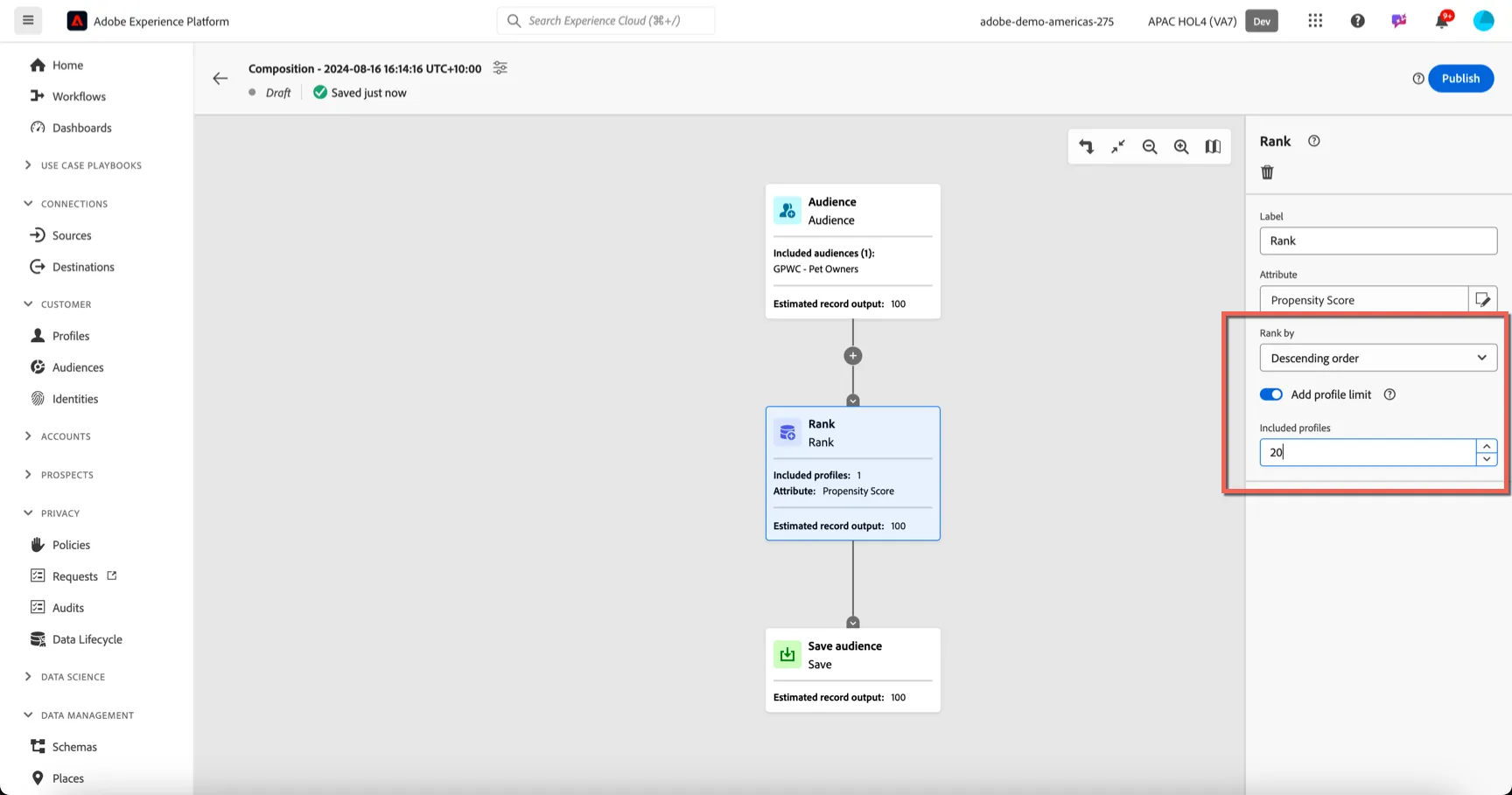
Change the Ranking order from Ascending to Descending - we want the profiles with the highest propensity. And add a limit of 20.
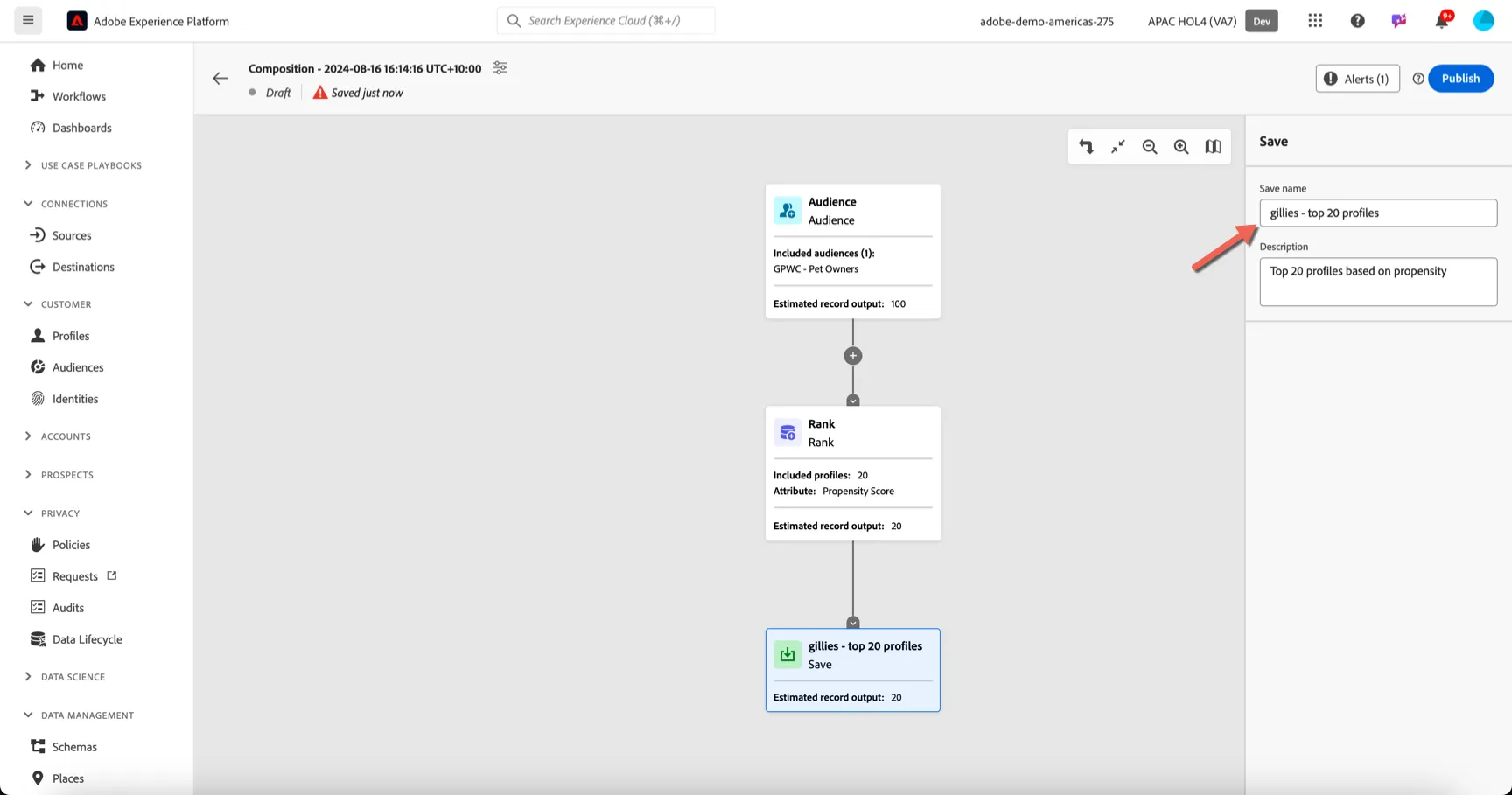
Click on the Save Audience activity and add a name for the audience that will be created as output from the composition.
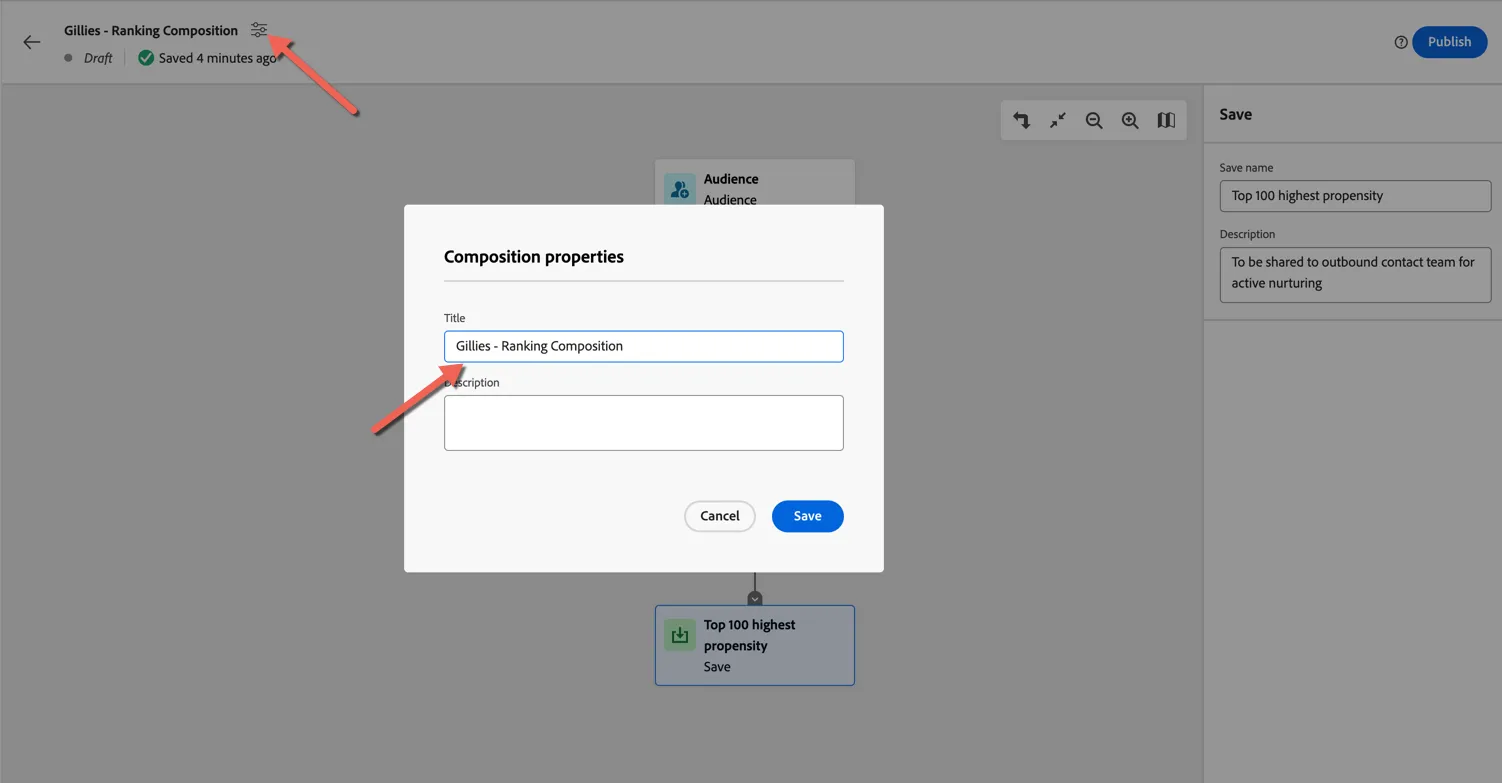
Lastly give your composition a name by clicking on the settings at the top left. Make the name unique so you can identify it easily.
Congratulations you have successfully created an audience composition workflow. Once published the workflow will execute once per day to populate the audience with the top 20 highest ranked profiles.