Campaigns
Campaigns are single channel messages to an audience, they can be scheduled to be sent once off or on a recurring schedule, or to be triggered directly via an API.
In this exercise you will prepare an email campaign targeting kitten owners in sydney to promote the Nosh Project range of products targeted for Kittens. You will use the audience and content you created earlier and quickly insert personalisation to include the customer name and the kitten name.
To view existing campaigns click on Campaigns under Journey Management in the left hand navigation.
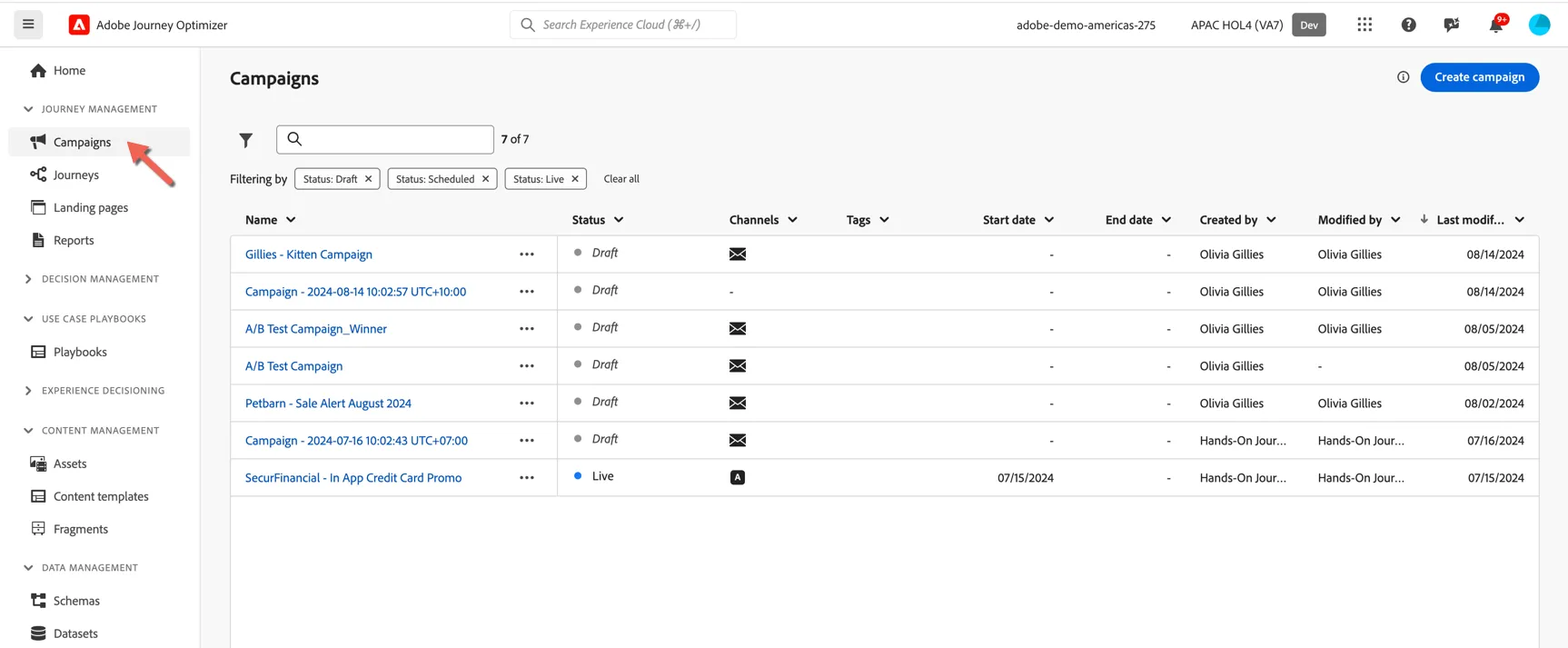
Create a campaign
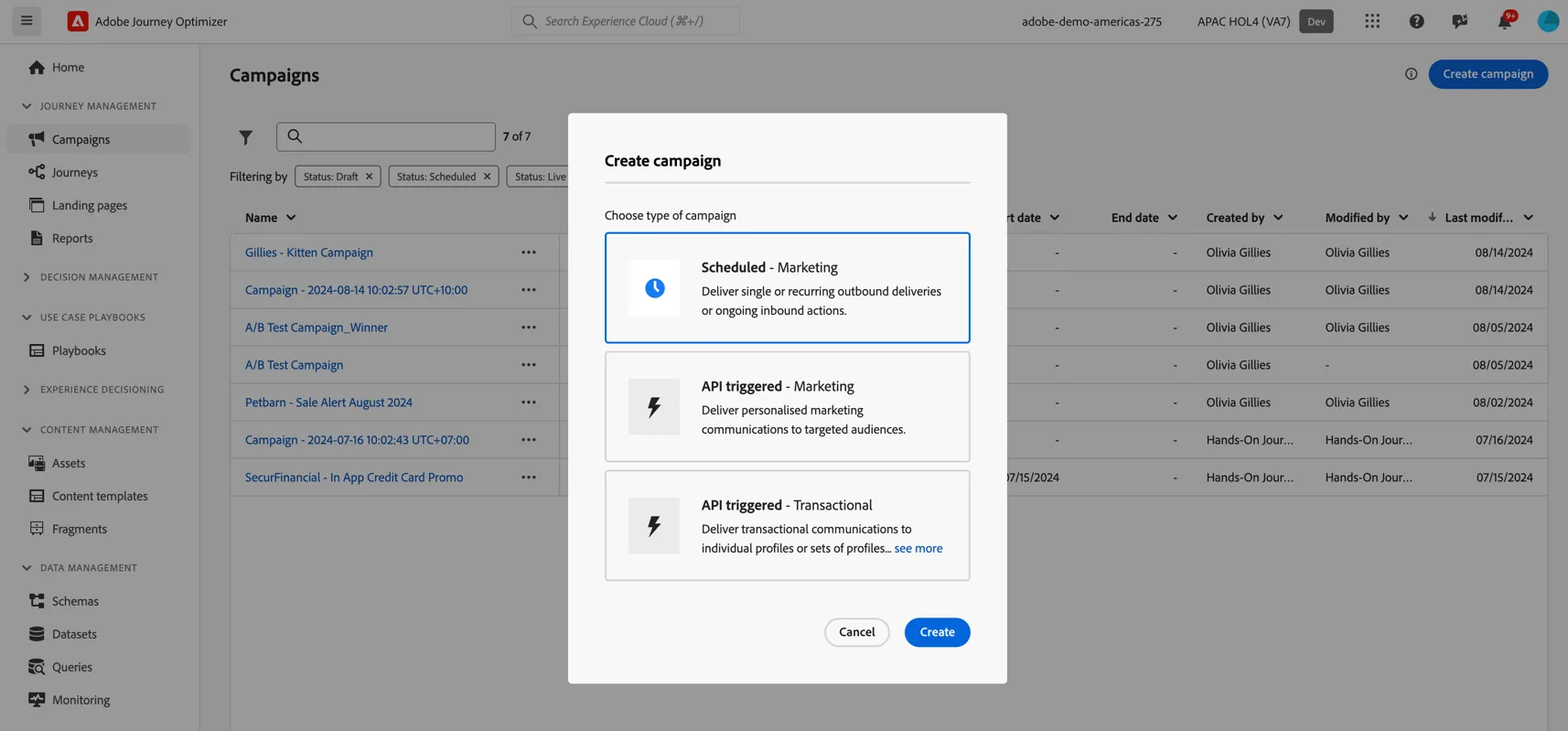
Click on the button to create a new Campaign, select Scheduled and click Create.
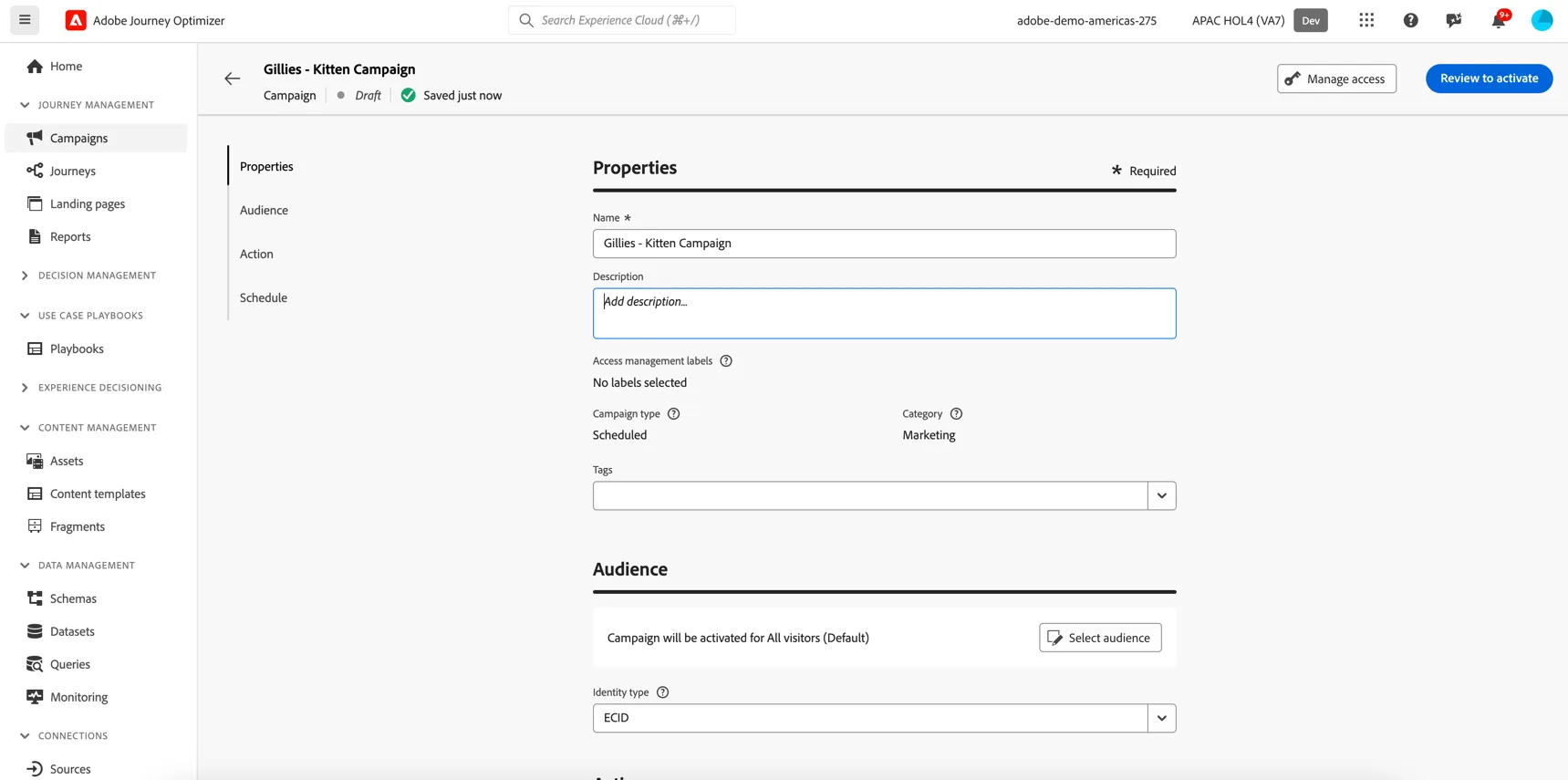
Give your campaign a name - include something unique like your last name.
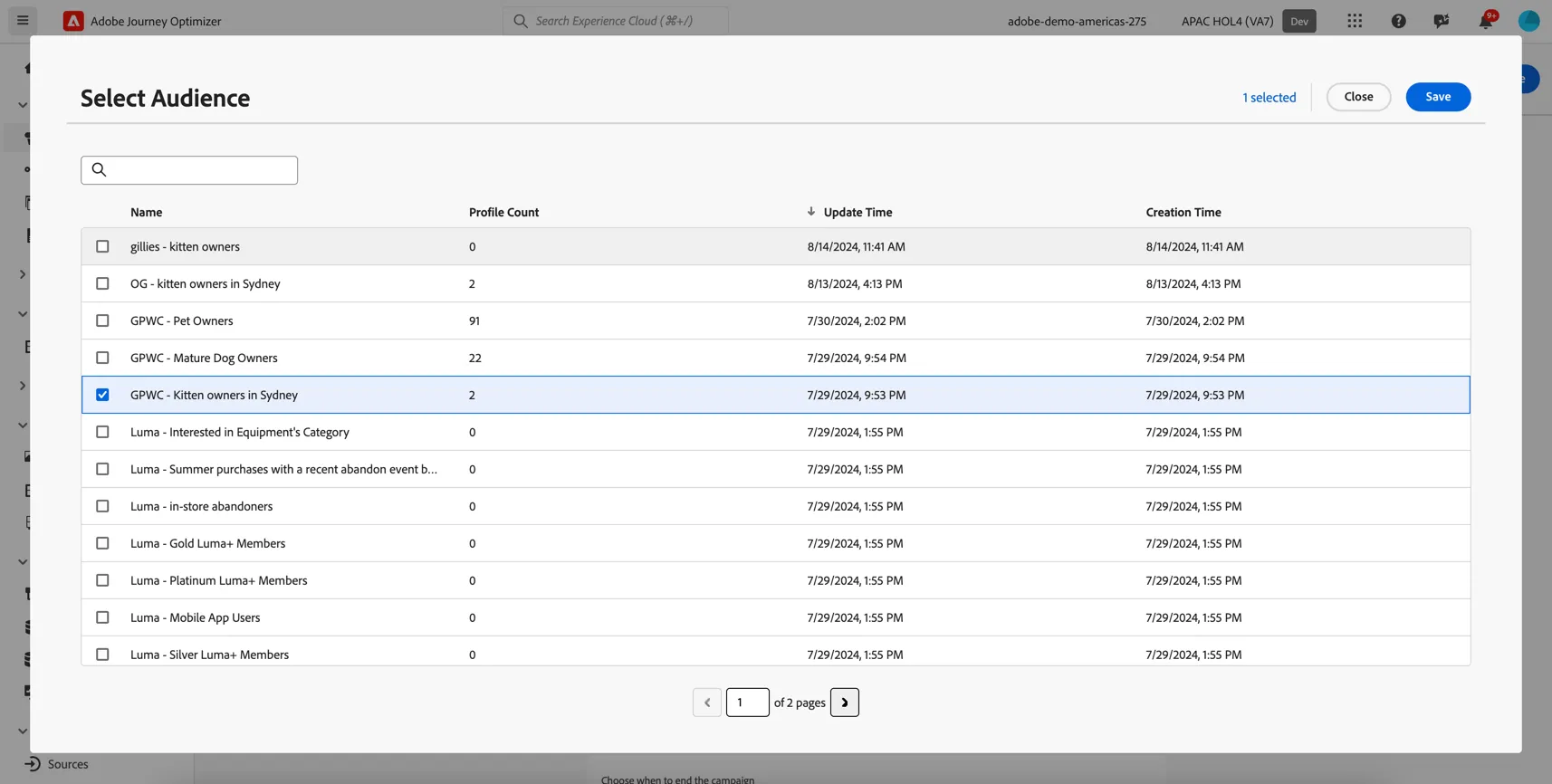
Add the Audience
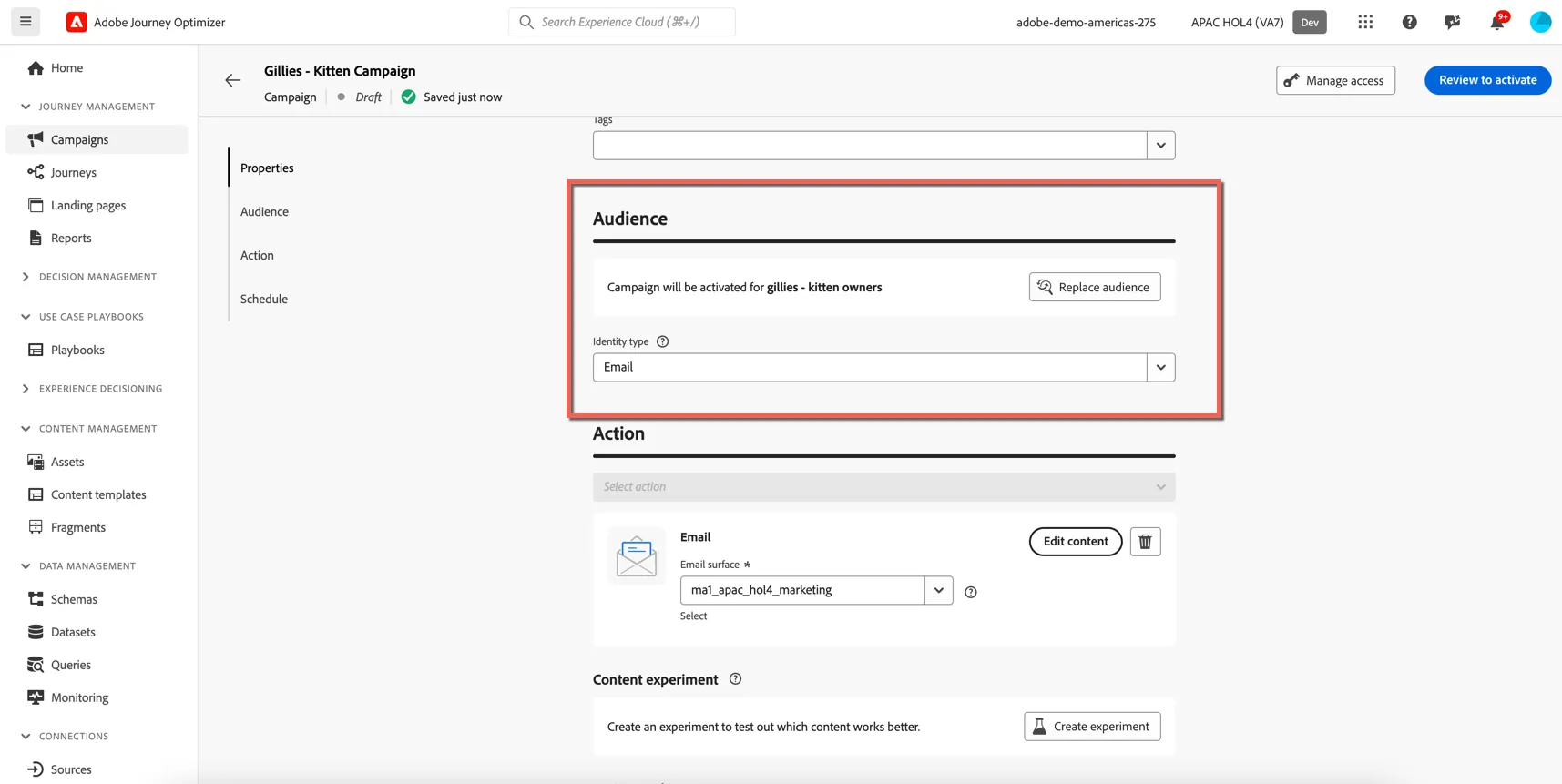
Scroll to the Audience section and click to Select audience. Note the audience you created earlier today still has a 0 profile count, this will only update after the nightly batch job. You can select this audience or the pre-created GPWC - Kitten Owners in Sydney audience.
Change the Identity Type to email.
Add Email Content
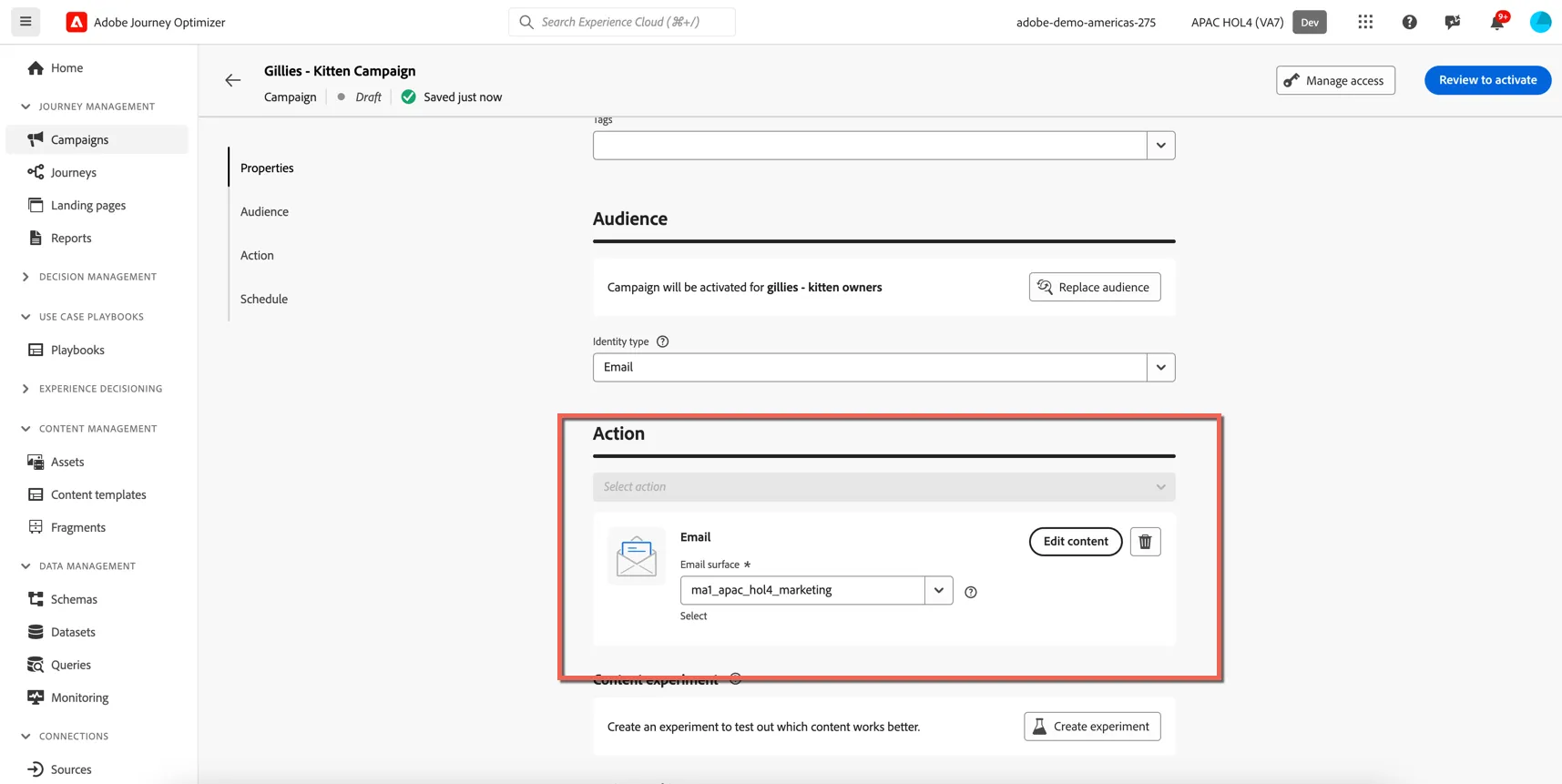
Select Email as the Campaign Action. Select the only email surface that is available - the surface controls the email headers like sender name and reply address along with other technical configurations like the sending IP.
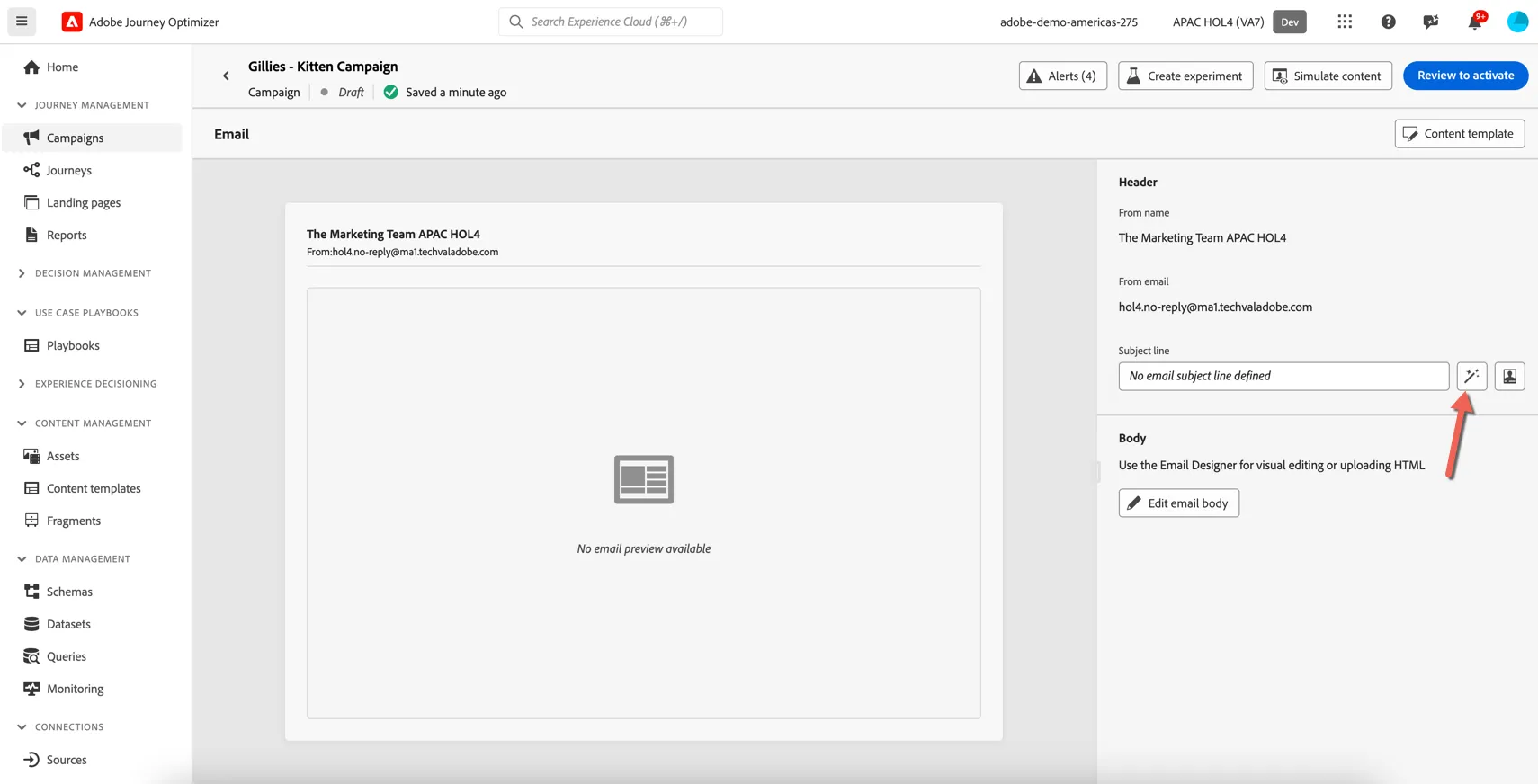
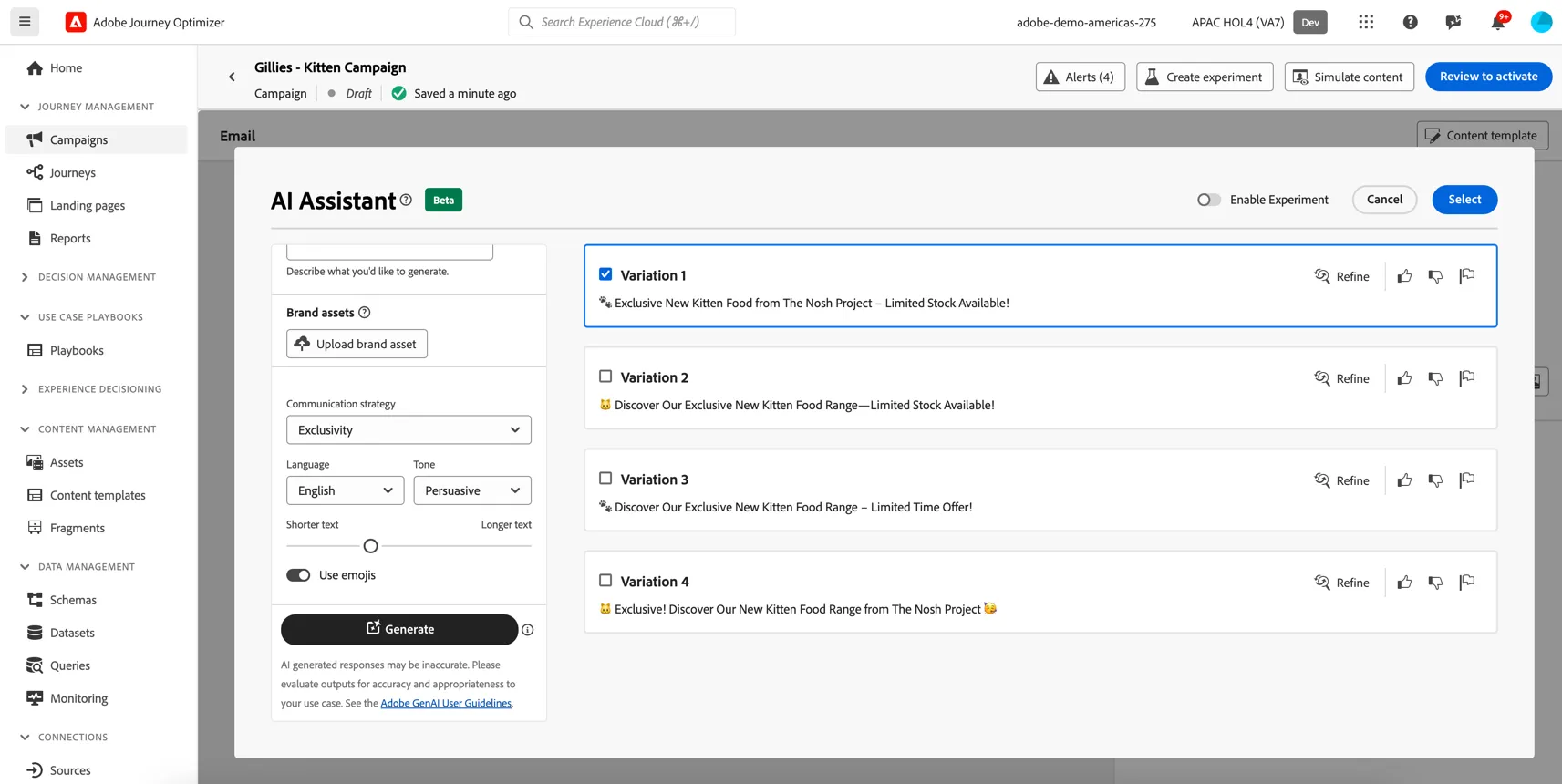
Click on Edit Content to add the content. The first thing to be added is the subject line. We can use AI Assistant again here to generate some text content for our subject line. Click on the AI Assistant logo next to the subject line field.
Add a text prompt for what you want to convey.
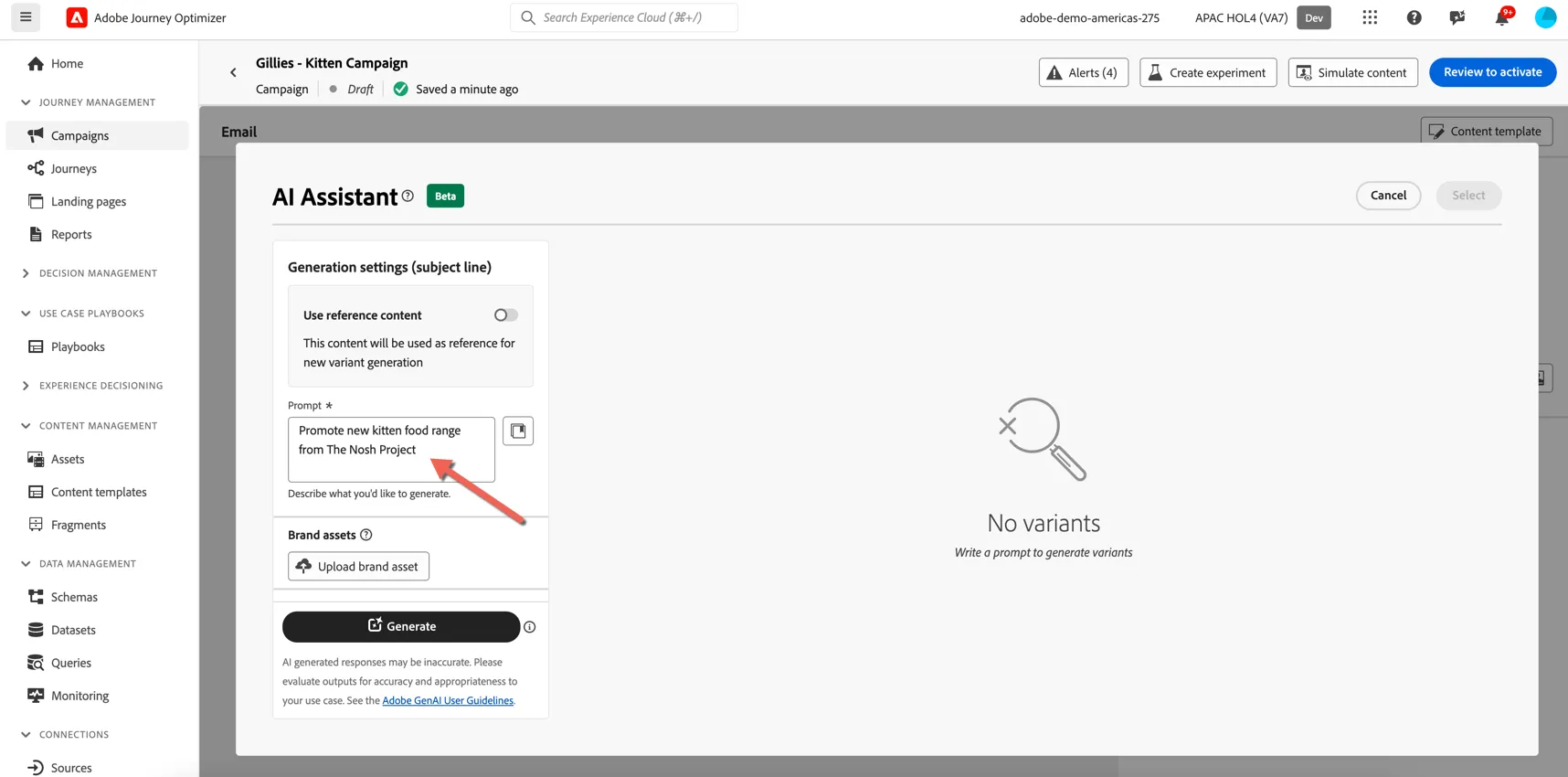
Select your Communication Strategy and Tone then click Generate to view the variations. Pick your favourite variation and click Select to add it to the subject line.
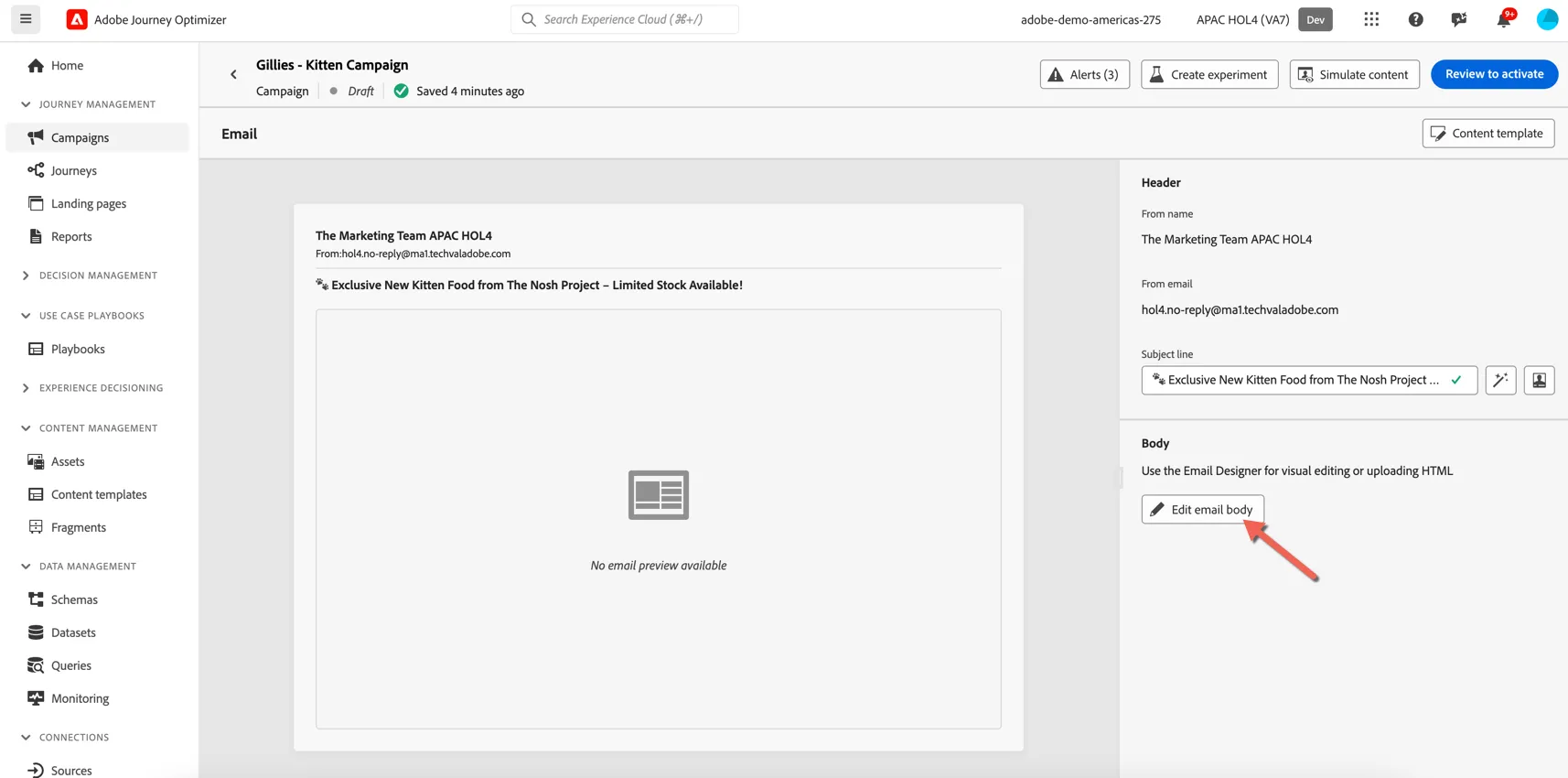
Click to edit email body.
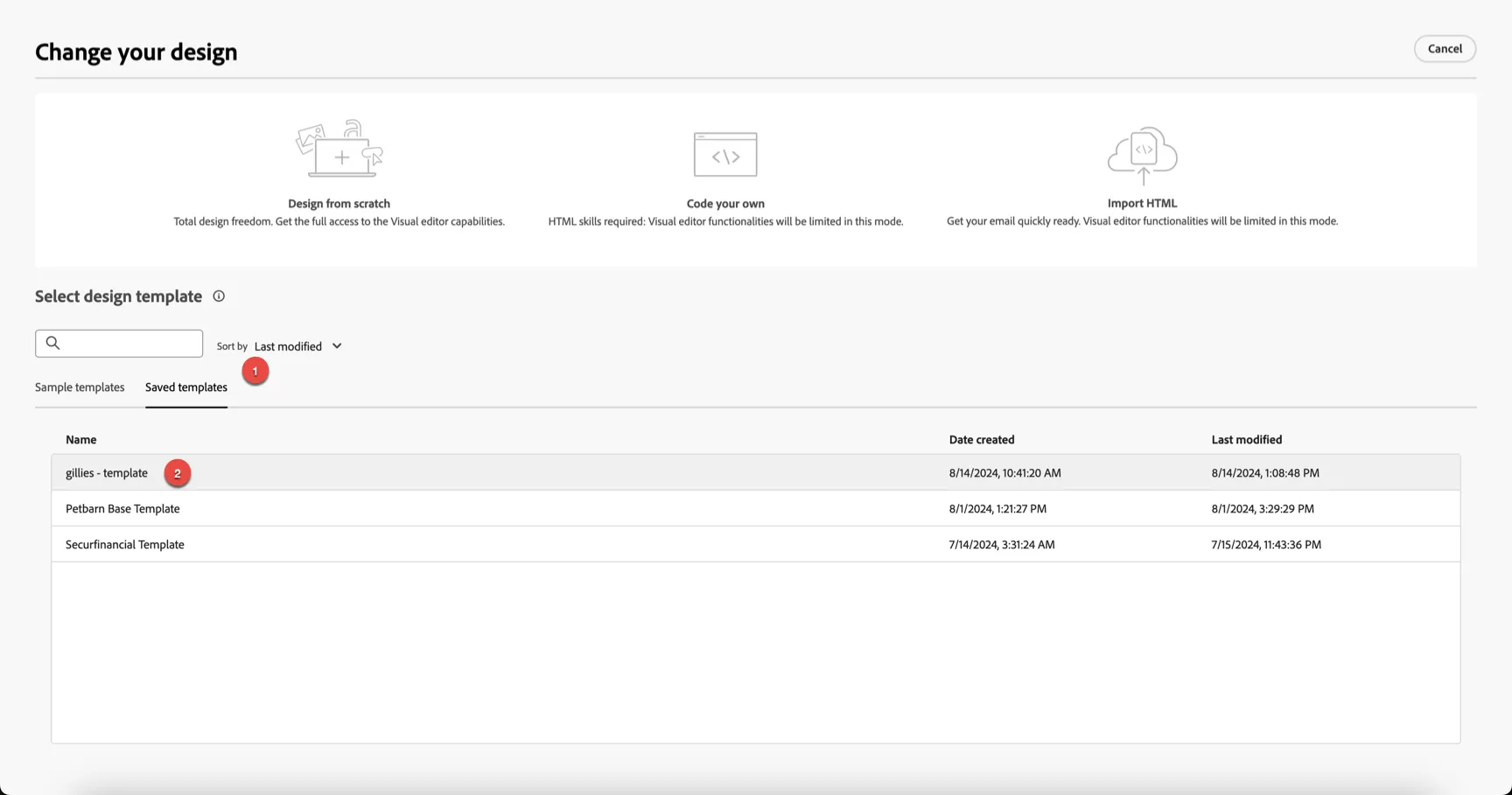
Select the template you created in the last exercise and add it to your content.
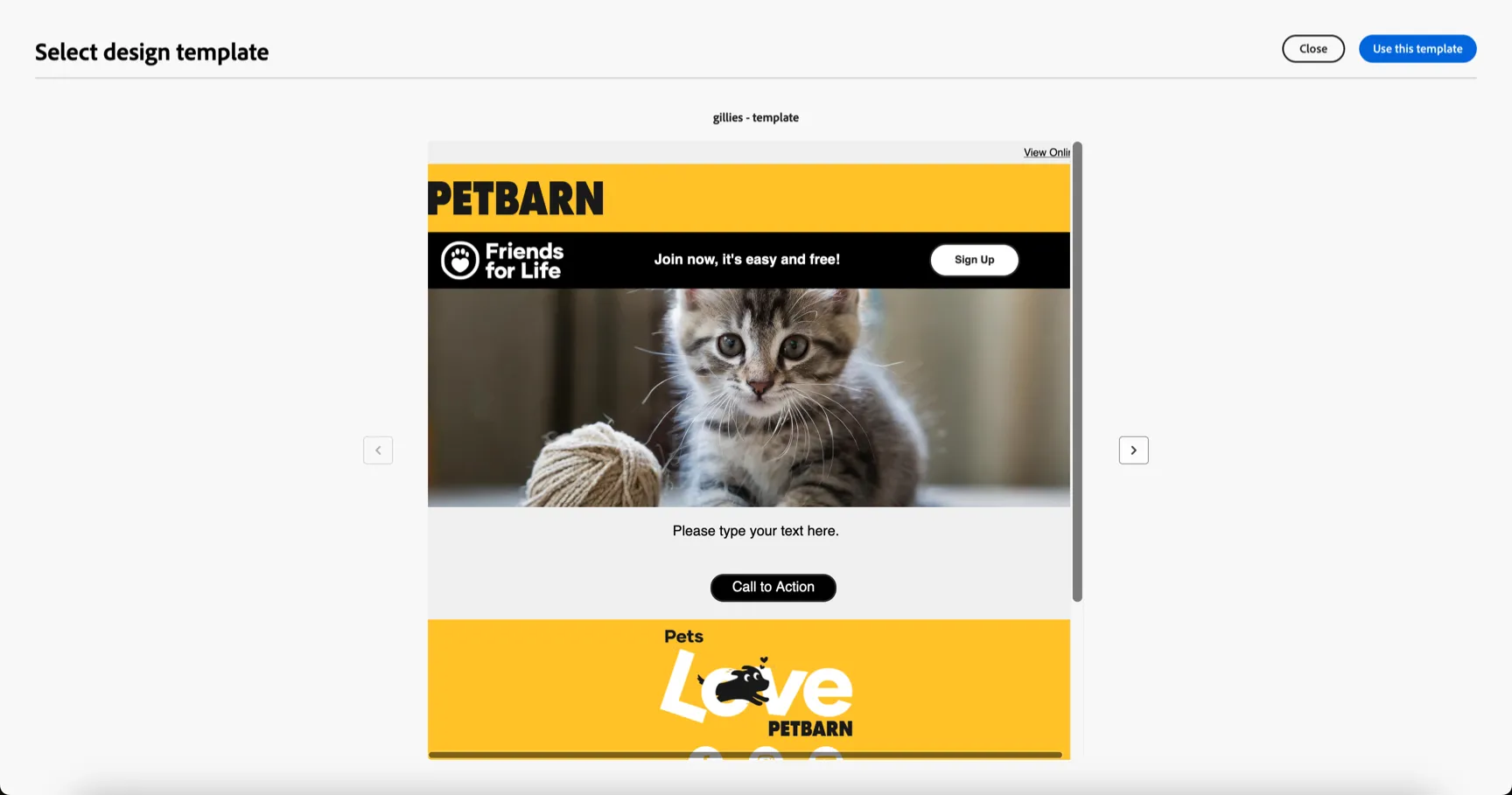
Click to Use this template
Add Personalisation
We are going to promote the Nosh Project Kitten Meals. Add a message to the content like: Hi XXX, Give XXX their best start with the Nosh Project Kitten Meals - designed by vets with human grade ingredients.
We're going to replace the XXX with the customers firstname, and the name of their kitten.
Highlight the first XXX and click to Add Personalization.
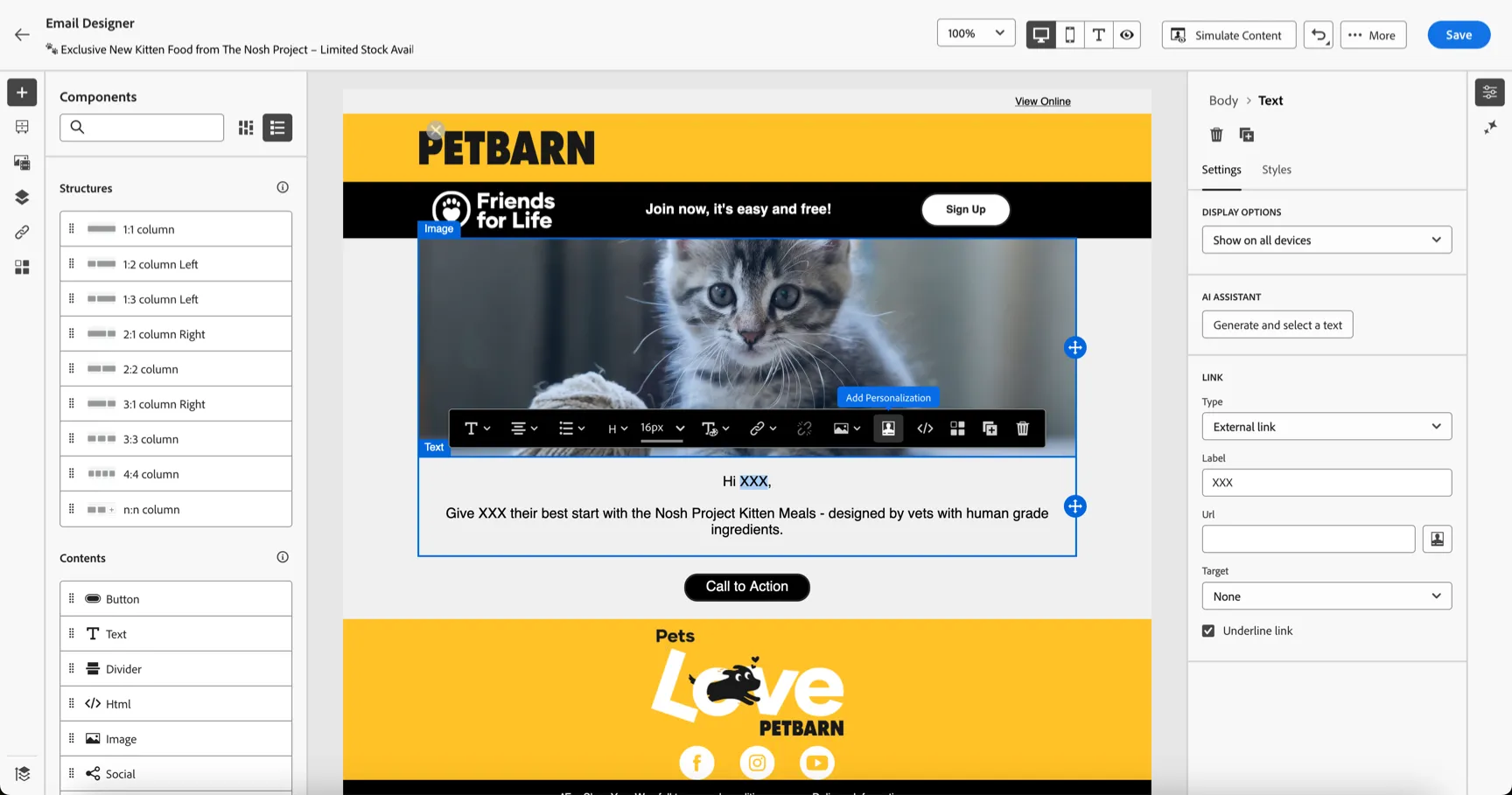
This opens the personalisation editor where you have acess to all of the options for personalisation. Search in profile attributes for first. Click on the + icon to add the profile attributes > person > full name > first name attribute.
This demo instance has a number of first name fields in the profile, you won't see multiples in your own instance.
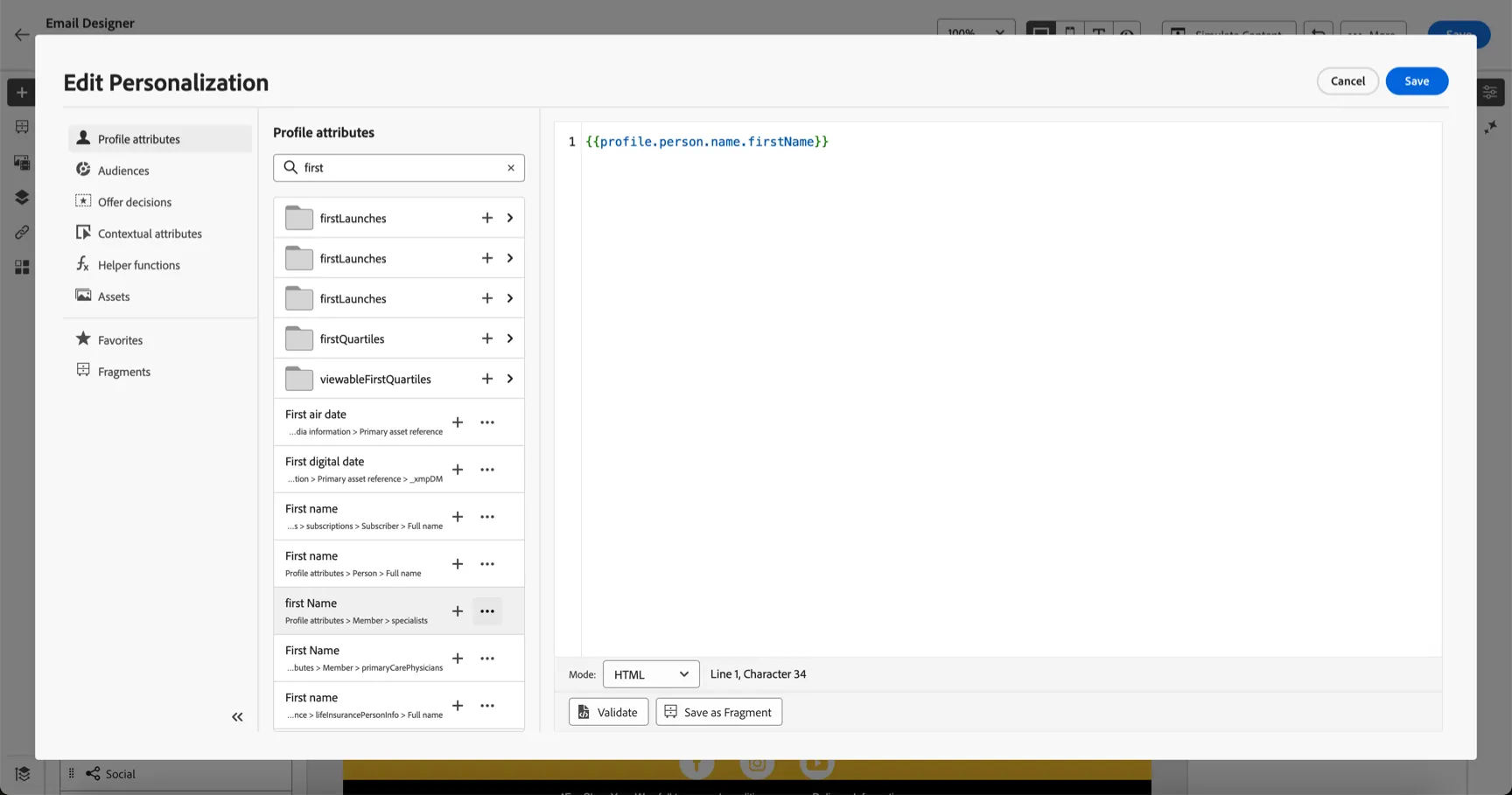
Click Save to insert the personalisation syntax into the content.
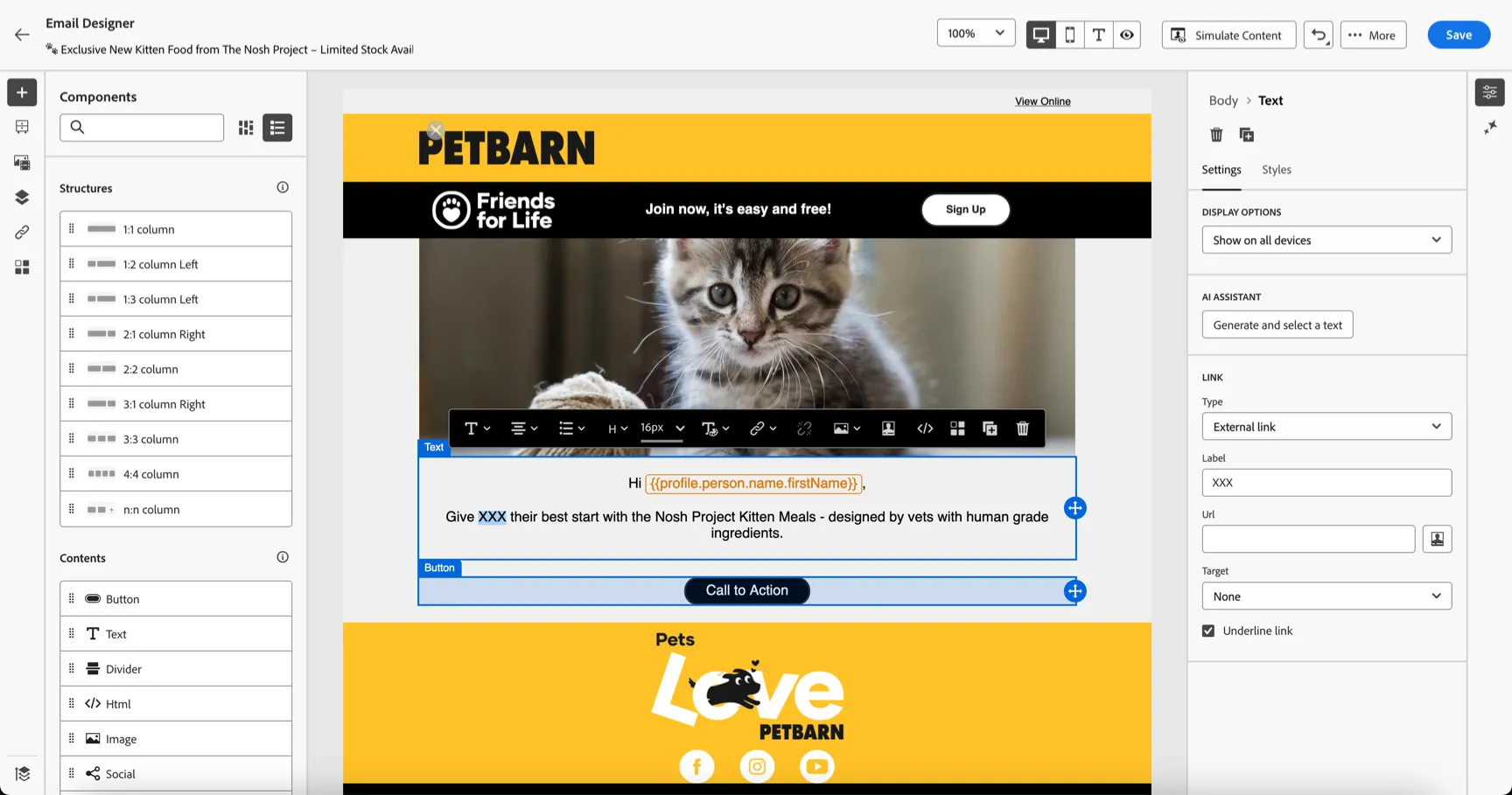
Let's do the same for the Cat's name. Click the XXX and open the personalisation editor. This time, we're going to use an expression fragment that's been pre-created for you. Click on Fragments in the navigation and add the Cat's Name fragment.
Expression fragments are a good way to quickly re-use common expressions without needing to think about the proper syntax to access the attribute.
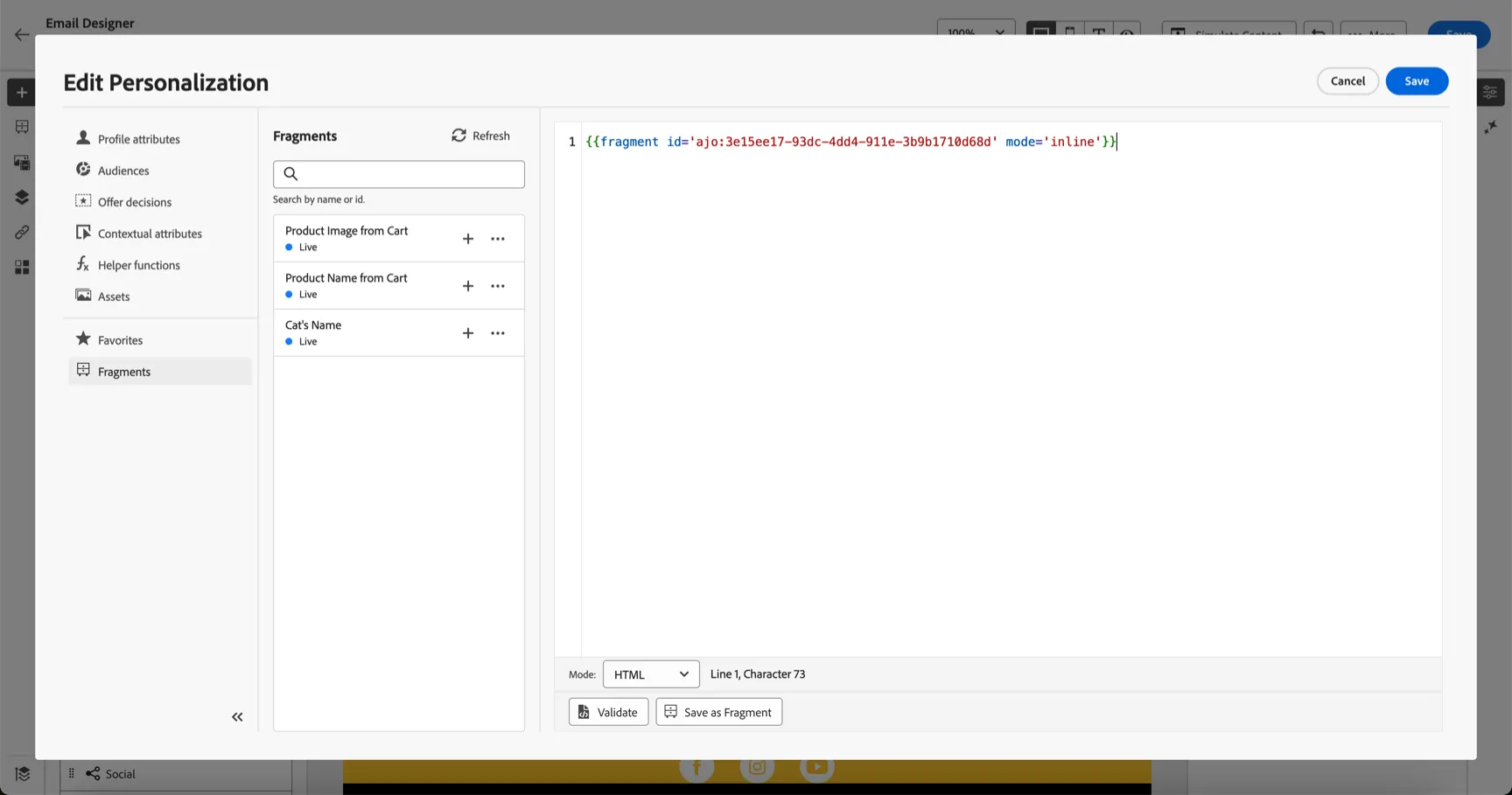
Click Save to add it to your content.
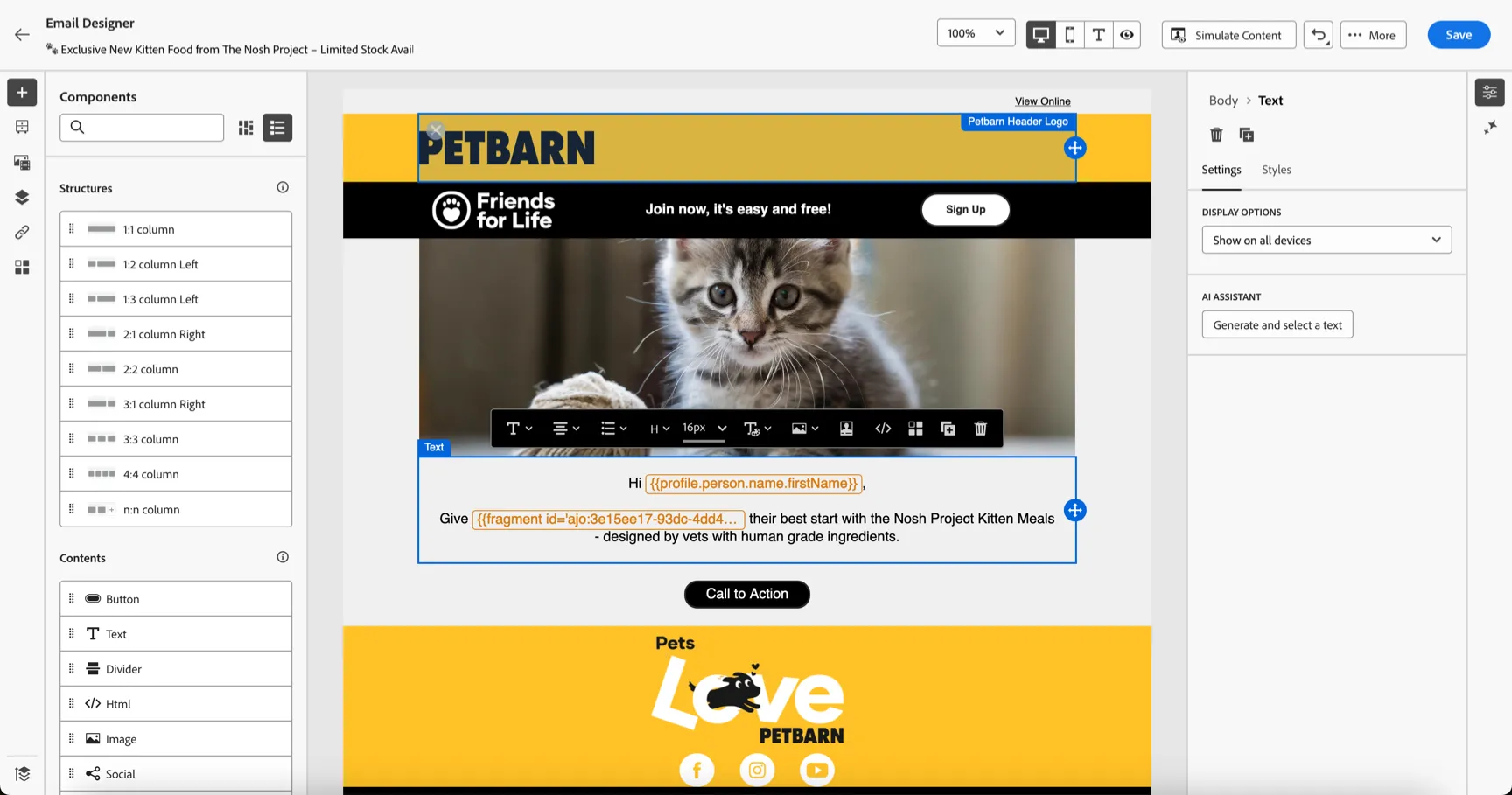
Update the call to action button if you want or simply click Save to continue.
Send a Proof Message
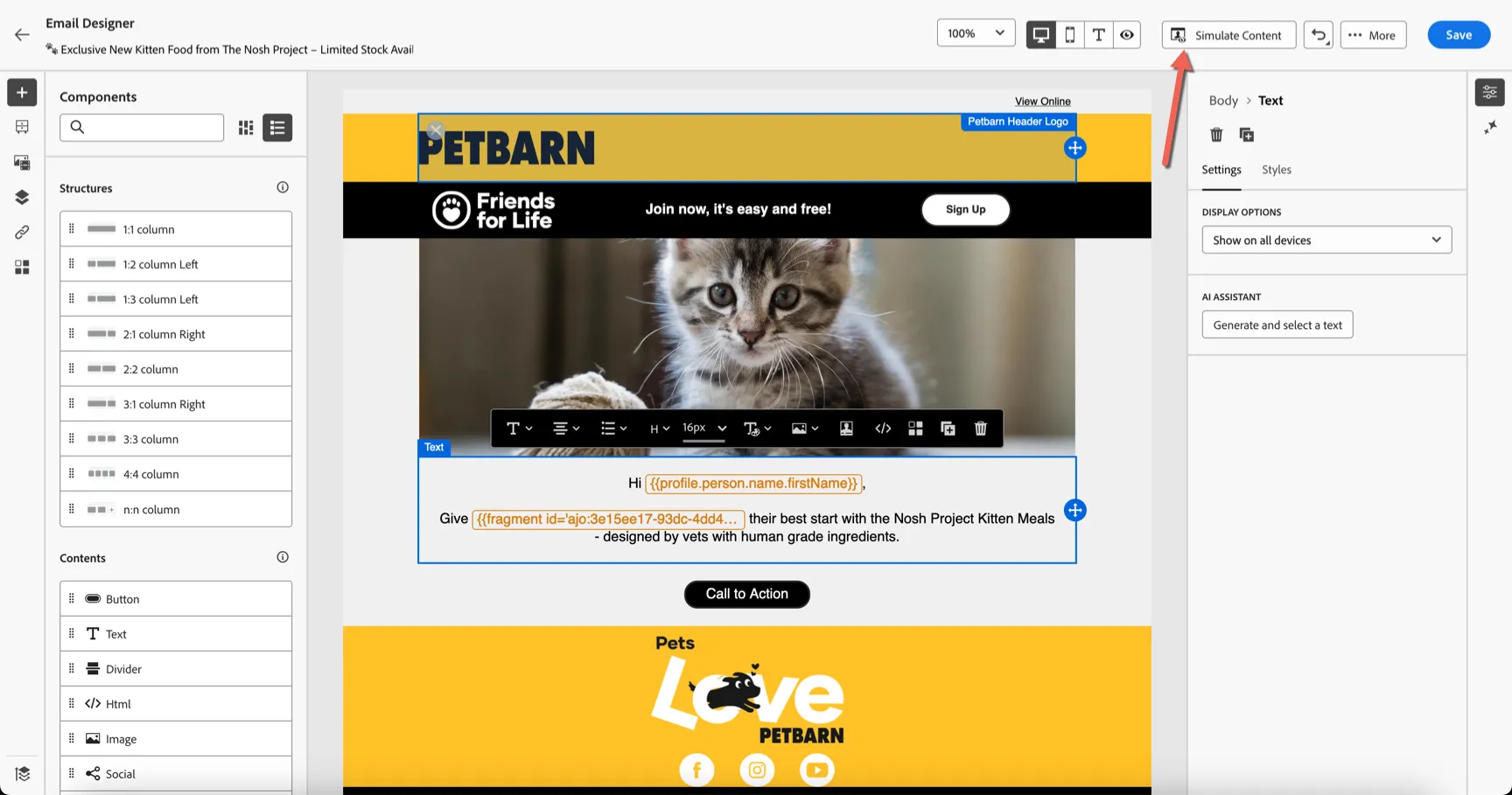
Click on Simulate Content
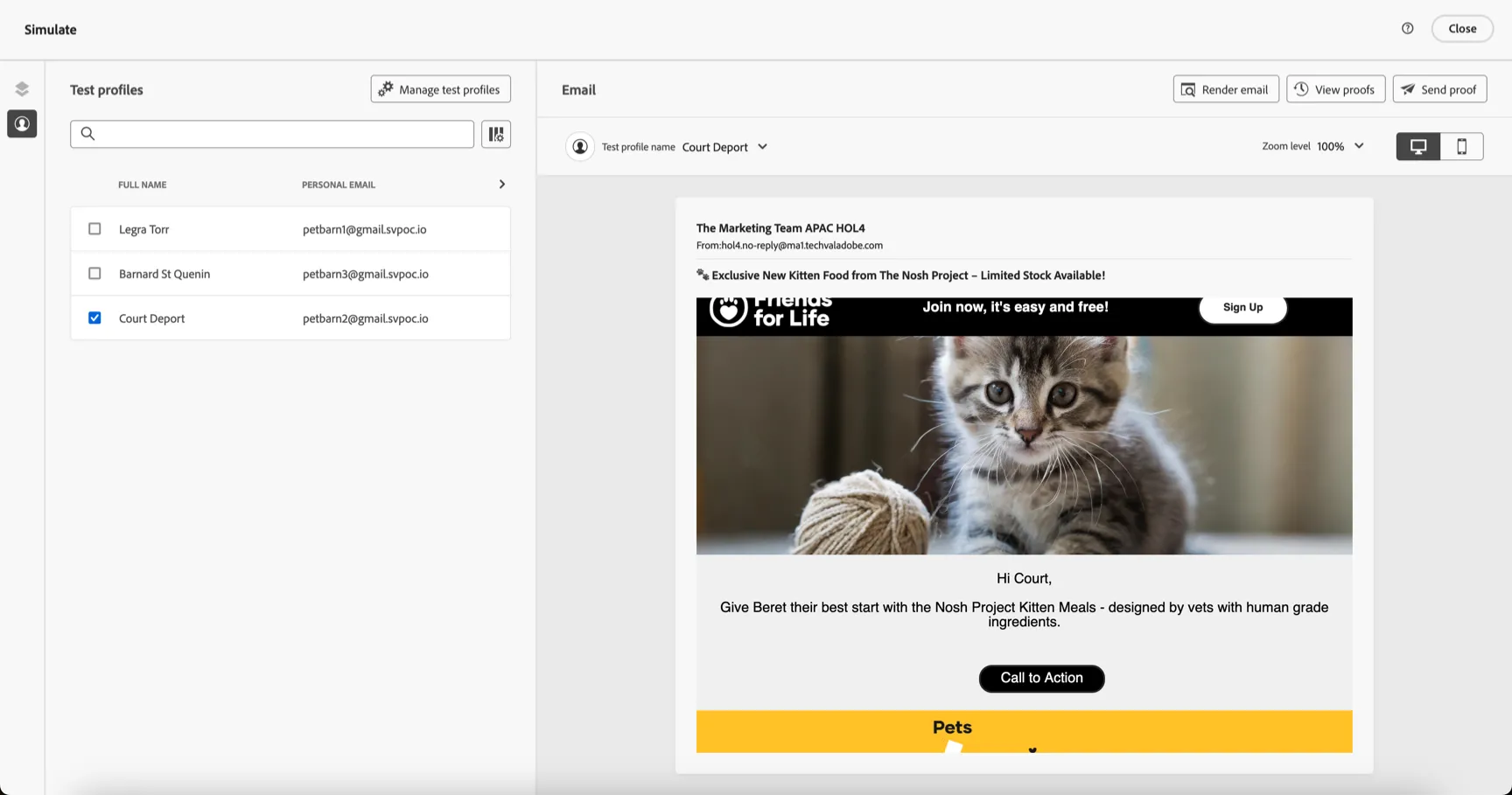
From here you can use test profiles to view how the message will personalise for different profiles.
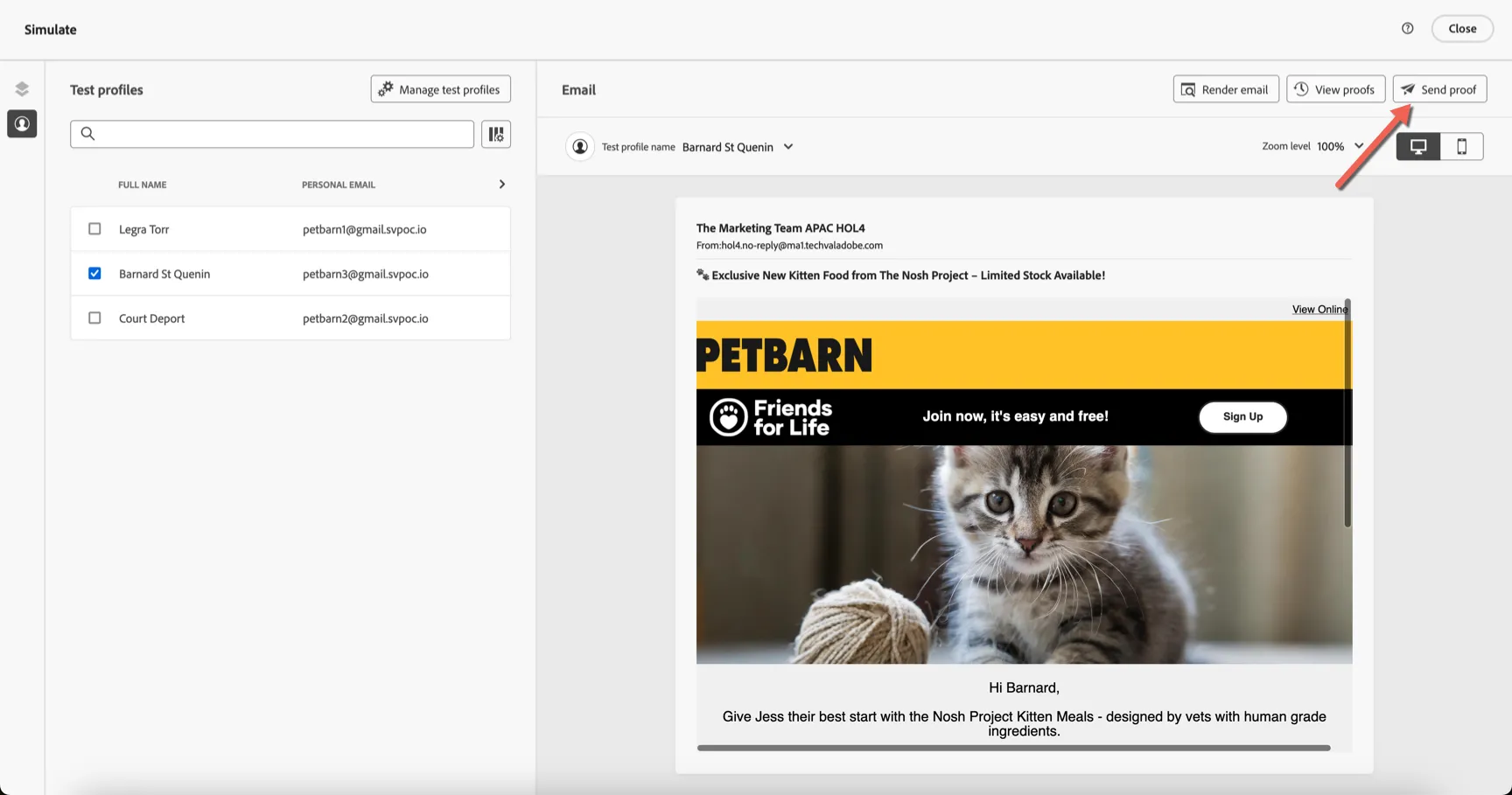
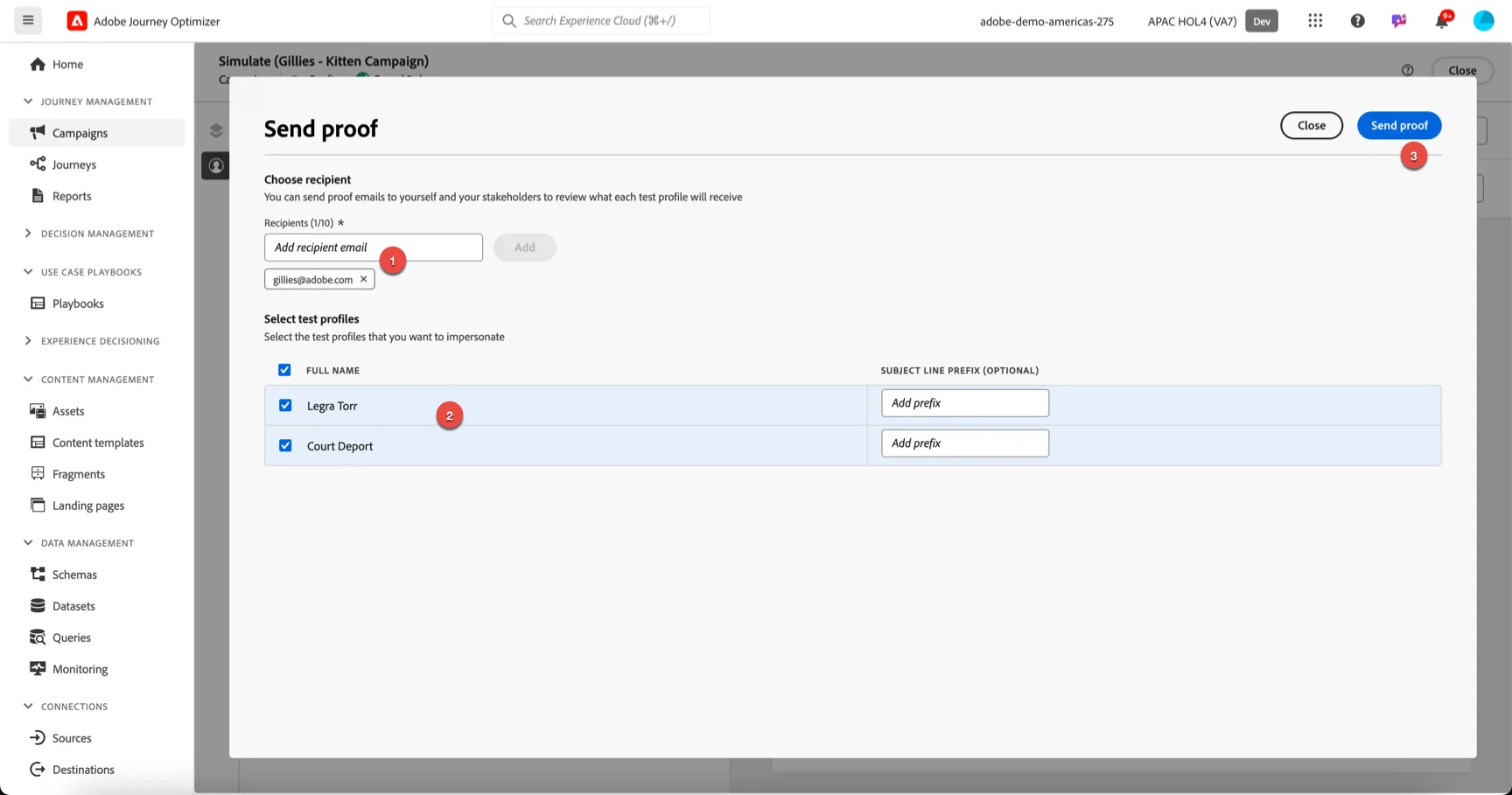
To send yourself a proof message, click on Send Proof.
You can send one or more versions to any email address you want. Add your email to the Recipients box and click Add. Then tick the test profile versions you want to deliver. You will receive emails with the content personalised based on the profiles chosen. Click Send Proof to start the delivery.
Schedule the Campaign
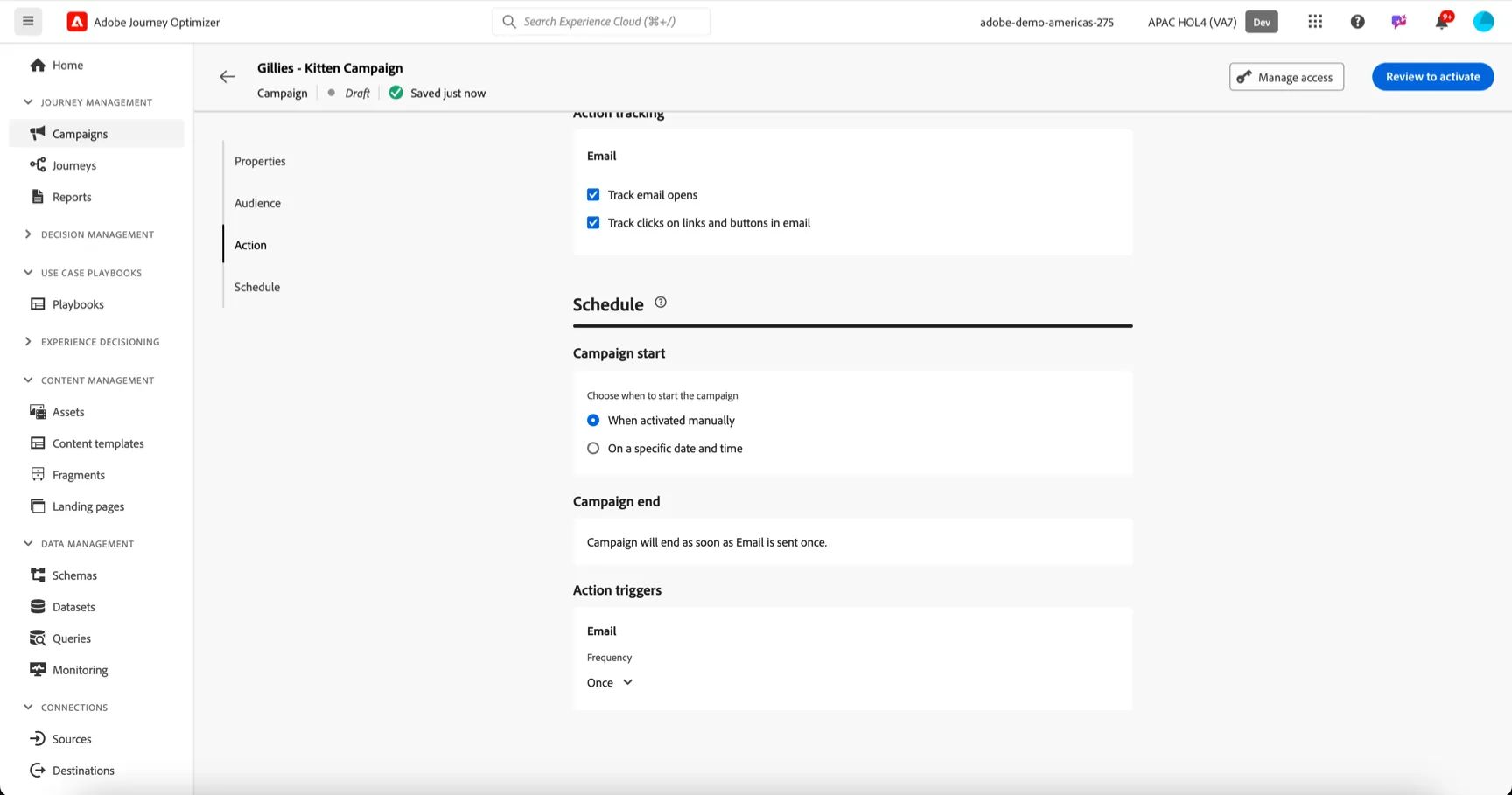
Once you're finished testing the campaign, the last step is to schedule it. Close out of the content and return to the campaign setting. Configure the schedule to send either when activated (ad hoc) or at a specific date and time.
Congratulations you've created your first email campaign in Journey Optimizer.