Create a journey
Journeys are designed for in-the-moment communications, in this exercise we will create an Abandoned Cart journey triggered when the customer reaches the order summary page on the website. If they don't complete a purchase within an hour we will send a push notification reminder, if they still haven't purchased the next day we will follow up with an email.
This is just one example of how journeys can be triggered from streamed events, some other ideas could be:
- Vet appointments - send additional wellness advice after a check up
- Store Proximity - promote a new store when the customer is nearby
- New Product Purchases - request feedback after purchases from a new product range
Create the Journey
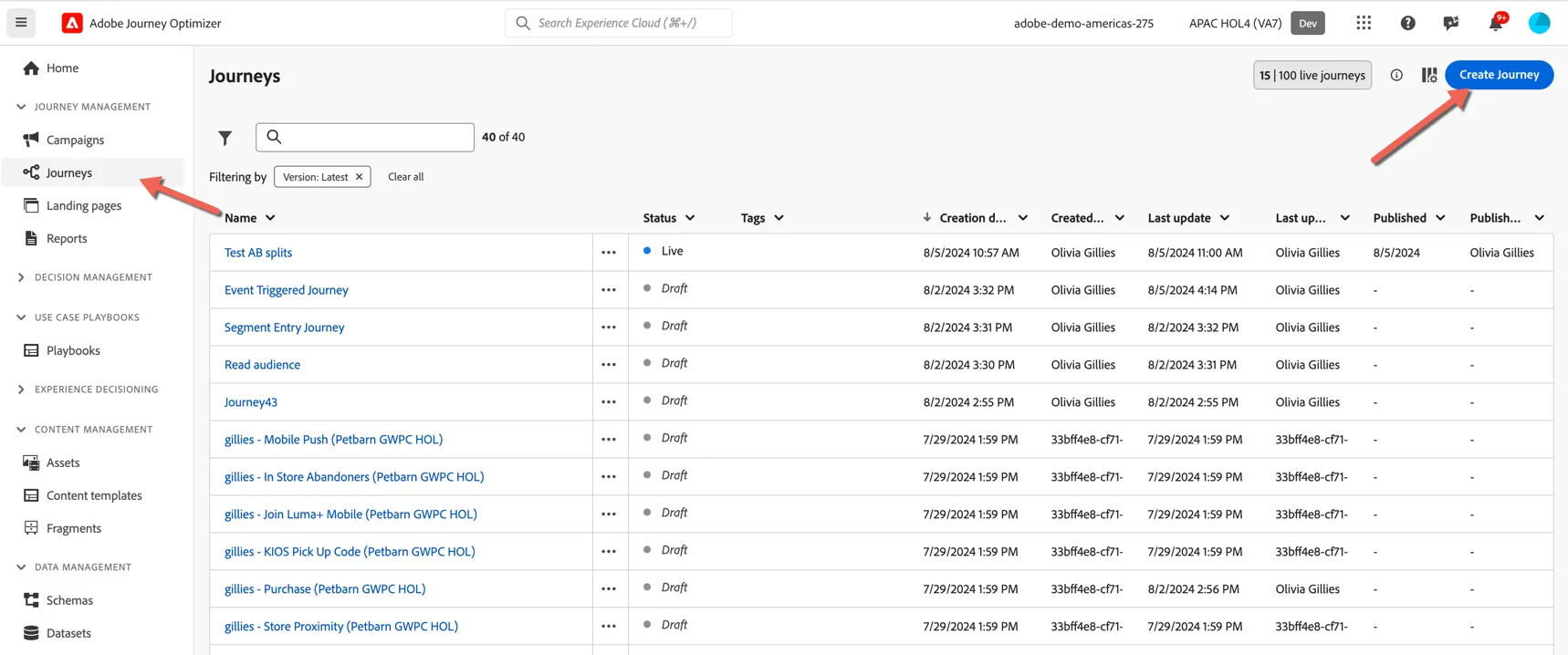
Navigate to Journeys and click to Create Journey
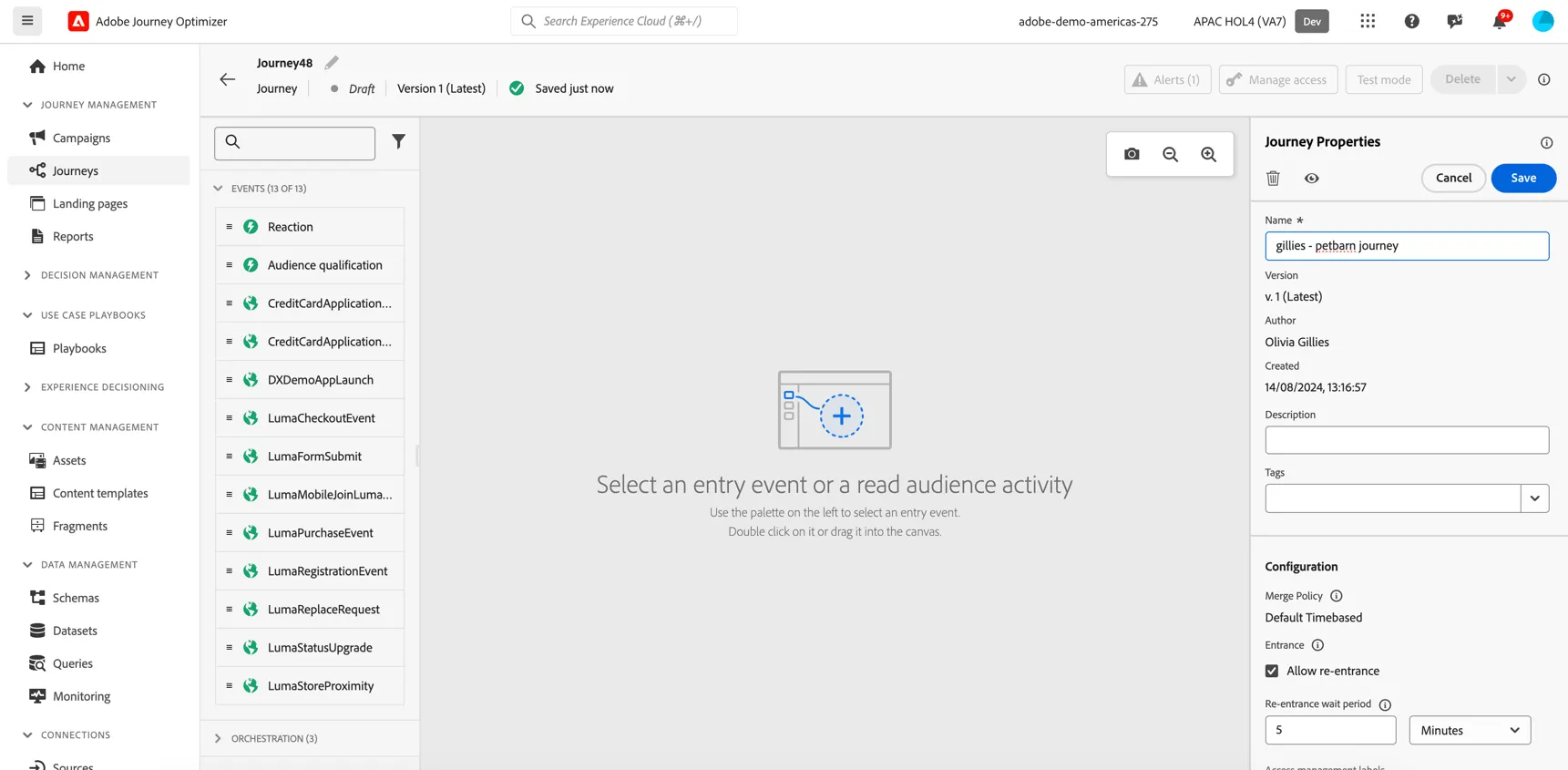
Give your journey a name - something unique so you will recognise it later.
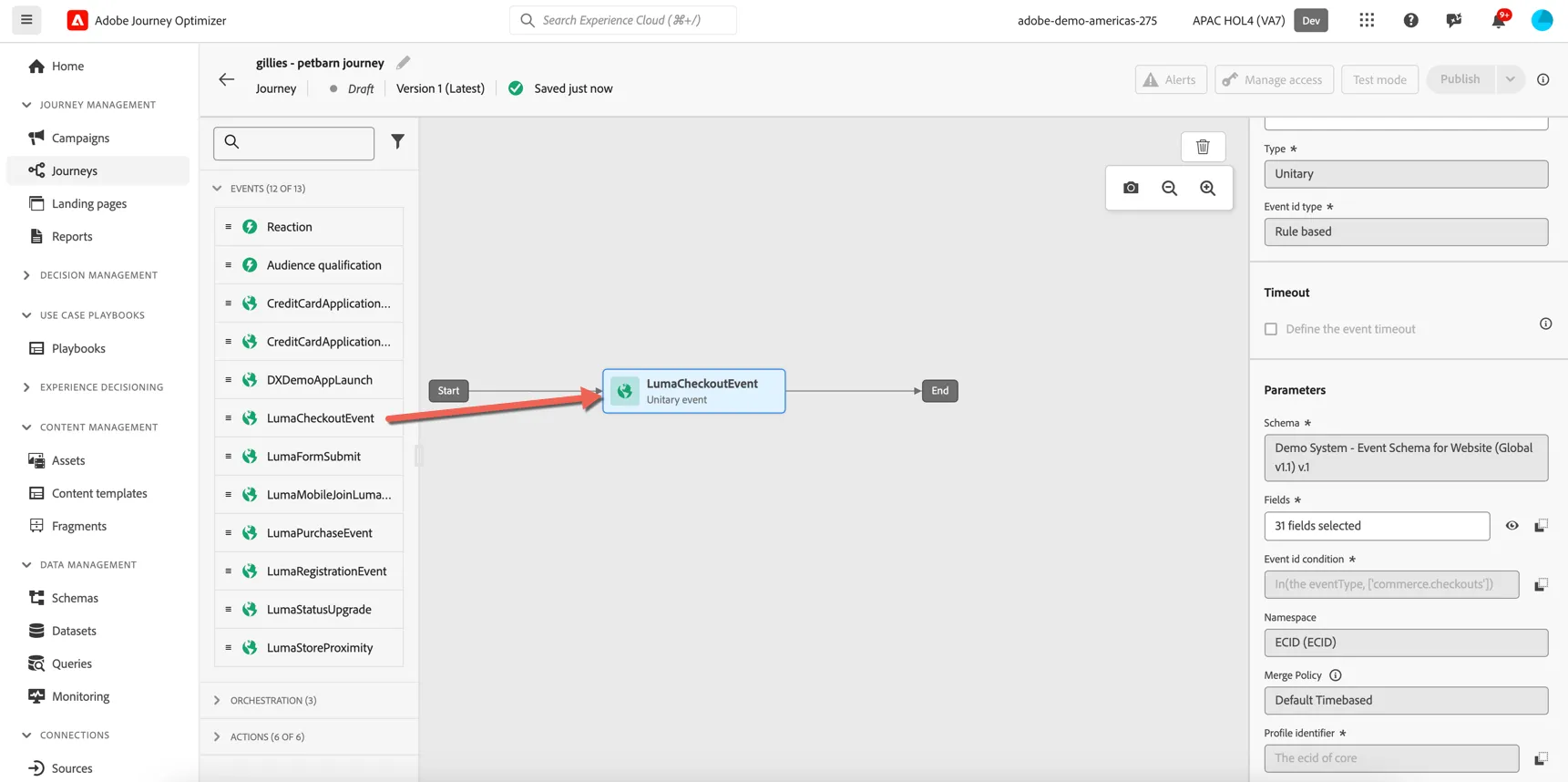
From the Events panel, drag the LumaCheckout events onto the journey canvas.
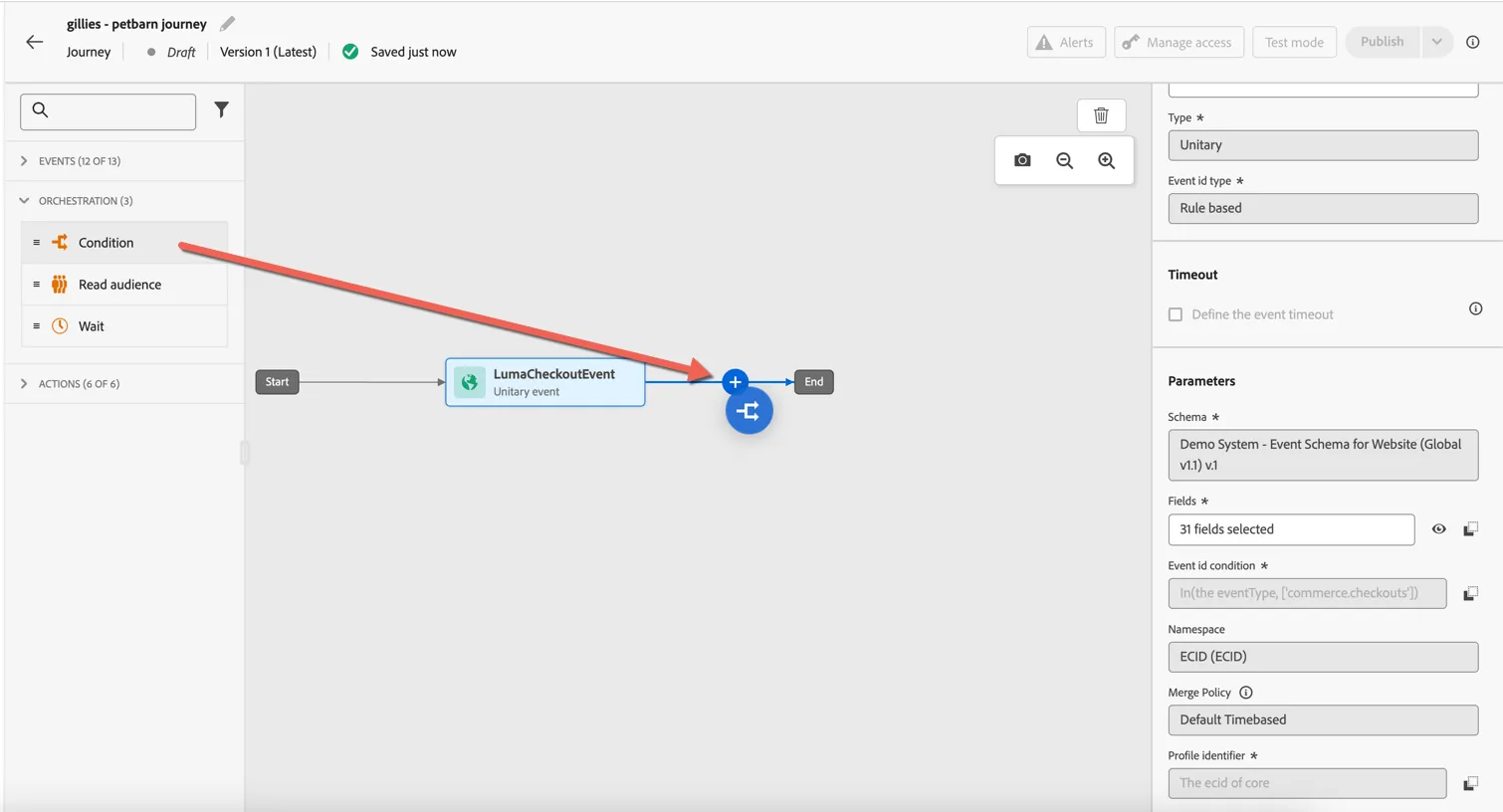
Now just because there are a lot of us building the same journey, let's filter to include only your customer profile record. We can do this using a condition. Drag a condition activity to the canvas.
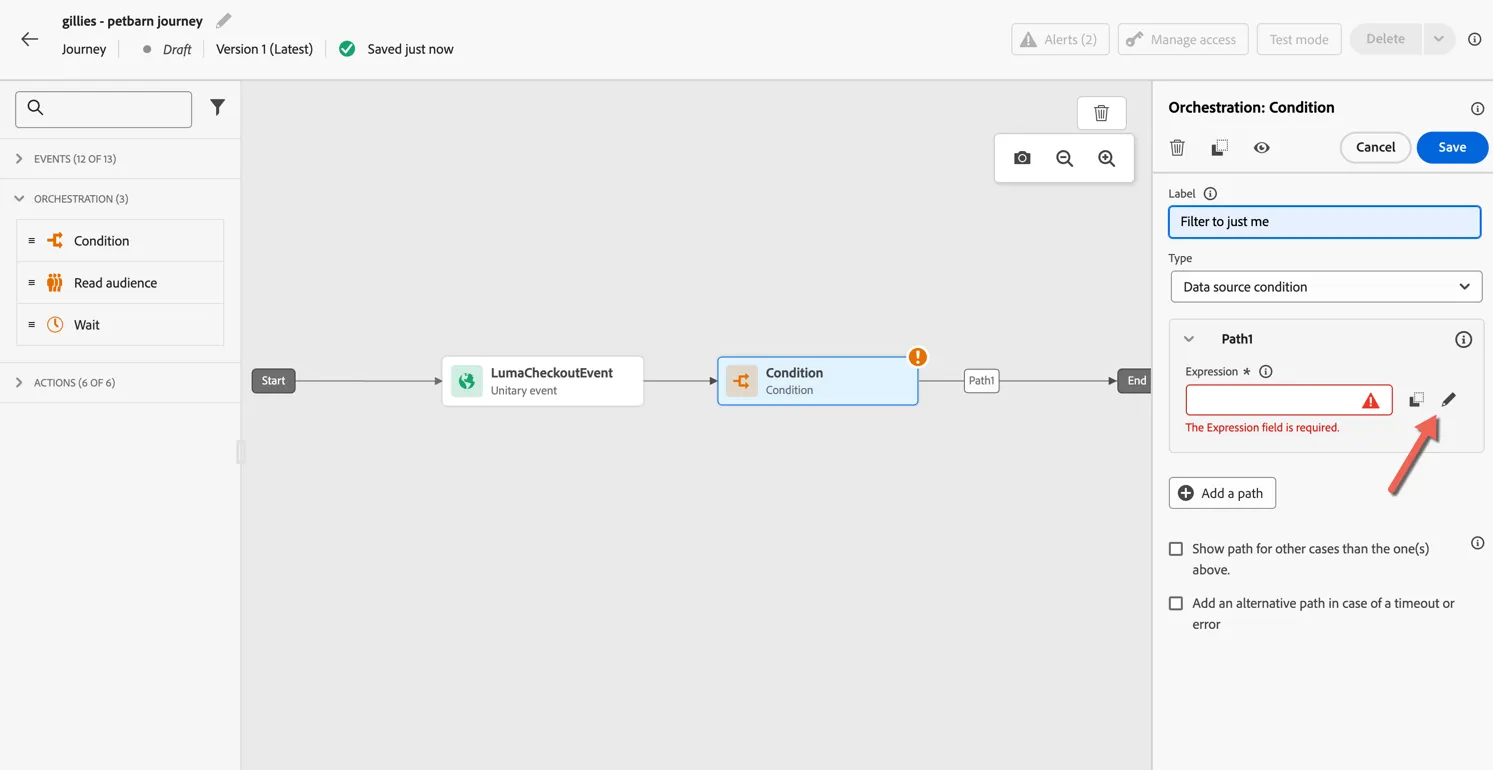
Add a label for the condition and Click to edit the expression.
Search for email field in ExperiencePlatform/ProfileFieldGroup/profile. Add a condition that the email equals the customer email address you've been using for the lab.
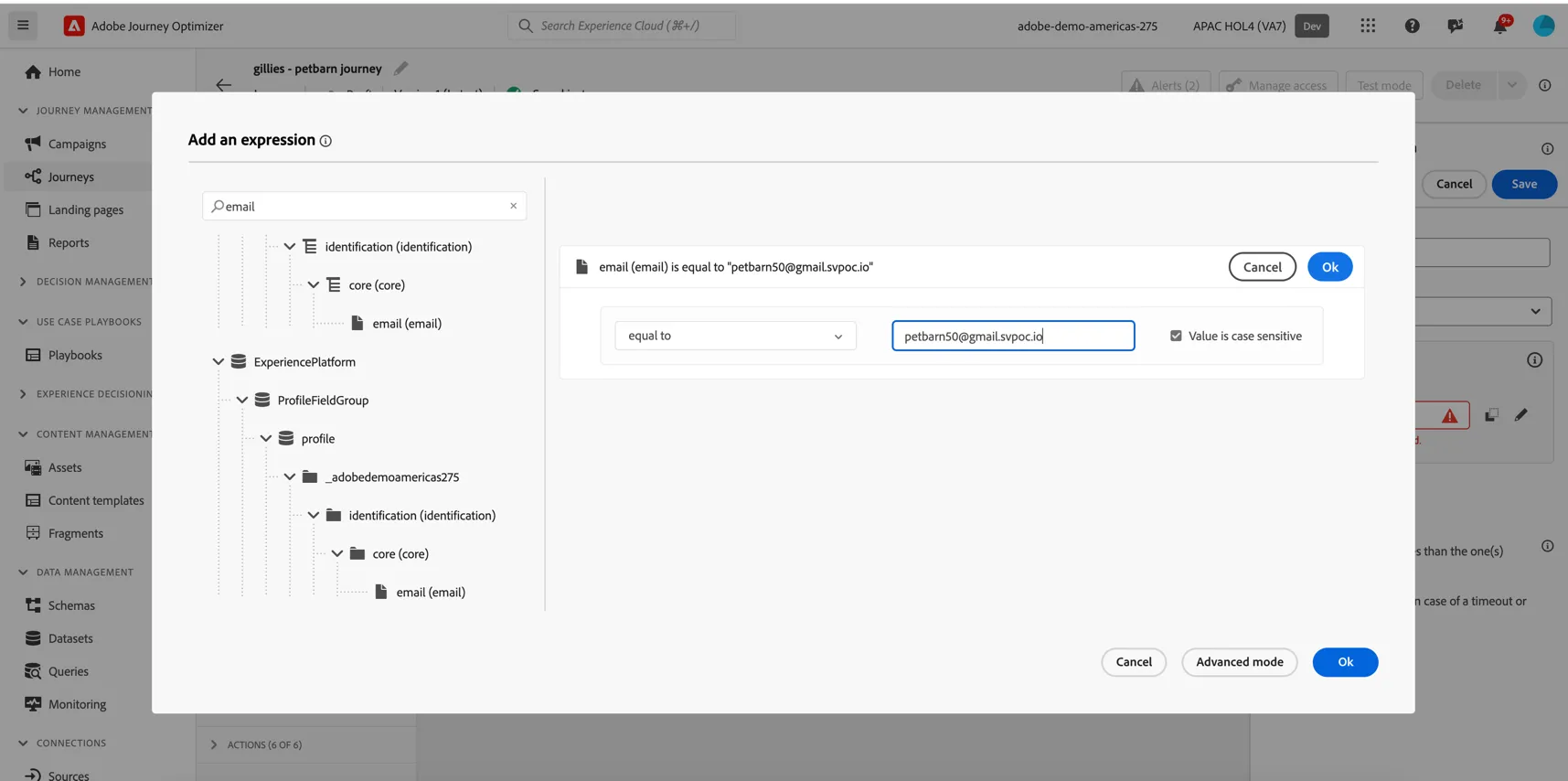
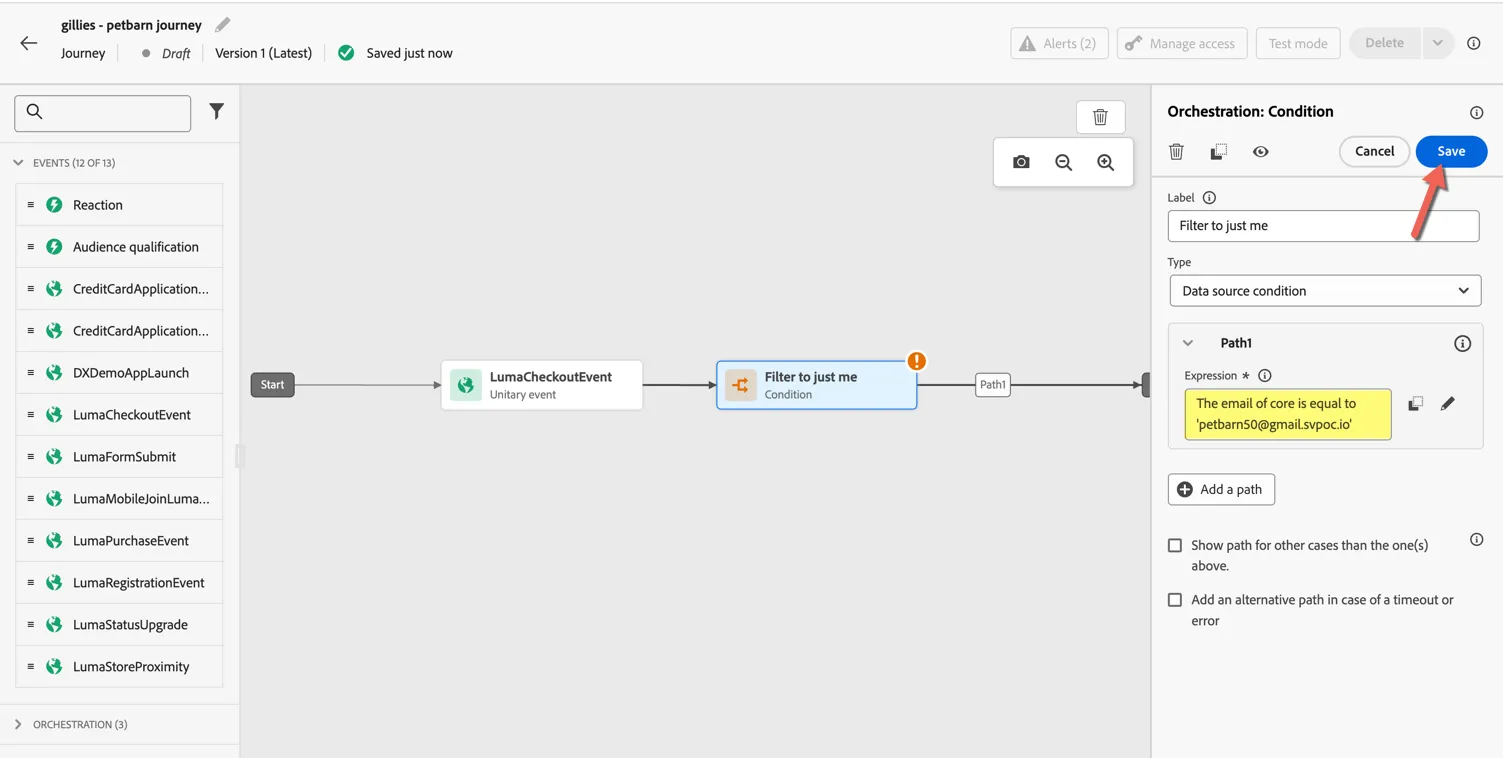
Click Ok and click Save to store the condition.
Now drag the LumaPurchase event to canvas. In the Event properties, tick the Define the event timeout checkbox, set the wait time to 1 hour and tick the Set a timeout path. Click Ok.
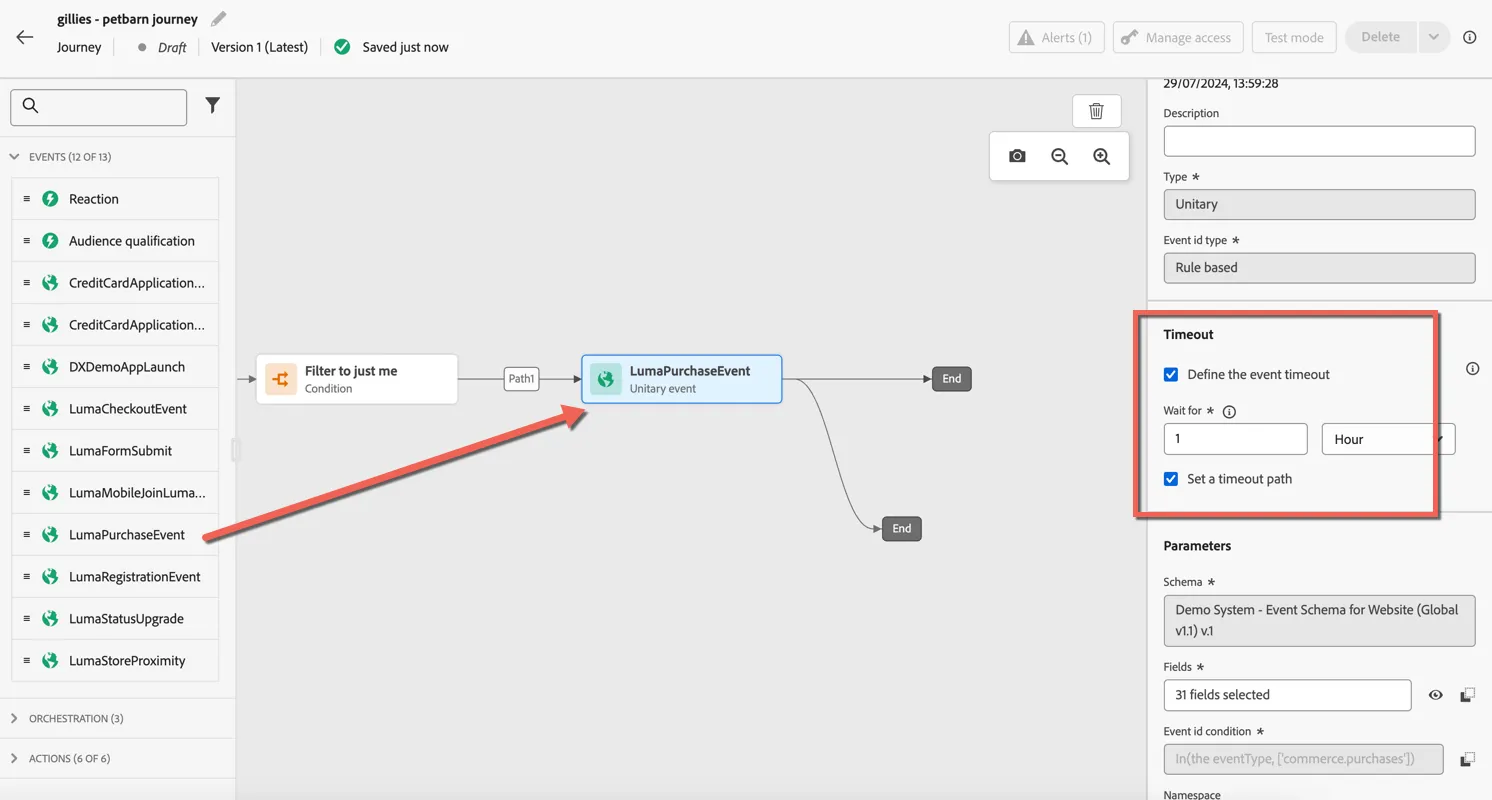
We now have 2 possible paths that a profile might take. One if they complete the purchase within the next hour and one if they don't. Let's add a push notification to the timeout path.
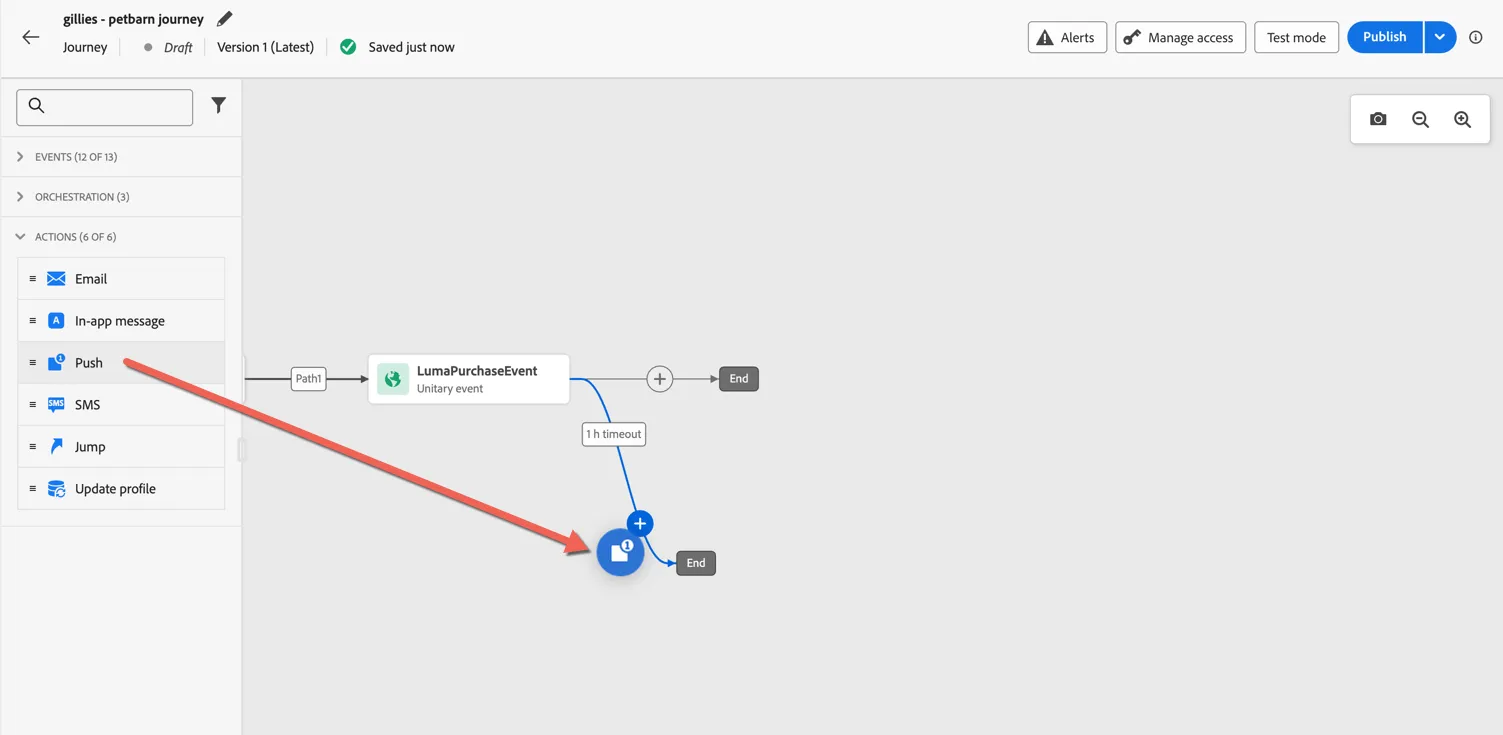
Change the Category to Transactional and select the DemoDXAppPush configuration. Click Save. We'll come back to add the content later.
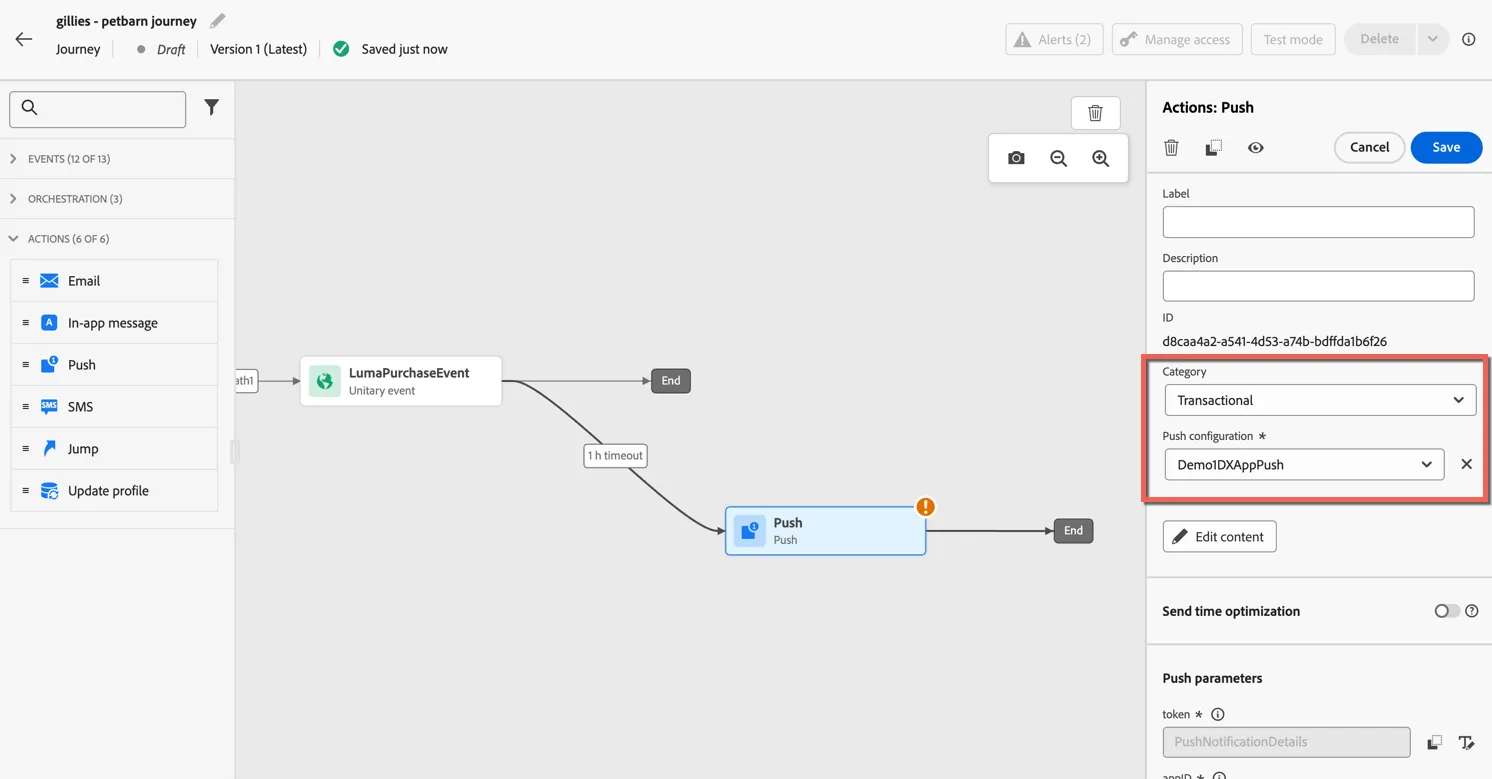
After the push we're going to wait for 1 day then check again whether a recent purchase has been made. Drag a wait condition into the journey. Leave the duration to 1 day and click Save.
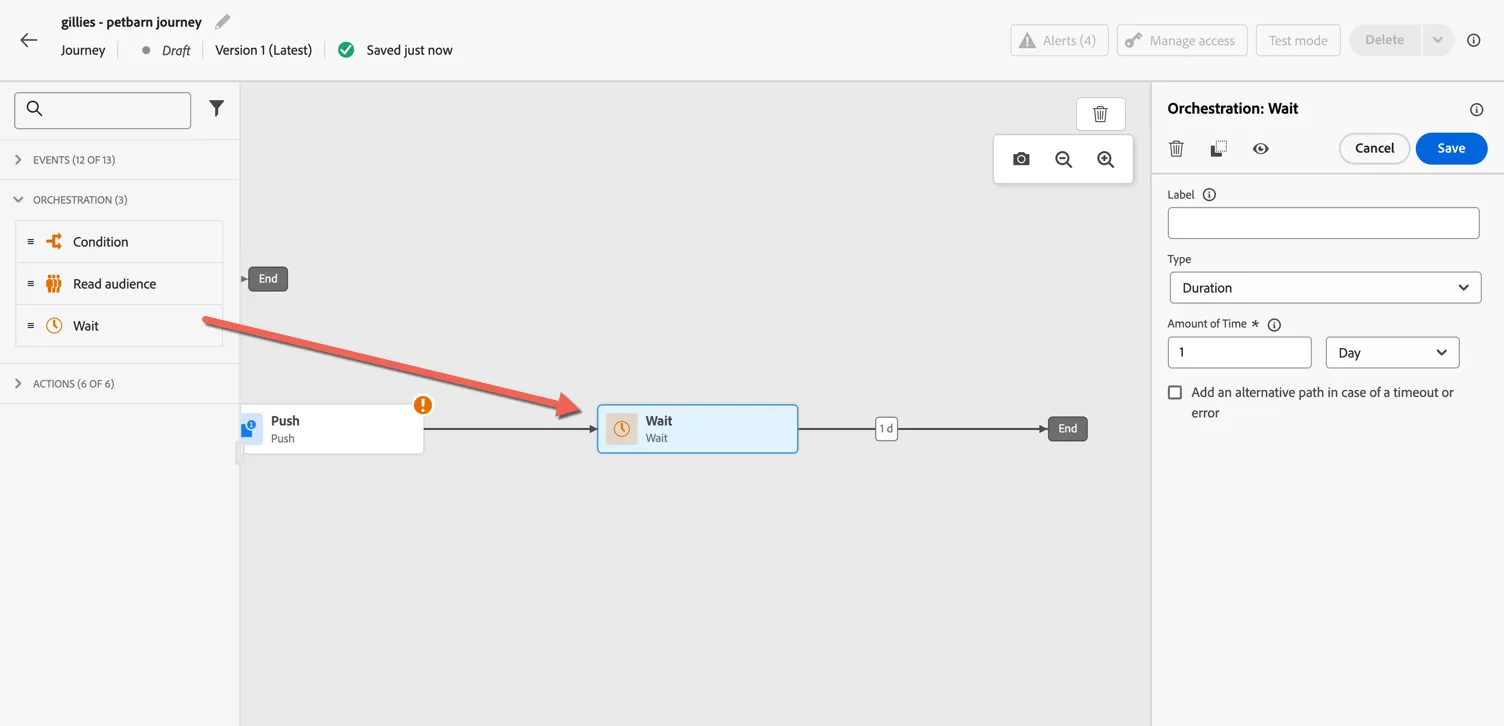
Before we send the message let's check again to make sure that they haven't made a purchase in the last 24 hours. Perhaps they visited a store rather than shopping online. Drag another condition activity. Then click to edit the expression.
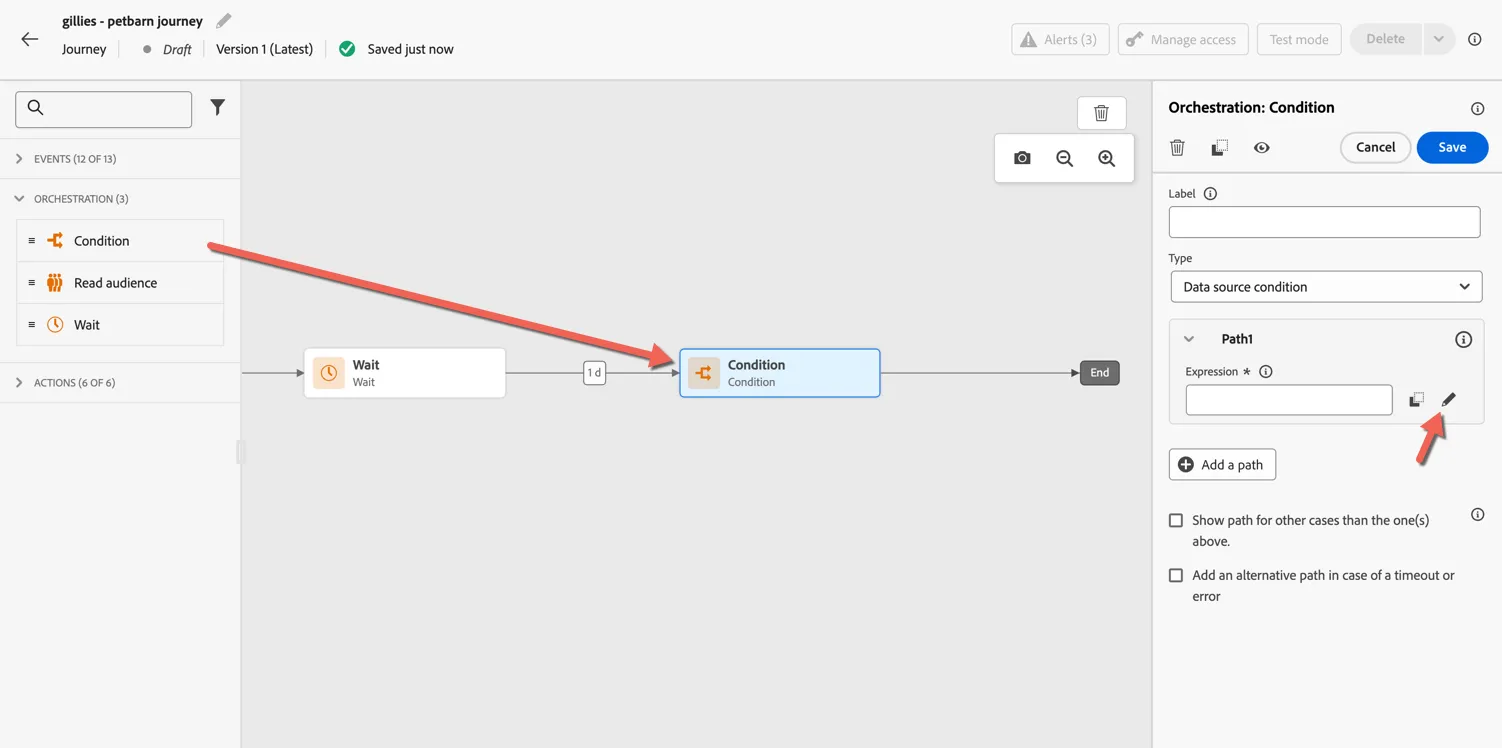
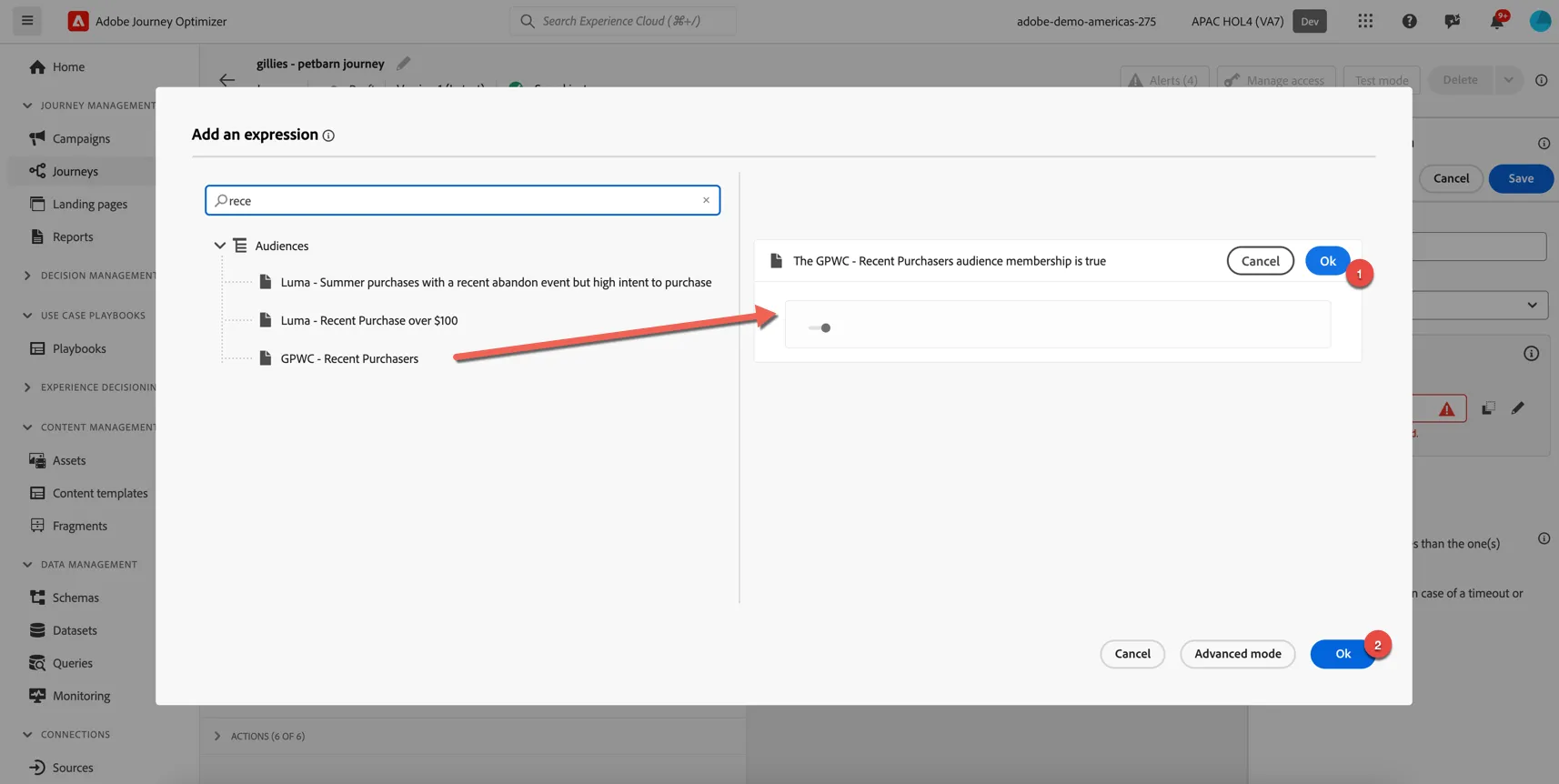
Search for Audiences in the expression editor and drag the GPWC - Recent Purchasers audience into the expression. Click Ok, then Ok again.
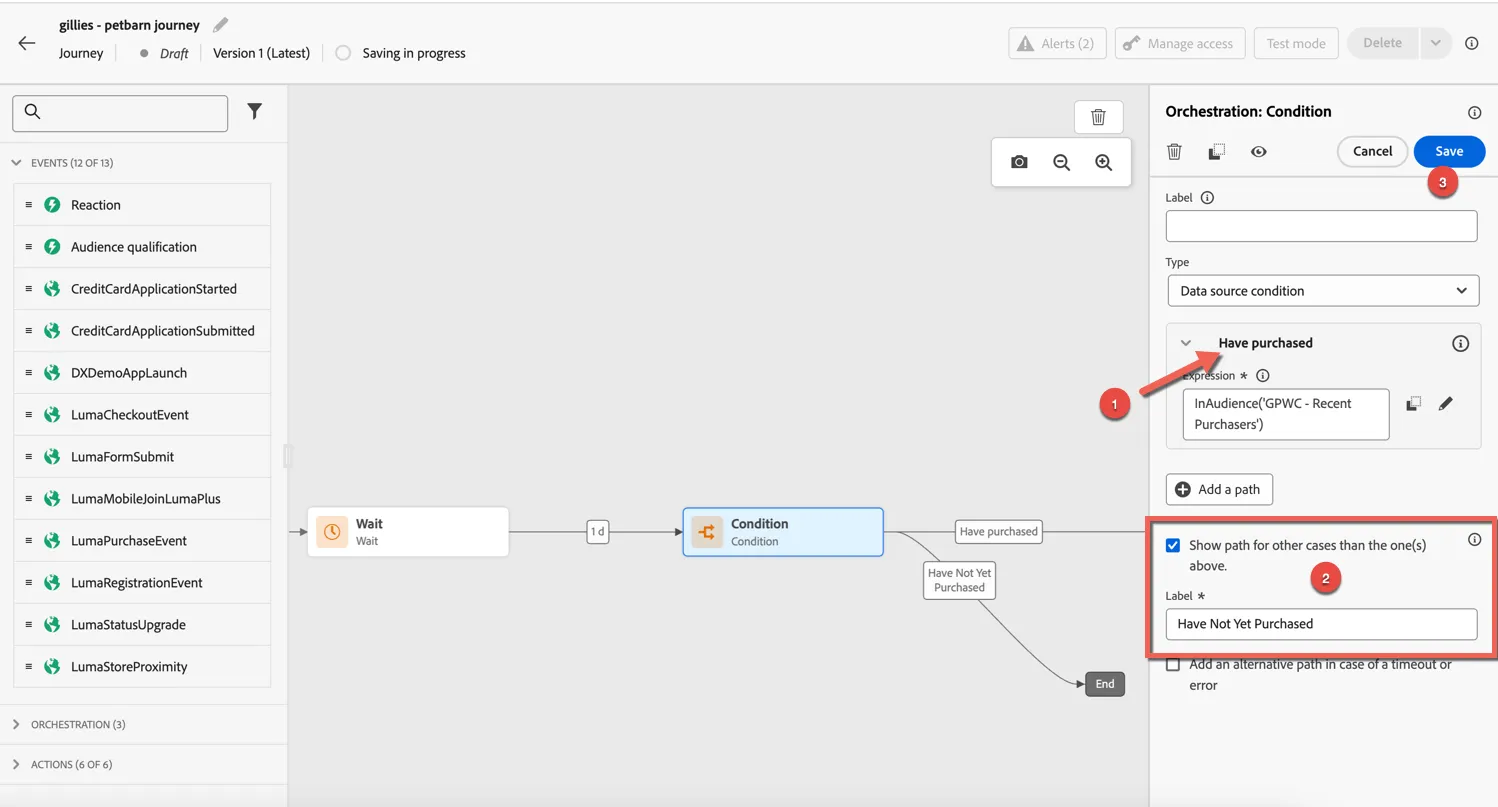
Update the name of the path to Have Purchased, then tick the box to add a path for everyone who isn't part of that audience. Label this path as Have not yet purchased. Lastly click Save.
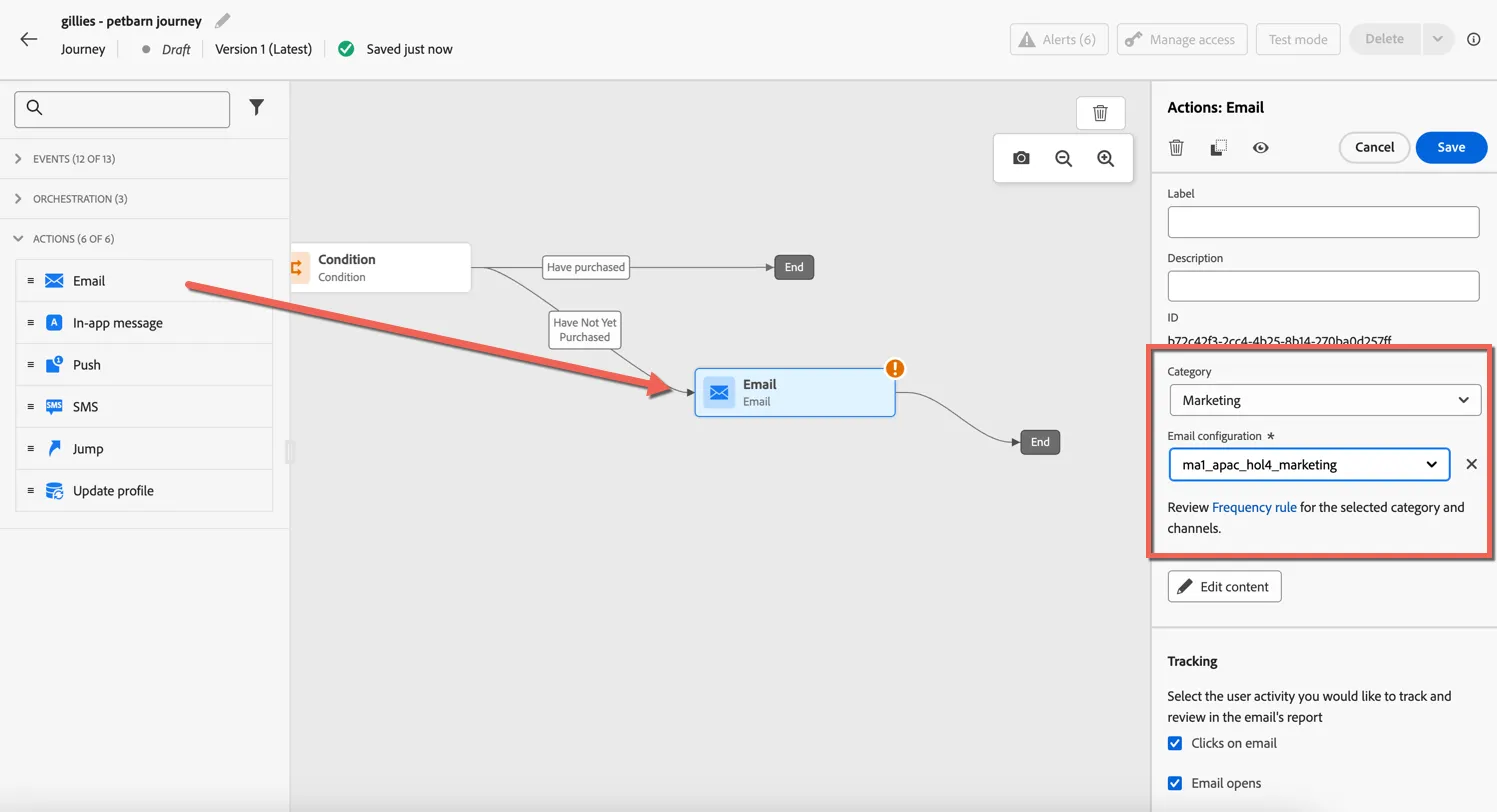
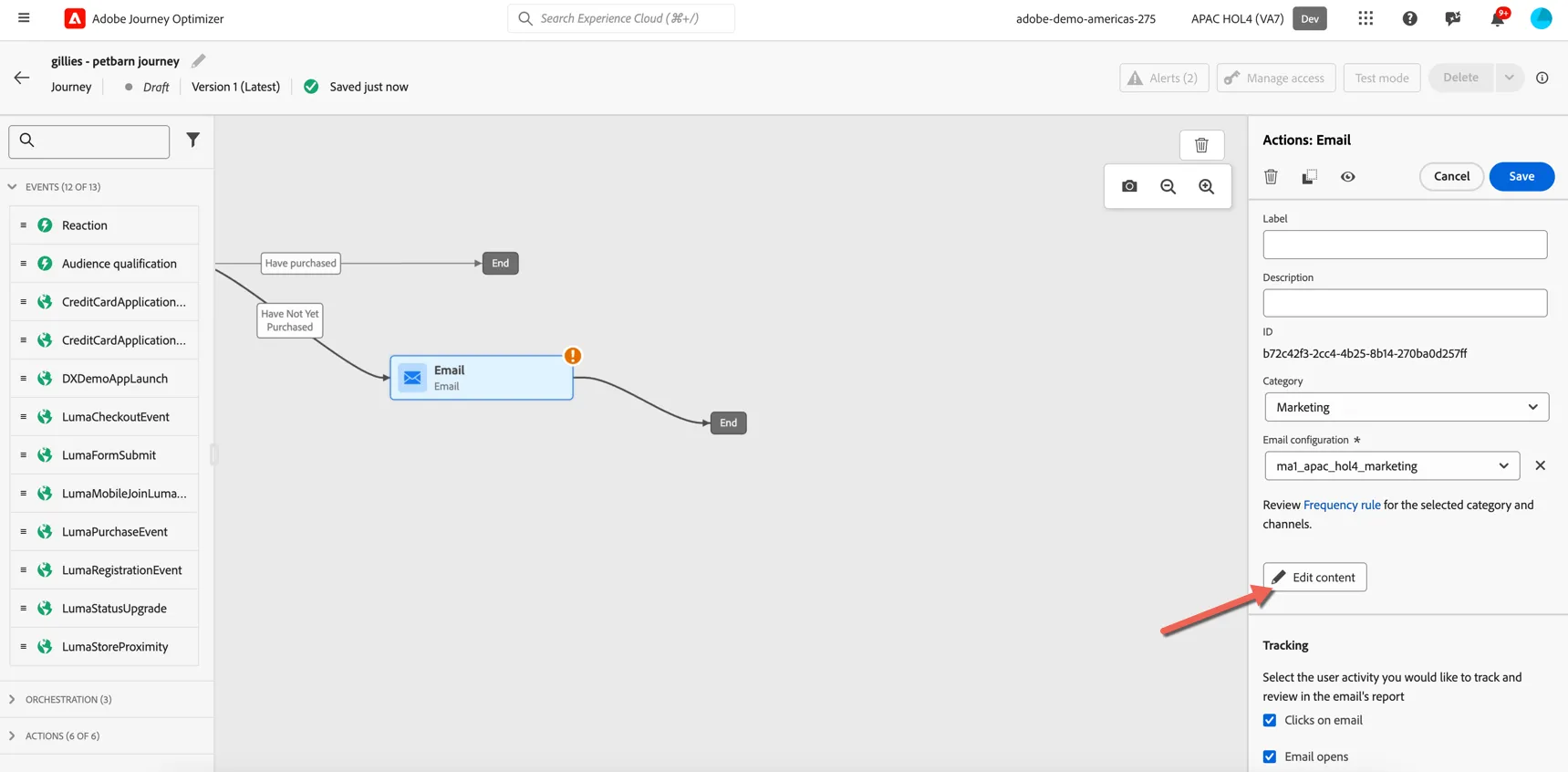
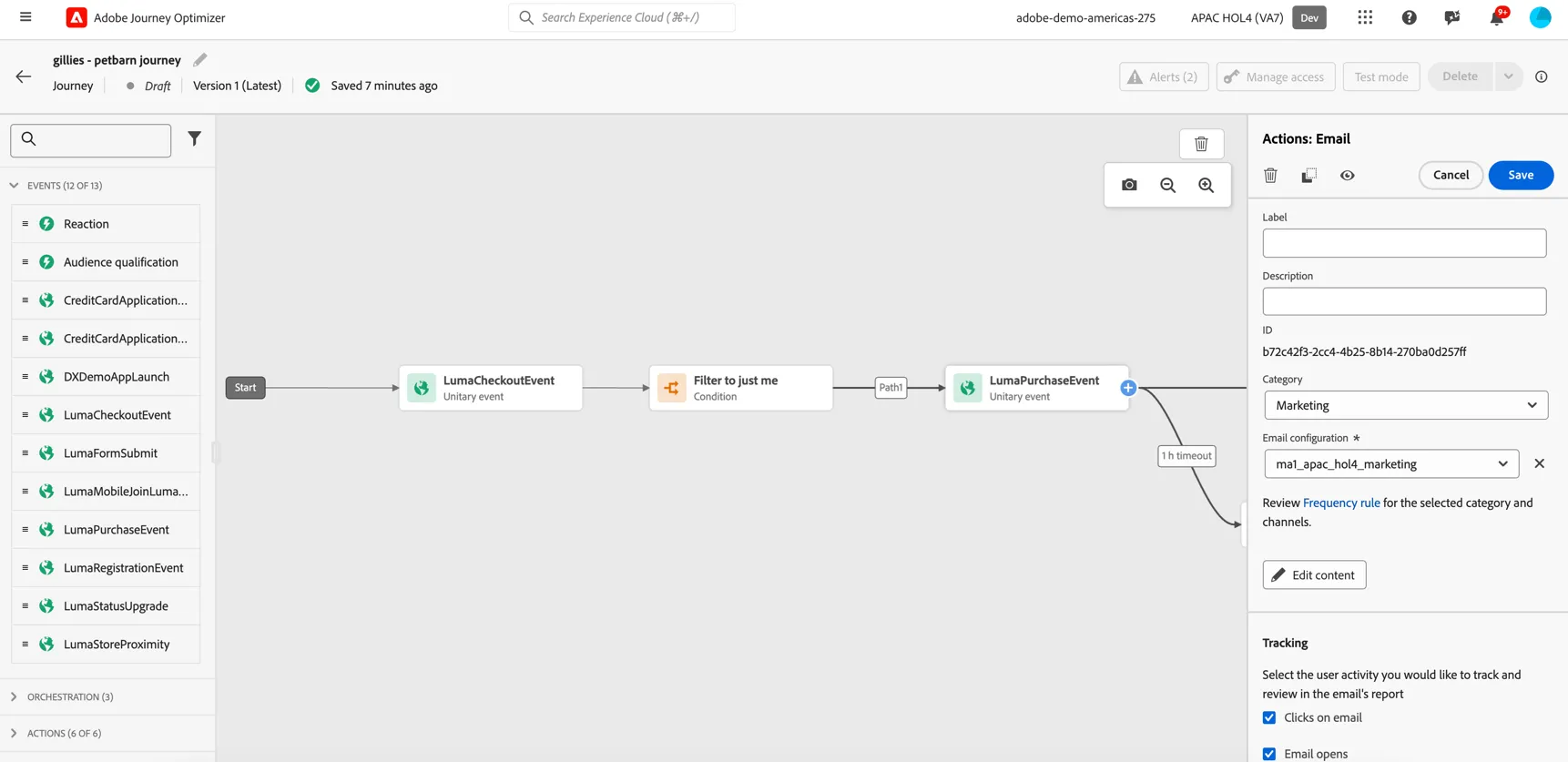
Now let's add the Email action for those who have not yet purchased. Leave the category as Marketing and set the configuration to the ma1_apac_hol4_marketing. Click Save.
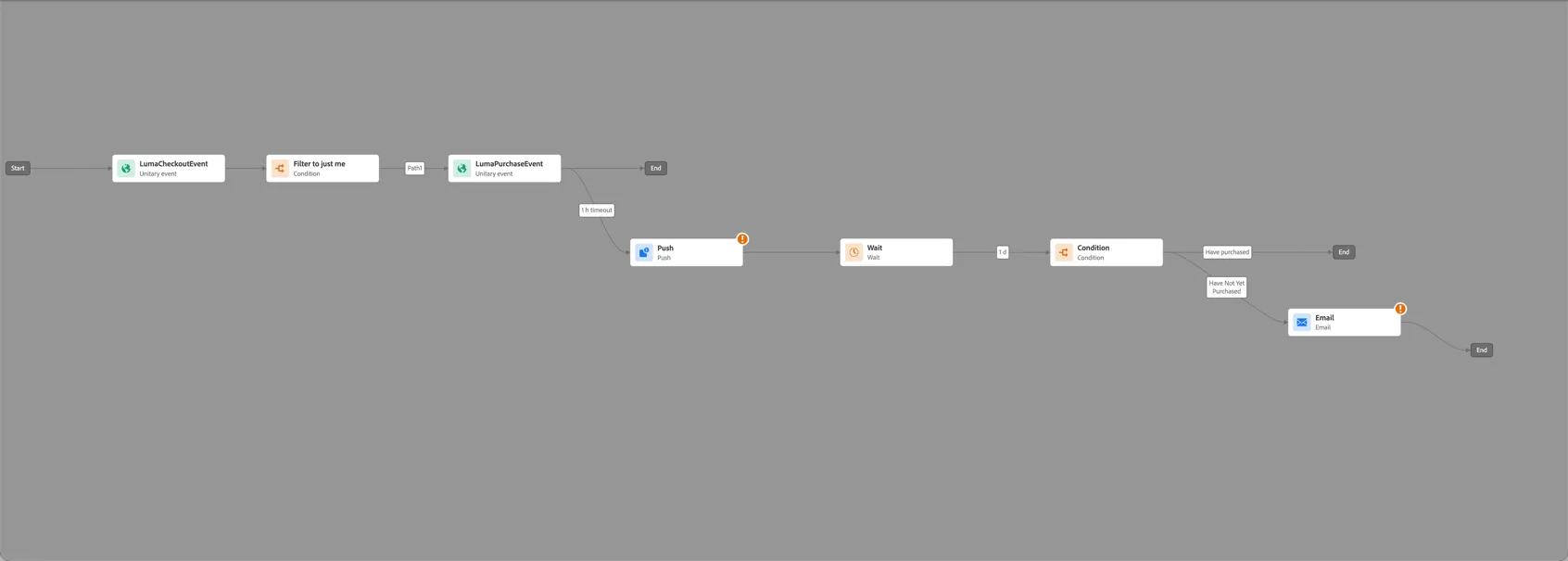
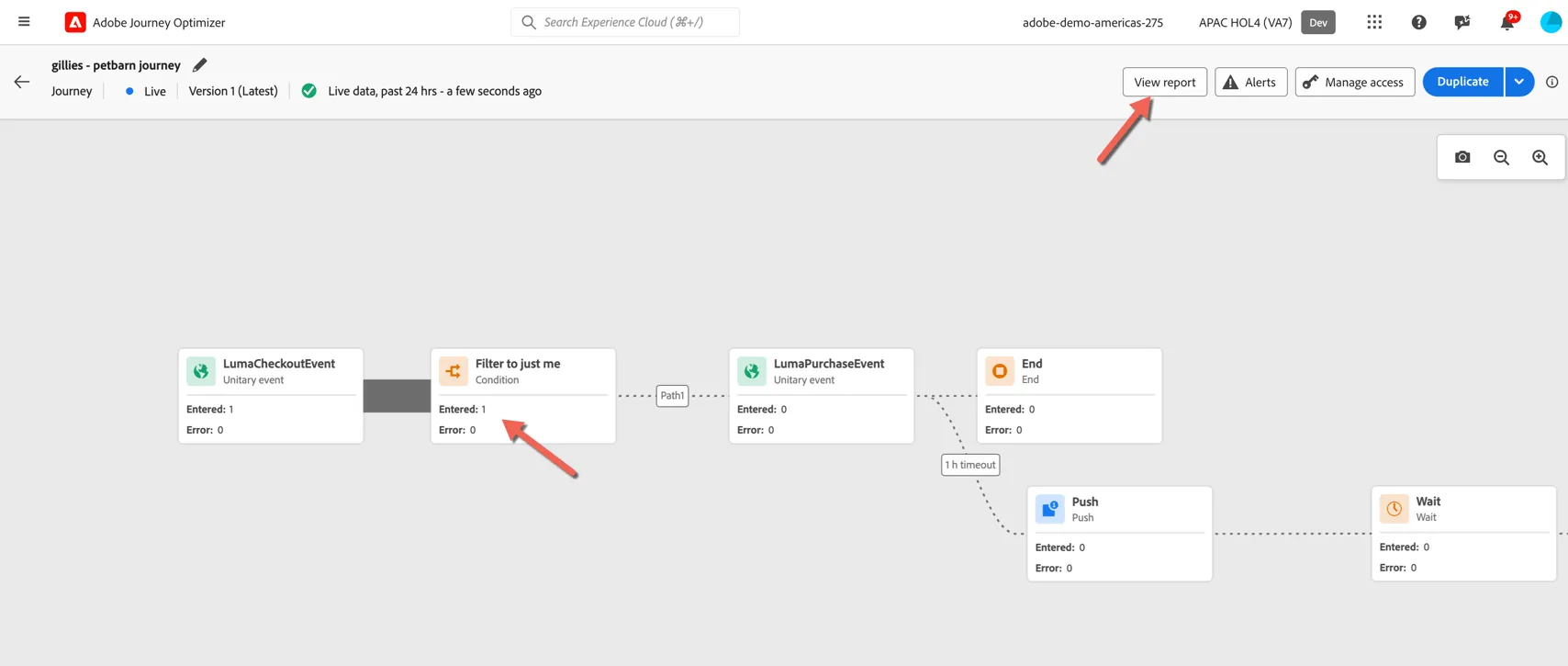
Your journey should now look like this. There will be some warnings on the push and email actions as we still need to add the content to these.
Add Push Content
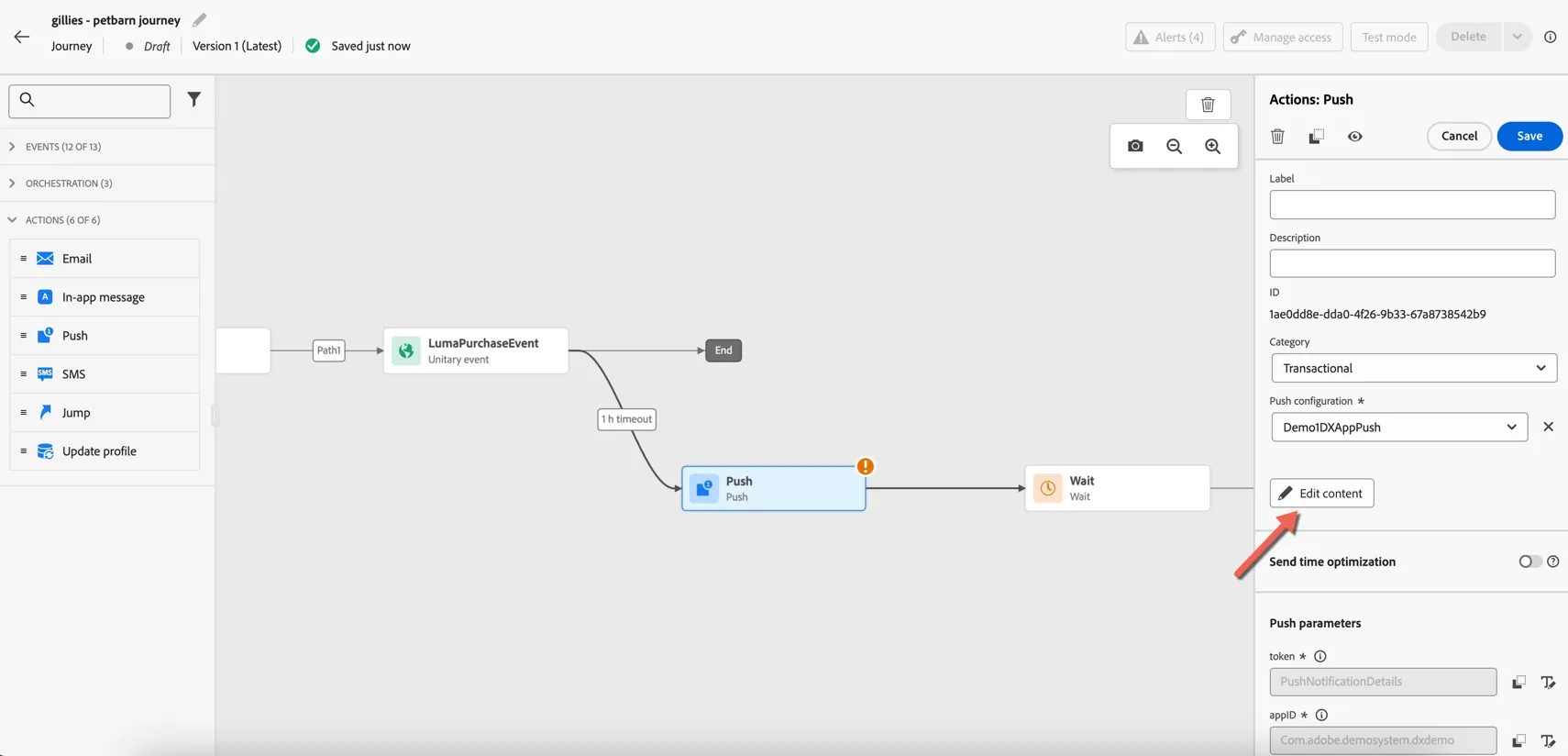
Click on the Push node and click Edit Content.
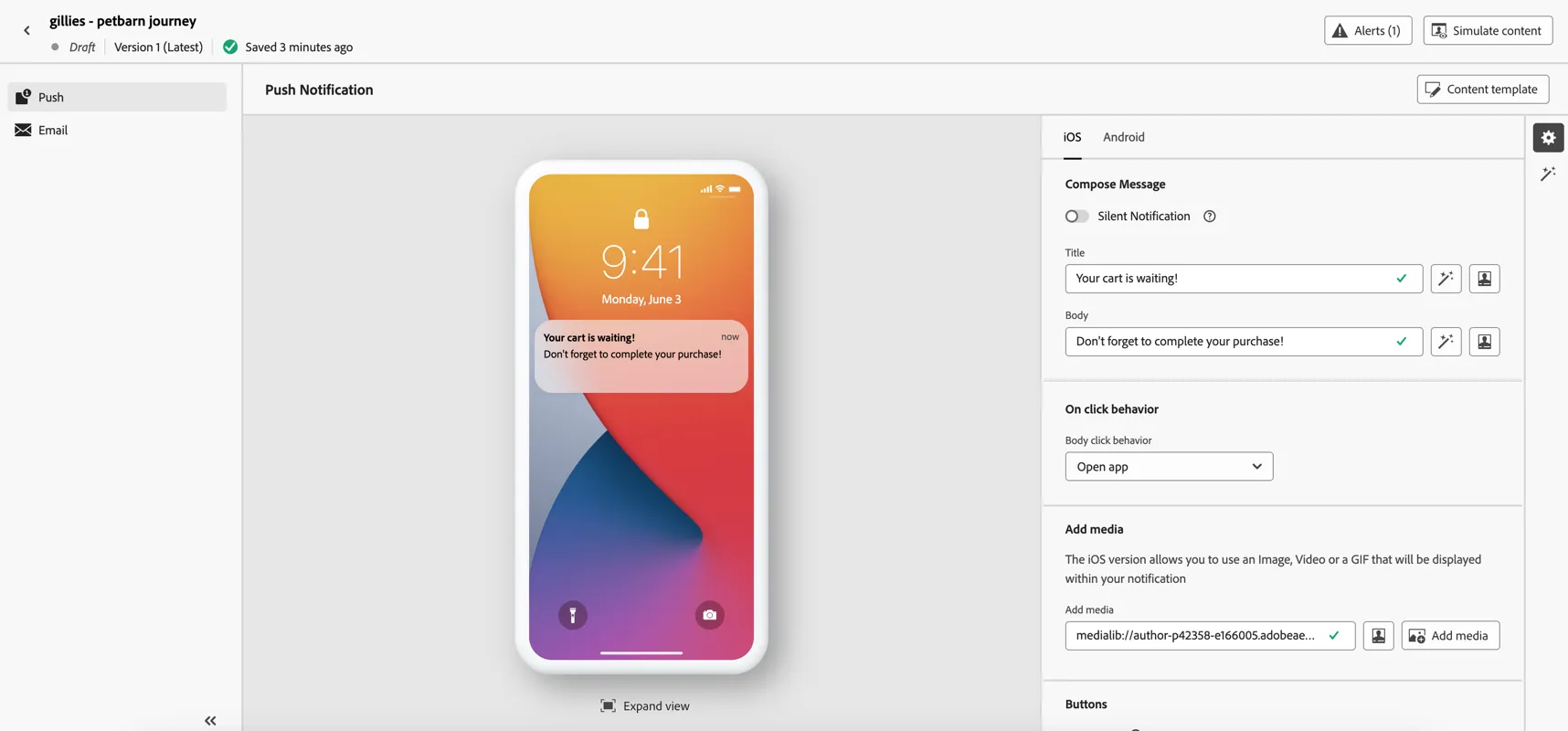
Add a title and message body.
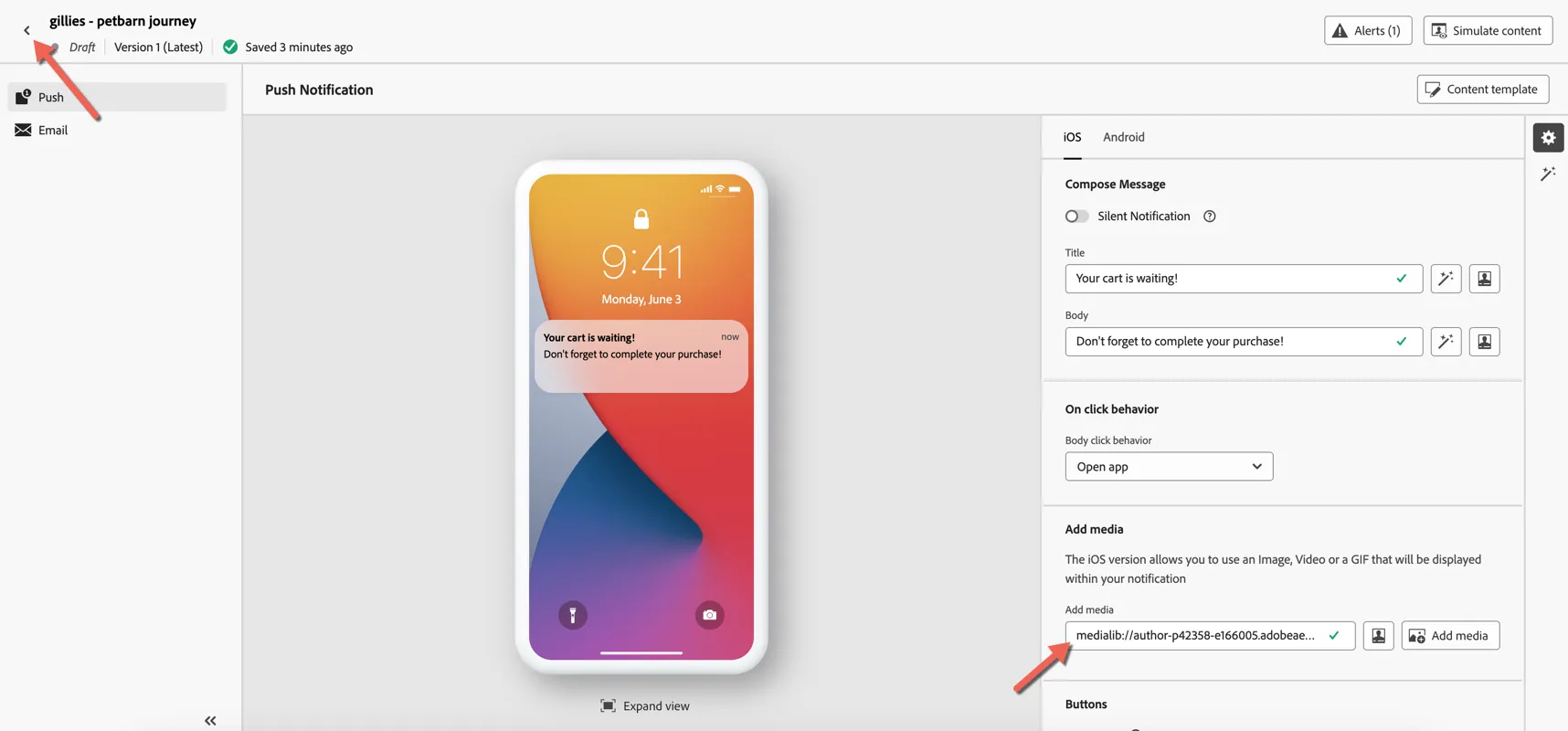
Add an image from the Asset repository to the media component. Once you're happy click the return arrow on the top left to return to the journey canvas.
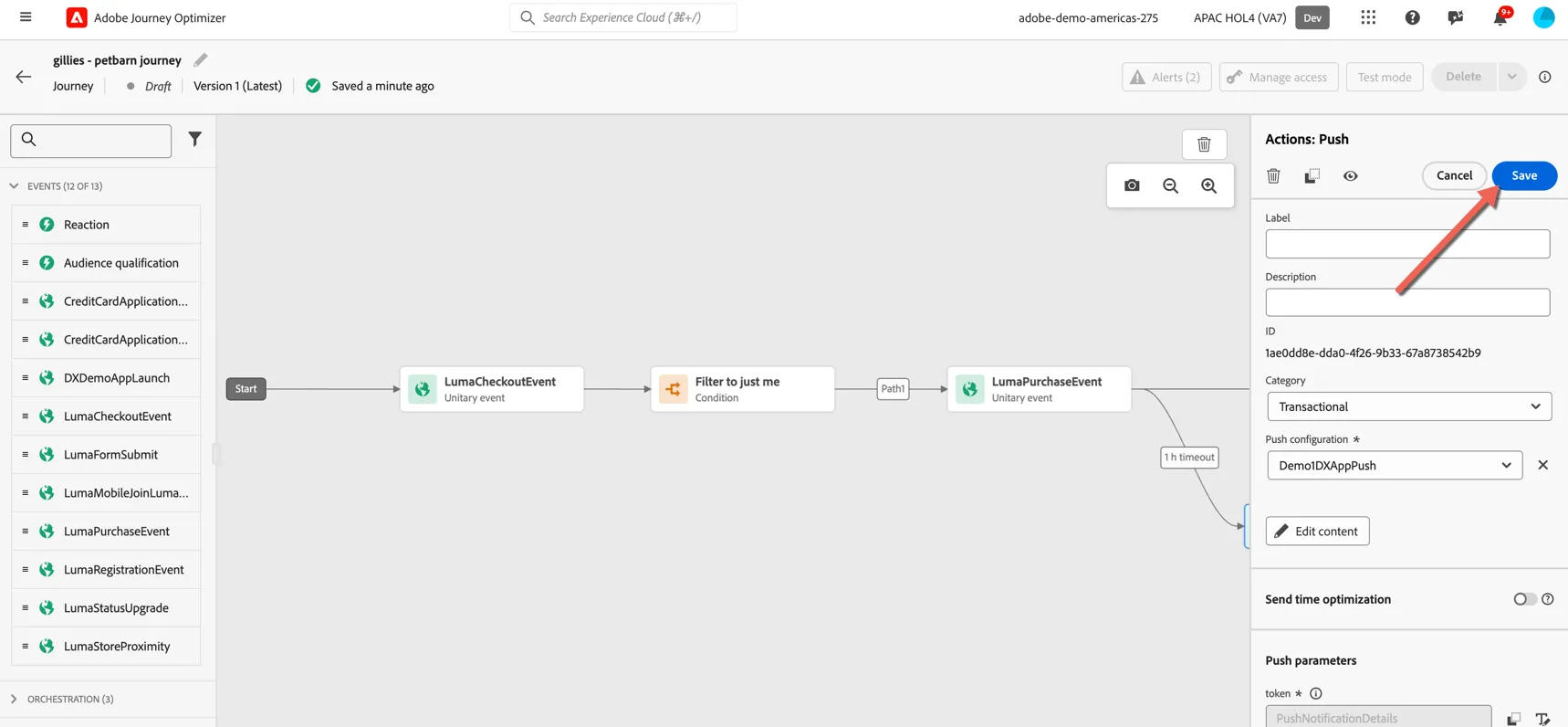
Finally click Save on the action properties.
Add Email Content
Click on the Email node and click Edit Content.
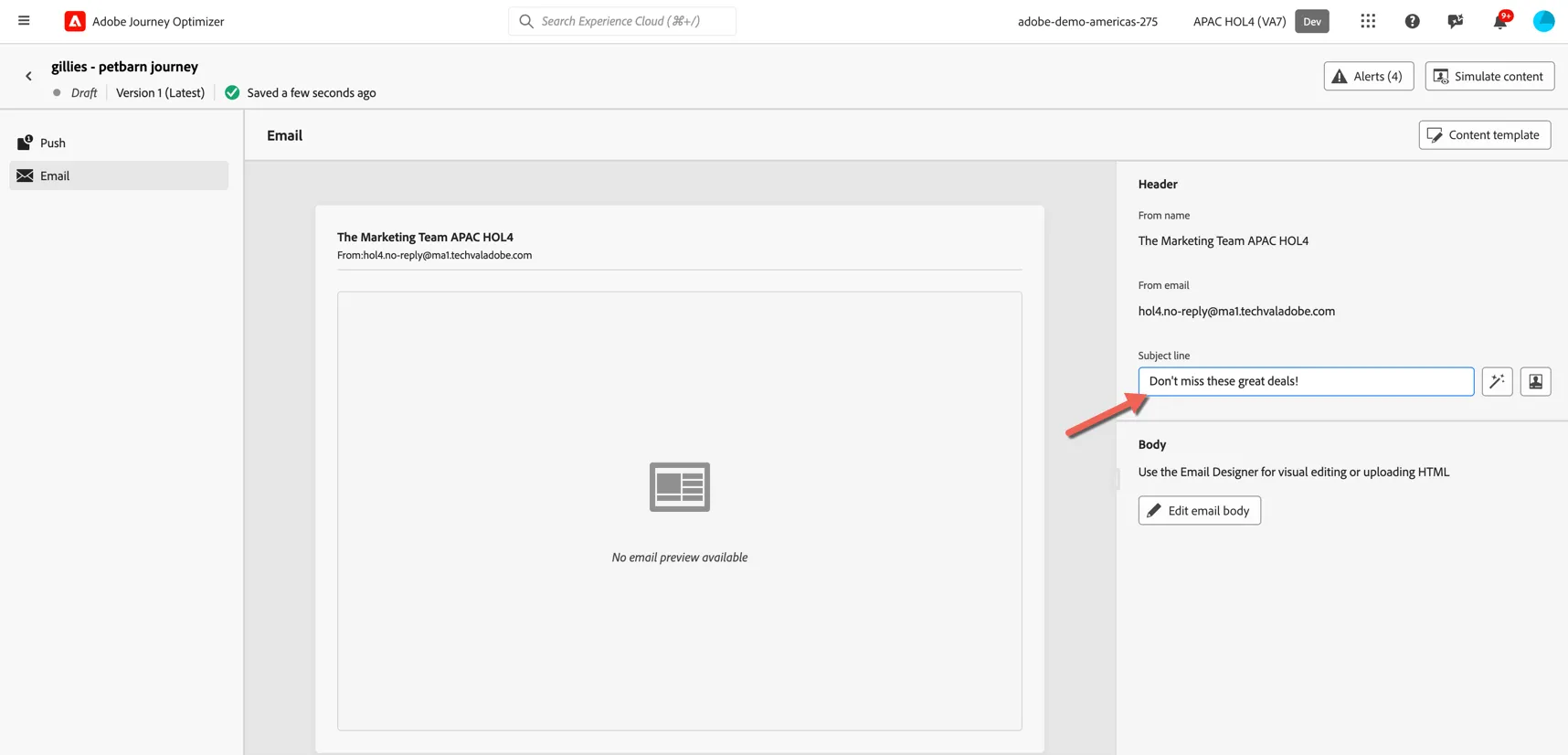
Add a Subject, then click on Edit email body button.
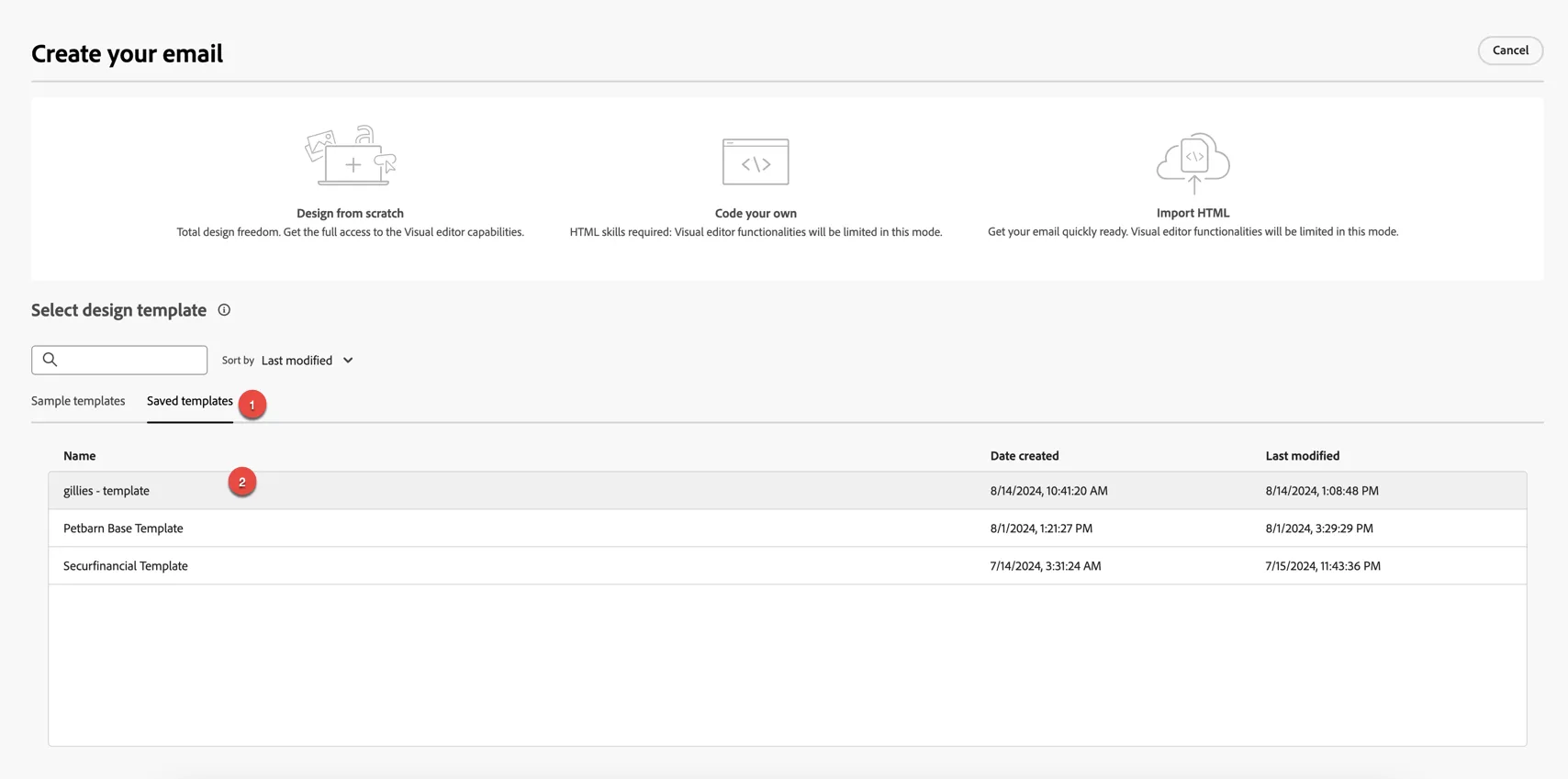
Go to saved templates tab and select the template you created earlier.
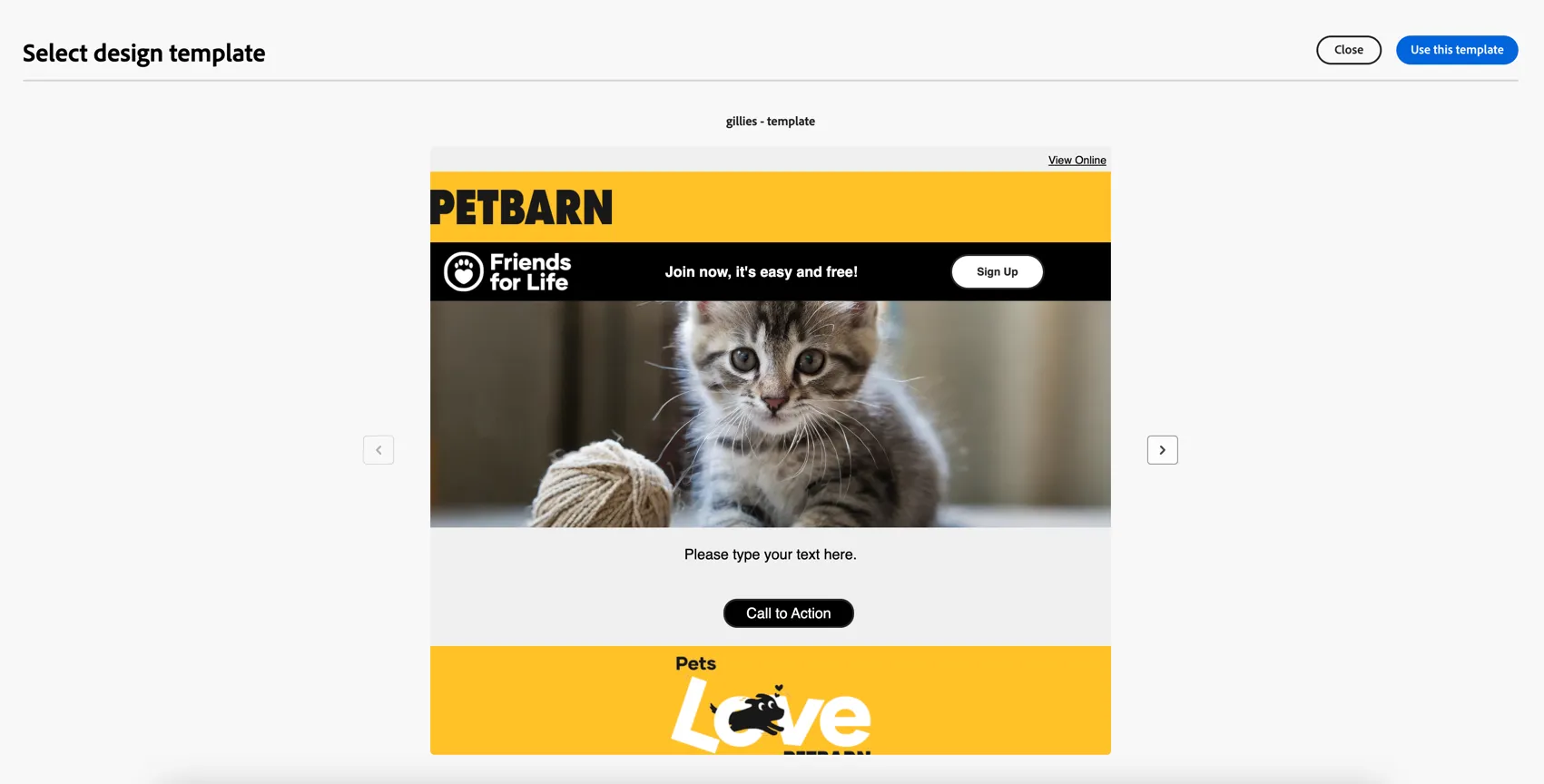
Once the preview loads, click to Use this email
Personalise the email by adding the first name. Click into the text block and click the Personalisation button from the toolbar.
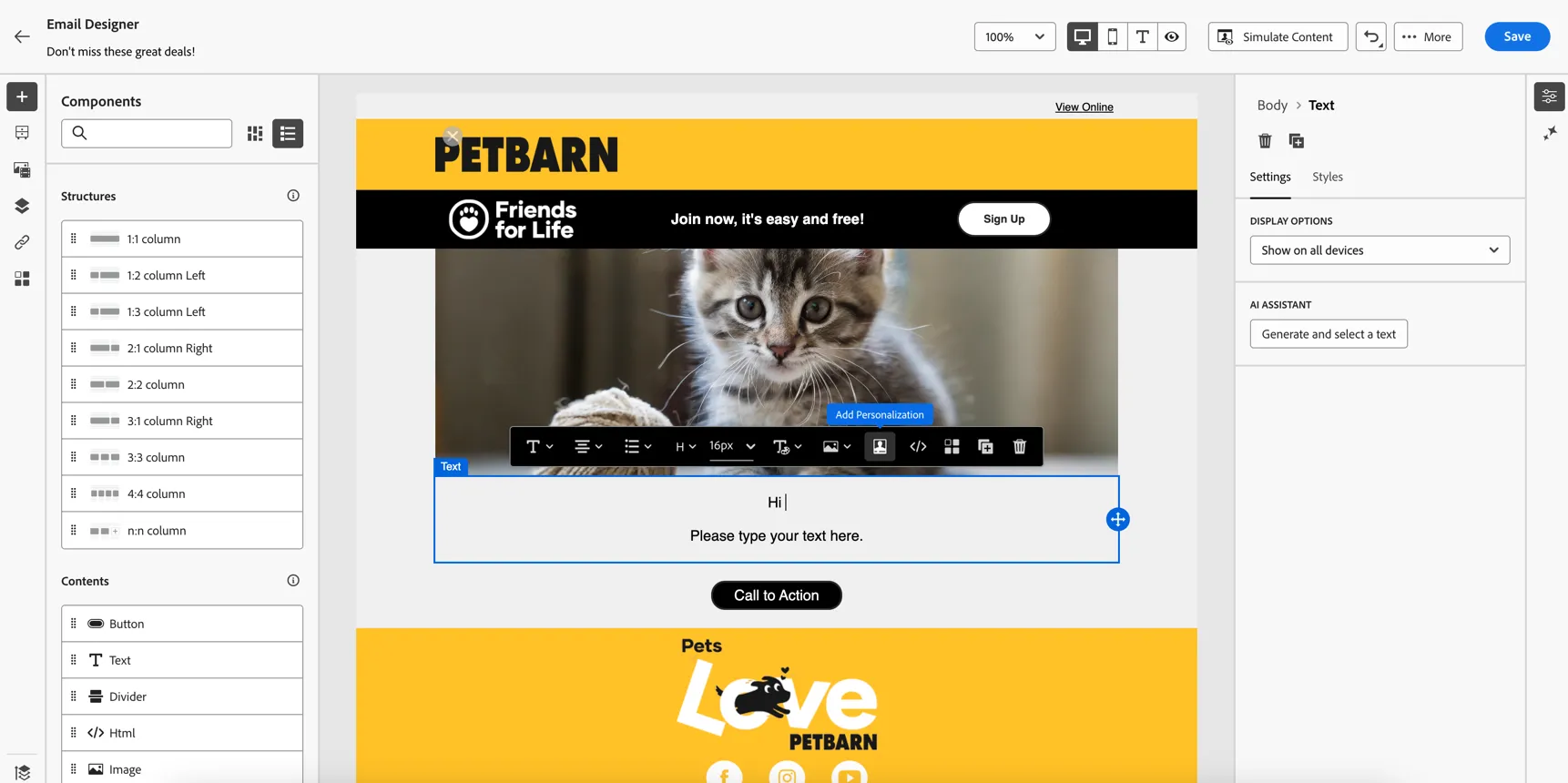
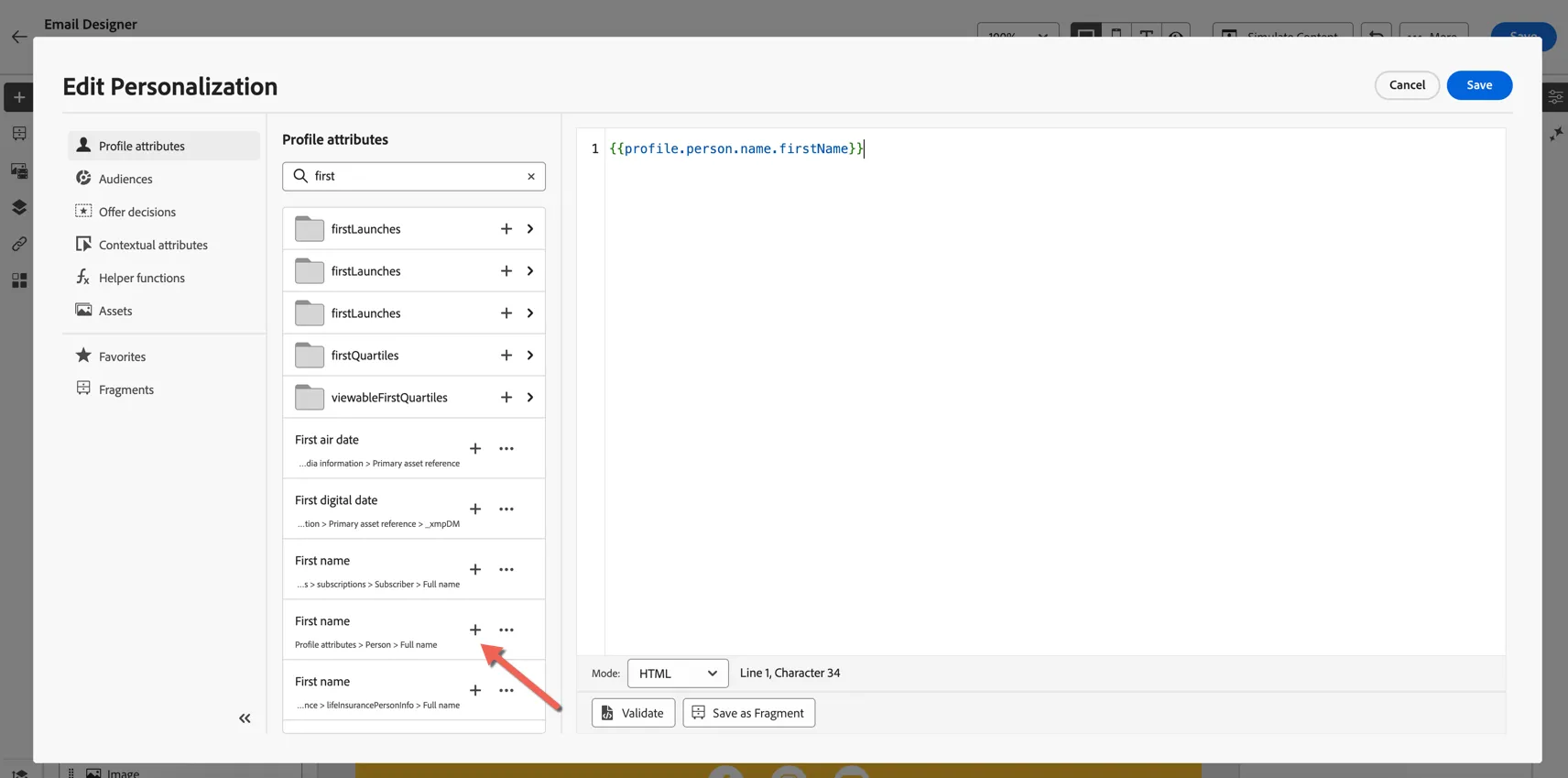
Search for the first and click to add the Profile Attributes > Person > Full Name > First name attribute. Click Save to insert the field.
There are a few different first name attributes defined in our schema which is why there is more than one first name option appearing in the list of available attributes.
We can also include attributes from the original event that triggered the journey. These are available under the Context Attributes menu in the Personalisation window.
To save time we've created an expression fragment to retrieve the product name of from the cart for you. You can add the fragment to your text content:
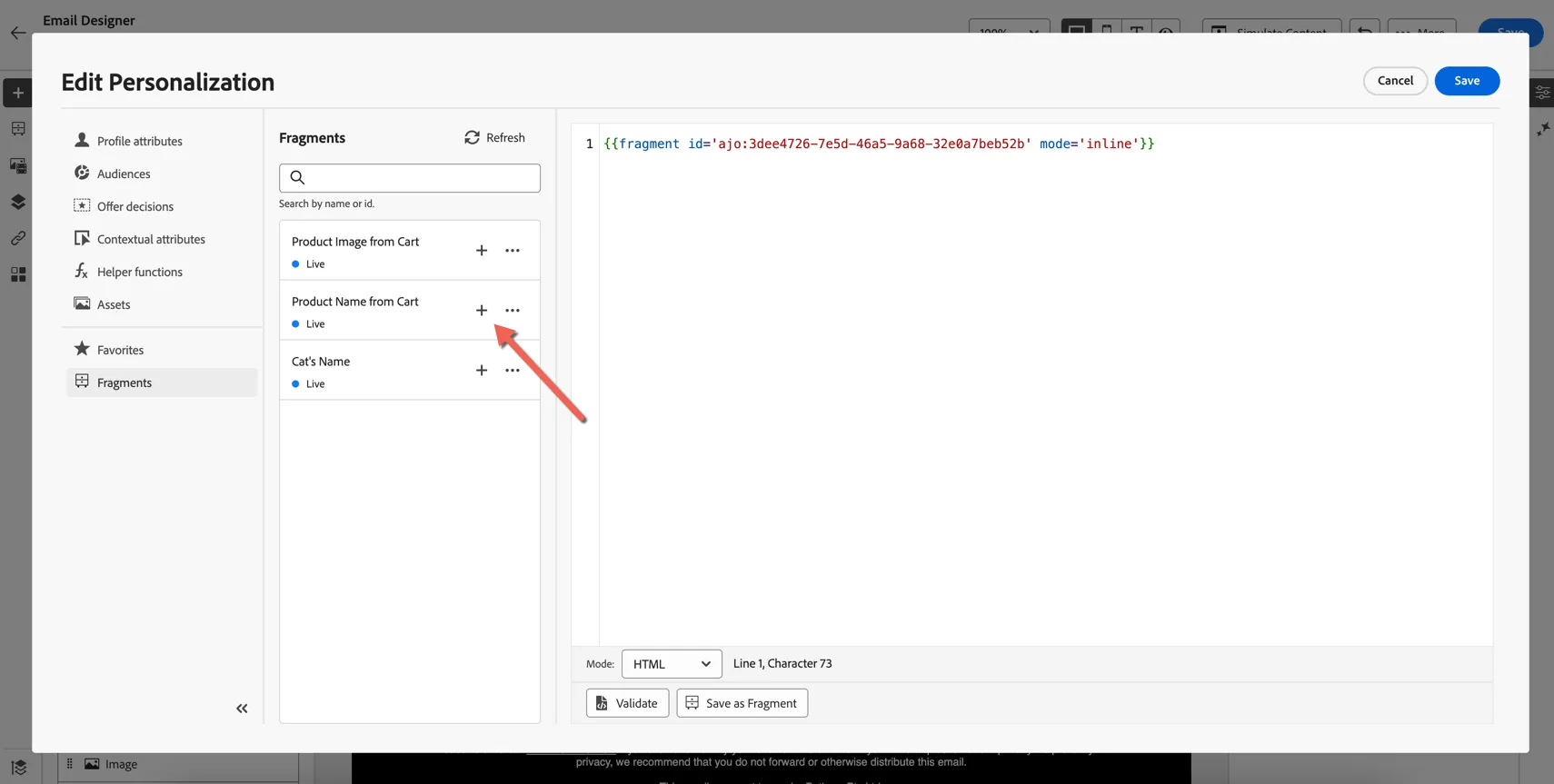
Once you're happy with your content click to Save then click the arrows on the left to return to the journey.
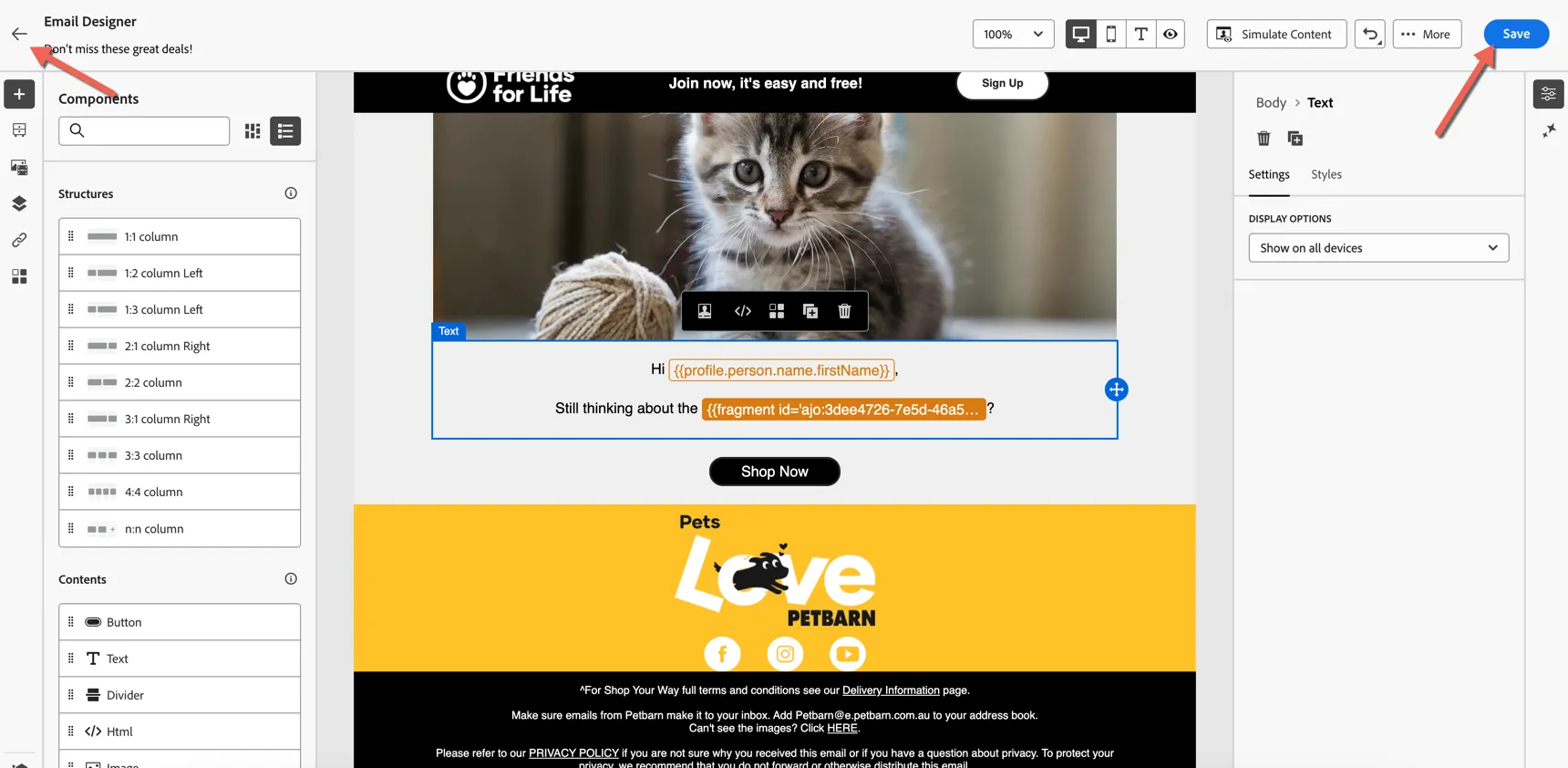
Click to Save the Email action.
Test the Journey
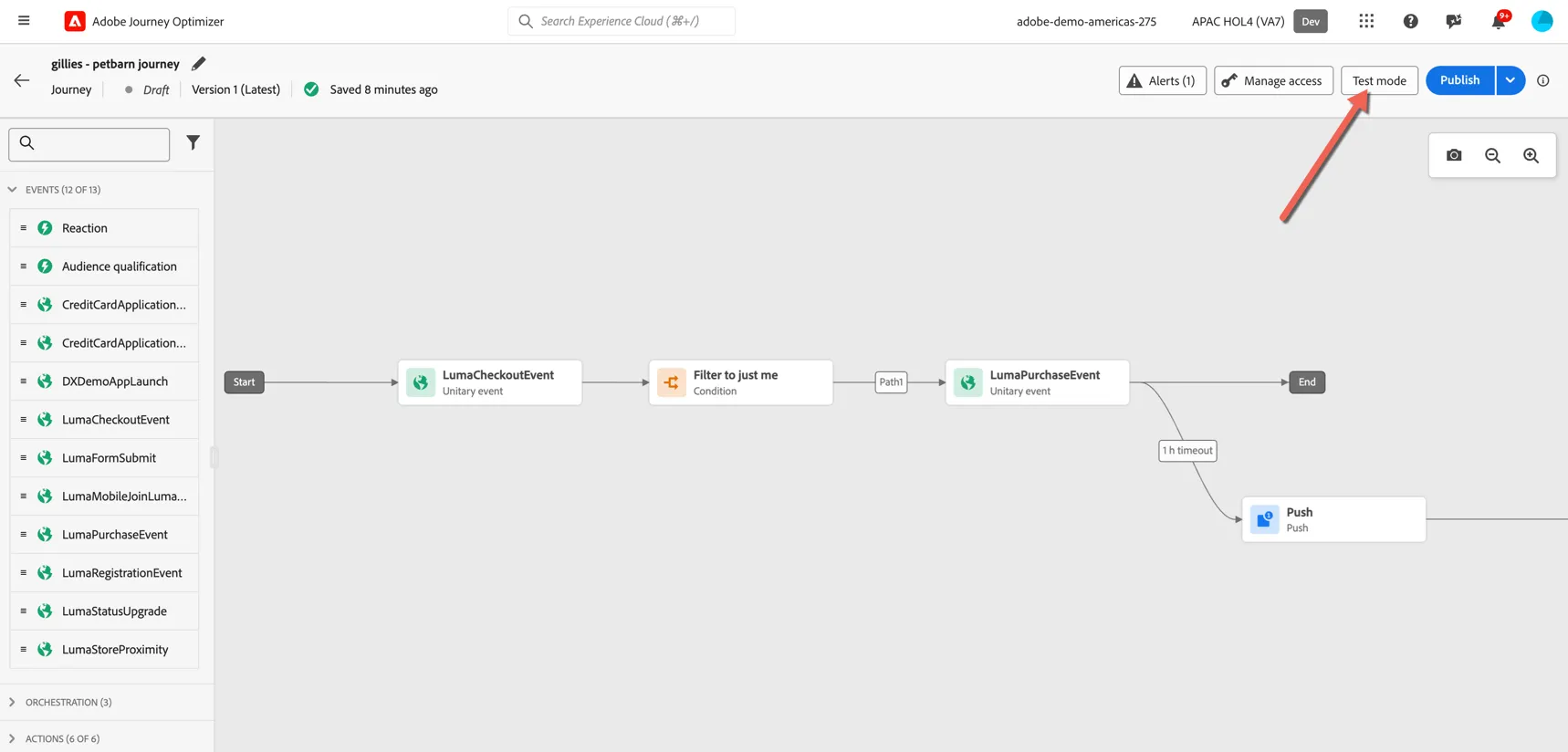
The journey is now ready for testing. Click the Test mode button to move the journey to testing mode.
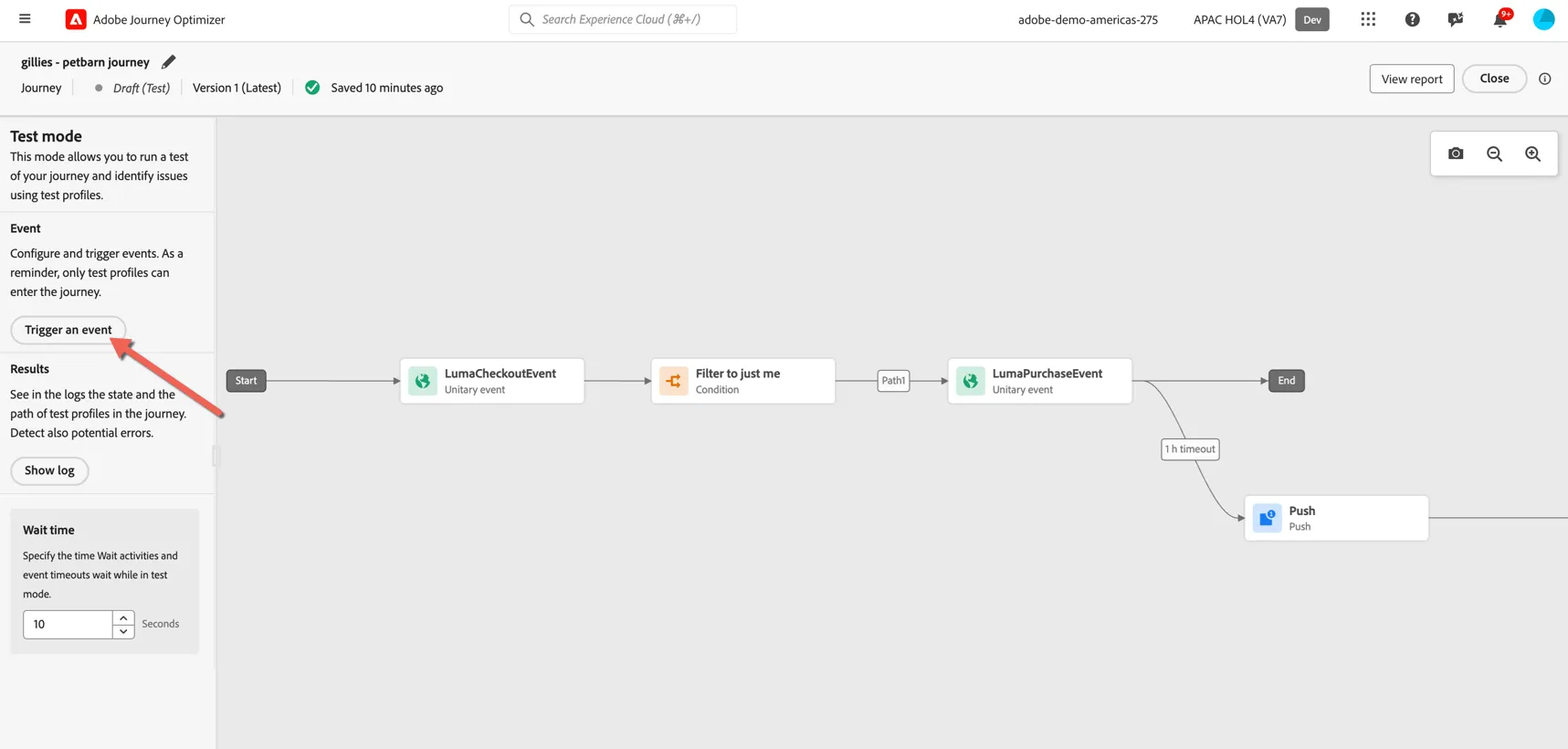
Once the journey is in test mode Draft (test), you can trigger a fake event to test it out. Click the Trigger an event button.
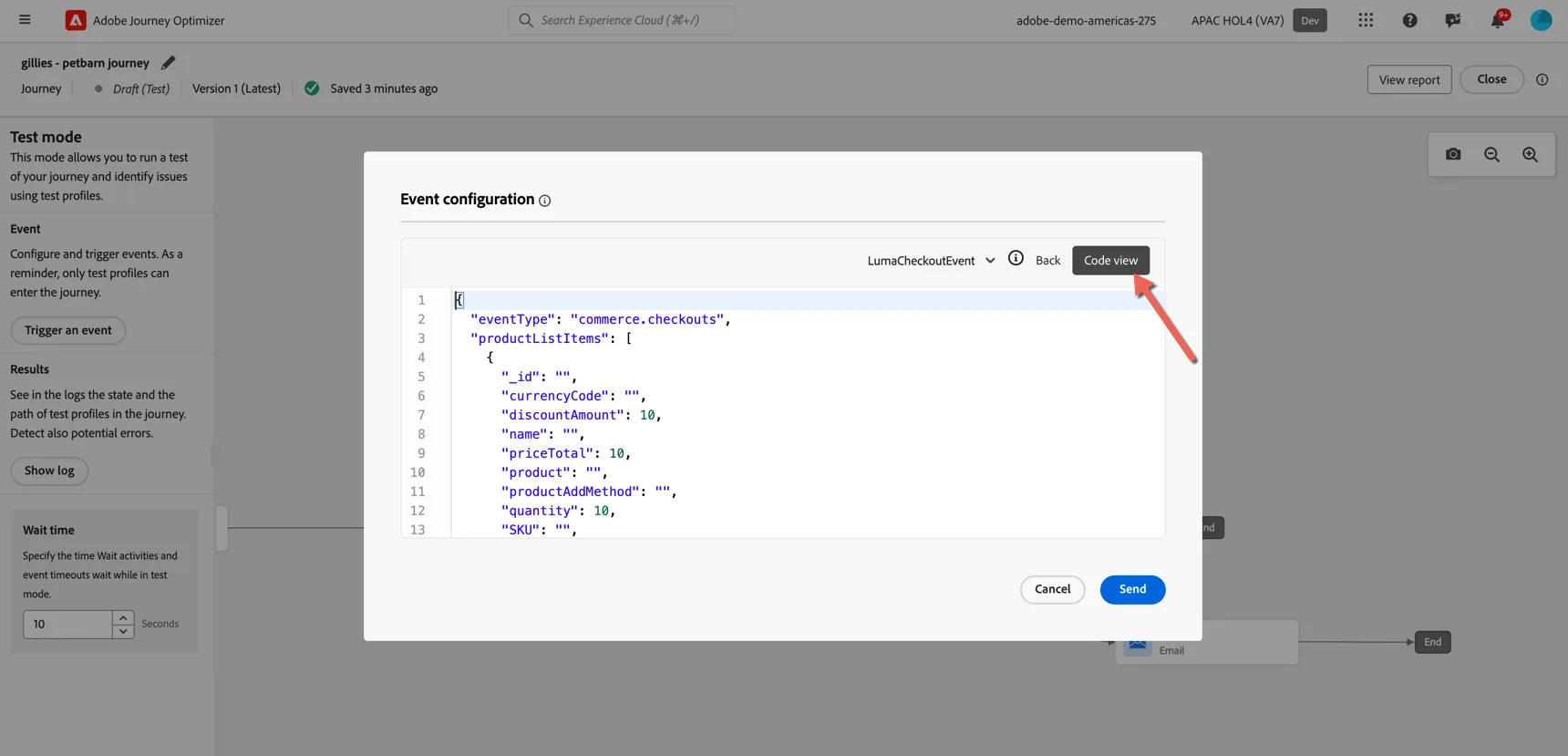
Switch to code view and paste the following JSON into the editor.
{
  "eventType": "commerce.checkouts",
  "commerce": {
    "checkouts": {
      "value": 1
    }
  },
  "productListItems": [
    {
      "SKU": "WS06",
      "_adobedemoamericas275": {
        "core": {
          "imageURL": "https://www.petbarn.com.au/media/catalog/product/B/u/Bundle-765.jpg?optimize=medium&fit=bounds&height=450&width=450&canvas=450:450",
          "mainCategory": "Cat"
        }
      },
      "name": "Breeders Choice Cat Litter 30L",
      "priceTotal": 29,
      "productAddMethod": "web",
      "quantity": 1
    }
  ],
  "_adobedemoamericas275": {
    "interactionDetails": {
      "core": {
        "channel": "web"
      }
    },
    "identification": {
      "core": {
          "ecid": "<your ecid goes here>"
      }
    }
  }
}
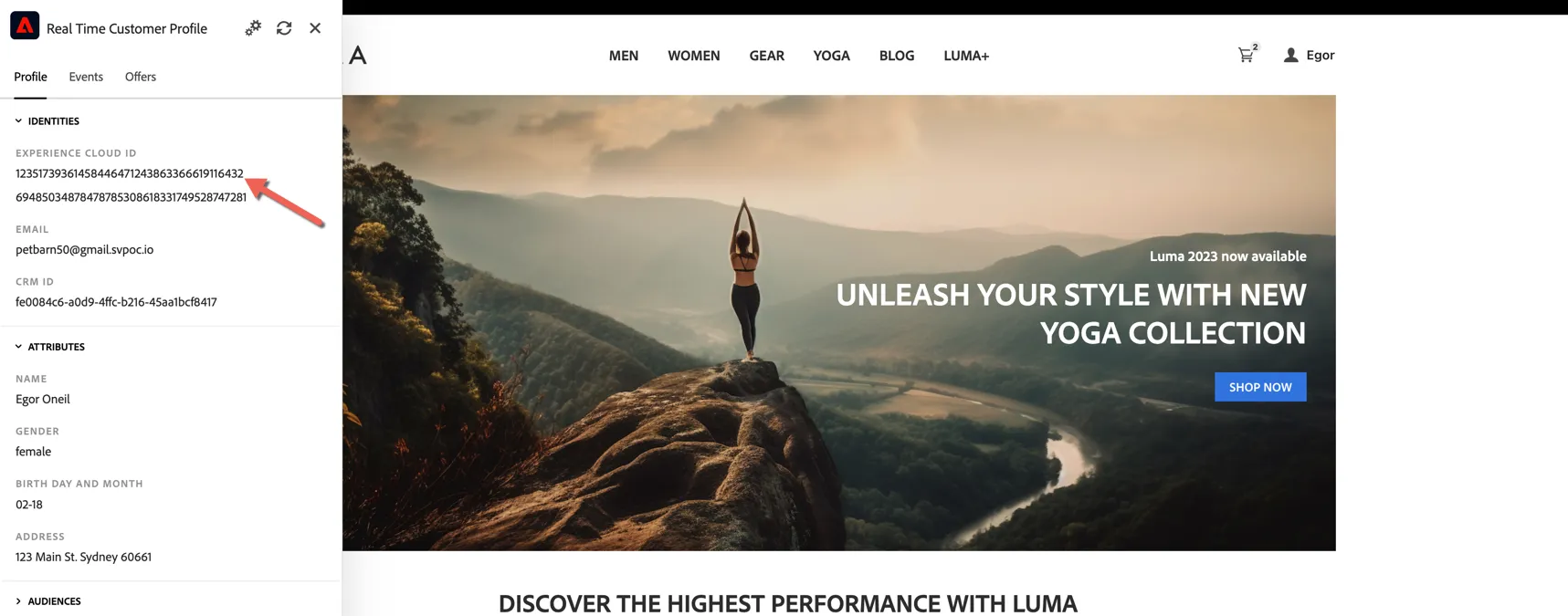
Retrieve the ECID from your customer profile - either by looking up the profile or check the profile viewer on the demo website.
Add your ECID in the event JSON to use your profile for the test:
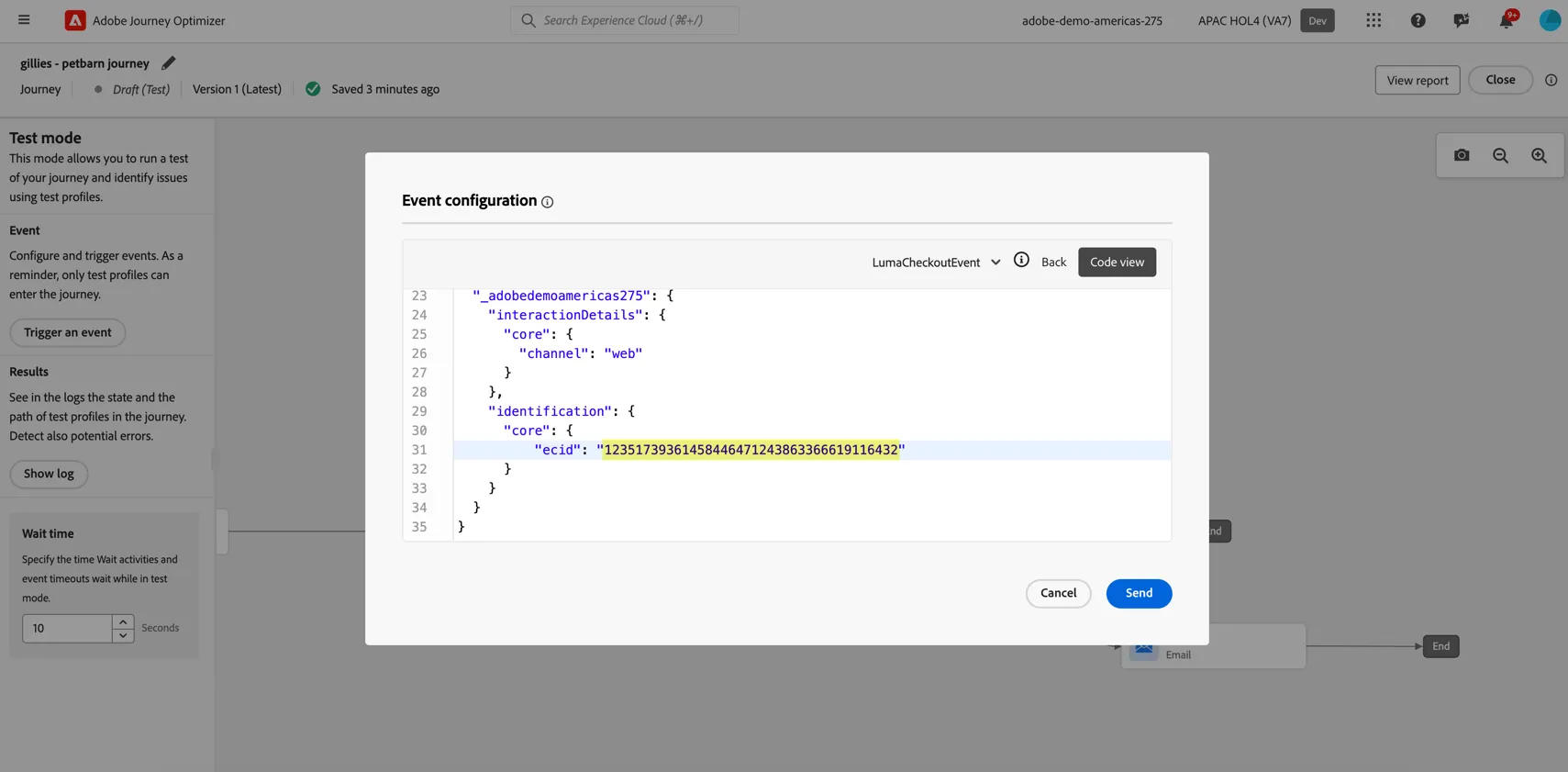
Click Send to send the test event. All journey wait times are compressed to 10 seconds in test mode so you should receive the push notification and the email shortly.
Publish the Journey
Click to Publish the journey
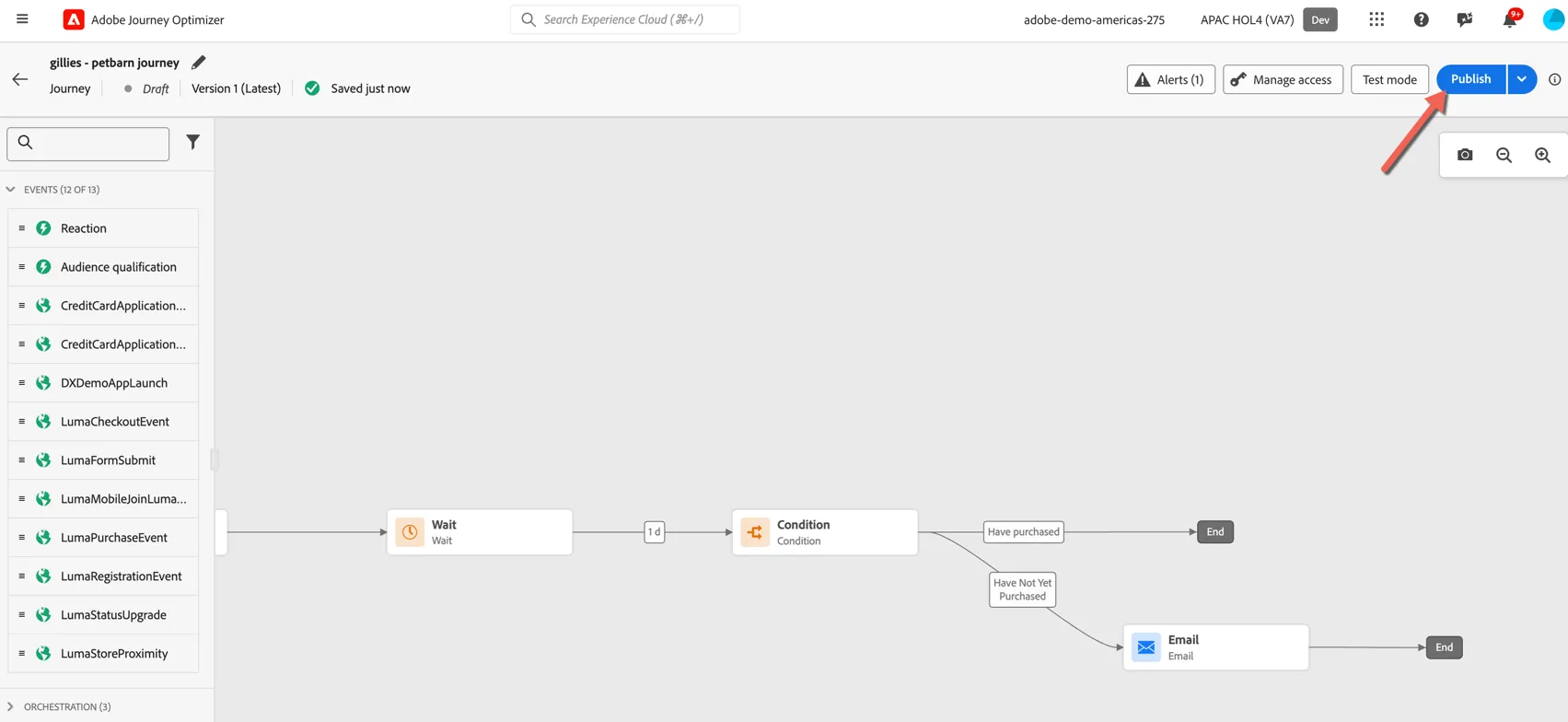
Confirm to publish in the popup.
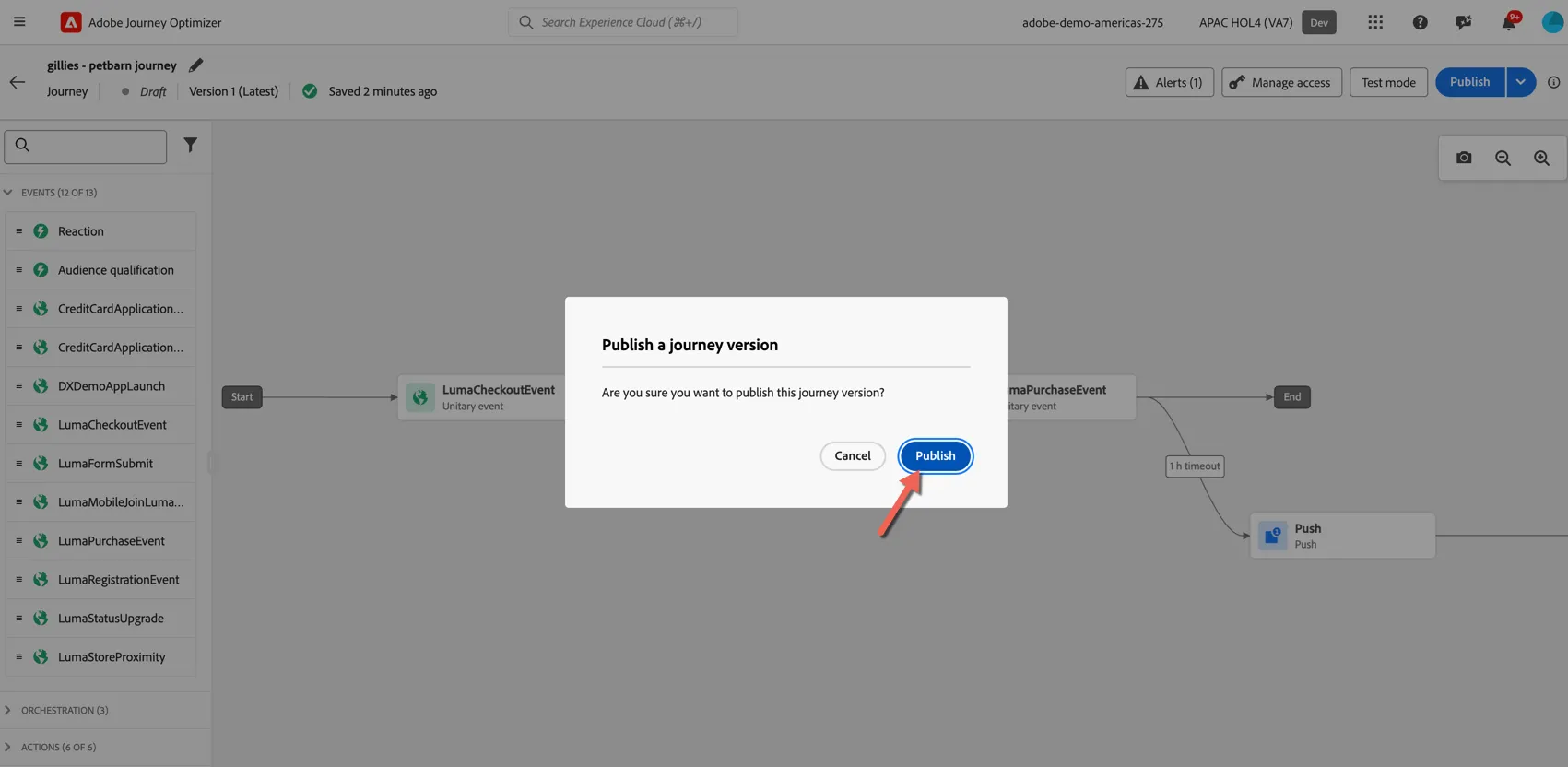
Your journey should now be Live.
Trigger your Journey
Switch to your Customer Profile for this exercise.
Go back to the Demo Website and add some products to the cart.
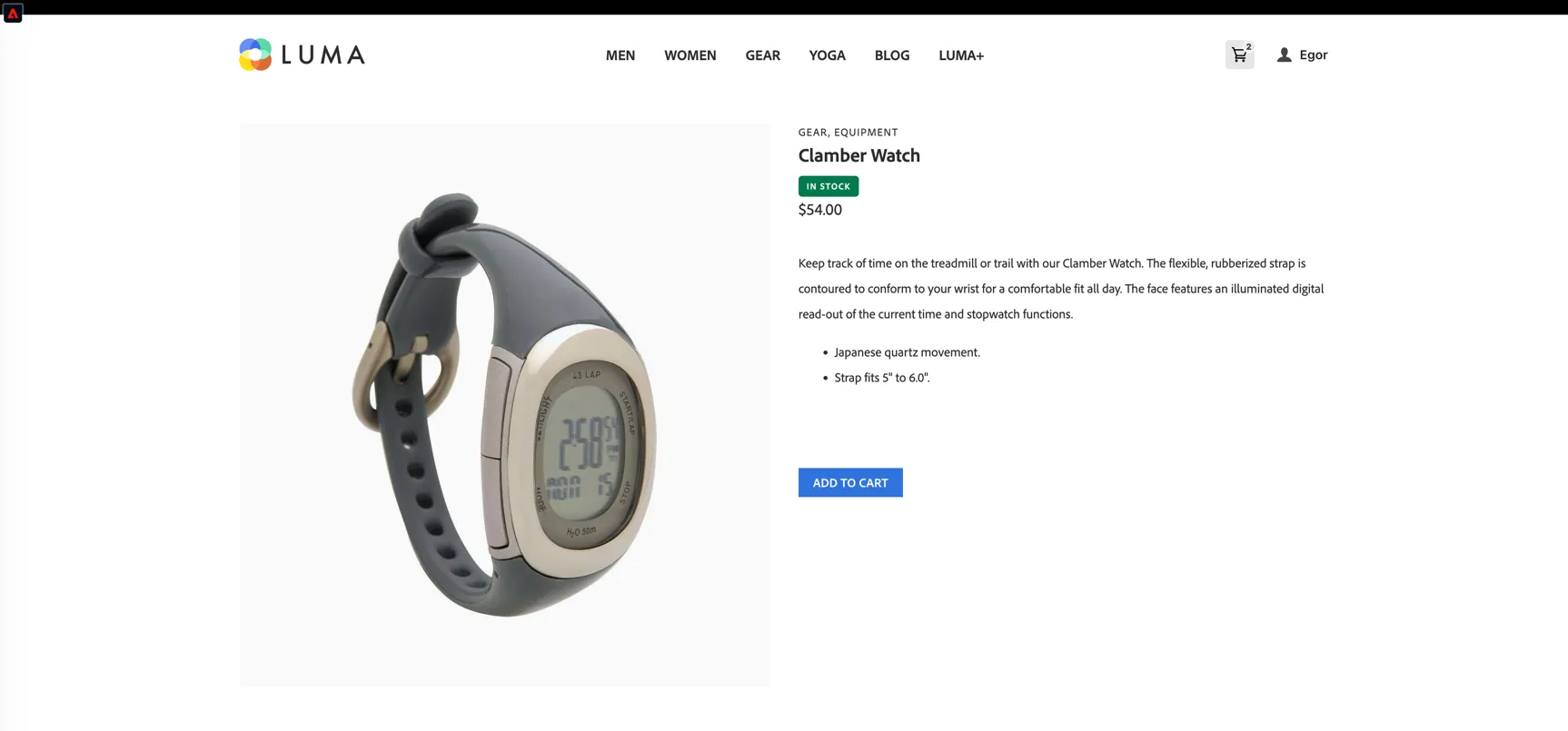
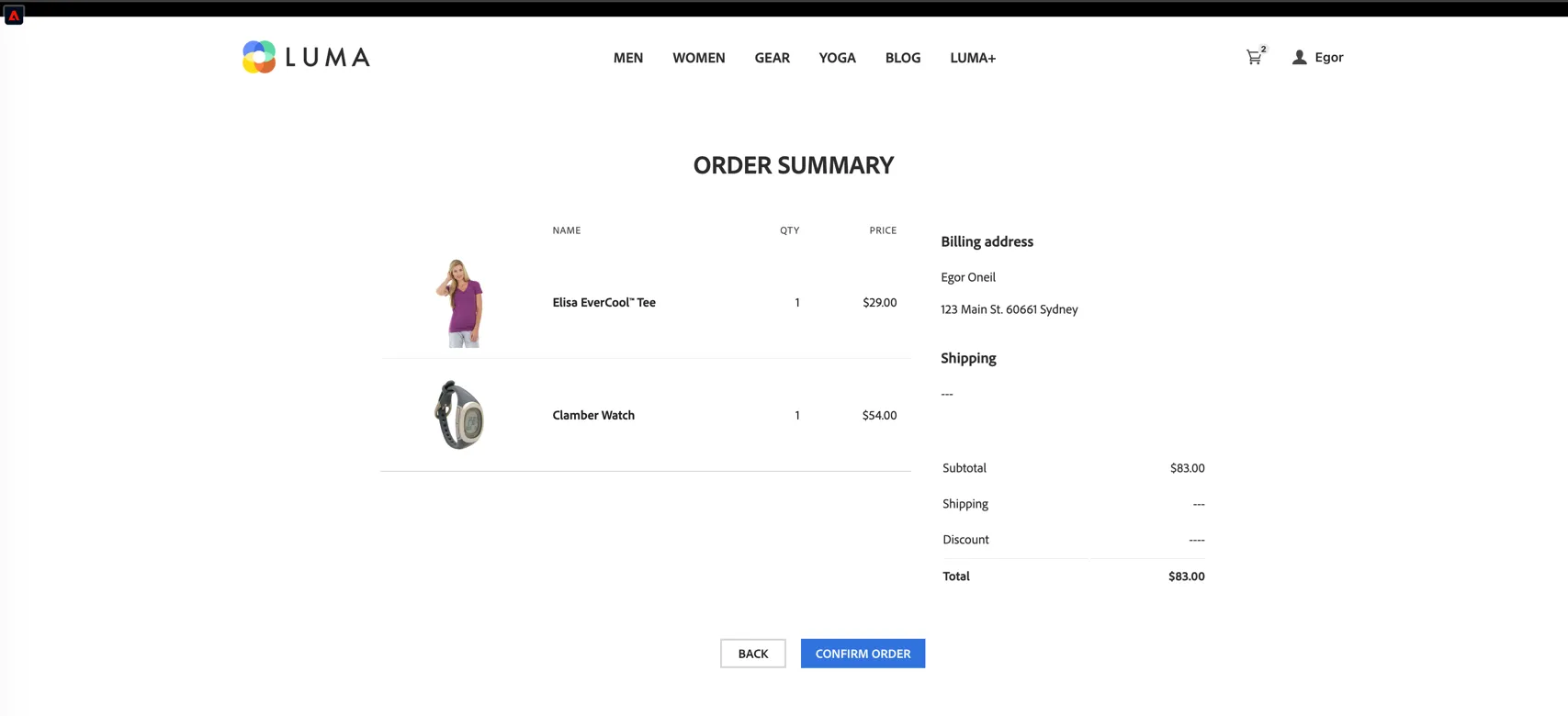
Click through to the Order Summary page but do not complete the purchase.
You can check the journey reports to see if your journey was triggered. Live counts are shown on the journey itself or you can click to View Report.
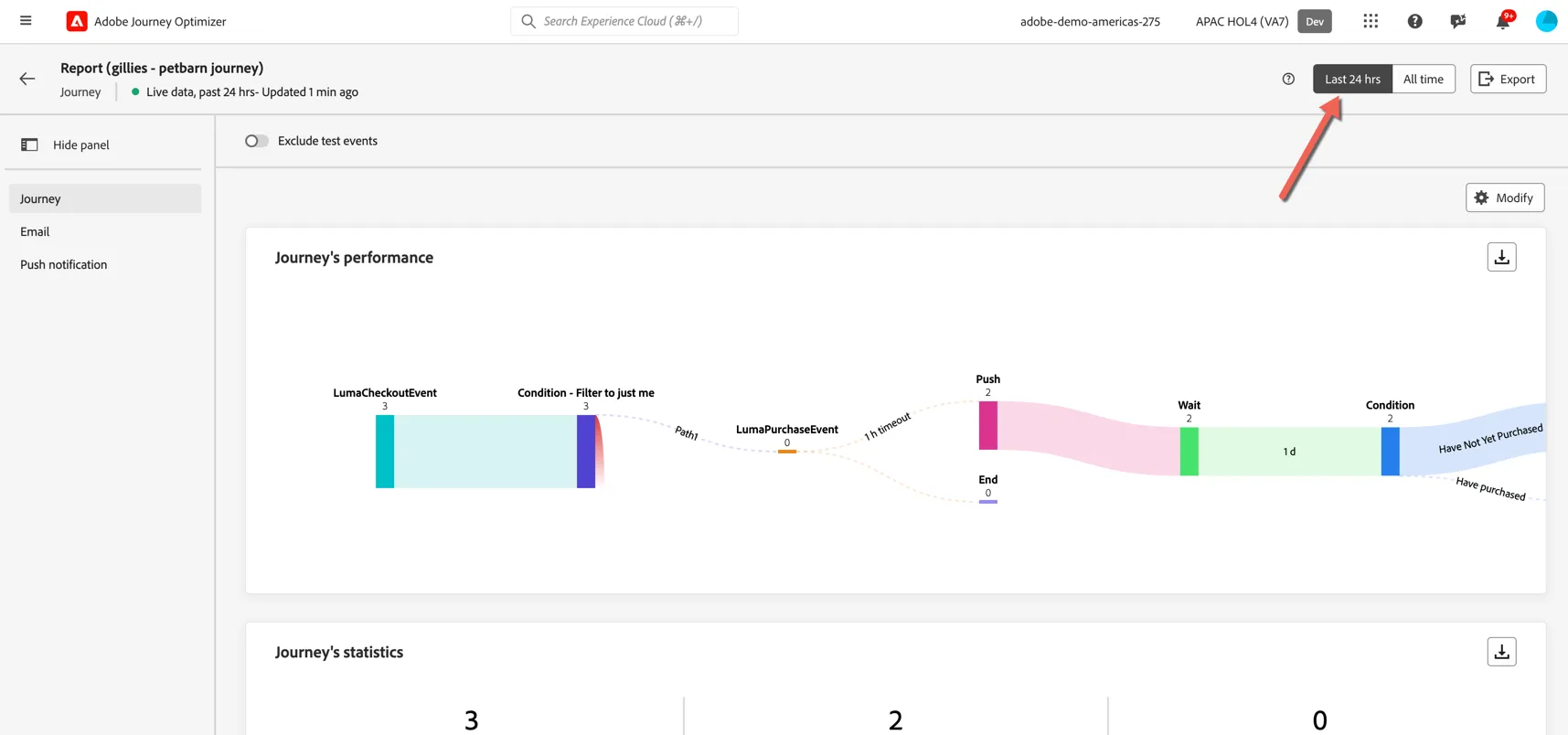
Switch to Last 24 hours report and explore the reporting
You've now created a real-time journey, tested it and triggered it from the customer website.