1.3 Meta Ads
Exercise 1.3: Generating On-Brand Meta Ad Variants
Duration: 8 minutes
Understanding AI-Powered Ad Generation
With the Express template selected and parameters configured, the final step before generation is writing a descriptive prompt. The prompt tells the AI what kind of ad experience you want: the messaging angle, the emotional tone, the key selling points, and the intended audience. Combined with the brand guidelines, product context, persona targeting, and approved assets you already configured, the prompt shapes four unique ad variants that GenStudio produces simultaneously on the Canvas.
Each variant inherits the Express template's locked structure (logo placement, layout grid, background) while the AI generates unique headlines, body copy, and calls to action within the editable fields. You can toggle between Facebook and Instagram previews, edit individual sections of any variant, regenerate specific elements, and refine until you have content ready for review. For deeper visual changes beyond what the Canvas supports, you can jump back into Express to edit the design directly.
Value for Your Organization:
- Four ad variants generated simultaneously for immediate A/B testing and creative diversity
- Natural language prompts guide the AI without requiring design skills or creative software
- Every variant inherits the Express template's locked structure, ensuring brand integrity at scale
- Channel-specific formatting (Meta, LinkedIn, Display) is handled automatically by the template
- Iterative refinement allows marketers to adjust headlines, copy, or images without starting over
- Generation cycles that previously took days are compressed to minutes
Reference Data: Prompt Examples
Element | Example |
|---|---|
Meta prompts | |
Email prompts | |

Step-by-Step Instructions
Step 1: Write a descriptive prompt
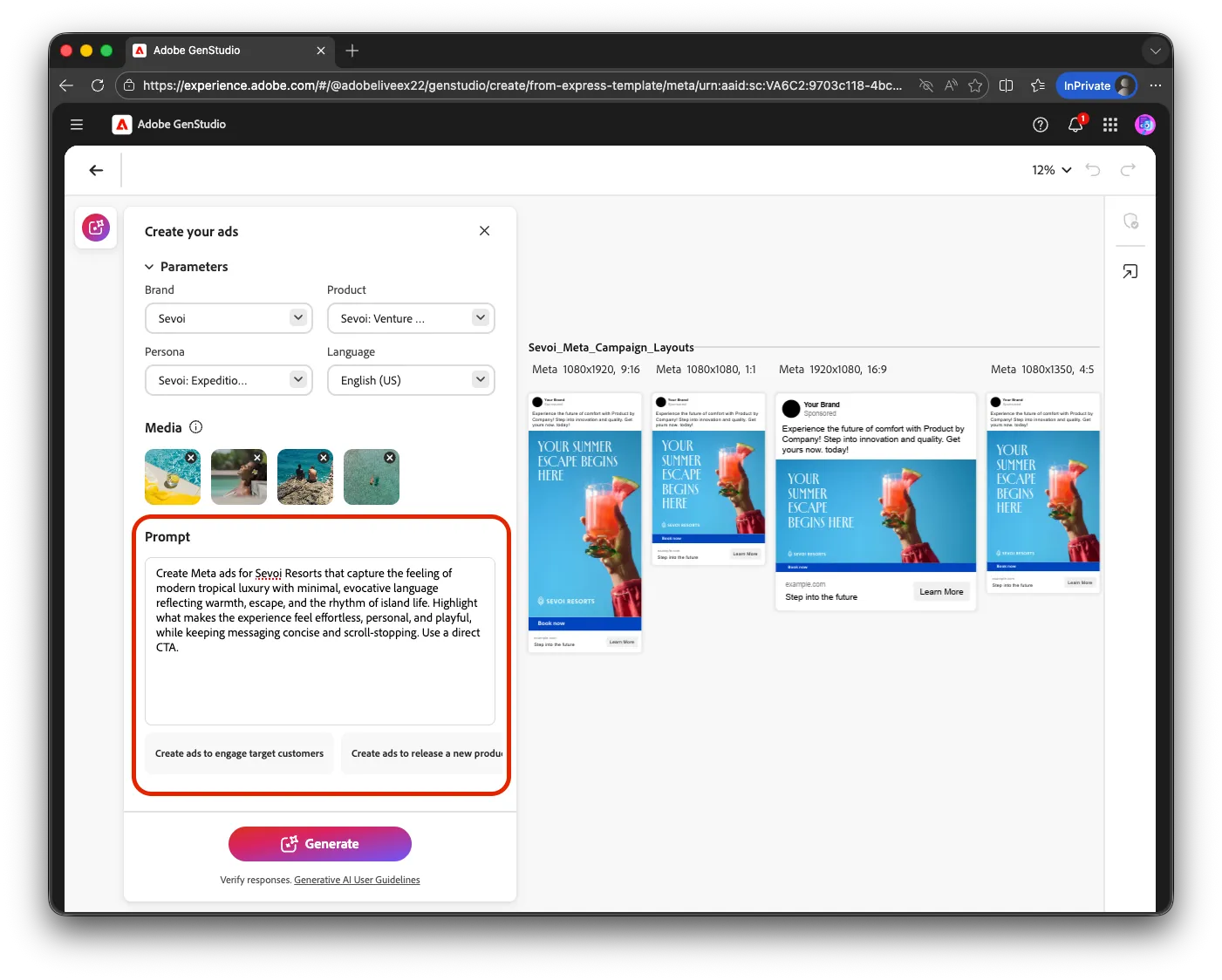
- In the prompt text area at the bottom of the prompt drawer, type a description of the ad experience you want to create or use one of the suggested prompts
- Example: See above to copy and paste a prompt from the "Meta prompts" section.
- Effective prompts describe context, desired tone, key messaging, and the intended audience
Step 2: Click Generate
- Click the Generate button at the bottom of the prompt drawer
- A loading indicator appears at the bottom of the Canvas
- Observe as four variants progressively load: images appear first, then headlines, body copy, and calls to action
- Wait for all four variants to fully render
Step 3: Preview the generated variants
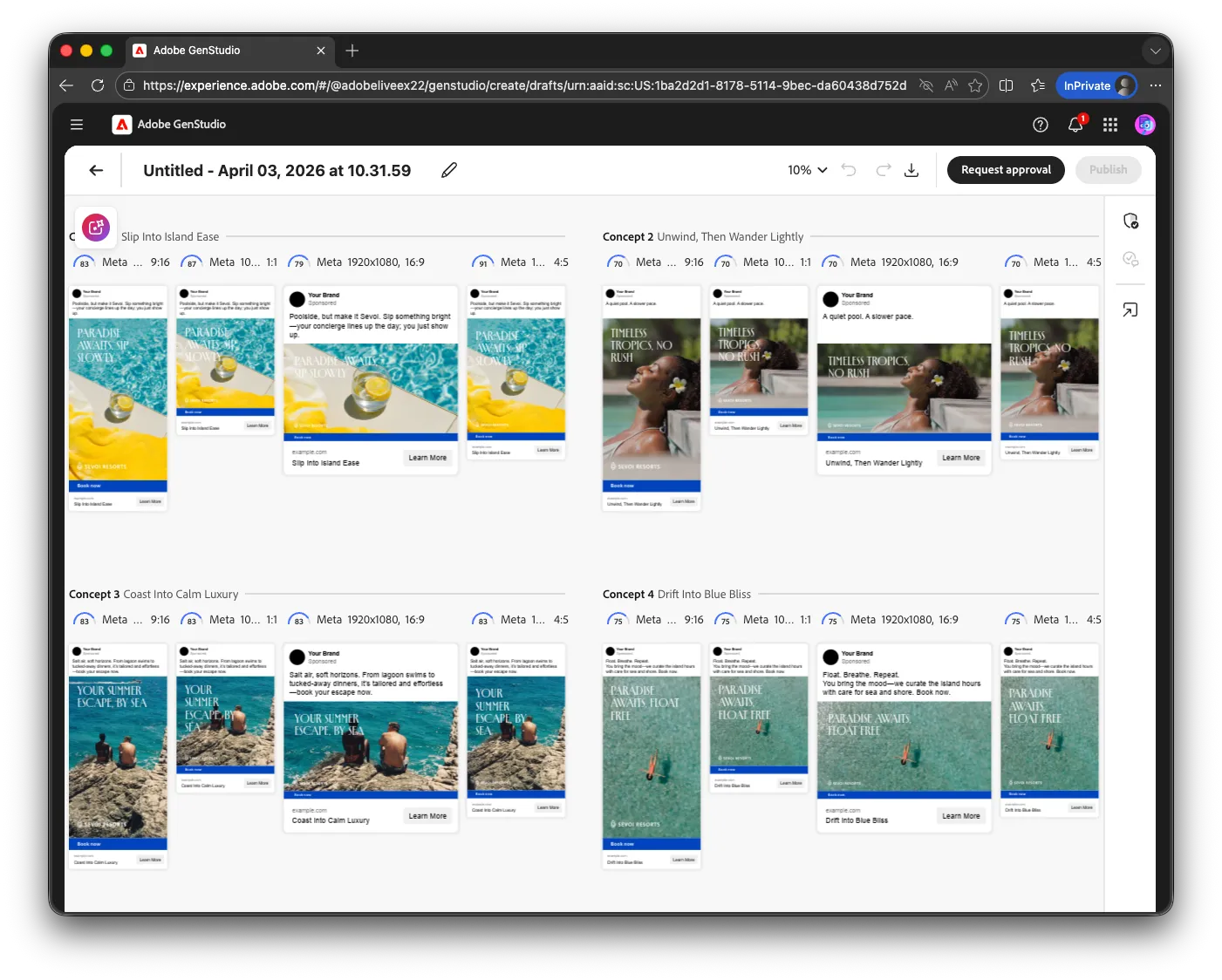
- Review all four variants on the Canvas
- Note how each variant presents a different creative approach while maintaining the locked template structure
- Observe that the logo, layout grid, and background are consistent across all variants (inherited from the Express template)
- The AI has generated unique headlines, body copy, and CTAs within the editable fields
- Click into the title of the Canvas and edit the name
Step 4: Edit a specific section on the Canvas
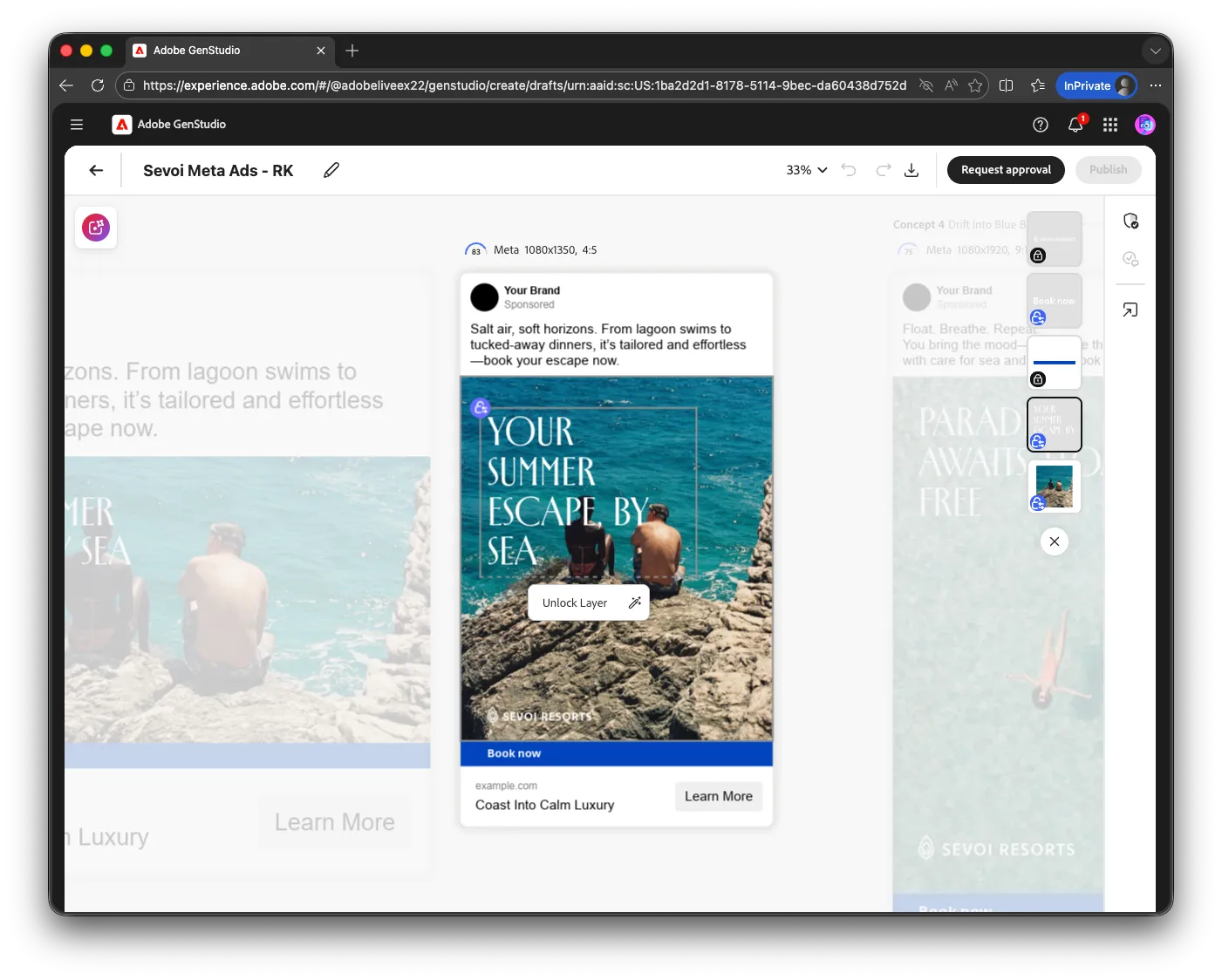
- Click on a headline in one of the variants to edit it directly
- You can also click on body copy or CTA text to make inline adjustments
- Use the layer view to target specific elements (headline only, CTA only, image swap) without affecting the rest of the variant
- Unlock layer, if necessary, and make edits to formatting (font size, color, etc). Drag the bounding box to change layout of copy
- Note the option to Regenerate the copy
Step 5: Regenerate a single section
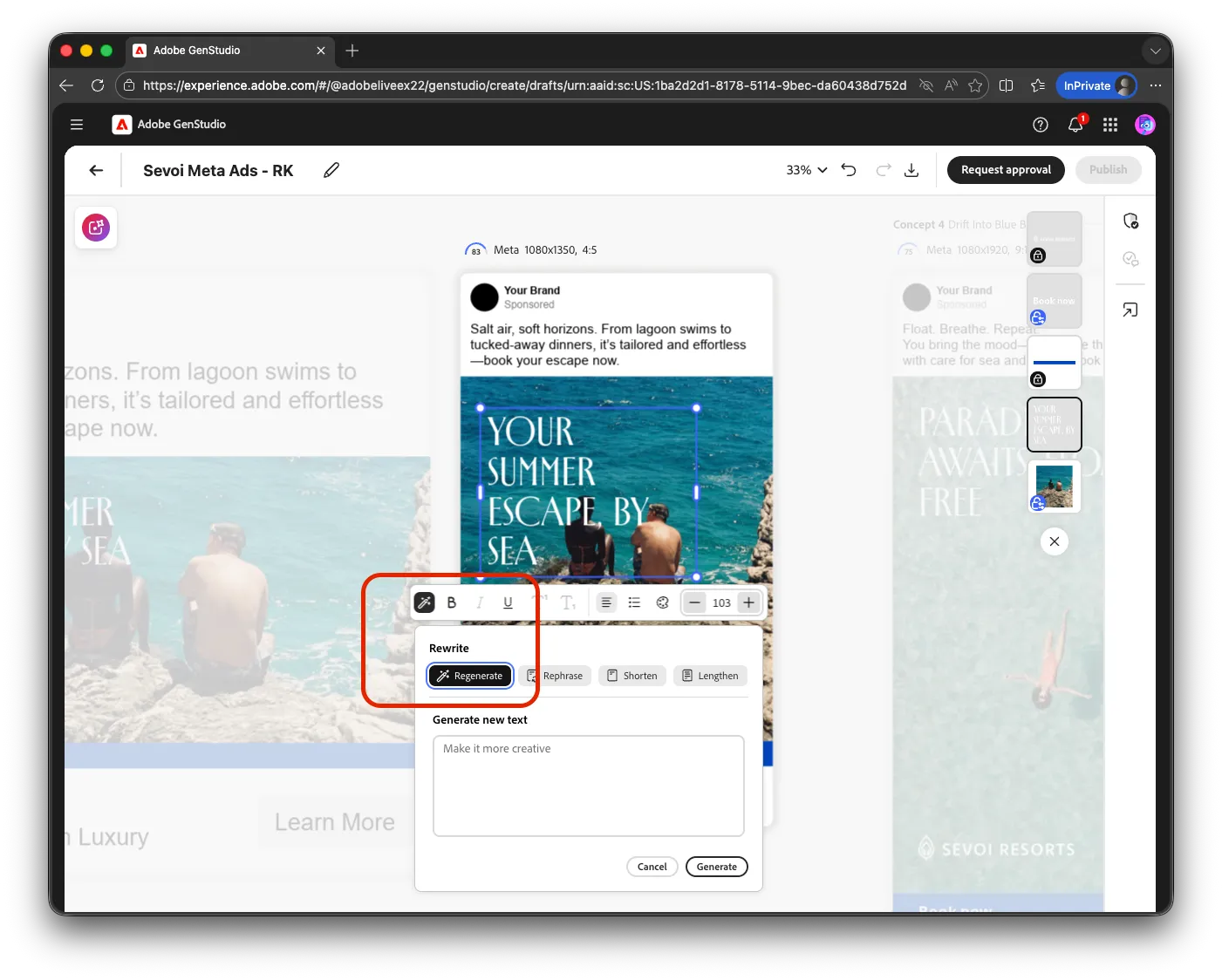
- Select a section (headline, body, or CTA) in a variant and choose the regenerate option
- The AI produces a new version of that section while preserving everything else
- This allows rapid iteration on specific elements without regenerating the entire variant
Step 6: Edit the image as needed
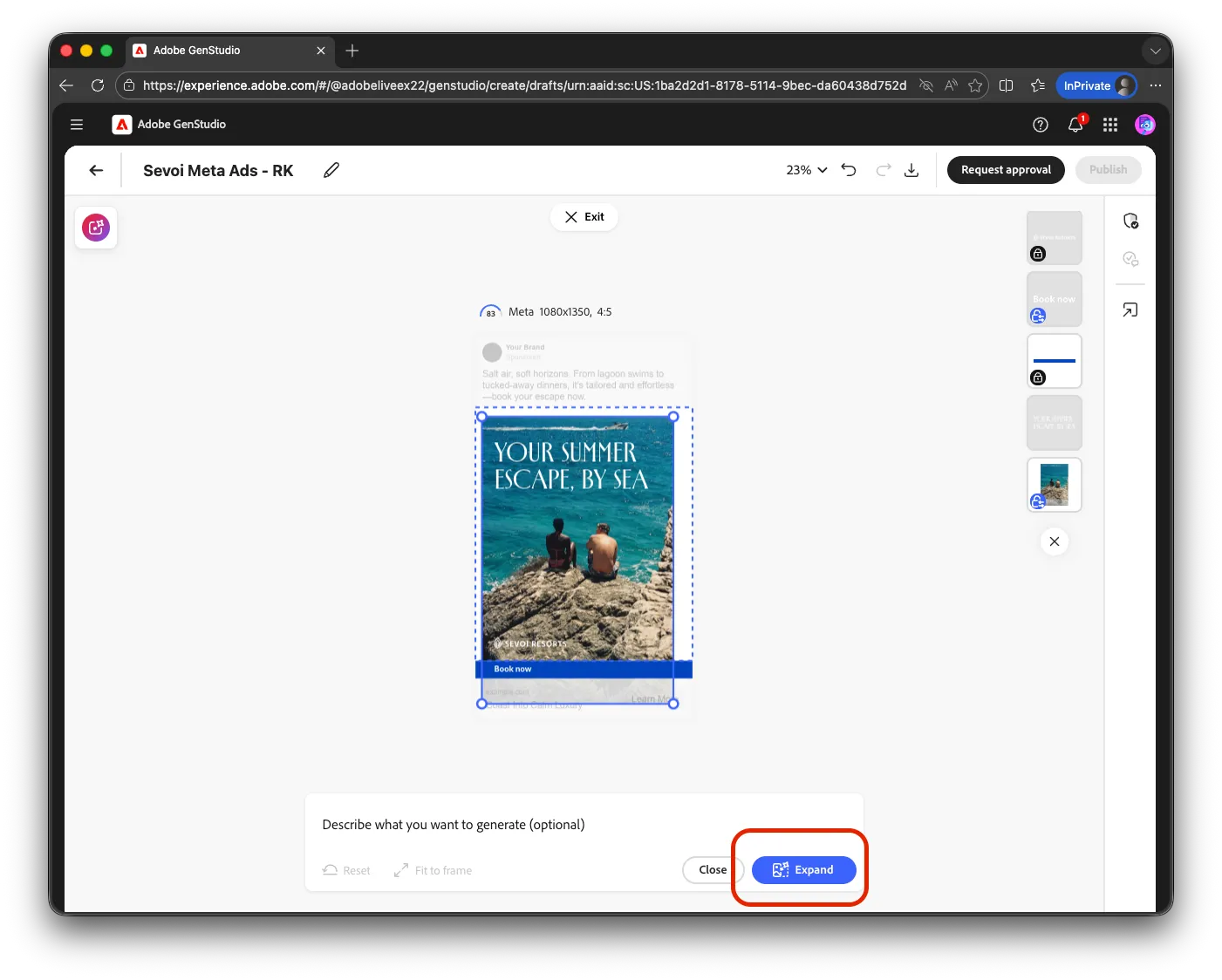
- Double click on the image to access image controls
- Reposition the image as needed to fit the layout, focusing on positioning the subject to fit the layout
- Note the ability to expand the image using generative AI to fill out areas of the image area that are empty after repositioning
Step 7: Review all variants for quality
- Step back and review all four variants side by side
- Identify the variants that best align with your campaign objectives
- Note which messaging angles and creative approaches feel strongest
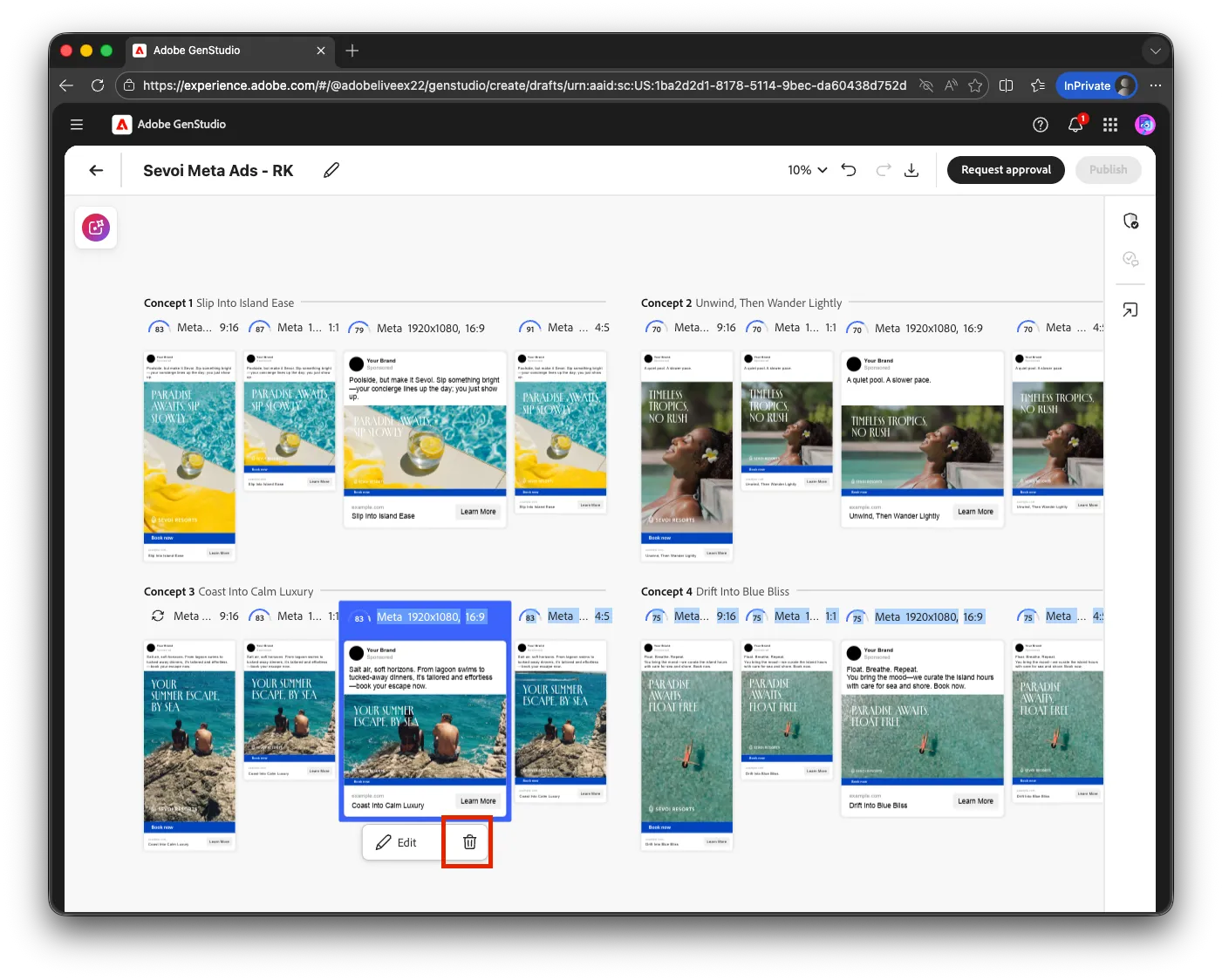
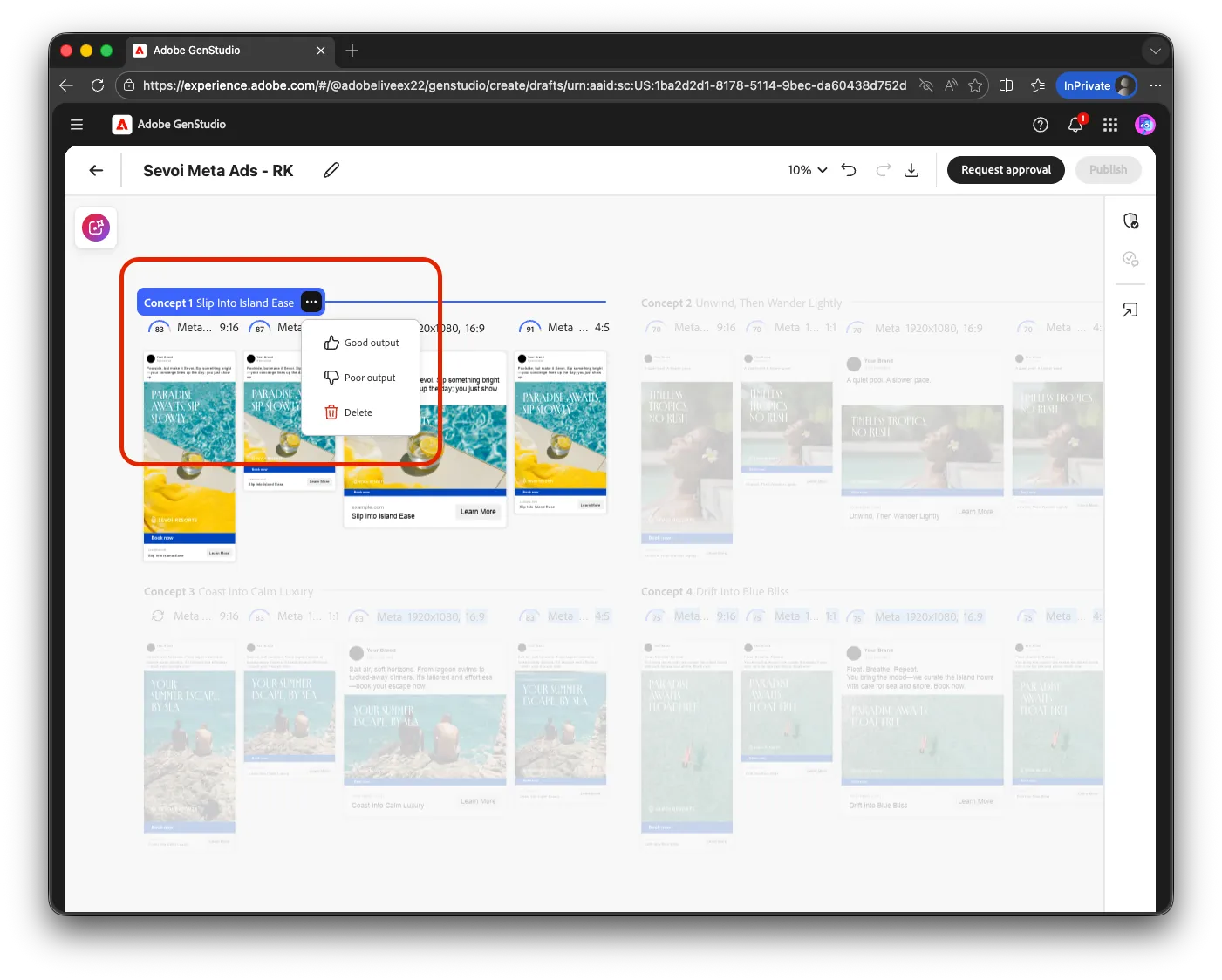
- Delete options that do not align with creative standards
- Select individual layout by clicking on the layout header and deleting one layout at a time (Fig 1 below)
- Select entire Concept by clicking on the Concept name and Delete (Fig 2 below)
-
- You will validate brand compliance in the next exercise
Checkpoint
✓ Can you see four generated Meta ad variants on the Canvas, each with unique headlines, body copy, and calls to action, all inheriting the locked layout structure from the Express template?
Tip: The quality of your prompt directly influences the quality of generated output. Specific, descriptive prompts that include context, tone guidance, key messaging points, and audience intent produce more targeted variants. Generic prompts produce generic results. Over time, teams develop prompt libraries for common campaign types, making generation even faster.