Federated Data
In this exercise you'll learn how we can leverage the rich data stored in your enterprise data warehouse to enhance your customer experience.
This approach, combined with Adobe's real time capabilities, minimises the movement of data from source systems whilst supporting "in the moment" experiences, essential for a connected customer experience across channels.
You've seen in the demo how we connect to your data warehouse and map the tables that you want access to within there. In the next steps you'll learn how to create a federated audience composition to query and filter your enterprise data to isolate the customers you want to communicate with. The only data that is transferred to Adobe are the customer identites and any personalisation data required for the communication that doesn't already exist in the Adobe Real-time Customer Profile.
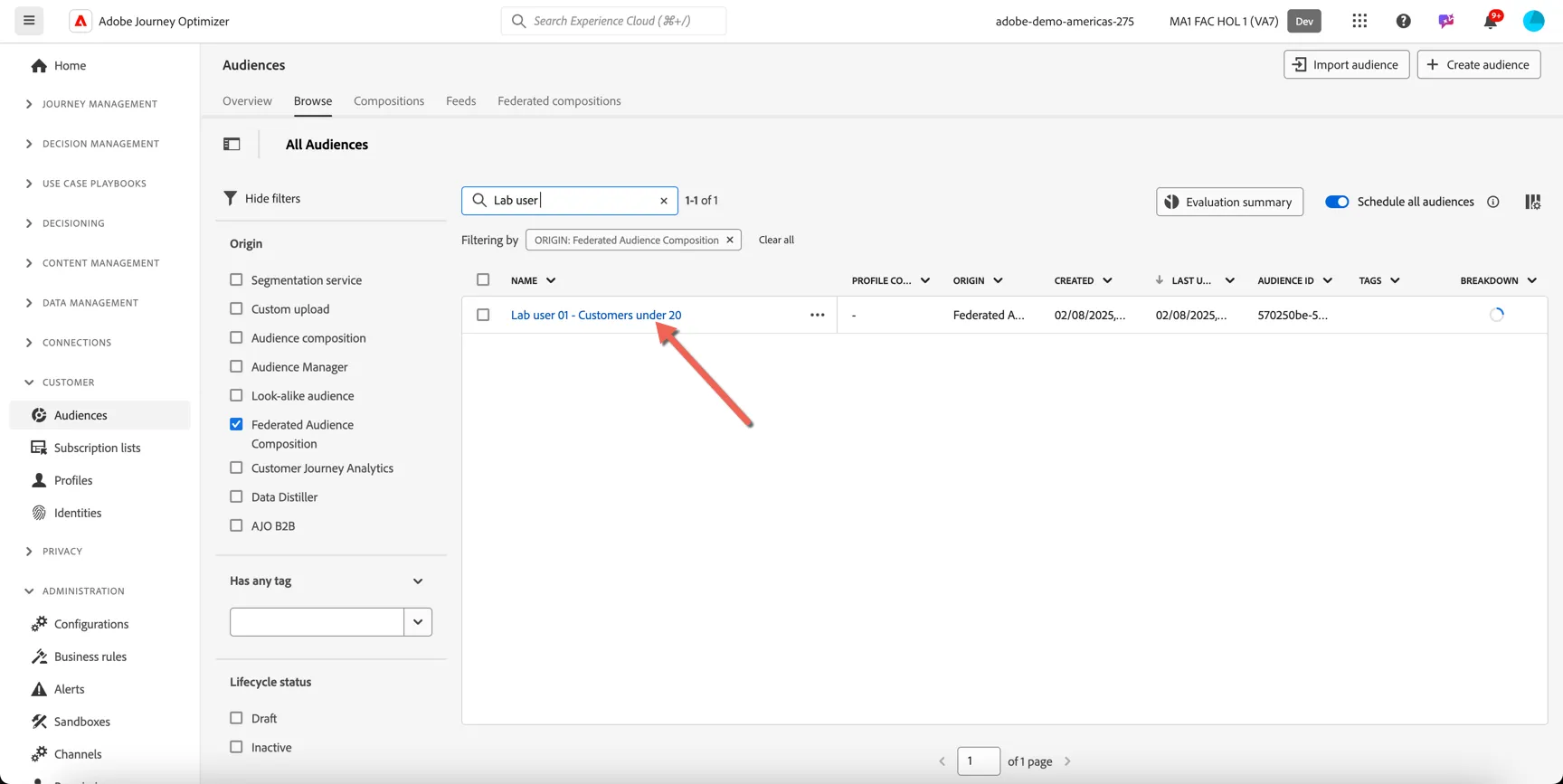
To view which audiences are already federated from your enterprise warehouse, click on the Customer -> Audiences menu item in the left hand navigation, on the Browse tab, filter the audiences to those originating from Federated Audience Composition.
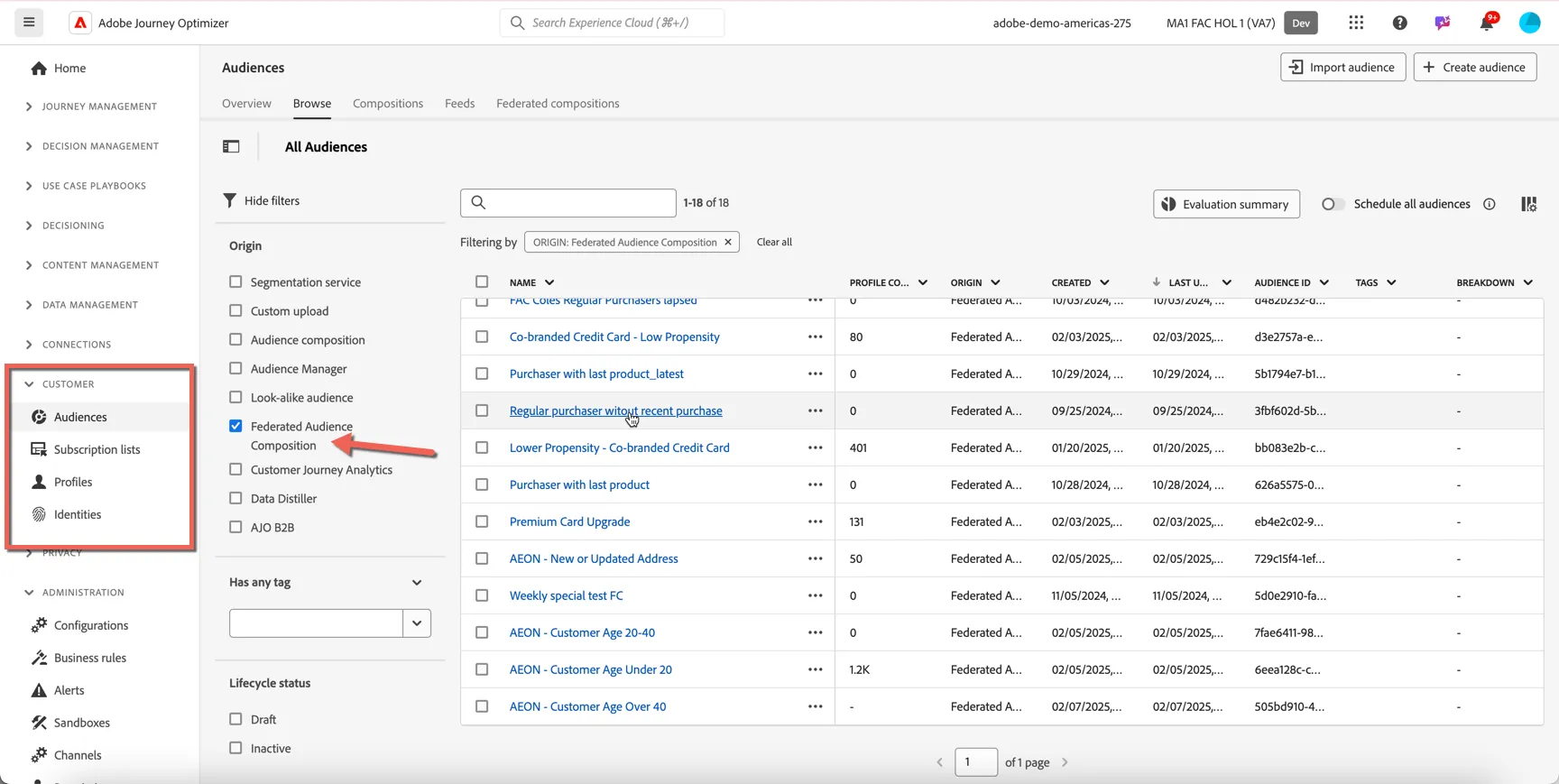
To create a new federated audience, click on the Federated Composition tab and click to Create Composition.
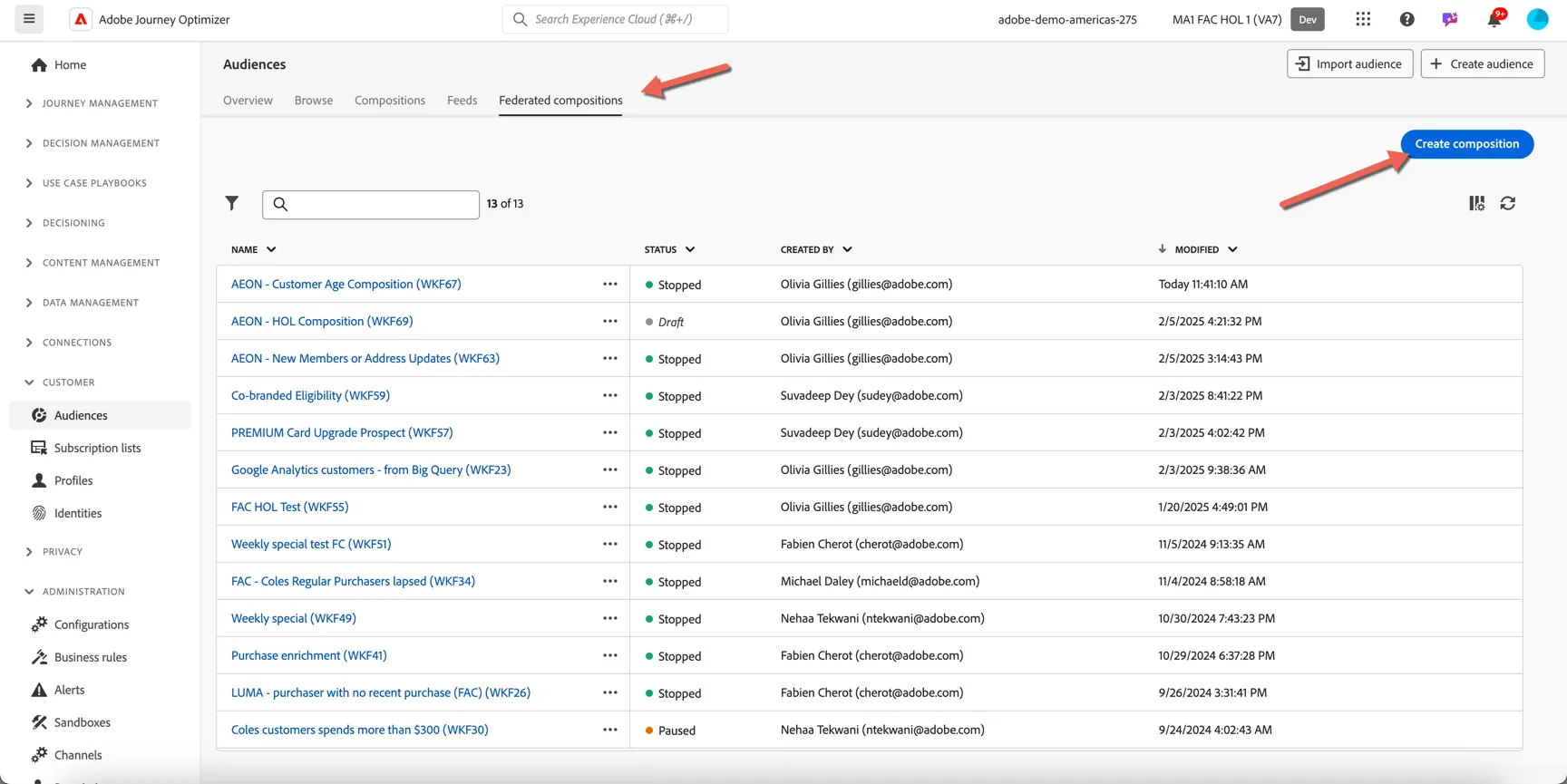
Give your composition a name that you will recognise, add your first name or lab user no. then select the federated data model you want to query - in this case the Secure Financial data model.
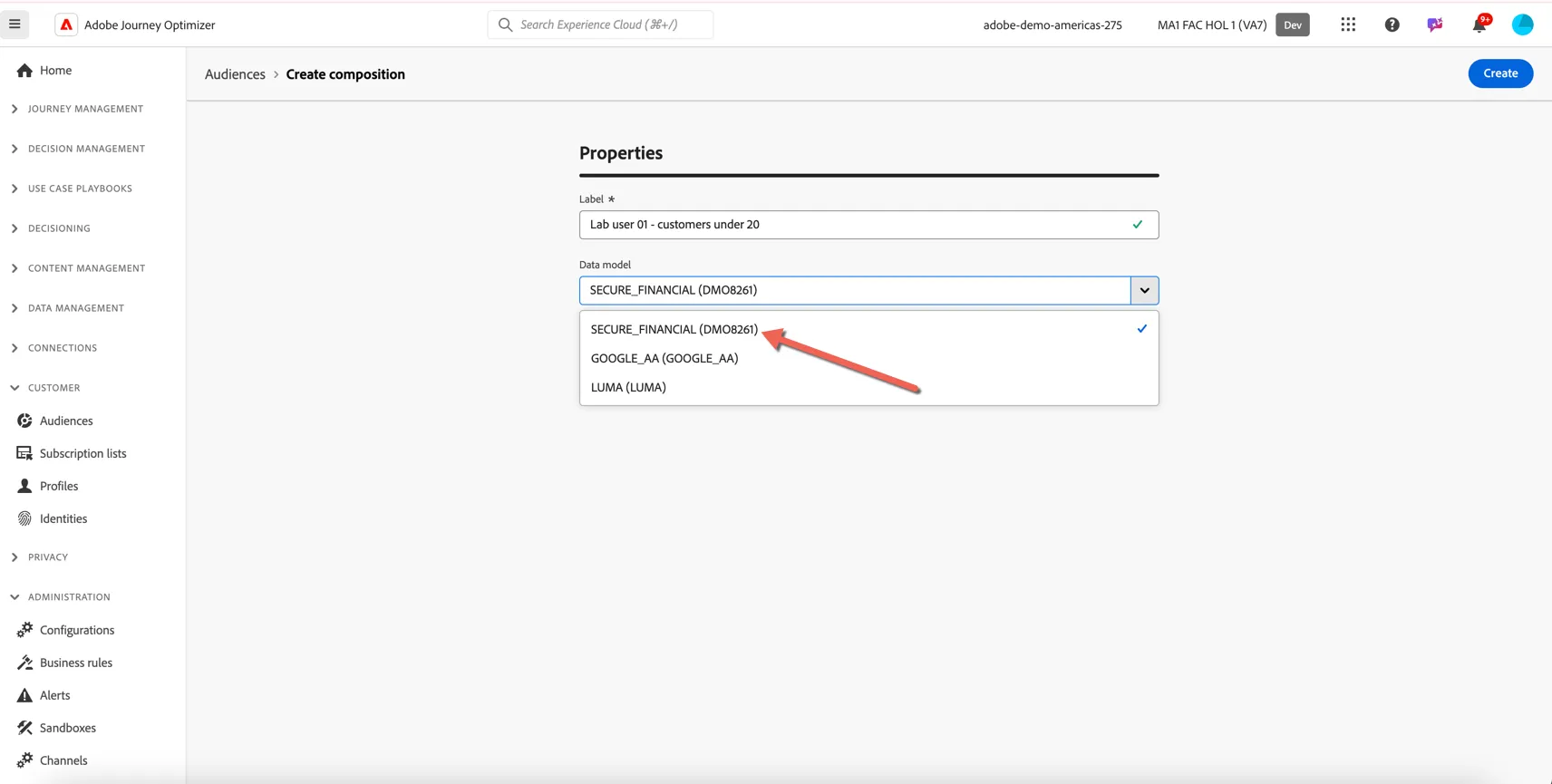
You are now in the composition canvas or workflow. This screen will be familiar to you if you have experience with Adobe Campaign v8's Workflow UI.
Click to start Building an Audience.
In the right hand panel, click the button to select a Schema.
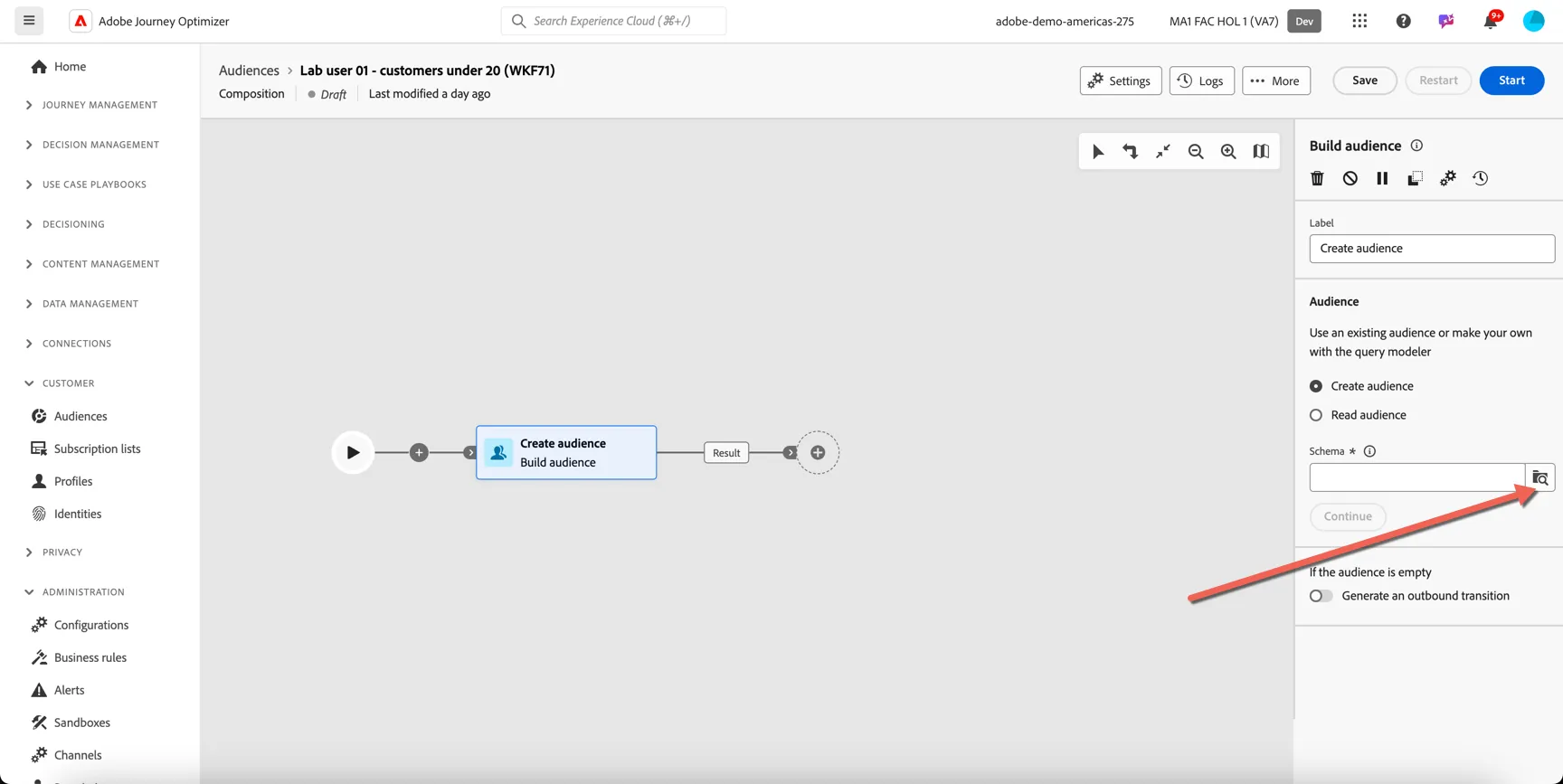
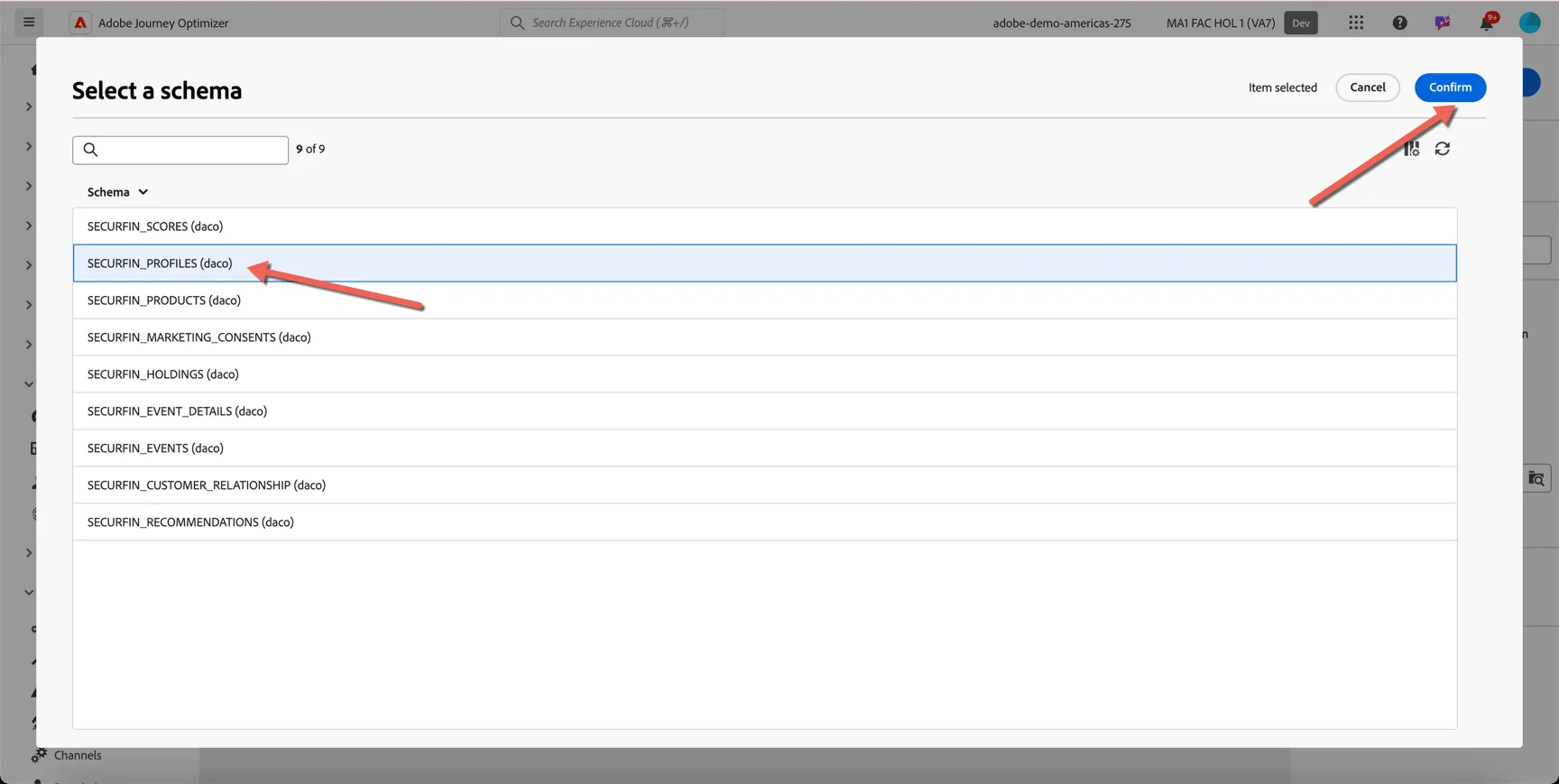
This gives us access to all of the tables that we've mapped from the external database. Choose the table you want to query from the list, in this case the Securefin_profiles table but we could easily query any of the other related tables instead. Click Confirm.
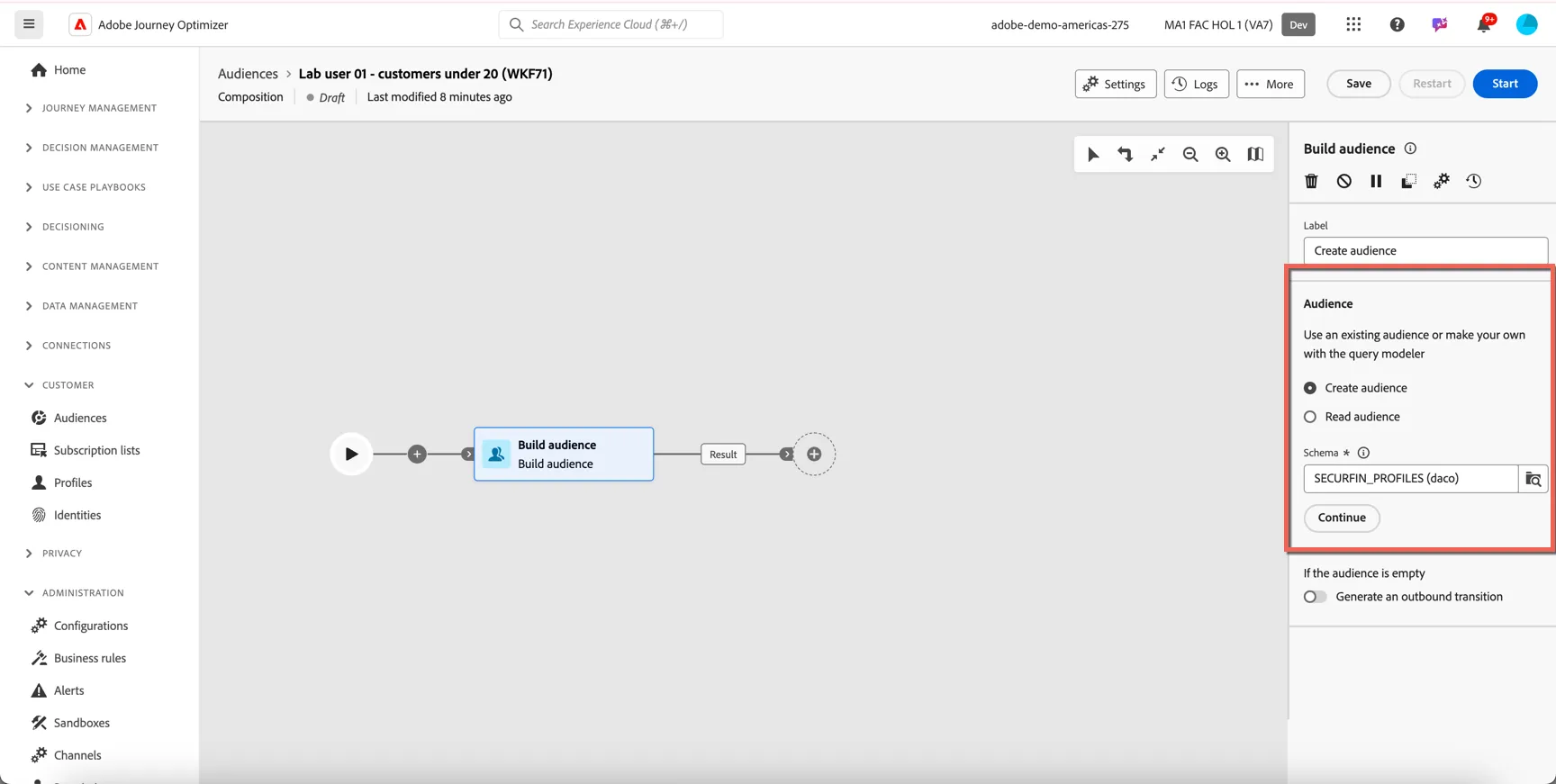
Your Build audience activity should look like this. Click Continue to start configuring the query rules.
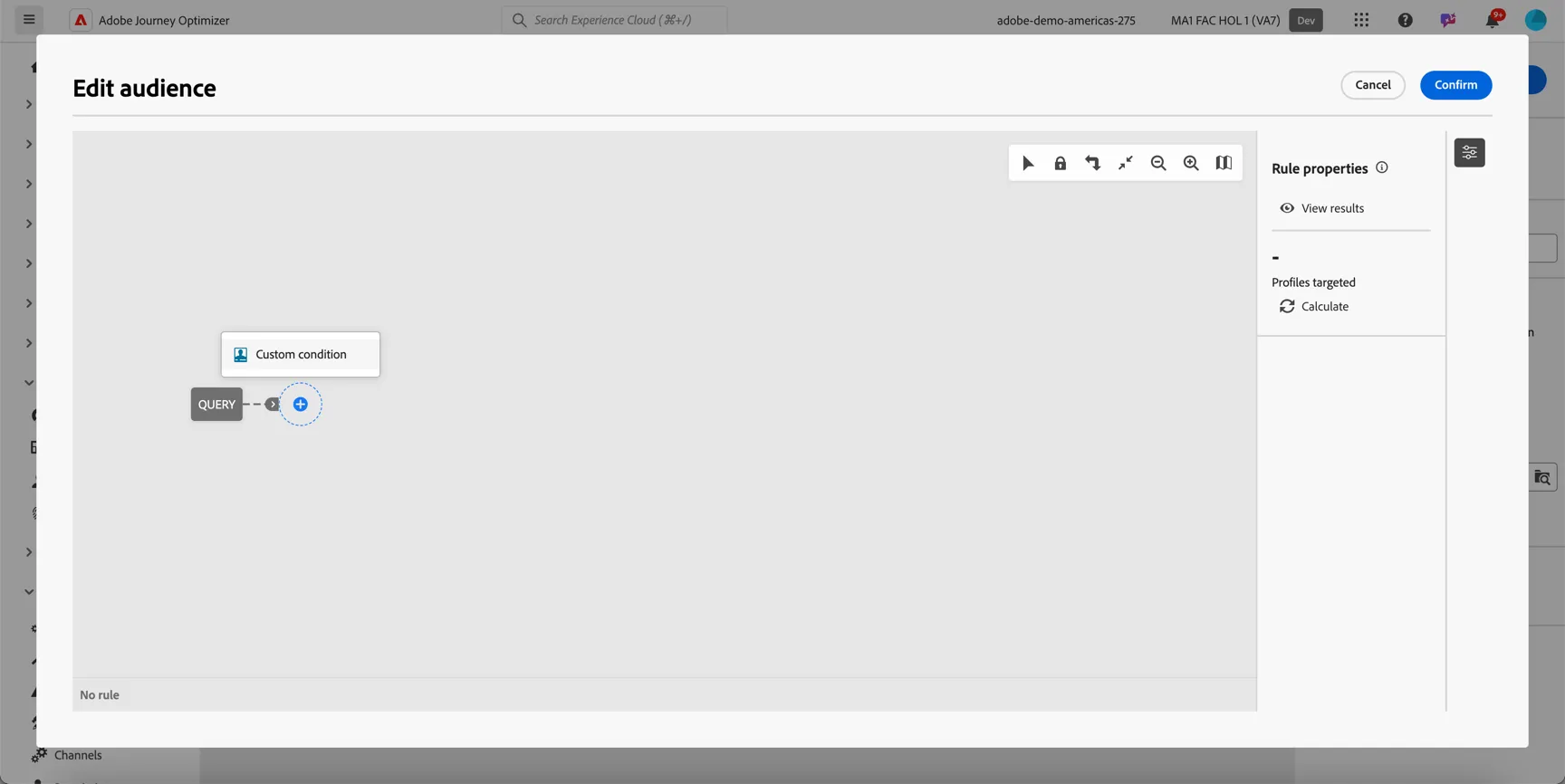
In the query editor, click the + icon to add a custom condition.
Select the Birth_Month_Year attribute and click confirm.
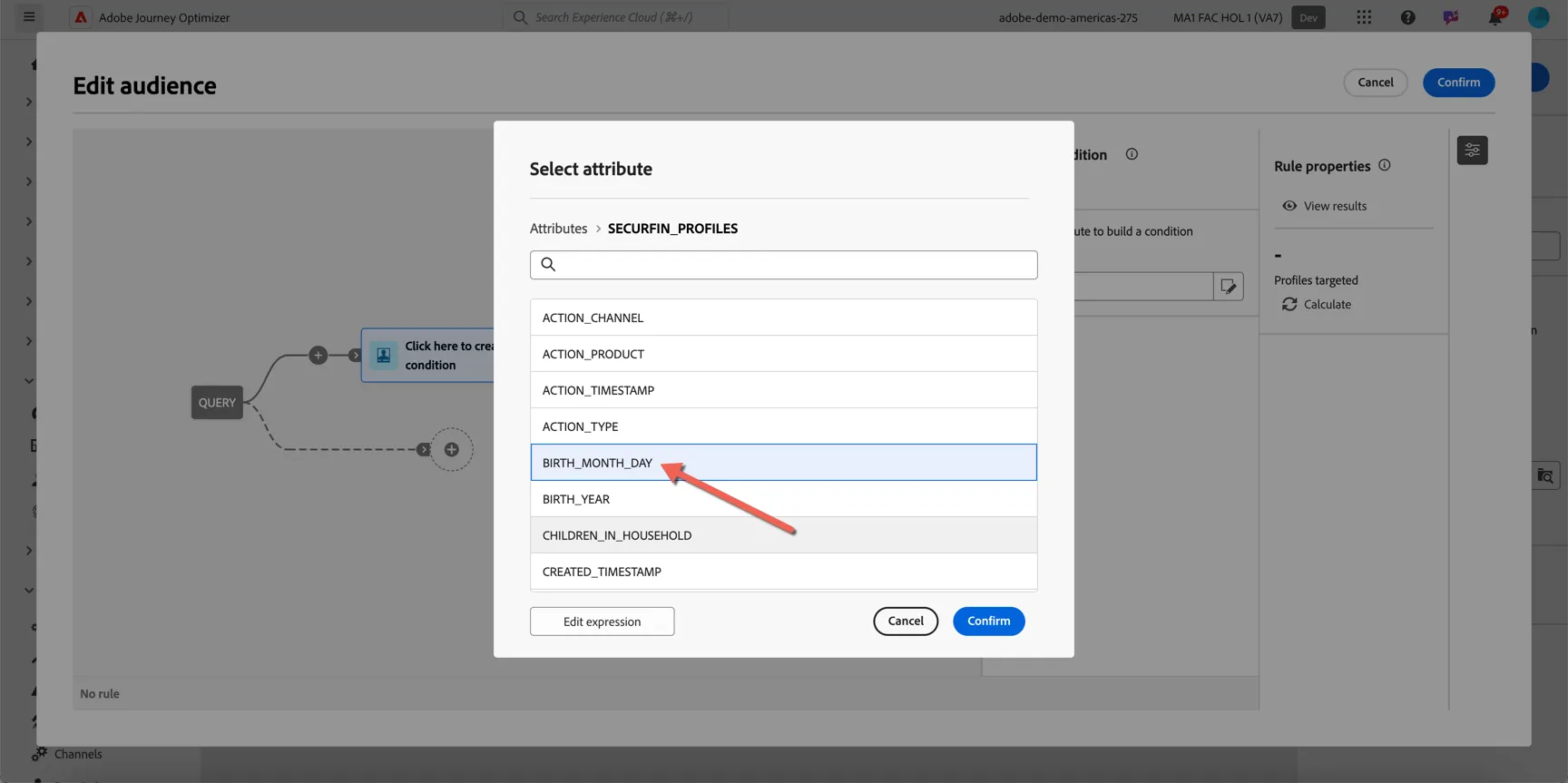
Change the condition to is not empty.
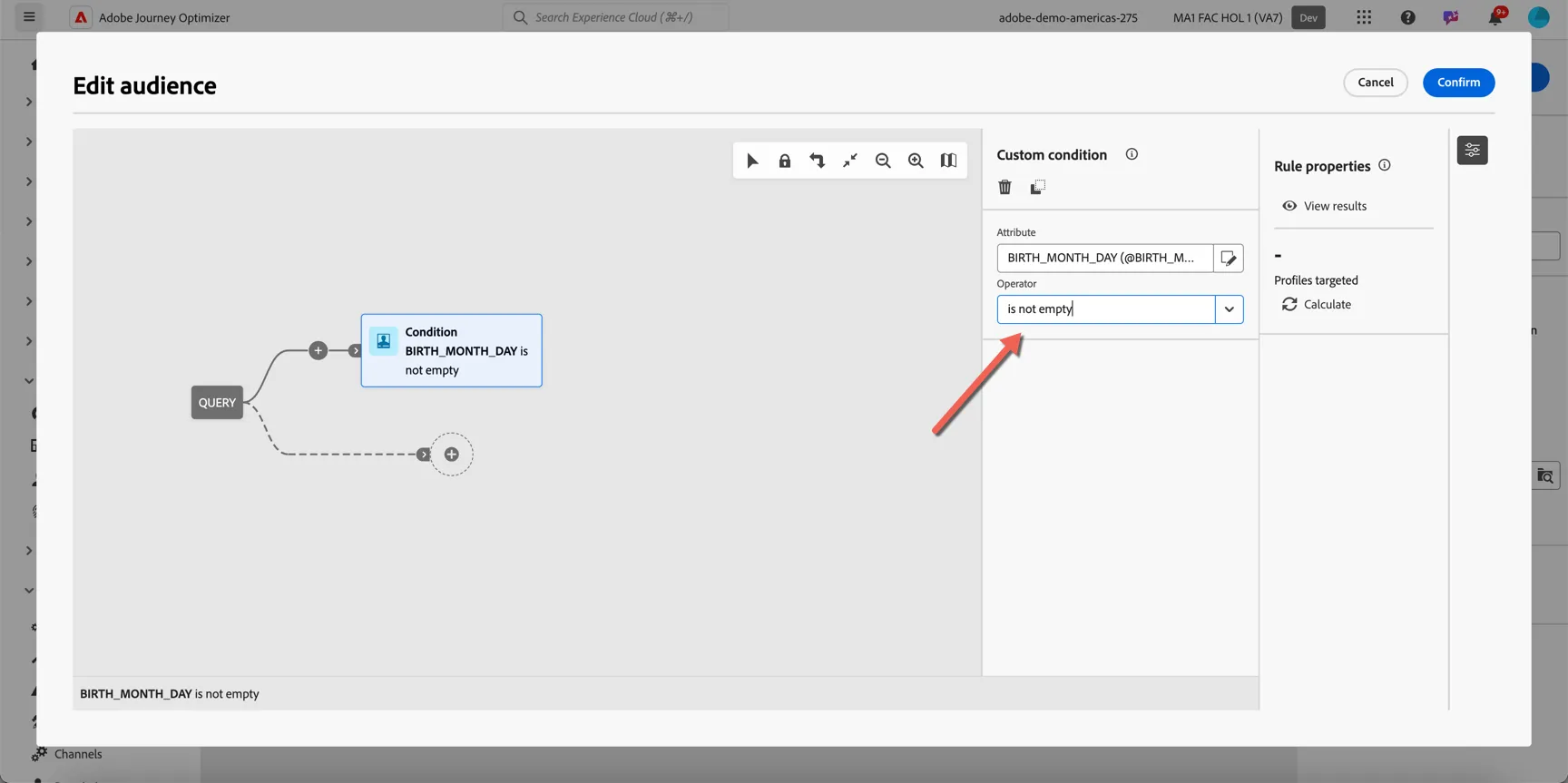
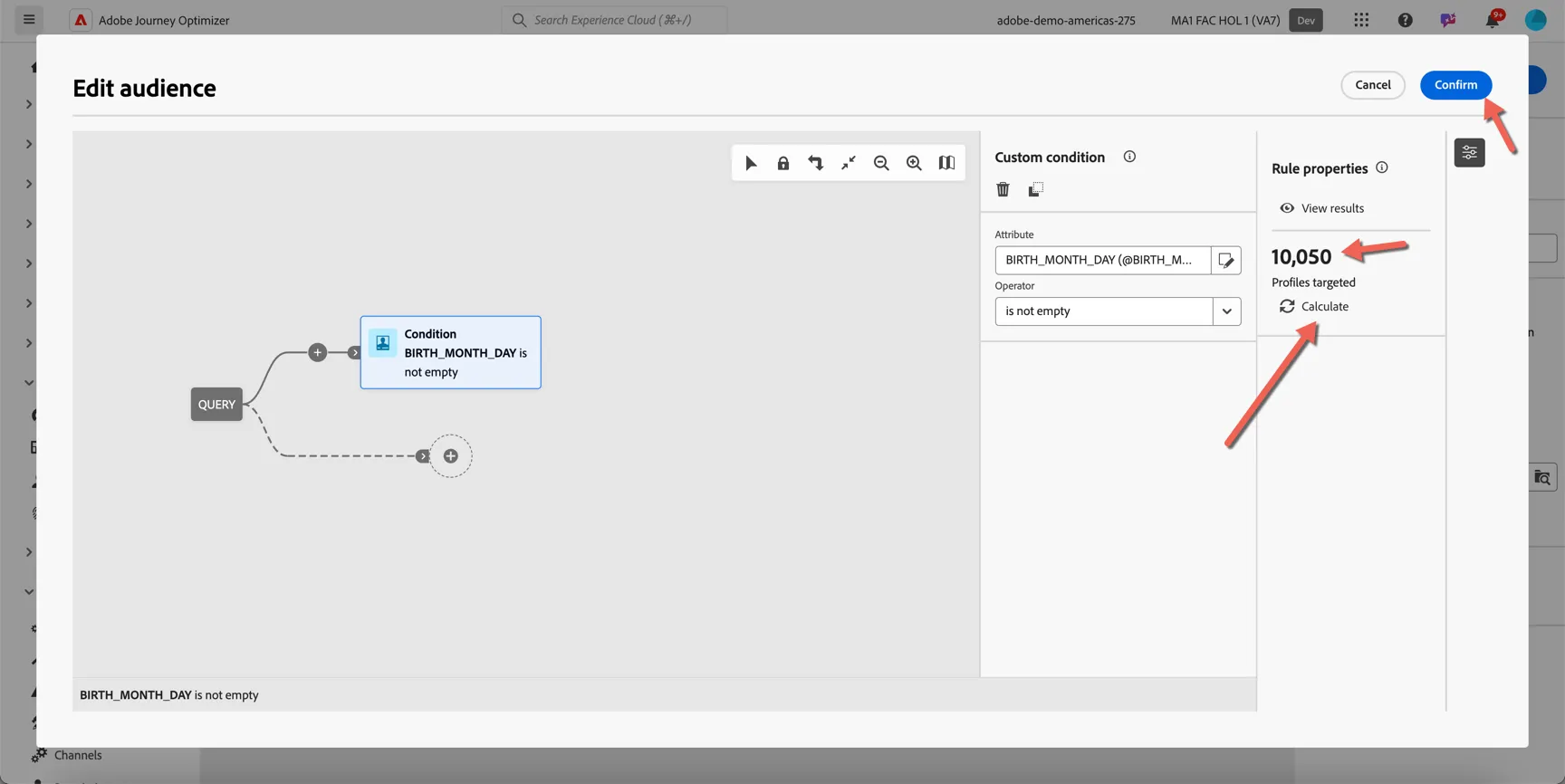
This will query everyone who has a birth day and month recorded on their customer record. You can see how many records match the condition by clicking the calculate button. Once configured click Confirm.
Next we will use an enrichment to calculate the customers age from their birth month, day and year. Click on the plus icon and select enrichment.
so
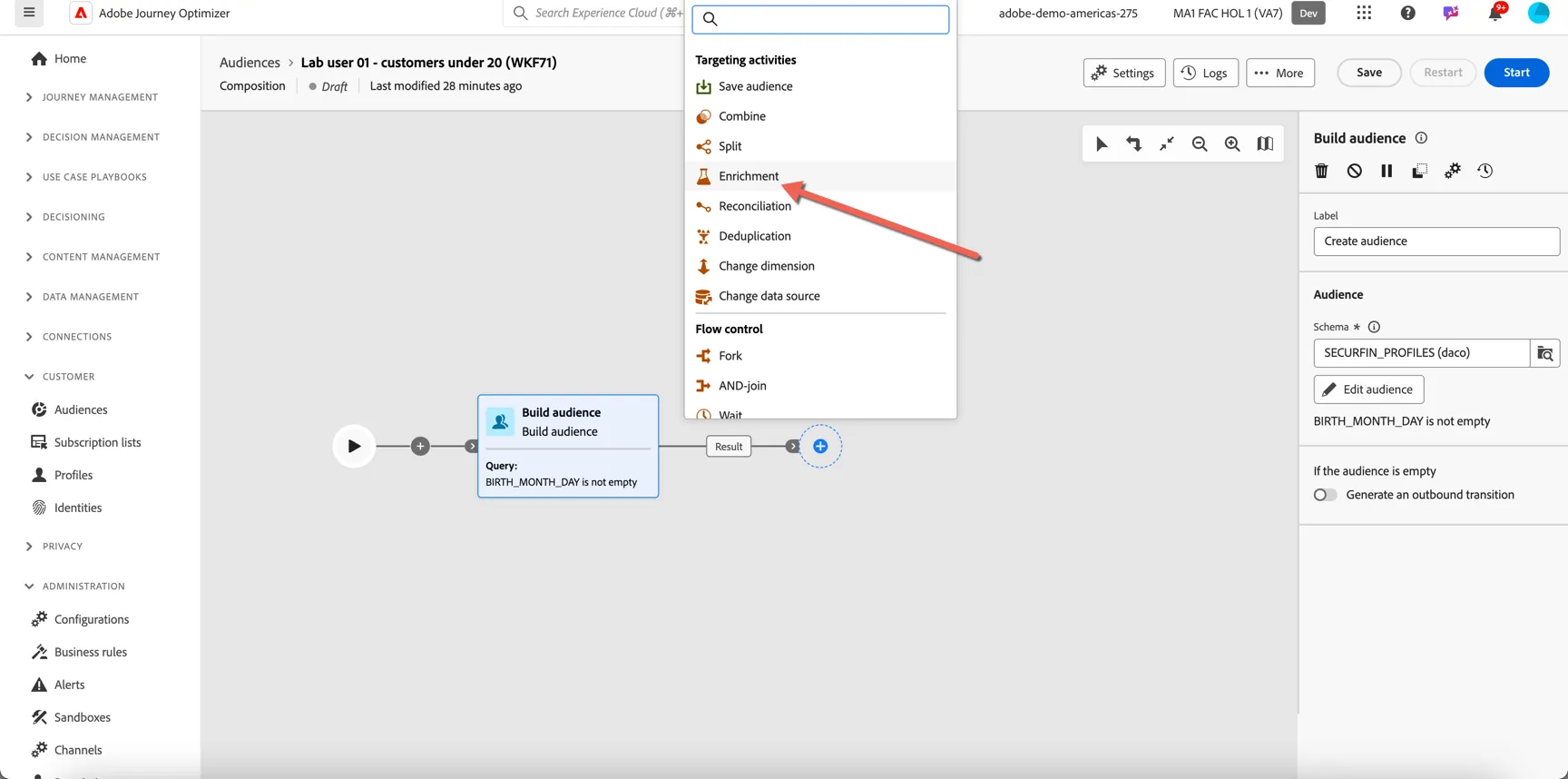
Click on the + Add enrichment data button
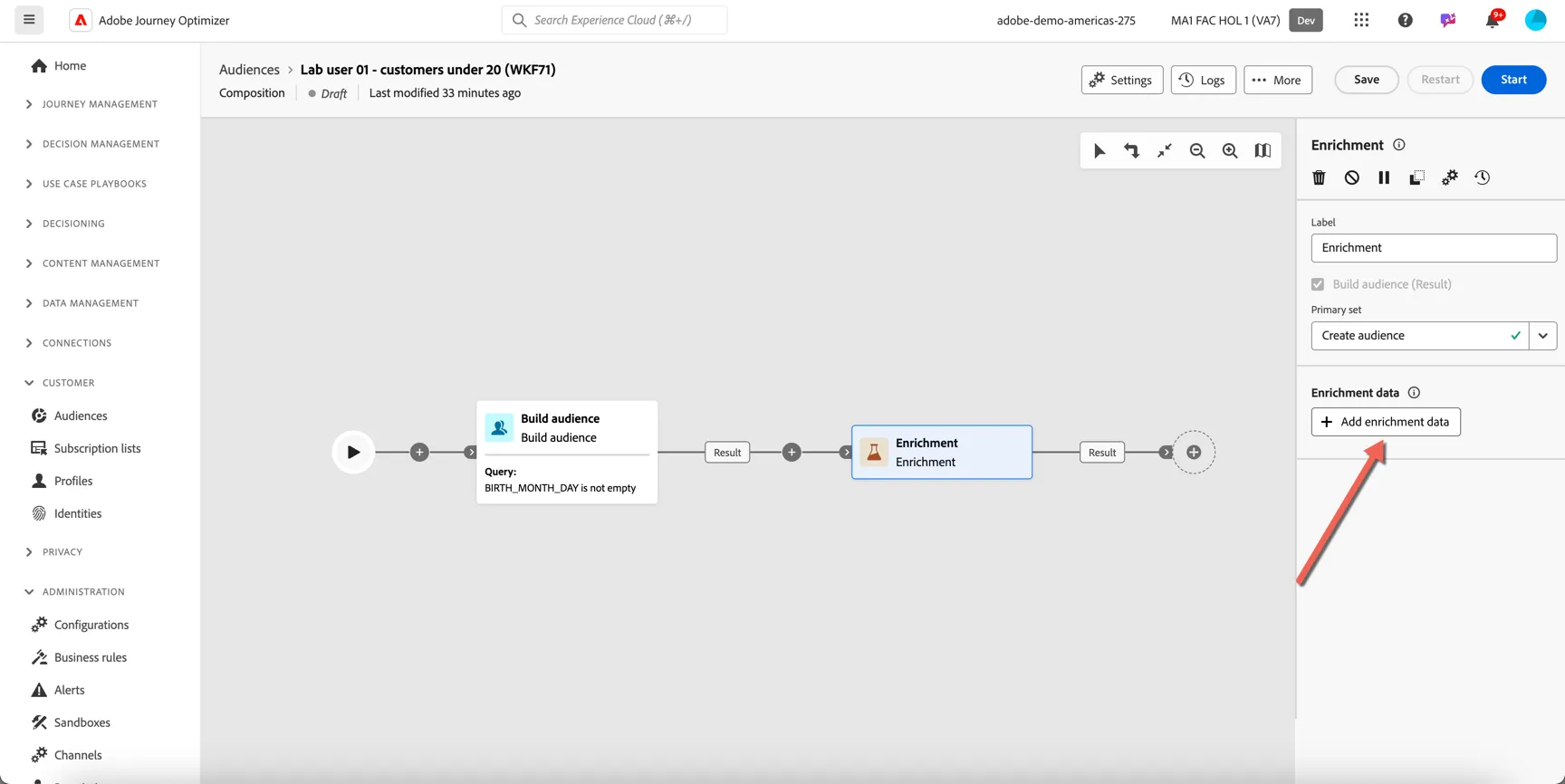
This opens the attribute selector. We are going to use some functions to process the data in the table to calculate the customers age from the birth year, month and day. Click to Edit expression.
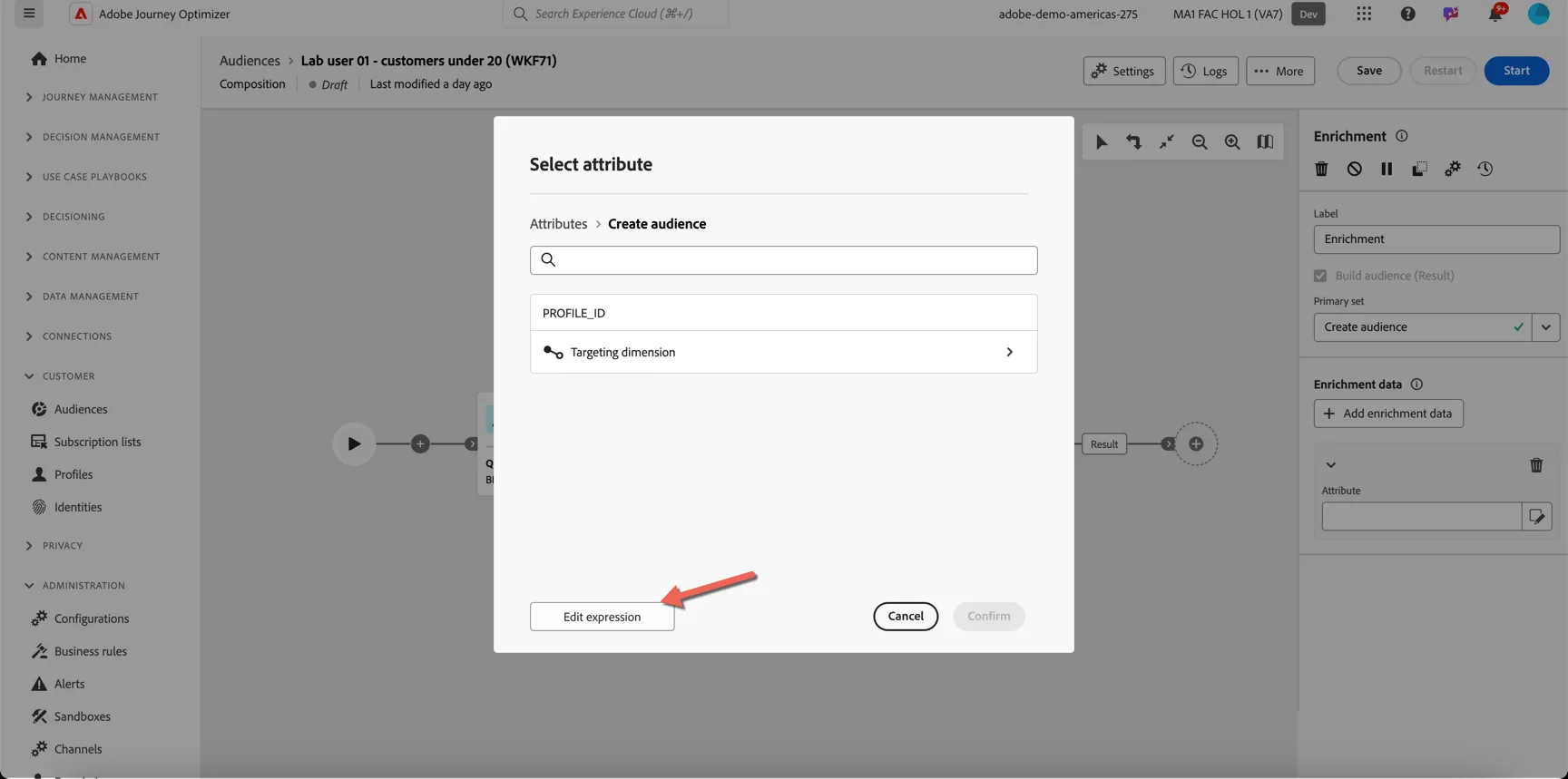
You can see the list of functions in the left hand menu.
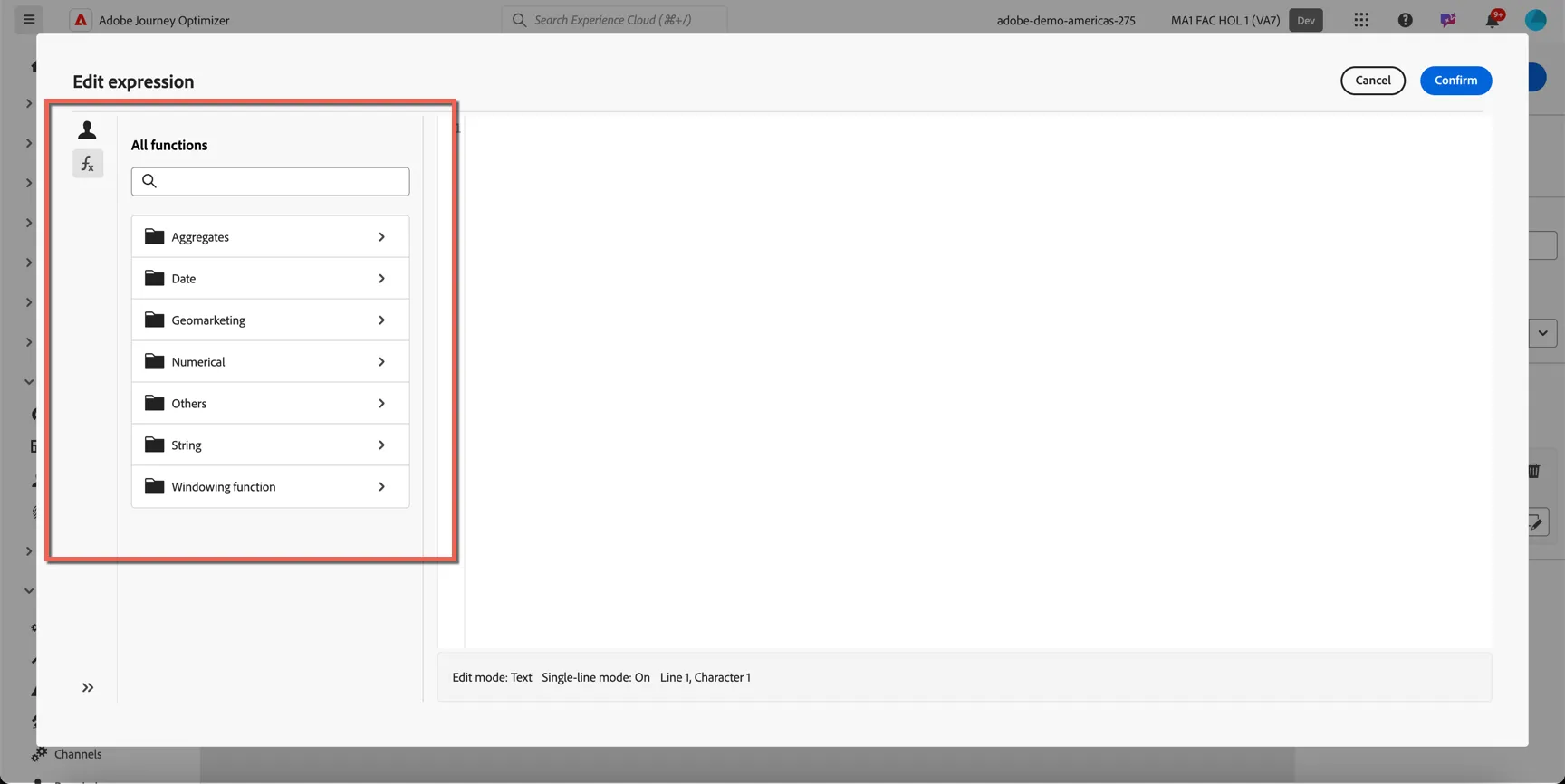
We're going to use some of these to calculate the age. First we will turn the separate birth year and birth month/day fields into a date.
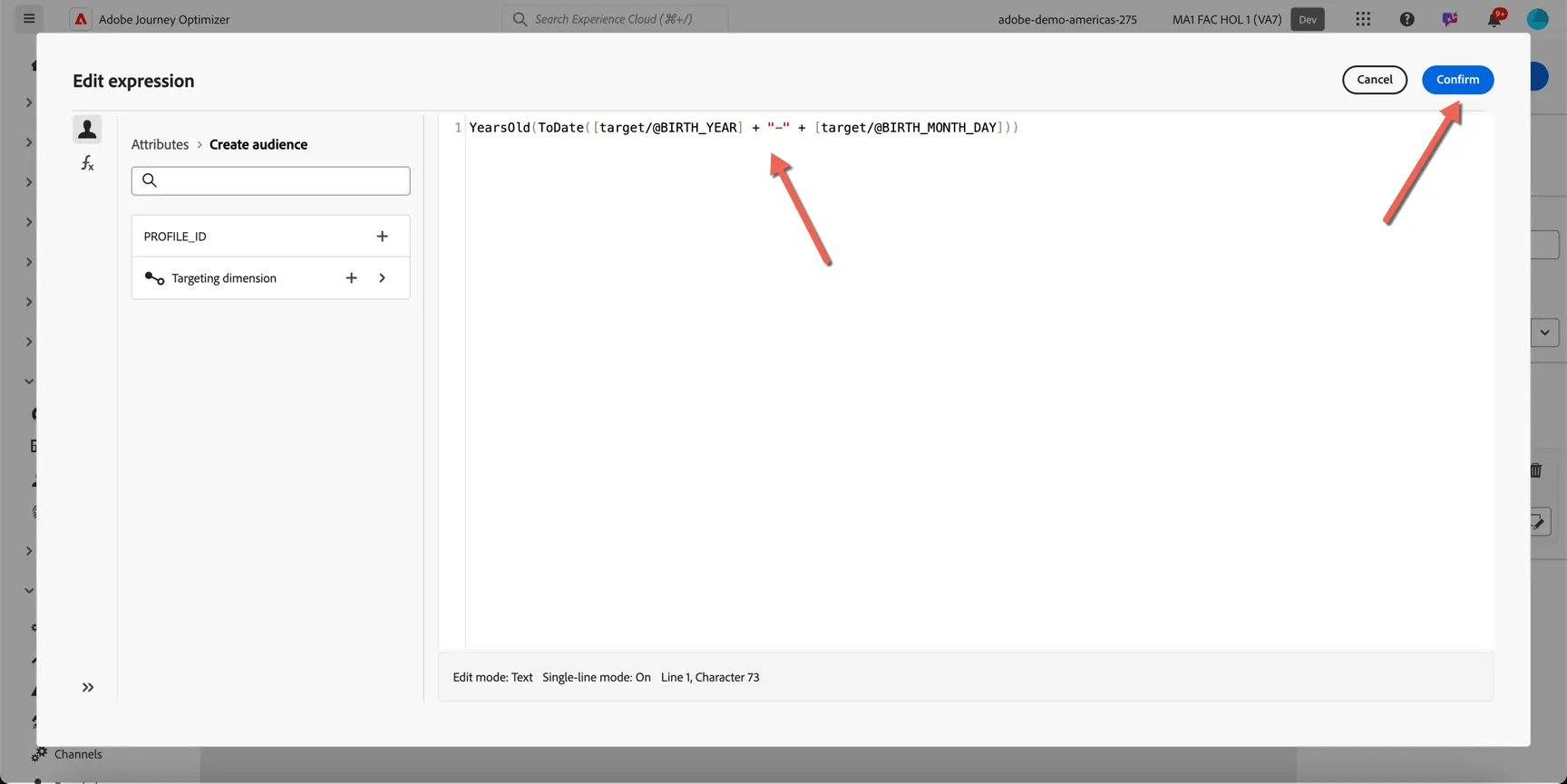
ToDate([target/@BIRTH_YEAR] + "-" + [target/@BIRTH_MONTH_DAY])
Then we will wrap that using the YearsOld function to calculate the age:
YearsOld(ToDate([target/@BIRTH_YEAR] + "-" + [target/@BIRTH_MONTH_DAY]))
Your expression should look like this. Click Confirm.
Change the Label and Alias of your new column to Age. This step is optional but will make the attribute easier to recognise when using it in subsequent activities.
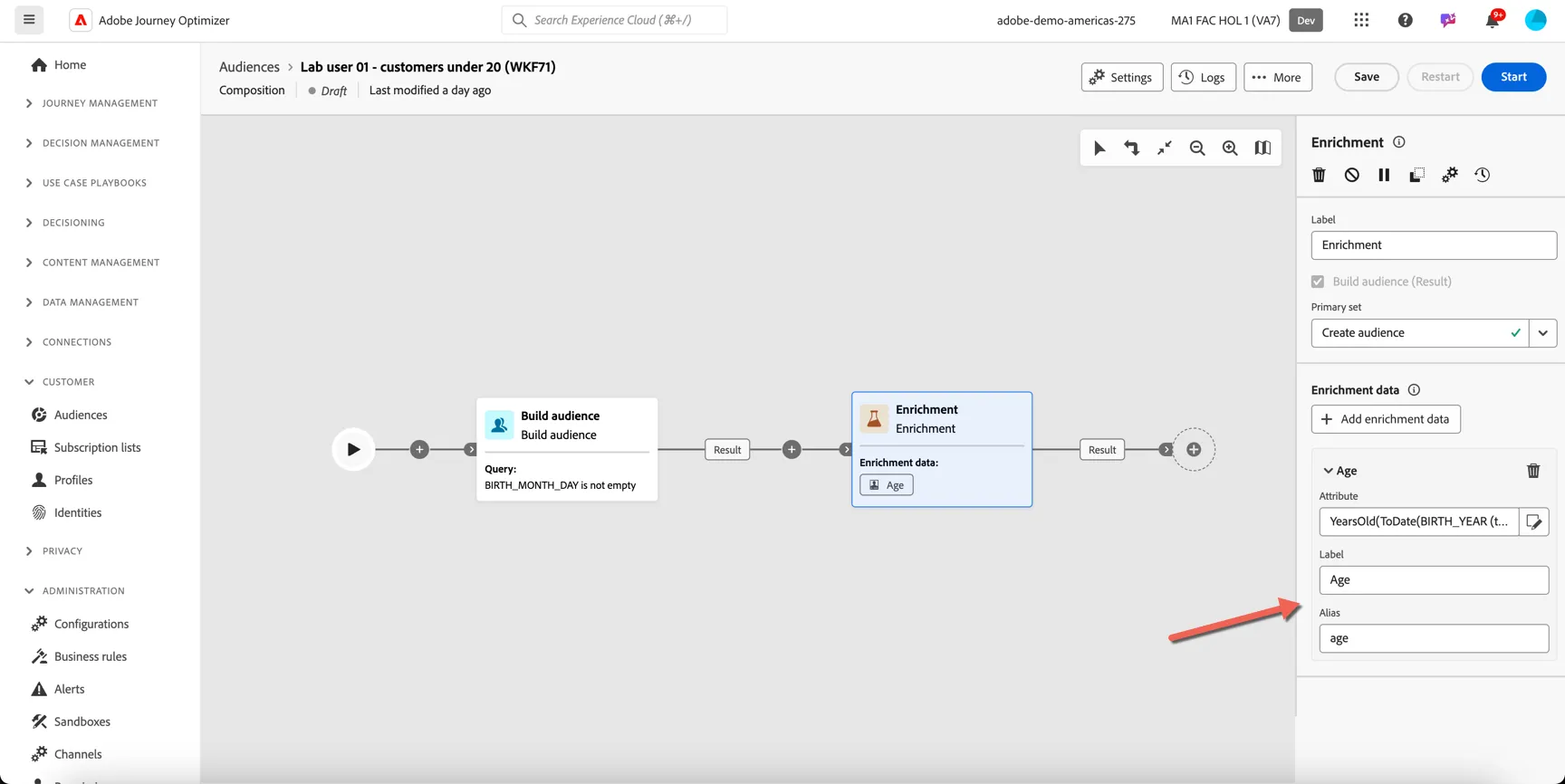
Next we can use a split to filter the audience to only those profiles who are under 20 years old. Click the + and select the Split targeting activity.
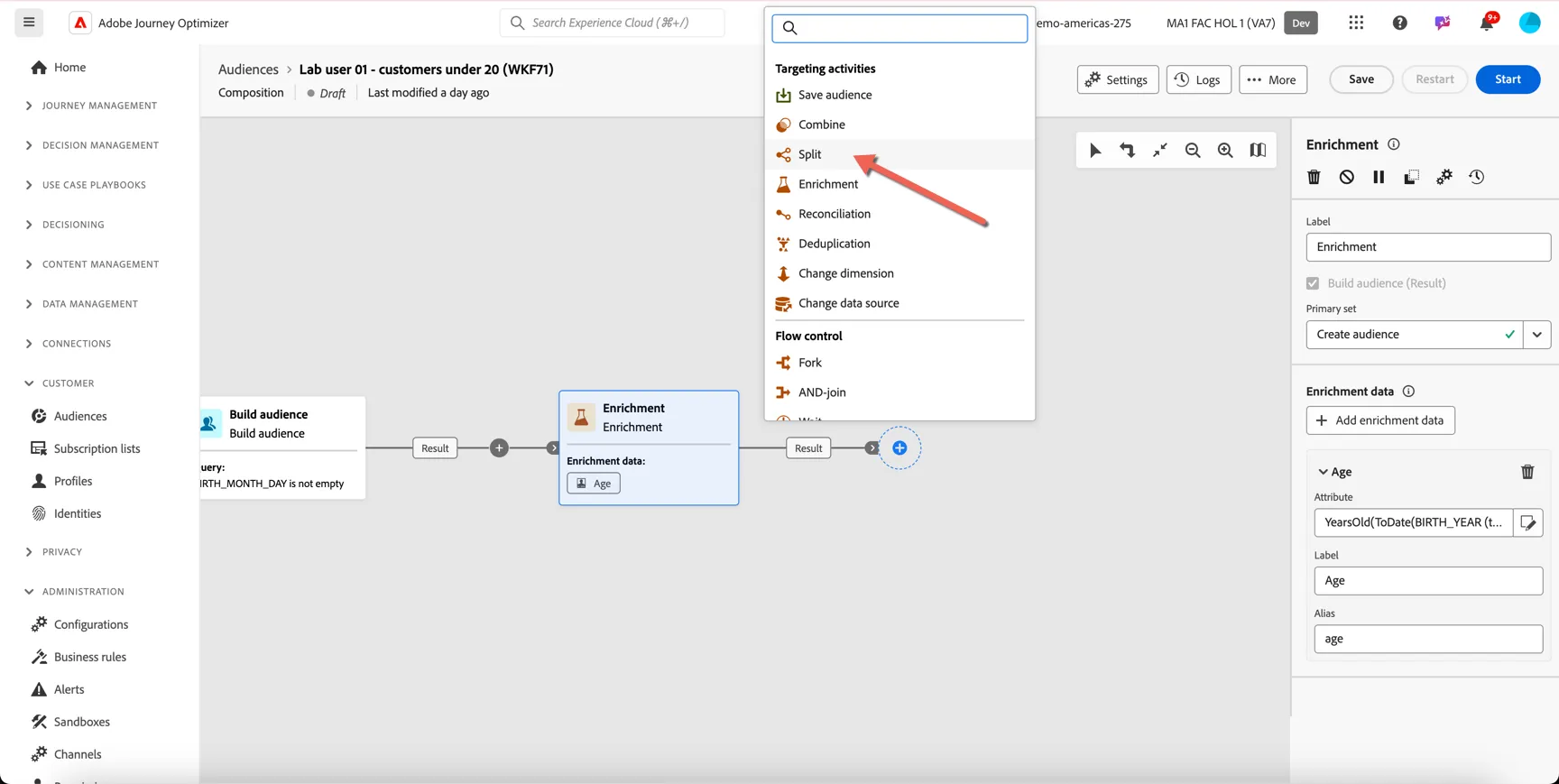
In the split configuration, open the default segment and change the label to under 20. Then click to Create filter.
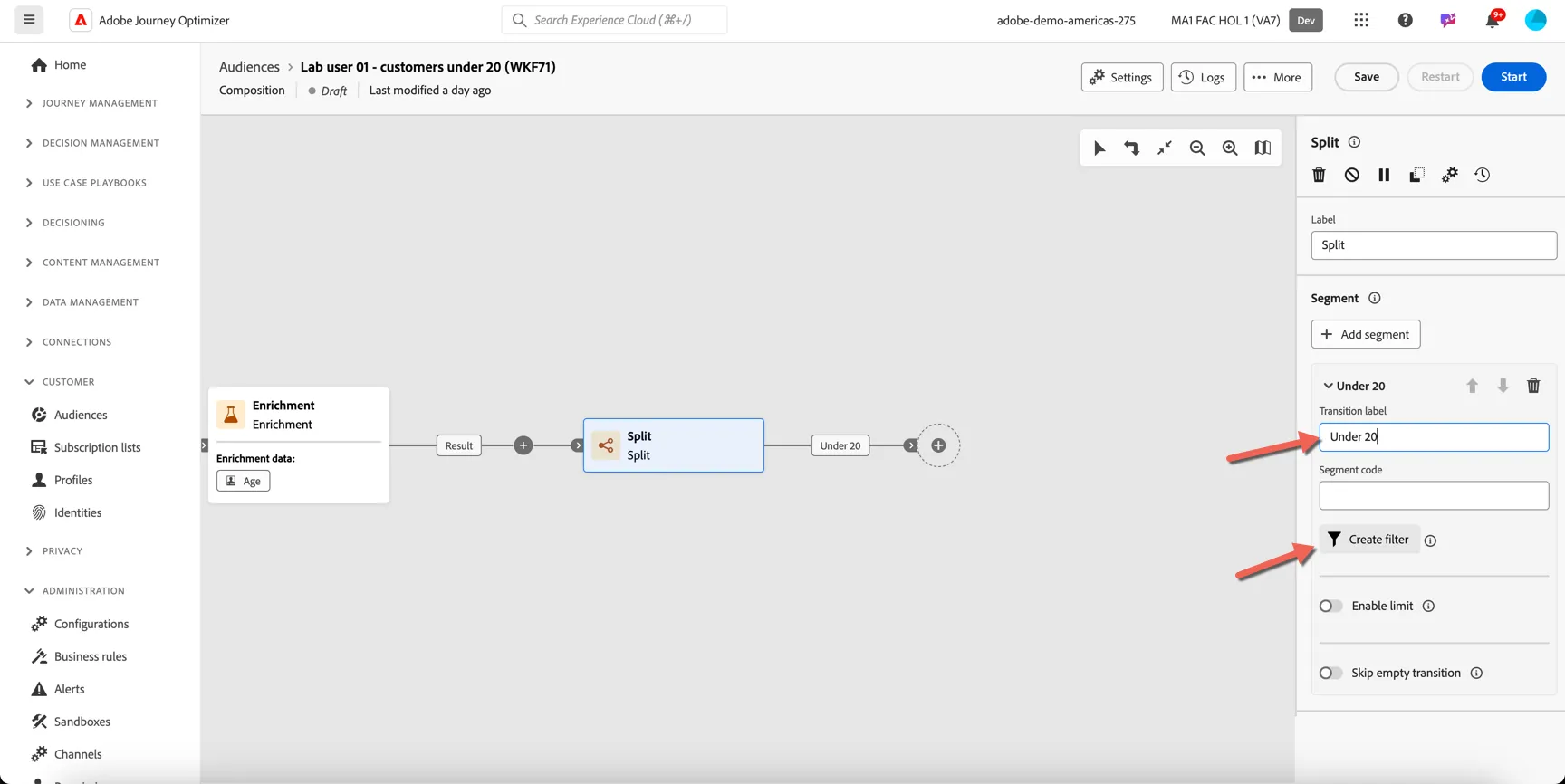
This opens the query editor again. Click to create a custom condition.
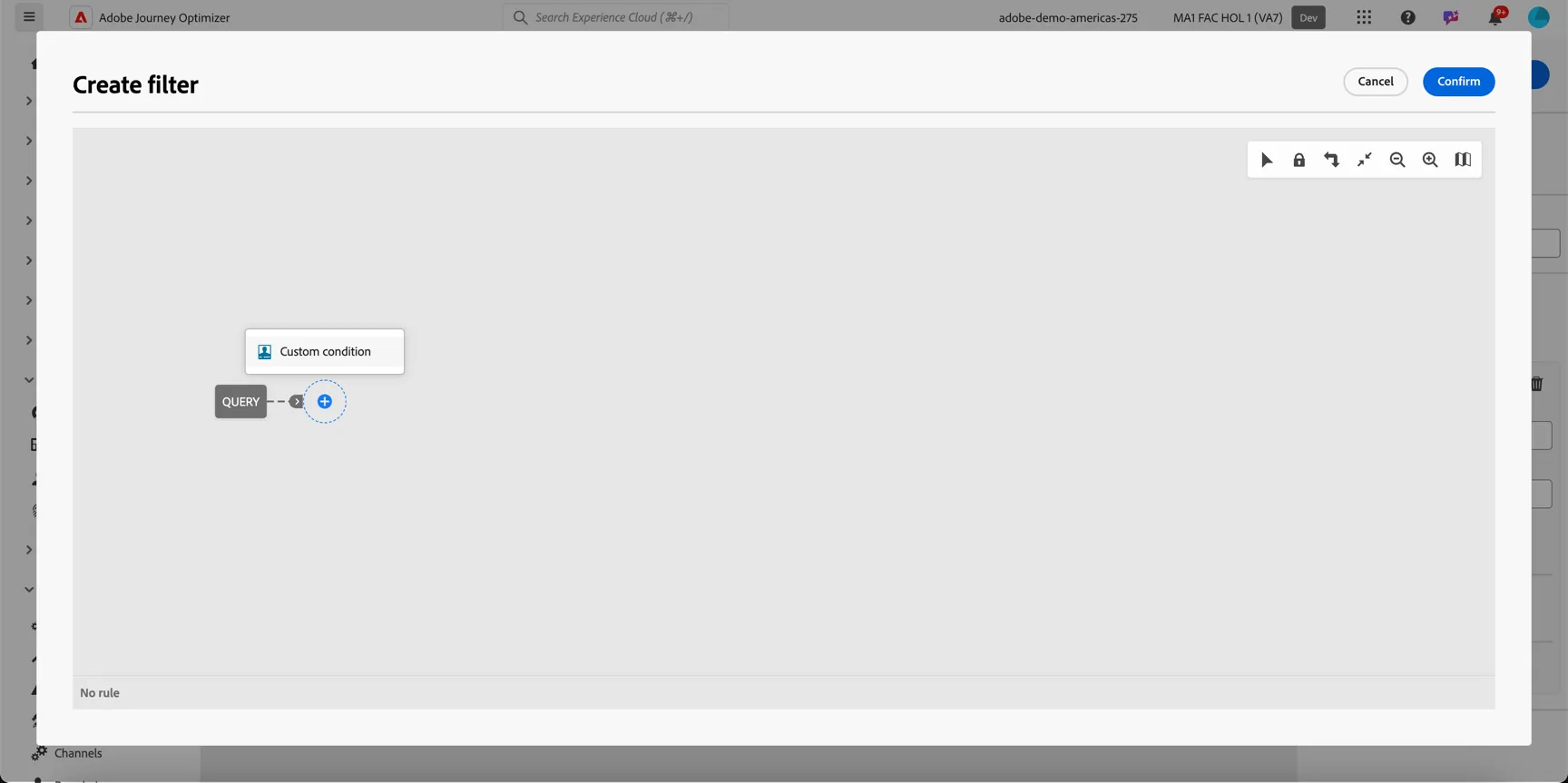
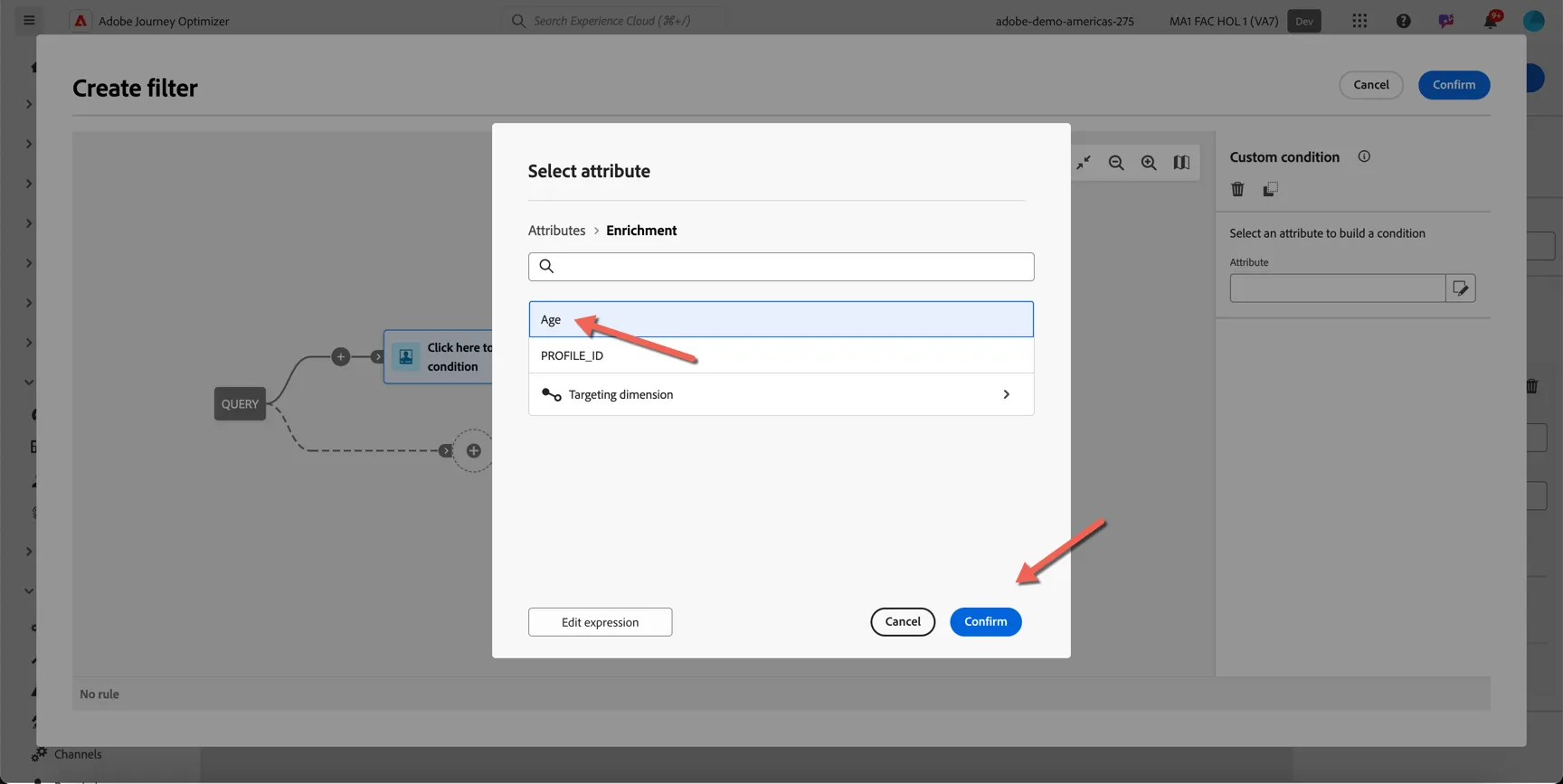
This time we have access to the newly created Age attribute. Select this and click Confirm.
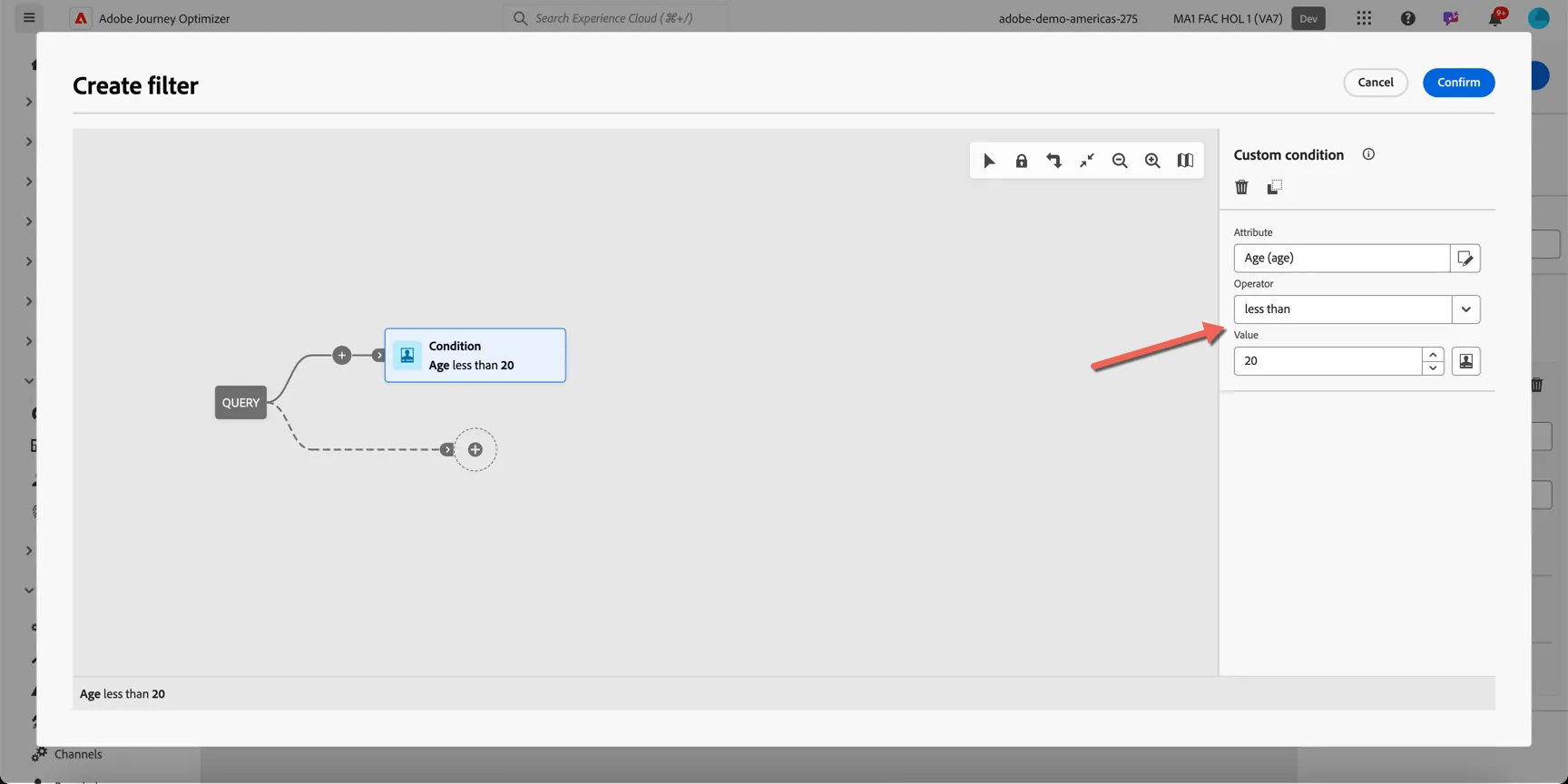
Set the condition operator to less than and change the value to 20. This will filter the results to only include records where the calculated age is less than 20.
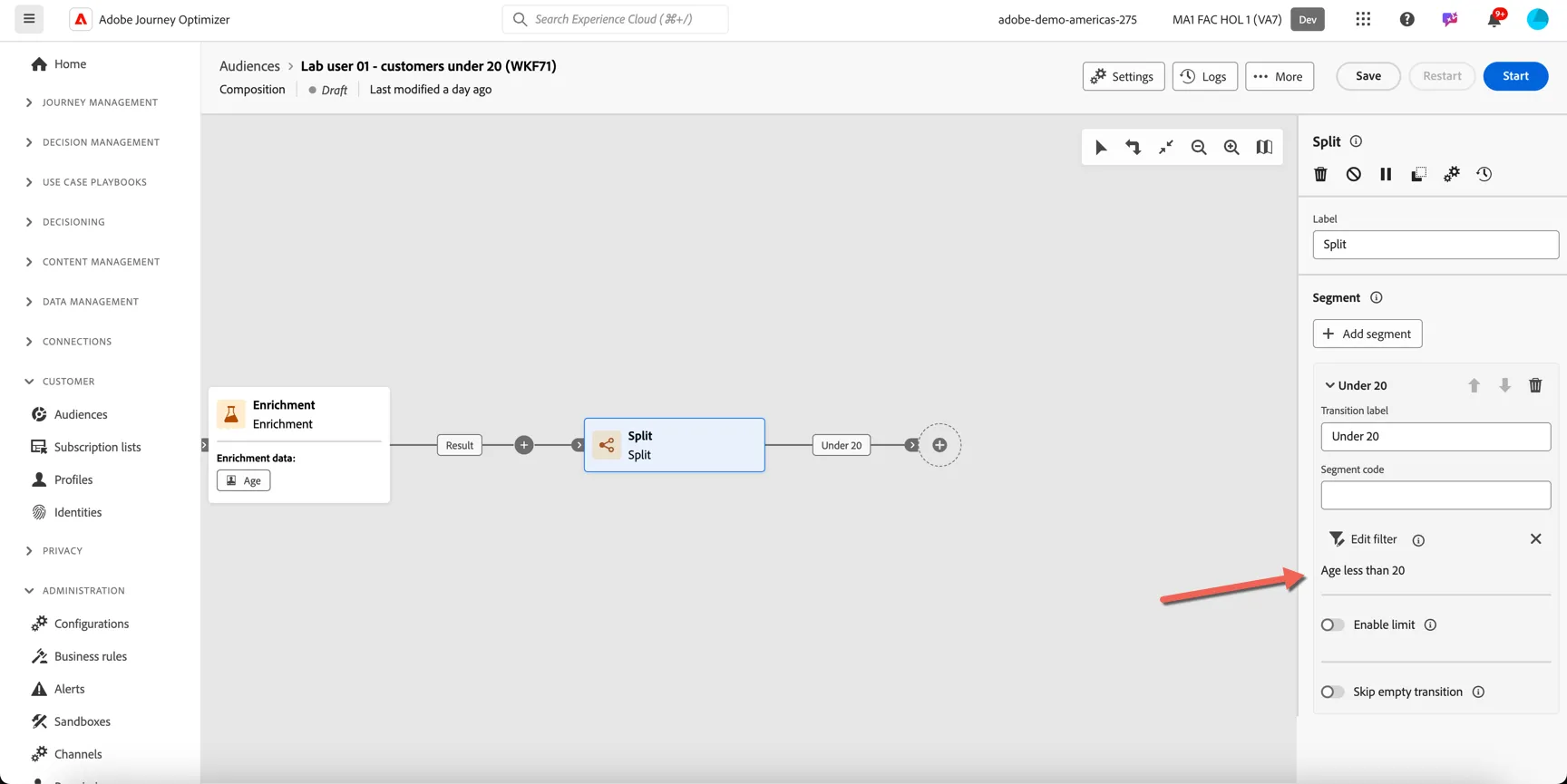
Your split configuration should look like this
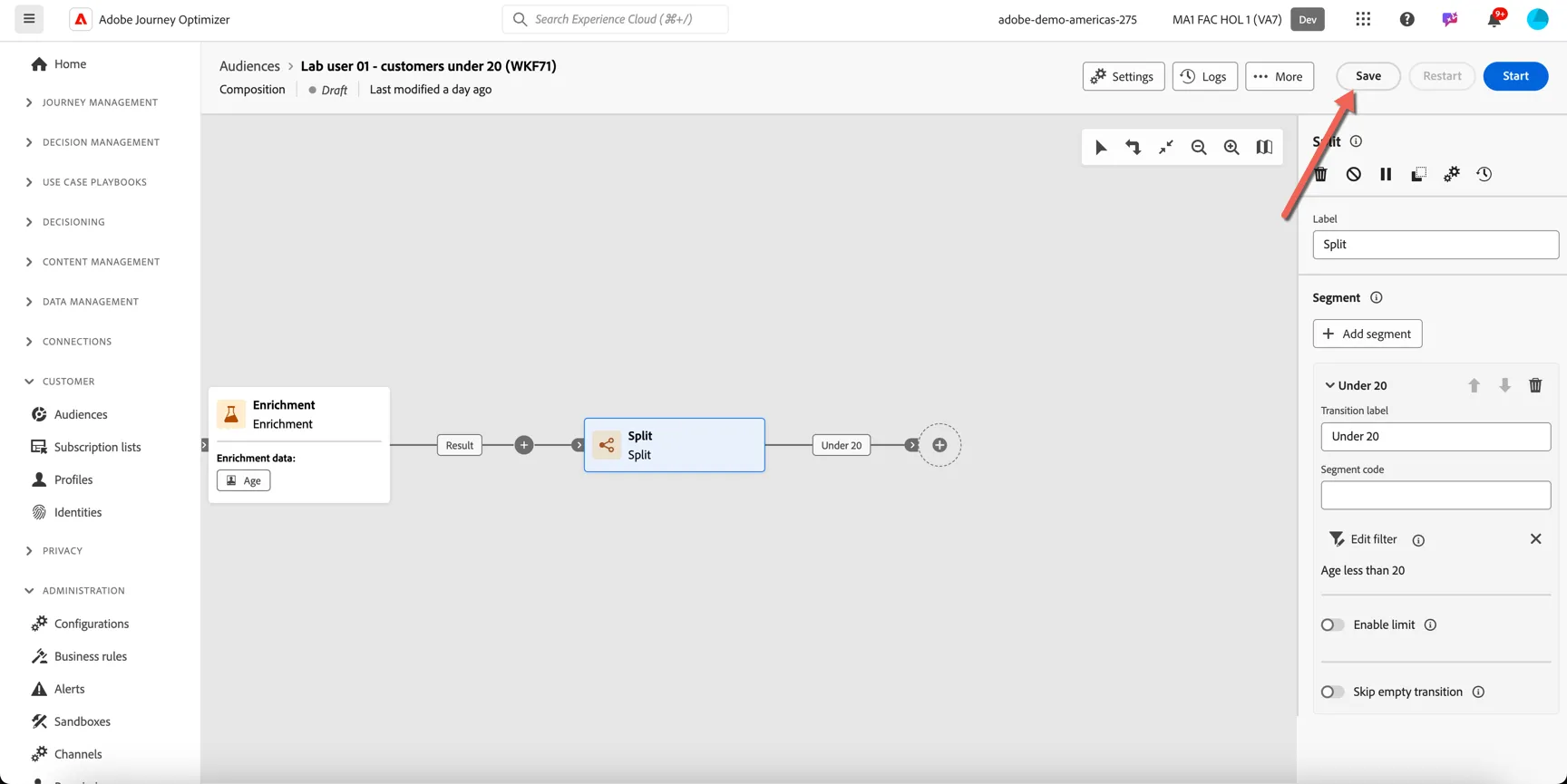
Let's save the composition at this point so we can test our work. Click Save in the top right.
You should see a message that the composition was updated successfully.
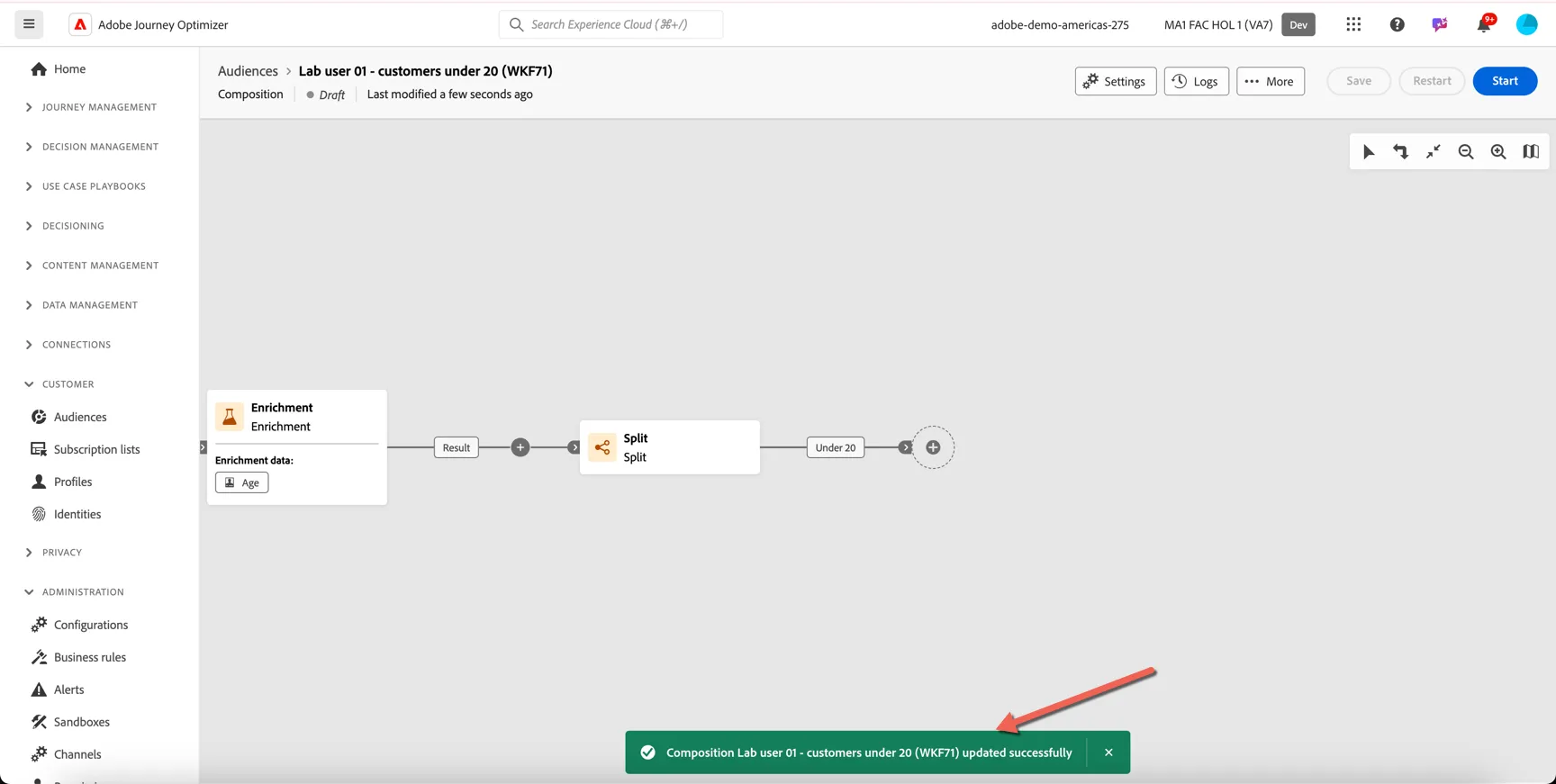
Click Start to initiate the composition flow. This is going to execute the logic we've configured in the remote database. No data is being transferred to Adobe servers at this time.
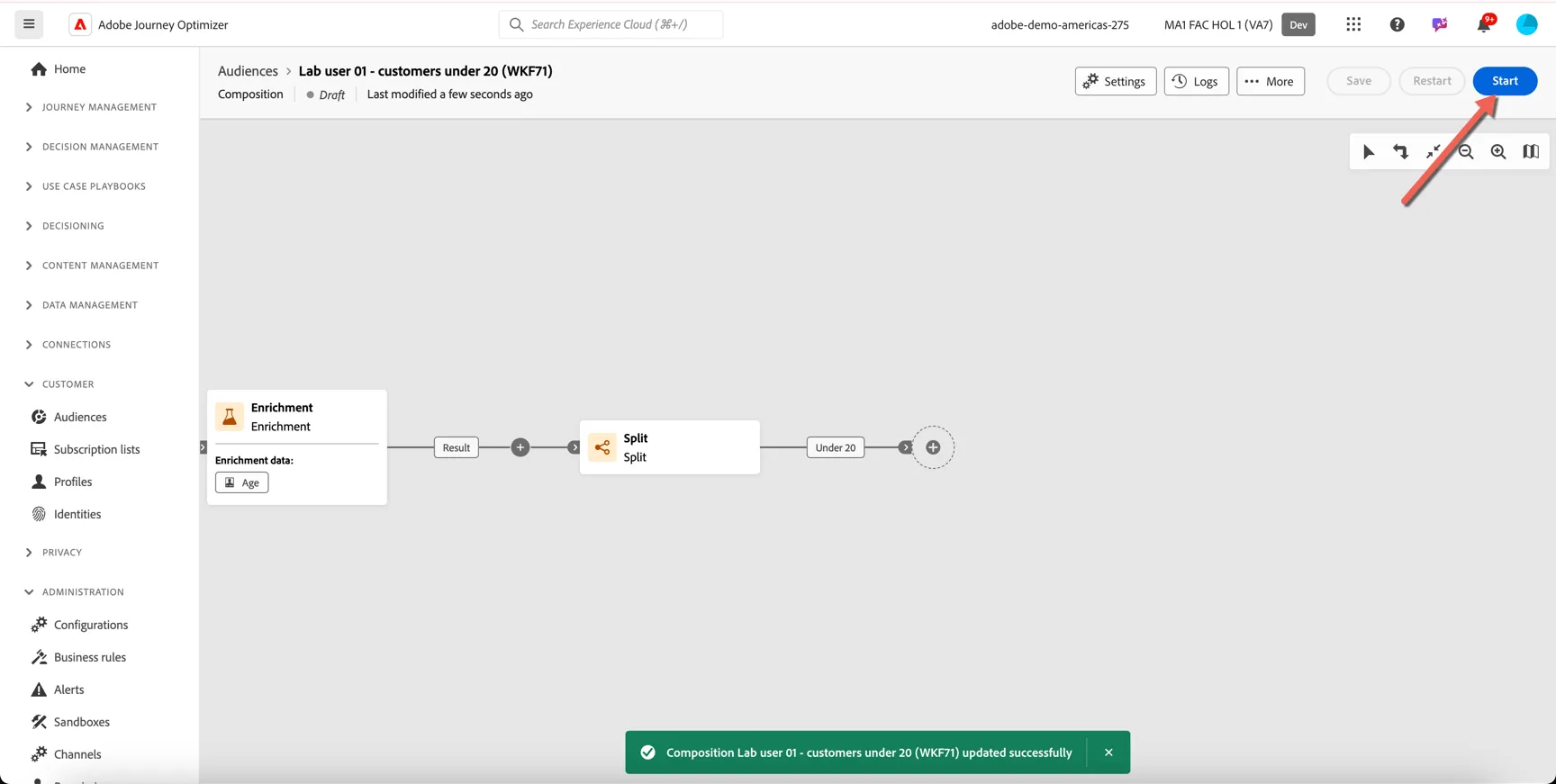
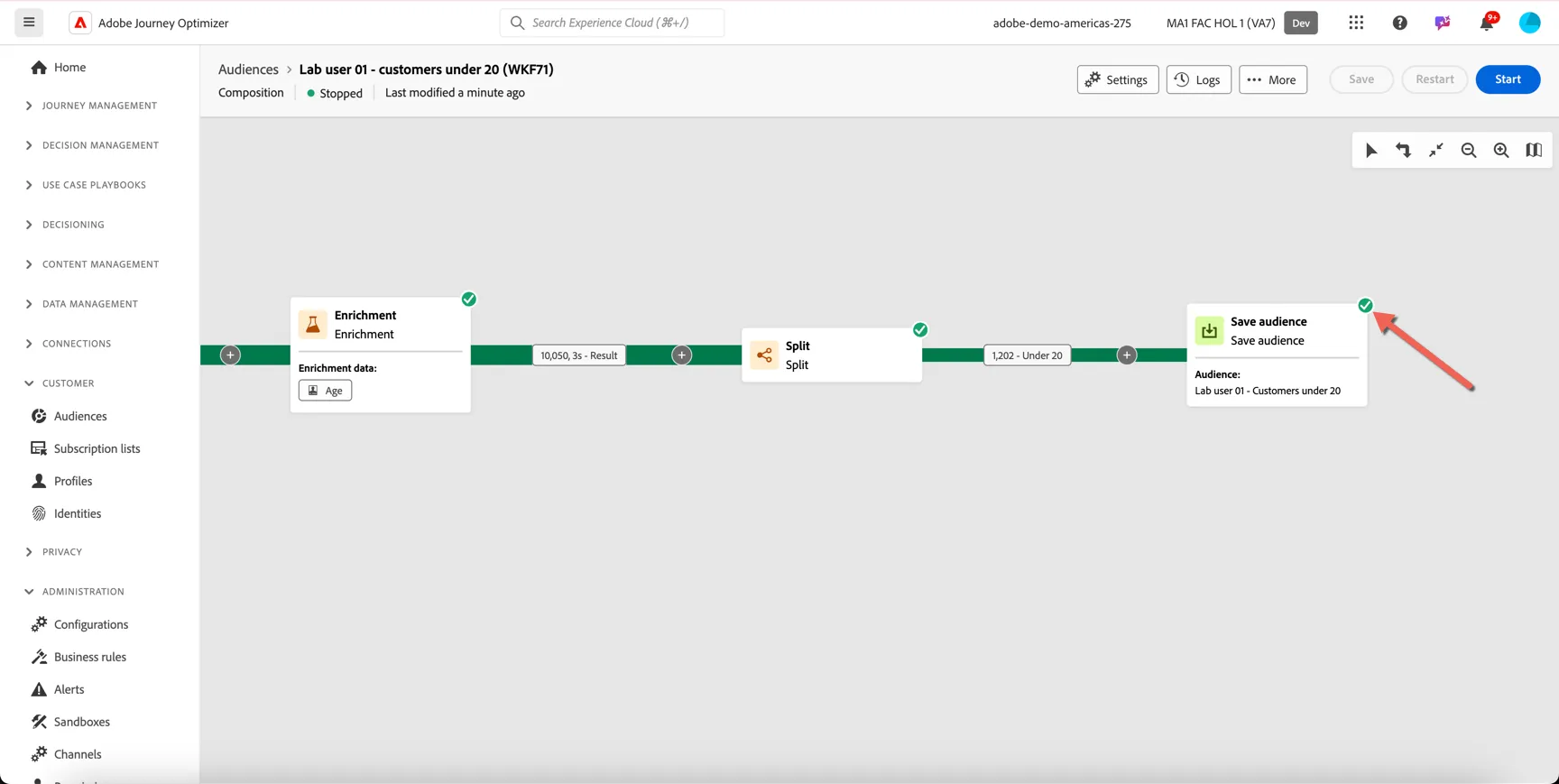
Each activity will get a green tick when it completes executing and you can see the number of records being transferred through each step in the composition. We can see that 1,202 profiles are under 20 years old.
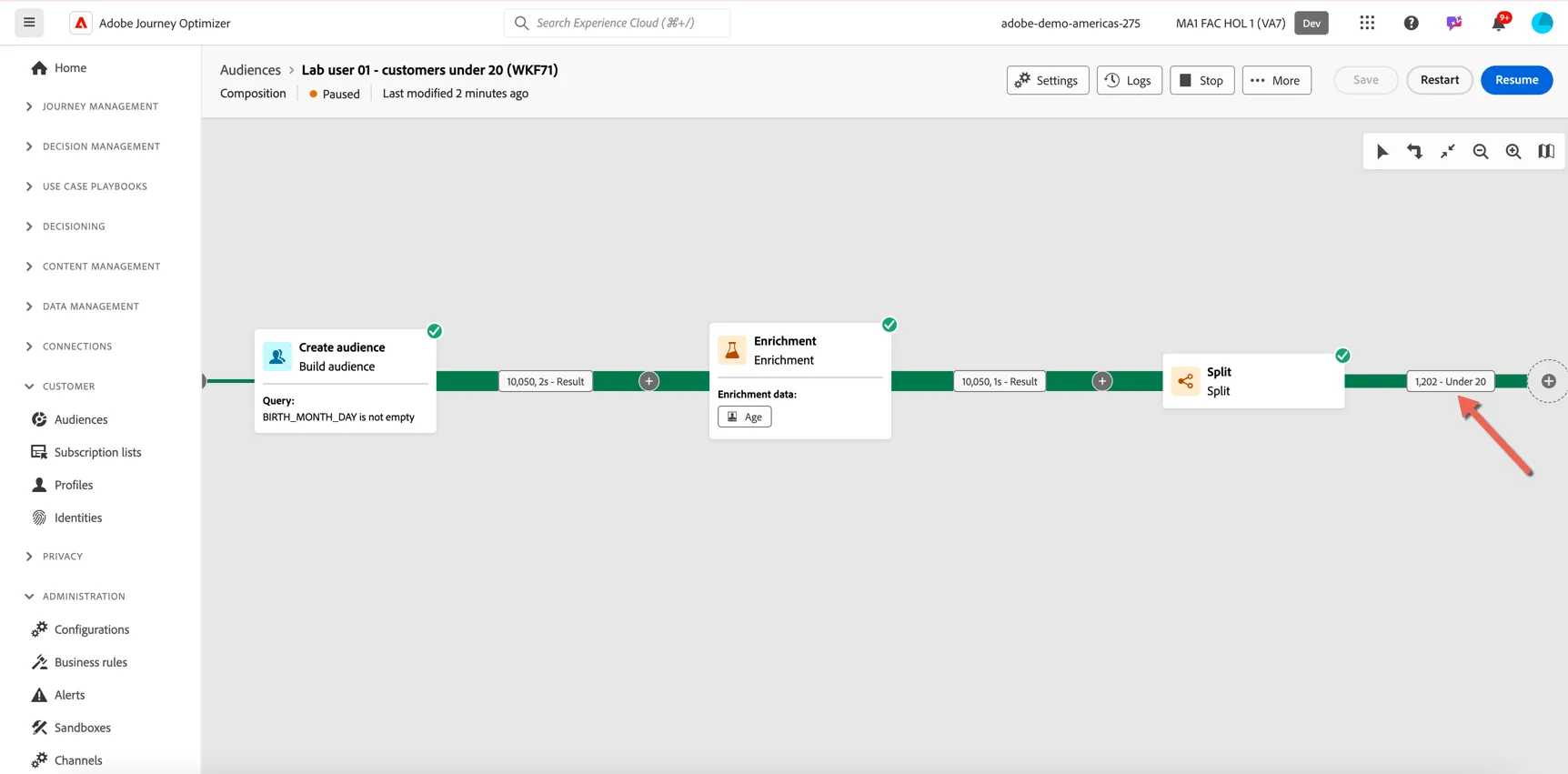
So now that we've found the subset of customers in your remote database that we want to communicate with or leverage within a journey, we need to save it as a new audience. Click the + and select Save Audience.
There are a few things that need to be configured on this activity. First, set the Audience Label - this is the name you will see in Audience selector when you want to use the audience. Add your name or lab user number to ensure the label is unique to you.
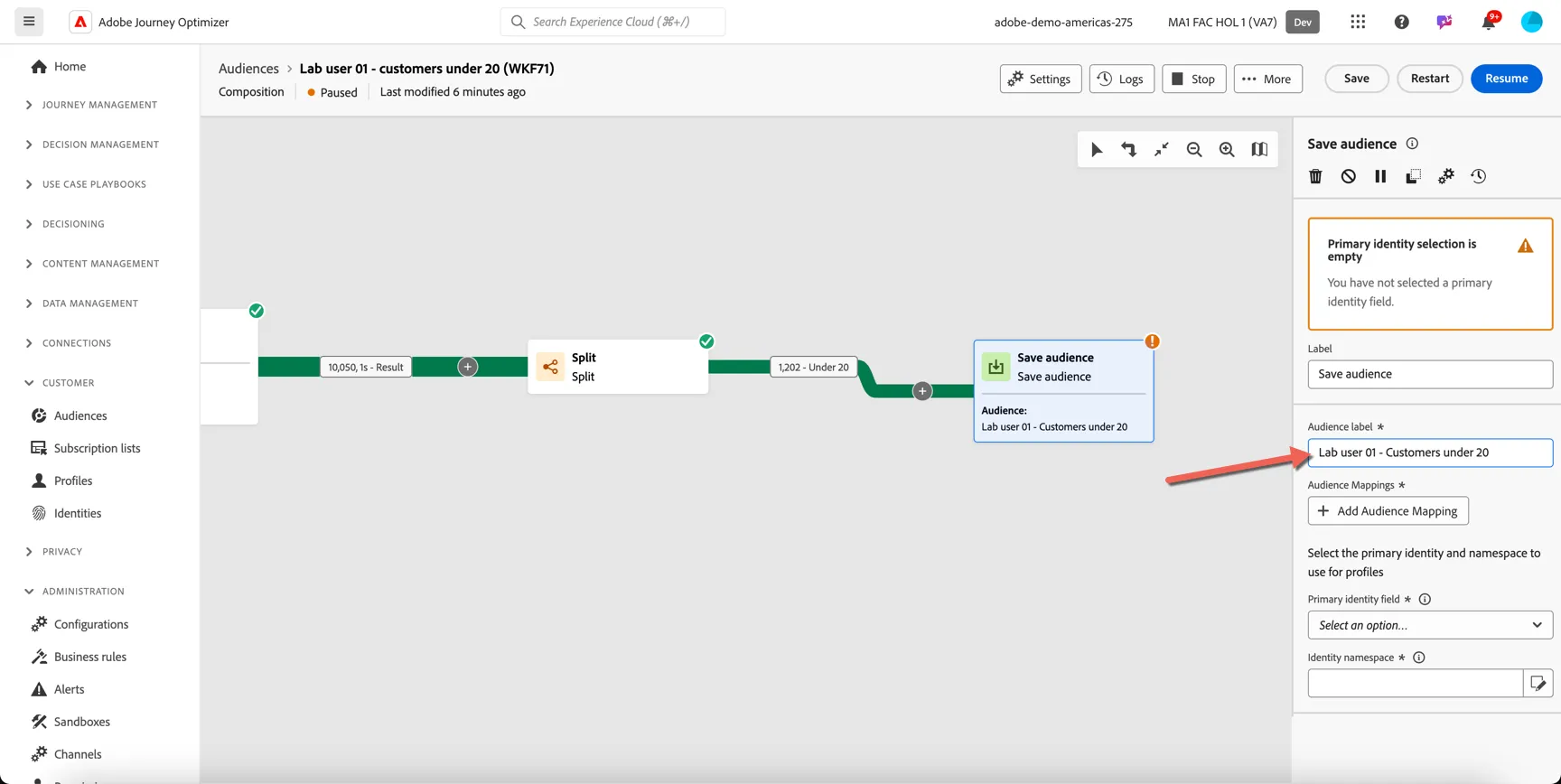
Next we need to configure which fields are going to transfer from your external database to Adobe's servers. We need to include at least one customer identifier to match the audience content with the profiles already in AEP. If the profile doesn't yet exist in Adobe, a new "skinny" profile will be created.
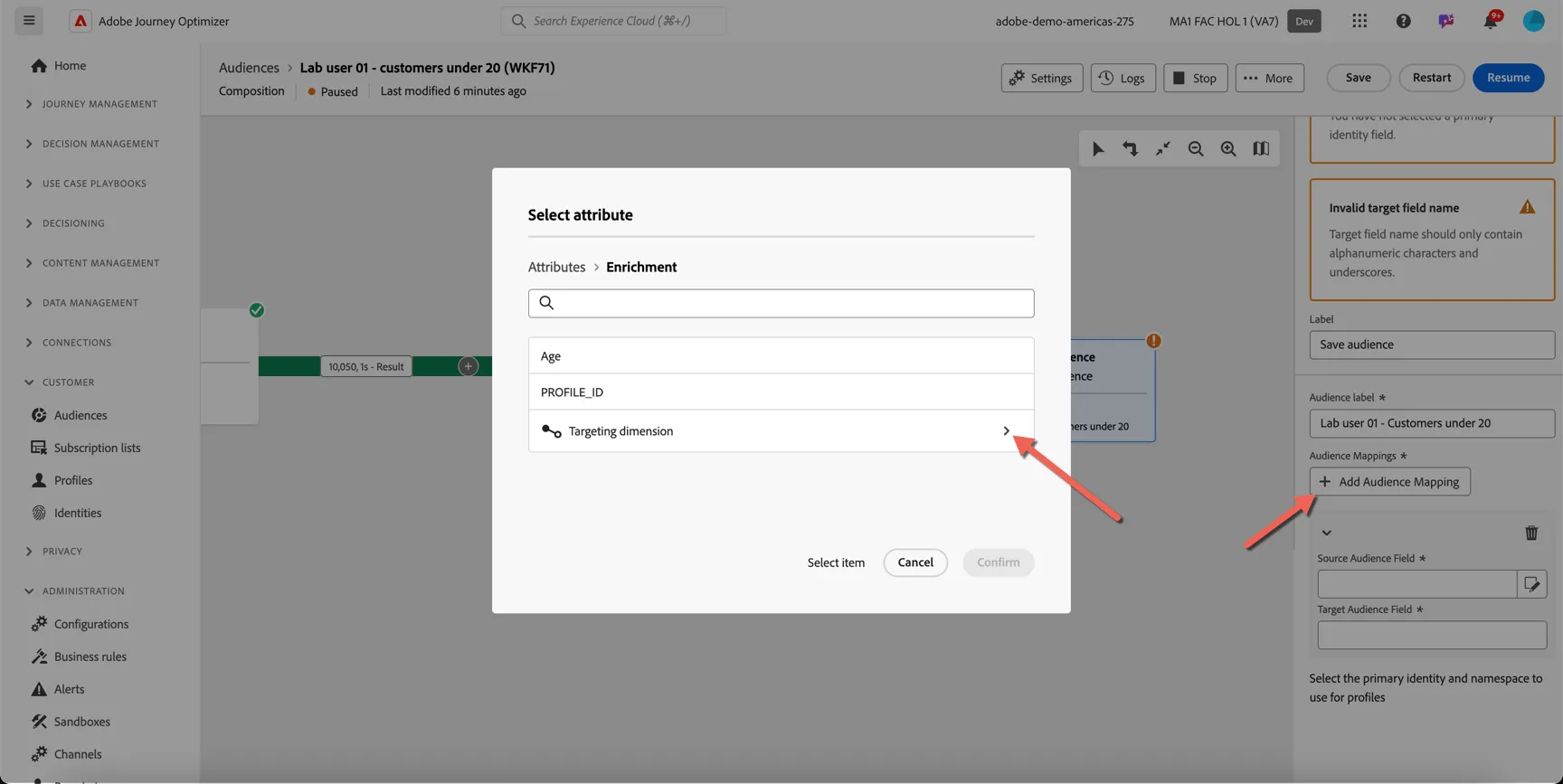
Click to Add Audience Mapping then click to drill into the Targeting dimension in order to view the available columns in your remote table.
Scroll down and select the CRMID field and click Confirm. We will use this to reconcile our customers.
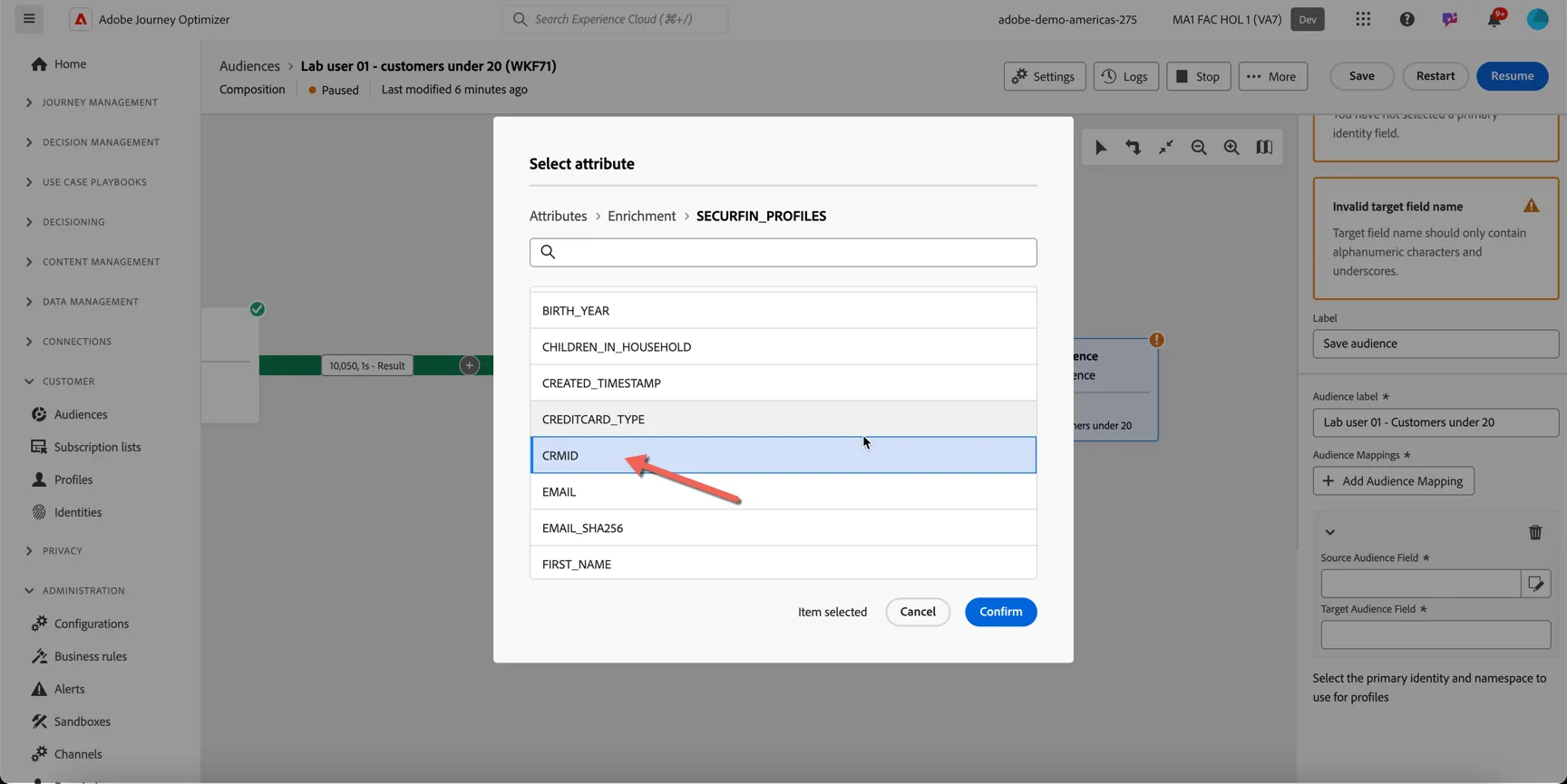
If you want to share additional attributes from the remote database to be used for personalisation in your messages you can do that by adding additional audience mapping fields. For this exercise we will keep just the CRMID.
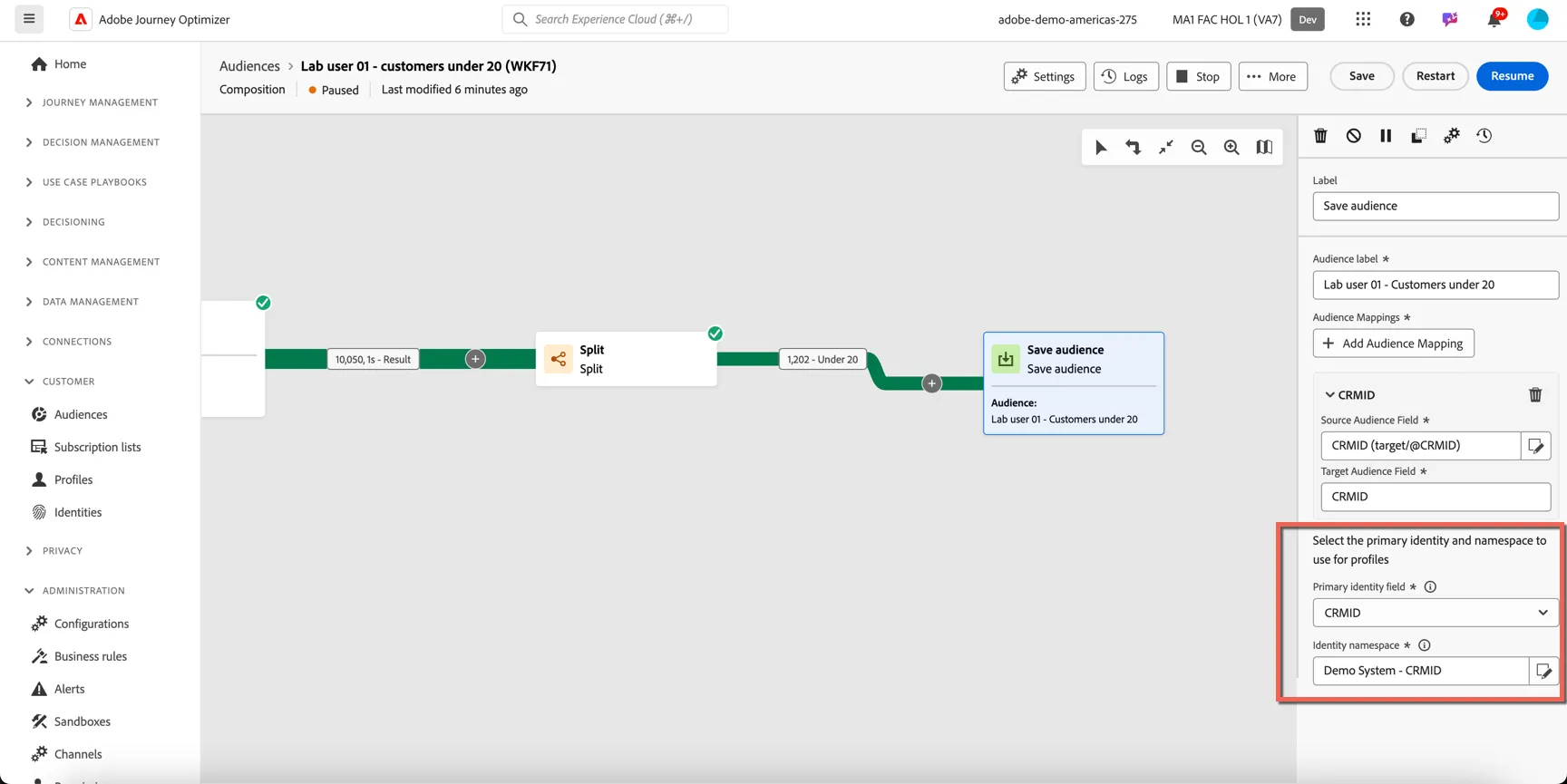
The last thing we need to configure is the reconciliation logic. We need to map the attribute you've selected in the remote database to the appropriate identity namespace in Adobe Experience Platform.
Select you CRMID attribute field in the Primary Identity Field.
Select Demo System - CRM ID as the Identity Namespace.
Click Save, then click Stop.
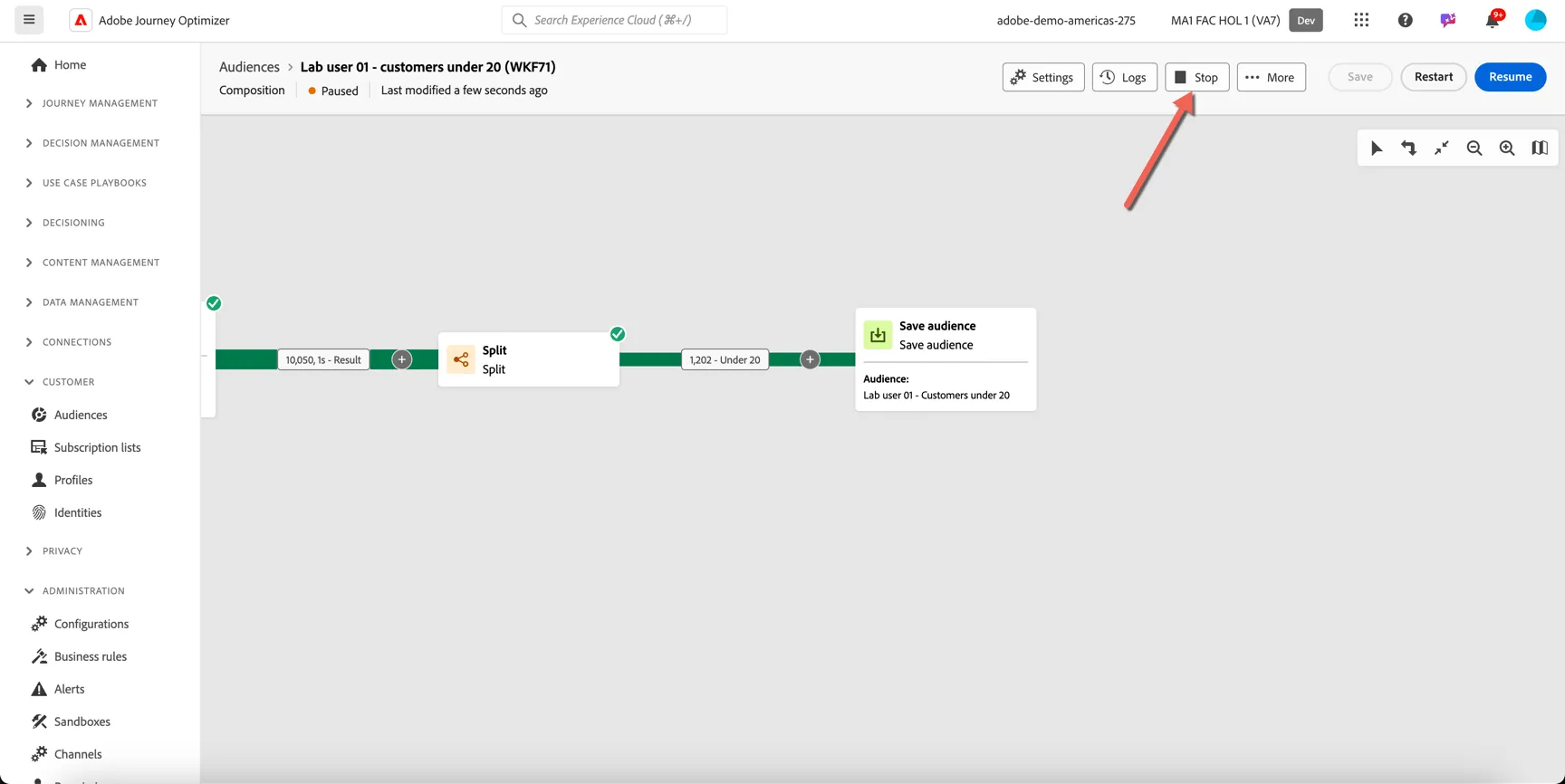
Once the composition is in stopped status, click Start to begin the execution again.
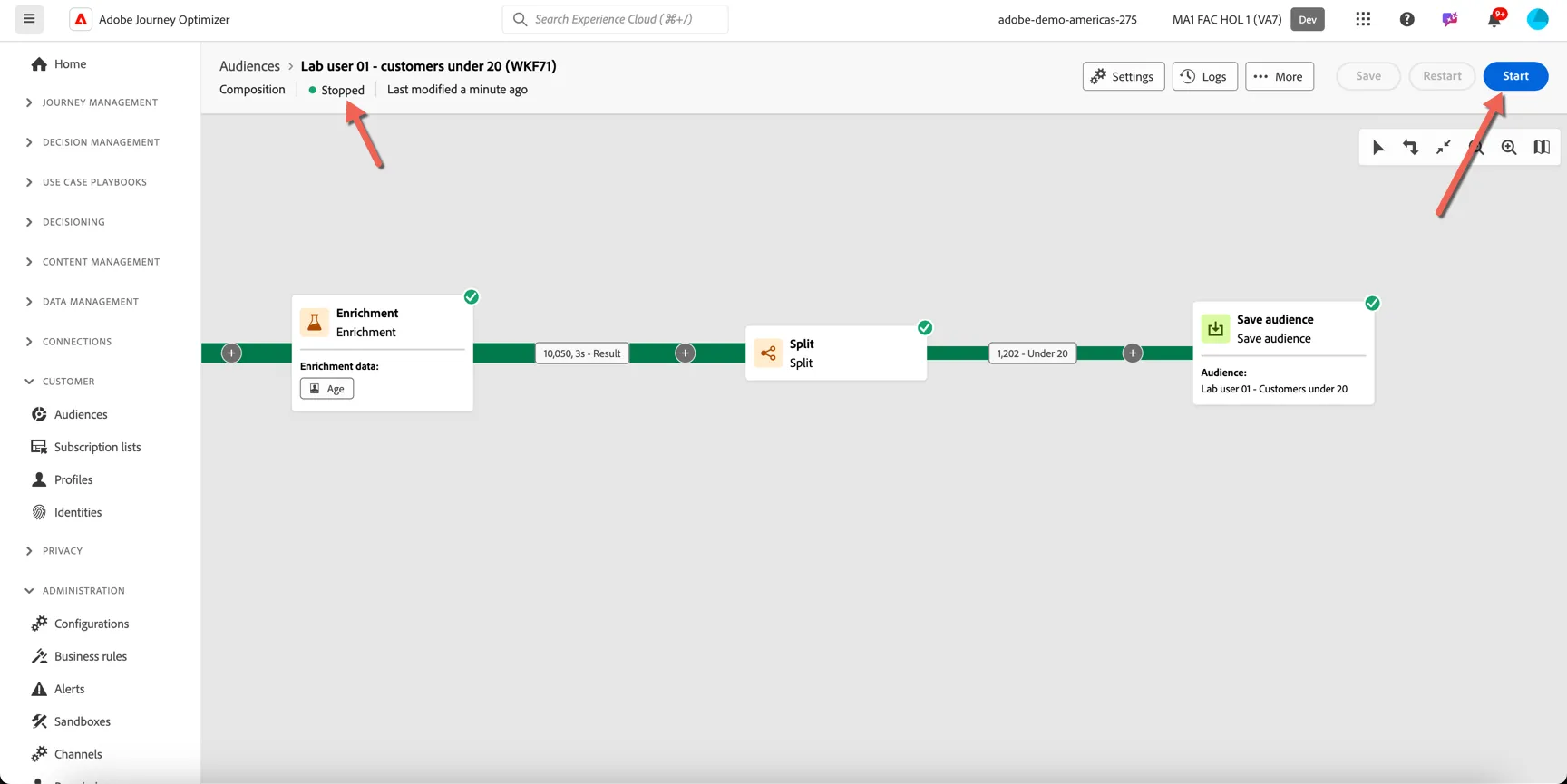
We need to stop the composition completely before executing it with the save audience activity. If you resume or restart you might see an error on this activity. If you do, simply click stop and once the composition is in stopped status you can start it again.
The composition is now stopped and you should see a green tick on the save audience activity.
Return to the Audience Portal by clicking on Customer -> Audiences in the left hand navigation.
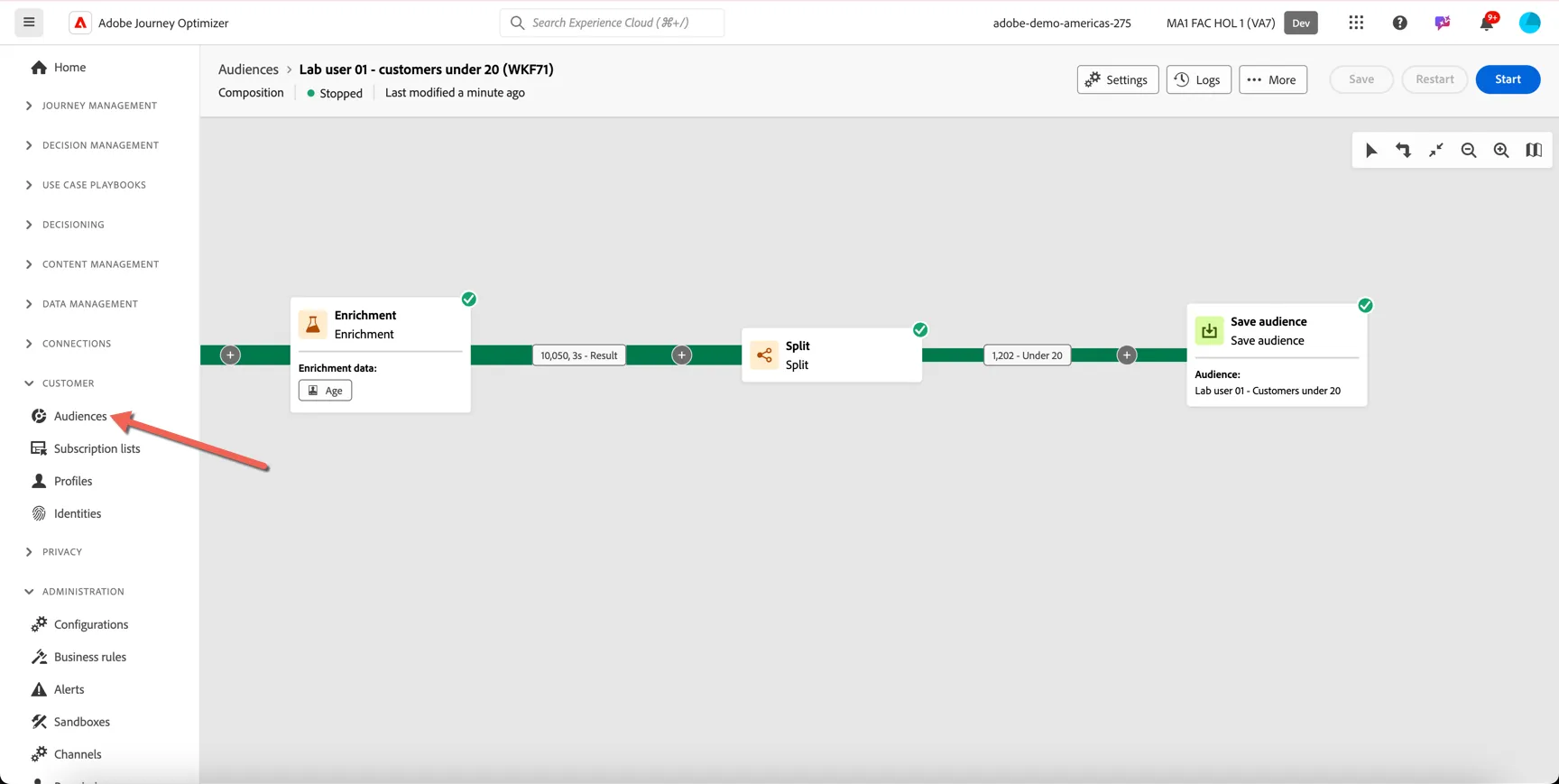
Click to Browse audiences and you should be able to find your audience in the list with an origin of federated audience composition. Click on the audience name to see the details
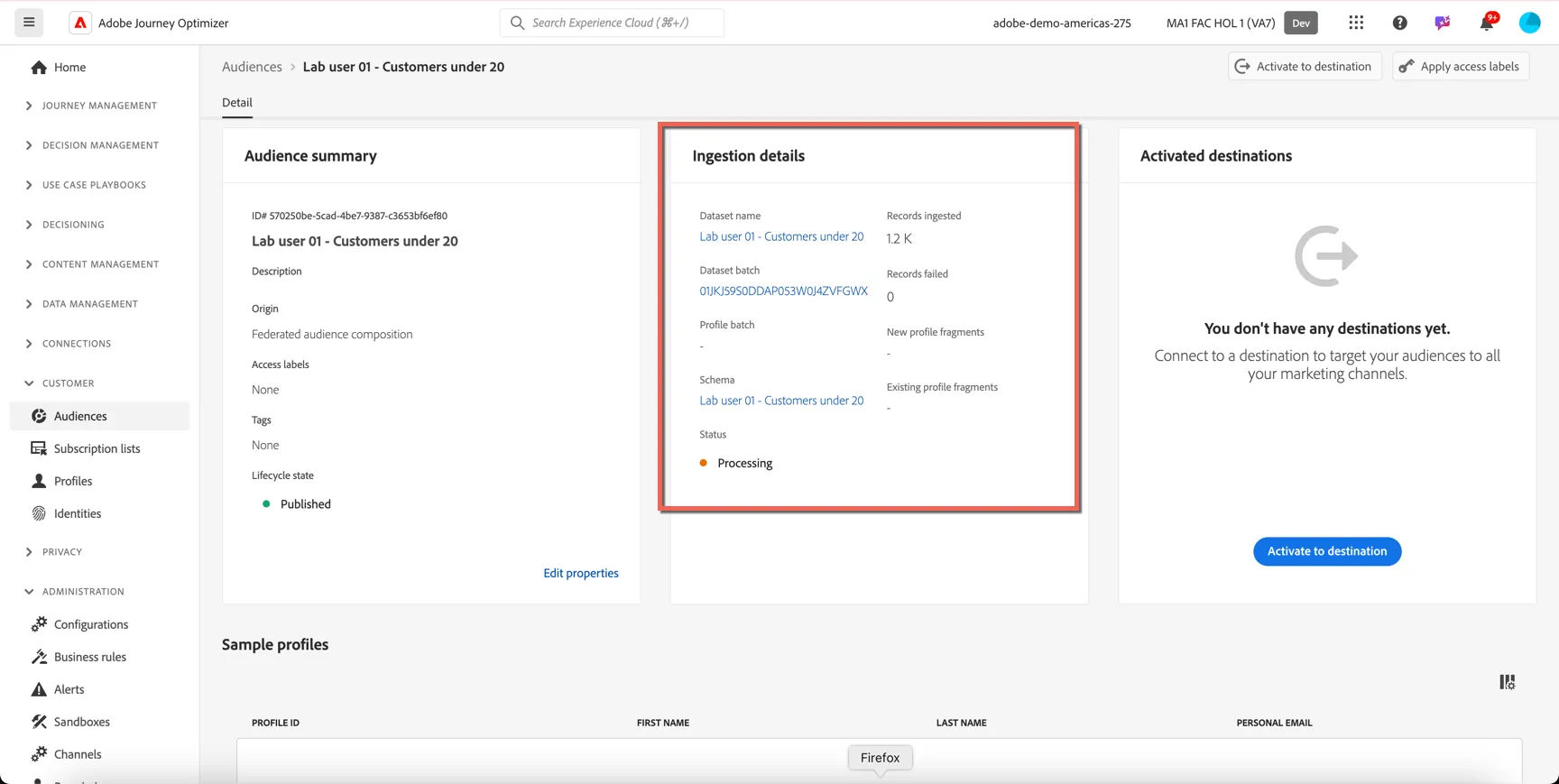
You can see in the details screen that the data is being ingested from the remote database. In this case the only data being transferred is the list of CRMIDs that match the logic from our composition.
You can now start to use this audience in your marketing campaigns and journeys.
Congratulations, you've created your first federated audience.