Streaming Data
In this exercise you will learn how real time behavioural data is collected in Adobe Journey Optimizer.
This fast moving data allows you to connect with your customers "in the moment" through streaming segmentation and event triggered journeys.
This type of intelligent real time engagement was not possible in legacy batch based marketing automation platforms.
Some example use cases:
- Add customers to a nurturing journey after they've viewed a product or product category multiple times.
- Proactively engage when a customer encounters an error or gets stuck completing an application form.
- Suppress paid media and/or exit nurturing journeys when a customer completes the desired conversion
- <-- jumpei to add additional examples specific to AEON if you have some! -->
Visit the website
First let's experience how this fast moving data is collected into Adobe Journey Optimizer.
Visit the demo website here: http://dsn.adobe.com/web/fac-fsi
You should see the secure financial website. In the top left you will see a small Adobe icon which opens an xray panel when clicked. The xray panel shows the data being collected into AJO.
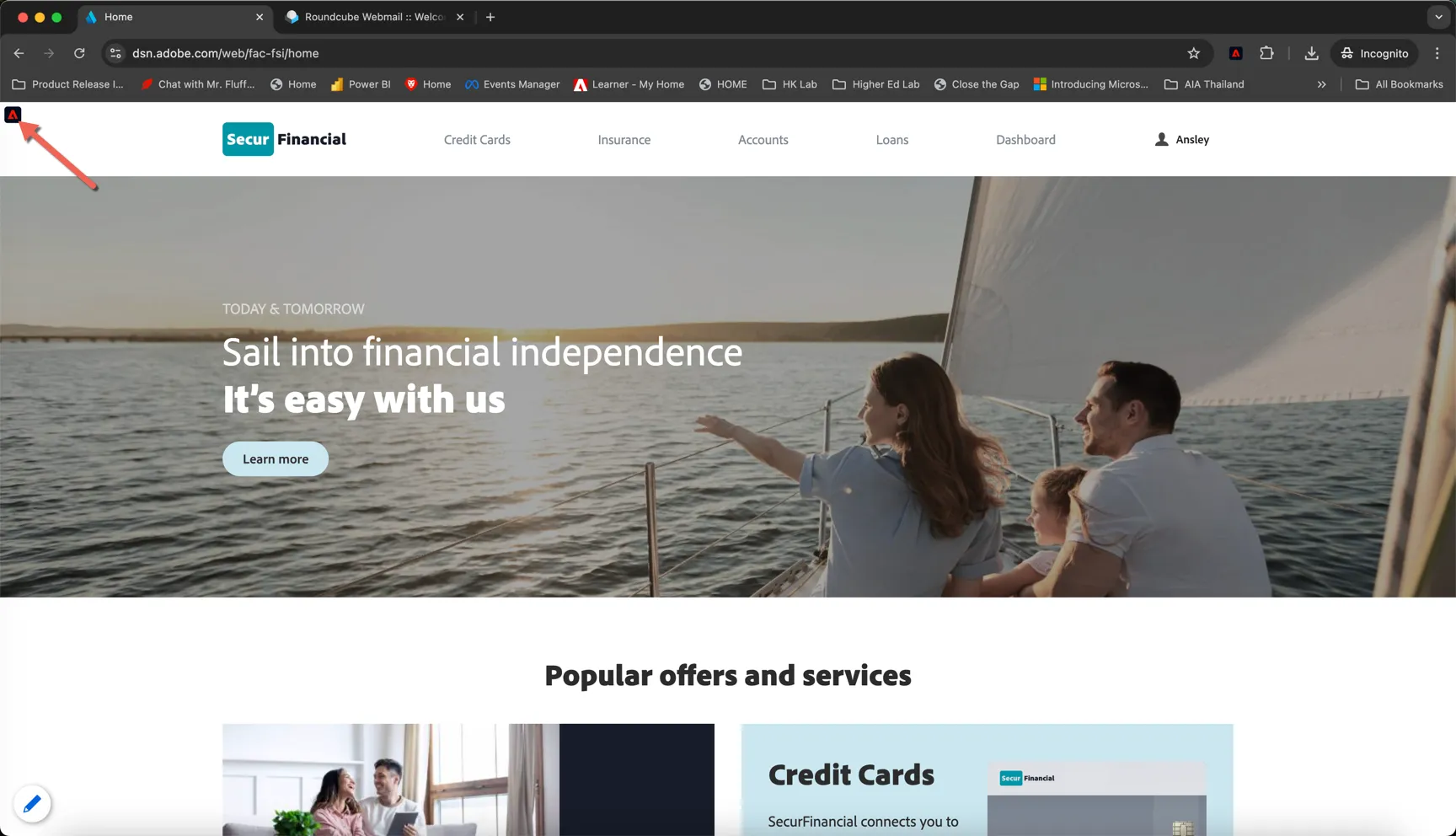
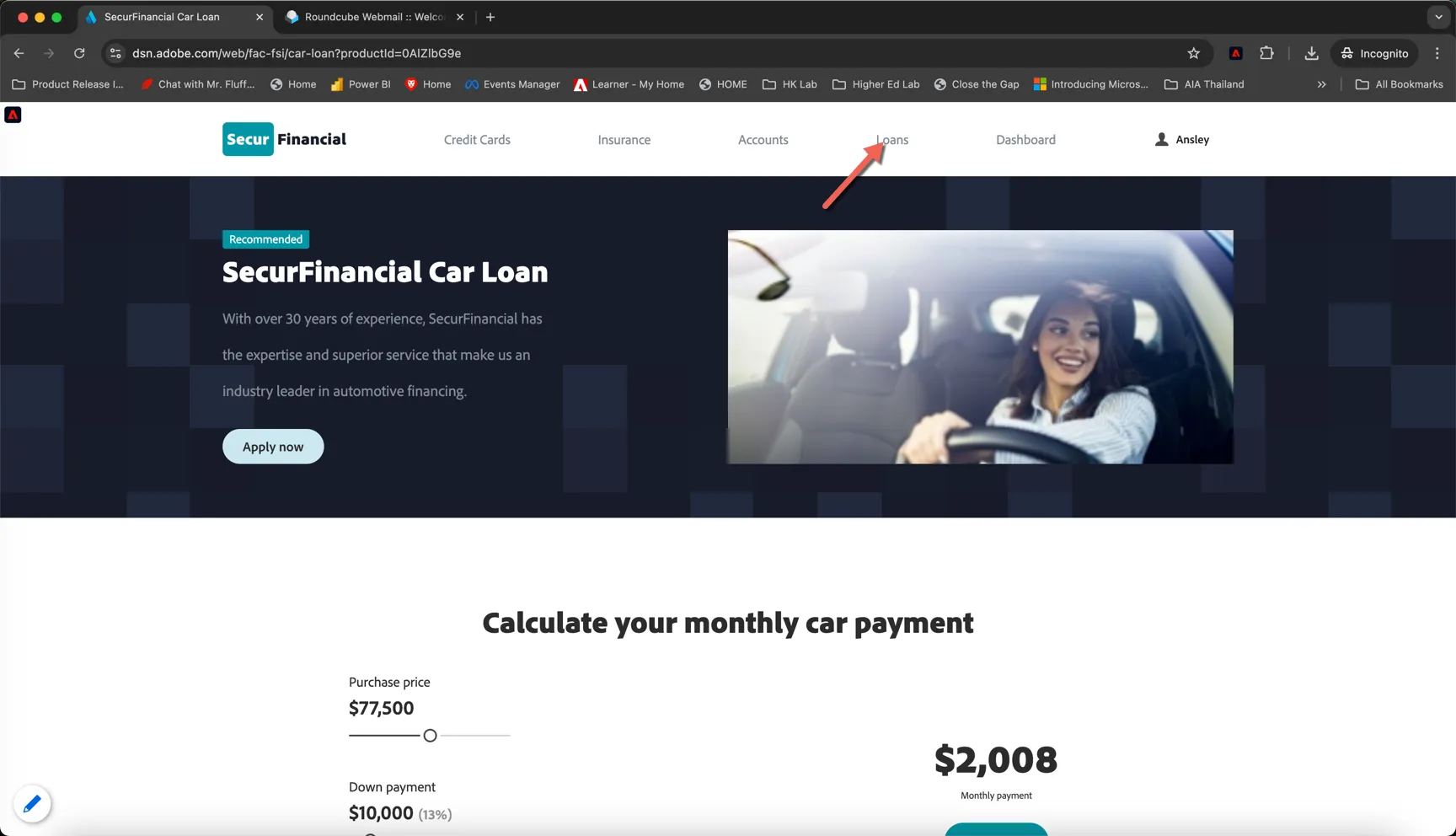
Click on the Loans menu and take a look at one of the loan products listed.
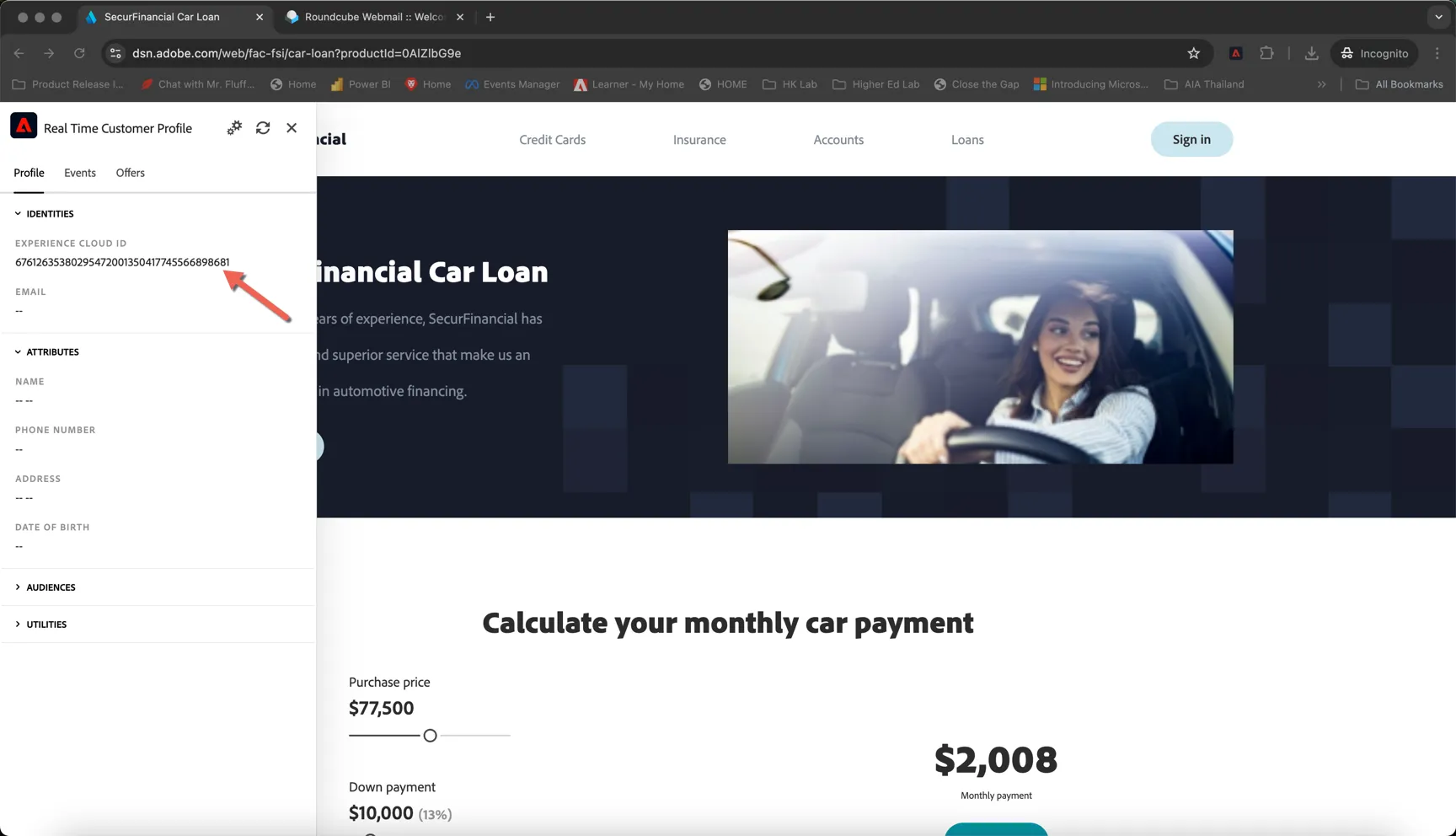
Now click to open the xray panel. You'll see that right now we don't know who you are, the only identity we have is the Experience Cloud Id. This is adobe's first party cookie id.
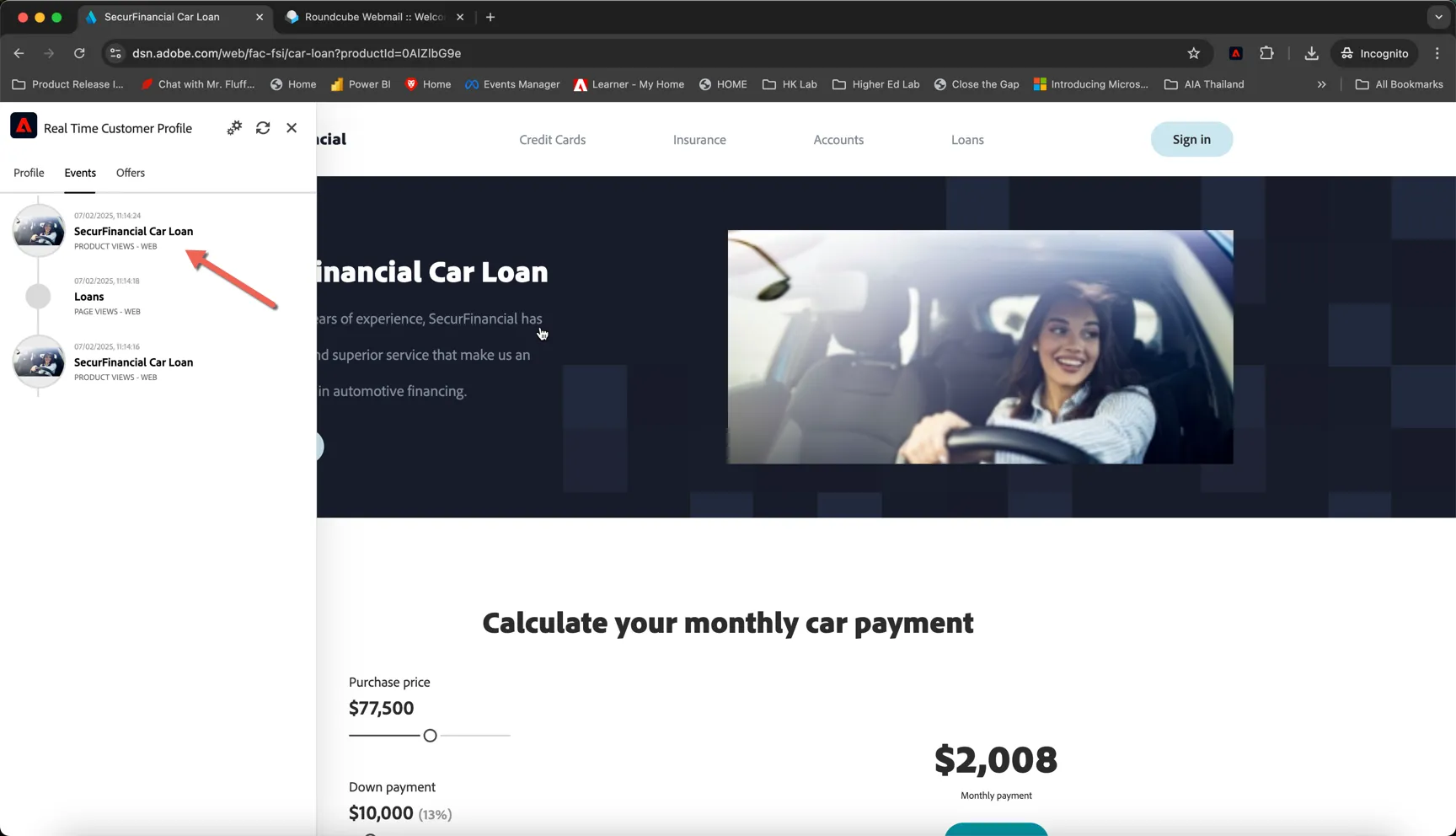
Even in this anonymous state, we are tracking the user behaviour. Click to view the Events tab, you'll see the events that are being collected as you browse the website.
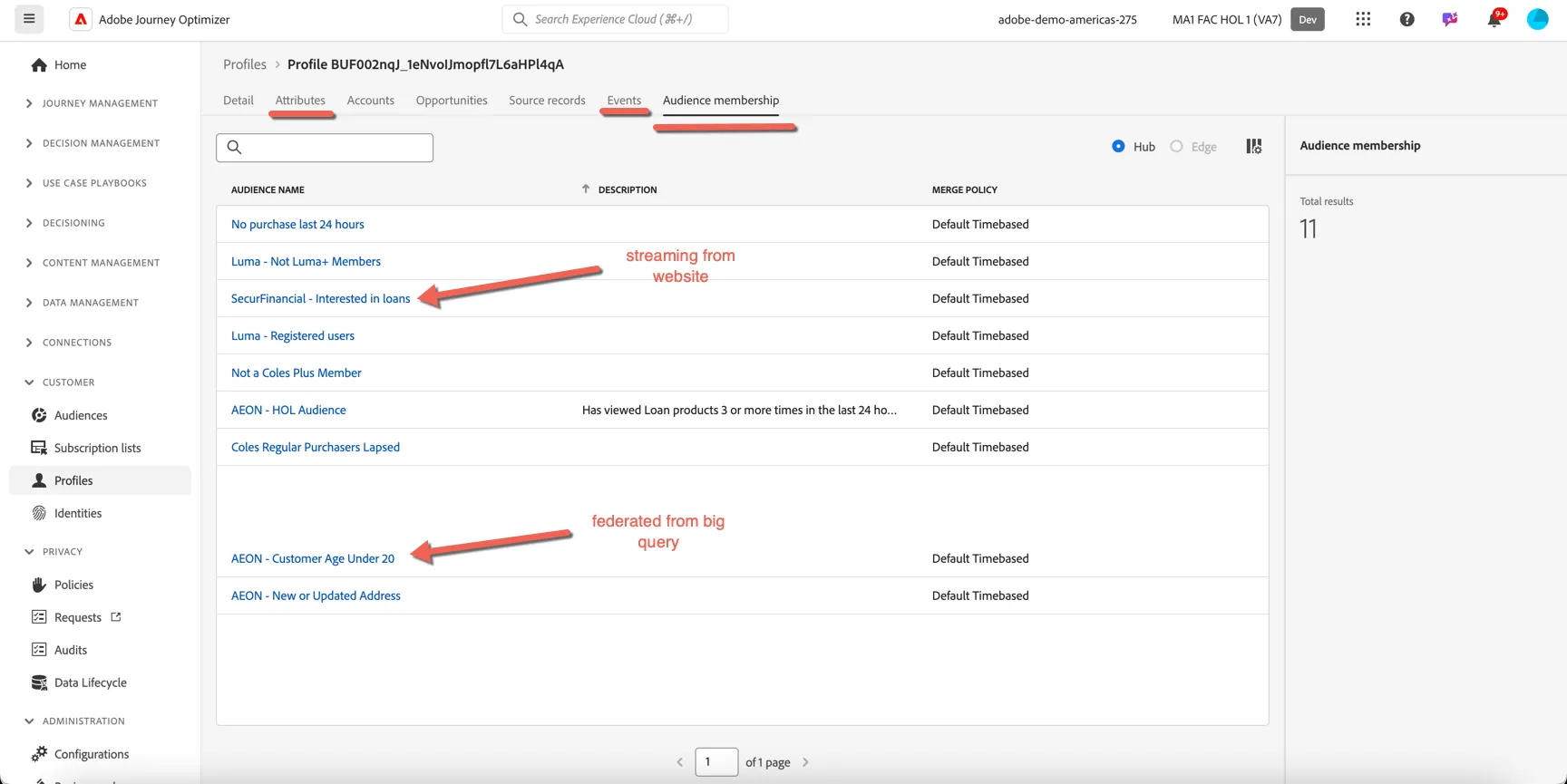
Click back to the Profile tab in the xray panel and open the Audiences section. You can see that we've added the user into some behavioural audiences in near real time based on the browsing behaviour.
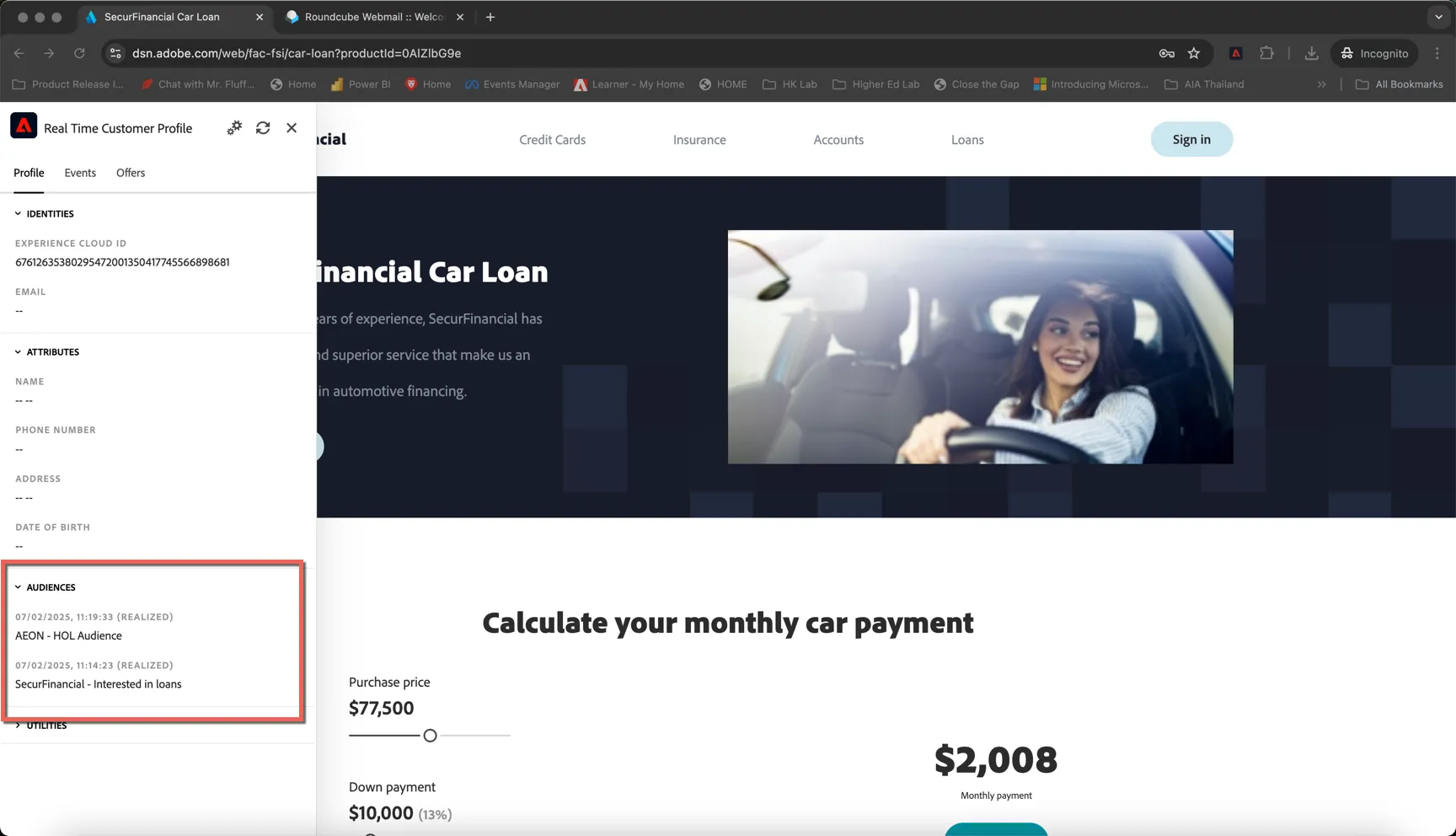
Now let's identify ourselves by logging in. Click on the Sign In button on the top right, use the Fake Customer Email assigned to you on the Access page to log in.
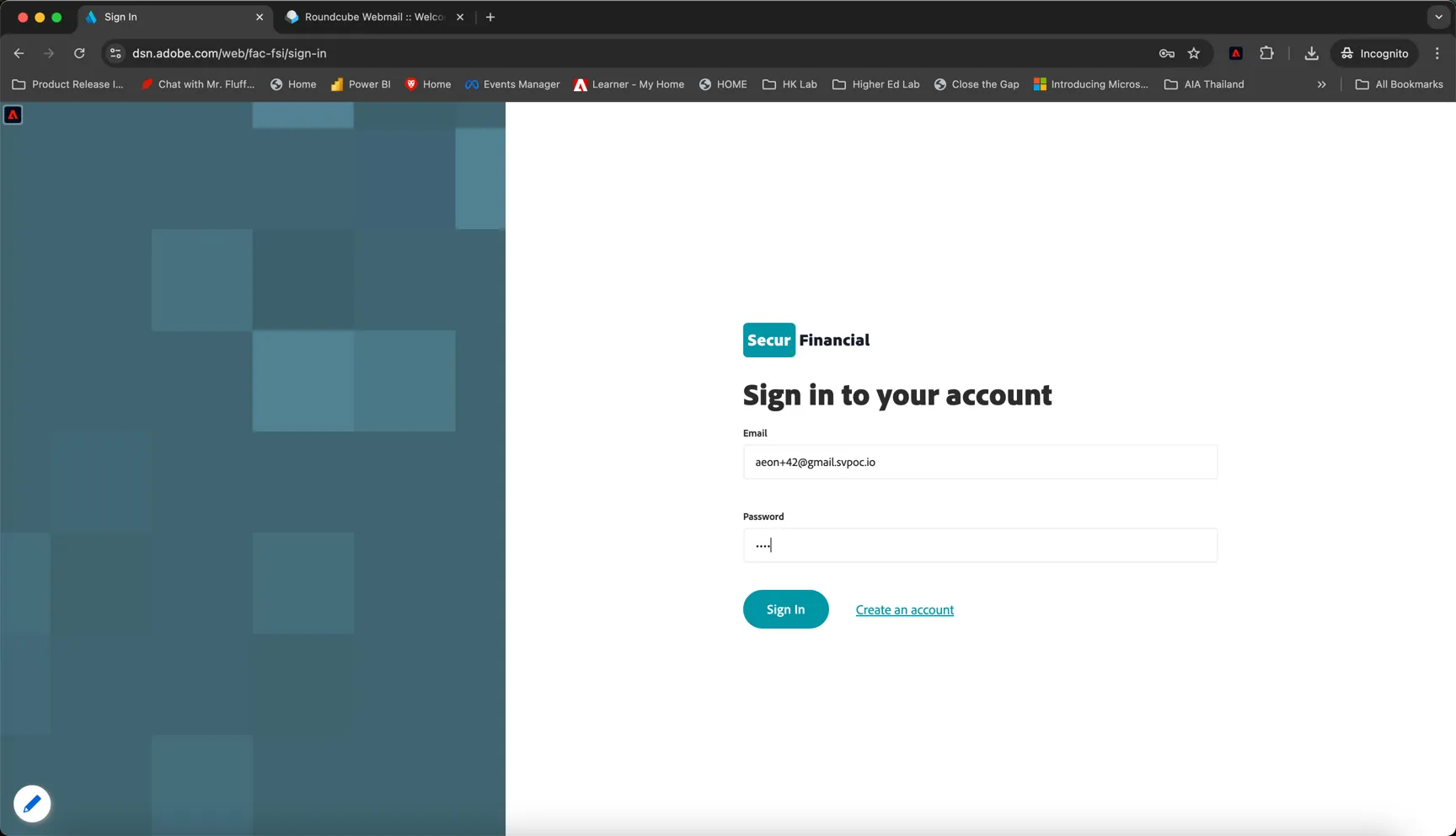
Now that we know who you are we can tie the browsing behaviour to your offline customer data and start sending relevant and timely communications.
Visualise your profile
In this section you'll learn how to view a profile in Adobe Journey Optimizer.
In the left hand navigation, click on Customer -> Profiles. Click to open the Browse tab.
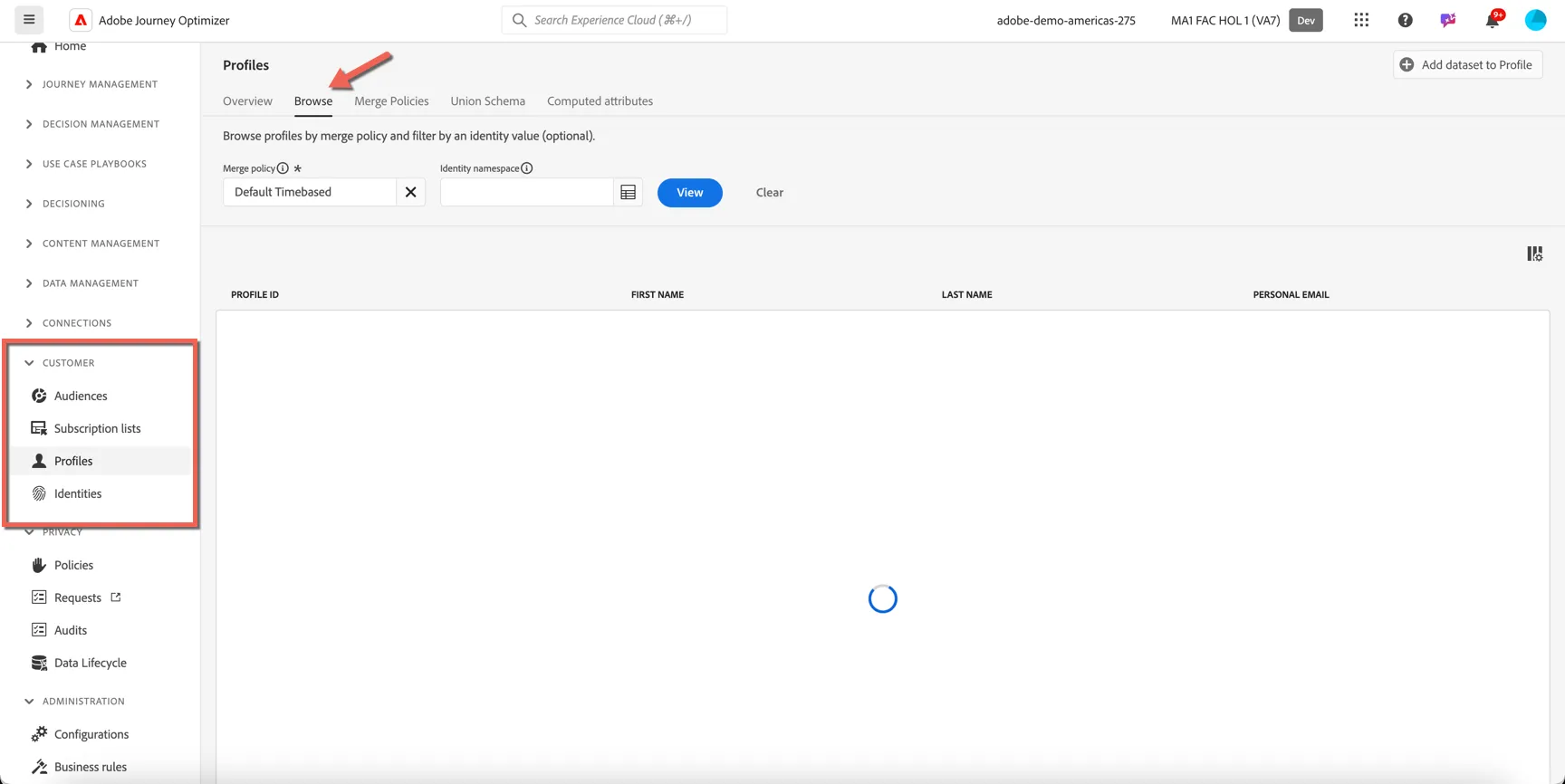
The first thing we need to do is define which customer identity we will use to look up the profile. For this exercise we will use Email. Type email into the Identity Namespace field and select Email from the dropdown.
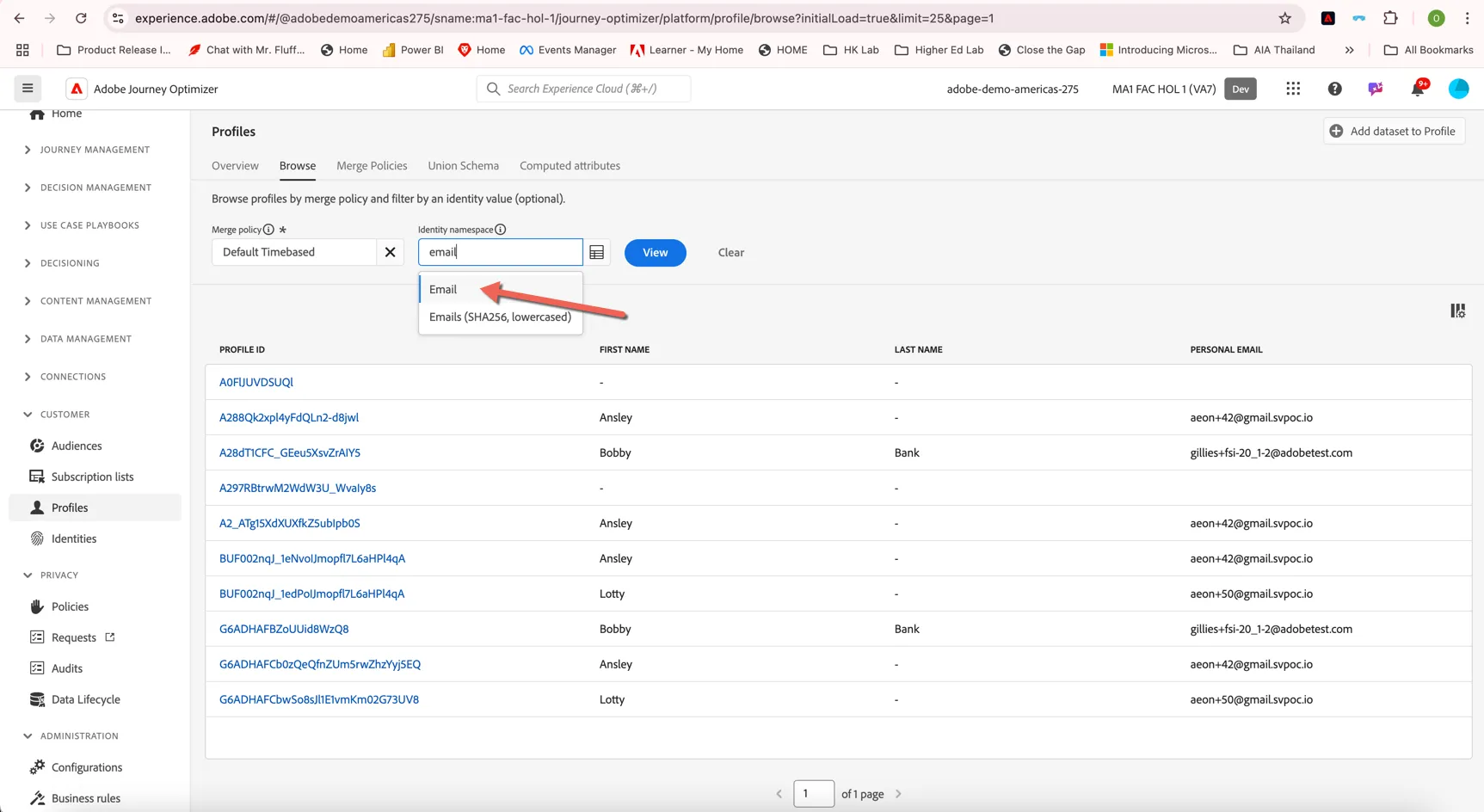
Type the same fake customer email address into the Identity Value field then click View.
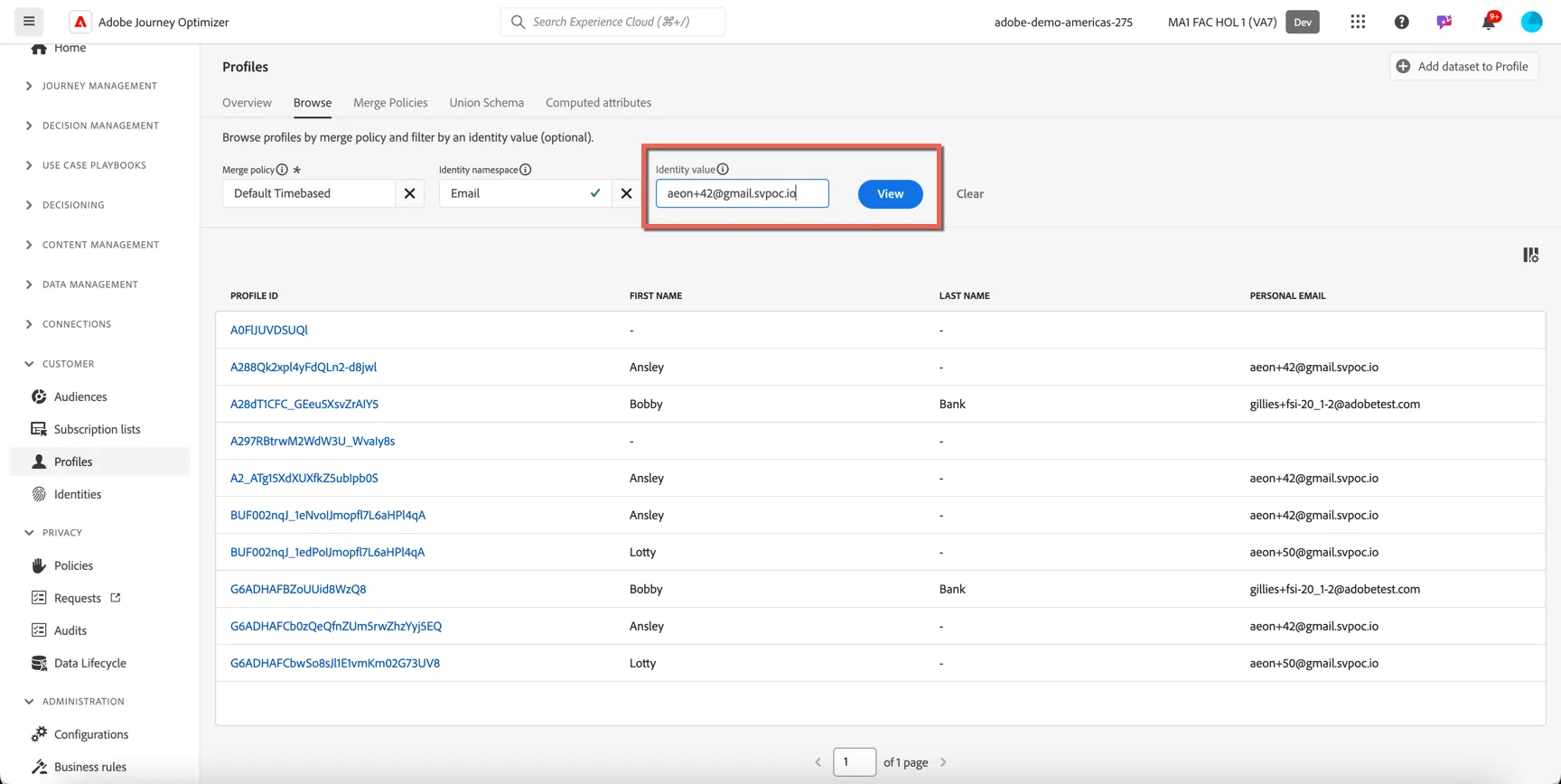
Your profile record will be found, click on the profile id to open the details.
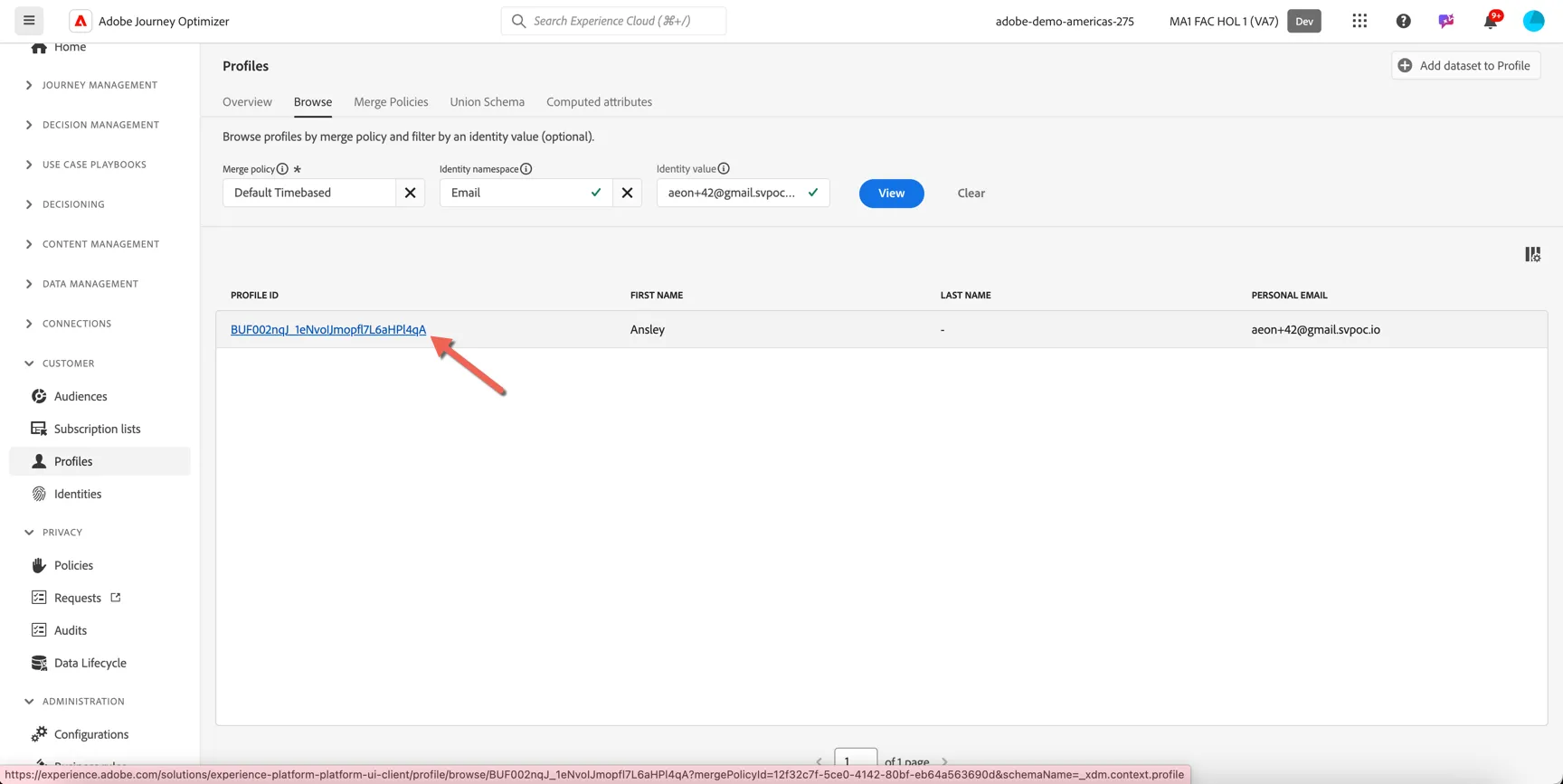
In the details view you can see all of the attributes and events that are attached to the profile. You can also see which audiences the profile is a member of. Some of these audiences will be streaming audiences from data ingested directly to Adobe, others will be calculated externally in your federated databases (ie. Big Query).
Create a streaming audience
Adobe's rule-based segment engine let's us create these types of behvioural segments.
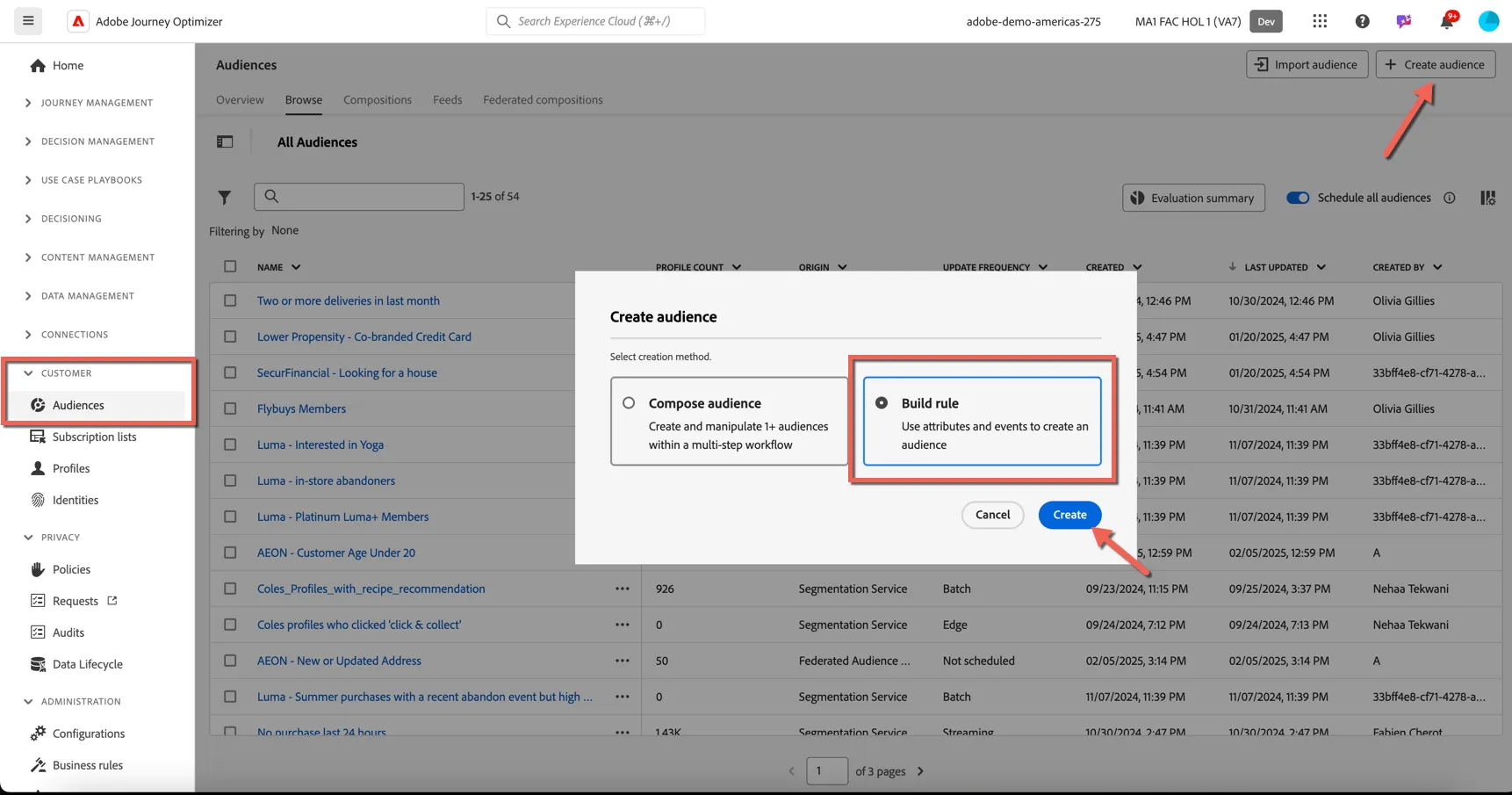
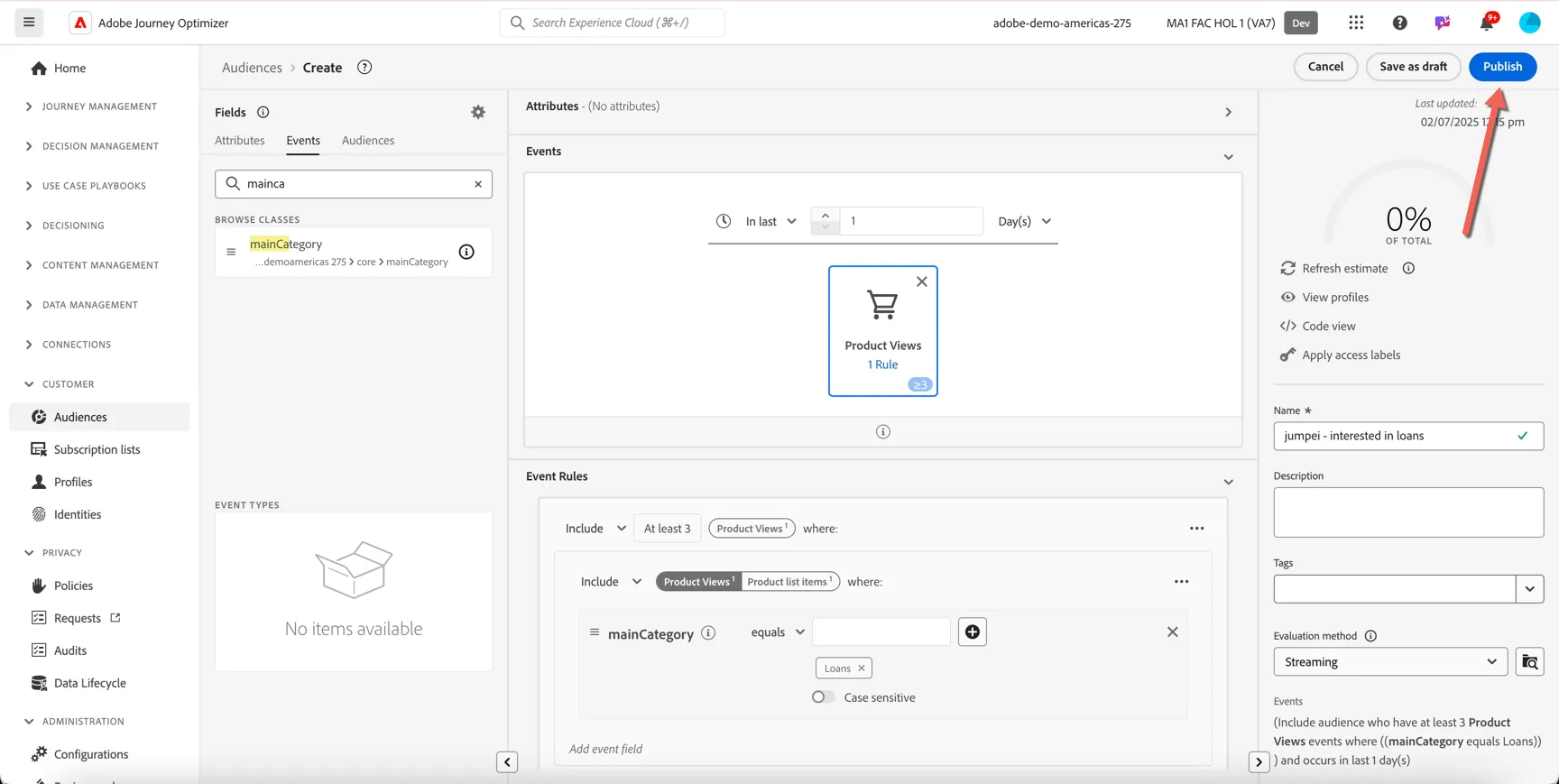
Navigate to the Customer -> Audiences menu and click on + Create Audience. Select to Build Rule based Audience, then click Create.
In the audience builder we have access to the customer profile attributes and events. We want to create a behavioural audience so change to the Events tab on the left panel.
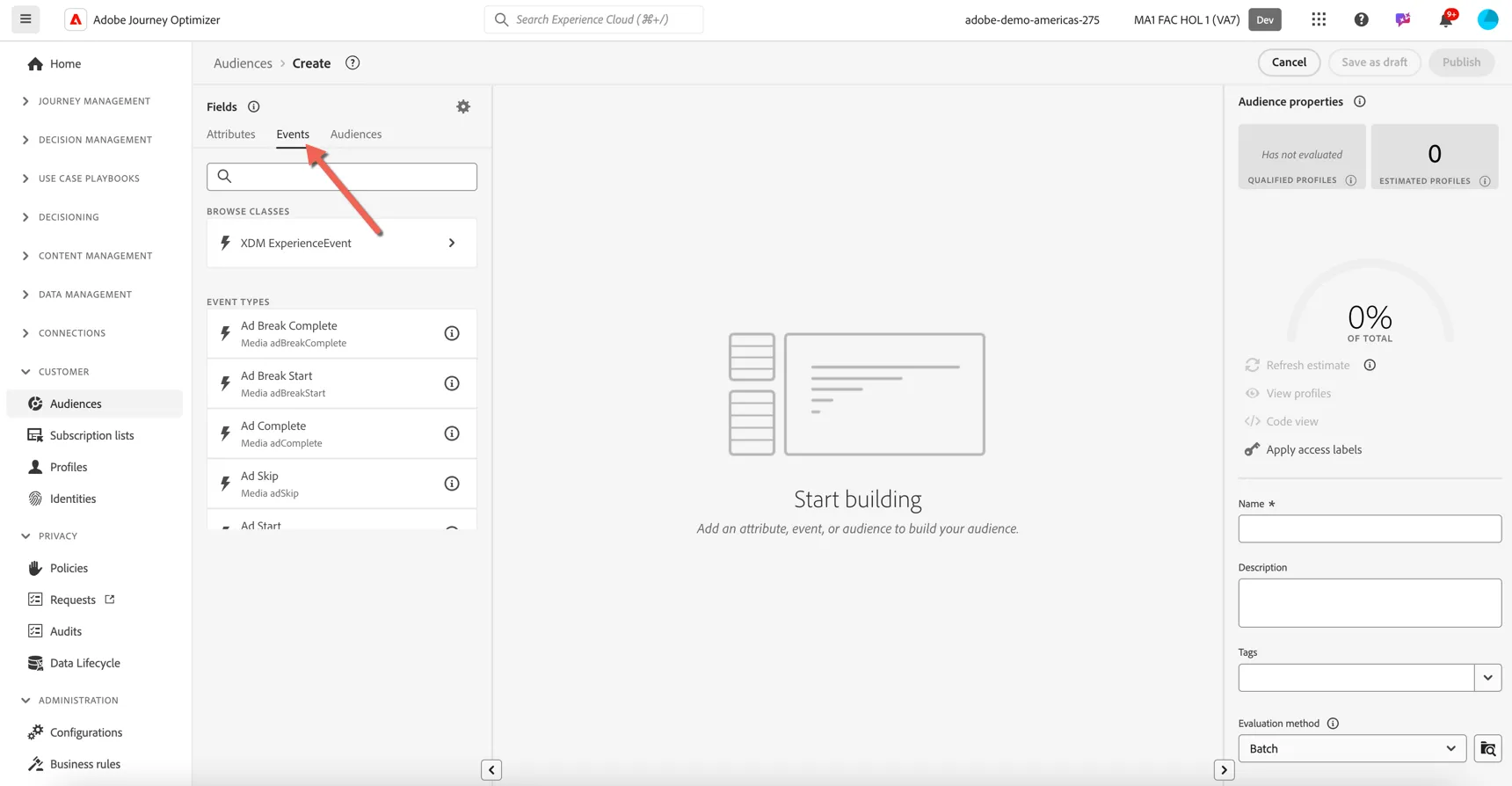
We are going to create an audience of customers who have viewed a Loans product more than 3 times in the last 24 hours.
Search for product in the events tab.
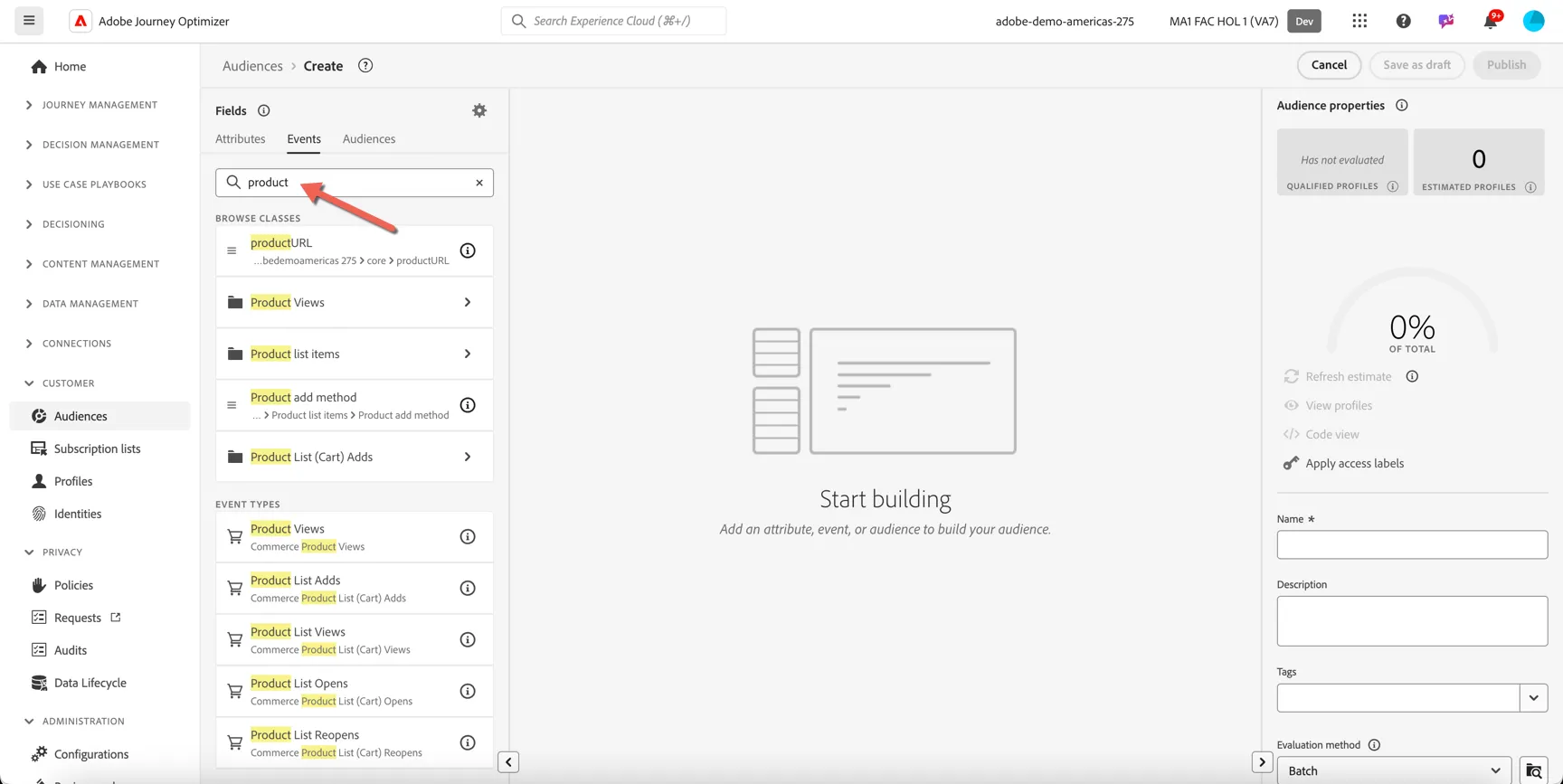
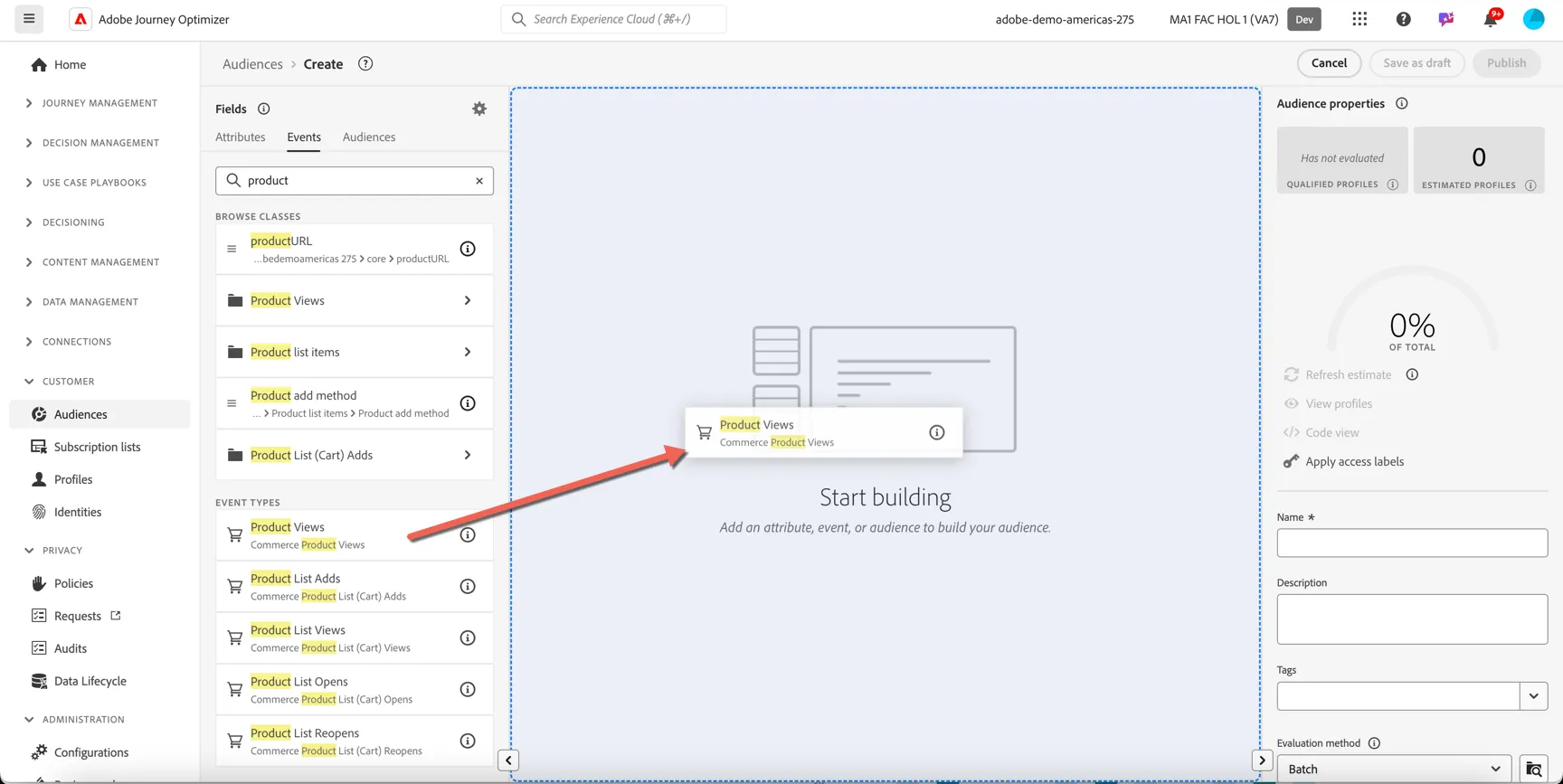
Drag the Product Views event type into the canvas.
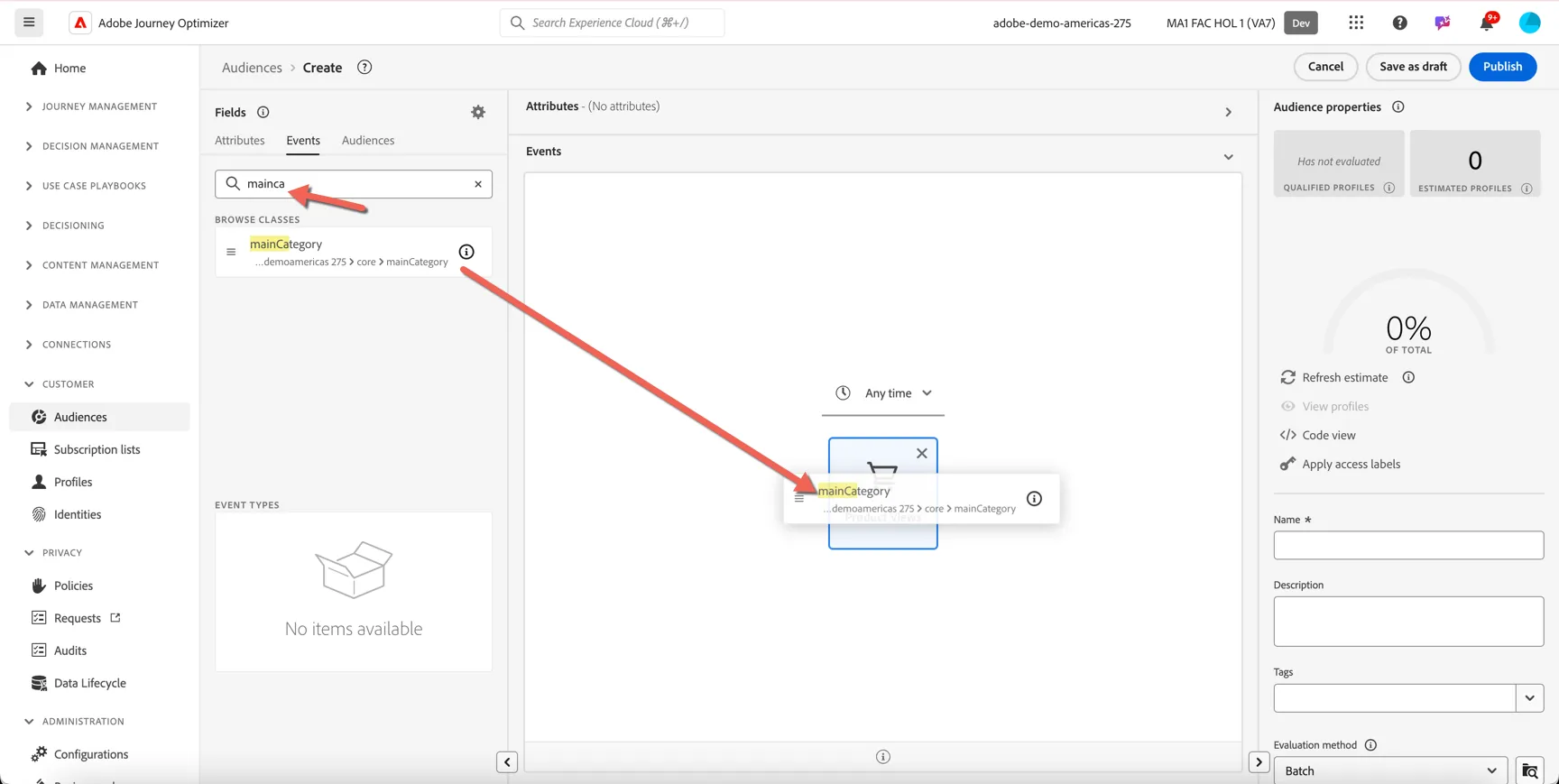
Now search for MainCategory and drag this into the product views event
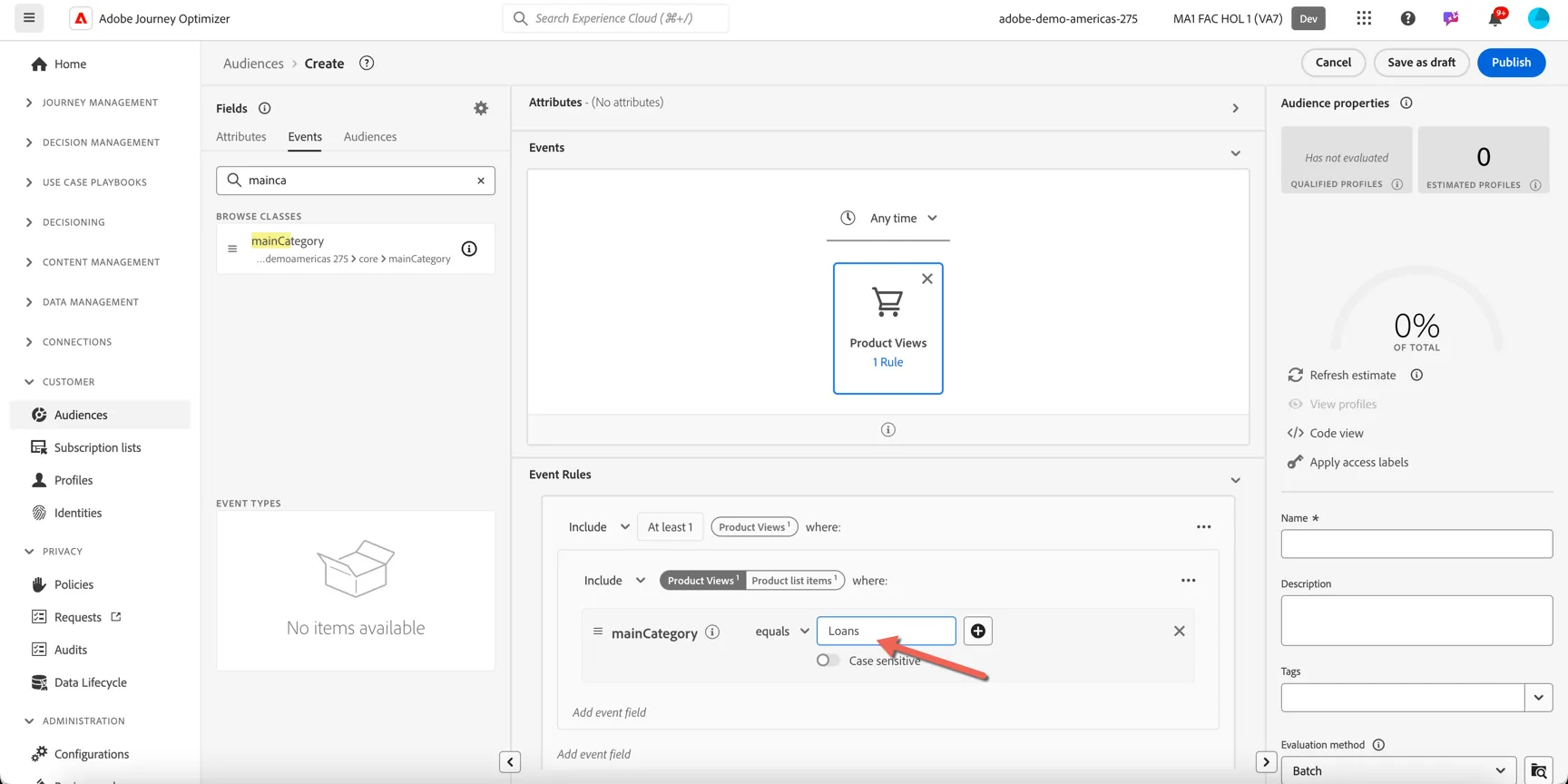
In the event rules section, set the mainCategory to equal Loans.
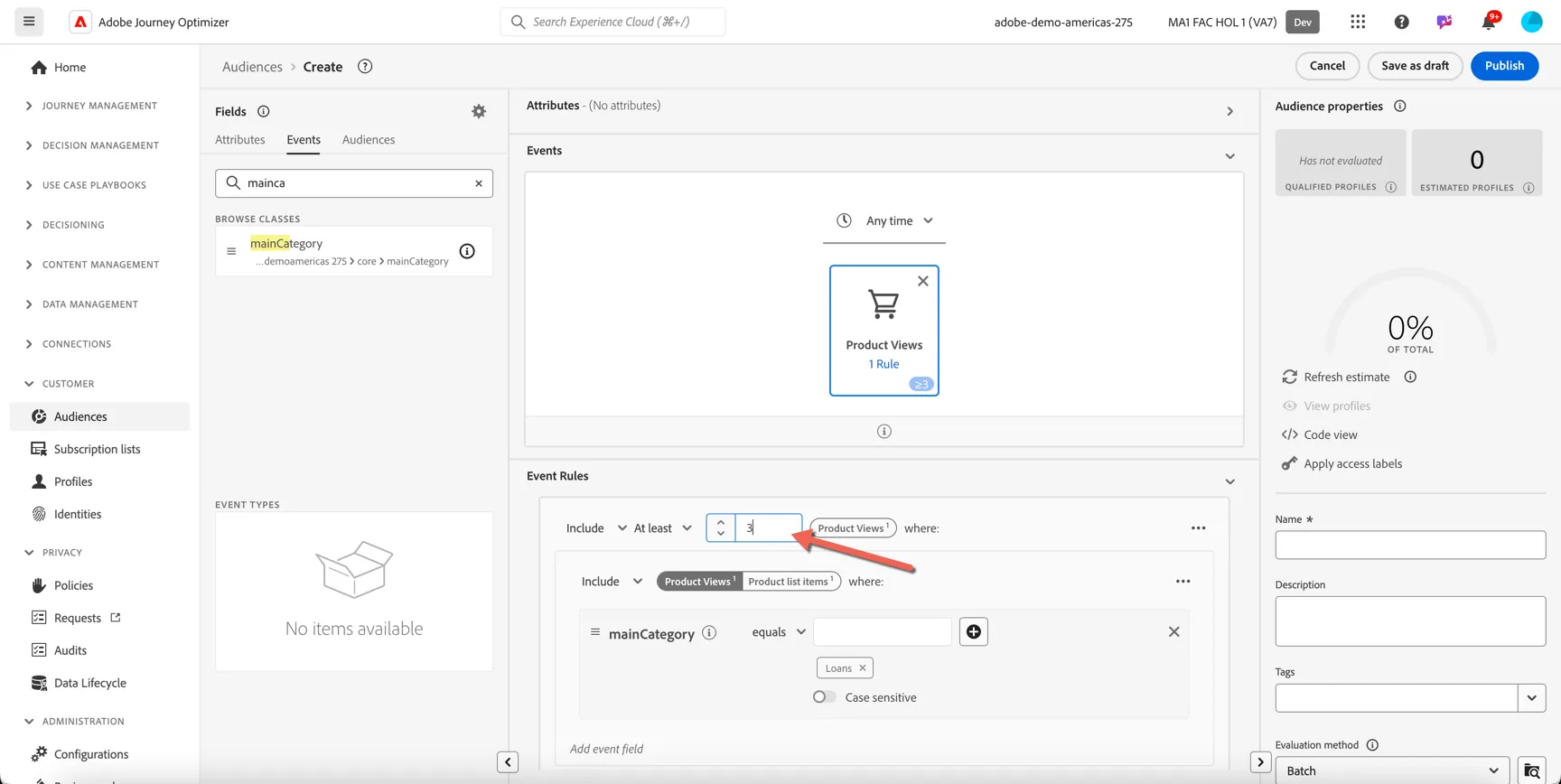
We only want customers who have looked at the product 3 or more times, change the event rule from include at least 1 to include at least 3.
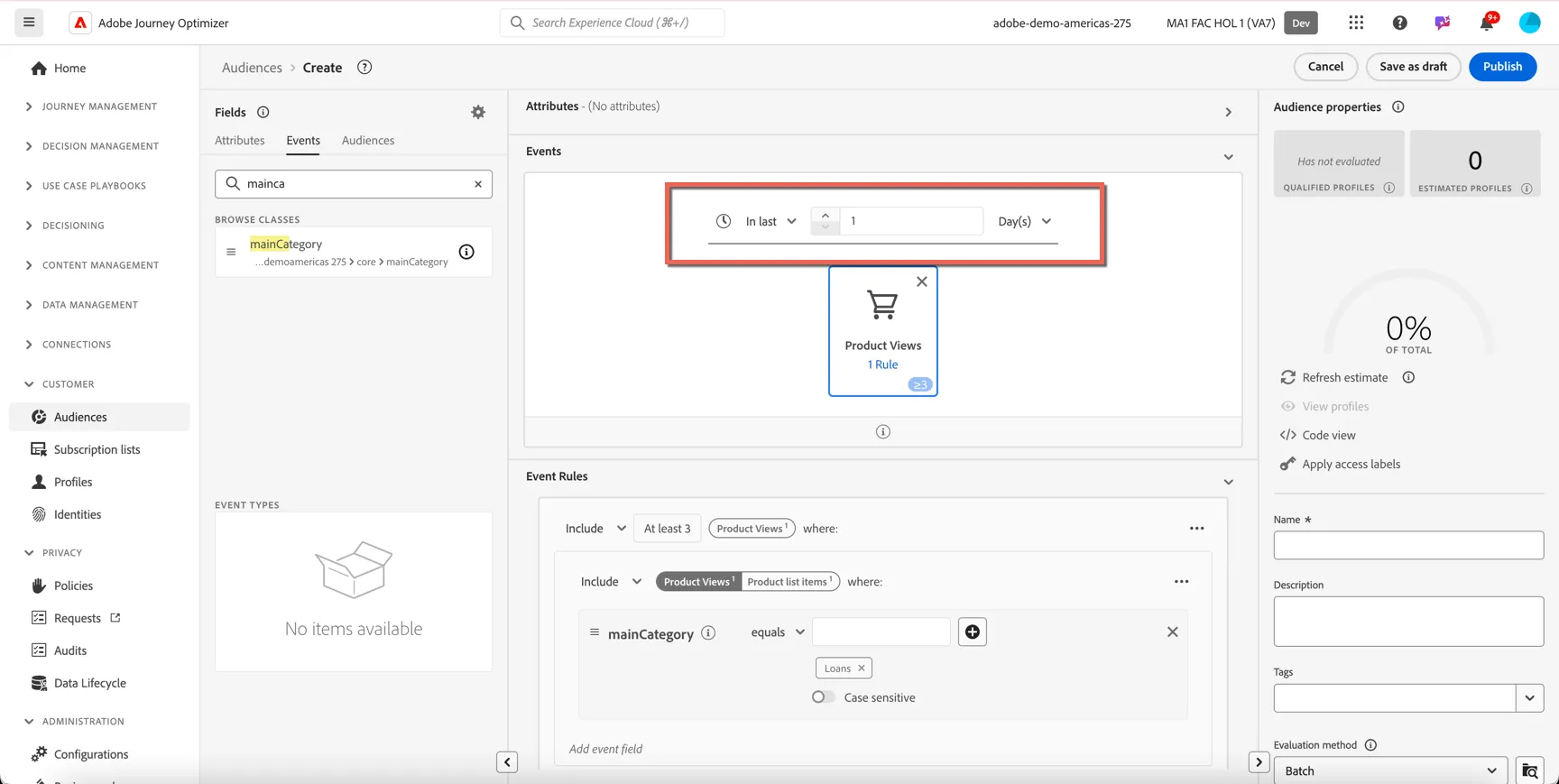
We want to limit the timeframe in which they've taken this action. Since this is going to trigger an "in the moment" experience set the lookback window to in last 1 day.
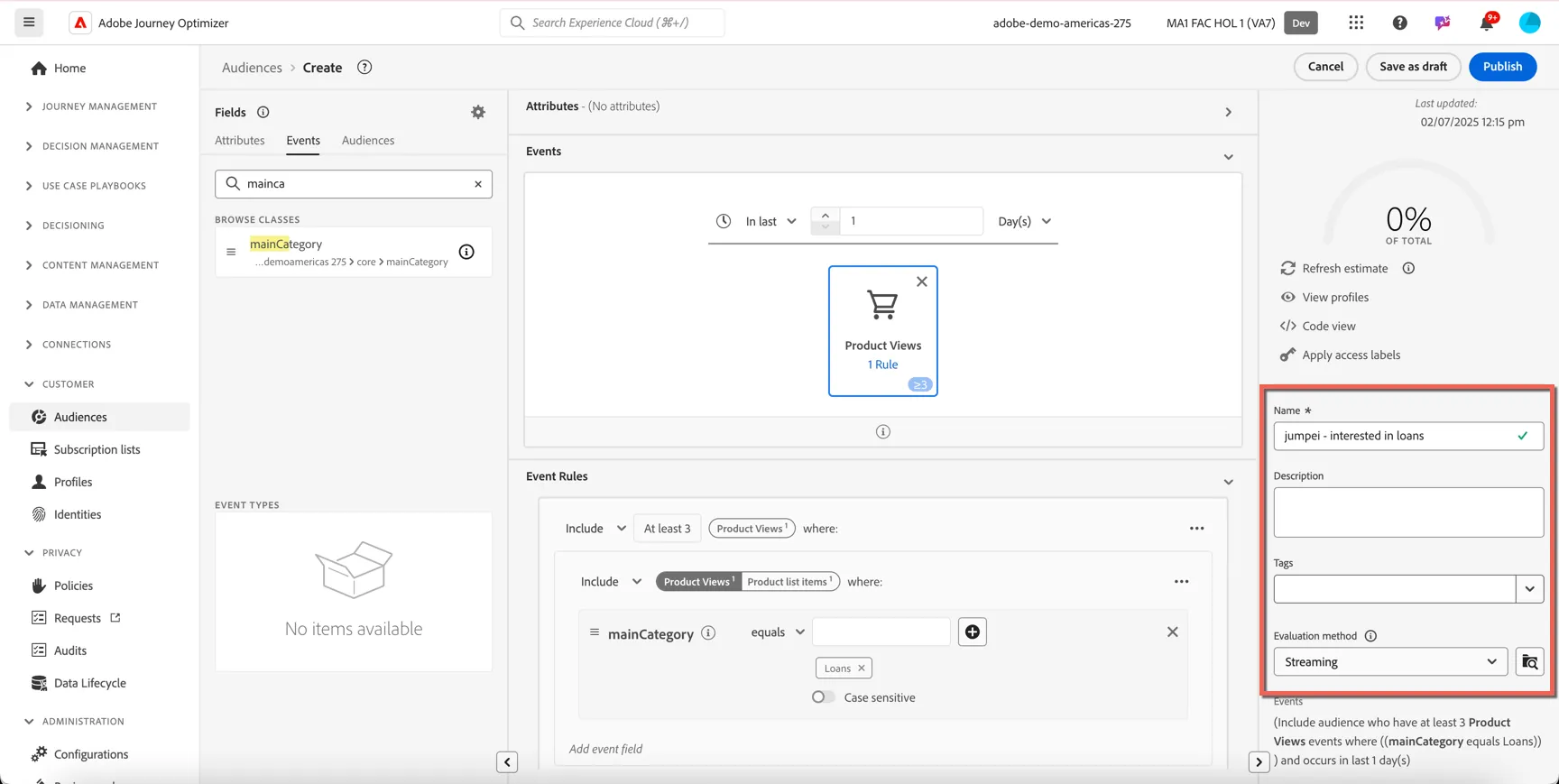
Lastly we need to give our Audience a name, description and set the evaluation method.
Add a name for your audience - include your name or lab number to recognise if from others in the class. Eg. jumpei - interested in Loans.
Set the evaluation method to Streaming.
Click Publish to finish creating your audience.
Congratulations you've created your first streaming audience.