Journeys
In this exercise you'll learn how to create a customer Journey triggered from a real time event in Adobe Journey Optimizer.
We will use a combination of real time data ingested from a website with federated data shared from your enterprise data warehouse.
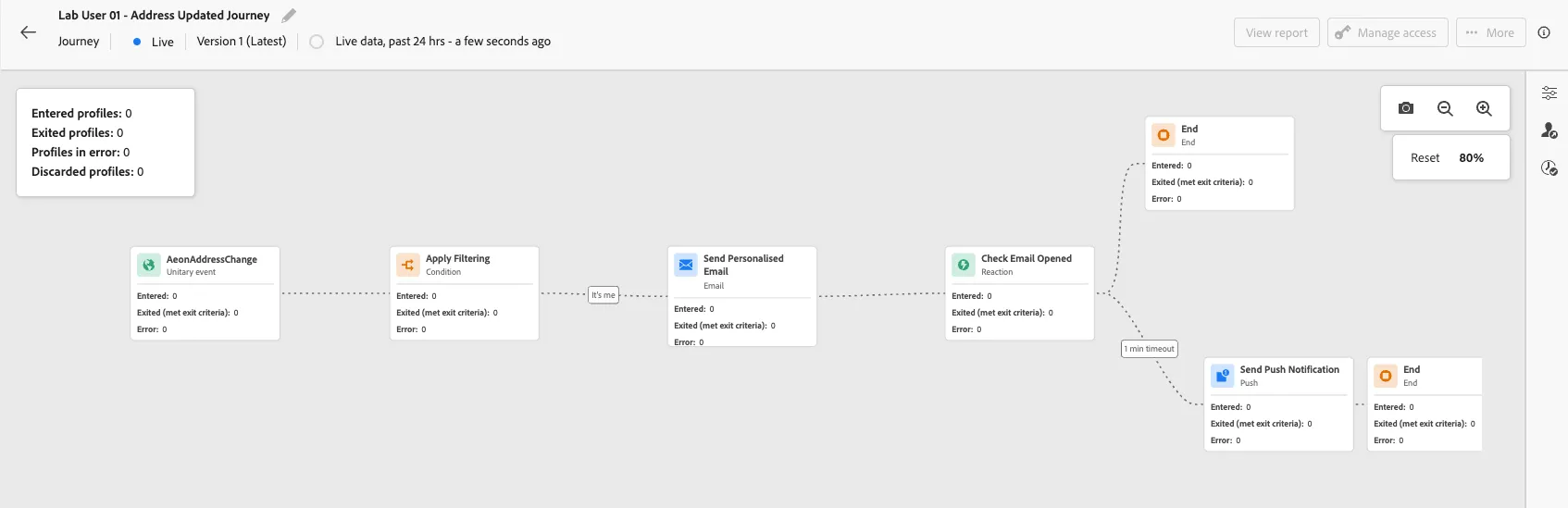
Our journey will start when a customer updates their address on the website. Since we're all building the same journey we'll add a condition to ensure only your profile continues in your journey, other profiles will exit. We'll configure an email and change the content of the email depending on whether the customer is under or over 20 using the federated audience you created in the previous exercise. If the email isn't opened within 2 minutes we'll follow up with a message on a different channel (push notification, inApp or Line).
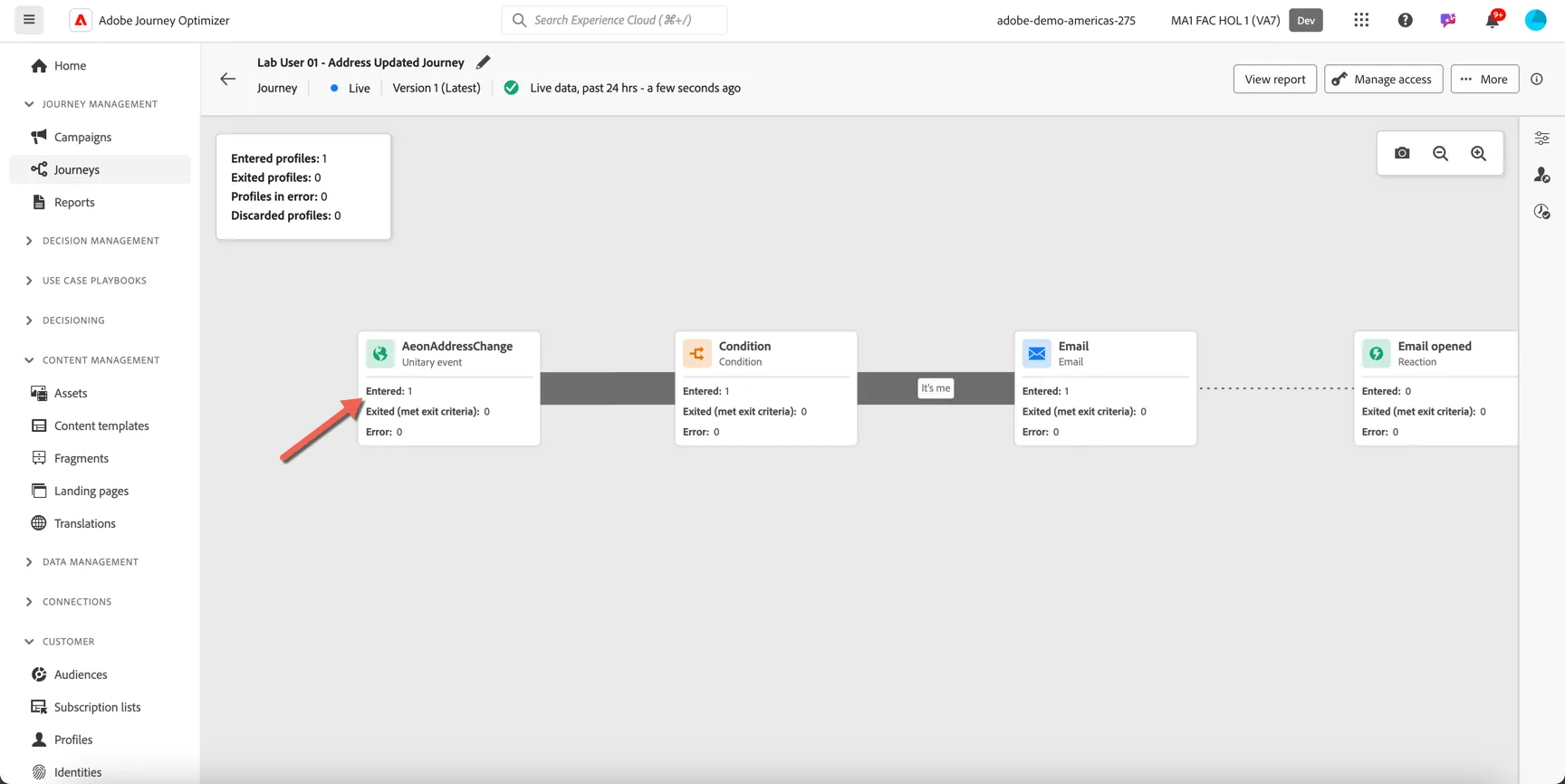
The final journey will look like this:
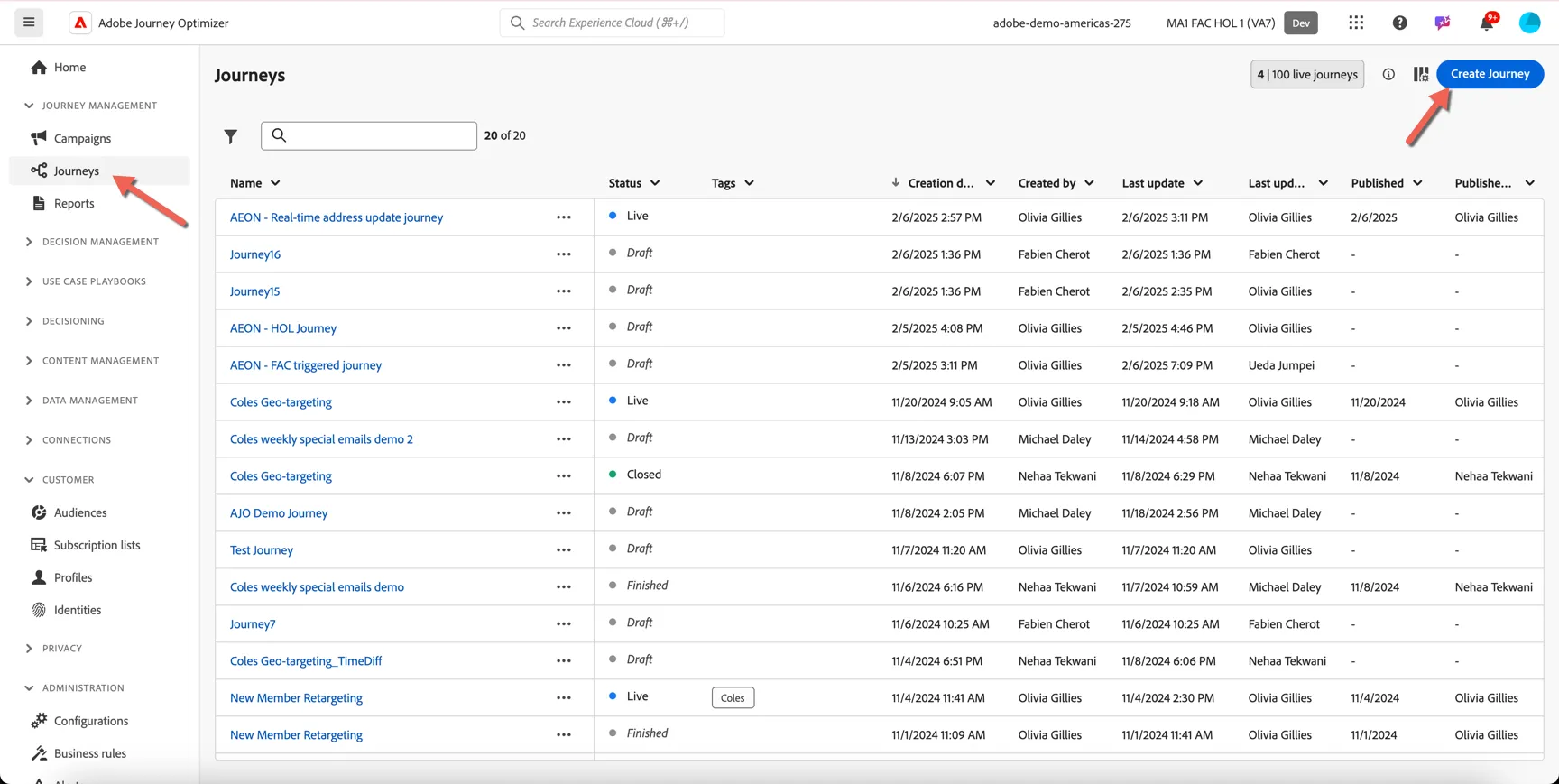
To get started, navigate to Journey Management -> Journeys. Click to Create Journey.
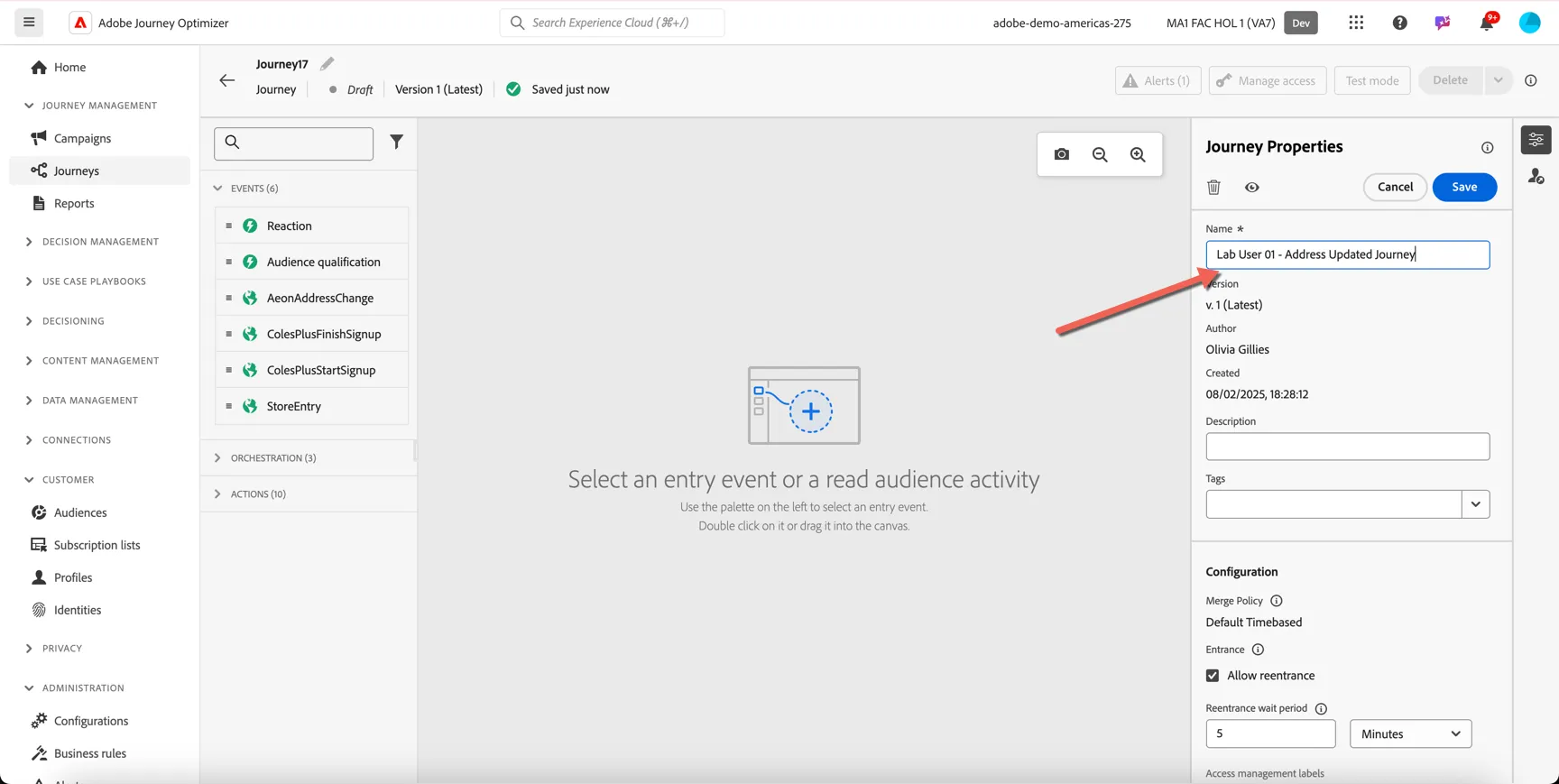
First, give your audience a Name, make it unique by including your lab number or name. Click to Save the Journey Properties
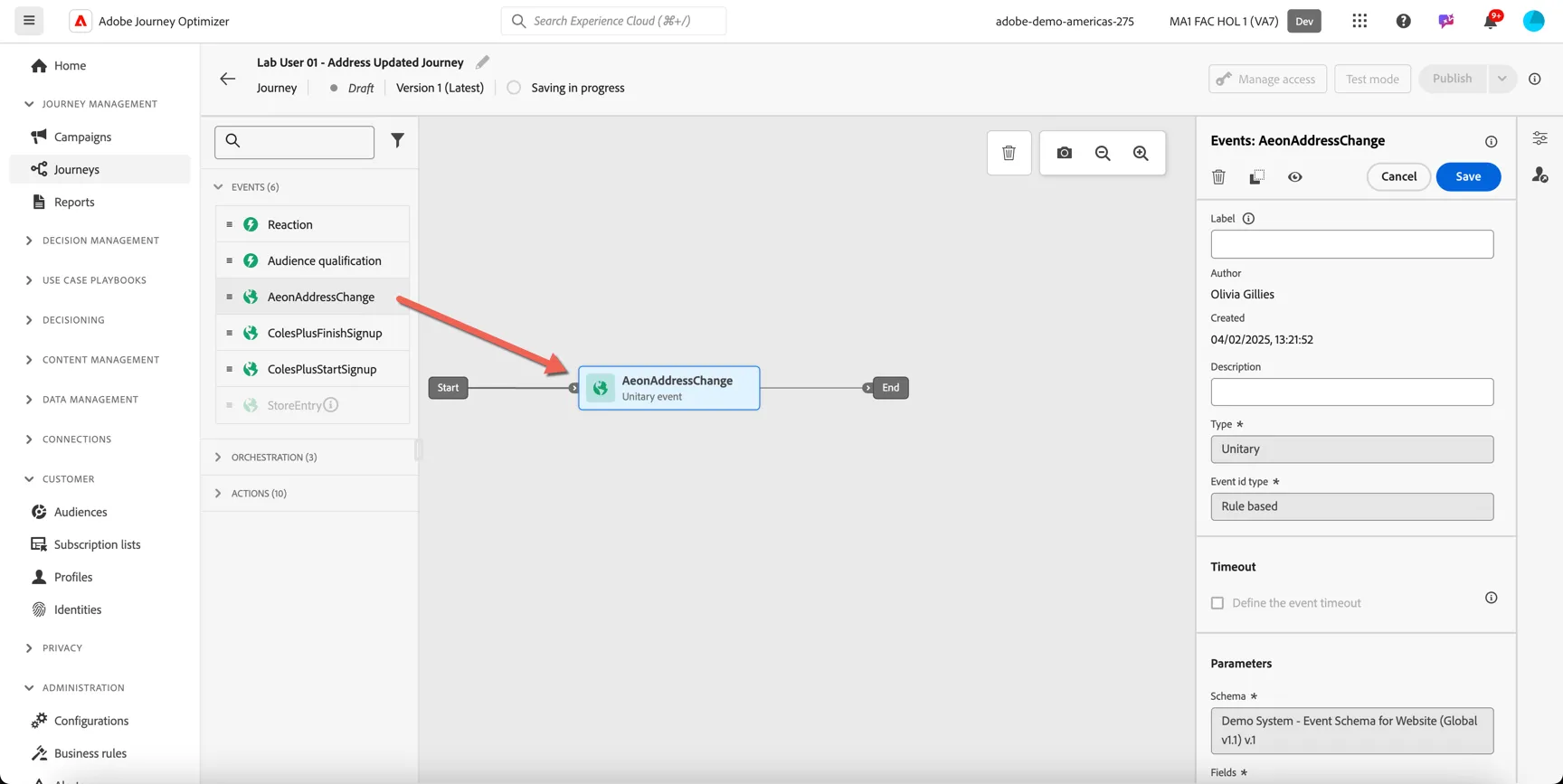
Any event that is received into Adobe Experience platform can be used to trigger entry into a journey but they must be configured by an administrator first in the Configurations area. This has been done for you already.
Drag the AeonAddressChange entry event into the journey.
Next add a condition from the orchestration menu.
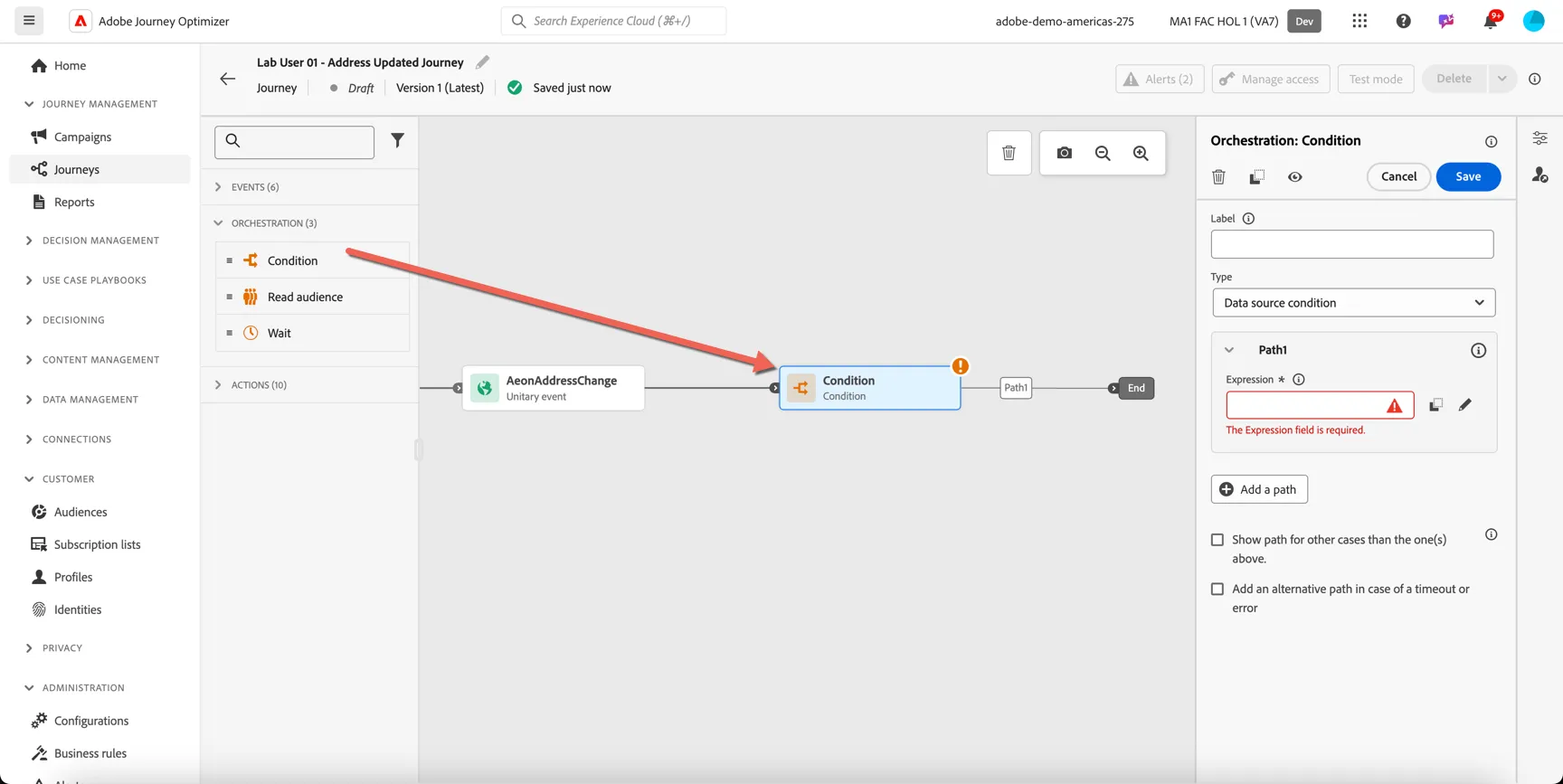
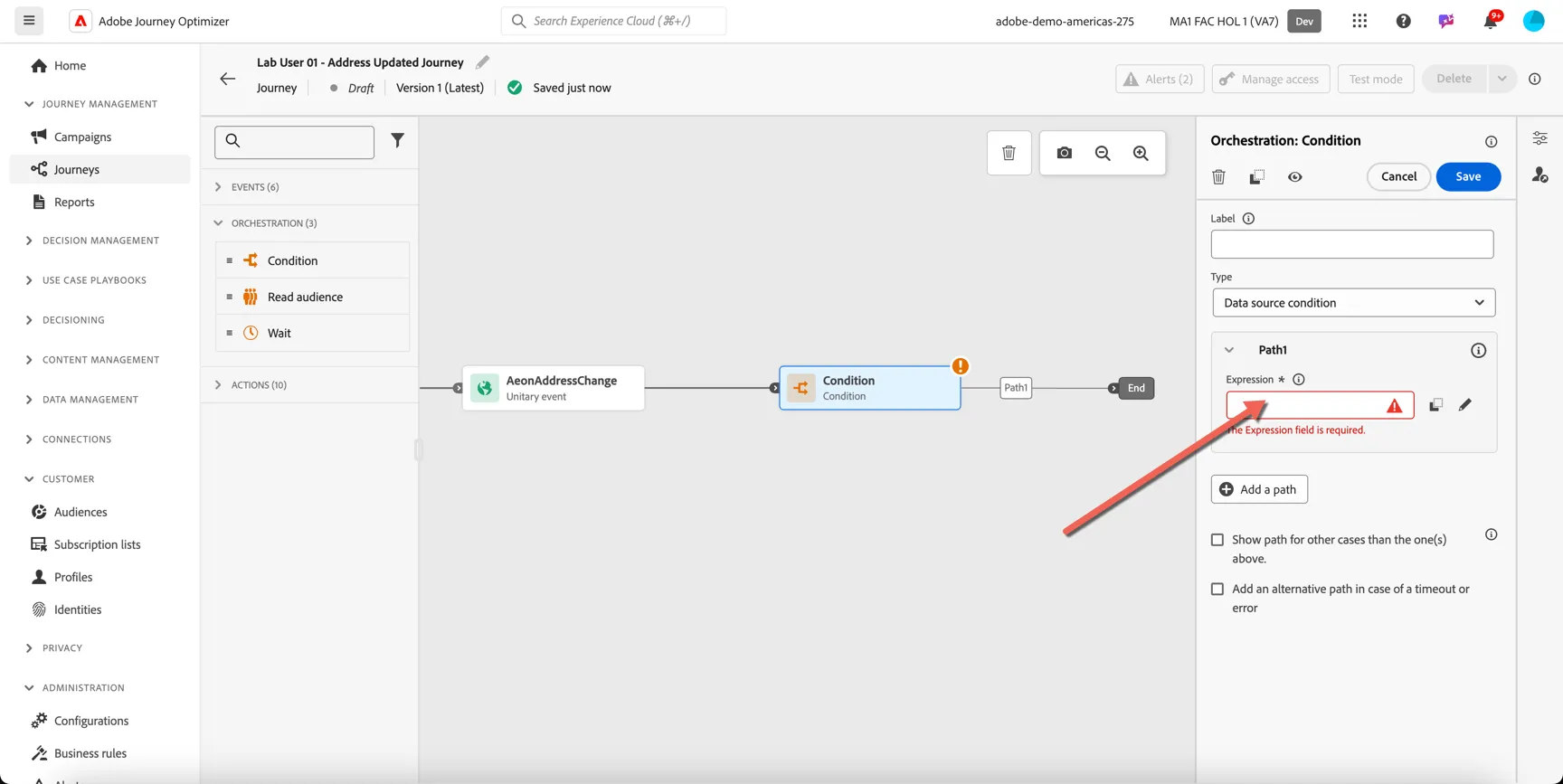
Click to configure the condition expression.
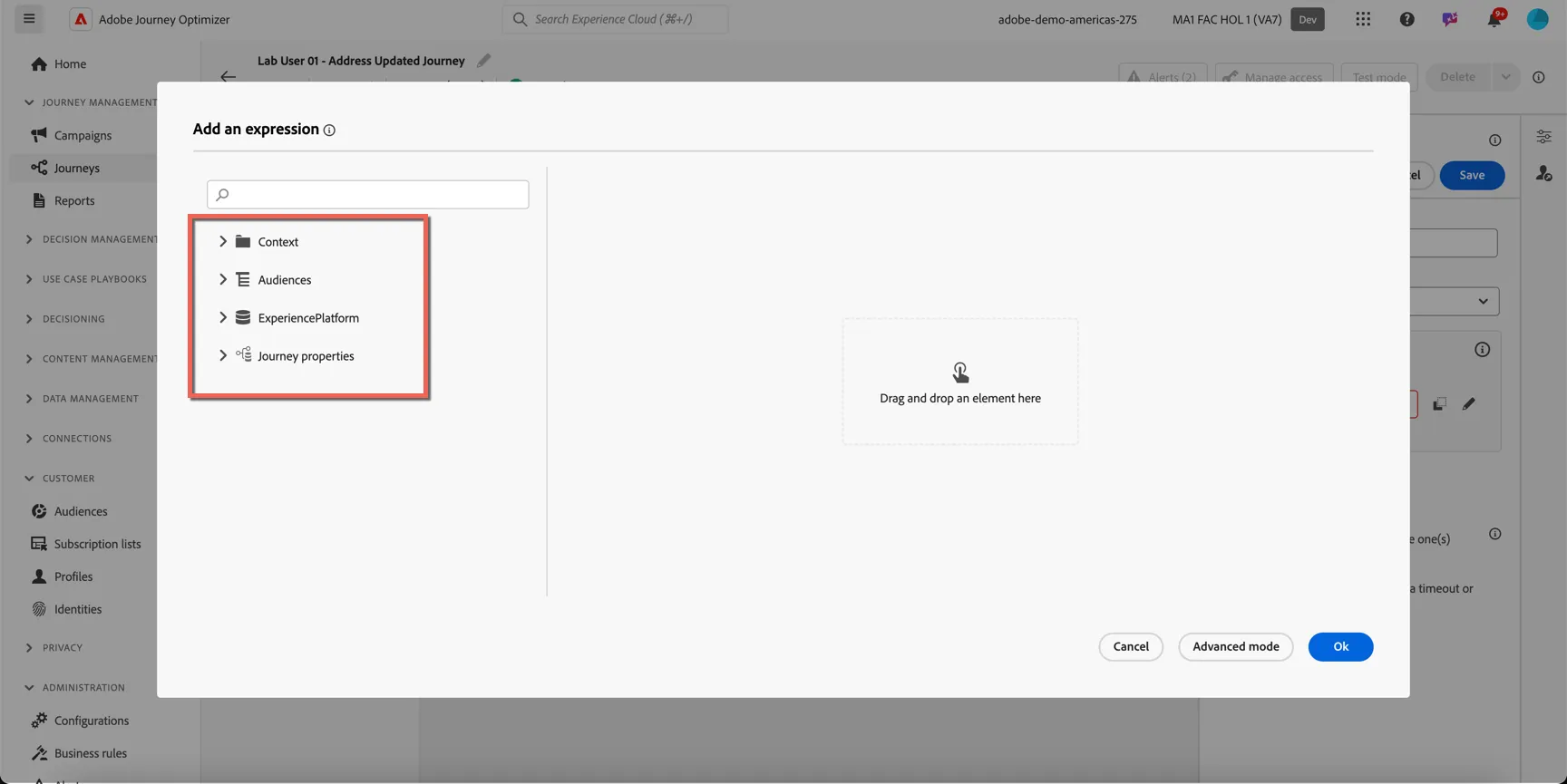
In the condition we have access to the:
- Context information included in the event that triggered the journey
- Audiences membership information
- ExperiencePlatform - attributes and other events stored on the profile
- Journey Properties
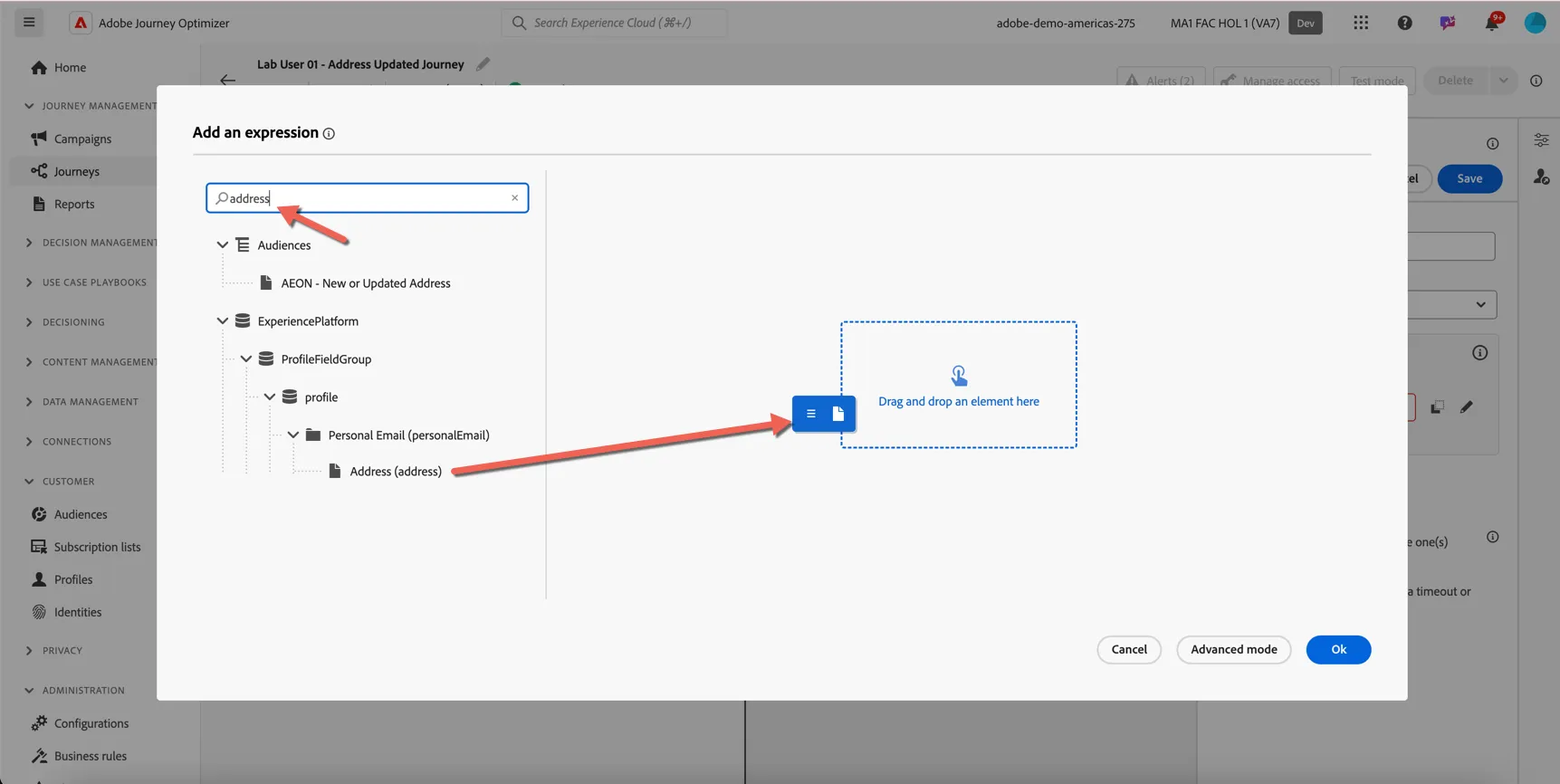
Search for address and drag the Personal Email -> Address attribute into the expression.
Set the value to the email address you used to login to the website earlier. This is your fake customer profile available on the Access page.
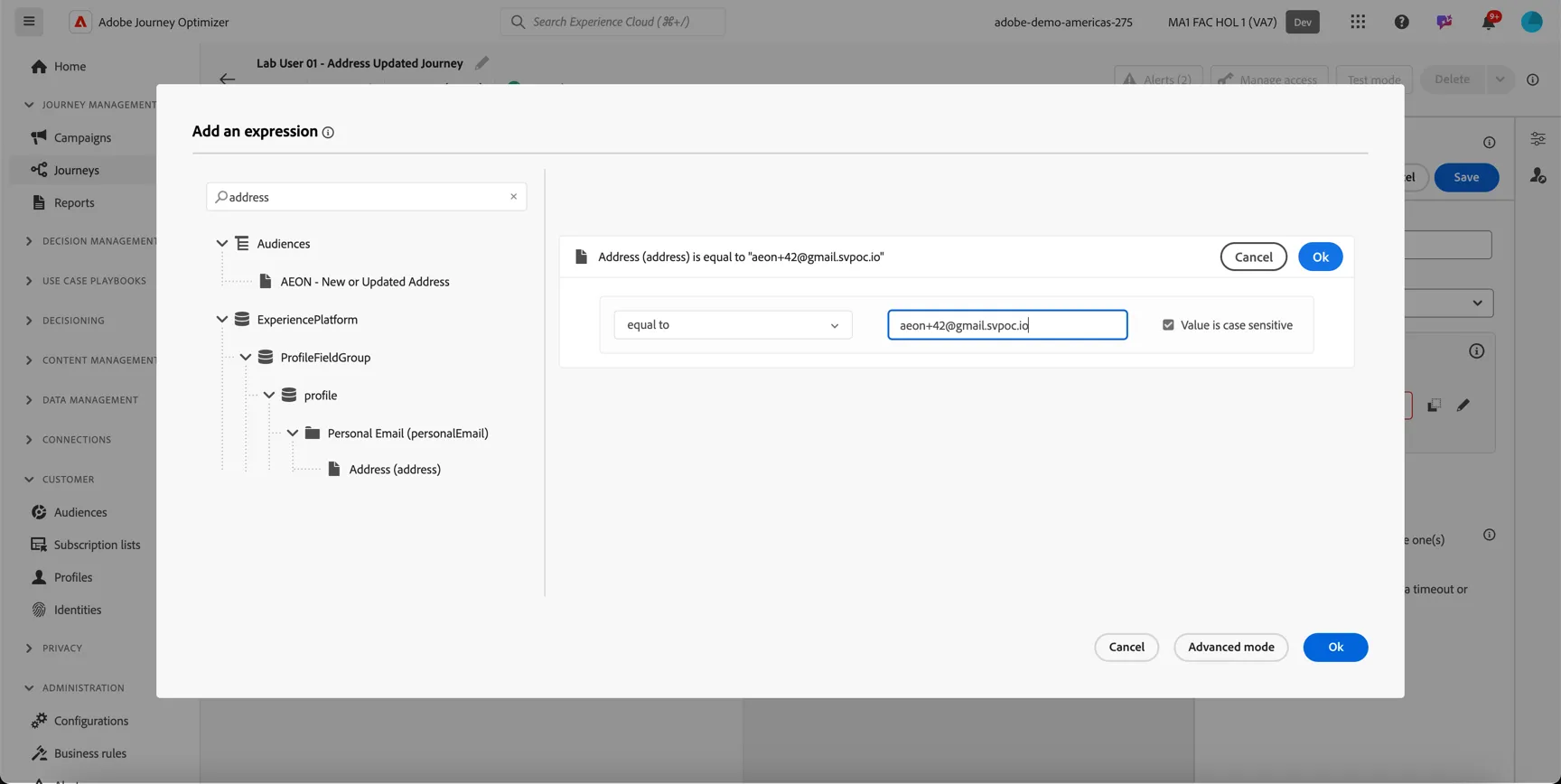
Click Ok to save the rule, then click Ok to close the expression editor.
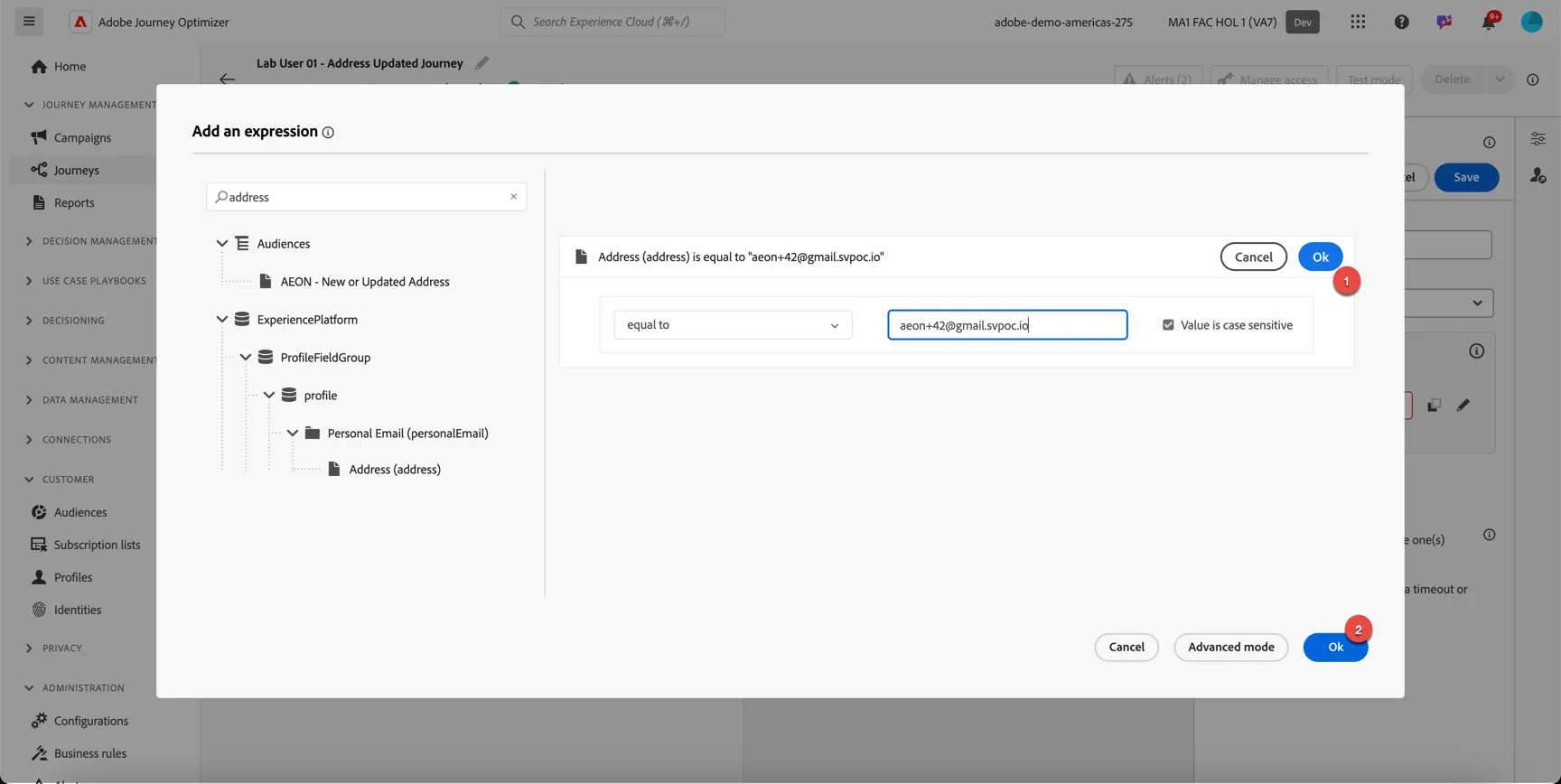
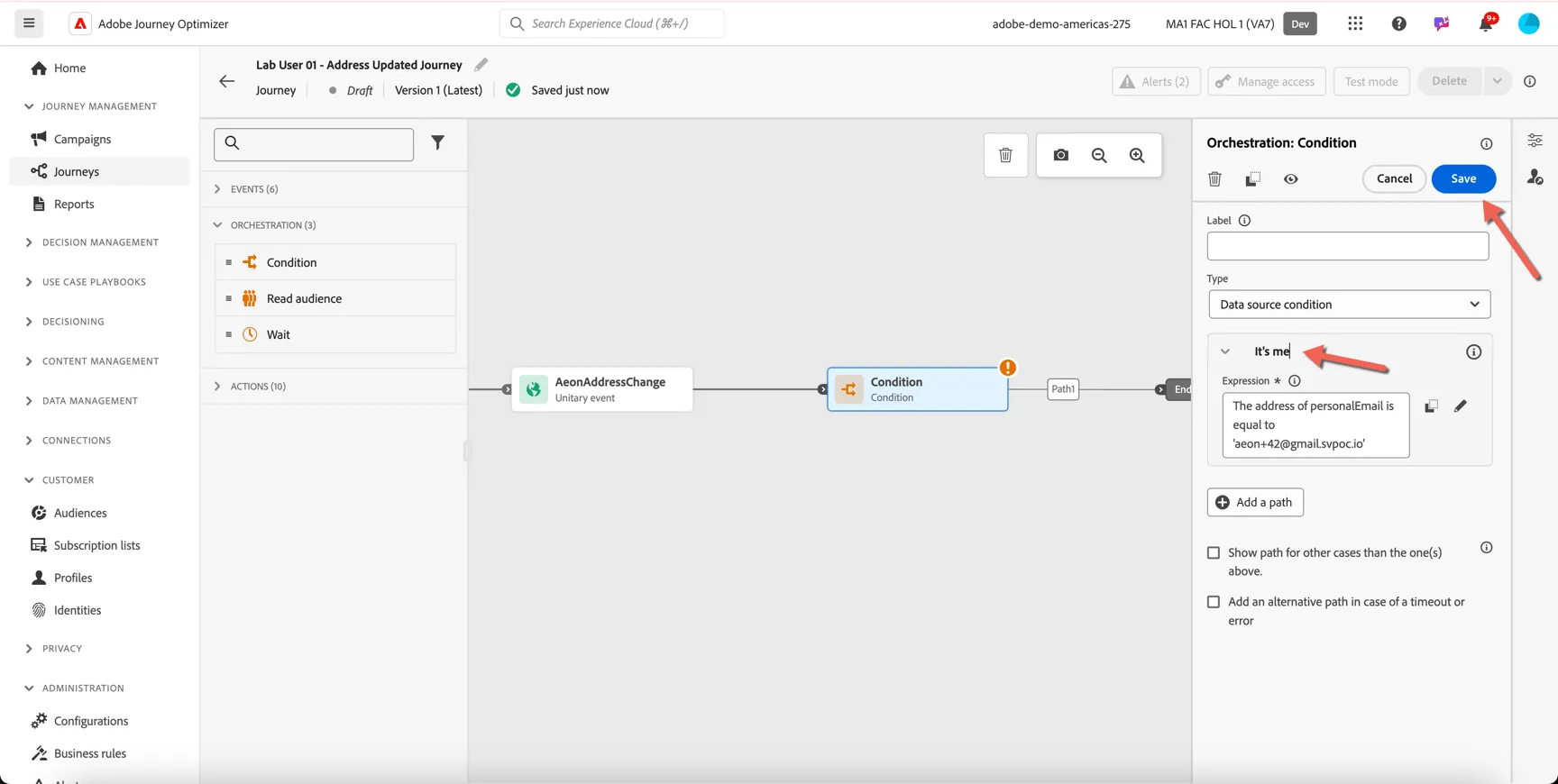
Update the label for the path to it's me. Then click to Save the condition activity.
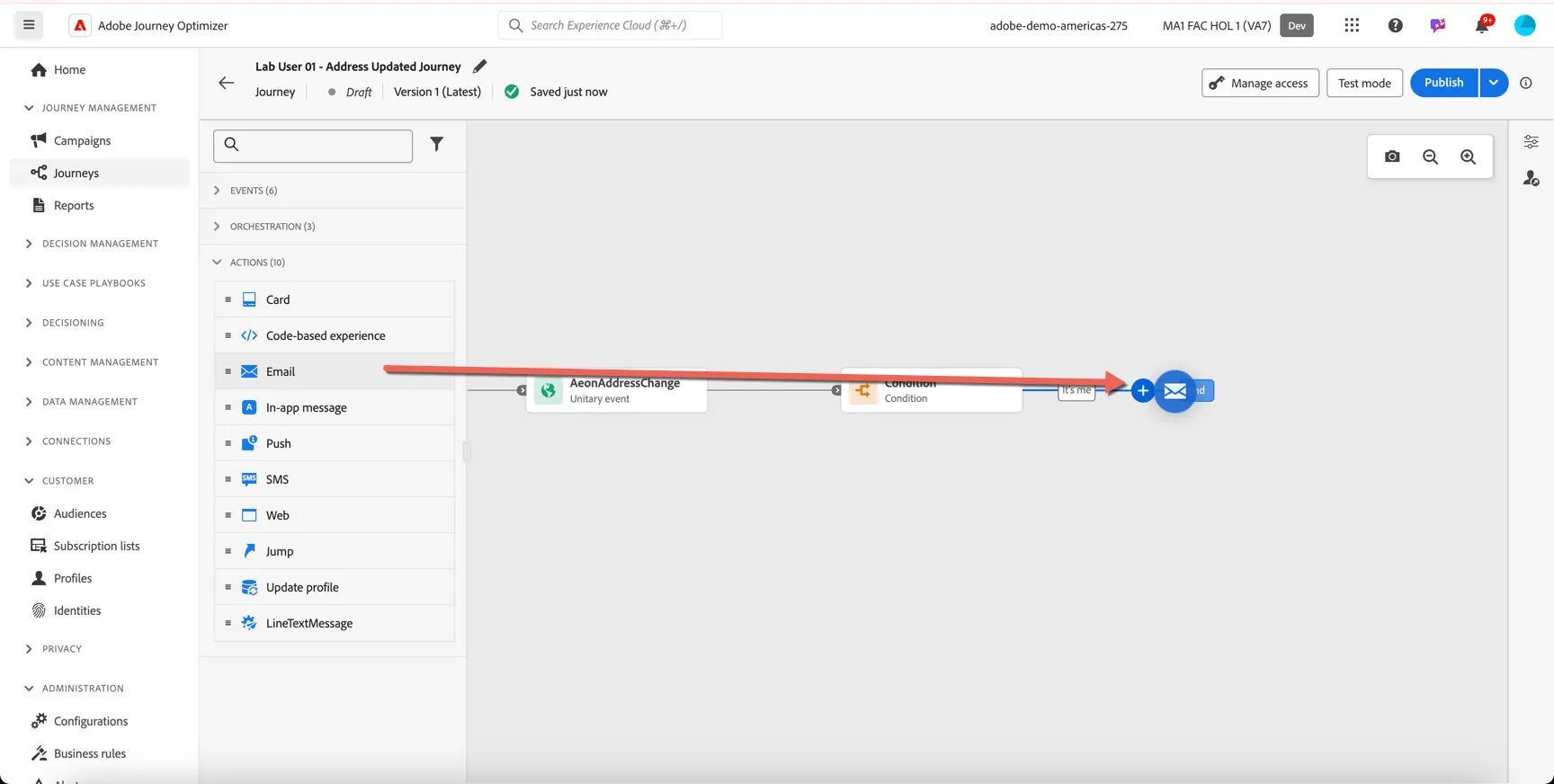
Next we'll add an email activity to the journey. From the actions menu, drag an Email to the end of your journey.
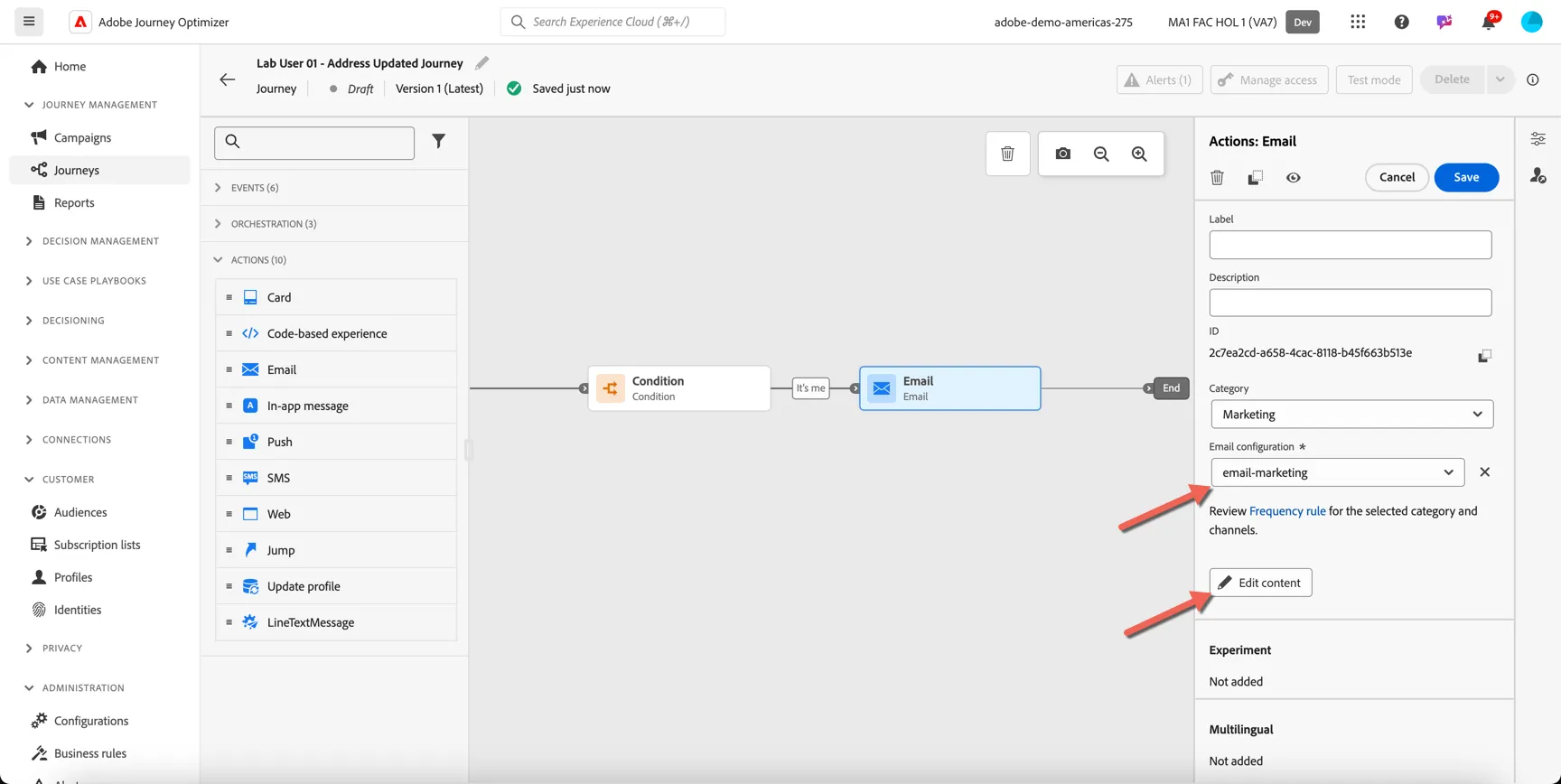
Set the configuration to email-marketing, this controls the sending domain and header information of your email. Then click to Edit Content.
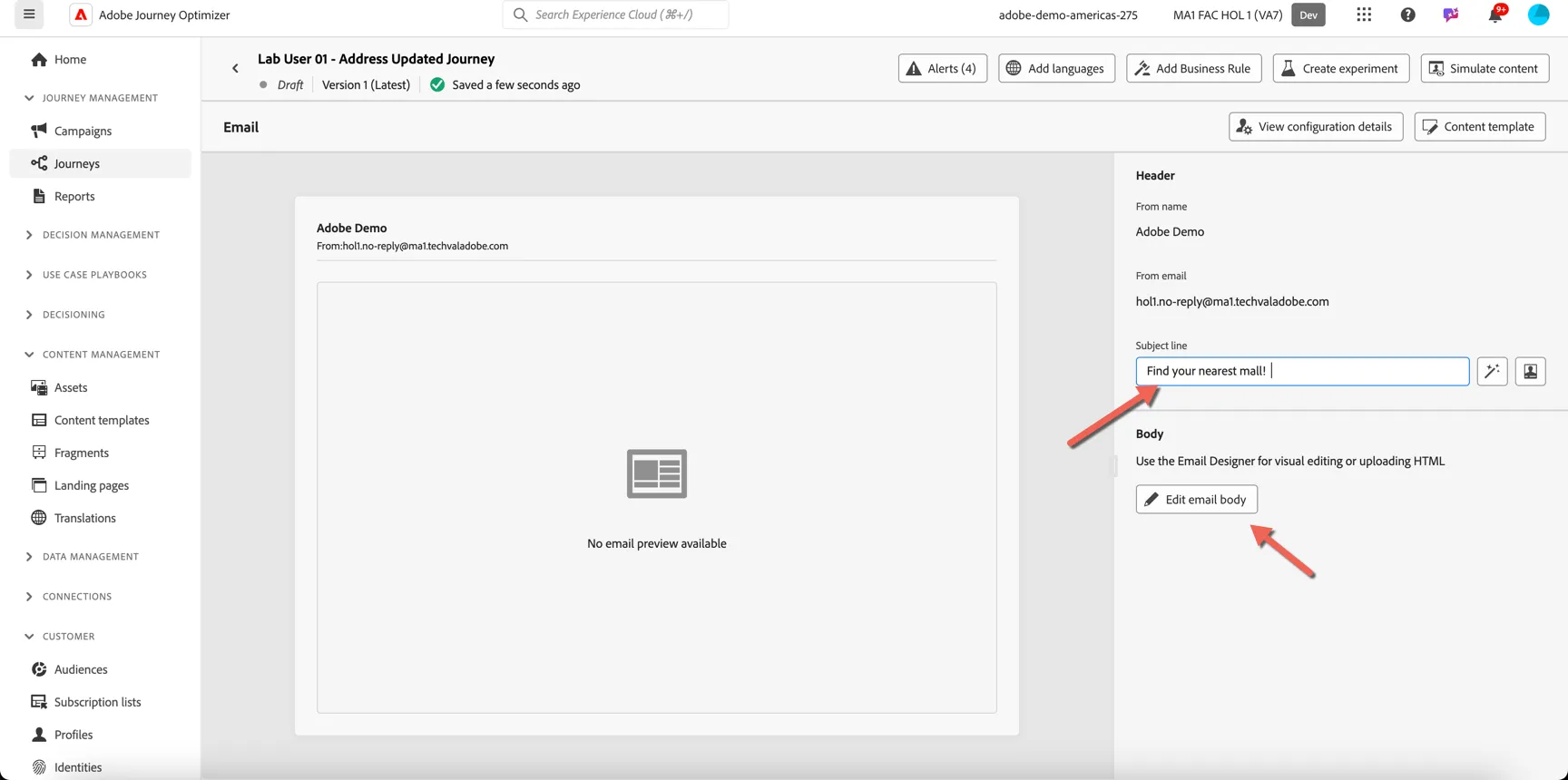
Add a subject line for your email then click to edit email body.
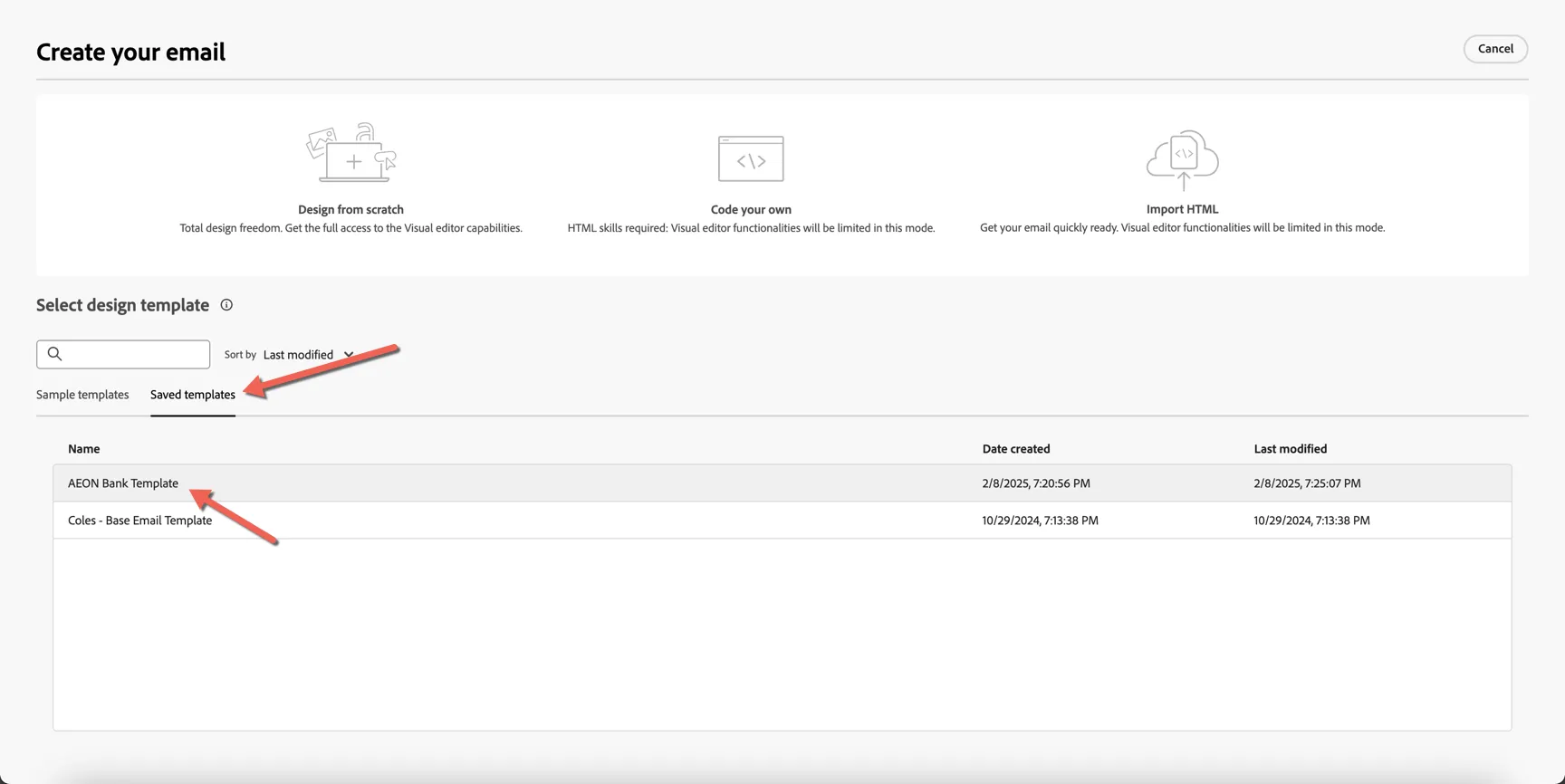
We'll start our email content from a pre-existing template, click on saved templates and choose the AEON Bank Template.
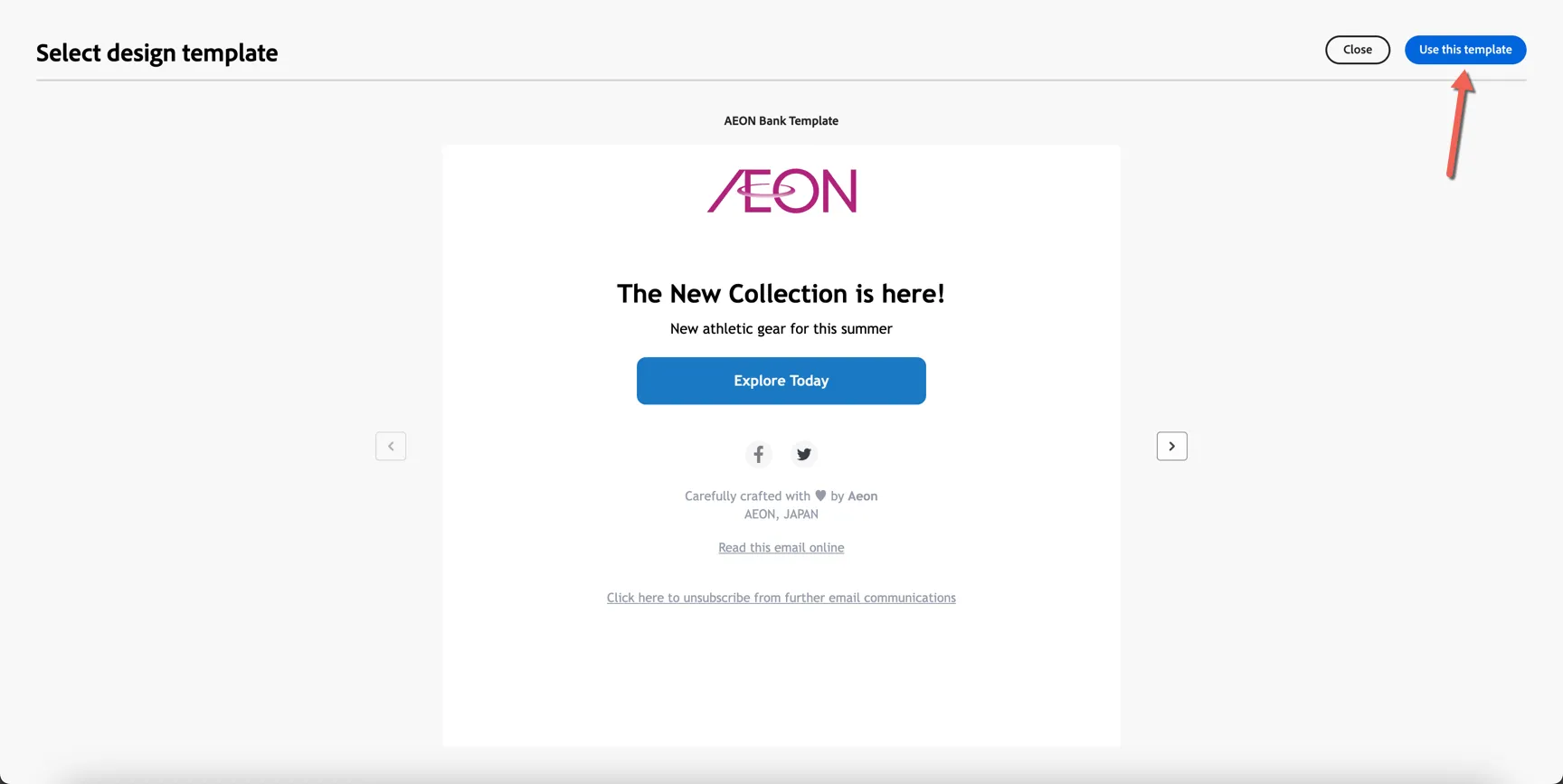
Click to Use the template
This opens the email editor. Update the banner image by clicking browse.
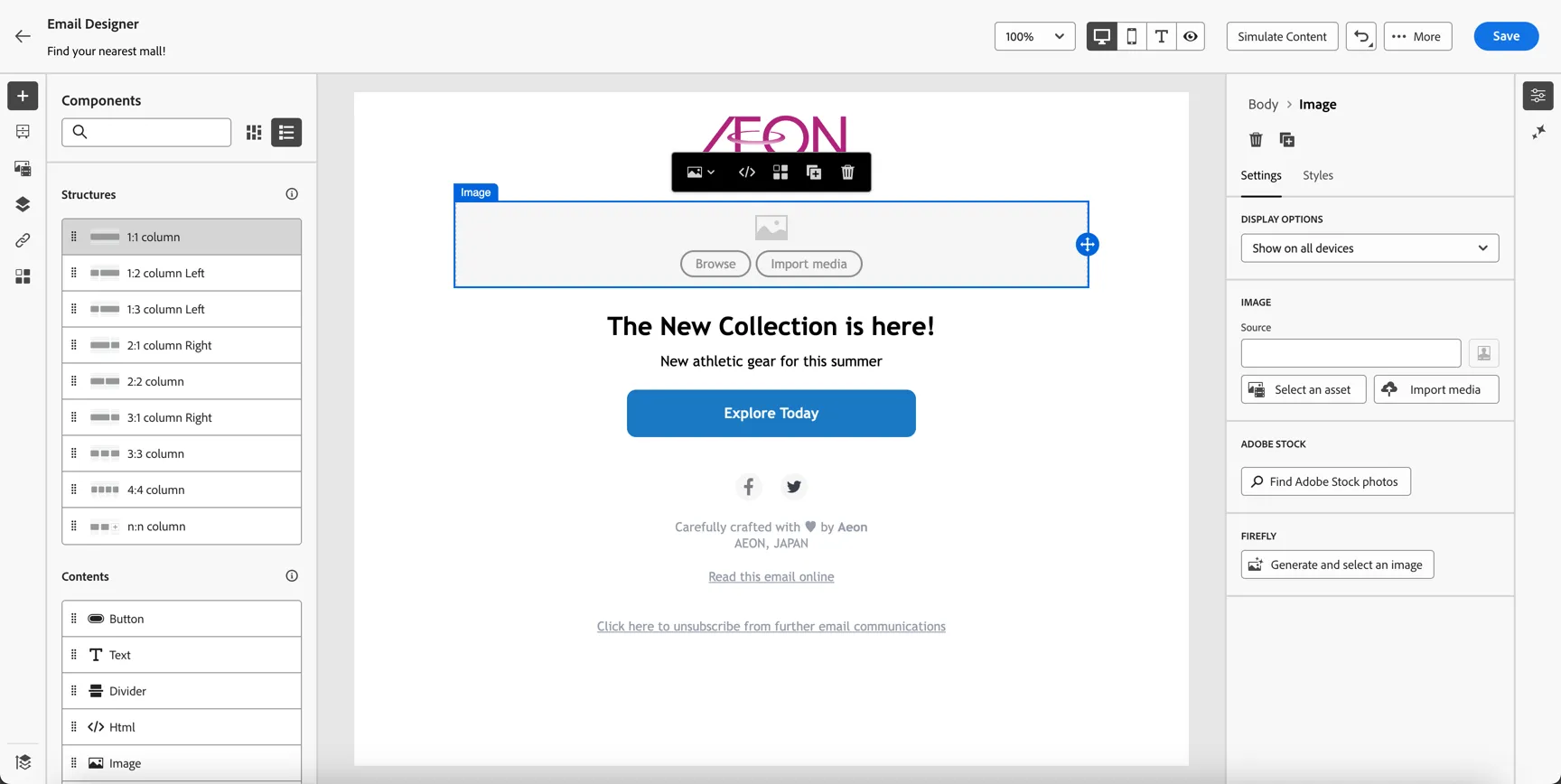
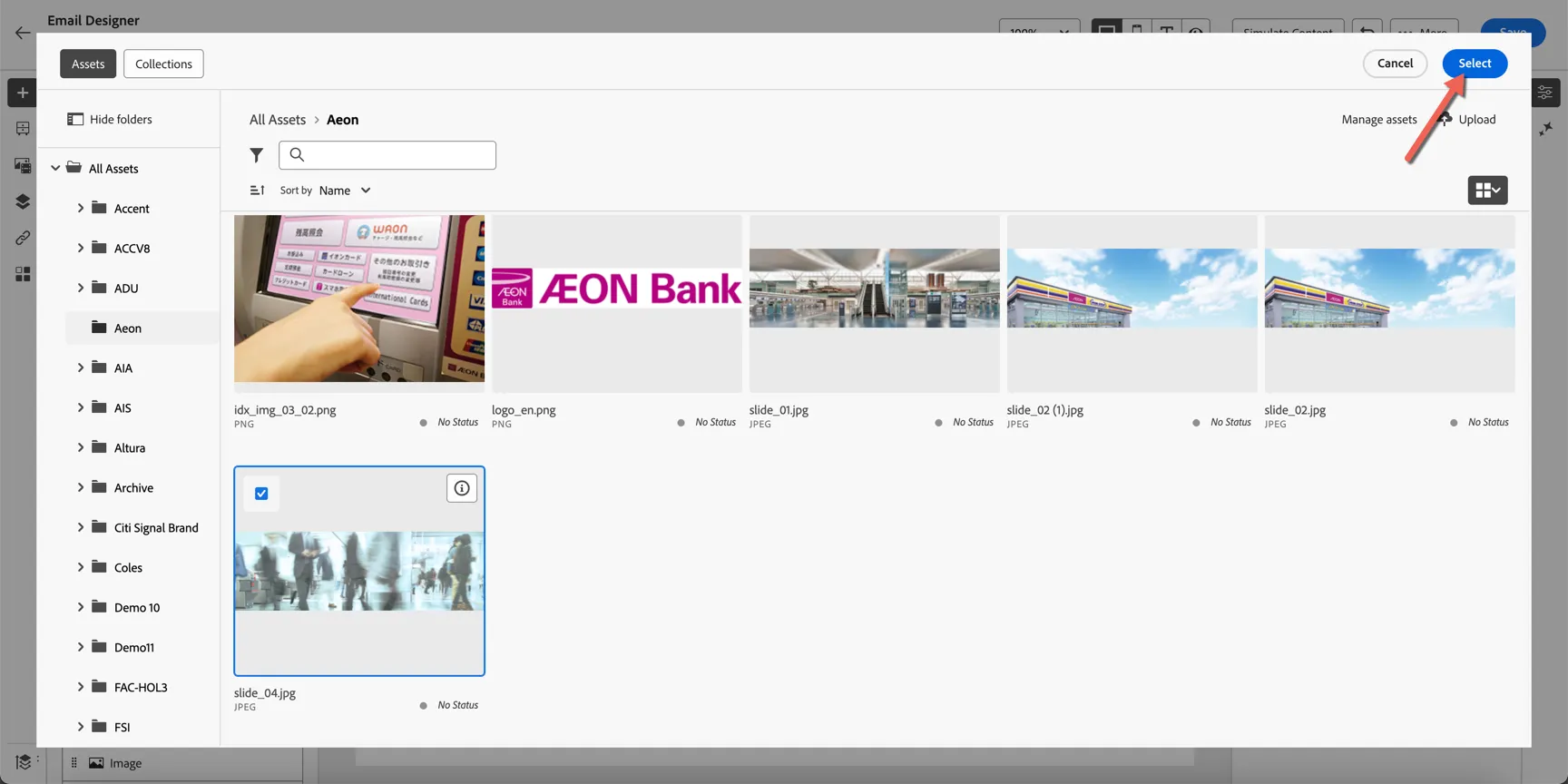
This opens the asset selector, upload a new asset or select one already loaded into the Aeon folder.
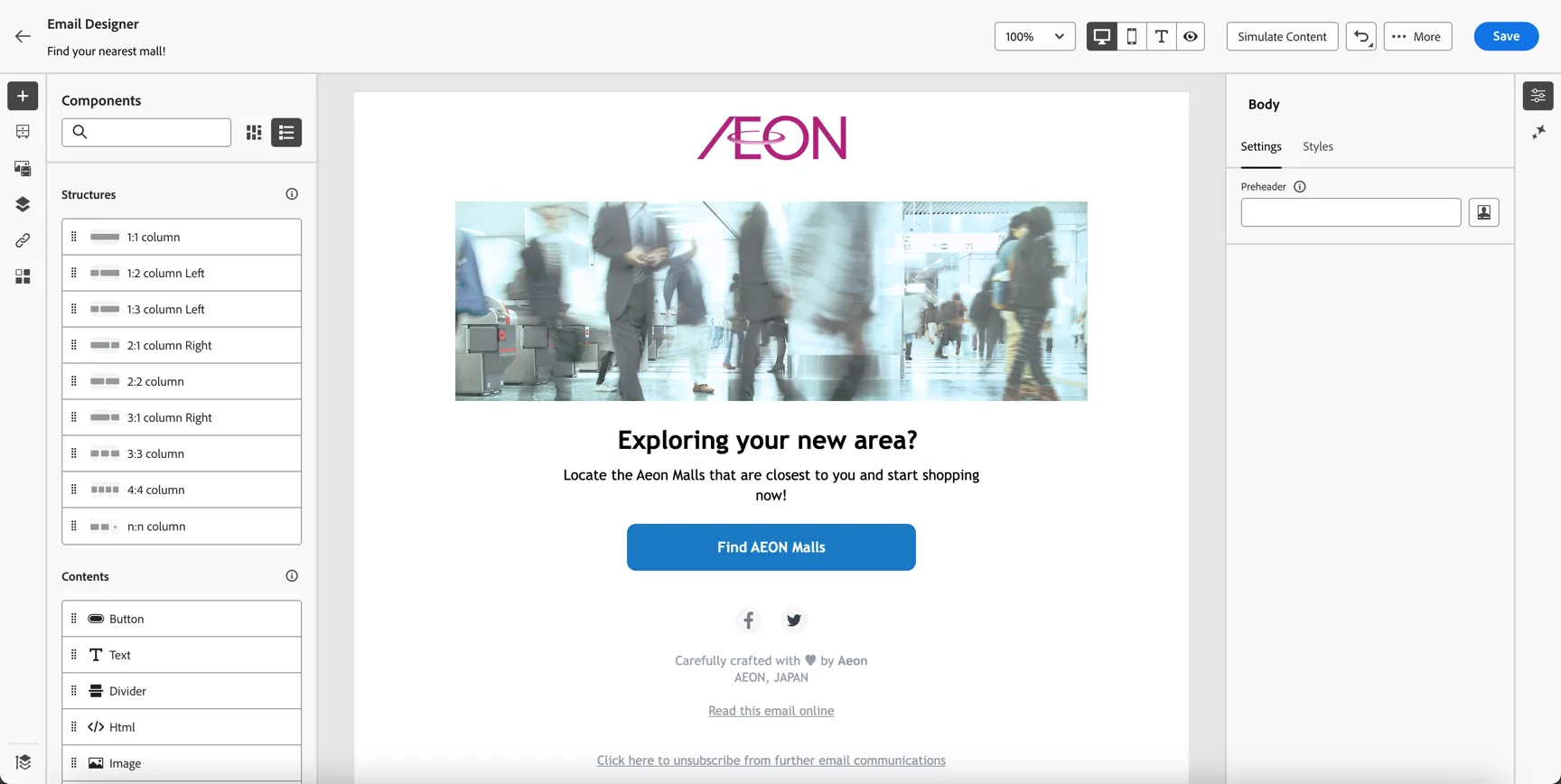
Update the text content as desired.
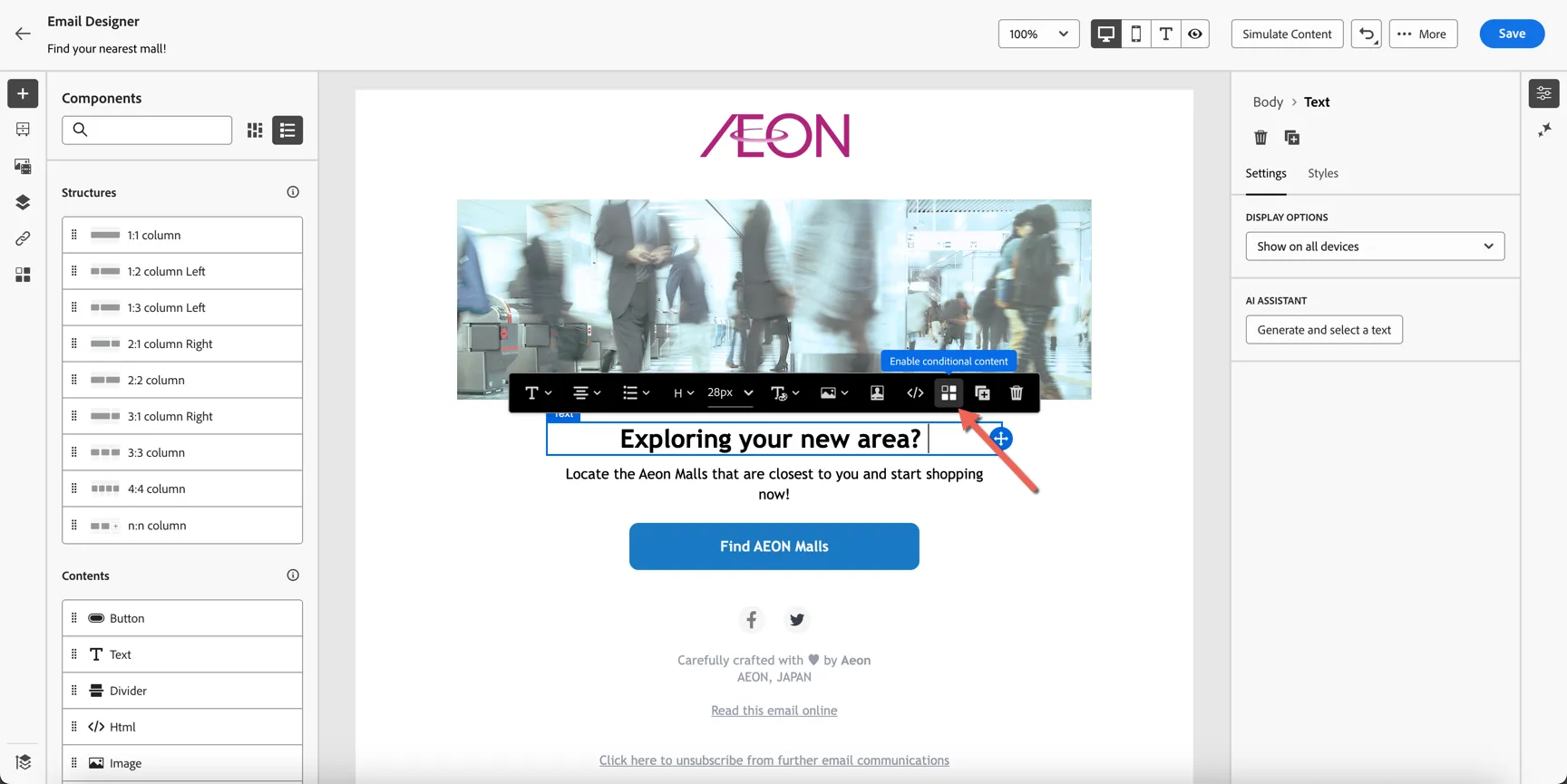
Next, let's personalize the heading text using the information shared from the federated database. Profiles under 20 will get a different heading. Click on the heading and select to enable conditional content.
This allows you to create multiple variations for the same piece of content. On the left we can see the default variant plus a new variant. Select to add a condition for the variant.
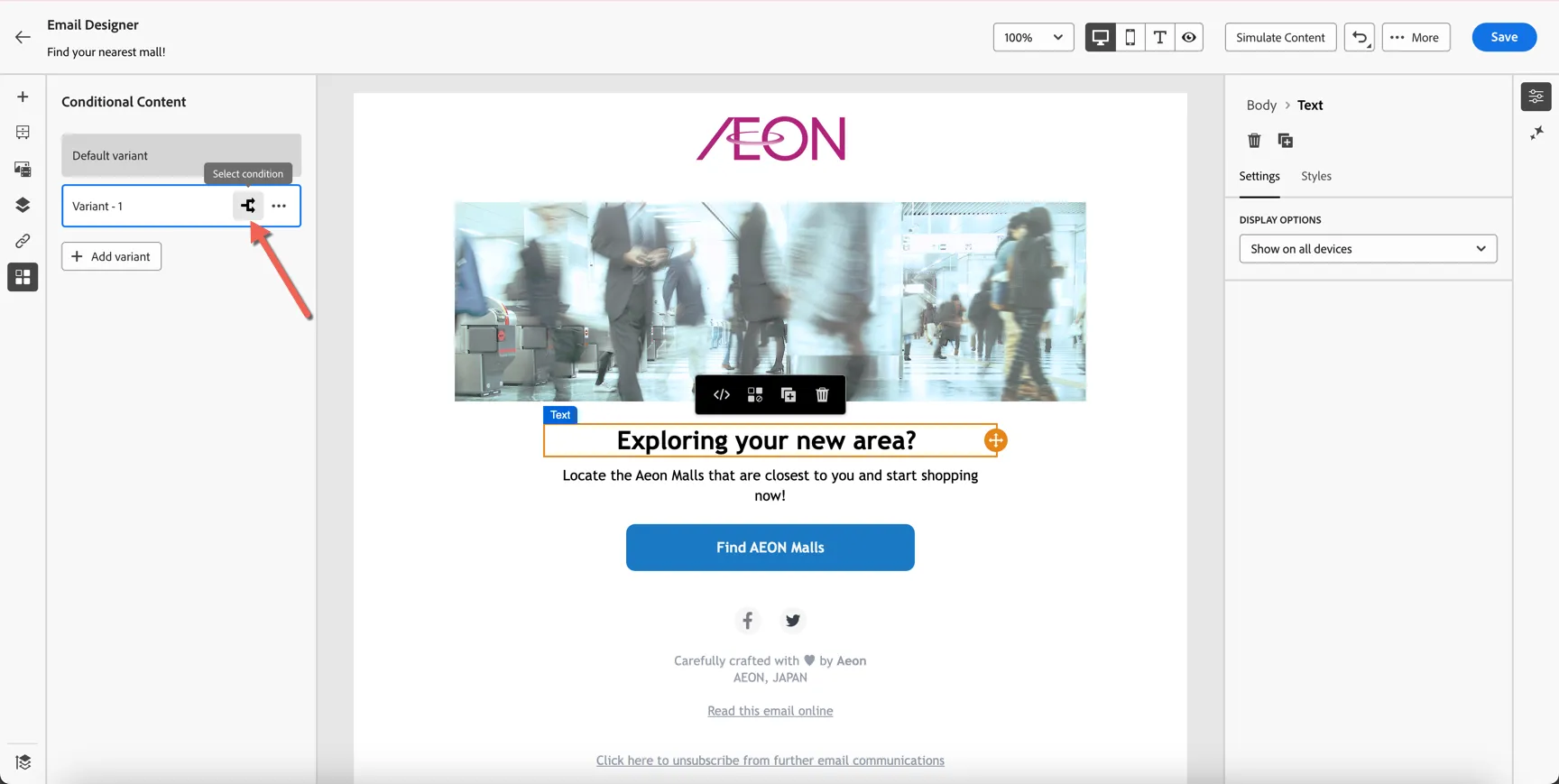
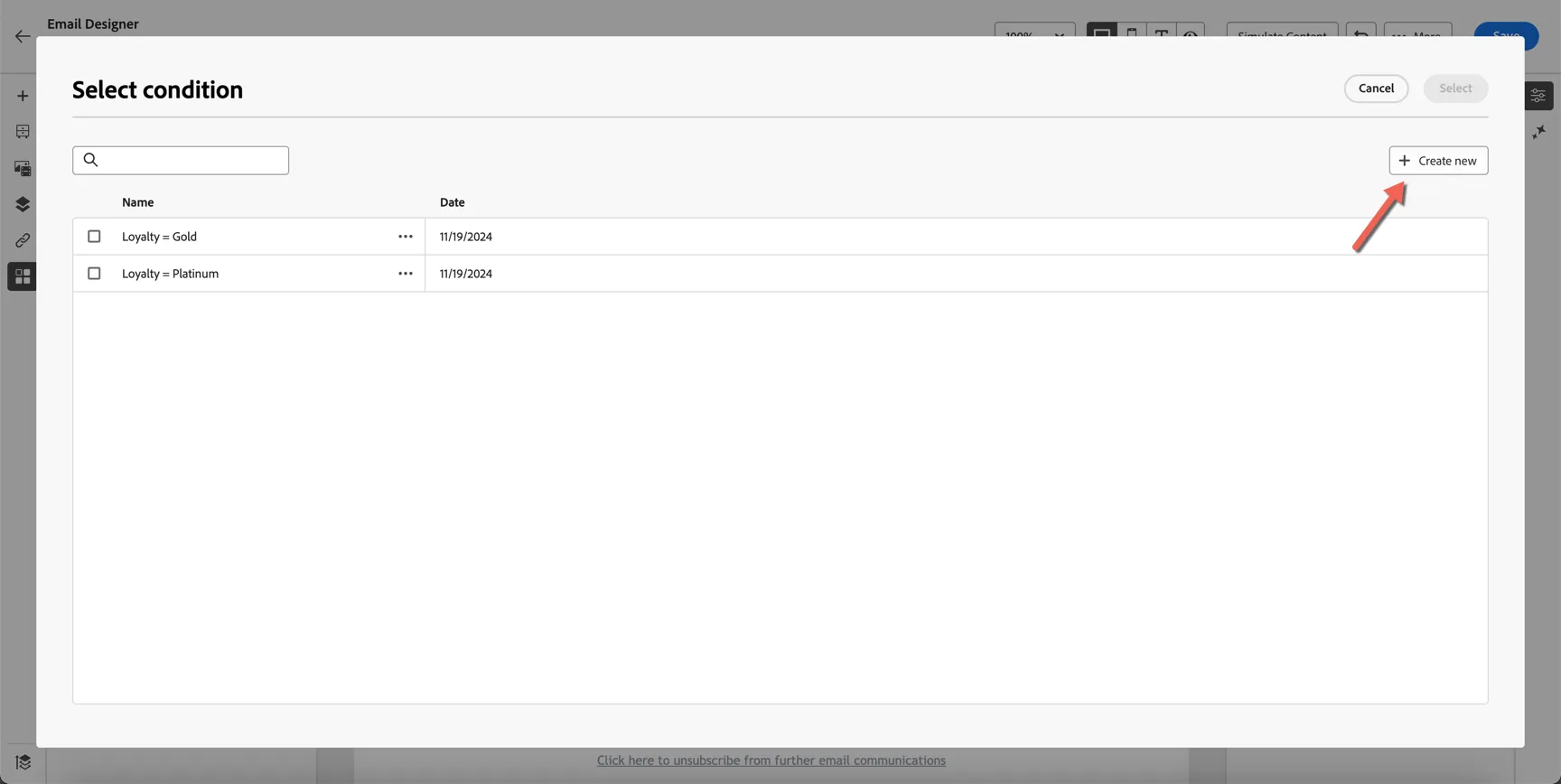
This opens the condition editor where you can select conditions you've created and saved previously. Click to create a new condition.
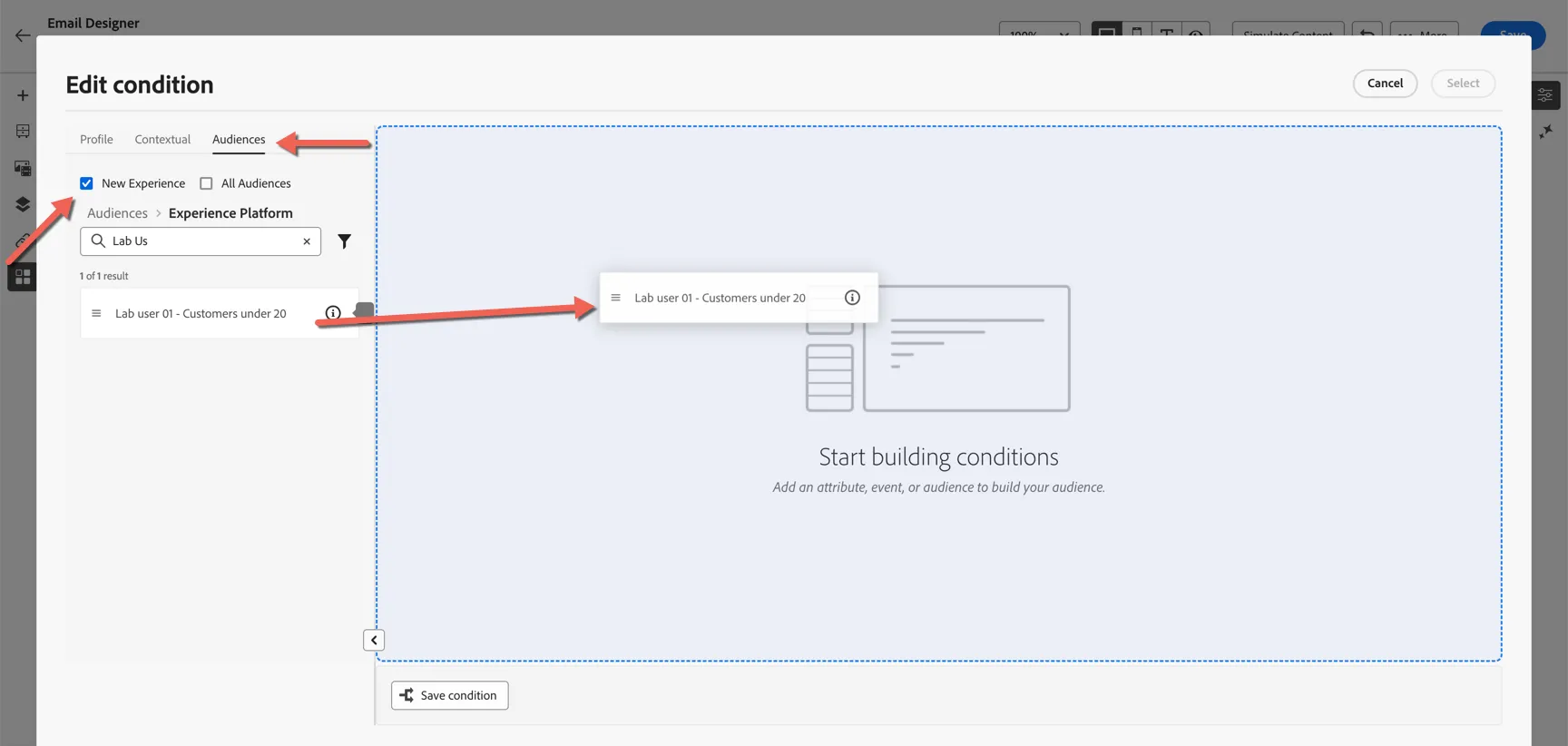
We're going to use the federated audience you created in the last exercise. Go to the Audiences tab and tick the checkbox for the new experience. Search for your audience and drag it into the editor.
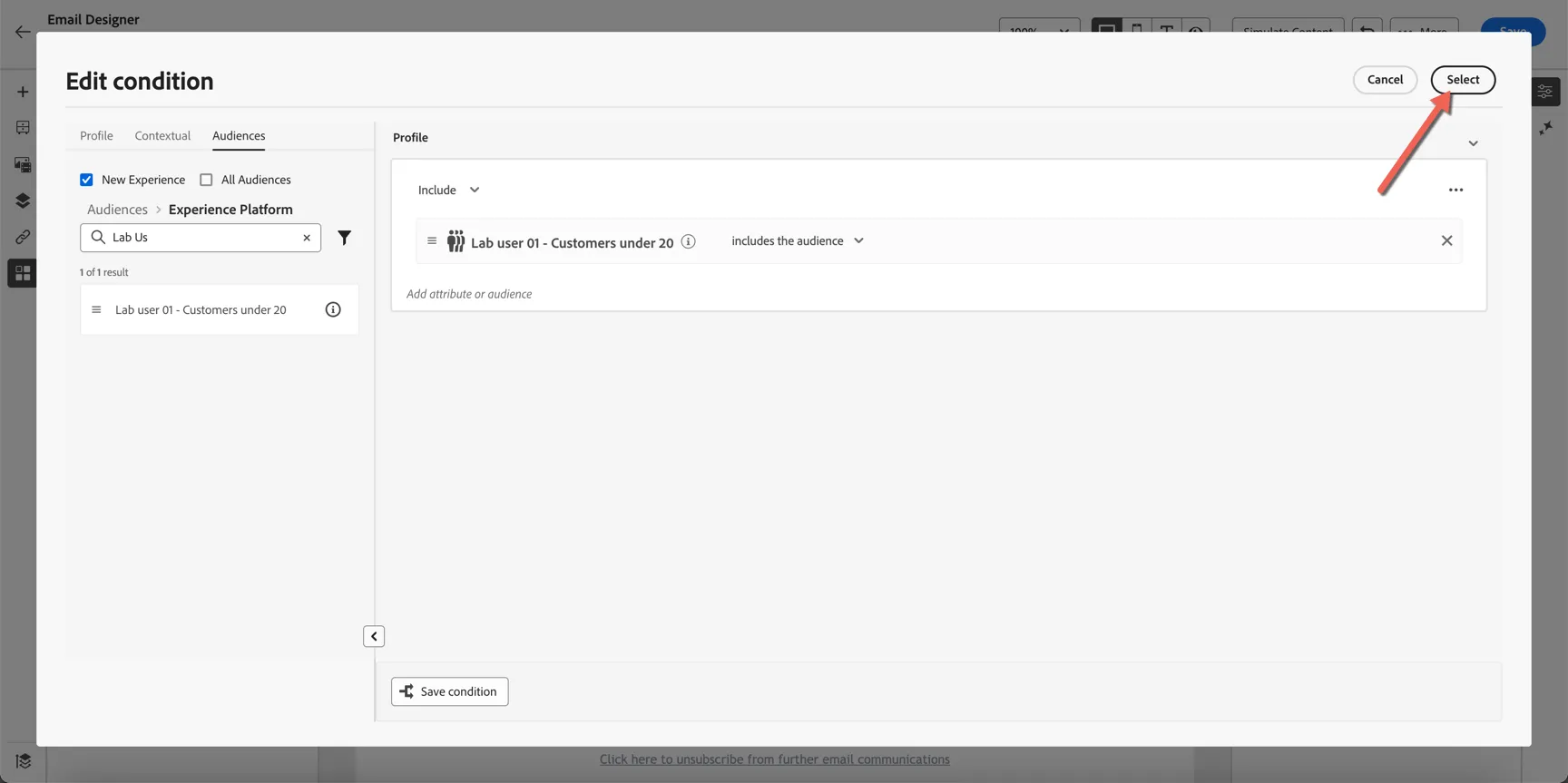
With the condition is set to keep profiles who are included in the audience, click Select.
Give the variant a descriptive name and update the content for that variant.
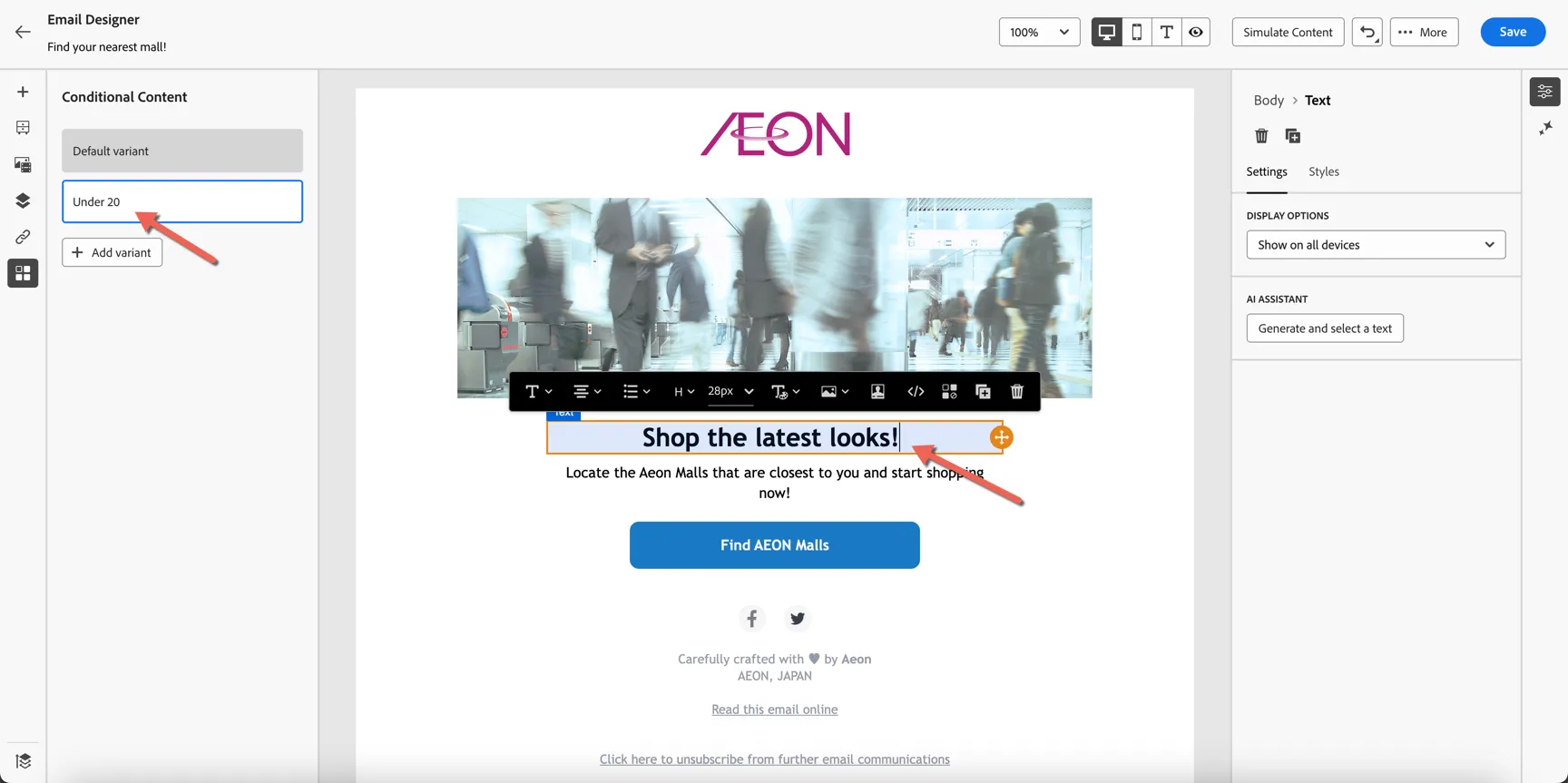
You can view the different variations by swapping back and forth between them. Click to Save the content then use the arrow <-- on the top left to close the editor.
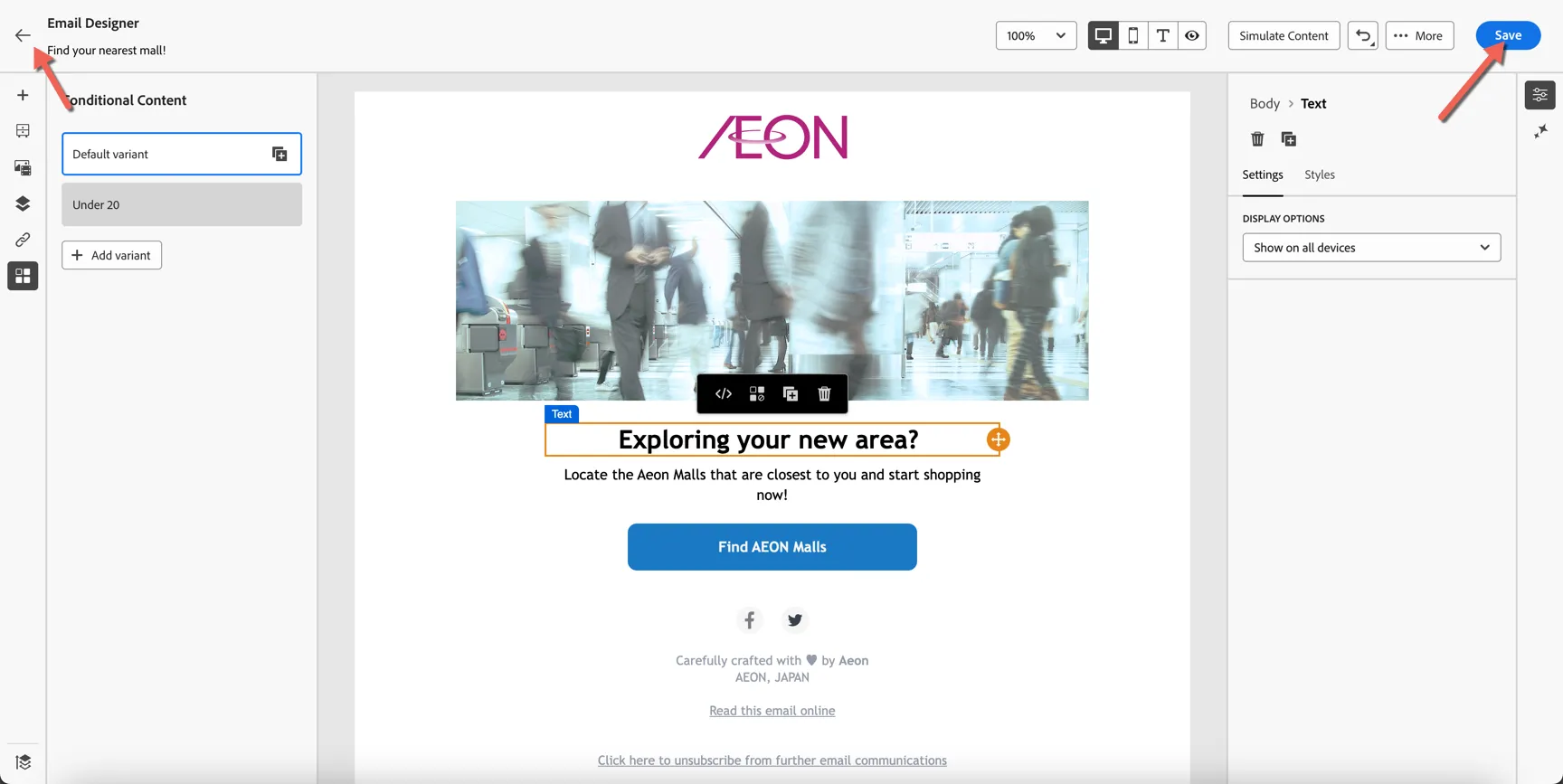
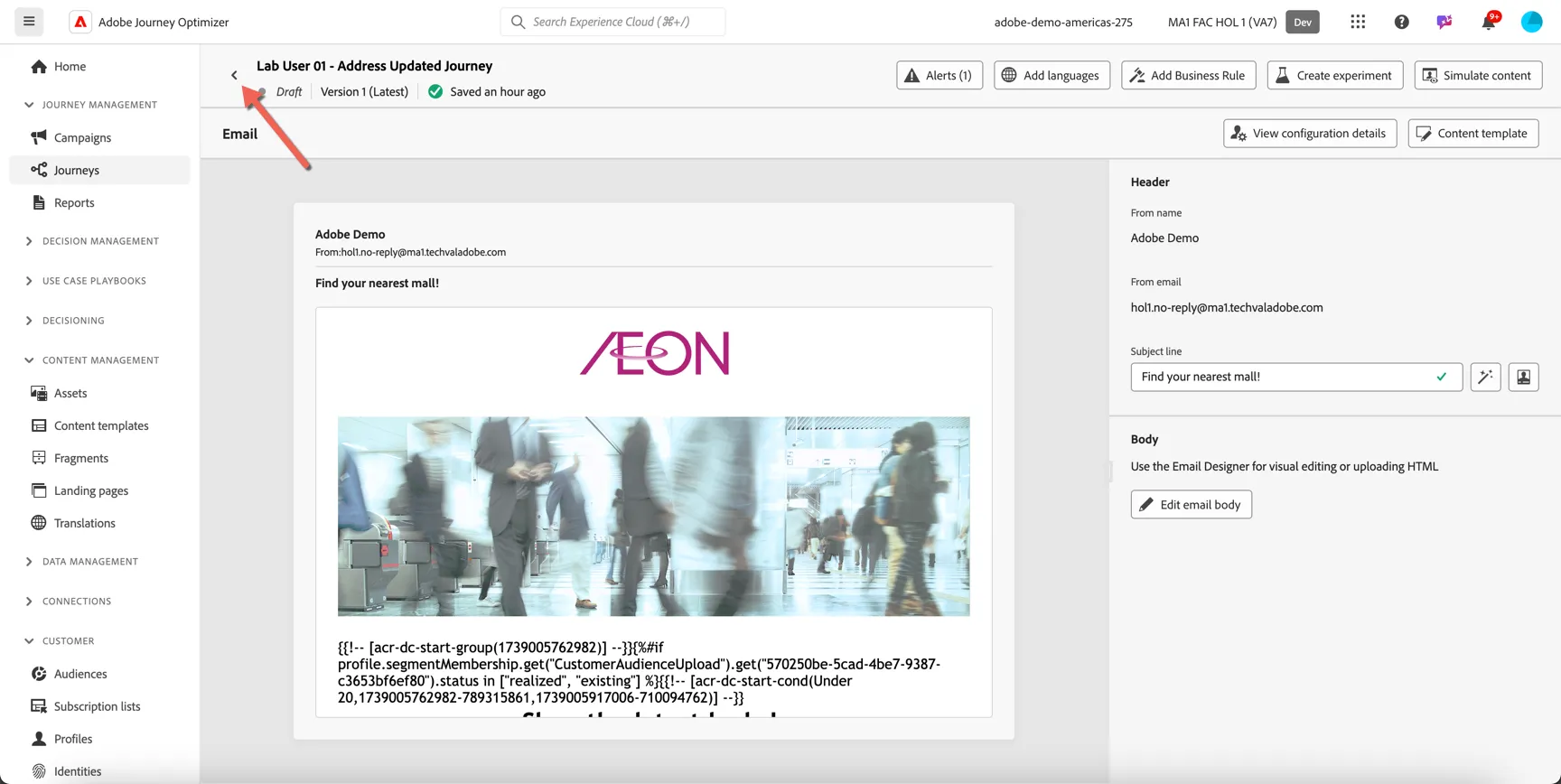
From the next screen you can add experimentation or simulate the content to test the variations. For now we will simply click the arror on the top left to return to the journey.
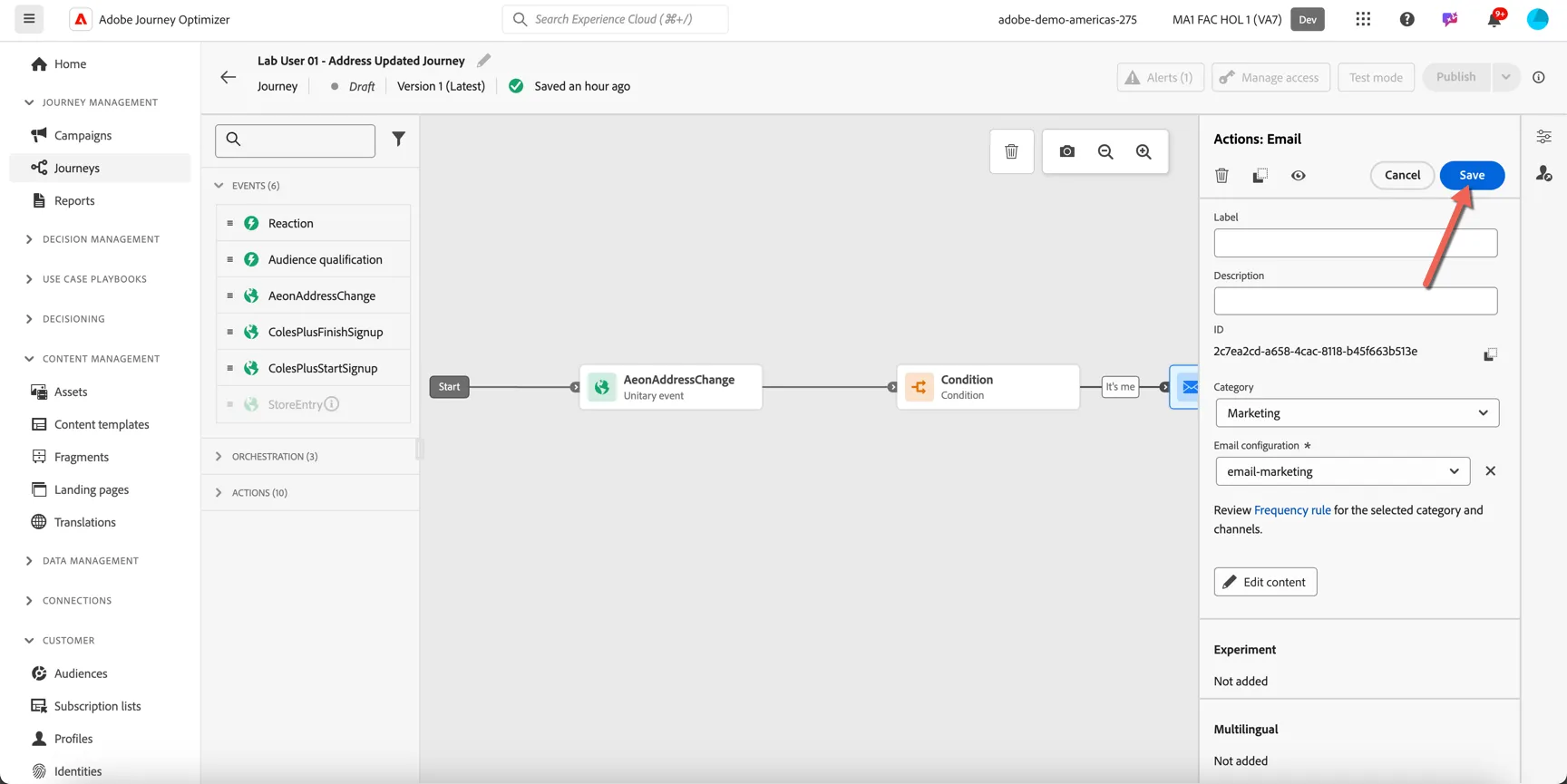
Click to Save the email activity.
Next we want to see whether the customer opens the email and if they don't open it within a certain timeframe we will retarget them on another channel. Drag the reaction node into the journey.
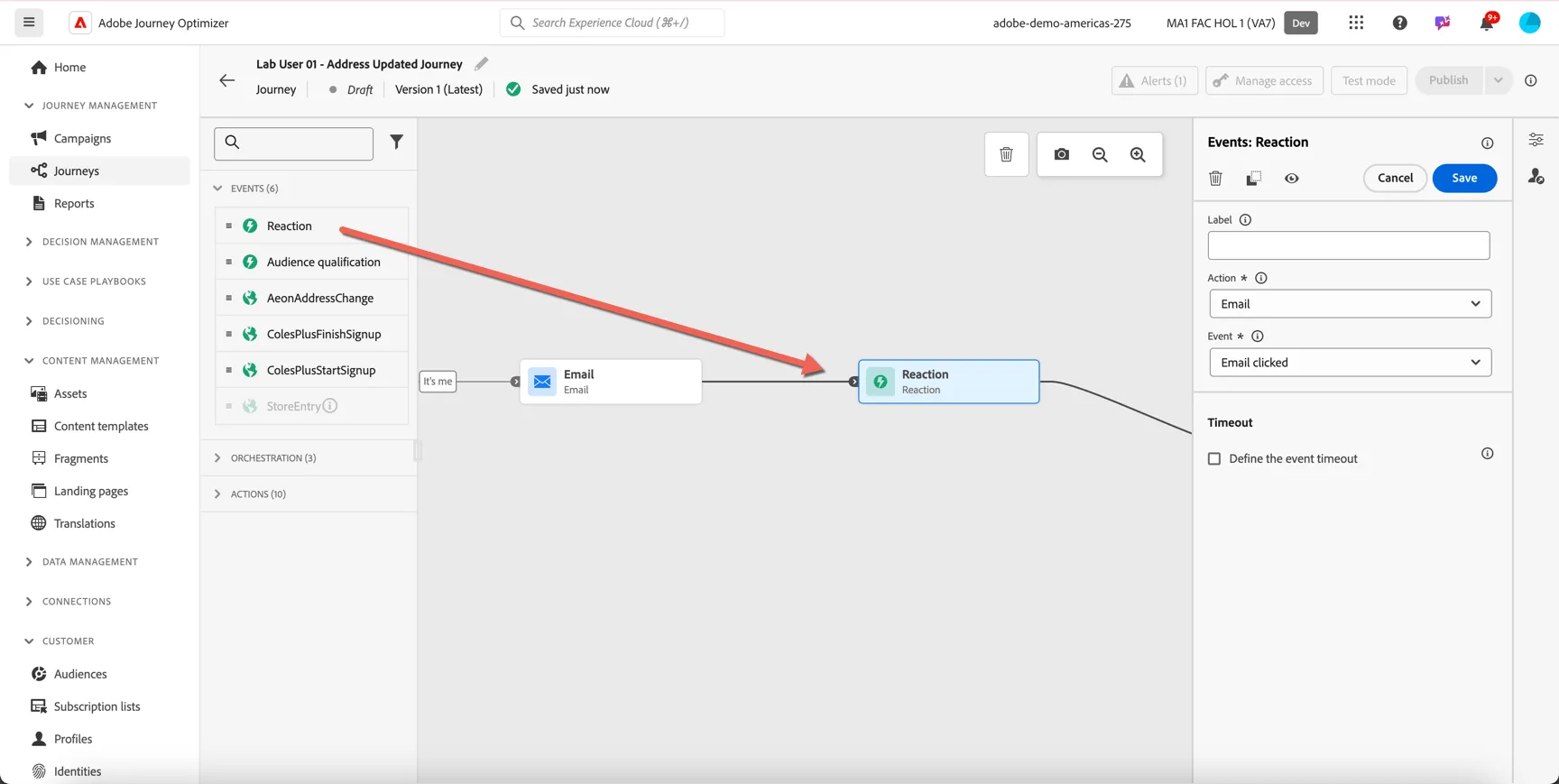
Set the event type to Email Opened and configure the timeout to be 1 minute. This is for example purposes only, it would usually be set to wait hours or days. Then click Save.
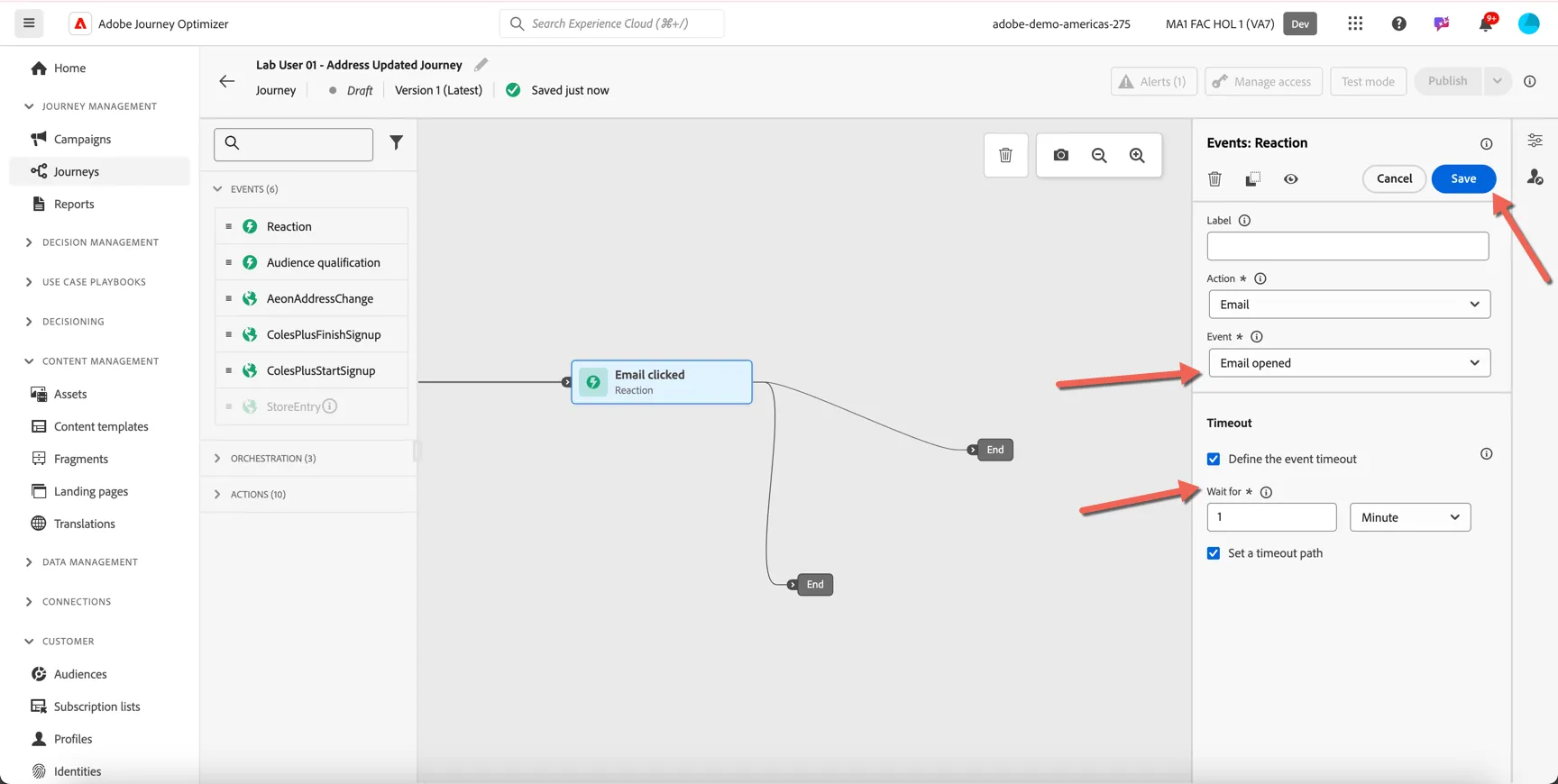
Lastly add another action of your choice to the timeout branch of the journey. I've added a Push Notification.
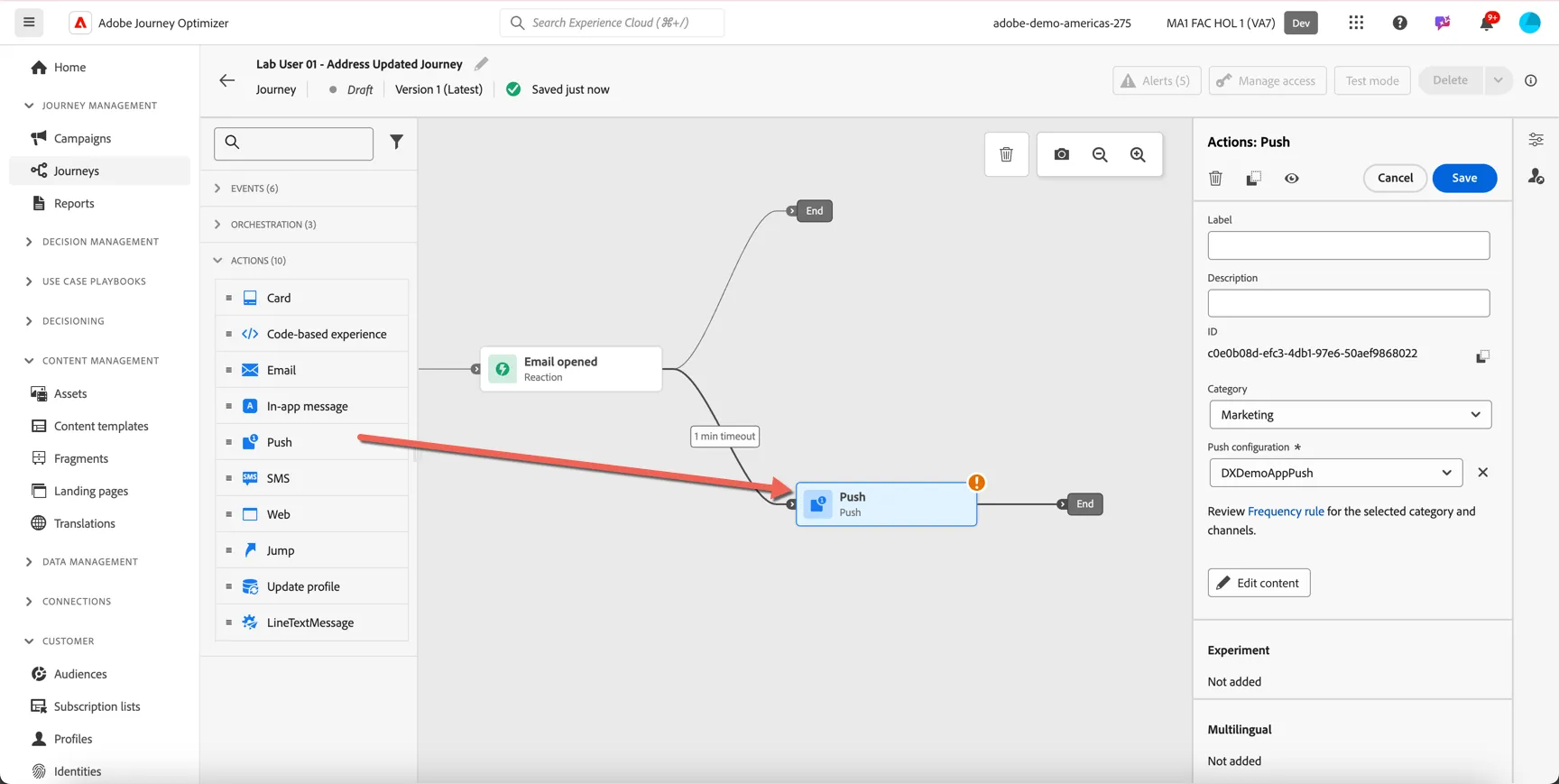
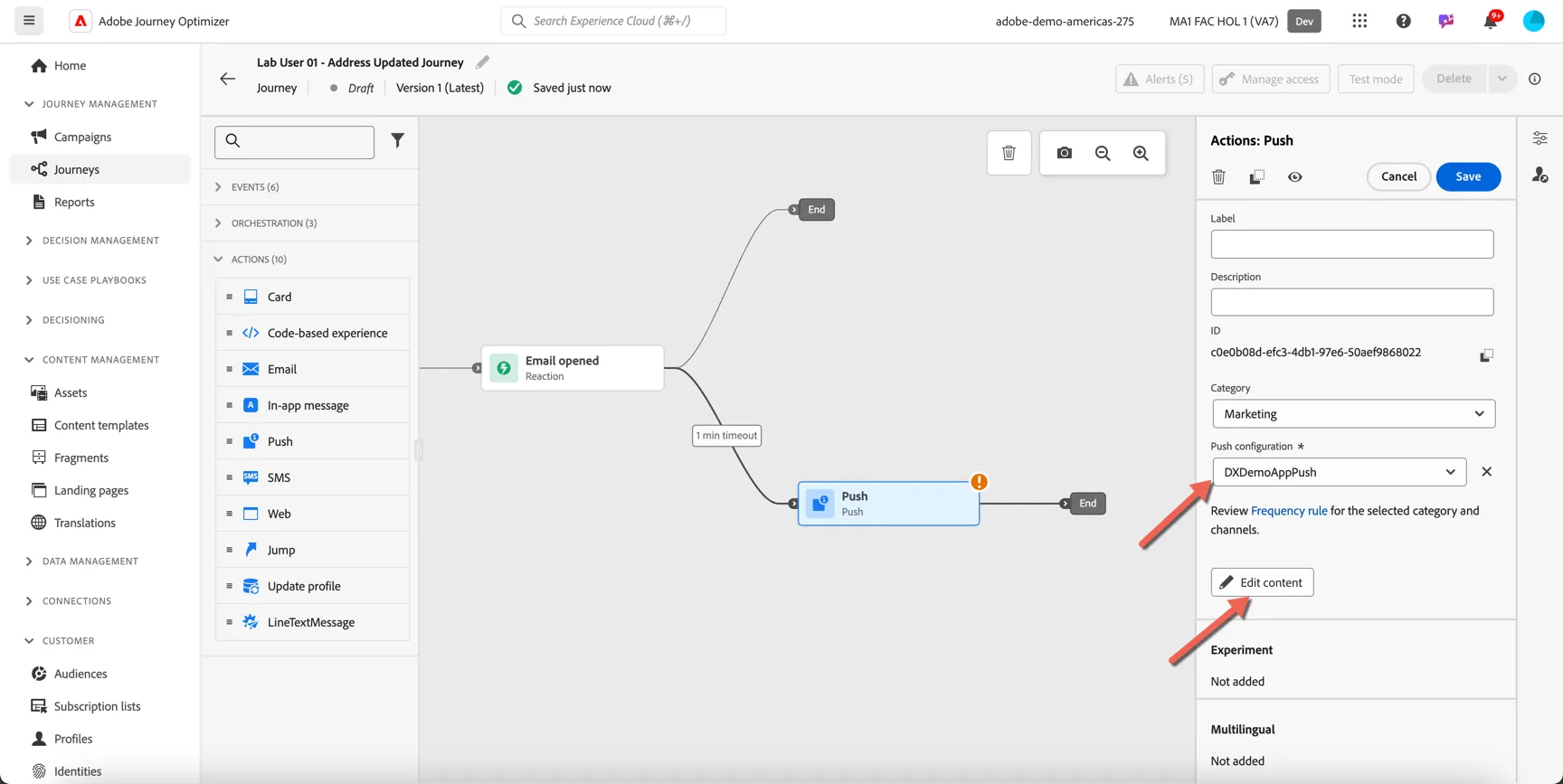
Set the configuration and then click to edit content
Update the content as desired, and add an image.
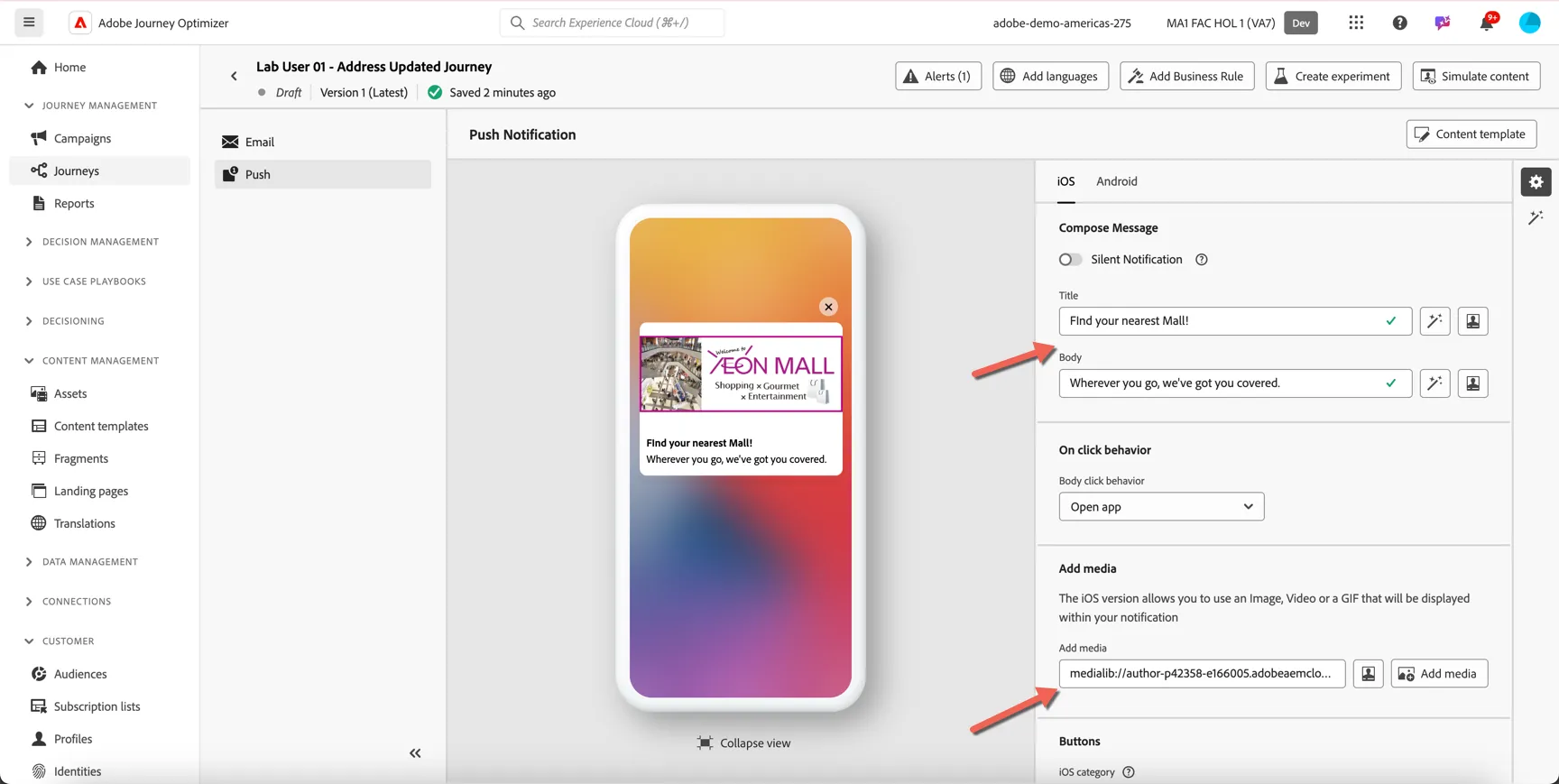
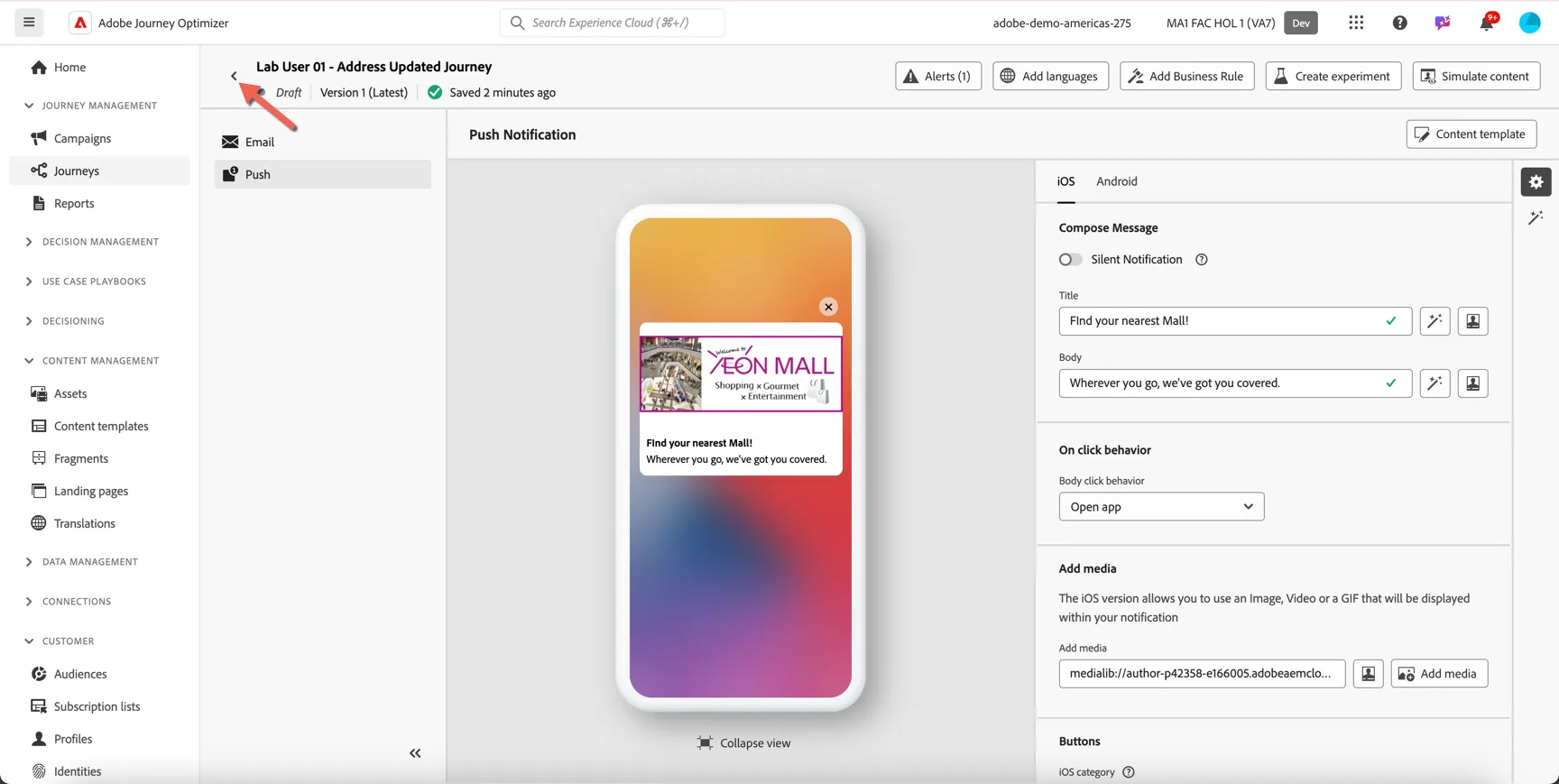
Click on the arrow top left to return to the journey.
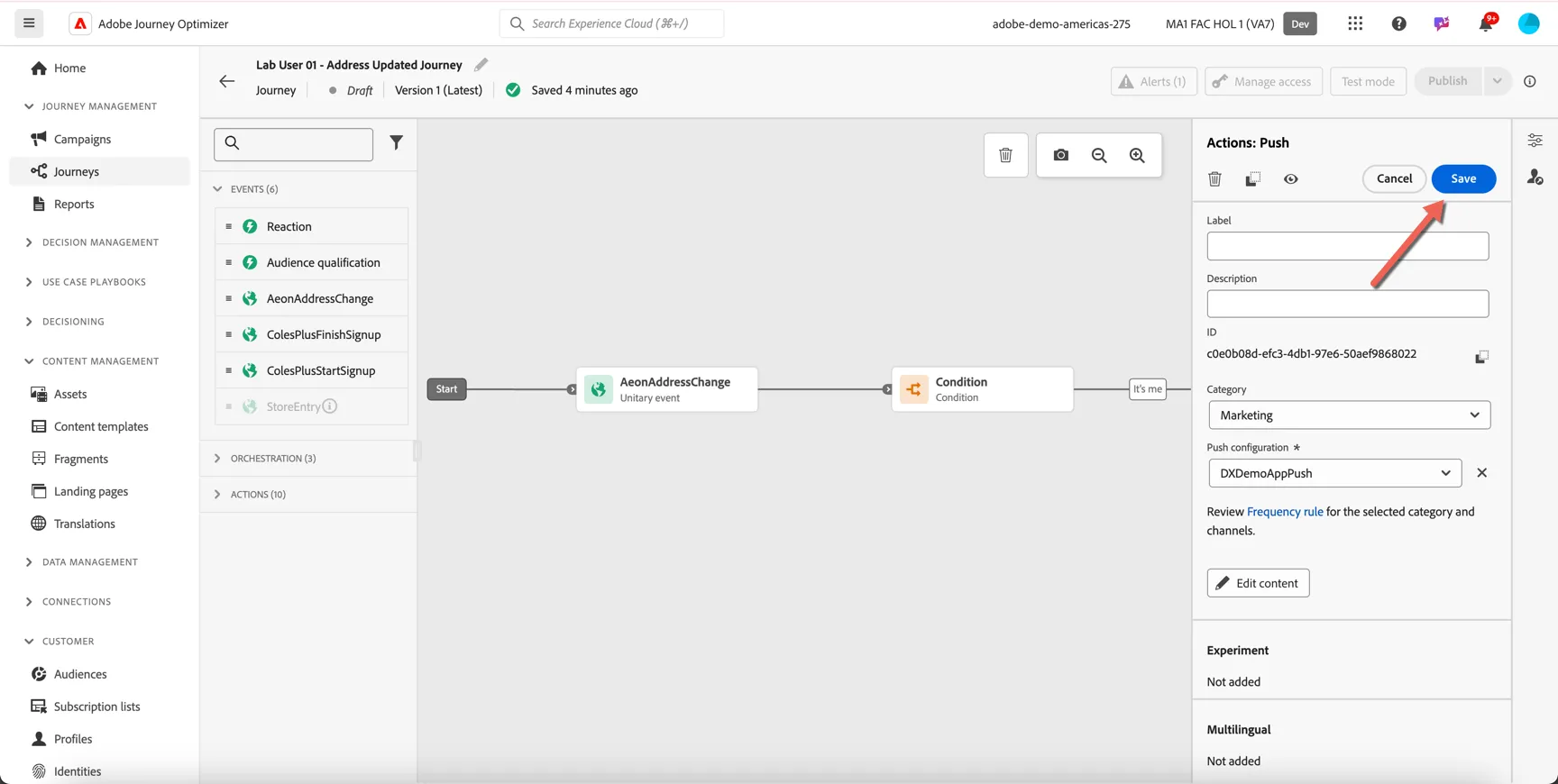
Click to Save the push activity.
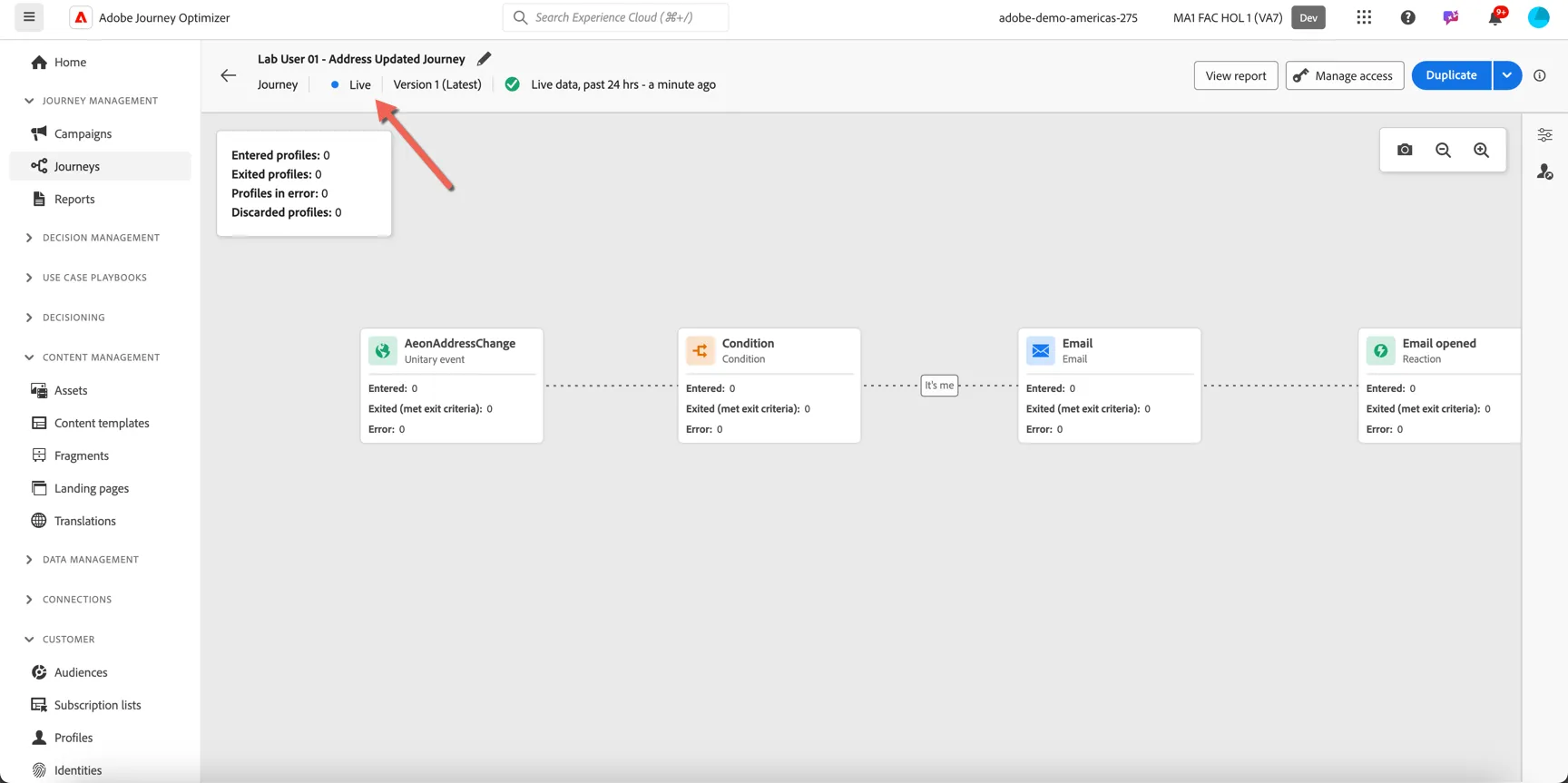
The journey is now complete. Click Publish to set the journey live.
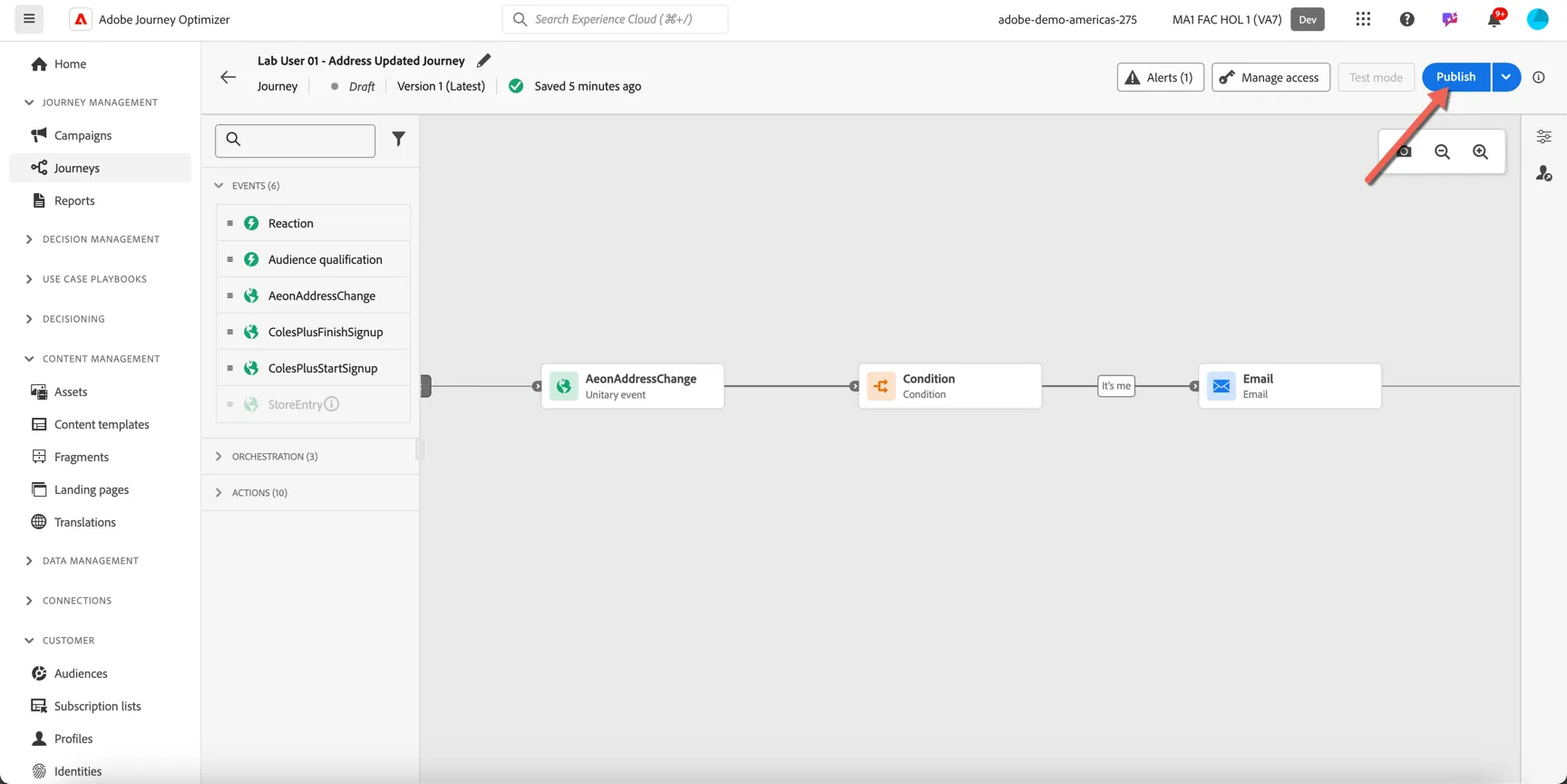
Publishing will take a minute or two, once it's complete the status will change to Live.
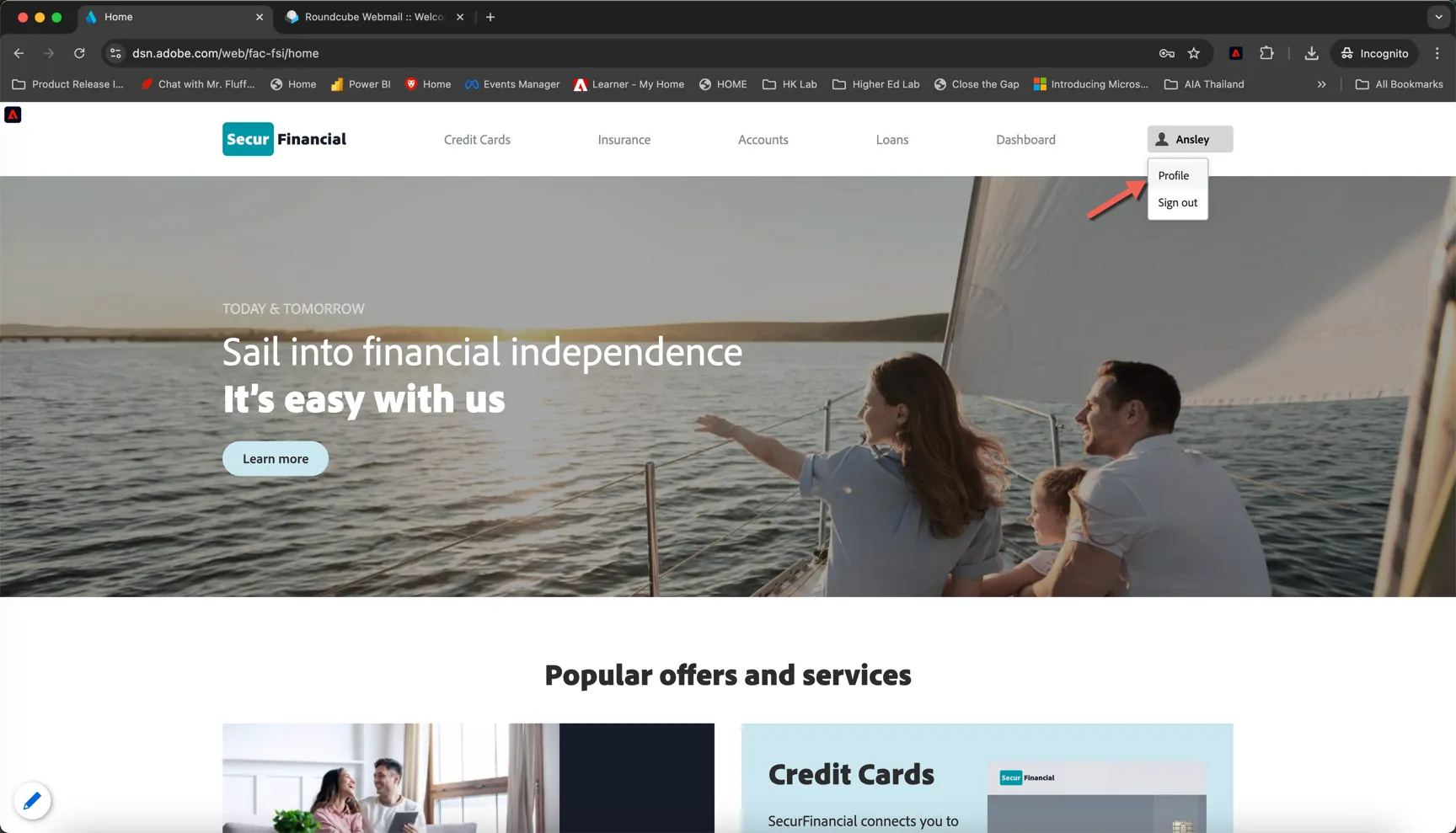
Once it's live, you can trigger your journey from the demo website we used in the first exercise. Go back to your browser and click to open the profile dashboard.
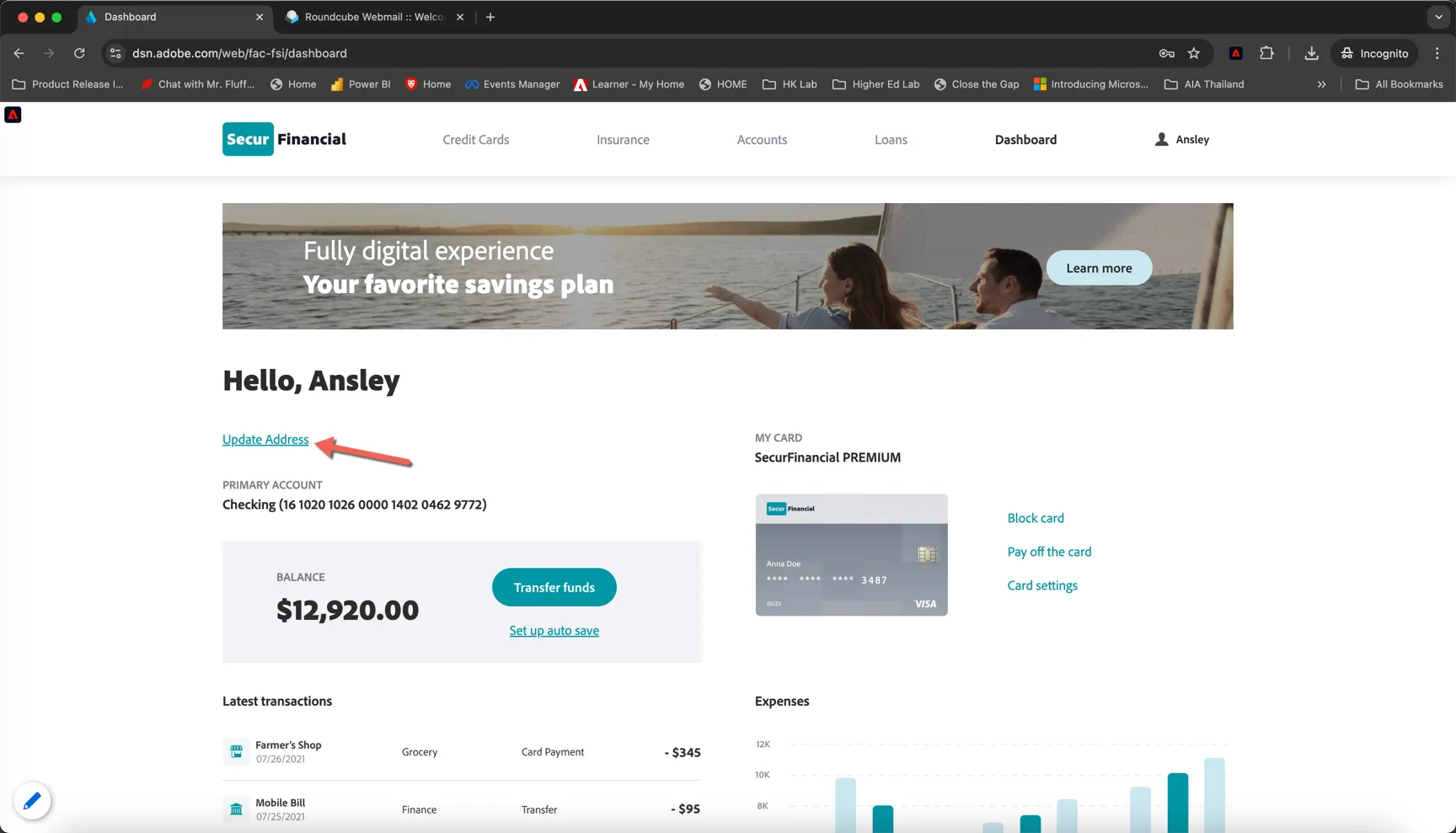
Click the Update Address link on the dashboard.
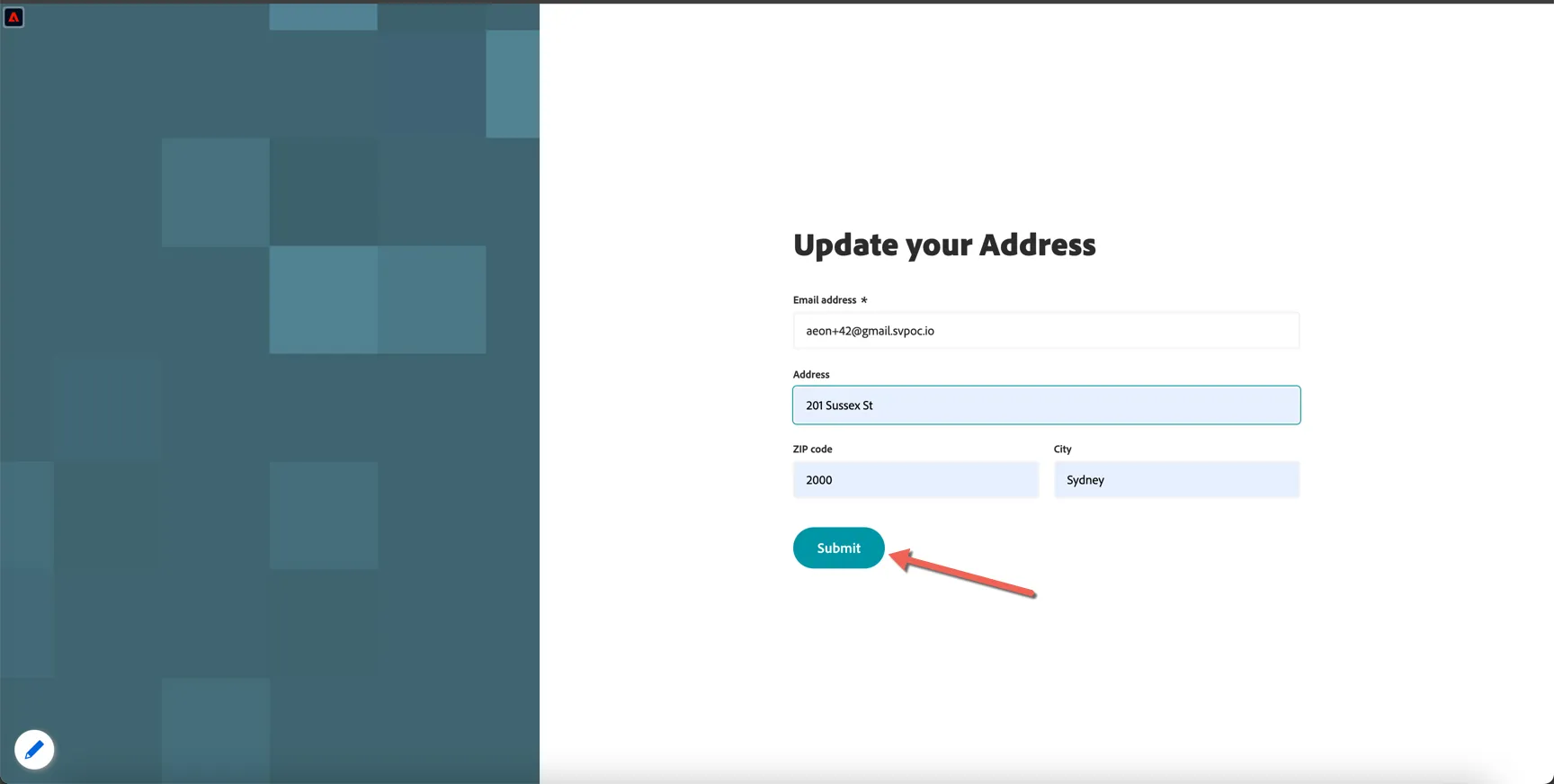
Add some address information and click Submit. This will send the real time event to Adobe Journey Optimizer and trigger your journey.
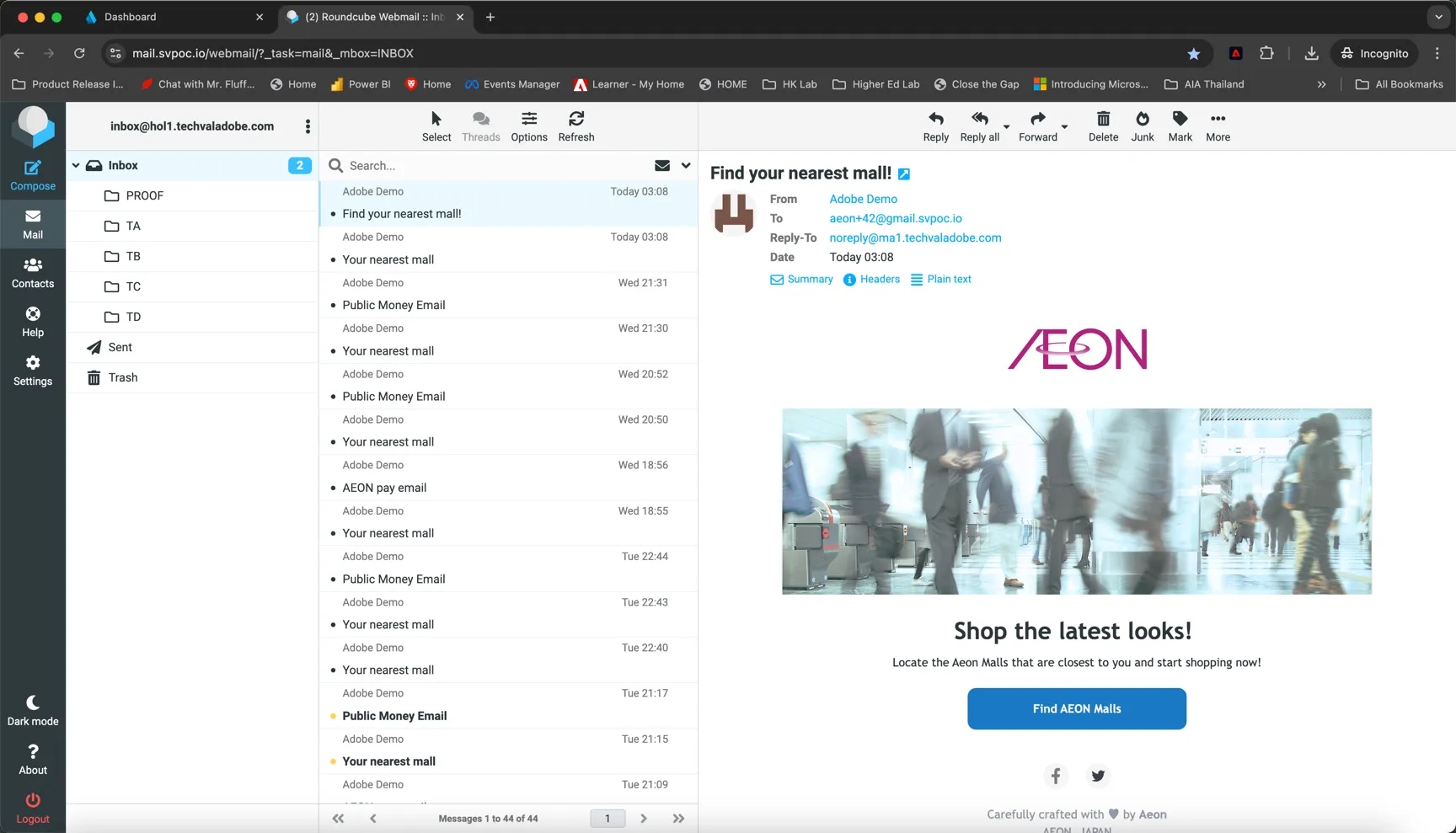
All of the emails triggered will be caught by our email catcher, we will display them on the screen!
You'll start to see the number of entries update on your journey.
Congratulations you've just created your first in the moment journey!