Audiences
Audiences overview
To get an overview of available audiences in Adobe Experience Platform:
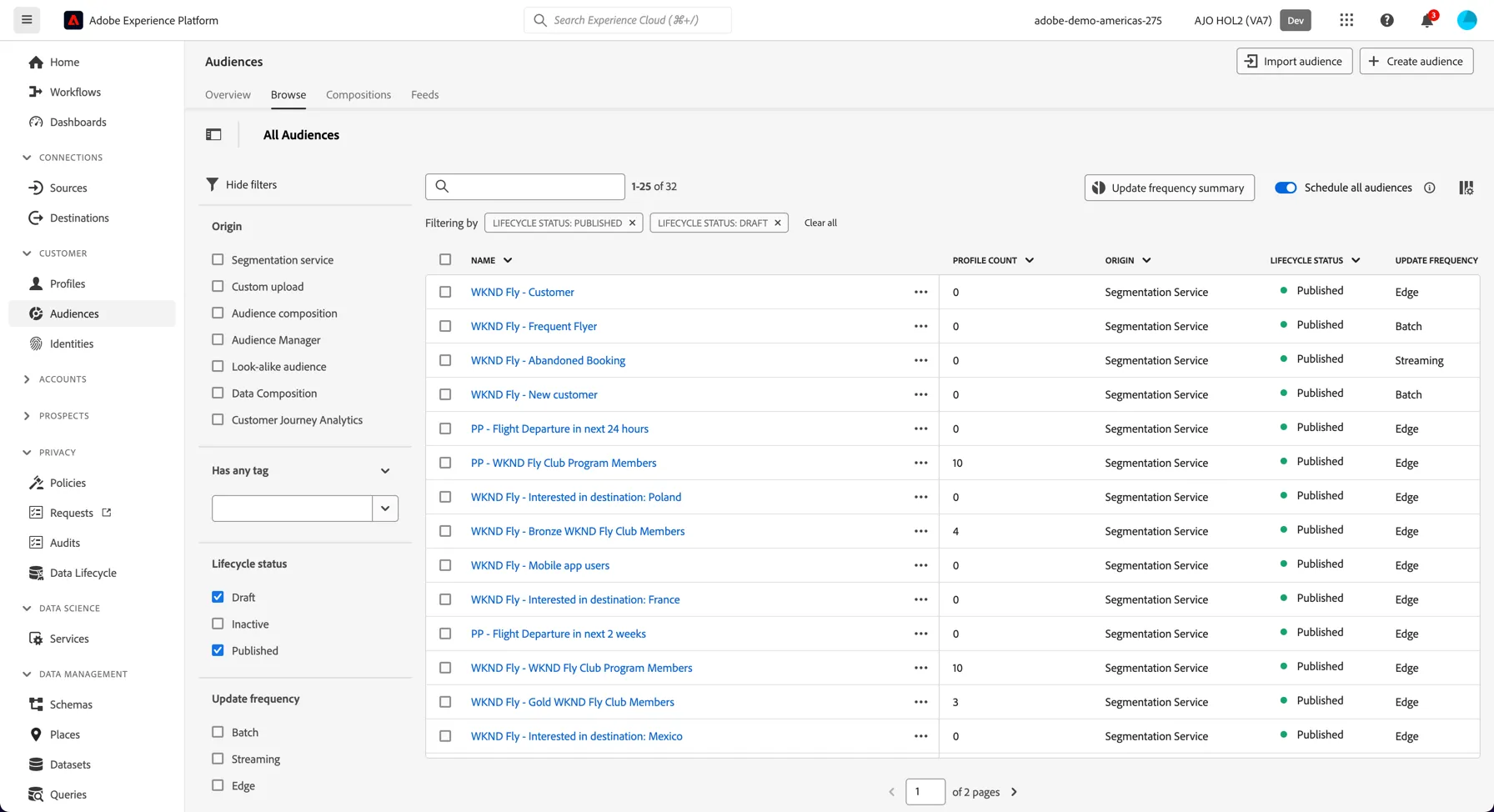
- In the menu on the left side, click on Audiences. You will see a dashboard overview with information on a specific audience.
- Click on Browse at the tab bar. You will see an overview of all existing audiences. You can use the search bar or the filters on the left to find specific audiences.
Create a new audience
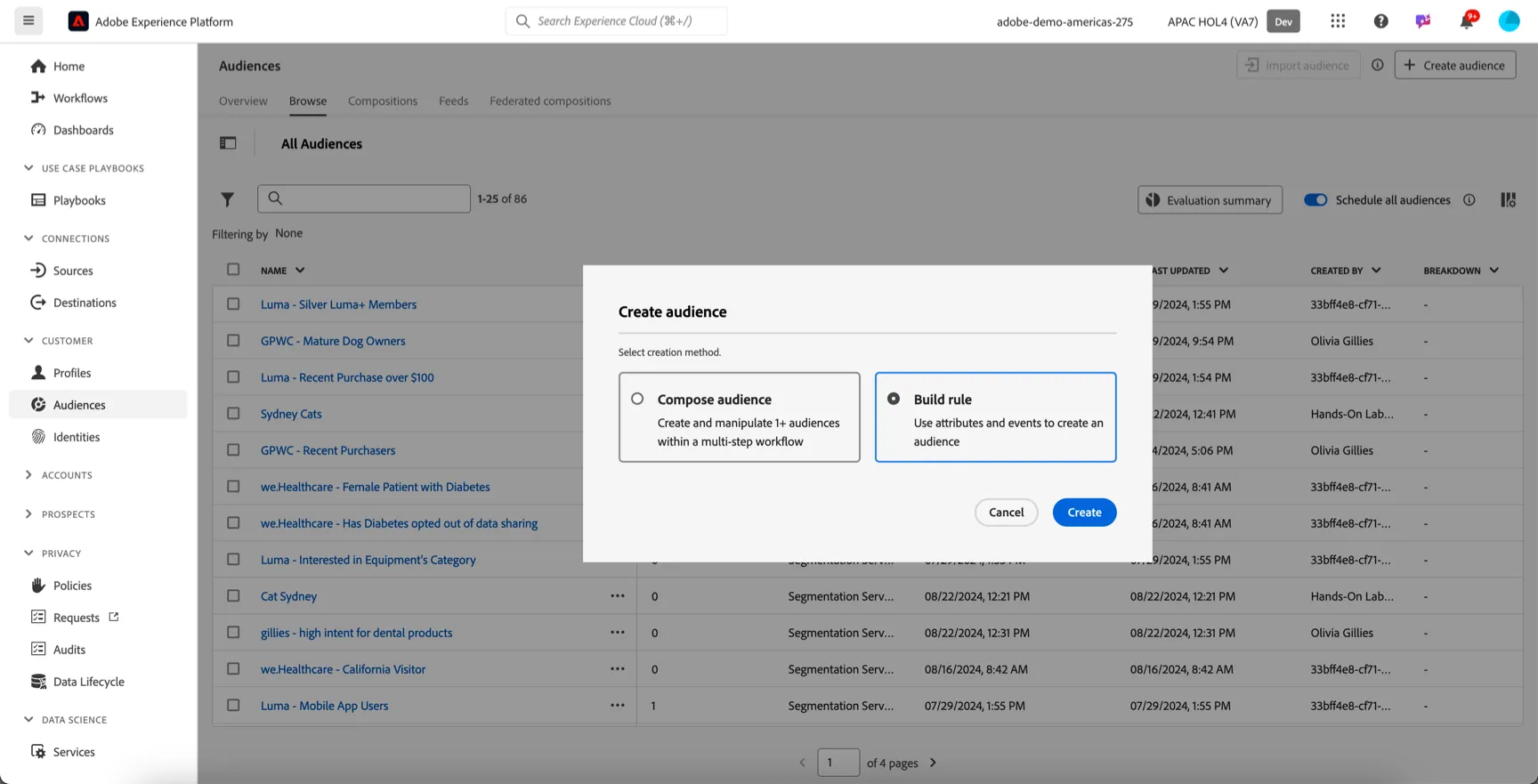
To create a segment, click on + Create Audience, then select Build rule.
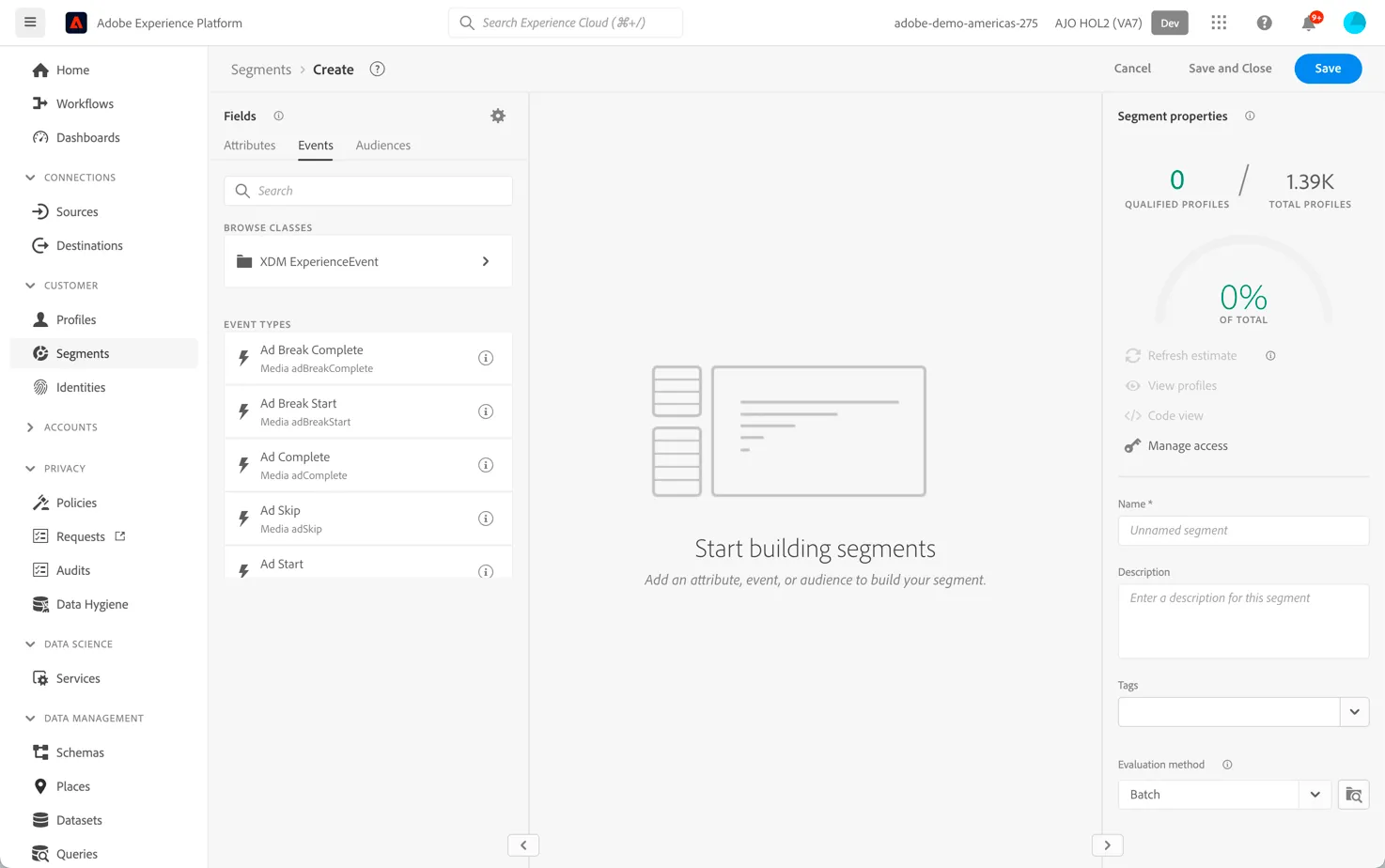
You will end up in the new segment builder. You will immediately notice the Attributes tab selected underneath Fields. As well as the XDM Individual Profile selector under BROWSE ATTRIBUTES.
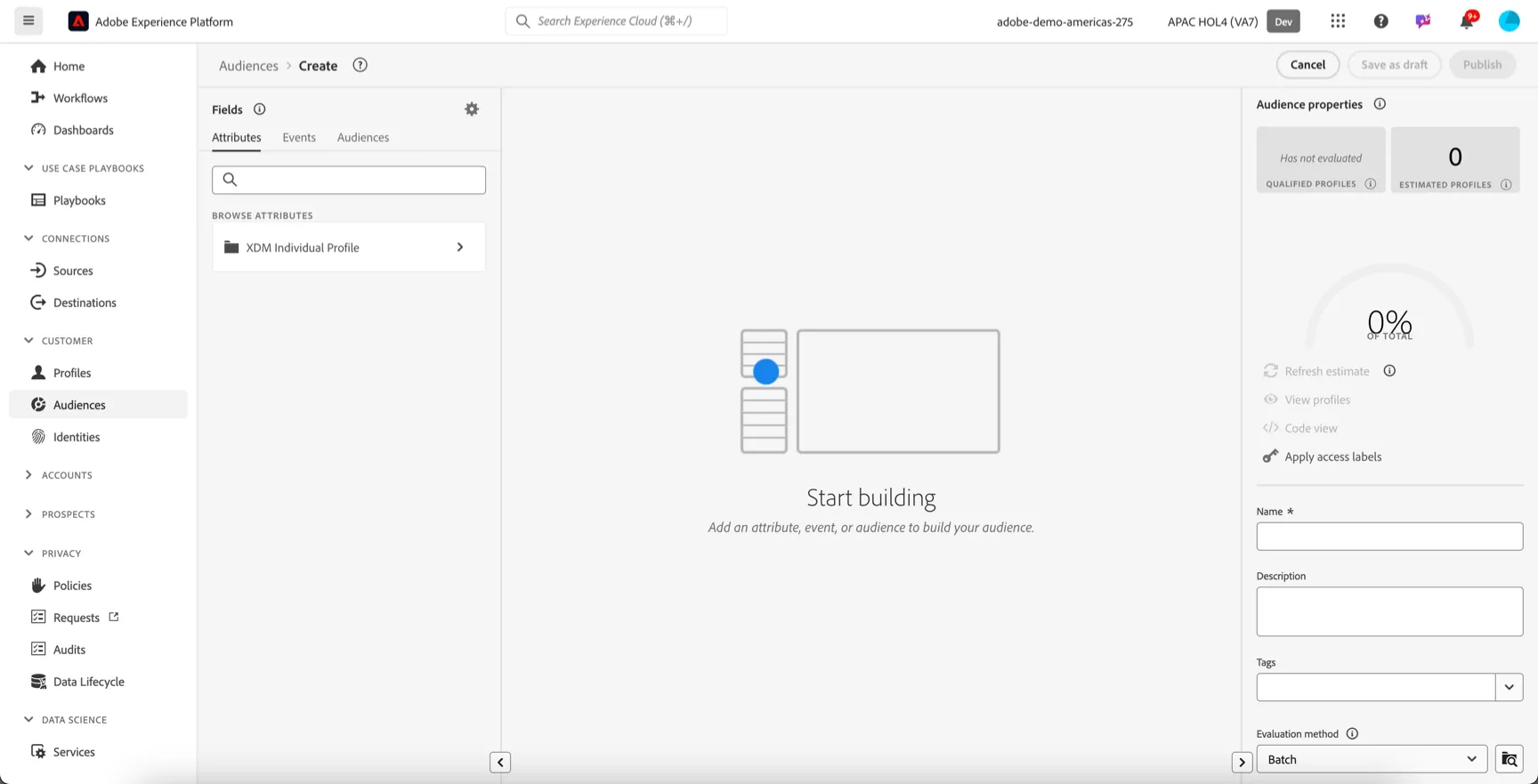
Since XDM is the language that powers the experience business, XDM is also the foundation for the segment builder. All data that is ingested in AEP should be mapped against XDM, and as such, all data becomes part of the same data model regardless of where that data comes from. This gives you a big advantage when building segments, as from this one segment builder UI, you can combine data from any origin in the same workflow.
Segments built within Segment Builder can be sent to solutions like Adobe Target, Adobe Campaign and Adobe Audience Manager for activation.
For this exercise we'll create a simple segment of silver level, female customers.
Search for loyalty under the Attributes tab. Click through to loyaltyDetails and drag the level attribute into the canvas.
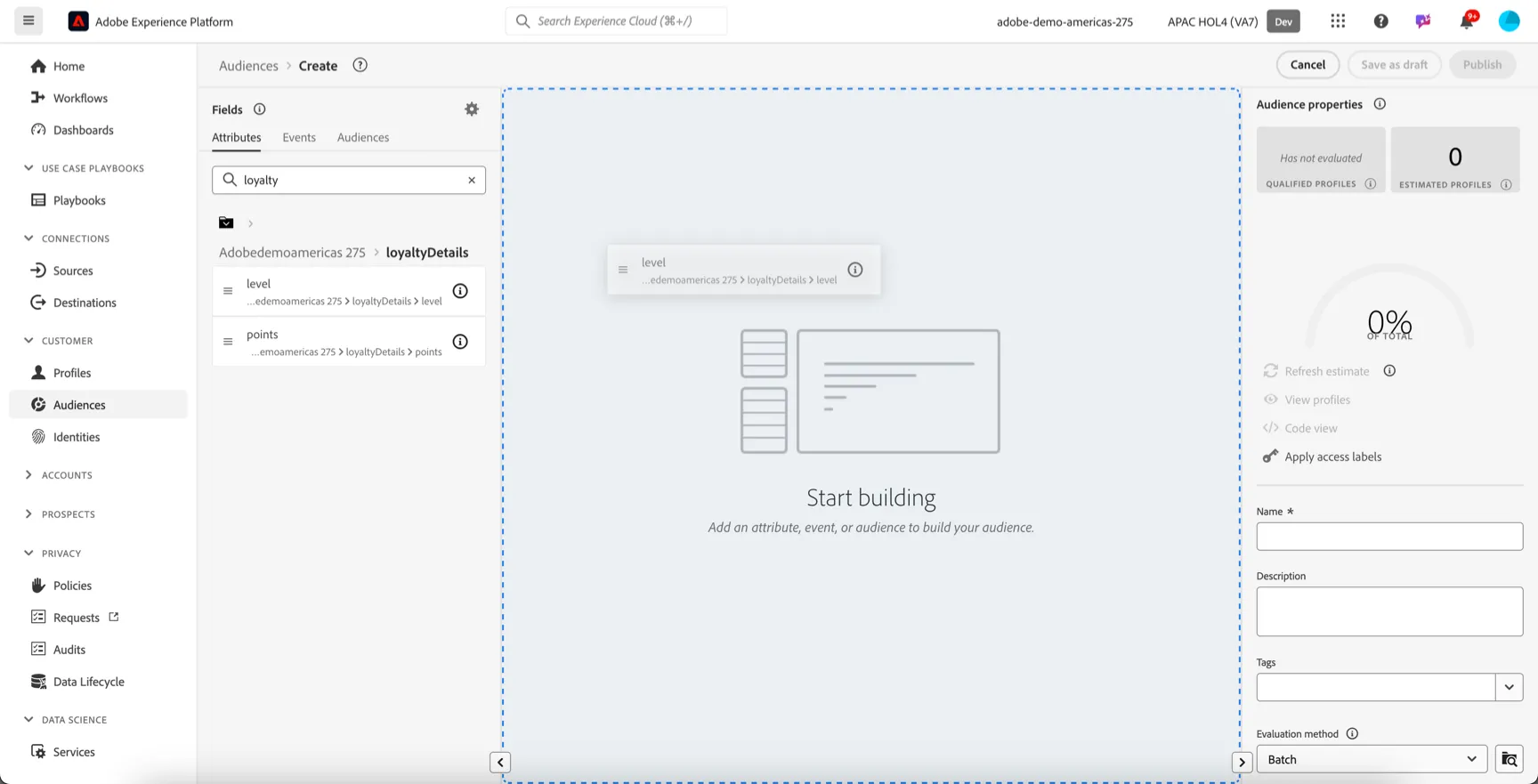
Set the value to Silver. At this point you can refresh the estimates to see the audience size on the right hand side.
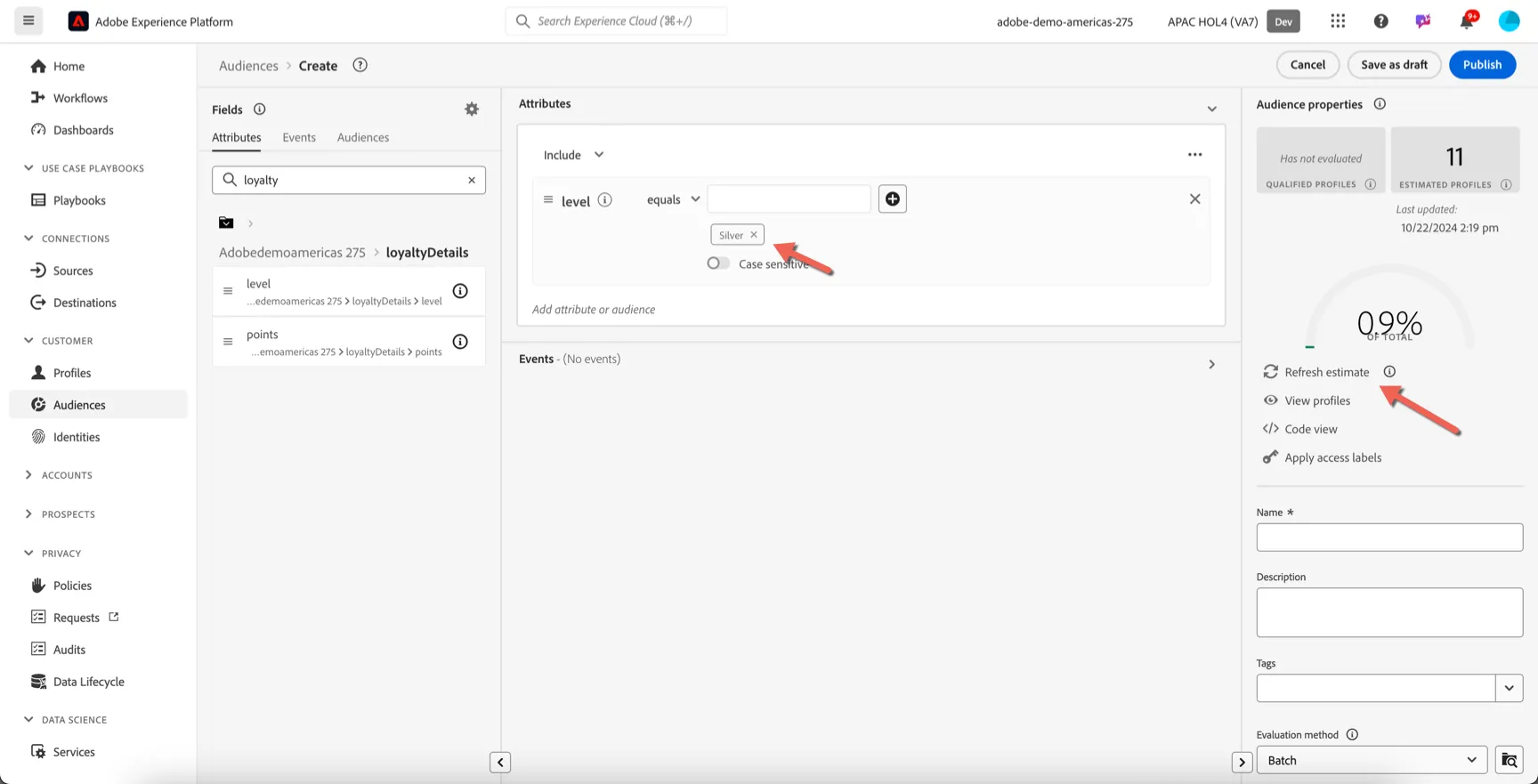
Now let's add a secondary condition to the audience to include only females. Search for gender and drag the Person -> Gender attribute into the canvas under level. Set the value to Female.
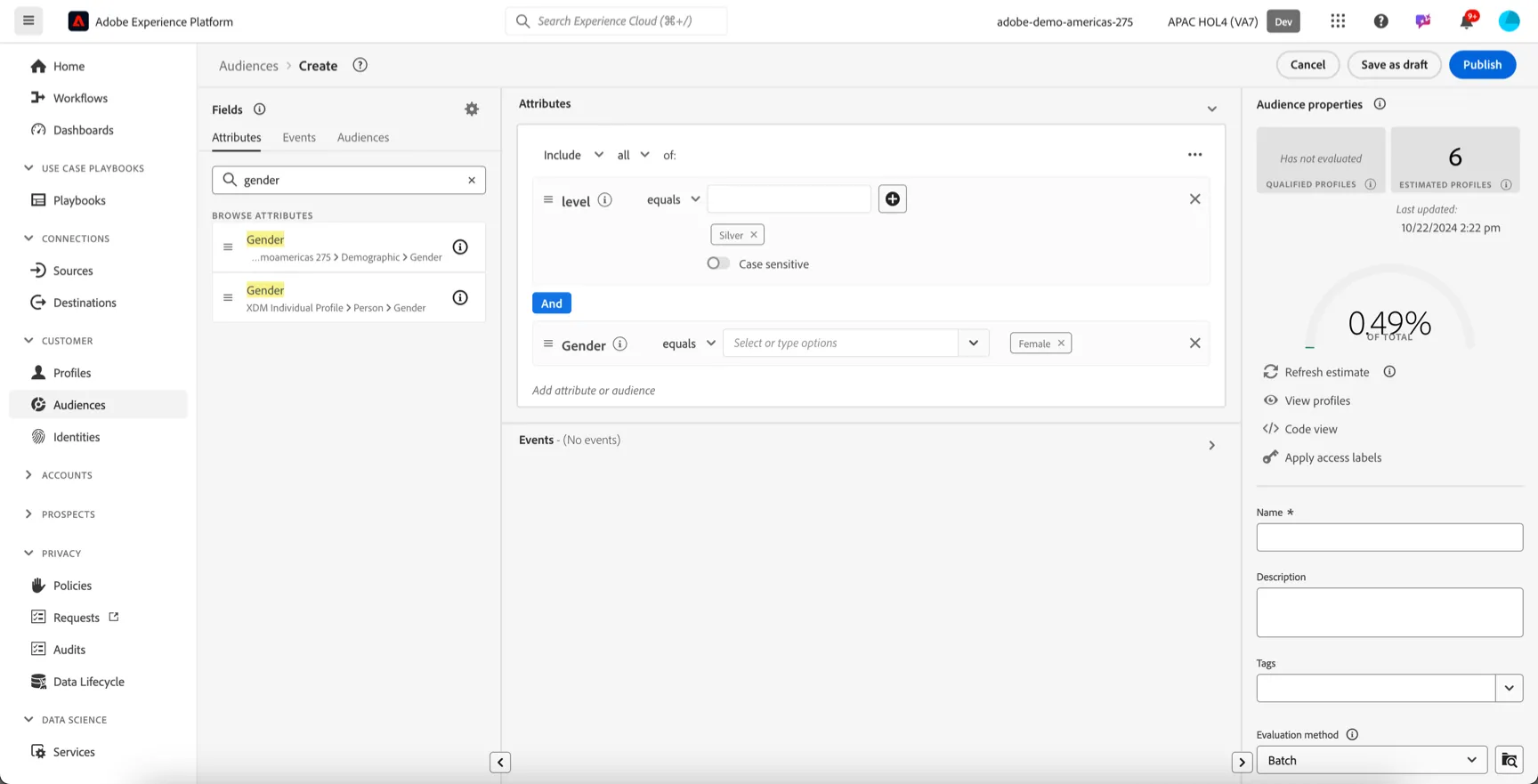
You can update the estimate to see new counts.
Now let's save the audience. Give your audience a Name (make it unique by including your initials). eg. OG - women with silver status. .
For this audience we will leave the evaluation type as Batch. Finally click Publish to save your audience.
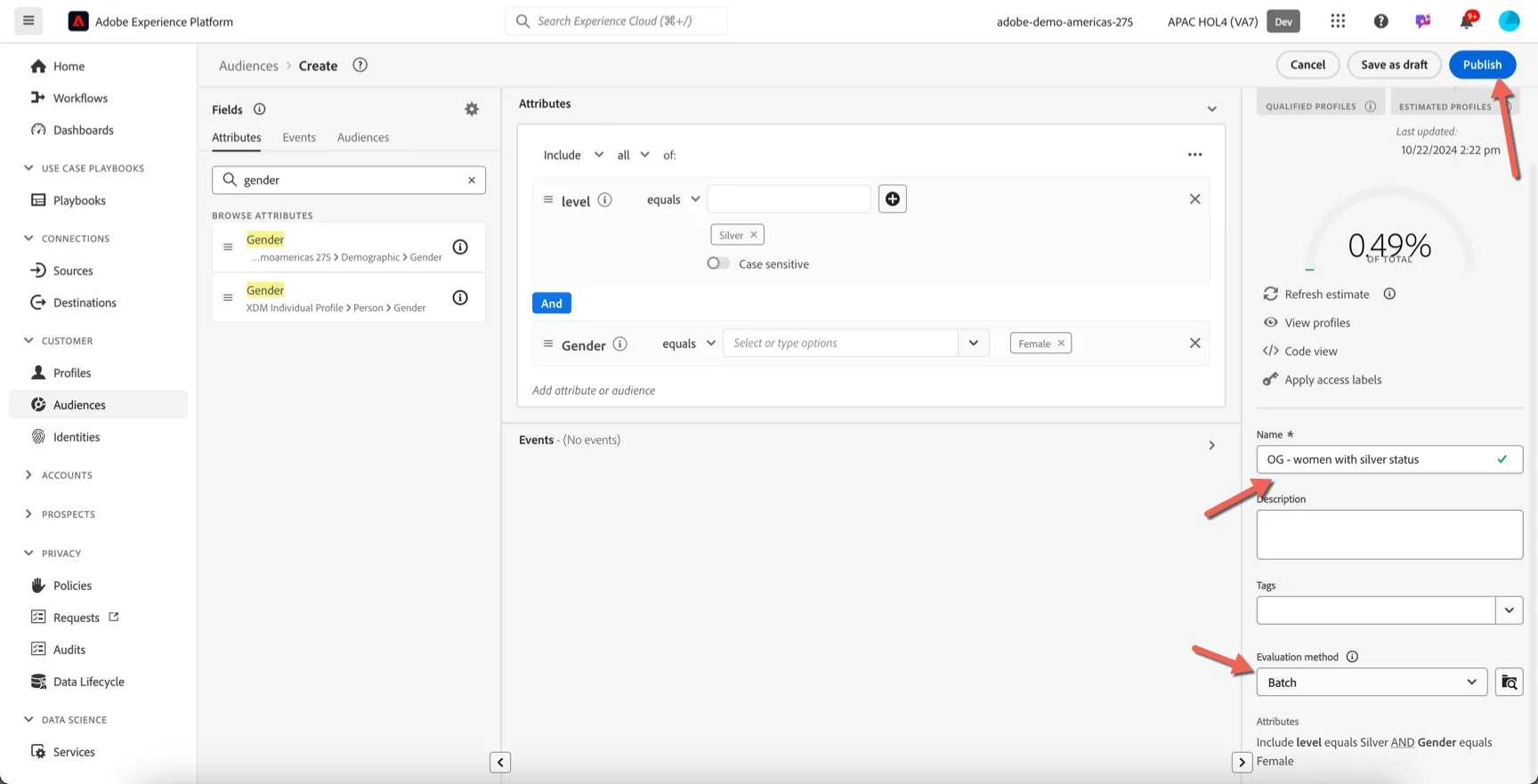
You will be taken to the Segment summary screen, outlining your segment definition.
You have now successfully created a segment using the Adobe Experience Platform Segments UI.
Sequential Segmentation
Adobe's Segment engine lets you create segments based on a customers behaviour (captured by experience events). We can create simple segments based on a single event, or complex segments which follow a sequence of events, ie. customer did this... then that. This capability is referred to as Sequential Segmentation.
In this exercise we're going to create a Segment to identify individuals who have started the Purchase process but have not completed it in the last 24 hours. These customers are should be considered high priority for contact.
1. Click on + Create Audience, then select Build rule.
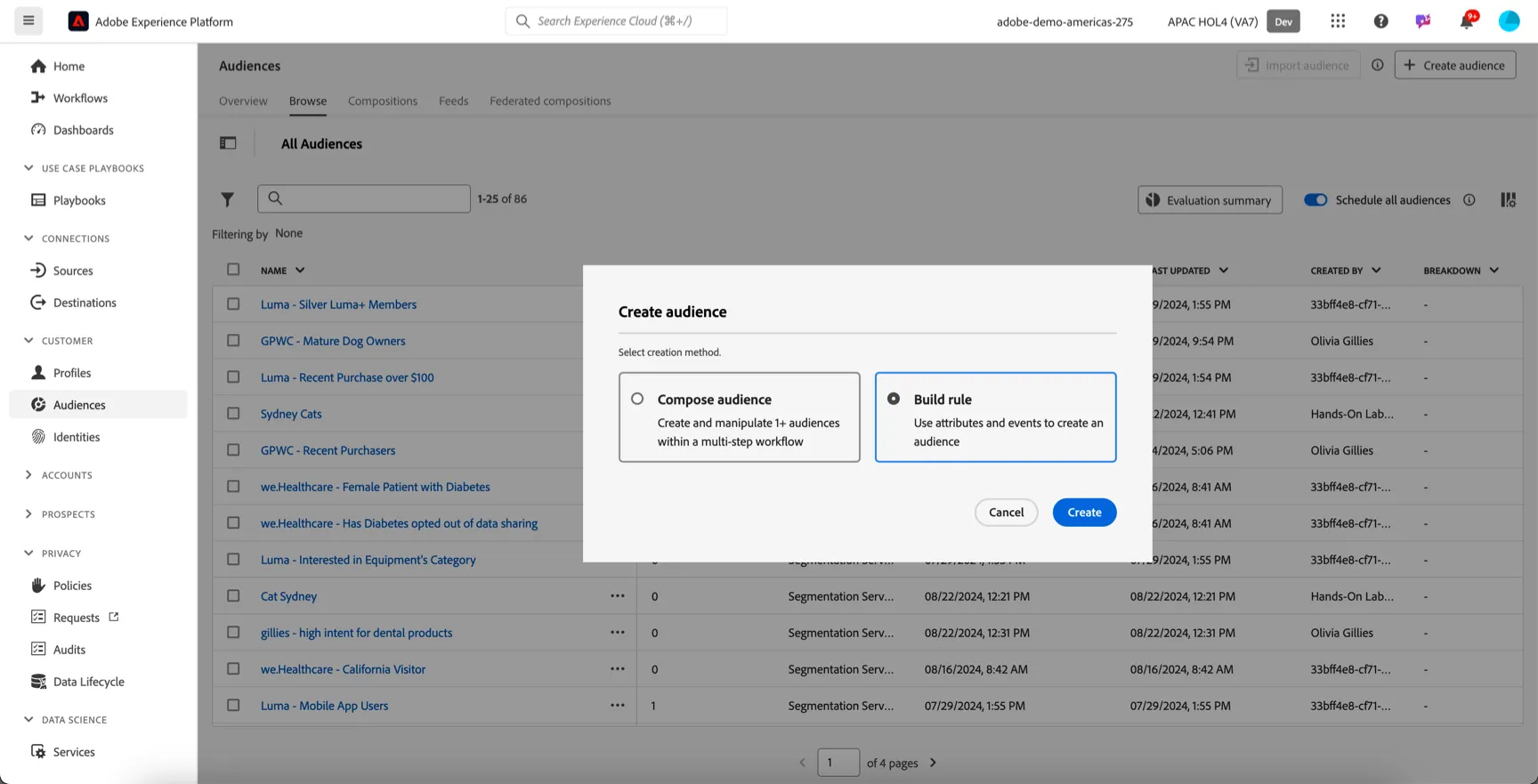
2. You will end up in the audience builder. Change from Attributes tab to the Events tab as we'd like to create an audience based on the customers behaviour.
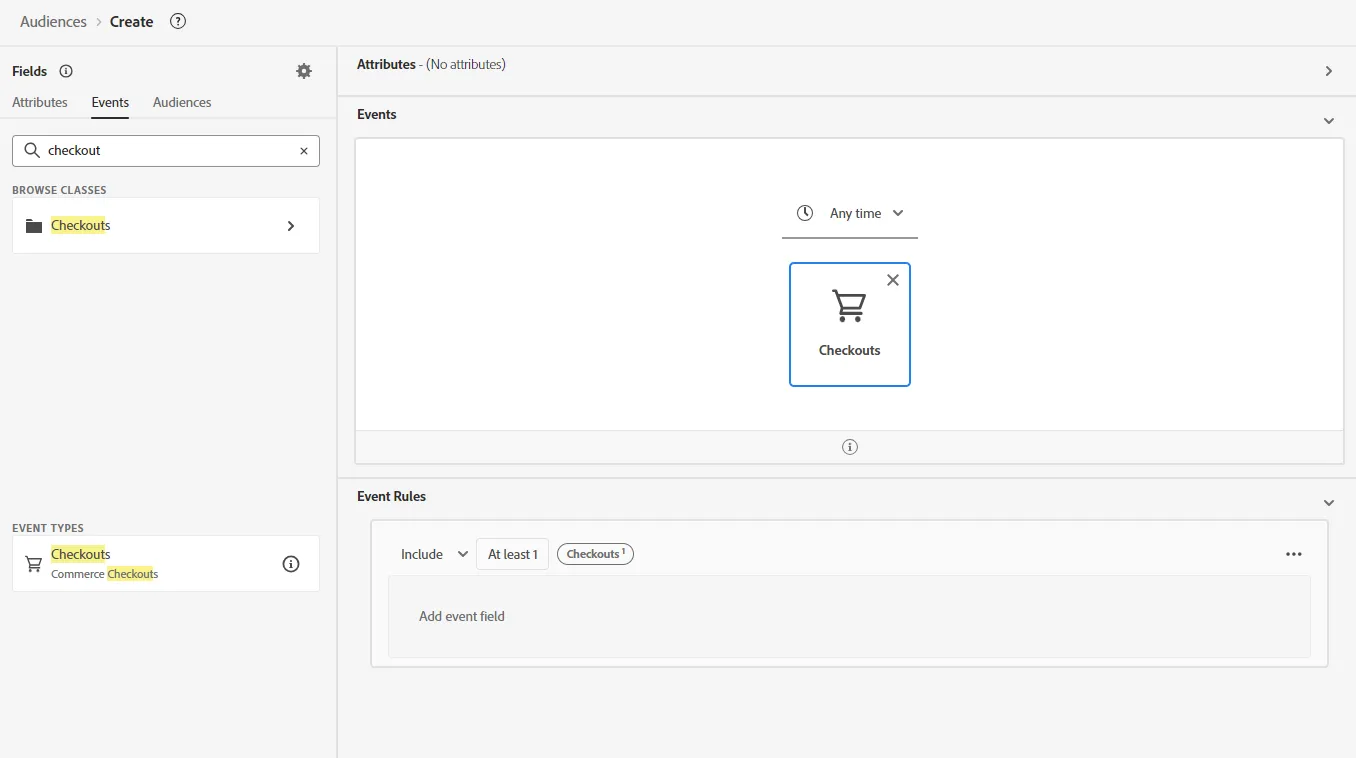
3. Search for Checkout. You should see a list the Event Types and event detail attributes.
4. Drag the Checkout event type onto the canvas
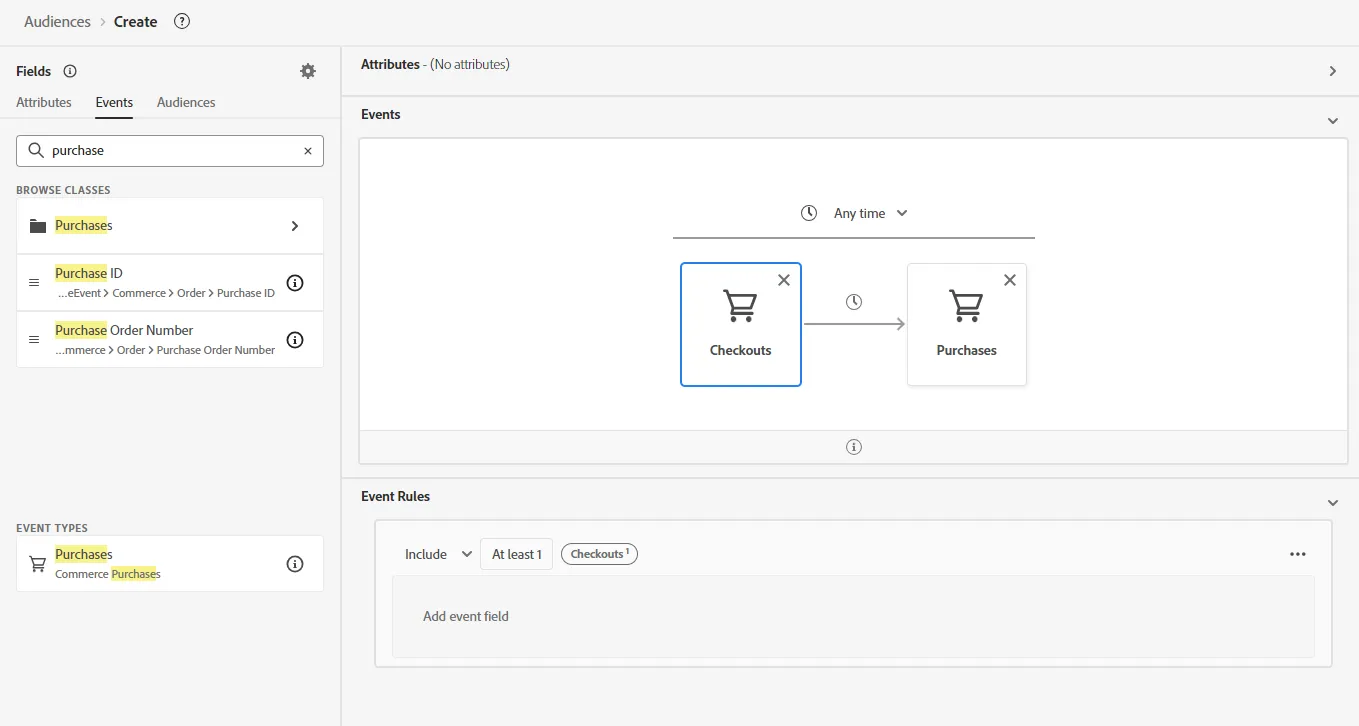
5. Drag the Purchase event onto the canvas and add it to the right of the start event. Note: you need to hover over the right side of the checkout event to drop the Step event in sequence
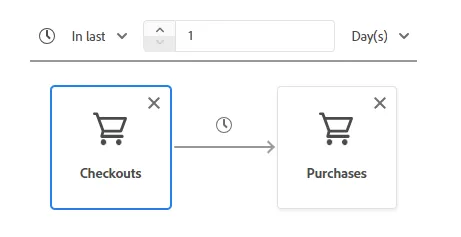
6. Change the overarching time period Anytime to In Last.. 1 day.
7. Now we want to add some additional filtering to each of the events if we want to select purchase on specific category for example.
8. Search for product list in the Event fields
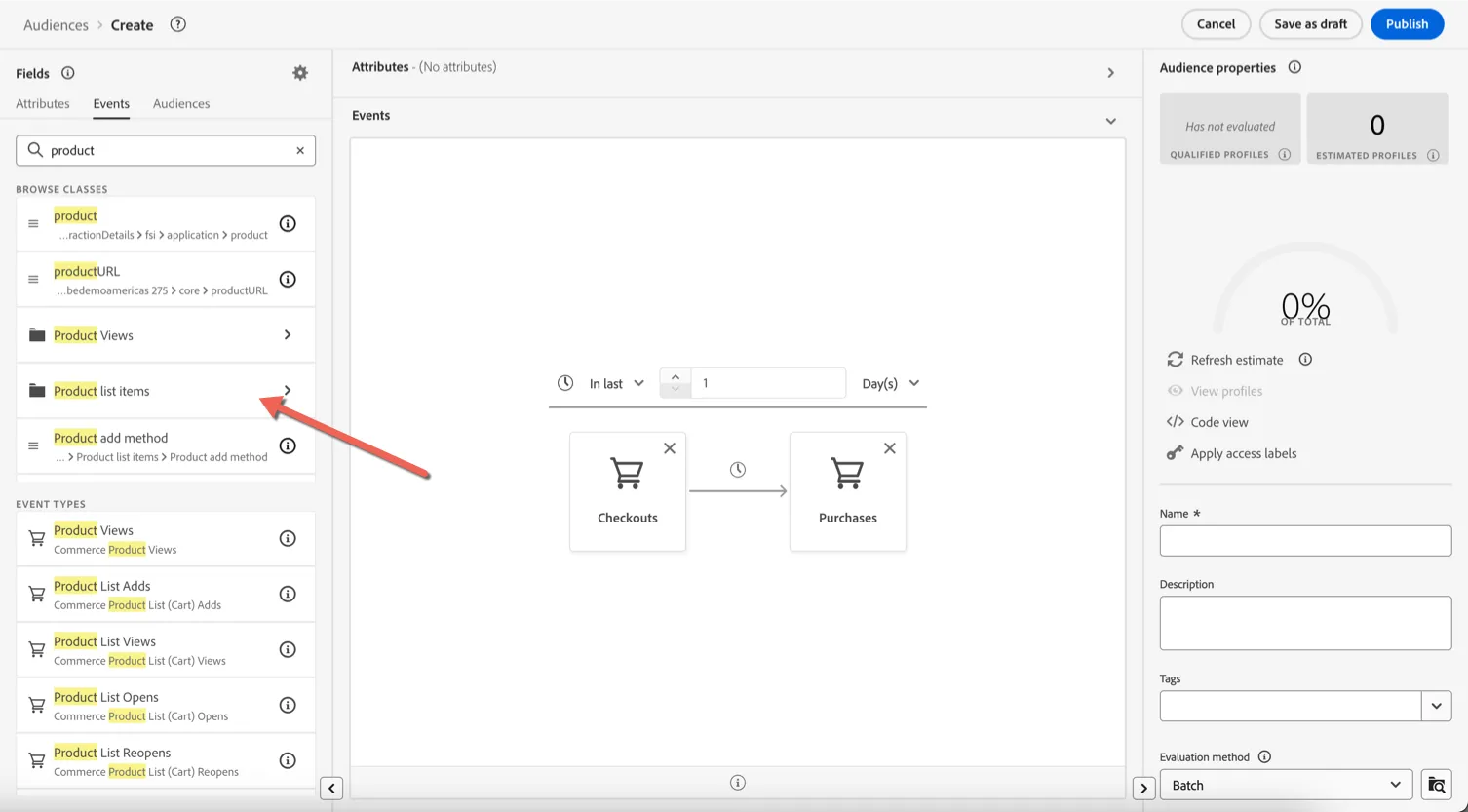
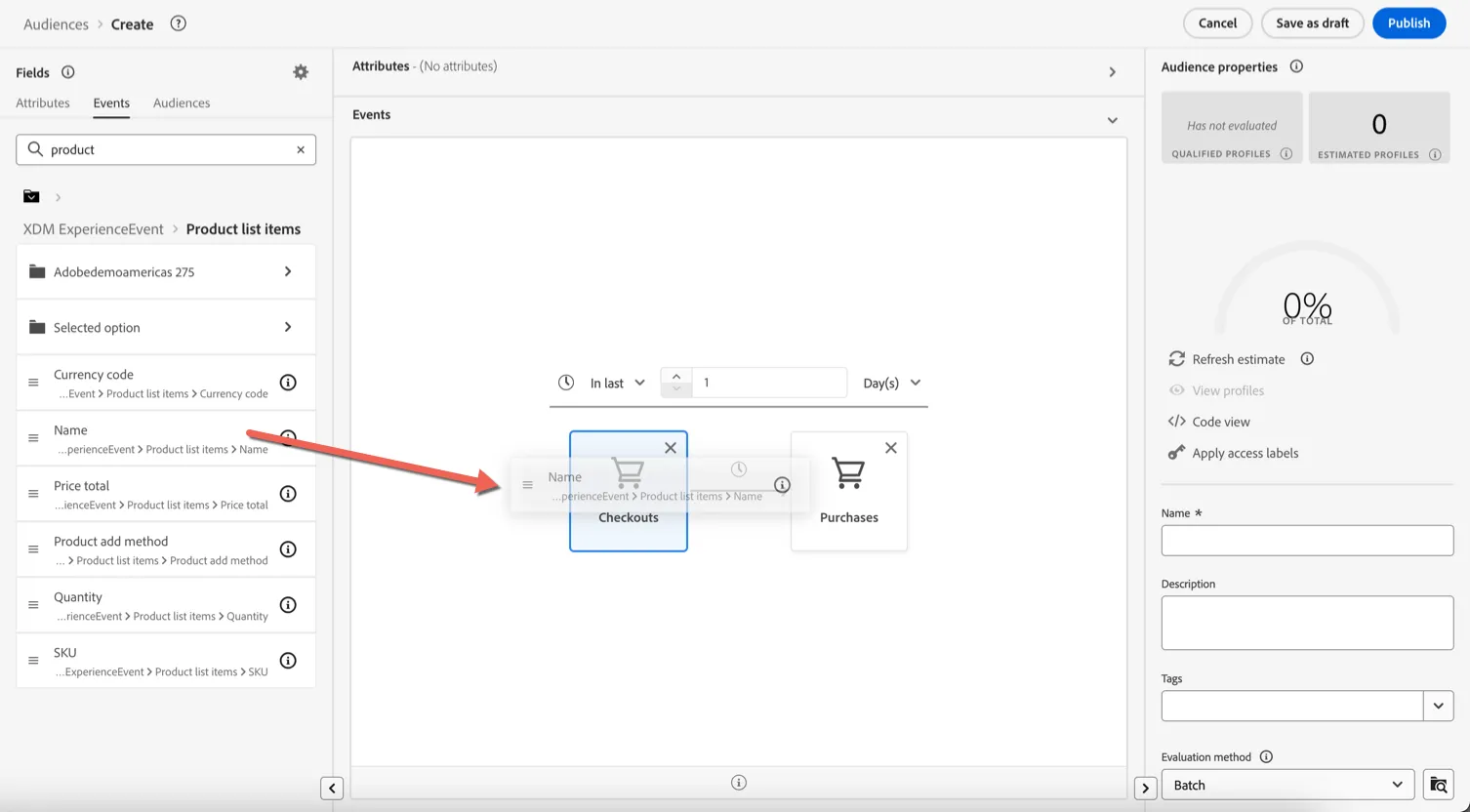
9. Drag and drop the product Name onto the canvas, over the checkout event. The condition should appear in the bottom of the screen
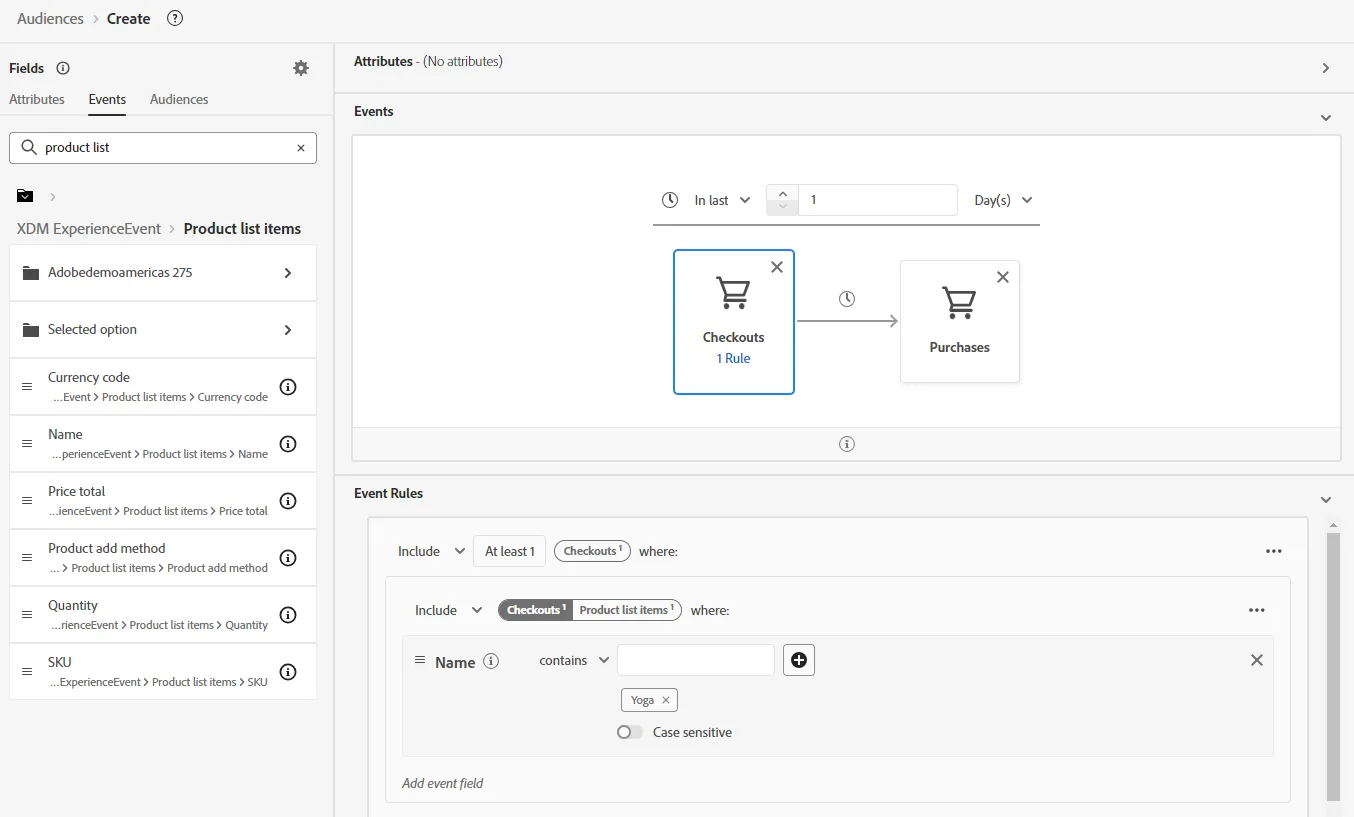
10. Change the operation to contains and type Yoga hit enter.
11. Lastly we want to exclude the people who completed the Purchase. Click on the Purchase Event and change the Include drop down in the event rules to Exclude.
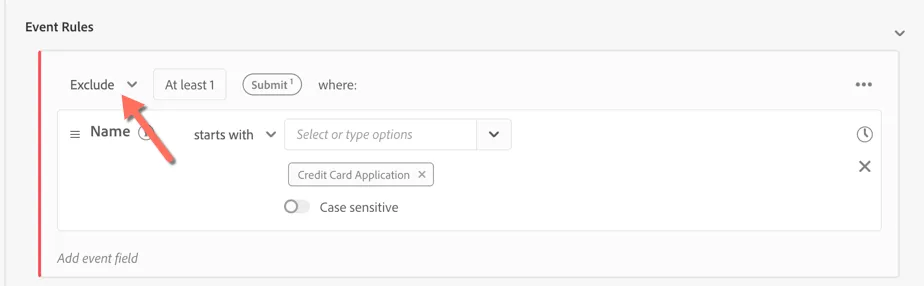
12. Your audience rules should look like:
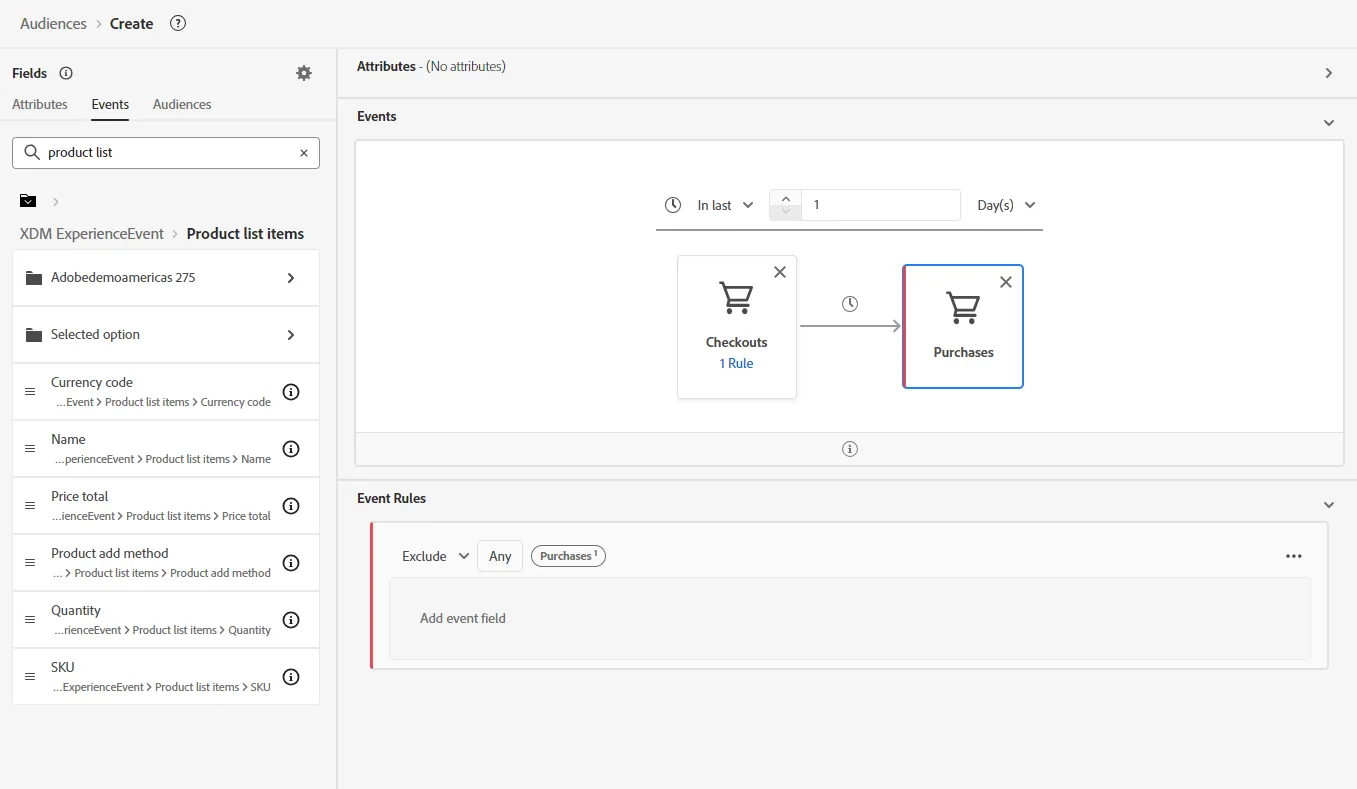
13. Give your Audience a name. E.g. your initials - Cart abandonment
14. Click Publish to save your audience.
You have successfully created a Sequential Segment.
Audience Composition
Rule based audiences are great but have limits. Imagine if you want to limit the number of profiles that can exist within an audience at any time or if you want to enrich the audience with attributes that are stored in a separate dataset? This can be achieved using AEP's Audience Composition. For this exercise, we'll create an audience composition workflow to take the top 100 profiles with the highest propensity scores from your retargeting segment. These can be used if you have limit number of coupon you can offer for example.
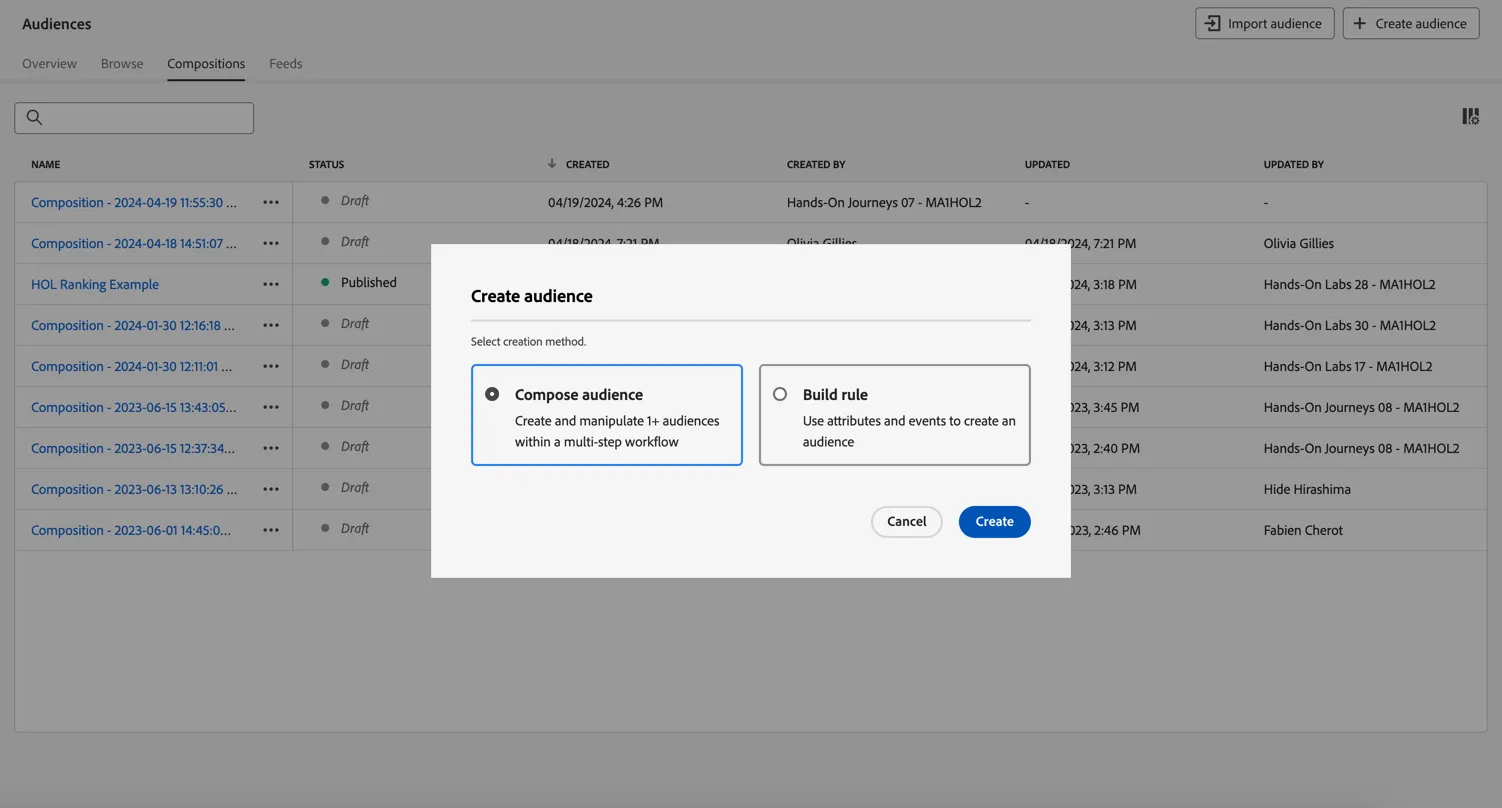
- Go to Audiences and click to + Create Audience. Select Compose Audience and click Create.
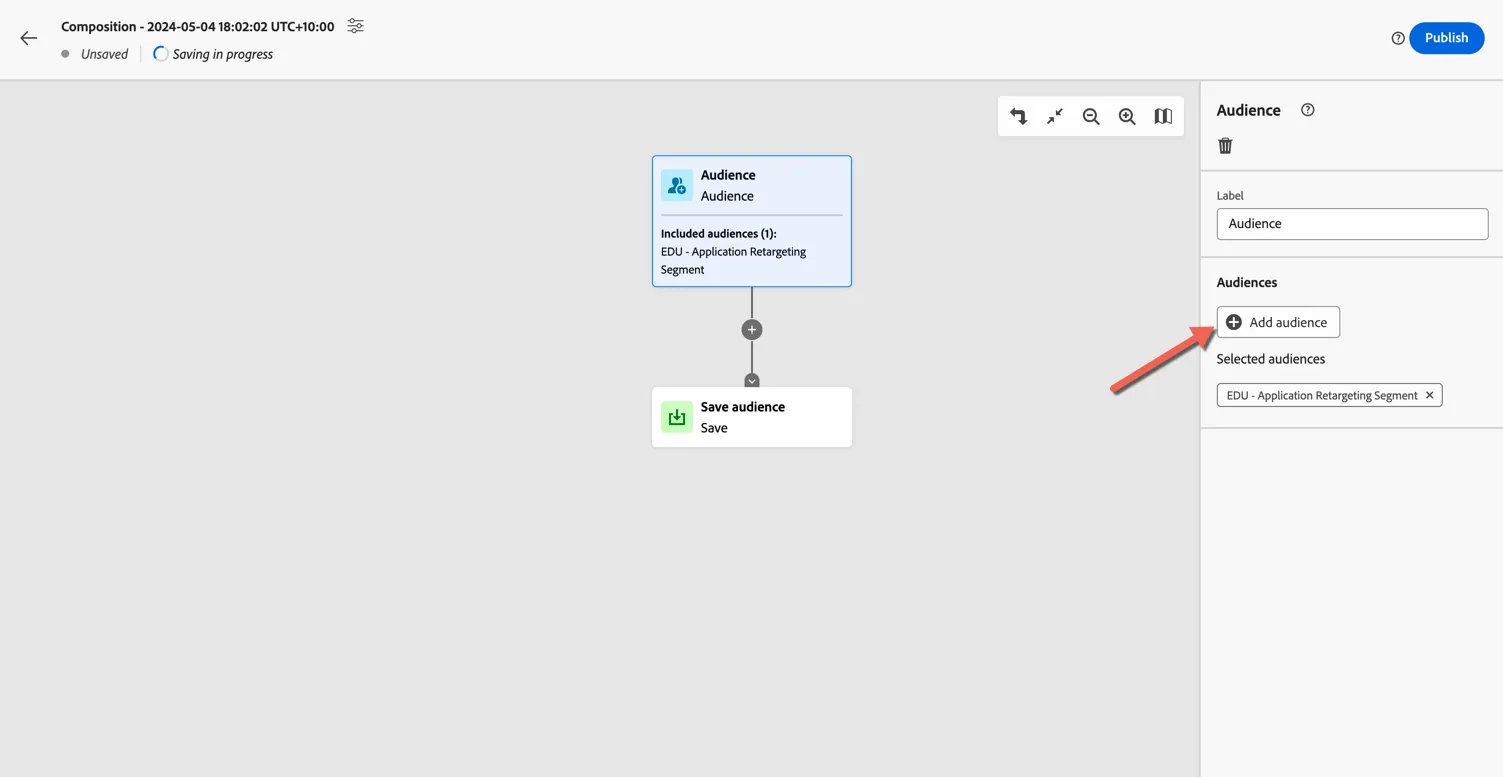
2. Select the Audience activity that starts the composition. Click to Add Audience and select your retargeting segment from the previous exercise.
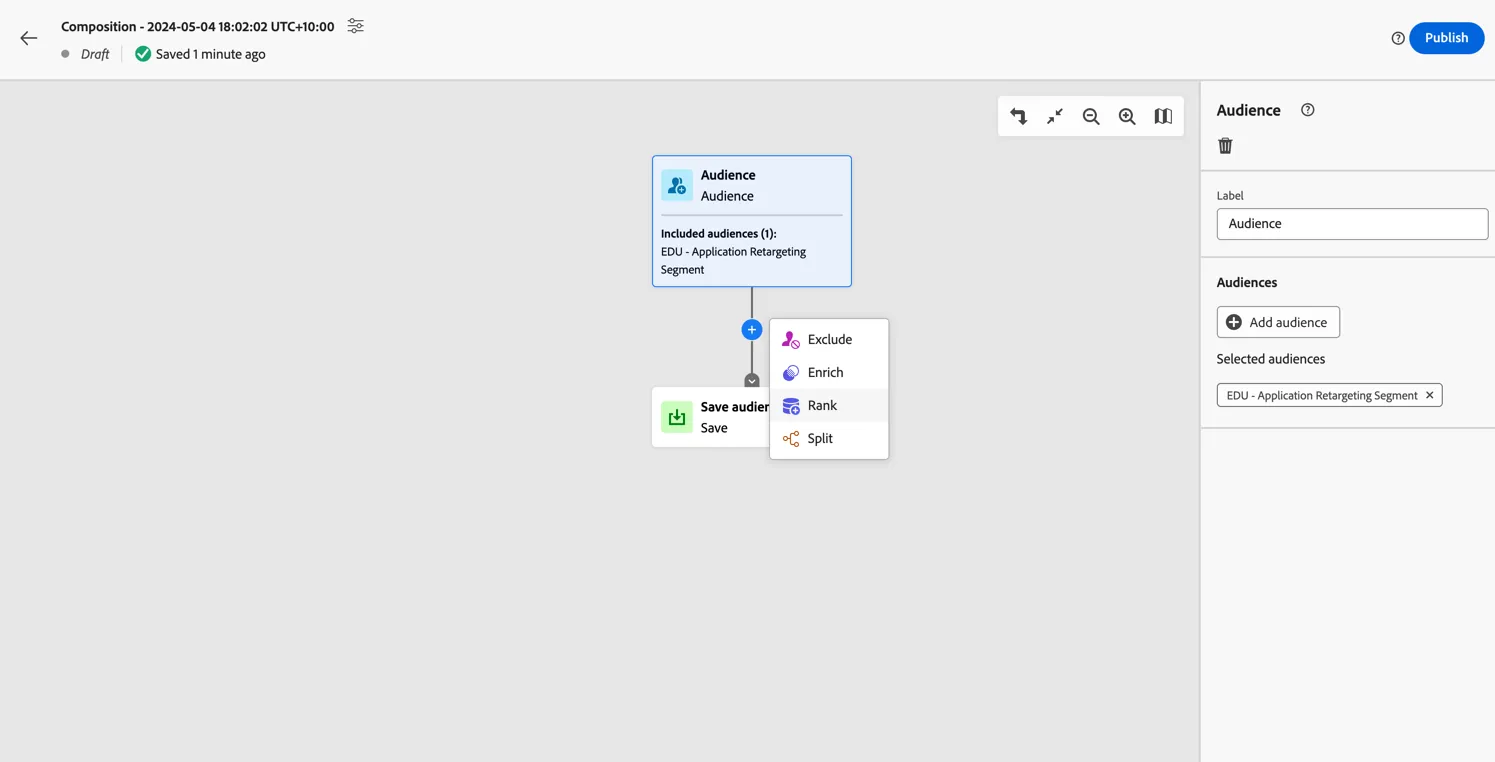
3. Click on the plus after the audience activity and select to add a Rank activity.
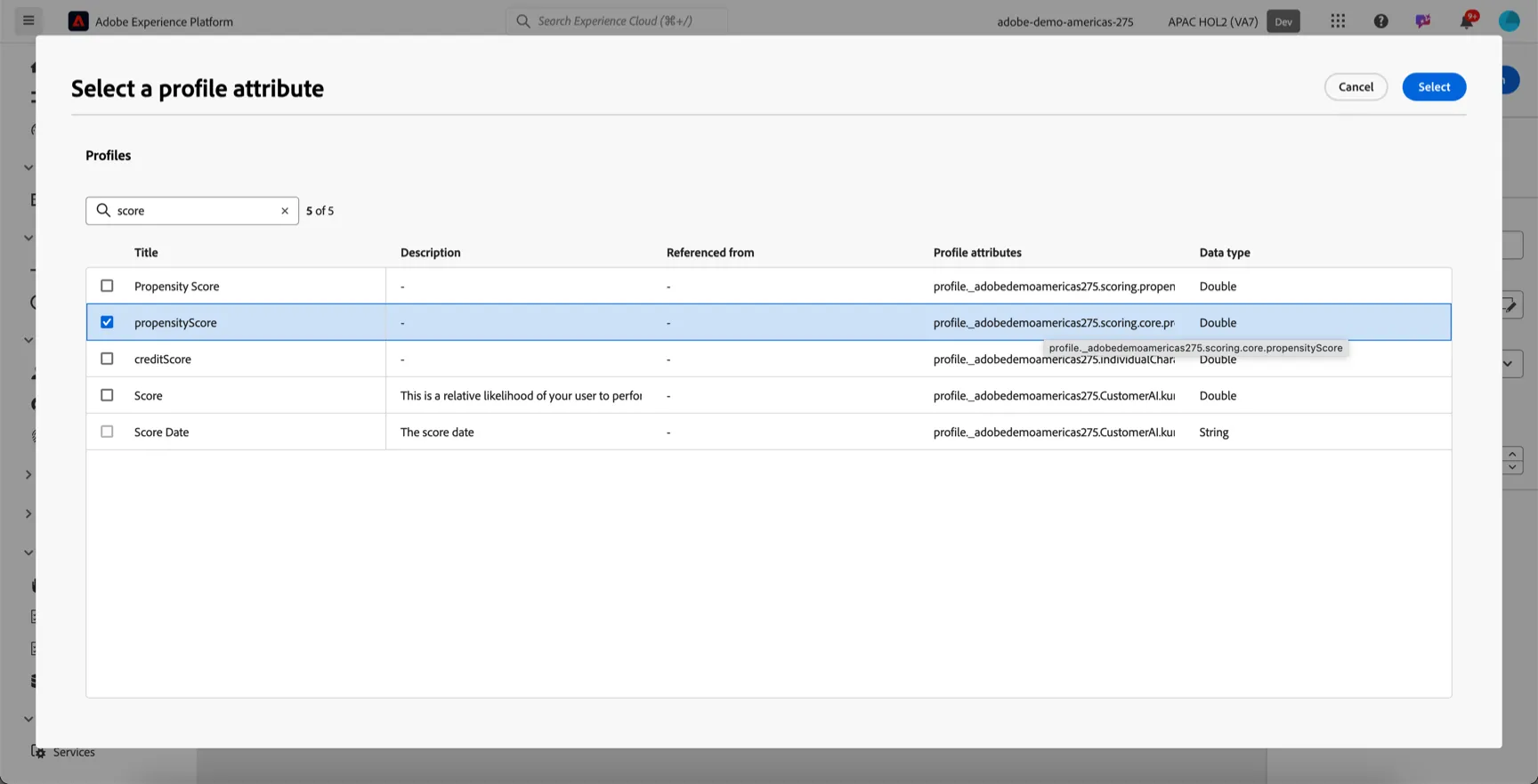
4. Select the propensityScore (_adobedemoamercias275.scoring.core.propensityScore) as the attribute to use for ranking
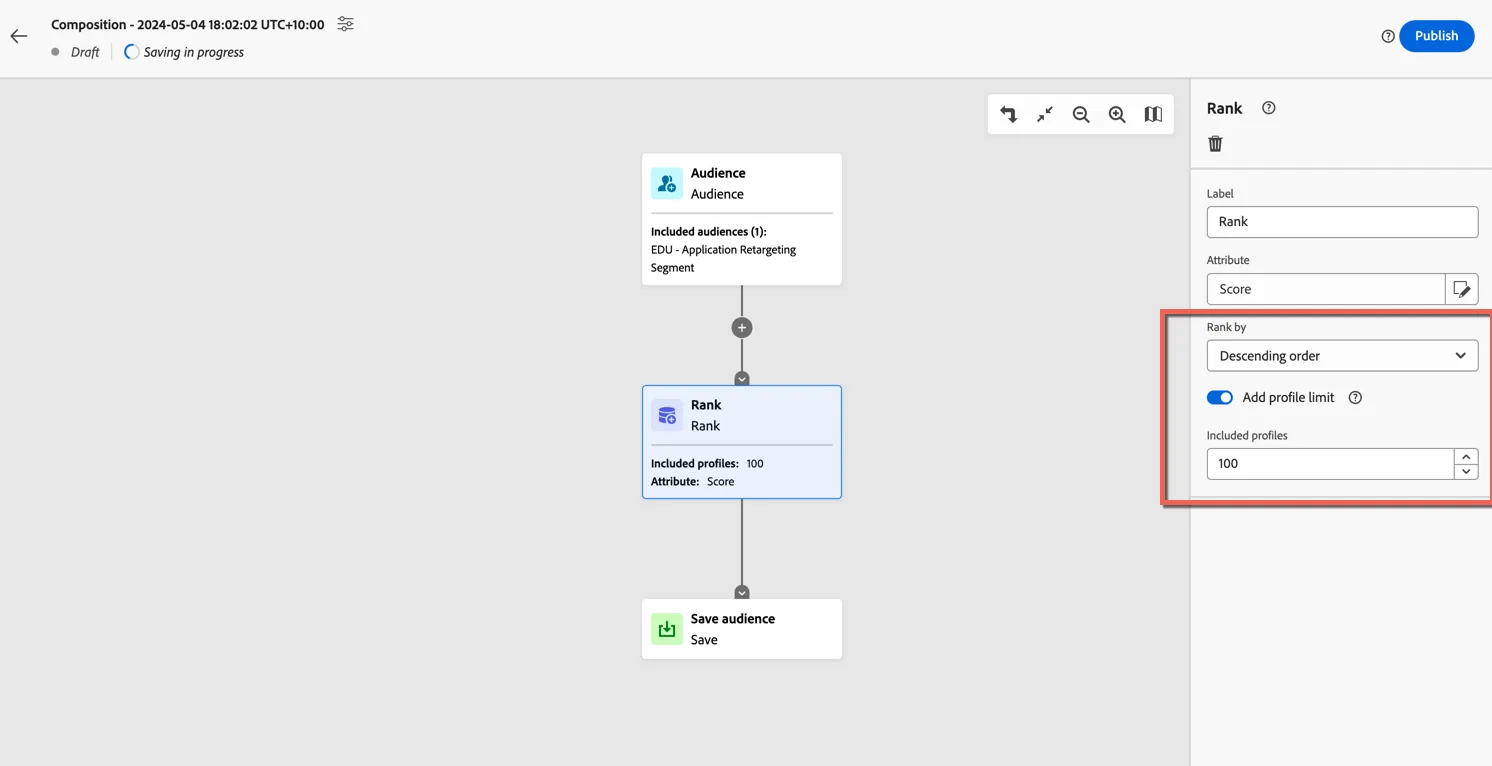
5. Change the Ranking order from Ascending to Descending - we want the profiles with the highest propensity. And add a limit of 100.
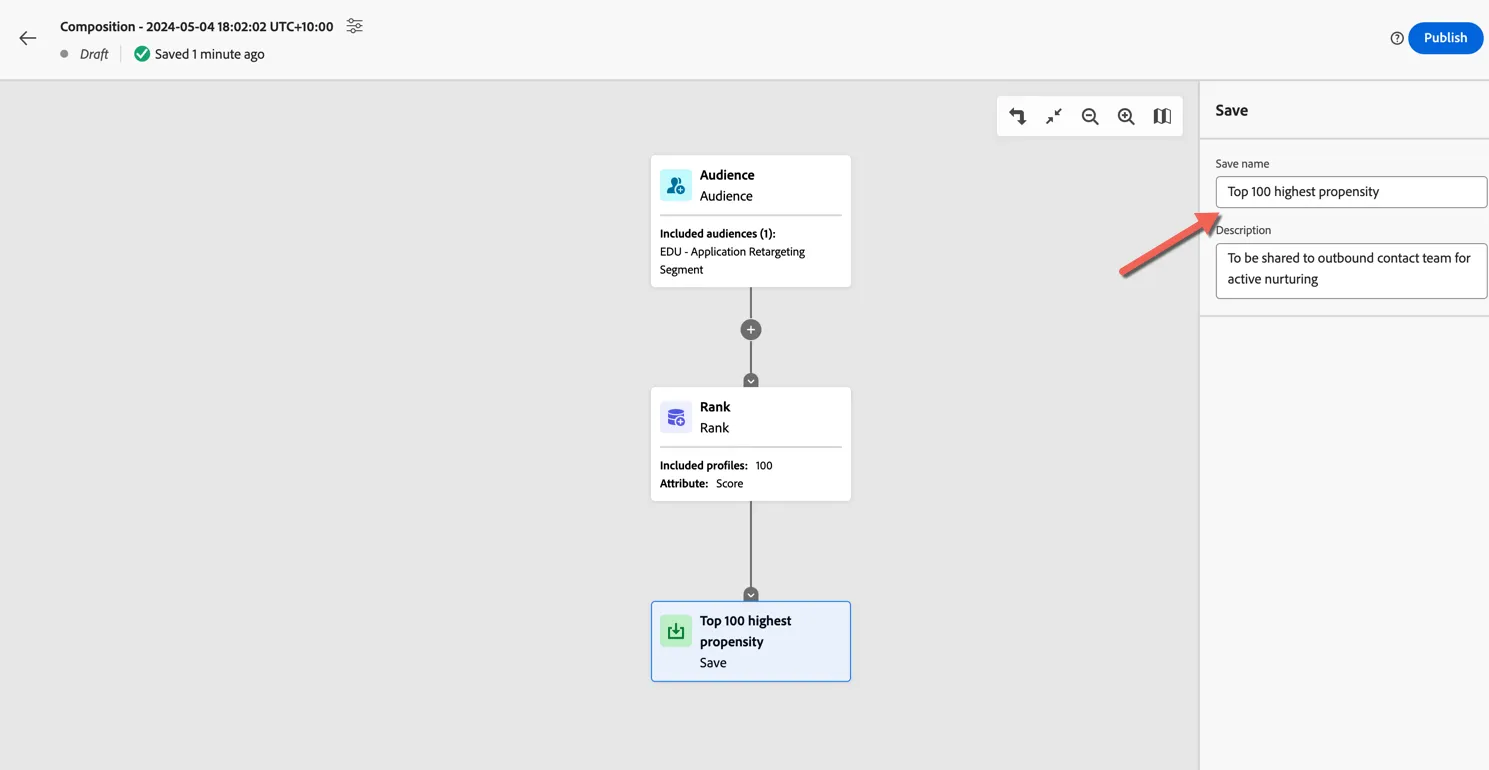
6. Give the output audience a name.
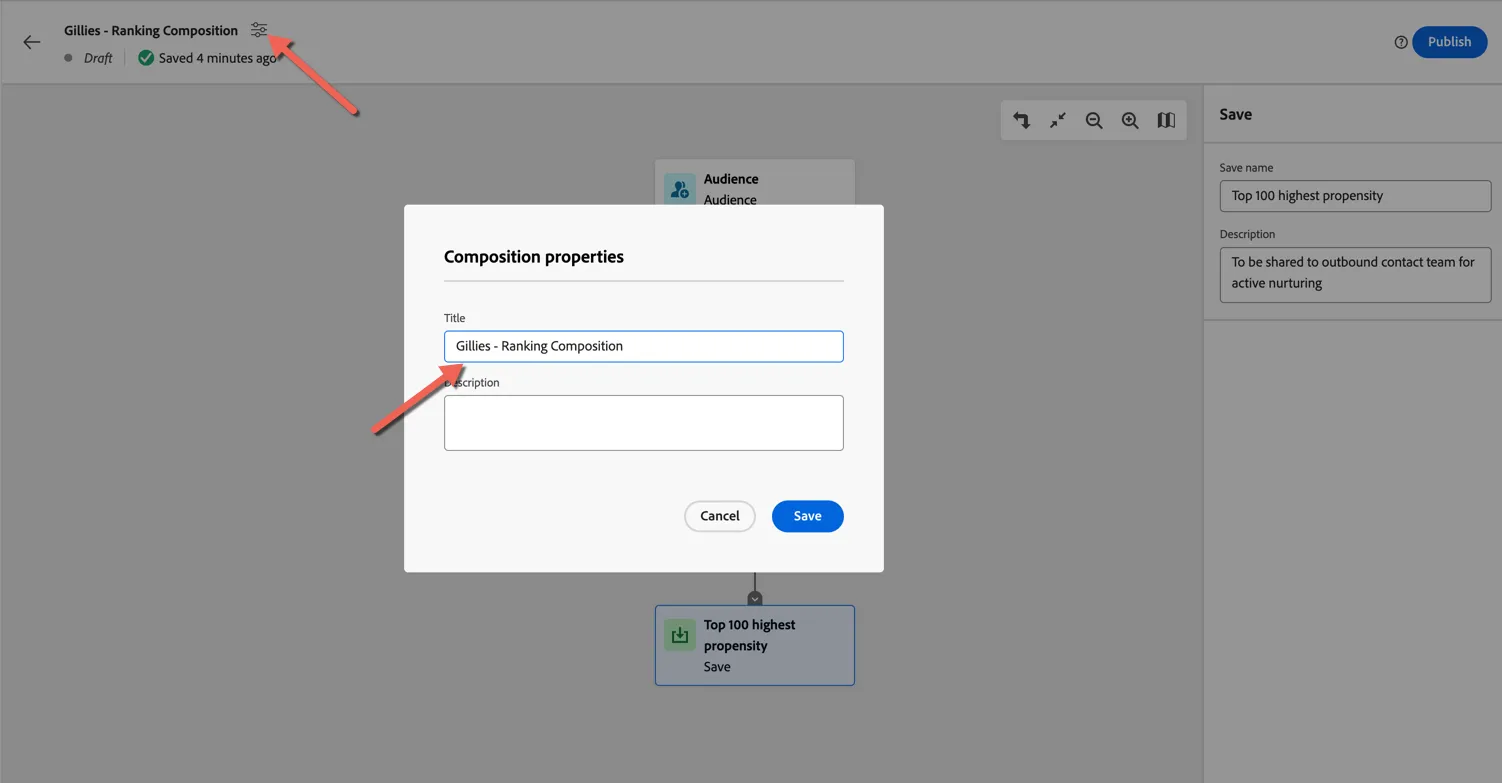
7. Lastly give your composition a name by clicking on the settings at the top left. Make the name unique so you can identify it easily.
Congratulations you have successfully created an audience composition workflow. Once published the workflow will execute once per day to populate the audience with the top 100 highest ranked members.