Create a Campaign
This exercise will walk through the steps to create a Campaign in the Adobe Campaign V8 Web UI.
Campaigns are a combination of workflows and deliveries. Each campaign can contain multiple workflows and each workflow can include one or more deliveries.
Create a Campaign
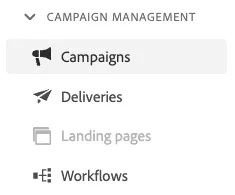
Navigate to Campaigns from the left navigation menu:
Click on Create Campaign in the top right corner of the screen:
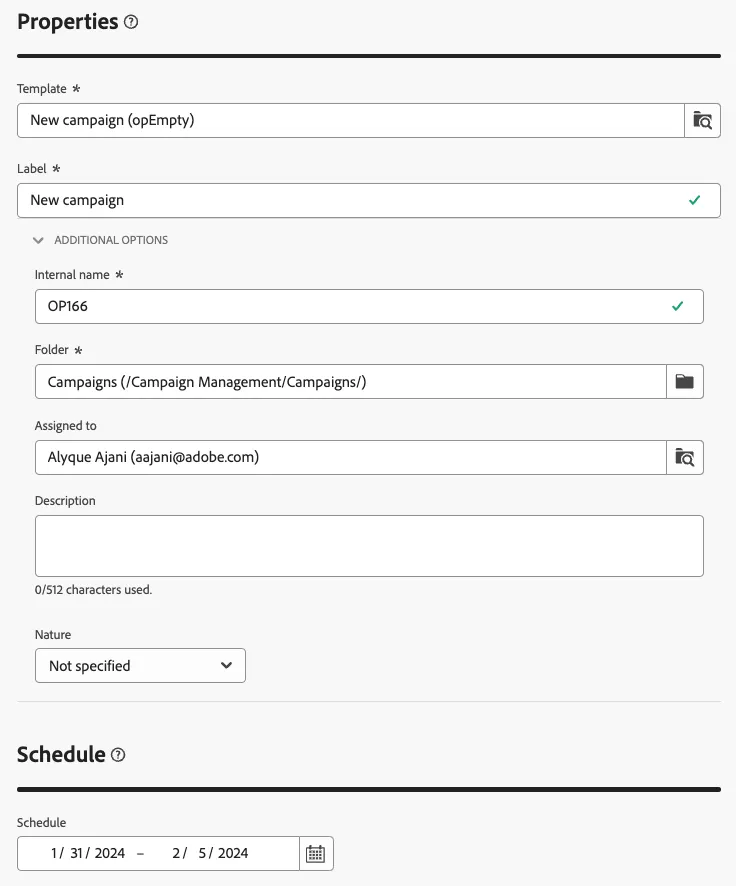
On the next screen, define the Properties and Schedule for the Campaign. Choose a template and provide a Label that you will recognise later. This is also where you can update the folder or schedule dates for the campaign.
Click Create
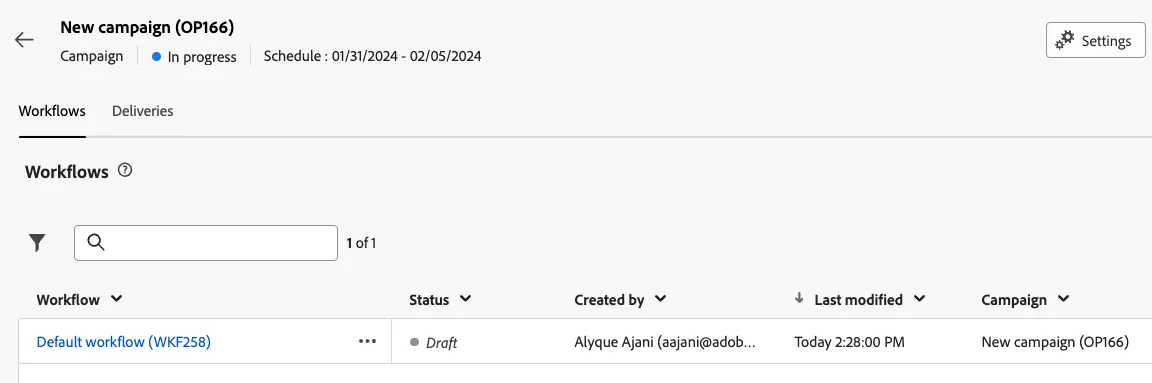
You will arrive at a screen with 2 tabs: Workflows and Deliveries. What you see configured here will depend on which campaign template has been selected when creating the campaign. In this instance a default empty workflow has been created for you.
- The Deliveries tab is where you will find all deliveries related to the campaign. Currently this will be empty.
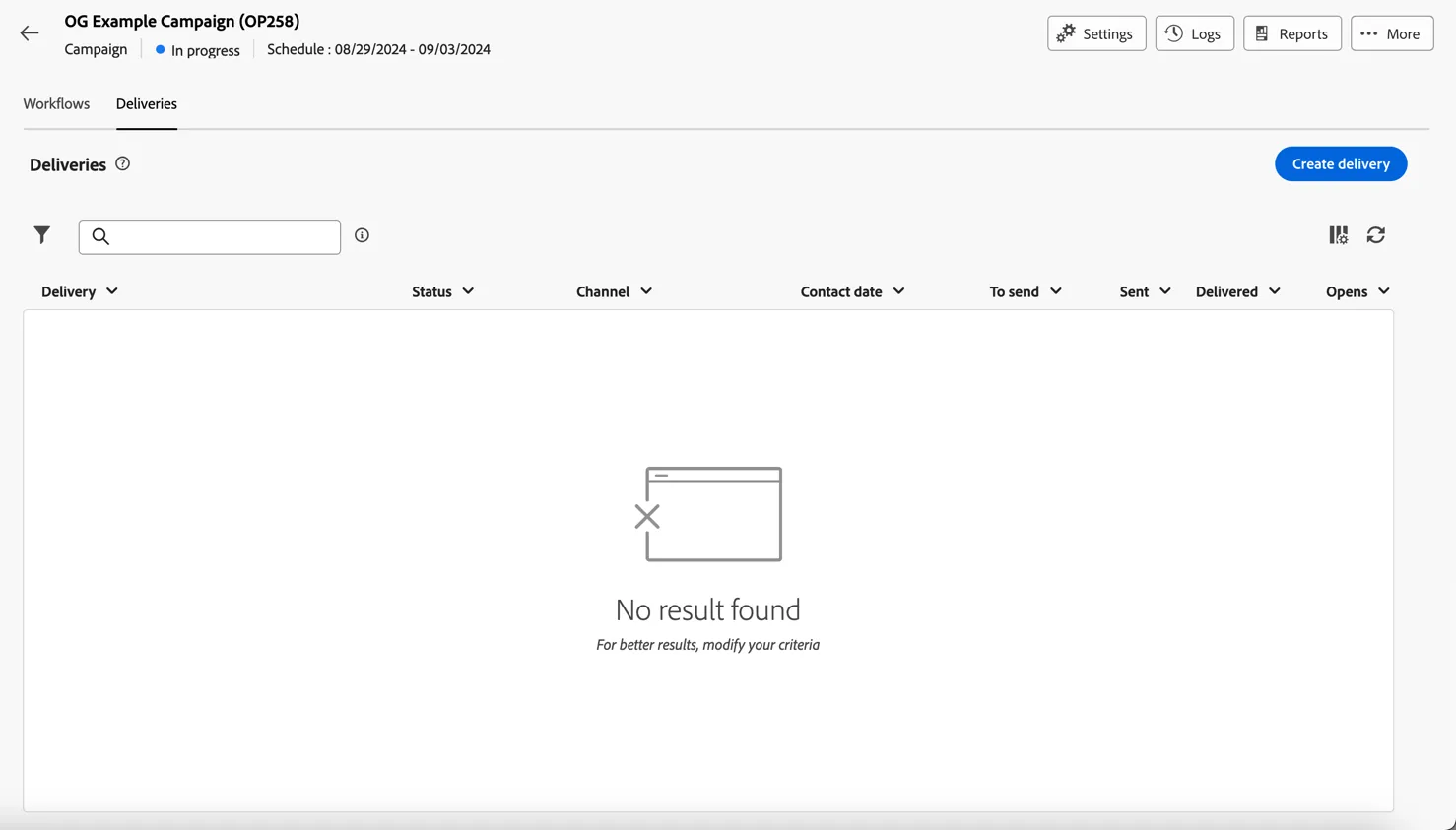
- You can add deliveries directly to this tab using the Create delivery button and configure them the same way we saw in the last exercise. Alternatively you can use a workflow to define a more complicated set of actions which might include multiple steps and multiple deliveries across channels.
This is what we will do for this exercise, let's now create a multi-step campaign to send an email, wait for 3 days then send a reminder via SMS to anyone that clicked through but has not yet purchased.
Configure the workflow
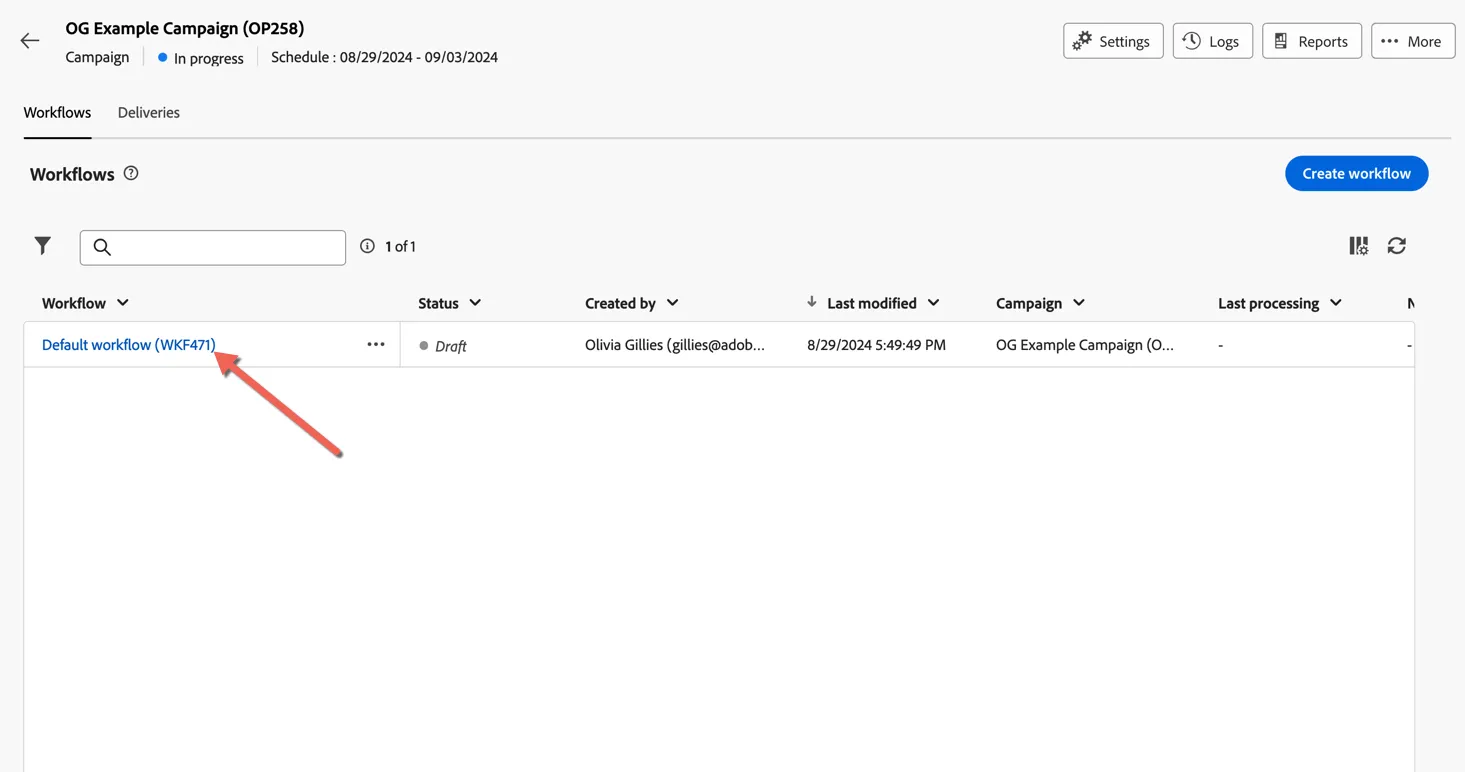
- Return to the workflows tab and click to open the default workflow.
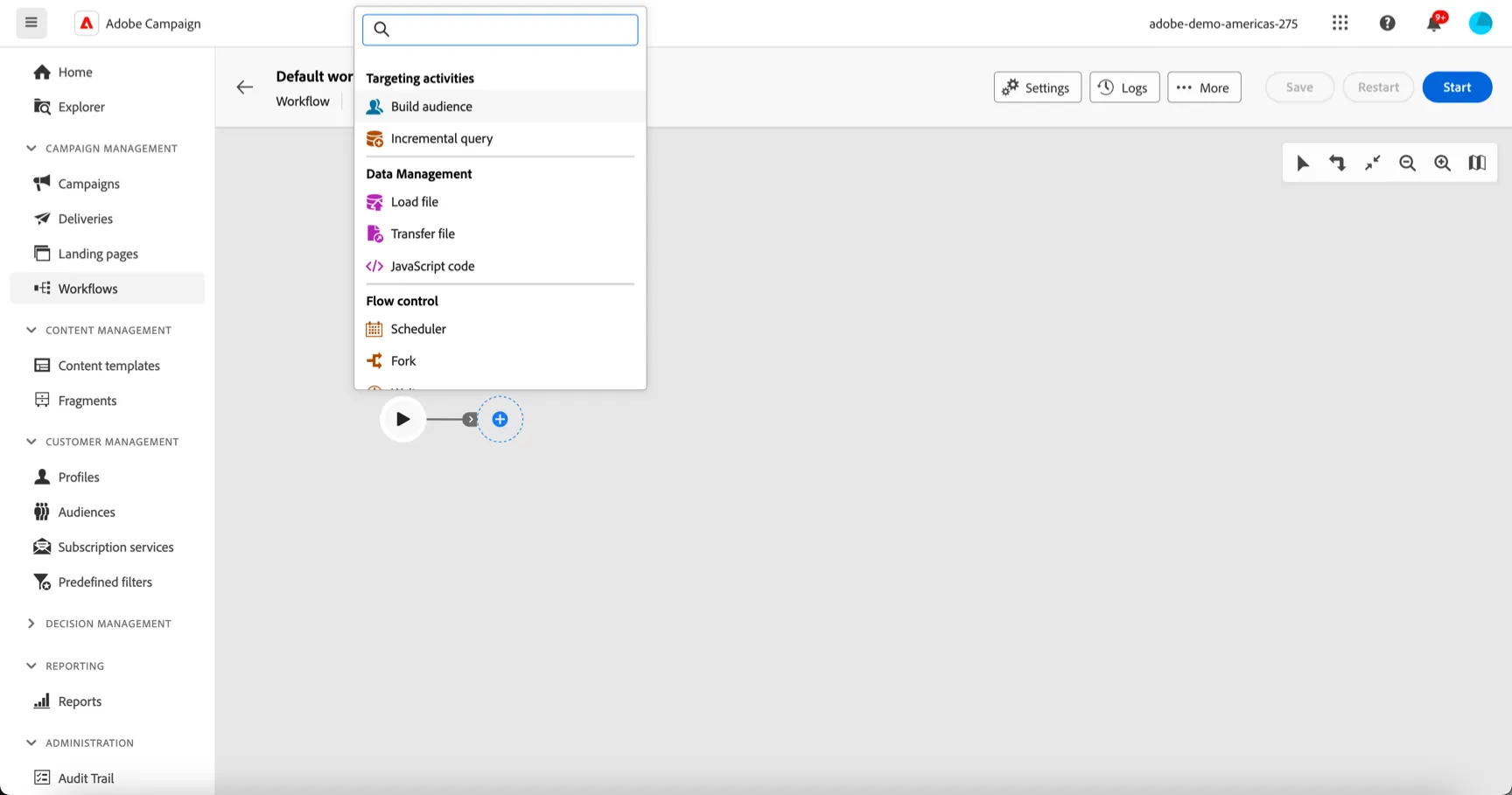
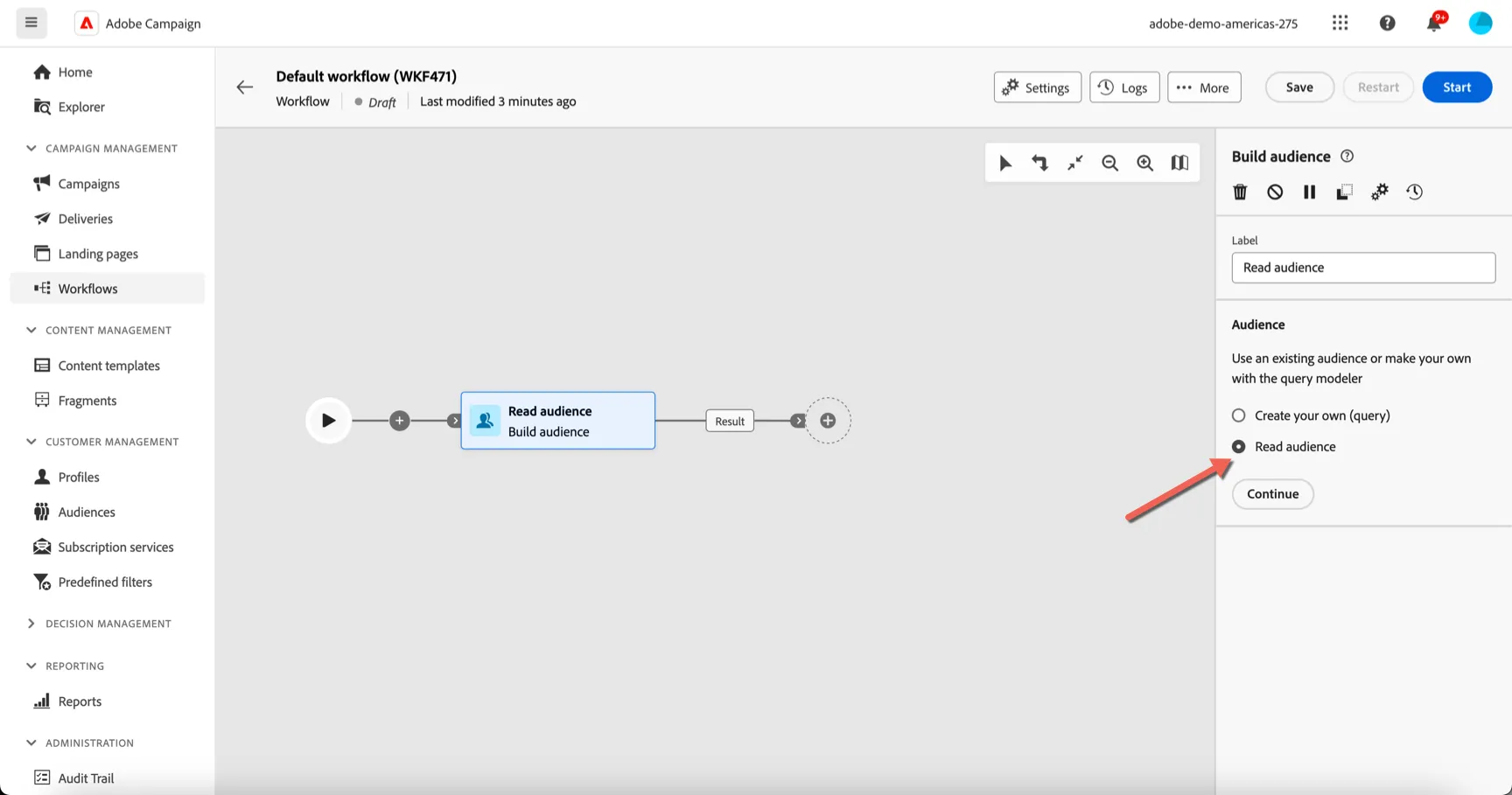
- Click on the + and select Build Audience
- We'll use the audience we created earlier so change the option from creat your own to Read audience. Then click Continue.
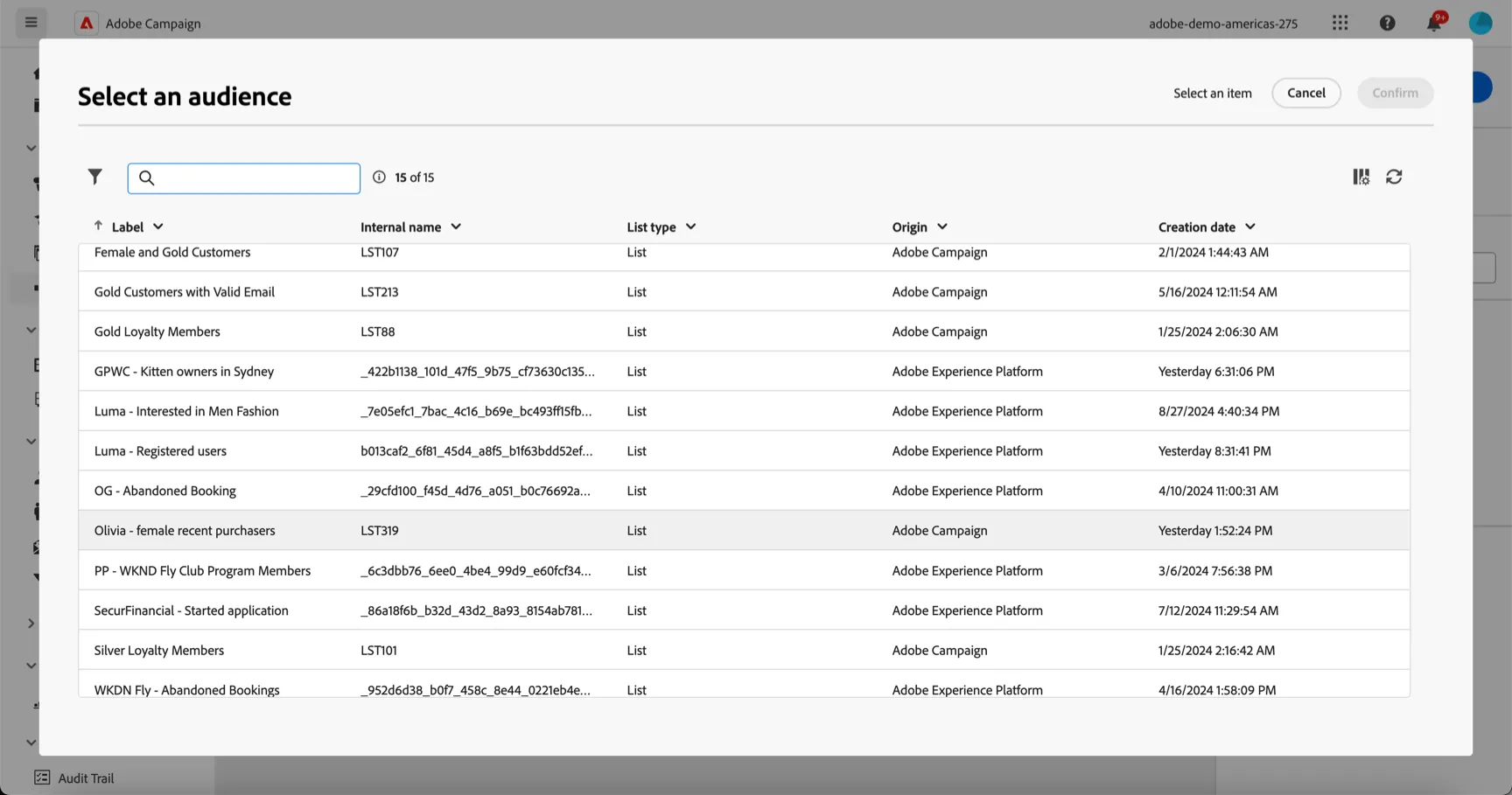
- Select the audience you created
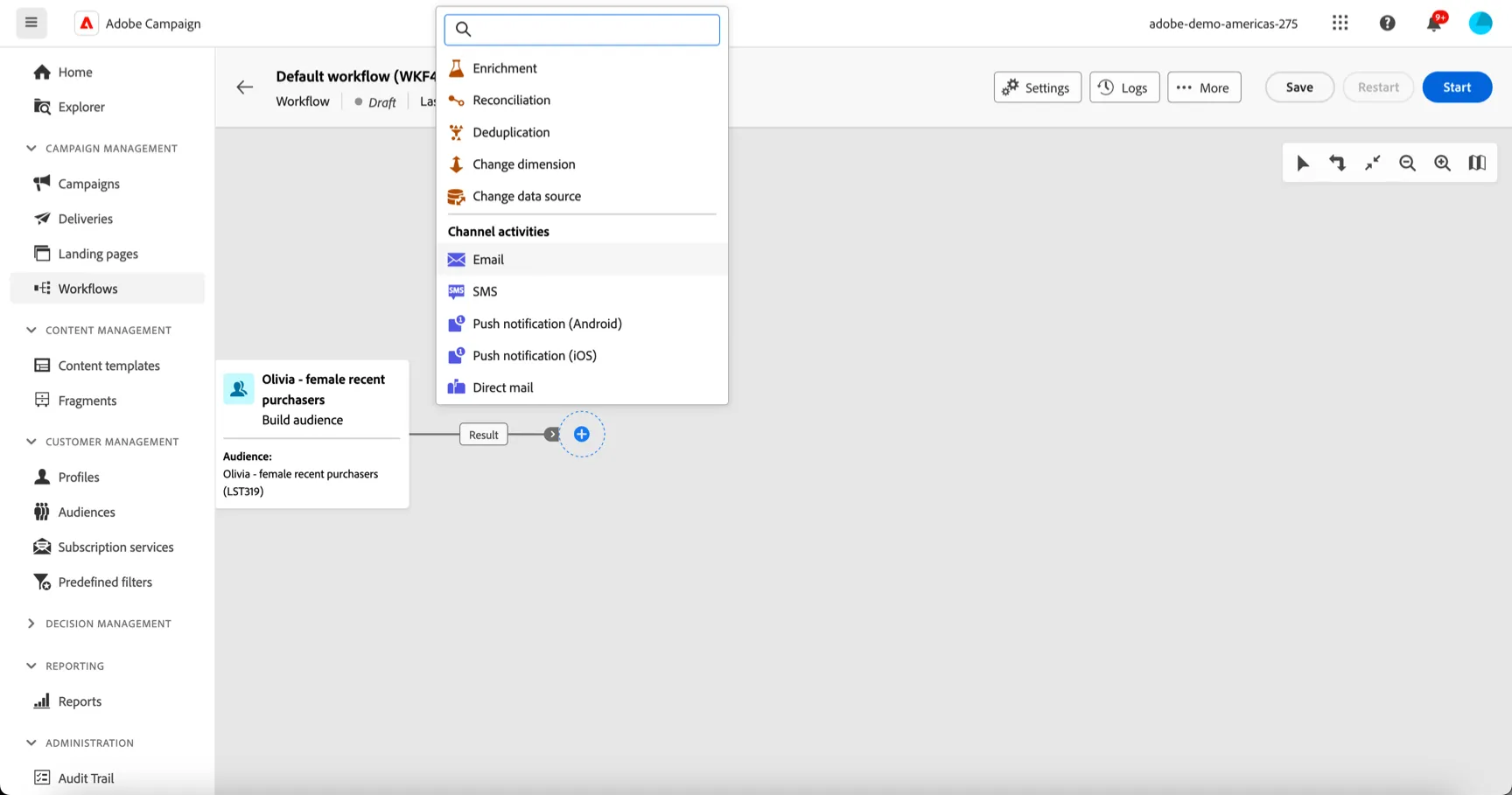
- Now let's add an Email activity
- In the activity properties you can choose whether you want to create a single or a recurring delivery and which delivery template to start from. Leave the settings as default
-
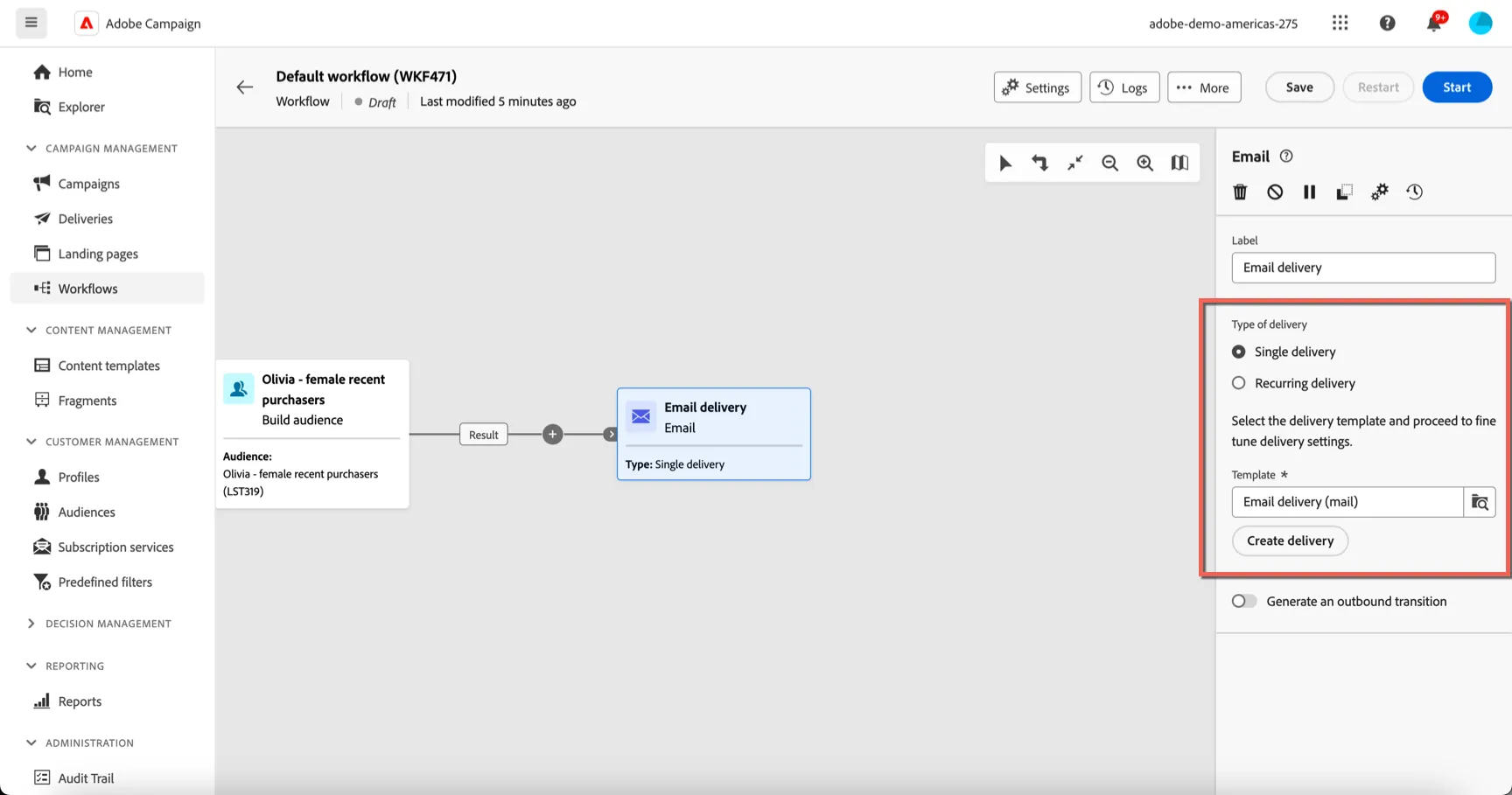
- Toggle the Generate an outbound transition option as we want the campaign to continue beyond the delivery.
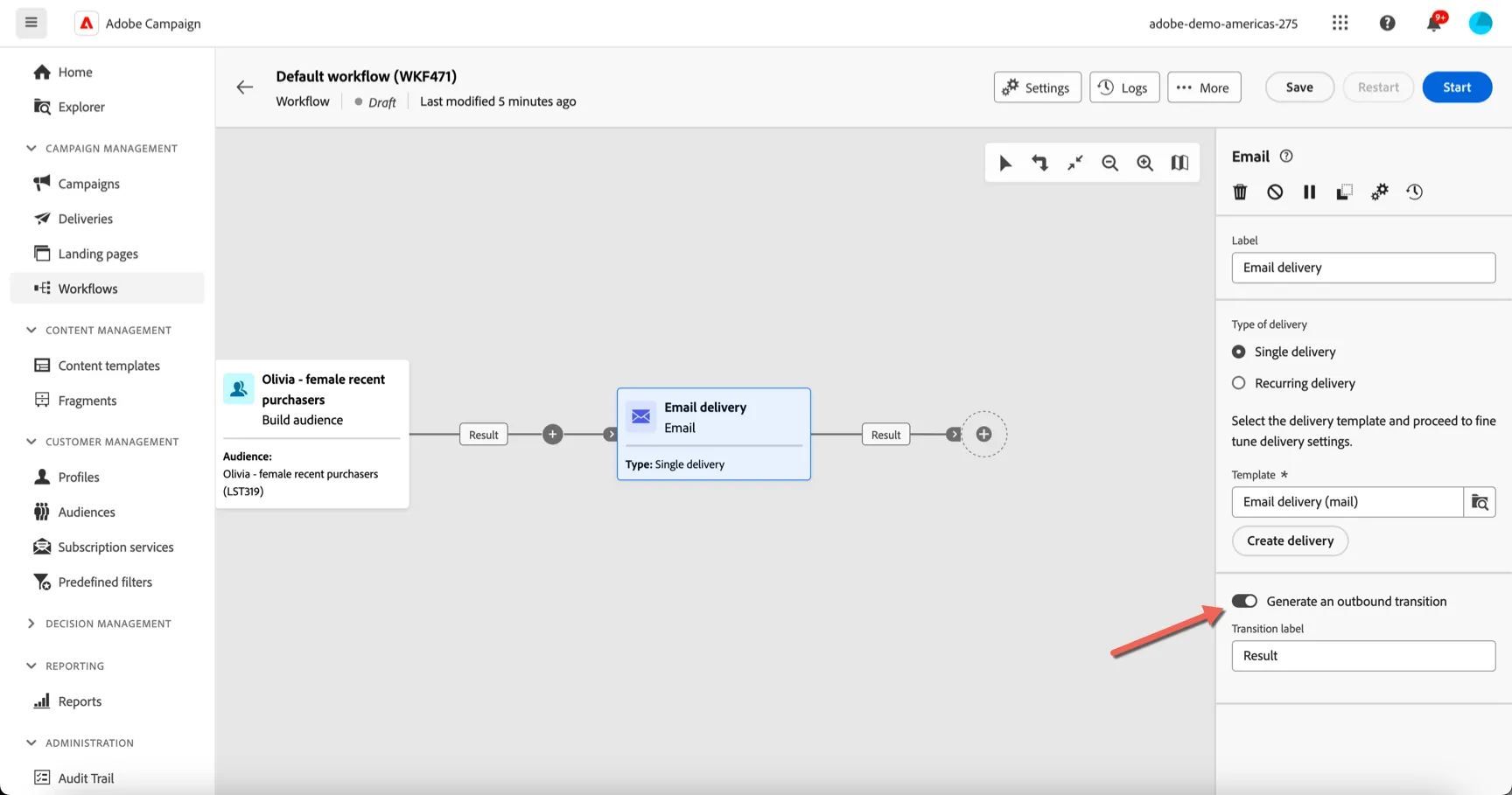
- Click on Create delivery to create a new delivery and attach it to the campaign.
- This opens the delivery window which you saw in the last exercise. Note that the audience is set for you since it will come from the query in the workflow.
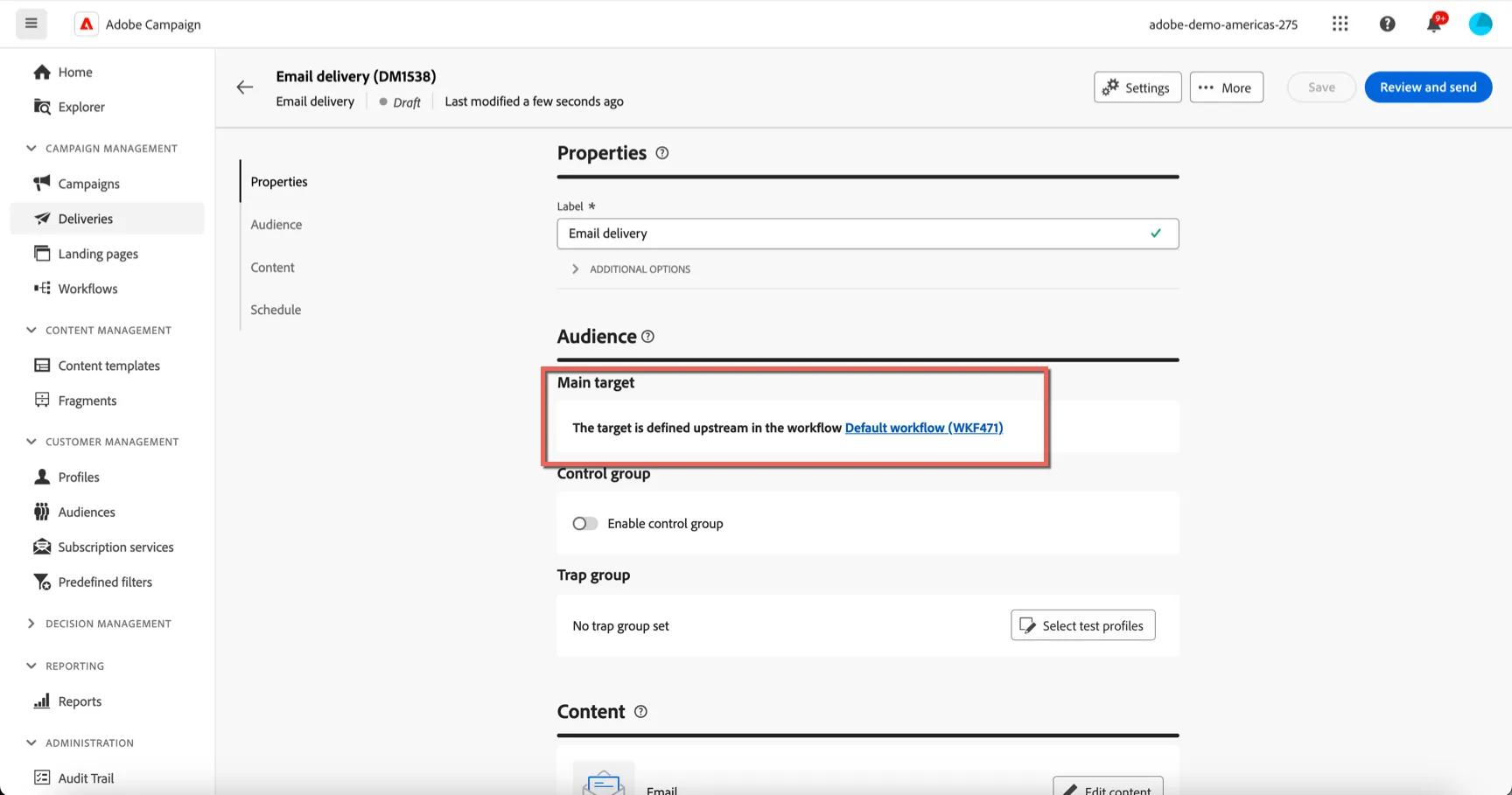
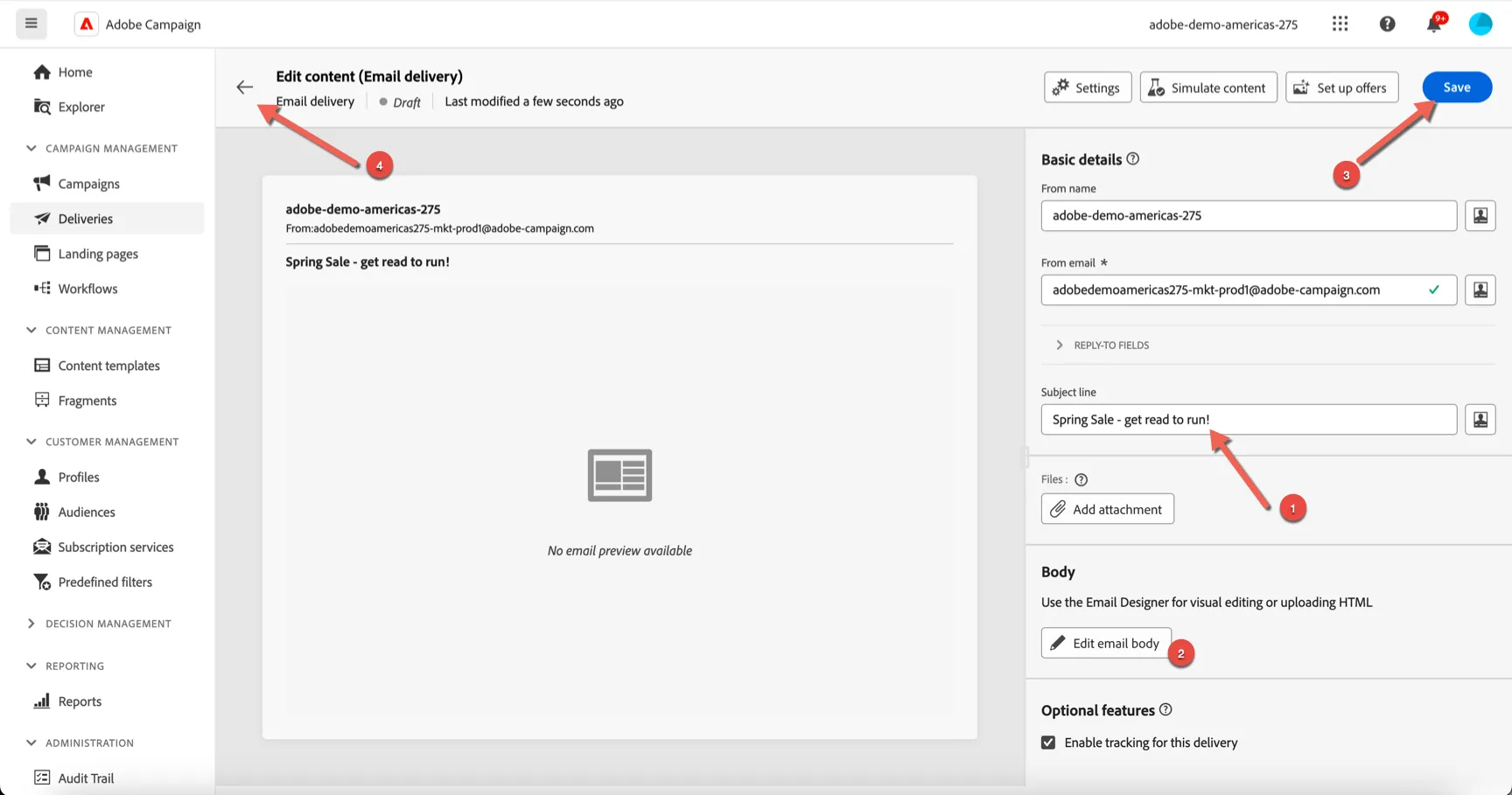
- Click to edit the email content and give your email a subject line and some content. Click Save and return to the workflow using the arrow on the top left.
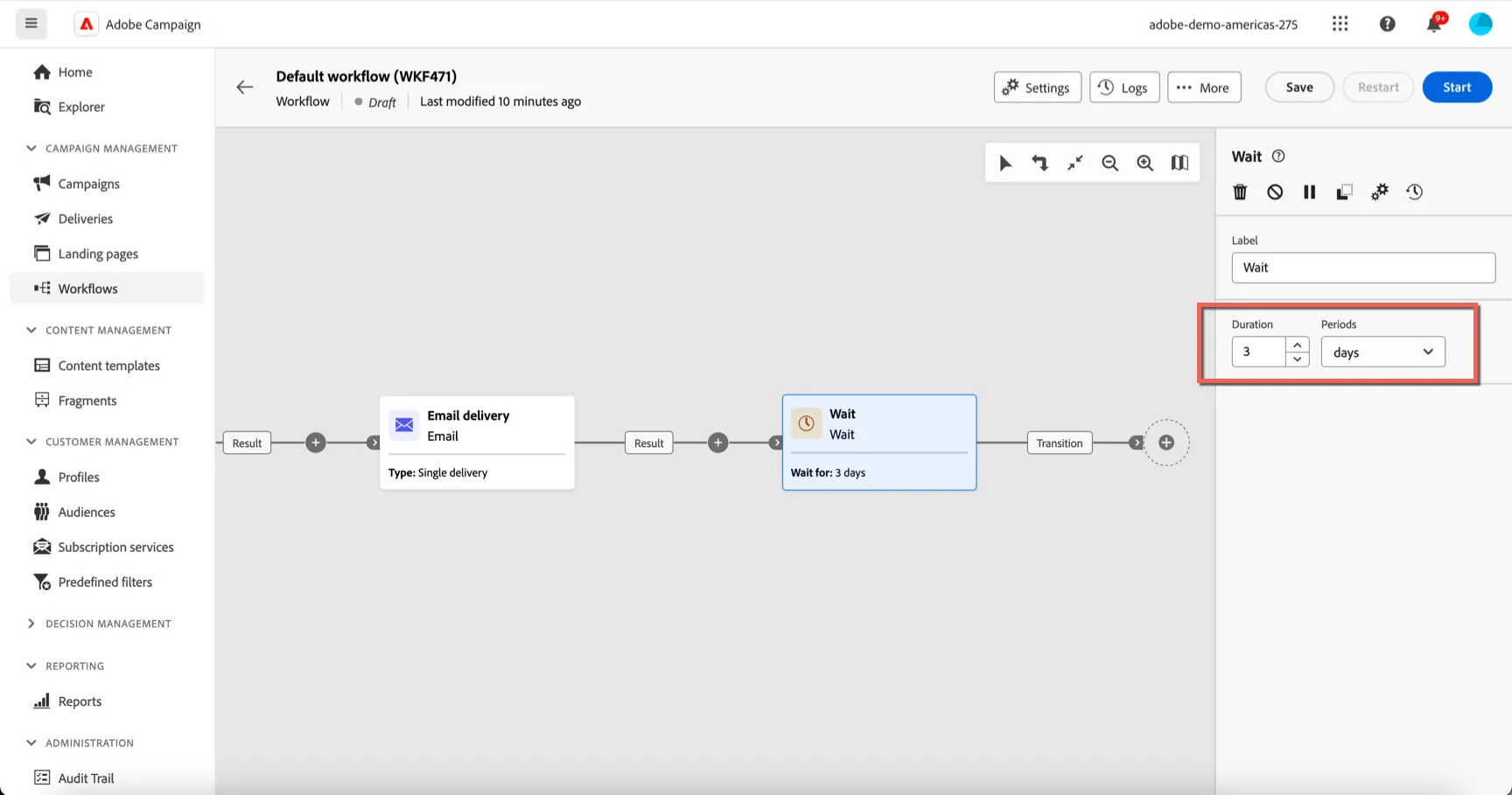
- Add a wait activity to the transition after your email.
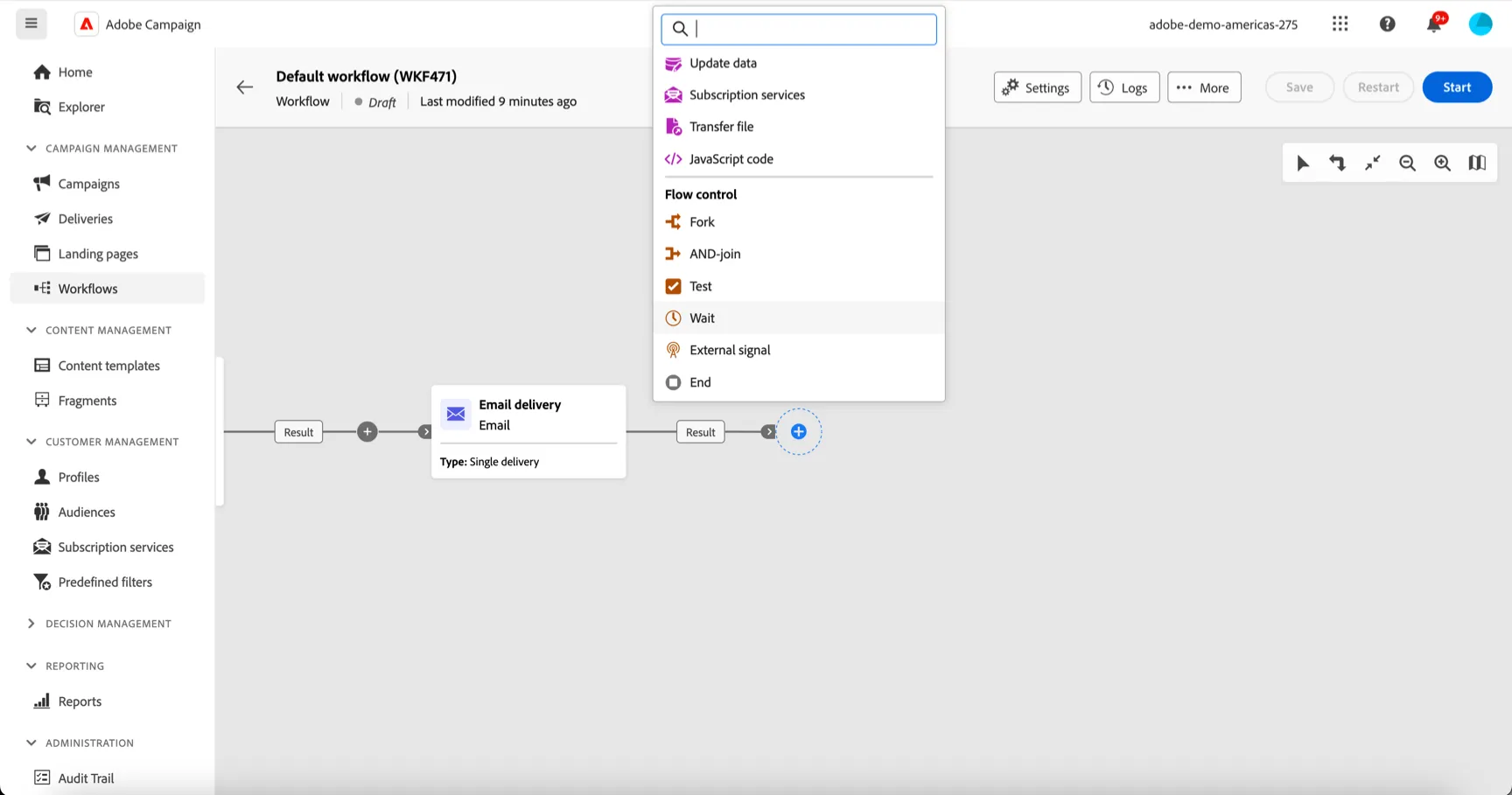
- Set the wait duration to 3 days.
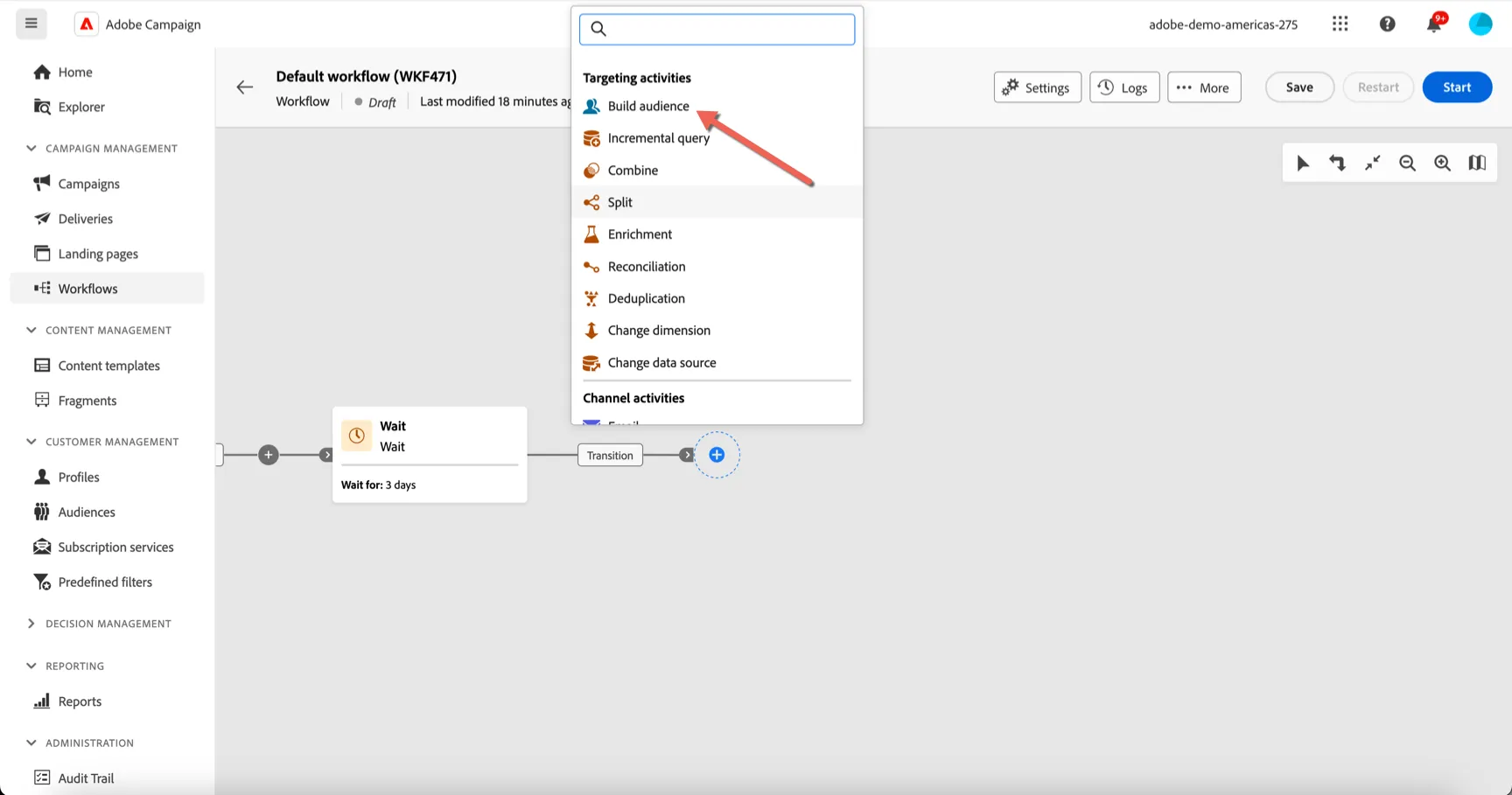
- Add a Build Audience activity after the wait
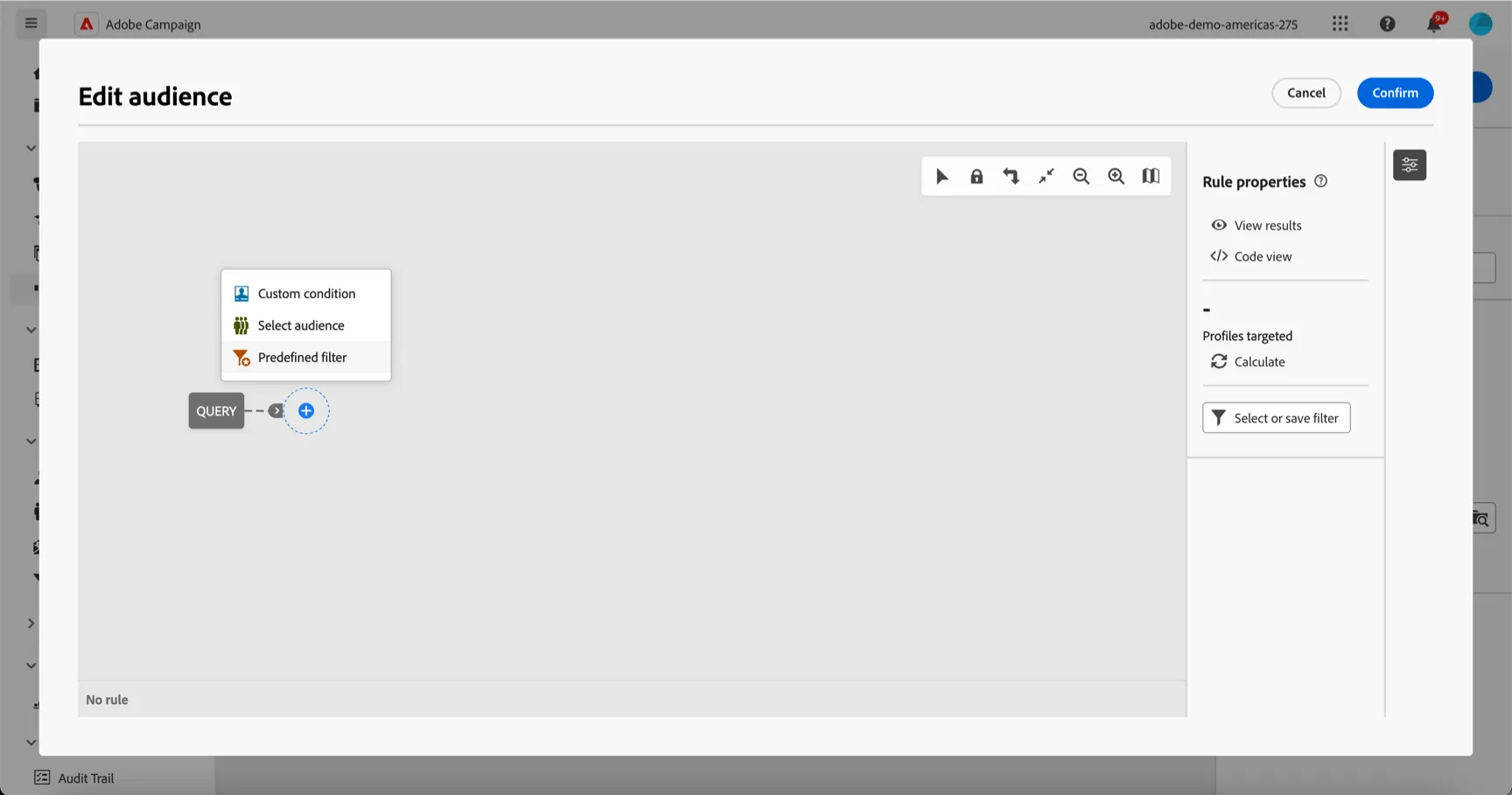
- For this we'll use a pre-defined filter to query for everyone who clicked on the email. In the query builder select Predefined filter
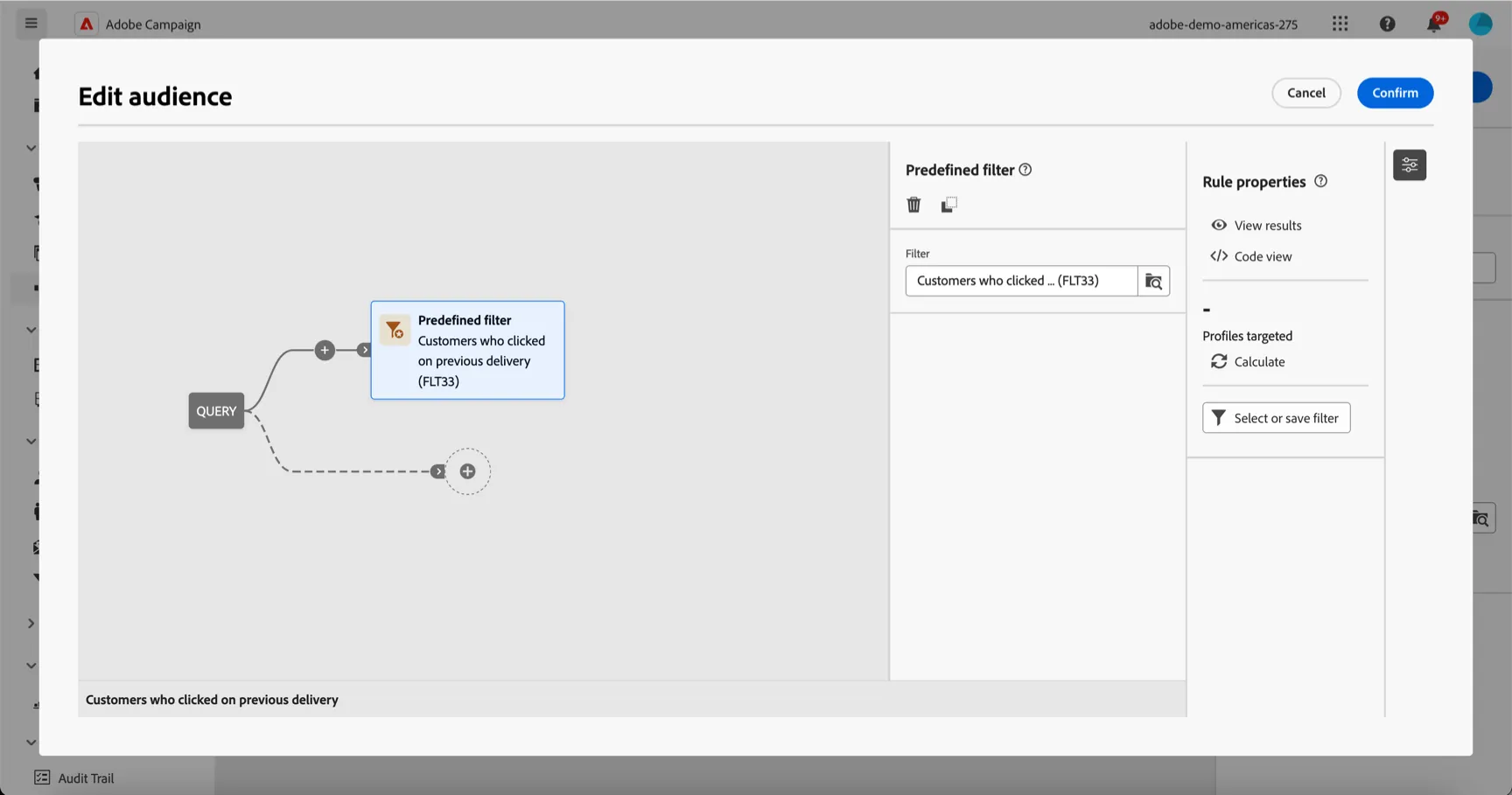
- Select the Customers who clicked on previous delivery and click Confirm
- Your query should look like this. Click confirm.
- Now let's exclude anyone who has made a purchase in the last 3 days. Add a Split activity to your workflow.
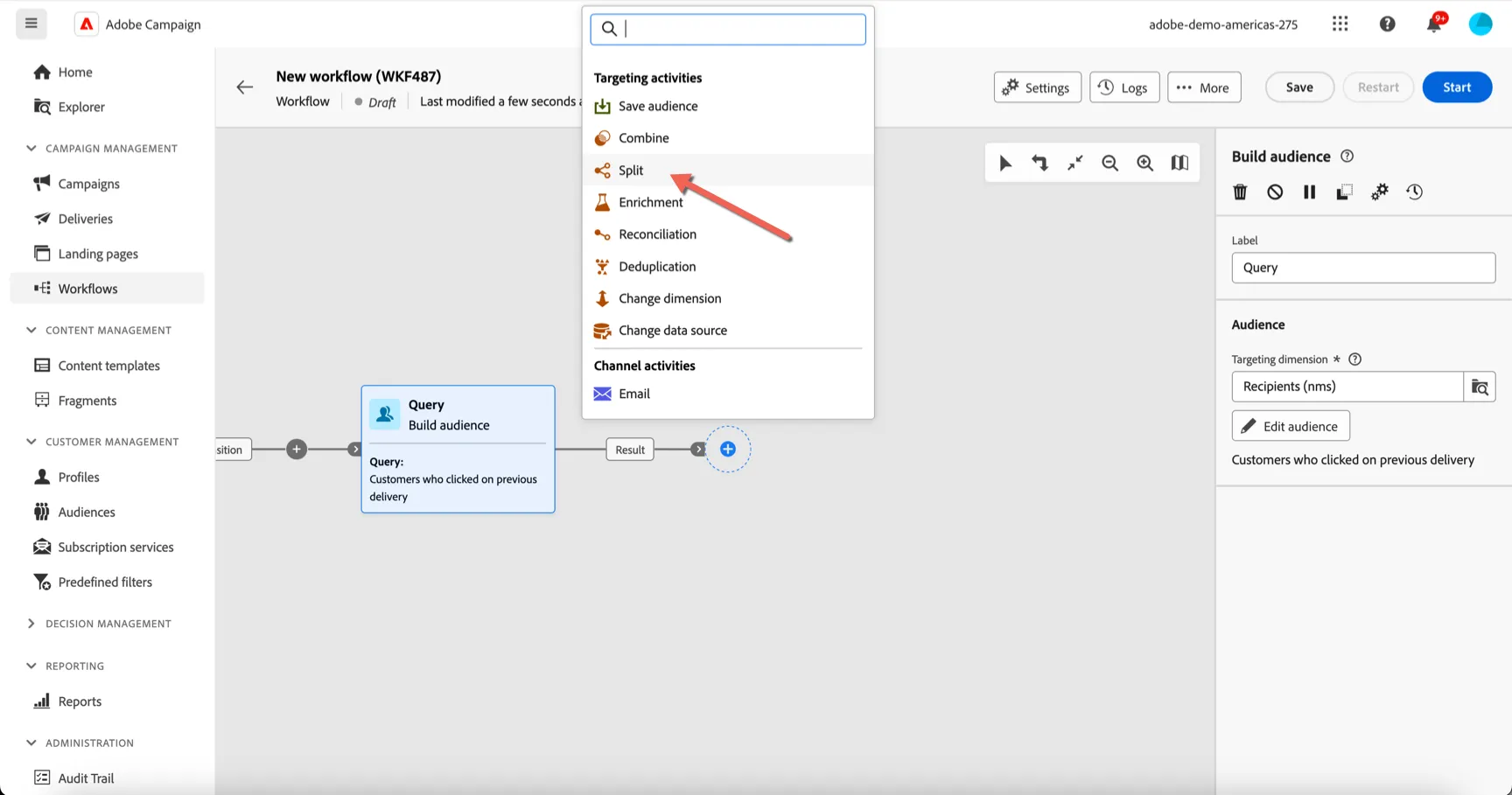
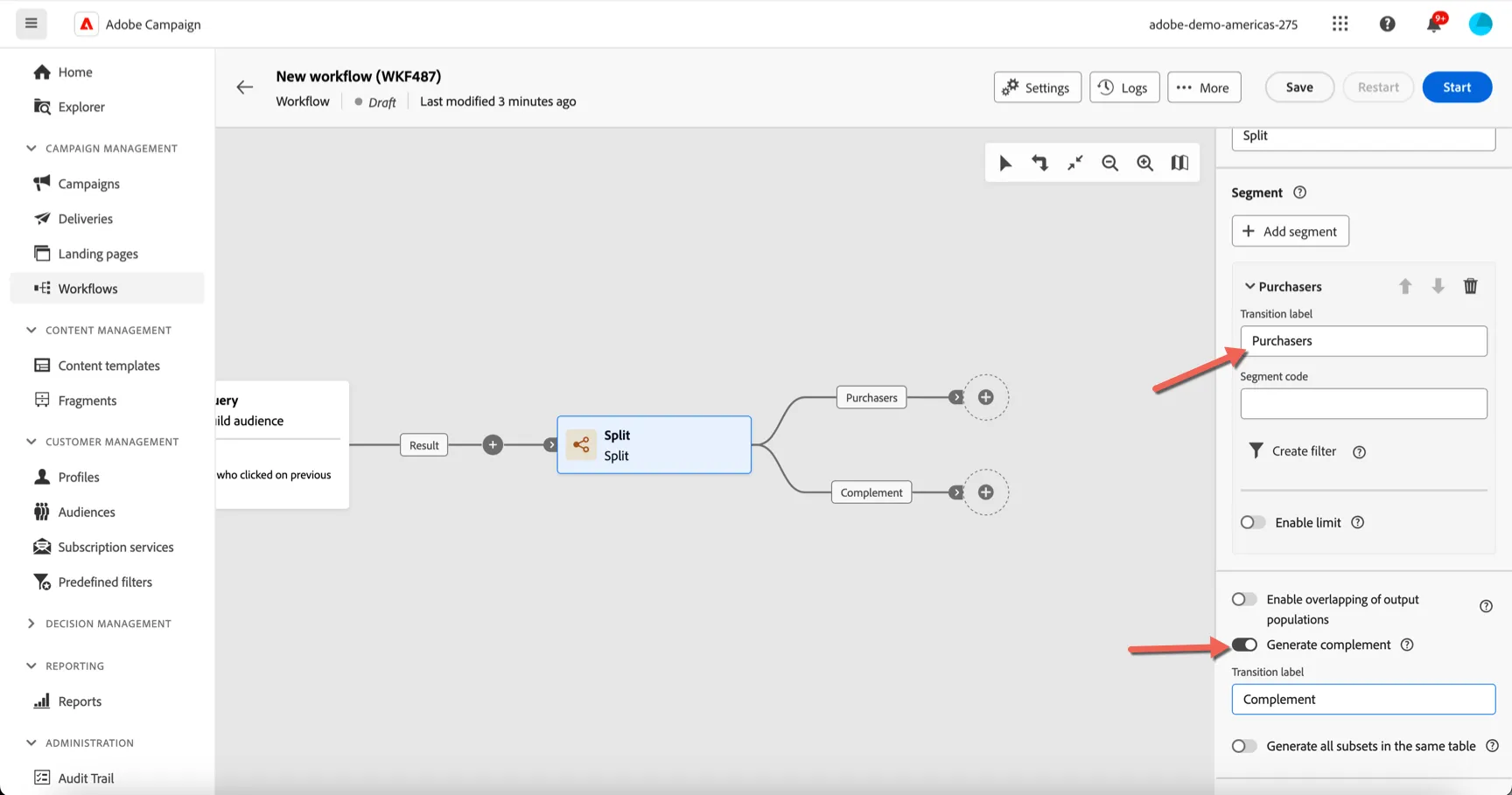
- Name your segment Purchasers. Toggle to Generate complement. This will give allow anyone who doesn't fall into the purchasers segment to follow complement path.
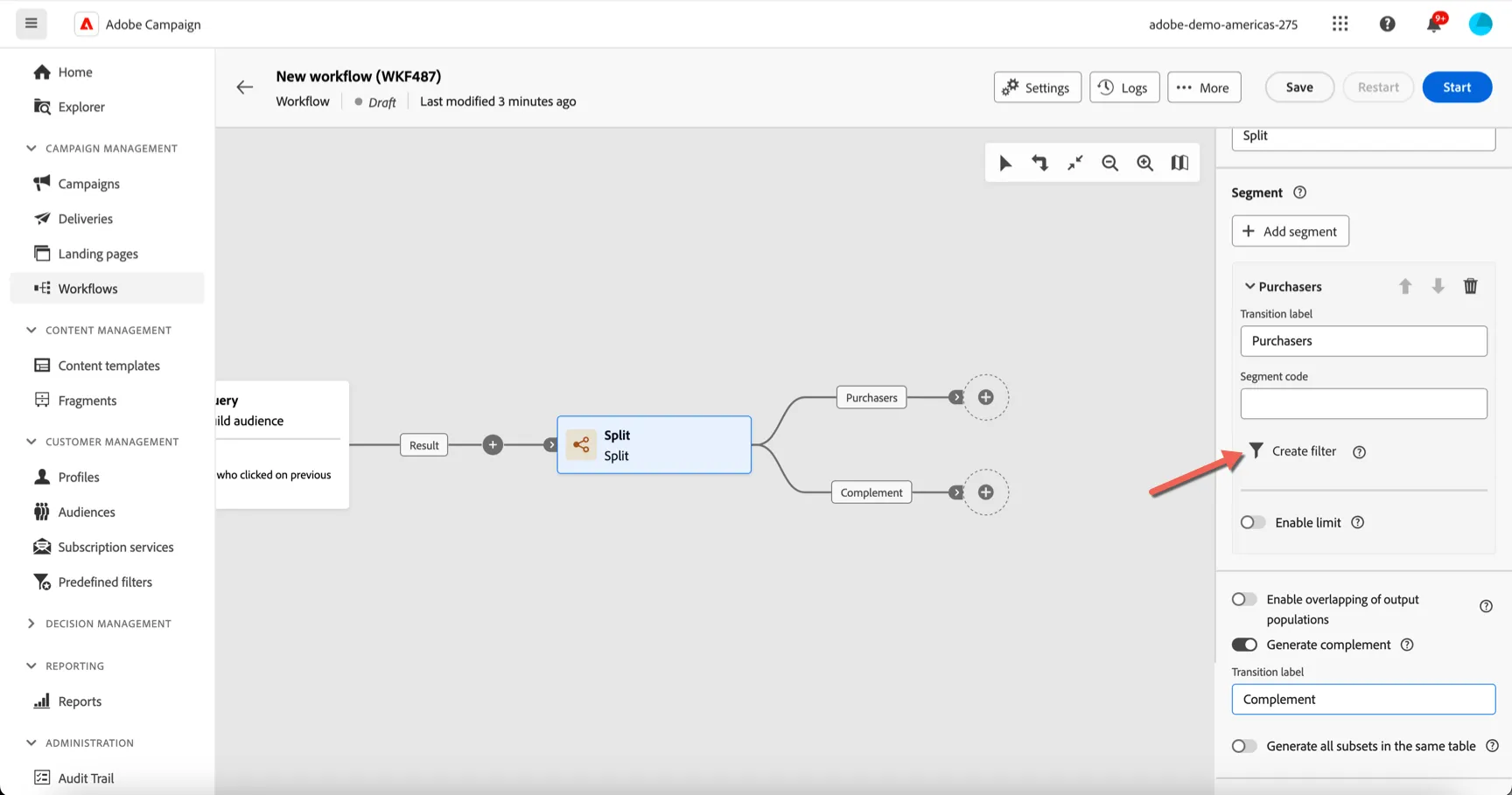
- Click on Create filter to configure the purchasers segment.
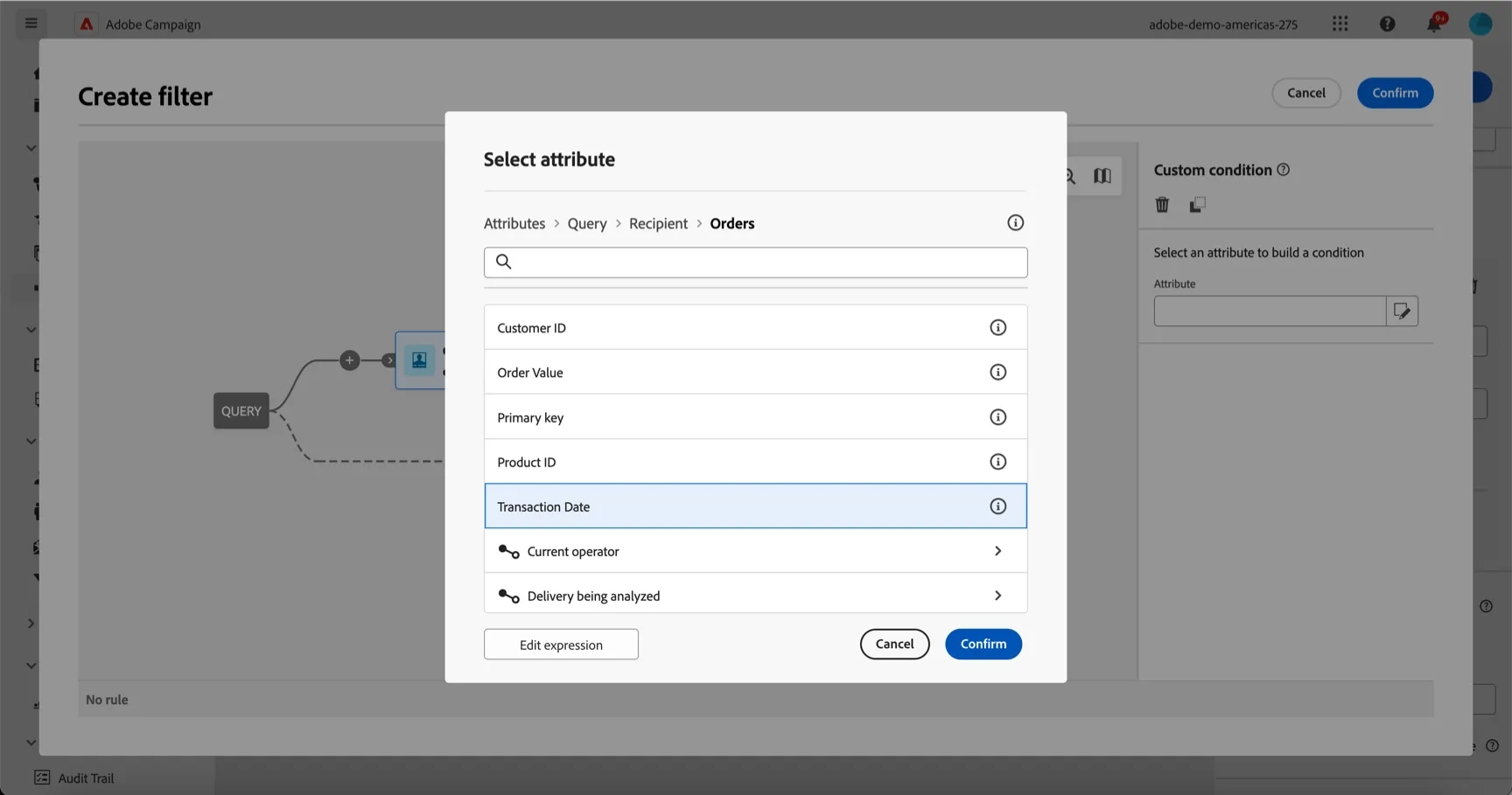
- Find the Orders table linked to the targeting dimension.
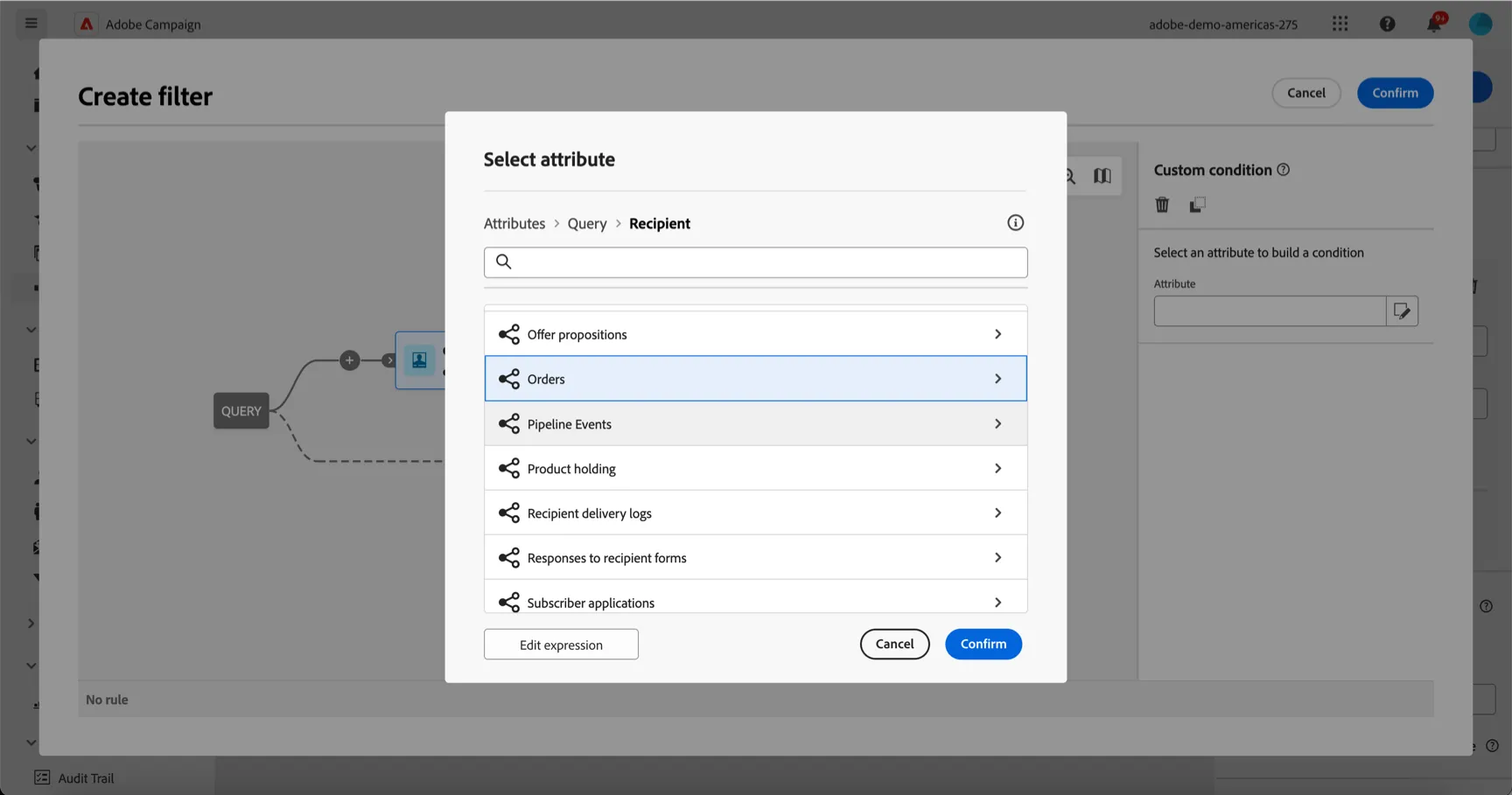
- Click into it and select Transaction Date. Then click Confirm.
- Change the condition settings to look for transactions in the last 3 days
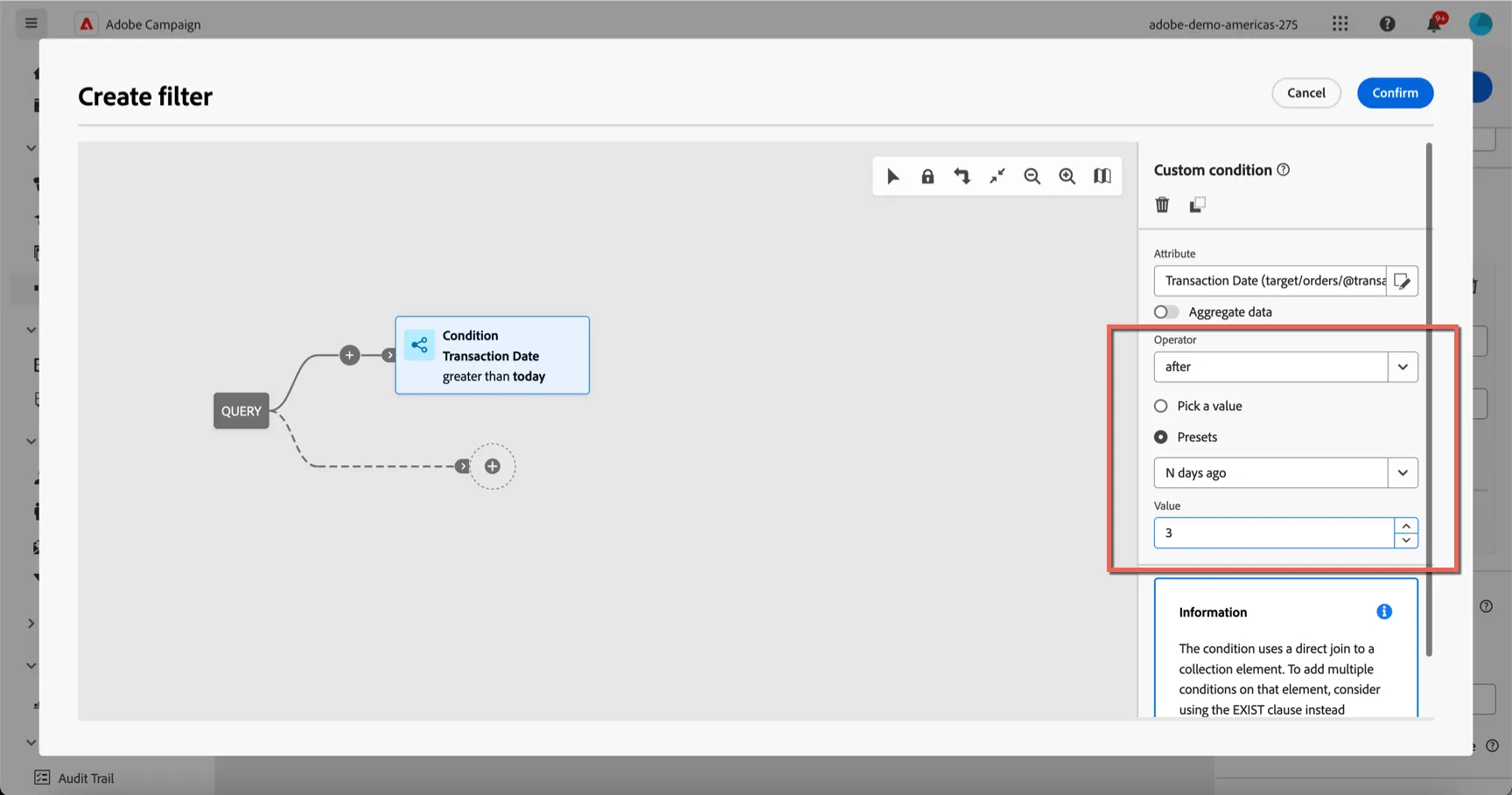
- Click Confirm when you're happy with your query.
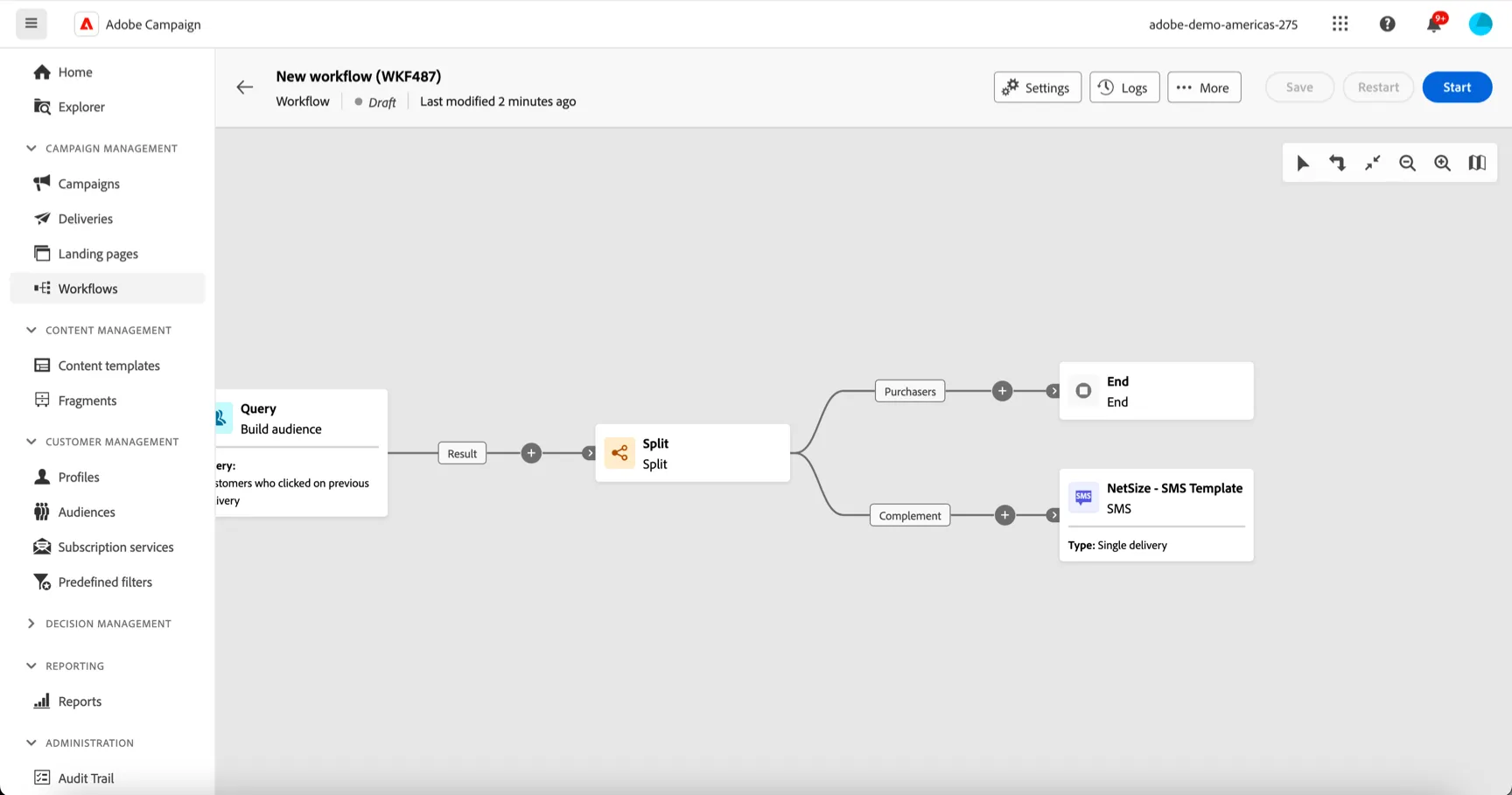
- Add an End activity to the Purchasers branch. And add an SMS activity to the Complement.
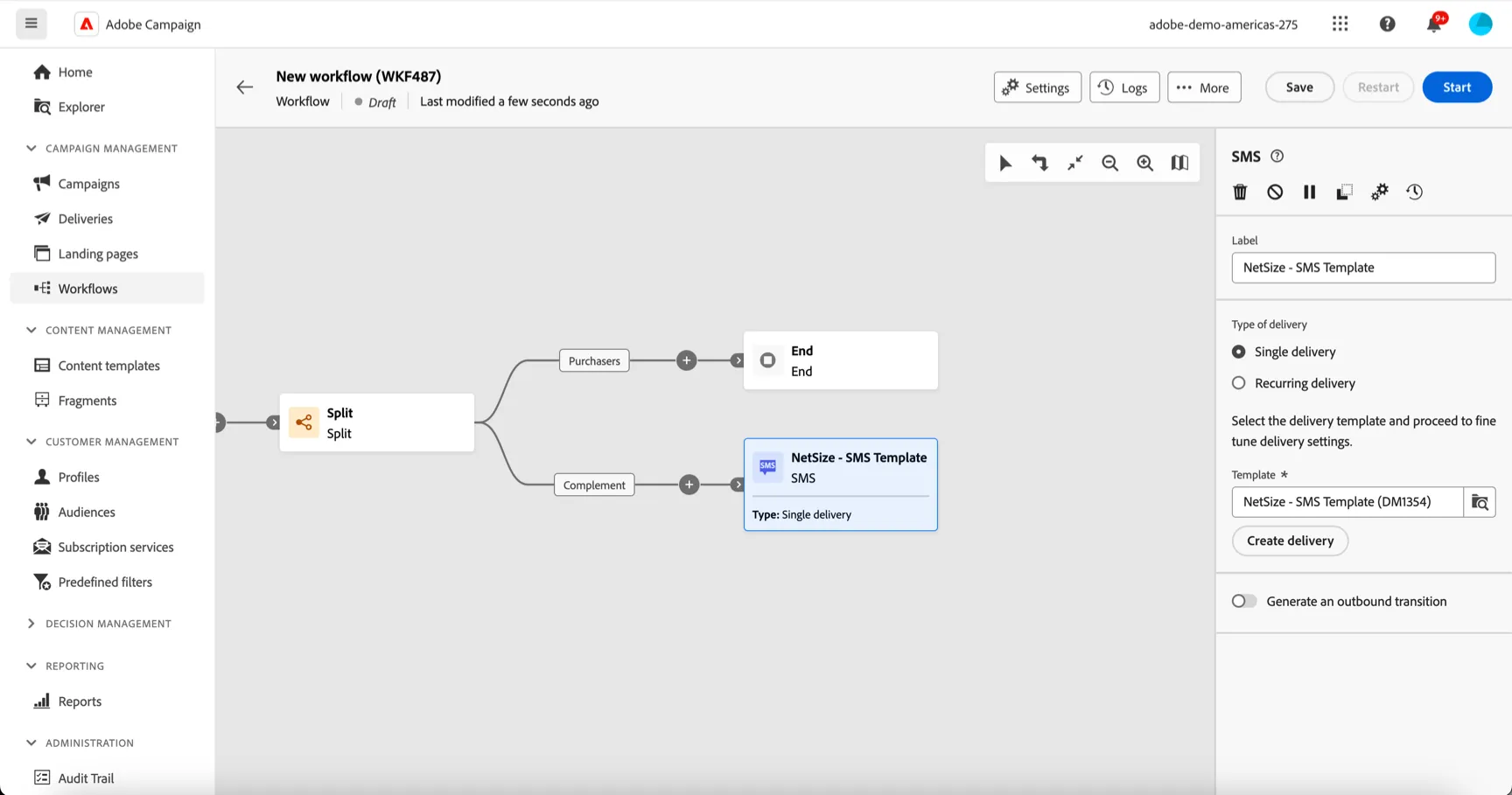
- Click Create delivery to create an SMS Delivery. This will open the delivery properties similar to the Email Delivery.
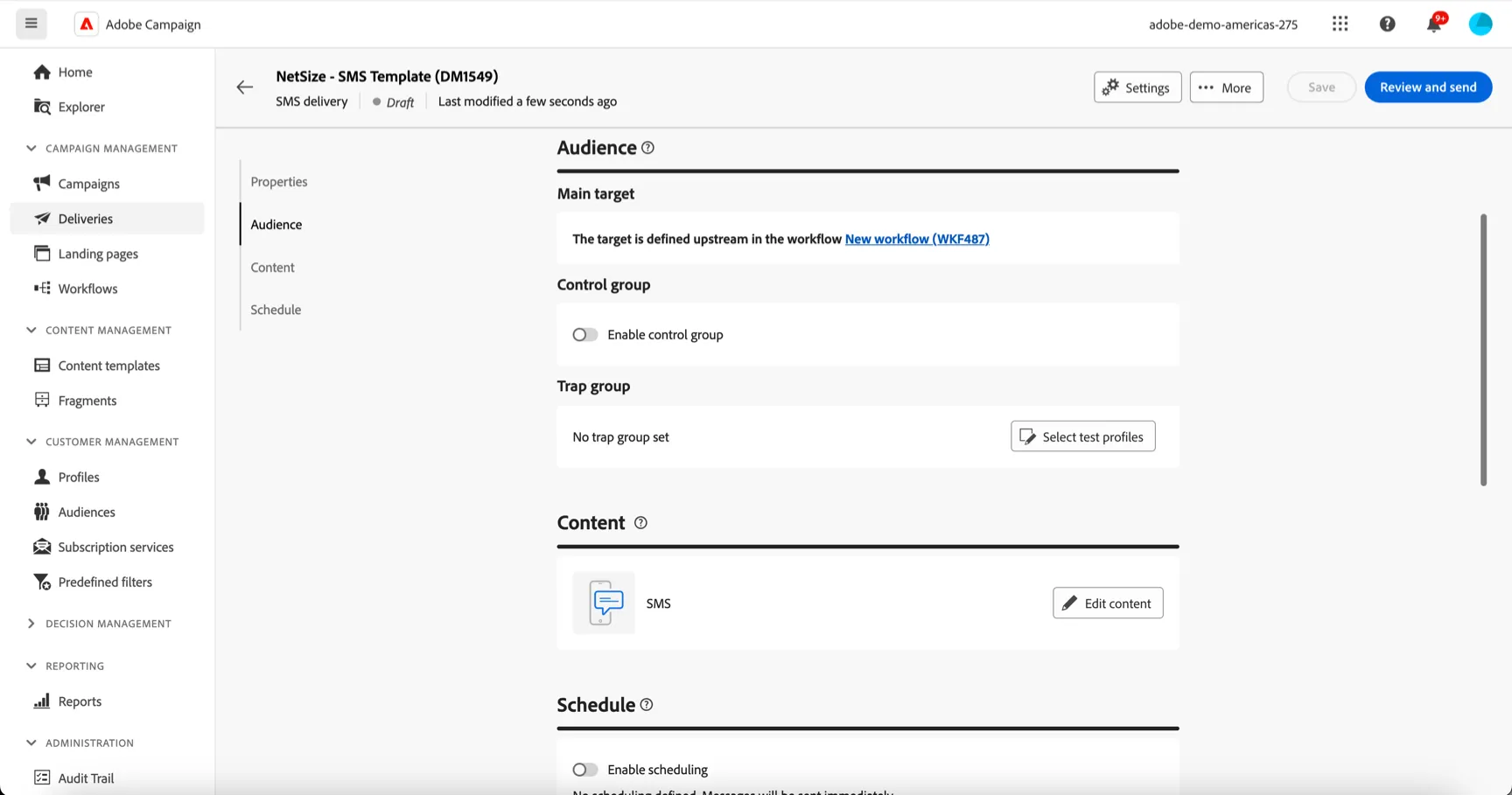
- You can add content for your SMS by clicking Edit content.
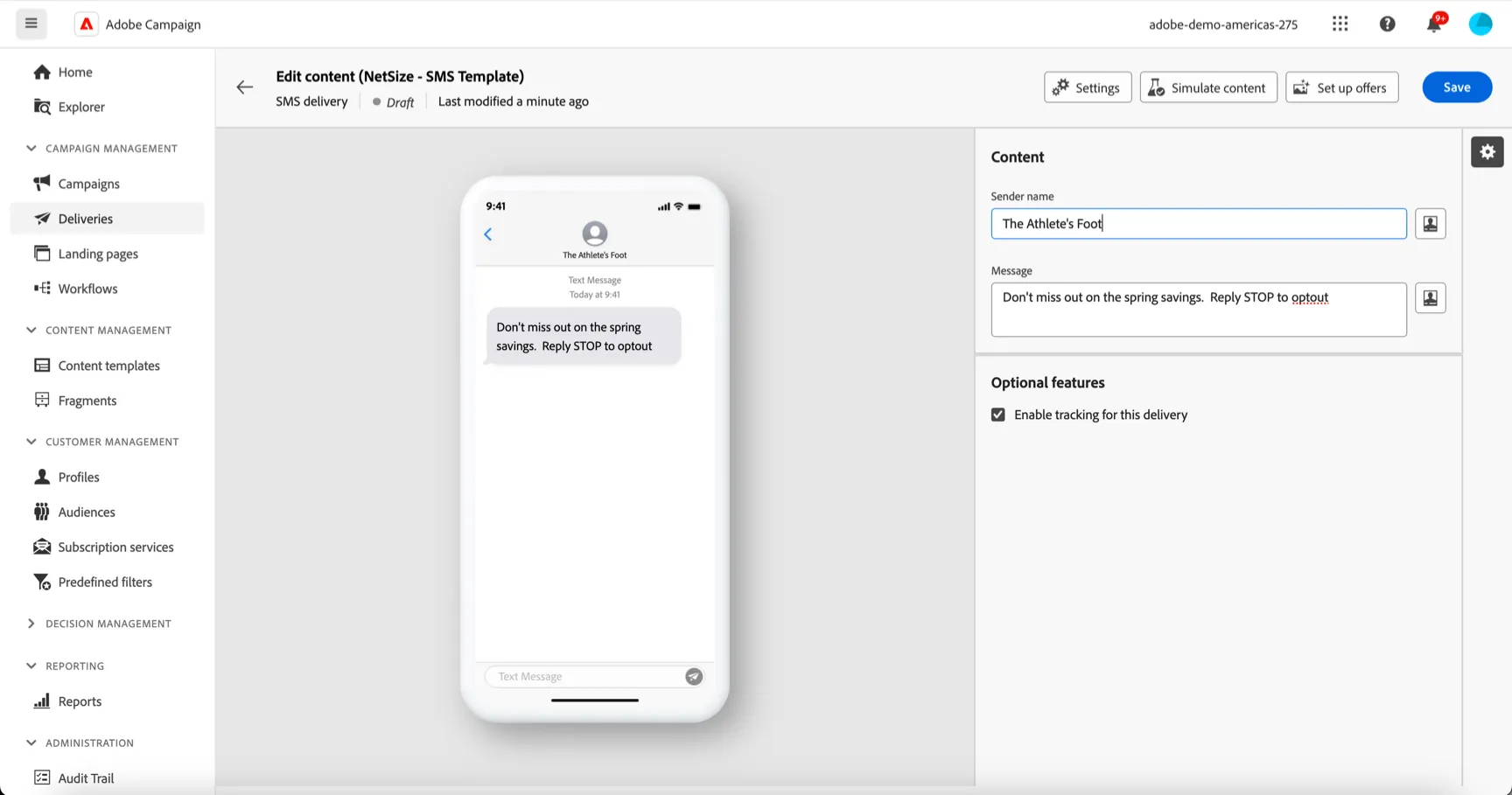
- Save your Delivery and return to the workflow using the arrow on the top left.
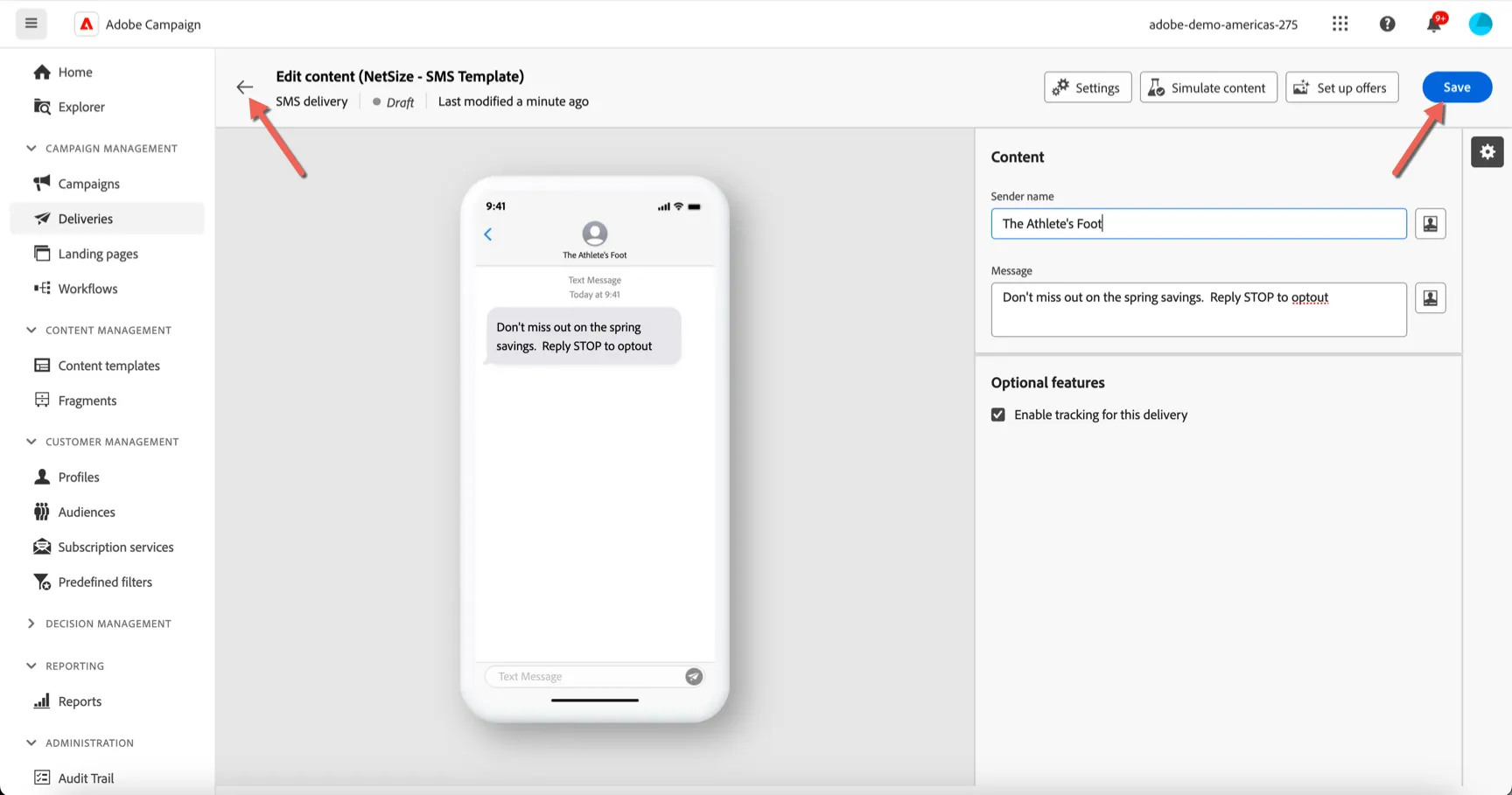
- Save your workflow. Congratulations you have created your first multi-step, multi-channel campaign in Adobe Campaign v8!
- Return to the campaign by clicking the arrow on top left.
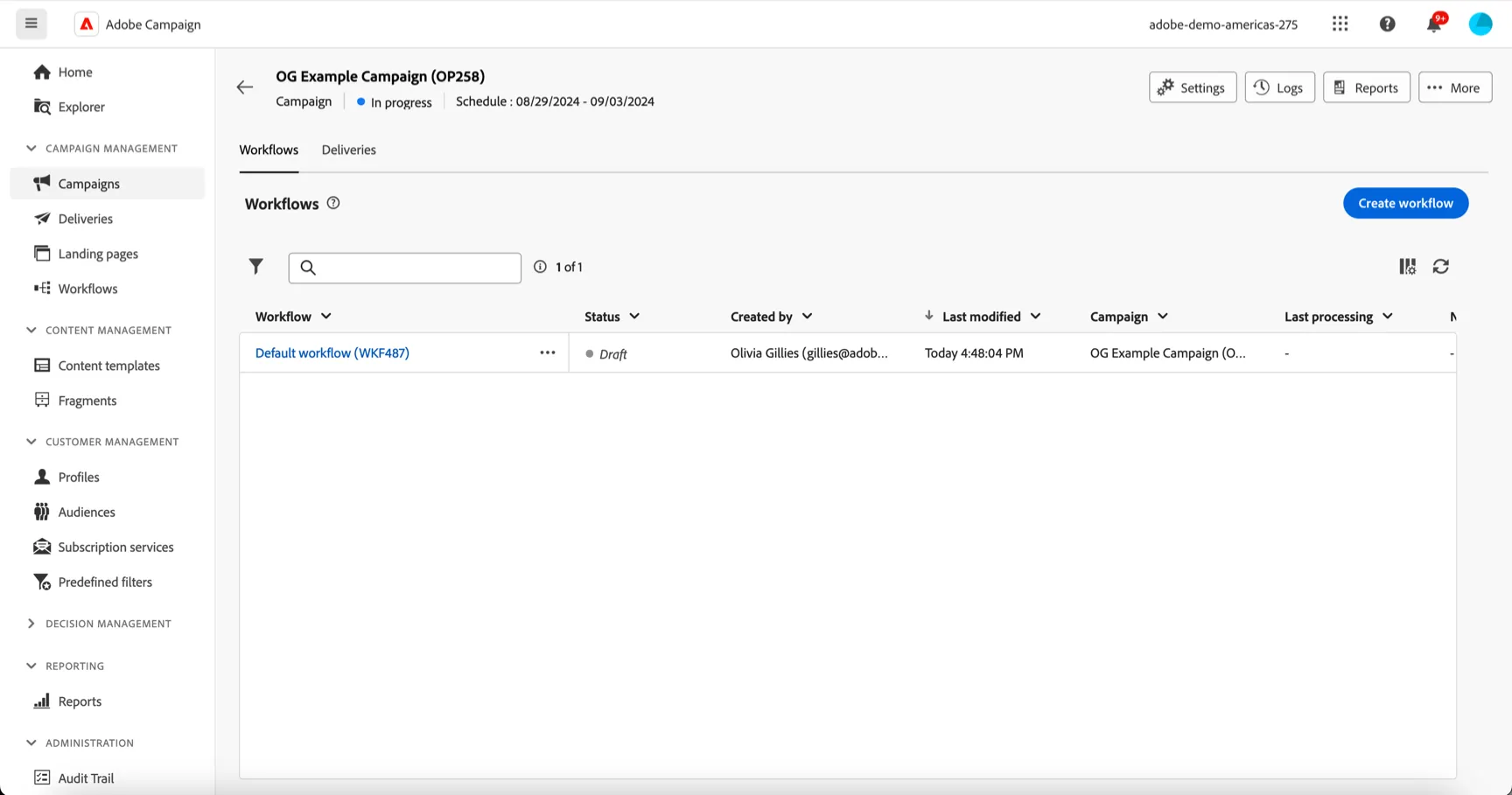
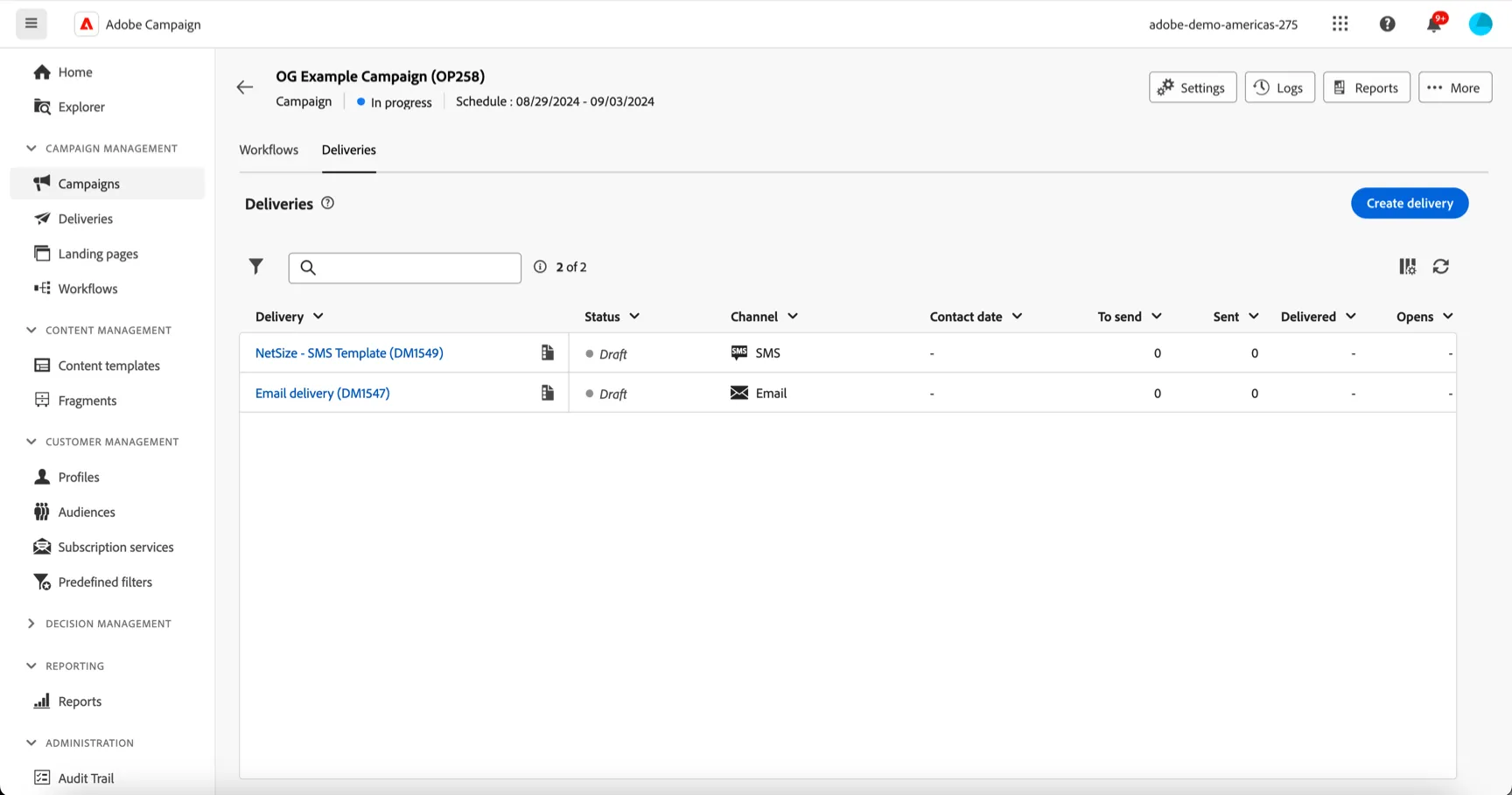
- Click to the Deliveries tab and you can see the 2 deliveries you created in your workflow. You can edit the content and view individual settings from this view.
This completes the lab on creating a Campaign.