Create a Delivery
7 min
sIn this exercise you will combine an audience with a content template to create a personalised email communication.
Create a Delivery
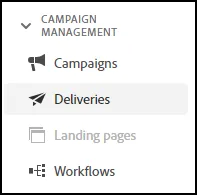
- Navigate to Deliveries from the Navigation Menu:
- Click on Create Delivery in the top right corner:
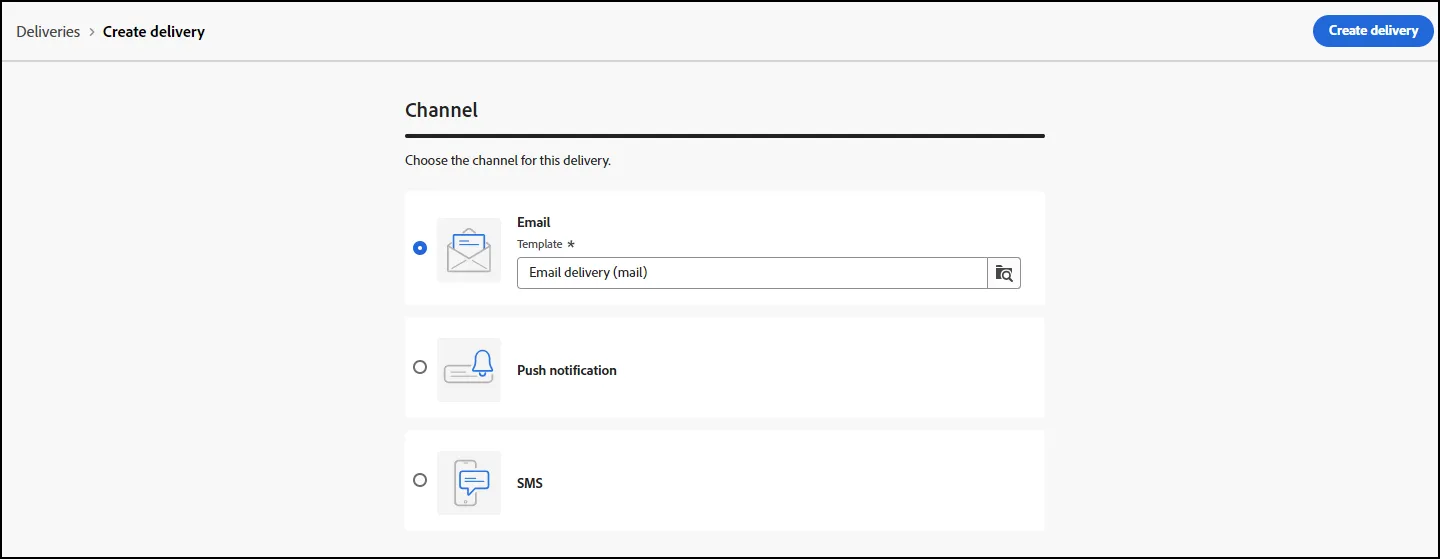
- On the next screen, define the channel for the delivery. Select Email and use the default email template. Click Create Delivery:
- On the next screen, you will define the Properties, Audience, Content and Schedule for the Delivery:
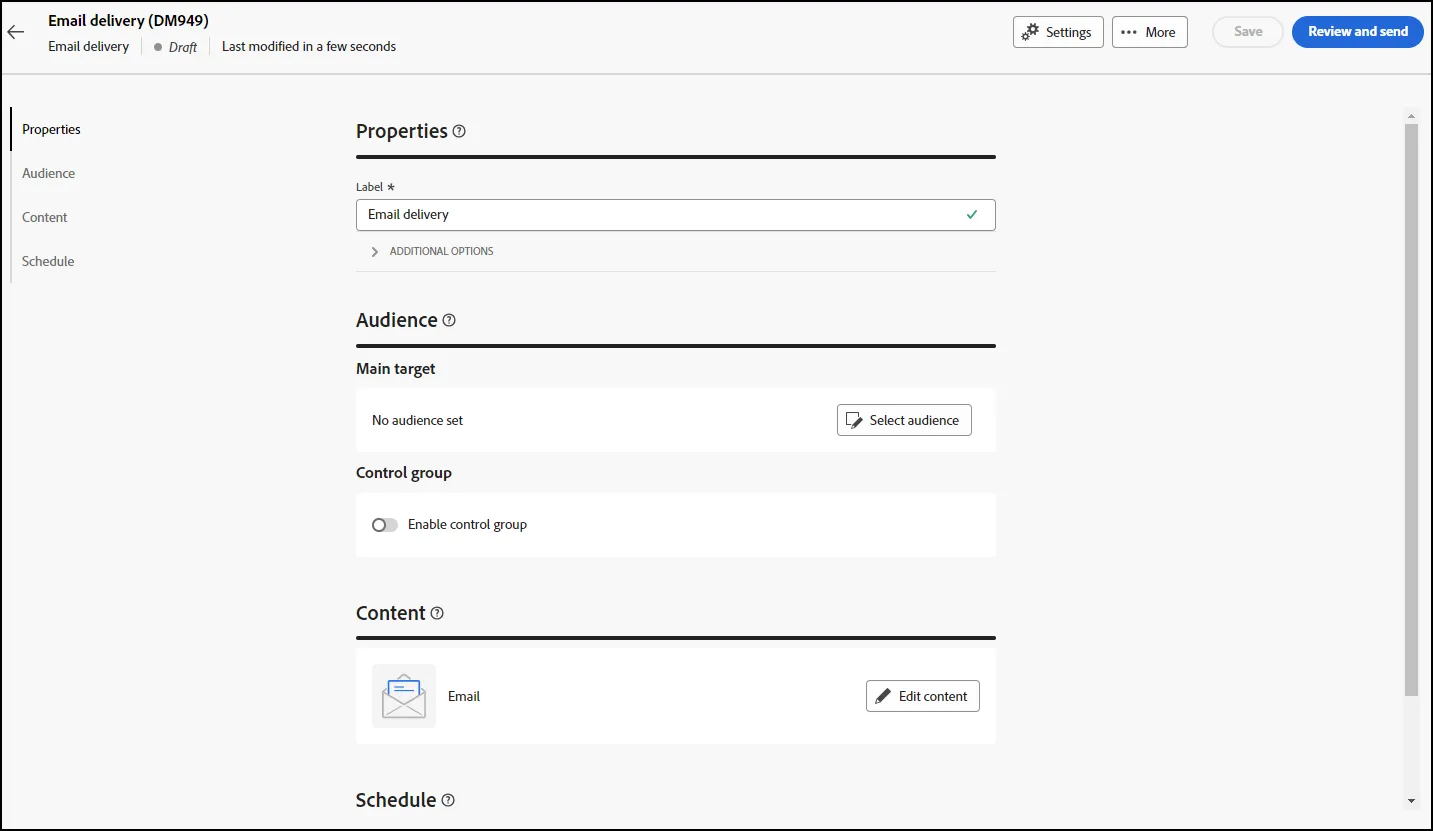
- Modify the label to include your name so you can find it again easily. For example "Olivia - HOL Delivery".
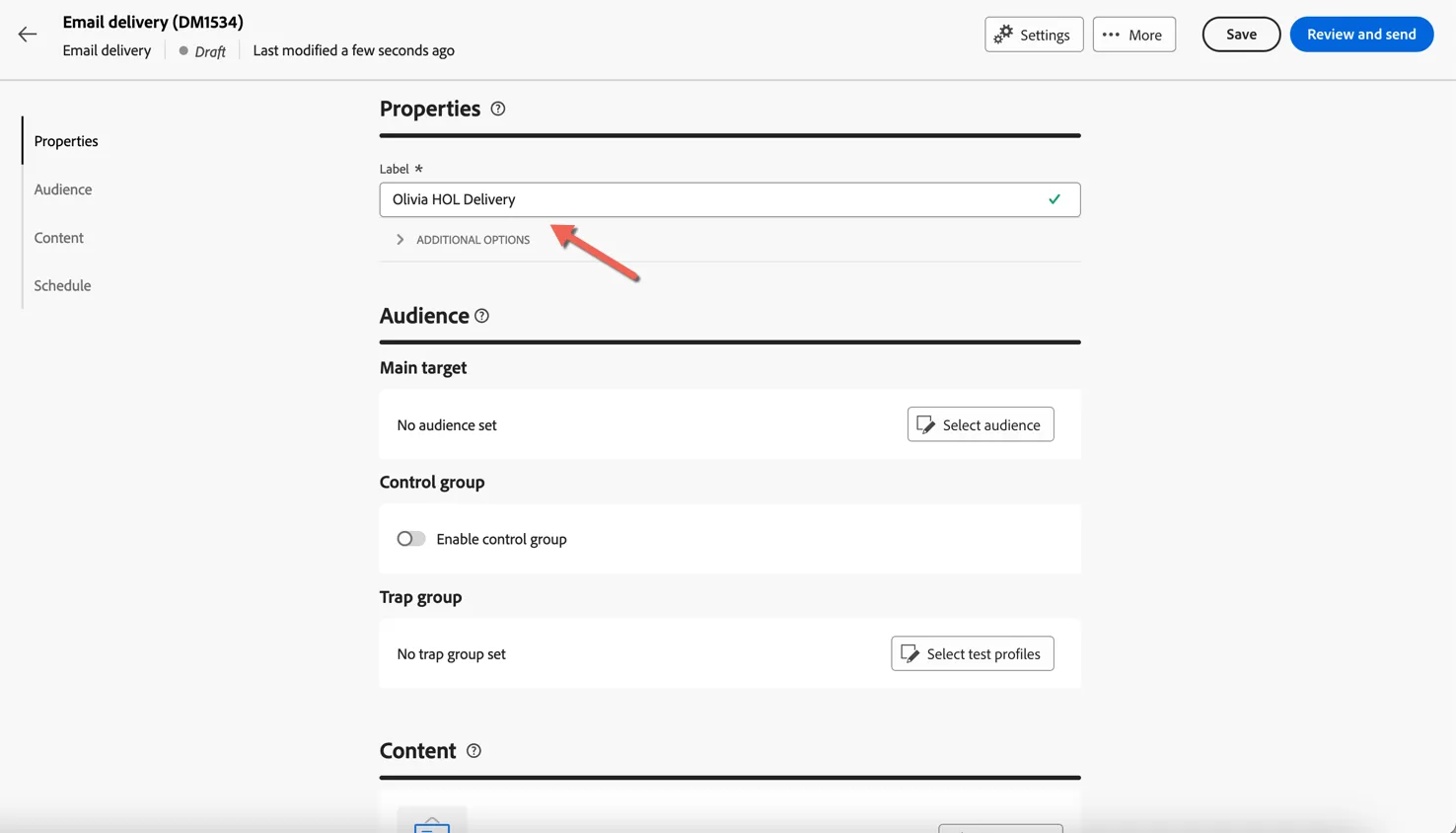
Configure the Audience
Click to select the audience. Note that you have a few options, you could create your own audience right now, use an existing audience or import the audience from a CSV file.
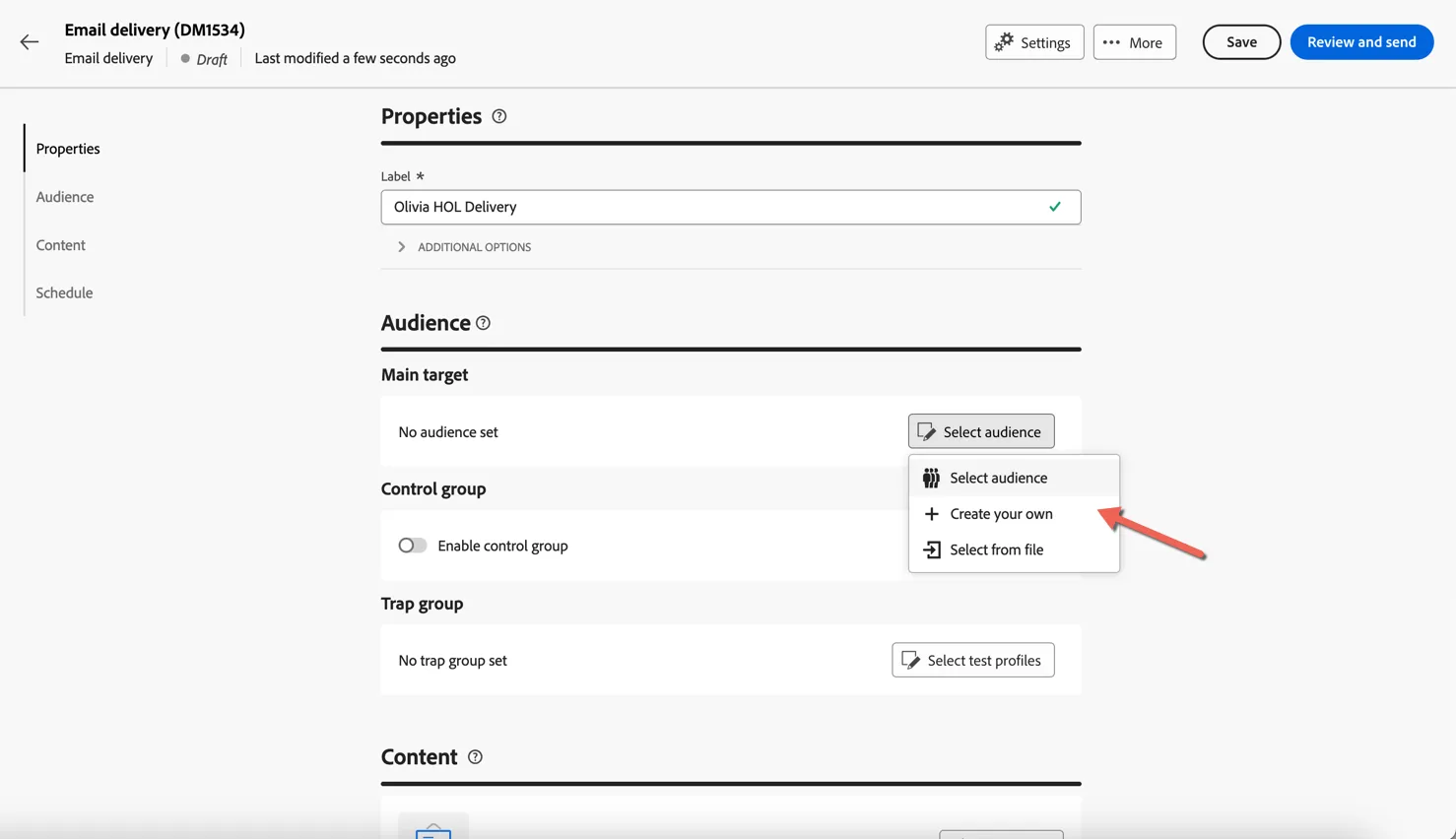
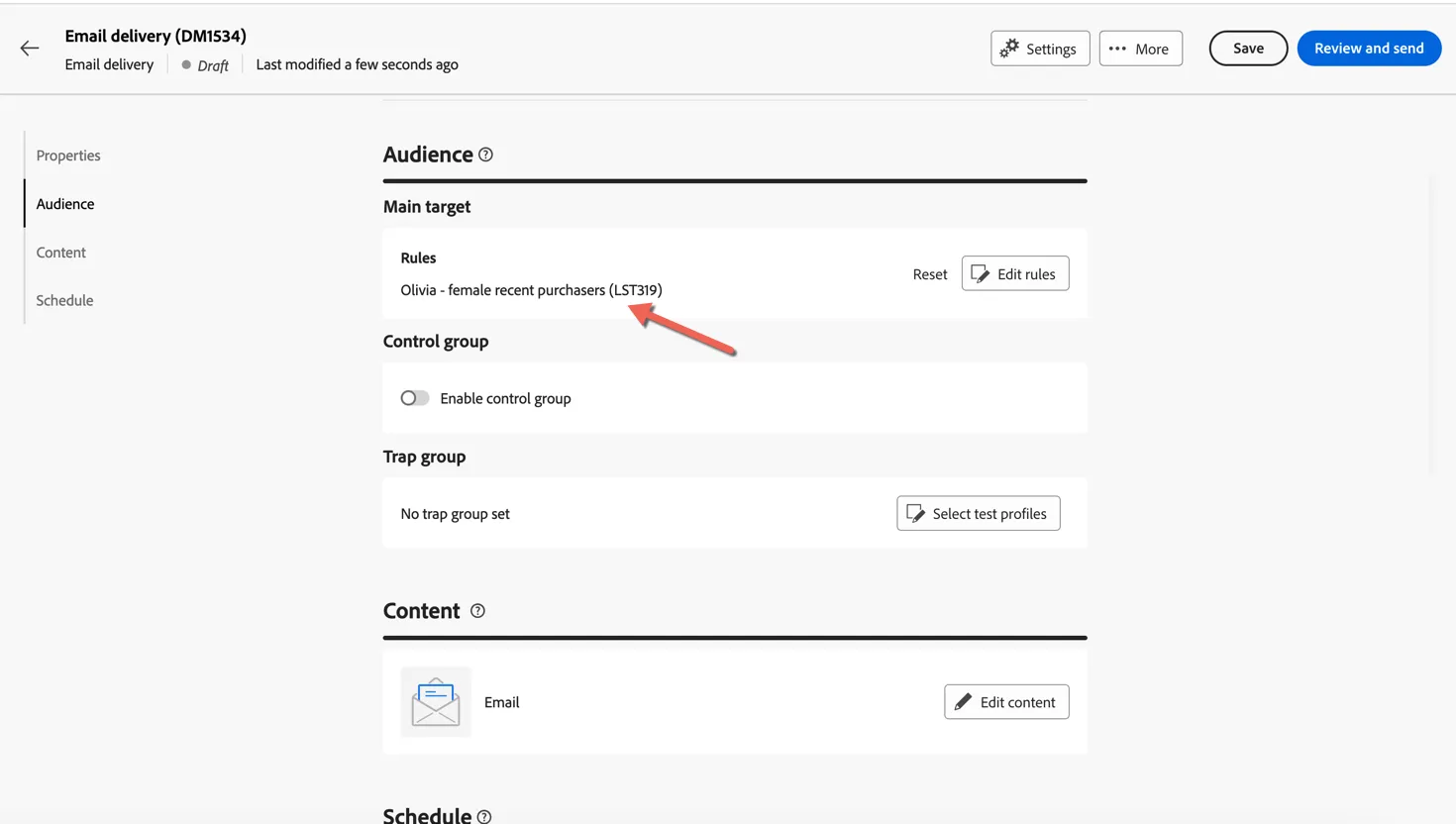
- Choose the audience you created in the previous exercise.
- Toggle to add a control group, you can select to exclude customers at random or select another specific audience to be excluded. Leave the settings at default 10%.
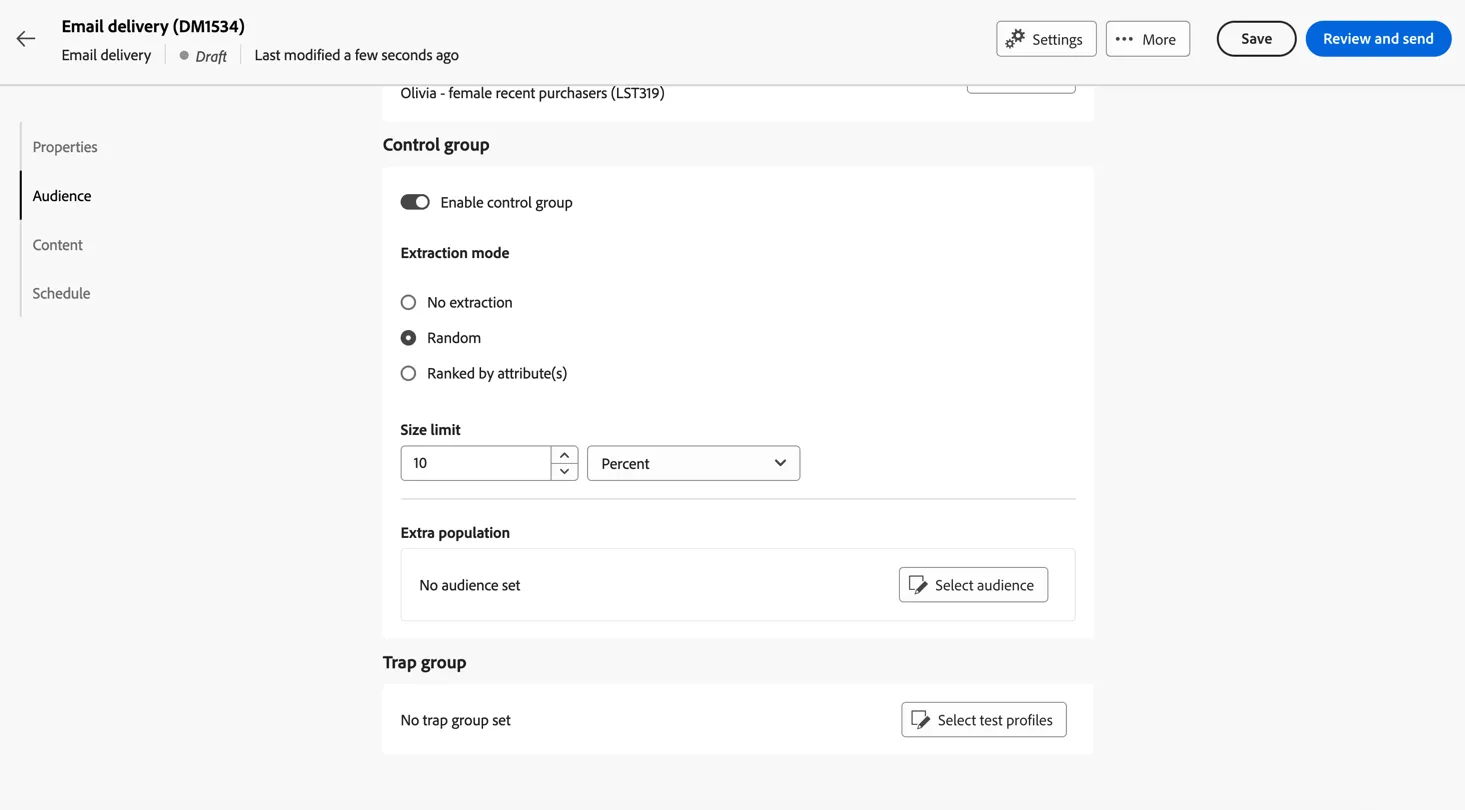
- Trap groups is the new name for seed address lists. This is where you would configure which seed addresses should be included. We will leave this blank for now.
Add the Content
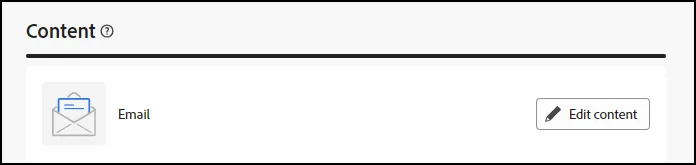
- Scroll to the Content section of the delivery. Select Edit Content to open the Email Designer.
- This will open the email content view. Add a Subject Line. Set this to something unique so we can recognise your email.
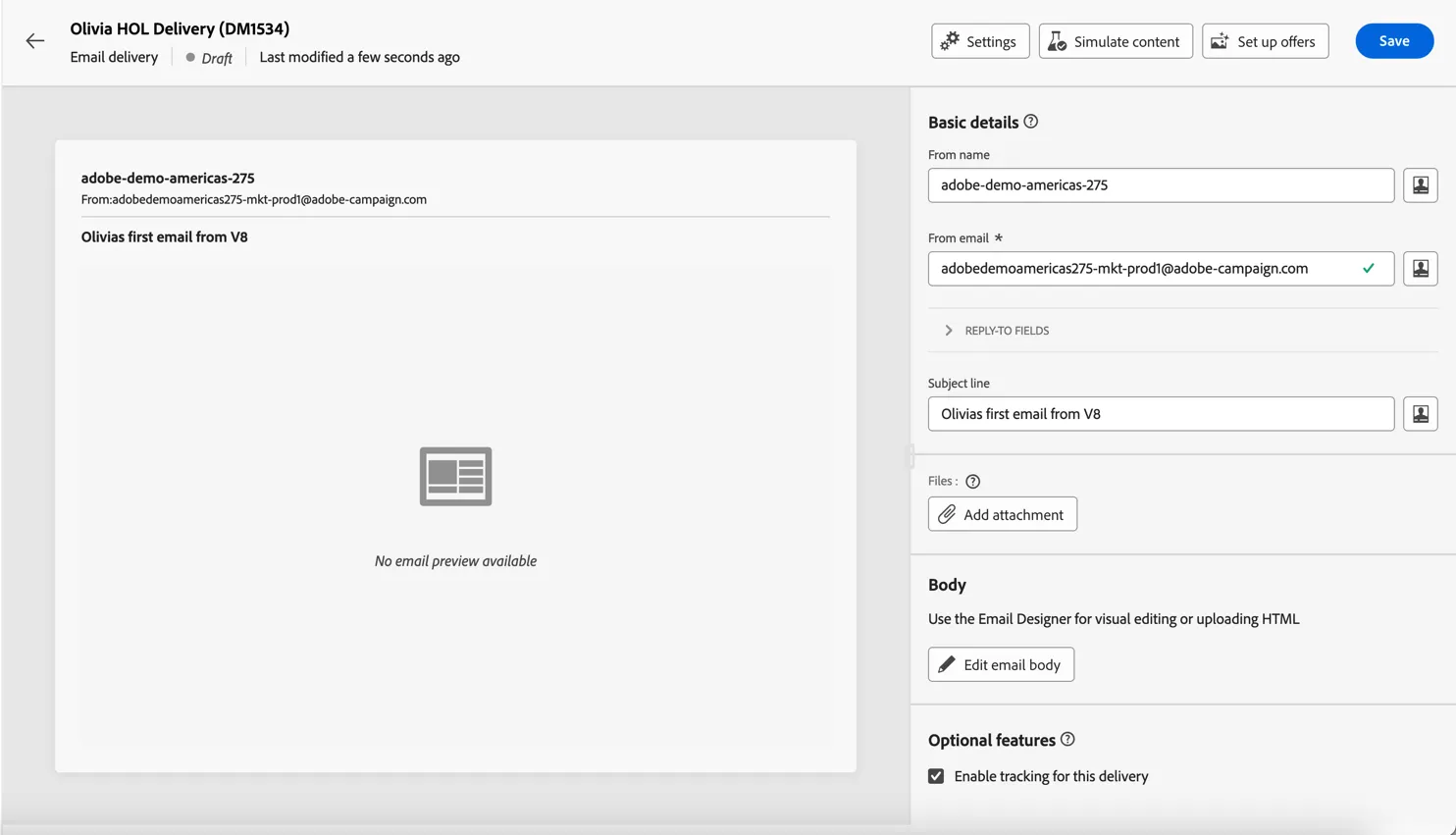
- Click on the Edit Email Body button:
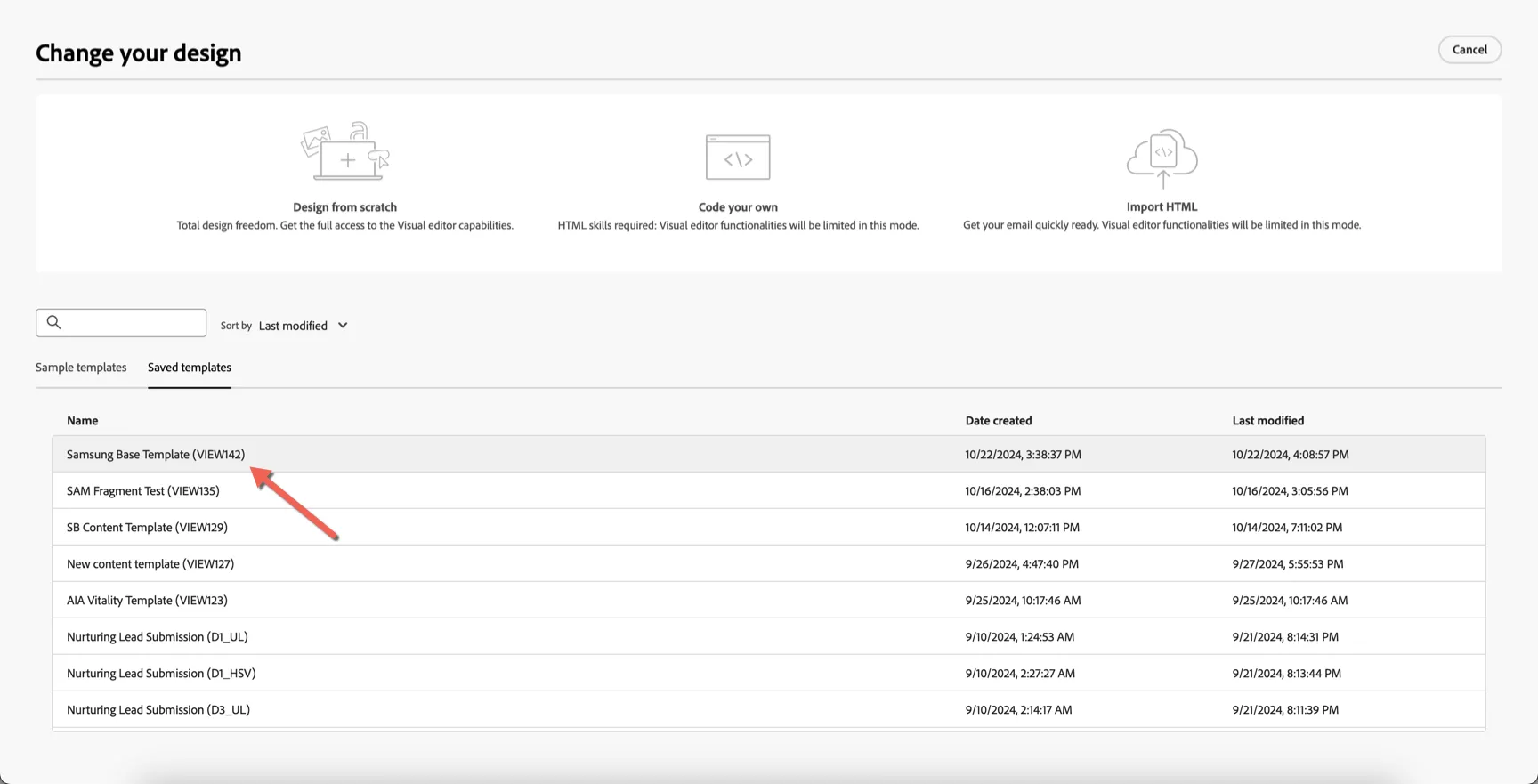
- Since this is a new email, you can choose from a sample or previously saved content template, design from scratch, code your own or Import HTML:
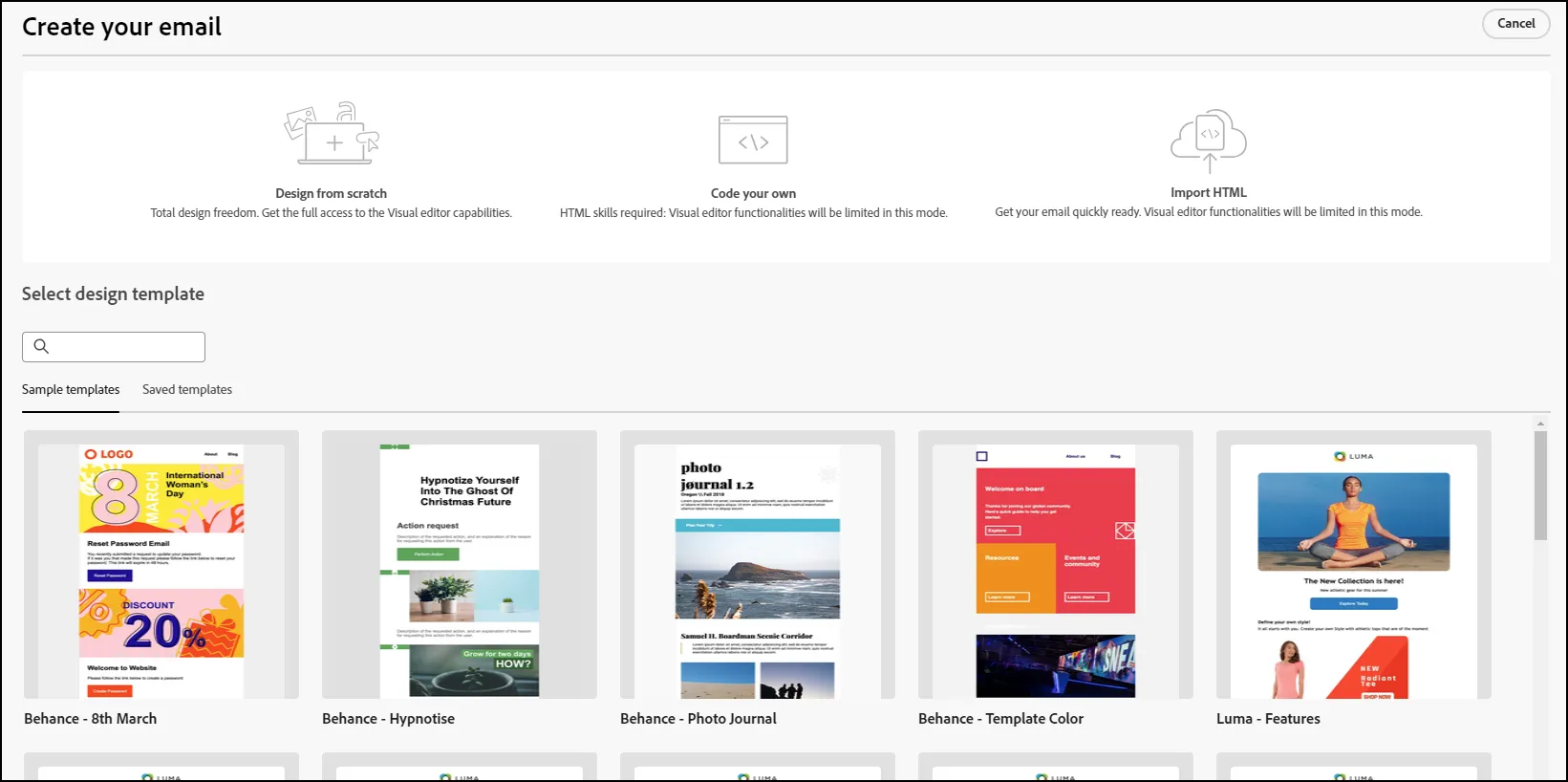
- For this exercise, let's use the previously saved content template Samsung Base Template
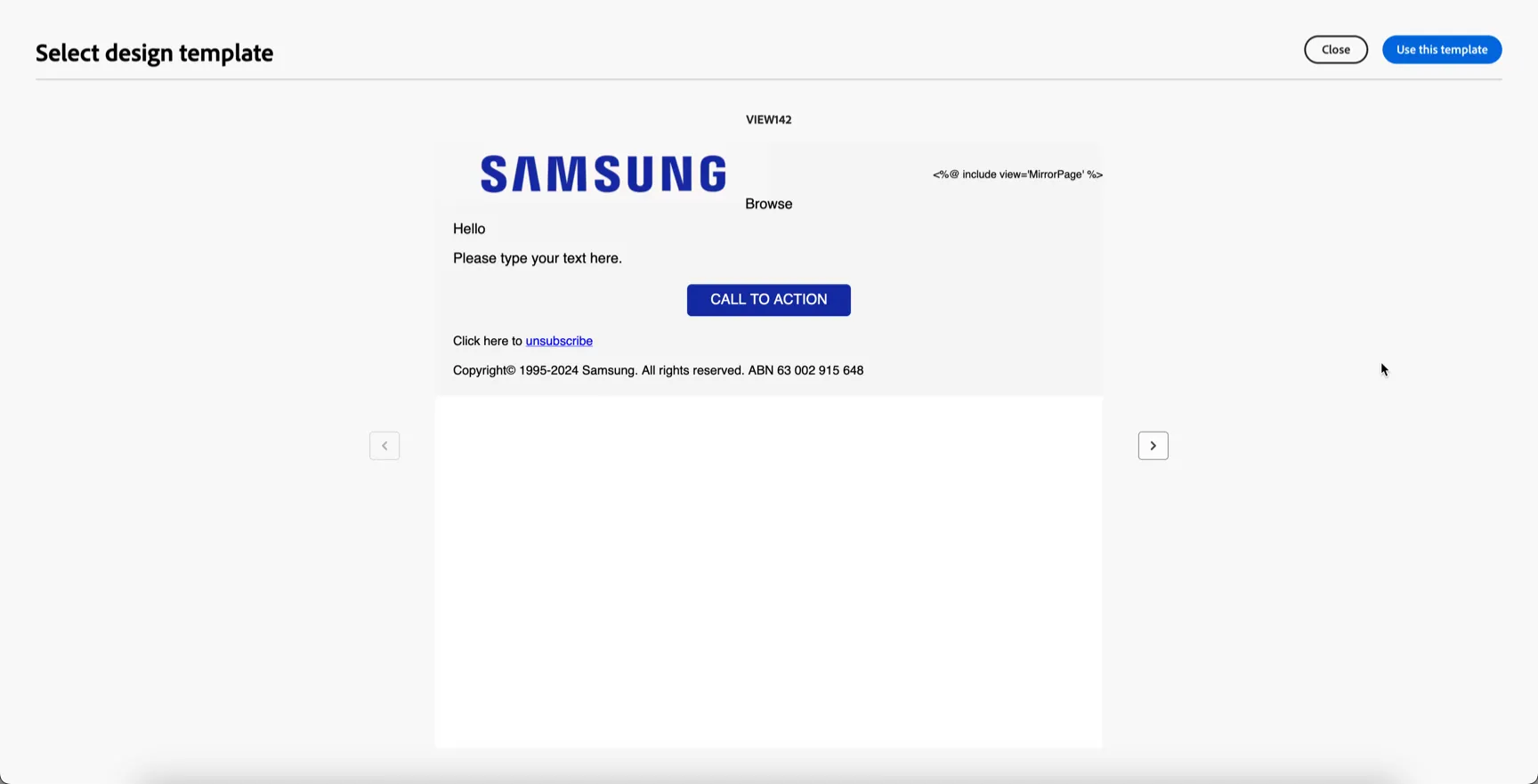
- It will show a preview of the content template. Click Use this Template.
- This will open the Visual Email Designer, with that template in place, where you can make any changes, additions or customizations to it. Note that the mirror page link at the top is pre-configured to use a content fragment. This could be done for the header and footer as well in future.
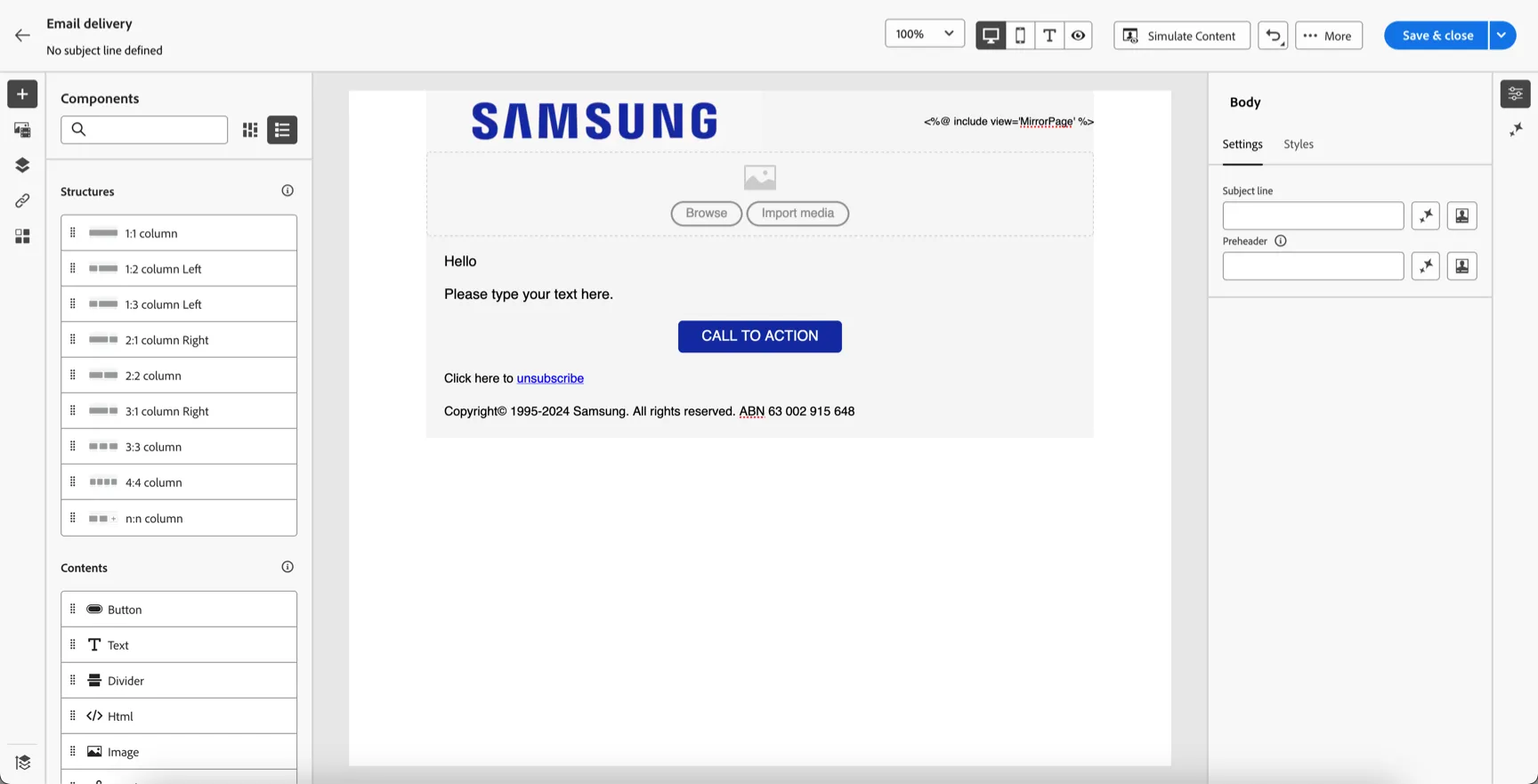
- Add a banner image by importing one from your desktop, or click browse to select from the existing image repository. This instance is integrated with Adobe Experience Manager Assets so you can see the full catalog of assets available for the organisation. If you import an image store it in the SAM folder.
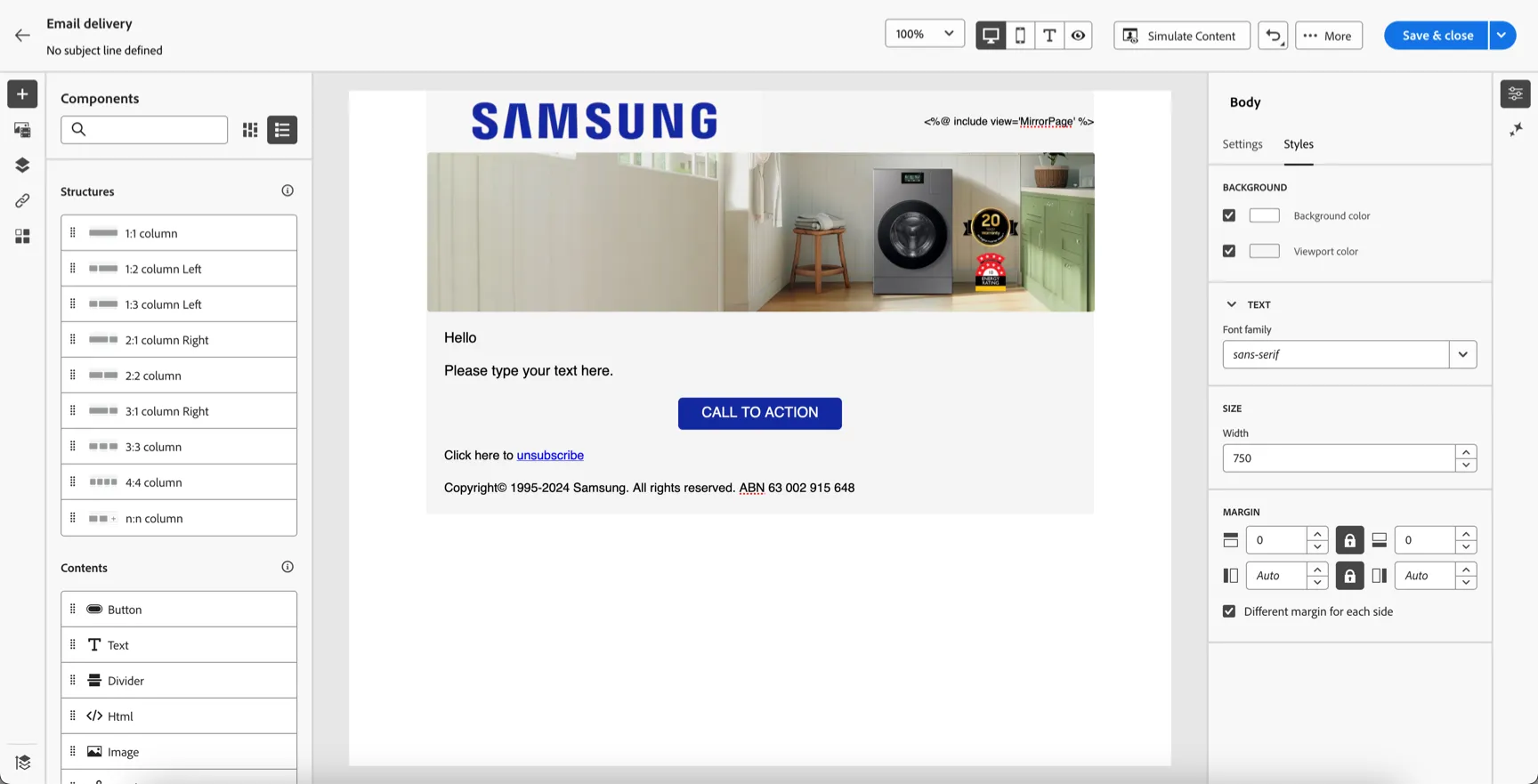
- Now let's add some personalisation to the content. Click in the text content and select to Add personalisation.
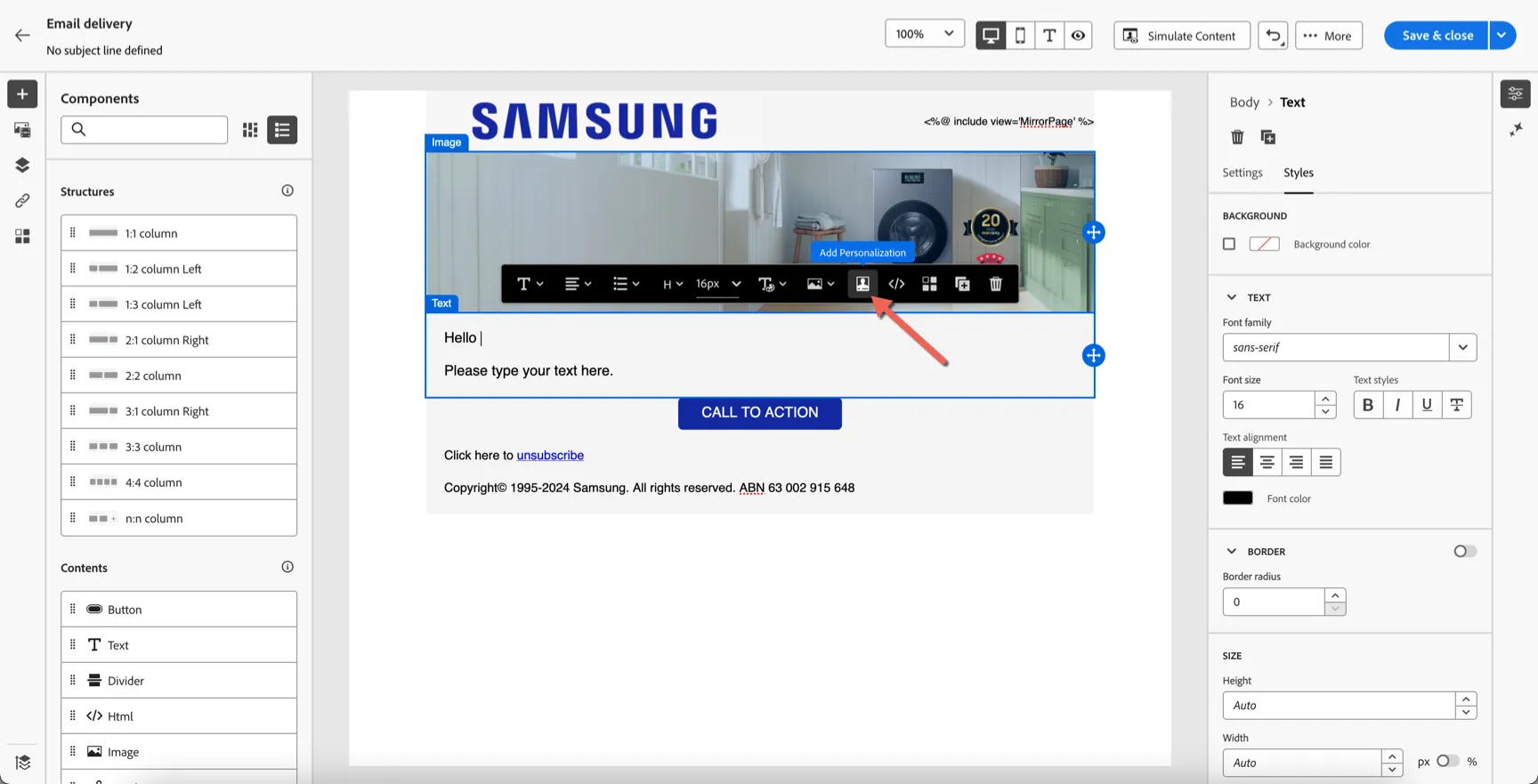
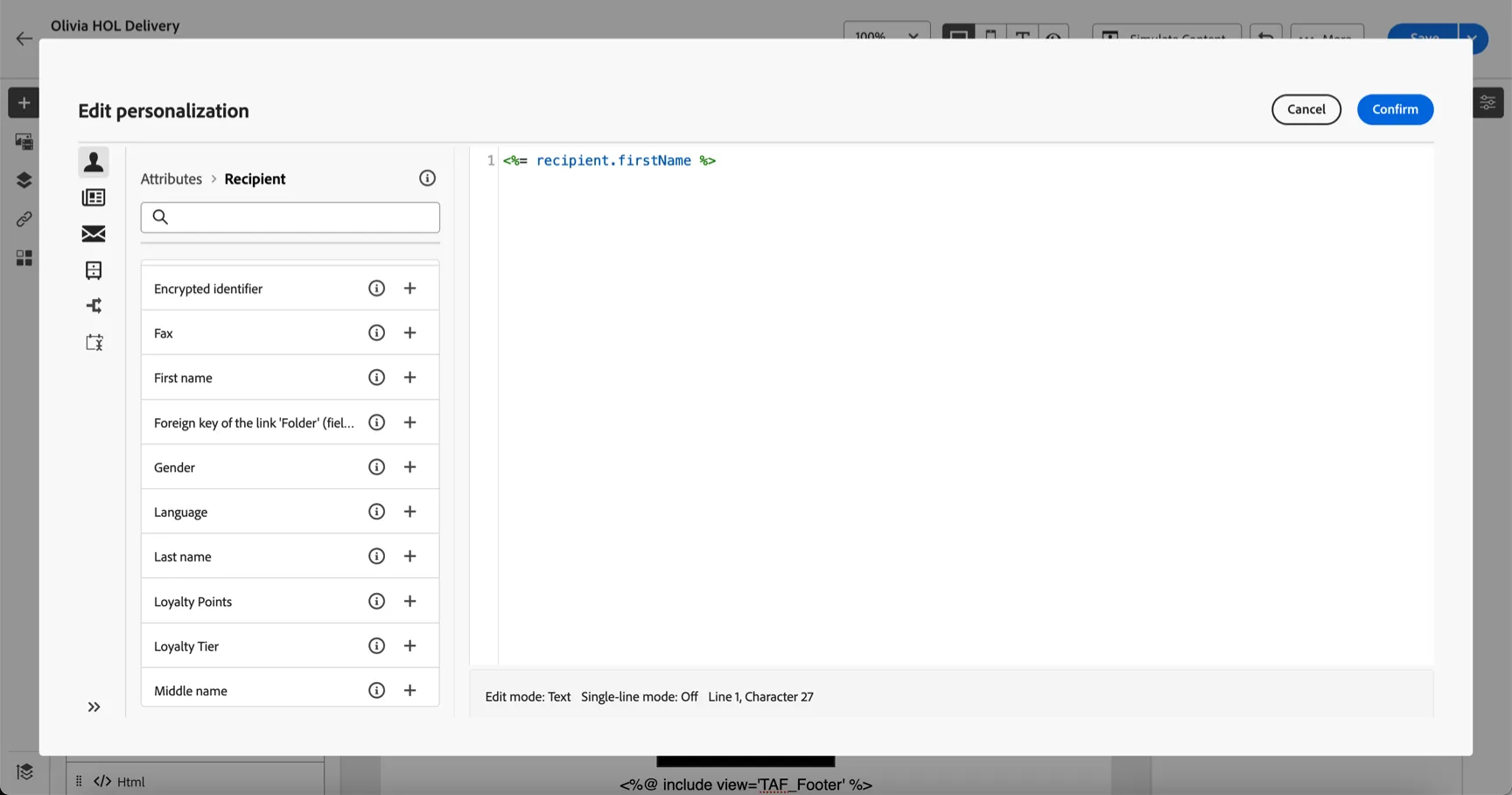
- This will open the personalisation window. From here you can insert attributes from the recipient table, add content fragments or dynamic conditions. Click on the + to insert the first name field. Then click Confirm.
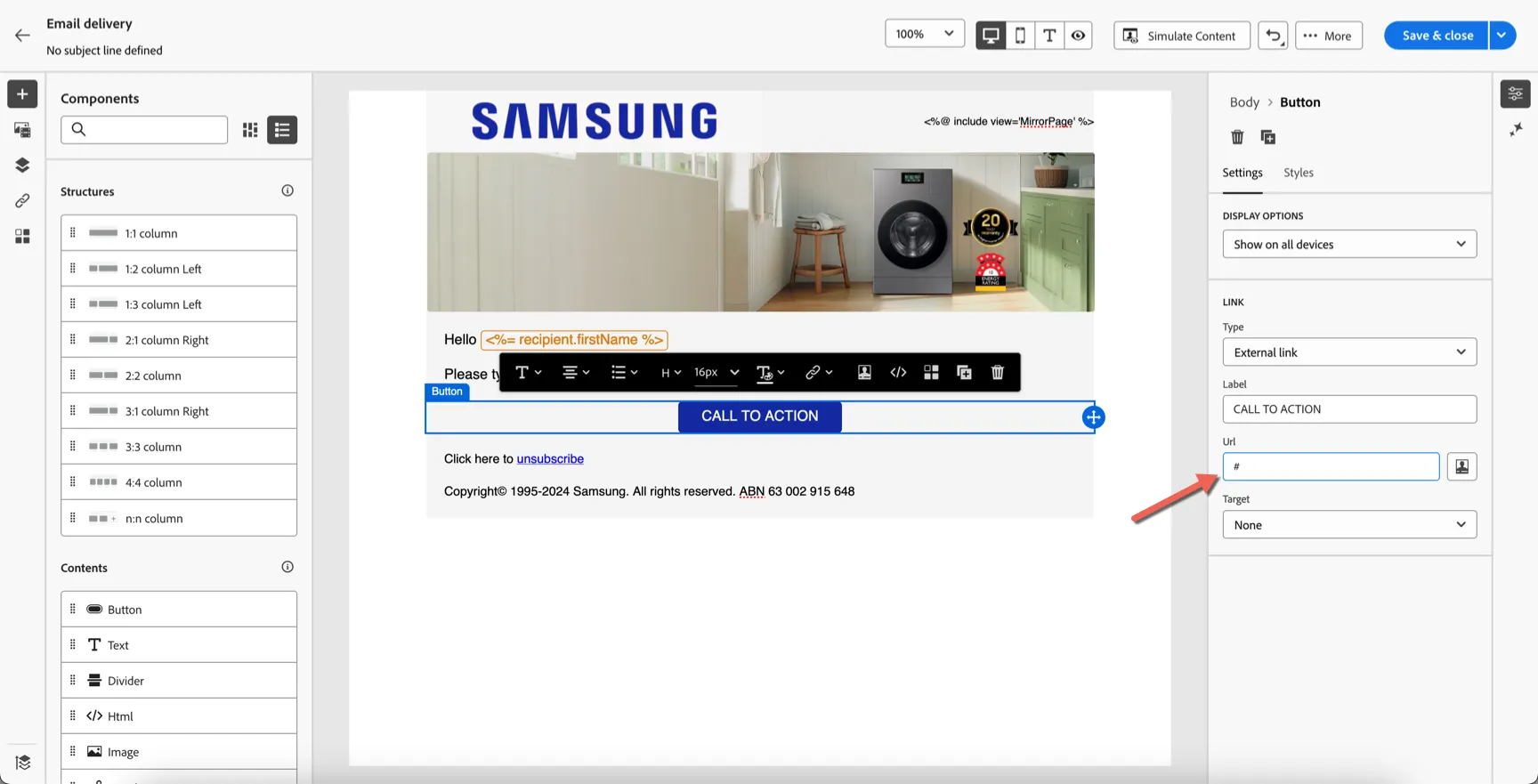
- Click on the call to action button to update the link. You can change the destination on the right hand side.
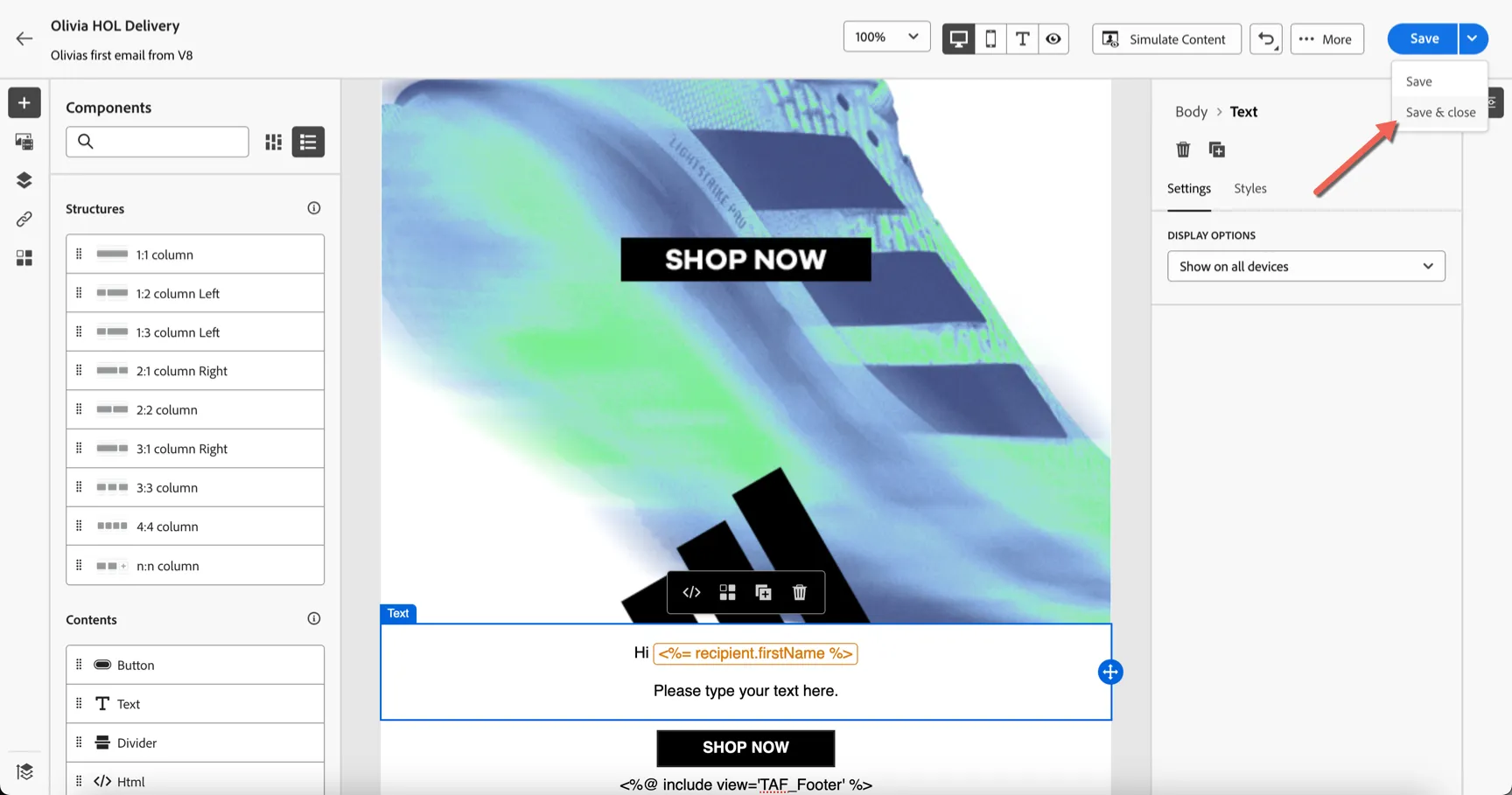
- Click Save to store your content.
Simulate and Test
Now that the content is prepared let's preview it and send some test messages.
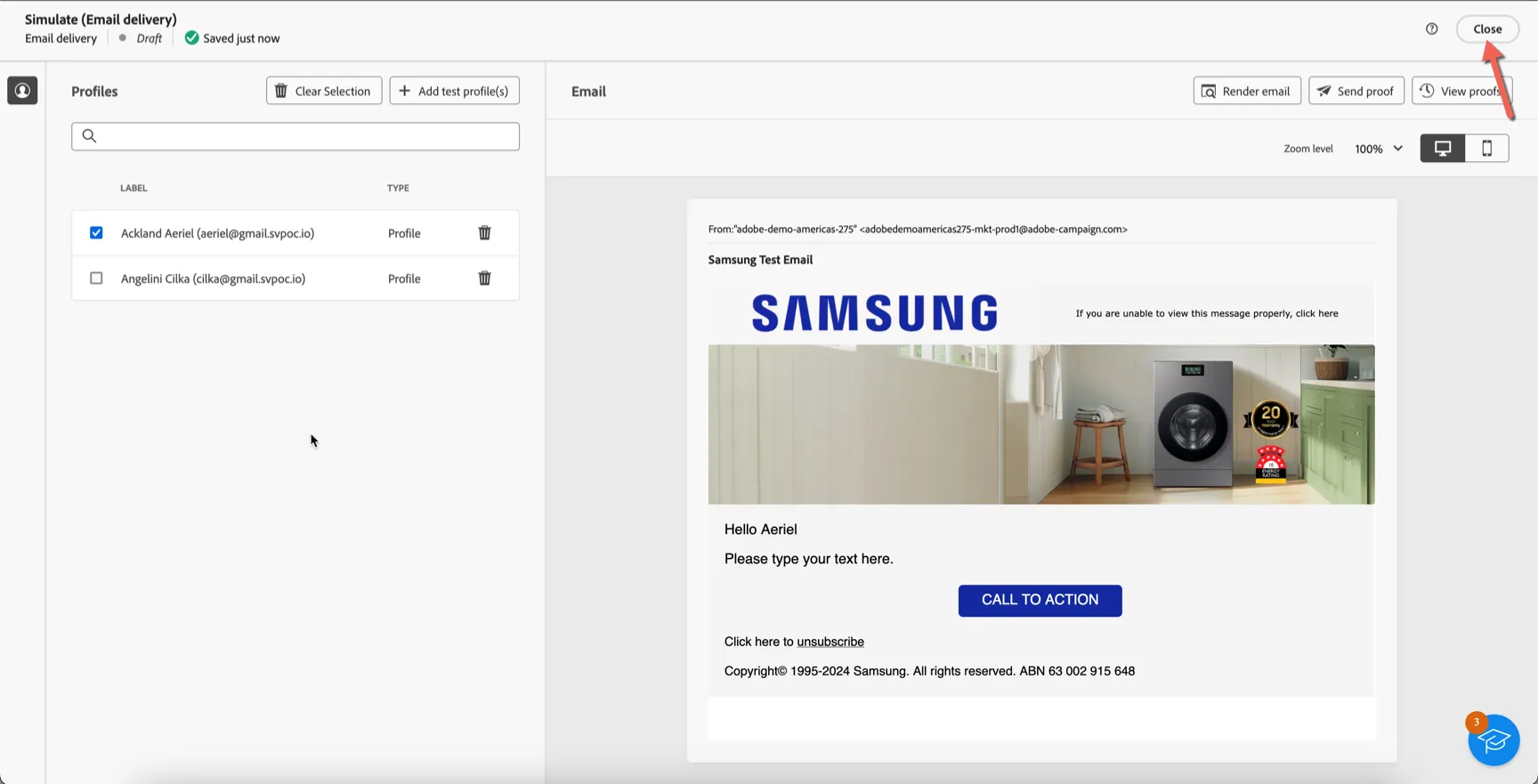
- Click on the Simulate Content button at the top of the designer. This will open the simulation view.
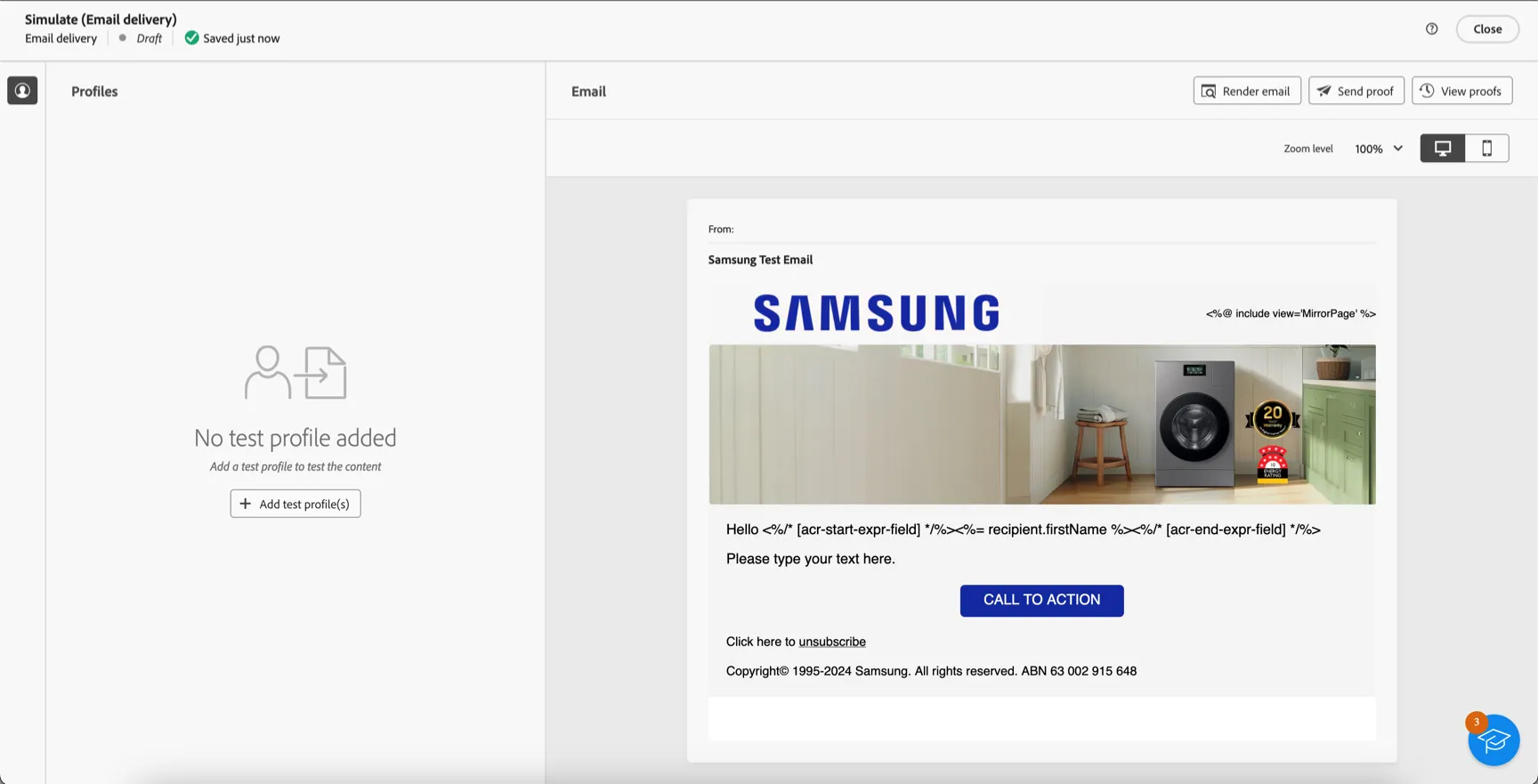
- We first need to select some profiles to use for previewing the message. Click to +Add test profiles
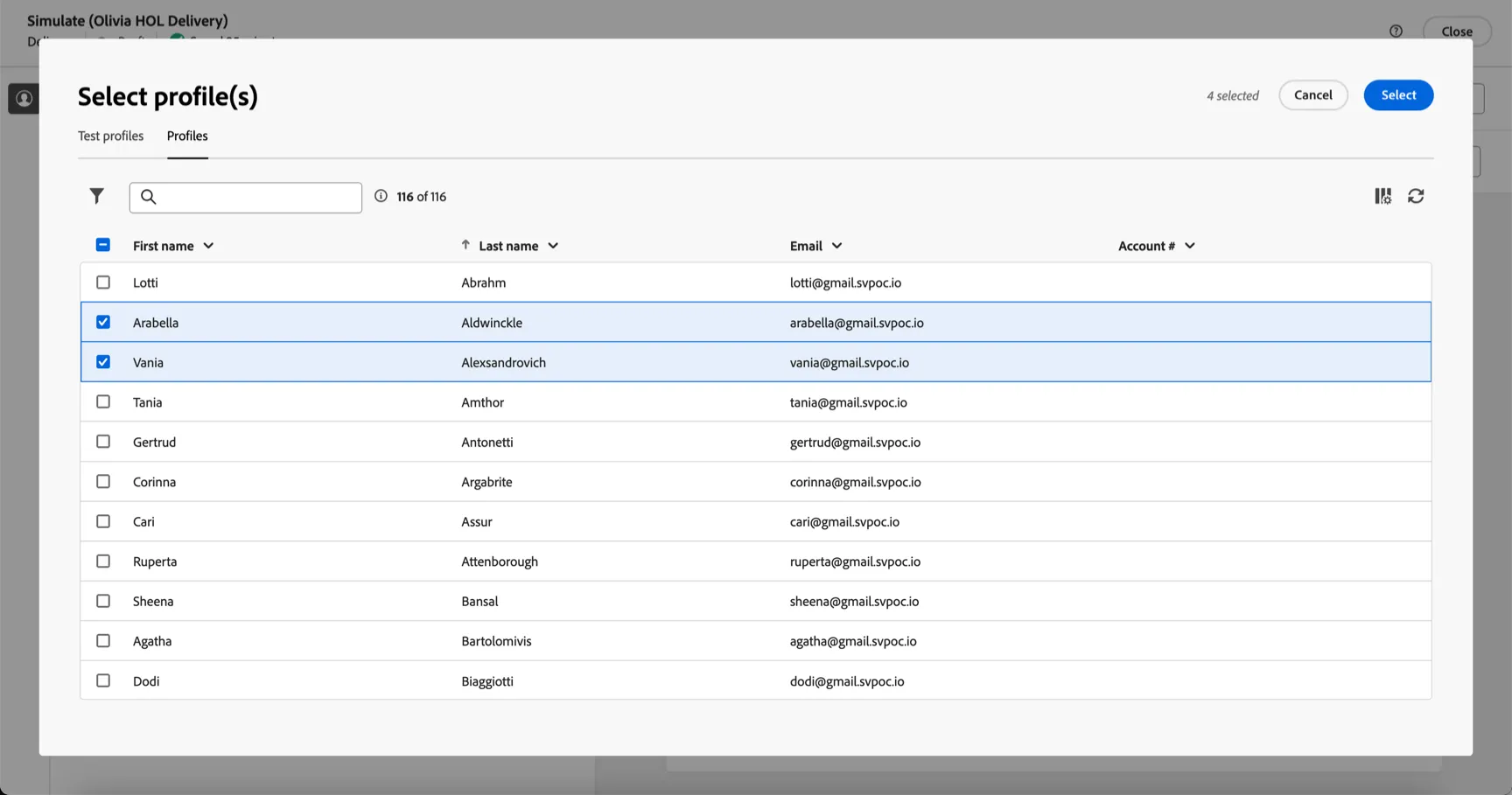
- You can select profiles or test profiles (ie. seeds) to use for your preview. Select a few profiles and click Select. Now you can switch between the profiles to see the personalisation
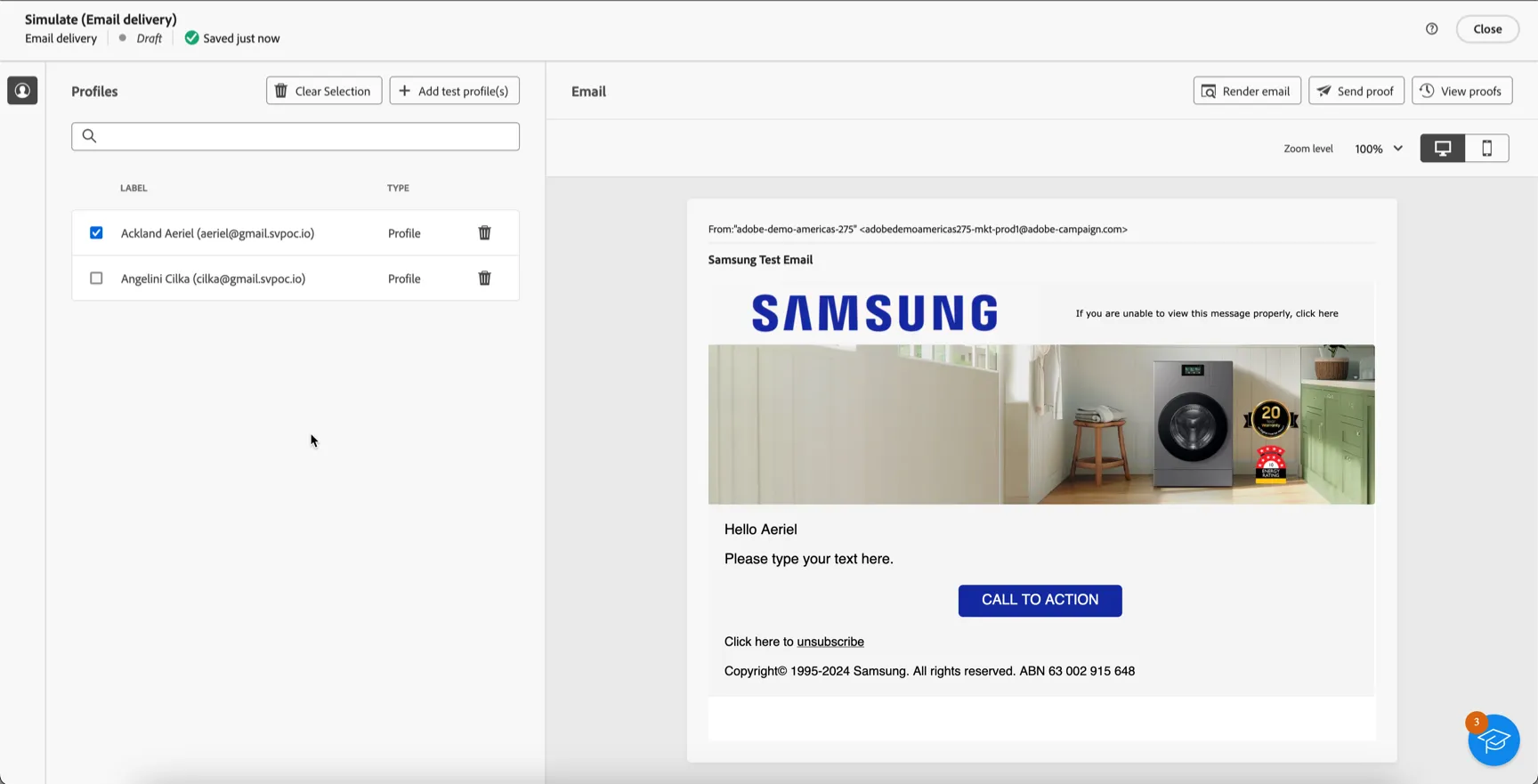
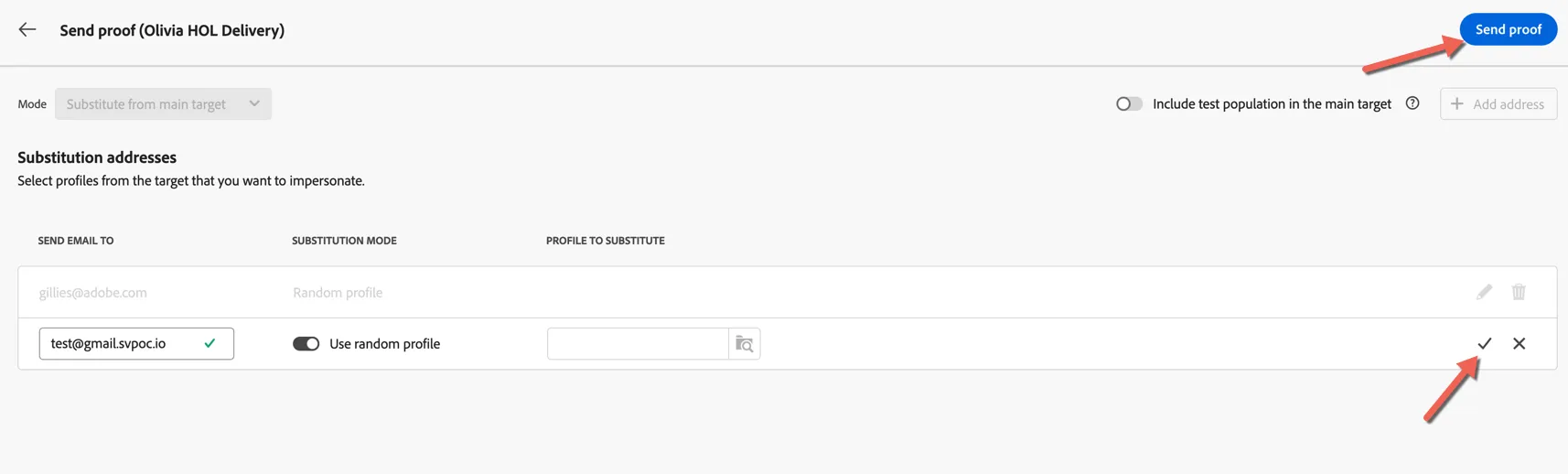
- To send a proof email click the Send proof button at the top right.

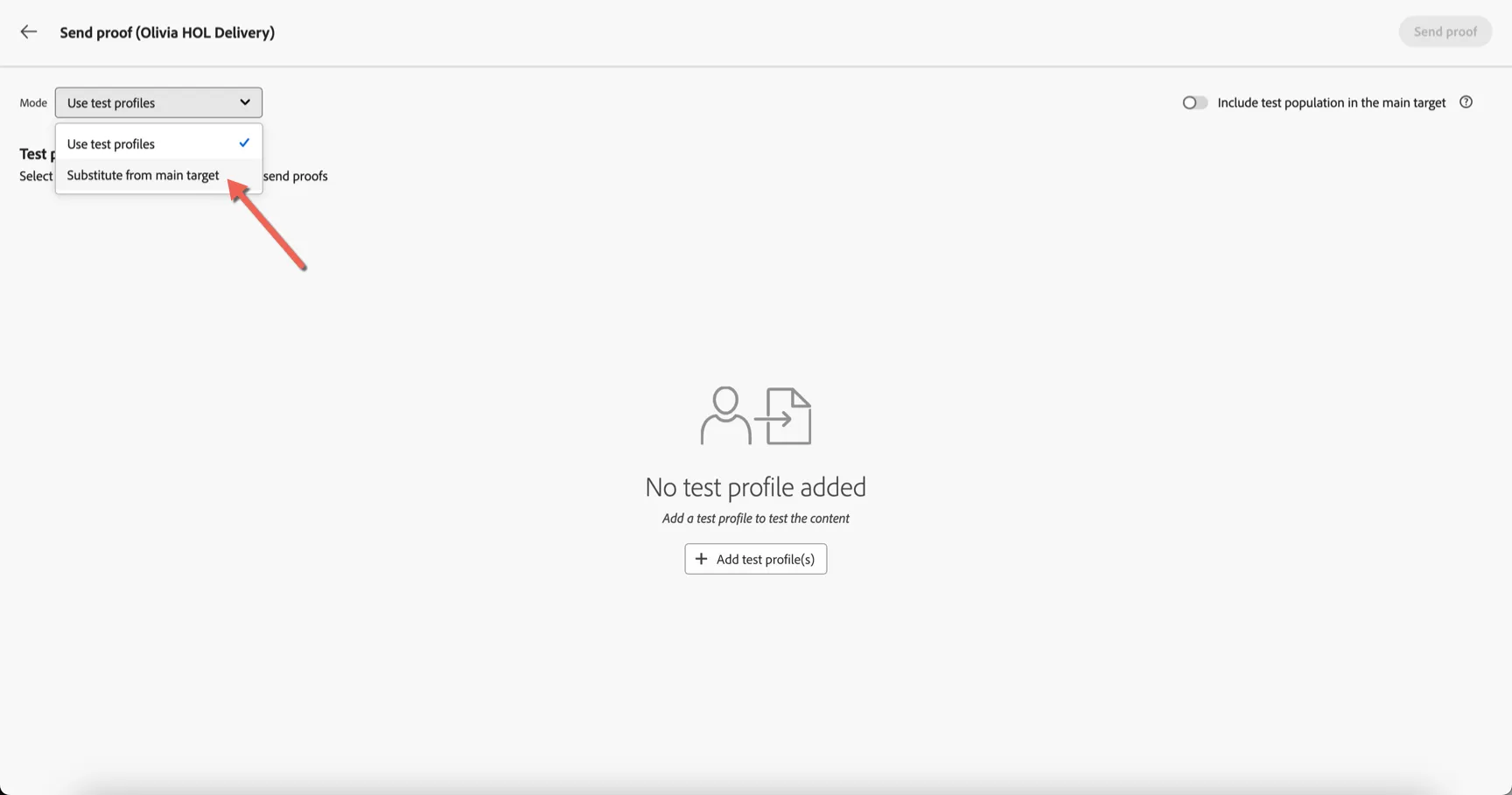
- You can choose to send a proof to a test profile (ie. seed address) or to select someone from the main target to simulate. Choose to substitue from the main target.
- You can choose to send the proof to whatever address you want. You can use any address ending in @gmail.svpoc.io if you don't want to use your own address.
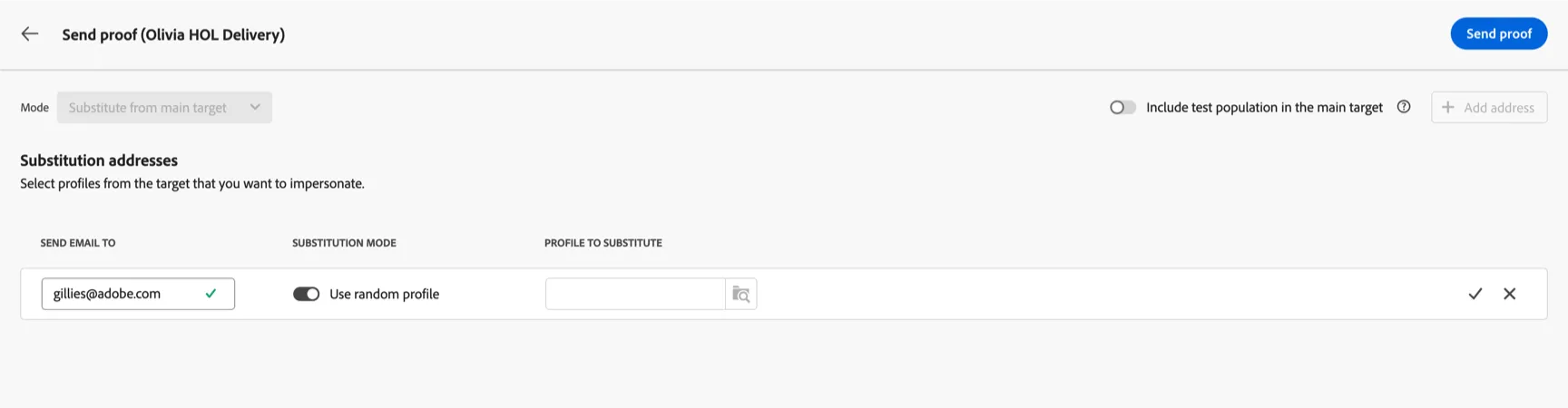
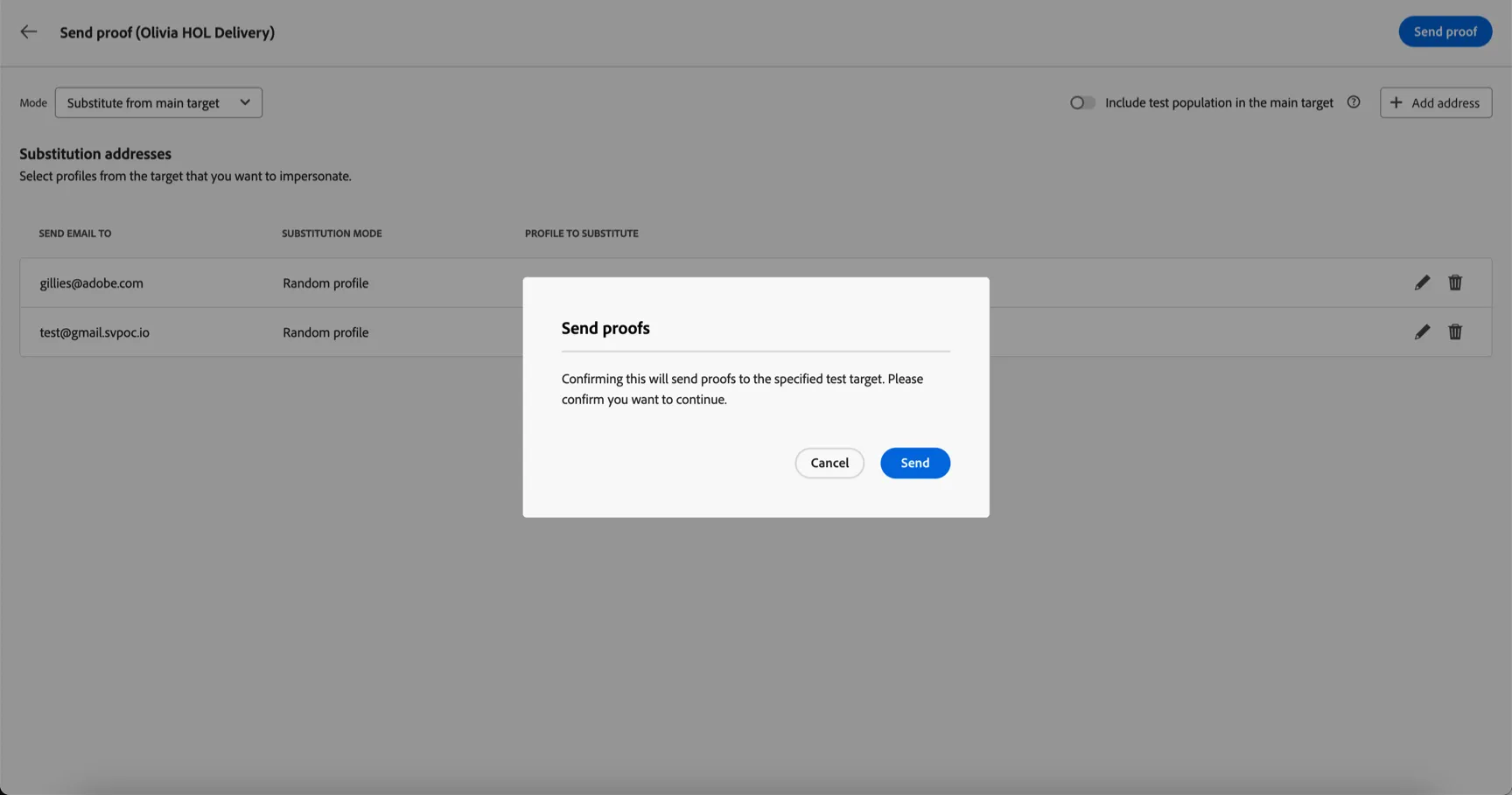
- Click the tick button when you are finished configuring the proof recipient, then click Send Proof.
Confirm to send the proof messages
- Click to Close the Simulation view.
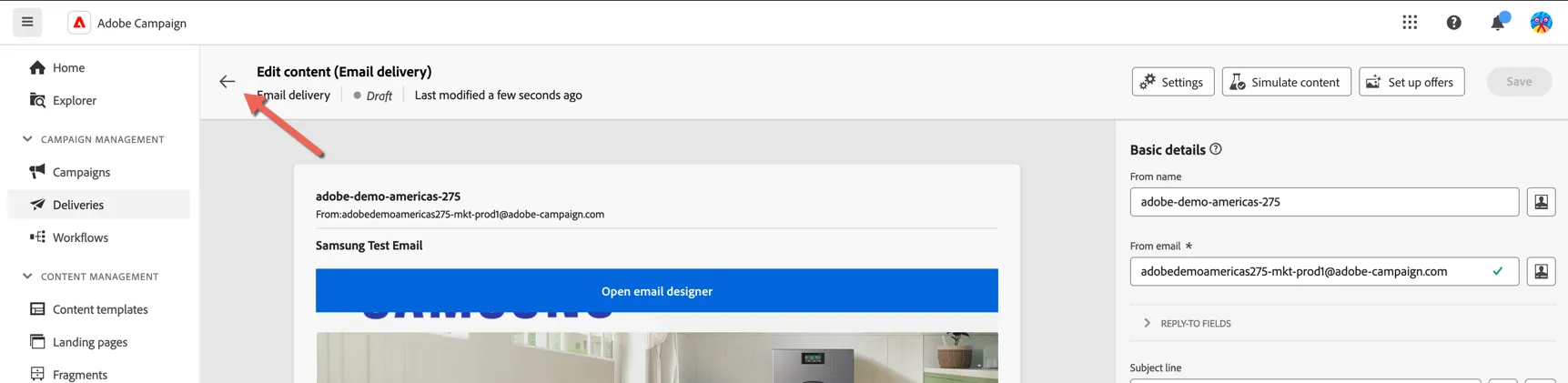
- Exit the email designer clicking the arrows on the top left.
- Return to the delivery properties by clicking the arrows on the top left.
Schedule your Delivery
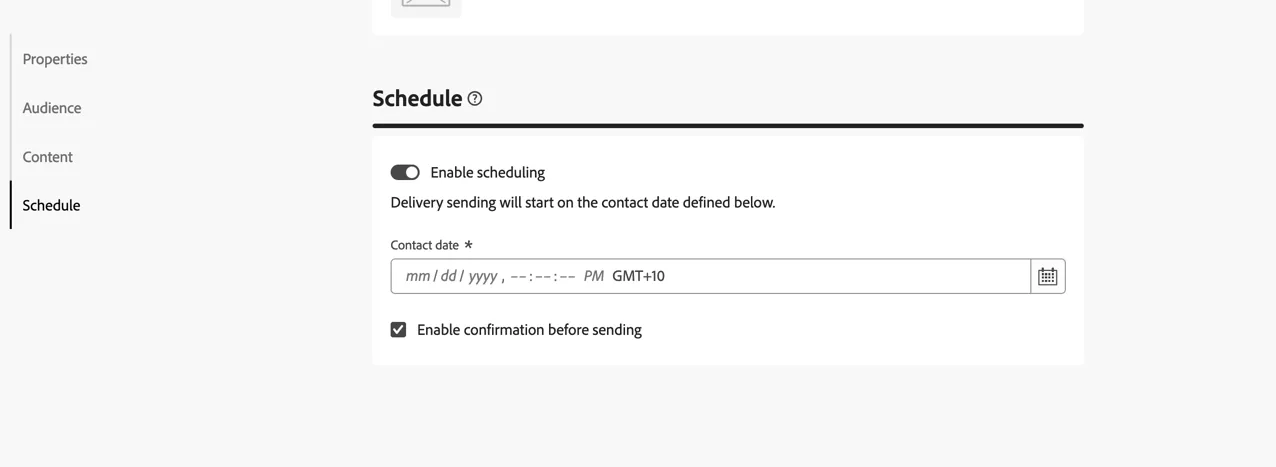
- The last step is to schedule your delivery. You can enable scheduling to set the delivery to send in the future. By default the email will require confirmation before it sends the final version.
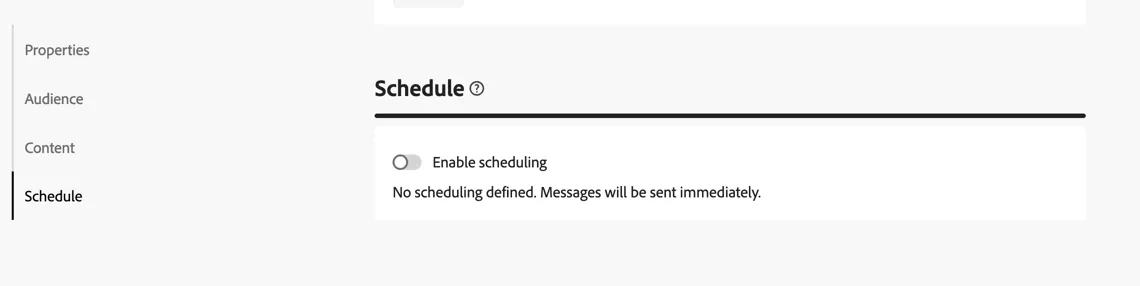
- For this exercise leave the scheduling disabled.
- Save the delivery.
Review and Prepare the delivery
- Click to Review and send
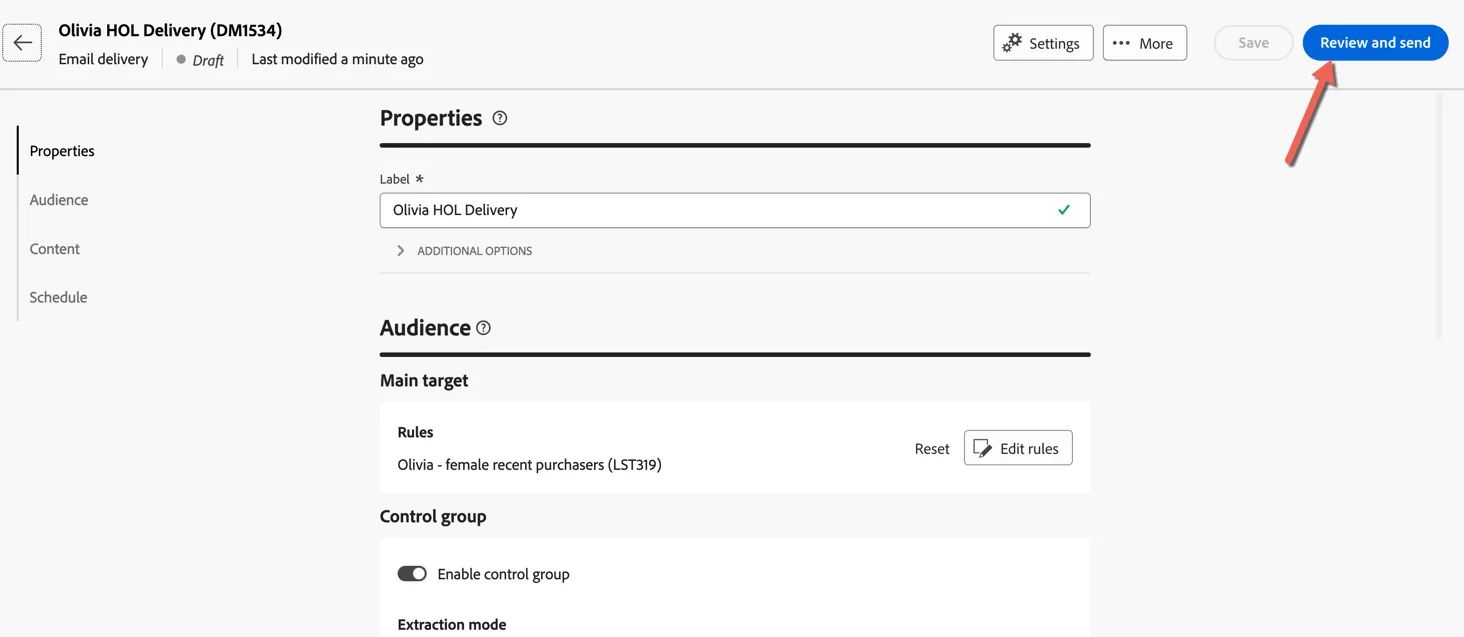
- Here you can see all of the properties of the delivery. Click Prepare to start preparing the messages for delivery.
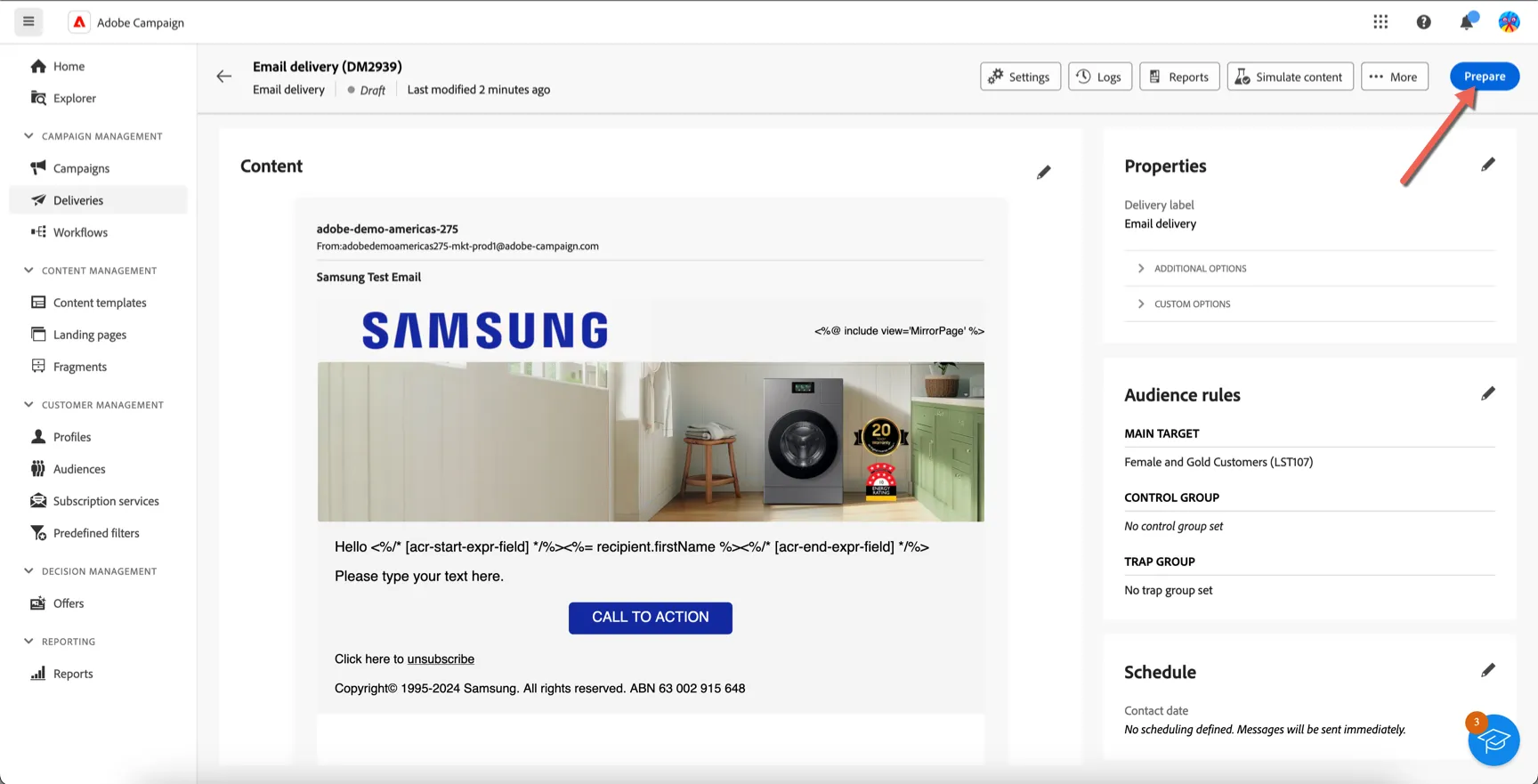
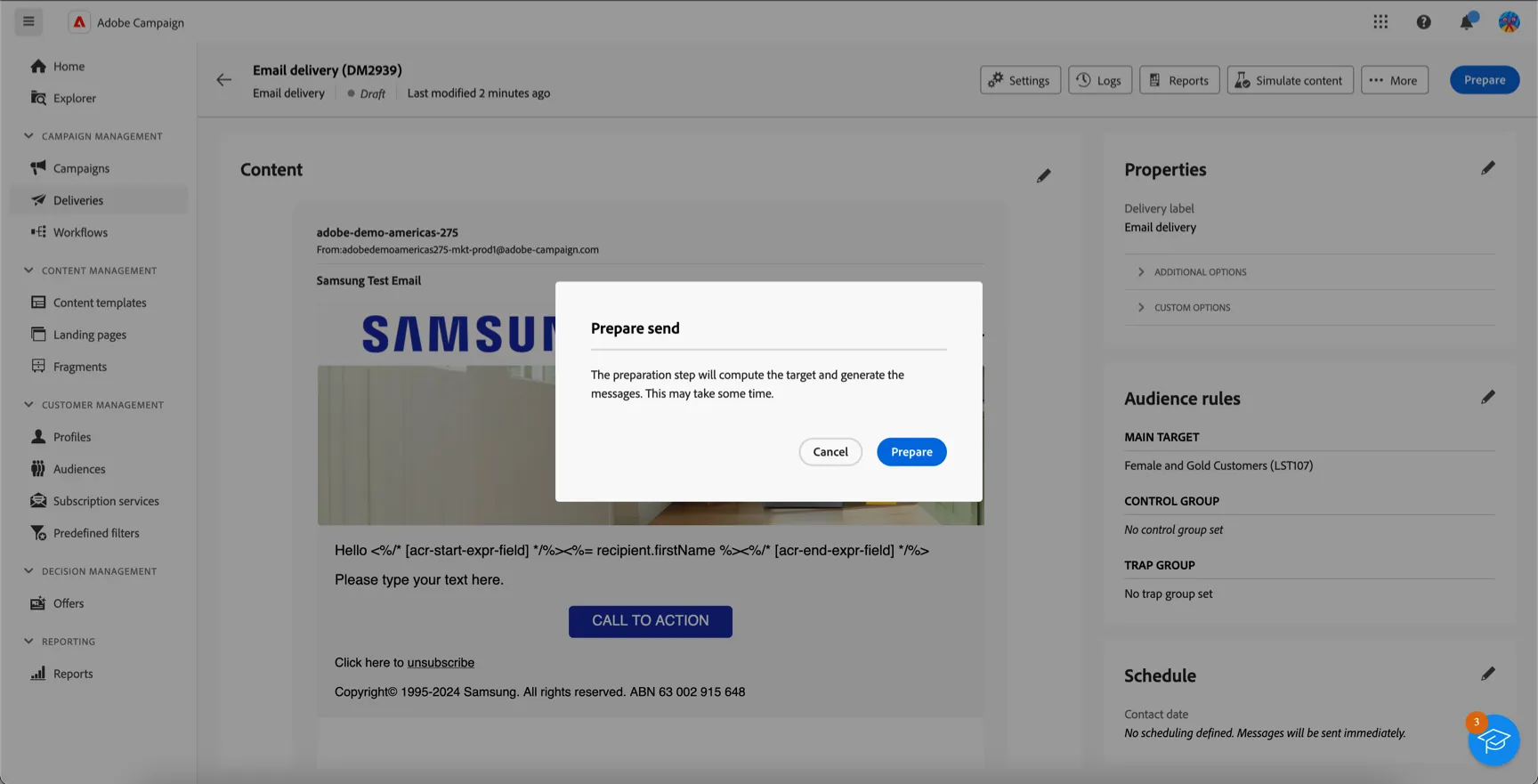
- You will be prompted to confirm this action. No messages will be sent at this time. Click to Prepare.
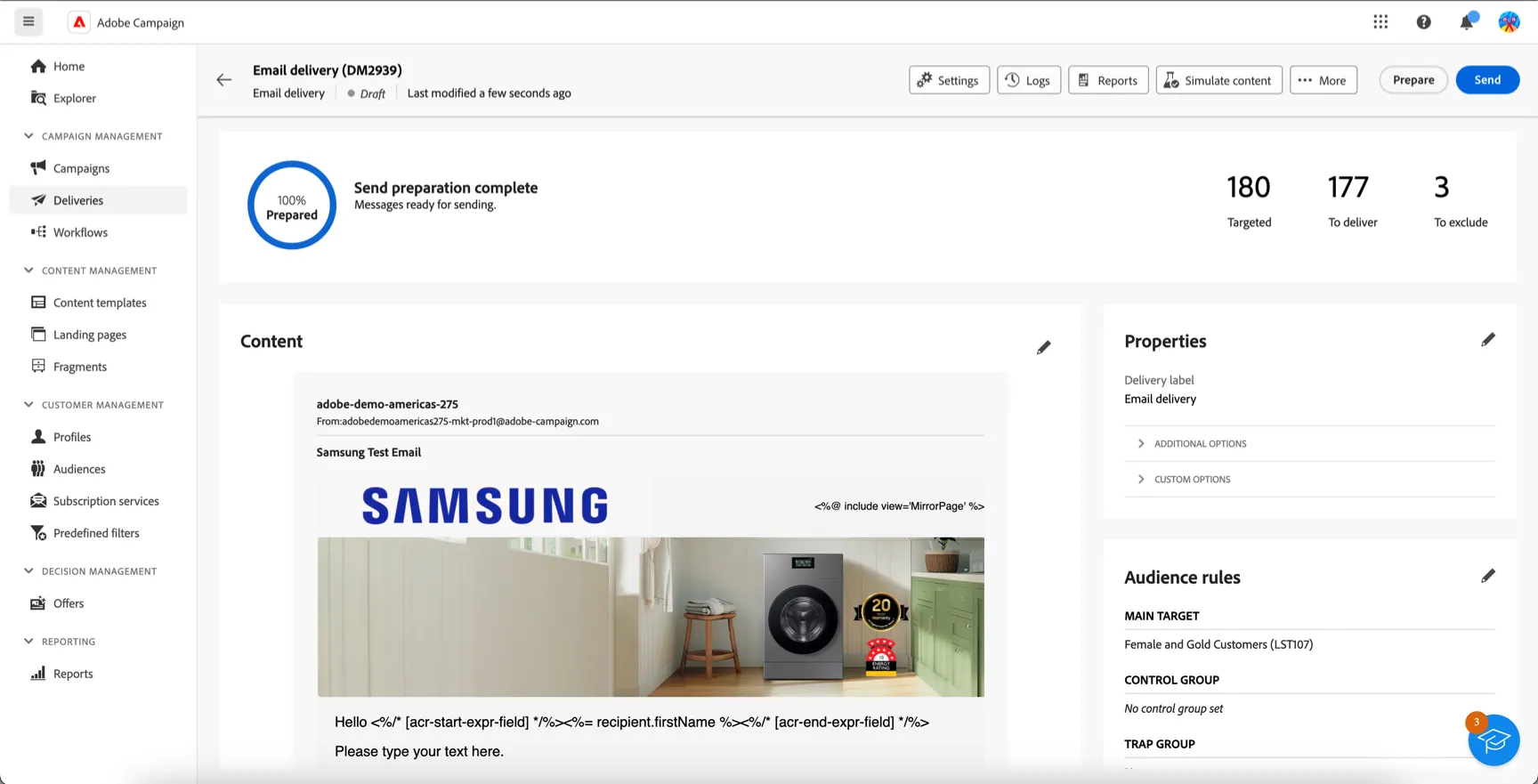
- You can now see a summary of the number of messages to be sent, as well as how many will be excluded from the send. You can drill into these in more detail through the Logs or the Reports.
This completes the exercise on creating a delivery!