Lab 3 - Adobe Target
Learning Objectives
In this lab you'll learn how to use Adobe Target (AT) to do both optimization (A/B Testing) and personalization (Experience Targeting). AT focuses on inbound traffic to both web and mobile and can be used for both anonymous and known visitors.
Access Adobe Target
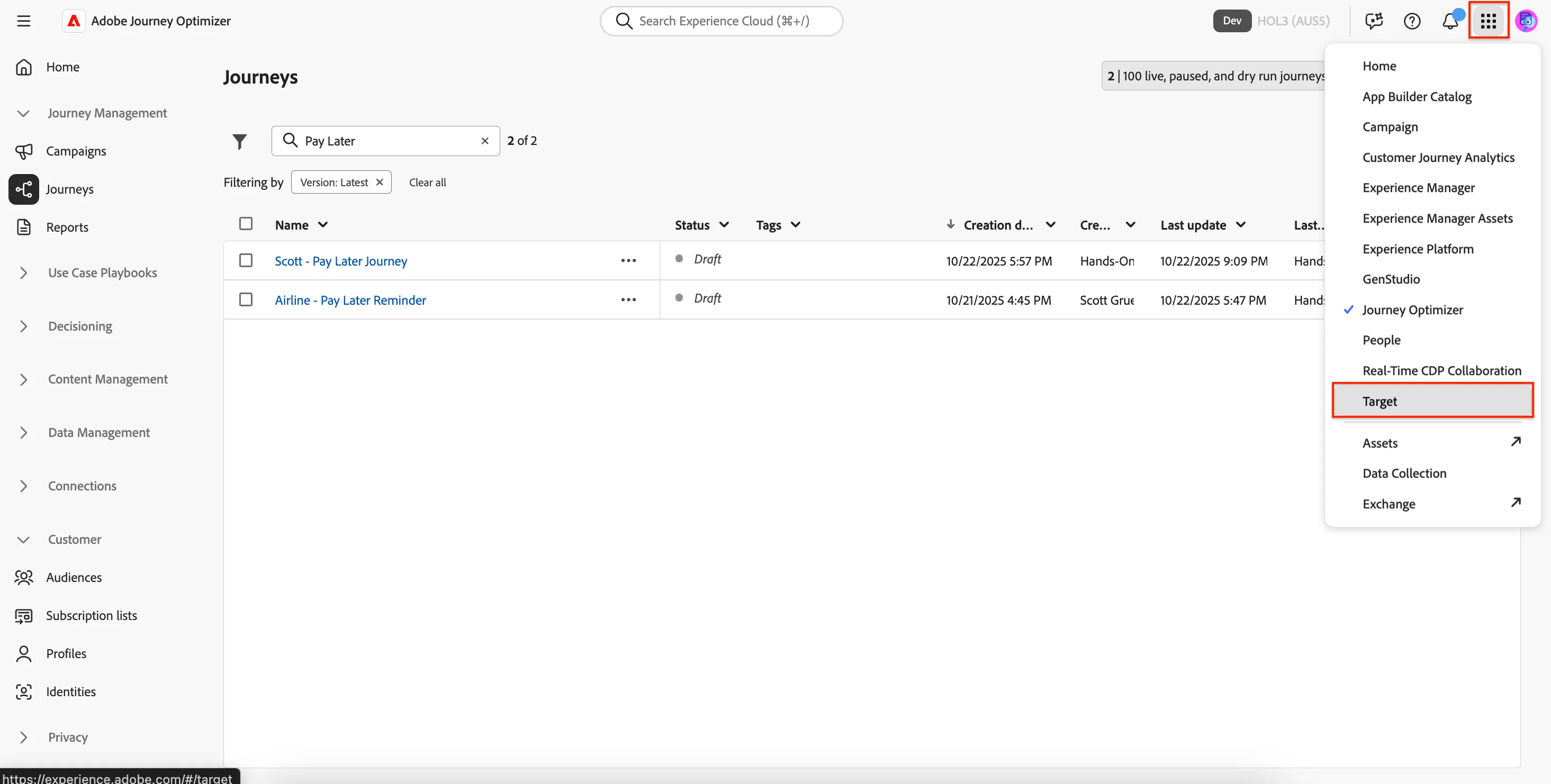
As with all Adobe solutions, you can access them easily from the 9-dot menu at the top right. Click on the 9-dot menu then Target.
The landing page shows a list of Activities which you can easily filter and search. Activities are experiences or campaigns that you are running.
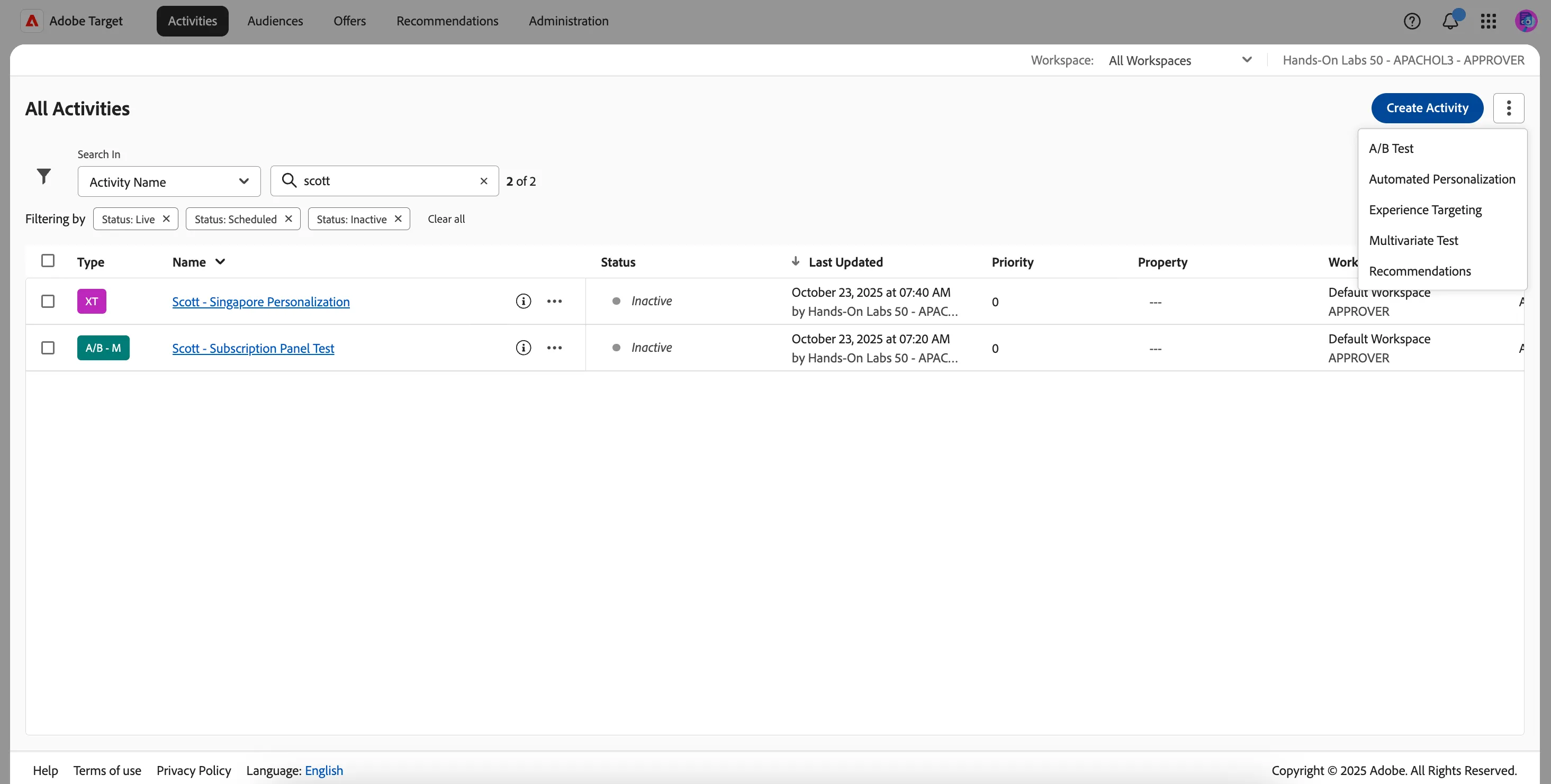
License Note: This lab/demo environment has access to all Target Activities. The version of Target you have allows you to create A/B Test, Experience Targeting and Multivariate Test campaigns. The lab exercises will focus on what you have access to.
3.1 A/B Testing (Optimization)
AT lets you test different experiences and measure which one works better. For example, imagine testing a new flight booking form. Imagine if Version B of the form improved the conversion rate by 1%? How much extra revenue would that generate?
Create a new A/B Test Activity
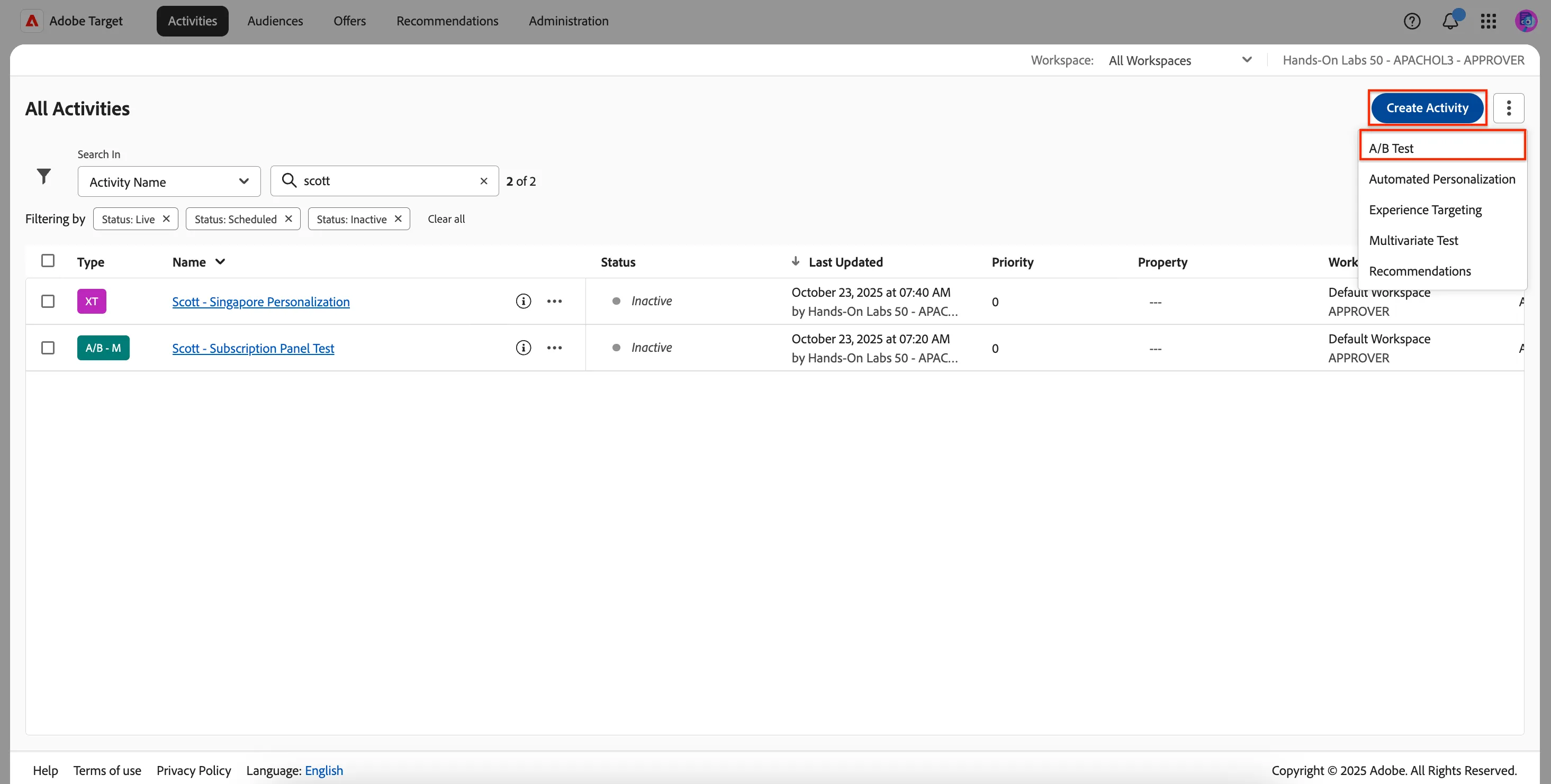
Click Create Activity > A/B Test.
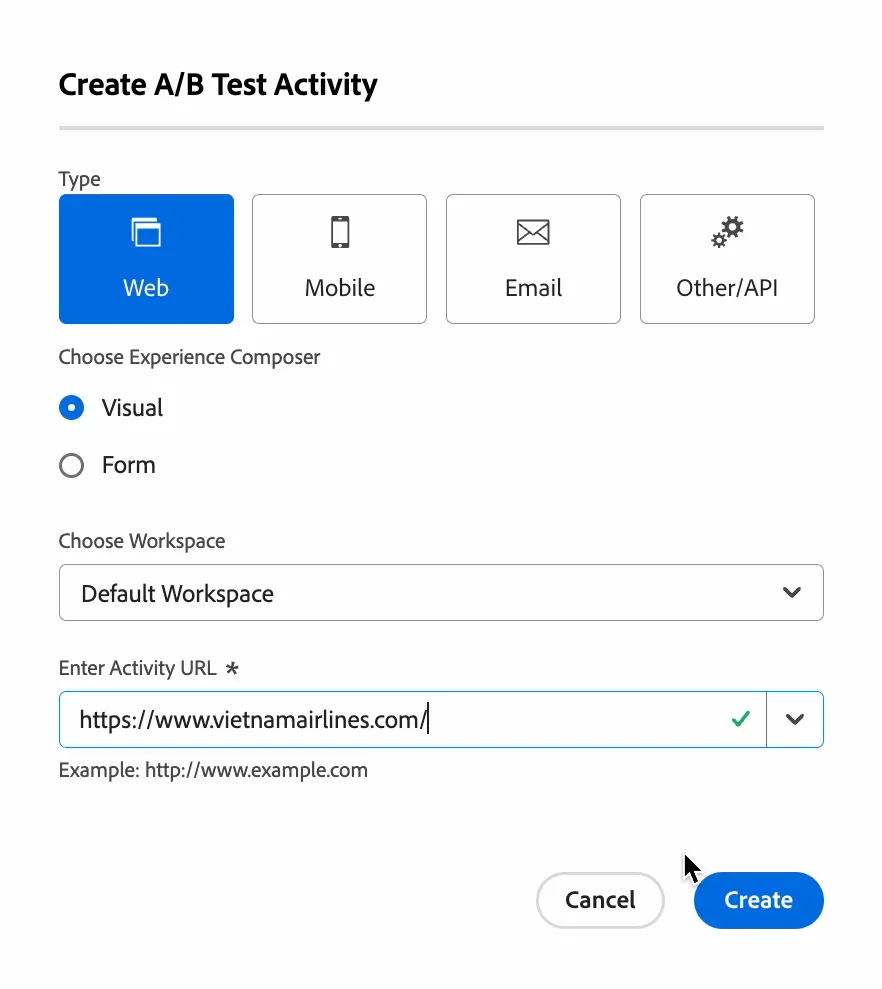
Select Default Workspace, Enter Activity URL https://www.vietnamairlines.com/ and click Create.
You'll land on the Visual Experience Composer (VEC) page. It is a WYSIWYG visual editor to help you easily edit the experience. Let's start by making a little more room as you'll most likely be using a small laptop screen. Click the + icon to minimize the Components panel.
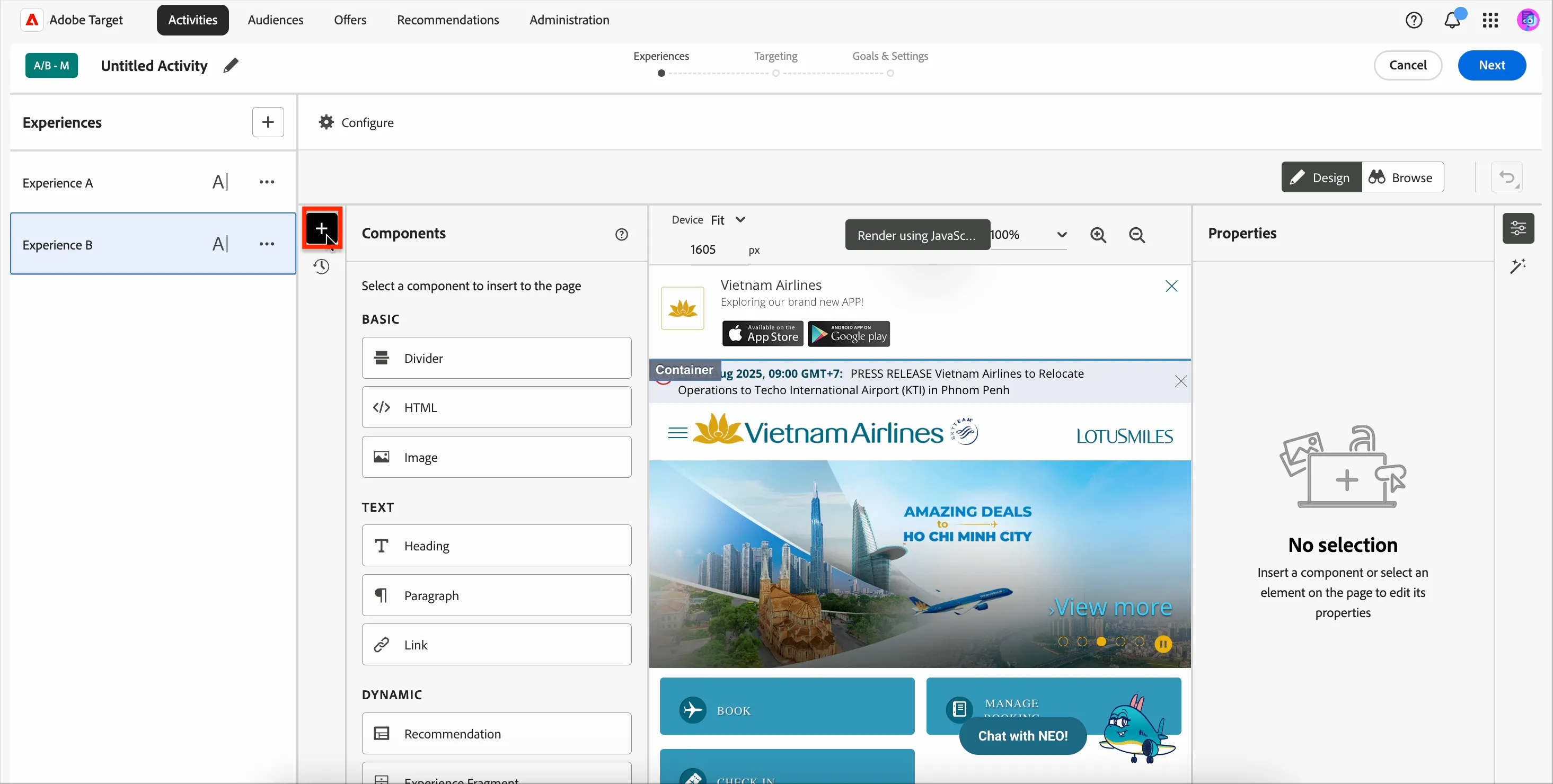
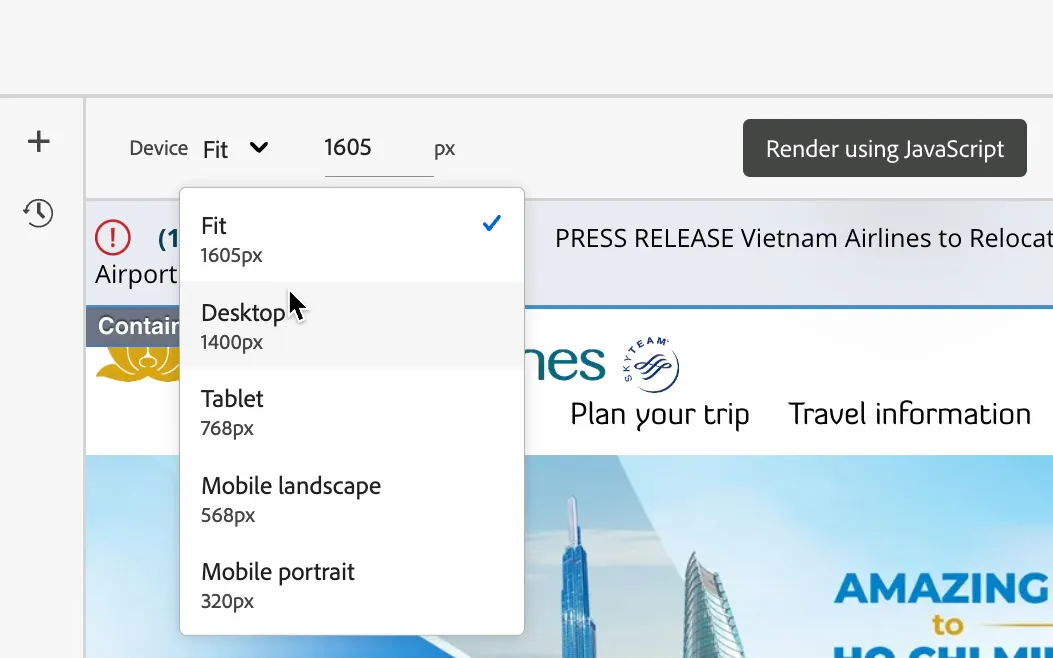
Change the Fit to Desktop.
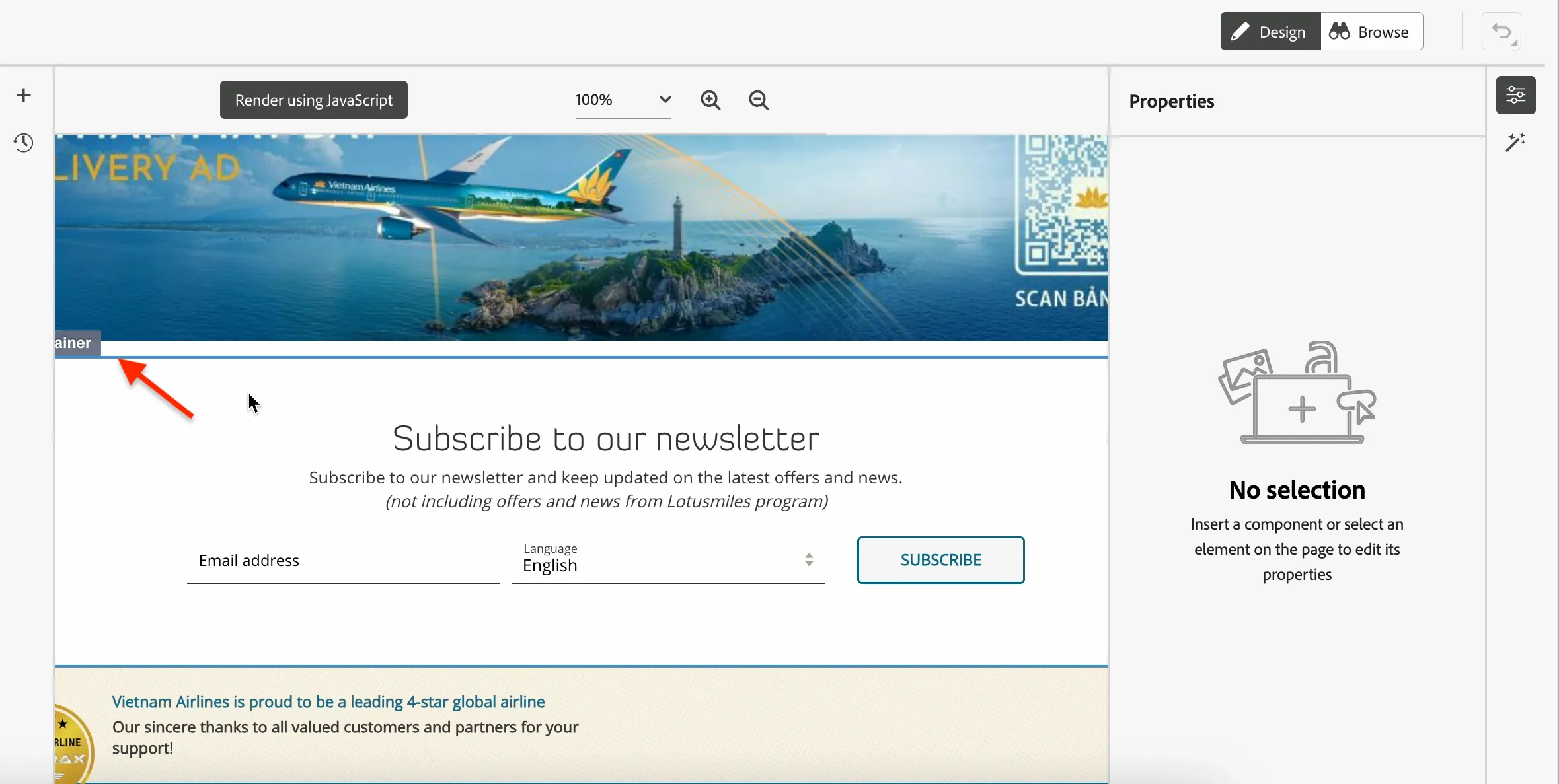
Scroll down to the Subscribe to our newsletter section. Hover until the outer Container is highlighted in blue. When it is, Click.
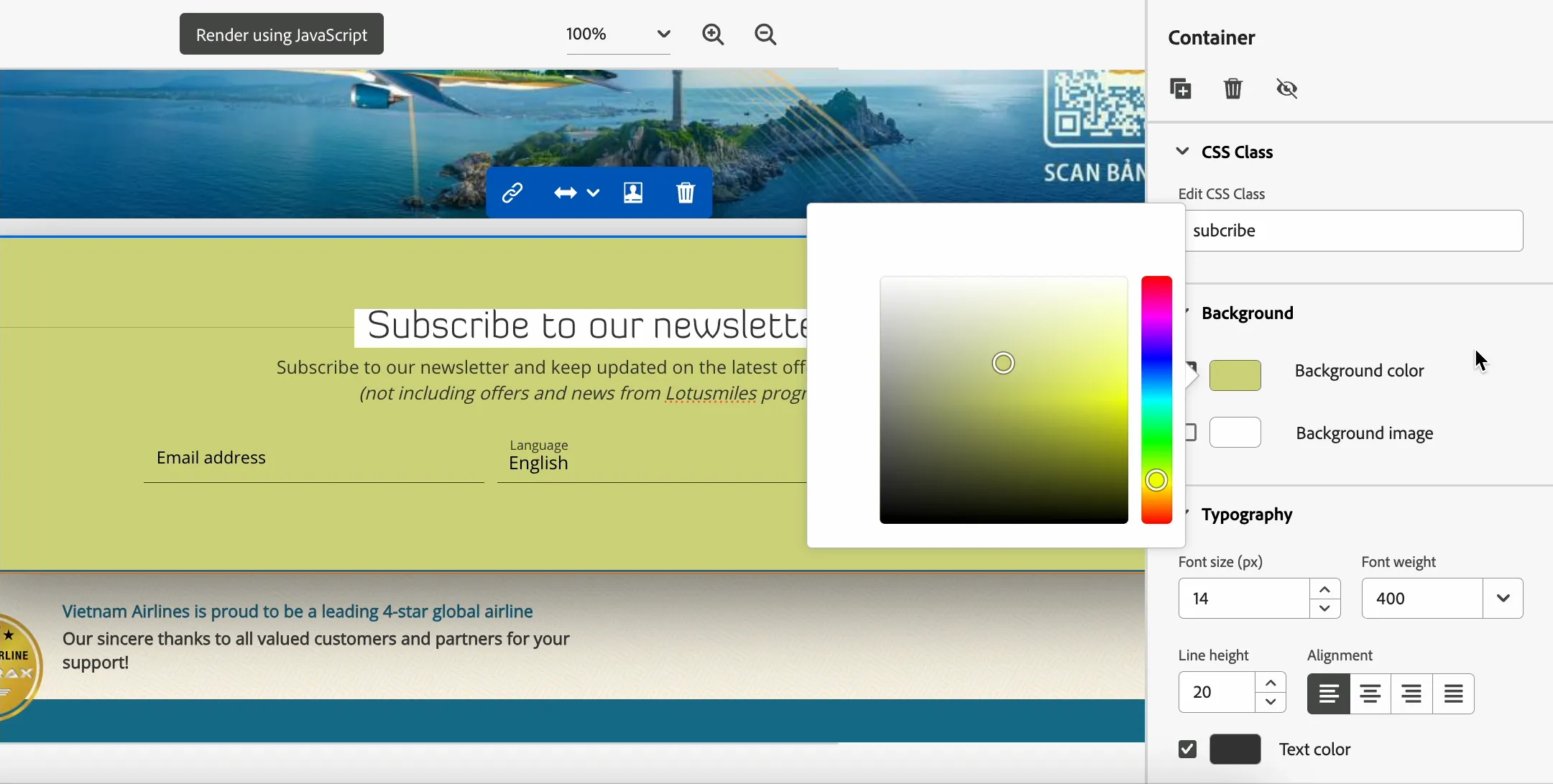
You'll now see the Properties panel change to show the properties for the element Container. Click on Background color and change it to any colour you like.
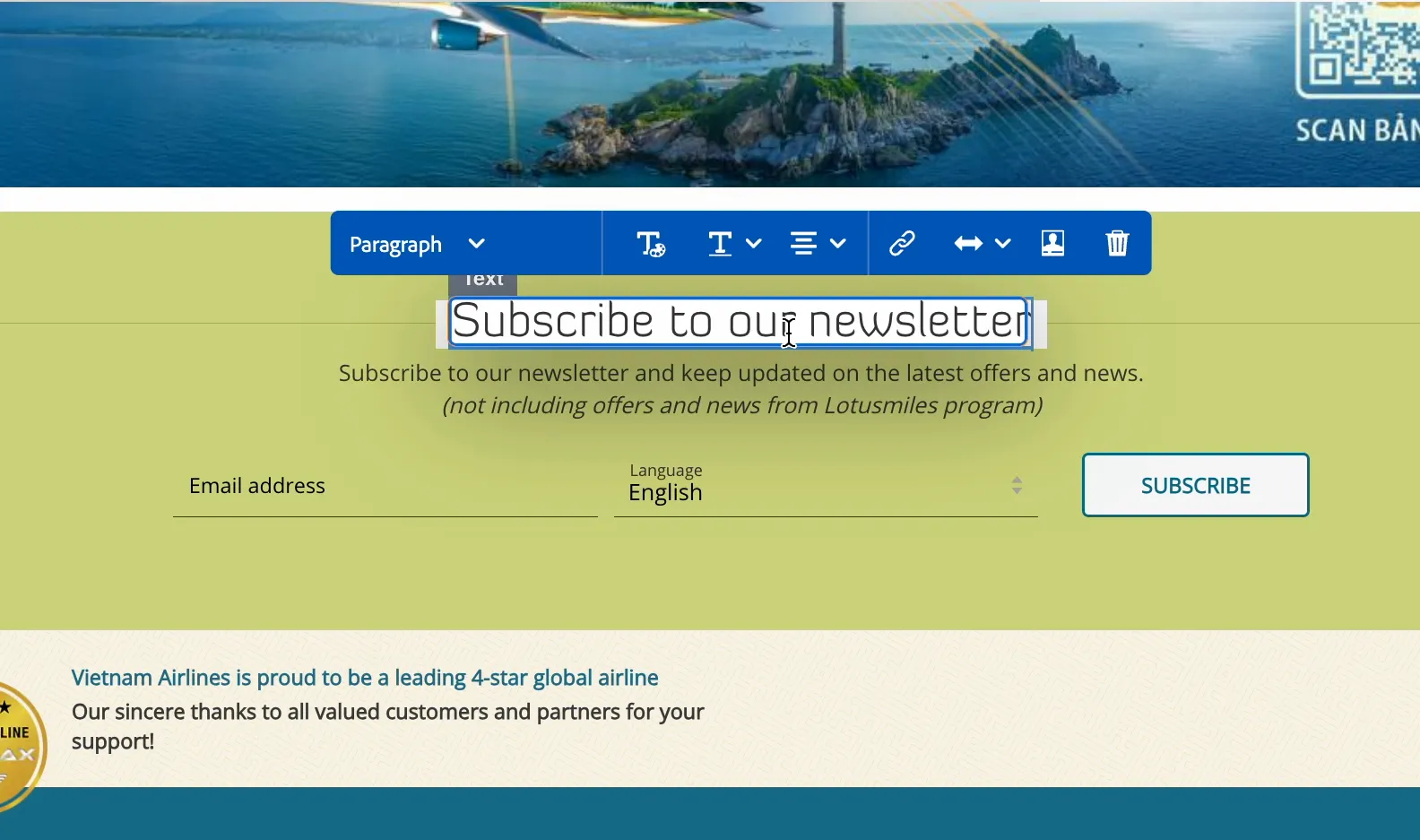
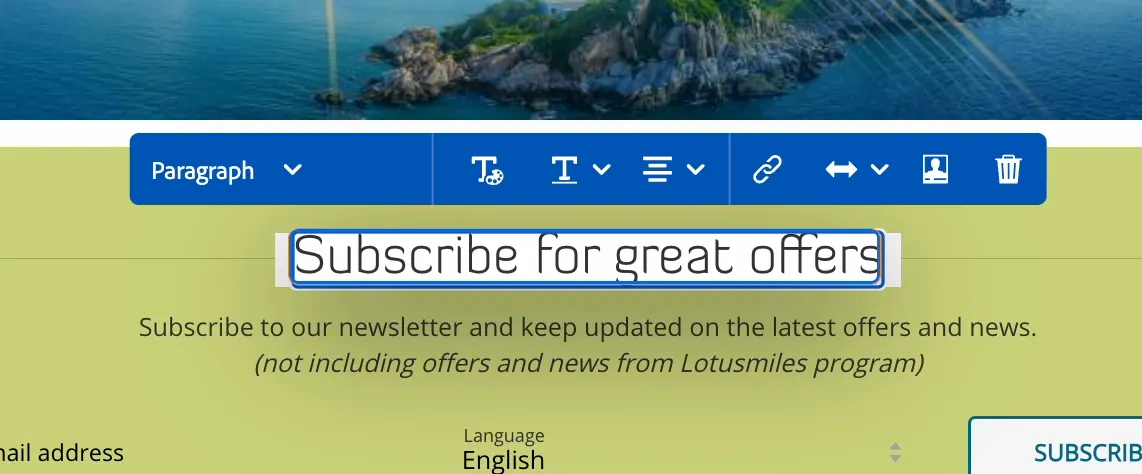
Click on the Subscribe to our newsletter text and change it to Subscribe for great offers.
Click on the body text under the header, then click the AI Assistant icon on the right, and enter the Prompt : Ask people to subscribe to the newsletter.
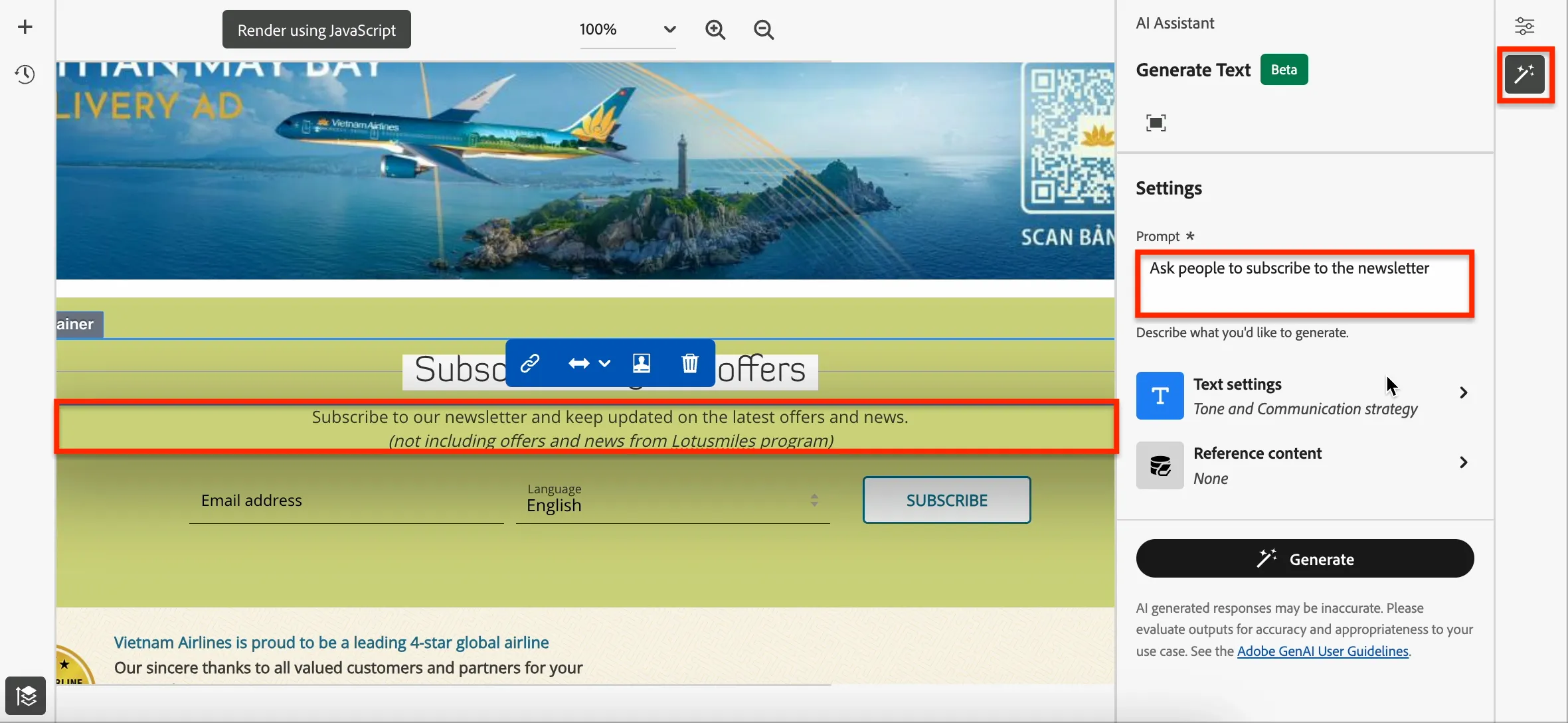
Once again we are using generative AI to help make our experience creation faster. This allows us to get to market faster and achieve better results.
Click on Text settings and change the Communication strategy to Incentive and Tone to Friendly.
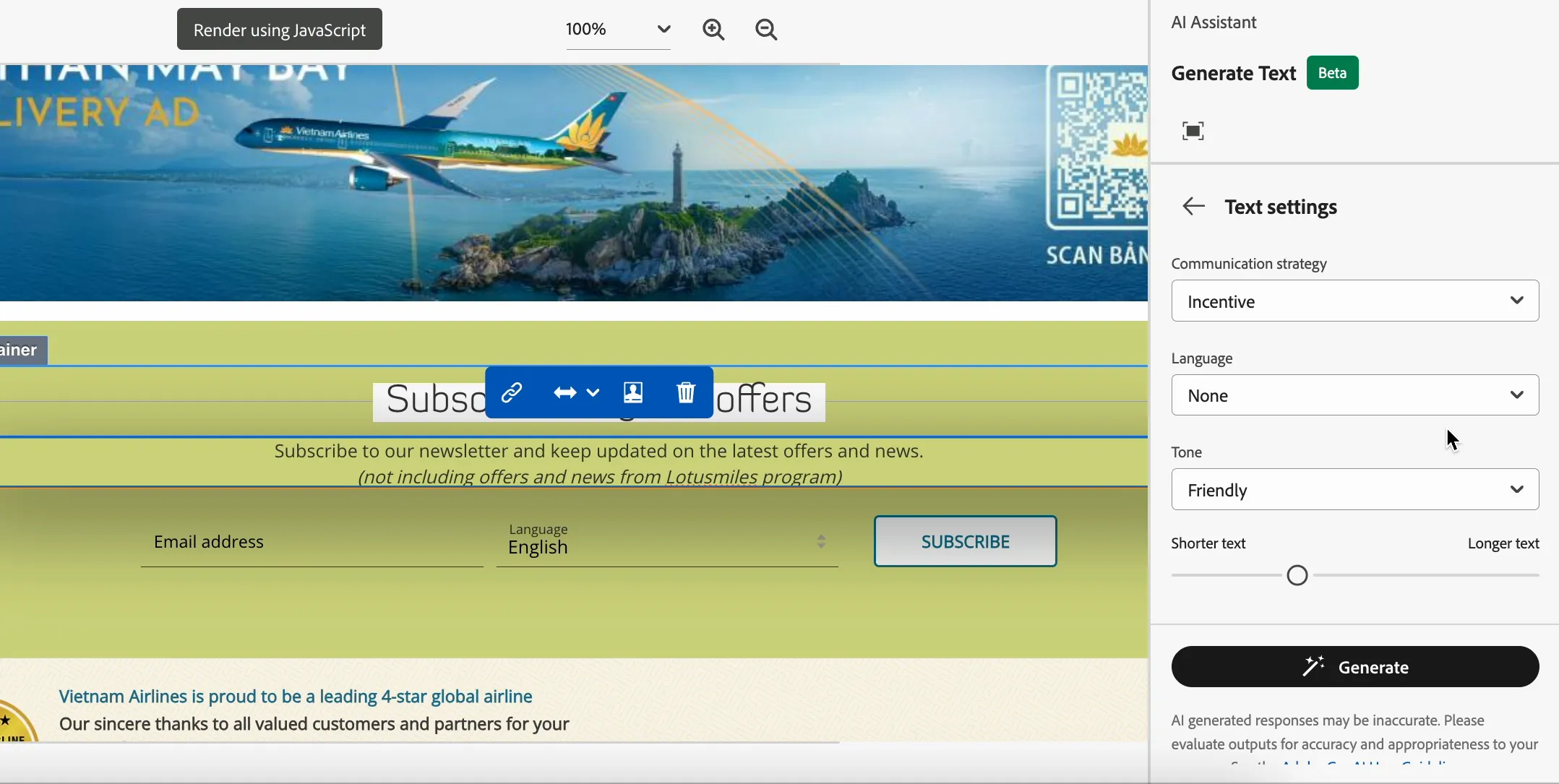
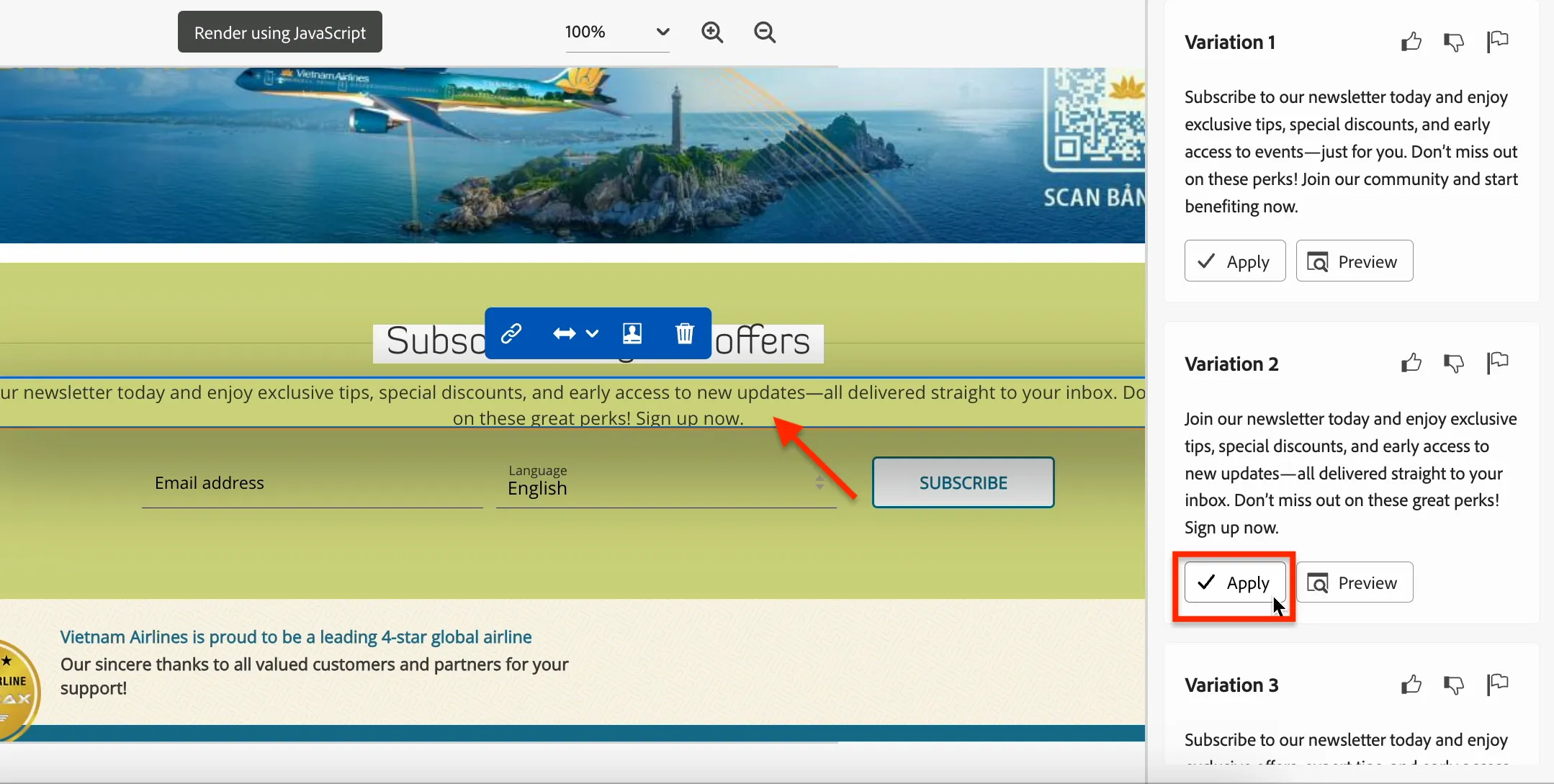
Click ← back and then Generate. Click Apply on the variation you like and you'll see it applied in the VEC (notice the text has been updated).
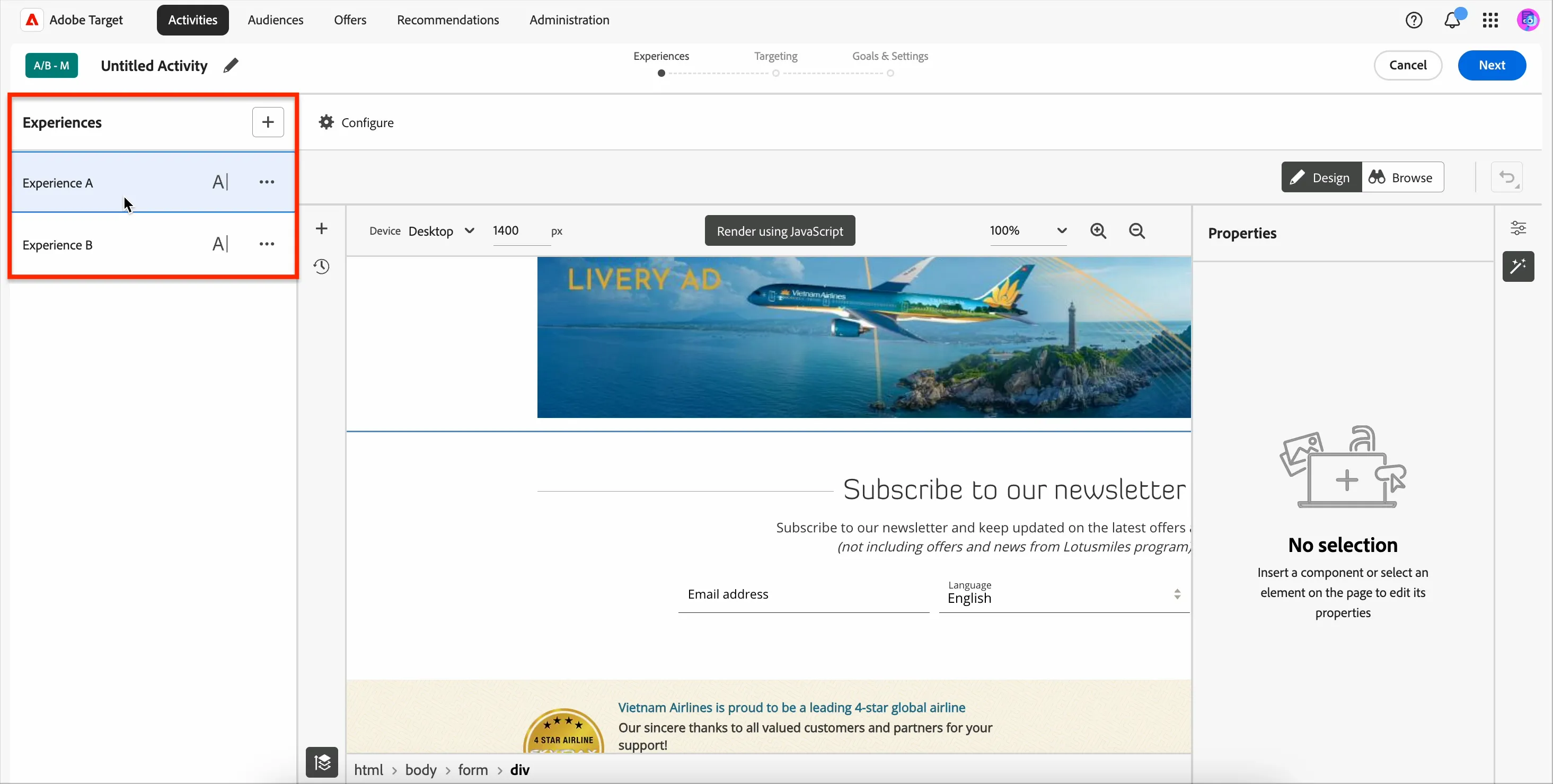
You can click on the Experiences on the left to see the content for each one. Generally Experience A will be the default (unmodified) content in your A/B test. Note, Target lets you create more than just 2 experiences. It is A/B/n testing, where n can be any number.
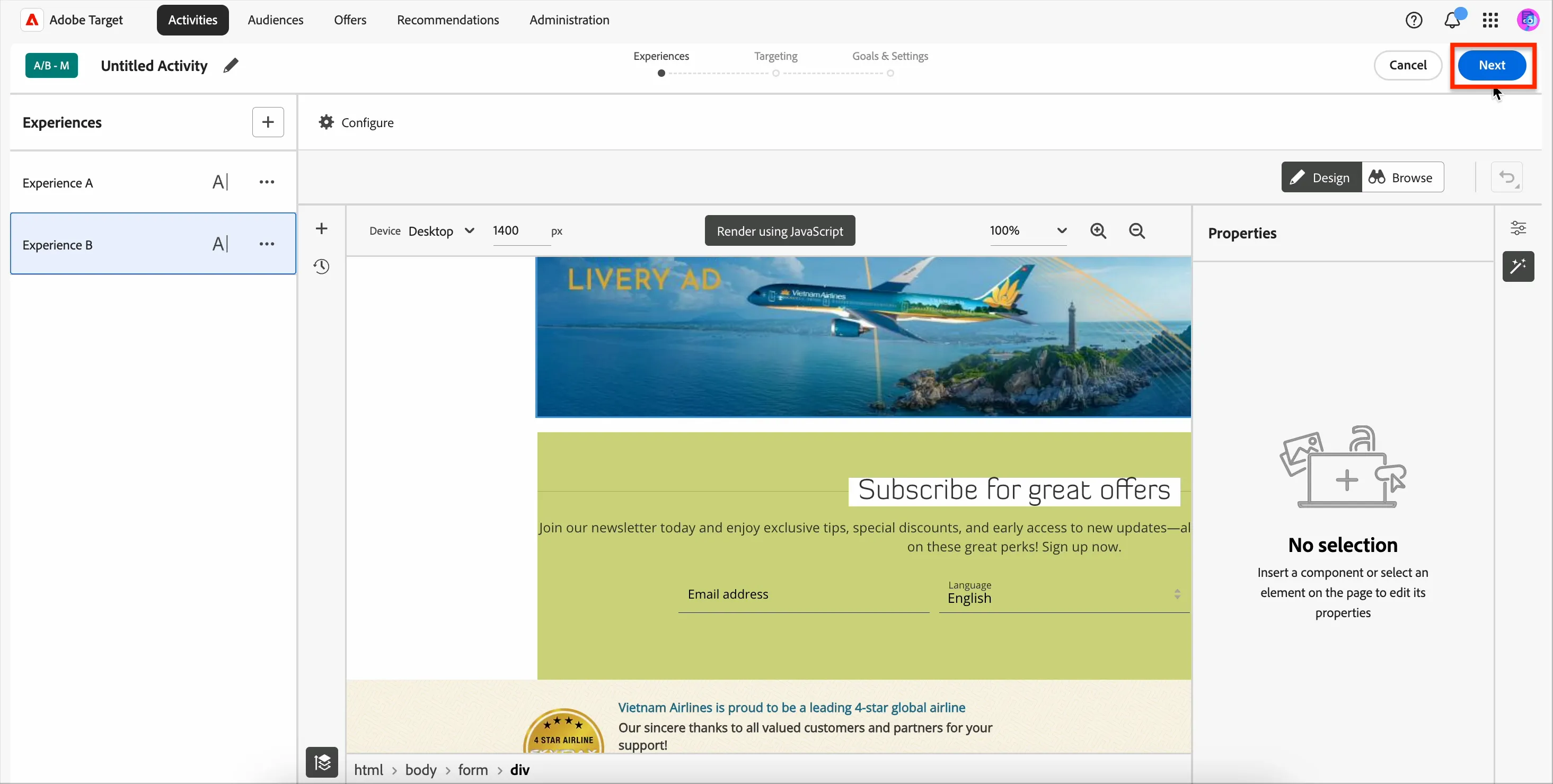
When you're ready and happy with your experiences, click the Next button.
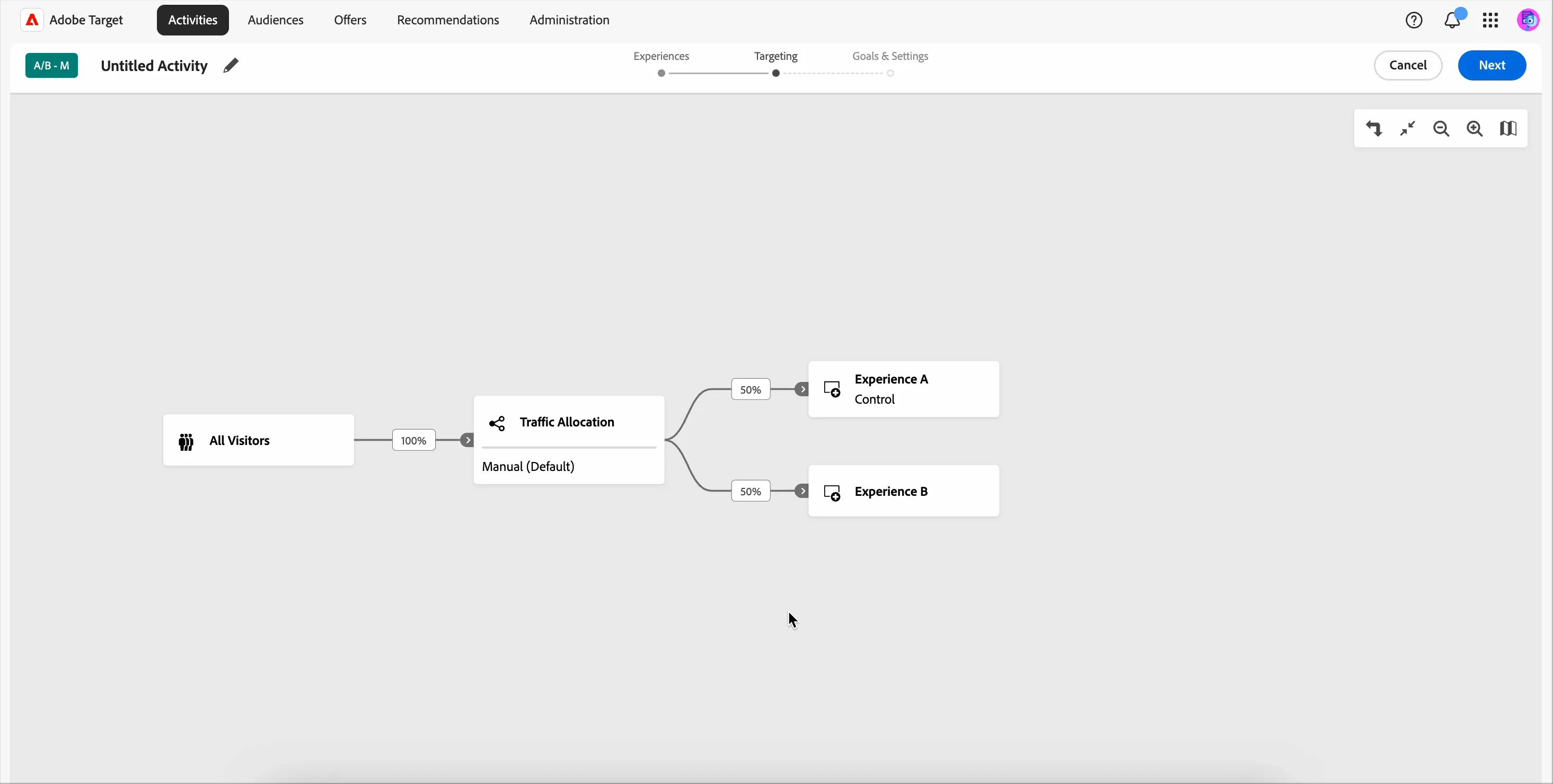
You will see a summary of the traffic split (this is configurable). Click Next again.
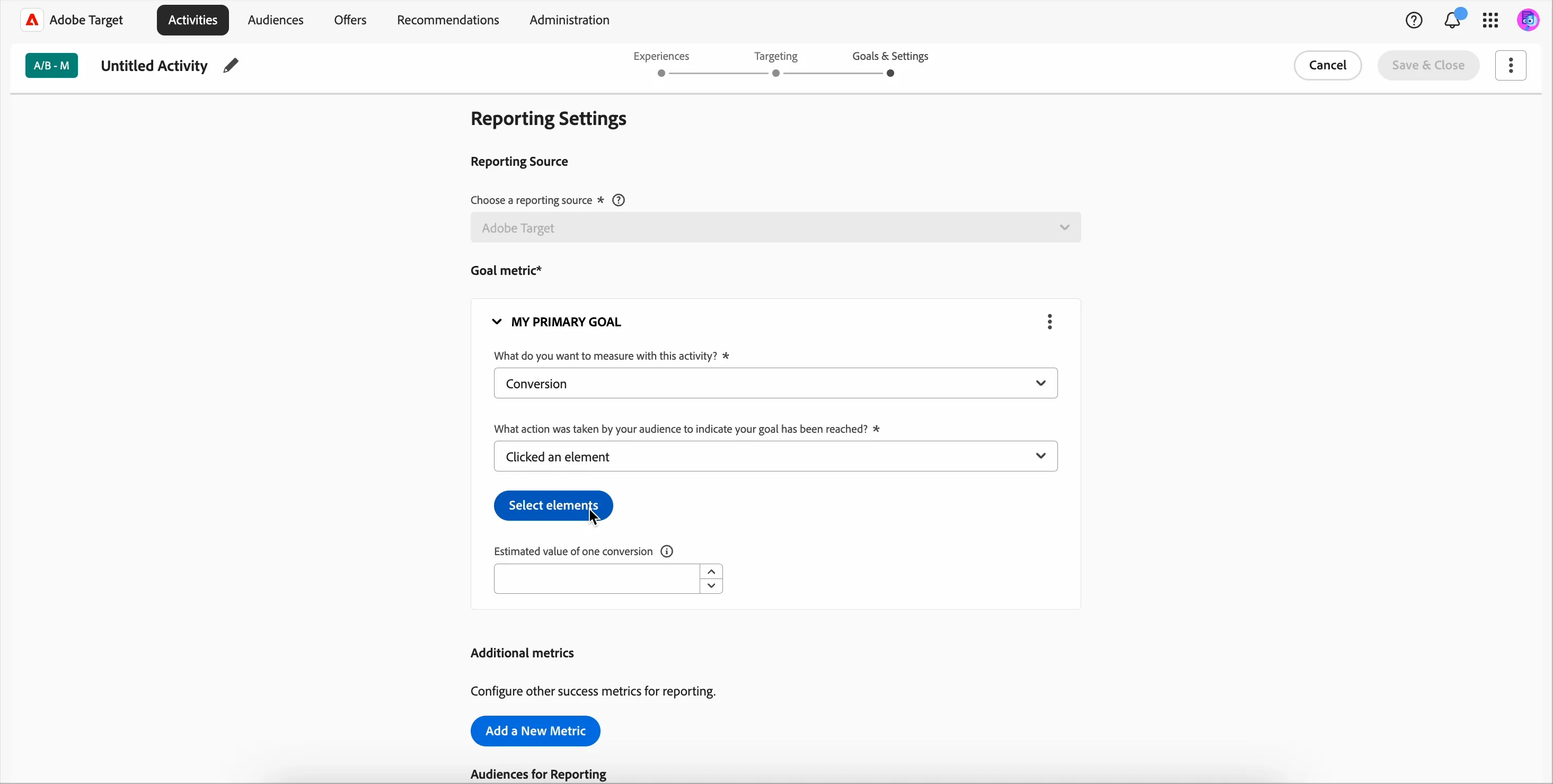
On the final page we need to set a Goal. This will be used to measure if the test is successful. Set What do you want to measure with this activity? to Conversion and What action was taken by your audience to indicate your goal has been reached? to Clicked an element. Now click on Select elements.
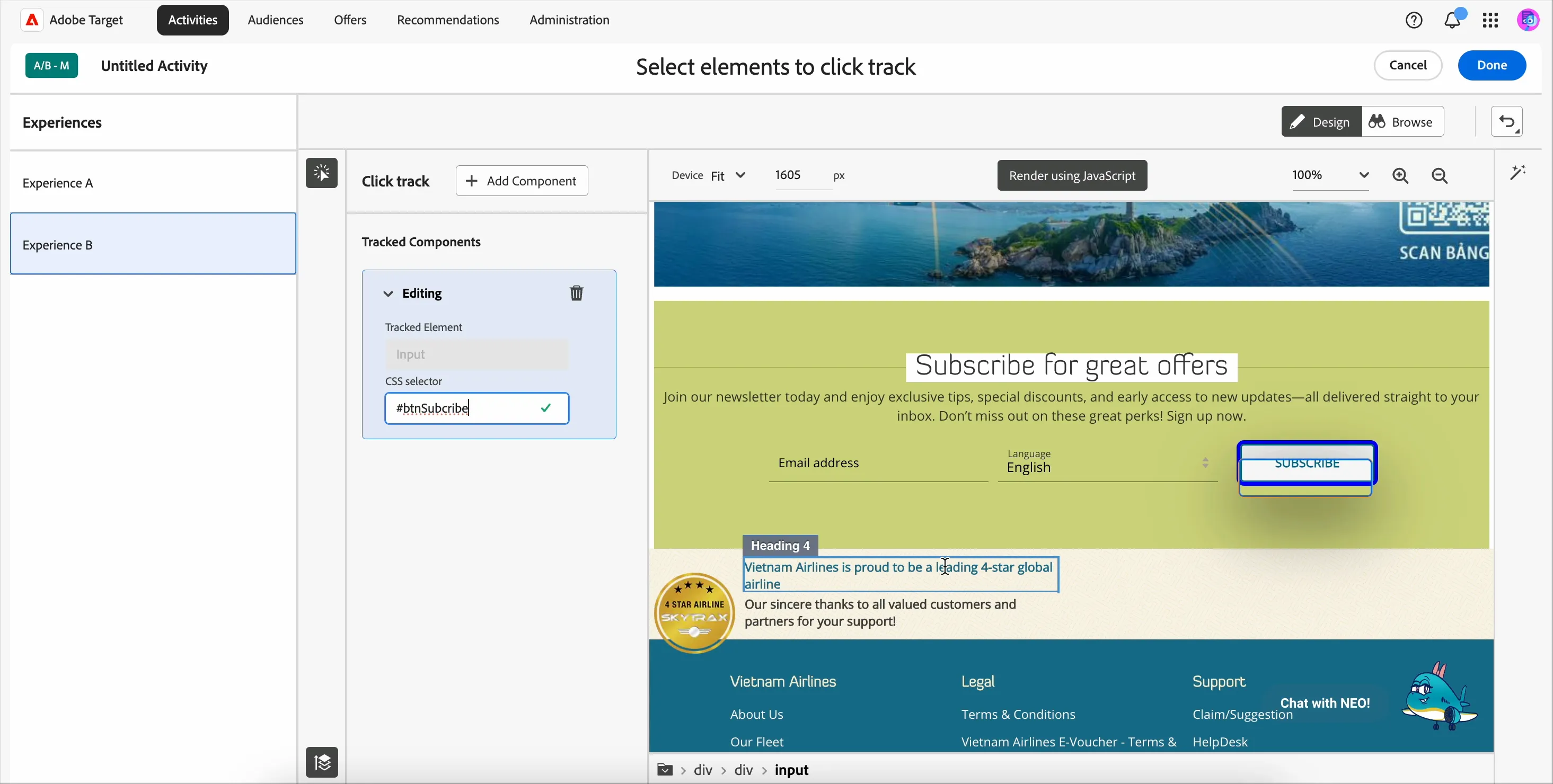
Scroll to the subscription panel and click on the SUBSCRIBE button. It should highlight in blue. Click Done.
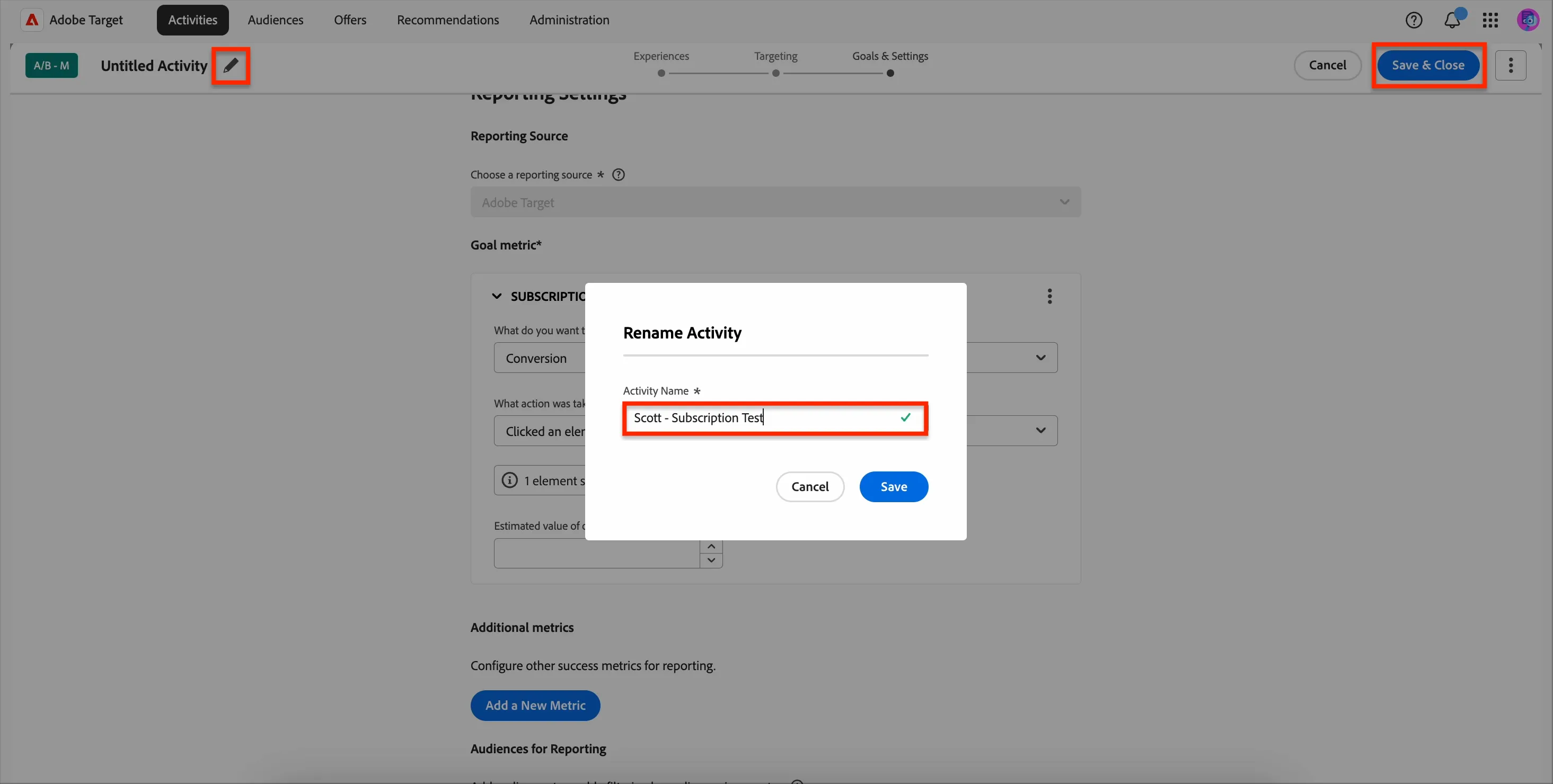
To set the Activity name, click on the pencil icon and set the name to <YOUR NAME> - Subscription Panel Test. Click Save then Save & Close.
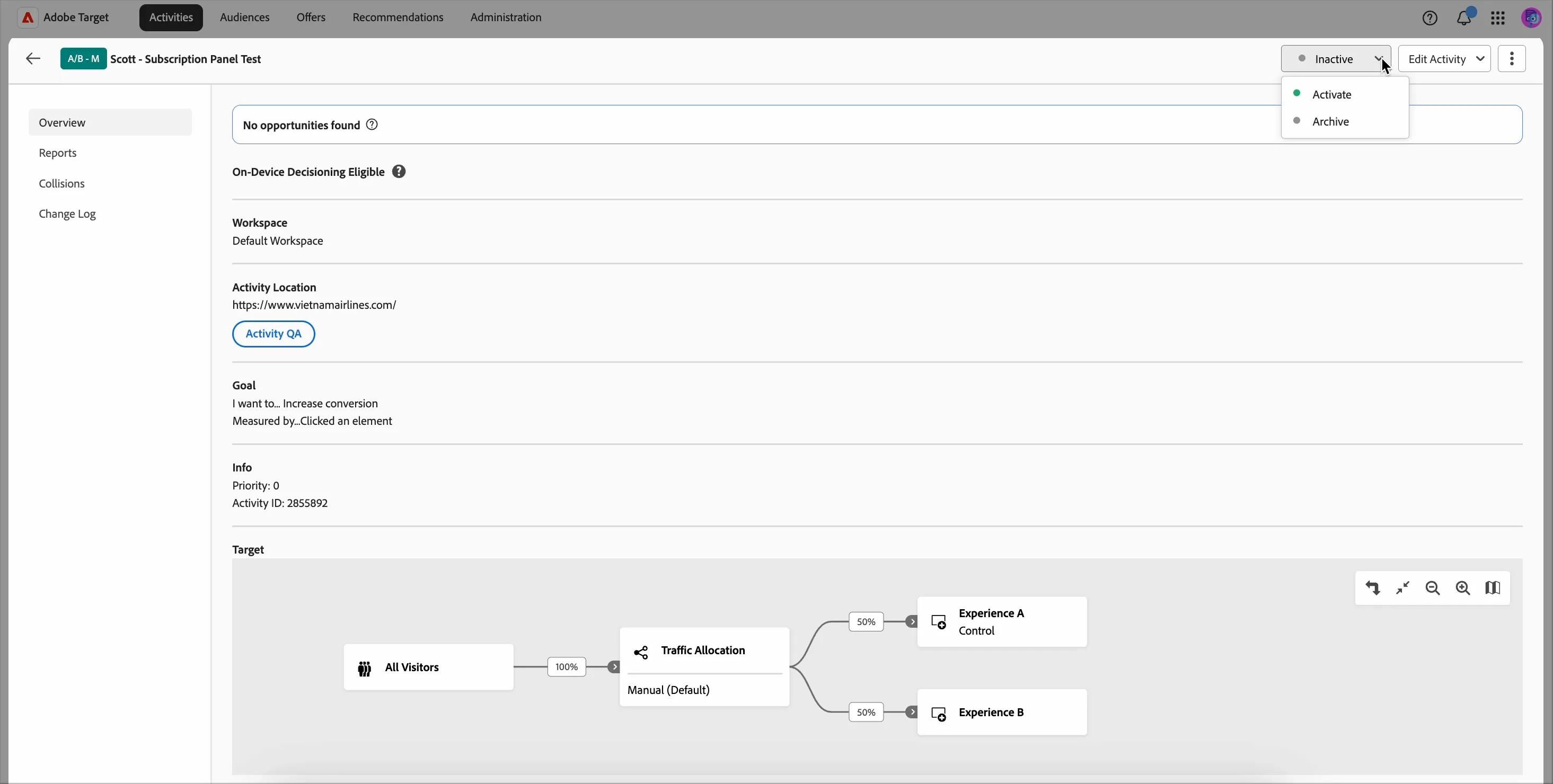
You'll now see a summary of your Activity. From here it's possible to Activate the activity when you're ready, but for this lab we won't do that. You can click the ← back arrow at the top left to go back to the main Activity list screen.
3.2 Experience Targeting (Personalization)
Finally we will create an XT Activity, or Experience Targeting.
Experience Targeting lets you personalize the experience for your customer. This personalization can be based on anonymous behaviour or known customer attributes. For example, maybe you want to show a new visitor "Join Lotusmiles" content. For a repeat visitor, maybe you want to show content on the last flight they searched for.
In this Activity we will use an audience of visitors who have searched for a flight to Singapore (SIN) and personalize their experience.
Create an Experience Target (XT) Activity
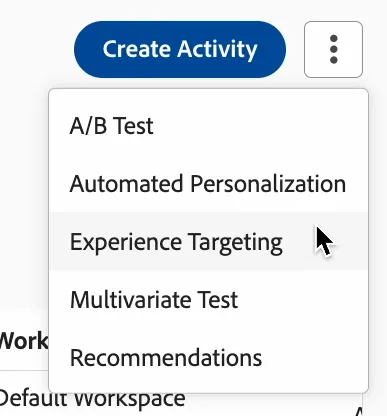
Click Create Activity and this time select Experience Targeting.
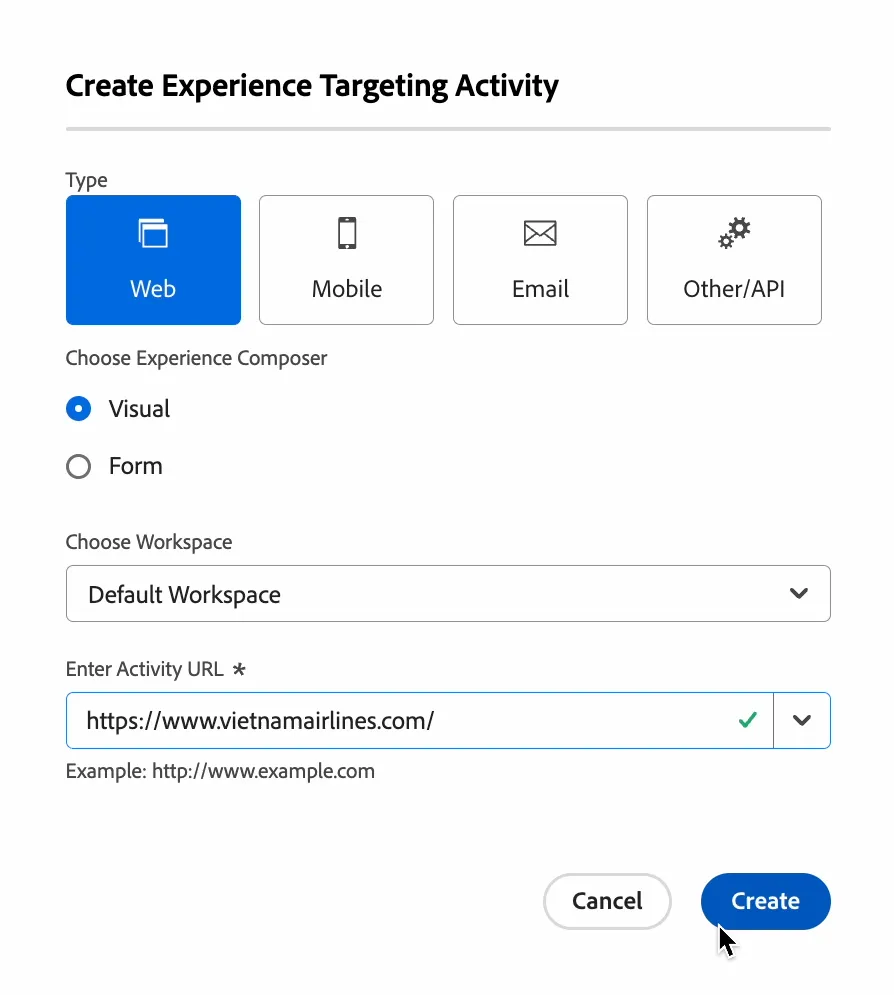
Similar to before, select Default Workspace, Enter Activity URL https://www.vietnamairlines.com/ and click Create.
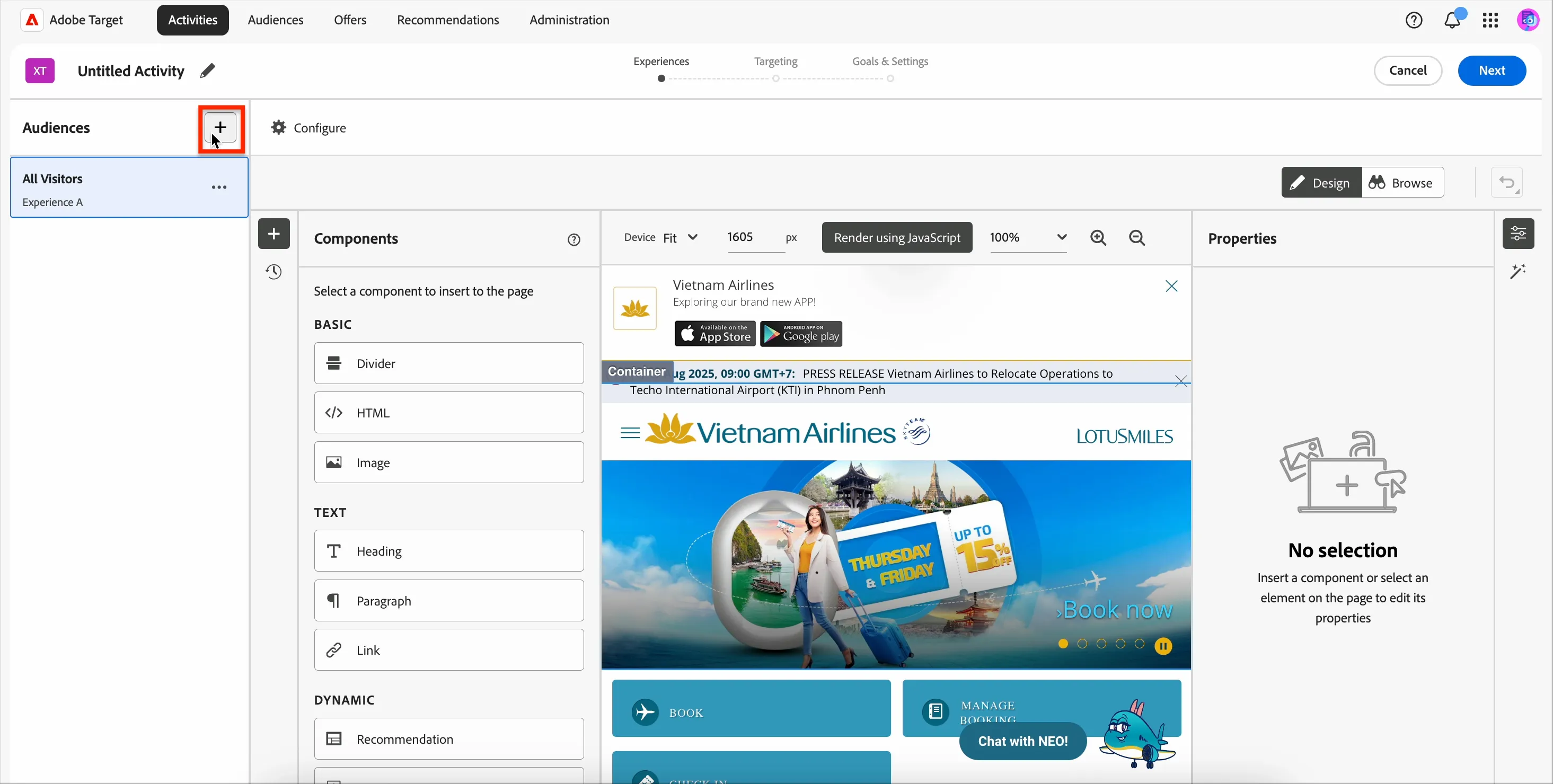
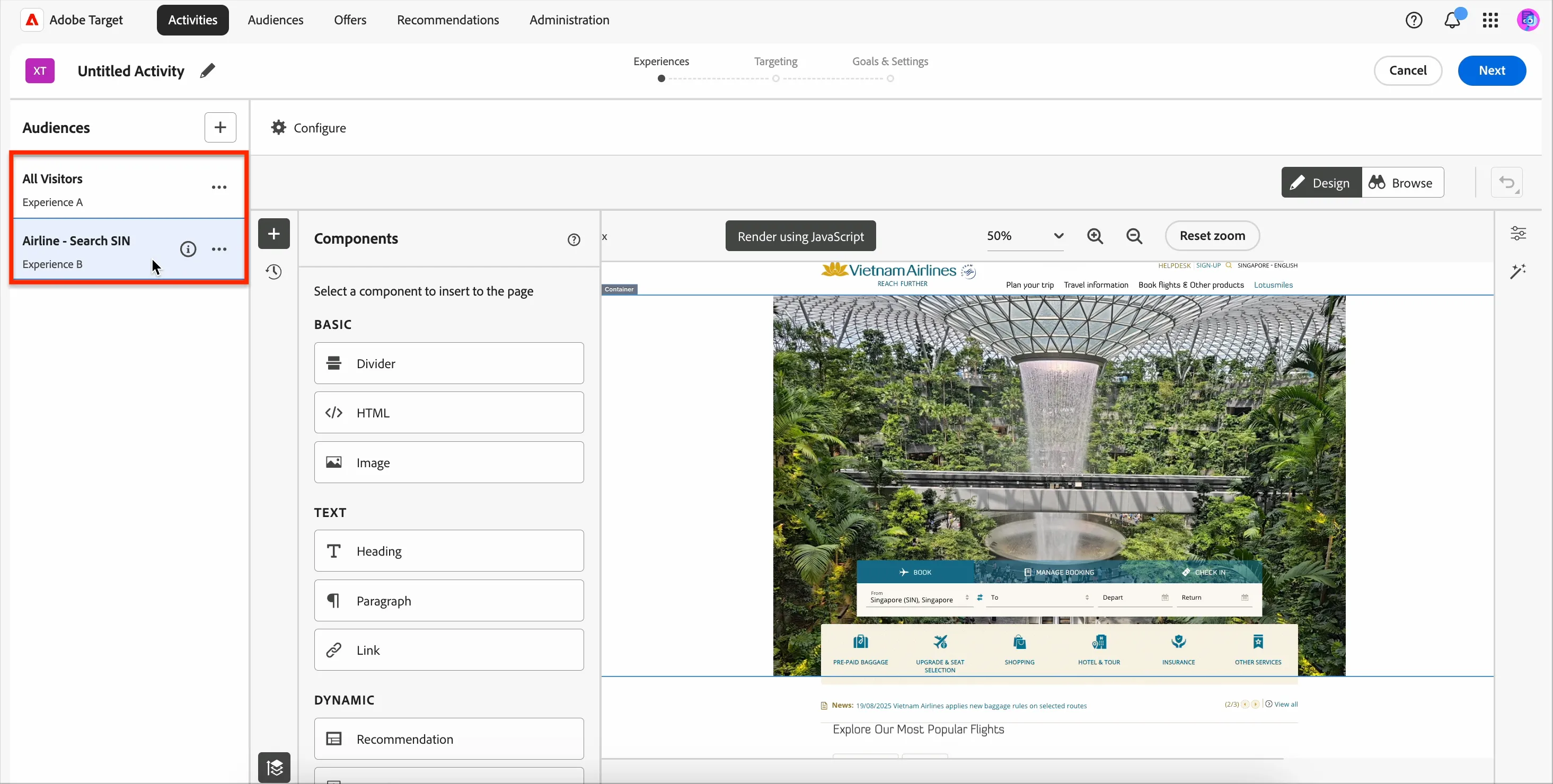
Notice the VEC is almost the same as before. The main differences is you see the different Audiences on the left. Let's select an audience to personalize for. Click on the + icon at the top left.
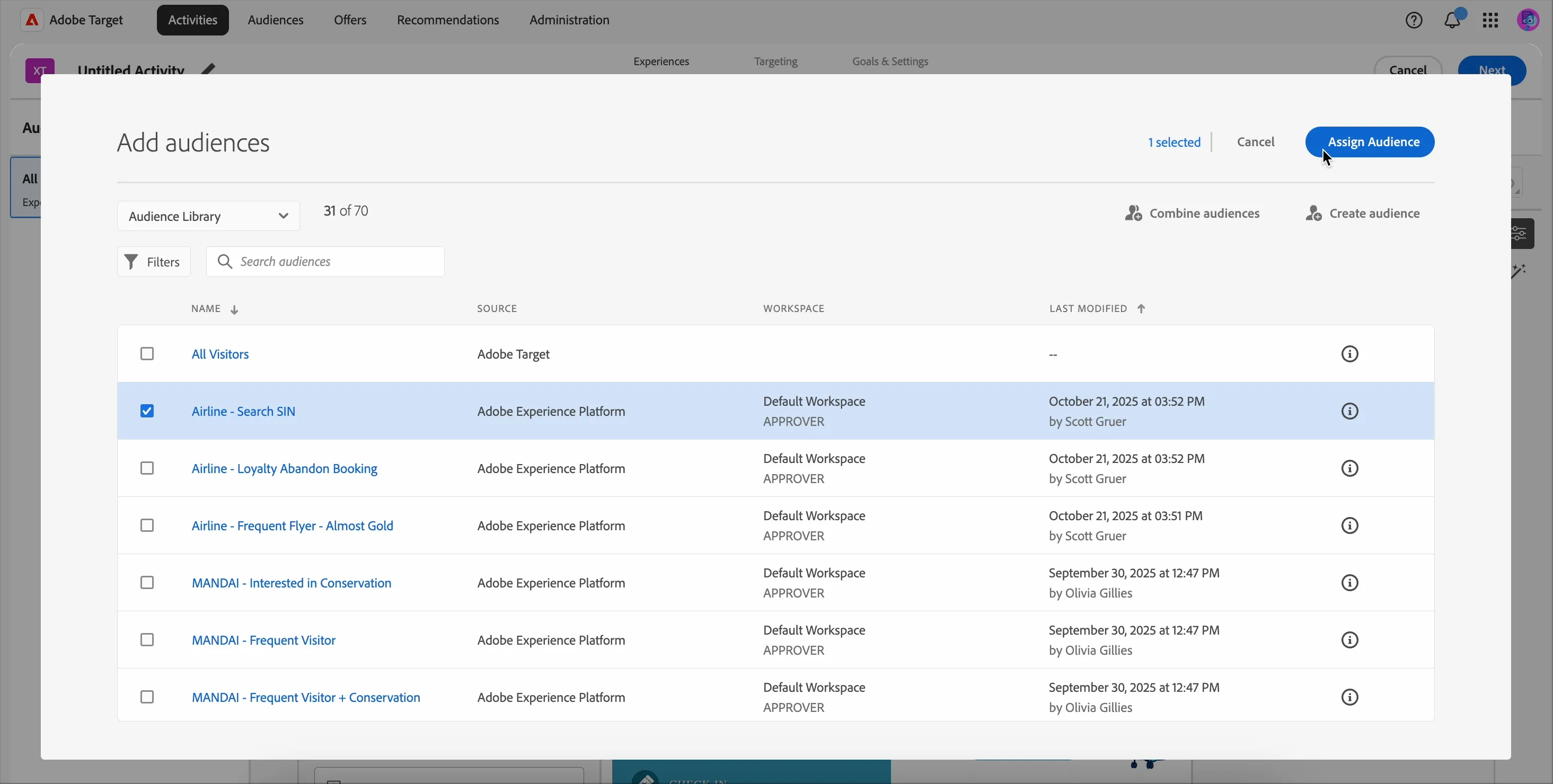
Select Airline - Search SIN and click Assign Audience. This audience includes anyone who has searched for flights to Singapore.
To make it easier to view, minimize the Properties tab by clicking the Properties icon on the right. Then change the Device to Desktop and Zoom to 50%.
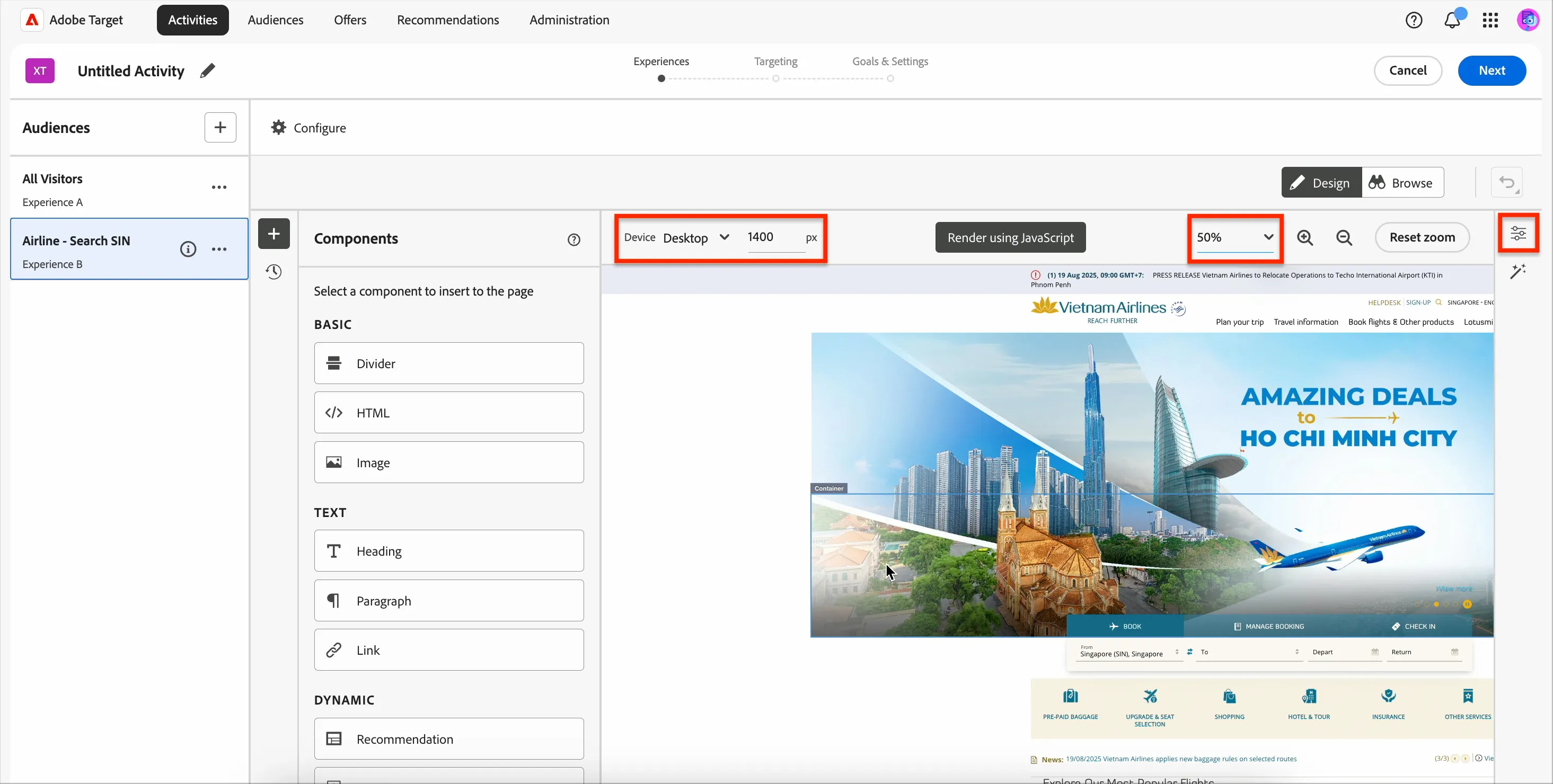
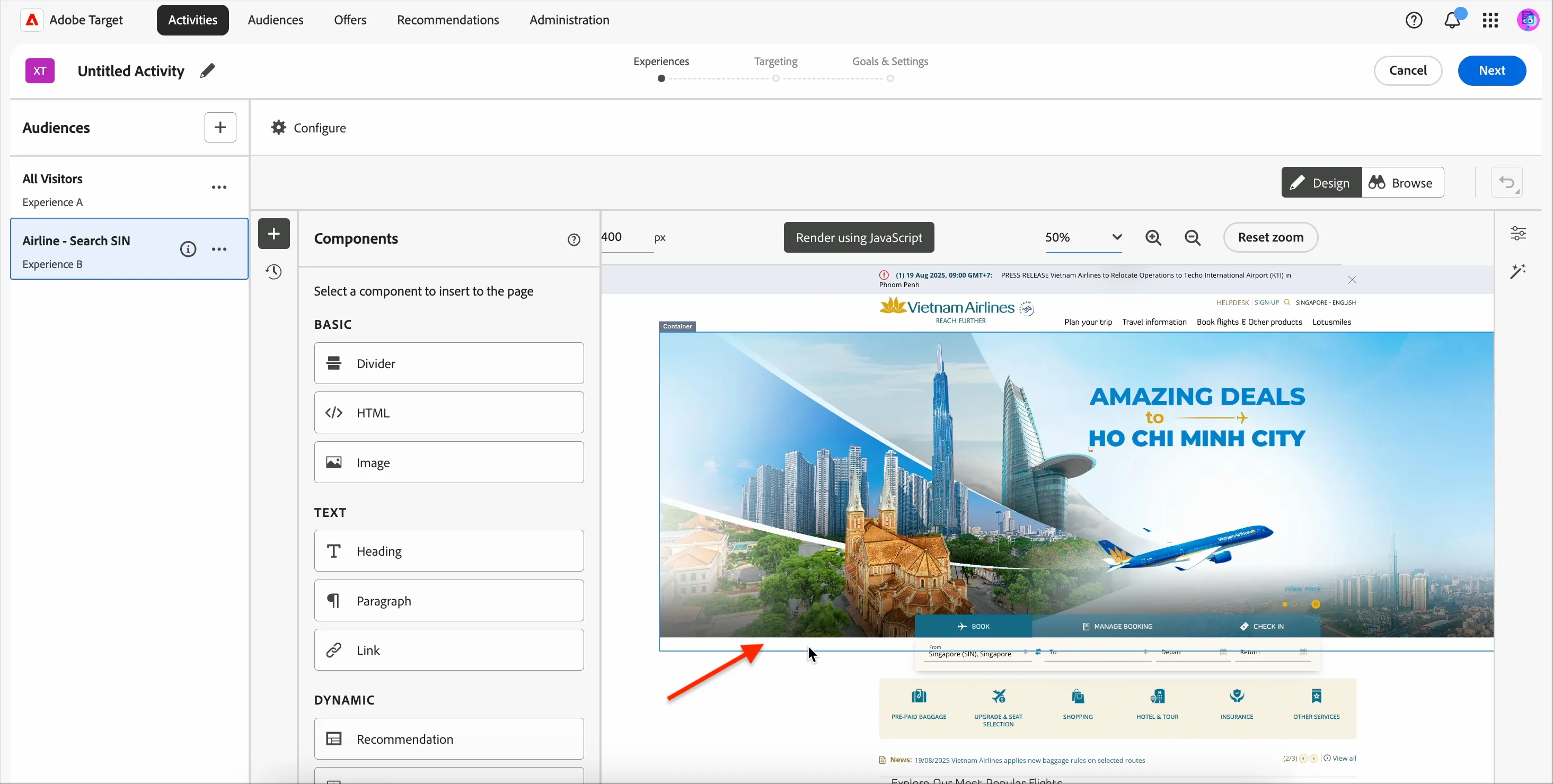
Click on the Container for the hero banner / carousel. Be careful to select the outer container (it includes a small amount of white space below, as shown with the arrow):
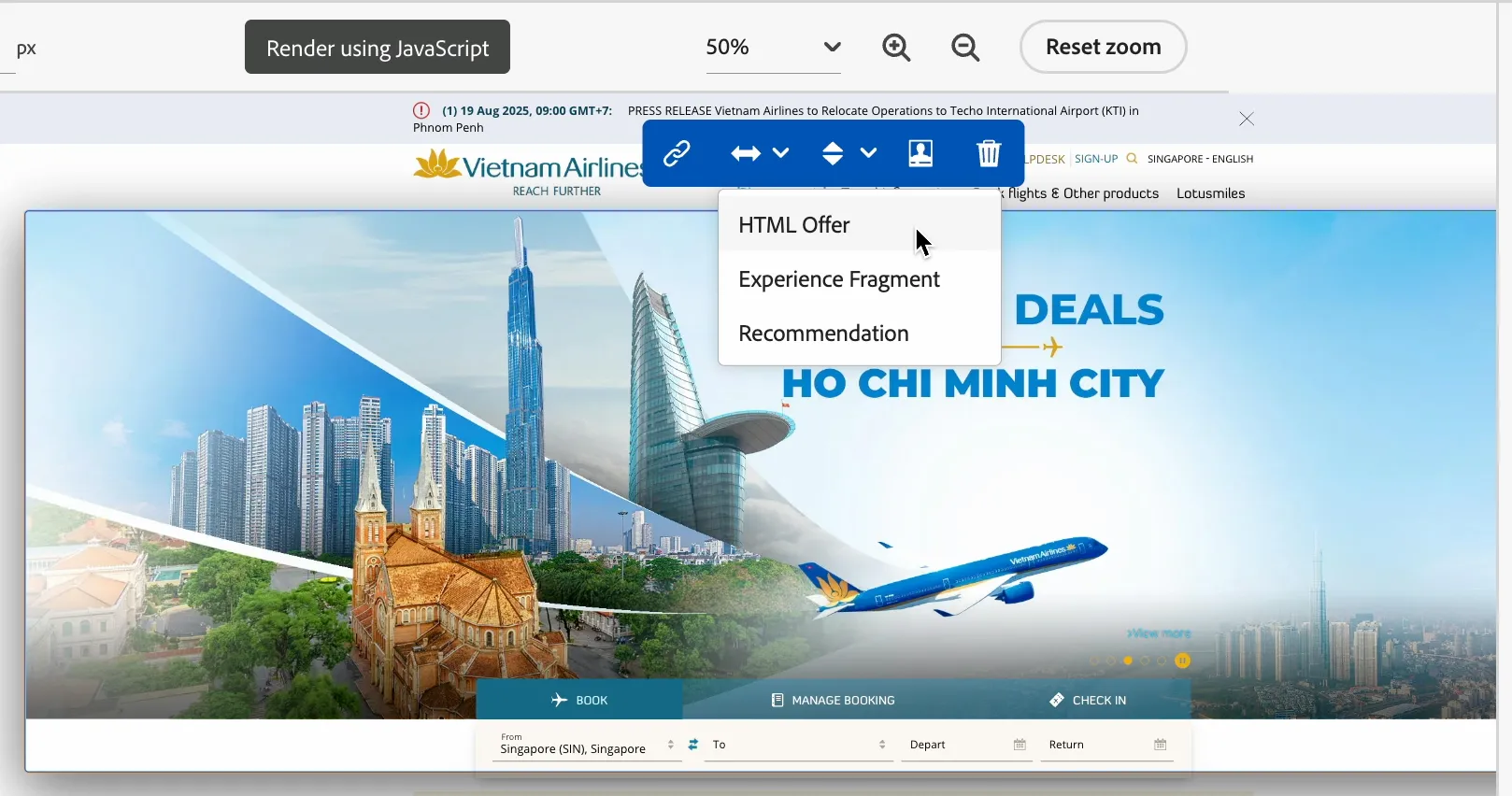
Click Replace Content icon > HTML Offer.
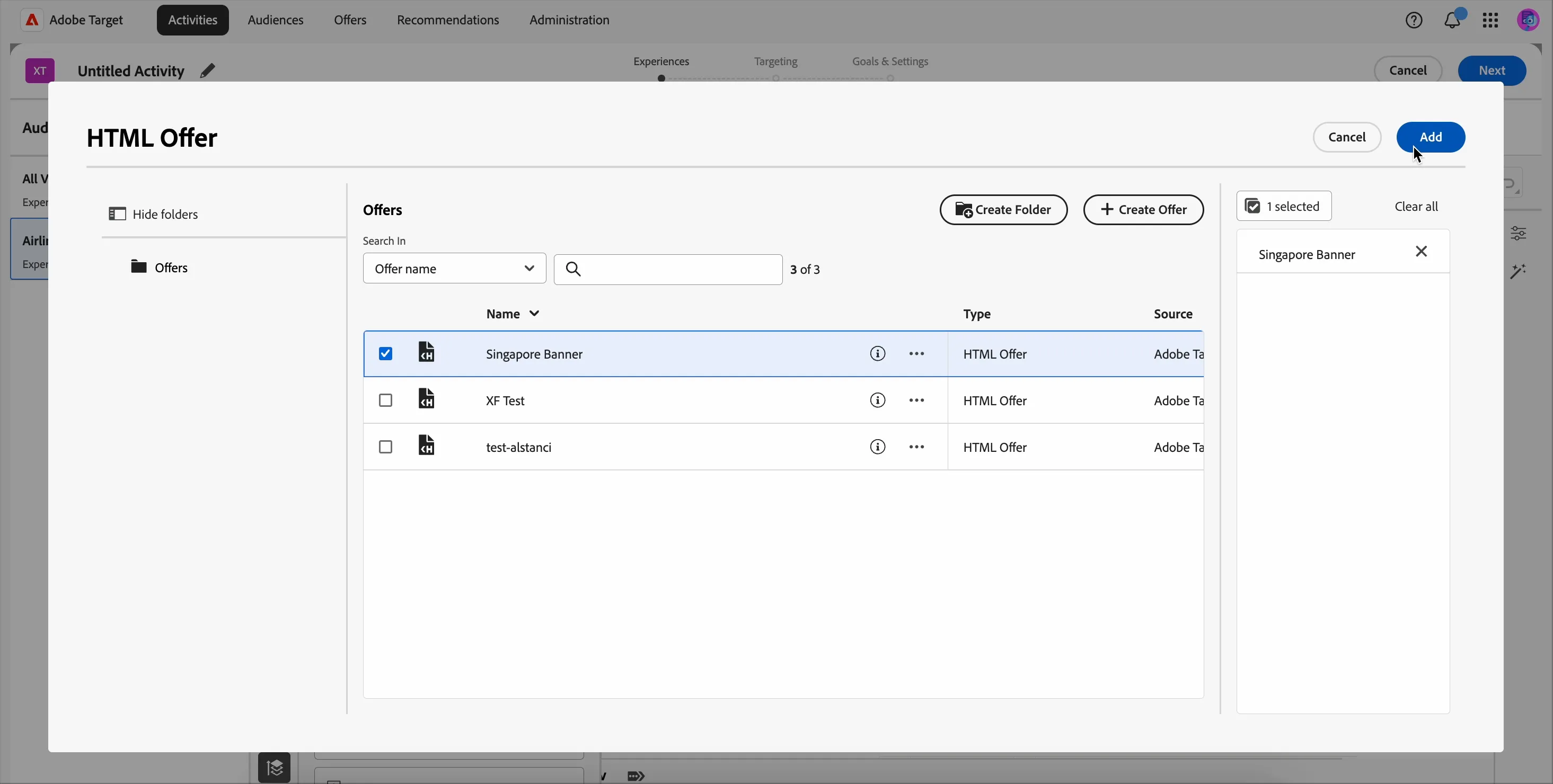
Select Singapore Banner > Add.
You will now see the preview of the content. You can click on the Audiences on the left to see what the content looks like for each audience.
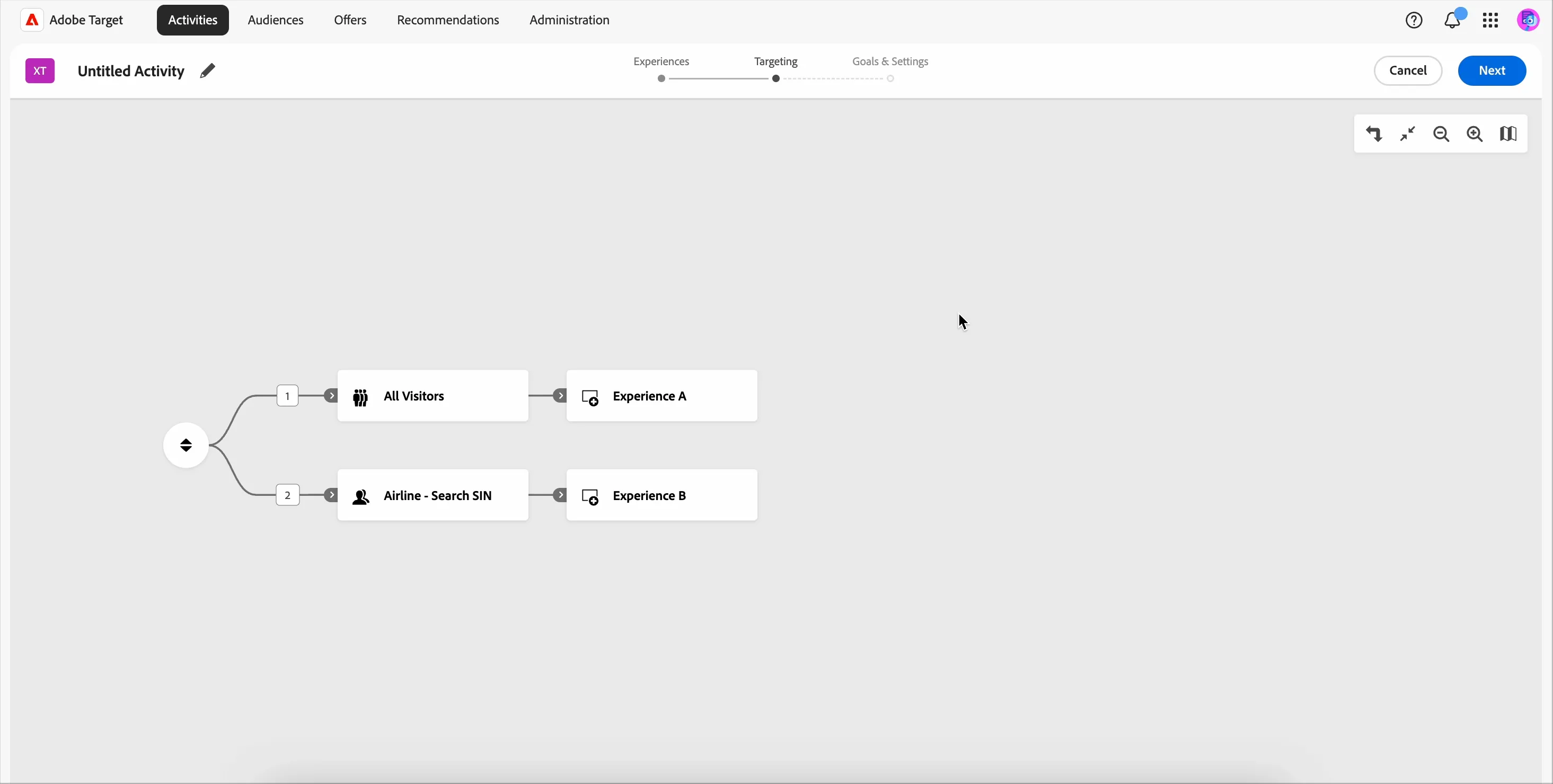
Click Next at the top right. You will see a summary screen.
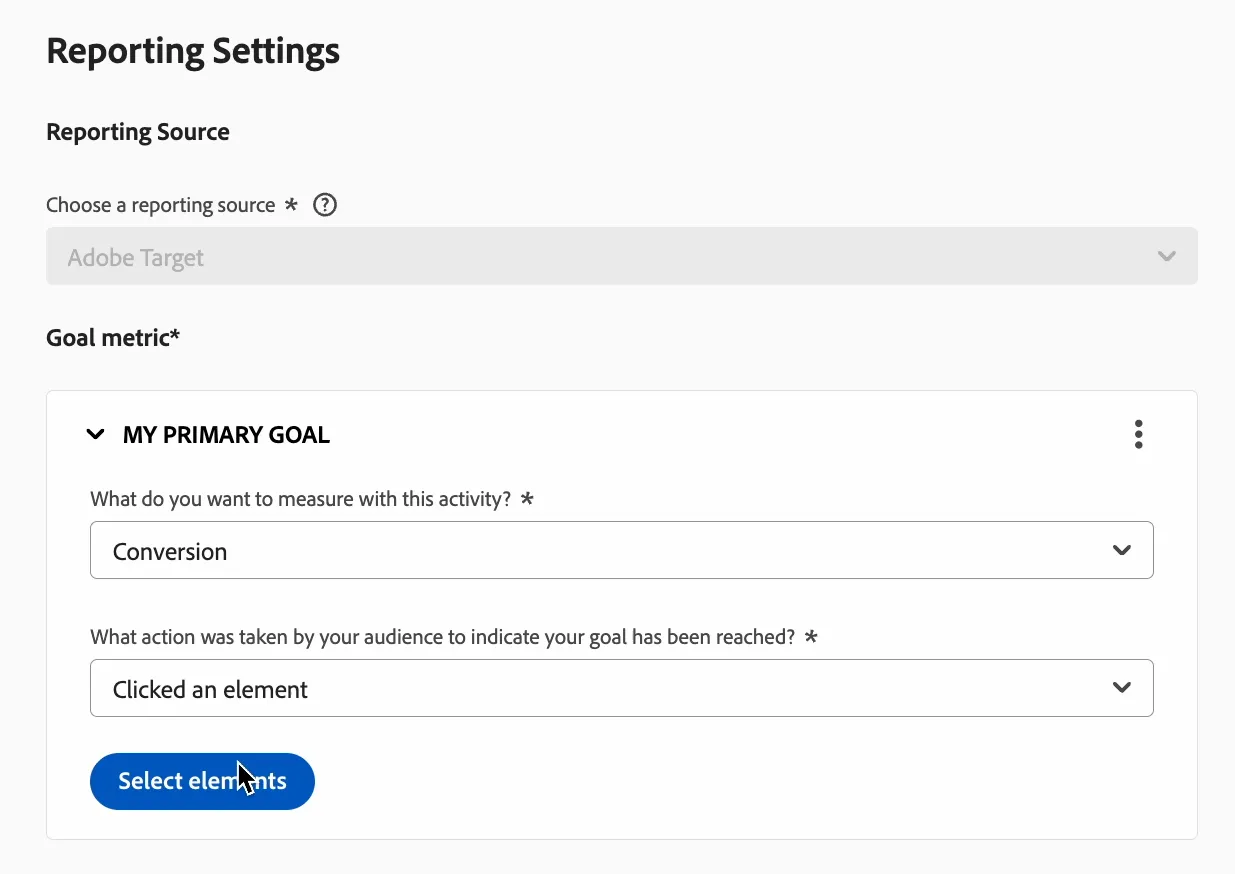
Click Next again. Similar to the previous exercise, select Conversion, Clicked an element and click Select elements.
Click on the banner that was inserted, then Done.
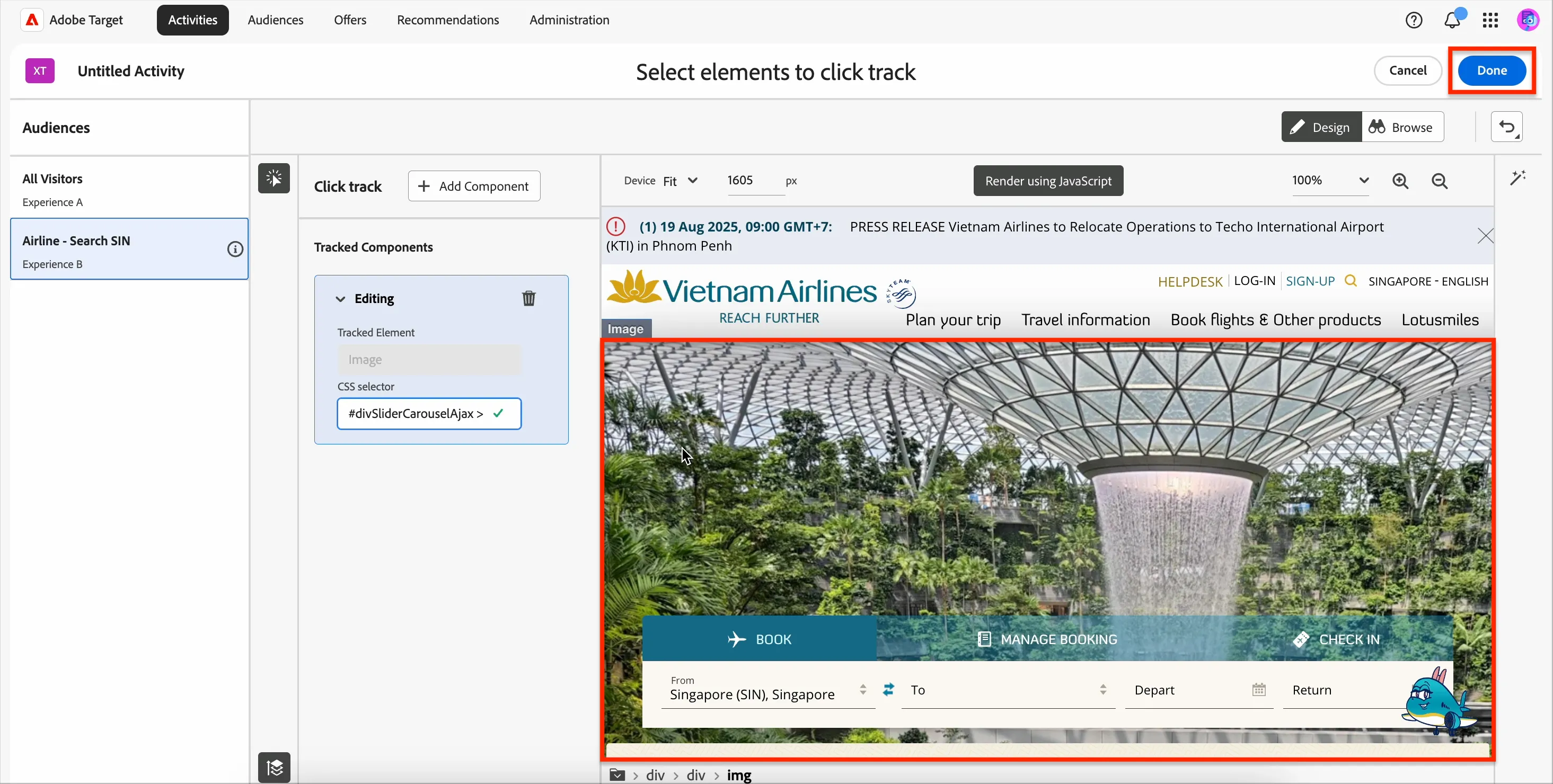
Click
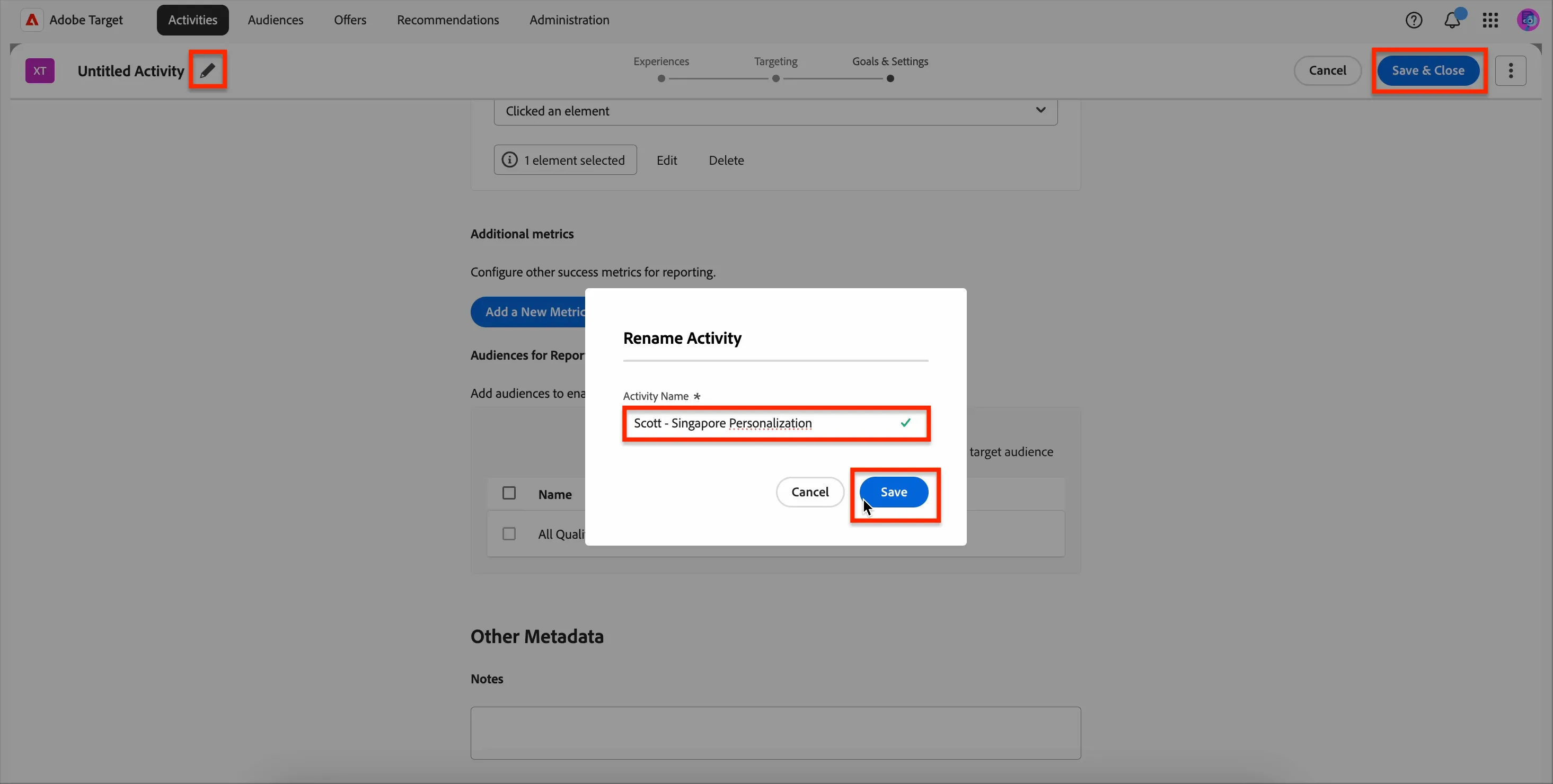
To set the Activity name, click on the pencil icon and set the name to <YOUR NAME> - Singapore Personalization. Click Save then Save & Close.
You will see the Activity summary screen.
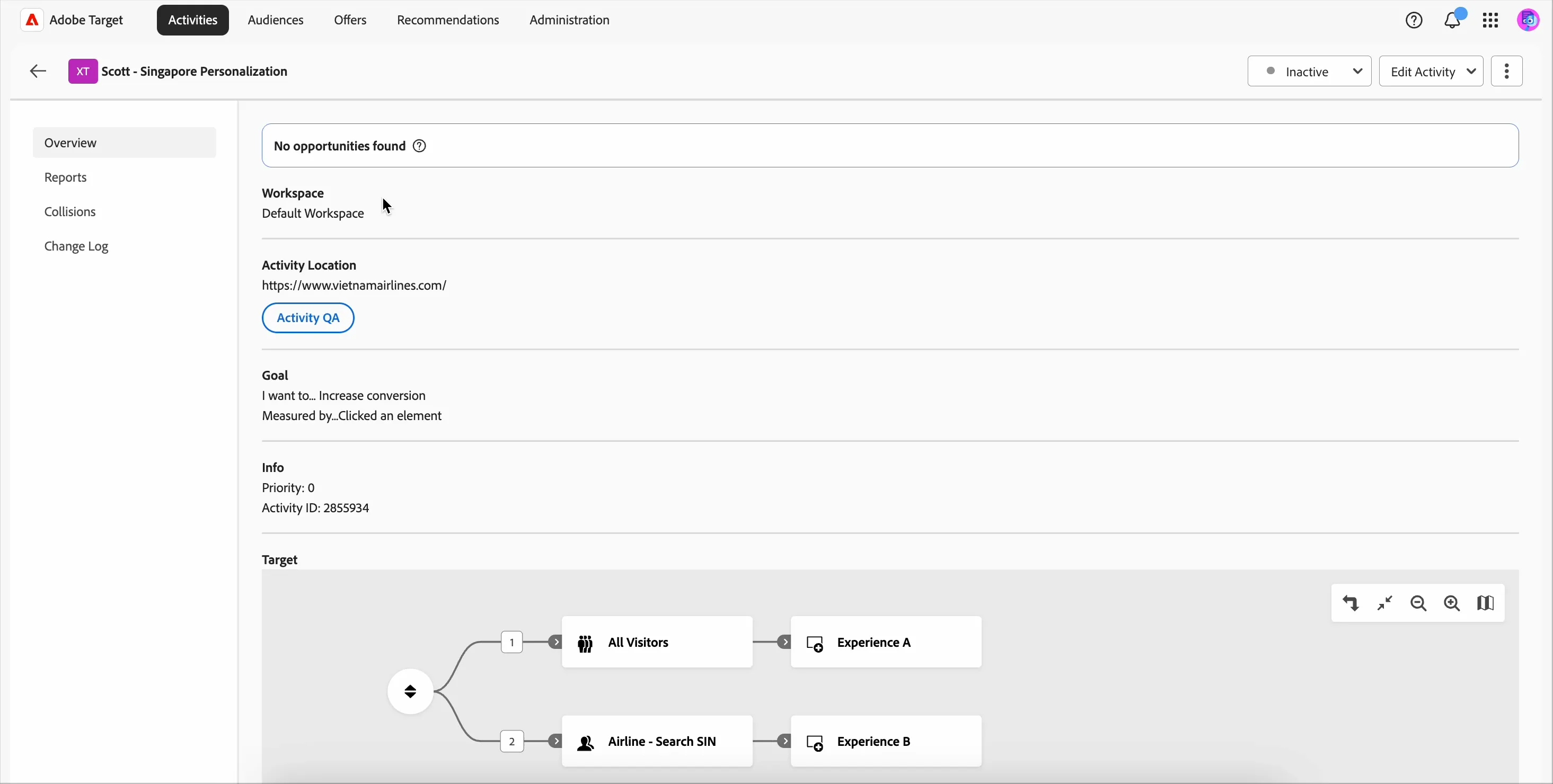
Summary
Congratulations!! You've also completed the lab! Well done! 👏🏻
In this last section you successfully created an A/B Test and built an audience-based personalized experience using Experience Targeting! These activities target both anonymous and known users.
There will now be a wrap-up and Q&A. Thank you so much for joining today! 🙇🏼♂️