Basic Journey
6 min
This lab will walk through the steps to create a Basic Email and SMS Journey in Adobe Journey Optimizer.
(NOTE: Some exercises may vary during the actual Hands on Lab versus what is listed in the HOL Page, due to industry setup and / or Presenter preferences.)
Create a Journey
- Navigate to Journeys
- Click on “Create Journey”
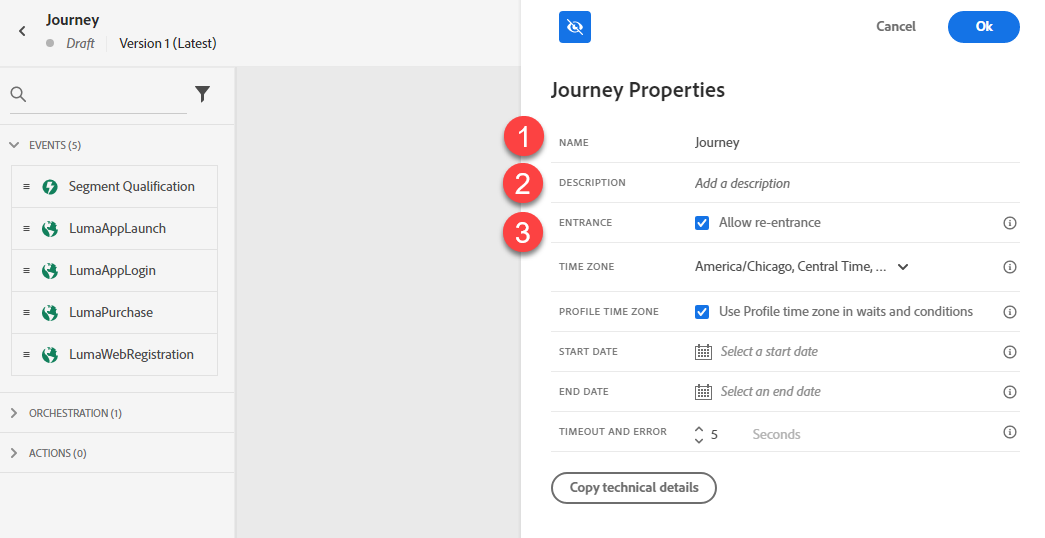
- Provide a Name and Description. Unclick “Allow Re-Entrance.” Click Ok.
Define the Audience
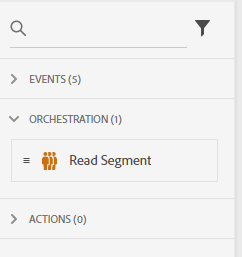
- Under Orchestration Node, drag the “Read Segment” onto the Canvas.
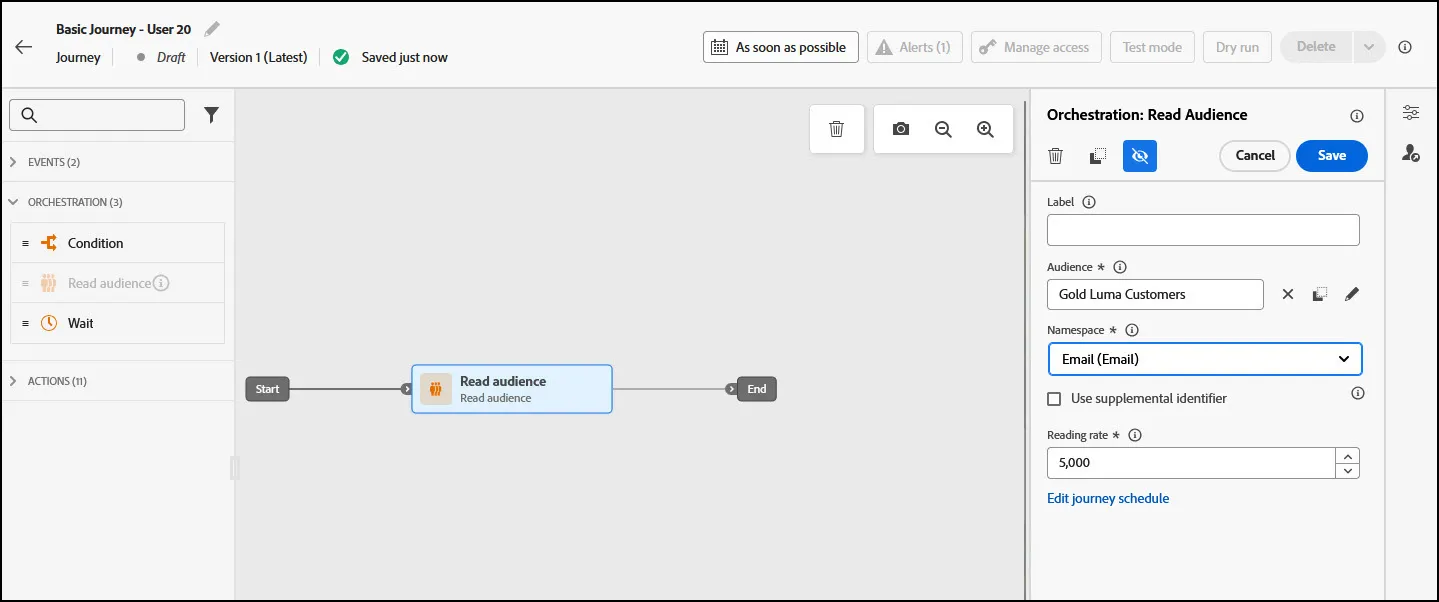
- Change the label to “Gold Loyalty Members”. Click on the Audience box to select an Audience to use. Additinoally, click on Namespace and select the "Email" Namespace.
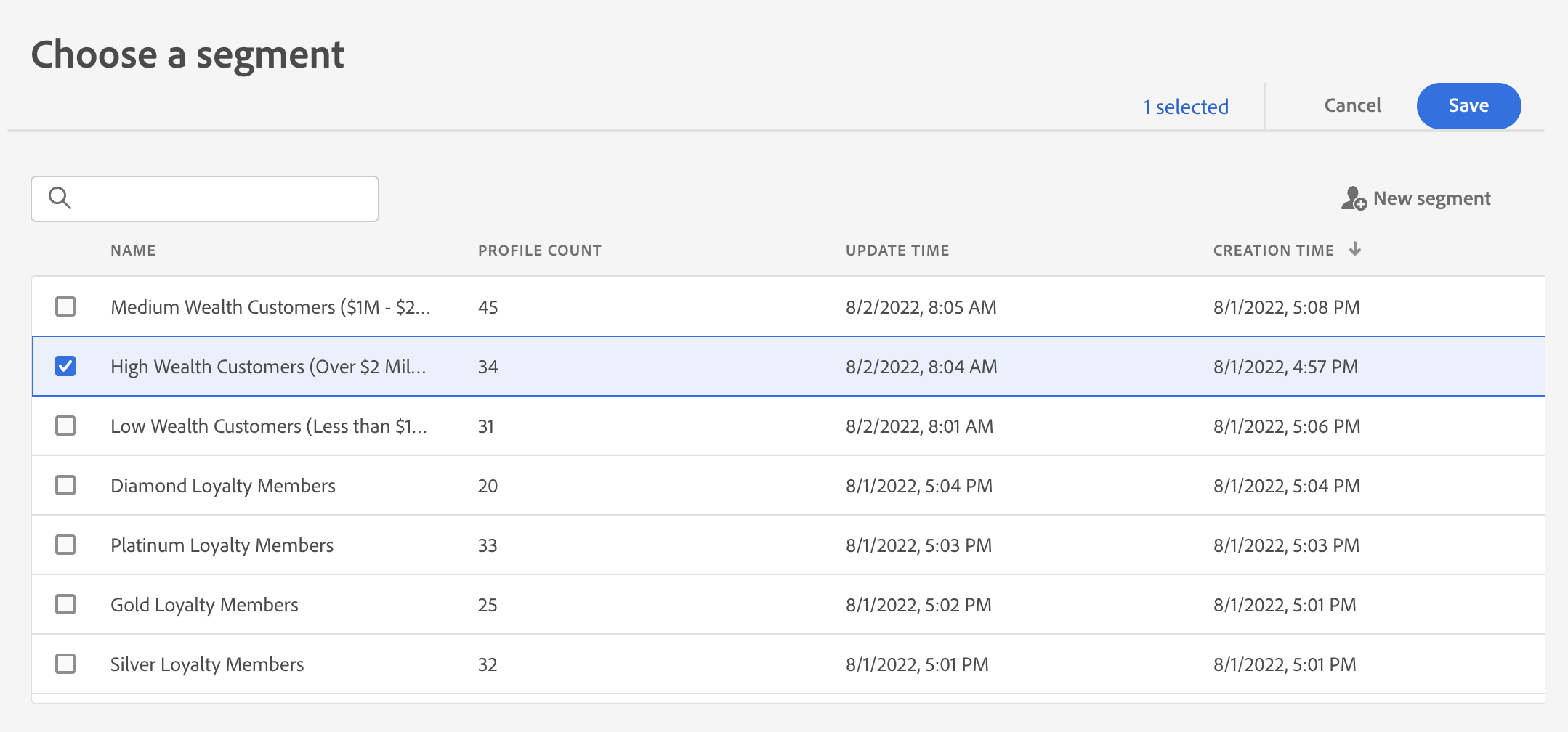
- Select “Gold Loyalty Members”. Click Save.
Setup Branching
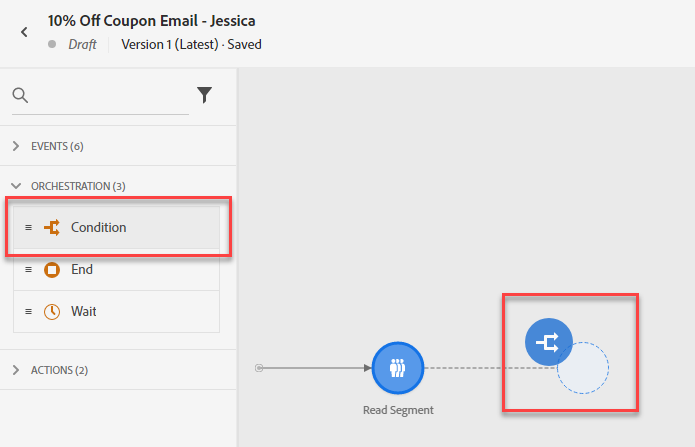
- Under Orchestration Node, drag the “Condition” after the Read Segment.
- Add the label “Preferred Channel”. Set Type to “Data Source Condition”. Click on “Add a Path” 2 times.
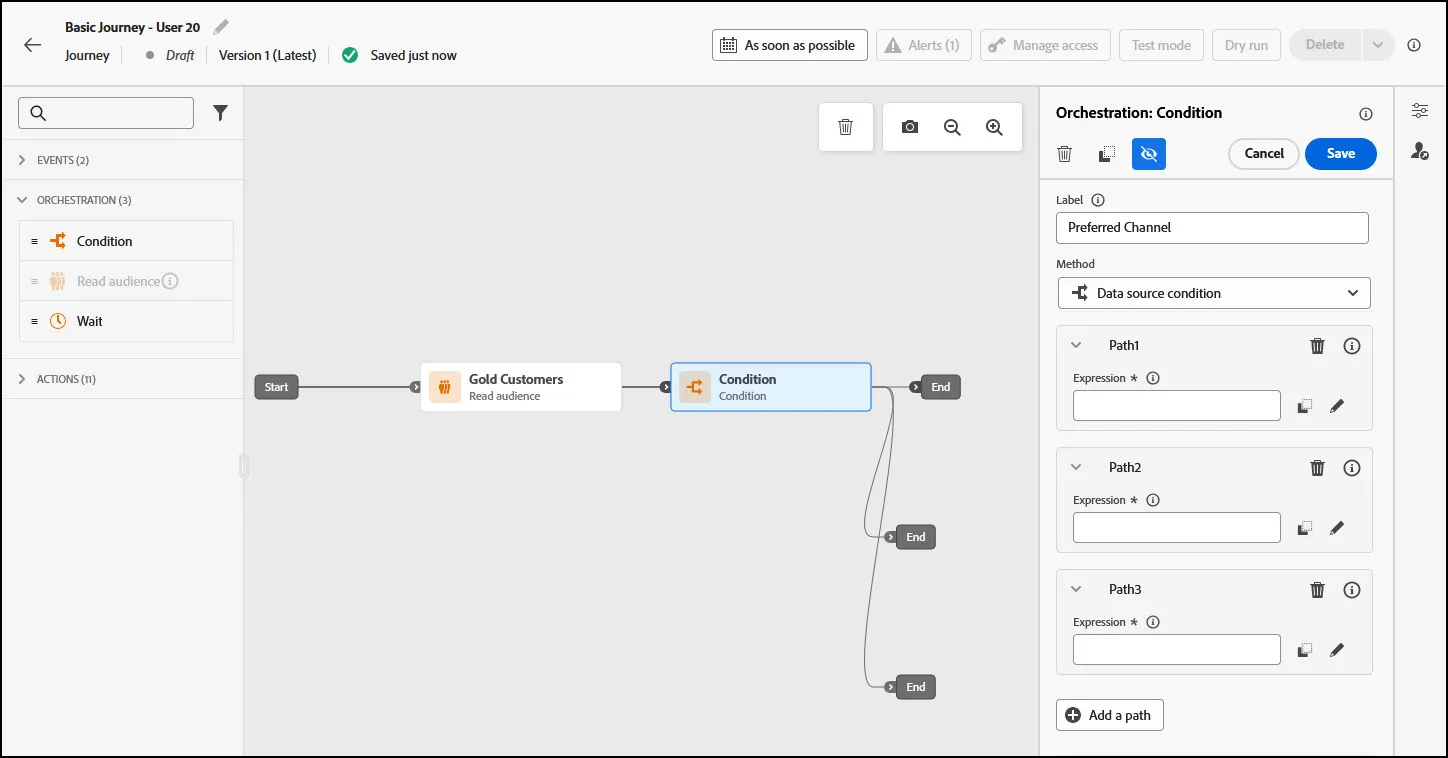
- Click Path1 and rename as "Email". Click Path2 and rename as "SMS". Click Path3 and rename Push
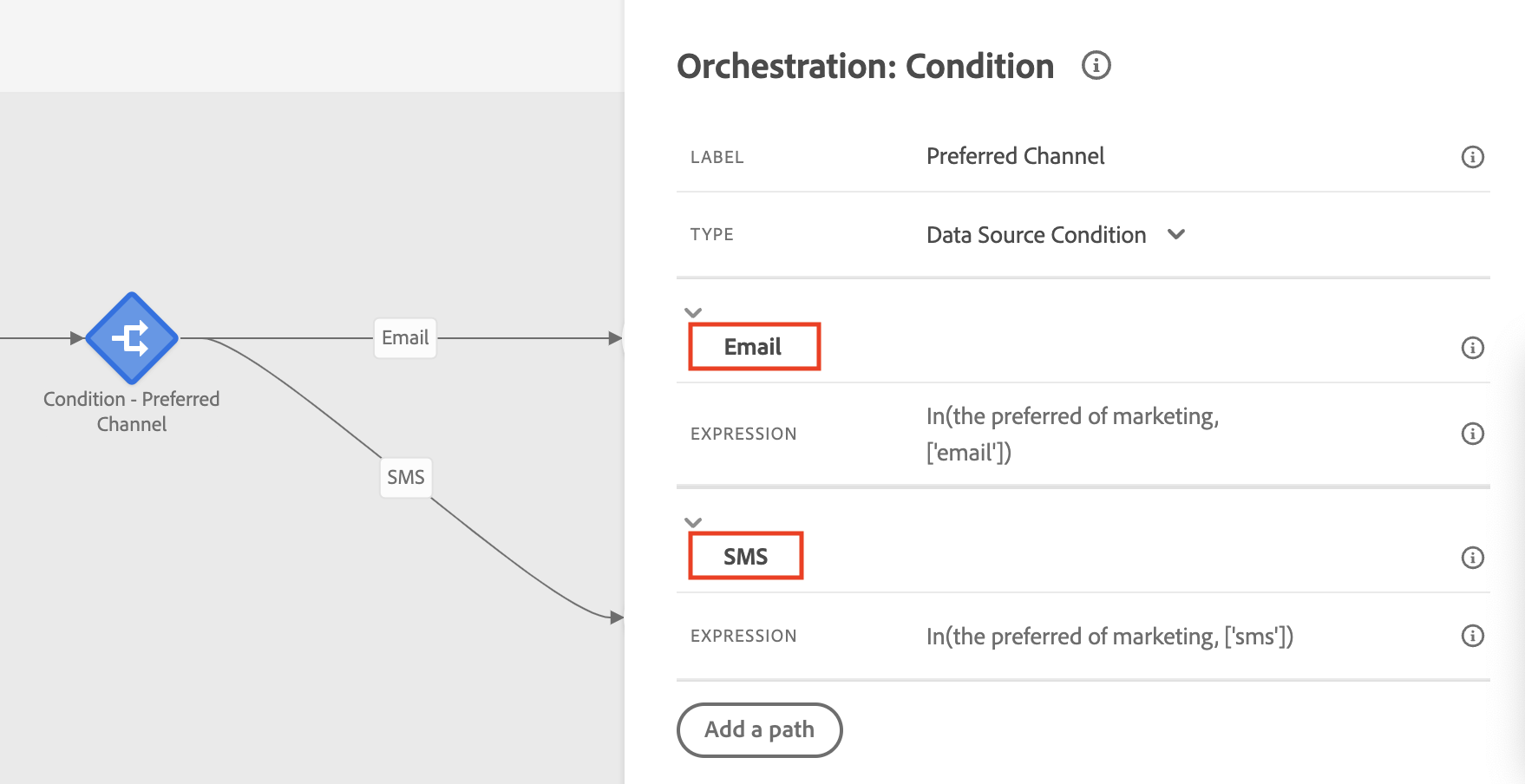
- Expand the Email path, and click on the Expression Field. Search for preferred channel, and drag and drop it into the canvas.
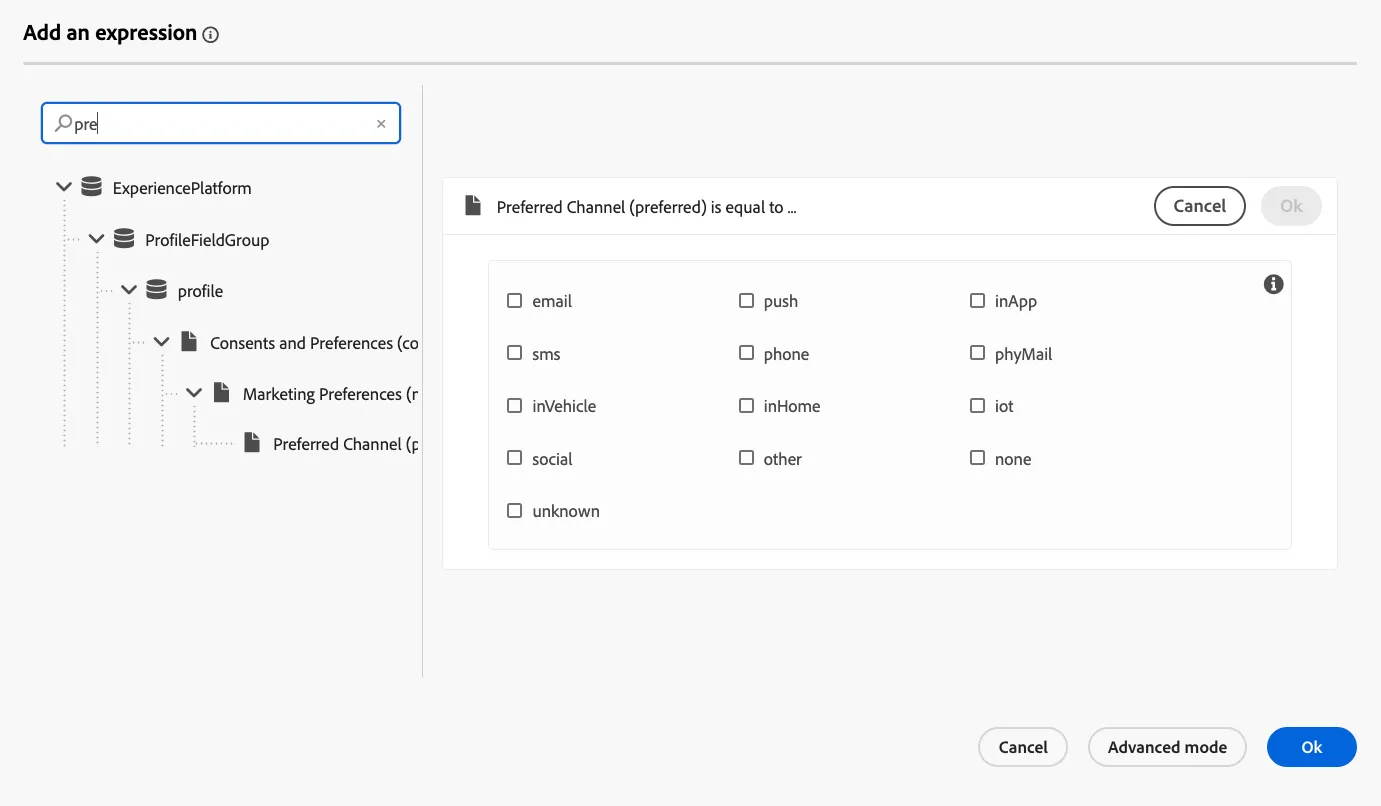
- Select the email channel, click ok and then ok.
- Repeat step 4 and 5 but for SMS and Push.
Add Messages
- Under Actions, drag the Email Action onto the Canvas on Email path, drag SMS Action onto the SMS path, and drag the Push action onto the Push path.
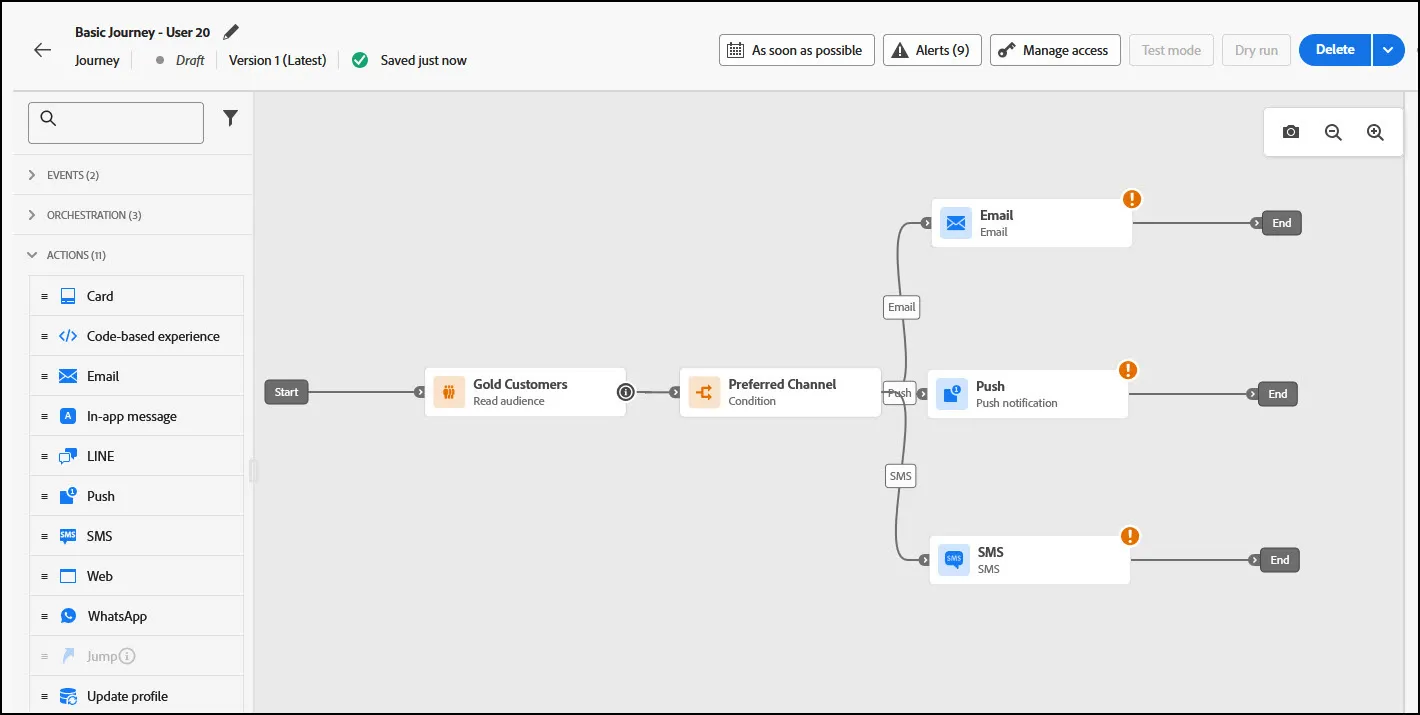
- Next, we will design the Email, SMS messages, and Push designers.