Create an Offer
7 min
Create a Personalized Offer
NOTE: Some exercises may vary during the actual Hands on Lab versus what is listed in the HOL Page, due to industry setup and / or Presenter preferences.
Create an Offer
- Click on “Offers” from the Left Menu
- Click on Create Offer
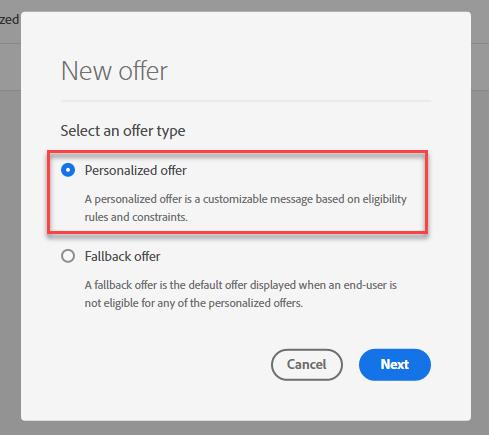
- Select “Personalized Offer”
Define Offer Details
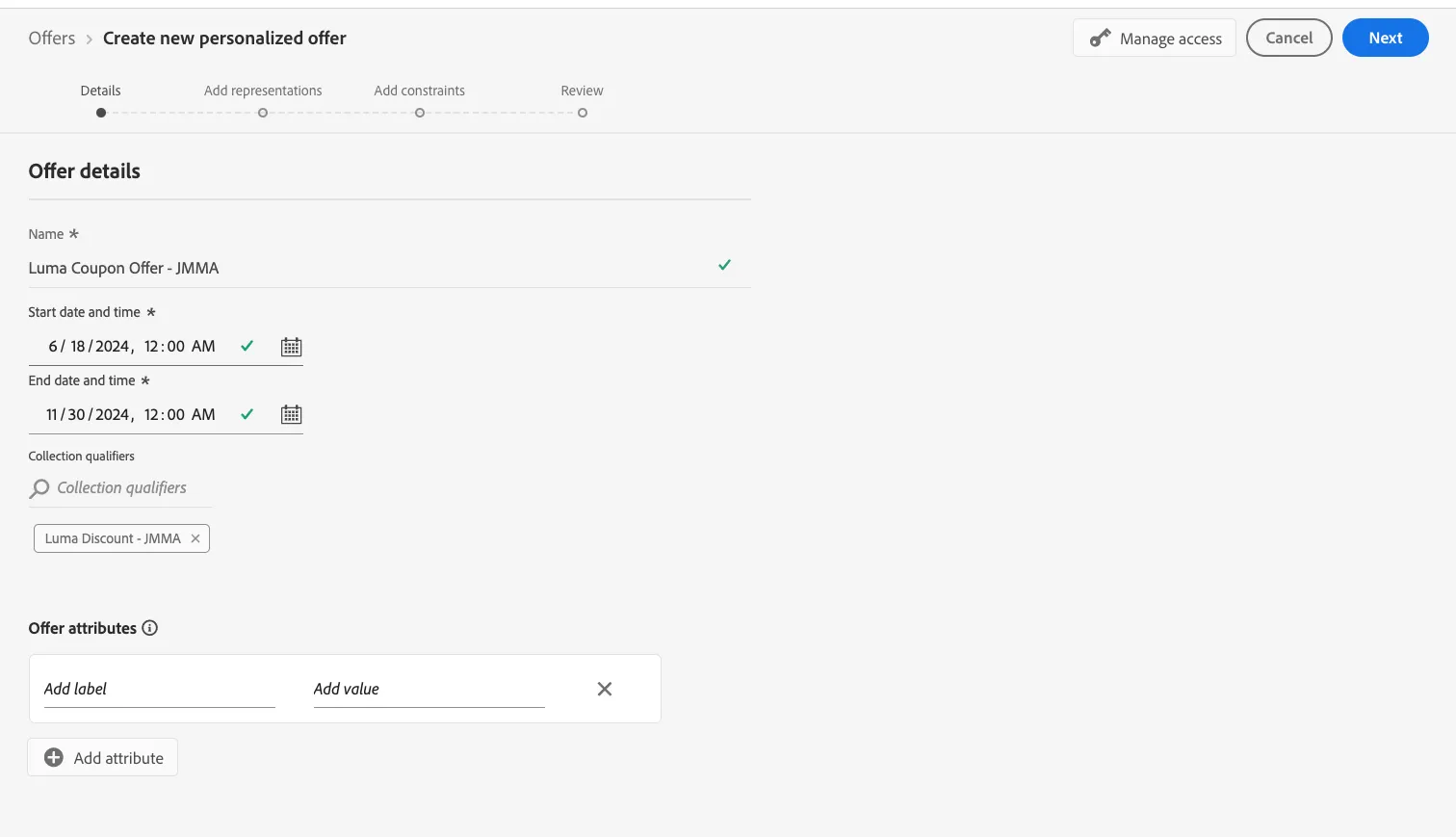
- For name of Offer, type “Luma Coupon Offer - Your Name”.
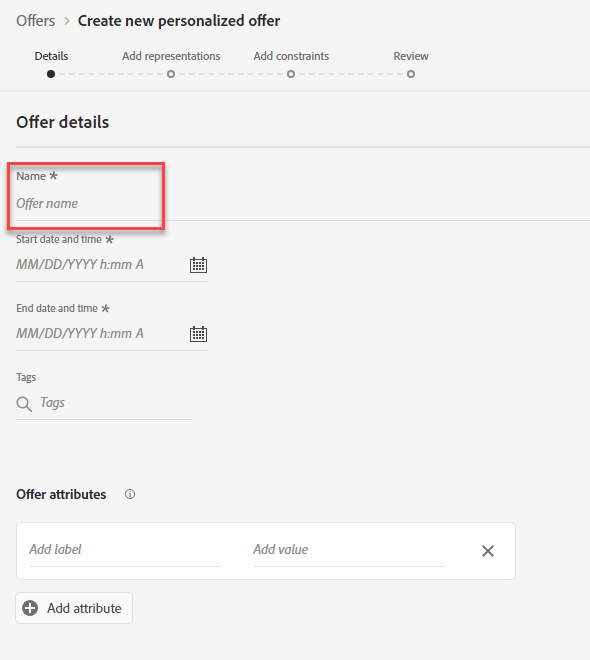
- Populate the date ranges for Start and End Dates
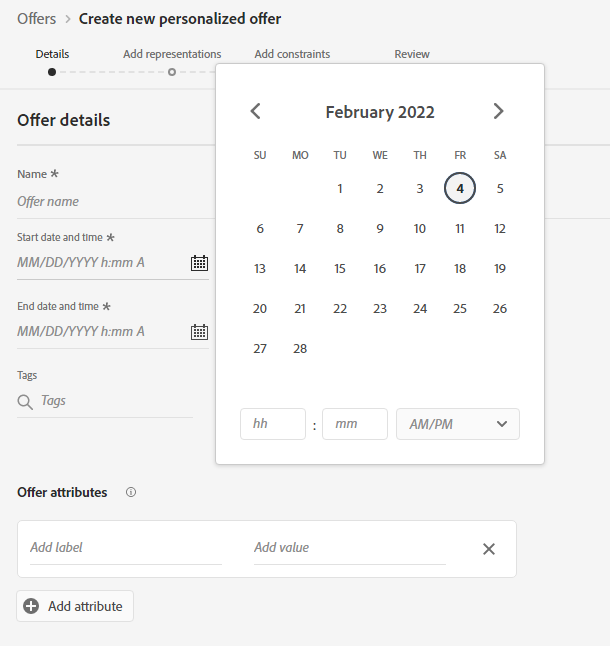
- Add your collection qualifier by search by your initials.
Add Constraints
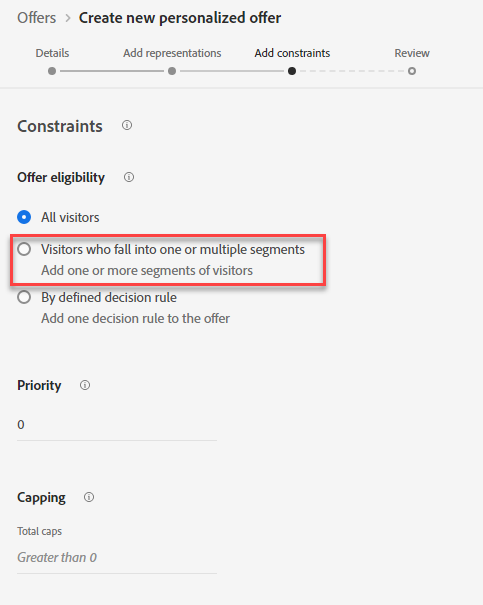
- Set Offer Eligibility. Select Visitors who fall into one or multiple segments
- Drag on these segments: Gold Loyalty Members and Platinum Loyalty Members
- Set the Logic between segments as "Or"
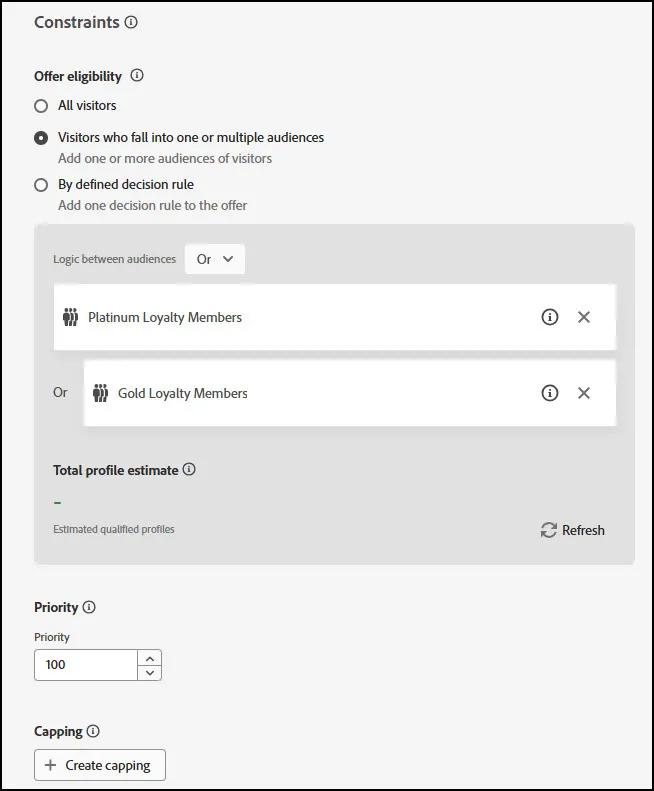
- Set Priority: 100. Do not Set Capping. Click "Next".
- On the next screen, we will set up the Representation of the Offer.
Add Representations
- Select Email as your channel.
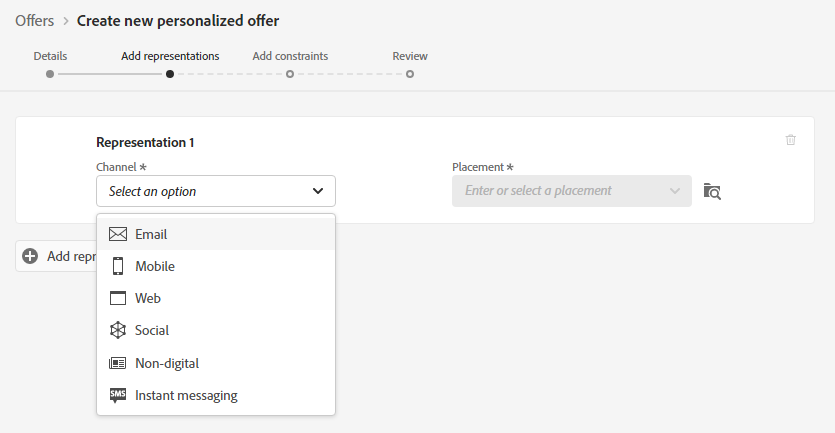
- Select the "Email - Image" as your placement
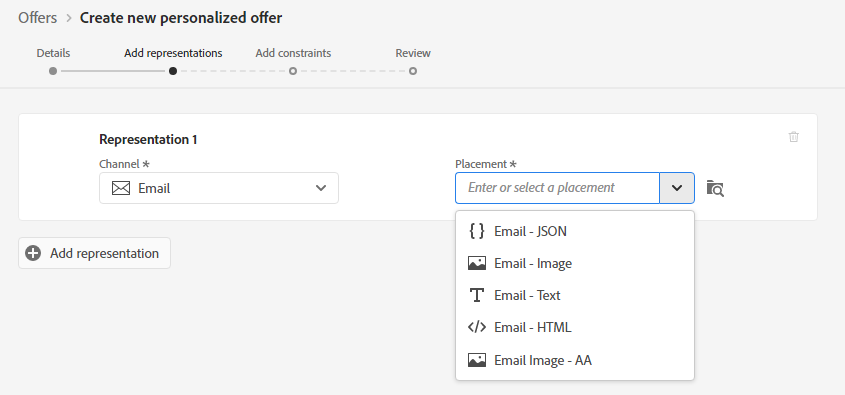
- Click Browse
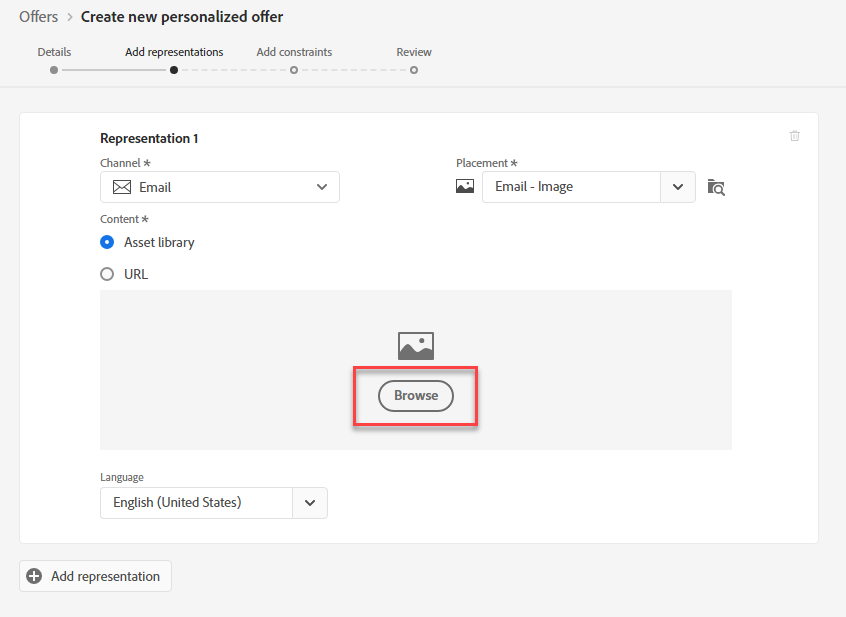
- Select the 10% Coupon Image. Click Select.
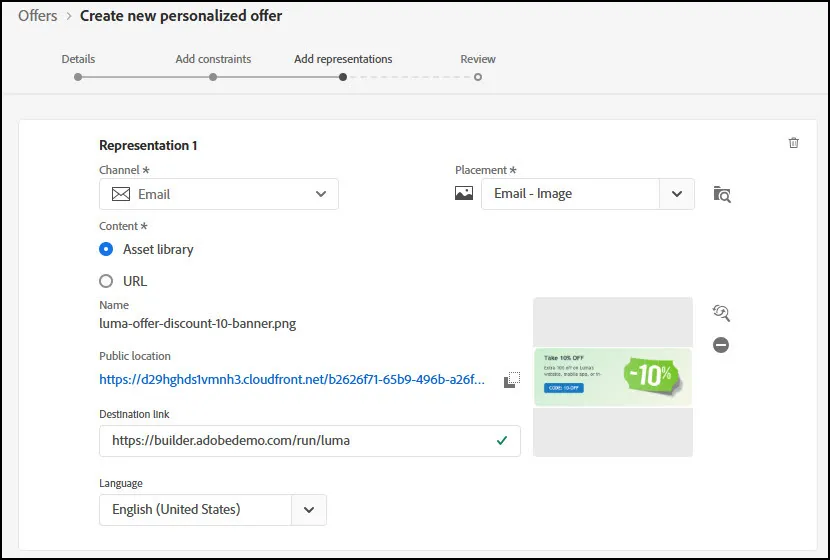
- Provide the Destination Link:
- Click Next
- On the next screen, you can view a summary of your Offer:
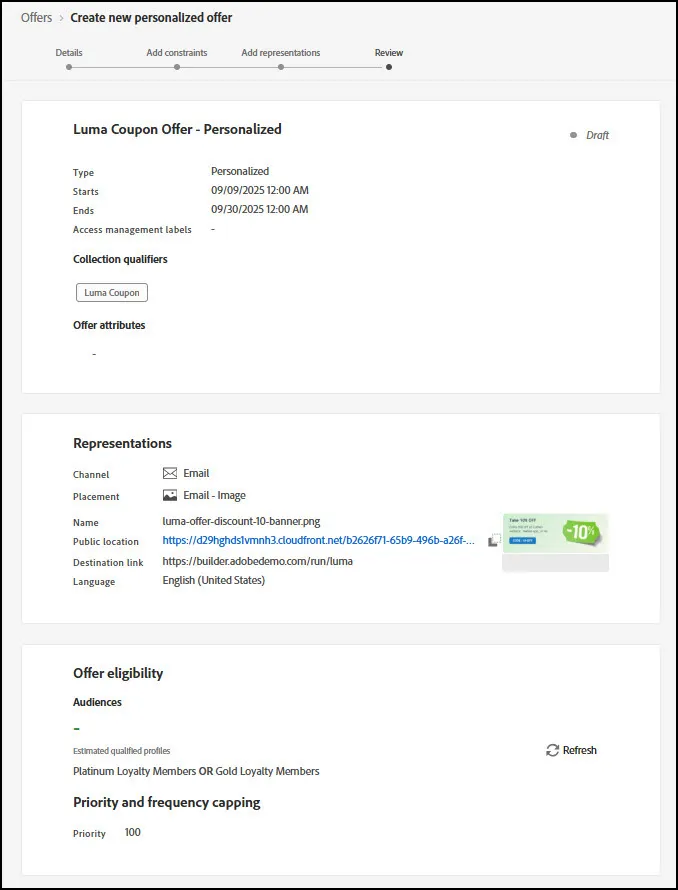
- Click Finish to save your Offer.
- End of Lab.