Connections
In Customer Journey Analytics, connections are what link the platform to the data that you ingested into AEP.
As a product administrator, you can create connections to various Experience Platform datasets, whether they’re event, lookup, profile, or summary datasets.
Once connected, this data can feed into derivative data views for analysis. Think of connections as the foundation of CJA: they bridge your source datasets in Experience Platform with the analytics environment where you explore and act on the data.
Workflow
The Connections workflow allows you to:
- Manage your connections and usage in Customer Journey Analytics through the Connections manager.
- Review connection details, including the number of dataset records ingested, skipped, or removed.
- Set up or modify a connection’s configuration, such as defining the rolling data window, selecting the sandbox, and choosing which datasets to include.
- Add datasets to your connection—at least one event or summary dataset is required, but you can also include profile, lookup, and additional summary datasets.
- Adjust dataset linking rules to define how datasets are connected, using either a person-based or (B2B Edition) account-based identifier.
- Update dataset settings at any time to refine configurations as your needs evolve.
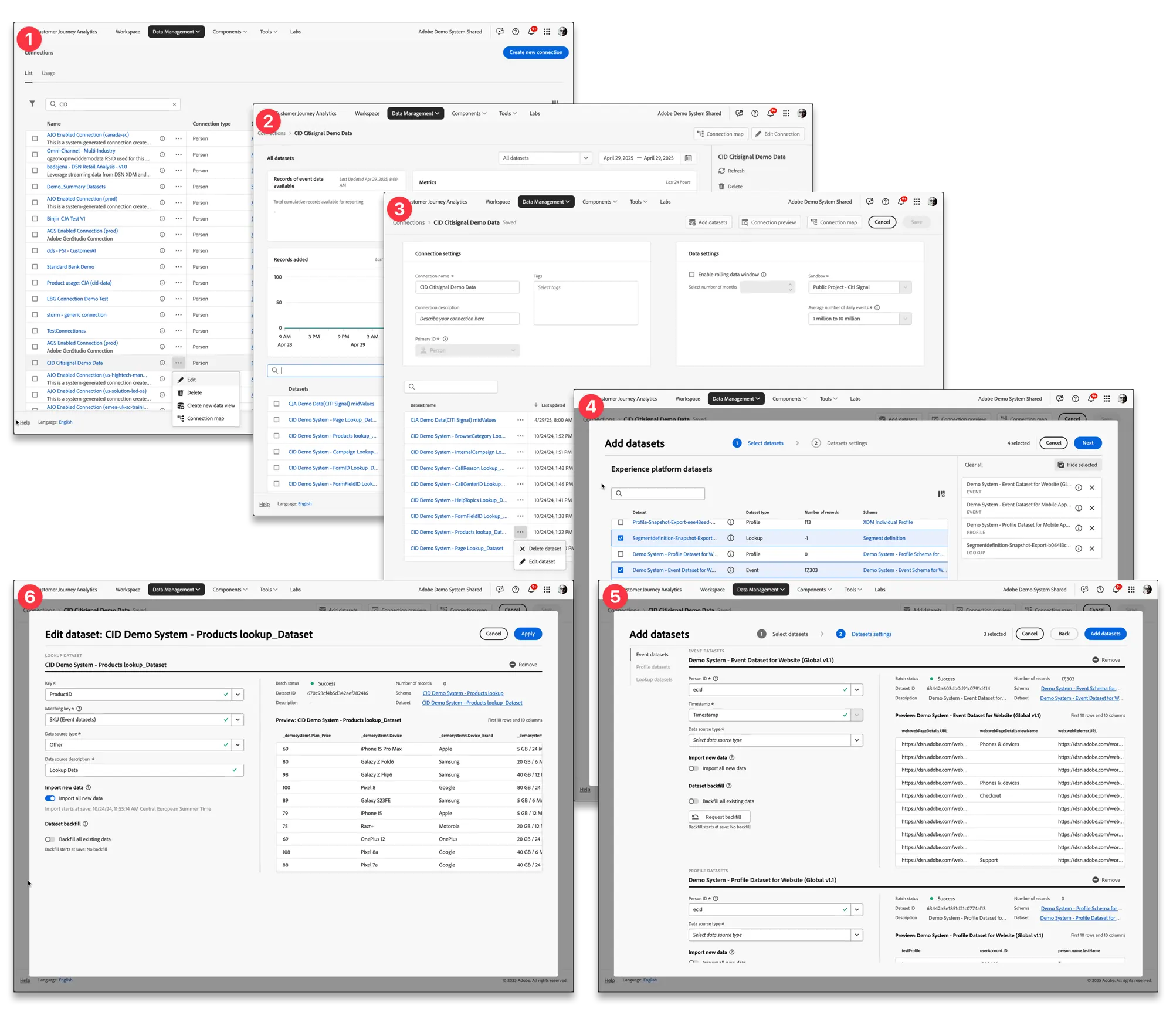
We will focus only on the process for Creating a Connection and adding Datsets.
Creating a Connection
The connection creation and editing workflow in CJA centralizes all dataset and connection configuration options into a single, guided experience. This workflow makes it easier to select, configure, and review datasets while reducing the risk of incorrect setup. You can specify key details like dataset type, size, schema, dataset ID, batch status, backfill status, identities, and more.
What you can do in this workflow:
- Enable a rolling data retention window when creating a connection.
- Add or remove datasets from a connection. (Removing a dataset will also remove it from related data views and any Analysis Workspace projects.)
- Request backfill data for individual datasets.
- Edit datasets at any time—for example, to request an additional backfill.
- Import existing data for a specific dataset.
How to Create a Connection
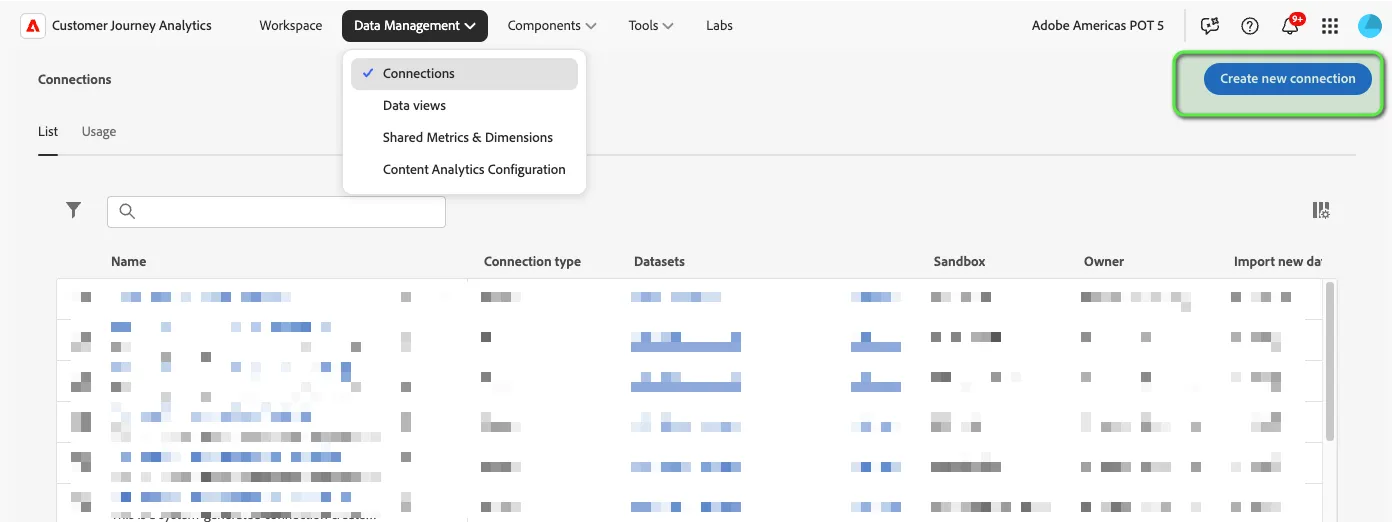
- In Customer Journey Analytics, go to Connections (you can also access it from Data management in the top menu).
- Select Create new connection.
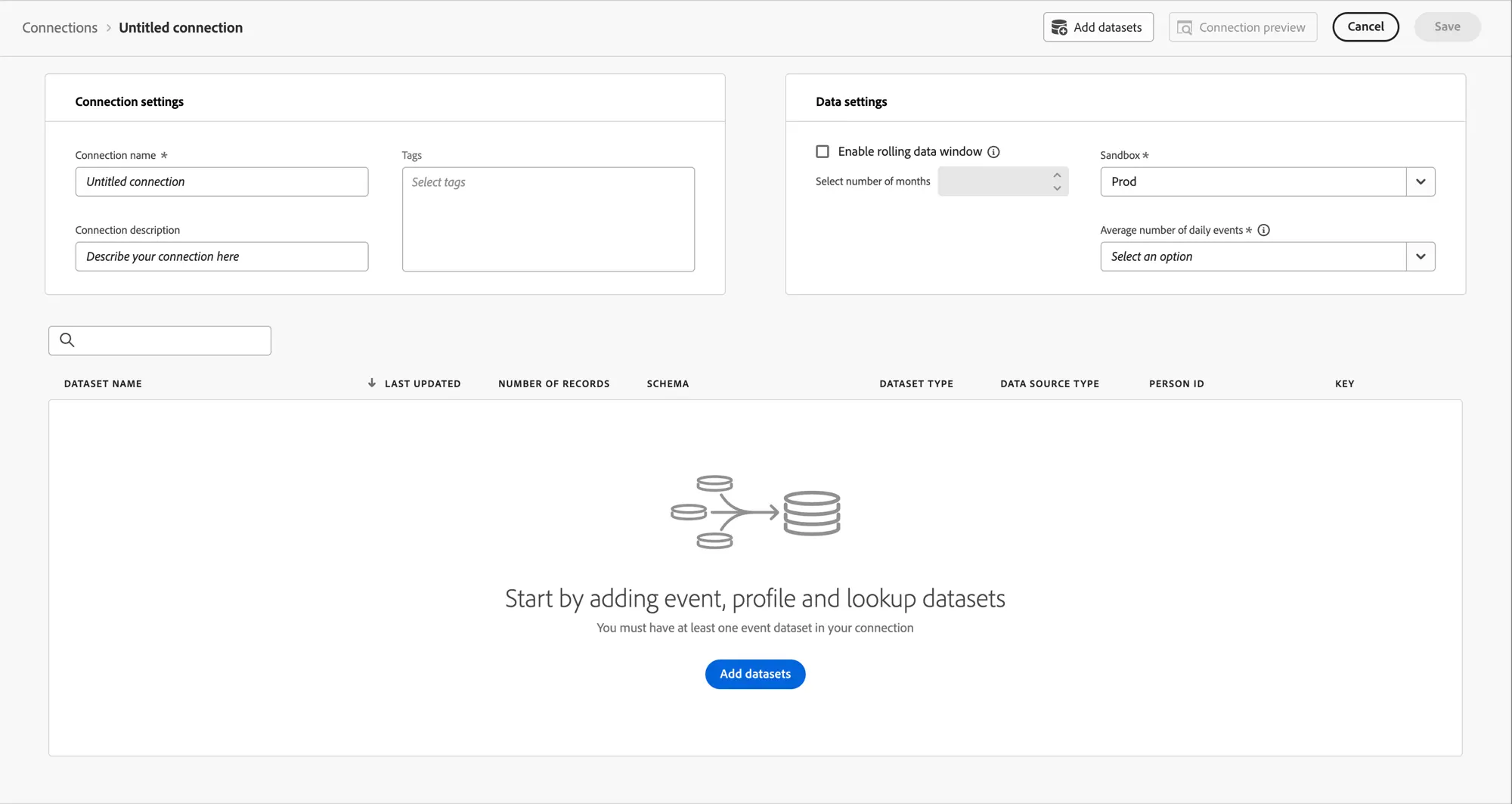
Configure the connection settings
- Connection name – Enter a unique name for the connection.
- Connection description – Describe the purpose of this connection.
- Tags – Add tags so you can easily search and filter for the connection later.
- Enable rolling data window
- Lets you define a retention period in months (e.g., 1, 3, 6 months) for event datasets only.
- Profile and lookup datasets in the same connection are retained for the same time period.
- Helps manage storage, stay within contract limits, and avoid overage costs.
- If unchecked, data retention follows Adobe Experience Platform settings.
- Sandbox – Select the Experience Platform sandbox containing the datasets you want to connect.
- Sandboxes act as virtual environments (“data silos”) to control dataset access.
- Once selected, available datasets from that sandbox appear in the left rail.
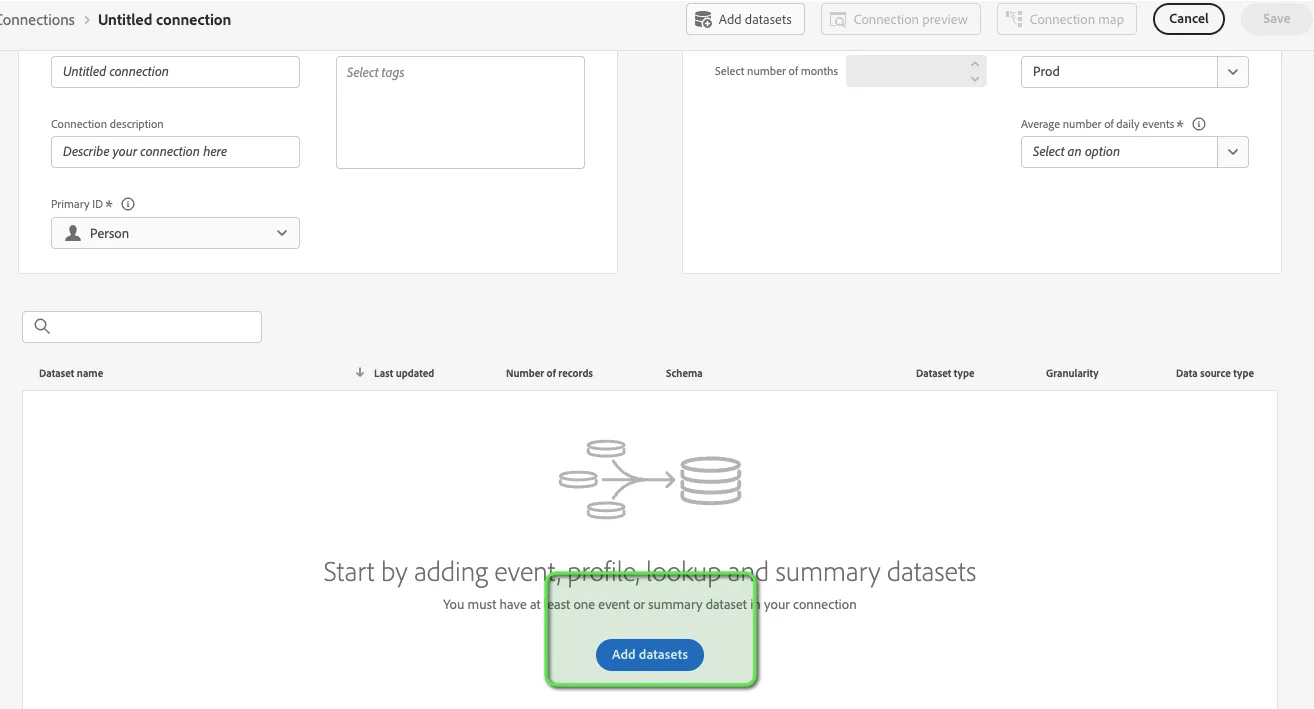
- Add datasets – Click Add datasets to include datasets in your connection.
- If the connection is empty, you can also add datasets directly from the datasets table.
Adding Datasets to a Connection
You can add one or more Experience Platform datasets when creating or editing a connection.
Steps to add datasets:
- In Connection > [Name of the connection], select Data > Add datasets.
- Step ➊ – Select datasets
- View the list of available Experience Platform datasets.
- Select one or more datasets.
- At least one event or summary dataset is required for the connection.
- Click Next to continue
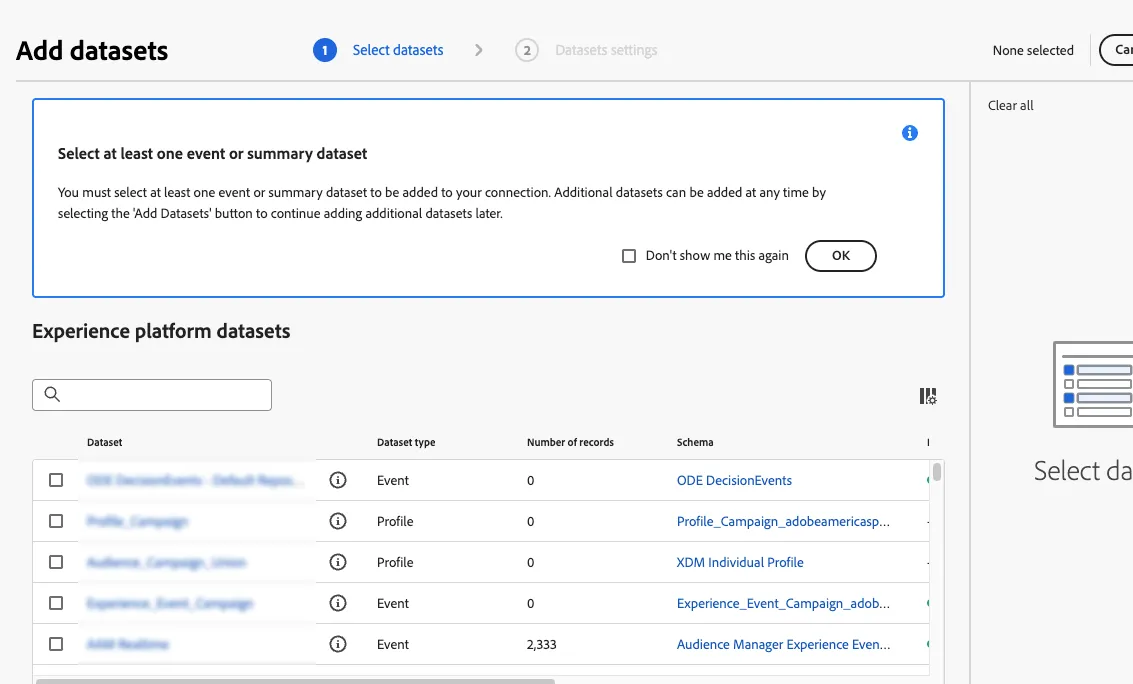
- Step ➋ – Dataset settings
- Configure the settings for each selected dataset individually.
- All required settings must be completed before you can proceed.
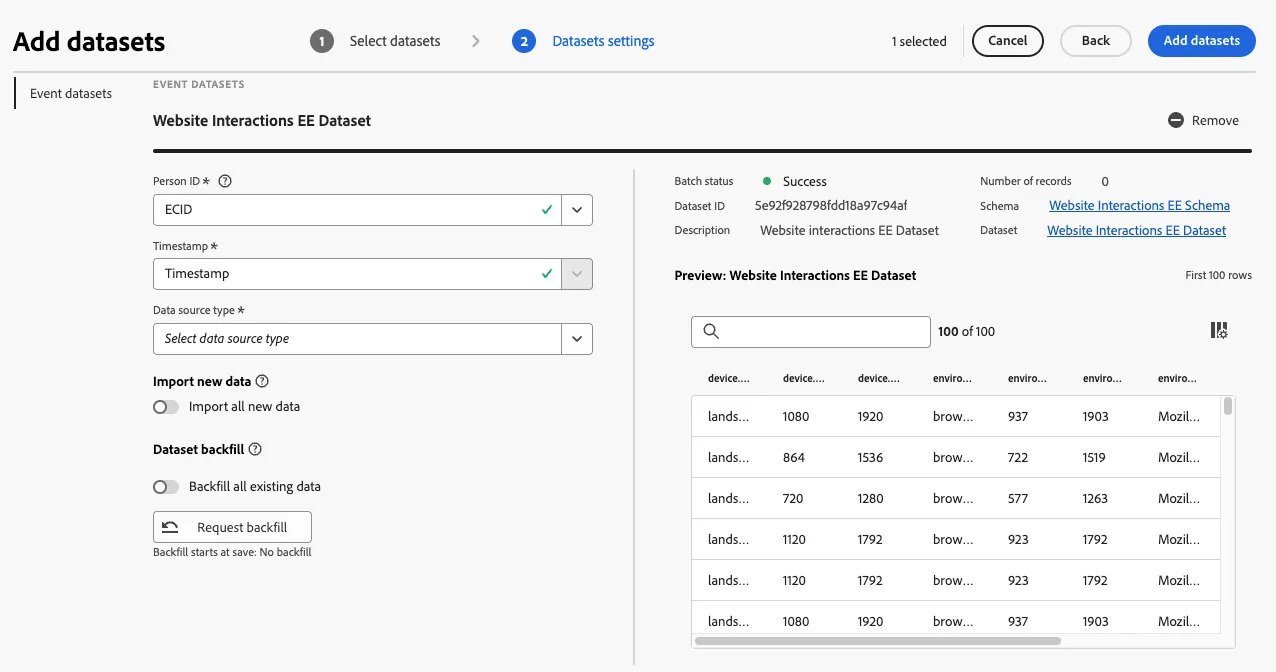
- Click Add datasets to finalize.
- Optional actions:
- Cancel – Stop adding datasets.
- Back – Return to Step ➊ – Select datasets.
Dataset Settings
When you add or edit a dataset, you configure settings based on:
- The dataset type (event, profile, lookup, summary)
- The connection type (person-based or B2B Edition account-based)
All datasets share common settings, such as whether to import new data or request backfills. Additional fields depend on the dataset type.
Event Dataset – Person-Based Connection
- Person ID
- Select from available identities defined in the dataset schema (Experience Platform).
- Records without a Person ID value are skipped.
- See Use Identity Map as a Person ID for guidance.
- Timestamp
- Automatically set to the default timestamp field from the event schema.
- Data Source Type – Choose from:
- Web data
- Mobile App data
- POS data
- CRM data
- Survey data
- Call Center data
- Product data
- Accounts data
- Transaction data
- Customer Feedback data
- Other (requires Data source description)
- Data Source Description
- Required if “Other” is selected.
Profile Dataset – Person-Based Connection
- Person ID
- Select from available identities in the schema.
- Case-sensitive.
- Records without a Person ID value are skipped.
- Data Source Type – Same options as Event Dataset.
- Data Source Description – Required if “Other” is selected.