Data Views
Data views control how the data ingested into a CJA Connection is to be interpreted. They specify all of the dimensions and metrics which will be available for reporting within Analysis Workspace and which columns those dimensions and metrics obtain their data from. Data views are defined in preparation for reporting in Analysis Workspace. Each connection can have multiple Data views.
In this exercise you'll learn:
- How to create a new data view
- How to configure the dimensions and metrics
- How to create derived fields
First, use the solution switcher to open Customer Journey Analytics
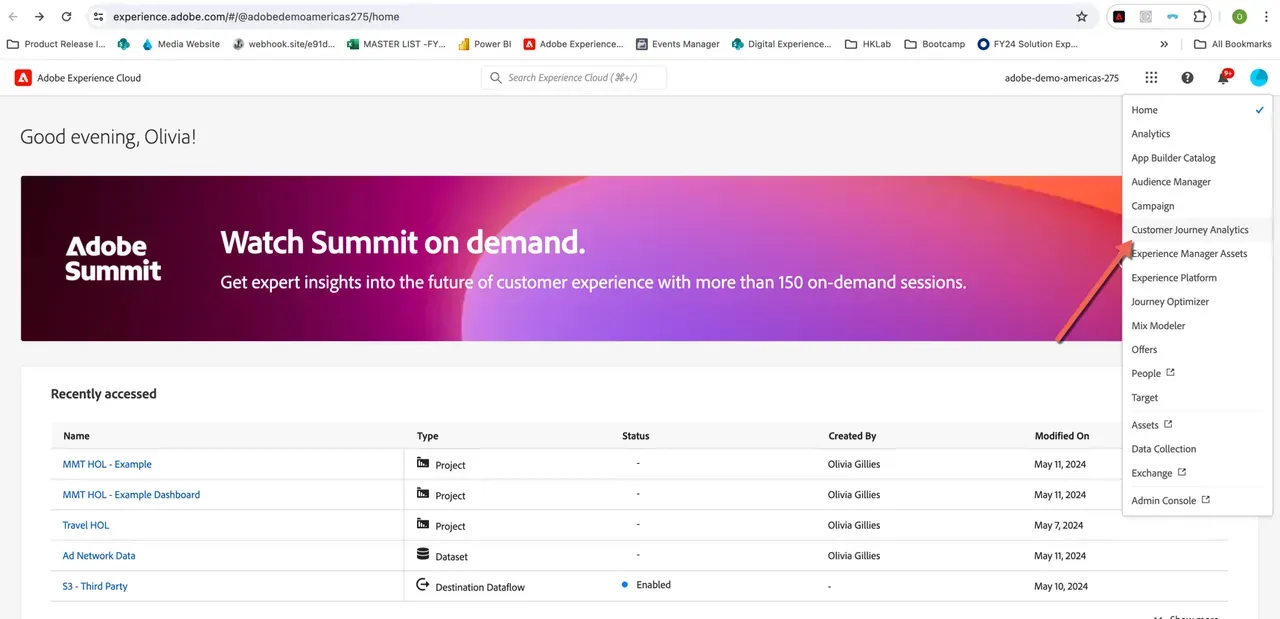
Review your Data View
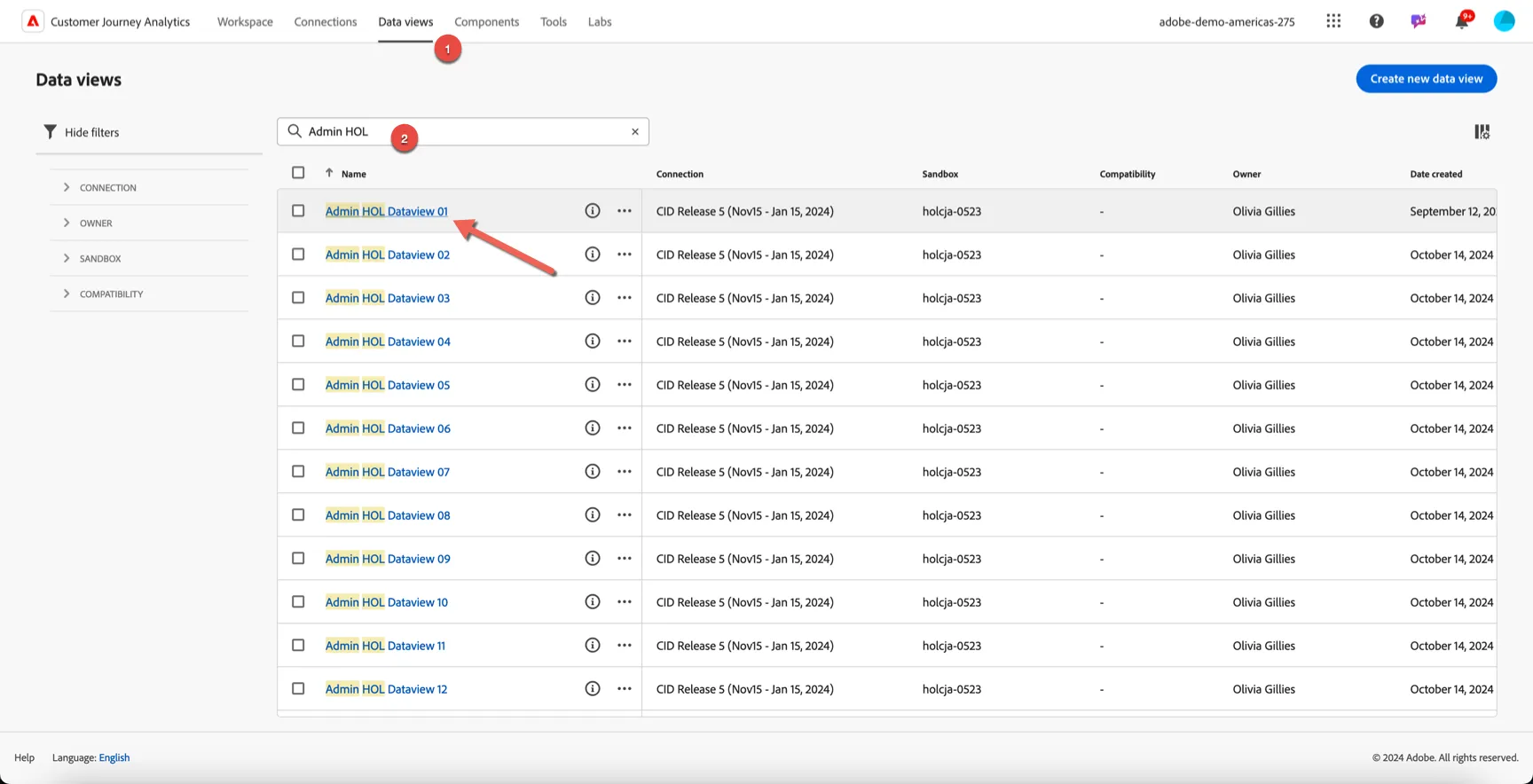
Browse to the Data views tab. Search for Admin HOL. There will be a data view available which is specific to your lab user number, for example if my user number is 01 the data view I will use today is Admin HOL Dataview 01.
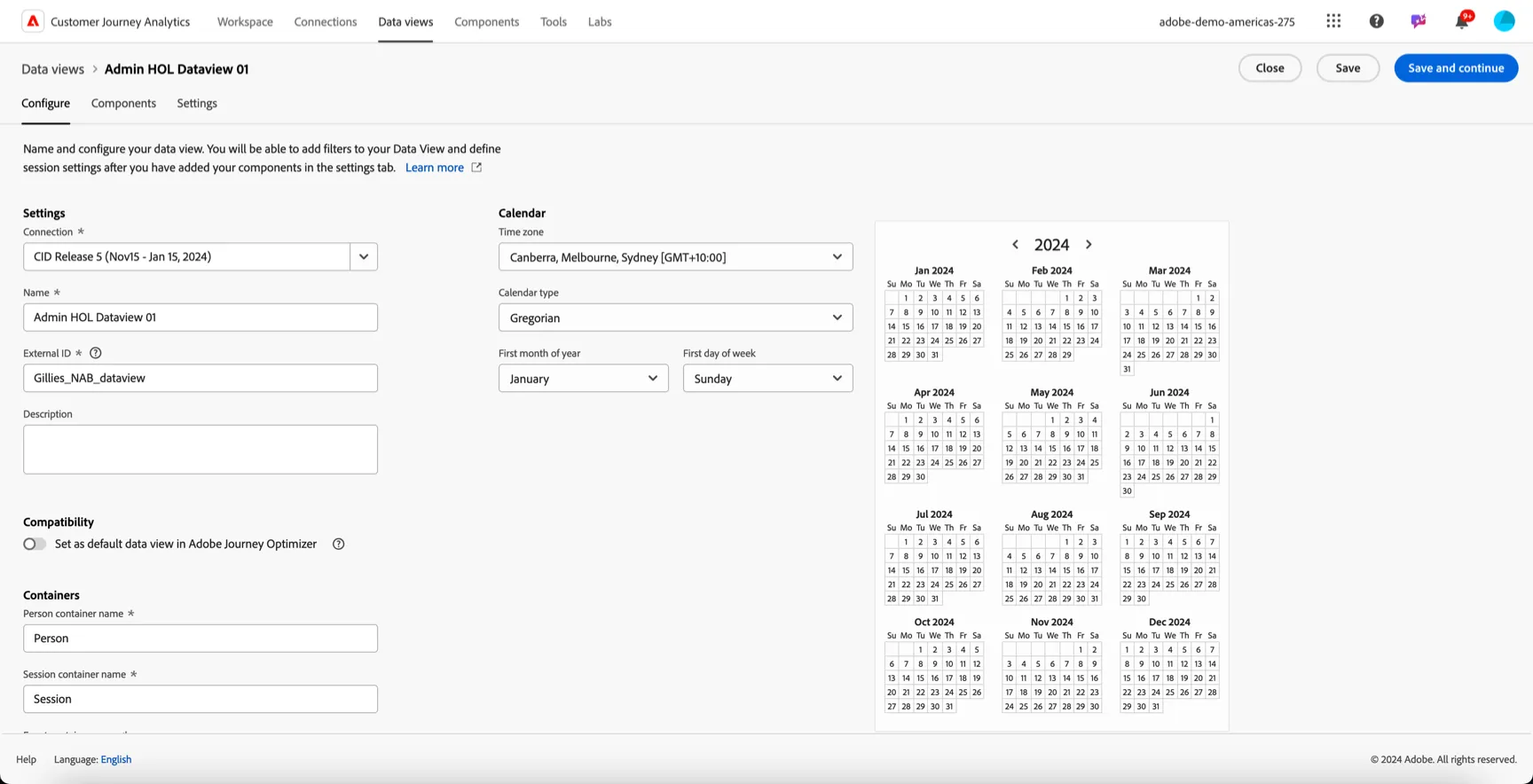
Click to open your Data View. You can see the connection is set to CID Release 5 - this connection contains data from November 15 2023 - January 15 2024. On the configure tab you can control the time zone as well as the default container names.
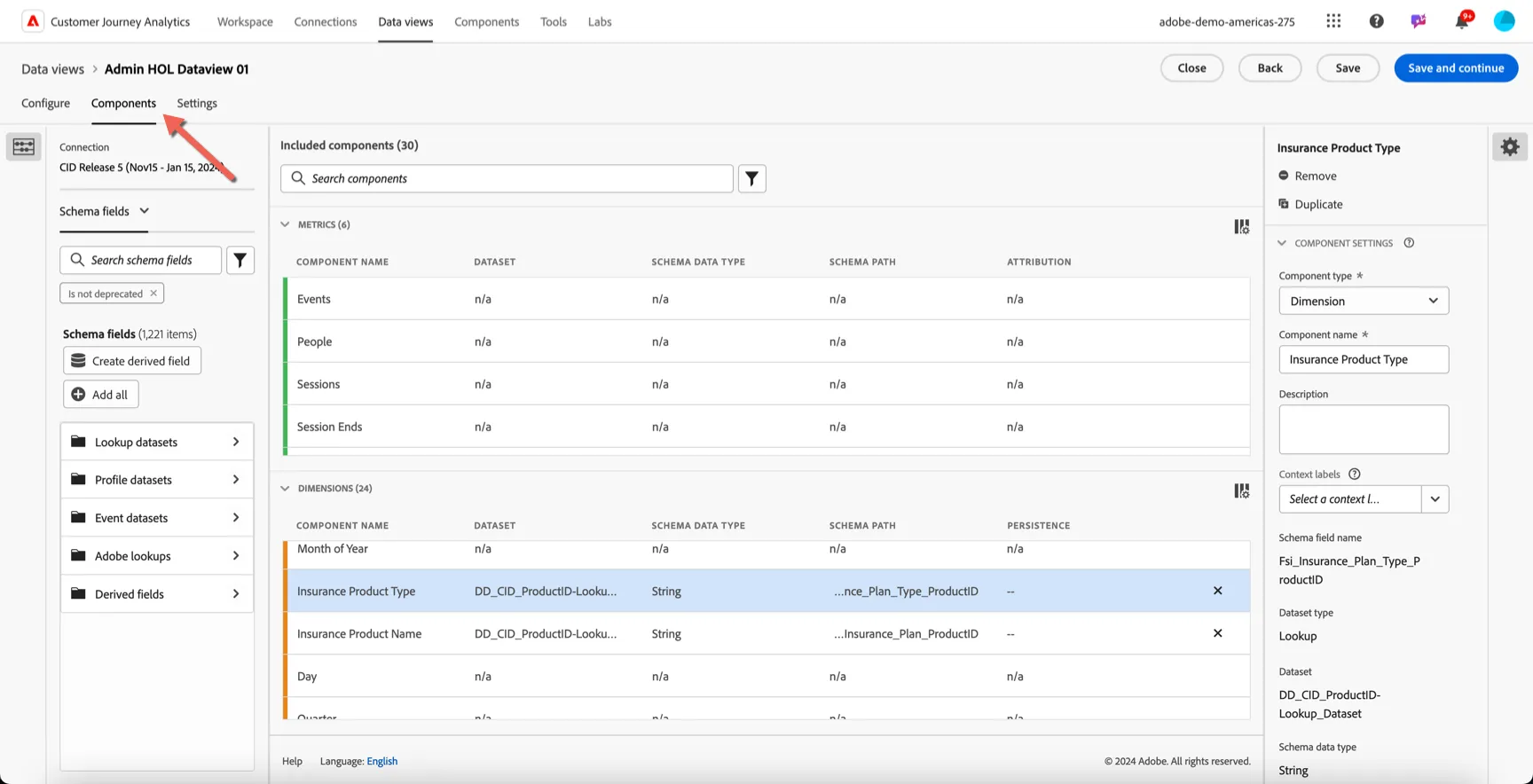
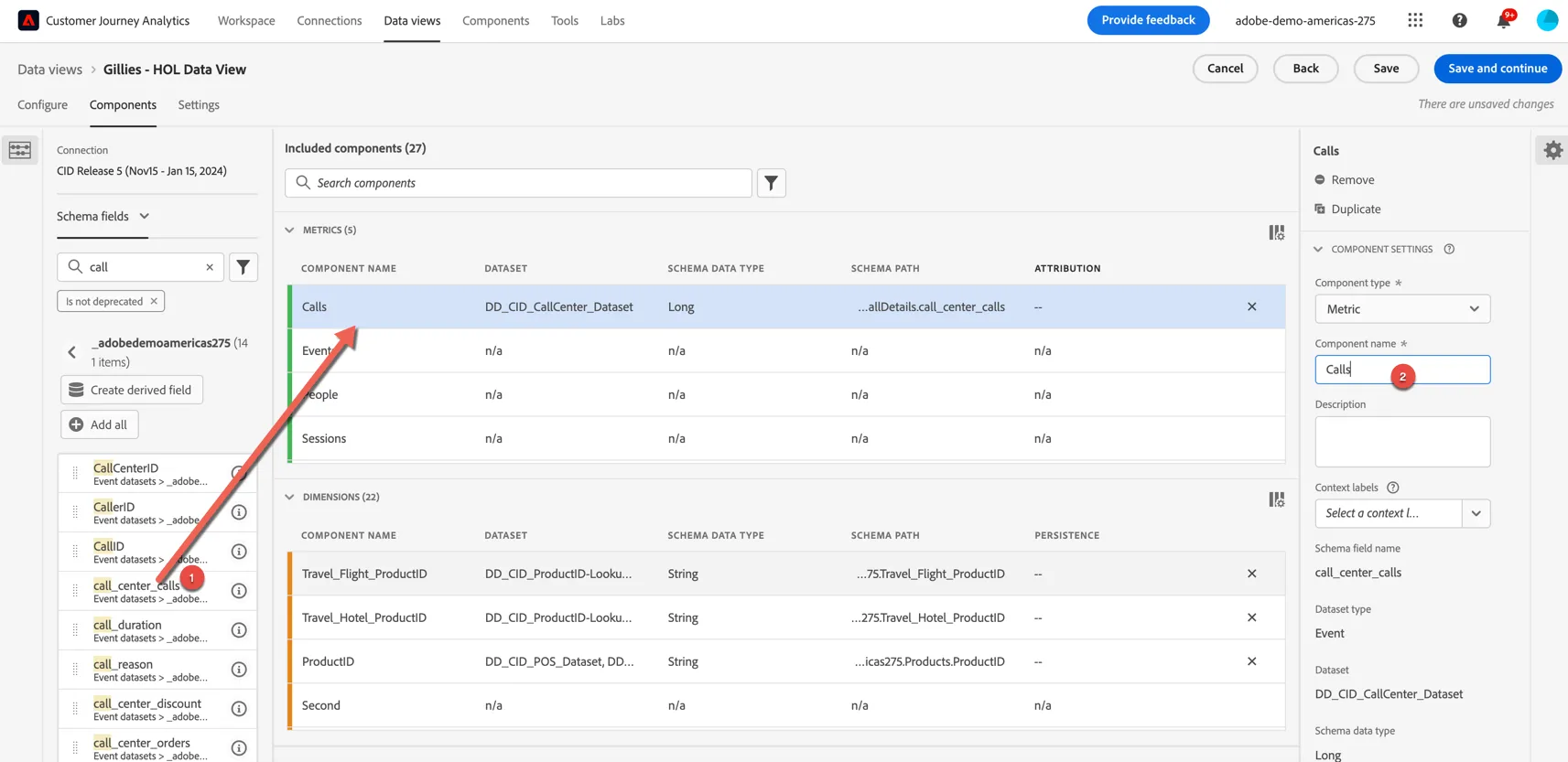
Click to Components tab. This is where you can configure the dimensions and metrics for your view. The available fields are on the left, the included components are in the middle and the detail of each component is shown on the right when you select one of the included components.
Add a Dimension
CJA supports three types of data, profile data (attributes about your customer such as loyalty tier, NPS scores, address and age), event data (coming from multiple channels) and lookup data. For this exercise, let's add a lookup attribute as a dimension into our data view.
Click into the Lookup datasets in the left hand panel.
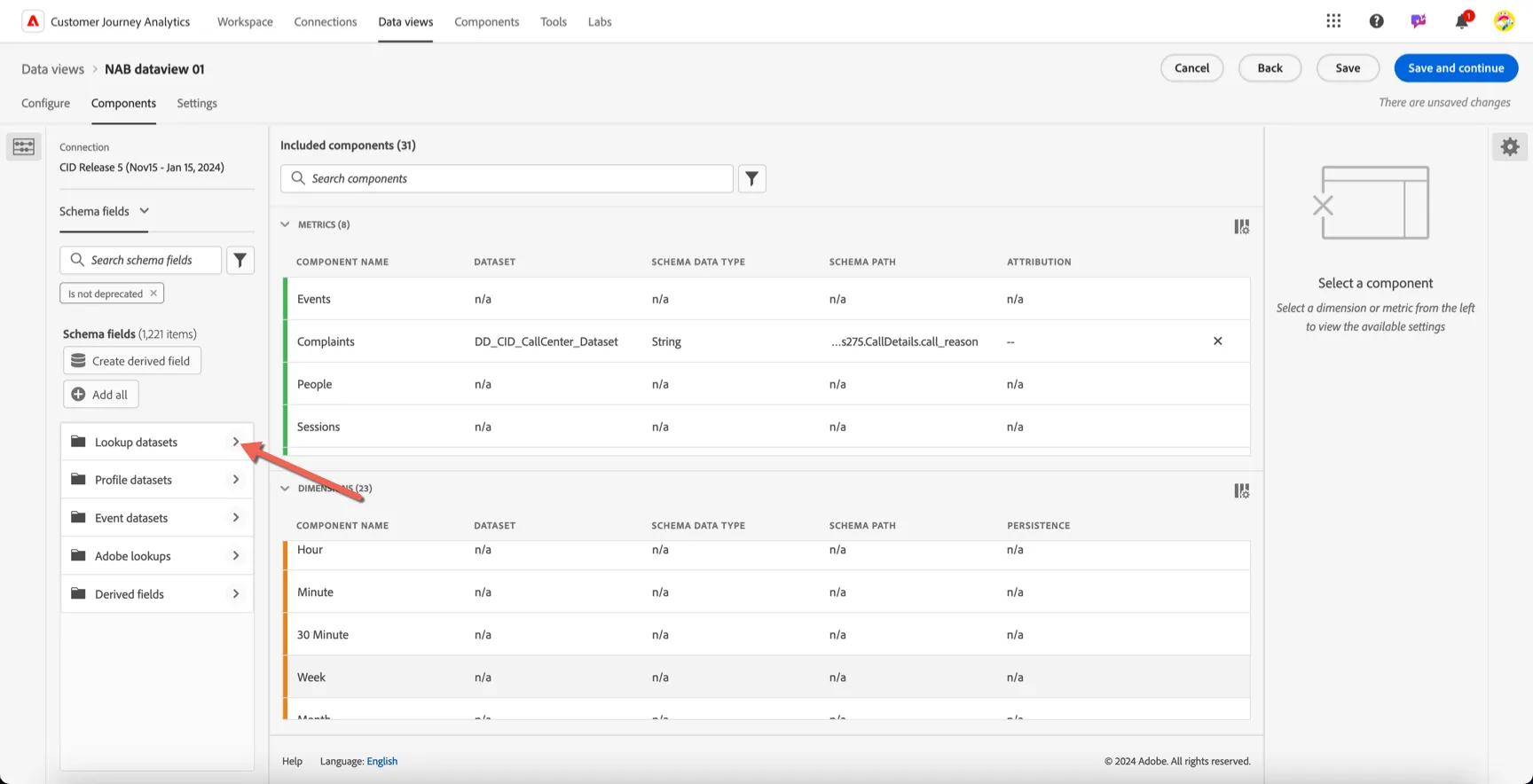
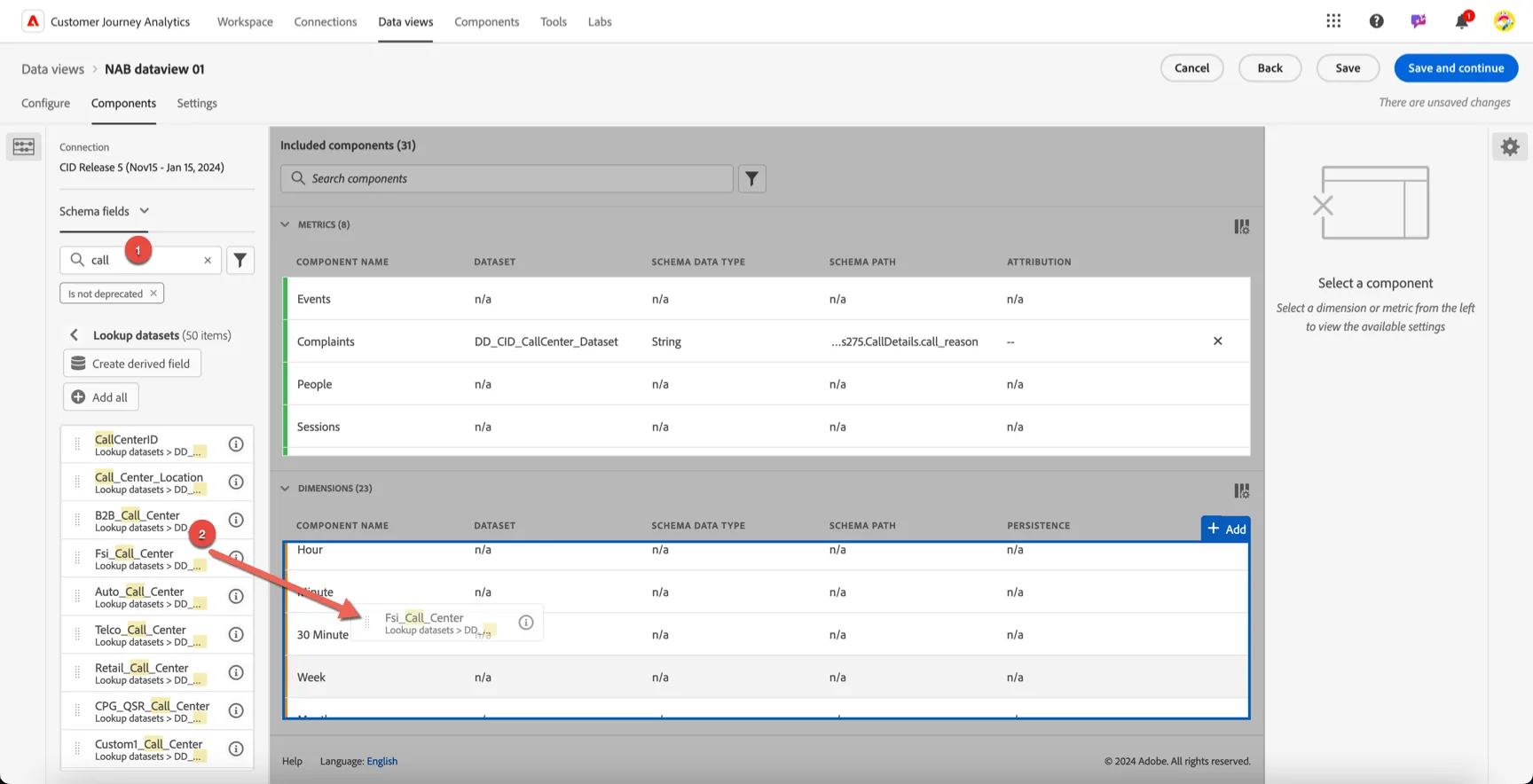
One of the datasets included in the connection comes from the call center. A call reason is recorded for every inbound call event, this reason is stored as generic ID that needs to a user friendly description for reporting. This is where the lookup datasets come in handy. Search for call you'll notice we have different lookup values depending on the industry, drag the FSI_Call_Center attribute into the Dimensions.
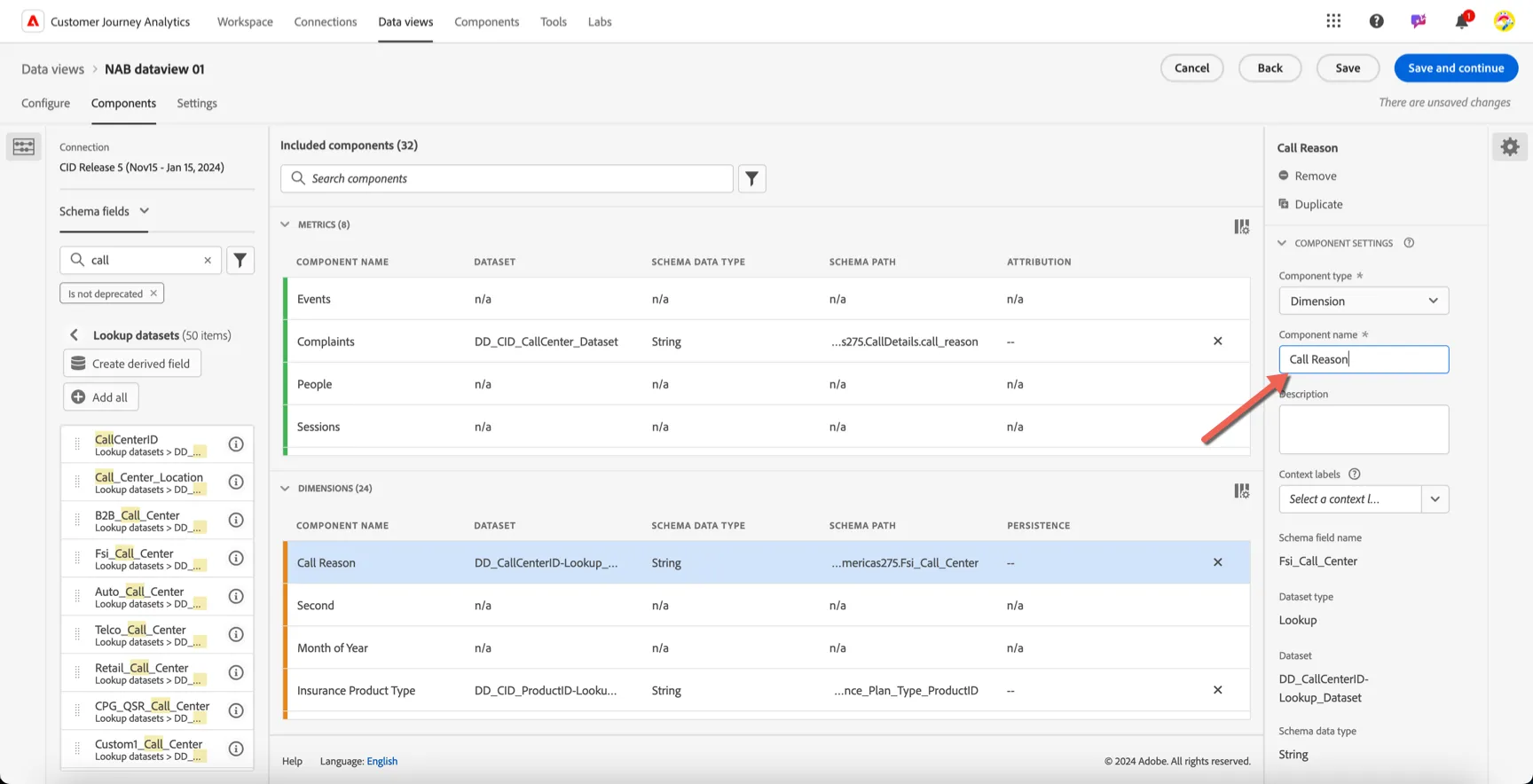
Now, let's update the dimension properties on the right hand side and rename the dimension to Call Reason.
Add a Metric
Metrics are anything that can be counted, these are usually collected as boolean type (1/0) flags in our Event datasets.
For example search for Call and you will find the Call Center Calls attribute from the call center dataset, this is a long type value which will store the value 1 for every call.
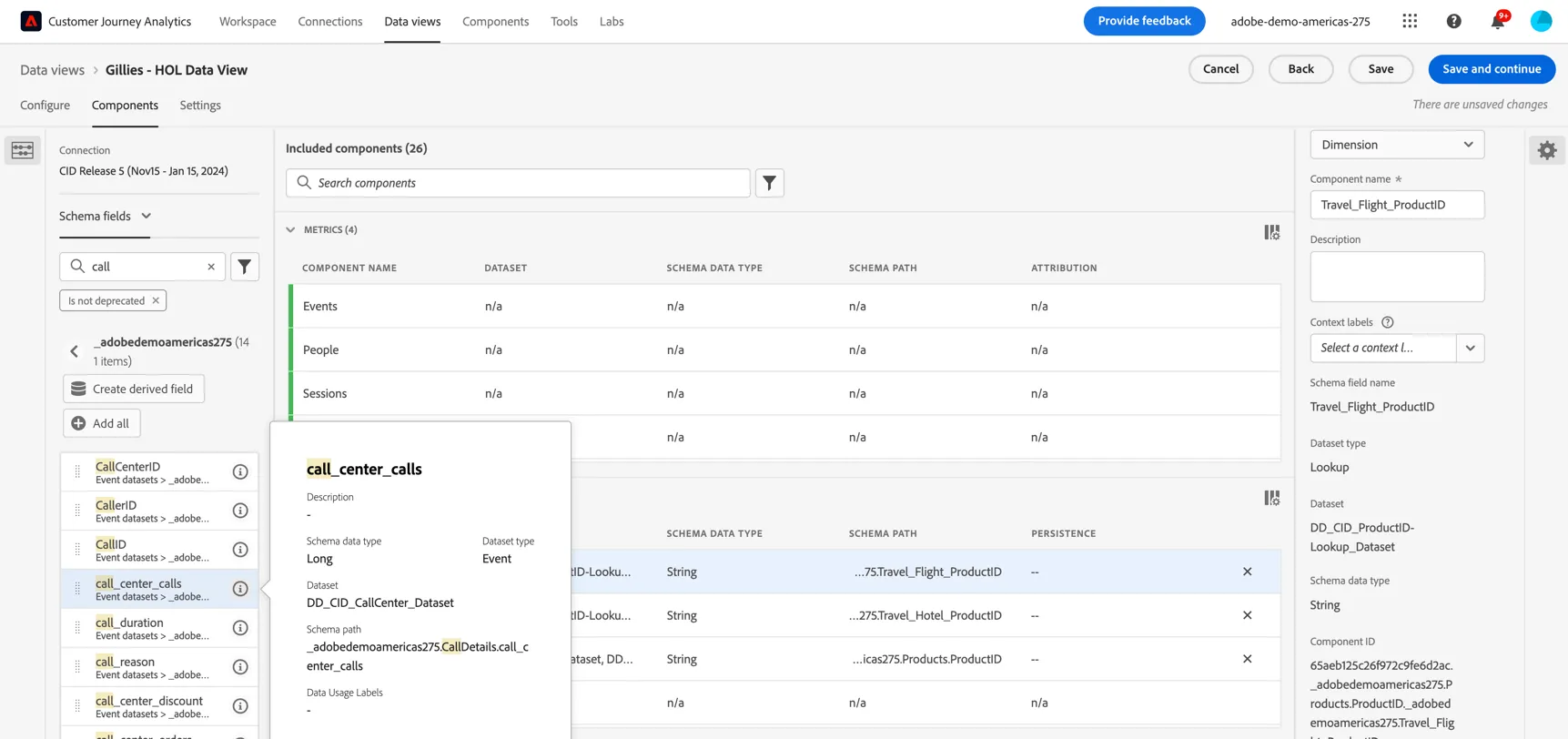
Drag it into the metrics list to add it as an available metric. Update the component name on the right hand-side to Calls.
Configure session timeout and filtering
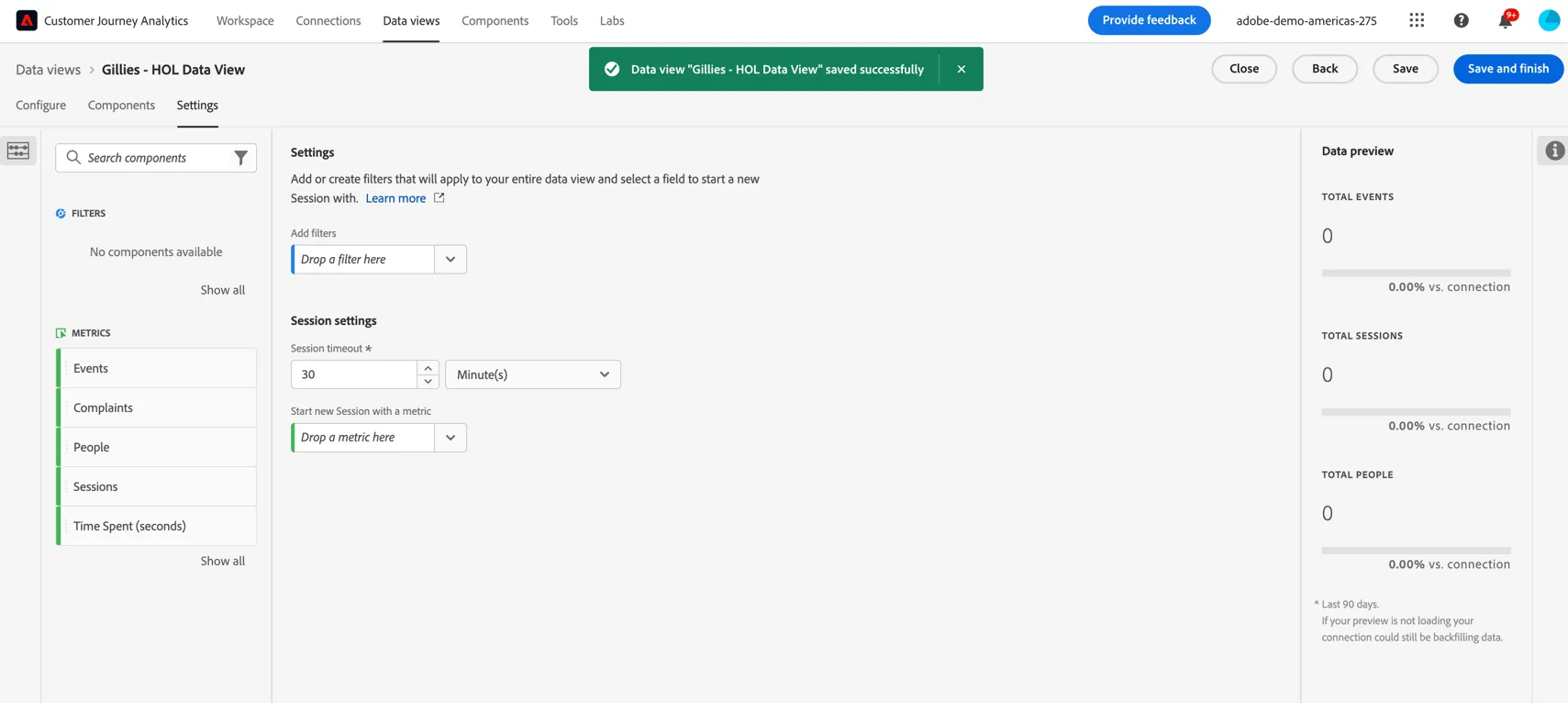
Click to Save and Continue. This will take you to the data view settings page. Here you can specify any filters that you want applied to your data across the entire connection.
Global filters can be helpful for use cases where democratisation of data is required. For example you can create a data view for a specific brand or business unit and add a filter to include only events from that brand/unit without needing to ingest the data via two separate connections.
You can also set the session time out period; for now we can leave this at 30 mins.
Click Save and finish.
Congratulations, you've updated your first Data View in Customer Journey Analytics. Let's create a quick project to test it out.
Use your Data view
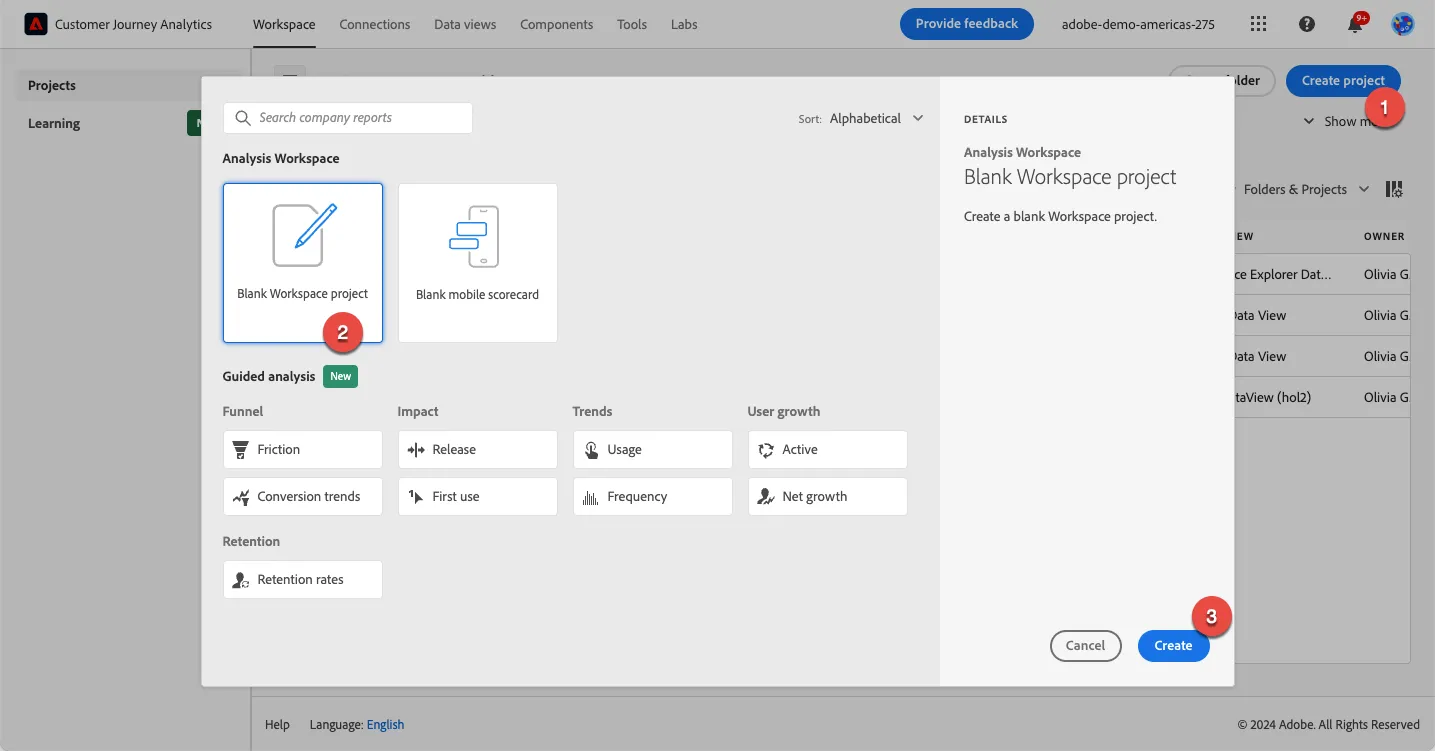
Click to the Workspace in the top navigation and create a new project.
Ensure that you've selected your Data View in the Data View selector.
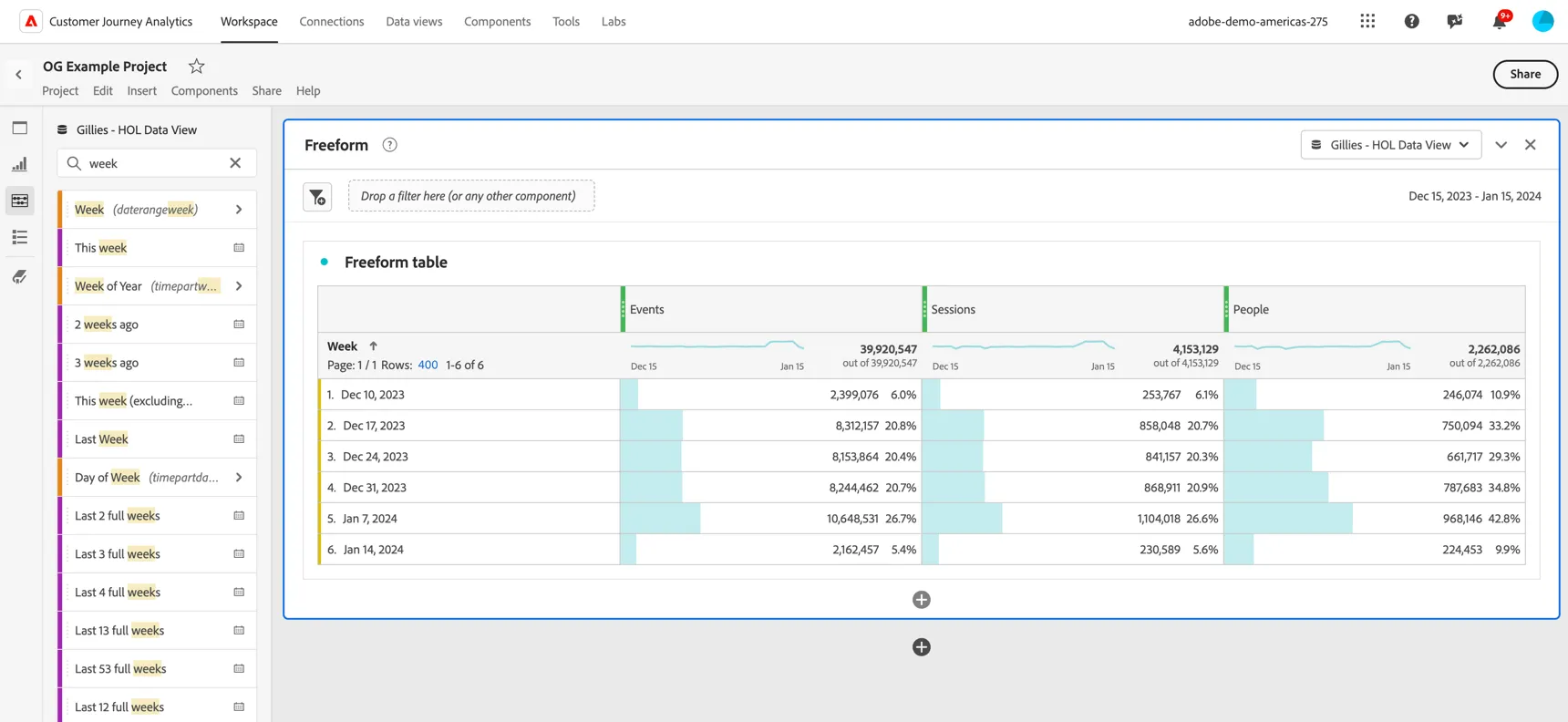
Set Reporting Date Range to Dec 15 2023 - Jan 15, 2024 from table below and click Apply.
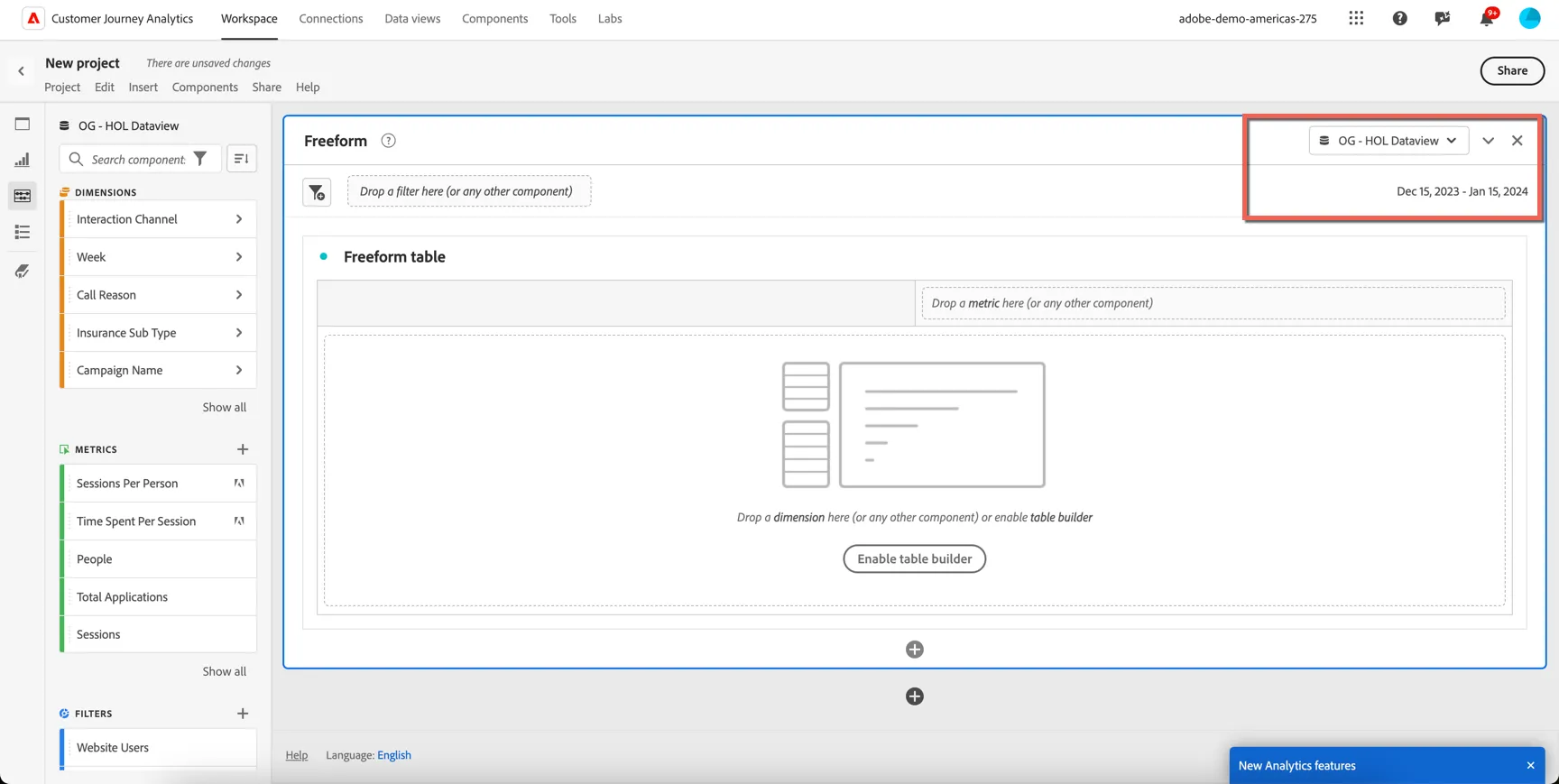
Drag the events, sessions and people metric into your freeform. Change the dimension to Week to verify that you have data displaying for your new dataview.
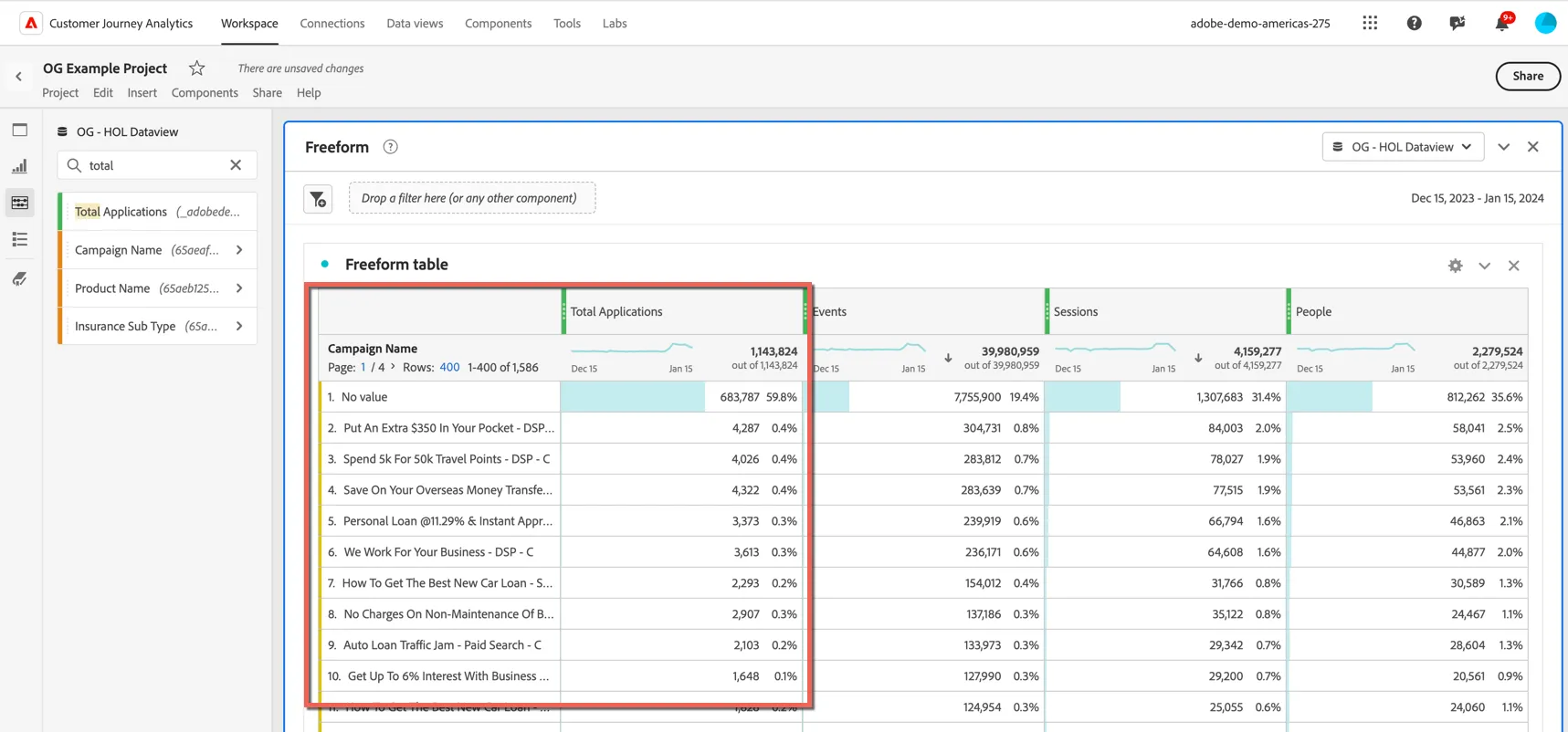
Swap the Week dimension for Campaign Name and add the Total Applications metric.
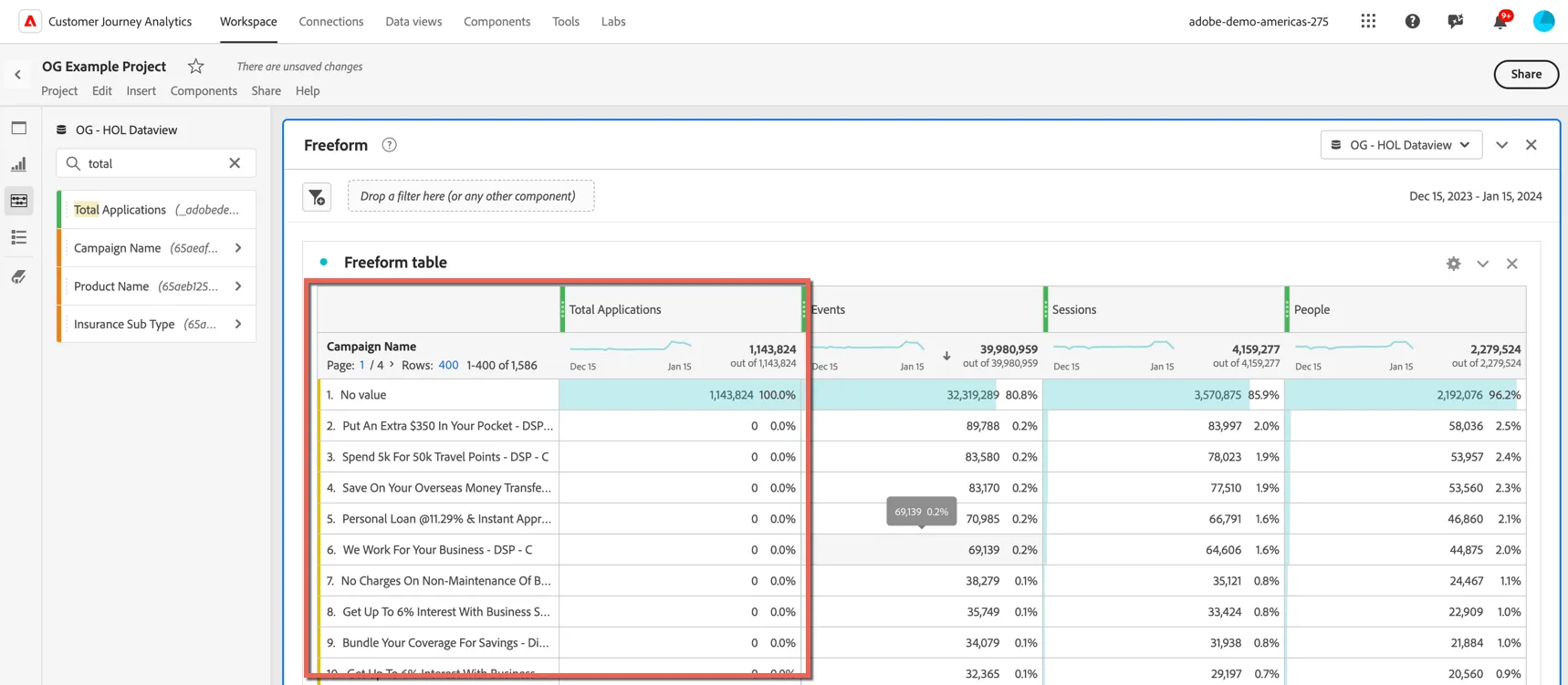
You'll notice that there are no campaign names aligned to application events, regardless of channel. That's to be expected because the campaign name is collected when a customer first lands on the website and we haven't yet set the persistence for this dimension.
Set Dimension Persistence
Previously in Adobe Analytics persistence needed to be configured up front and would be applied at ingestion time. So modifying this after the data has loaded was not an option. In Customer Journey Analytics we set persistence in the dataview and this is applied at run time, allowing changes to be applied retroactively.
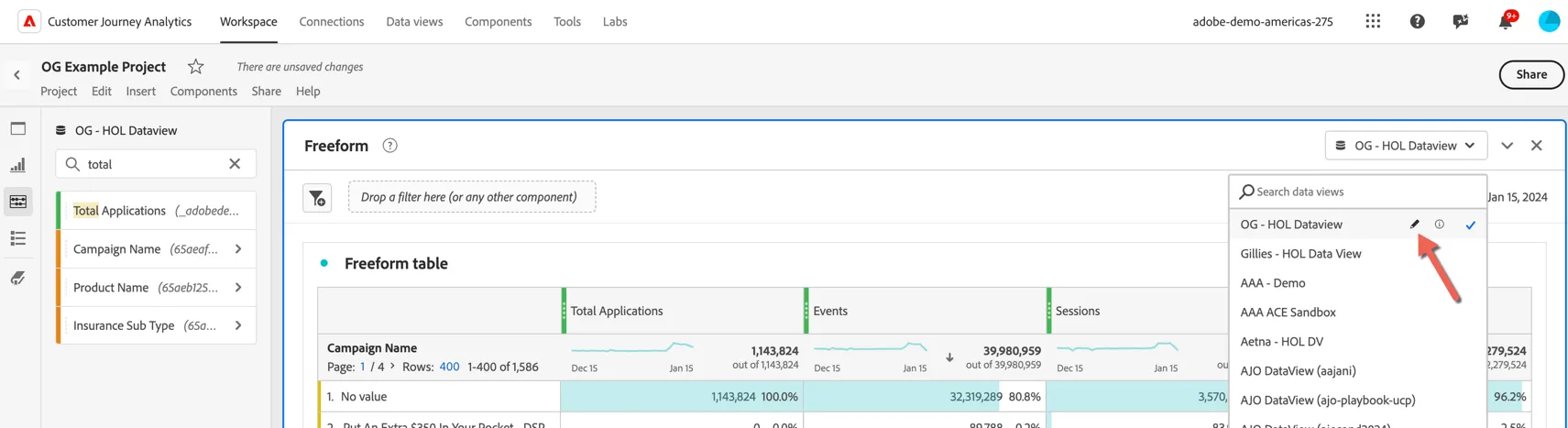
Click to edit your dataview, you can do this directly from your project by clicking the edit icon in the dataview selector:
Switch to the Components tab and search for the Campaign Name in your dimensions. Scroll to the bottom of the properties for this component and enable Persistence. Set the persistence to Most Recent for the session.
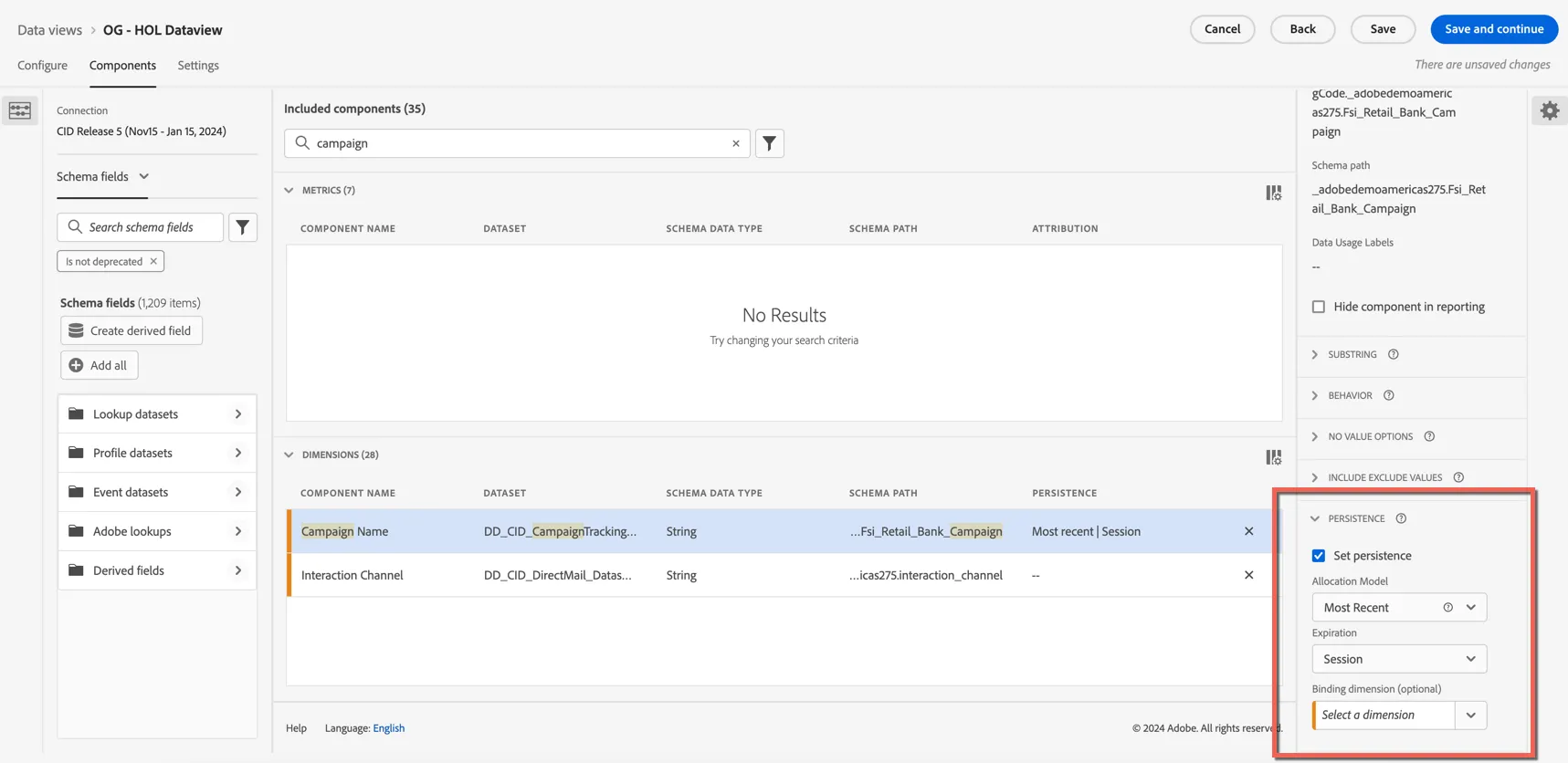
Click Save. Then click Close to return to your dashboard.
You can see there are now campaigns associated with your application events:
Create a new metric from a dimension
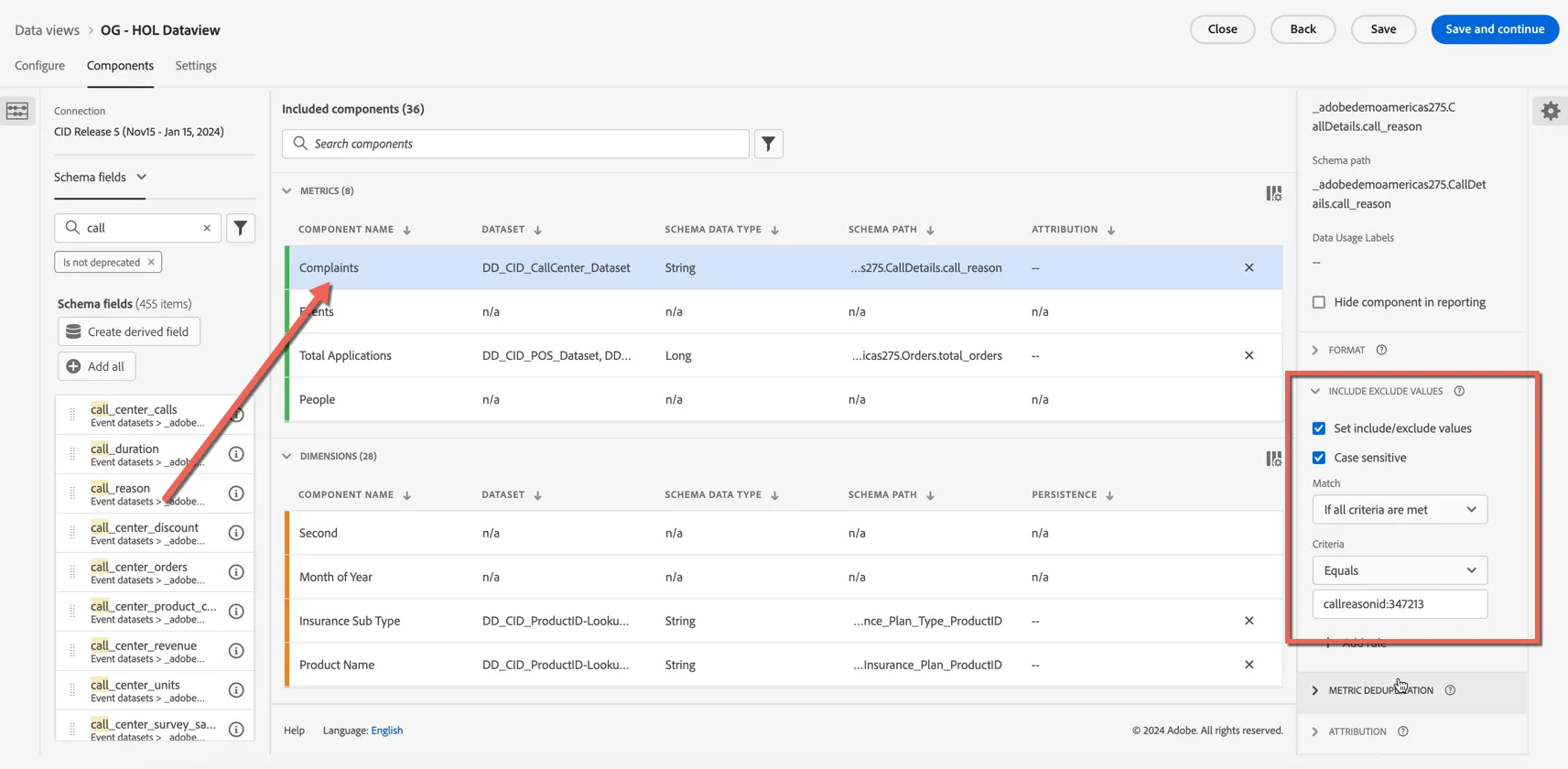
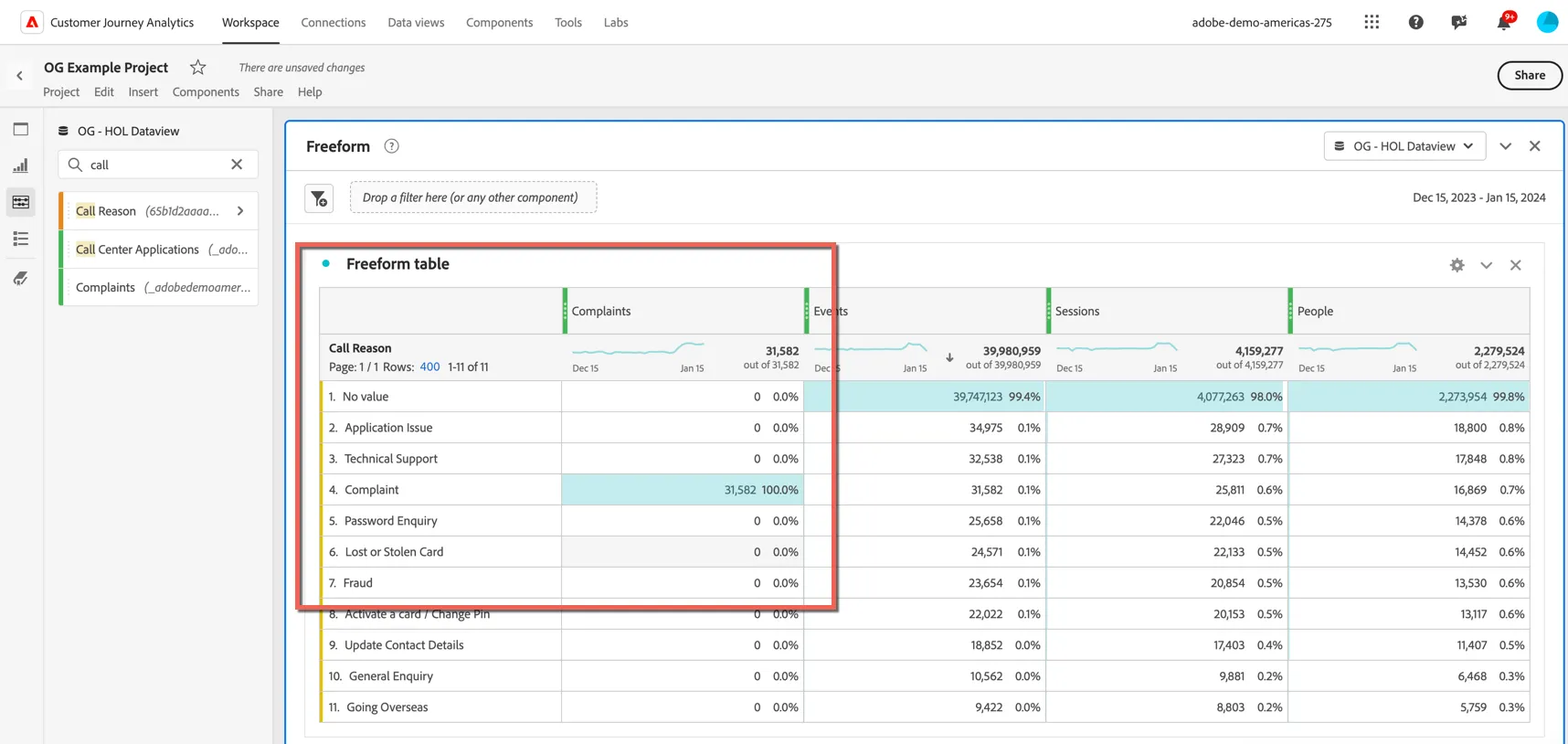
Another advantage to this on-the-fly processing allows us to create new metrics from dimensions. What if we forgot to add a specific event field for the metric we want to report on? For example if we know that the call reason "callreasonid:347213" means it was a complaint we can use this to create a new "complaints" metric. Drag the call_reason field into the metrics, update the component name to Complaints. Under the component settings scroll down to INCLUDE EXCLUDE VALUES and set the metric to include only values that equal callreasonid:347213. We now have a new metric to report complaints separately from other call reasons.
Drag the new Complaints metric into your freeform and change the dimension to Call Reason:
Derived Fields
One of the most powerful features of Customer Journey Analytics is Derived fields. These allow you to instantly and retroactively apply complex data changes on-the-fly, without the need to rewrite and re-ingest data. Historically this type of data update in Adobe Analytics would incur significant cost and take time reducing your ability to generate insights quickly.
Imagine the website team made an error when coding the data layer for the mobile website, and now all of the page names coming from this version of the site are pre-fixed with "mobile web:".
On your dashboard, change the dimension to Page Name, apply a filter on the list to include only page names including the word insurance. You can see that we're reporting mobile web pages separately to desktop which is not the desired state.
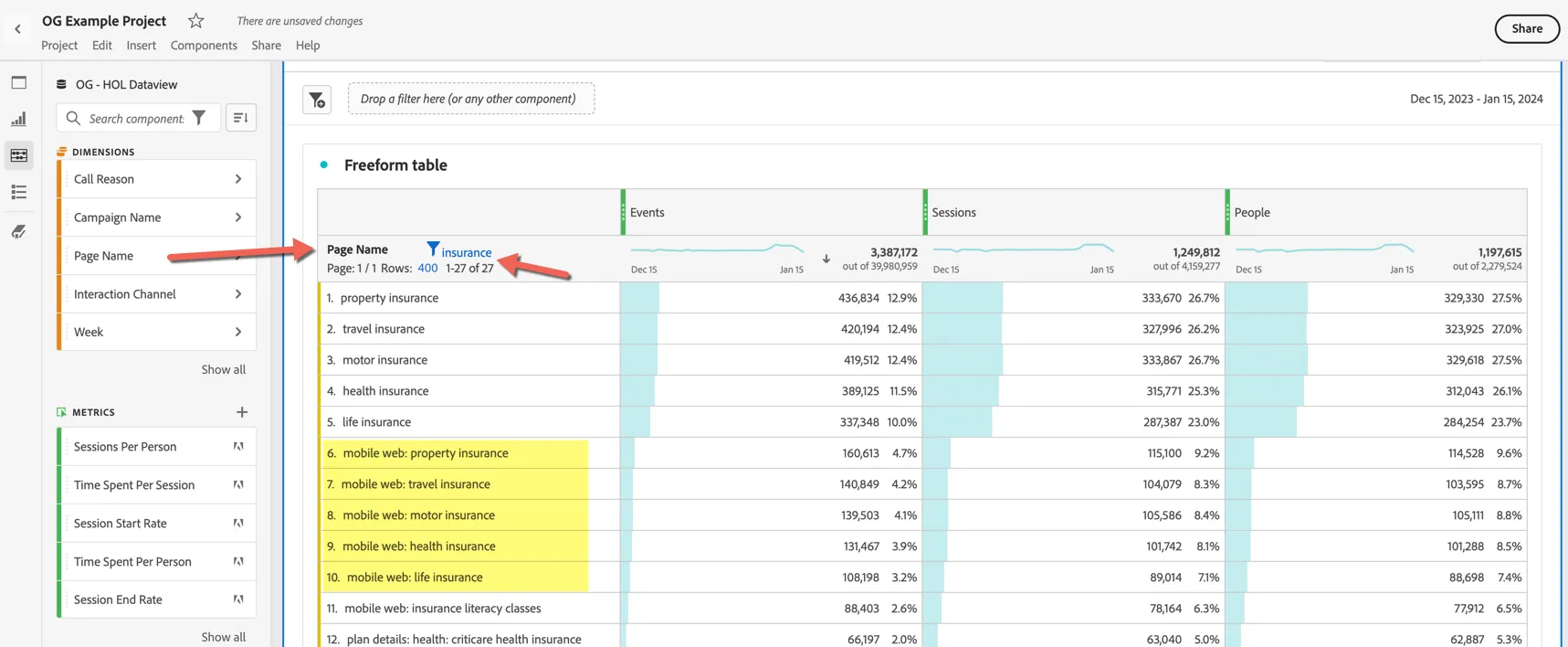
You want to report on category pages across all versions of the website. We can quickly fix this using derived fields. Click to edit your dataview and create a derived field.
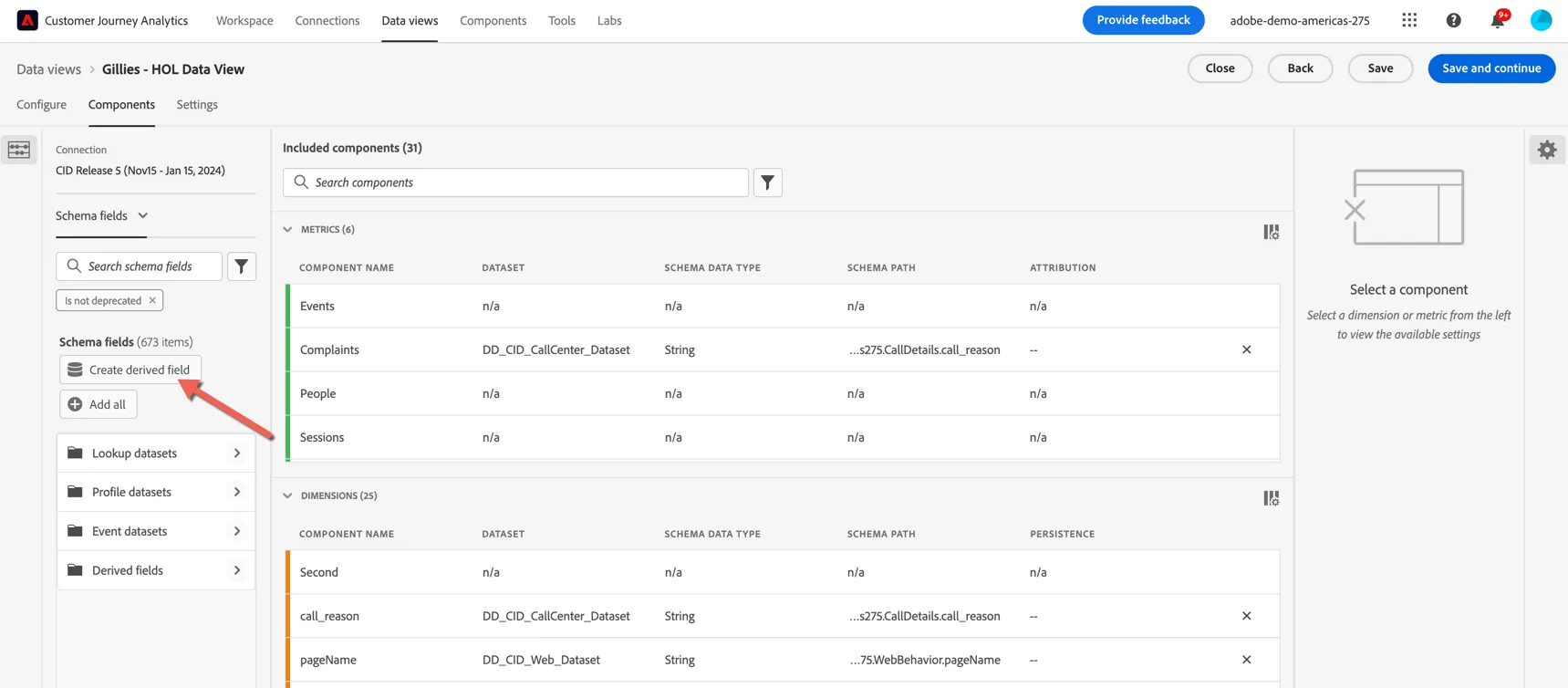
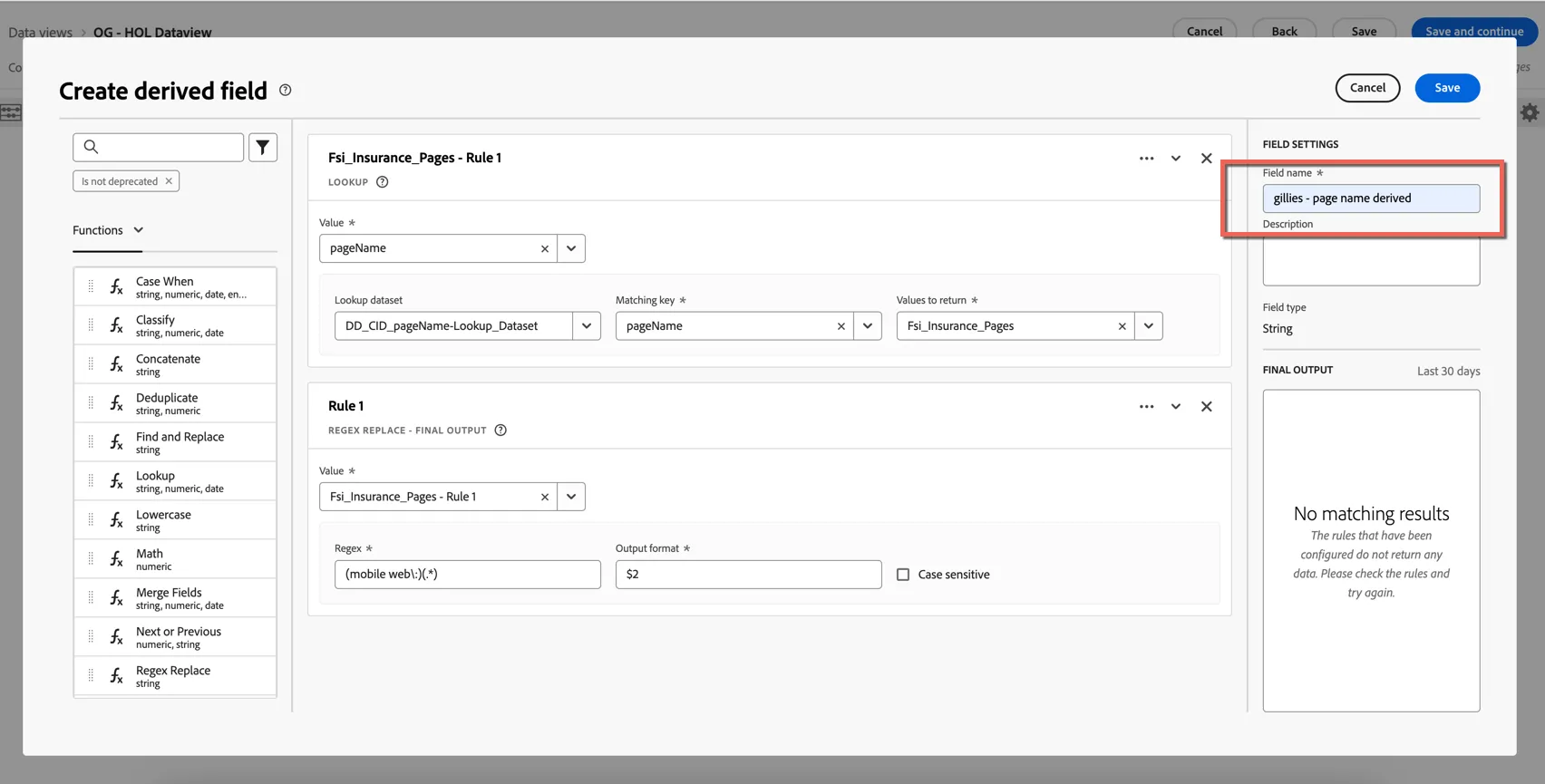
You can see there are a number of functions available. For this use case, we're going to use the regex_replace function to create a new pagename field that removes "mobile web" from the start of any value. Drag the regex_replace function into the canvas.
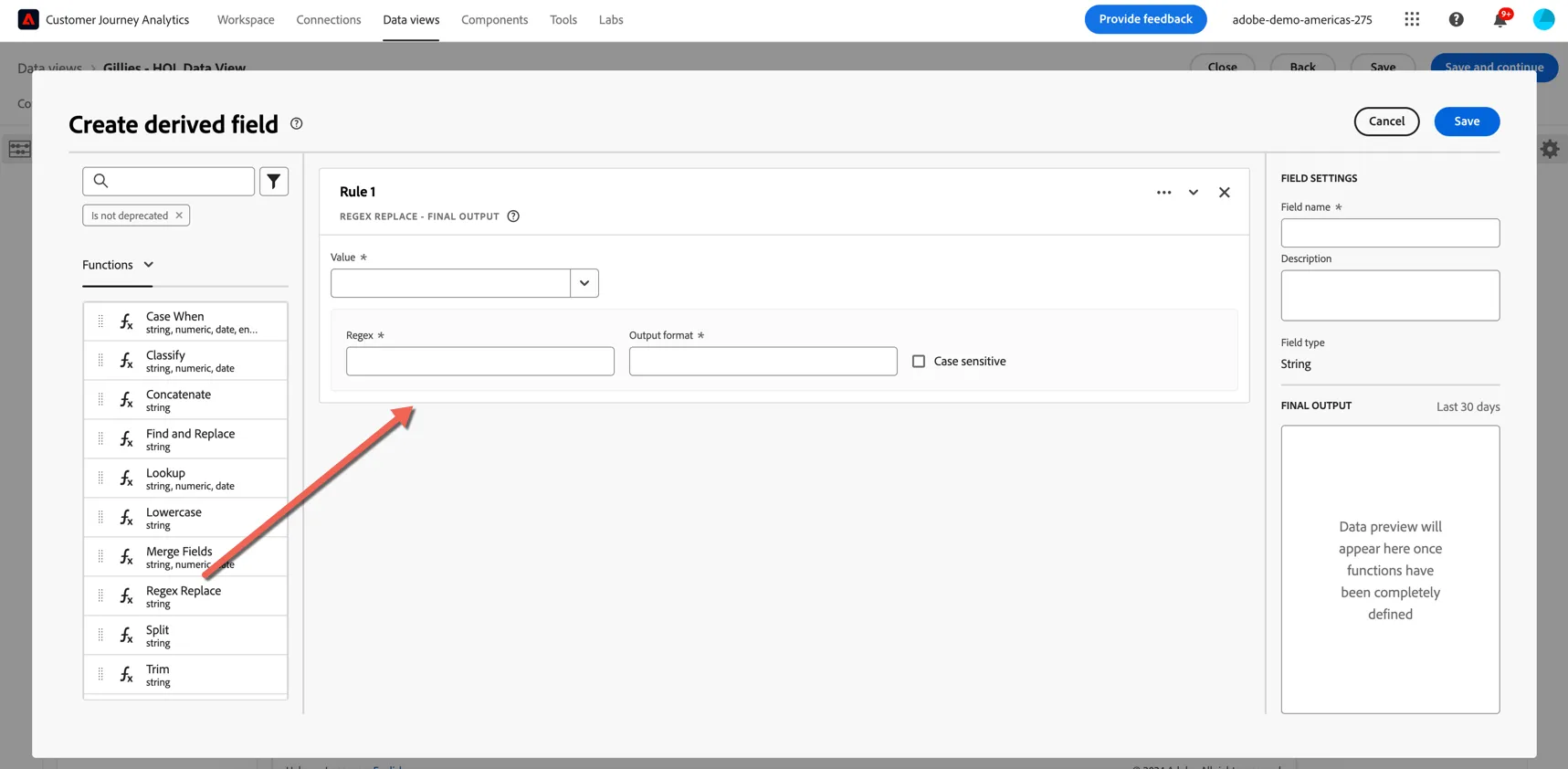
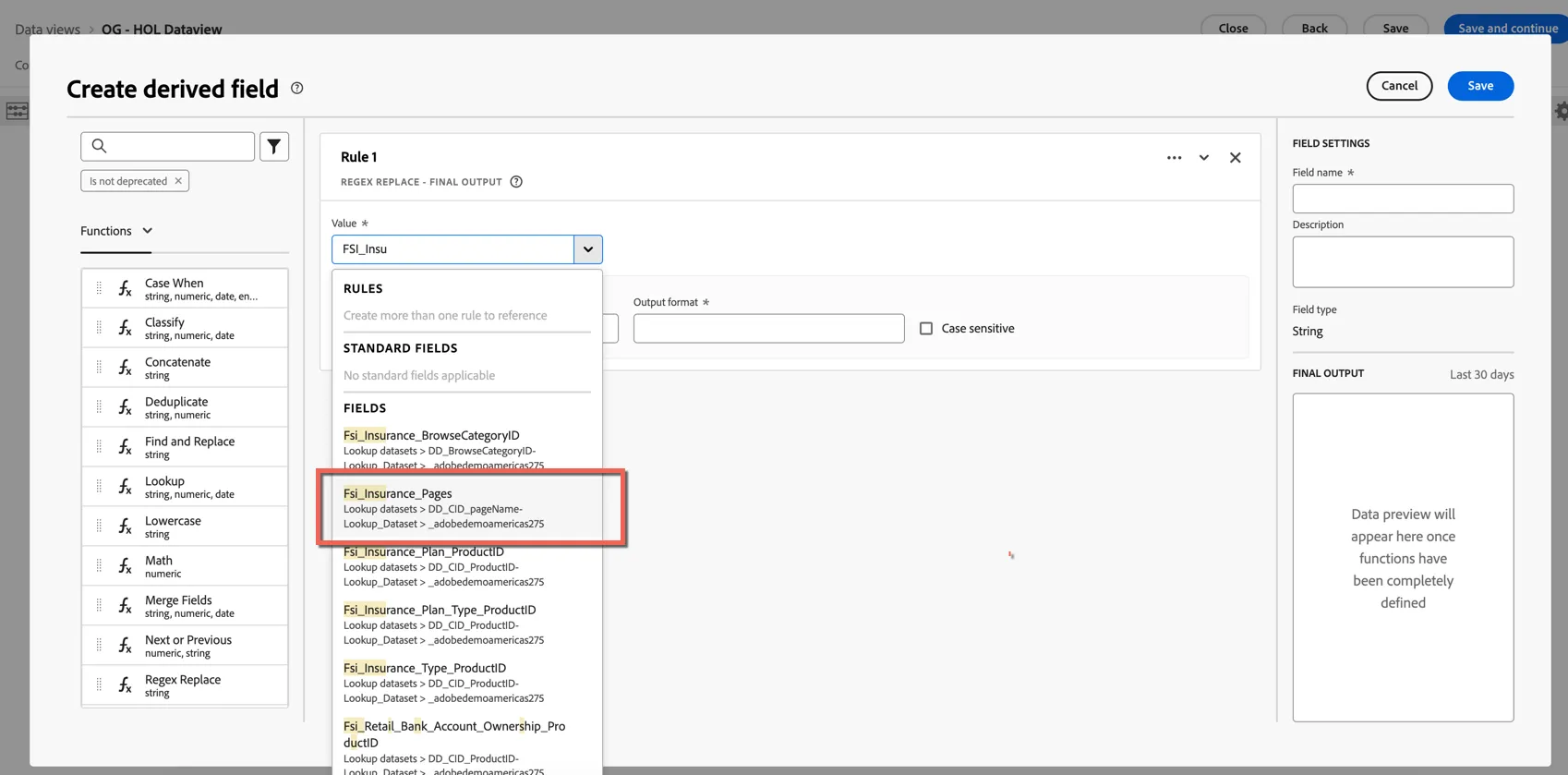
Select the FSI_Insurance_Pages attribute from your Event schemas (this is already a lookup value in this connection but let's use it anyway for demonstration purposes).
Set the regex pattern to (mobile web\:)(.*) and the output format to $2.
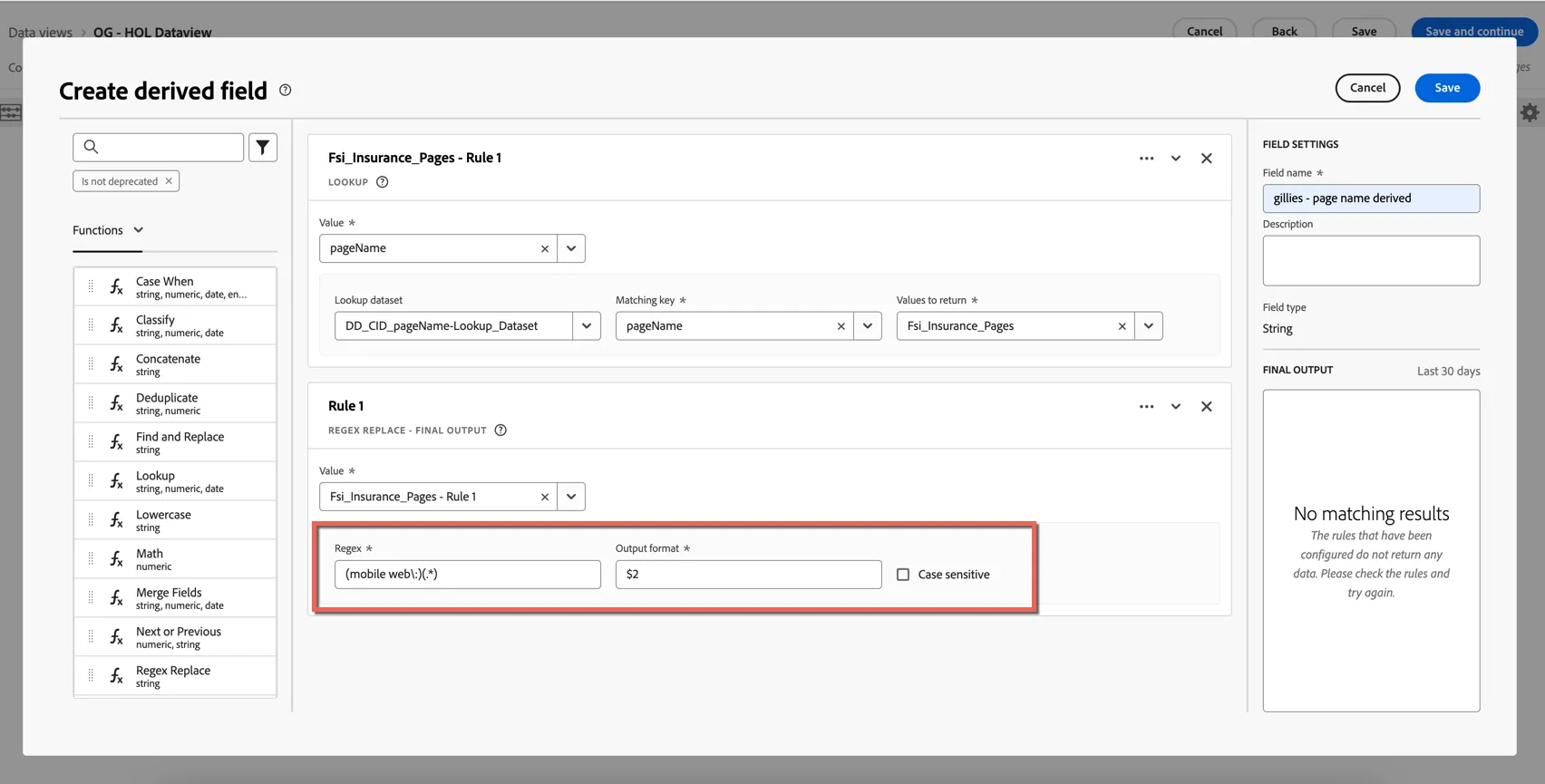
Give your new field a name that's unique to you, eg. gillies - pagename derived. (derived fields are applied to the connection itself not specifically the data view, so we can't all create the same derived field on this connection). Click to Save.
Drag your newly created field into your dimensions list.
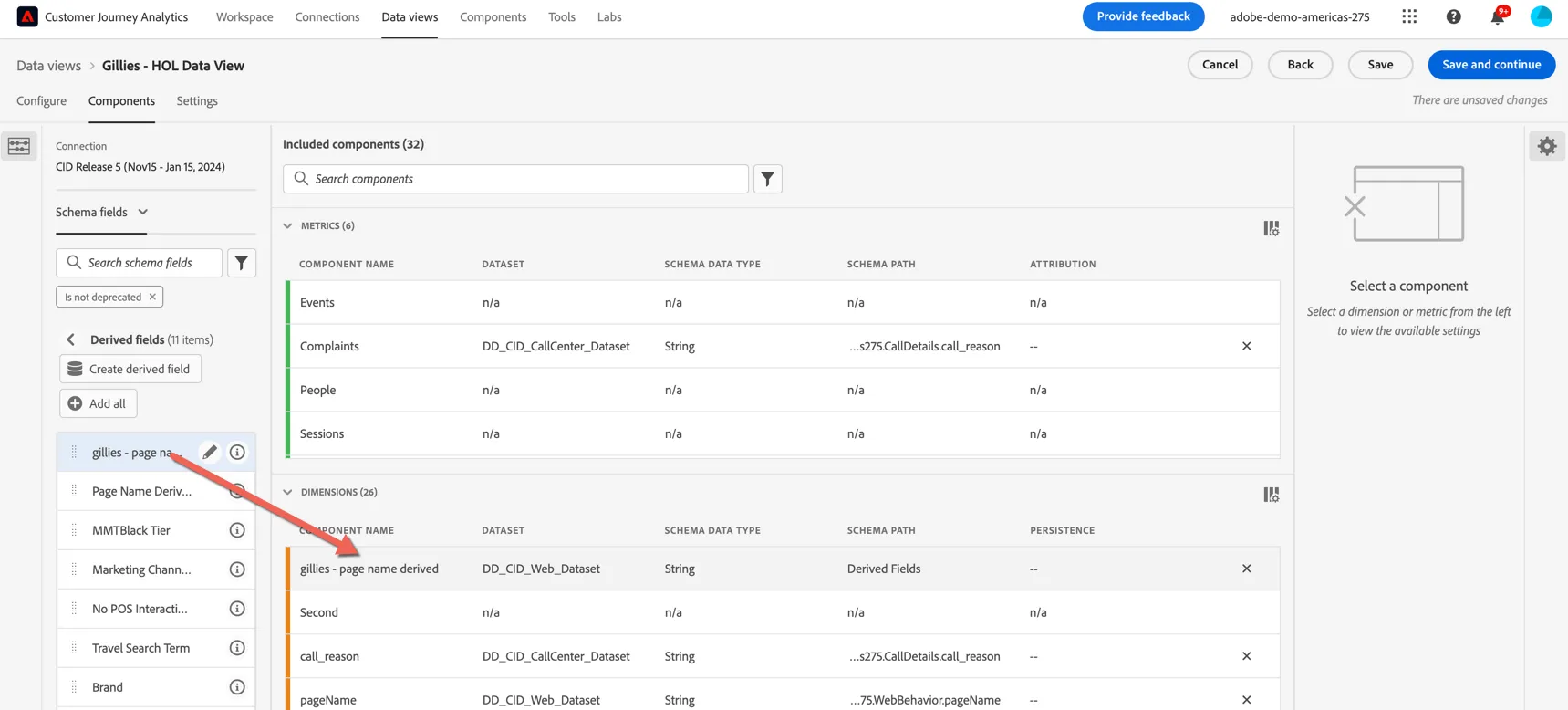
Click Save. Click Close to return to your project.
Replace the page name dimension with your new derived field, values are now reported together.
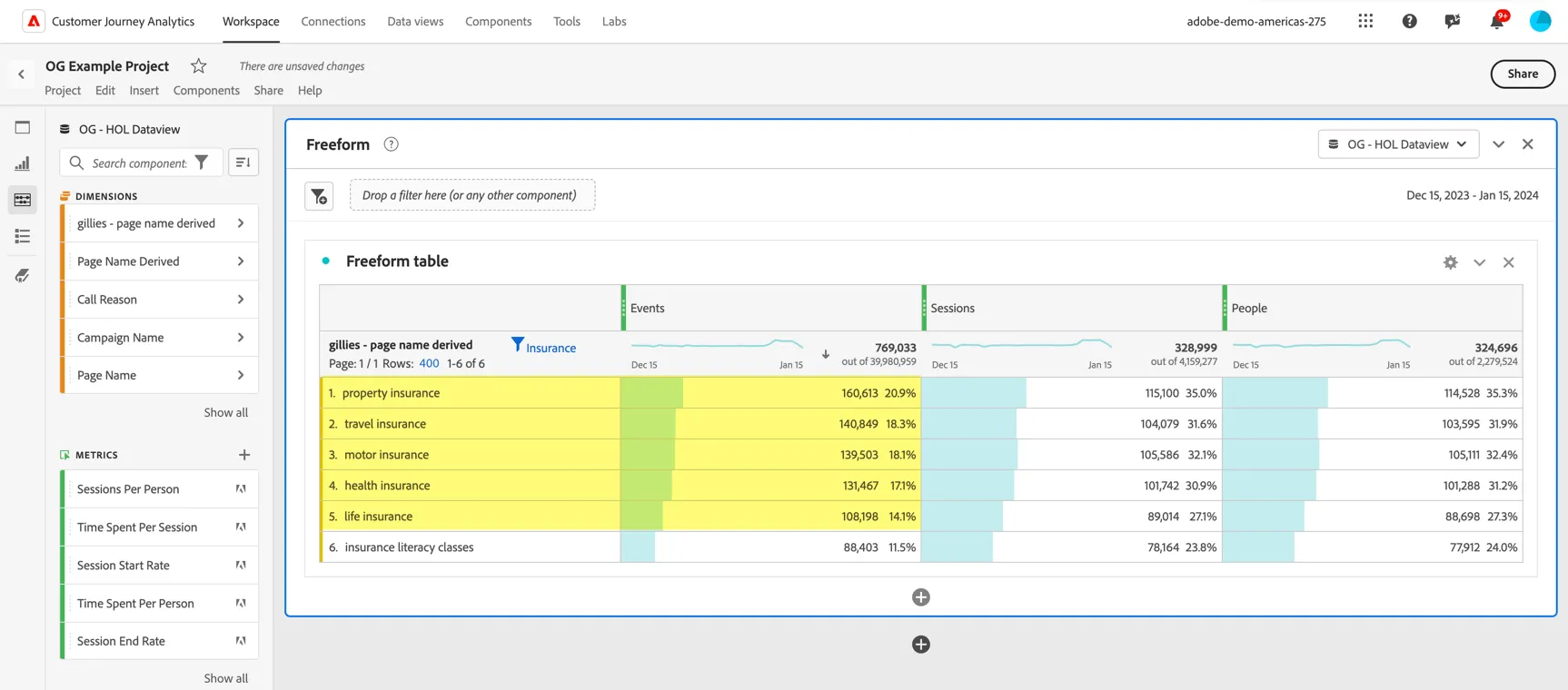
Congratulations you've completed the exercise on Data Views.