Customer Journey Analytics
In this section you'll learn how to view the POC data in Customer Journey Analytics and how to build out your own dashboards and visualisations for analysis.
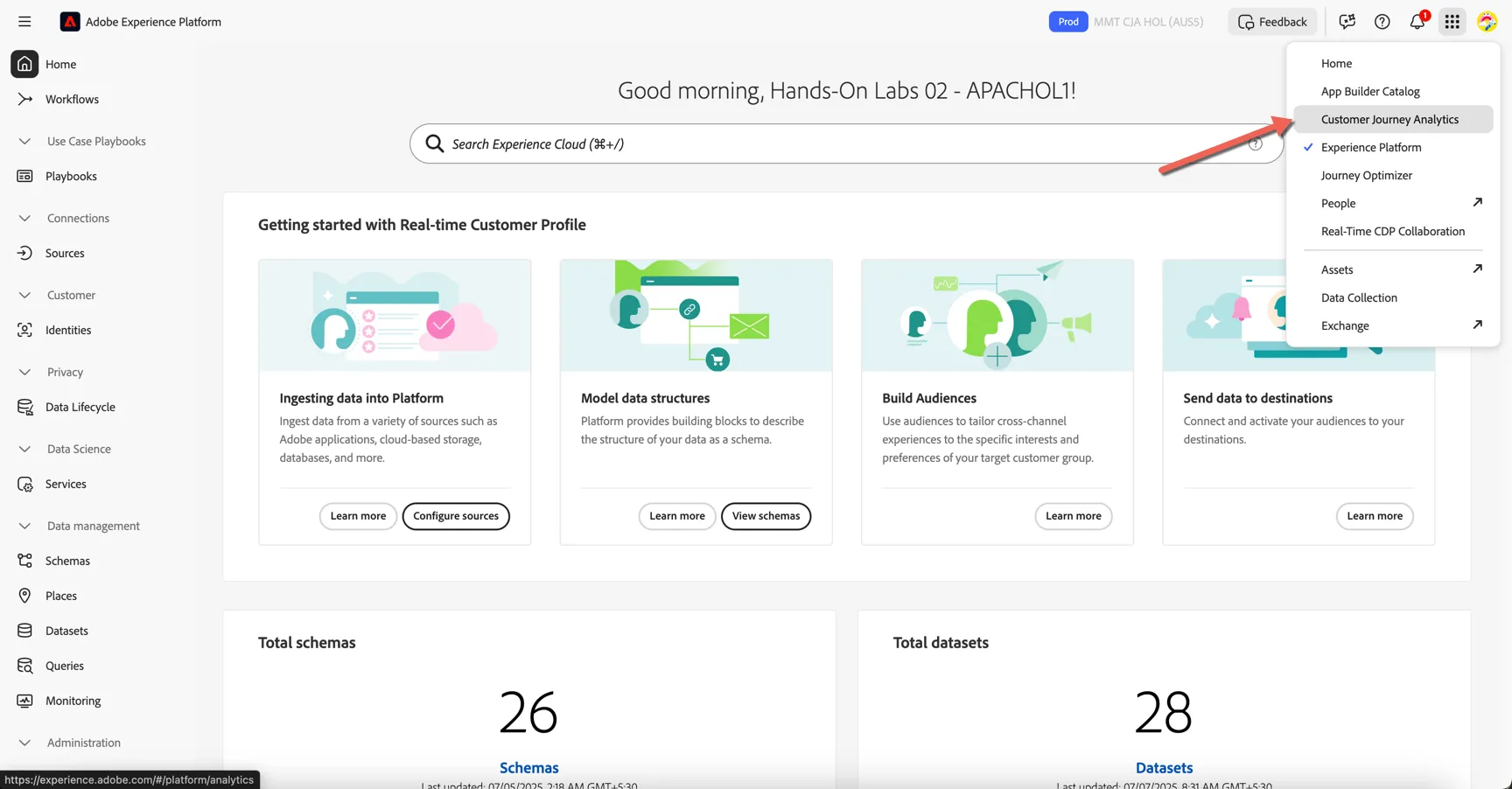
Use the solution switcher to change to CJA.
View a POC Scenario
We've shared the POC Results Dashboard which was demonstrated earlier with you all. Let's start by viewing it.
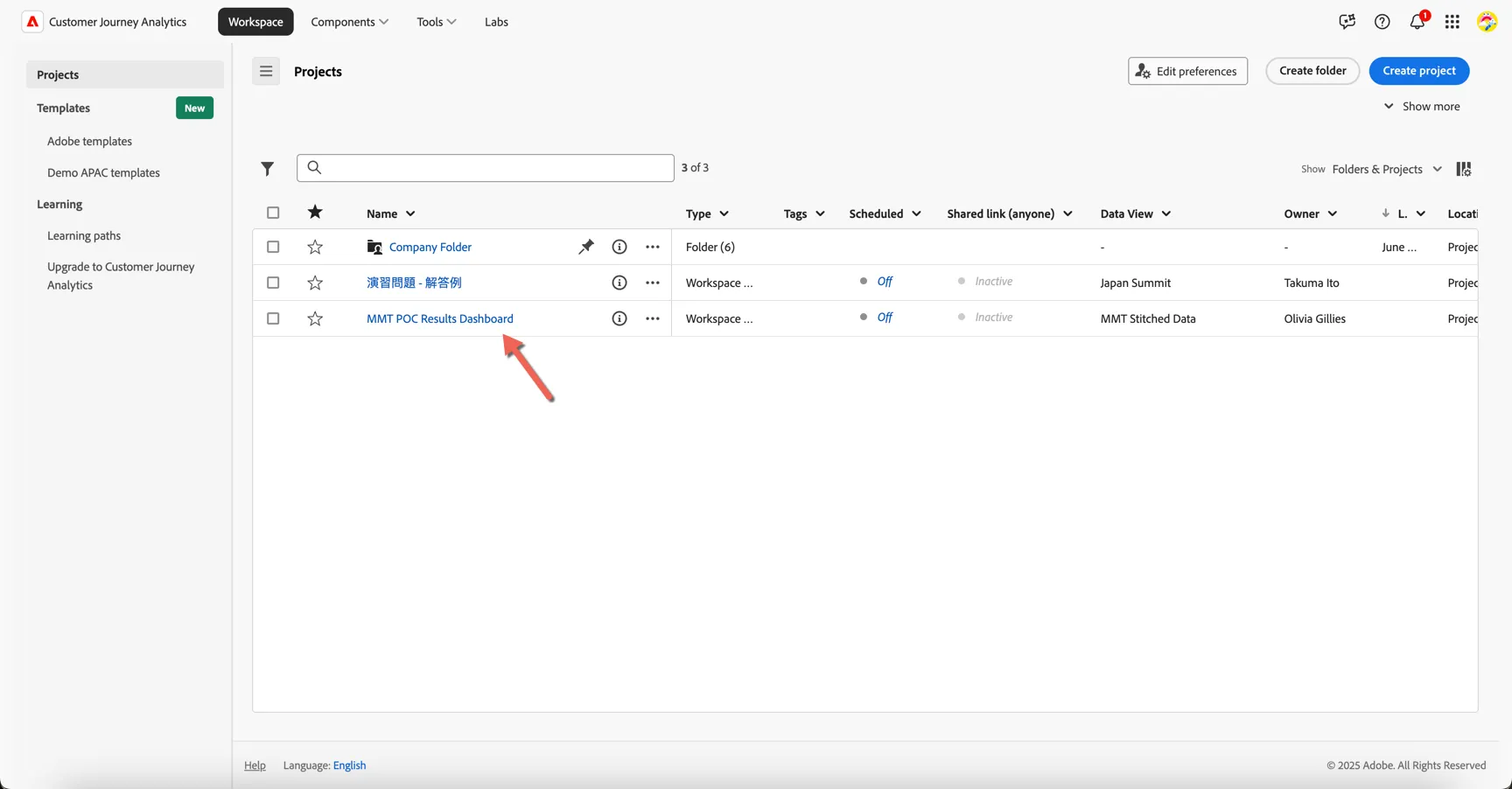
You should see it in your list of projects in Customer Journey Analytics:
Click to open the dashboard. You should see a separate panel for each of the 5 scenarios included.
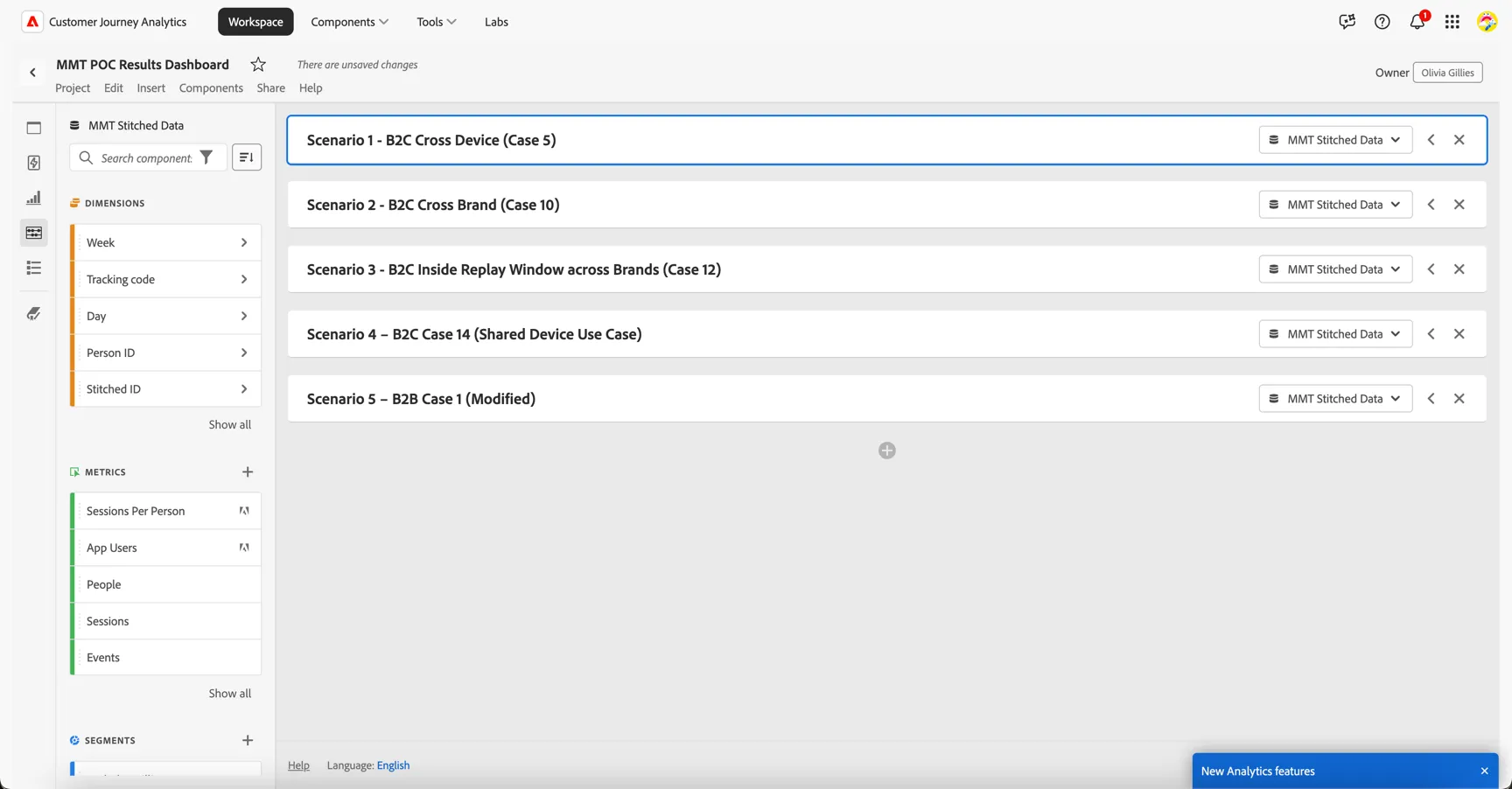
Before we start changing things let's save the Dashboard as your own copy so you can edit it without risk of changing the original. Click on Project -> Save As.
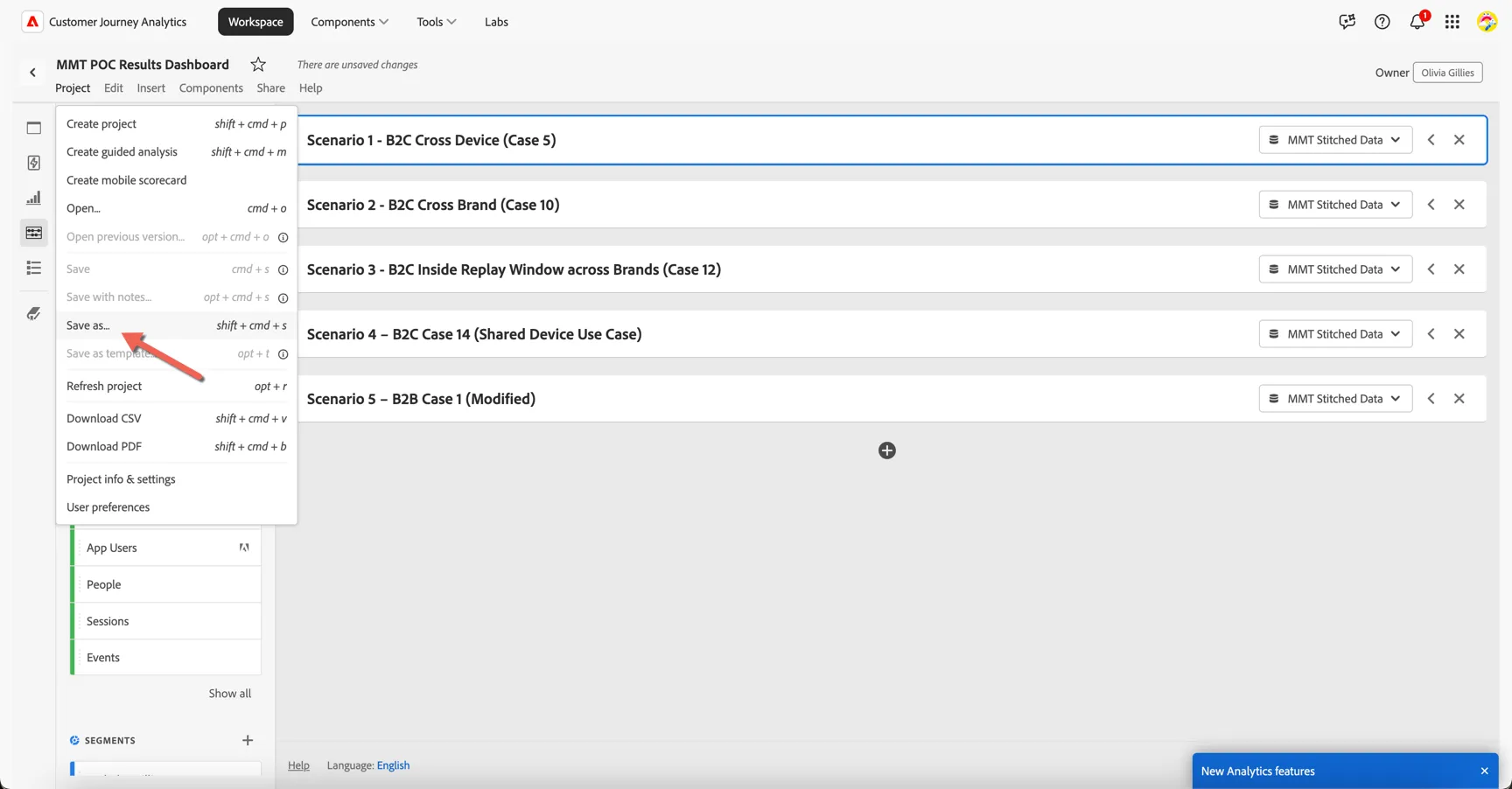
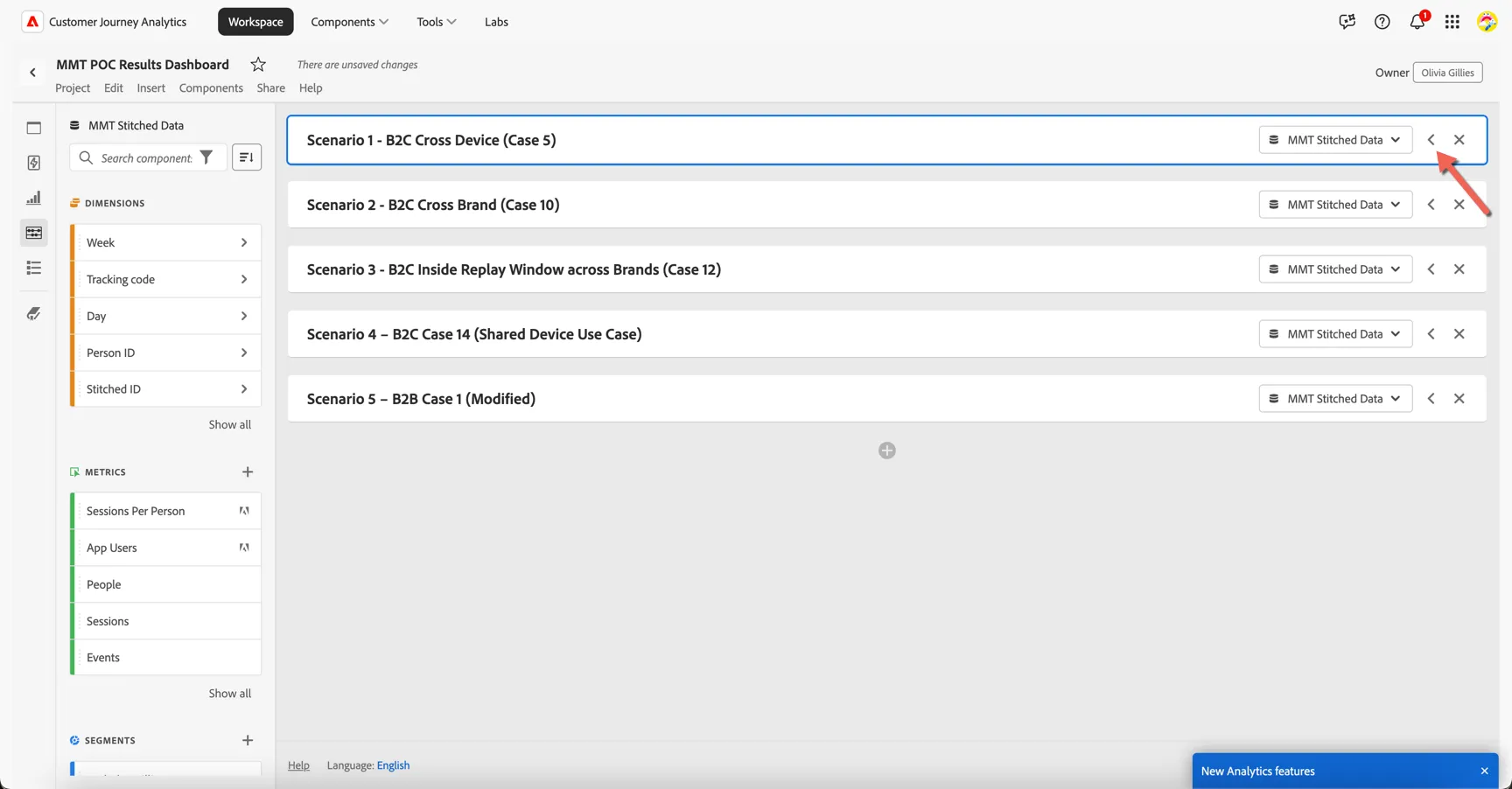
Click on the arrow on the right side to open the first scenario.
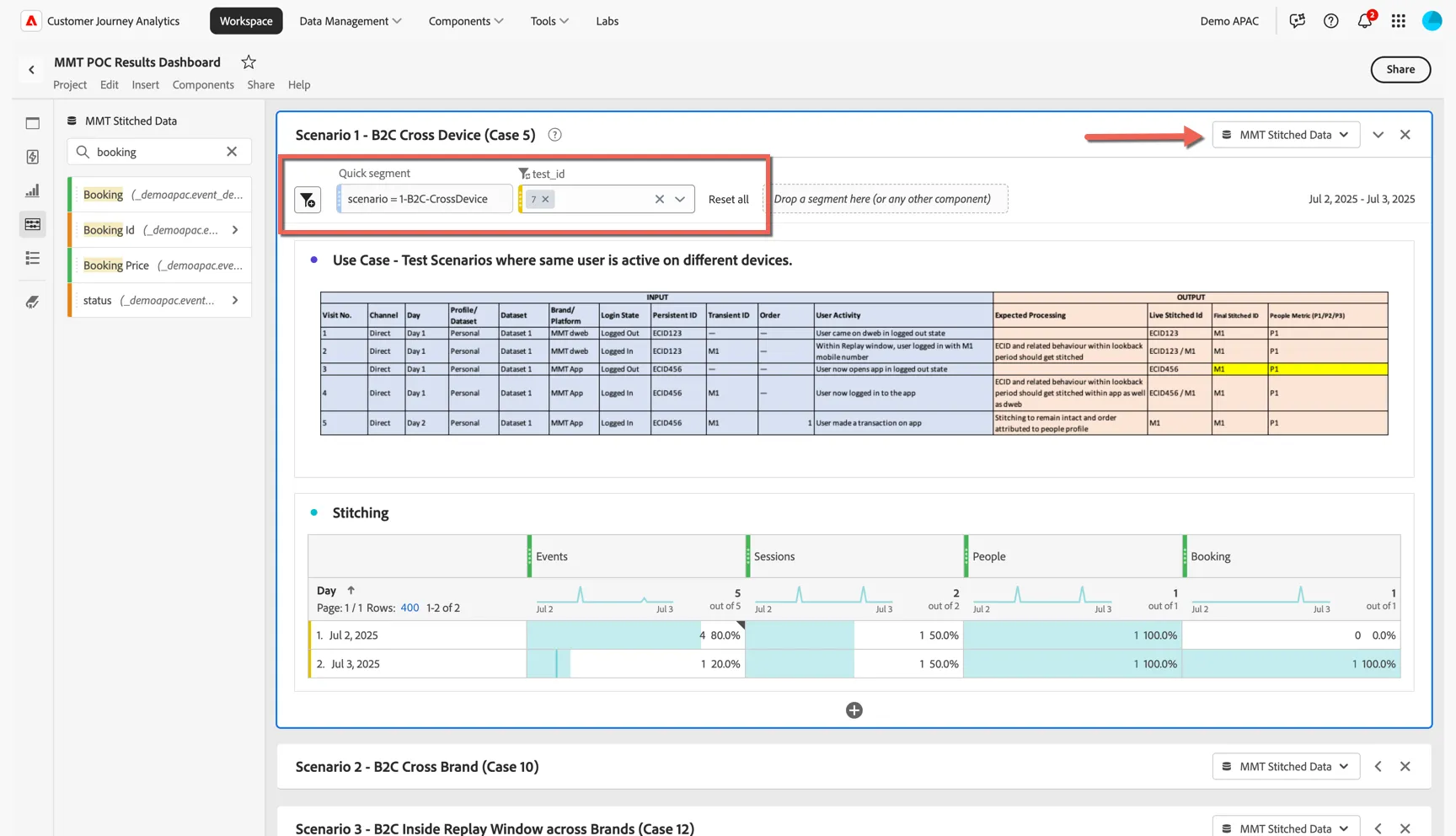
You can see that this panel is looking at the Stitched data view, and the filters applied at the top of the panel control which POC scenario and which test iteration of that scenario is being displayed.
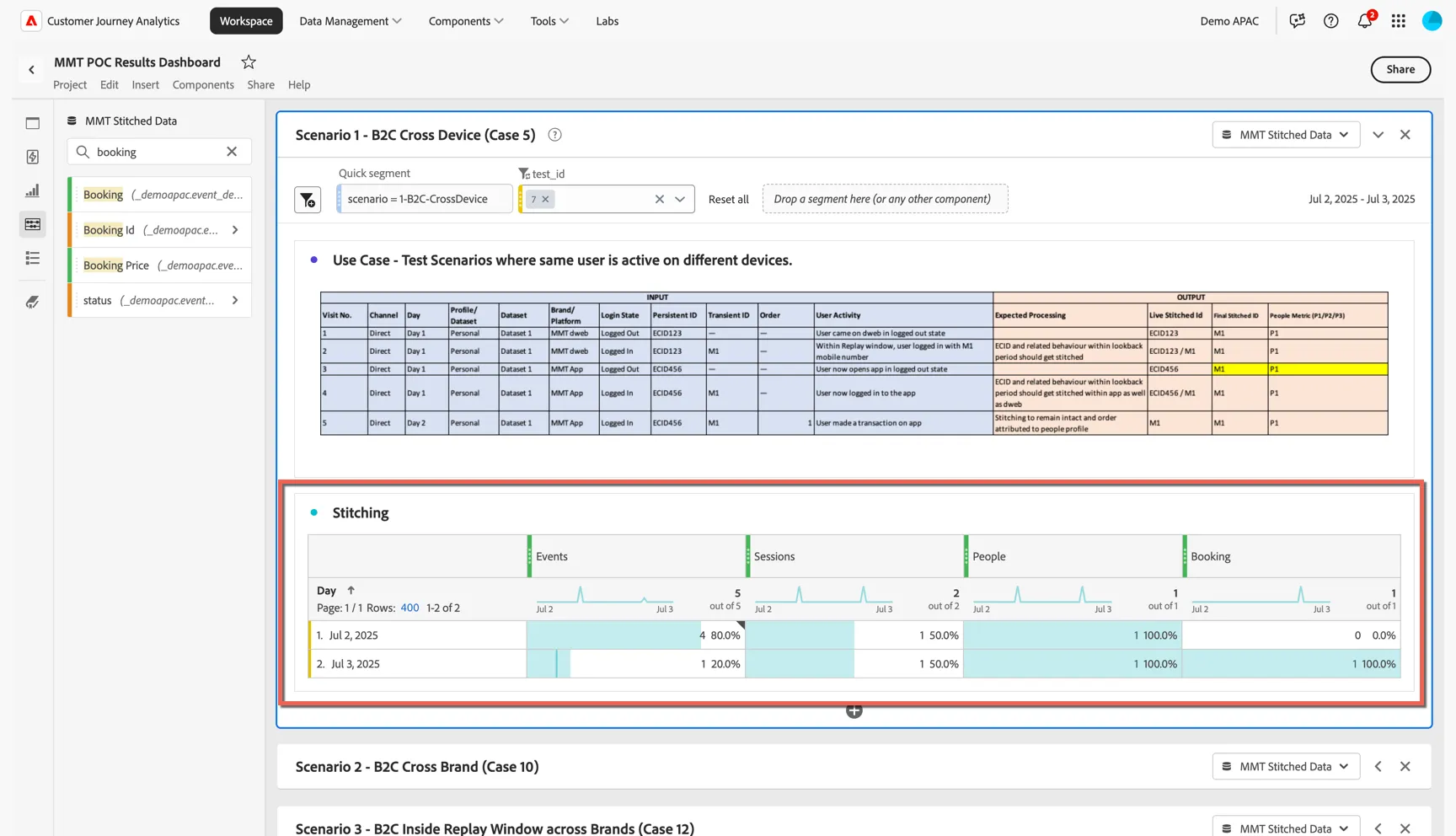
You can see in the freeform table that this scenario has data collected over 2 days, July 2 and July 3. There are 5 events in total, all of which have been stitched to the same 1 person.
Note that the terminology in CJA has been updated from hits, visits and visitors to events, sessions and people.
We can also see that 1 booking was received on July 3.
Now let's see how the stitching worked. Replace the day dimension in our freeform with the Stitched Id dimension.
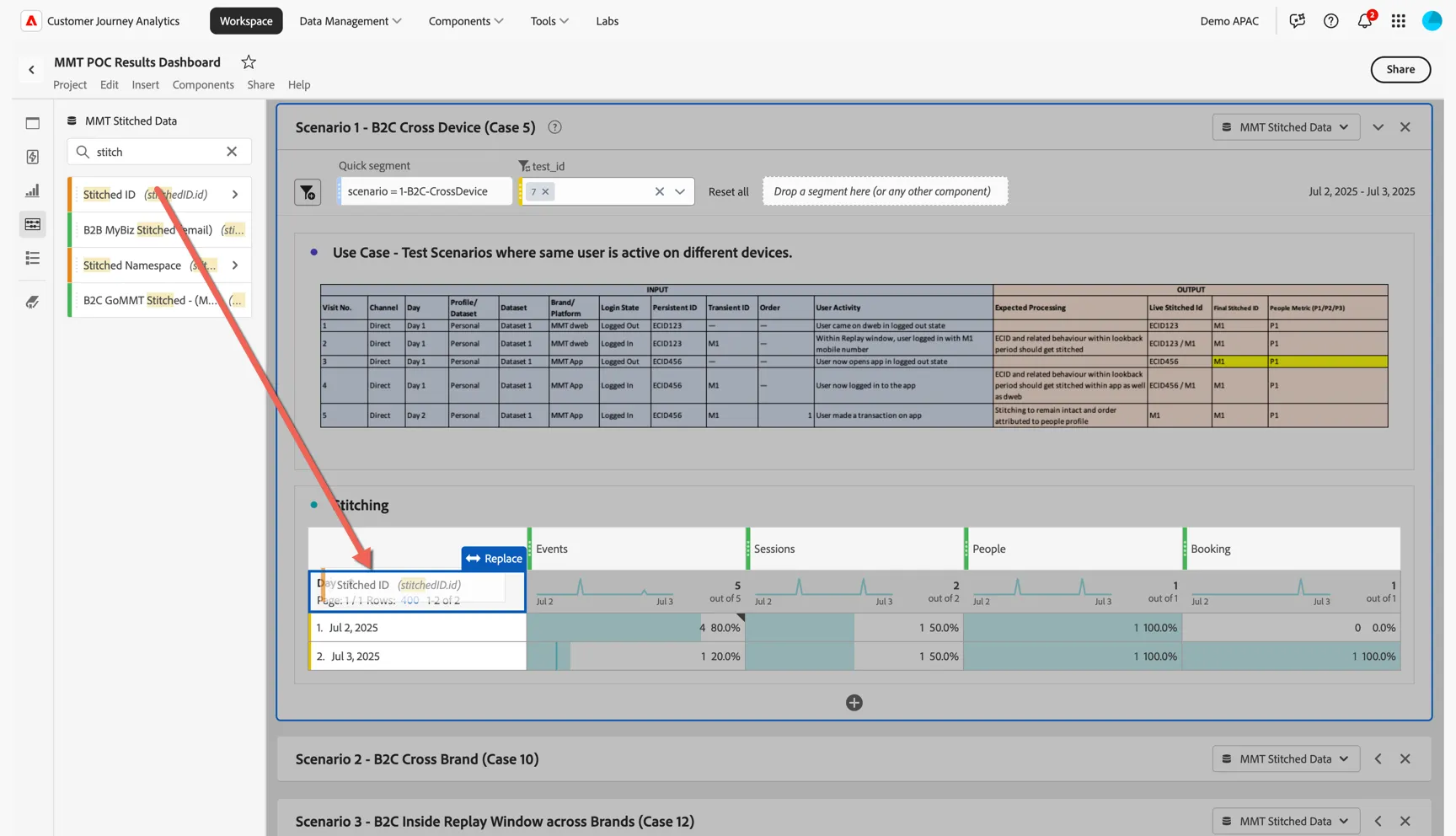
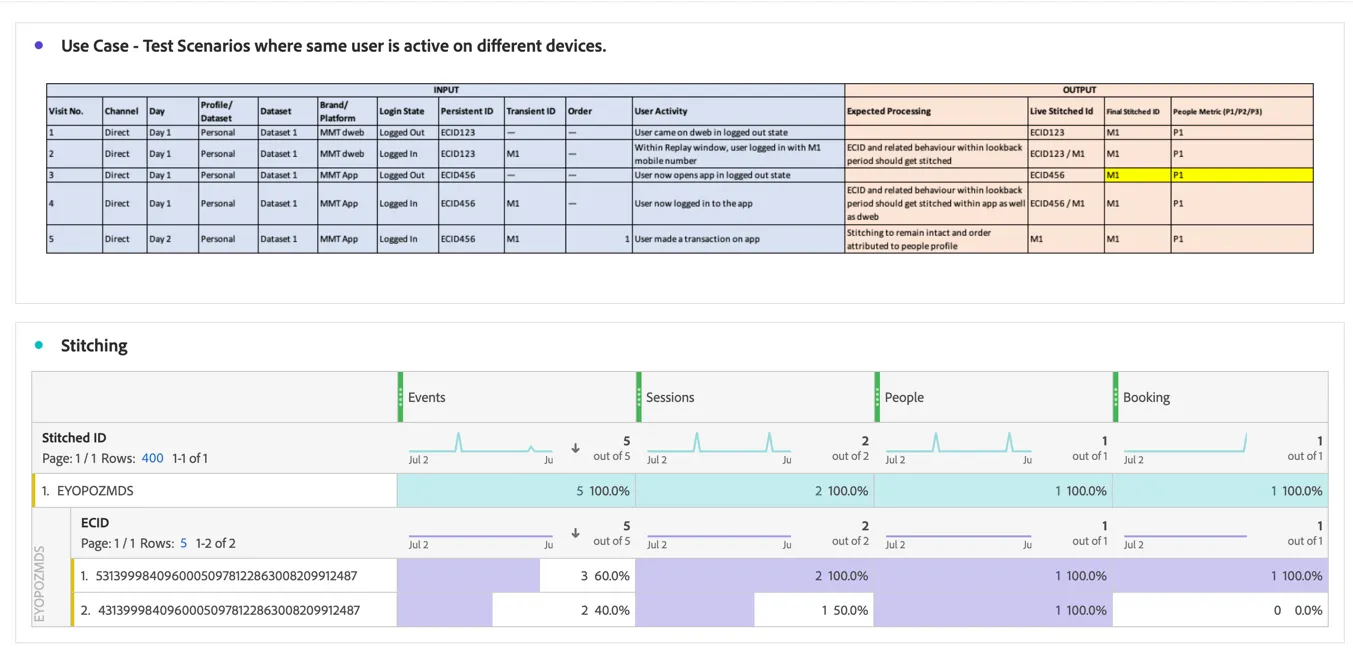
We can see that all 5 events have been stitched to the same "person id", in this case a fake mobile number hash EYOPOZMDS.

This scenario was to prove that we could stitch the journey across devices. Break down the Stitched Id with the ECID dimension to see the device id's that were collected for these events.
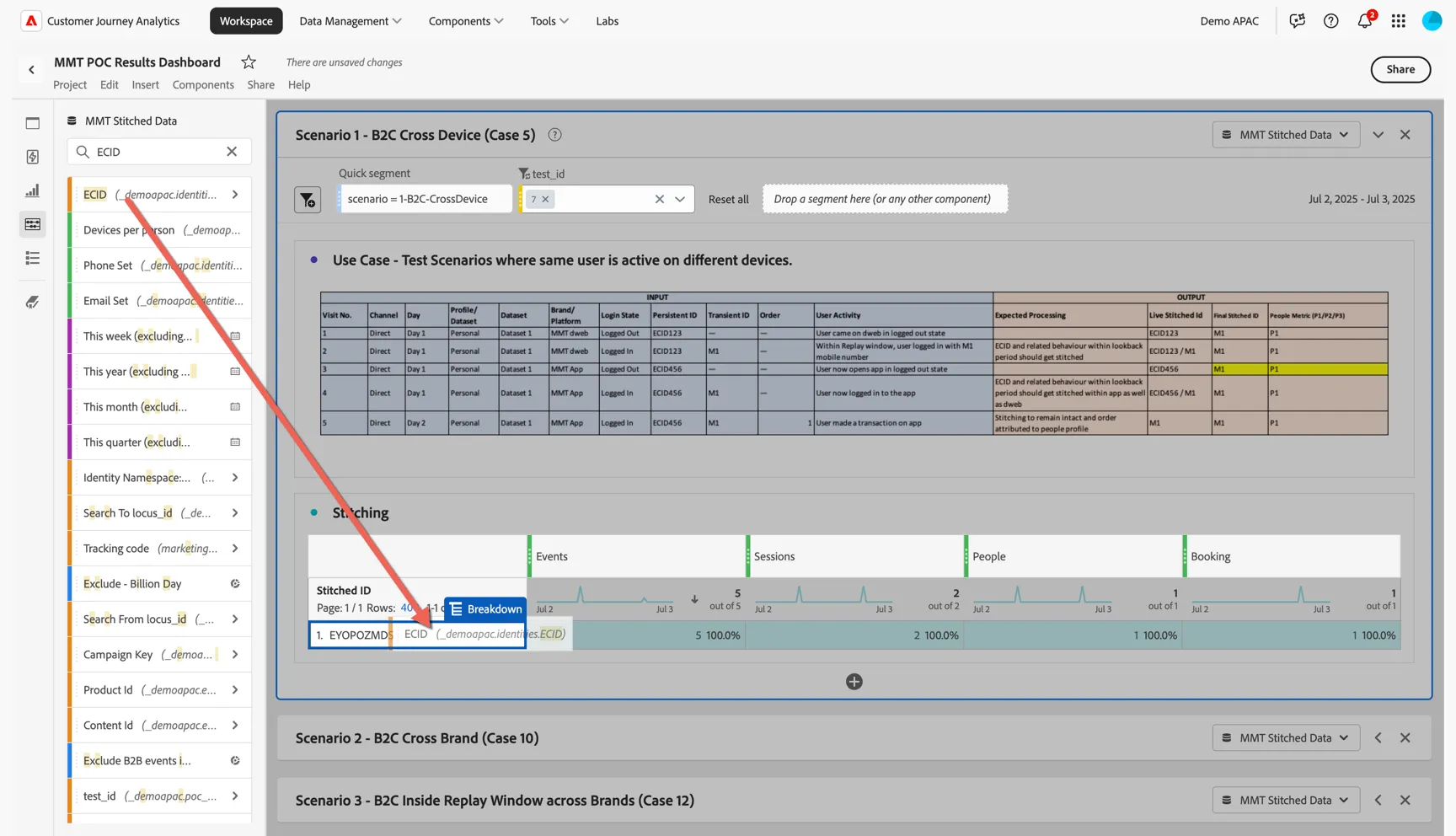
We can see that the 5 events originated from 2 different ECID values.
For comparison you can change the Data View to see what the data would like without stitching - this is equivalent to what you would see in Analytics where the "person id" is the ECID cookie.
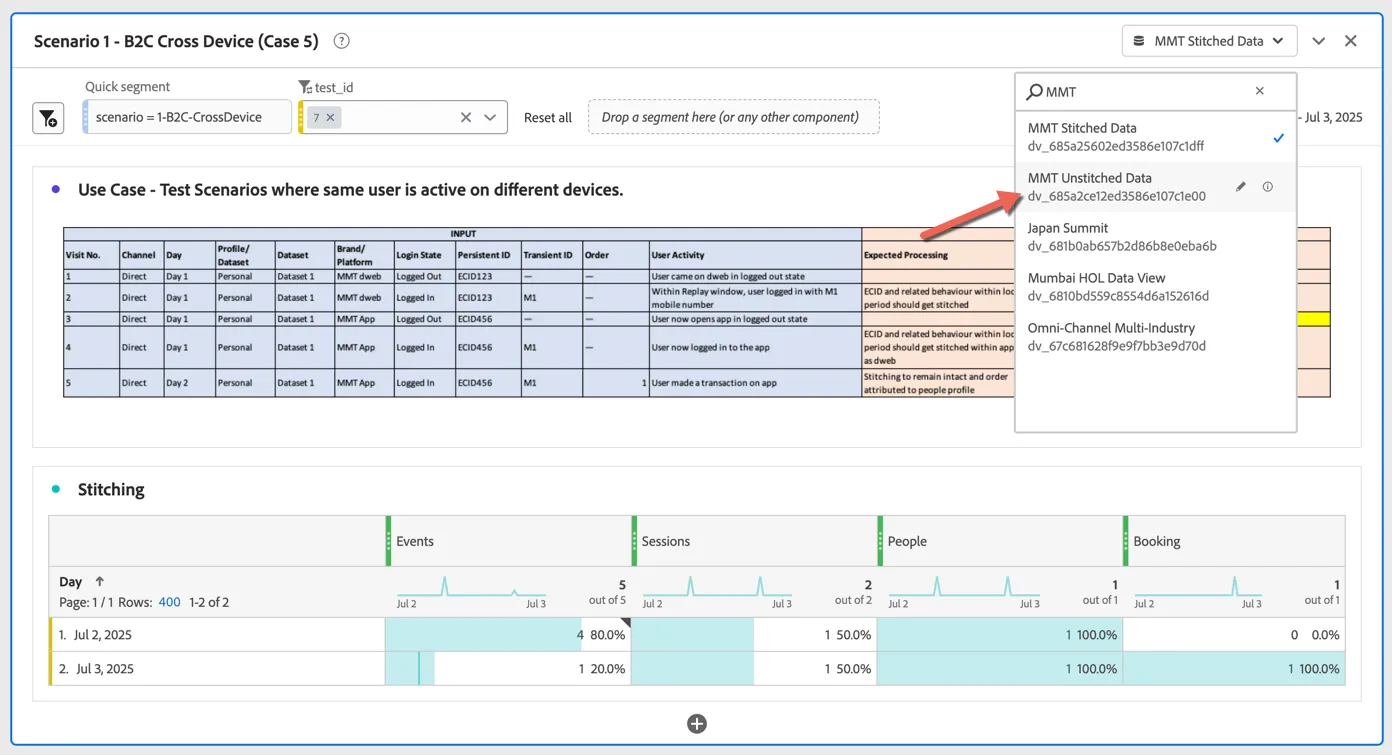
You can see in this view we still have 5 events but it's been attributed to 2 separate people.

Attribution
Open the second POC Scenario, this scenario demonstrates both cross device and cross brand stitching.
We can see that events from 4 devices and 2 brands have been identified as coming from 3 people.
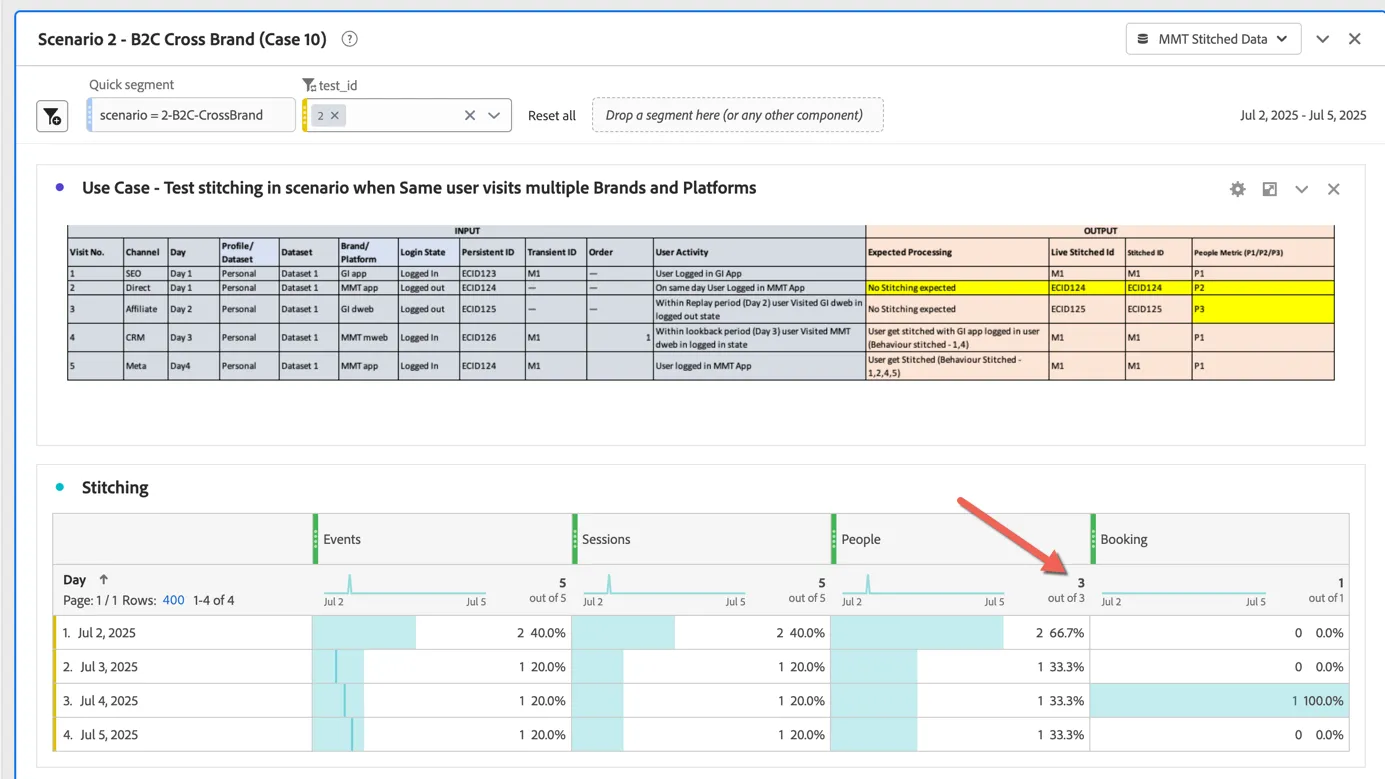
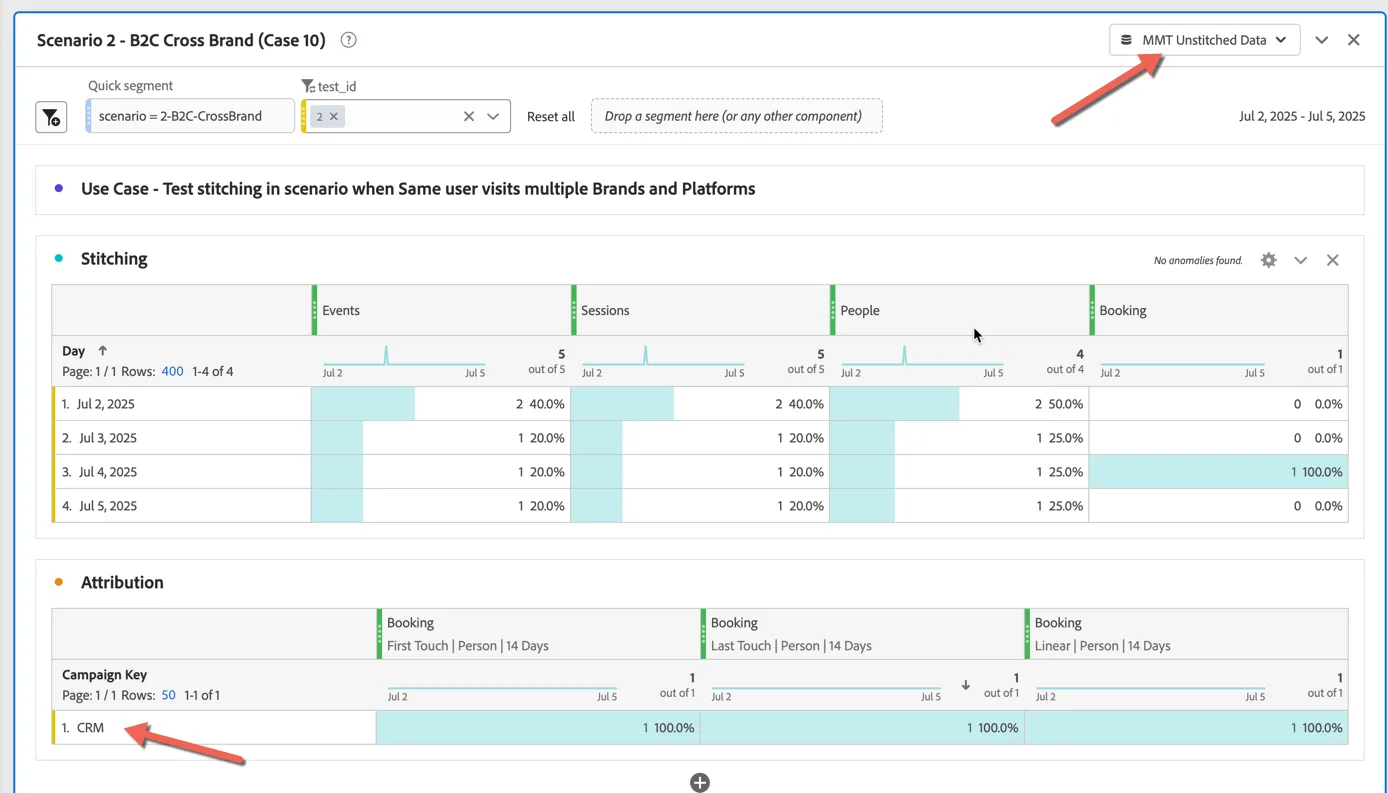
This becomes interesting when you consider the impact it can have on your attribution reporting. When you consider that the first event which recorded SEO as marketing channel was collected from the GoIbibo App, but the booking was eventually received 2 days later on the MMT Mobile Website. When you look at the attribution panel we can see that using person based attribution, first touch or multi-touch attribution that SEO had an impact on this booking.

Once again if you change the Data View to MMT Unstitched Data, you will see that we consider CRM as the only channel impacting this booking.
In addition, Customer Journey Analytics provides access to Adobe's Algorithmic Attribution Modelling, this multi-touch model uses AI/ML to allocate credit across dimensions.
Visualize the journey
Now that we have access to the stitched view of the customer across platforms we can start to visualize how they are behaving across brands and devices.
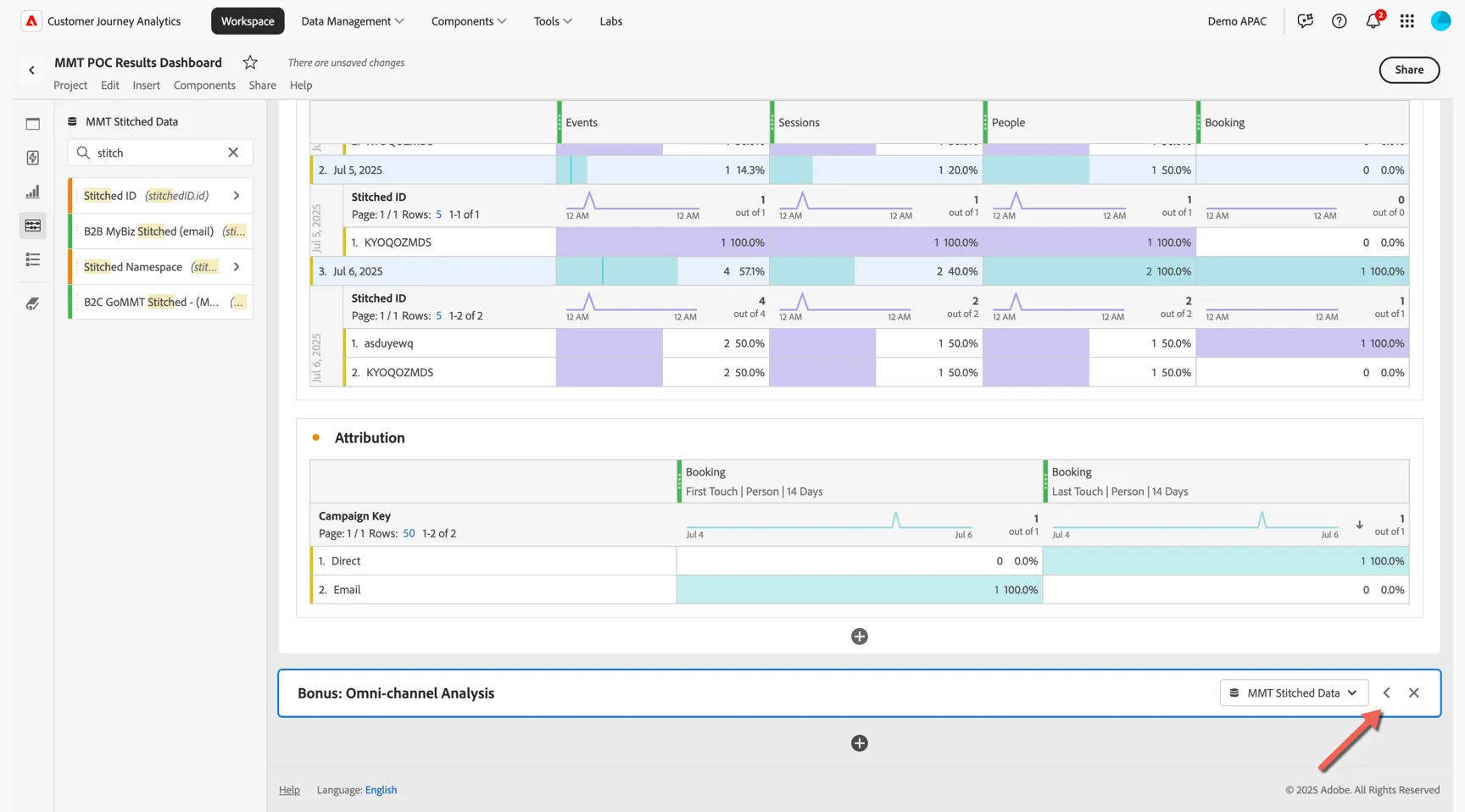
We've added an extra panel to provide an example of the types of visualisations you can build to explore the end to end customer journey.
Click to expand the Bonus Panel
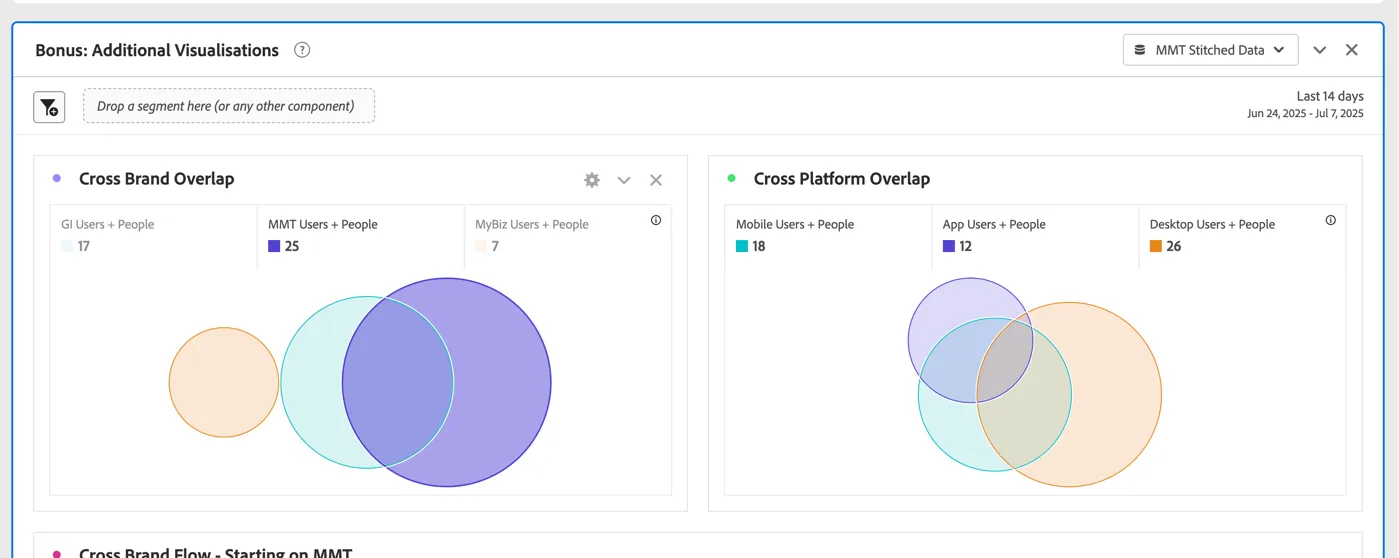
The first two venn diagrams show the overlap of people across brands and platforms. Note that the MyBiz profiles do not overlap, this is by design using Email Hash to isolate B2B journeys.
Below this we can visualise the same using a flow visualisation to see how many customers start on MMT before interacting on GI.
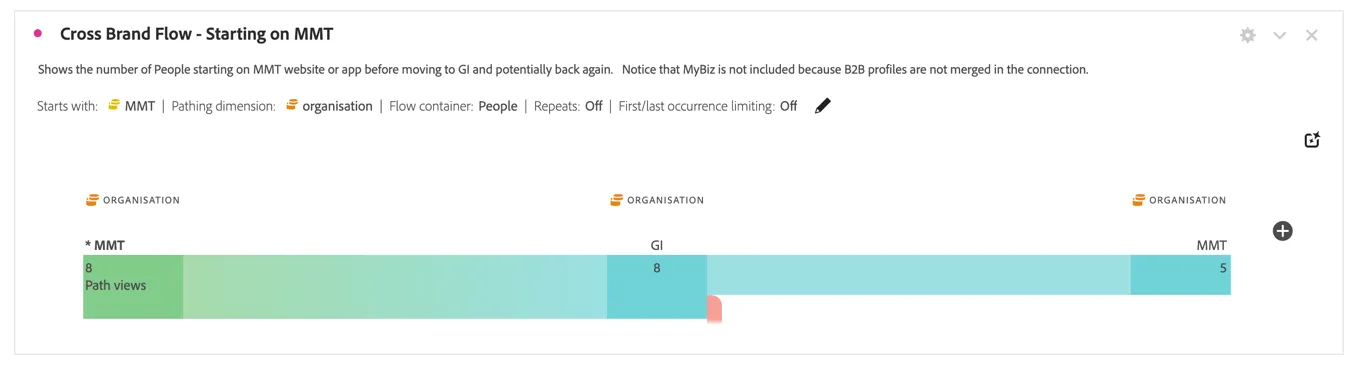
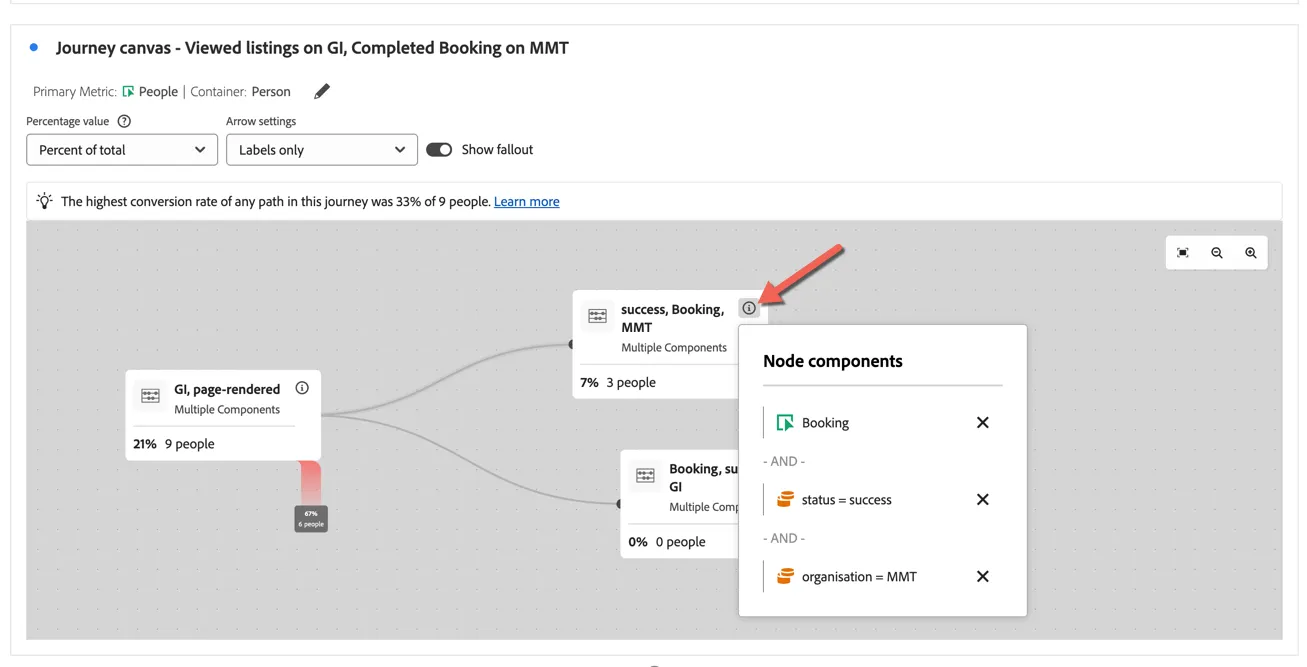
Finally we can use the CJA specific Journey Canvas to really drill down into specific journeys. Here we are combining dimensions to understand how many people visiting a hotel listing page on GI before completing an order on MMT.
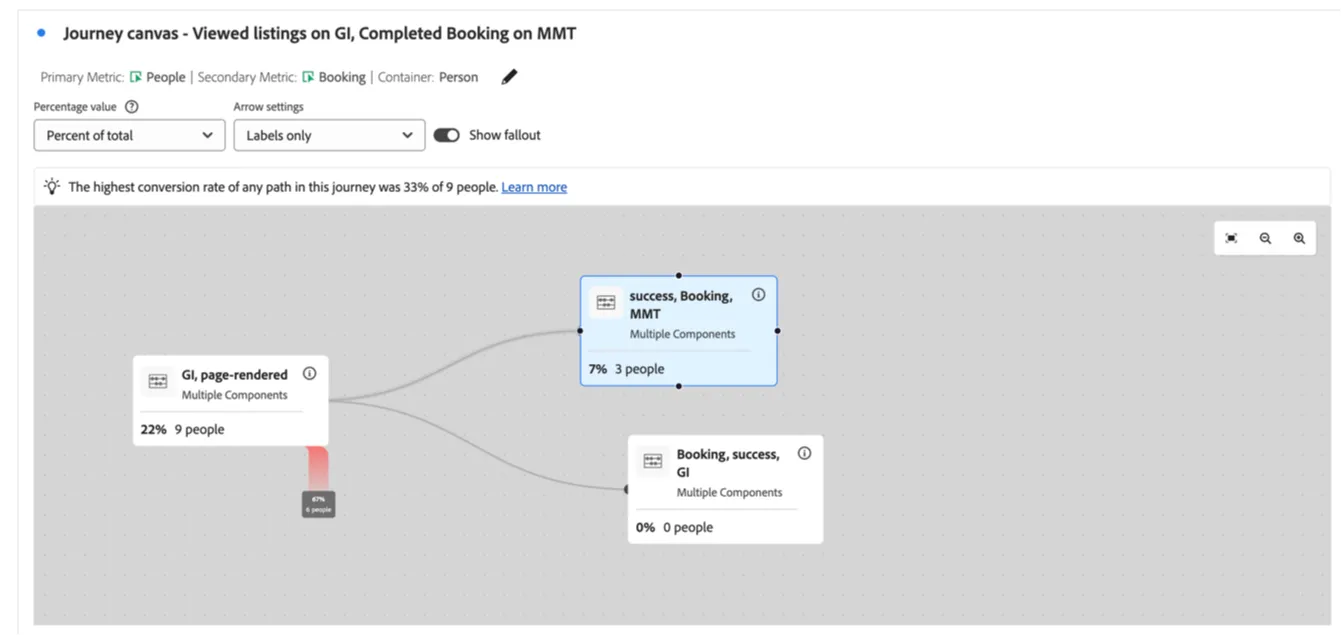
Click on the info icon to see which dimensions have been selected for each step.