Analysing Cross Channel Data
Objective
- Connect data points across multiple channels.
- Identify cross-channel session.
- Understand how customers interact and move across multiple devices.
Context
In this exercise you will use Analysis Workspace within Customer Journey Analytics to analyse product views, product funnels, churn etc.
Let’s use the project you just created.
With your project opened and the Data View selected, you're ready to start building your first visualisations...
- Add a new Panel to your workspace.
- Add a new Freeform table into your Panel.
- Rename the table as Events per Day.
- Set the date range to Last 3 Full Months.
- Pull in "Events", "Sessions", "Event: Call center dial-ins" and "Event: Page Views" metrics.
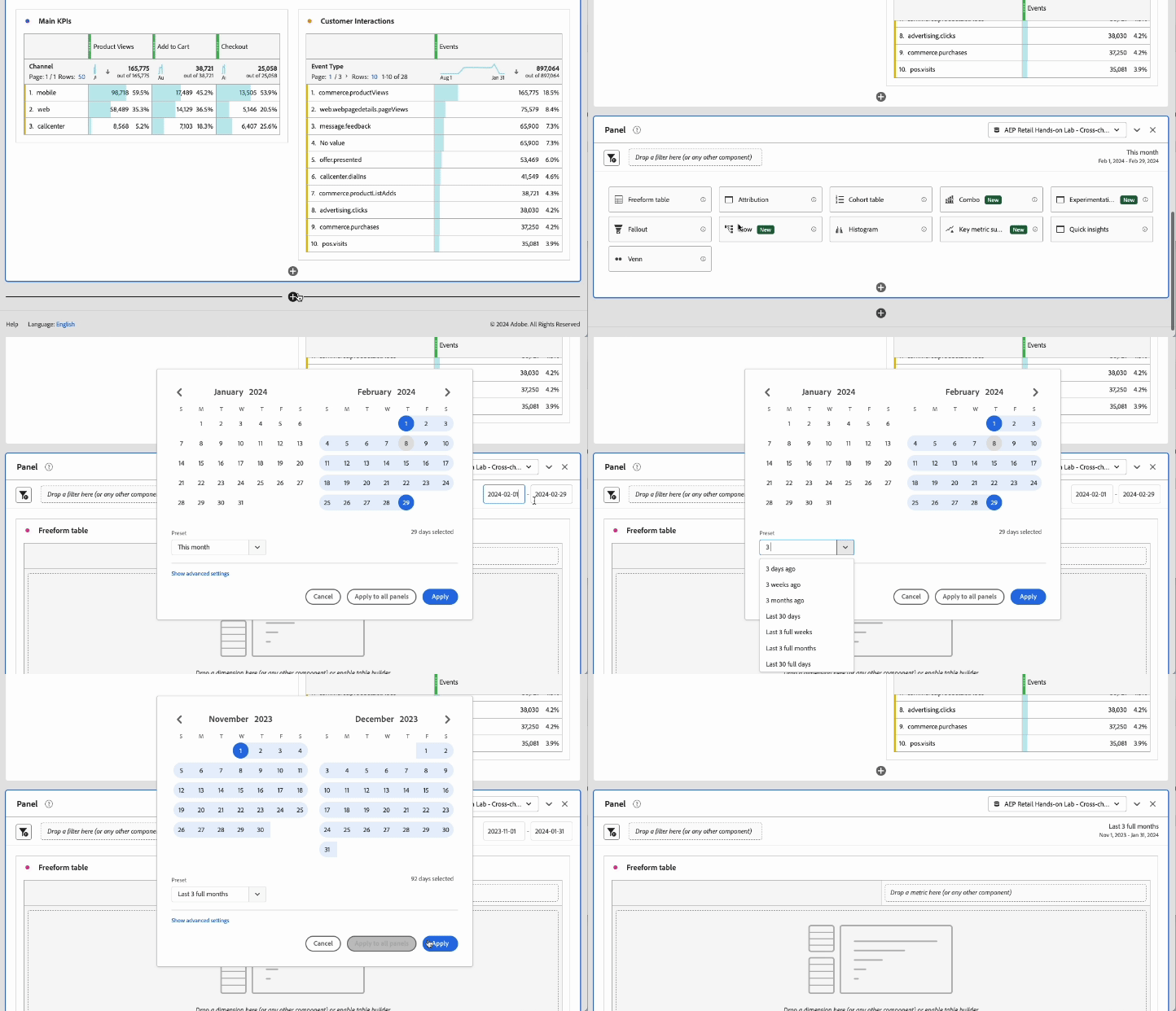
The Event: Call center dial-ins metric represents rows of data that come from the call center dataset. The Event: Page views metrics represents rows of data from the Web Analytics Data.
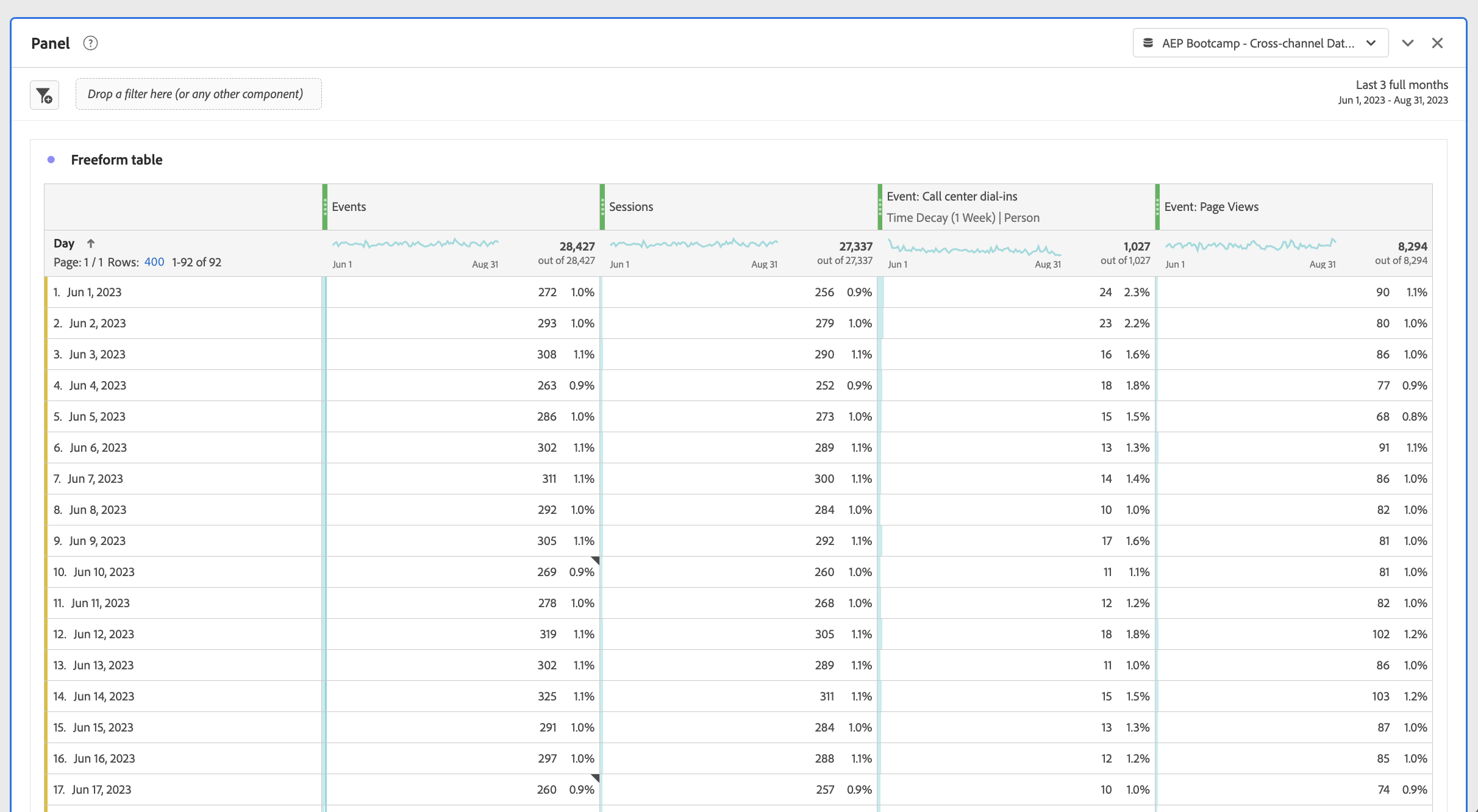
- Search for the Page Name dimension in the Components.
- Replace the Day dimension with the Page Name dimension by dragging it over Day in the table and drop to replace Day with Page Name.
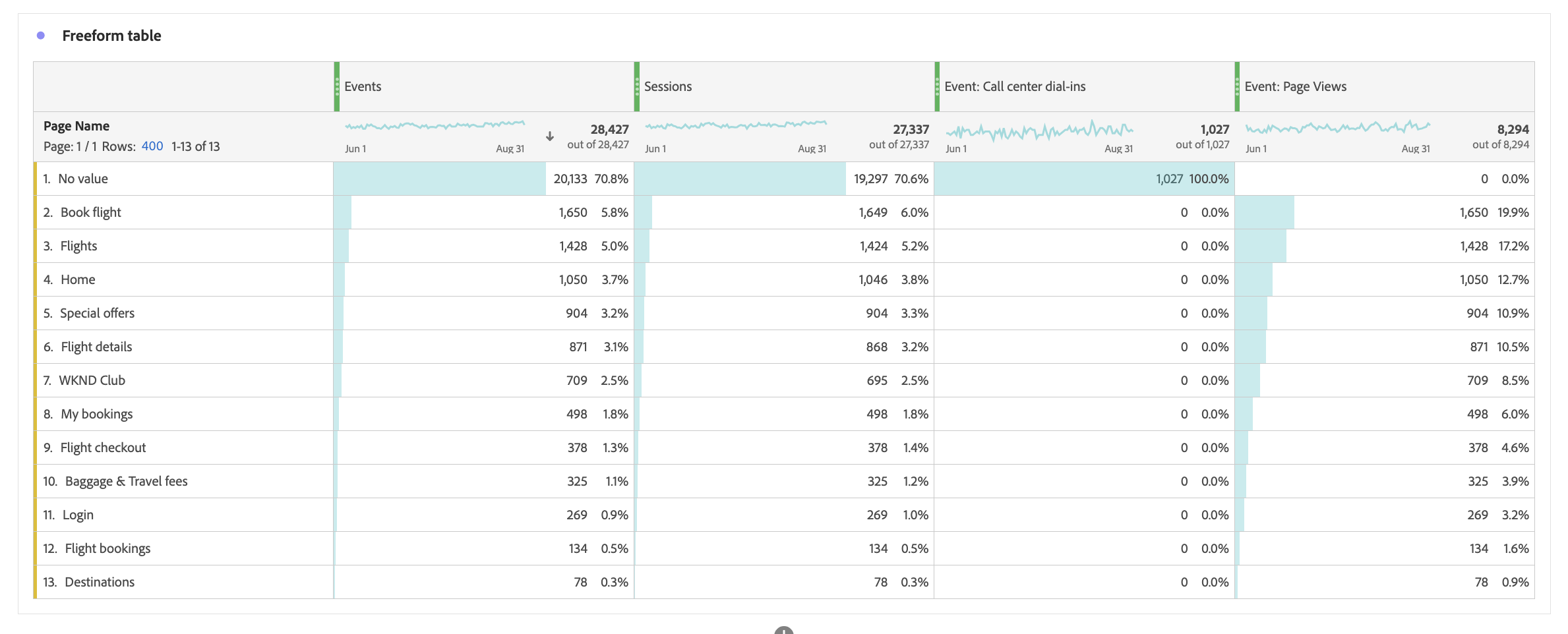
You'll see in the resulting data that there are Events and Sessions associated with each page and there are Page Views associated with each page (which equals the "Events" metric), but there are no Calls associated with each Page. This is because there are no rows that are both Web and Call rows, they originate from entirely separate datasources and are ingested into separate datasets in Adobe Experience Platform.
- Duplicate this table by right clicking at the top of the Freeform table.
- On the duplicated table, replace the Page Name dimension with the Call Reason dimension.
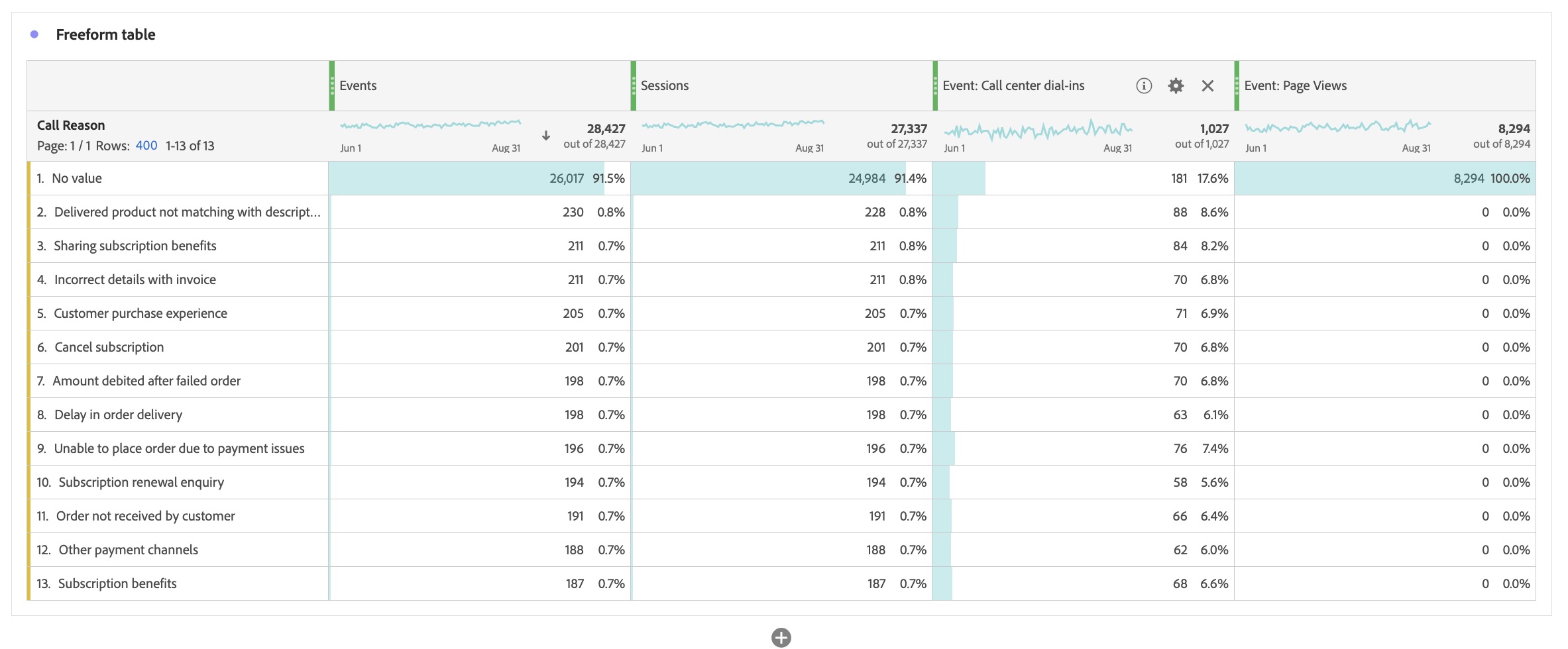
This is the reason for a call that a call center agent entered when they spoke with a customer on the phone.
Notice how there are now Call Reasons that have Events and Sessions and Calls associated with them but no Page Views. Again, this makes sense.
Building a Filter
Filters are the same as Segments in Adobe Analytics, just renamed. And once these filters are built in CJA, they can be shared to Experience Platform, so you can use them in Real-time CDP, for example.
Using filters is one way that we can gain more insight into our cross channel data. We can create filters to understand which sessions were "web" only sessions, which were "call center" only and which were in fact "cross channel".
Keep in mind for CJA, there is no concept of "browser" session, the session calculation is controlled by the event timeout set in your data view. As long as the customers interacts on both channels within the timeout window their events will be considered part of the same session in CJA.
Filter - Cross channel sessions
We're going to create the Cross-Channel Sessions filter.
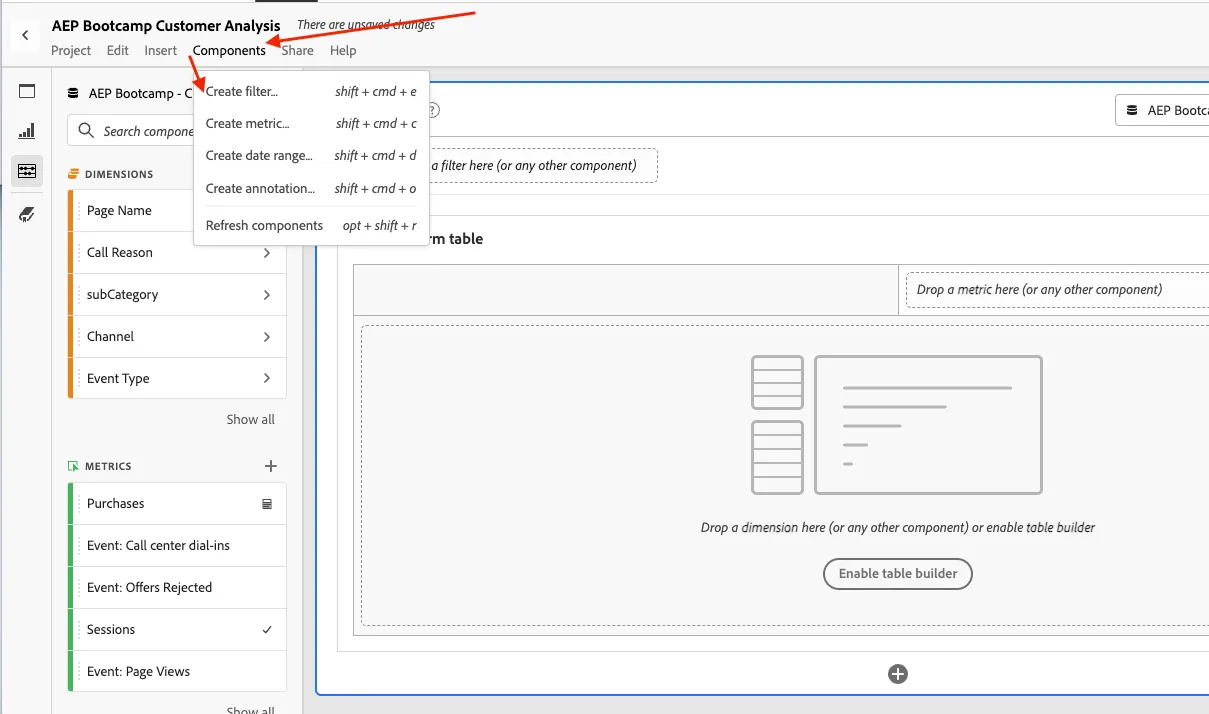
On the main menu, click on Components > Create filter...
- Drag the Event: Page Views metric, and drop it in the Definition section, over the text "Drag & drop Metric(s), Filter(s), and/or Dimensions here.".
- Change the criteria for the Calls metric from Equals 1 to Exists.
- Drag the Event: Call Center Dial-ins metric, and drop it below the Page Views metric.
- Change the criteria for the Calls metric from Equals 1 to Exists.
- From the drop down list beside Include, select Session.
- Name your Filter, [your name] - Cross-channel sessions
- Click Save.
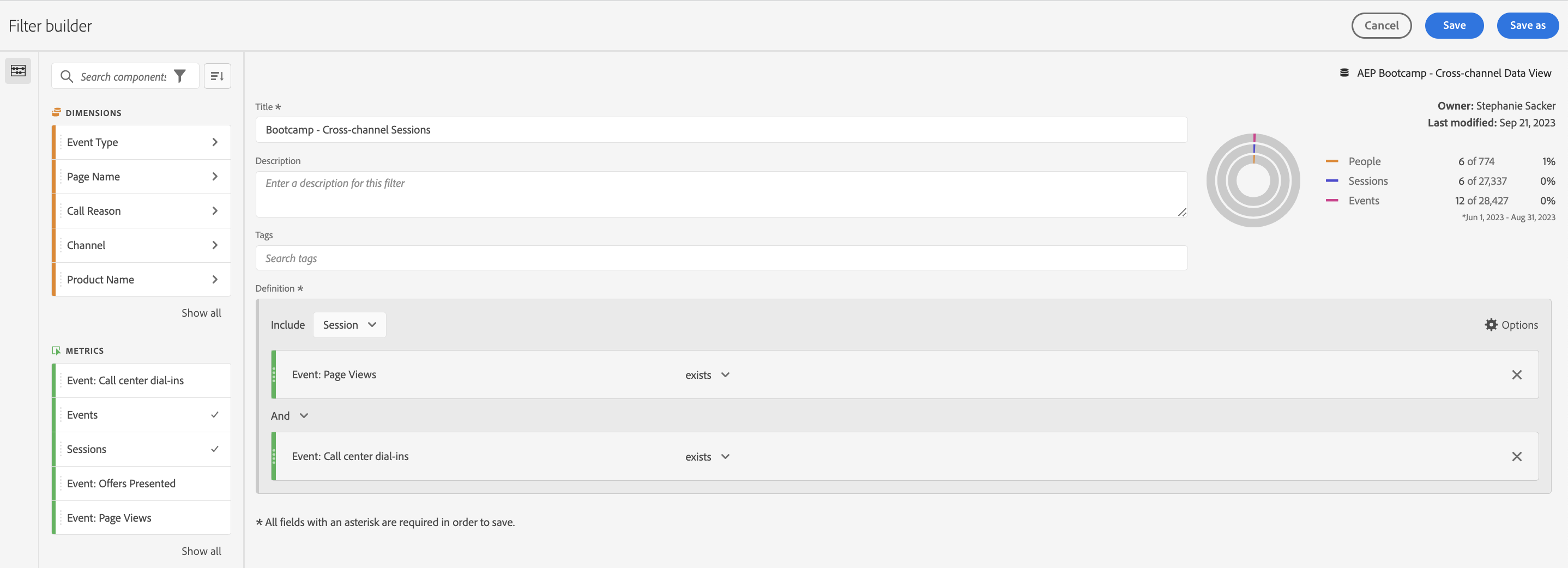
This filter will find sessions where a customer had at least one Page View and at least one Call in a session.
Analysis
In the Filters list you can find 2 additional filters:
- [bootcamp] Call Sessions: that identify sessions where the customer have interacted with a call center only;
- [bootcamp] Web Sessions: that identify sessions where the customer have interacted with a call center only;
With the help of the filter you have aleready created, you can do an interesting cross channel analysis.
- Duplicate the last table you built.
- Select the 3 filters you just built and drag them over the Call Reason dimension;
- "Replace" that dimension with those 3 filters.
This provides an interesting view. We can see there are Web Sessions with Calls, and Call Sessions with Page Views.

Now take the 3 filters and drag them under the Sessions metric in the table named Events per Day table you created before, until the blue pop-up says "Filter By", and drop the filters.
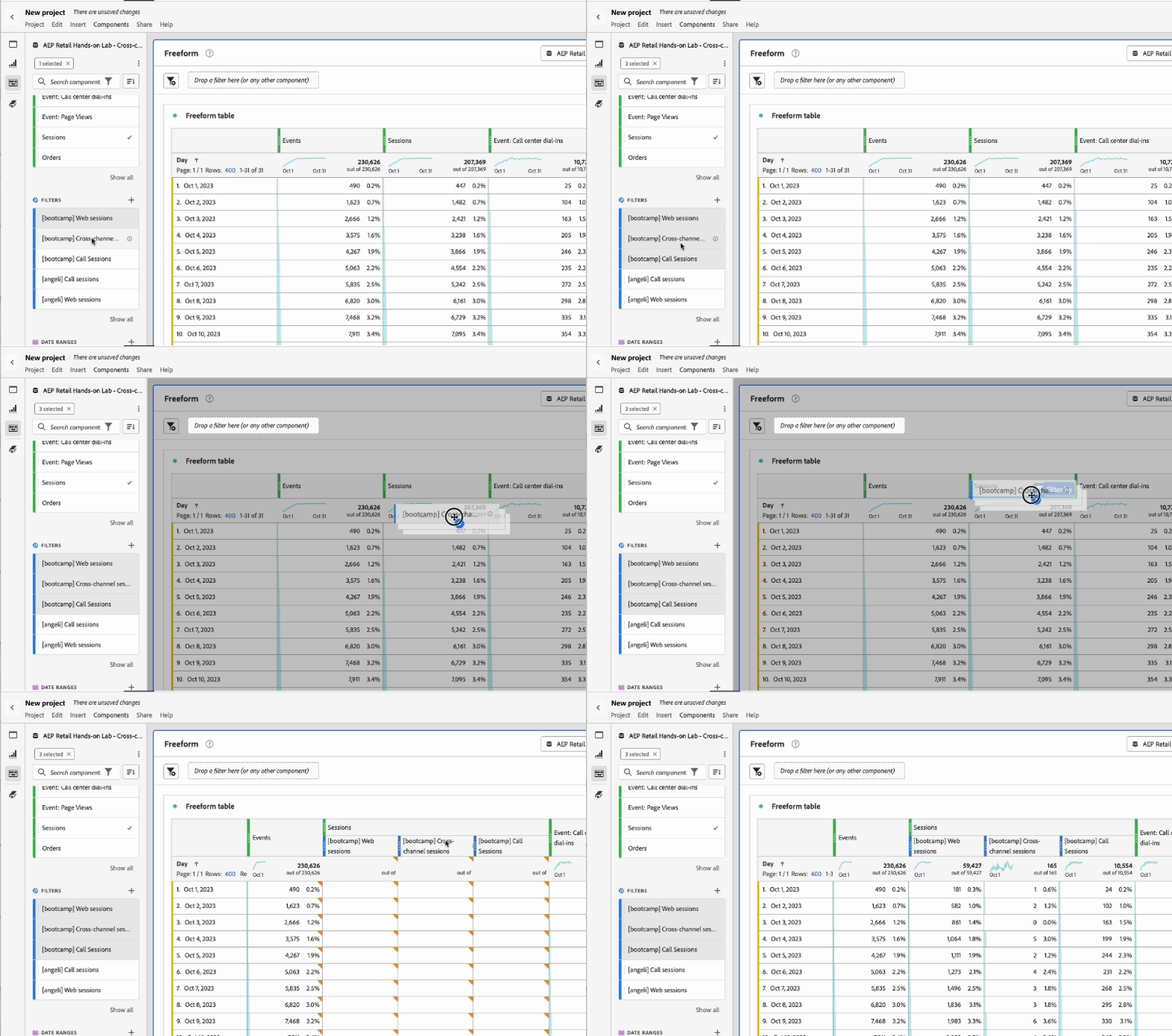
You project now should look like this:
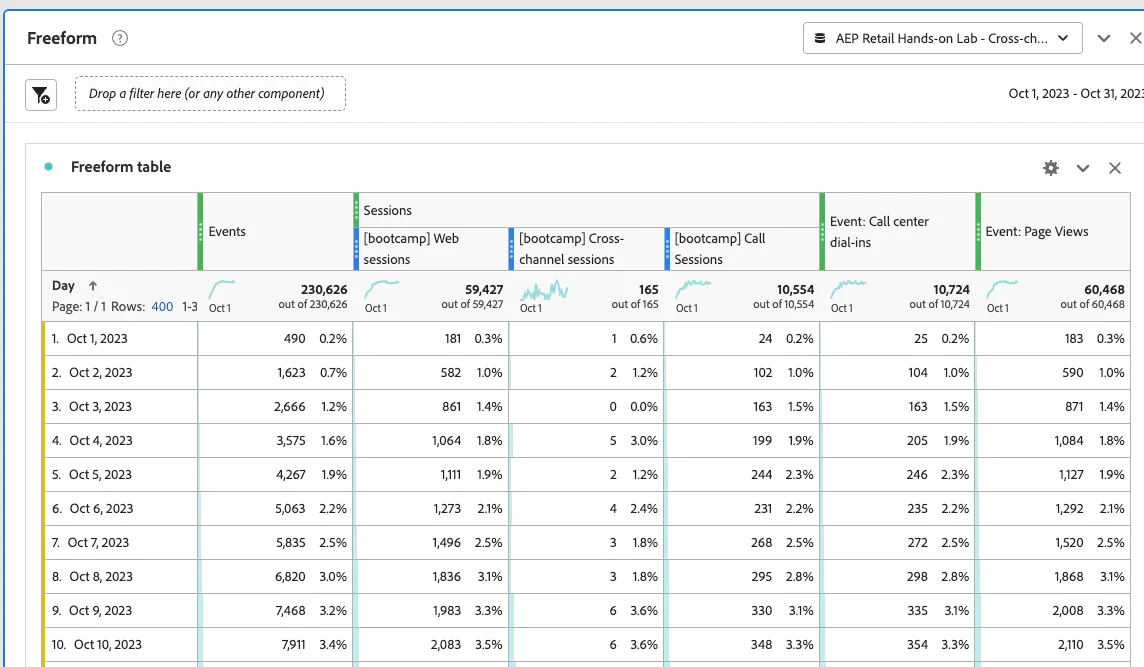
This will break out the Sessions metric by the various Session types the filters represent. A great way to analyse the types of Sessions customers are having.
Congratulations, this completes the Analytics Cross Channel Data exercise!