Workspaces and Reports
In this exercise, you’ll create a workspace project looking at different data points, visualisations and segments.
Objective
- Understand the Analysis Workspace UI in CJA.
- Understand the concepts of data preparation in Analysis Workspace.
- Learn how to do data calculations.
Analysis Workspace UI in CJA
Analysis Workspace removes all of the typical limitations of a single Analytics report. It provides a robust, flexible canvas for building custom analysis projects. Drag-and-drop any number of data tables, visualisations, and components (dimensions, metrics, filters, and time granularities) to a project. Instantly create breakdowns and filters, create cohorts for analysis, create alerts, compare filters, do flow and fallout analysis, and curate and schedule reports for sharing with anyone in your business.
Customer Journey Analytics brings this solution on top of Experience Platform data.
Setting up your Project
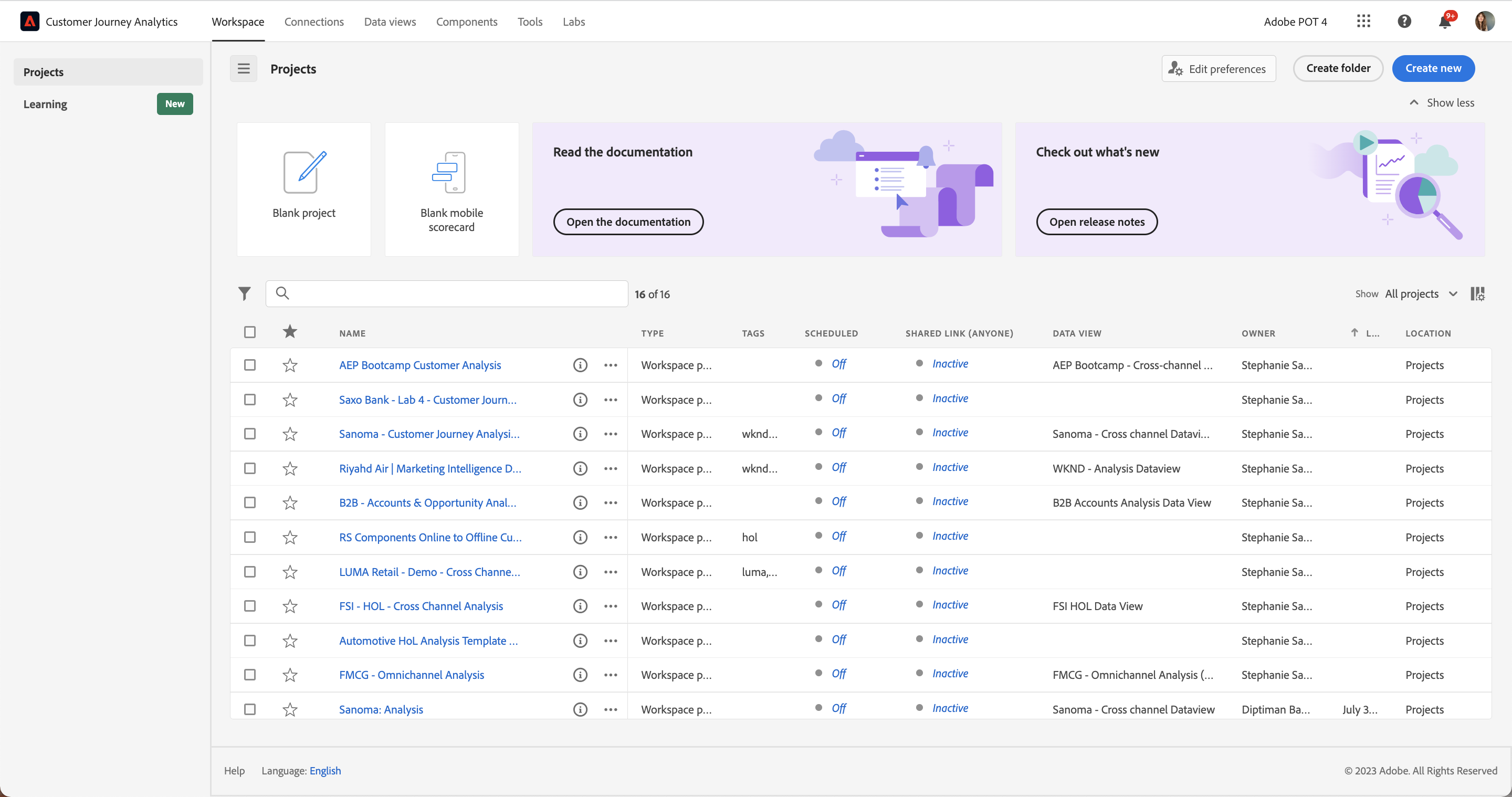
To get an overview of the available projects to you, click on Workspace.
- Click on Create Project for a new Workspace project.
- From the pop-up, select Blank Workspace project, and click Create.
- Create this project in the AEP Bootcamp if you are prompted to choose a folder.
There is a pre-built project if you want to preview what we will be building in these hands-on exercises. TheQatar Airways - Bootcamp Customer Analysis workspace project in the AEP Bootcamp folder.
Creating your first panel - Key KPIs
- First of all, we want to rename the project so it's in your name. Click on the title New project and rename this [your name]- Qatar Airways Bootcamp Customer Analysis.
- There will be one panel in the Workspace already, click on the name to rename this as Key KPIs.
- At any point, you can save your project by going to Project > Save.
- Click on the drop down of Data Views on the top, right hand side of the panel, and select Qatar Airways - Bootcamp Data view
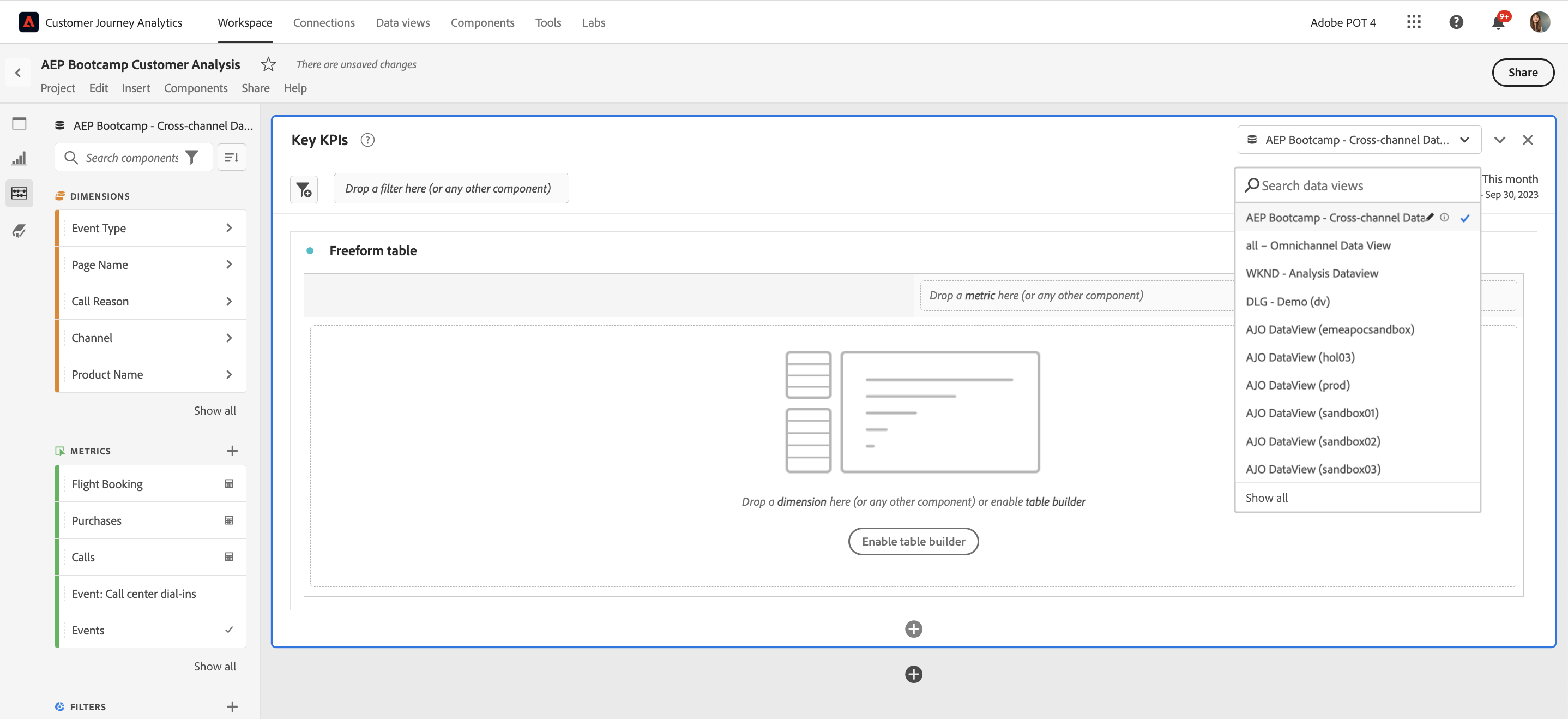
- Finally, select the date range Last 6 full months from the date selector below the Data View box, and select Apply to all Panels.
Now you are ready to start building with data.
- Click on Search Components in the left hand side panel.
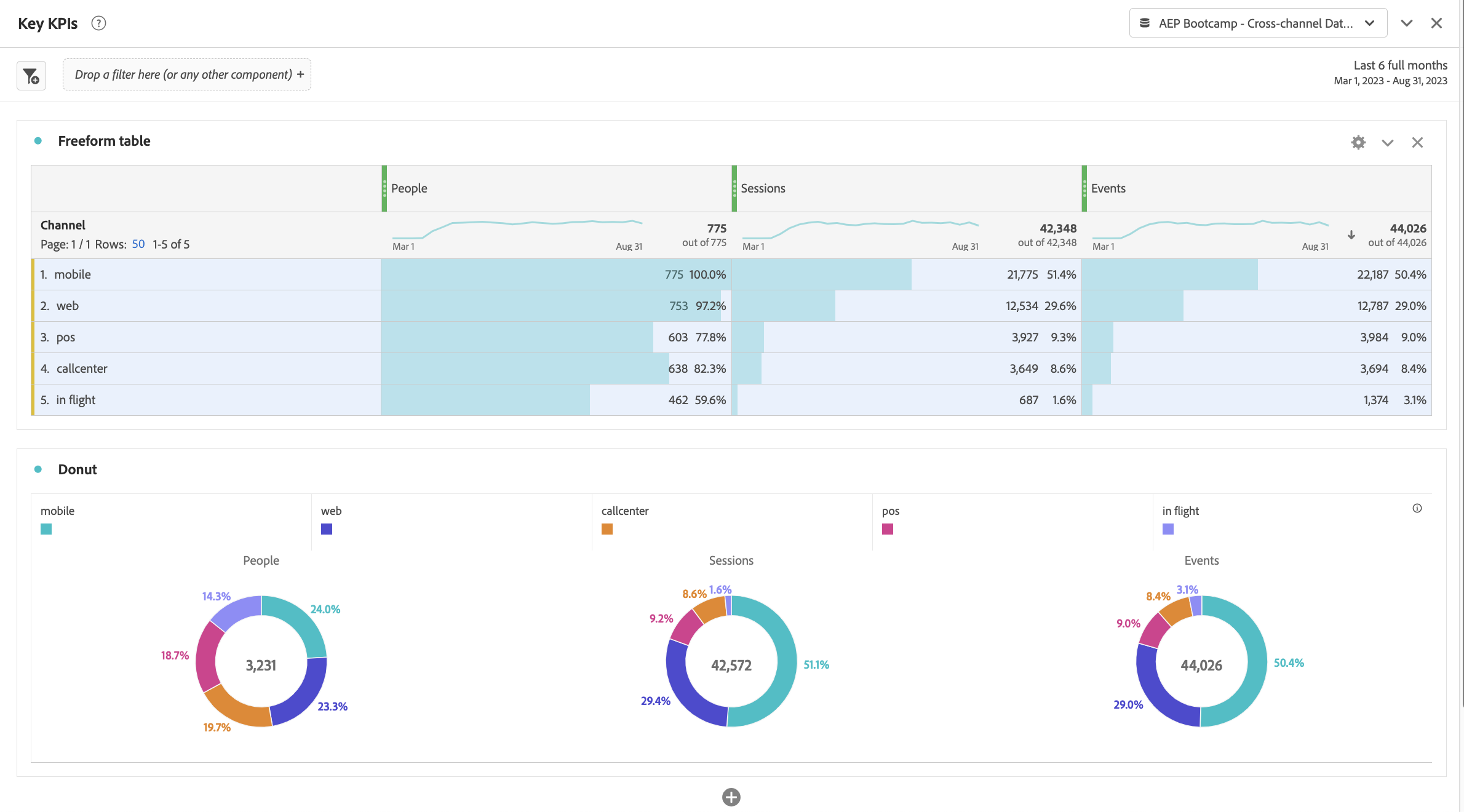
- Search for Channel, and drag this dimension (orange component) onto the main part of the freeform table, this will display the values in the Channel dimension with Events as the metric.
- Search for People in the components list, then drag this in front of Events; search for Sessions in the components list, then drag this in front of People. You can play around with the order of the metrics.
- Now click on web in the freeform table (this will select that line of data), hold down shift, and select the remaining lines of data in the table so it is all selected. Right click on the selected table, click on Visualize, then Donut. This will build out 3 donuts for you. You can move the donut underneath the data by simply dragging and dropping them.
You can create more freeform tables with the following data points, and play around with the Visualisations
Example 1:
- Dimensions = Channel;
- Metrics = Flight bookings, Flight Cancellations. Flight reschedules (suggestion - select all the data, right click, click on visualization and select horizontal bar).
Example 2:
- Dimensions = Channel;
- Metrics = Flight check-ins... and other Events.
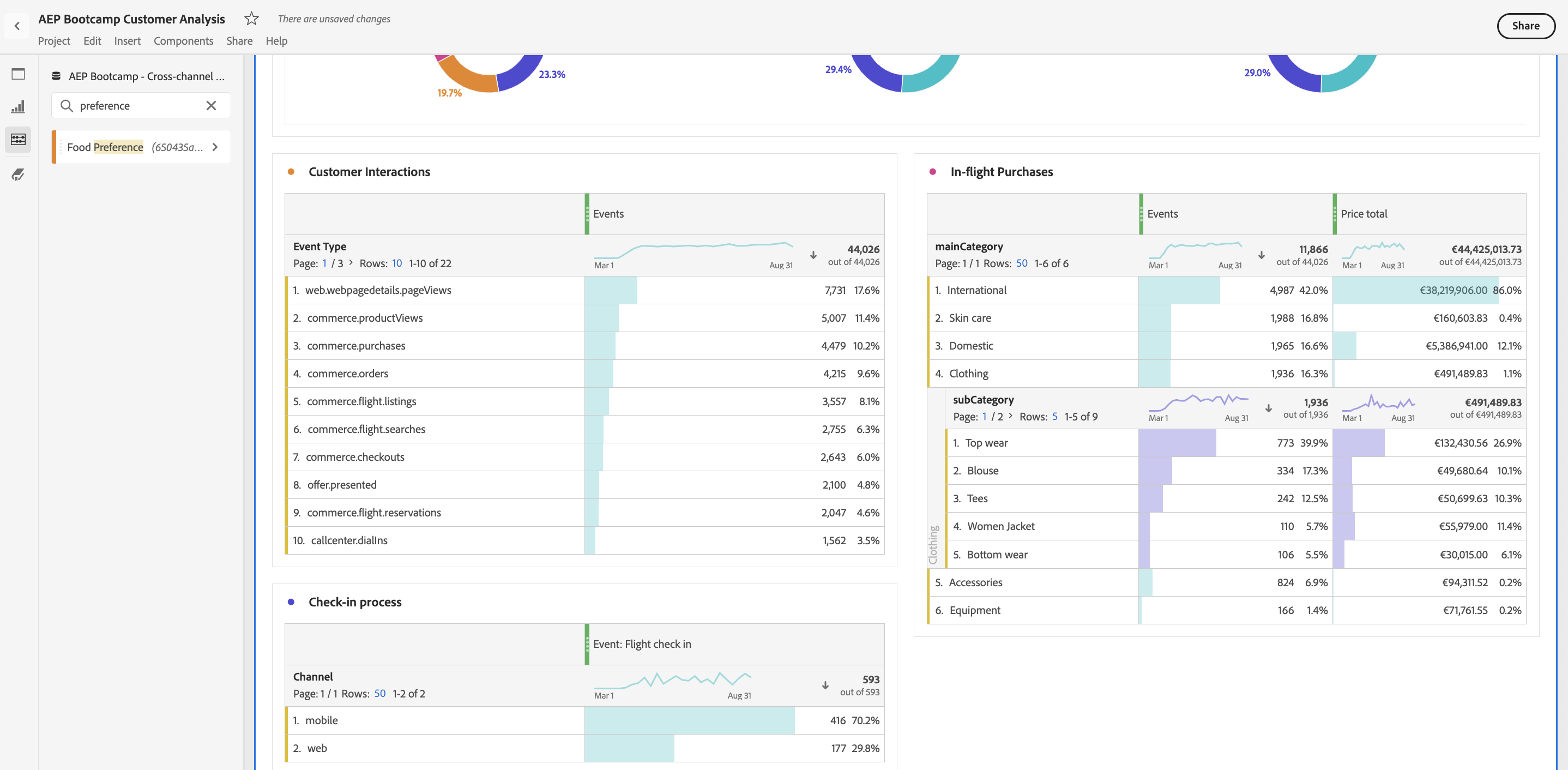
You have now completed your first panel! Let's create some visualisations to see how our customers interact across channels...