Exercise 1 - Discover
Scenario
Mia our soon to be high school graduate starts researching universities in Queensland using ChatGPT. Being an avid soccer player she's interested in the sport facilites offered. Following an Altura university citation she lands on the Altura website and browses their sports pages. Returning to the home page she sees a personalised banner encouraging her to register for the upcoming open day, which she does.
Objective
In this exercise you will experience:
- Visiting the website and experience the onsite personalisation based on browsing behaviour in anonymous state
- Register for open day converting your unknown profile to known
You will learn as a marketer:
- How to create a real-time audience
- How to configure a personalised web campaign
Experience It
Visit the Website
Click to open the Altura website.
We've added to the site a debugging widget so you can see Adobe Experience Platform understands about the current customer.
- Click the Adobe logo icon in the top left corner of your screen to open the REAL TIME CUSTOMER PROFILE viewer.
- Notice the Experience Cloud ID within IDENTITIES. The Experience Cloud ID or ECID is Adobe's first party cookie id, currently this is all we know about you since this is the first time you've visited the site.
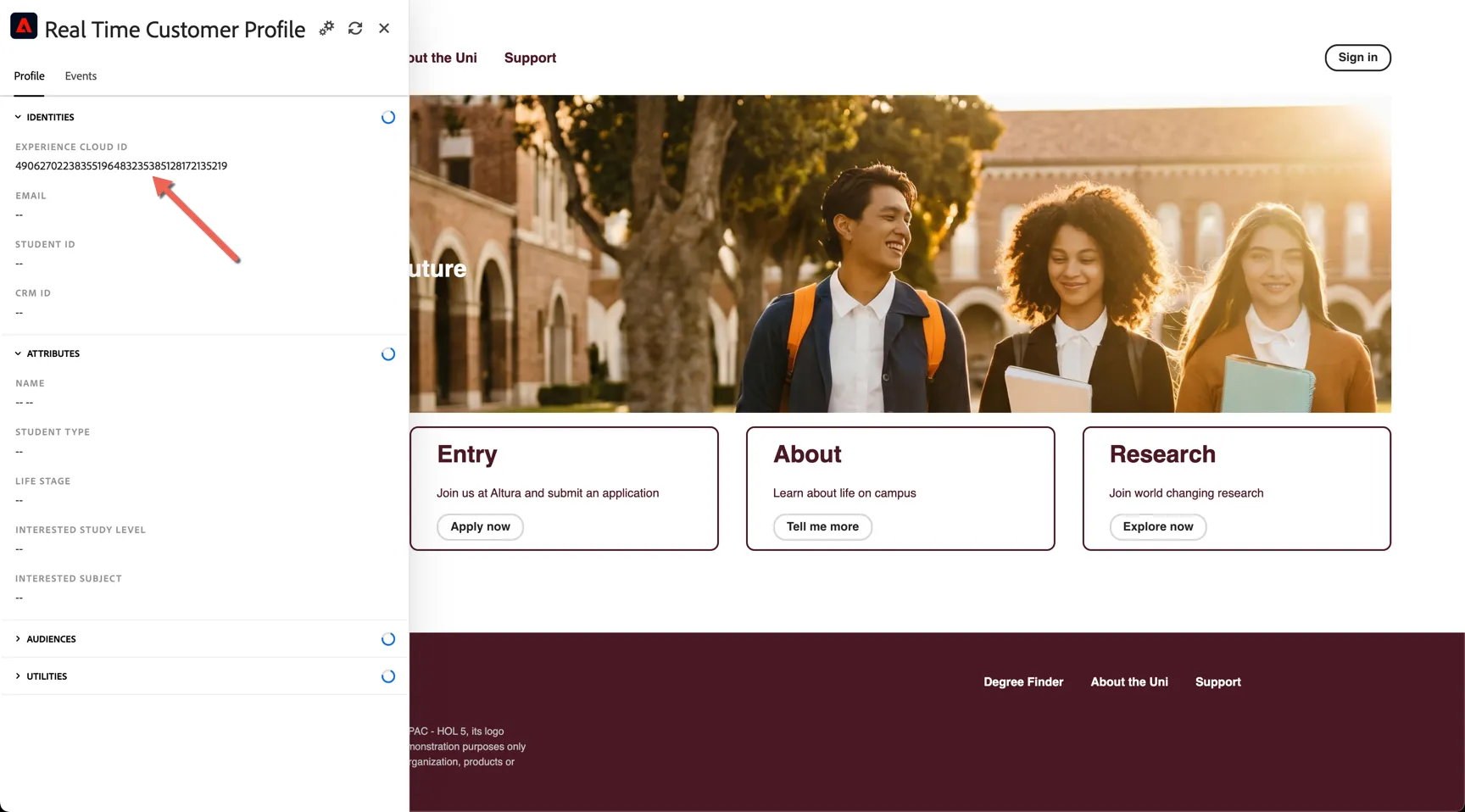
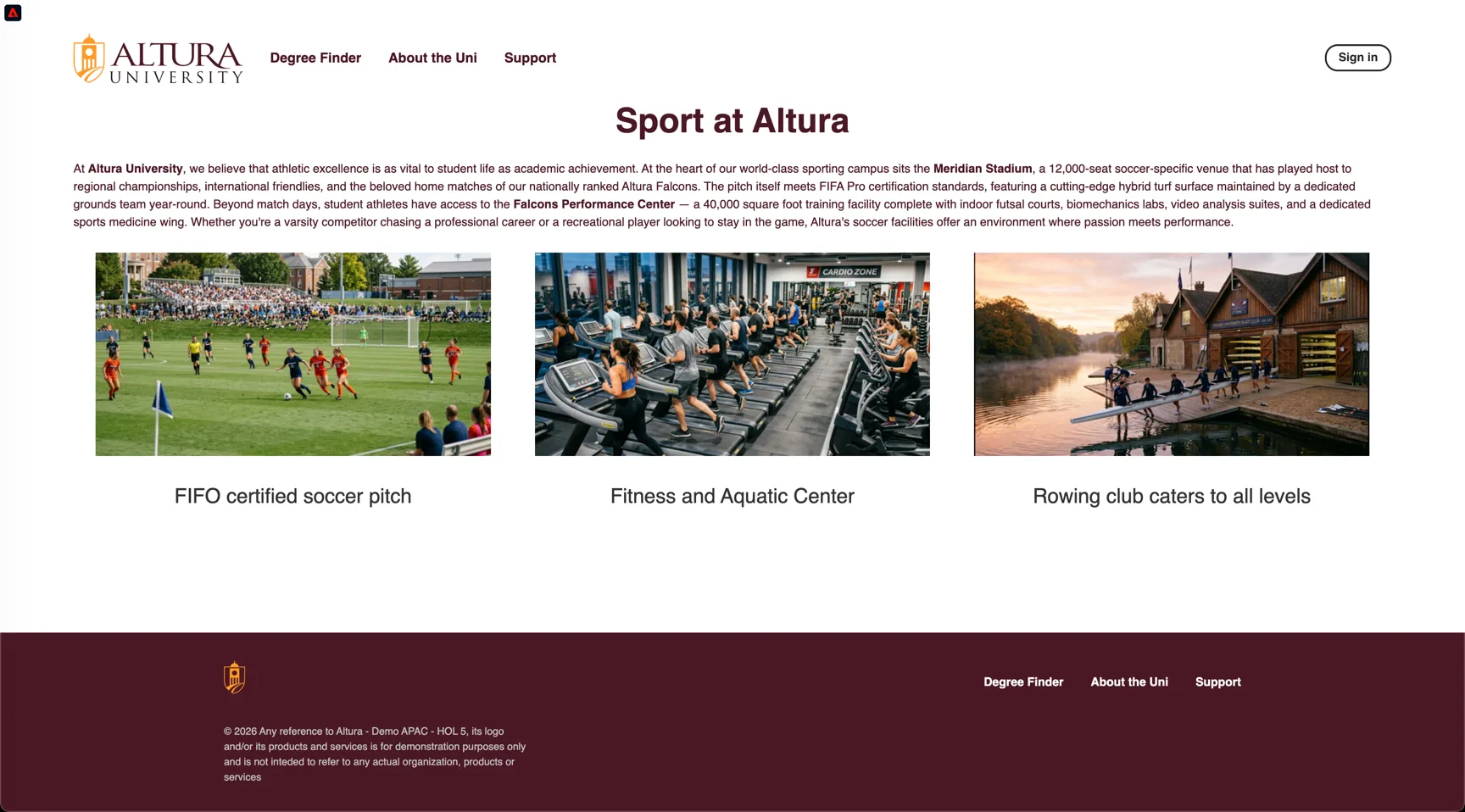
Click through to the About page and from there into Sport:
Every interaction on the site is being tracked you can see these events as they're recorded through the profile viewer widget:
- Open the REAL TIME CUSTOMER PROFILE panel by click on the adobe icon.
- Take a look at the EXPERIENCE EVENTS.
You will see the interactions you have had with the demo web site.
If you don't see the events appear, tap on the refresh button at the top of the panel. Note that the panel is querying the Experience Platform hub not the Edge Network which is where the realtime actions are being processed, as such it can be slightly slower to reflect the updates.
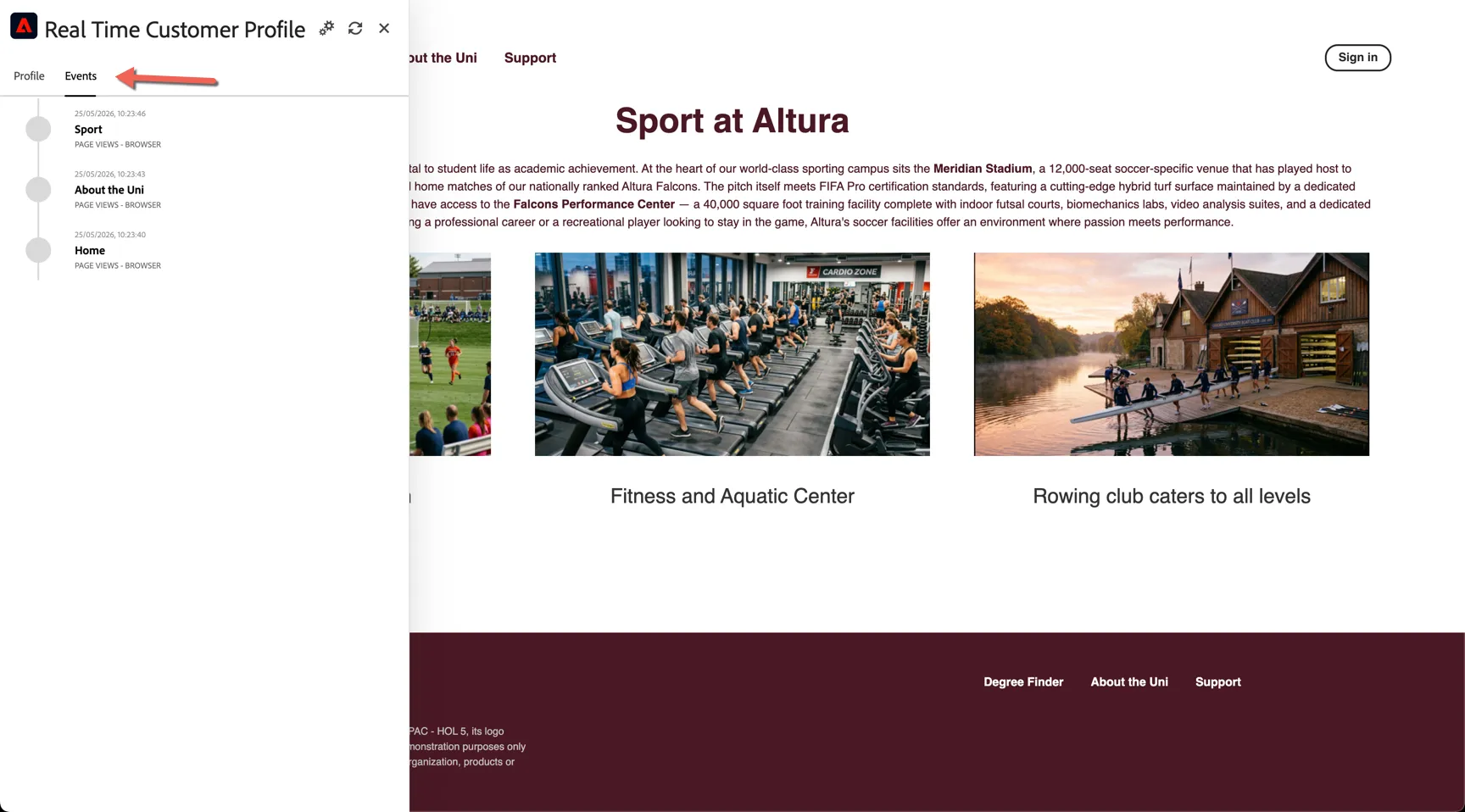
While the behaviour is anonymous, we’re able to track every click and store it in Adobe Experience Platform and we can use that information to qualify the customer into real-time audiences which we can use to personalise the website.
- Return to the home page (click logo on top left)
You'll noticed the banner image is now personalised to reflect what we know about you so far - you're interested in sport.
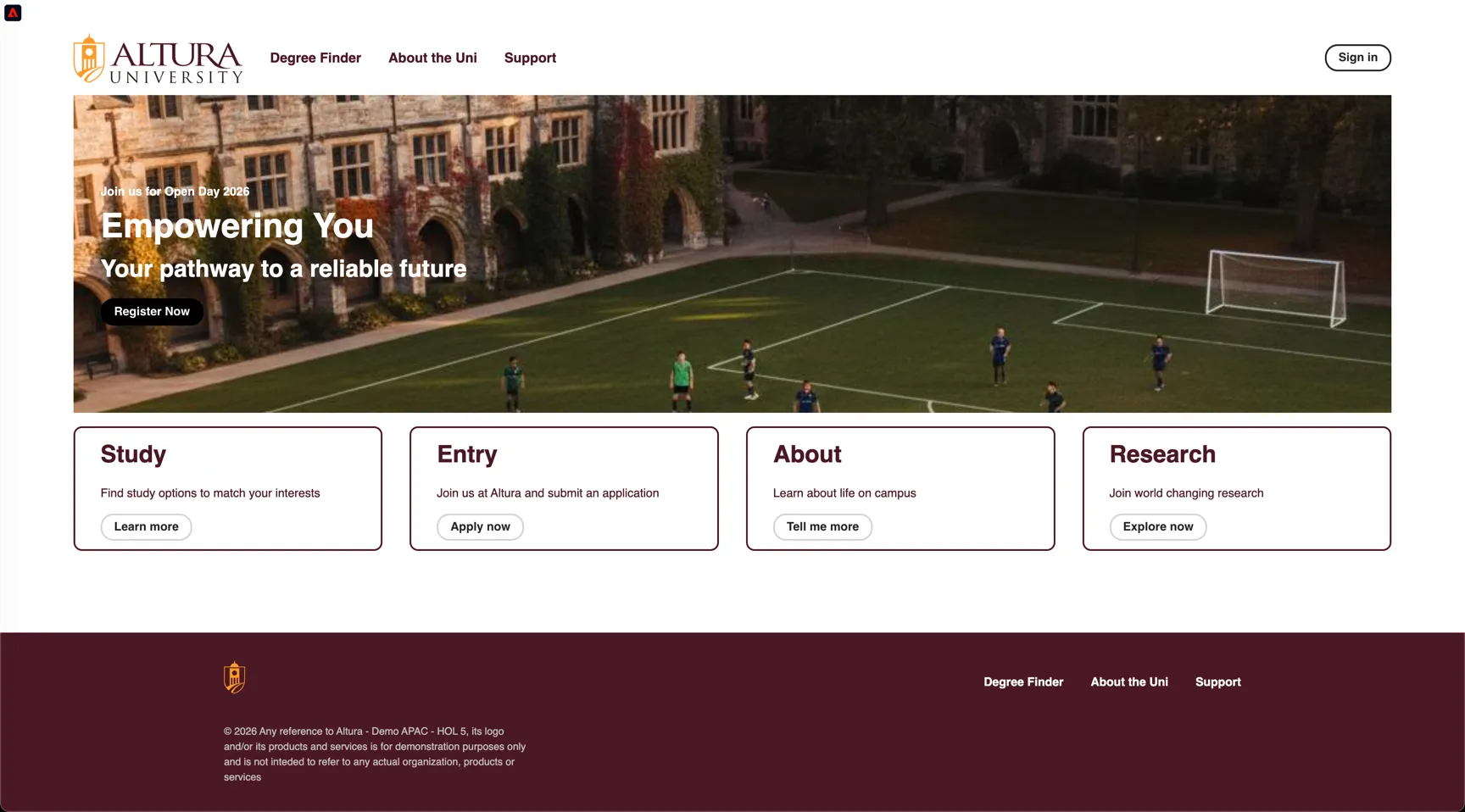
Register for Open Day
Click on the Register Now button in the banner.
Enter your details and complete the registration. If you don't wish to provide your real email address, use any address ending in @gmail.svpoc.io, emails to this domain will be routed to our webmail server and can be displayed at the front of the class.
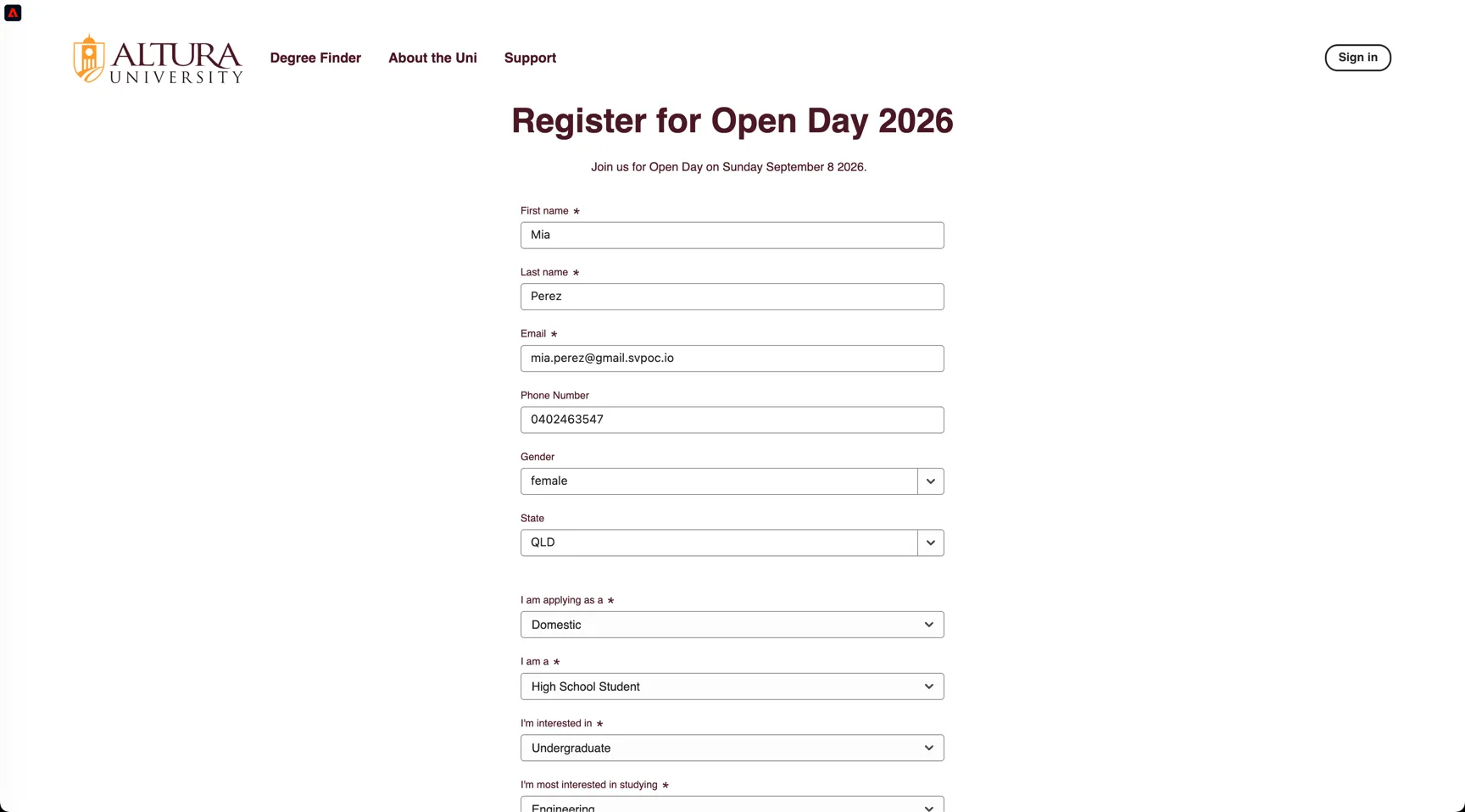
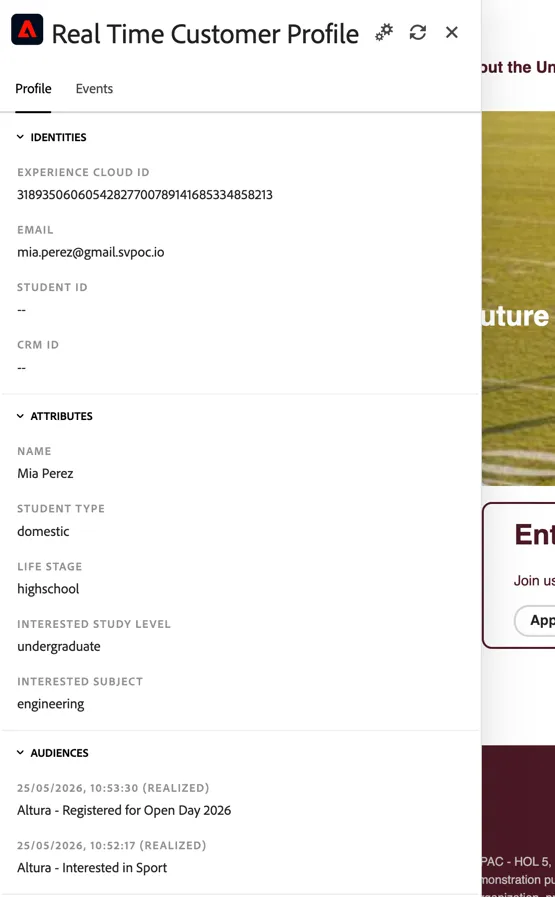
Submitting the form has sent an event to Adobe containing both the ECID and the EMAIL address which we've configured as an Identity. These identities will now be stitched in the identity graph.
The profile has also qualified into some additional audiences. Refresh the profile viewer on the site to see the updates.
Make it
Now you've experienced it from the student perspective, let's take a look behind the scenes.
Find your profile
In Adobe Experience Platform, all profile data is shown alongside event data, as well as existing audience memberships. The data shown can come from anywhere, from Adobe applications and external solutions. This is the most powerful view in Adobe Experience Platform, the true experience system of record.
To view your profile from the UI:
- In the left rail, click on Customer -> Profiles
- On the Profiles tab, click on Browse
- For the field Identity Namespace, select ECID
- For the field Identity Value enter the ecid value from the real time profile viewer widget on the site
- Click View. You'll see your profile in the list.
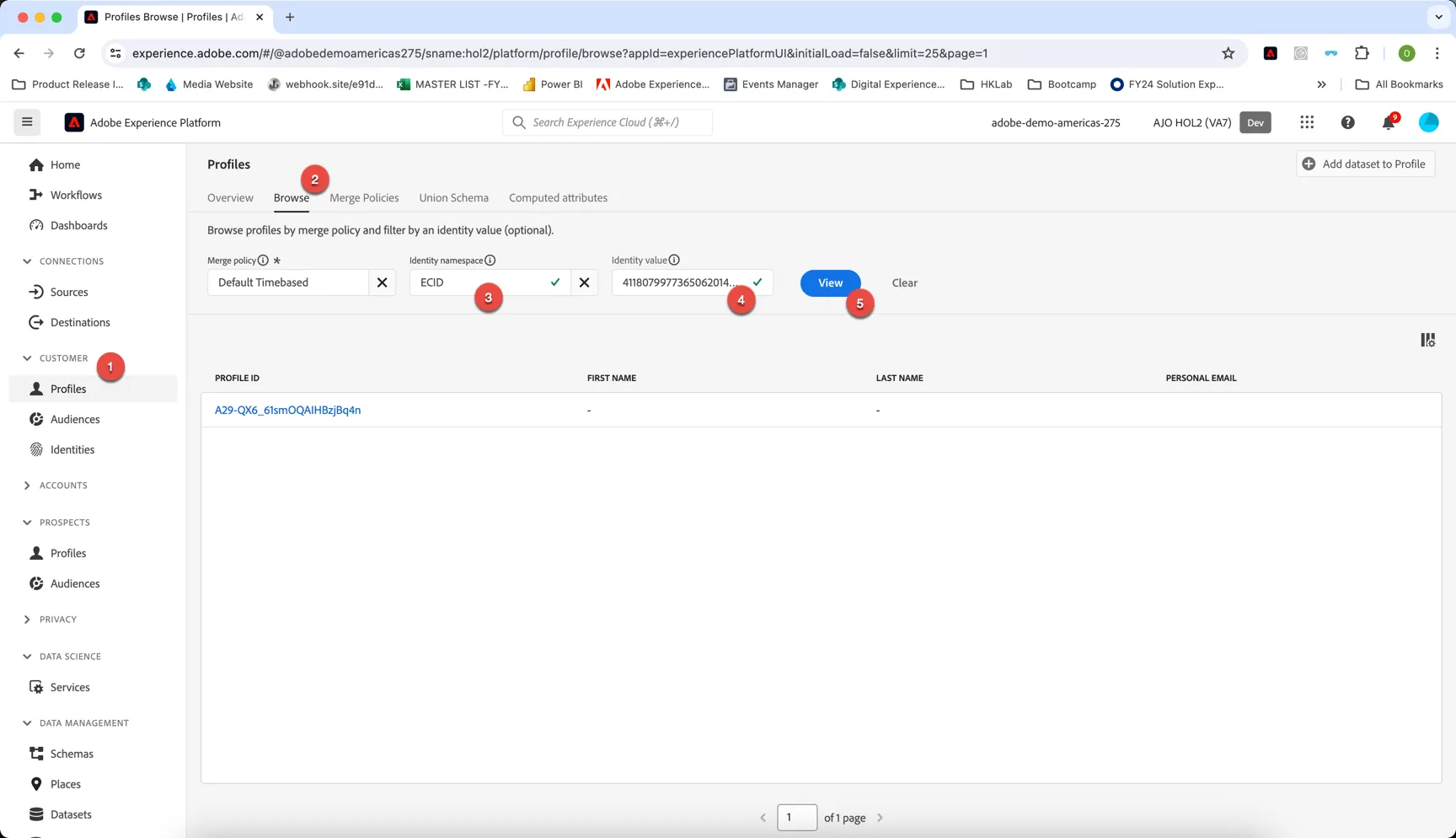
- Click the Profile ID to open your profile.
The detail tab shows the profile dashboard, providing an overview of everything we know about the profile so far.
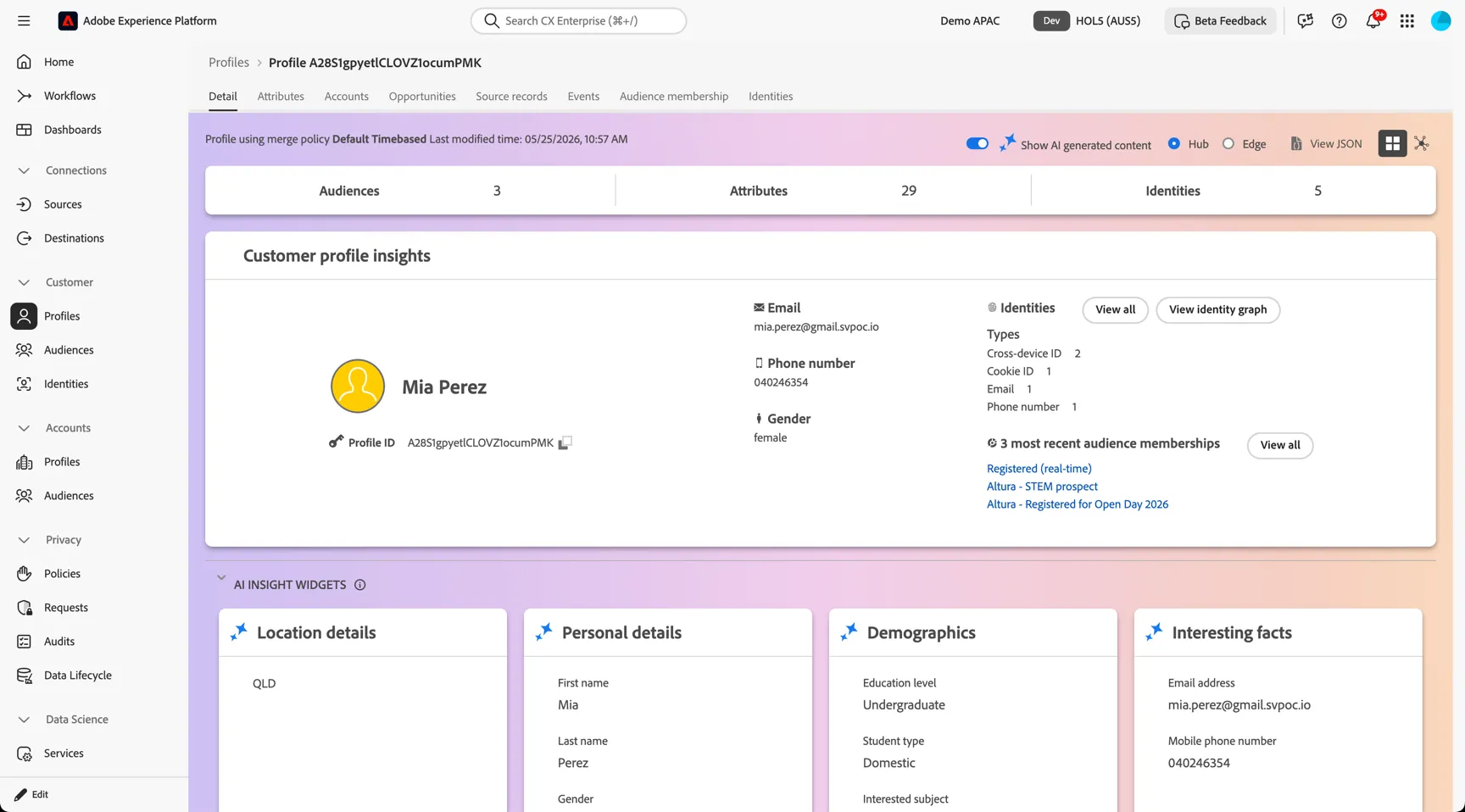
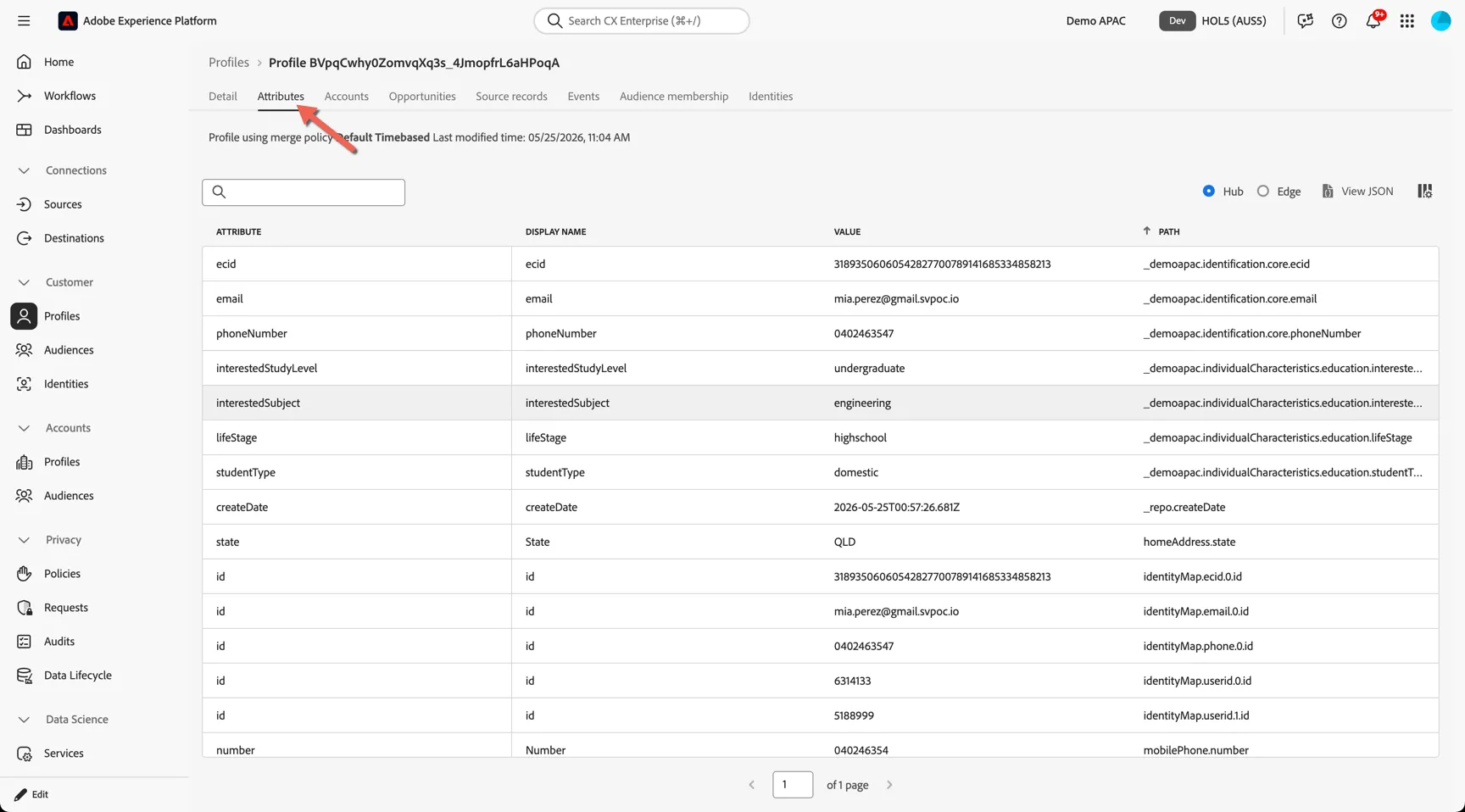
Most of the profile attributes can be found in the dashboard but a comprehensive list is available on the Attributes tab.
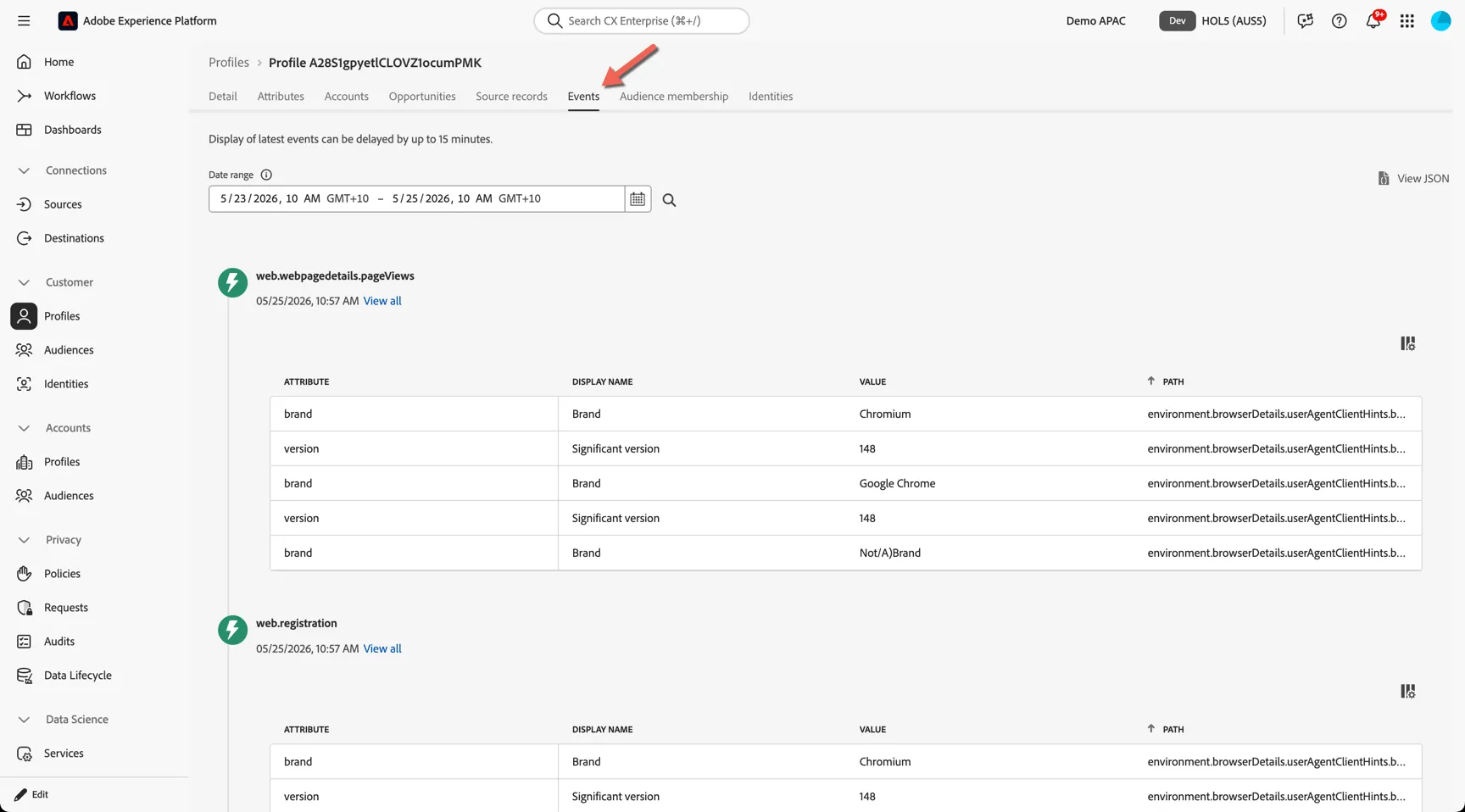
The Events lets you explore how the customer has been interacting, events are listed in timestamp desc order and default to the last 2 days but you can search for specific dates as needed.
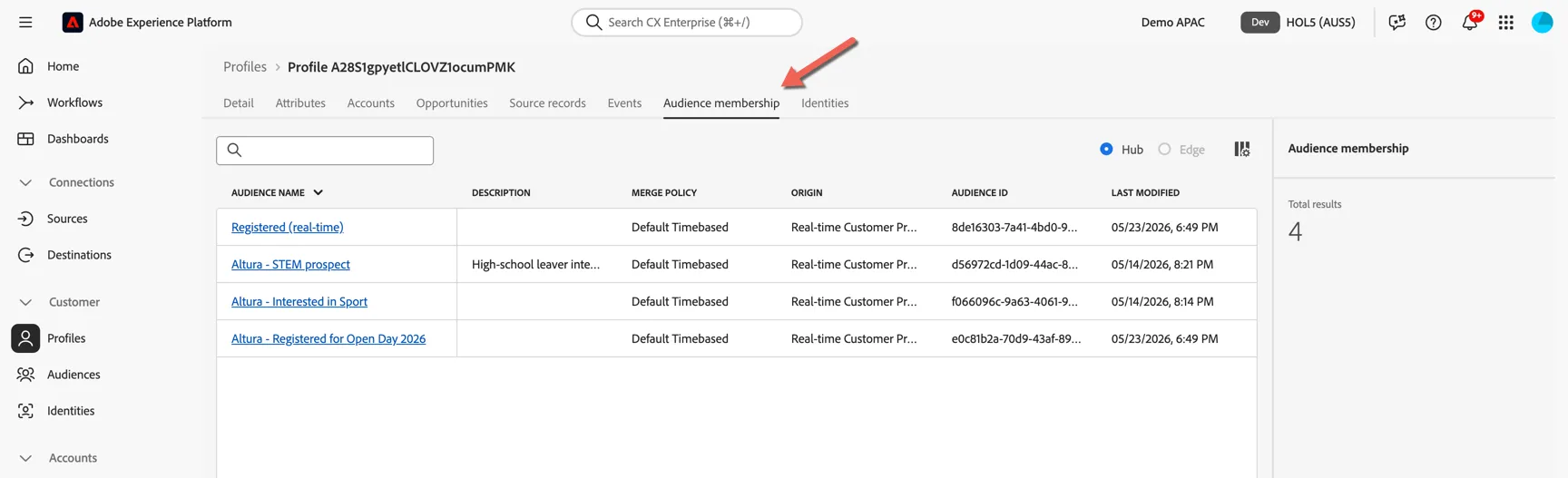
The Audience Membership tab shows which audiences the profile is currently a member of.
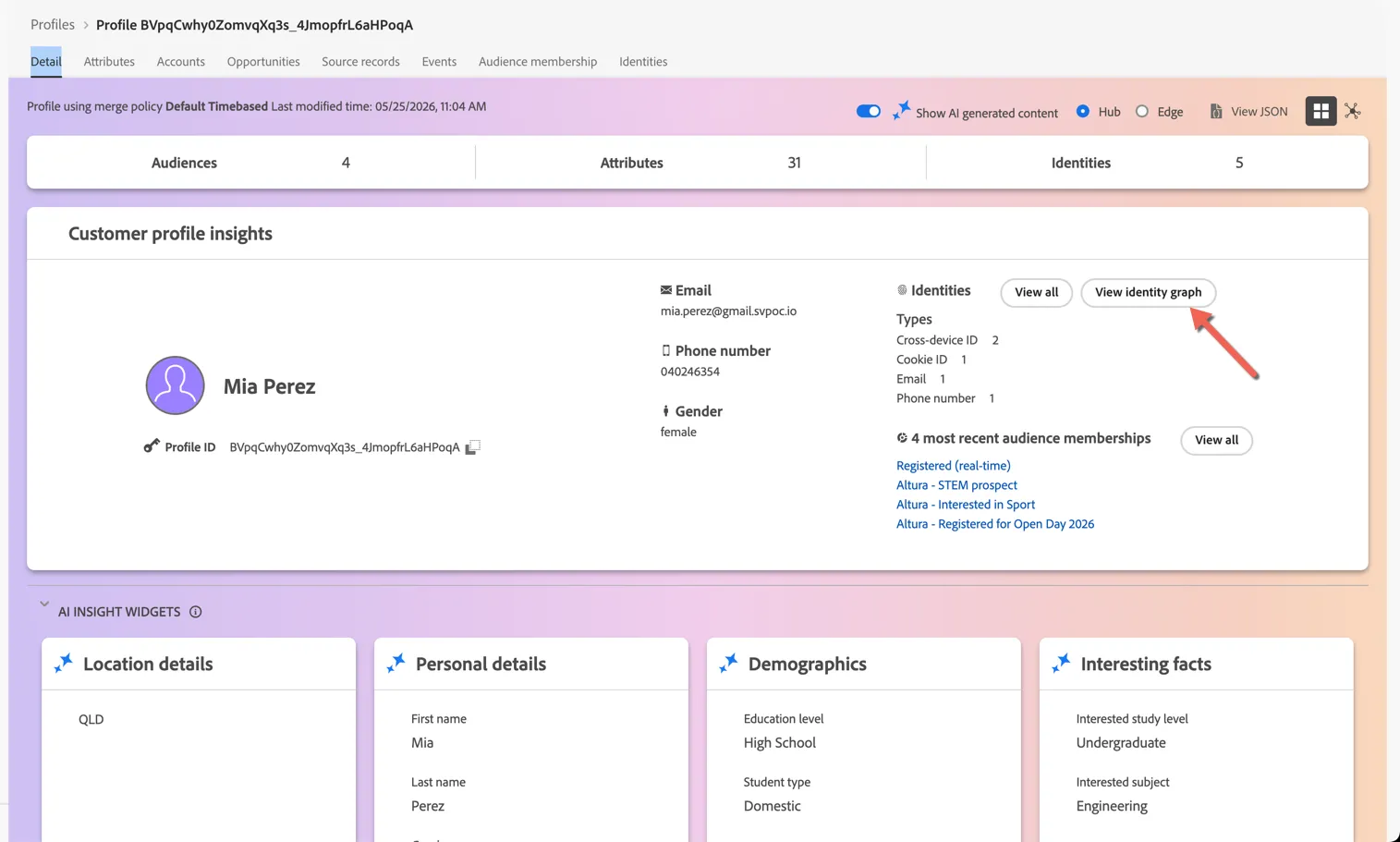
View the Identity Graph
From the profile dashboard click to View the Identity Graph
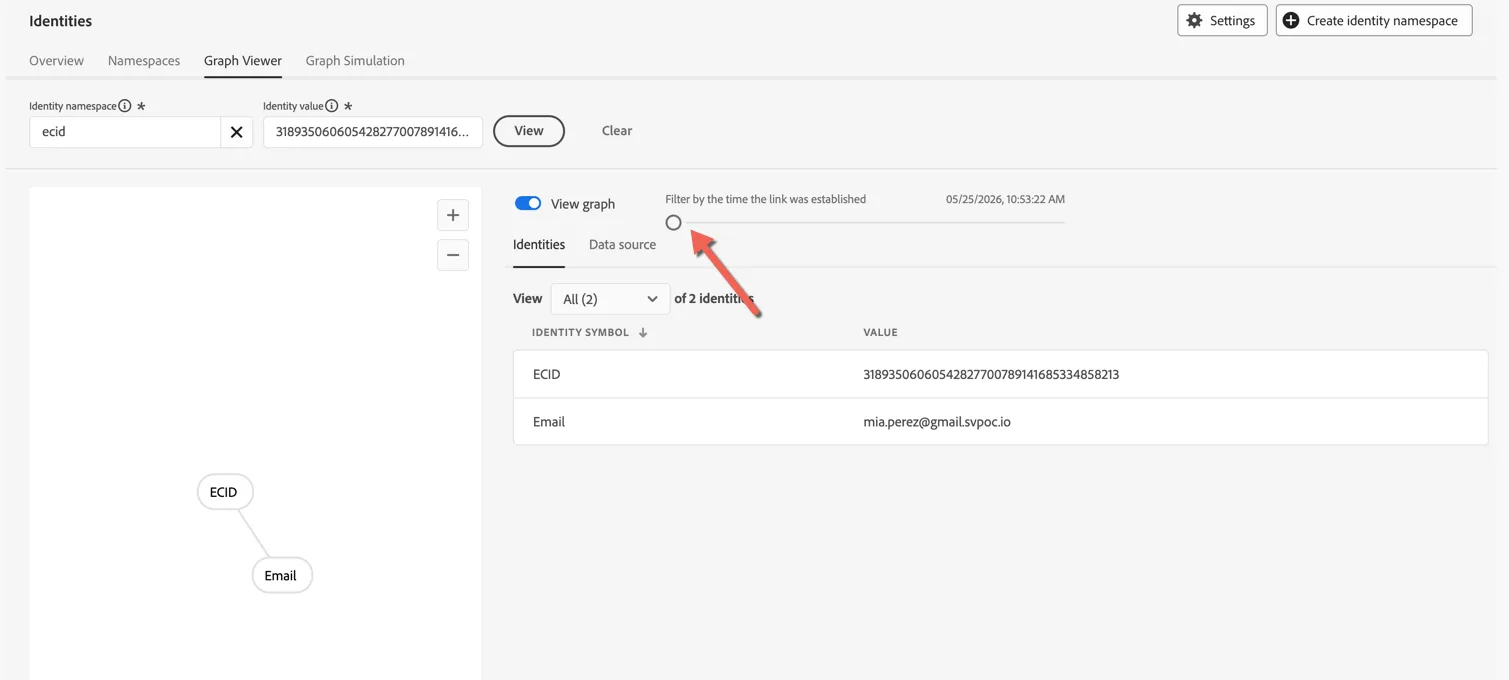
The Graph Viewer shows how the different Id's have been stitched in the graph.
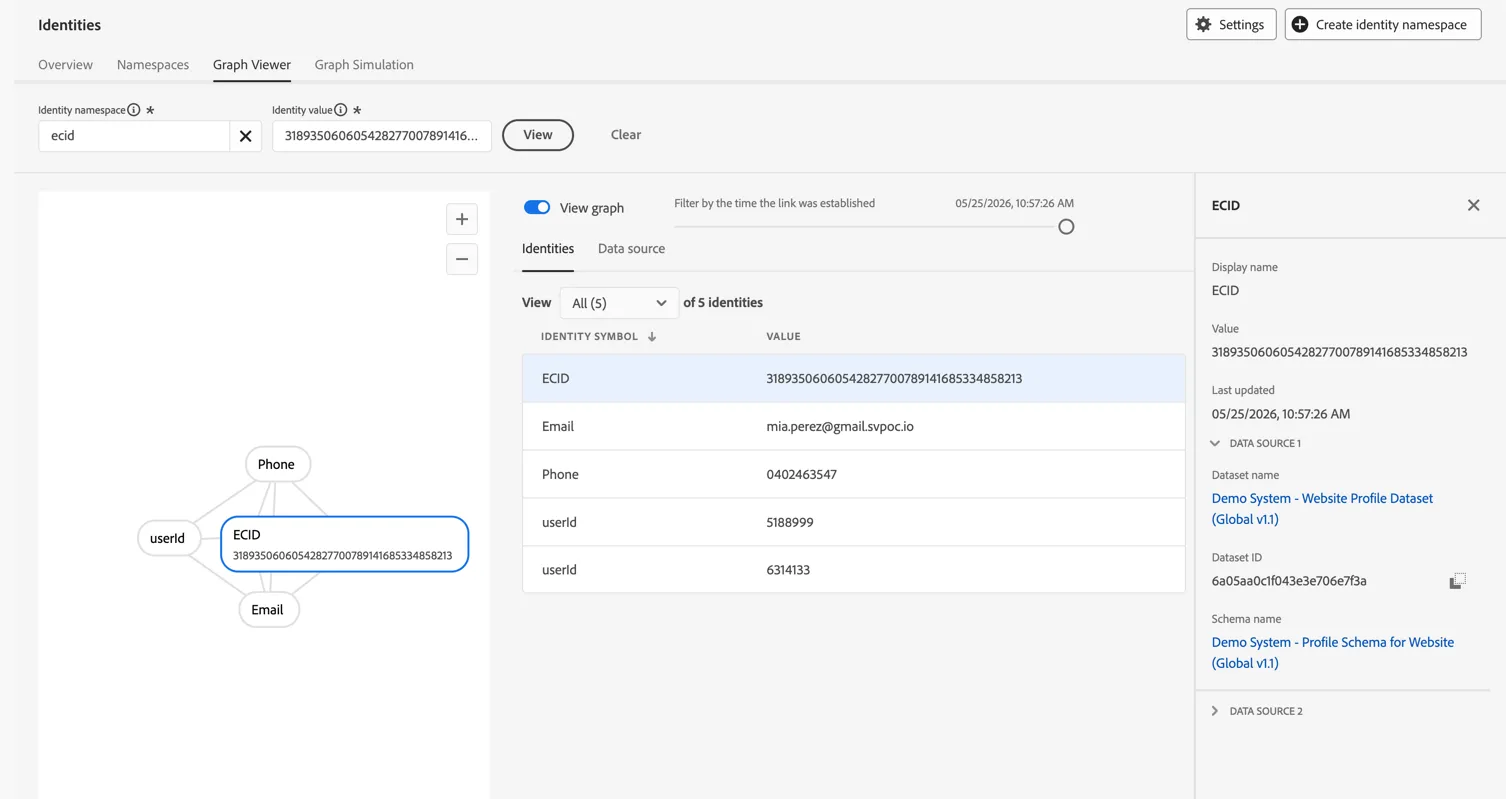
Use the slider to see how the graph has changed over time.
Create a Real-time Audience
Edge (or real-time) audiences are designed for personalisation use cases occurring on your website or app where response time in milliseconds is required. The open day banner appearing on the home page was controlled by an Audience evaluated on Adobe's Edge Network before the data has even arrived in Adobe Experience Platform. This exercise will show you how to create an Edge Audience to qualify visitors who have recently browsed Sport related content.
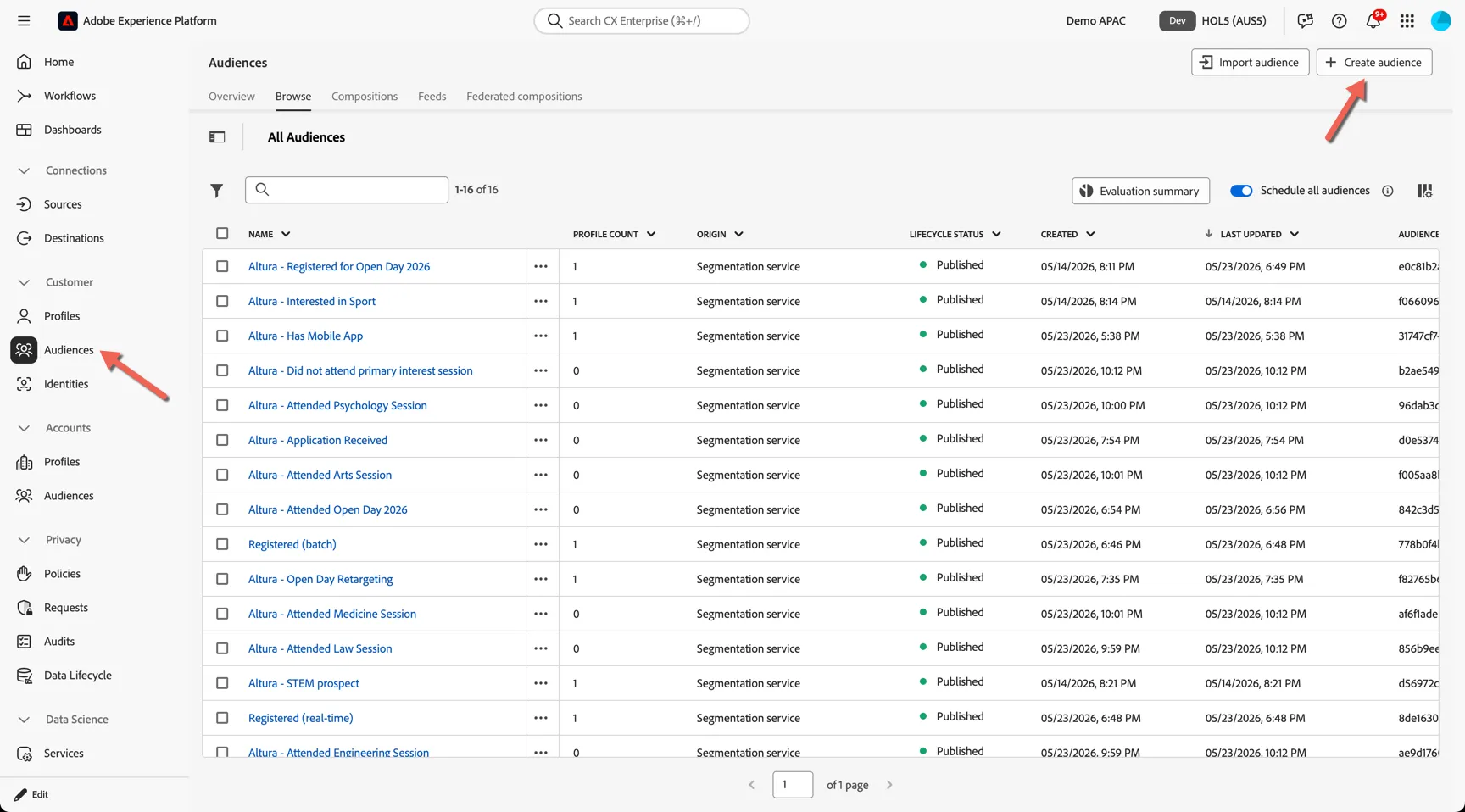
Go to Customer -> Audiences and click to Create audience
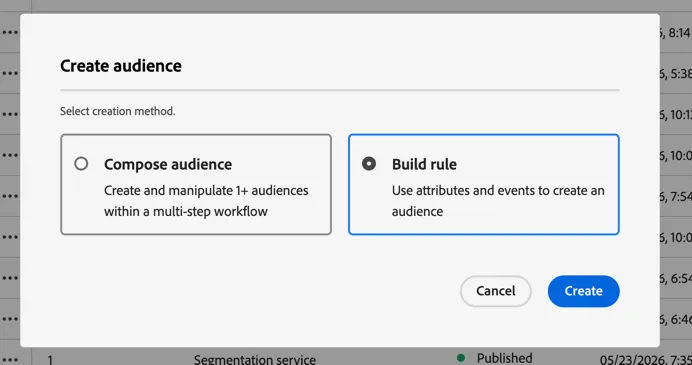
Select to build a rule based audience:
In the audience builder you have access to all of the profile attributes and events.
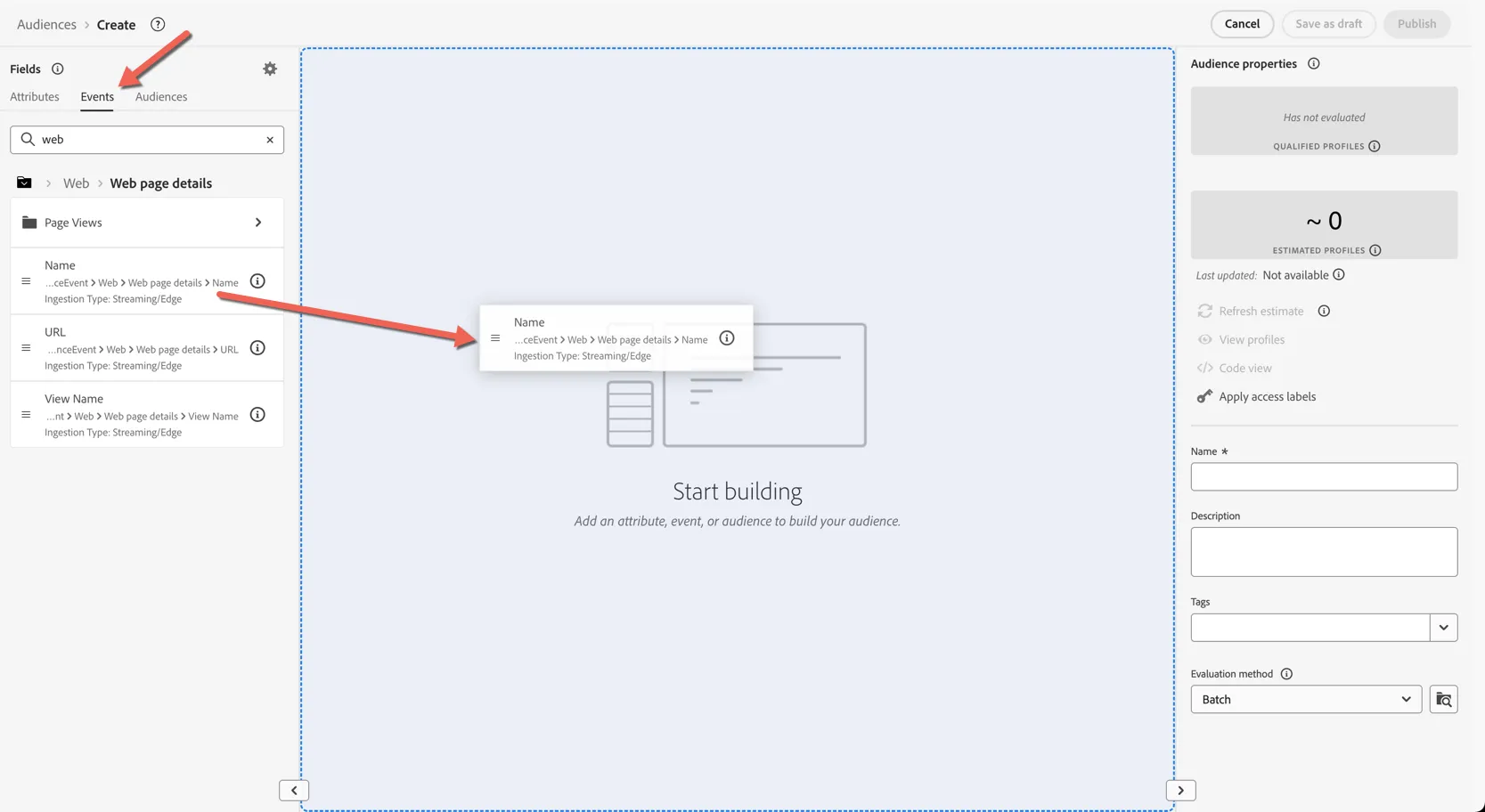
- Change to the events tab to create an audience based on a real time event.
- Search for web and click into the Web page details
- Drag the Name attribute into the canvas
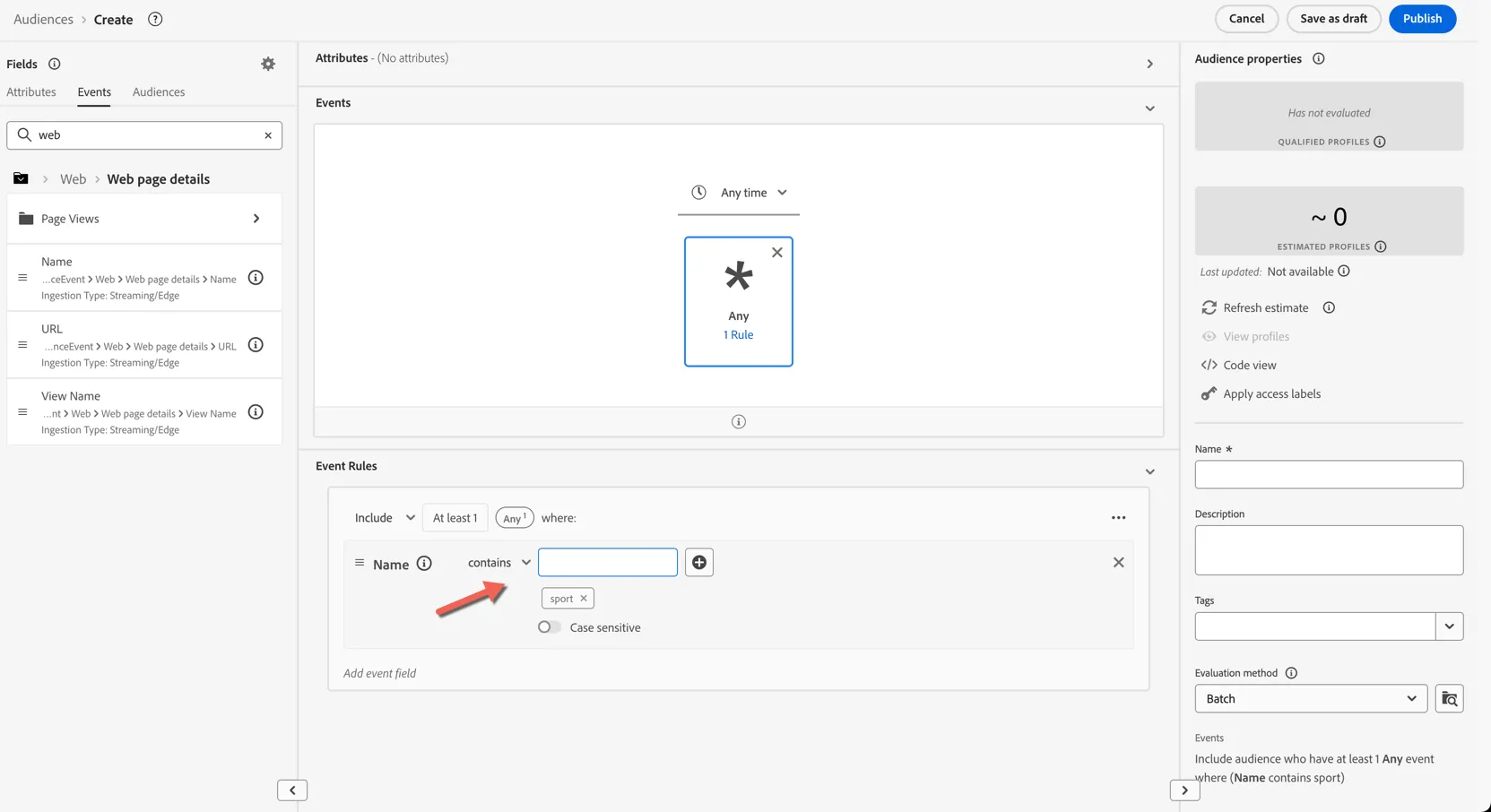
- Set the rule to contains value sport
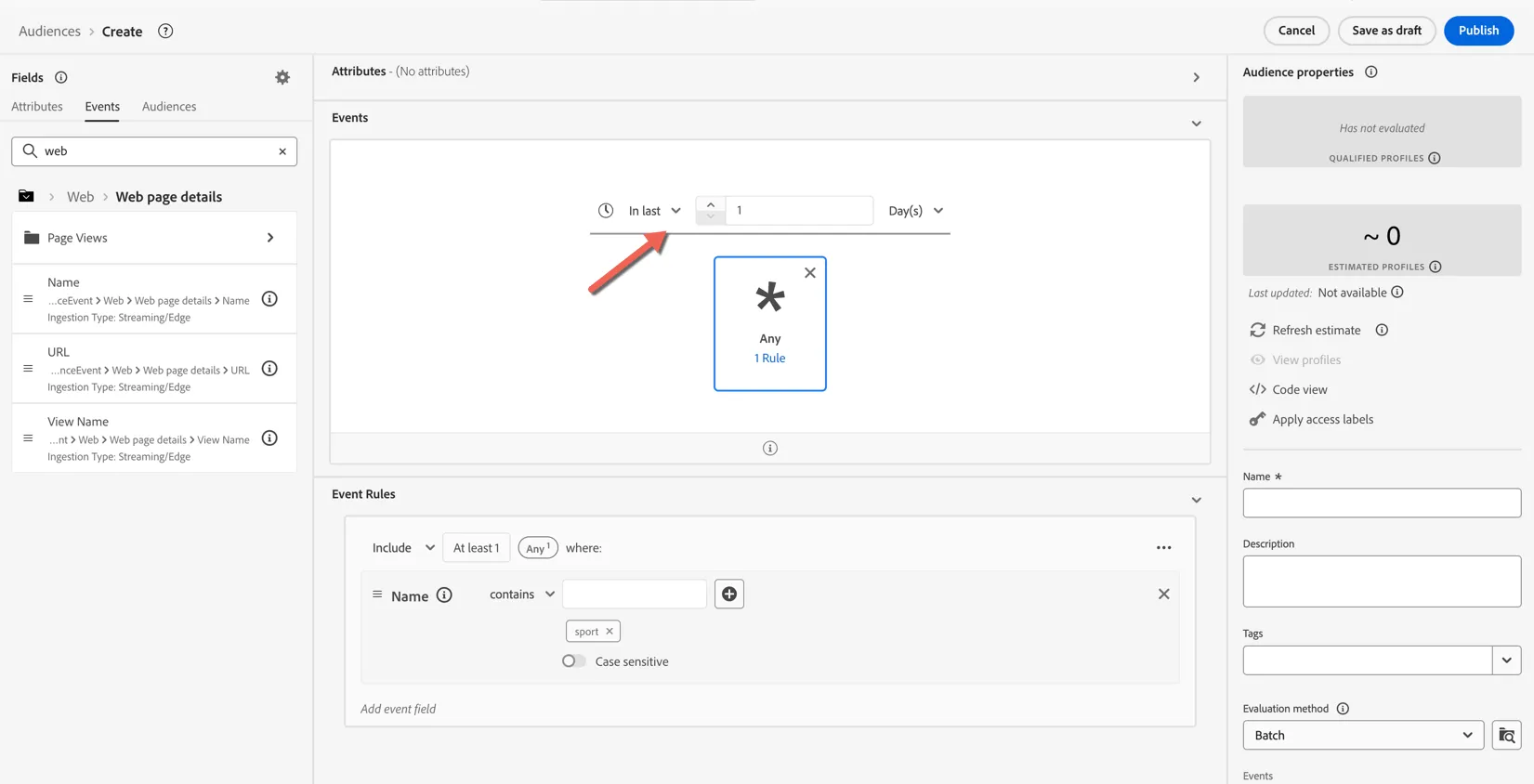
- Add a timeframe for your qualification to In last 1 day.
Now let's give your audience a Name - add a prefix, something unique to distinguish your audience from everyone else's like your last name Eg. [last name] - Interested in Sport
Add a description to help others quickly understand your audience logic.
Now set the Evaluation method to Edge. This specifies that the audience can be calculated on the edge for qualification within milliseconds.
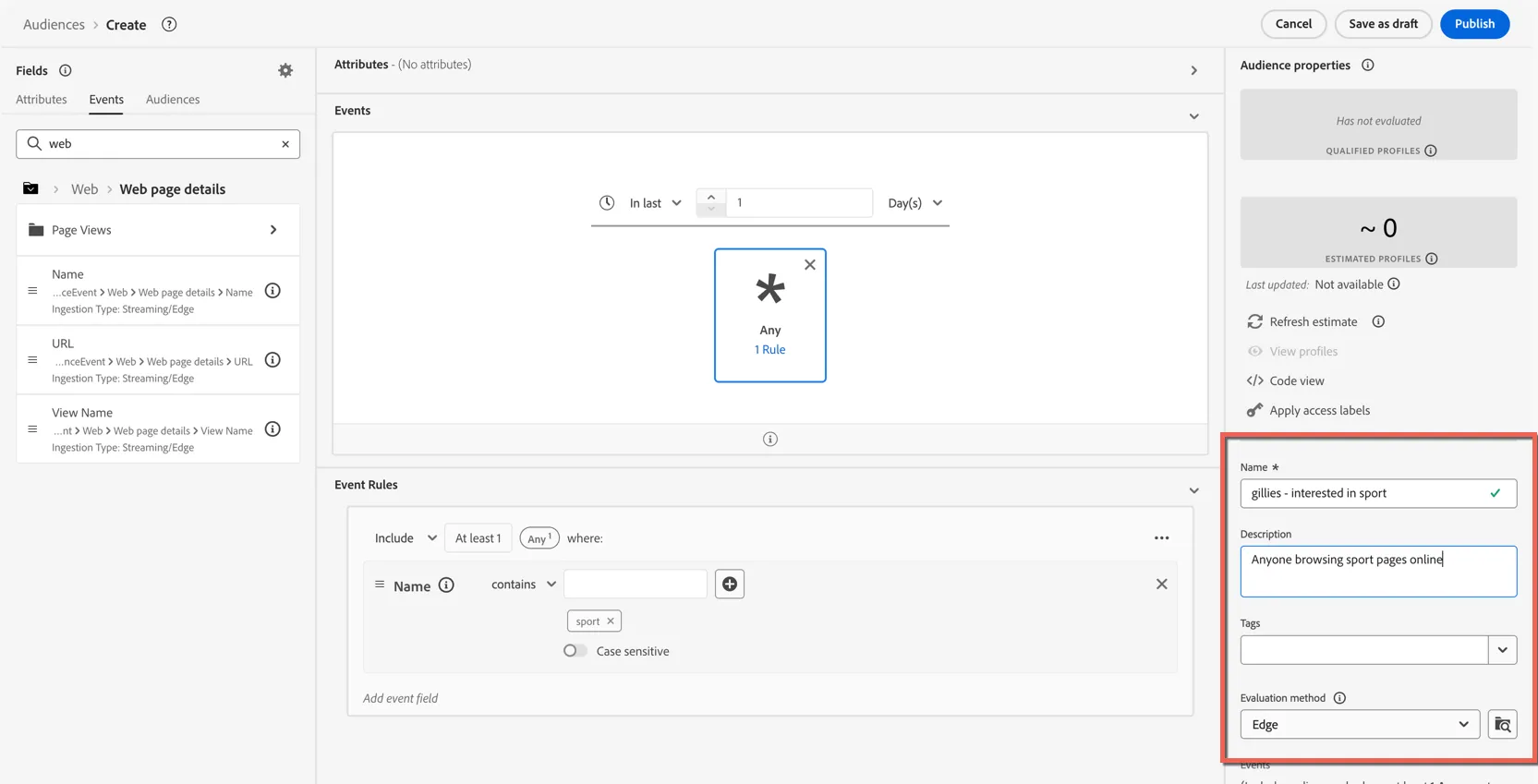
Click Publish. To save your audience and enable it for further use.
Audiences must be published before they are included in any kind of evaluation (edge, streaming or batch).
Congratulations you've created your first real-time Audience!
Create a web campaign
Now that we have a real-time audience defined, we can leverage an optimisation tool to modify the experience when customers qualify for the audience.
This can be managed through tools such as Adobe Target, Dynamic Yield or Optimizely but for this exercise we'll use Adobe Journey Optimizer a part of Adobe Experience Platform.
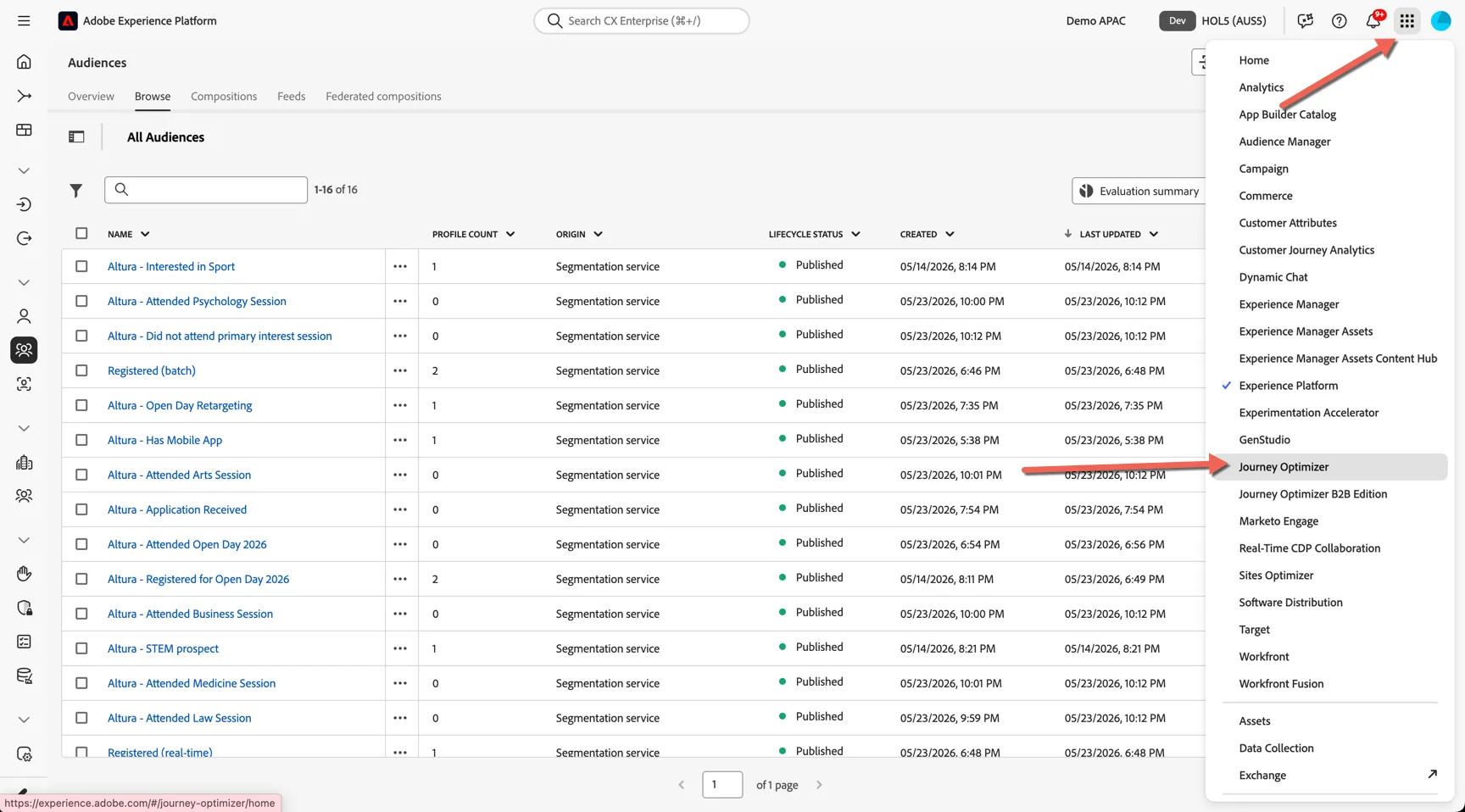
Use the solution switcher on the top right to change from Adobe Experience Platform to Adobe Journey Optimizer.
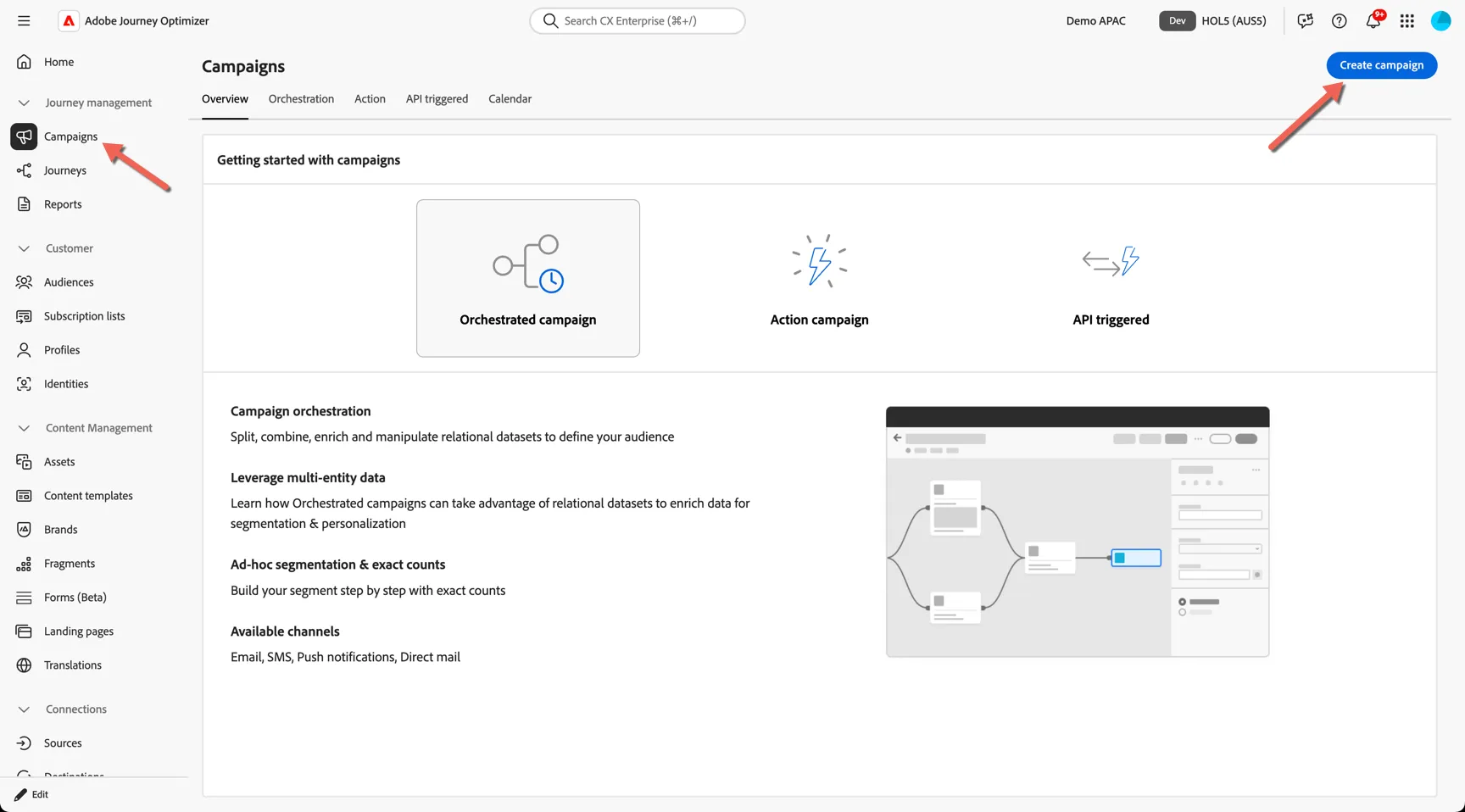
Navigate to Campaigns and click to Create campaign
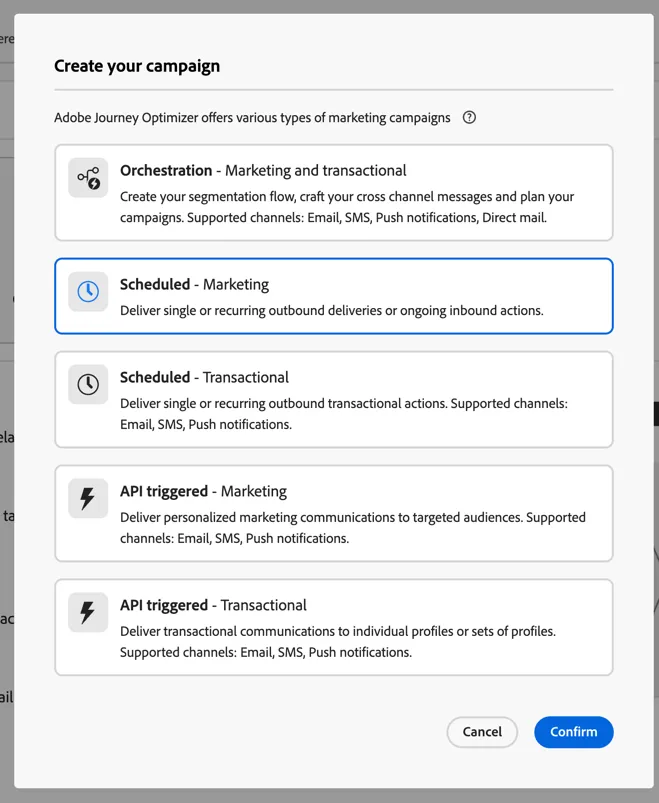
Adobe supports many types of campaigns but this exercise we will use a Scheduled - marketing campaign - these campaigns deliver single or recurring outbound messages as well as ongoing inbound actions - such as web experiences.
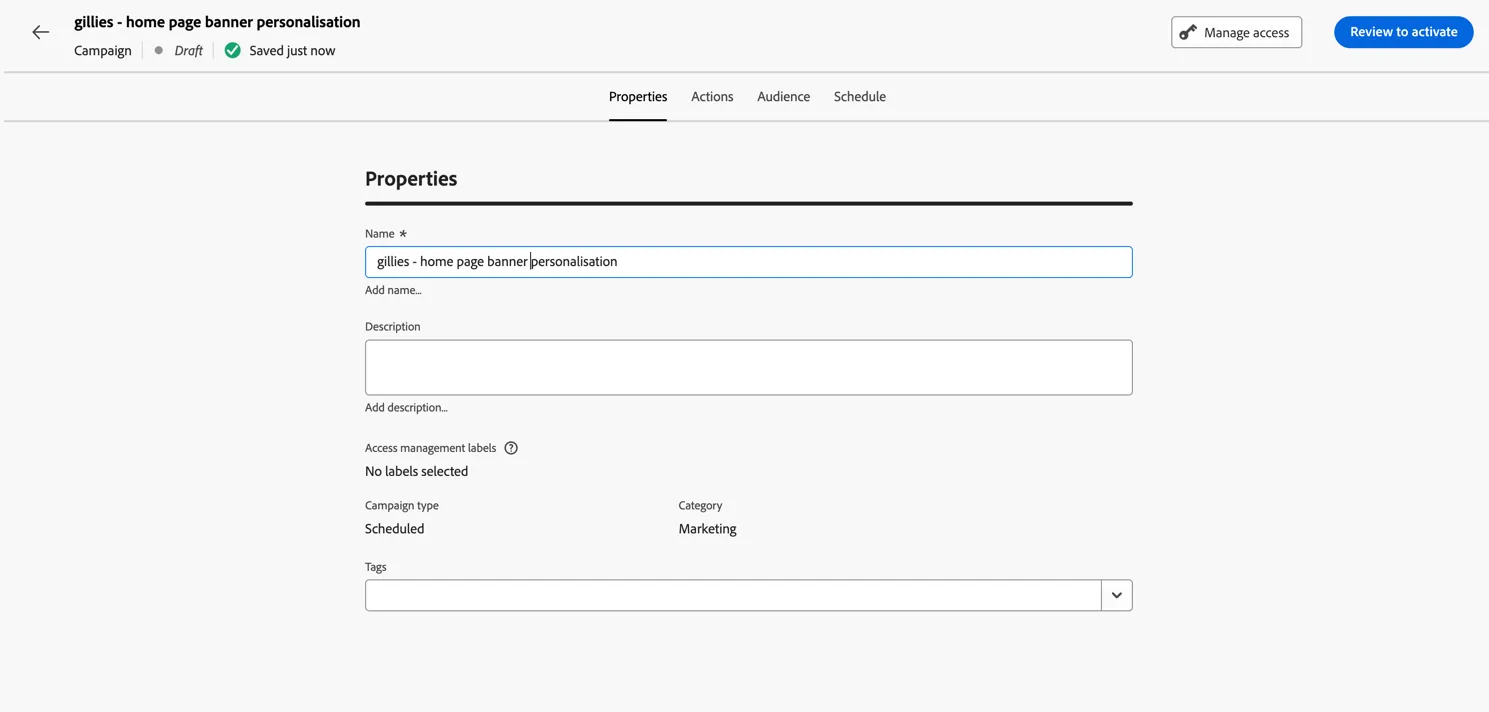
Give your campaign a name, something unique you'll recognise[your name] - home page banner personalisation
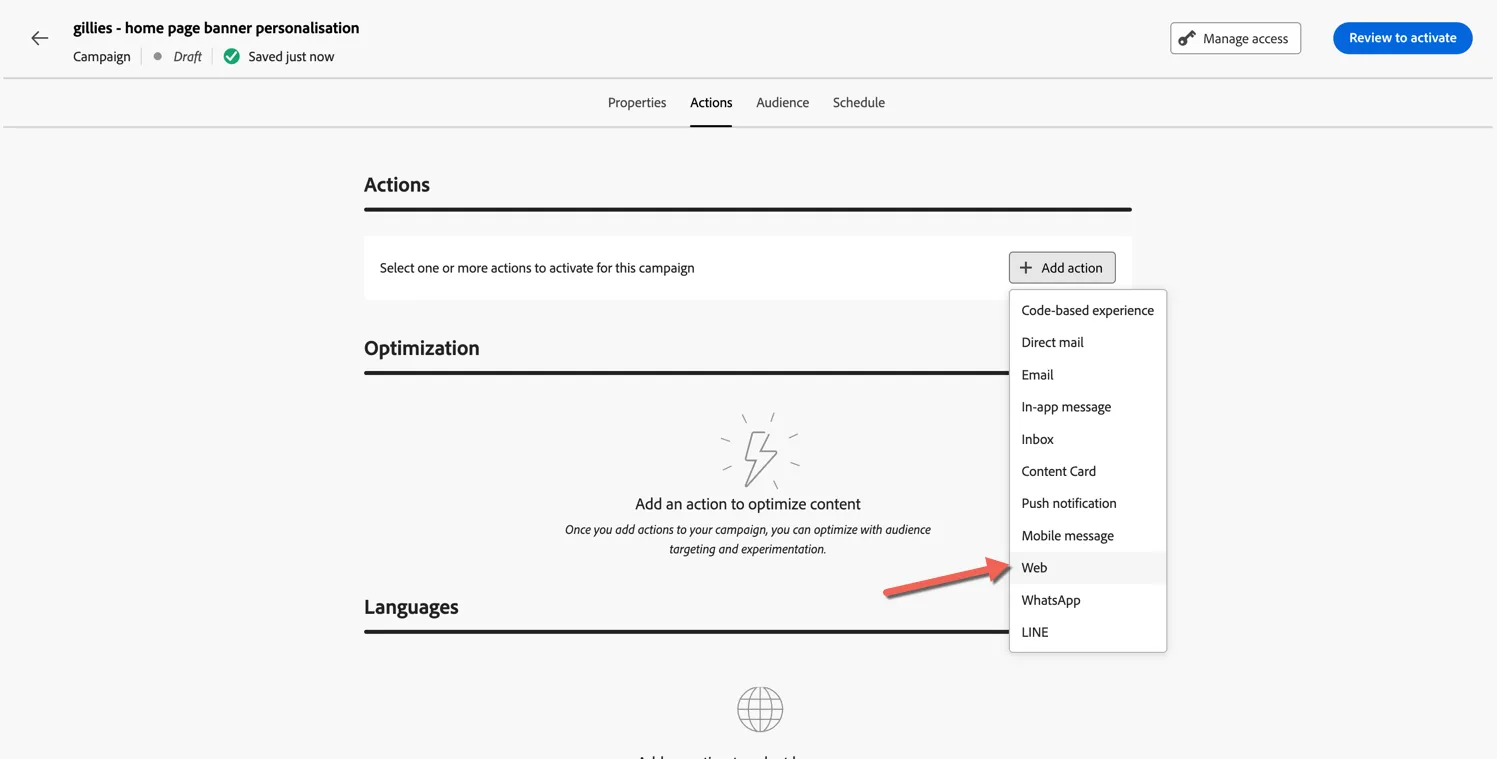
On the Actions tab, click to add a Web action - you can see the full list of supported channels here.
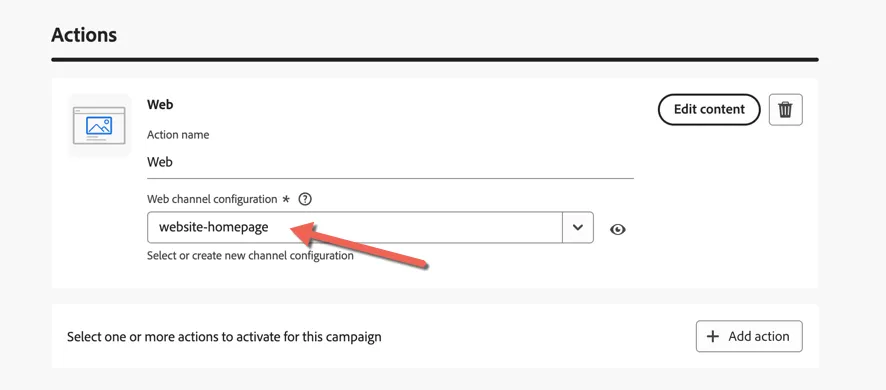
Select the website-homepage as web channel configuration. The configuration controls the location on the website where the experience will be triggered. These configurations are controlled under the Admin -> Channels and will usually be configured by an admin user and do not need to be modified by marketers.
To configure multiple experiences in the same campaign - for example different banners for users interested in science vs sport you would leverage Targeting Rules.
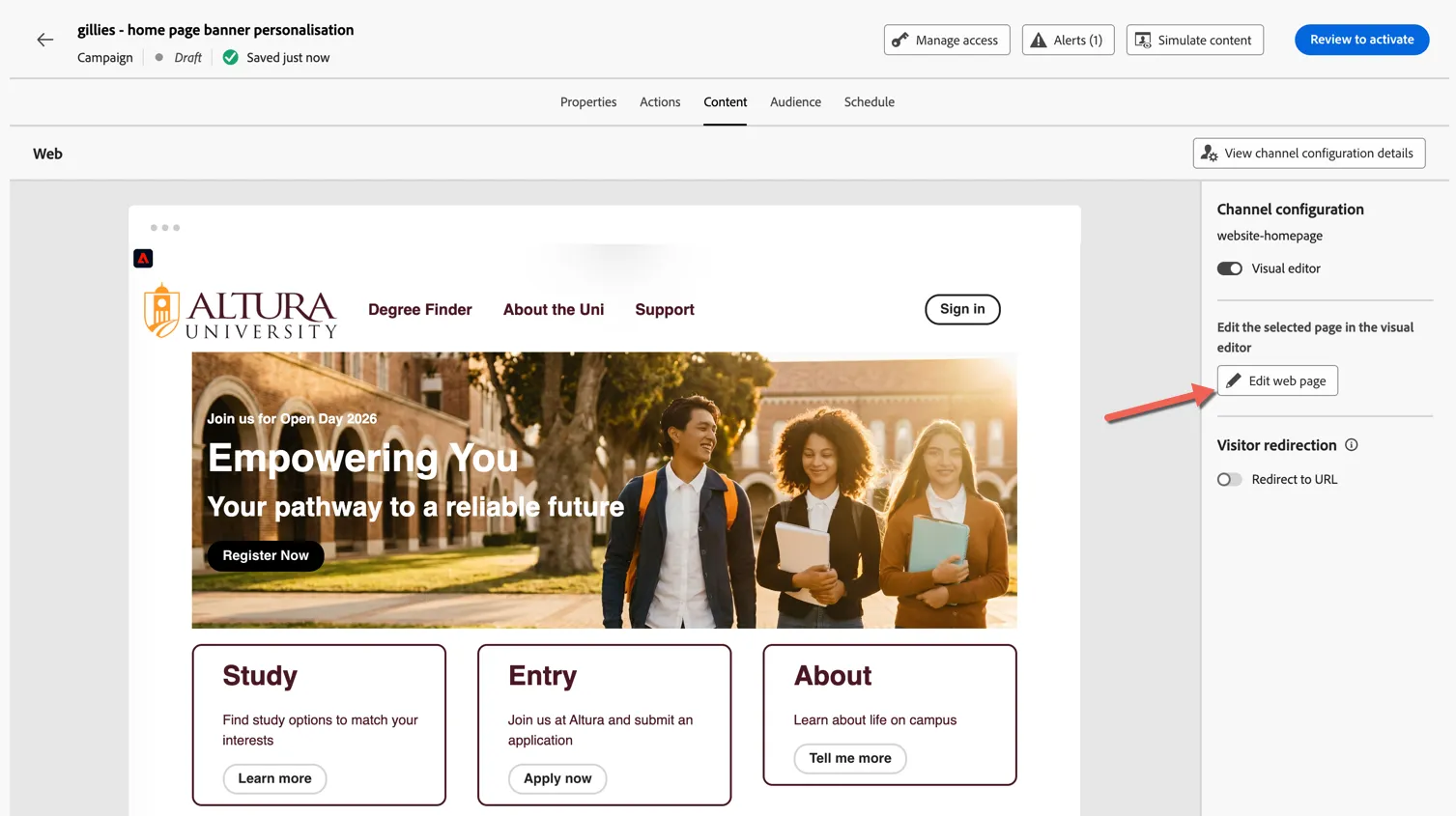
Click to Edit Content or move to the Content tab. You should see a preview of the default home page. Click to Edit web page.
Congratulations you've created your first personalised web experience.
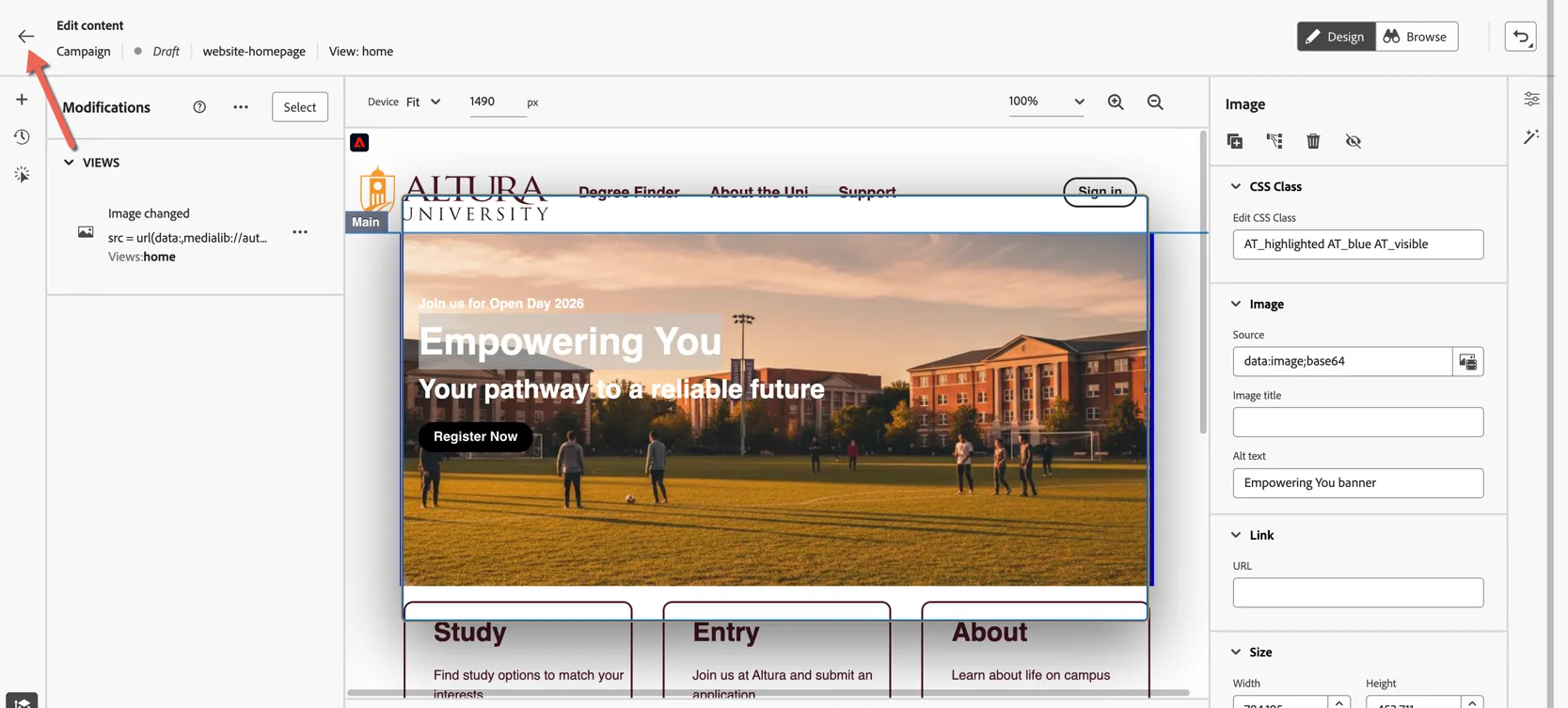
Click on the banner image and use the Image Properties on the right side to open the Asset Selector to choose a new image source.
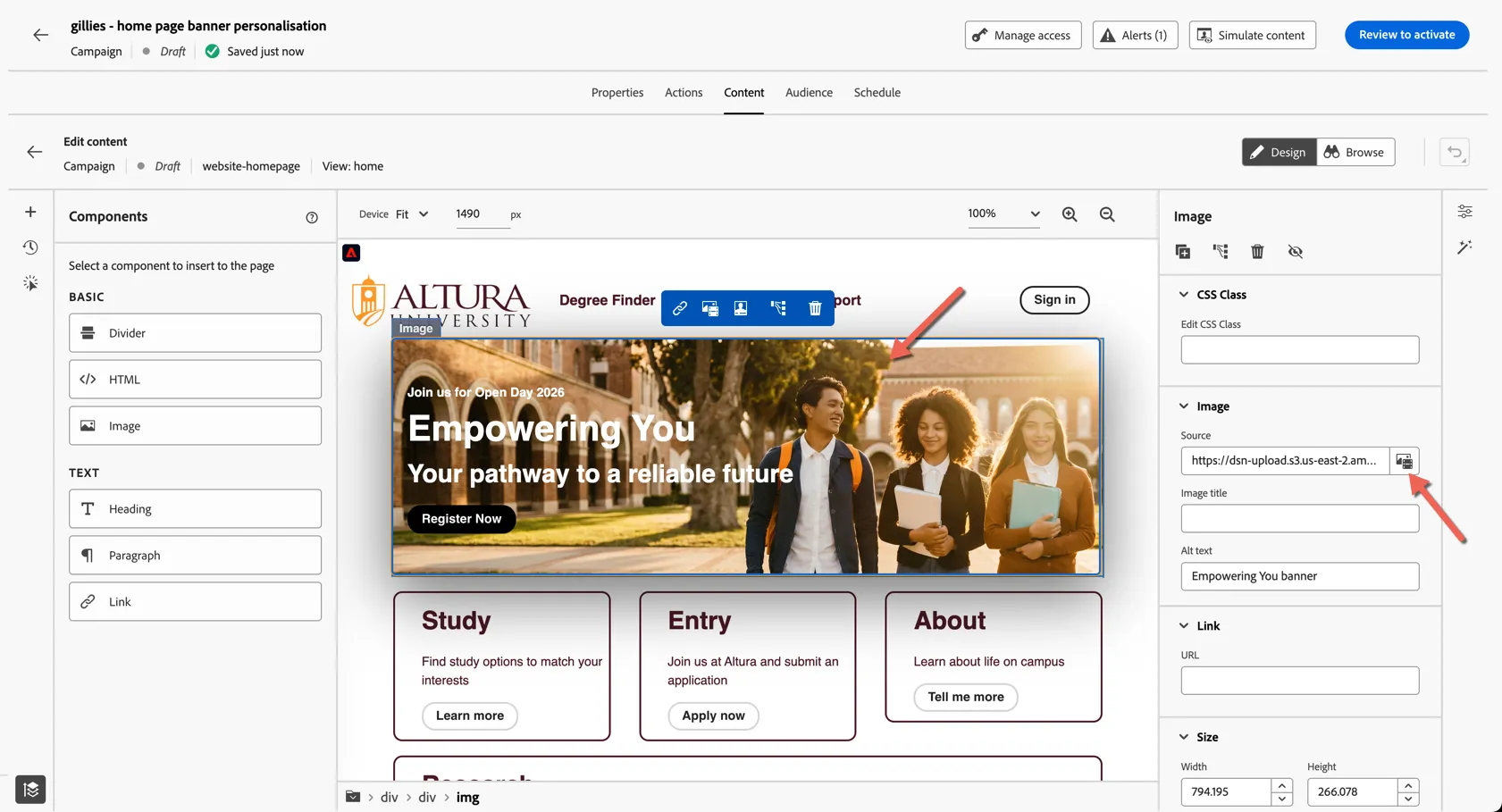
There are a number of options for selecting an image:
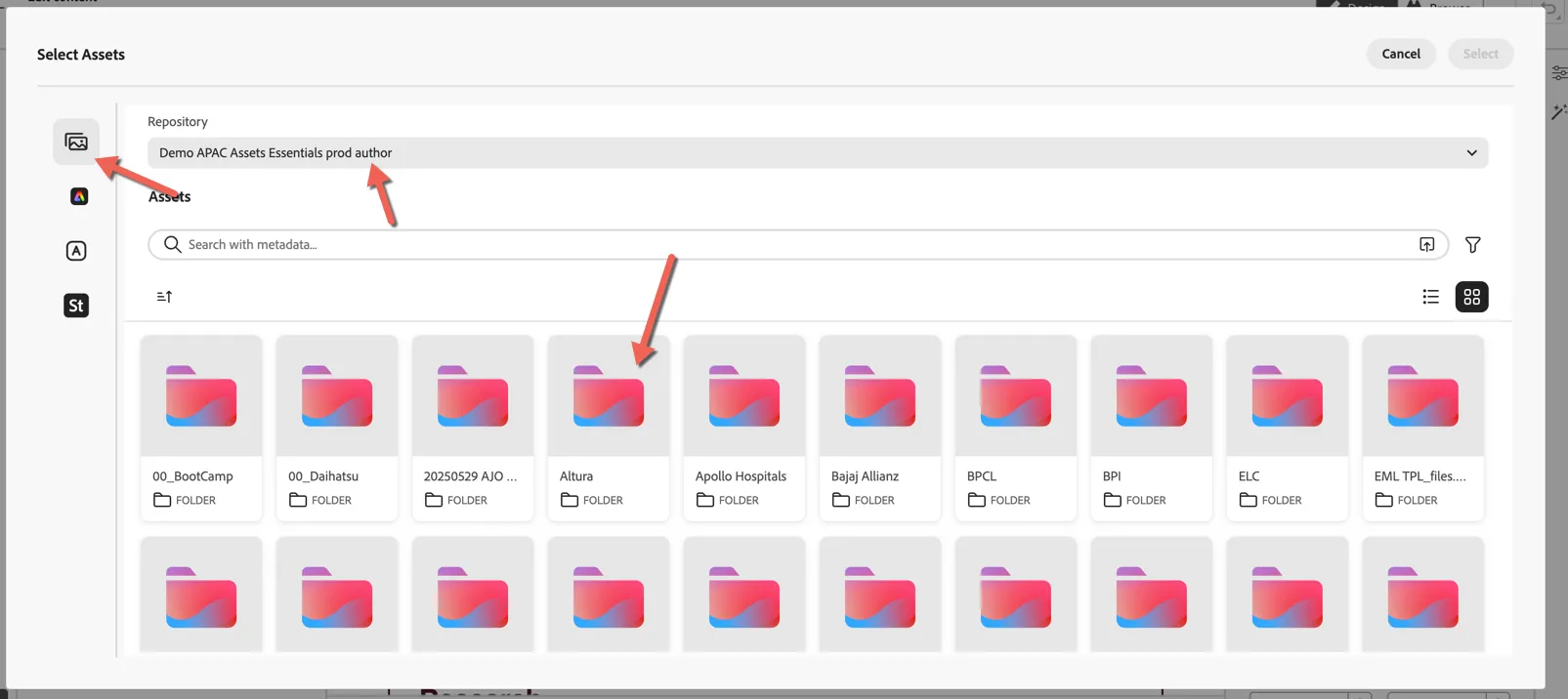
- Asset Selector - Select a pre-existing image from the Asset Repository
- Adobe Express - Use Adobe Express to create a new image (requires Adobe Express license)
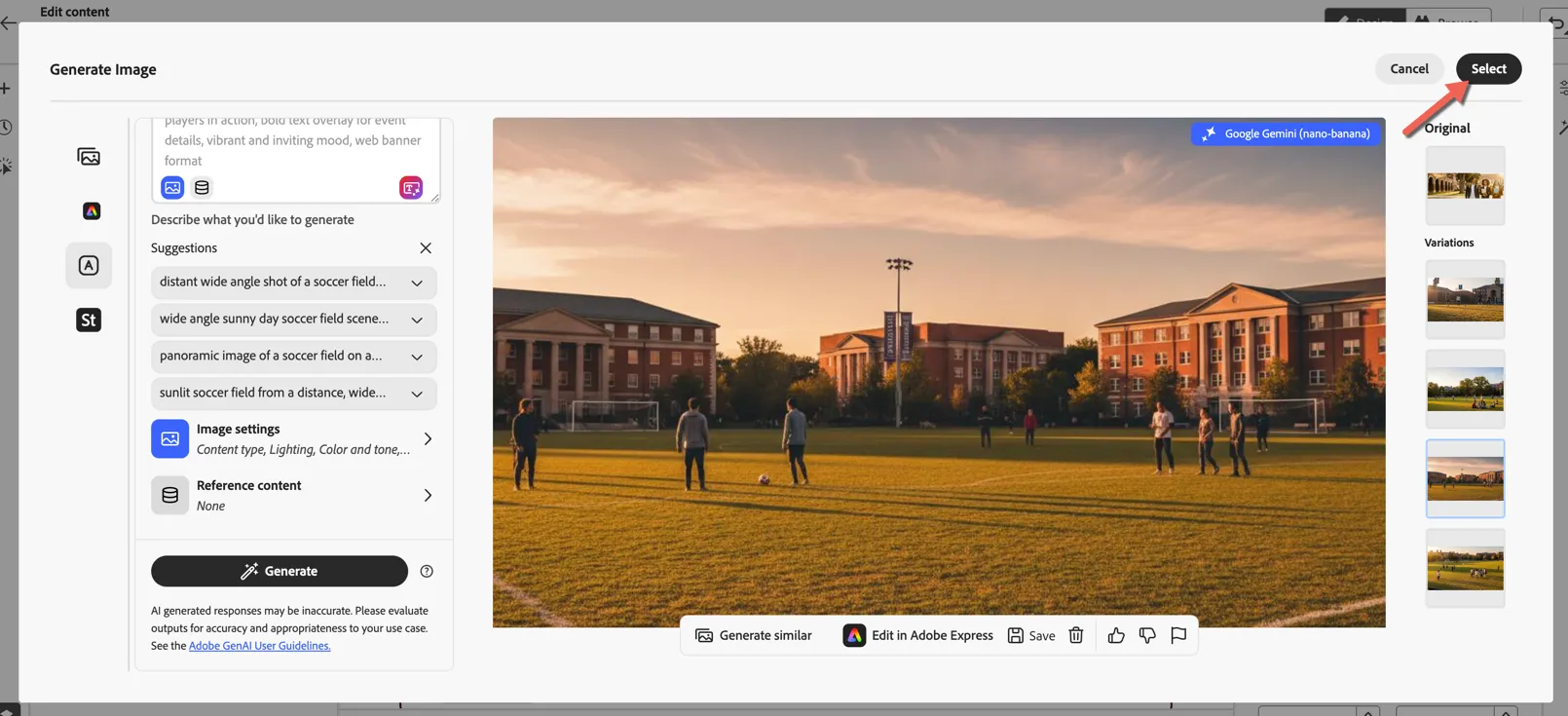
- Adobe Firefly - Use Adobe's AI tools to generate a new image using a text prompt
- Adobe Stock - Pick an image from Adobe's Stock (requires an Adobe Stock license)
By default it prompts you to use Adobe's AI Tools to generate an image based on a text prompt. You can use this if you want, otherwise click the top icon to select a pre-existing image from the asset repository.
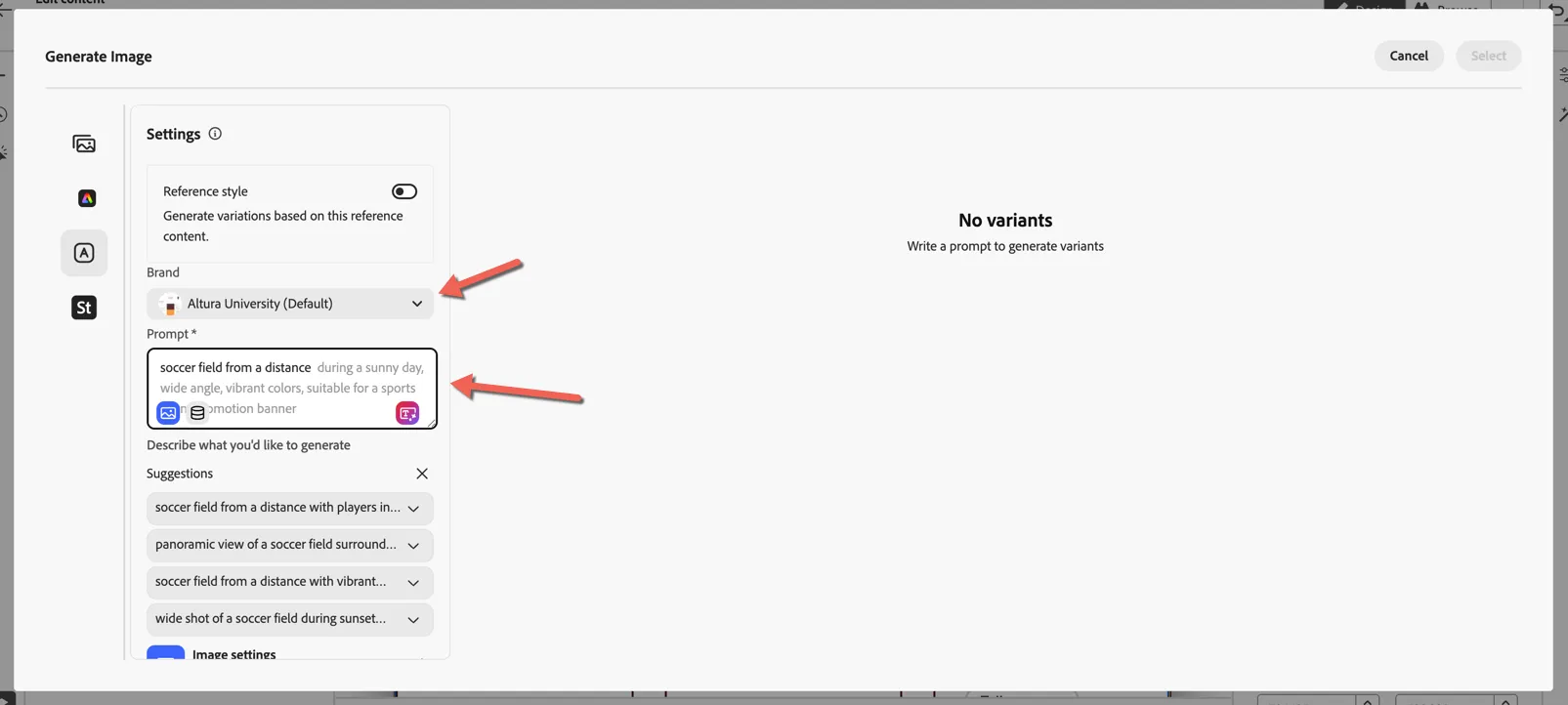
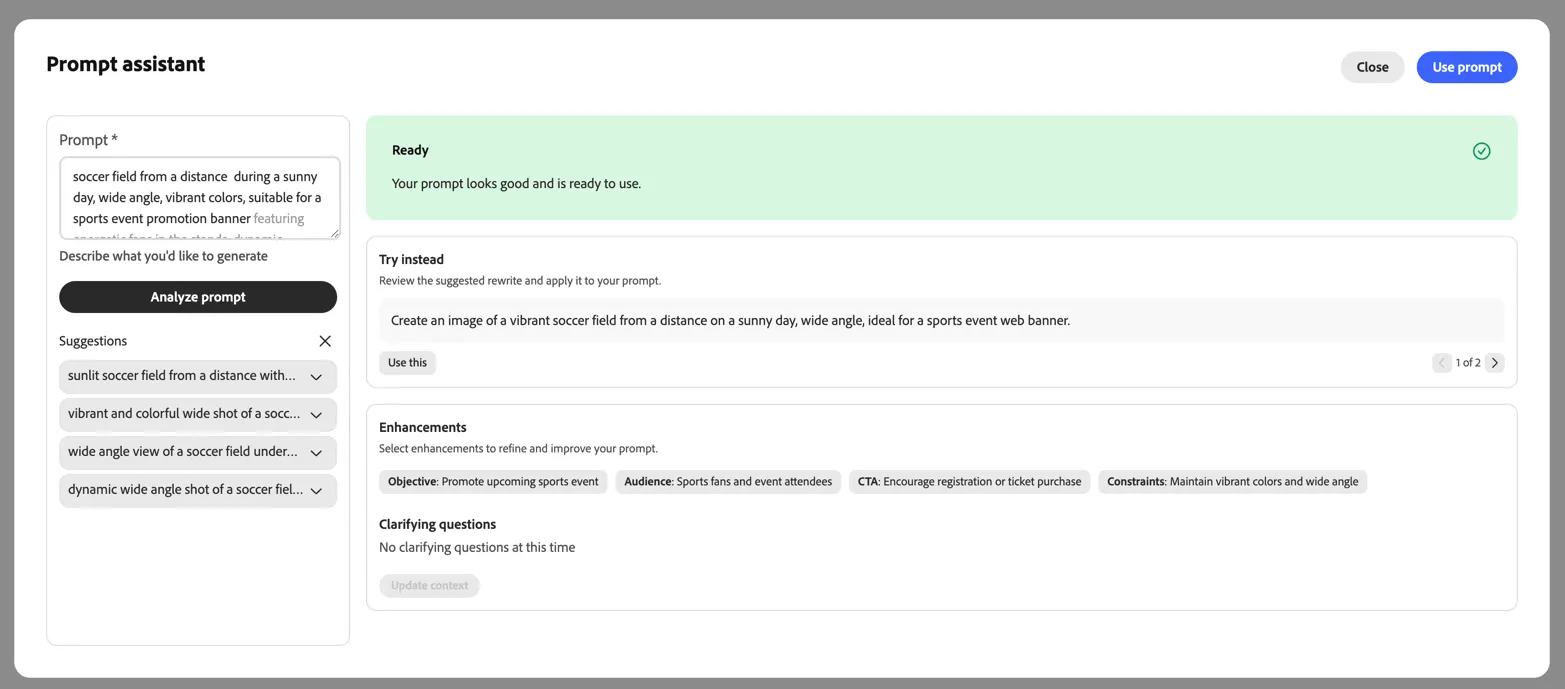
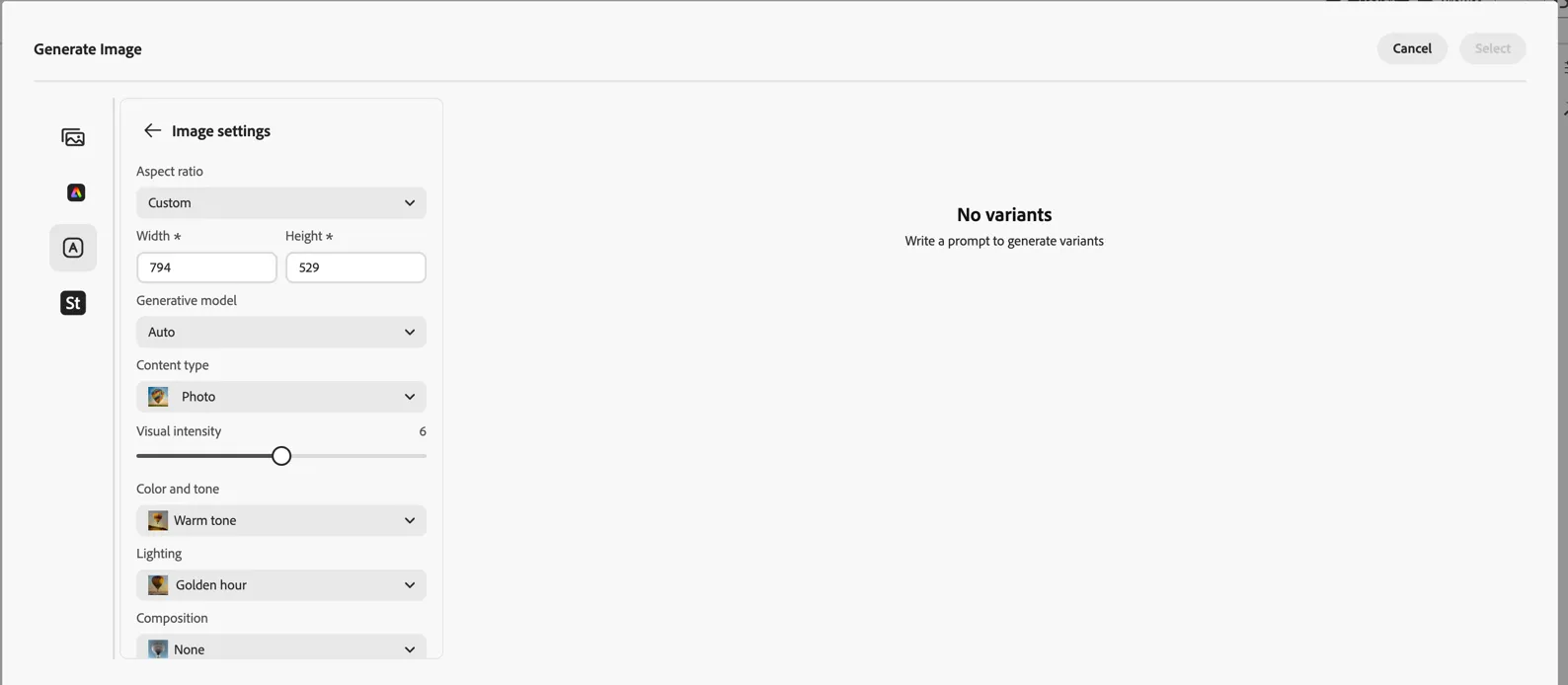
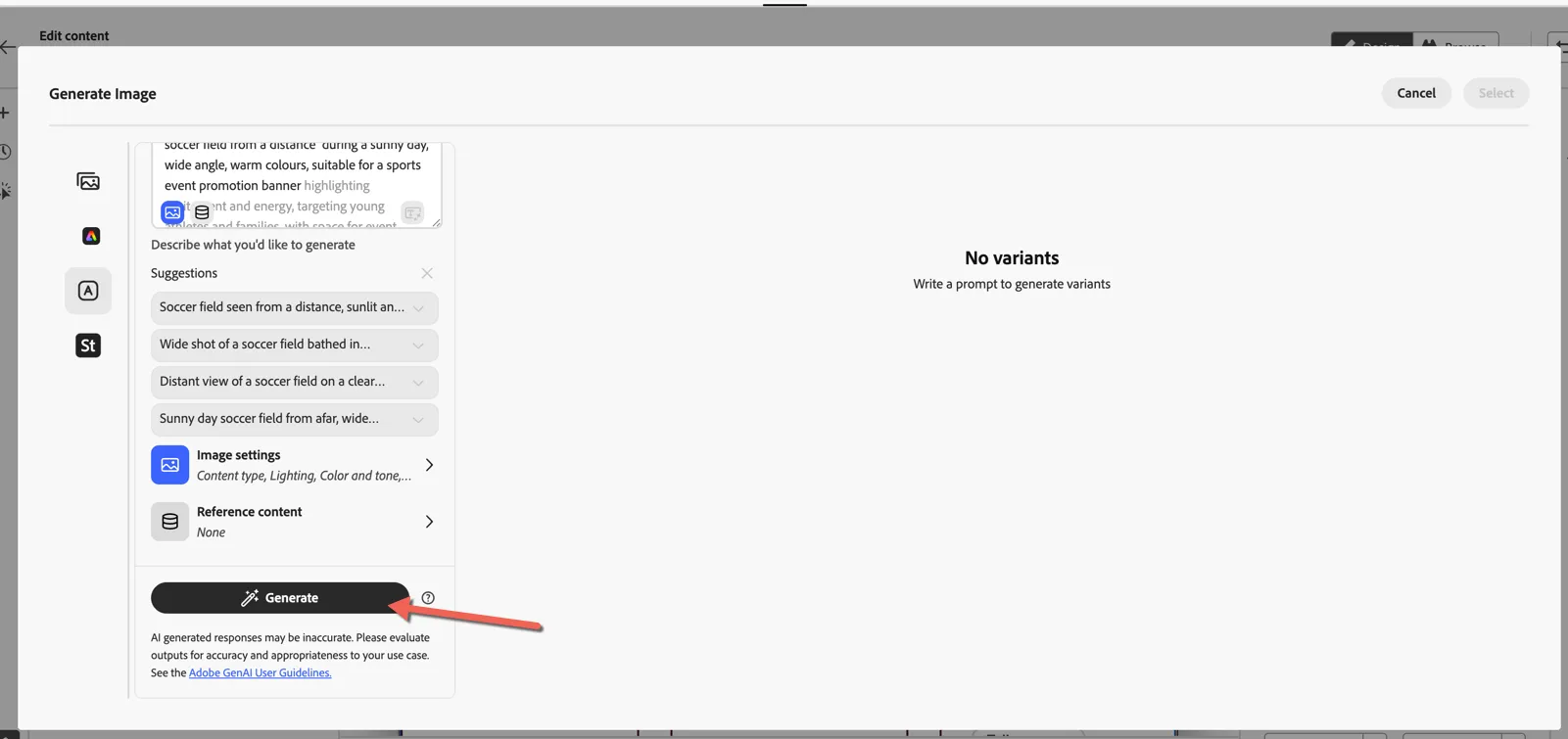
Using the Asset Selector, ensure the repository is set to Demo APAC Asset Essentials prod author. Then click into the Altura folder.
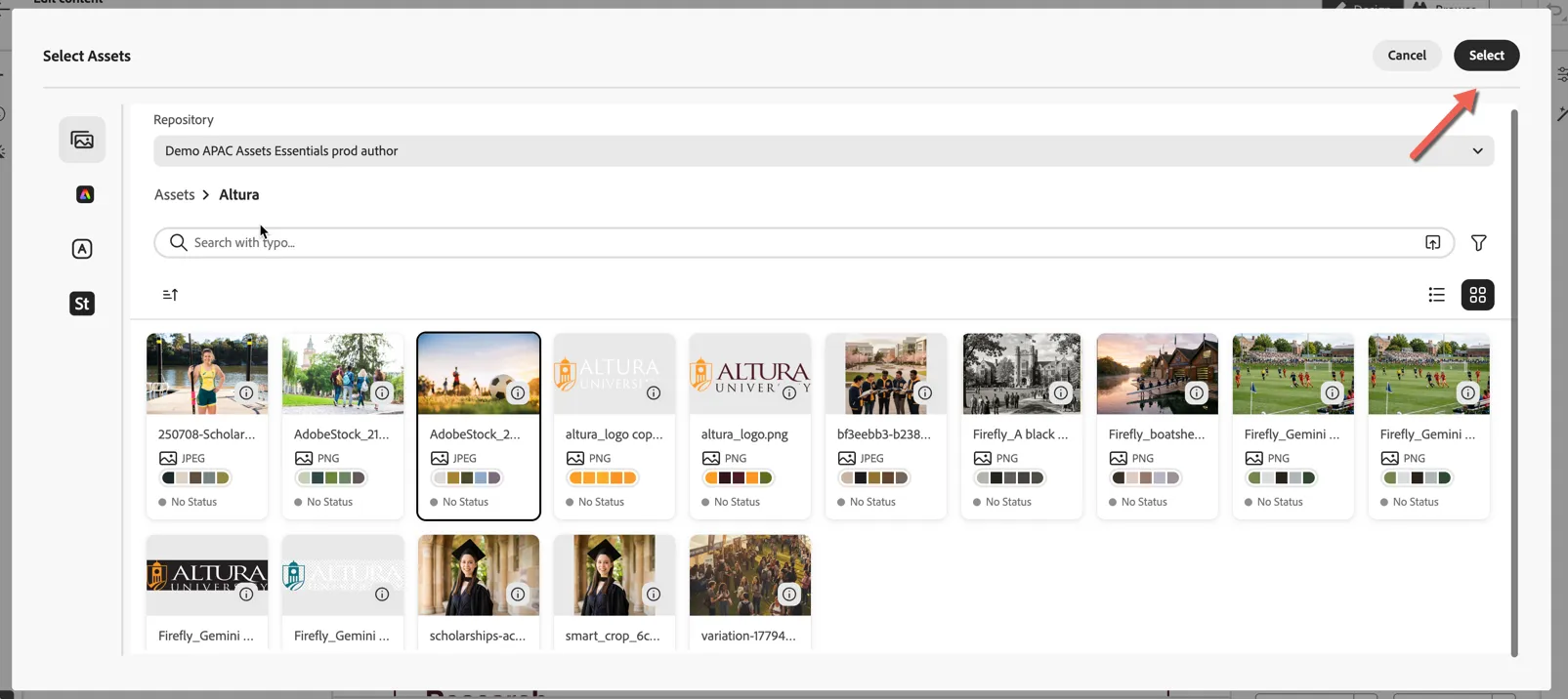
Pick one of the existing banners and hit Select to add it to your page.
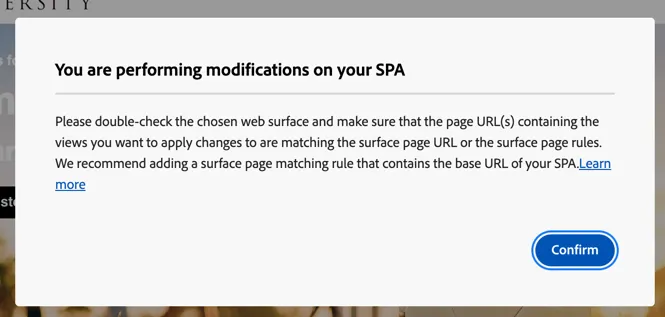
Click to Confirm the SPA warning.
Make further updates to the page if needed such as changing the text colour.
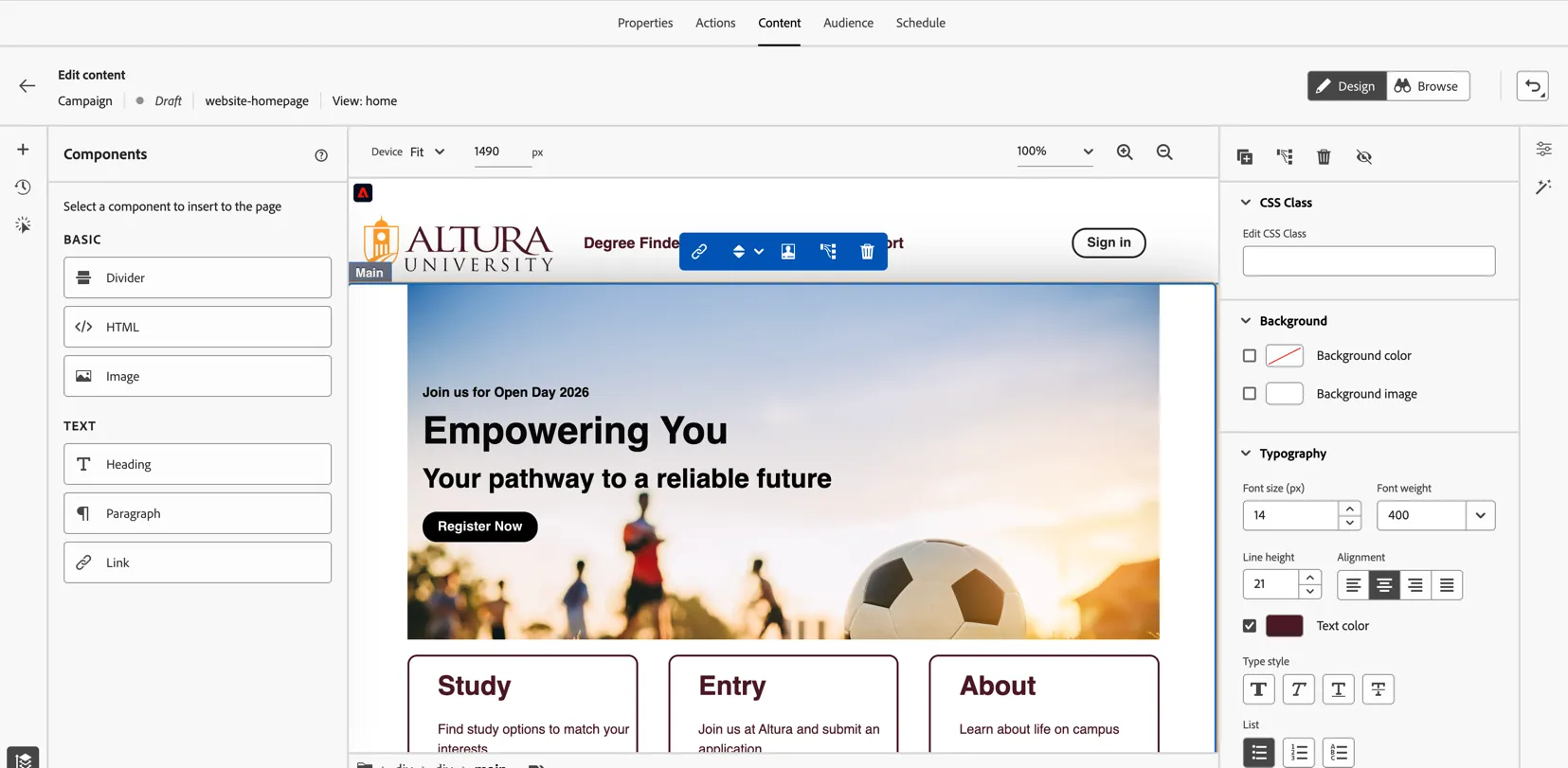
Once you're happy with the results, use the arrow on the top left to return to the campaign.
Next we need to define the campaign audience and schedule. Click on the Audience tab and click to select audience.
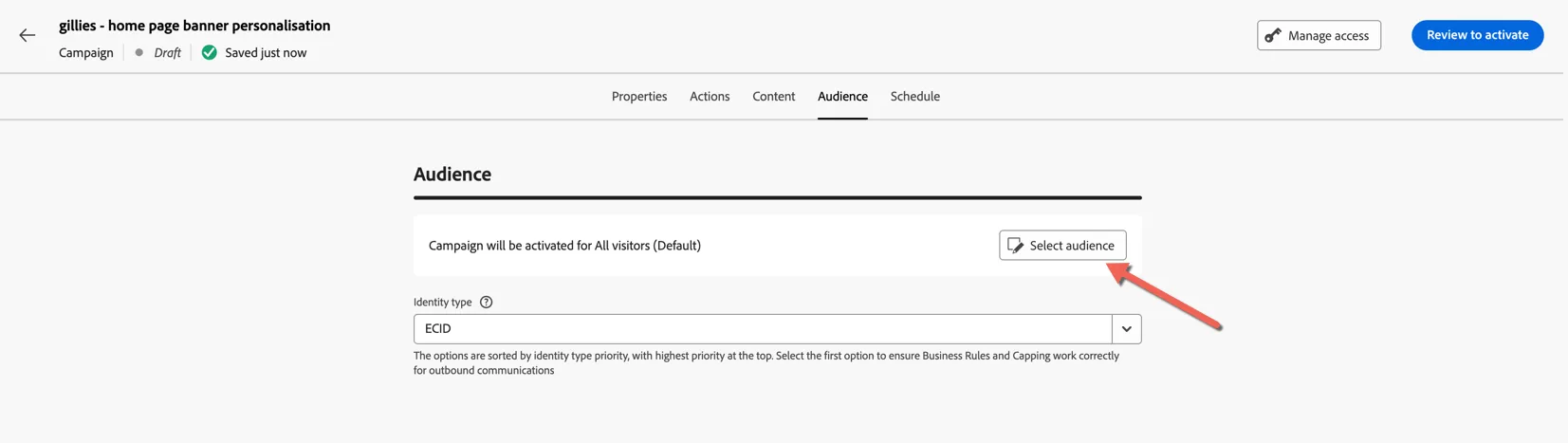
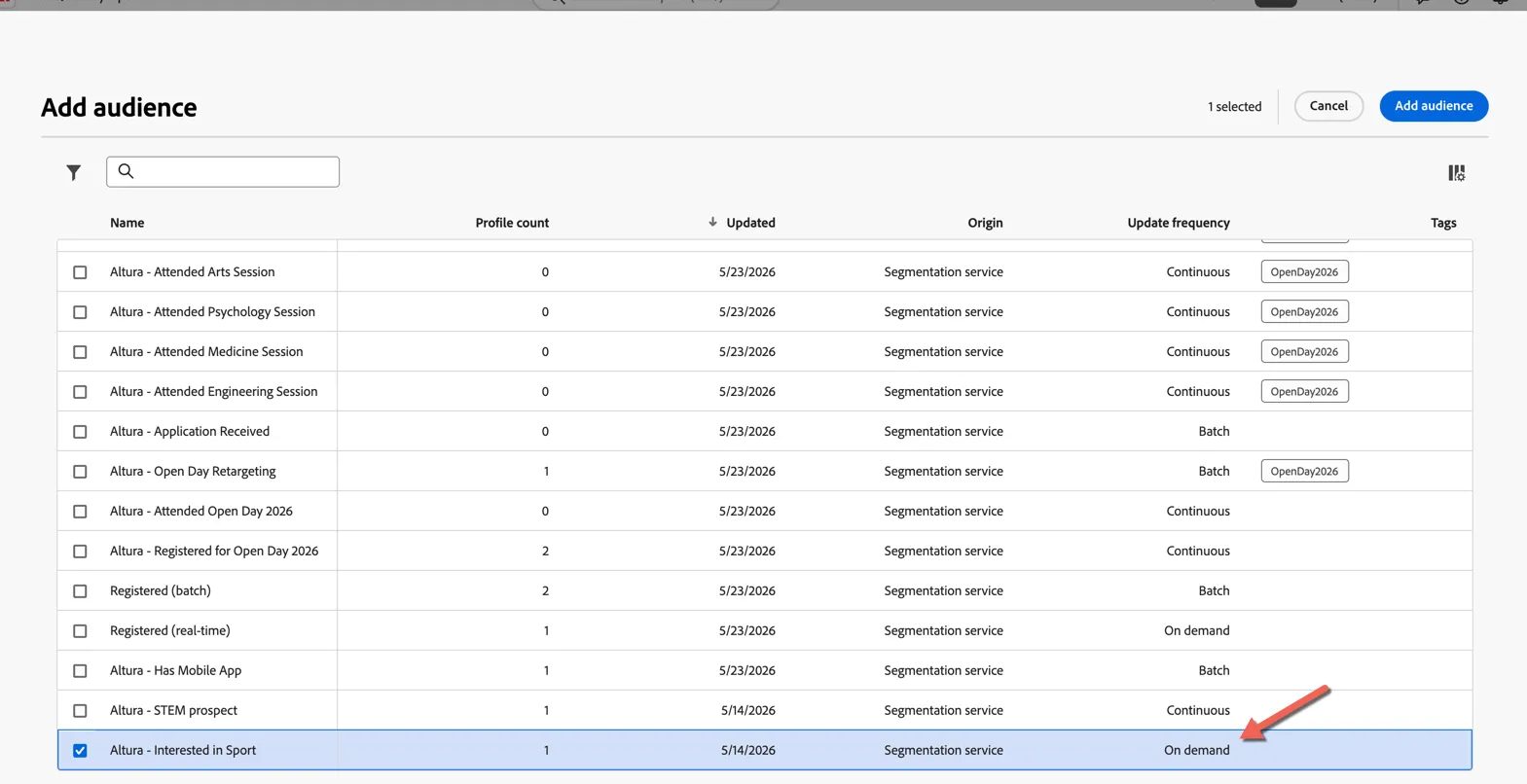
Select your real time audience created in the previous exercise - or Altura - Interested in Sport. Being an application built natively on Adobe Experience Platform Journey Optimizer has direct access to all AEP audiences - no need to transfer data between solutions. You can see the "real-time" audiences are those defined as "On demand" for Update frequency.
Lastly the Schedule tab lets you assign a start and end date for your campaign. You can leave the default values here.
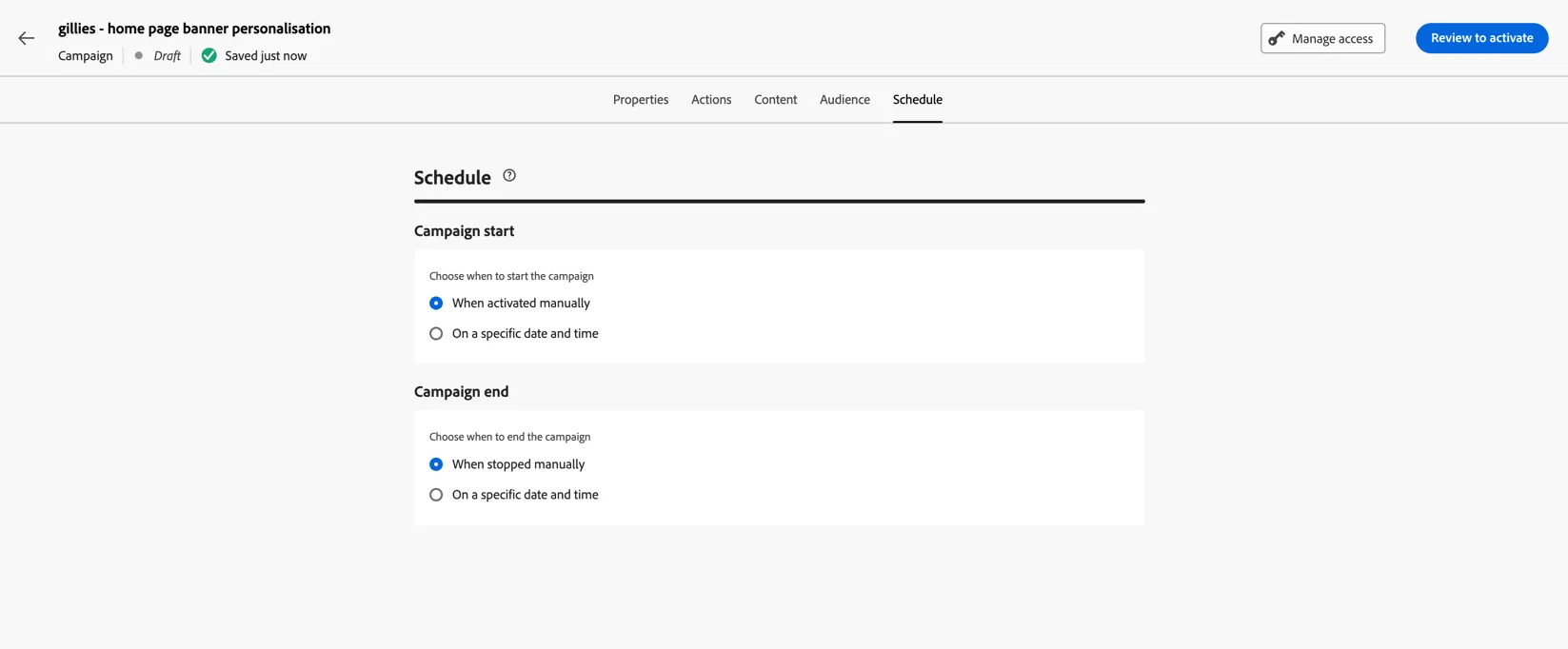
Your campaign is now ready to activate.
But what if another campaign has also defined an experience for this location? Conflict management on the Actions tab allows you to assign priority weights (1-100) for each campaign to control which experience takes precedence should a customer qualify for multiple experiences at the same time using the same configuration.
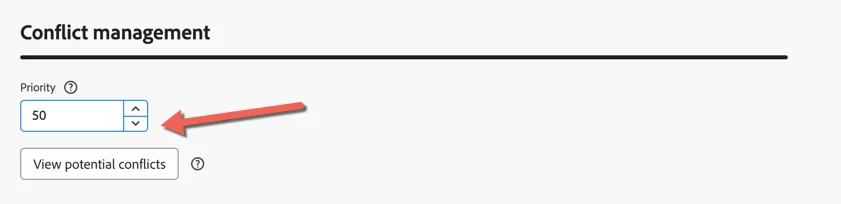
Congratulations you've created your first personalised web experience!
Take Away
Understanding who someone is, from the very first anonymous visit through to a fully known, registered profile is the foundation of any effective personalisation strategy. The unified real-time profile brings together behavioural data, declared attributes, and cross-channel identities into a single view, giving marketers a level of insight that simply isn't possible when data is fragmented across separate tools.
The identity graph shows how individual touch-points stitch together over time, meaning you can connect an anonymous website browse to a known profile the moment someone identifies themselves. With this in place, you're no longer guessing who you're talking to, you're responding to real signals with real context, and the onsite personalisation you experienced firsthand demonstrates just how immediate and impactful that can be.