Exercise 4 - Learn
Scenario
With Open Day complete for another year the Altura team are keen to ensure the onboarding process is as seamless as possible and give their new applicants the best chance they can to successfully complete the first year.
The learnings from this analysis will be used to plan the Student onboarding journey for the next semester.
Objective
Use Adobe's CX Analytics to analyse student behavior across channels to derive insights that can help inform your marketing strategy for today and tomorrow.
As an analyst you'll learn how to
- Build dashboards and add visualisations
- Leverage AI-based attribution modelling
- Create cohorts and calculated metrics for analysis
Make it
For this exercise you will need to switch solutions to Customer Journey Analytics (CJA). Use the solution switcher in the top right corner.
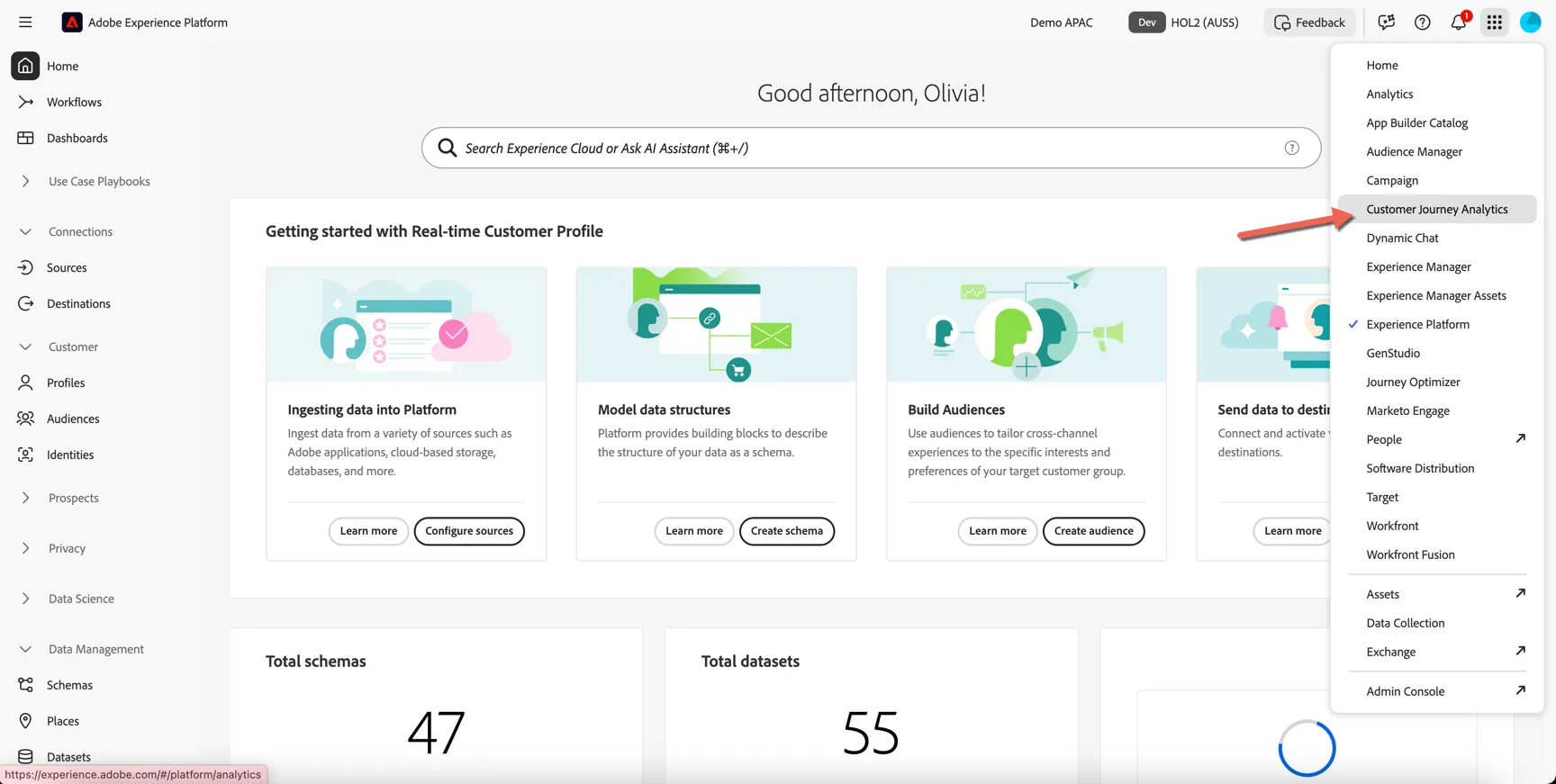
Before we get started!
Please note that the numbers in your report will look different from those in the screenshots - this is a living dataset that is constantly changing. It is also demo data, so do not be too critical and if the numbers seem inflated or incorrect compared to a real world scenario.
Introduction
We'll start with the basics to get you familiar with the tool and the types of data available for analysis.
Rather than creating our whole dashboard from scratch we'll start with a pre-built template. This will provide you with some initial insights while giving you an isolated area to explore the data further.
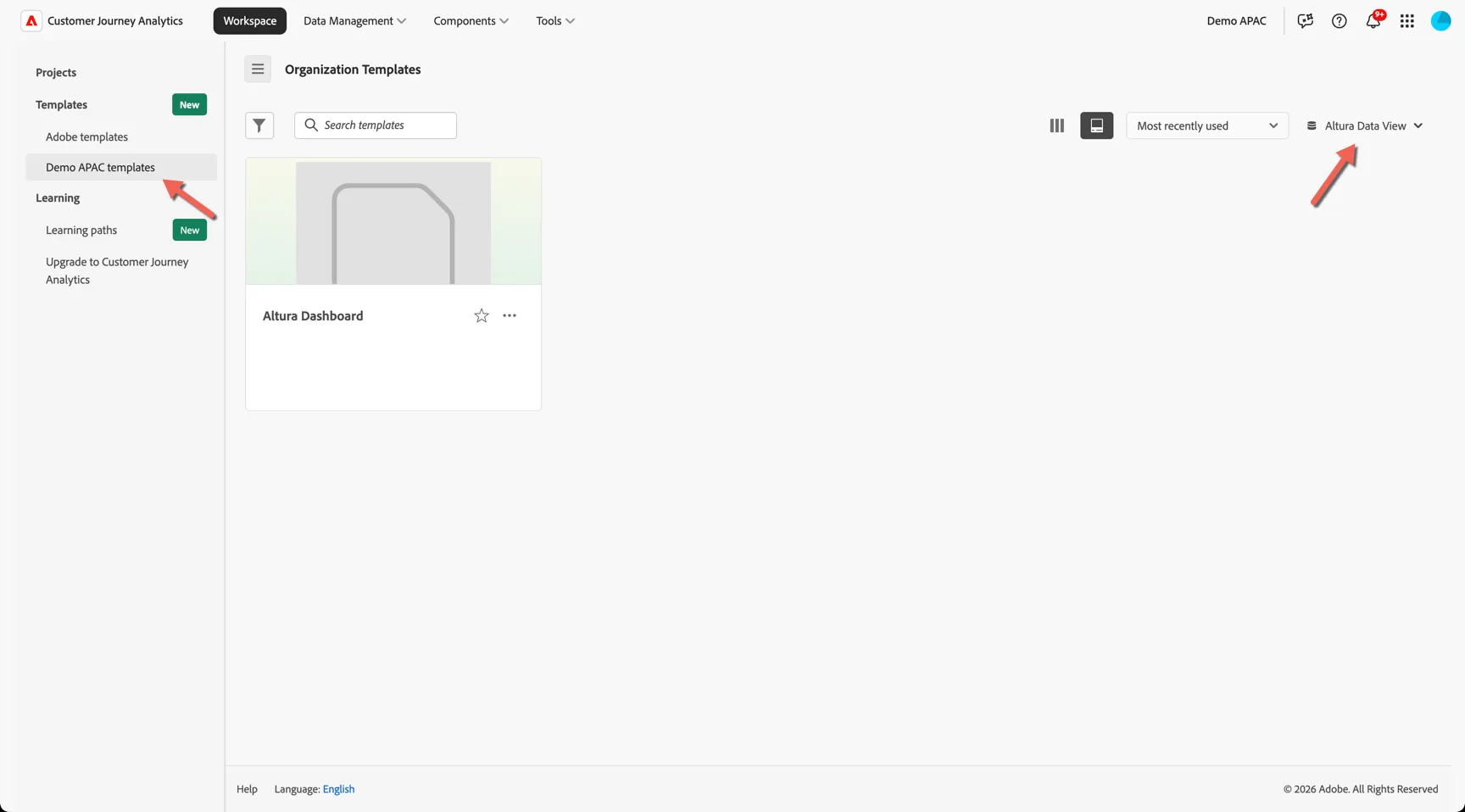
Under Workspace -> Templates -> Demo APAC templates and select the Altura Data View on the right side.
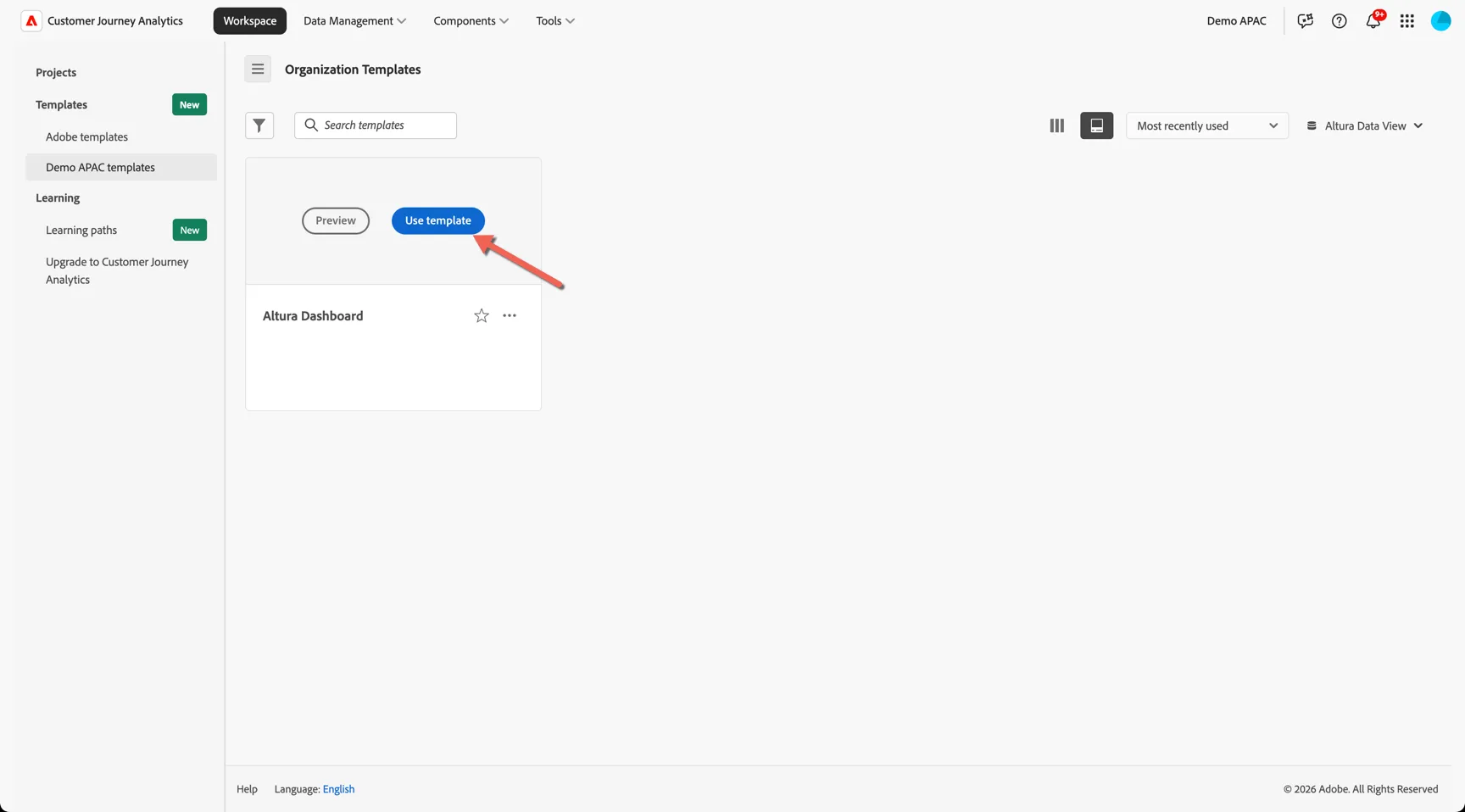
Hover over the Altura Dashboard card and click to Use template
Take note of the following UI components:
Panel - Each dashboard/project is made up of one or more panels
Data View - Controls what data is available to the report - keep in mind this includes multiple datasets that can span multiple channels and data sources.
Date Range - The date range controls what data is displayed in the panel
Left Rail - Provides access to all of the components required to build your reports. You will find menu's for panels, components, visualisations, guided analyses and a table of contents for the current dashboard.
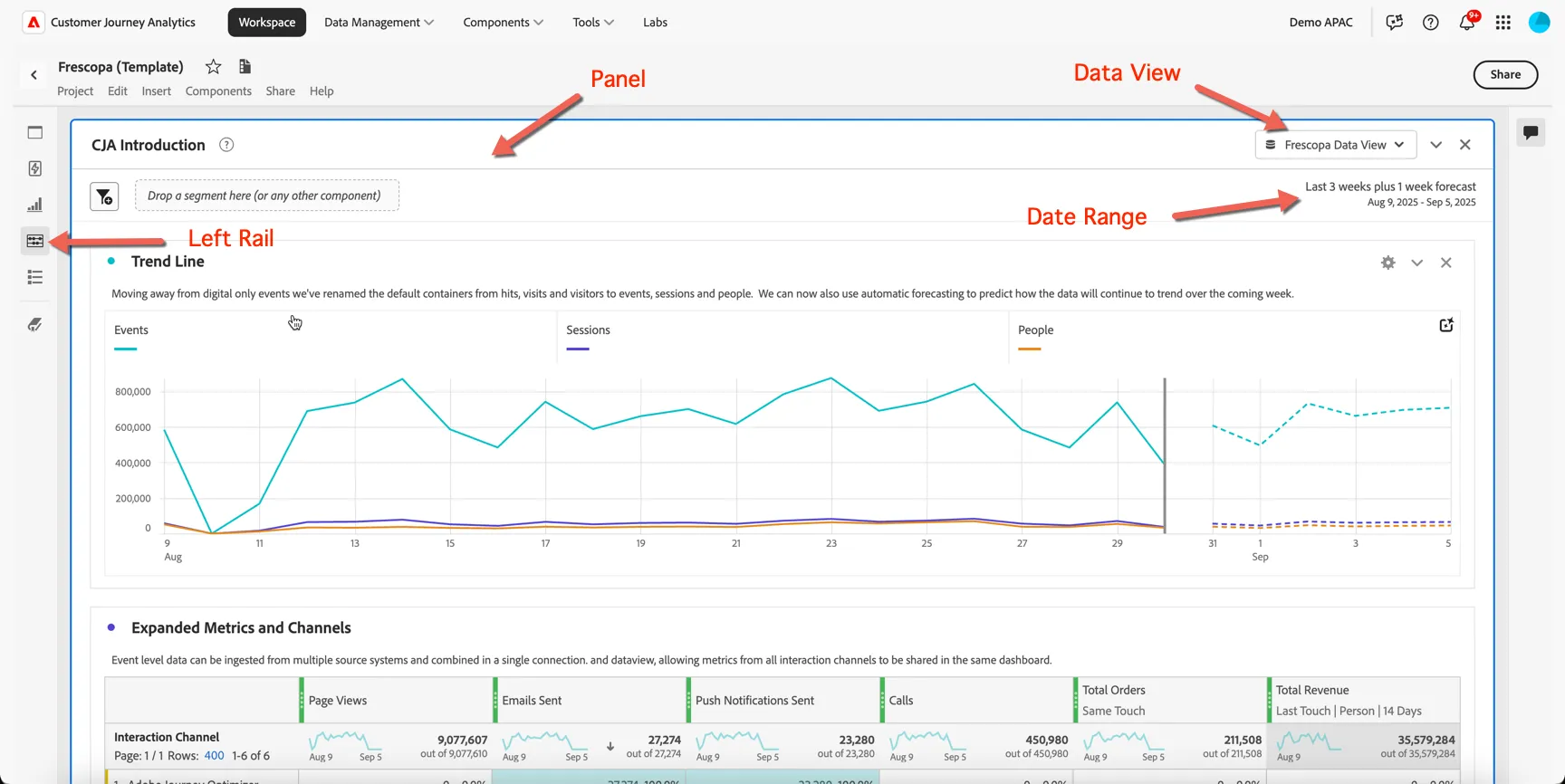
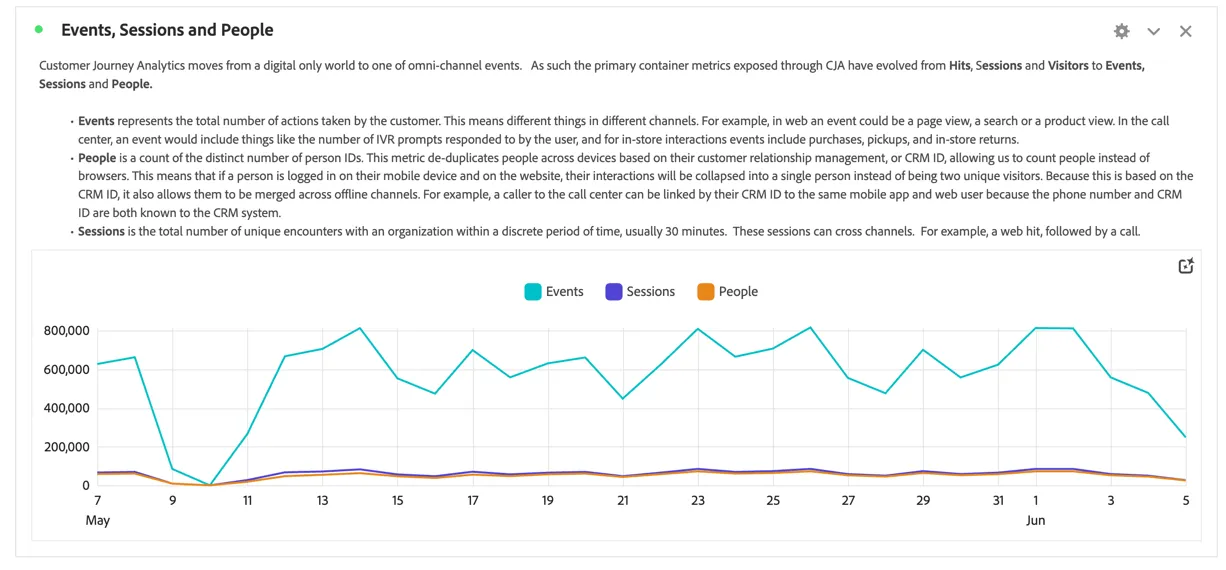
You can see in the first Trend Line visualisation the primary containers used by CJA: Events, Sessions and People. If you're familiar with Adobe Analytics you can think of these as being equivalent to Hits, Visits and Visitors - but remember in Customer Journey Analytics we're grouping data based on a person identifier, not a device (or cookie).
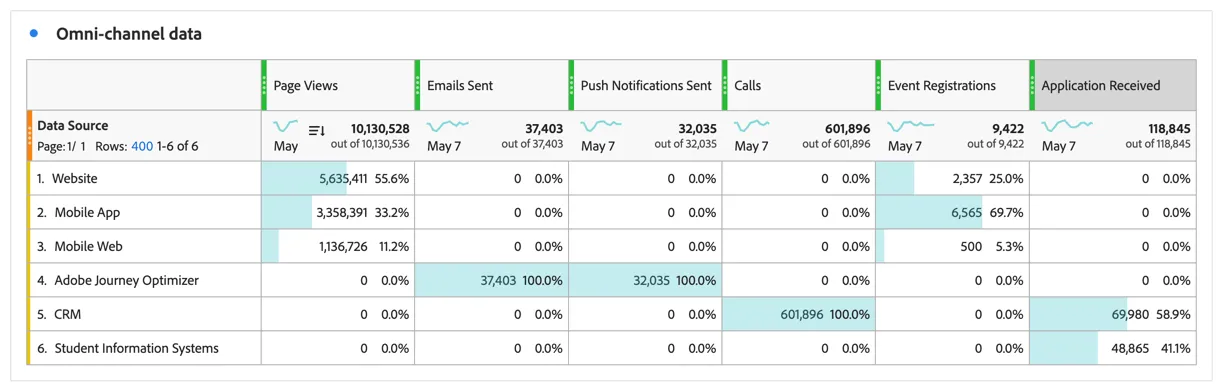
Since the event data ingested to CJA comes from multiple sources not just your website and app we can combine many different types of metrics into the same dashboard. Scroll down to the Omni-channel data table.
Here we can see page views coming from both the website and app. Direct marketing metrics like the number of emails sent coming from marketing automation tools (in this case Adobe Journey Optimizer) beside non-digital or external interactions like calls recorded through the CRM or applications received via QTAC.
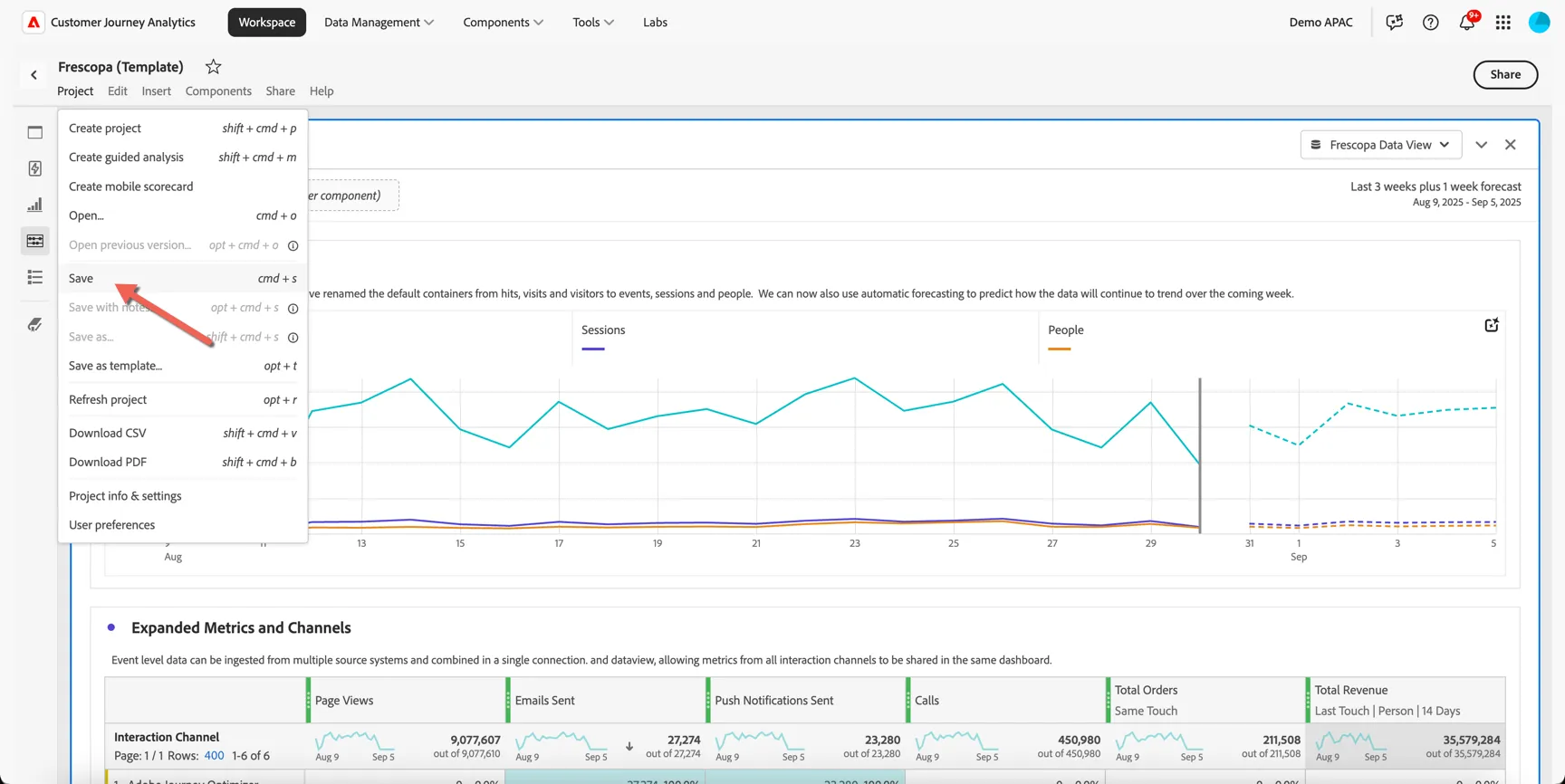
Before we start making changes let's save the project. Click on Project -> Save.
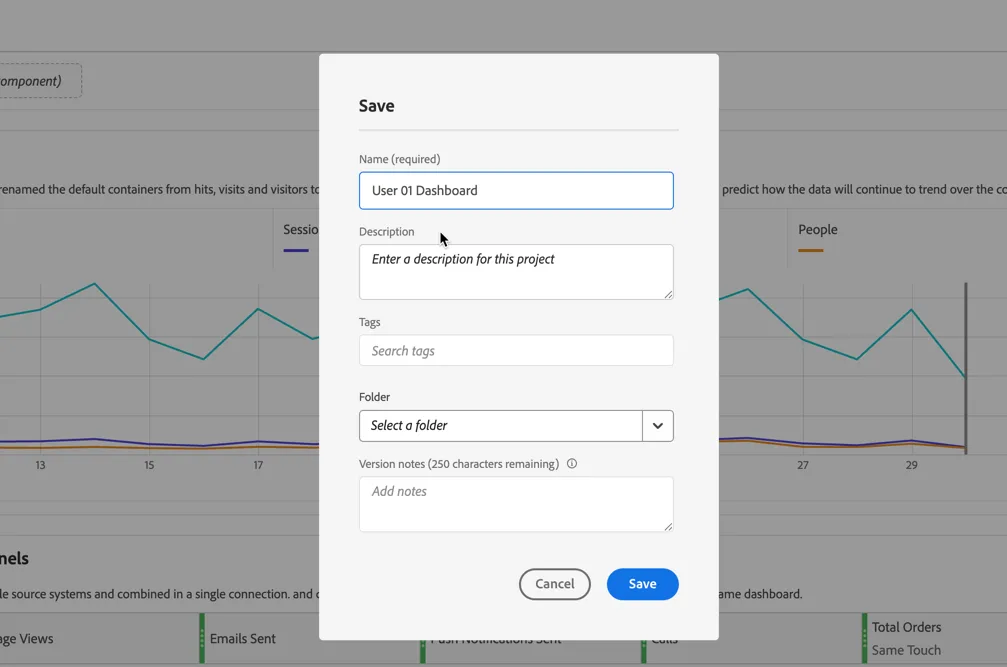
Give your project a unique name by including your lab number or name. Then click Save.
Now before we start our adhoc analysis let's save the project. Click on Project -> Save.
Give your project a unique name by including your lab number or name. Then click Save.
Open the components panel in the left rail, here you can see all of the dimensions and metrics available to use in your dashboard. These are configured by your administrator, some components will span multiple datasources, others will be specific to the source system. Dimensions are orange and are the labels or categories that describe your data (the "who, what, or where"). Metrics are green and are the numbers or quantities that measure that data (the "how much or how many").
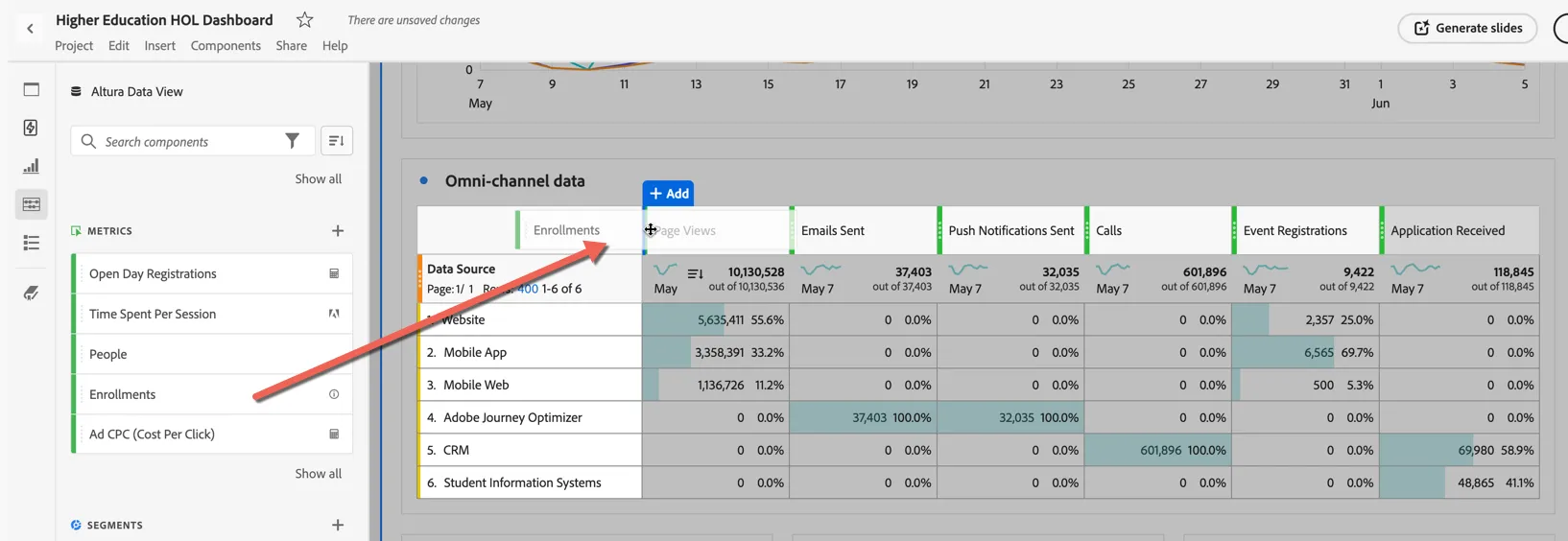
Find the Enrollments metric and drag to Add it to the table.
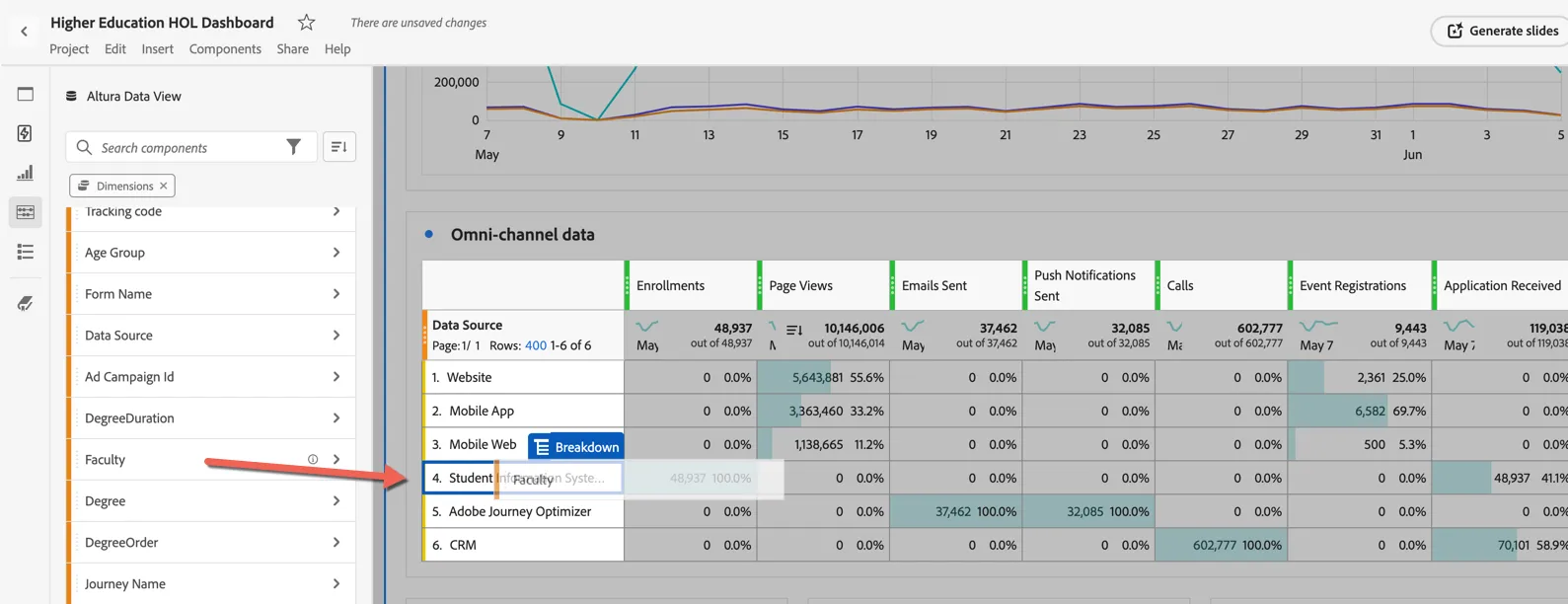
Find the Faculty dimension and drop it to Breakdown the Student information Systems data source.
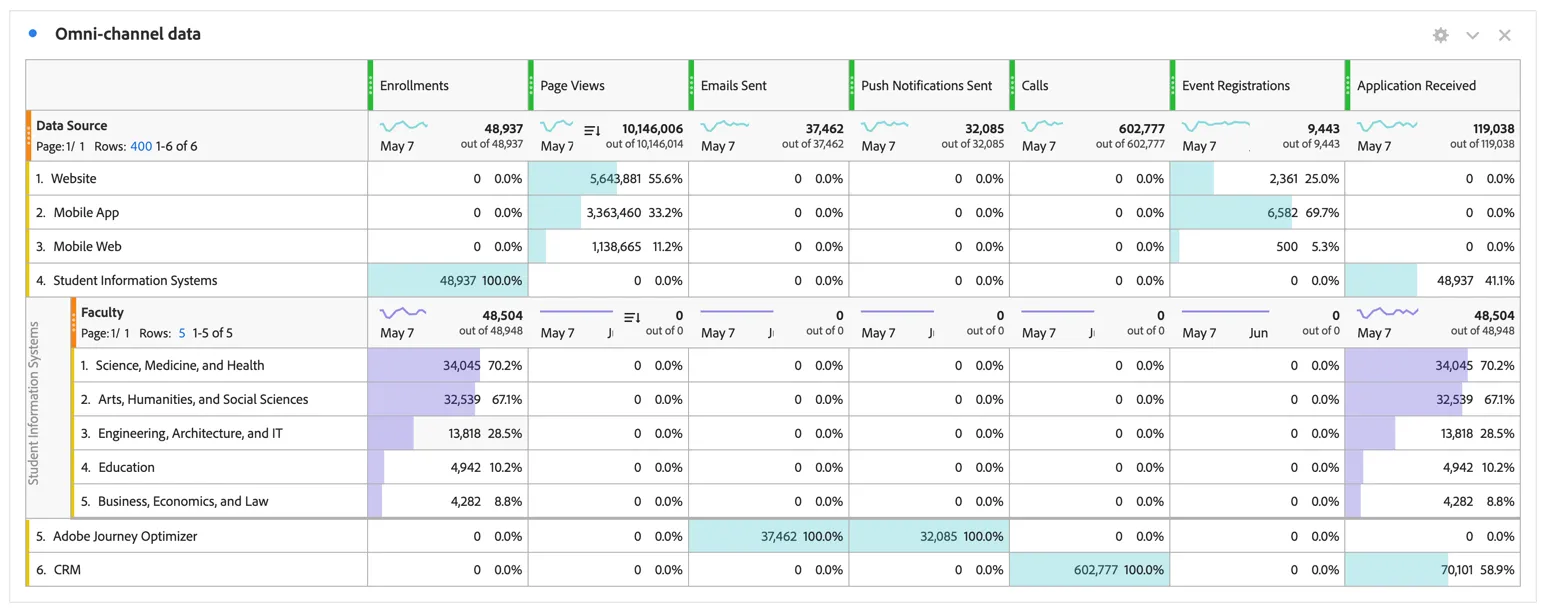
You can now see how many enrollments have been received within each faculty.
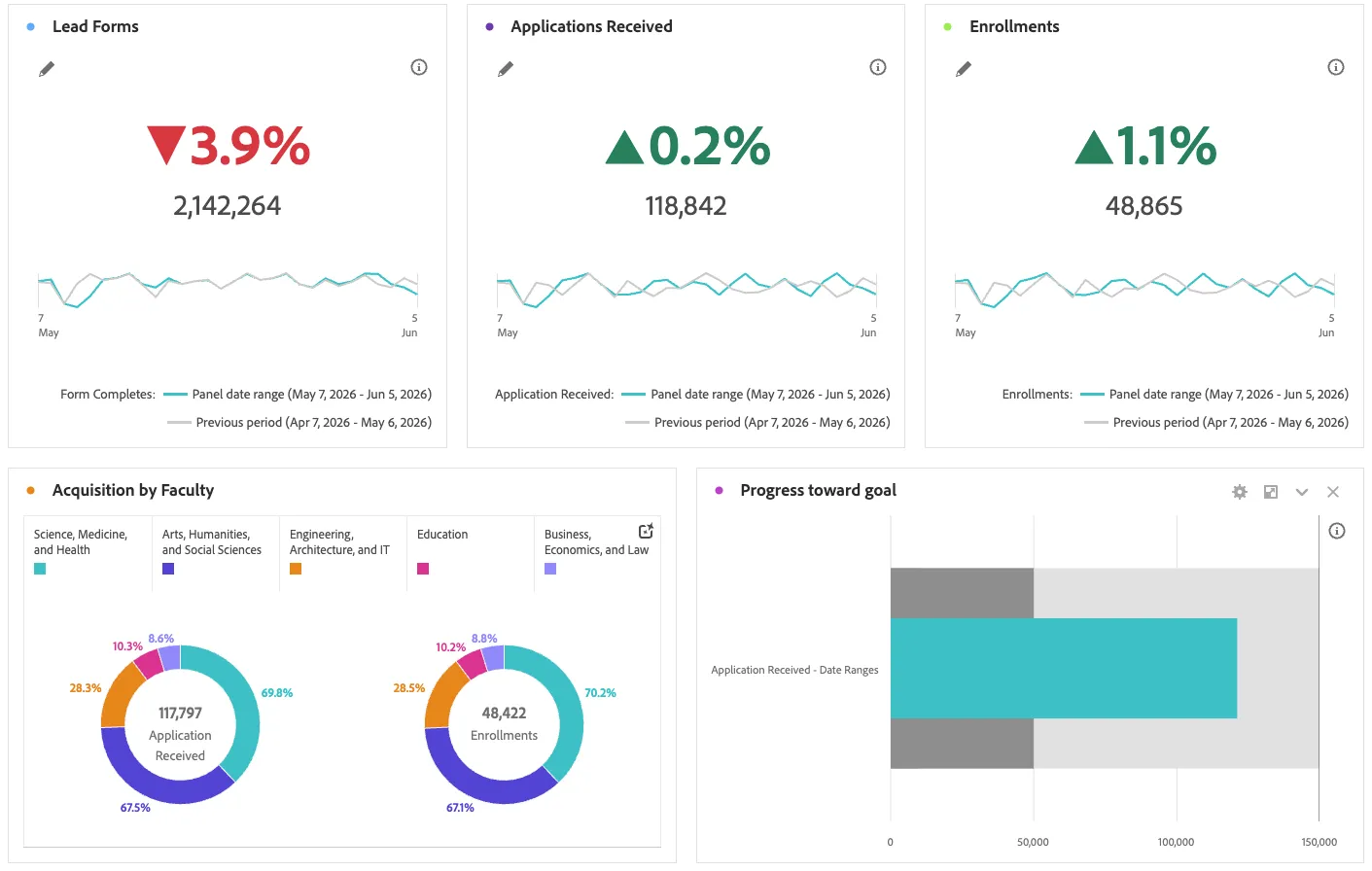
From this data we can start to add compelling and quick to read visualisations for key indicators across the university, such as Lead form submissions Month on Month growth rate, Acquisition by Faculty across both applications and enrollments, and progress measurement against set goals.
Segments are represented in blue and represent cohorts designed for analysis use cases. Unlike audiences, they are built for insight, not activation (although you can easily convert a CJA segment into an AEP Audience in a few clicks).
Scrolling down you can see the fallout analysis which shows where prospects are dropping off through the acquisition funnel. We can use segments to compare the fallout across cohorts.
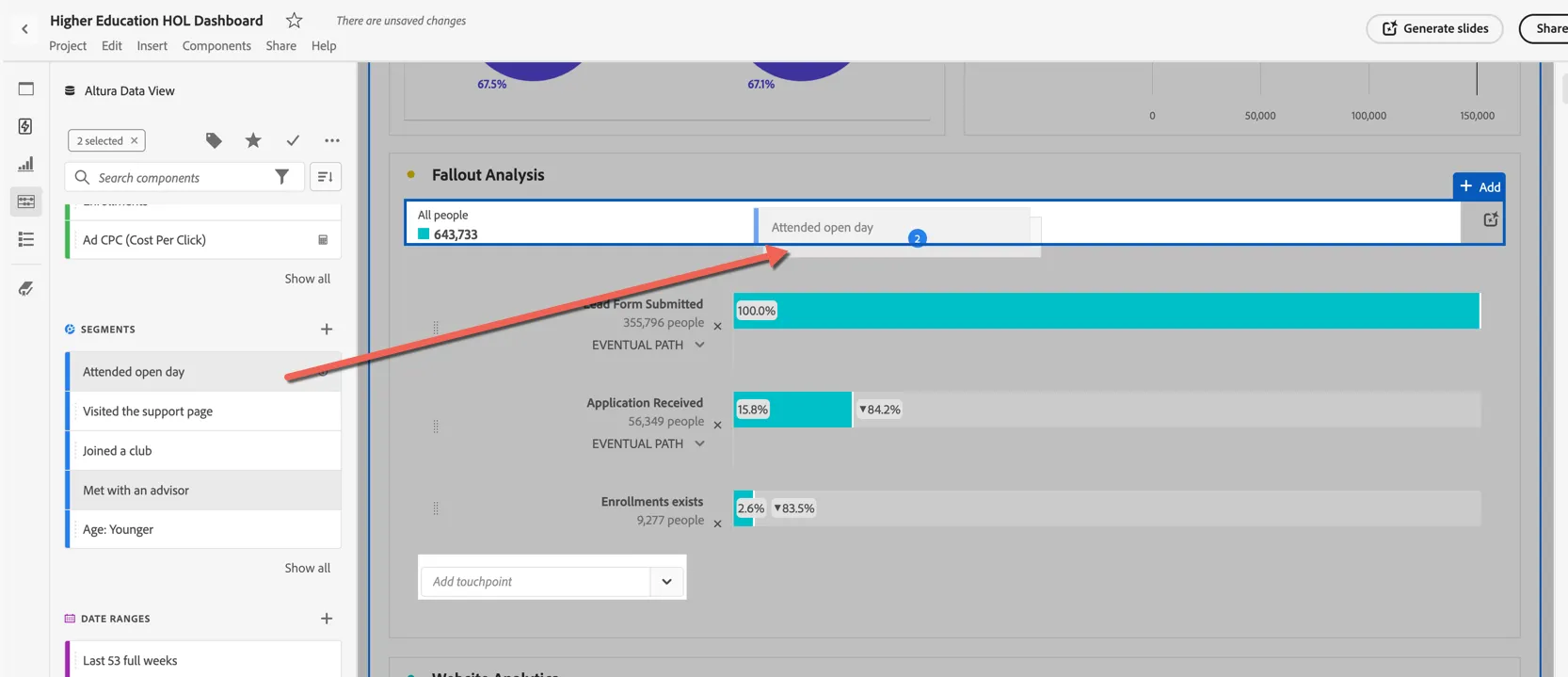
Select the Attended open day segment and the Met with an advisor segment and drag it to the top of the fallout.
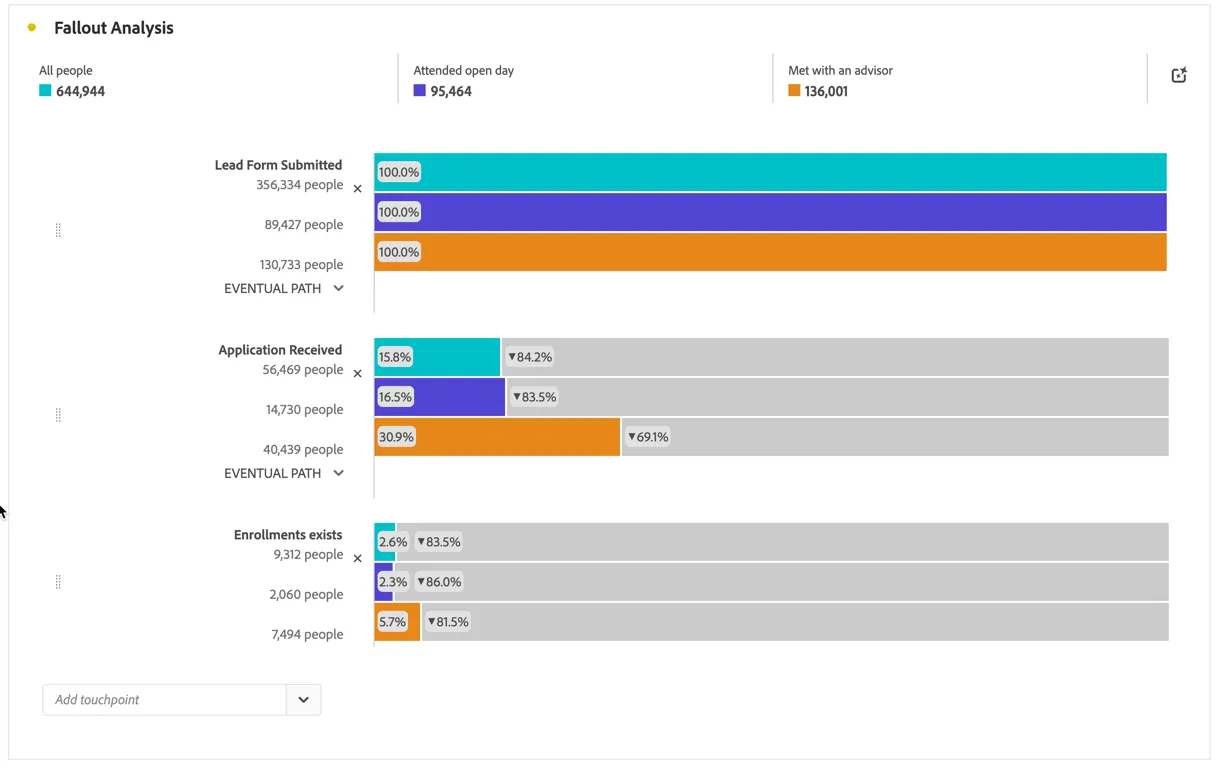
We can see that prospects who met with an advisor are much more likely to apply and to enroll, while attending open day seems to have only a moderate impact on the number of applications received.
With the basics under your belt let's move on!
AI Impact Analysis
In our story Mia uses ChatGPT to research university options before she ever lands on the Altura website. With the rise of Large Language Models and tools like ChatGPT and Gemini the way people are accessing websites has changed, this in turn means the way businesses and universities need to optimise their websites and their web experiences is also changing. People are landing on websites which much more information and clearer purpose than they used to.
In this exercise we'll look at how much traffic is coming to the Altura site from LLMs and whether there is any discernible impact on metrics like their time on site or what paths they take through the site.
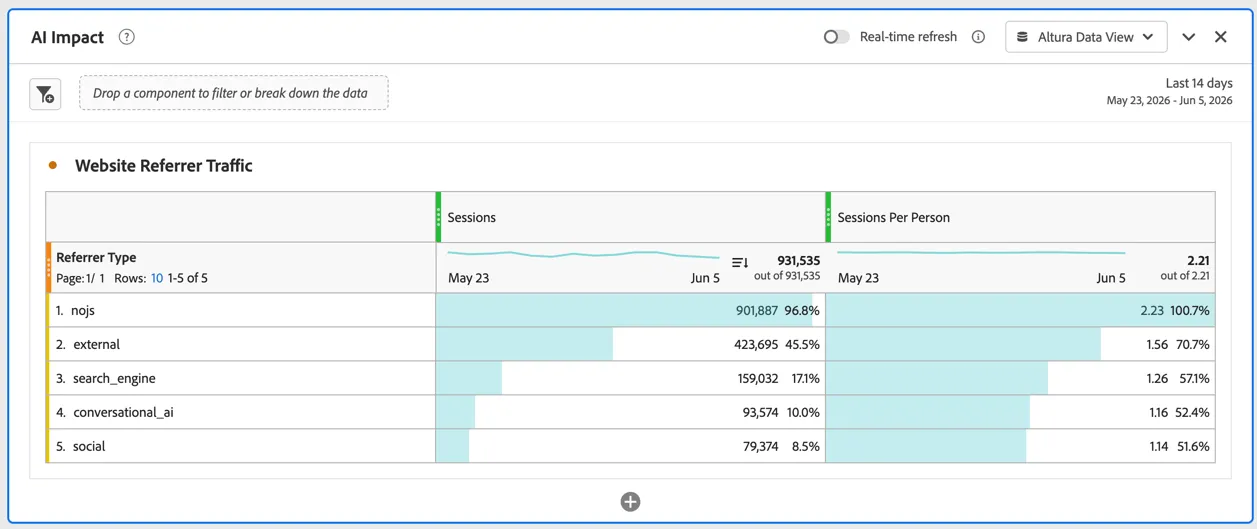
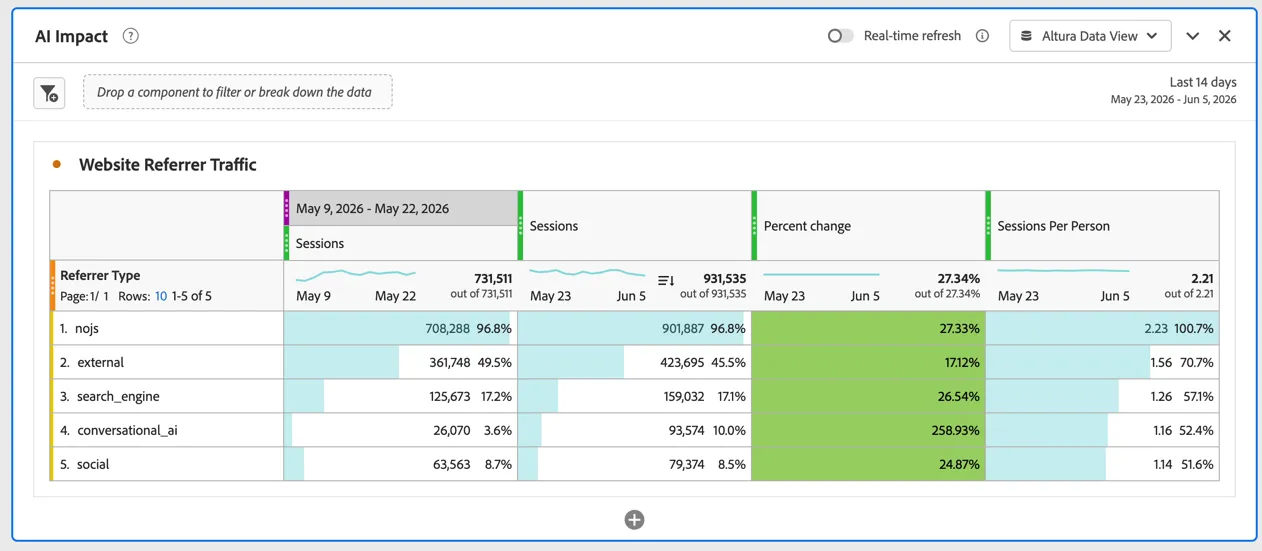
Scroll to the AI Impact panel. You can see a freeform table reporting the top website pages by number of sessions and sessions per person. We can see that 10% of Altura's website traffic (with referrer information) has come from Conversational AI (or LLMS).
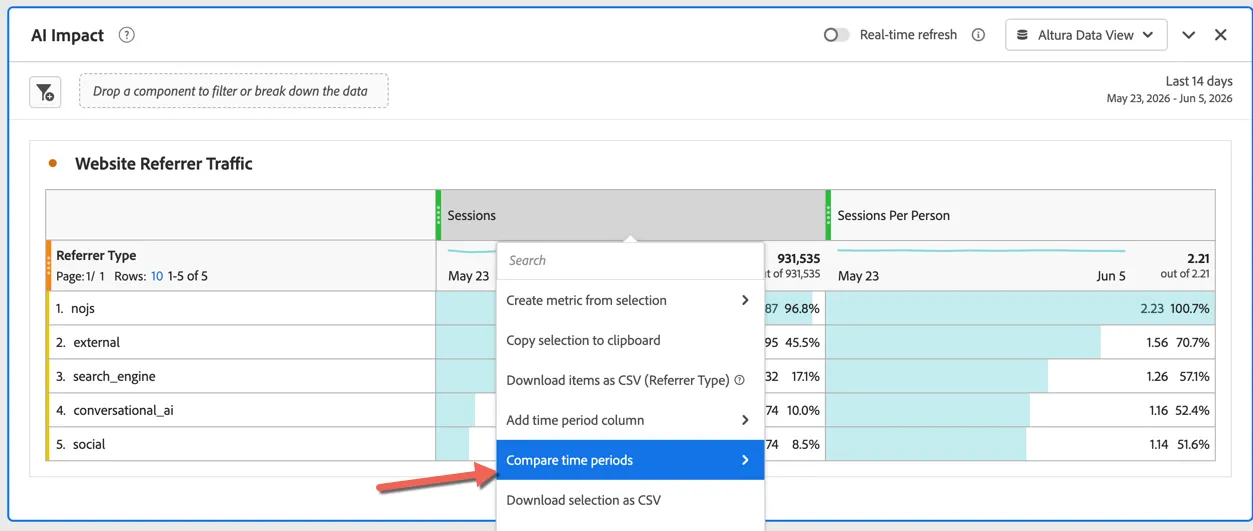
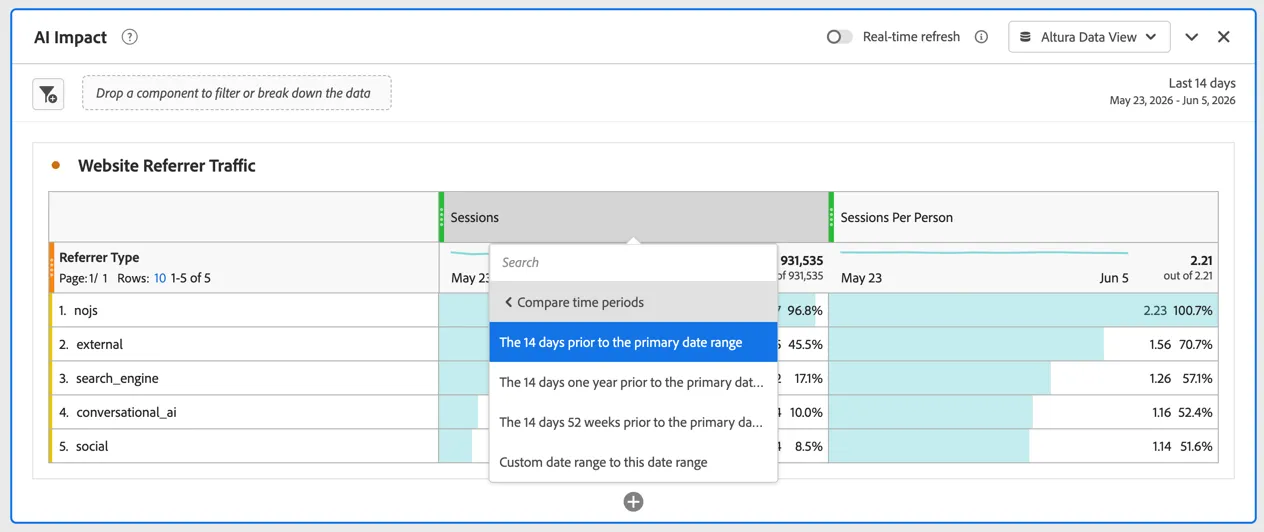
Right click on the sessions column heading and select Compare time period
Choose to compare with the 14 days prior to the primary date range.
We can see now that while it might only make up 10% of overall traffic it's growing at a rapid pace with a percent change over 200%.
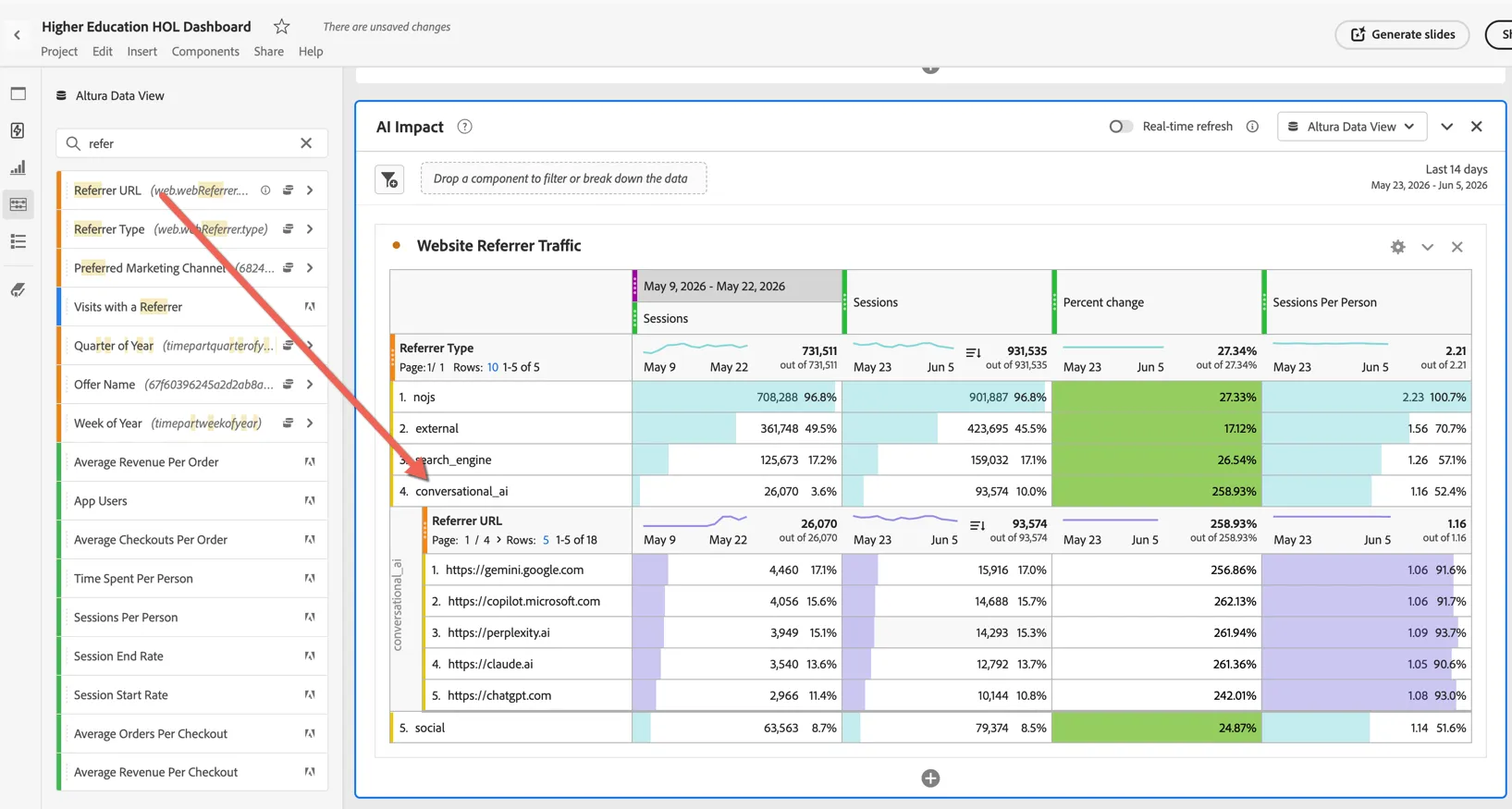
Add the referrer URL to see this broken down to individual apps.
Let's take a look now at what paths people are taking through the website after landing from an LLM. Do these paths deviate from what you expect?
Open the Visualisation panel in the left rail and drag a Flow visualisation and drop it below the table.
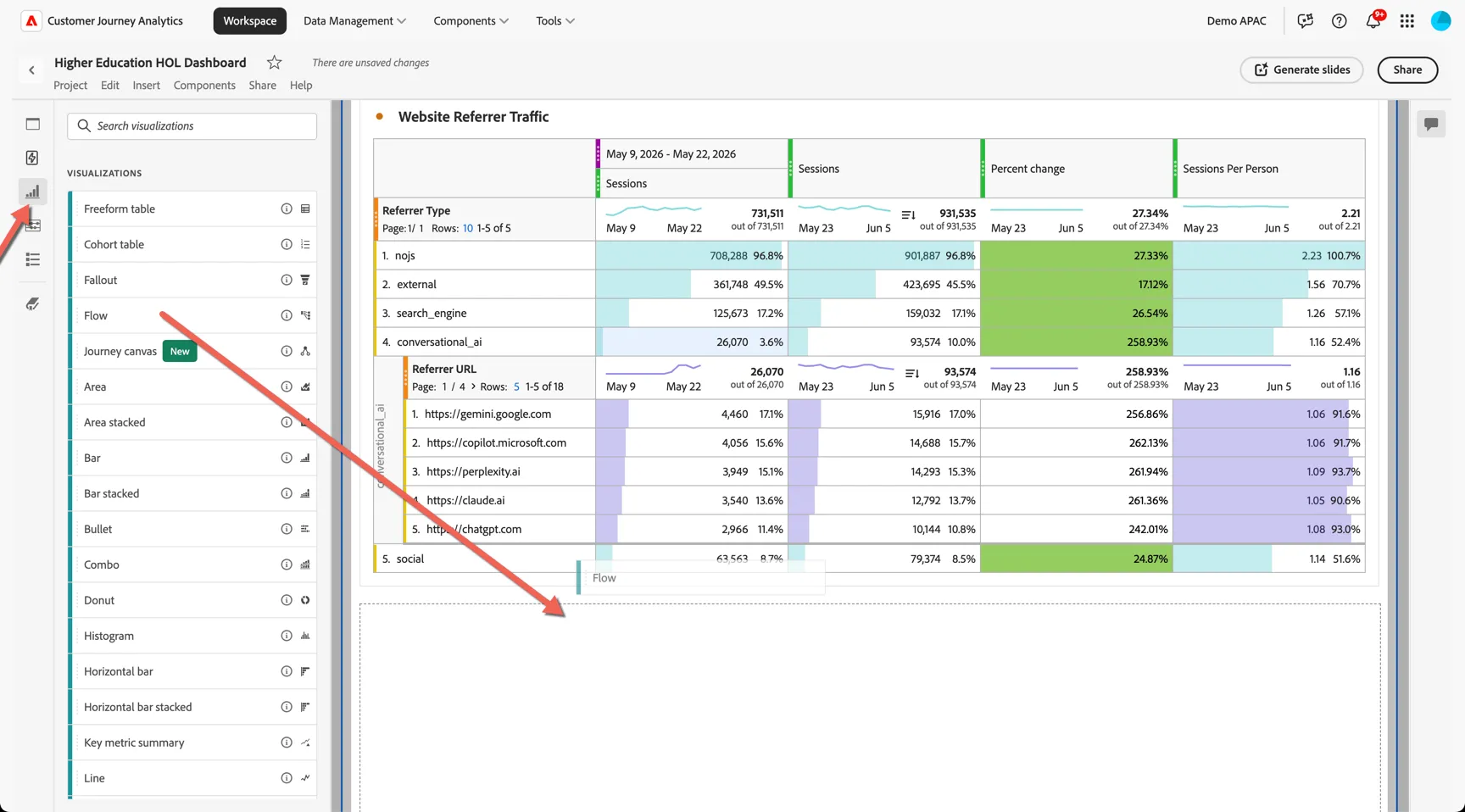
The flow visualisation let's us explore the journey people are taking across a single dimension or multiple dimensions either forwards from a specific starting point or backwards from an end point.
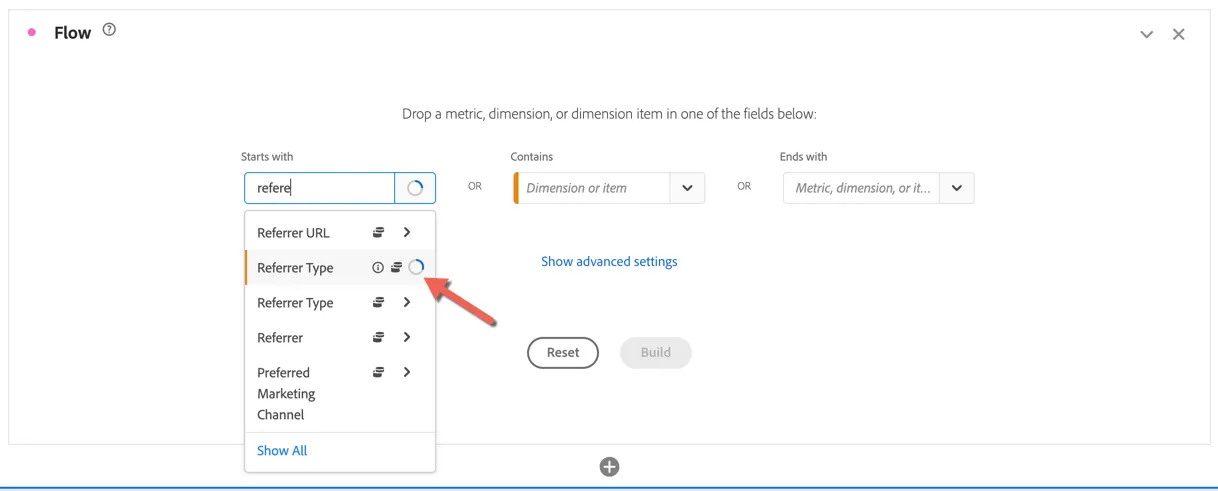
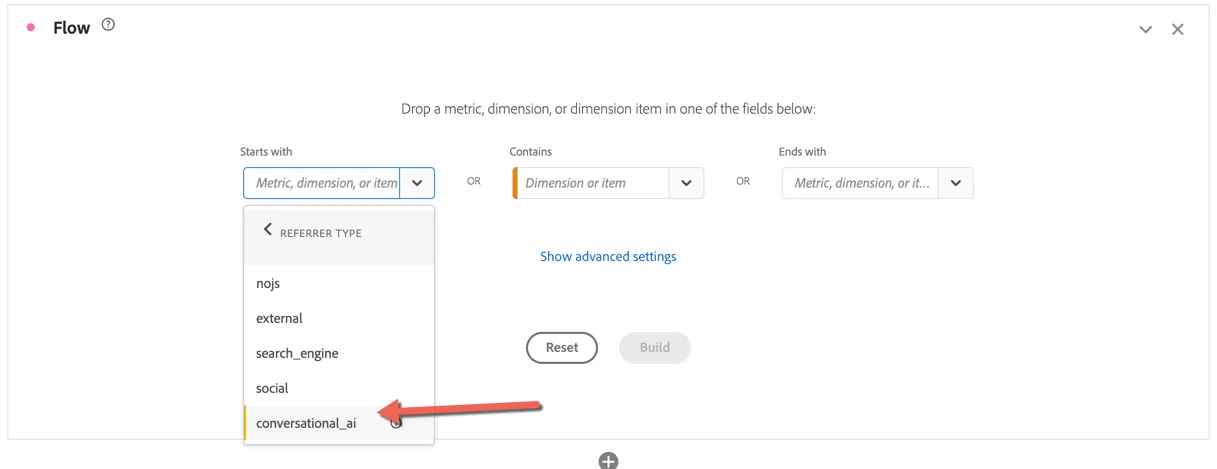
In the Starts with drop down, search for Referrer Type and click the arrow to drill into the dimension values. Pick the conversational AI value.
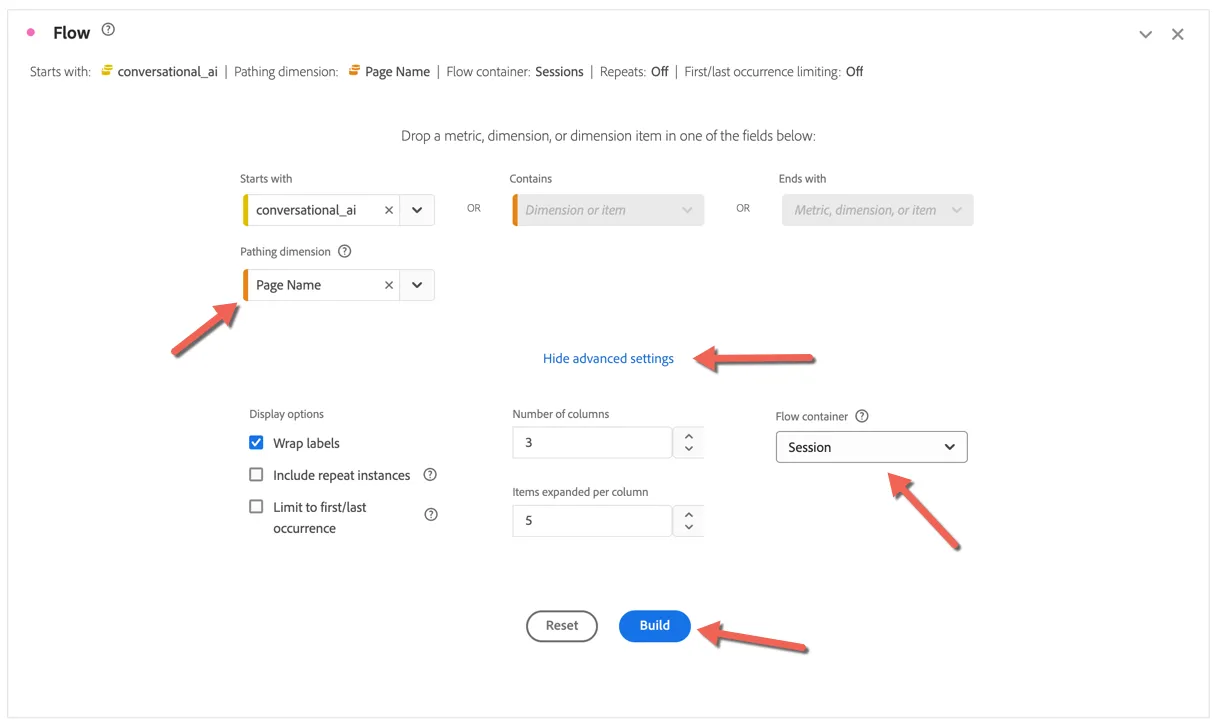
Change the pathing dimension to Page Name. In the advanced settings change the flow container from person to session and click to Build.
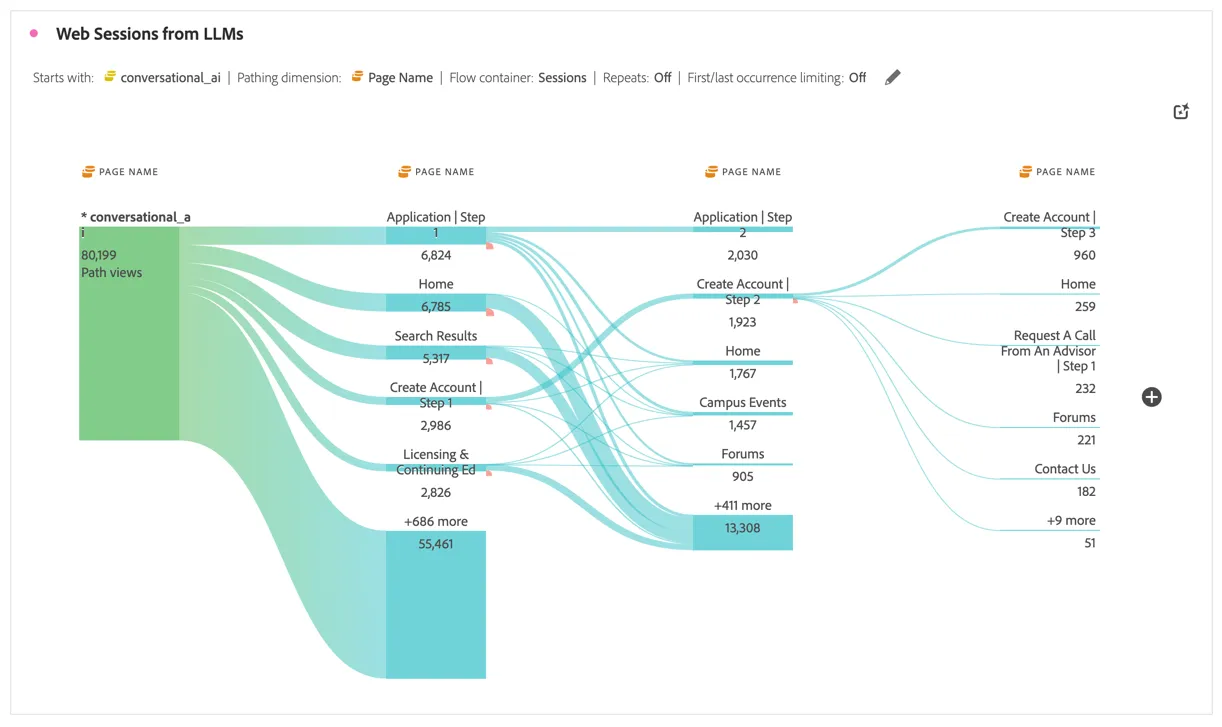
We can now explore which pages are being landed on from the LLM and what are the common paths people are taking from there.
Adobe's LLM Optimizer and our recently acquired Semrush solutions focus specifically on analysing and optimising your brand for LLMs (also known as Generative Engine Optimization). What you can see within Customer Journey Analytics is just the tip of the iceberg. Speak to one of the facilitators if you'd like to arrange a separate session to cover this in more detail.
Marketing Performance
Let's now look at which of Altura's marketing channels are driving the greatest impact on applications. For universities, connecting QTAC application outcomes back to marketing activity beyond owned channels is often difficult. By bringing together omni-channel data and unifying it at the person level, Customer Journey Analytics makes it much easier to measure the true impact of marketing across the full student journey.
You'll notice that google and meta have numbers for Advertising metrics such as Ad Impressions. Most advertising and social platforms don't provide person level reporting data, rather they provide aggregated daily stats. We refer to this as summary level data which we can ingest it directly from the ad platforms.
We only have summary data for Meta and Google in our data view but the same can be ingested from other platforms as well to ensure you have a holistic view of your paid advertising across channels.
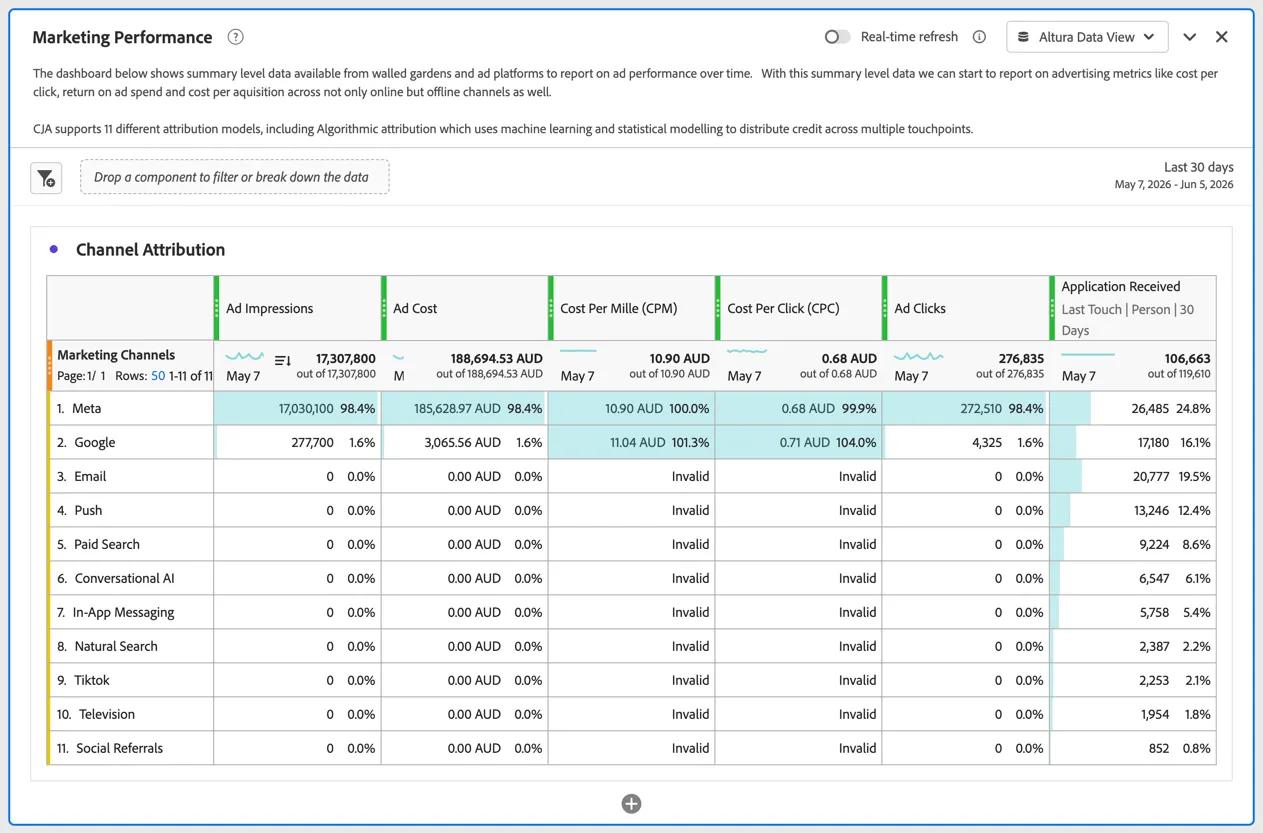
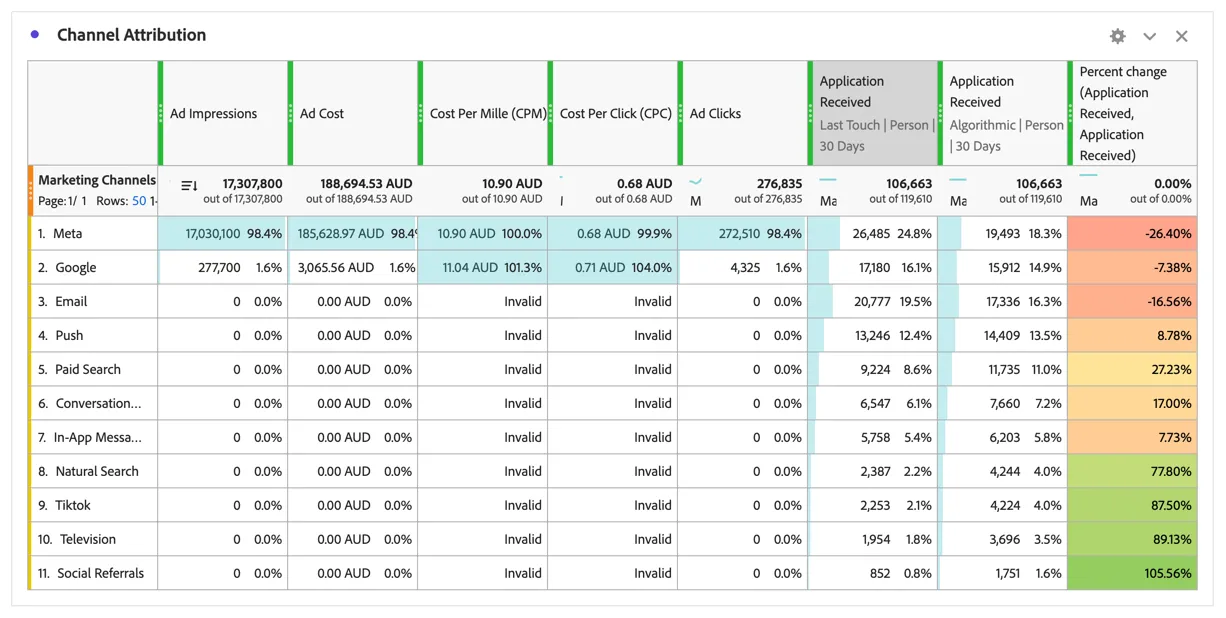
In the visualisation we've used a Last Touch attribution model to allocate 100% of the credit to the last channel that the student interacted with before applying. In today's world this is unlikely to be accurate, as we saw with Mia, she received communications and advertising material across multiple channels. With Adobe's Algorithmic attribution model we can use AI/ML to allocate credit intelligently across all channels that the student interacted with.
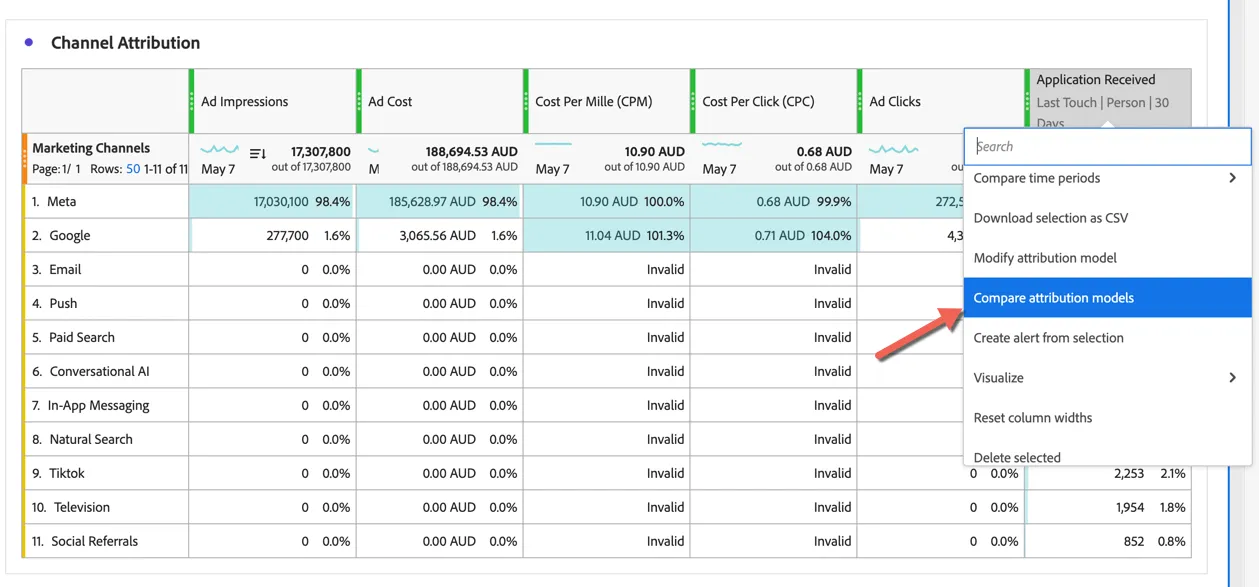
Right click on the Total Revenue column and select Compare attribution model.
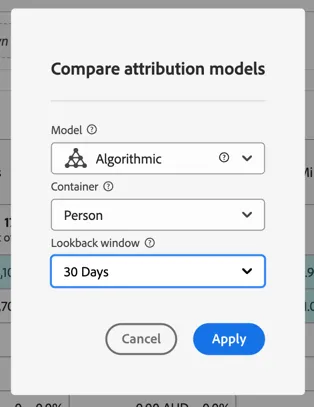
Select Algorithmic as the attribution model and keep the container and lookback window as Person and 30 Days.
We can see that the top channels were receiving far more credit than they should have for received applications.
If you're interested in learning more about Adobe's Campaign Marketing analysis including Mix-Modelling, ROI measurement, Forecasting and Budget planning speak to a facilitator about scheduling a separate session.
Identifying Risk Factors
While acquisition is important, getting new students successfully through their first year is also a focus area for Altura. In this exercise we'll analyse common behaviours and see how they impact student success.
Scroll to the New Student Retention panel, here you can see the number of enrollments vs withdrawals.
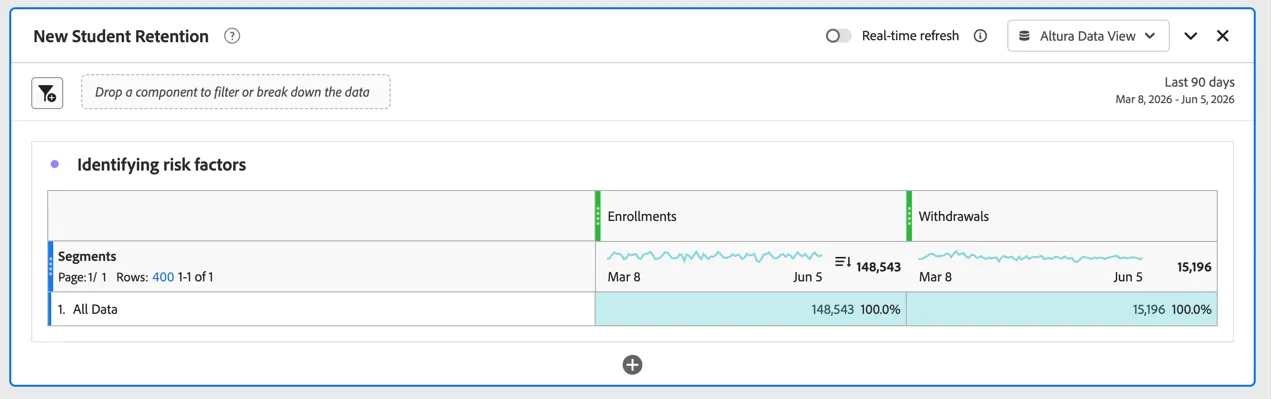
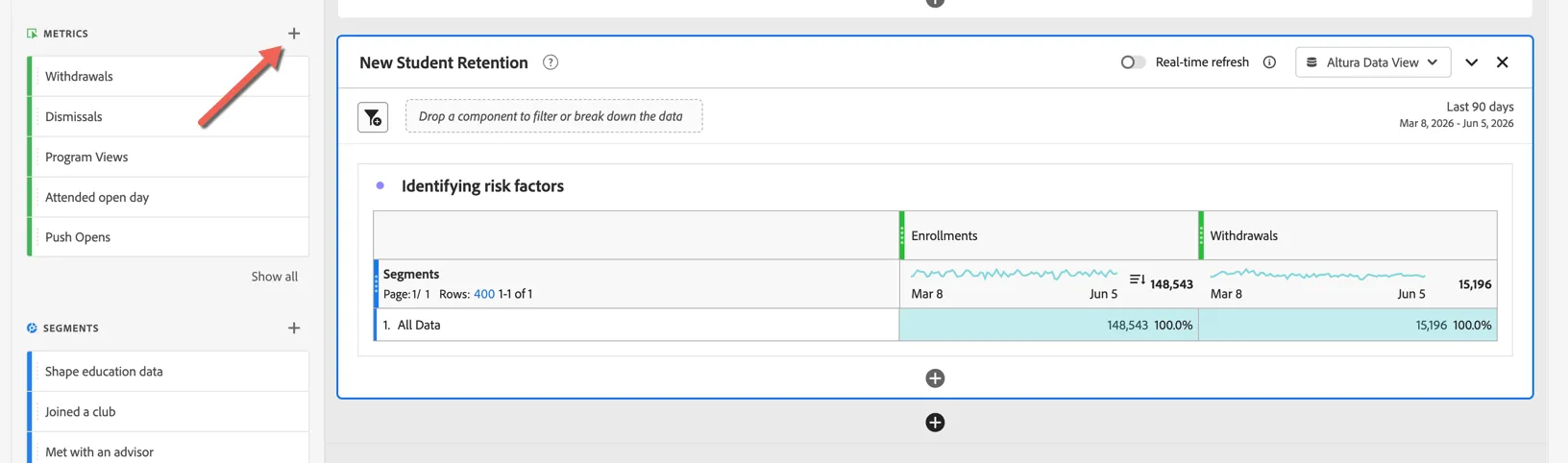
We can display this as a drop out rate by creating a calculated metric. Click the + icon next to the Metrics heading in the components left rail.
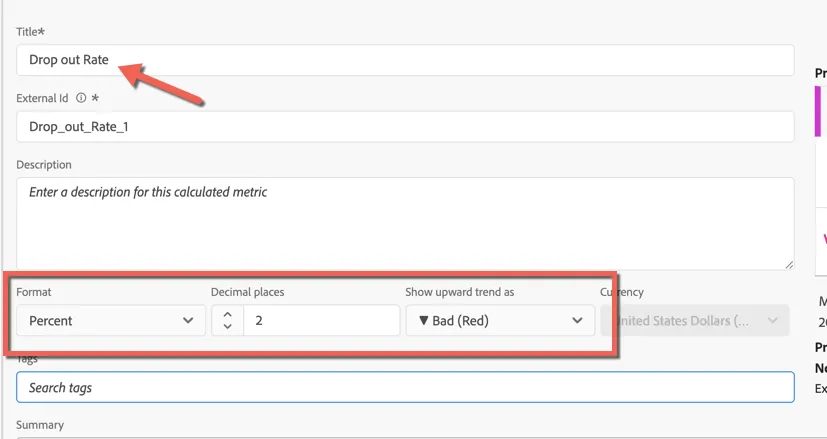
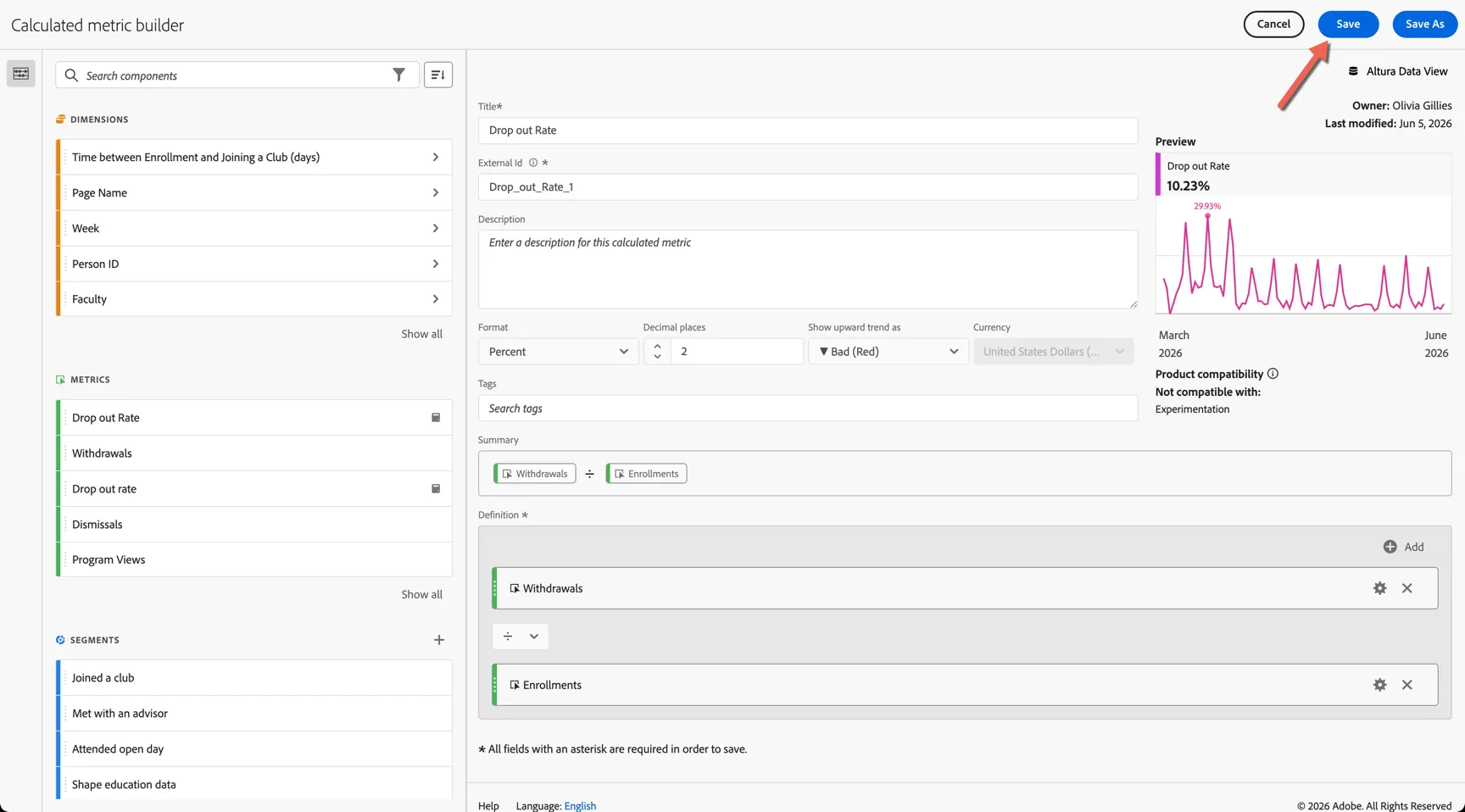
Name your metric Drop out rate and update the:
- Format to Percent
- Decimal Places to 2
- Show Upward trend as Bad (Red).
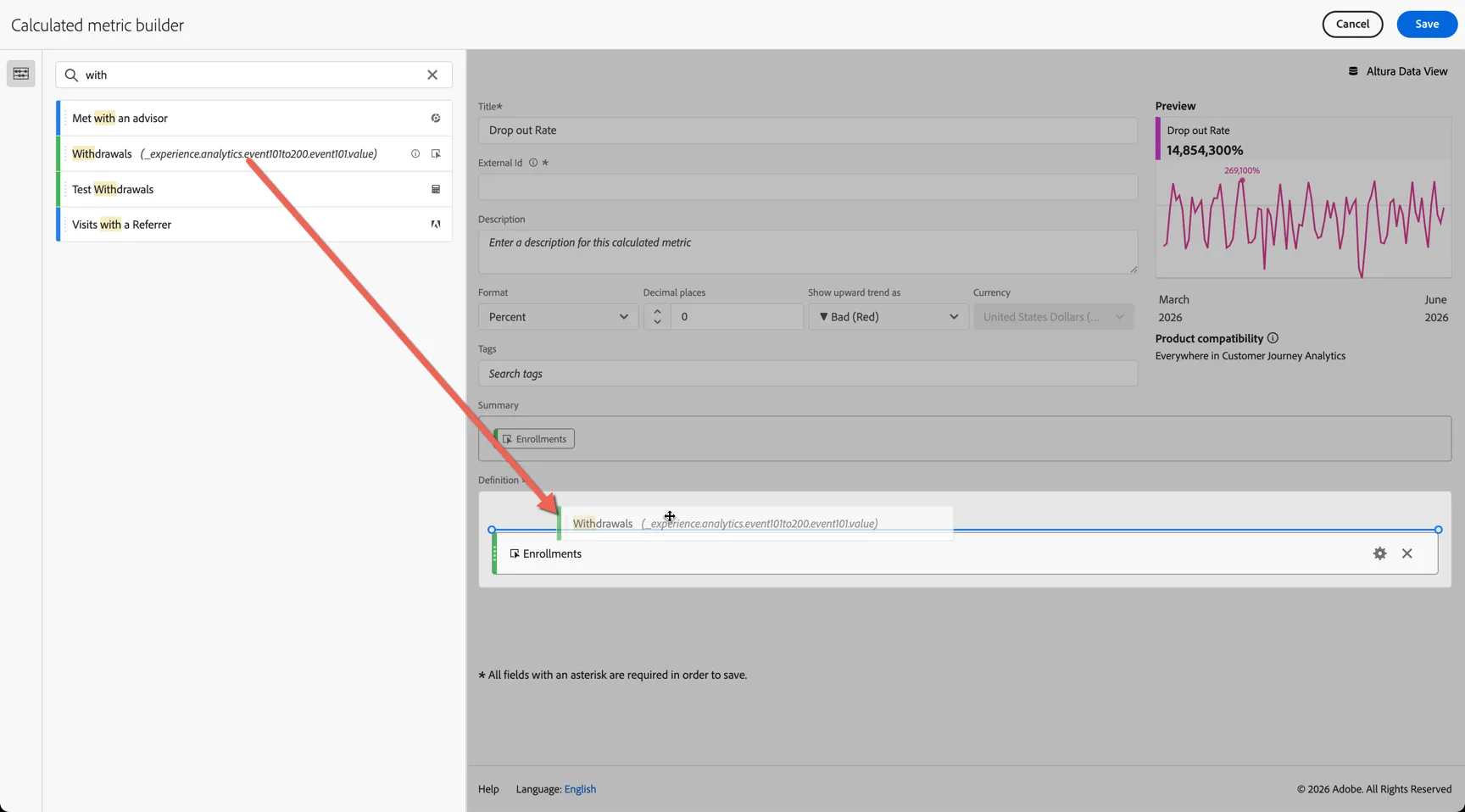
Next we'll add our calculation. Drag the Enrollments metric into the definition area.
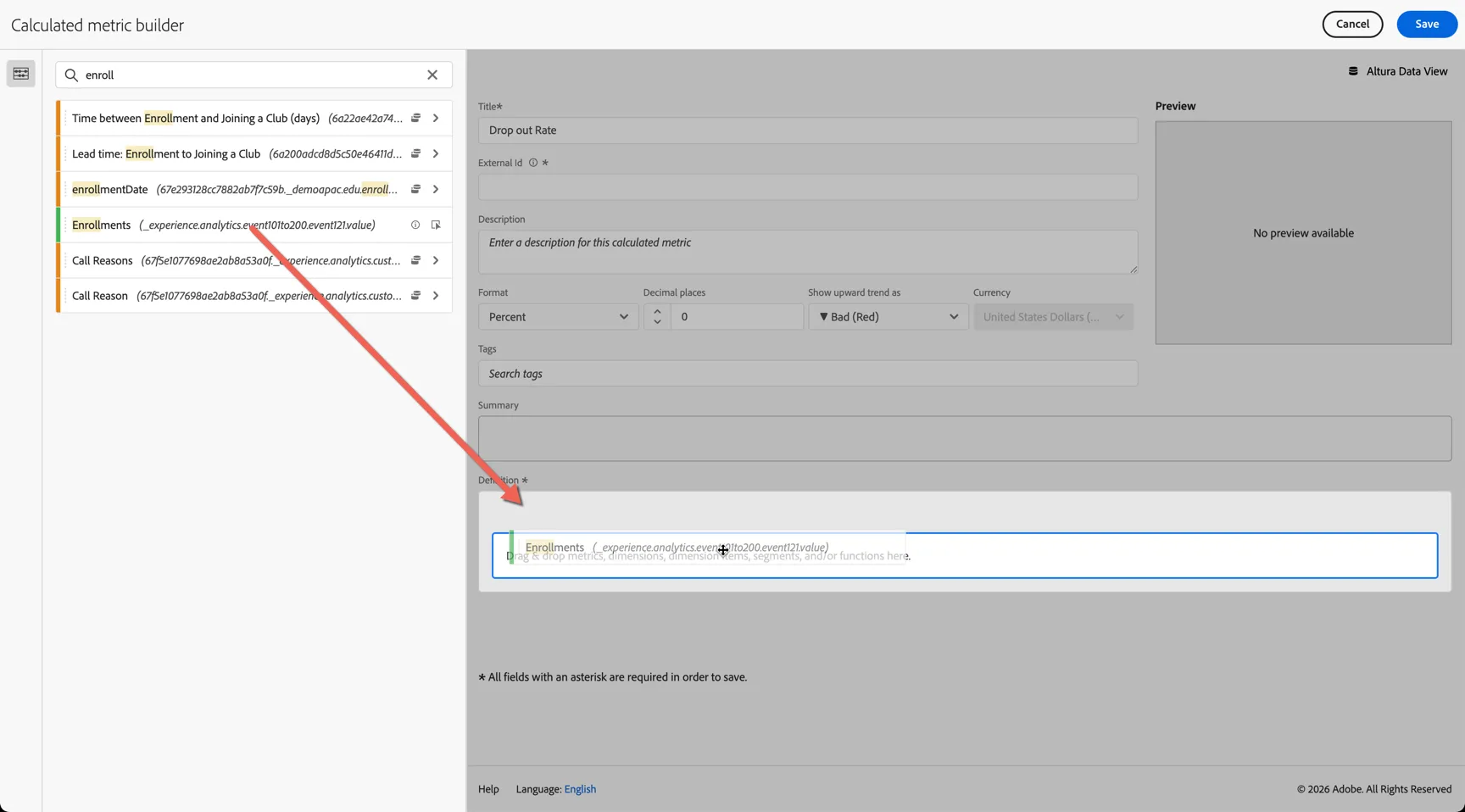
Now drag the Withdrawals metric and drop it above the Enrollments metric.
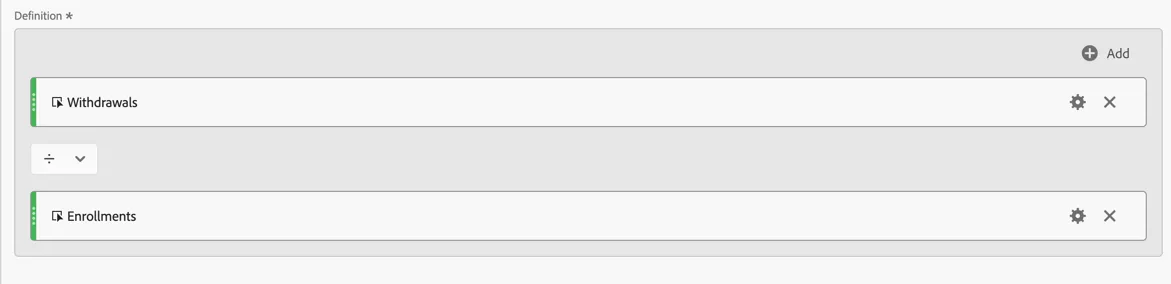
The default operation is division so no need to update it. Your new metric definition should look like this:
Click to save your metric and return to the dashboard.
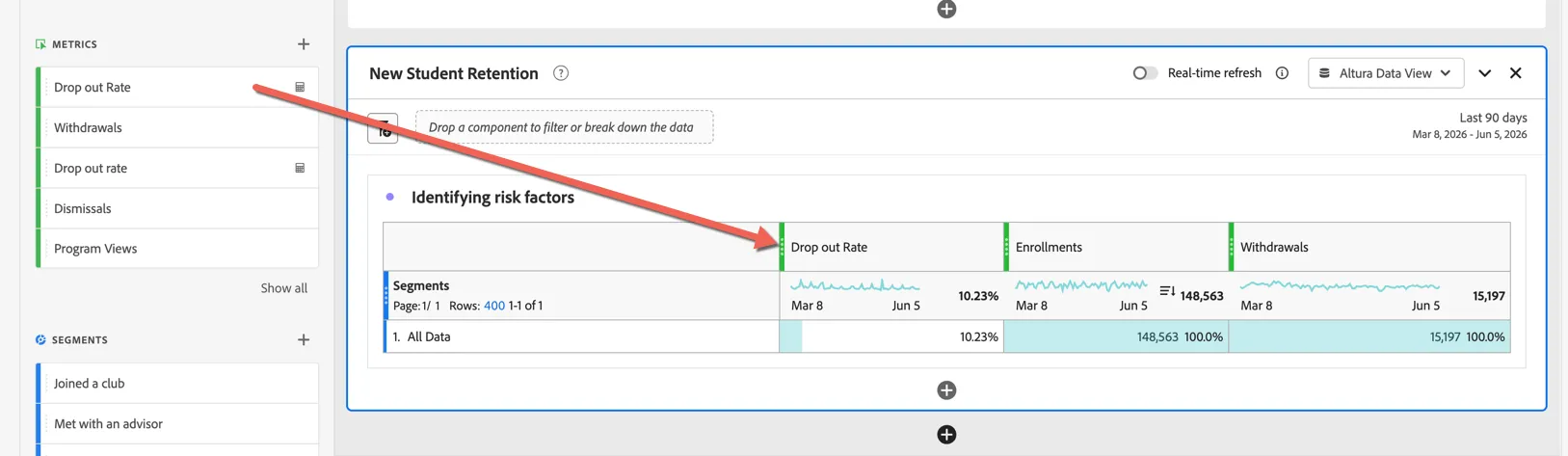
Your new metric is now available to add to your analysis, drag it into your table.
We can add additional person based segments to understand whether specific actions impact the drop out rate.
Drag the following pre-created segments and add them as dimensions to your table.
- Joined a club
- Met with an advisor
- High Email Engagement
- Visited the support page
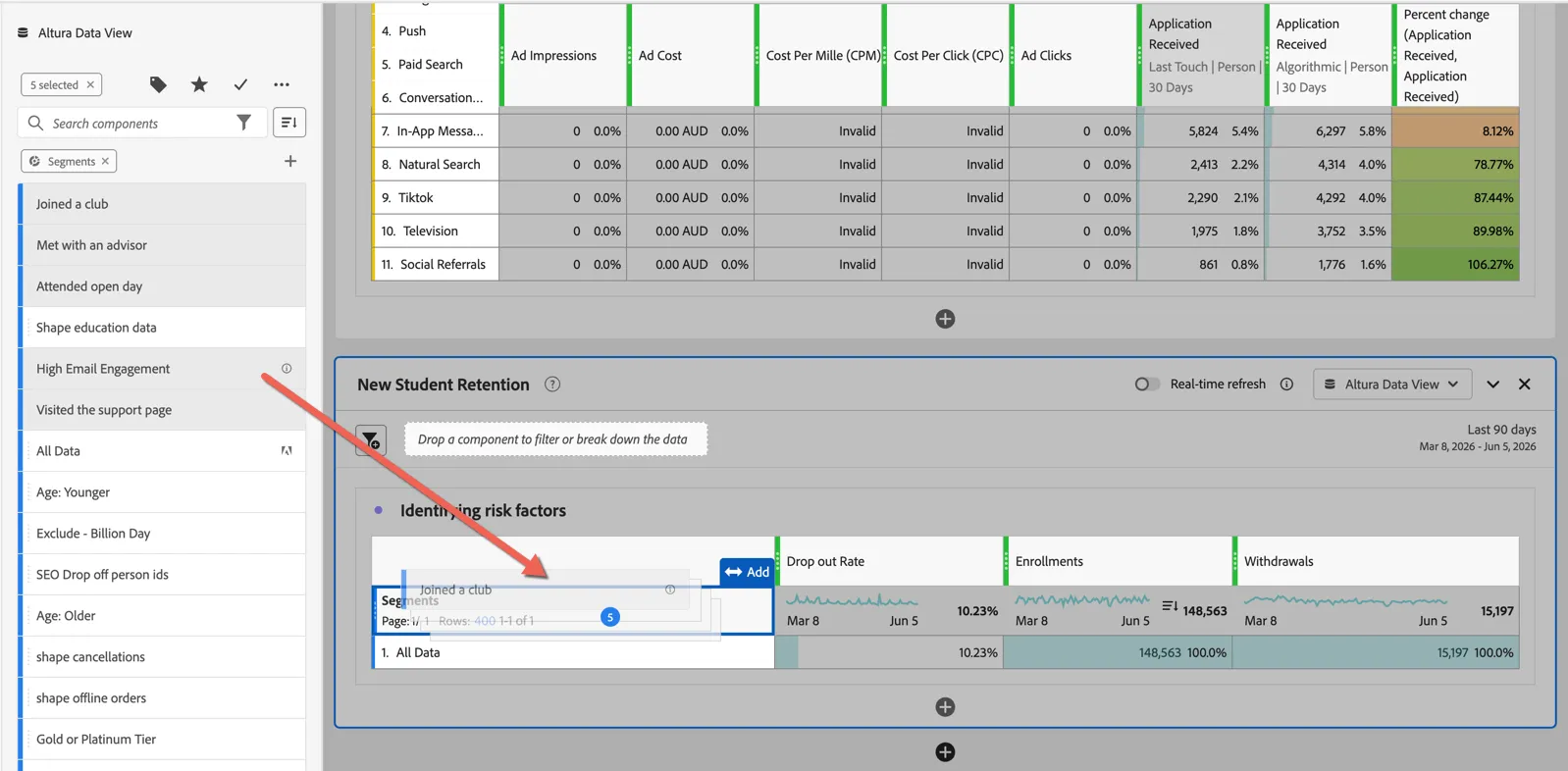
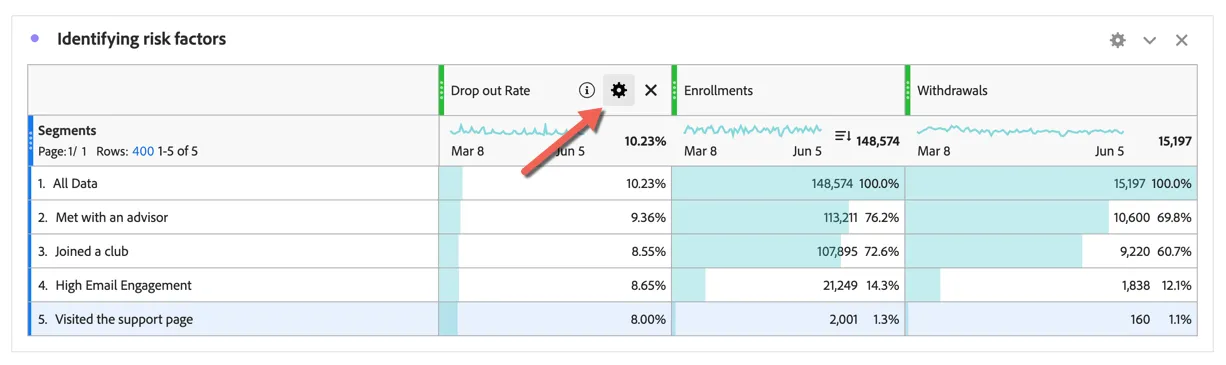
We can see that all of these actions have had a positive impact on the drop out rate. To aid the analysis click the cog icon in the Drop out Rate column heading.
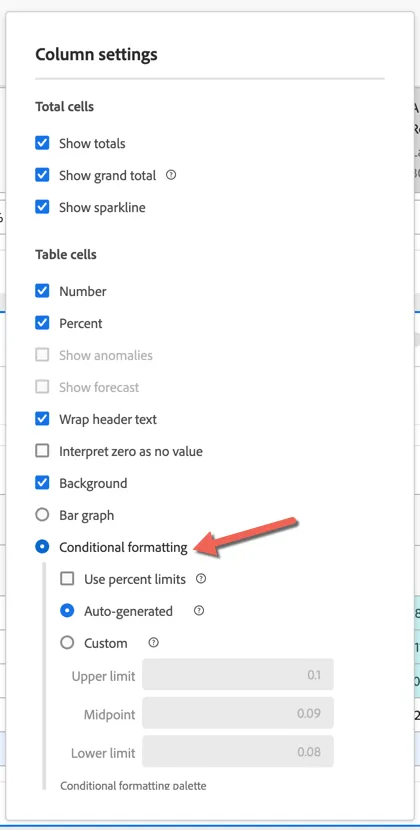
Update the column settings to show the values using Conditional Formatting.
Click to return to the dashboard - the column is now coloured to highlight the rows who performed the best.
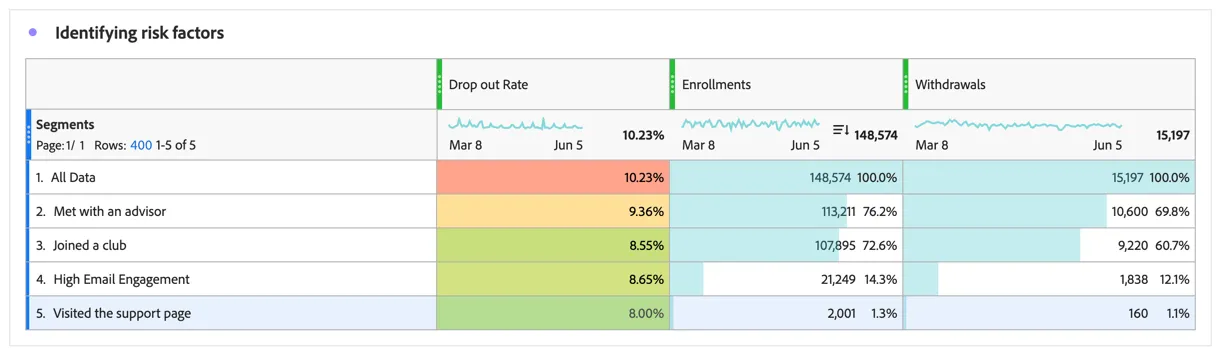
We can see that the visiting the support page has the lowest drop out rate, but these numbers are pretty small, only 1.3% of enrollments visited the page, perhaps an awareness campaign is warranted to help inform students about the digital support resources that Altura have available.
Students who joined a club have the second lowest drop out rate, let's take this analysis further and look at whether when they join a club after enrolling has any material impact - this can help to inform the onboarding journey.
Drag the Time between Enrollment and Joining a club dimension into your table as a breakdown. This is a special type of dimension called a Derived Field. It uses date math to calculate the time between two events.
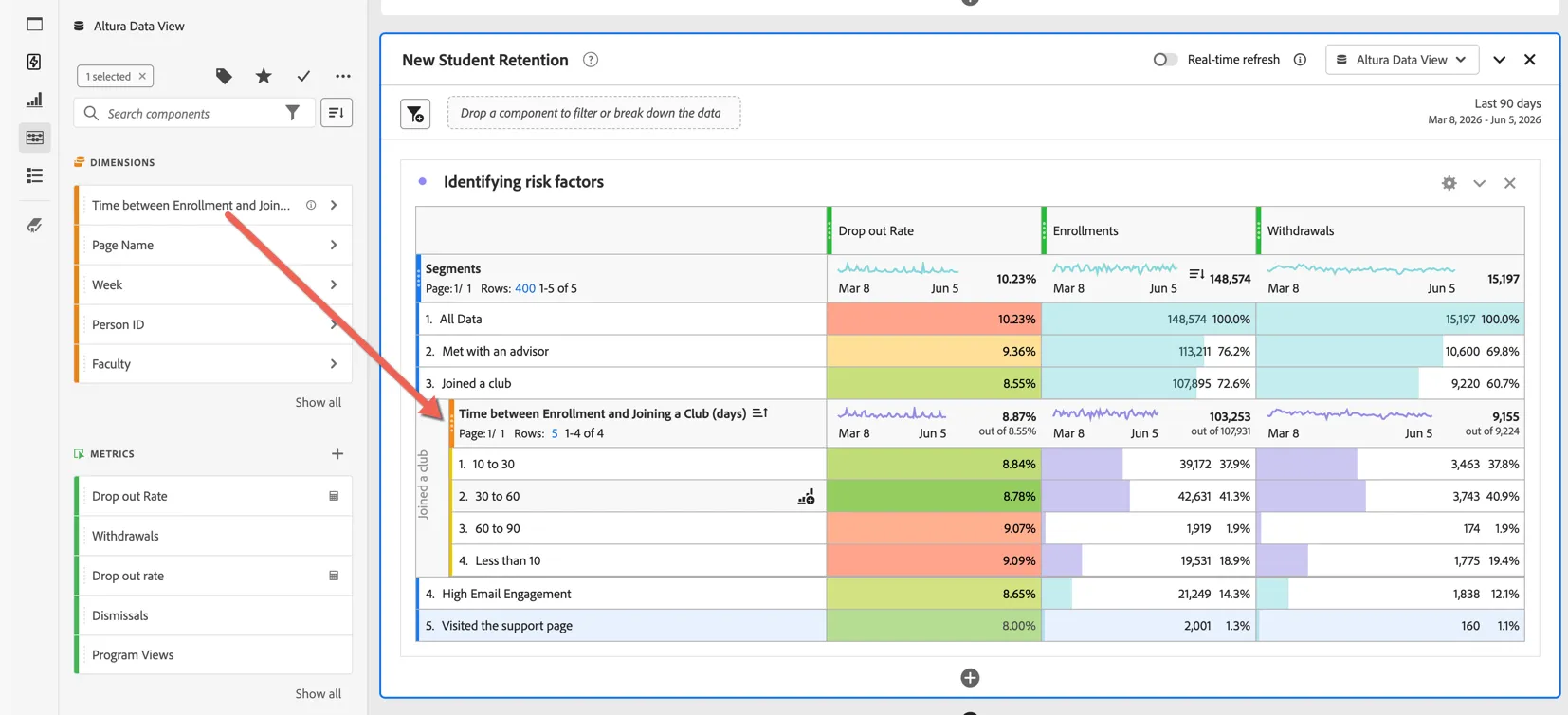
Overall it looks like students joining within the first 2 months after enrolling are the least likely to drop out, Altura can make sure their onboarding journey promotes club membership during this period.
Click to ctrl S to save your dashboard.
Congratulations you've finished your analysis in Customer Journey Analytics. You could now share it with other users, schedule it to be emailed or use AI to generate slides from your analysis for presentation to management.
Take Away
Great marketing isn't just about what you do next - it's about understanding what's already working and why. Customer Journey Analytics gives marketers the ability to analyse behaviour across every channel in one place, build cohorts to understand how different segments progress through the funnel, and apply AI-driven attribution models that reflect the true contribution of each touchpoint. These insights don't just inform reporting, they directly shape future journey design, audience strategy, and budget allocation, creating a continuous feedback loop between performance data and marketing execution.